Backup Solutions
January 16, 2014
Mission
The purpose of this meeting is to inform and introduce
technology to Chamber members, not necessarily to give
a complete education on the topics discussed.
Some of the technologies discussed are quite often
available through Chamber member companies, including
several of the volunteers in the subcommittee. Other
topics are presented as classes by the Chambers.
If you would like to discuss any of these topics more indepth, please contact one of the subcommittee members
after the meeting and we’ll get you in touch with the best
contact for your interest.
Sub-Committee
Chamber Member Companies working together to
bring you the information on the technological topics
that interest you and can benefit your business!
Co-Chairman
Ken Tucker, Changescape Web
Mark Peimann, EPC Computers

Andy Kastrup, ProTronics Technologies, Inc.
Art & Candy Zemon, Hen’s Teeth Network
Beth Richter, ProTronics Technologies, Inc.
Don & David Weir, Managed Computer Services
Paul Barthel, Minuteman Press
Randy Downs, Independent Consultant
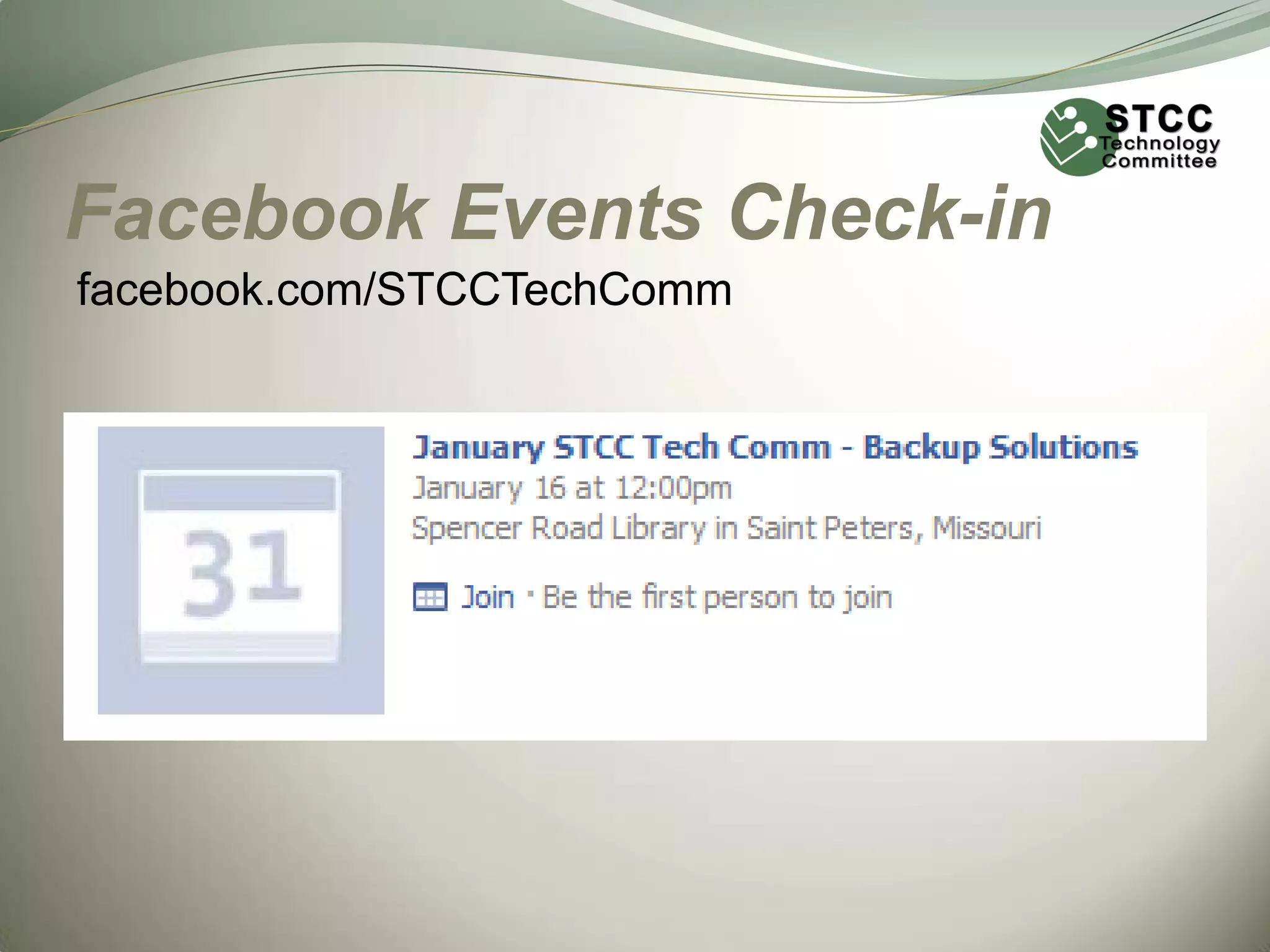
Facebook Events Check-in
facebook.com/STCCTechComm
Backups
 Get something in place ASAP

 Don't get paralyzed because you can't do everything
 Almost anything you do will be better than doing

nothing
Reasons to Backup Data…
EXAMPLES:
 Your office just burned down. Everything inside was
destroyed!
 Your car, with your laptop, was just stolen!
 You deleted which file?!?!?!
 You visited HooBoy.xxx and now QuickBooks won't
open!
 US Customs & Border Protection confiscated your
laptop and your thumb drive. You'll get them back
someday... maybe.
Considerations
 Identify the problem
 Recovery time
 Backup schedule

 Retention time
2 Distinct Problems
 Entire computer will not boot or has been destroyed
 A “few” files were damaged or deleted
How Quick?
 When disaster hits, can you wait a few
 Minutes?
 Hours?
 Days?
 Faster recovery == More money
Backup Schedule
 How much can you afford to lose?
 Absolutely nothing?
 A minute?
 An hour?
 A business day?
 A whole week of work?
 Time of day
 Not necessarily in the middle of the night
 More frequent == More complex
Keep backups for how long?
 Backup retention
 How long to keep the backups
 How many copies
 How long will it take you to discover the problem?
 Weekends + holidays = delays
 Embarrassed employees = delays
Consider the Material
 Different solutions for different stuff
 Data files
 Large files: photos, videos, audio
 Purchased programs
 Operating system
 Some material might not be on your computer
 Receipts
 Installation media
 Certificates of authenticity / Product Key Codes /
Activation Codes
Backups are a Process
 Backup software/hardware is just the first step
1)Plan your backups
2)Execute the plan
3)Test now. Don't wait for a disaster!
Backups
 Get something in place ASAP
 Don't get paralyzed because you can't do everything
 Almost anything you do will be better than doing

nothing
 Ask us for help
Backup Types
 Full System Backup (OS, Applications & Data)
 Full Data Backup
 Incremental vs Differential
 This is actually a trade-off.

Differential backup offers a full system backup at regular intervals, so naturally it takes longer
and requires more capacity.
 Differential Example: (Weekly) Do a full backup every Sunday. Then on Monday, only files that
have changed since the full backup on Sunday. On Tuesday, only files that have changed
since the full backup on Sunday (Essentially, the Tuesday differential replaces the Monday
differential)


Incremental backup only backs up files that have changed since the last backup (full or
incremental), so it's quicker but has a longer recovery time since it has to restore data from
multiple incrementals
 Incremental Example: (Weekly) Do a full backup on Sunday and incrementals during the
week. On Monday only data that has changed since Sunday and then on Tuesday, only data
that has changed since Monday, etc. So if something happens on Saturday, you would need to
use 6 backups to restore data.

Off Site Vs. Local Backups
 Serve different purposes
 Some overlap between them
 Recovery may be slower with off site backup
 Local backup IS NOT disaster recovery
 Local backup is ideal for quick recovery of

deleted files and normally uses an external
drive
Backup Versioning
 Versioning allows you to keep different versions
of the same file – You have edited the files
several times and don't want the next backup to
over write them.
Hard Drive Cloning
(Imaging)
 Cloning – or imaging – a hard drive creates an
exact replica of a hard drive.

 Good for hard drives where data doesn't change
 Servers and workstations with operating system
on one drive and data on others
Example for Windows:
Macrium Reflect Free: http://www.macrium.com/reflectfree.aspx
Example for Mac:
Carbon Copy Cloner: http://www.bombich.com/
Backup Software
 Windows Backup (Included with Windows)
 Full Backups
 Versioning
 No Differential Backup
 Allows you to backup to a drive but does not

allow you to pick a folder on that drive

 Cobian Backup
 Full & Differential Backups
 Versioning
http://www.cobiansoft.com/cobianbackup.htm
Backup Software
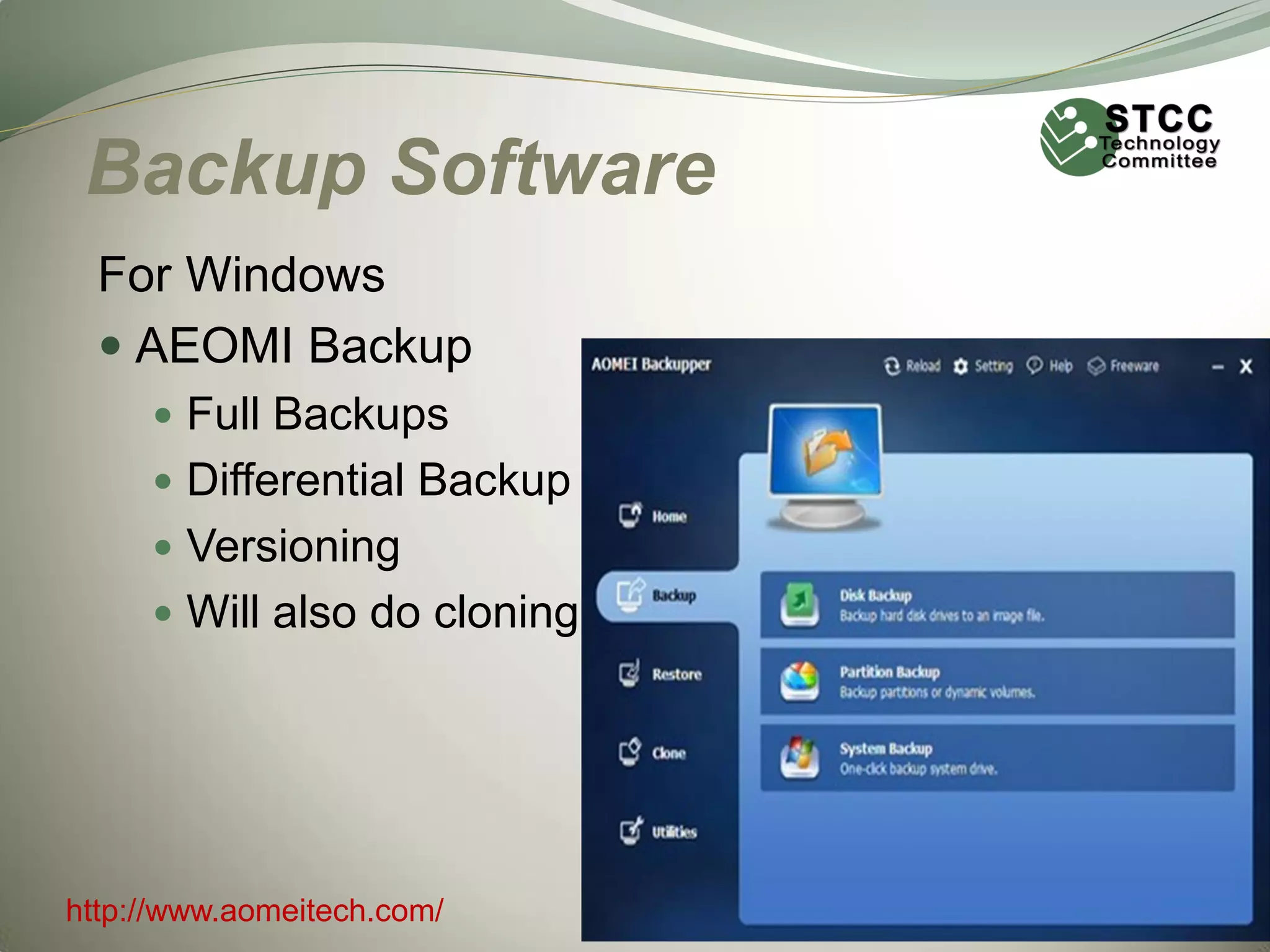
For Windows
 AEOMI Backup
 Full Backups
 Differential Backup
 Versioning

 Will also do cloning

http://www.aomeitech.com/
Backup Software
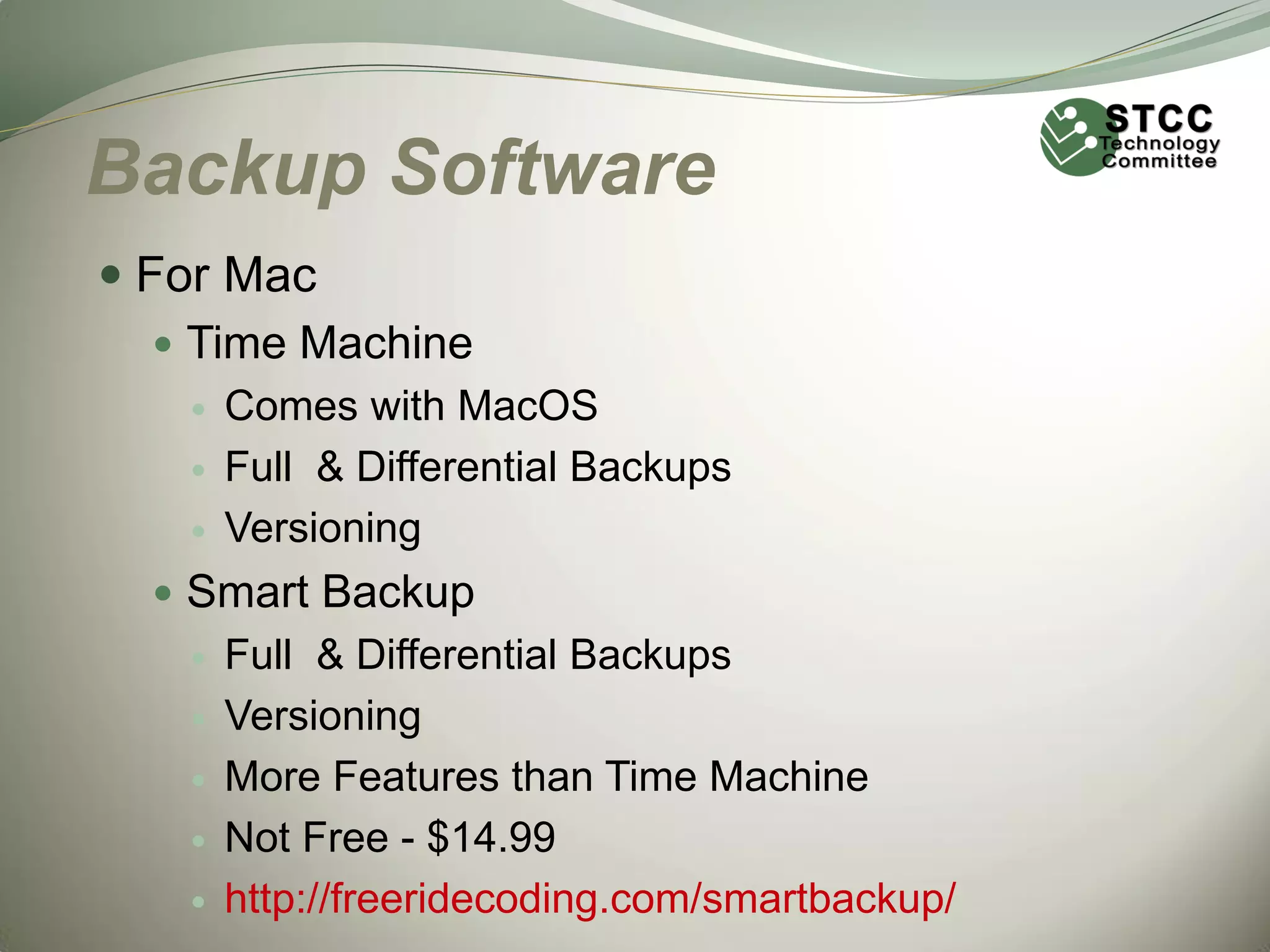
 For Mac
 Time Machine




Comes with MacOS
Full & Differential Backups
Versioning

 Smart Backup






Full & Differential Backups
Versioning
More Features than Time Machine
Not Free - $14.99
http://freeridecoding.com/smartbackup/
Backup Software
 For Linux
 Bacula


http://www.bacula.org/en/

 fwbackups


http://www.diffingo.com/oss/fwbackups
Other Considerations…
 Turn off synchronized backup
 Disconnect external backup when not in use
 If you were to get hit with the Cryptolocker virus you
will have a backup full of encrypted files.


That would be a very bad thing – for you anyway

 You know who you are & you have been WARNED!
Hardware Failures
Hardware and Software issues that can cause Data to be lost:

• Any piece of hardware can fail
• Mother Boards, Daughter Boards can fail or from
component level failure, sometimes there is no
known reason why the MB failed so at EPC we call
it “MES” or “Mysterious Electronic Stuff”.
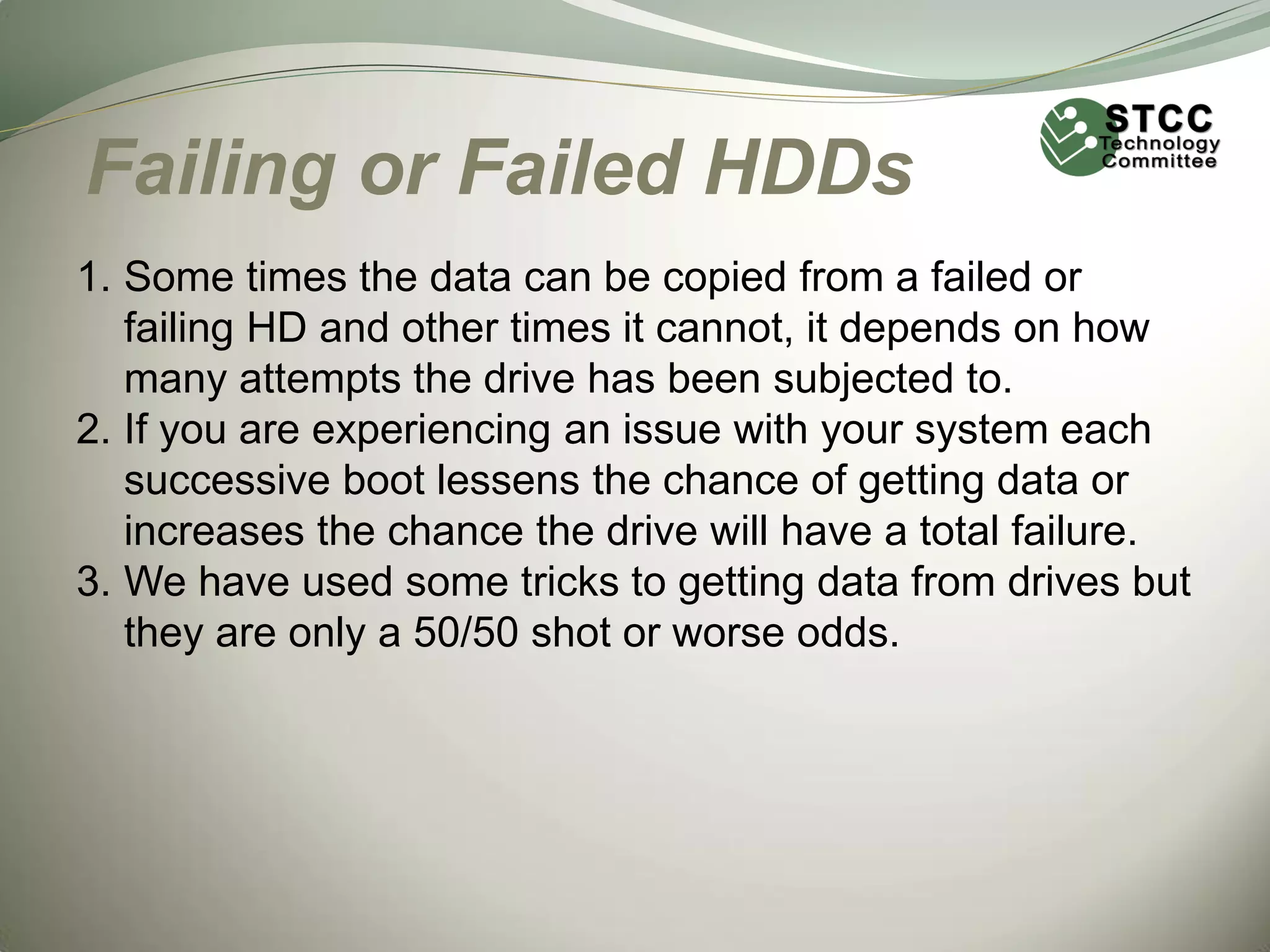
• Hard Drives can fail as well as the circuit board,
power management or data chips on HD’s can fail.
• External hard drives can fail
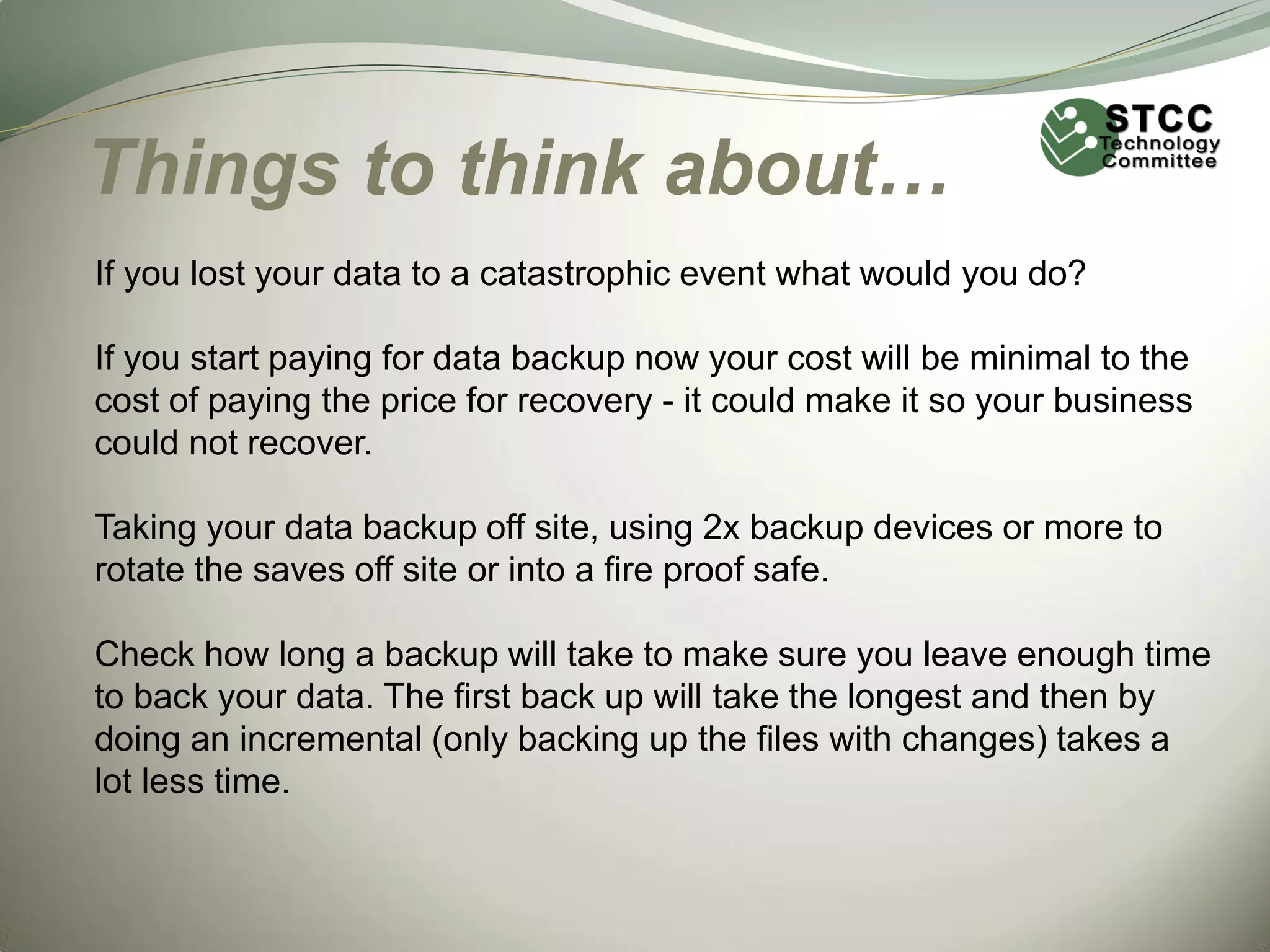
• USB Flash Drives.
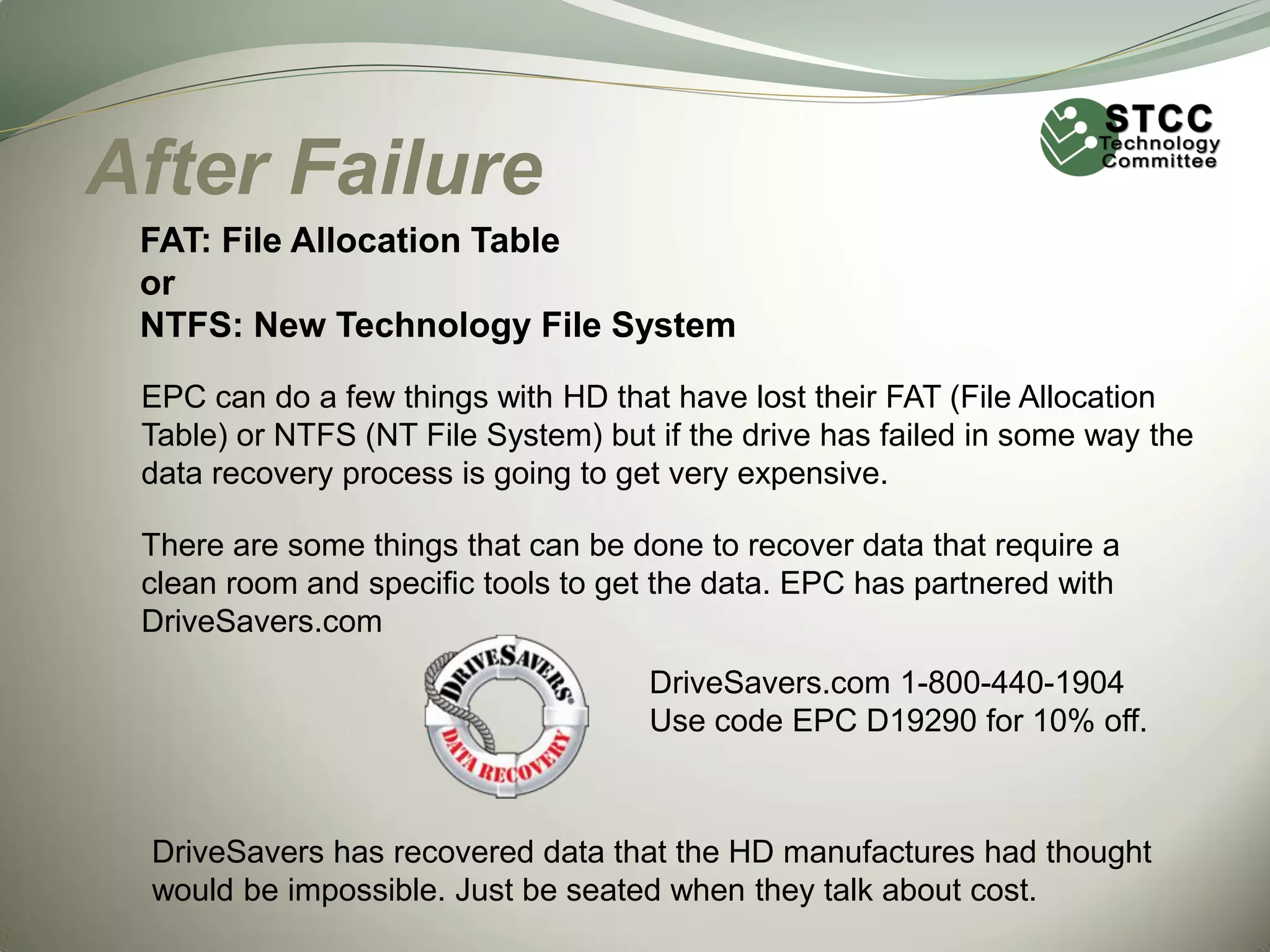
• USB and SSD (Solid State Drives) are made up from
Memory Chips.
• Anything that is man made and holds data can fail.
Hardware Failures
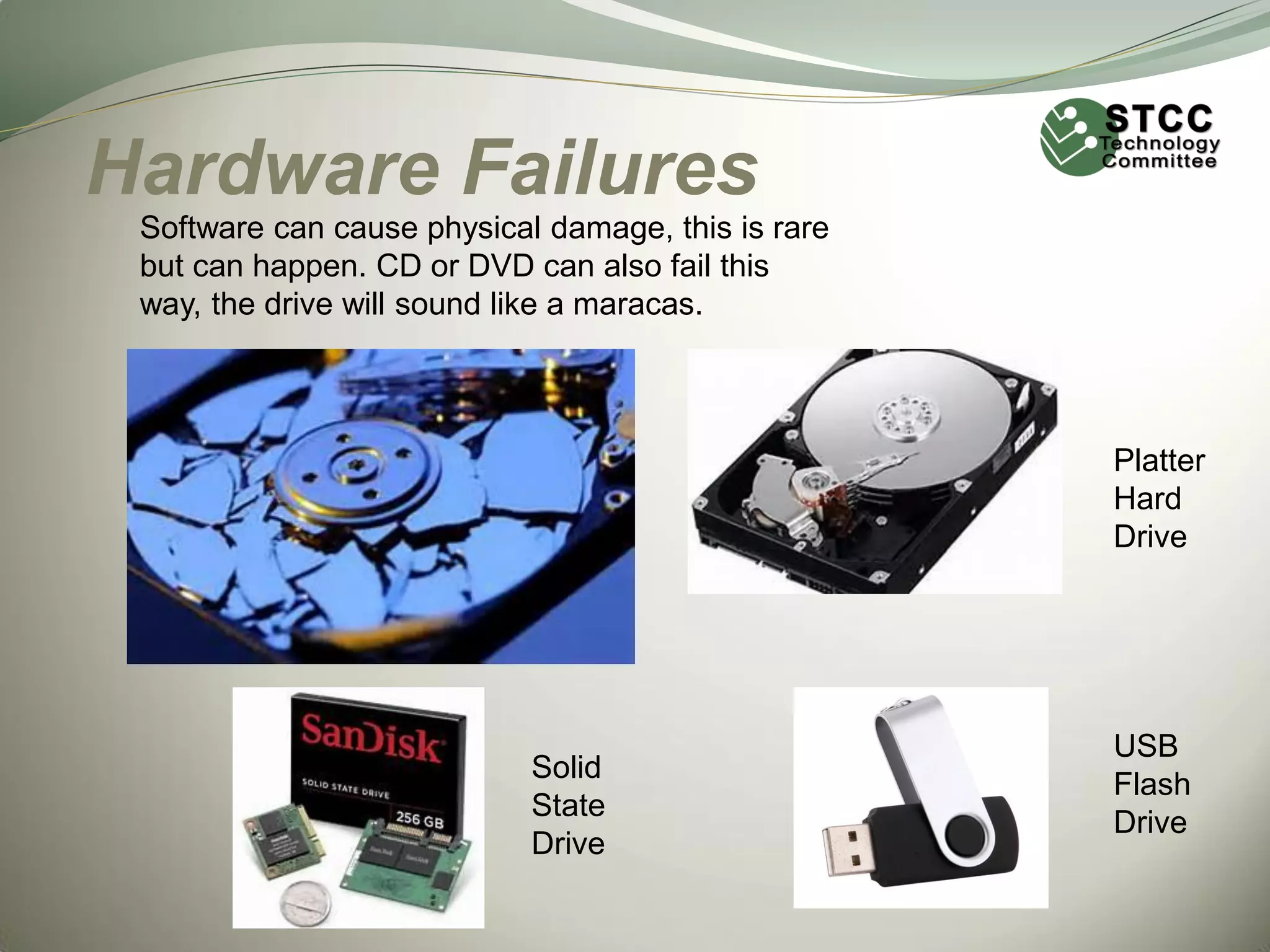
Software can cause physical damage, this is rare
but can happen. CD or DVD can also fail this
way, the drive will sound like a maracas.

Platter
Hard
Drive

Solid
State
Drive

USB
Flash
Drive
Failing or Failed HDDs
1. Some times the data can be copied from a failed or
failing HD and other times it cannot, it depends on how
many attempts the drive has been subjected to.
2. If you are experiencing an issue with your system each
successive boot lessens the chance of getting data or
increases the chance the drive will have a total failure.
3. We have used some tricks to getting data from drives but
they are only a 50/50 shot or worse odds.
After Failure
FAT: File Allocation Table
or
NTFS: New Technology File System
EPC can do a few things with HD that have lost their FAT (File Allocation
Table) or NTFS (NT File System) but if the drive has failed in some way the
data recovery process is going to get very expensive.
There are some things that can be done to recover data that require a
clean room and specific tools to get the data. EPC has partnered with
DriveSavers.com
DriveSavers.com 1-800-440-1904
Use code EPC D19290 for 10% off.

DriveSavers has recovered data that the HD manufactures had thought
would be impossible. Just be seated when they talk about cost.
Things to think about…
If you lost your data to a catastrophic event what would you do?
If you start paying for data backup now your cost will be minimal to the
cost of paying the price for recovery - it could make it so your business
could not recover.
Taking your data backup off site, using 2x backup devices or more to
rotate the saves off site or into a fire proof safe.
Check how long a backup will take to make sure you leave enough time
to back your data. The first back up will take the longest and then by
doing an incremental (only backing up the files with changes) takes a
lot less time.
External HDDs and
Backup Software
External Hard Drive backup:
1. Western Digital has software called WD Smart Ware
1. Allows for flexible backup schedule
2. Pro version can assist in Cloud Backup
2. Seagate has software called Dash Board Support
1. Connects to social media and backs up that media too.
2. Pro version can assist in Cloud Backup
3. There are other brands of external HD and other backup software
but most use either Western Digital or Seagate HD’s
Disaster Recovery Center
 A data center housing a real-time backup server
located in local proximity
 Provides immediate physical access to all
backup data for purposes of restoration and
immediate business continuity
 Scenarios range from simple file restoration to
alternate business office location
 In the event of disaster, employees have option

of immediately continuing work at the recovery
center
Minimizing Risk
Common Causes & how to minimize risk for each:
 Human Error
 Proper File Security

 Software (Corruption)
 Reputable, up-to-date OS/drivers & applications
 Hardware Failure
 Quality Hardware
 Temperature - kept in room temp or cooler environment
 Redundancy
 Less Mechanical Parts
Options/Considerations
Backup Solutions:
1) Secondary Drive in your machine (mirroring)
2) Tape Drive (old magnetic media technology - phased out)

Consider the technology – if the unit is destroyed, could you get a replacement to read the backup medium?

3)
4)
5)
6)
7)
8)
9)

CD/DVD (smaller capacities – maybe ok for archiving)
USB Flash Drive (smaller capacities)
External USB Hard Drive (Constant Connect)
External USB Hard Drive (Rotational Off-site or FireSafe)
Another PC
Cloud Storage
Disaster Recovery Center

Speed of Recovery (from fastest to slowest):
1) Connected internally in machine (SATA, etc)
2) Connected externally to machine (USB)
3) Connected to Internal Network (another PC on the network – 100 Mbps)
4) Connected to Internet (only as fast as your download speed ~ 1.5 - 50 Mbps)
- Likewise, backing up relies on your Upload Speed (~512 kbps - 10Mpbs)
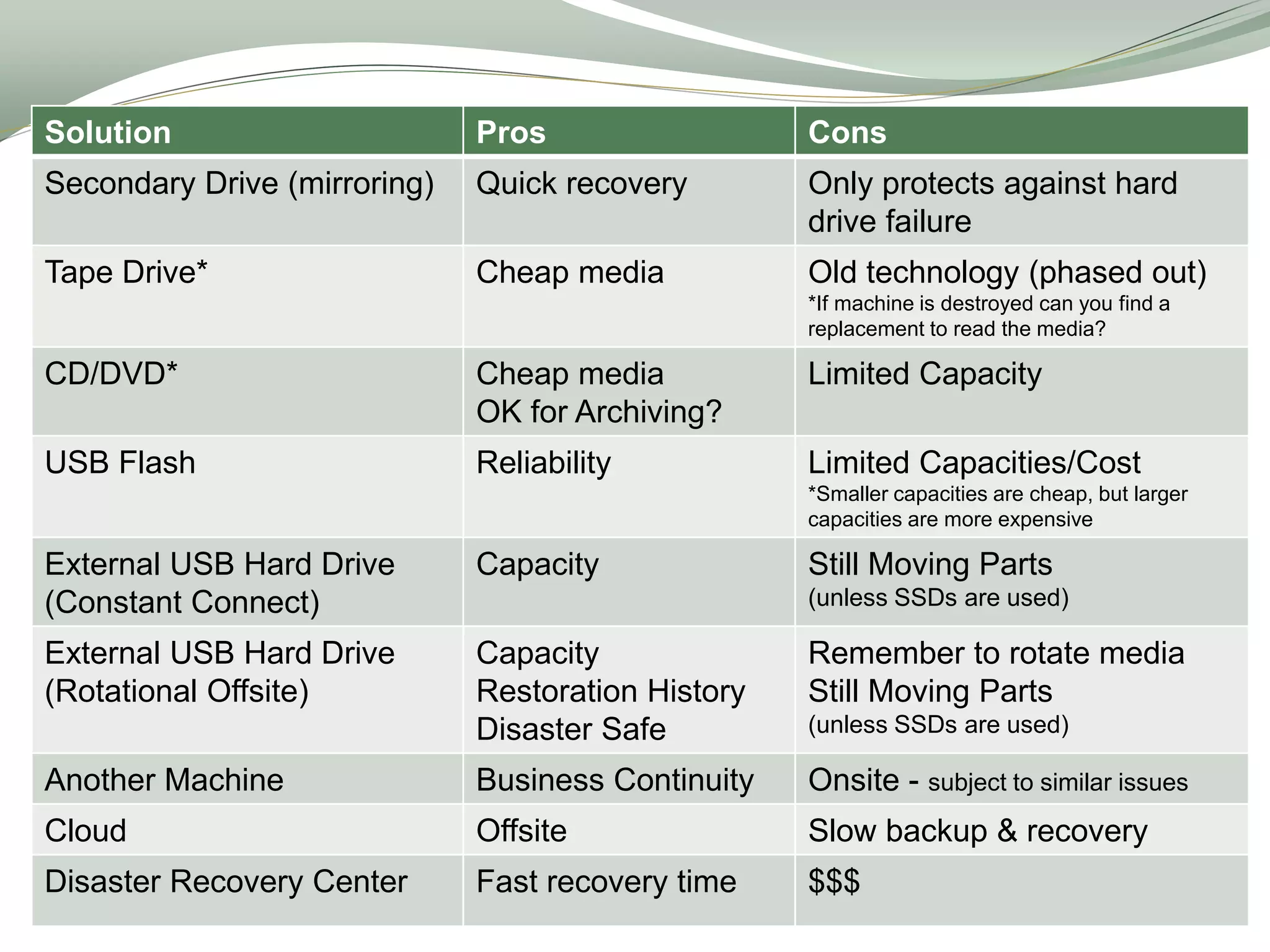
Solution

Pros

Cons

Secondary Drive (mirroring)

Quick recovery

Only protects against hard
drive failure

Tape Drive*

Cheap media

Old technology (phased out)
*If machine is destroyed can you find a
replacement to read the media?

CD/DVD*

Cheap media
OK for Archiving?

Limited Capacity

USB Flash

Reliability

Limited Capacities/Cost
*Smaller capacities are cheap, but larger
capacities are more expensive

External USB Hard Drive
(Constant Connect)

Capacity

Still Moving Parts

External USB Hard Drive
(Rotational Offsite)

Capacity
Restoration History
Disaster Safe

Remember to rotate media
Still Moving Parts

Another Machine

Business Continuity

Onsite - subject to similar issues

Cloud

Offsite

Slow backup & recovery

Disaster Recovery Center

Fast recovery time

$$$

(unless SSDs are used)

(unless SSDs are used)
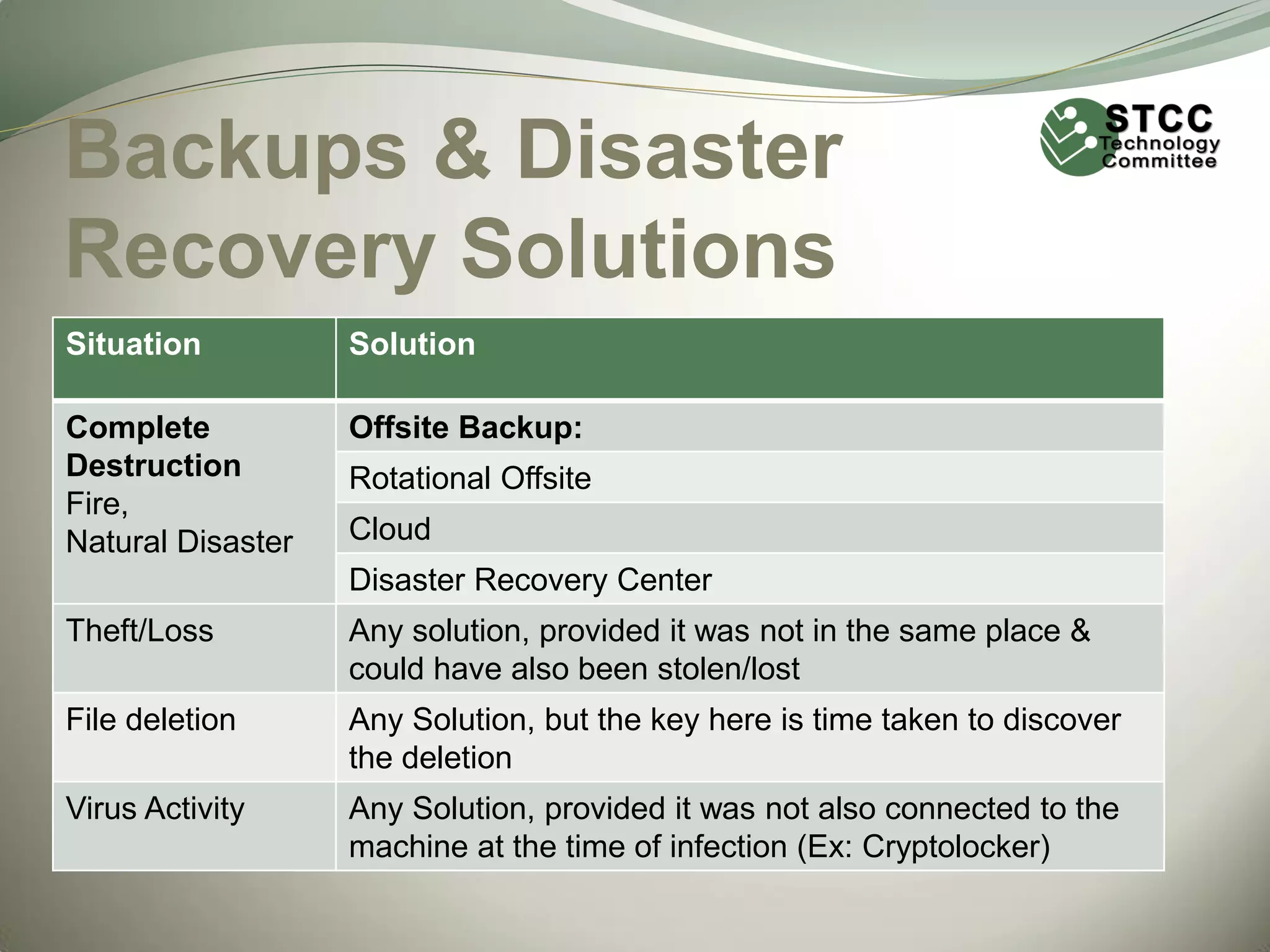
Backups & Disaster
Recovery Solutions
Situation

Solution

Complete
Destruction
Fire,
Natural Disaster

Offsite Backup:
Rotational Offsite
Cloud
Disaster Recovery Center

Theft/Loss

Any solution, provided it was not in the same place &
could have also been stolen/lost

File deletion

Any Solution, but the key here is time taken to discover
the deletion

Virus Activity

Any Solution, provided it was not also connected to the
machine at the time of infection (Ex: Cryptolocker)
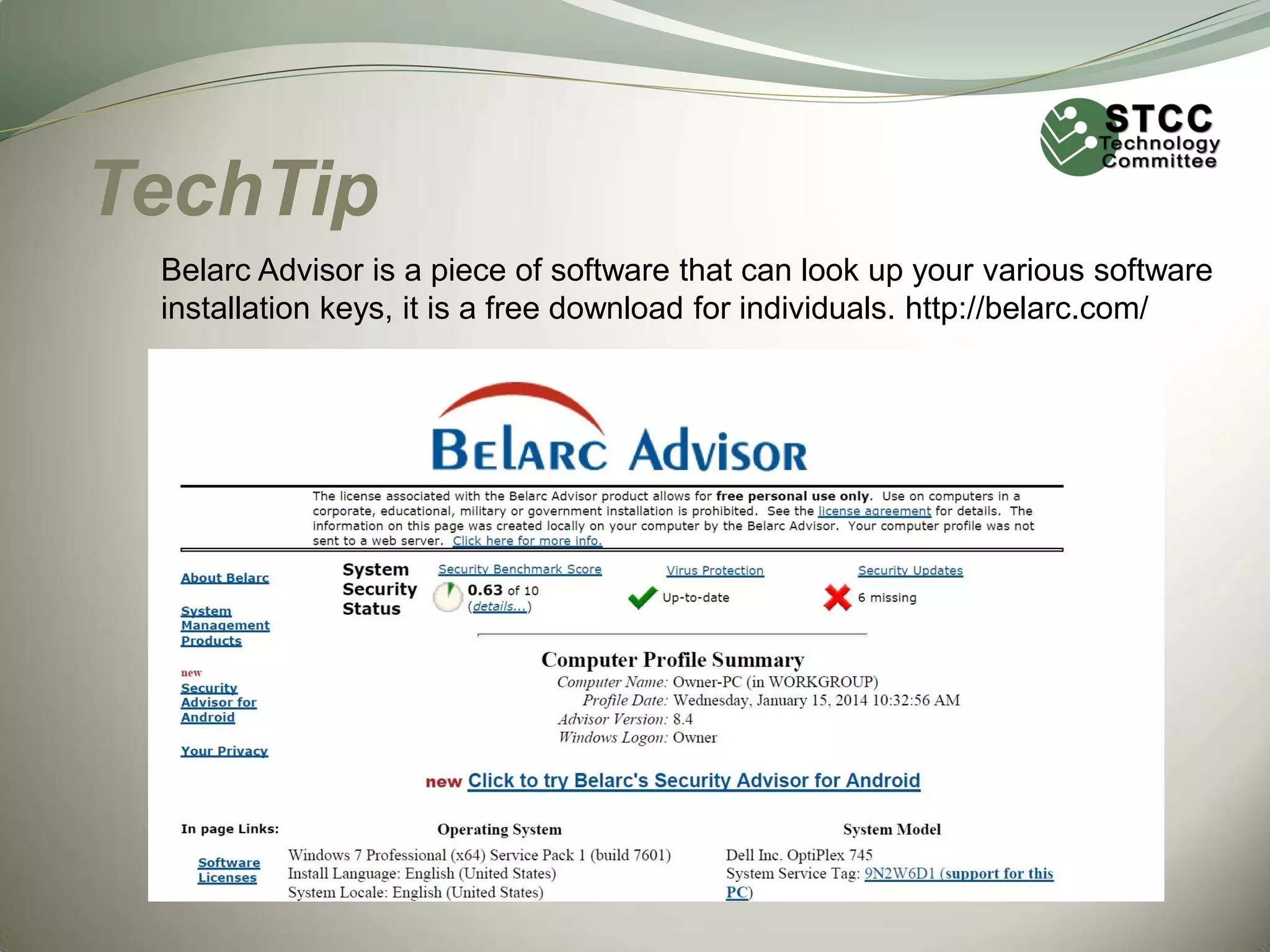
TechTip
Belarc Advisor is a piece of software that can look up your various software
installation keys, it is a free download for individuals. http://belarc.com/
January 16, 2014

Backup Solutions
Presented by:
Ken Tucker

Art & Candy
Zemon

Mark Peimann

Don & David Weir

Paul Barthel

Andy Kastrup
Beth Richter

Randy Downs
Independent

Consultant

Please fill out your survey & drop it in the box before you leave

Tech comm presentation 2014 01-16

  • 1.
  • 2.
    Mission The purpose ofthis meeting is to inform and introduce technology to Chamber members, not necessarily to give a complete education on the topics discussed. Some of the technologies discussed are quite often available through Chamber member companies, including several of the volunteers in the subcommittee. Other topics are presented as classes by the Chambers. If you would like to discuss any of these topics more indepth, please contact one of the subcommittee members after the meeting and we’ll get you in touch with the best contact for your interest.
  • 3.
    Sub-Committee Chamber Member Companiesworking together to bring you the information on the technological topics that interest you and can benefit your business! Co-Chairman Ken Tucker, Changescape Web Mark Peimann, EPC Computers Andy Kastrup, ProTronics Technologies, Inc. Art & Candy Zemon, Hen’s Teeth Network Beth Richter, ProTronics Technologies, Inc. Don & David Weir, Managed Computer Services Paul Barthel, Minuteman Press Randy Downs, Independent Consultant
  • 4.
  • 5.
    Backups  Get somethingin place ASAP  Don't get paralyzed because you can't do everything  Almost anything you do will be better than doing nothing
  • 6.
    Reasons to BackupData… EXAMPLES:  Your office just burned down. Everything inside was destroyed!  Your car, with your laptop, was just stolen!  You deleted which file?!?!?!  You visited HooBoy.xxx and now QuickBooks won't open!  US Customs & Border Protection confiscated your laptop and your thumb drive. You'll get them back someday... maybe.
  • 7.
    Considerations  Identify theproblem  Recovery time  Backup schedule  Retention time
  • 8.
    2 Distinct Problems Entire computer will not boot or has been destroyed  A “few” files were damaged or deleted
  • 9.
    How Quick?  Whendisaster hits, can you wait a few  Minutes?  Hours?  Days?  Faster recovery == More money
  • 10.
    Backup Schedule  Howmuch can you afford to lose?  Absolutely nothing?  A minute?  An hour?  A business day?  A whole week of work?  Time of day  Not necessarily in the middle of the night  More frequent == More complex
  • 11.
    Keep backups forhow long?  Backup retention  How long to keep the backups  How many copies  How long will it take you to discover the problem?  Weekends + holidays = delays  Embarrassed employees = delays
  • 12.
    Consider the Material Different solutions for different stuff  Data files  Large files: photos, videos, audio  Purchased programs  Operating system  Some material might not be on your computer  Receipts  Installation media  Certificates of authenticity / Product Key Codes / Activation Codes
  • 13.
    Backups are aProcess  Backup software/hardware is just the first step 1)Plan your backups 2)Execute the plan 3)Test now. Don't wait for a disaster!
  • 14.
    Backups  Get somethingin place ASAP  Don't get paralyzed because you can't do everything  Almost anything you do will be better than doing nothing  Ask us for help
  • 15.
    Backup Types  FullSystem Backup (OS, Applications & Data)  Full Data Backup  Incremental vs Differential  This is actually a trade-off. Differential backup offers a full system backup at regular intervals, so naturally it takes longer and requires more capacity.  Differential Example: (Weekly) Do a full backup every Sunday. Then on Monday, only files that have changed since the full backup on Sunday. On Tuesday, only files that have changed since the full backup on Sunday (Essentially, the Tuesday differential replaces the Monday differential)  Incremental backup only backs up files that have changed since the last backup (full or incremental), so it's quicker but has a longer recovery time since it has to restore data from multiple incrementals  Incremental Example: (Weekly) Do a full backup on Sunday and incrementals during the week. On Monday only data that has changed since Sunday and then on Tuesday, only data that has changed since Monday, etc. So if something happens on Saturday, you would need to use 6 backups to restore data. 
  • 16.
    Off Site Vs.Local Backups  Serve different purposes  Some overlap between them  Recovery may be slower with off site backup  Local backup IS NOT disaster recovery  Local backup is ideal for quick recovery of deleted files and normally uses an external drive
  • 17.
    Backup Versioning  Versioningallows you to keep different versions of the same file – You have edited the files several times and don't want the next backup to over write them.
  • 18.
    Hard Drive Cloning (Imaging) Cloning – or imaging – a hard drive creates an exact replica of a hard drive.  Good for hard drives where data doesn't change  Servers and workstations with operating system on one drive and data on others Example for Windows: Macrium Reflect Free: http://www.macrium.com/reflectfree.aspx Example for Mac: Carbon Copy Cloner: http://www.bombich.com/
  • 19.
    Backup Software  WindowsBackup (Included with Windows)  Full Backups  Versioning  No Differential Backup  Allows you to backup to a drive but does not allow you to pick a folder on that drive  Cobian Backup  Full & Differential Backups  Versioning http://www.cobiansoft.com/cobianbackup.htm
  • 20.
    Backup Software For Windows AEOMI Backup  Full Backups  Differential Backup  Versioning  Will also do cloning http://www.aomeitech.com/
  • 21.
    Backup Software  ForMac  Time Machine    Comes with MacOS Full & Differential Backups Versioning  Smart Backup      Full & Differential Backups Versioning More Features than Time Machine Not Free - $14.99 http://freeridecoding.com/smartbackup/
  • 22.
    Backup Software  ForLinux  Bacula  http://www.bacula.org/en/  fwbackups  http://www.diffingo.com/oss/fwbackups
  • 23.
    Other Considerations…  Turnoff synchronized backup  Disconnect external backup when not in use  If you were to get hit with the Cryptolocker virus you will have a backup full of encrypted files.  That would be a very bad thing – for you anyway  You know who you are & you have been WARNED!
  • 24.
    Hardware Failures Hardware andSoftware issues that can cause Data to be lost: • Any piece of hardware can fail • Mother Boards, Daughter Boards can fail or from component level failure, sometimes there is no known reason why the MB failed so at EPC we call it “MES” or “Mysterious Electronic Stuff”. • Hard Drives can fail as well as the circuit board, power management or data chips on HD’s can fail. • External hard drives can fail • USB Flash Drives. • USB and SSD (Solid State Drives) are made up from Memory Chips. • Anything that is man made and holds data can fail.
  • 25.
    Hardware Failures Software cancause physical damage, this is rare but can happen. CD or DVD can also fail this way, the drive will sound like a maracas. Platter Hard Drive Solid State Drive USB Flash Drive
  • 26.
    Failing or FailedHDDs 1. Some times the data can be copied from a failed or failing HD and other times it cannot, it depends on how many attempts the drive has been subjected to. 2. If you are experiencing an issue with your system each successive boot lessens the chance of getting data or increases the chance the drive will have a total failure. 3. We have used some tricks to getting data from drives but they are only a 50/50 shot or worse odds.
  • 27.
    After Failure FAT: FileAllocation Table or NTFS: New Technology File System EPC can do a few things with HD that have lost their FAT (File Allocation Table) or NTFS (NT File System) but if the drive has failed in some way the data recovery process is going to get very expensive. There are some things that can be done to recover data that require a clean room and specific tools to get the data. EPC has partnered with DriveSavers.com DriveSavers.com 1-800-440-1904 Use code EPC D19290 for 10% off. DriveSavers has recovered data that the HD manufactures had thought would be impossible. Just be seated when they talk about cost.
  • 28.
    Things to thinkabout… If you lost your data to a catastrophic event what would you do? If you start paying for data backup now your cost will be minimal to the cost of paying the price for recovery - it could make it so your business could not recover. Taking your data backup off site, using 2x backup devices or more to rotate the saves off site or into a fire proof safe. Check how long a backup will take to make sure you leave enough time to back your data. The first back up will take the longest and then by doing an incremental (only backing up the files with changes) takes a lot less time.
  • 29.
    External HDDs and BackupSoftware External Hard Drive backup: 1. Western Digital has software called WD Smart Ware 1. Allows for flexible backup schedule 2. Pro version can assist in Cloud Backup 2. Seagate has software called Dash Board Support 1. Connects to social media and backs up that media too. 2. Pro version can assist in Cloud Backup 3. There are other brands of external HD and other backup software but most use either Western Digital or Seagate HD’s
  • 30.
    Disaster Recovery Center A data center housing a real-time backup server located in local proximity  Provides immediate physical access to all backup data for purposes of restoration and immediate business continuity  Scenarios range from simple file restoration to alternate business office location  In the event of disaster, employees have option of immediately continuing work at the recovery center
  • 31.
    Minimizing Risk Common Causes& how to minimize risk for each:  Human Error  Proper File Security  Software (Corruption)  Reputable, up-to-date OS/drivers & applications  Hardware Failure  Quality Hardware  Temperature - kept in room temp or cooler environment  Redundancy  Less Mechanical Parts
  • 32.
    Options/Considerations Backup Solutions: 1) SecondaryDrive in your machine (mirroring) 2) Tape Drive (old magnetic media technology - phased out) Consider the technology – if the unit is destroyed, could you get a replacement to read the backup medium? 3) 4) 5) 6) 7) 8) 9) CD/DVD (smaller capacities – maybe ok for archiving) USB Flash Drive (smaller capacities) External USB Hard Drive (Constant Connect) External USB Hard Drive (Rotational Off-site or FireSafe) Another PC Cloud Storage Disaster Recovery Center Speed of Recovery (from fastest to slowest): 1) Connected internally in machine (SATA, etc) 2) Connected externally to machine (USB) 3) Connected to Internal Network (another PC on the network – 100 Mbps) 4) Connected to Internet (only as fast as your download speed ~ 1.5 - 50 Mbps) - Likewise, backing up relies on your Upload Speed (~512 kbps - 10Mpbs)
  • 33.
    Solution Pros Cons Secondary Drive (mirroring) Quickrecovery Only protects against hard drive failure Tape Drive* Cheap media Old technology (phased out) *If machine is destroyed can you find a replacement to read the media? CD/DVD* Cheap media OK for Archiving? Limited Capacity USB Flash Reliability Limited Capacities/Cost *Smaller capacities are cheap, but larger capacities are more expensive External USB Hard Drive (Constant Connect) Capacity Still Moving Parts External USB Hard Drive (Rotational Offsite) Capacity Restoration History Disaster Safe Remember to rotate media Still Moving Parts Another Machine Business Continuity Onsite - subject to similar issues Cloud Offsite Slow backup & recovery Disaster Recovery Center Fast recovery time $$$ (unless SSDs are used) (unless SSDs are used)
  • 34.
    Backups & Disaster RecoverySolutions Situation Solution Complete Destruction Fire, Natural Disaster Offsite Backup: Rotational Offsite Cloud Disaster Recovery Center Theft/Loss Any solution, provided it was not in the same place & could have also been stolen/lost File deletion Any Solution, but the key here is time taken to discover the deletion Virus Activity Any Solution, provided it was not also connected to the machine at the time of infection (Ex: Cryptolocker)
  • 35.
    TechTip Belarc Advisor isa piece of software that can look up your various software installation keys, it is a free download for individuals. http://belarc.com/
  • 36.
    January 16, 2014 BackupSolutions Presented by: Ken Tucker Art & Candy Zemon Mark Peimann Don & David Weir Paul Barthel Andy Kastrup Beth Richter Randy Downs Independent Consultant Please fill out your survey & drop it in the box before you leave