David Shinkfield Computer Learning Center at Ewing March 2011
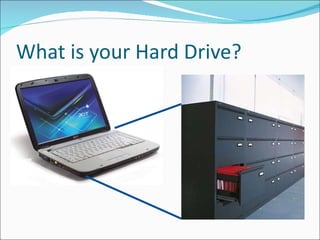
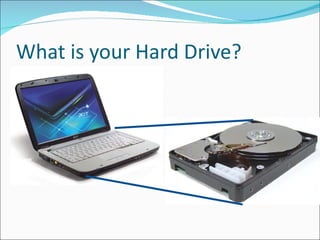
What is your Hard Drive?
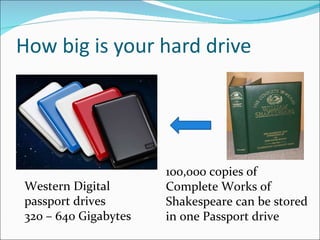
How big is your hard drive Western Digital passport drives 320 – 640 Gigabytes 100,000 copies of Complete Works of Shakespeare can be stored in one Passport drive
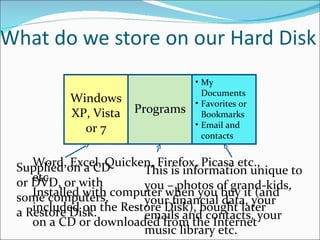
What do we store on our Hard Disk Supplied on a CD or DVD, or with some computers, a Restore Disk. Word, Excel, Quicken, Firefox, Picasa etc., etc. Installed with computer when you buy it (and included on the Restore Disk), bought later on a CD or downloaded from the Internet This is information unique to you – photos of grand-kids, your financial data, your emails and contacts, your music library etc. Windows XP, Vista or 7 Programs Your Data My Documents Favorites or Bookmarks Email and contacts
 
Why do I need to know this? To create a copy of our private and personal information so that we can recover it when disaster that strikes. Secondly, to return the computer to its working condition as easily as possible.
 
 
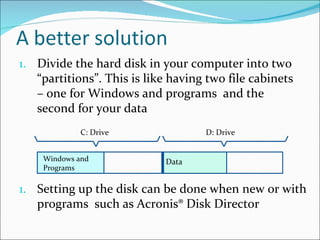
Divide the hard disk in your computer into two “partitions”. This is like having two file cabinets – one for Windows and programs  and the second for your data Setting up the disk can be done when new or with programs  such as Acronis® Disk Director Windows and Programs Data C: Drive D: Drive
Some Technical Stuff There are three types of Partitions Primary Partitions Extended Partitions (holder for Logical Partitions) Logical Partitions
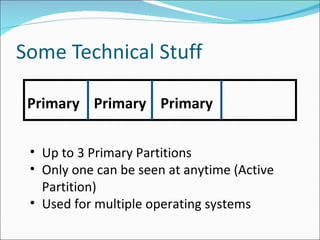
Some Technical Stuff Primary Primary Primary Up to 3 Primary Partitions Only one can be seen at anytime (Active Partition) Used for multiple operating systems
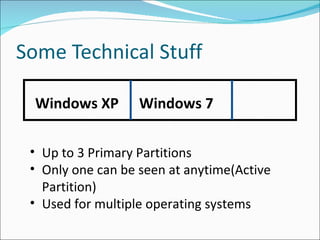
Some Technical Stuff Windows XP Windows 7 Up to 3 Primary Partitions Only one can be seen at anytime(Active Partition) Used for multiple operating systems
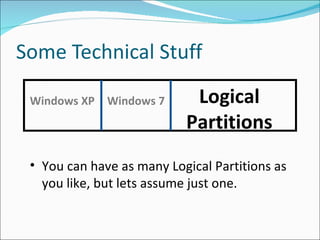
Some Technical Stuff Windows XP Windows 7 You can have as many Logical Partitions as you like, but lets assume just one. Logical Partitions
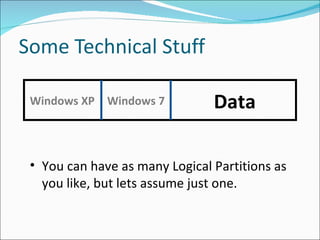
Some Technical Stuff Windows XP Windows 7 Data You can have as many Logical Partitions as you like, but lets assume just one.
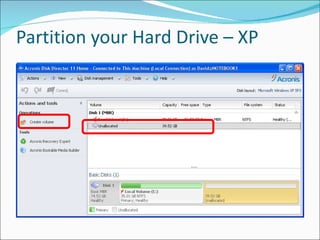
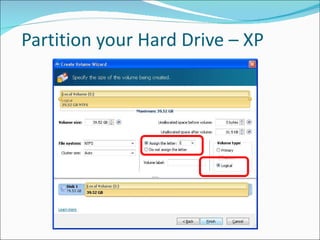
How do I “partition” my drive? For Windows XP, you will need some new software. Acronis Disk Director For Windows 7, software is provided to manage the partitioning.
How do I “partition” my drive? For Windows XP, you will need some new software. I use Acronis Disk Director - $36 from Amazon
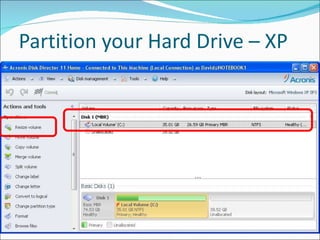
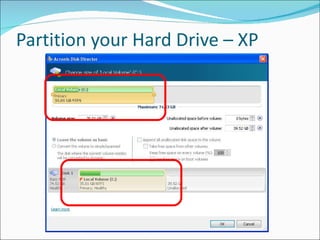
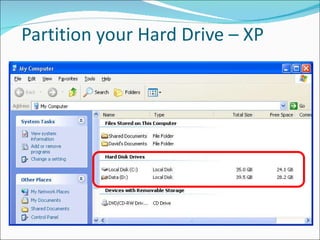
Partition your Hard Drive – XP
 
Partitioning your Hard Drive - Win 7 Now let us talk about Windows 7
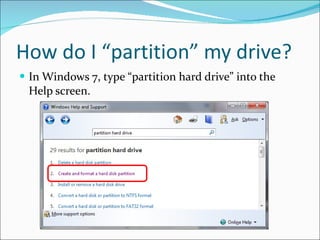
How do I “partition” my drive? In Windows 7, type “partition hard drive” into the Help screen.
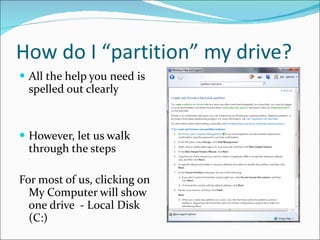
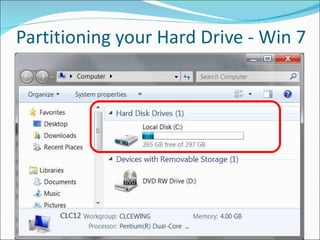
How do I “partition” my drive? All the help you need is spelled out clearly However, let us walk through the steps For most of us, clicking on My Computer will show one drive  - Local Disk (C:)
Partitioning your Hard Drive - Win 7
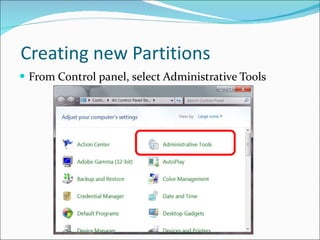
  Creating new Partitions From Control panel, select Administrative Tools
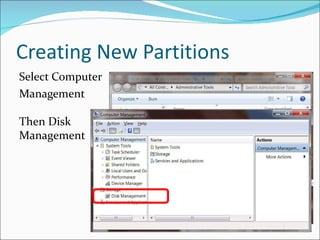
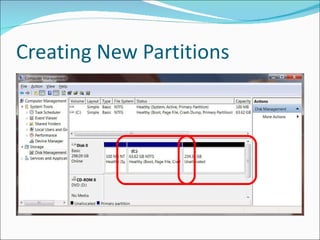
Creating New Partitions Select Computer  Management Then Disk  Management
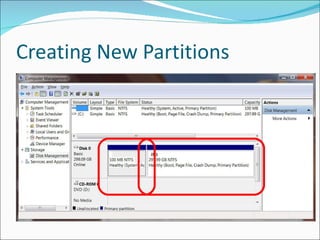
Creating New Partitions
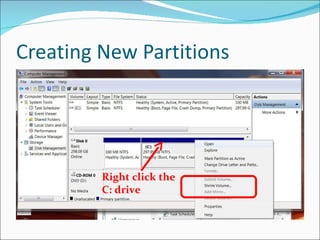
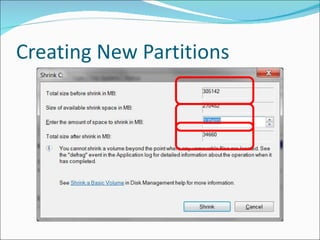
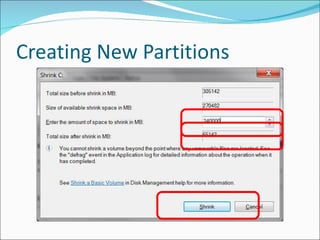
Creating New Partitions Right click the  C: drive
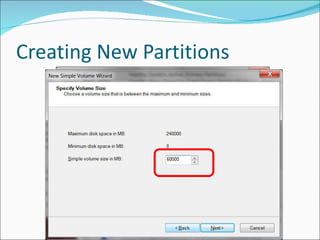
Creating New Partitions
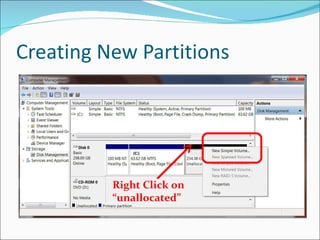
Creating New Partitions Right Click on “unallocated”
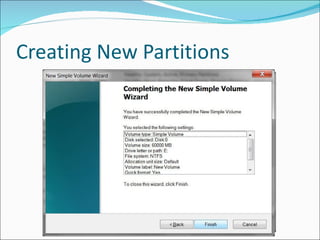
Creating New Partitions
What are the benefits? It makes it possible to have two operating systems on your computer. It makes it very simple to back up your personal data. It makes it simple to reinstall Windows if catastrophe strikes
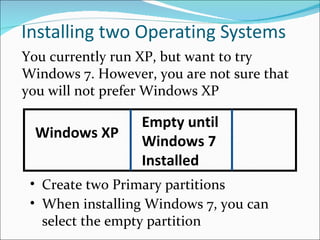
Installing two Operating Systems Empty until Windows 7 Installed Create two Primary partitions You currently run XP, but want to try Windows 7. However, you are not sure that you will not prefer Windows XP When installing Windows 7, you can select the empty partition Windows XP
What are the benefits? It makes it possible to have two operating systems on your computer. It makes it very simple to back up your personal data. It makes it simple to reinstall Windows if catastrophe strikes
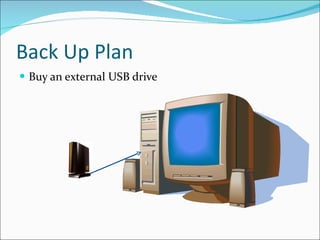
Back Up Plan Buy an external USB drive
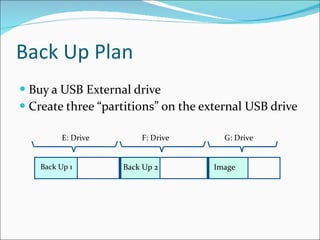
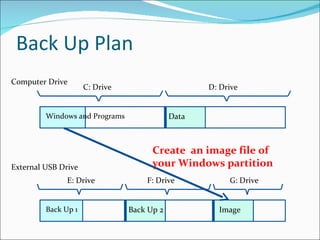
Back Up Plan Buy a USB External drive Create three “partitions” on the external USB drive Back Up 1 Back Up 2 Image E: Drive F: Drive G: Drive
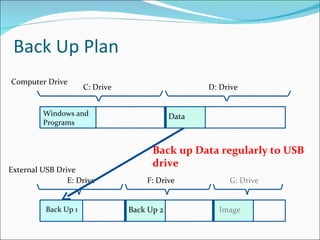
Back Up Plan Computer Drive External USB Drive Back up Data regularly to USB drive Windows and Programs Data C: Drive D: Drive Back Up 1 Back Up 2 Image E: Drive F: Drive G: Drive
What are the benefits? It makes it possible to have two operating systems on your computer. It makes it very simple to back up your personal data. It makes it simple to reinstall Windows if catastrophe strikes
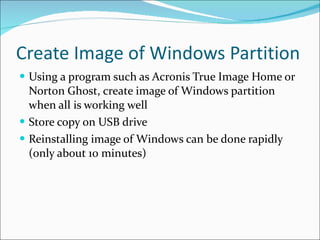
Create Image of Windows Partition Using a program such as Acronis True Image Home or Norton Ghost, create image of Windows partition when all is working well Store copy on USB drive Reinstalling image of Windows can be done rapidly (only about 10 minutes)
Back Up Plan Computer Drive External USB Drive Create  an image file of your Windows partition  Windows and Programs Data C: Drive D: Drive Back Up 1 Back Up 2 Image E: Drive F: Drive G: Drive
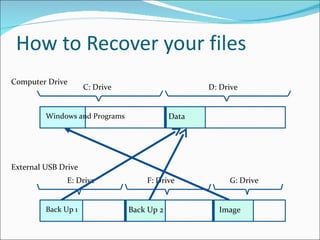
How to Recover your files Computer Drive External USB Drive Windows and Programs Data C: Drive D: Drive Back Up 1 Back Up 2 Image E: Drive F: Drive G: Drive
However you manage your back ups Create a copy of your private and personal information so that you can recover it when disaster that strikes. Secondly, develop a plan to return your computer to its working condition as easily as possible.
www.ewingsnet.com

Mastering your hard drive

  • 1.
    David Shinkfield ComputerLearning Center at Ewing March 2011
  • 2.
    What is yourHard Drive?
  • 3.
    What is yourHard Drive?
  • 4.
    How big isyour hard drive Western Digital passport drives 320 – 640 Gigabytes 100,000 copies of Complete Works of Shakespeare can be stored in one Passport drive
  • 5.
    What do westore on our Hard Disk Supplied on a CD or DVD, or with some computers, a Restore Disk. Word, Excel, Quicken, Firefox, Picasa etc., etc. Installed with computer when you buy it (and included on the Restore Disk), bought later on a CD or downloaded from the Internet This is information unique to you – photos of grand-kids, your financial data, your emails and contacts, your music library etc. Windows XP, Vista or 7 Programs Your Data My Documents Favorites or Bookmarks Email and contacts
  • 6.
  • 7.
    Why do Ineed to know this? To create a copy of our private and personal information so that we can recover it when disaster that strikes. Secondly, to return the computer to its working condition as easily as possible.
  • 8.
  • 9.
  • 10.
    Divide the harddisk in your computer into two “partitions”. This is like having two file cabinets – one for Windows and programs and the second for your data Setting up the disk can be done when new or with programs such as Acronis® Disk Director Windows and Programs Data C: Drive D: Drive
  • 11.
    Some Technical StuffThere are three types of Partitions Primary Partitions Extended Partitions (holder for Logical Partitions) Logical Partitions
  • 12.
    Some Technical StuffPrimary Primary Primary Up to 3 Primary Partitions Only one can be seen at anytime (Active Partition) Used for multiple operating systems
  • 13.
    Some Technical StuffWindows XP Windows 7 Up to 3 Primary Partitions Only one can be seen at anytime(Active Partition) Used for multiple operating systems
  • 14.
    Some Technical StuffWindows XP Windows 7 You can have as many Logical Partitions as you like, but lets assume just one. Logical Partitions
  • 15.
    Some Technical StuffWindows XP Windows 7 Data You can have as many Logical Partitions as you like, but lets assume just one.
  • 16.
    How do I“partition” my drive? For Windows XP, you will need some new software. Acronis Disk Director For Windows 7, software is provided to manage the partitioning.
  • 17.
    How do I“partition” my drive? For Windows XP, you will need some new software. I use Acronis Disk Director - $36 from Amazon
  • 18.
    Partition your HardDrive – XP
  • 19.
    Partition your HardDrive – XP
  • 20.
    Partition your HardDrive – XP
  • 21.
    Partition your HardDrive – XP
  • 22.
    Partition your HardDrive – XP
  • 23.
  • 24.
    Partitioning your HardDrive - Win 7 Now let us talk about Windows 7
  • 25.
    How do I“partition” my drive? In Windows 7, type “partition hard drive” into the Help screen.
  • 26.
    How do I“partition” my drive? All the help you need is spelled out clearly However, let us walk through the steps For most of us, clicking on My Computer will show one drive - Local Disk (C:)
  • 27.
  • 28.
    Creatingnew Partitions From Control panel, select Administrative Tools
  • 29.
    Creating New PartitionsSelect Computer Management Then Disk Management
  • 30.
  • 31.
    Creating New PartitionsRight click the C: drive
  • 32.
  • 33.
  • 34.
  • 35.
    Creating New PartitionsRight Click on “unallocated”
  • 36.
  • 37.
  • 38.
    What are thebenefits? It makes it possible to have two operating systems on your computer. It makes it very simple to back up your personal data. It makes it simple to reinstall Windows if catastrophe strikes
  • 39.
    Installing two OperatingSystems Empty until Windows 7 Installed Create two Primary partitions You currently run XP, but want to try Windows 7. However, you are not sure that you will not prefer Windows XP When installing Windows 7, you can select the empty partition Windows XP
  • 40.
    What are thebenefits? It makes it possible to have two operating systems on your computer. It makes it very simple to back up your personal data. It makes it simple to reinstall Windows if catastrophe strikes
  • 41.
    Back Up PlanBuy an external USB drive
  • 42.
    Back Up PlanBuy a USB External drive Create three “partitions” on the external USB drive Back Up 1 Back Up 2 Image E: Drive F: Drive G: Drive
  • 43.
    Back Up PlanComputer Drive External USB Drive Back up Data regularly to USB drive Windows and Programs Data C: Drive D: Drive Back Up 1 Back Up 2 Image E: Drive F: Drive G: Drive
  • 44.
    What are thebenefits? It makes it possible to have two operating systems on your computer. It makes it very simple to back up your personal data. It makes it simple to reinstall Windows if catastrophe strikes
  • 45.
    Create Image ofWindows Partition Using a program such as Acronis True Image Home or Norton Ghost, create image of Windows partition when all is working well Store copy on USB drive Reinstalling image of Windows can be done rapidly (only about 10 minutes)
  • 46.
    Back Up PlanComputer Drive External USB Drive Create an image file of your Windows partition Windows and Programs Data C: Drive D: Drive Back Up 1 Back Up 2 Image E: Drive F: Drive G: Drive
  • 47.
    How to Recoveryour files Computer Drive External USB Drive Windows and Programs Data C: Drive D: Drive Back Up 1 Back Up 2 Image E: Drive F: Drive G: Drive
  • 48.
    However you manageyour back ups Create a copy of your private and personal information so that you can recover it when disaster that strikes. Secondly, develop a plan to return your computer to its working condition as easily as possible.
  • 49.