BACKUP AND STORAGE
By Lyubomir Tochev
WHAT WILL THIS
PRESENTATION CONTAIN
• What is a backup and why is it done
• Types of backup
• Storage methods
• Common issues with backups
BACKUP PROCESS
• In information technology, a backup,
or data backup, or the process of
backing up, refers to the copying into
an archive file of computer data so it
may be used to restore the original
after a data loss event.
• The client that sends the backup
data is called SOURCE and the
recipient is called DATA STORAGE
BACKUP STORAGE
• Backup storage refers to a storage
device, medium or facility that is used
for storing copies and instances of
backup data. Backup storage enables
the maintenance, management,
retrieval and restoration of backup data
for any individual, application,
computer, server or any computing
device.
BACKUP STORAGE
• Backup storage is primarily an additional storage device used
for keeping backup data.
• Typically, it is external to the system, server or device for
which the backup data is created, such as a local/remote
storage server.
• The backup storage itself can be a hard disk drive, tape drive,
compact disk drive or any mass storage medium installed
within a computer or storage server. In enterprise IT
environments, the backup storage medium/technology used
can be RAID, a storage area network or a network-attached
storage system.
• Backup software or a backup manager is used to create, store,
manage and retrieve backup data to and from the backed up
application/device and the backup storage location.
TYPES OF BACKUP
• Four most common types of backup
• Full backup
• Incremental backup
• Differential backup
• Mirror backup
FULL BACKUP
• Every single file and folder in the system is backed up
• Takes longer
• Restoration process is easier and faster
• Is used for the other methods of backup
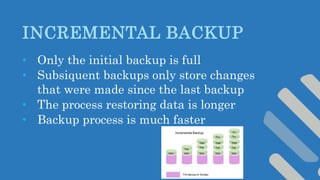
INCREMENTAL BACKUP
• Only the initial backup is full
• Subsiquent backups only store changes
that were made since the last backup
• The process restoring data is longer
• Backup process is much faster
DIFFERENTIAL BACKUP
• Only the initial backup is full
• Subsiquent backups only store changes that were made since
the last backup
• The difference is that while an incremental backup only
includes the data that has changed since the previous backup,
a differential backup contains all of the data that has changed
since the last full backup.
MIRROR BACKUP
• Only the initial backup is full
• Mirror backups are as the name suggests a mirror of
the source being backed up.
• With mirror backups, when a file in the source is
deleted, that file is eventually also deleted in the mirror
backup.
• Because of this, mirror backups should be used with
caution as a file that is deleted by accident, sabotage or
through a virus may also cause that same file in mirror
to be deleted as well. Some do not consider a mirror to
be a backup
BACK UP STORAGE
• Magnetic type
• Hard disk
• Optical storage
• SSD
• Remote backup services
MAGNETIC TAPE
This is a storage device that contains one or more
tape drives, a number of slots to hold tape
cartridges, a barcode reader to identify tape
cartridges and an automated method for loading
tapes (a robot). Additionally, the area where tapes
that are NOT currently in a silo are stored is also
called a tape library. Some tape libraries contain
literally millions of tapes.
MAGNETIC TAPE
HARD DISKS
• The capacity-to-price ratio of hard disks has been
improving for many years, making them more
competitive with magnetic tape as a bulk storage
medium.
• The main advantages of hard disk storage are low access
times, availability, capacity and ease of use.
• External disks can be connected via local interfaces like
SCSI, USB, FireWire, or eSATA, or via longer distance
technologies like Ethernet, iSCSI, or Fibre Channel.
• Some disk-based backup systems, via Virtual Tape
Libraries or otherwise, support data deduplication,
which can dramatically reduce the amount of disk
storage capacity consumed by daily and weekly backup
data
SOLID STATE DRIVES
• Also known as flash memory, thumb drives, USB flash drives, CompactFlash,
SmartMedia, Memory Stick, Secure Digital cards, etc.
• Relatively expensive for their low capacity in comparison to hard disk drives,
but are very convenient for backing up relatively low data volumes.
• A solid-state drive does not contain any movable parts unlike its magnetic drive
counterpart, making it less susceptible to physical damage, and can have huge
throughput in the order of 500Mbit/s to 6Gbit/s. The capacity offered from SSDs
continues to grow and prices are gradually decreasing as they become more
common.
• Over a period of years the stability of flash memory backups is shorter than
that of hard disk backups.
REMOTE BACKUP
SERVICES
• Backing up via the Internet to a remote
location can protect against events such as
fires, floods, or earthquakes which could
destroy locally-stored
• Support is responsibility of a third party
company
• Requires high speed internet connection,
especially the upload link
DATA BACKUP FAILURE
• Media failure
• Human error
• Software failure
• Hardware failure
• Network failure
MEDIA FAILURE
• Media failure ranks at the top of nearly every list
of reasons backups and restores fail.
• What to do?
• Taking care of the equipment according to
manufacturer’s schedules and instructions
• Redundant power supplies
• Hot spare parts
HUMAN ERROR
• Improper maintenance
• Lack of training
• Too much human interaction in the backup
operations
• What to do?
• Trainings and rules
SOFTWARE FAILURE
• Updates go wrong or include new settings which
prevent the backup operations to happen (turning
on firewall automatically)
• Misconfigurations – backup softwares have
plenty of options and settings. If not set up
correctly, this could result in incomplete backups
or total failures
• What to do?
• Handle with care and attention to detail
HARDWARE FAILURE
• Hardware that is taking part in backing up and
storage gets old or suffers from defects. This
could mess up the entire process.
• What to do?
• Use only quality and up to date equipment and
hardware.
• Perform checks
• Change equipment according to a schedule
NETWORK FAILURE
• Backing up via network increases up efficiency by
reducing number of local devices
• Misconfigurations is the main reason for network
failures
• What to do?
• Networks are not only used for backups so
problems should be more obvious by performing
network troubleshooting.
PREVENTION
• Whatever the cause of failure, the best
way to keep them from damaging your
organization is to verify your backups by
performing regular test restores
• Testing your backups regularly won't
prevent backup failures, but they can help
in noticing the issue and this will allow
you to fix the problem before you really
need those backups and you get a nasty
surprise.
THE END

Back up-and-storage v1

  • 1.
    BACKUP AND STORAGE ByLyubomir Tochev
  • 2.
    WHAT WILL THIS PRESENTATIONCONTAIN • What is a backup and why is it done • Types of backup • Storage methods • Common issues with backups
  • 3.
    BACKUP PROCESS • Ininformation technology, a backup, or data backup, or the process of backing up, refers to the copying into an archive file of computer data so it may be used to restore the original after a data loss event. • The client that sends the backup data is called SOURCE and the recipient is called DATA STORAGE
  • 4.
    BACKUP STORAGE • Backupstorage refers to a storage device, medium or facility that is used for storing copies and instances of backup data. Backup storage enables the maintenance, management, retrieval and restoration of backup data for any individual, application, computer, server or any computing device.
  • 5.
    BACKUP STORAGE • Backupstorage is primarily an additional storage device used for keeping backup data. • Typically, it is external to the system, server or device for which the backup data is created, such as a local/remote storage server. • The backup storage itself can be a hard disk drive, tape drive, compact disk drive or any mass storage medium installed within a computer or storage server. In enterprise IT environments, the backup storage medium/technology used can be RAID, a storage area network or a network-attached storage system. • Backup software or a backup manager is used to create, store, manage and retrieve backup data to and from the backed up application/device and the backup storage location.
  • 6.
    TYPES OF BACKUP •Four most common types of backup • Full backup • Incremental backup • Differential backup • Mirror backup
  • 7.
    FULL BACKUP • Everysingle file and folder in the system is backed up • Takes longer • Restoration process is easier and faster • Is used for the other methods of backup
  • 8.
    INCREMENTAL BACKUP • Onlythe initial backup is full • Subsiquent backups only store changes that were made since the last backup • The process restoring data is longer • Backup process is much faster
  • 9.
    DIFFERENTIAL BACKUP • Onlythe initial backup is full • Subsiquent backups only store changes that were made since the last backup • The difference is that while an incremental backup only includes the data that has changed since the previous backup, a differential backup contains all of the data that has changed since the last full backup.
  • 10.
    MIRROR BACKUP • Onlythe initial backup is full • Mirror backups are as the name suggests a mirror of the source being backed up. • With mirror backups, when a file in the source is deleted, that file is eventually also deleted in the mirror backup. • Because of this, mirror backups should be used with caution as a file that is deleted by accident, sabotage or through a virus may also cause that same file in mirror to be deleted as well. Some do not consider a mirror to be a backup
  • 11.
    BACK UP STORAGE •Magnetic type • Hard disk • Optical storage • SSD • Remote backup services
  • 12.
    MAGNETIC TAPE This isa storage device that contains one or more tape drives, a number of slots to hold tape cartridges, a barcode reader to identify tape cartridges and an automated method for loading tapes (a robot). Additionally, the area where tapes that are NOT currently in a silo are stored is also called a tape library. Some tape libraries contain literally millions of tapes.
  • 13.
  • 14.
    HARD DISKS • Thecapacity-to-price ratio of hard disks has been improving for many years, making them more competitive with magnetic tape as a bulk storage medium. • The main advantages of hard disk storage are low access times, availability, capacity and ease of use. • External disks can be connected via local interfaces like SCSI, USB, FireWire, or eSATA, or via longer distance technologies like Ethernet, iSCSI, or Fibre Channel. • Some disk-based backup systems, via Virtual Tape Libraries or otherwise, support data deduplication, which can dramatically reduce the amount of disk storage capacity consumed by daily and weekly backup data
  • 15.
    SOLID STATE DRIVES •Also known as flash memory, thumb drives, USB flash drives, CompactFlash, SmartMedia, Memory Stick, Secure Digital cards, etc. • Relatively expensive for their low capacity in comparison to hard disk drives, but are very convenient for backing up relatively low data volumes. • A solid-state drive does not contain any movable parts unlike its magnetic drive counterpart, making it less susceptible to physical damage, and can have huge throughput in the order of 500Mbit/s to 6Gbit/s. The capacity offered from SSDs continues to grow and prices are gradually decreasing as they become more common. • Over a period of years the stability of flash memory backups is shorter than that of hard disk backups.
  • 16.
    REMOTE BACKUP SERVICES • Backingup via the Internet to a remote location can protect against events such as fires, floods, or earthquakes which could destroy locally-stored • Support is responsibility of a third party company • Requires high speed internet connection, especially the upload link
  • 17.
    DATA BACKUP FAILURE •Media failure • Human error • Software failure • Hardware failure • Network failure
  • 18.
    MEDIA FAILURE • Mediafailure ranks at the top of nearly every list of reasons backups and restores fail. • What to do? • Taking care of the equipment according to manufacturer’s schedules and instructions • Redundant power supplies • Hot spare parts
  • 19.
    HUMAN ERROR • Impropermaintenance • Lack of training • Too much human interaction in the backup operations • What to do? • Trainings and rules
  • 20.
    SOFTWARE FAILURE • Updatesgo wrong or include new settings which prevent the backup operations to happen (turning on firewall automatically) • Misconfigurations – backup softwares have plenty of options and settings. If not set up correctly, this could result in incomplete backups or total failures • What to do? • Handle with care and attention to detail
  • 21.
    HARDWARE FAILURE • Hardwarethat is taking part in backing up and storage gets old or suffers from defects. This could mess up the entire process. • What to do? • Use only quality and up to date equipment and hardware. • Perform checks • Change equipment according to a schedule
  • 22.
    NETWORK FAILURE • Backingup via network increases up efficiency by reducing number of local devices • Misconfigurations is the main reason for network failures • What to do? • Networks are not only used for backups so problems should be more obvious by performing network troubleshooting.
  • 23.
    PREVENTION • Whatever thecause of failure, the best way to keep them from damaging your organization is to verify your backups by performing regular test restores • Testing your backups regularly won't prevent backup failures, but they can help in noticing the issue and this will allow you to fix the problem before you really need those backups and you get a nasty surprise.
  • 24.