File Storage
          and
   Backup Systems

Cinnamon Cove Computer Club
        April 6, 2013
        Tom DeBoni
What I’ll Talk About
•   Definitions (3)
•   File storage systems (2)
•   File storage devices (4)
•   Backing up
    –   What (1)
    –   Why (2)
    –   How (10)
    –   Simple Examples (3)
• Resources (6)
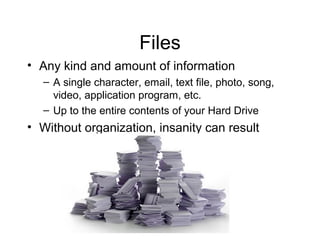
Files
• Any kind and amount of information
  – A single character, email, text file, photo, song,
    video, application program, etc.
  – Up to the entire contents of your Hard Drive
• Without organization, insanity can result
Folders
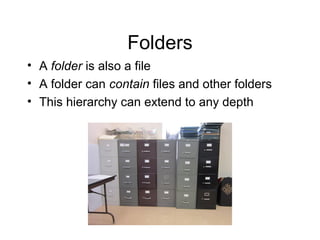
• A folder is also a file
• A folder can contain files and other folders
• This hierarchy can extend to any depth
File Hierarchies
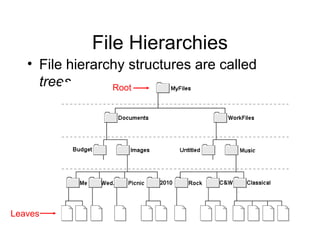
   • File hierarchy structures are called
     trees       Root


Leaves
File Organization
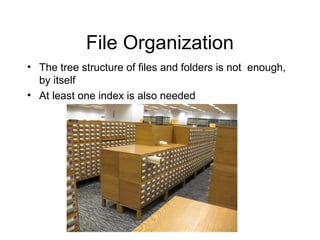
• The tree structure of files and folders is not enough,
  by itself
• At least one index is also needed
File System
• The File System is part of the
  computer’s Operating System
  – It’s always there, working for you
  – It’s complicated
  – You don’t need to know much about it
  – It can get corrupted and cause
    problems
File Storage Devices
• Your computer has MANY storage devices
  – RAM (memory)
     • Semiconductor chips
     • Very fast - work at electronic speeds
     • Forget everything when power is off - “volatile”
  – Magnetic Disks (hard drive)
     •   Very large capacity
     •   Contain moving parts
     •   Maintain contents when power is off - “nonvolatile”
     •   Subject to eventual failure
           – Magnetic decay
           – Mechanical failure
File Storage Devices, 2
– Optical Disk (CD or DVD)
   •   Less capacity than a Magnetic Disk
   •   Slower than a Magnetic Disk
   •   Cheaper than a Magnetic Disk (removable media)
   •   Longer (but finite) life-span - “archival”
        – Subject to metal evaporation
– Solid State Disk (SSD)
   •   This is a new form of electronic “Hard Drive”
   •   No moving parts
   •   Faster and more expensive than a Magnetic Disk
   •   Pretty good life span
   •   Not practical for backups
File Storage Devices, 3
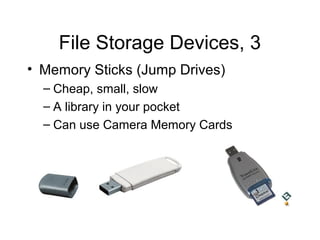
• Memory Sticks (Jump Drives)
  – Cheap, small, slow
  – A library in your pocket
  – Can use Camera Memory Cards
File Storage Devices, 4
• Storage can be connected to your
  computer OR your home network
  – If you have Wi-Fi, you have a network
  – Wired is faster, but wireless is convenient
  – Some Automated Backup Systems and
    Backup Applications work well across
    networks
  – Keep the backup storage device in an out-
    of-sight location
What is “Backing Up”
• Saving spare copies of important files
• There are many, easy ways of doing this
  – Use a cheaper storage device
     • Cheaper means slower, but bigger
  – Use several storage devices
     • One today, another next month
  – Copy files on a regular schedule
     • Copy all important files once a month - “full backup”
     • Copy new or modified files once a day - “incremental
       backup”
  – An old copy is better than no copy
Why Back Up?
• Storage devices fail, eventually
  – All things must pass

• Your files are important to you
  – Why else save them?

• You should keep extra copies!
  – Paper rots, ink fades, magnetic bits de-rez
  – But information can last as long as you want it to!
It Won’t Happen to Me…
• Have you…
  – Ever had your car quit and strand you?
  – Ever had your TV quit during the big
    game?
  – Even had your toaster burn your toast?
• NO?
• Good, then you can trust your computer
  to never fail and lose your files.
How Do I Make Backups?
• First, chose a backup storage device
  – Perhaps buy an external disk drive
  – Or insert a memory stick, or a blank CD or
    DVD
  – Or subscribe to an on-line backup service
• Second, choose a backup method
  – Manually copy your files to it
  – Or use a Backup Application
  – Or use an Automatic Backup System
Manual Backups
• Should I copy EVERYthing?
  – No real need to copy your operating system and
    applications
     • You may already have copies of these on master disks
  – But do make copies of
     •   Personal documents
     •   Financial documents
     •   Email
     •   Photos
     •   Music
     •   Videos
     •   Anything you’d regret losing
Backup Applications
• Applications that write backups in a special
  format that only they can read and use
  – Retrospect for OS X
  – Comodo for Windows
• You must purchase, install, and these apps
  manually, but the can be configured to run
  automatically
• Caveat: Using these apps can be an act of
  faith. It is possible to write an unreadable
  backup file with such apps, and you won’t
  know it until it’s too late.
What is an
    Automatic Backup System?
• An application that runs quietly and
  periodically on your computer
• Automatically copies new or changed
  programs to a backup device or service
• You set it up and then forget about it,
  until you need to restore something
• Restoring a single file or an entire drive
  can be very easy
Automatic Backup System, 2
• This Windows System Restore feature is NOT
  one of these!
  – That simply restores your operating system
  – And it stores the backup copy of the OS on your main Hard
    Drive

• To make sense, an Automatic Backup System must
  use a storage device OTHER THAN your main hard
  disk
  – Otherwise, a Hard Drive failure can destroy your backup
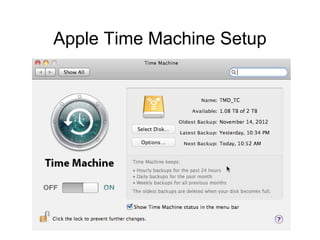
Apple Time Machine Setup
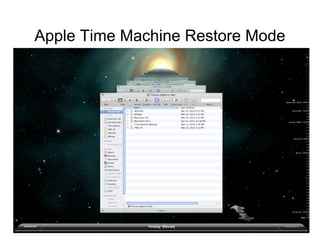
Apple Time Machine Restore Mode
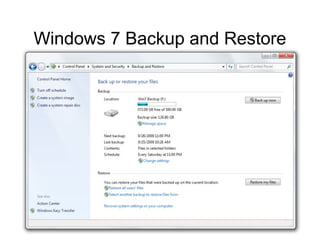
Windows 7 Backup and Restore
Important Advantage!
• Both Automatic Backup Systems and
  Backup Applications can be useful in
  setting up a new computer
  – Connect the backup device to the new
    computer
  – “Restore” to the new machine’s Hard Drive
  – This can be delicate, and should involve
    experienced help
  – It can be a great time-saver!
What Other Methods Are There?
• Hard Drive Cloning
  –   Makes an identical duplicate of your hard drive
  –   Performed by a special application
  –   Takes a while (overnight)
  –   Leaves you fully protected against Hard Drive
      failure
       • Unplug the old one and plug in the new one!
  –   A good idea, alongside other strategies
  –   Store the cloned Hard Drive in a safe place!
  –   Carbon Copy Cloner for OS X
  –   Acronix True Image for Windows
Simple Examples
• Basic: working on an important file
  – Connect a second storage device
     • Maybe leave it connected all the time
  – Save a second copy of the file
     • Results in two copies of every file you work on, saved on
       two different drives
• Basic 2: saving history
  – Save the edited file with a new name
     • Add today’s date to the end of the original name
  – Save the new file, in addition to the old one(s)
     • Results in all versions of the file being saved
     • An old backup is better than none!
Simple Examples, 2
• Periodic backups
   – Connect a second storage device
   – Drag your home folder to it
   – Disconnect and store safely afterwards
• Multiple regular backups
   – Connect and backup to drive A this week
   – Connect and backup to drive B next week
   – Store drives A and B in different places
• Important backups
   – Store backup drives in a safe deposit box or the trunk of
     your car
Simple Examples, 3
• Two Computers
  – Back up each machine to the other one
     • Set up two partitions on each machine’s hard drive
     • Allows a backup area, separate from working space
• Network Backup Server
  – Put an old computer on your wireless net
     • Backup servers don’t have to be new or fast
     • Network speed will limit backup speed
  – Run a backup application
     • On it, or on your main machine, or on both
  – Use it for automatic and/or manual backups
Resources
• All types of File Storage Devices are
  readily available
  – External Hard Drives, Optical Drives and
    Media, Memory Sticks, etc.
• They can be bought most anywhere
  – Apple Store, Radio Shack, Amazon, Best
    Buy, Target, Walmart, eBay, etc.
• Cost per GB ranges from under $0.10
  to over $10.00
Resources, 2
• Manual backup is very easy
   – Just copy (drag) files to a separate storage device
   – Important Point: Dragging a file from one folder to
     another moves it; dragging a file from one device
     to another copies it.
• Backup Applications and Disk Cloning
  applications are relatively cheap
   – Installation, setup, and operation are up to you
• I use an automatic backup system, do a manual
  backup every week or two, and clone my hard drive
  every few months
Resources, 3
• Automatic Backup Software may have been
  included with your computer or Operating
  System
• On-Line backup services are many and
  varied:
  – DropBox, Carbonite, Apple iCloud, Microsoft
    Skydrive, Google, Yahoo, etc.
• Google is your friend - ask it questions and
  read about on your options
Resources,4
• Articles
   –   http://www.macworld.com/article/2032429/happy-world-b
   –   http://www.macworld.com/article/1042751/takecontrolexc
   –   http://www.macworld.com/article/1156601/what_how_bac
   –   http://www.macworld.com/article/2013004/backup-basics
Resources, 5
• Writers' Plans:
  – http://www.macworld.com/article/1157414/mybackupplan
  – http://www.macworld.com/article/1158076/myback
    upplankirk.html
  – http://www.macworld.com/article/1156643/how_i_
    back_up_frakes.html
  – http://www.macworld.com/article/2013249/bullet-
    proof-backups-when-you-absolutely-cant-lose-
    any-data.html
  – http://www.macworld.com/article/2028889/emerge
    ncy-backups-you-didnt-know-you-had.html
Resources, 6
• Backup Applications
  – http://www.macworld.com/article/1166708/c
    rashplan_reliable_cloud_backup_and_onlin
    e_storage.html
• Backup Services
  – http://pcsupport.about.com/od/maintenance
    /tp/online_backup_services.htm

File storageandbackupsystems

  • 1.
    File Storage and Backup Systems Cinnamon Cove Computer Club April 6, 2013 Tom DeBoni
  • 2.
    What I’ll TalkAbout • Definitions (3) • File storage systems (2) • File storage devices (4) • Backing up – What (1) – Why (2) – How (10) – Simple Examples (3) • Resources (6)
  • 3.
    Files • Any kindand amount of information – A single character, email, text file, photo, song, video, application program, etc. – Up to the entire contents of your Hard Drive • Without organization, insanity can result
  • 4.
    Folders • A folderis also a file • A folder can contain files and other folders • This hierarchy can extend to any depth
  • 5.
    File Hierarchies • File hierarchy structures are called trees Root Leaves
  • 6.
    File Organization • Thetree structure of files and folders is not enough, by itself • At least one index is also needed
  • 7.
    File System • TheFile System is part of the computer’s Operating System – It’s always there, working for you – It’s complicated – You don’t need to know much about it – It can get corrupted and cause problems
  • 8.
    File Storage Devices •Your computer has MANY storage devices – RAM (memory) • Semiconductor chips • Very fast - work at electronic speeds • Forget everything when power is off - “volatile” – Magnetic Disks (hard drive) • Very large capacity • Contain moving parts • Maintain contents when power is off - “nonvolatile” • Subject to eventual failure – Magnetic decay – Mechanical failure
  • 9.
    File Storage Devices,2 – Optical Disk (CD or DVD) • Less capacity than a Magnetic Disk • Slower than a Magnetic Disk • Cheaper than a Magnetic Disk (removable media) • Longer (but finite) life-span - “archival” – Subject to metal evaporation – Solid State Disk (SSD) • This is a new form of electronic “Hard Drive” • No moving parts • Faster and more expensive than a Magnetic Disk • Pretty good life span • Not practical for backups
  • 10.
    File Storage Devices,3 • Memory Sticks (Jump Drives) – Cheap, small, slow – A library in your pocket – Can use Camera Memory Cards
  • 11.
    File Storage Devices,4 • Storage can be connected to your computer OR your home network – If you have Wi-Fi, you have a network – Wired is faster, but wireless is convenient – Some Automated Backup Systems and Backup Applications work well across networks – Keep the backup storage device in an out- of-sight location
  • 12.
    What is “BackingUp” • Saving spare copies of important files • There are many, easy ways of doing this – Use a cheaper storage device • Cheaper means slower, but bigger – Use several storage devices • One today, another next month – Copy files on a regular schedule • Copy all important files once a month - “full backup” • Copy new or modified files once a day - “incremental backup” – An old copy is better than no copy
  • 13.
    Why Back Up? •Storage devices fail, eventually – All things must pass • Your files are important to you – Why else save them? • You should keep extra copies! – Paper rots, ink fades, magnetic bits de-rez – But information can last as long as you want it to!
  • 14.
    It Won’t Happento Me… • Have you… – Ever had your car quit and strand you? – Ever had your TV quit during the big game? – Even had your toaster burn your toast? • NO? • Good, then you can trust your computer to never fail and lose your files.
  • 15.
    How Do IMake Backups? • First, chose a backup storage device – Perhaps buy an external disk drive – Or insert a memory stick, or a blank CD or DVD – Or subscribe to an on-line backup service • Second, choose a backup method – Manually copy your files to it – Or use a Backup Application – Or use an Automatic Backup System
  • 16.
    Manual Backups • ShouldI copy EVERYthing? – No real need to copy your operating system and applications • You may already have copies of these on master disks – But do make copies of • Personal documents • Financial documents • Email • Photos • Music • Videos • Anything you’d regret losing
  • 17.
    Backup Applications • Applicationsthat write backups in a special format that only they can read and use – Retrospect for OS X – Comodo for Windows • You must purchase, install, and these apps manually, but the can be configured to run automatically • Caveat: Using these apps can be an act of faith. It is possible to write an unreadable backup file with such apps, and you won’t know it until it’s too late.
  • 18.
    What is an Automatic Backup System? • An application that runs quietly and periodically on your computer • Automatically copies new or changed programs to a backup device or service • You set it up and then forget about it, until you need to restore something • Restoring a single file or an entire drive can be very easy
  • 19.
    Automatic Backup System,2 • This Windows System Restore feature is NOT one of these! – That simply restores your operating system – And it stores the backup copy of the OS on your main Hard Drive • To make sense, an Automatic Backup System must use a storage device OTHER THAN your main hard disk – Otherwise, a Hard Drive failure can destroy your backup
  • 20.
  • 21.
    Apple Time MachineRestore Mode
  • 22.
    Windows 7 Backupand Restore
  • 23.
    Important Advantage! • BothAutomatic Backup Systems and Backup Applications can be useful in setting up a new computer – Connect the backup device to the new computer – “Restore” to the new machine’s Hard Drive – This can be delicate, and should involve experienced help – It can be a great time-saver!
  • 24.
    What Other MethodsAre There? • Hard Drive Cloning – Makes an identical duplicate of your hard drive – Performed by a special application – Takes a while (overnight) – Leaves you fully protected against Hard Drive failure • Unplug the old one and plug in the new one! – A good idea, alongside other strategies – Store the cloned Hard Drive in a safe place! – Carbon Copy Cloner for OS X – Acronix True Image for Windows
  • 25.
    Simple Examples • Basic:working on an important file – Connect a second storage device • Maybe leave it connected all the time – Save a second copy of the file • Results in two copies of every file you work on, saved on two different drives • Basic 2: saving history – Save the edited file with a new name • Add today’s date to the end of the original name – Save the new file, in addition to the old one(s) • Results in all versions of the file being saved • An old backup is better than none!
  • 26.
    Simple Examples, 2 •Periodic backups – Connect a second storage device – Drag your home folder to it – Disconnect and store safely afterwards • Multiple regular backups – Connect and backup to drive A this week – Connect and backup to drive B next week – Store drives A and B in different places • Important backups – Store backup drives in a safe deposit box or the trunk of your car
  • 27.
    Simple Examples, 3 •Two Computers – Back up each machine to the other one • Set up two partitions on each machine’s hard drive • Allows a backup area, separate from working space • Network Backup Server – Put an old computer on your wireless net • Backup servers don’t have to be new or fast • Network speed will limit backup speed – Run a backup application • On it, or on your main machine, or on both – Use it for automatic and/or manual backups
  • 28.
    Resources • All typesof File Storage Devices are readily available – External Hard Drives, Optical Drives and Media, Memory Sticks, etc. • They can be bought most anywhere – Apple Store, Radio Shack, Amazon, Best Buy, Target, Walmart, eBay, etc. • Cost per GB ranges from under $0.10 to over $10.00
  • 29.
    Resources, 2 • Manualbackup is very easy – Just copy (drag) files to a separate storage device – Important Point: Dragging a file from one folder to another moves it; dragging a file from one device to another copies it. • Backup Applications and Disk Cloning applications are relatively cheap – Installation, setup, and operation are up to you • I use an automatic backup system, do a manual backup every week or two, and clone my hard drive every few months
  • 30.
    Resources, 3 • AutomaticBackup Software may have been included with your computer or Operating System • On-Line backup services are many and varied: – DropBox, Carbonite, Apple iCloud, Microsoft Skydrive, Google, Yahoo, etc. • Google is your friend - ask it questions and read about on your options
  • 31.
    Resources,4 • Articles – http://www.macworld.com/article/2032429/happy-world-b – http://www.macworld.com/article/1042751/takecontrolexc – http://www.macworld.com/article/1156601/what_how_bac – http://www.macworld.com/article/2013004/backup-basics
  • 32.
    Resources, 5 • Writers'Plans: – http://www.macworld.com/article/1157414/mybackupplan – http://www.macworld.com/article/1158076/myback upplankirk.html – http://www.macworld.com/article/1156643/how_i_ back_up_frakes.html – http://www.macworld.com/article/2013249/bullet- proof-backups-when-you-absolutely-cant-lose- any-data.html – http://www.macworld.com/article/2028889/emerge ncy-backups-you-didnt-know-you-had.html
  • 33.
    Resources, 6 • BackupApplications – http://www.macworld.com/article/1166708/c rashplan_reliable_cloud_backup_and_onlin e_storage.html • Backup Services – http://pcsupport.about.com/od/maintenance /tp/online_backup_services.htm