
Disaster recovery / Business
continuity planning lab 1
Implementation using Acronis true image

CONCORDIA UNIVERSITY COLLEGE OF ALBERTA
2009
Authored by: Tareq Hanaysha
Email: Hanaysha@live.com
Disaster recovery / Business continuity
planning lab 1
Implementation using Acronis true image
Abstract:
In this report, the author will take you through detailed steps of on-site backup using Acronis
true image server edition on MS windows vista and Ms windows 03 server, this lab experiment
takes us through three different backup procedures, and then the restoration of these backed up
data using the same software.
This software is considered as layer 7 in the classification of disaster recover /business
continuity planning layers, but it is still provide us with all the on-site backup procedures ,security
options for our archives ,and a bootable zone in case of operating systems failure .
Going through this lab will help the reader to better understand or give a general image of how
Disaster recovery / Business continuity planning lab 1 | 2/10/2009

the backup /recovery process take place using one of the available software for backup & recovery.

1

Detailed information of all the steps taken to accomplish the Lab is explained in this report with the
screen shots.

1.

Introduction:

With the increased use of information systems and the importance of this information,
availability became major concern since 1980 s when computer scientist started first backing up
their data, we quite frequent encounter computer crash and information loss, there can be many
reasons for this problem, one of these reasons is poor management of information system because
we don’t practice the standard procedure for the system and data Backup, therefore it is very
important for any organization to take backup of information system to avoid data loss.
In this lab experiment I`m learning how to create backup of the system using Acronis True
Image software , the operating system and all other important software’s are mostly installed on C-
drive of the computer, therefore I will back up my C-volume to another volume within the same
computer(onsite-back up)
The result of the process will create an image of the operating system with all the programs,
software, hardware definitions and utilities installed which I will be able to use to recover in case of
a system failure or problem .

2.

Methods and Procedures
1. Installing Acronis True Image

The software and the key for the software was downloaded from http://www.9down.com/ , I
demonstrated the lab experiment process by recording videos showing the steps throughout all the
lab, to watch these videos you need to left click on the video and then to watch in full screen, after
you play it you will need to right click and then click full screen multimedia.

1. Acronis true image server edition.
2. Snageit 32 v9.1.
3. Extra video convertor v5.85.

Step 1: Installing Acronis true image server edition and universal restore which we will need for
restoring the hard drive in case of an operating failure; we will be able to use it for booting up the
system and accessing the image without the need of an operating system environment:

Disaster recovery / Business continuity planning lab 1 | 2/10/2009

Programs used:

2
Disaster recovery / Business continuity planning lab 1 | 2/10/2009

1. Acronis installation :

3
2. Universal restore installation :
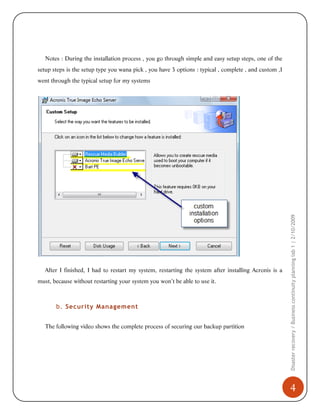
Notes : During the installation process , you go through simple and easy setup steps, one of the
setup steps is the setup type you wana pick , you have 3 options : typical , complete , and custom ,I

After I finished, I had to restart my system, restarting the system after installing Acronis is a
must, because without restarting your system you won’t be able to use it.

b. Security Management
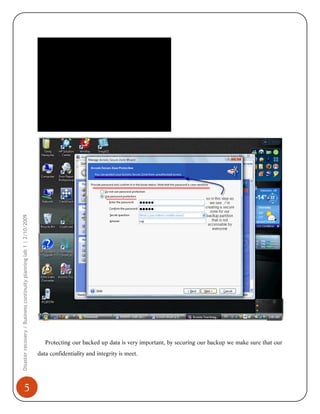
The following video shows the complete process of securing our backup partition

Disaster recovery / Business continuity planning lab 1 | 2/10/2009

went through the typical setup for my systems

4
Disaster recovery / Business continuity planning lab 1 | 2/10/2009

5

Protecting our backed up data is very important, by securing our backup we make sure that our
data confidentiality and integrity is meet.
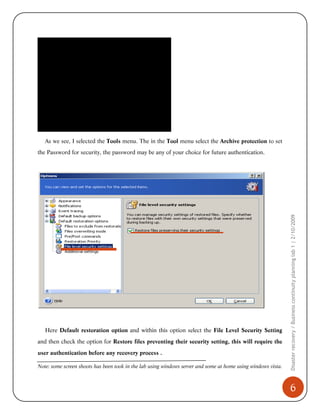
As we see, I selected the Tools menu. The in the Tool menu select the Archive protection to set

Here Default restoration option and within this option select the File Level Security Setting
and then check the option for Restore files preventing their security setting, this will require the
user authentication before any recovery process .
Note: some screen shoots has been took in the lab using windows server and some at home using windows vista.

Disaster recovery / Business continuity planning lab 1 | 2/10/2009

the Password for security, the password may be any of your choice for future authentication.

6
C. Backup Process
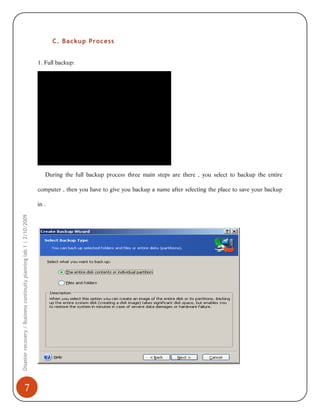
1. Full backup:

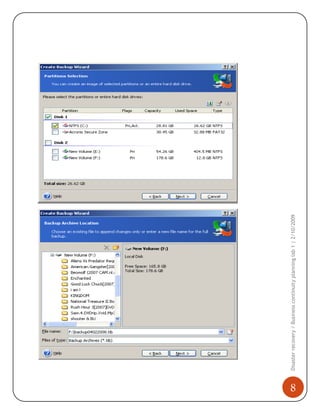
During the full backup process three main steps are there , you select to backup the entire
computer , then you have to give you backup a name after selecting the place to save your backup

Disaster recovery / Business continuity planning lab 1 | 2/10/2009

in .

7
8

Disaster recovery / Business continuity planning lab 1 | 2/10/2009

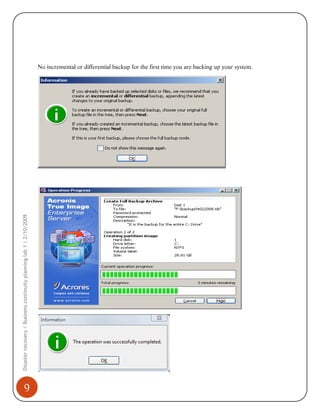
No incremental or differential backup for the first time you are backing up your system.

9
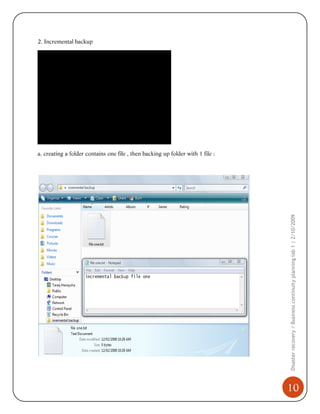
2. Incremental backup

Disaster recovery / Business continuity planning lab 1 | 2/10/2009

a. creating a folder contains one file , then backing up folder with 1 file :

10
Disaster recovery / Business continuity planning lab 1 | 2/10/2009

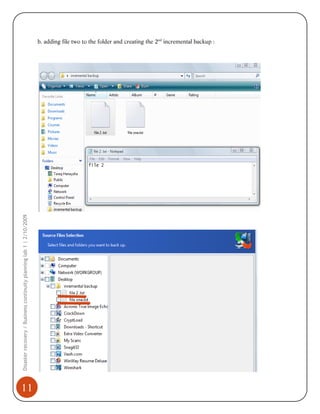
b. adding file two to the folder and creating the 2nd incremental backup :

11
Disaster recovery / Business continuity planning lab 1 | 2/10/2009

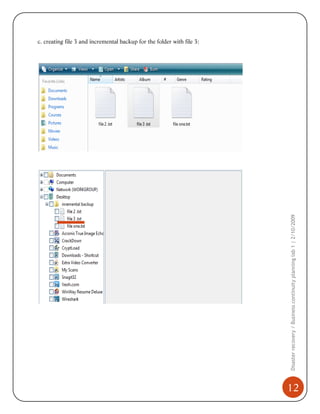
c. creating file 3 and incremental backup for the folder with file 3:

12
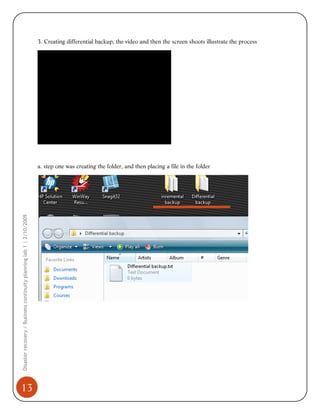
3. Creating differential backup, the video and then the screen shoots illustrate the process

Disaster recovery / Business continuity planning lab 1 | 2/10/2009

a. step one was creating the folder, and then placing a file in the folder

13
D. Restoration Process
Data Recovery
Is the process of salvaging data from damaged, failed, corrupted or inaccessible primary storage
media when it cannot be accessed normally . Often the data are being salvaged from storage media
formats such as hard disk drive, storage tapes, CDs, DVDs and other electronics. This can be due
to physical damage to the storage device or logical damage to the file System that prevents it from
being mounted by the host although there is some confusion as to the term; data recovery can also
be the process of retrieving and securing deleted information from a storage media for forensics
purposes or spying.

Data Restoration
Is the simple process of getting the data back if once it is lost or infected or altered Data can be
restored by copping the same data saved some ware else, or through some back up mechanism or

date or time or size.
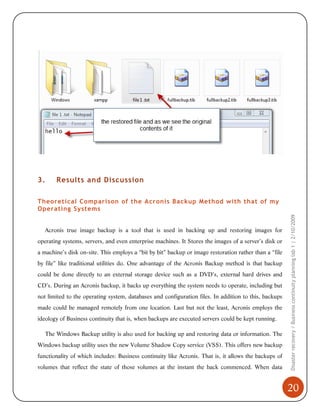
In these two videos, I demonstrated the restoration process, when you watch the video ,
you will notice that we can restore our files one by one using the incremental backup, or
restore the folder contains the differential backup , and at the end we will see how we will be
able to retrieve the folder from the location where we restored it at :

Disaster recovery / Business continuity planning lab 1 | 2/10/2009

software. But there is always cretin start point from where the data can be restored e.g. A specific

14
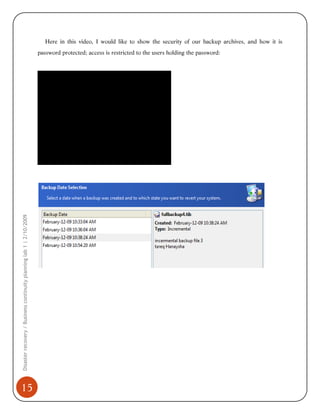
Here in this video, I would like to show the security of our backup archives, and how it is

Disaster recovery / Business continuity planning lab 1 | 2/10/2009

password protected; access is restricted to the users holding the password:

15
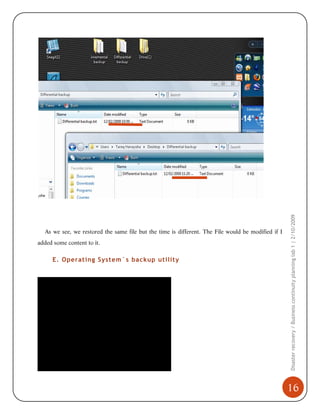
added some content to it.

E. Operating System`s backup utility

Disaster recovery / Business continuity planning lab 1 | 2/10/2009

As we see, we restored the same file but the time is different. The File would be modified if I

16
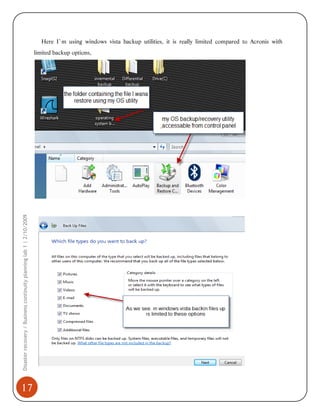
Here I`m using windows vista backup utilities, it is really limited compared to Acronis with

Disaster recovery / Business continuity planning lab 1 | 2/10/2009

limited backup options,

17
Disaster recovery / Business continuity planning lab 1 | 2/10/2009

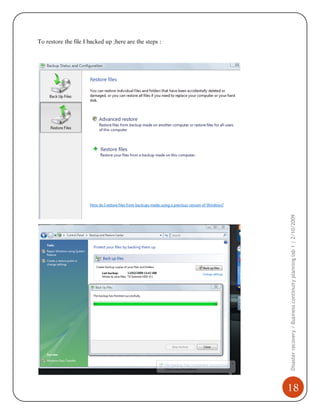
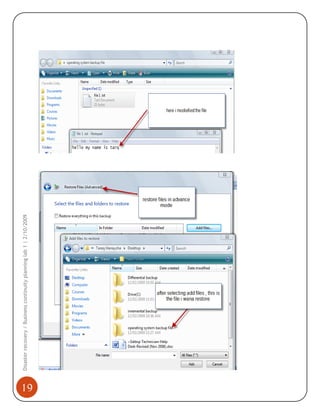
To restore the file I backed up ;here are the steps :

18
19

Disaster recovery / Business continuity planning lab 1 | 2/10/2009
3.

Results and Discussion

Acronis true image backup is a tool that is used in backing up and restoring images for
operating systems, servers, and even enterprise machines. It Stores the images of a server’s disk or
a machine’s disk on-site. This employs a “bit by bit” backup or image restoration rather than a “file
by file” like traditional utilities do. One advantage of the Acronis Backup method is that backup
could be done directly to an external storage device such as a DVD’s, external hard drives and
CD’s. During an Acronis backup, it backs up everything the system needs to operate, including but
not limited to the operating system, databases and configuration files. In addition to this, backups
made could be managed remotely from one location. Last but not the least, Acronis employs the
ideology of Business continuity that is, when backups are executed servers could be kept running.
The Windows Backup utility is also used for backing up and restoring data or information. The
Windows backup utility uses the new Volume Shadow Copy service (VSS). This offers new backup
functionality of which includes: Business continuity like Acronis. That is, it allows the backups of
volumes that reflect the state of those volumes at the instant the back commenced. When data

Disaster recovery / Business continuity planning lab 1 | 2/10/2009

Theoretical Comparison of the Acronis Backup Method with that of my
Operating Systems

20
changes during the backing up process, the volumes are automatically updated as well. This feature
makes sure that all the data in the backup is internally consistent. In addition back up files are open
for exclusive access. The Window Server 2003 backup utility also notifies other programs and
services that are running that a backup is about to occur. This then allows other services and
programs to organize themselves for a backup by cleaning on-disk structures, doing away with
caches and log files and folders.

Limitations of Acronis Backup Approach
Acronis Backup cannot create and restore a disk image when launched from the bootable rescue
media. When using the feature of Acronis Snap Restore, some its limitations are, the Acronis Snap
Restore is only currently available for images located in the Acronis Secure Zone. The Acronis
Snap Restore does not support images on Windows Vista. Last but certainly not the least, Acronis
Snap Restore cannot be used if the image contains no operating system. Acronis Backup utility
features such as the Try and Decide have limitations. There can be no operations made with

Disaster recovery / Business continuity planning lab 1 | 2/10/2009

Acronis Secure Zone with the Try and Decide feature. The try and decide feature also

21

automatically discards all changes when the computer is rebooted. Backup in a Try mode are not
recommend because data from a backup file might not be restored correctly. Also the try and
decide utility is unable to track changes found in disk partitions. Lastly the try and decide feature
will not work if Acronis Secure Zone is found on an external hard disk
Conclusion
In conclusion I would like to say that the purpose of this lab is to introduce us ,students the
importance of disaster recovery and the backup of information . The different types of backups e.g.
Incremental, Differential and Full backups. The similarities and differences using different backup
software utilities. In addition, to examine the ways of restoration data and or information via both

Disaster recovery / Business continuity planning lab 1 | 2/10/2009

Acronis Backup Utility and the Window O.S Utility .

22
References:

http://www.acronis.com/homecomputing/company/inpress/2004/10-22-softdekotrueimage.html/

http://download.microsoft.com/download/5/6/1/561c9fd7-0e27-4525-94ec4d2d38f61aa3/TSHT_SBS.htm#BKMK_backup/

http://www.acronis.com/homecomputing/products/trueimage/features-recovery.html/

Disaster recovery / Business continuity planning lab 1 | 2/10/2009

http://www.9down.com/

23

Disaster Recovery with Acronis true image

  • 1.
    Disaster recovery /Business continuity planning lab 1 Implementation using Acronis true image CONCORDIA UNIVERSITY COLLEGE OF ALBERTA 2009 Authored by: Tareq Hanaysha Email: Hanaysha@live.com
  • 2.
    Disaster recovery /Business continuity planning lab 1 Implementation using Acronis true image Abstract: In this report, the author will take you through detailed steps of on-site backup using Acronis true image server edition on MS windows vista and Ms windows 03 server, this lab experiment takes us through three different backup procedures, and then the restoration of these backed up data using the same software. This software is considered as layer 7 in the classification of disaster recover /business continuity planning layers, but it is still provide us with all the on-site backup procedures ,security options for our archives ,and a bootable zone in case of operating systems failure . Going through this lab will help the reader to better understand or give a general image of how Disaster recovery / Business continuity planning lab 1 | 2/10/2009 the backup /recovery process take place using one of the available software for backup & recovery. 1 Detailed information of all the steps taken to accomplish the Lab is explained in this report with the screen shots. 1. Introduction: With the increased use of information systems and the importance of this information, availability became major concern since 1980 s when computer scientist started first backing up their data, we quite frequent encounter computer crash and information loss, there can be many reasons for this problem, one of these reasons is poor management of information system because we don’t practice the standard procedure for the system and data Backup, therefore it is very important for any organization to take backup of information system to avoid data loss. In this lab experiment I`m learning how to create backup of the system using Acronis True Image software , the operating system and all other important software’s are mostly installed on C-
  • 3.
    drive of thecomputer, therefore I will back up my C-volume to another volume within the same computer(onsite-back up) The result of the process will create an image of the operating system with all the programs, software, hardware definitions and utilities installed which I will be able to use to recover in case of a system failure or problem . 2. Methods and Procedures 1. Installing Acronis True Image The software and the key for the software was downloaded from http://www.9down.com/ , I demonstrated the lab experiment process by recording videos showing the steps throughout all the lab, to watch these videos you need to left click on the video and then to watch in full screen, after you play it you will need to right click and then click full screen multimedia. 1. Acronis true image server edition. 2. Snageit 32 v9.1. 3. Extra video convertor v5.85. Step 1: Installing Acronis true image server edition and universal restore which we will need for restoring the hard drive in case of an operating failure; we will be able to use it for booting up the system and accessing the image without the need of an operating system environment: Disaster recovery / Business continuity planning lab 1 | 2/10/2009 Programs used: 2
  • 4.
    Disaster recovery /Business continuity planning lab 1 | 2/10/2009 1. Acronis installation : 3 2. Universal restore installation :
  • 5.
    Notes : Duringthe installation process , you go through simple and easy setup steps, one of the setup steps is the setup type you wana pick , you have 3 options : typical , complete , and custom ,I After I finished, I had to restart my system, restarting the system after installing Acronis is a must, because without restarting your system you won’t be able to use it. b. Security Management The following video shows the complete process of securing our backup partition Disaster recovery / Business continuity planning lab 1 | 2/10/2009 went through the typical setup for my systems 4
  • 6.
    Disaster recovery /Business continuity planning lab 1 | 2/10/2009 5 Protecting our backed up data is very important, by securing our backup we make sure that our data confidentiality and integrity is meet.
  • 7.
    As we see,I selected the Tools menu. The in the Tool menu select the Archive protection to set Here Default restoration option and within this option select the File Level Security Setting and then check the option for Restore files preventing their security setting, this will require the user authentication before any recovery process . Note: some screen shoots has been took in the lab using windows server and some at home using windows vista. Disaster recovery / Business continuity planning lab 1 | 2/10/2009 the Password for security, the password may be any of your choice for future authentication. 6
  • 8.
    C. Backup Process 1.Full backup: During the full backup process three main steps are there , you select to backup the entire computer , then you have to give you backup a name after selecting the place to save your backup Disaster recovery / Business continuity planning lab 1 | 2/10/2009 in . 7
  • 9.
    8 Disaster recovery /Business continuity planning lab 1 | 2/10/2009
  • 10.
    Disaster recovery /Business continuity planning lab 1 | 2/10/2009 No incremental or differential backup for the first time you are backing up your system. 9
  • 11.
    2. Incremental backup Disasterrecovery / Business continuity planning lab 1 | 2/10/2009 a. creating a folder contains one file , then backing up folder with 1 file : 10
  • 12.
    Disaster recovery /Business continuity planning lab 1 | 2/10/2009 b. adding file two to the folder and creating the 2nd incremental backup : 11
  • 13.
    Disaster recovery /Business continuity planning lab 1 | 2/10/2009 c. creating file 3 and incremental backup for the folder with file 3: 12
  • 14.
    3. Creating differentialbackup, the video and then the screen shoots illustrate the process Disaster recovery / Business continuity planning lab 1 | 2/10/2009 a. step one was creating the folder, and then placing a file in the folder 13
  • 15.
    D. Restoration Process DataRecovery Is the process of salvaging data from damaged, failed, corrupted or inaccessible primary storage media when it cannot be accessed normally . Often the data are being salvaged from storage media formats such as hard disk drive, storage tapes, CDs, DVDs and other electronics. This can be due to physical damage to the storage device or logical damage to the file System that prevents it from being mounted by the host although there is some confusion as to the term; data recovery can also be the process of retrieving and securing deleted information from a storage media for forensics purposes or spying. Data Restoration Is the simple process of getting the data back if once it is lost or infected or altered Data can be restored by copping the same data saved some ware else, or through some back up mechanism or date or time or size. In these two videos, I demonstrated the restoration process, when you watch the video , you will notice that we can restore our files one by one using the incremental backup, or restore the folder contains the differential backup , and at the end we will see how we will be able to retrieve the folder from the location where we restored it at : Disaster recovery / Business continuity planning lab 1 | 2/10/2009 software. But there is always cretin start point from where the data can be restored e.g. A specific 14
  • 16.
    Here in thisvideo, I would like to show the security of our backup archives, and how it is Disaster recovery / Business continuity planning lab 1 | 2/10/2009 password protected; access is restricted to the users holding the password: 15
  • 17.
    added some contentto it. E. Operating System`s backup utility Disaster recovery / Business continuity planning lab 1 | 2/10/2009 As we see, we restored the same file but the time is different. The File would be modified if I 16
  • 18.
    Here I`m usingwindows vista backup utilities, it is really limited compared to Acronis with Disaster recovery / Business continuity planning lab 1 | 2/10/2009 limited backup options, 17
  • 19.
    Disaster recovery /Business continuity planning lab 1 | 2/10/2009 To restore the file I backed up ;here are the steps : 18
  • 20.
    19 Disaster recovery /Business continuity planning lab 1 | 2/10/2009
  • 21.
    3. Results and Discussion Acronistrue image backup is a tool that is used in backing up and restoring images for operating systems, servers, and even enterprise machines. It Stores the images of a server’s disk or a machine’s disk on-site. This employs a “bit by bit” backup or image restoration rather than a “file by file” like traditional utilities do. One advantage of the Acronis Backup method is that backup could be done directly to an external storage device such as a DVD’s, external hard drives and CD’s. During an Acronis backup, it backs up everything the system needs to operate, including but not limited to the operating system, databases and configuration files. In addition to this, backups made could be managed remotely from one location. Last but not the least, Acronis employs the ideology of Business continuity that is, when backups are executed servers could be kept running. The Windows Backup utility is also used for backing up and restoring data or information. The Windows backup utility uses the new Volume Shadow Copy service (VSS). This offers new backup functionality of which includes: Business continuity like Acronis. That is, it allows the backups of volumes that reflect the state of those volumes at the instant the back commenced. When data Disaster recovery / Business continuity planning lab 1 | 2/10/2009 Theoretical Comparison of the Acronis Backup Method with that of my Operating Systems 20
  • 22.
    changes during thebacking up process, the volumes are automatically updated as well. This feature makes sure that all the data in the backup is internally consistent. In addition back up files are open for exclusive access. The Window Server 2003 backup utility also notifies other programs and services that are running that a backup is about to occur. This then allows other services and programs to organize themselves for a backup by cleaning on-disk structures, doing away with caches and log files and folders. Limitations of Acronis Backup Approach Acronis Backup cannot create and restore a disk image when launched from the bootable rescue media. When using the feature of Acronis Snap Restore, some its limitations are, the Acronis Snap Restore is only currently available for images located in the Acronis Secure Zone. The Acronis Snap Restore does not support images on Windows Vista. Last but certainly not the least, Acronis Snap Restore cannot be used if the image contains no operating system. Acronis Backup utility features such as the Try and Decide have limitations. There can be no operations made with Disaster recovery / Business continuity planning lab 1 | 2/10/2009 Acronis Secure Zone with the Try and Decide feature. The try and decide feature also 21 automatically discards all changes when the computer is rebooted. Backup in a Try mode are not recommend because data from a backup file might not be restored correctly. Also the try and decide utility is unable to track changes found in disk partitions. Lastly the try and decide feature will not work if Acronis Secure Zone is found on an external hard disk
  • 23.
    Conclusion In conclusion Iwould like to say that the purpose of this lab is to introduce us ,students the importance of disaster recovery and the backup of information . The different types of backups e.g. Incremental, Differential and Full backups. The similarities and differences using different backup software utilities. In addition, to examine the ways of restoration data and or information via both Disaster recovery / Business continuity planning lab 1 | 2/10/2009 Acronis Backup Utility and the Window O.S Utility . 22
  • 24.