Welcome Everyone! Computer Essentials Course   Presented by  Quinte West Public Library  and Peter Ferguson
Before Learning about Computers The mouse isn’t fragile Typing ability is helpful, but not necessary. You can’t press any key that will destroy your computer Relax, enjoy and learn with no deadlines Remember Inexperience is  not an indication of your intelligence!!
What is a Computer? Computers are not very intelligent (YES / NO) They follow directions from the user Computers are really just powerful calculators with some “extras” They only handle instructions fast.
What is a System? Standardized Method of doing something Specific pieces of hardware and software that your computer needs to perform tasks Computer system converts your keystrokes into letters and displays them on the monitor screen.
Hardware and Software  The hardware is what sits on your desk and executes the software instructions.  (Physical) Software a series of simple computer instructions organized to complete tasks. (Intangible)
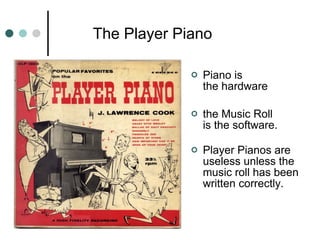
  The Player Piano  Piano is  the hardware  the Music Roll  is the software. Player Pianos are useless unless the music roll has been written correctly.
Hardware physical parts of a computer Input Devices Allows us to put things in the computer Output Devices Allows the computer to put things out for us to see
Input Devices  How we tell the computer what to do keyboard  Enter letters and numbers Mouse Point and click, select, drag  Joysticks  used for games  Scanner Input pictures, text from books,
Output Devices  How it shows you what it is doing Monitor or CRT or screen (soft-copy) View information from the computer Printer (hard-copy) Physical image of computer information
Random Access Memory - RAM RAM is the memory your computer uses to run applications.  The amount of RAM in your computer is fixed sales people will define a computer's capabilities by amount of RAM  Also known as Active Memory
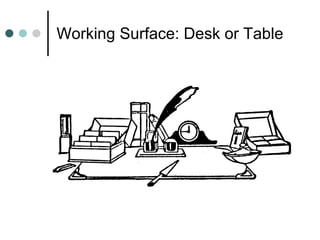
Working Surface: Desk or Table
Read-Only Memory - ROM Saved information in memory can be read only and not altered (CD) ROM is built into your computer to help it start when you turn it on Any information saved on a disk such as information used to perform a task Also known as Storage Memory
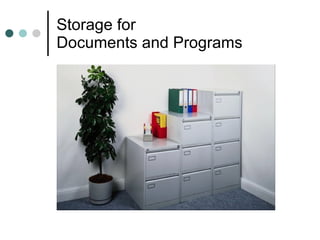
Storage for  Documents and Programs
Memory  How the processor stores and uses immediate information  You request a program Computer loads the program from the hard drive to faster RAM memory.  You save your work the information gets written back to the hard drive.
Storage Devices Where computers save information or data Internal / Fixed Hard disk drives HDD Compact Disc CD External / Portable Floppy Disk Drives FDD Thumb Drives  USB
Internal Storage Disks Hard disk/hard drive  A fixed permanent storage unit that holds a great deal of information. Compact Disc Drive Stores information such as programs, games, and back ups of documents that are permanent
External / Portable Storage Floppy disk/diskette A portable disk on which information is magnetically written that can be read, copied, or deleted.  "Floppy" describes older 5.25" disks which were flexible, while the more common 3.5" disks are hard cased Thumb Drives Large storage capacity for files and documents
Central Processing Unit or CPU All processes and tasks are performed by CPU Printing Screen views Saving files Megahertz (MHz)  is the CPU speed  in which it performs  instructions It’s the Brains of the Computer
Icons Pictures that represent actual items like: Hard drives Applications Actions Tasks Documents / Files Pictures
Operating System or Platform Software   provides a "user interface" to: manage files start applications or programs customize computer settings other tasks PCs use Microsoft Windows XP, VISTA Macintoshes use the Macintosh OS (operating system.)
Software Applications a piece of software intended to do a particular task such as accounting, typing, number-crunching, or making pictures
Popular Software Applications Word Processing (MS Word, WordPerfect) Spreadsheets (MS Excel, Lotus 123) Database (Access, Fox Pro)   Presentation (PowerPoint, Presentations) Browsers (MS Internet Explorer, Fire Fox,)
File or Document any single creation by an application,  A single chart A painting A four page paper A web page A thesis with graphics and footnotes. A government form
Cursor a visual indicator on the screen that lets you know where your mouse is positioned.  allows you to insert text or select existing items to be erased or deleted, copied or modified.
Network A group of computers that are connected with each other by:  telephone lines (Internet) fiber-optic cables Cables Benefits on a computer network: share files send information very quickly enable multiple users to communicate at one time.
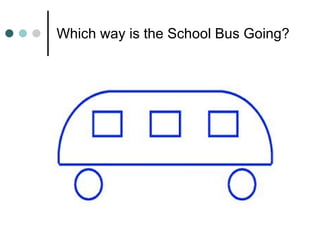
Which way is the School Bus Going?
Happy Computing Peter Ferguson 613-965-6777 [email_address]

Computer Essentials

  • 1.
    Welcome Everyone! ComputerEssentials Course Presented by Quinte West Public Library and Peter Ferguson
  • 2.
    Before Learning aboutComputers The mouse isn’t fragile Typing ability is helpful, but not necessary. You can’t press any key that will destroy your computer Relax, enjoy and learn with no deadlines Remember Inexperience is not an indication of your intelligence!!
  • 3.
    What is aComputer? Computers are not very intelligent (YES / NO) They follow directions from the user Computers are really just powerful calculators with some “extras” They only handle instructions fast.
  • 4.
    What is aSystem? Standardized Method of doing something Specific pieces of hardware and software that your computer needs to perform tasks Computer system converts your keystrokes into letters and displays them on the monitor screen.
  • 5.
    Hardware and Software The hardware is what sits on your desk and executes the software instructions. (Physical) Software a series of simple computer instructions organized to complete tasks. (Intangible)
  • 6.
    ThePlayer Piano Piano is the hardware the Music Roll is the software. Player Pianos are useless unless the music roll has been written correctly.
  • 7.
    Hardware physical partsof a computer Input Devices Allows us to put things in the computer Output Devices Allows the computer to put things out for us to see
  • 8.
    Input Devices How we tell the computer what to do keyboard Enter letters and numbers Mouse Point and click, select, drag Joysticks used for games Scanner Input pictures, text from books,
  • 9.
    Output Devices How it shows you what it is doing Monitor or CRT or screen (soft-copy) View information from the computer Printer (hard-copy) Physical image of computer information
  • 10.
    Random Access Memory- RAM RAM is the memory your computer uses to run applications. The amount of RAM in your computer is fixed sales people will define a computer's capabilities by amount of RAM Also known as Active Memory
  • 11.
  • 12.
    Read-Only Memory -ROM Saved information in memory can be read only and not altered (CD) ROM is built into your computer to help it start when you turn it on Any information saved on a disk such as information used to perform a task Also known as Storage Memory
  • 13.
    Storage for Documents and Programs
  • 14.
    Memory Howthe processor stores and uses immediate information You request a program Computer loads the program from the hard drive to faster RAM memory. You save your work the information gets written back to the hard drive.
  • 15.
    Storage Devices Wherecomputers save information or data Internal / Fixed Hard disk drives HDD Compact Disc CD External / Portable Floppy Disk Drives FDD Thumb Drives USB
  • 16.
    Internal Storage DisksHard disk/hard drive A fixed permanent storage unit that holds a great deal of information. Compact Disc Drive Stores information such as programs, games, and back ups of documents that are permanent
  • 17.
    External / PortableStorage Floppy disk/diskette A portable disk on which information is magnetically written that can be read, copied, or deleted. "Floppy" describes older 5.25" disks which were flexible, while the more common 3.5" disks are hard cased Thumb Drives Large storage capacity for files and documents
  • 18.
    Central Processing Unitor CPU All processes and tasks are performed by CPU Printing Screen views Saving files Megahertz (MHz) is the CPU speed in which it performs instructions It’s the Brains of the Computer
  • 19.
    Icons Pictures thatrepresent actual items like: Hard drives Applications Actions Tasks Documents / Files Pictures
  • 20.
    Operating System orPlatform Software provides a "user interface" to: manage files start applications or programs customize computer settings other tasks PCs use Microsoft Windows XP, VISTA Macintoshes use the Macintosh OS (operating system.)
  • 21.
    Software Applications apiece of software intended to do a particular task such as accounting, typing, number-crunching, or making pictures
  • 22.
    Popular Software ApplicationsWord Processing (MS Word, WordPerfect) Spreadsheets (MS Excel, Lotus 123) Database (Access, Fox Pro) Presentation (PowerPoint, Presentations) Browsers (MS Internet Explorer, Fire Fox,)
  • 23.
    File or Documentany single creation by an application, A single chart A painting A four page paper A web page A thesis with graphics and footnotes. A government form
  • 24.
    Cursor a visualindicator on the screen that lets you know where your mouse is positioned. allows you to insert text or select existing items to be erased or deleted, copied or modified.
  • 25.
    Network A groupof computers that are connected with each other by: telephone lines (Internet) fiber-optic cables Cables Benefits on a computer network: share files send information very quickly enable multiple users to communicate at one time.
  • 26.
    Which way isthe School Bus Going?
  • 27.
    Happy Computing PeterFerguson 613-965-6777 [email_address]