Unit 4
8/17/2017 Ms SURBHI SAROHA(Asst.Prof) 1
WINDOWS 10 – OVERVIEW
 Windows 10 is the most recent version of the operating
system from Microsoft.
 Officially it was released in 2015 and was initially
offered free of charge to legitimate users of Windows 7
and Windows 8.1.
 This new version combines features from those two
previous installments to suit the users in a better way
for both desktop/laptop computers as well as mobile
devices.
8/17/2017 Ms SURBHI SAROHA(Asst.Prof) 2
Windows 10 Screenshot
8/17/2017 Ms SURBHI SAROHA(Asst.Prof) 3
WINDOWS 10 – GUI BASICS
1. Windows
 In Windows 10, if an application is active or opened,
you will see a green line below its icon. Clicking the
icon will bring the application window up.
 Every open window features three buttons in the
upper-right corner. These are used to minimize,
maximize, or close the window .
8/17/2017 Ms SURBHI SAROHA(Asst.Prof) 4
Cont….
2. Icons
Most Windows versions will feature different icons on
the background. An icon is simply a graphic
representation of an application or a file. To open or
access an icon, just double click on it.
8/17/2017 Ms SURBHI SAROHA(Asst.Prof) 5
Screenshot of Icon
8/17/2017 Ms SURBHI SAROHA(Asst.Prof) 6
Virtual Desktops
 One of the new features of Windows 10 is the addition
of Virtual Desktops. This allows you to have multiple
desktop screens where you can keep open windows
organized.
 To add a virtual desktop, follow these steps:
 Step 1: Click Task View on the Taskbar
 TASK VIEW
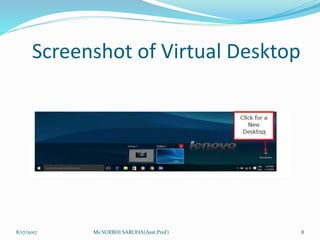
 Step 2: Click the “New desktop” option on the
lower-right corner. You can access or delete the
new Desktop by clicking Task View again.
8/17/2017 Ms SURBHI SAROHA(Asst.Prof) 7
Screenshot of Virtual Desktop
8/17/2017 Ms SURBHI SAROHA(Asst.Prof) 8
Start Menu
 The Start Menu is the main point of access to your
applications. There are two main ways to open it:
 Step 1: Use your mouse to click Windows icon in
the lower-left corner of the taskbar.
8/17/2017 Ms SURBHI SAROHA(Asst.Prof) 9
Cont….
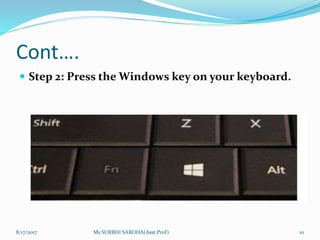
 Step 2: Press the Windows key on your keyboard.
8/17/2017 Ms SURBHI SAROHA(Asst.Prof) 10
Cont….
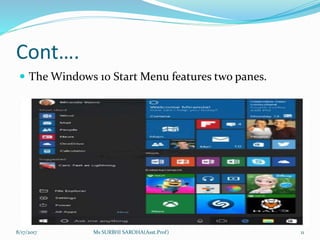
 The Windows 10 Start Menu features two panes.
8/17/2017 Ms SURBHI SAROHA(Asst.Prof) 11
Cont…
 The left pane resembles the traditional Start Menu
from Windows 7 and earlier, while the right pane
features live tiles that were used in Windows 8.
 The icons on the left side of the menu do the
following:
 The Gear icon will allow you to configure the settings
of your Search.
 This icon will let you send Feedback to Microsoft on
what you like or dislike about Windows.
8/17/2017 Ms SURBHI SAROHA(Asst.Prof) 12
Right Pane
 The right pane features a varied array of tiles, similar to
the ones that were seen on the Start Screen of
Windows 8.
 These tiles can be moved and dragged to different
places by holding the mouse button.
8/17/2017 Ms SURBHI SAROHA(Asst.Prof) 13
Left Pane
1. Click the username at the top of the menu to change
account settings or log in with another user.
2. Access the applications you use more frequently.
3. A small arrow next to an application will open a sub-
menu with a list of recent documents opened with that
application.
4. Open the “File Explorer” to navigate your folders and
files.
8/17/2017 Ms SURBHI SAROHA(Asst.Prof) 14
Cont…
5. Change the settings of your computer like your
Internet connection or changing your background.
6. See different options to shut down your computer.
7. See a list of all the applications installed in your
computer.
8/17/2017 Ms SURBHI SAROHA(Asst.Prof) 15
WINDOWS 10 – TASKBAR
 The Windows 10 taskbar sits at the bottom of the
screen giving the user access to the Start Menu, as well
as the icons of frequently used applications.
 On the right-side, the Taskbar features the
Notification Area which informs the user of different
things like the state of the Internet connection or the
charge of the laptop battery.
8/17/2017 Ms SURBHI SAROHA(Asst.Prof) 16
Taskbar diagram
8/17/2017 Ms SURBHI SAROHA(Asst.Prof) 17
Cont….
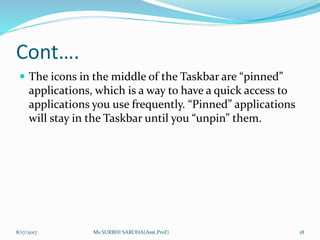
 The icons in the middle of the Taskbar are “pinned”
applications, which is a way to have a quick access to
applications you use frequently. “Pinned” applications
will stay in the Taskbar until you “unpin” them.
8/17/2017 Ms SURBHI SAROHA(Asst.Prof) 18
Pin an Application to the Taskbar
 Step 1: Search for the application you want to pin in
the Start Menu.
 Step 2: Right-click on the application.
 Step 3: Select “More” option at the top of the menu.
 Step 4: Select the “Pin to taskbar” option.
8/17/2017 Ms SURBHI SAROHA(Asst.Prof) 19
Unpin an Application from the
Taskbar
 To “unpin” it, just right-click the icon in the Taskbar
and select “Unpin from taskbar”. You can “pin” it back
again any time you want.
 Task View
 Task View allows you to quickly move within your open
windows and applications. You can access it by
clicking the “Task View” button from the Taskbar.
8/17/2017 Ms SURBHI SAROHA(Asst.Prof) 20
Task View screenshot
8/17/2017 Ms SURBHI SAROHA(Asst.Prof) 21
WINDOWS 10 – CORTANA
 Cortana is Microsoft’s intelligent personal assistant. It
is included in Windows 10, as well as with other
Microsoft systems and devices like Windows Phones
and Xbox, among others.
 Cortana will help you find things in your computer, set
appointments, answer questions, and many other
things.
 To use Cortana simply type a question in the search
box in the Taskbar, or click the microphone icon and
talk to Cortana.
8/17/2017 Ms SURBHI SAROHA(Asst.Prof) 22
Home is the initial Cortana window where you can type or ask
questions.
8/17/2017 Ms SURBHI SAROHA(Asst.Prof) 23
Activating Cortana
 If Cortana isn’t active, you can turn it on by typing
“Cortana” in the Taskbar search to access the Cortana
settings, or just clicking the “Gear” icon on the left-
side of the menu.
 After activating Cortana, it will start gathering
information about you to personalize the experience.
 You can also customize how Cortana responds to you.
8/17/2017 Ms SURBHI SAROHA(Asst.Prof) 24
Activate Cortana screenshot
8/17/2017 Ms SURBHI SAROHA(Asst.Prof) 25
Gathering information by
Cortana
8/17/2017 Ms SURBHI SAROHA(Asst.Prof) 26
Personalizing Cortana
 To further customize Cortana and personalize your
interactions with it, you can also access the Cortana
Notebook.
 You can also add reminders by either typing them or
talking to Cortana.
8/17/2017 Ms SURBHI SAROHA(Asst.Prof) 27
Customize Cortana Screenshot
8/17/2017 Ms SURBHI SAROHA(Asst.Prof) 28
WINDOWS 10 – MULTIPLE
DESKTOPS
 One of the innovative features of Windows 10
operating system is the addition of Virtual Desktops.
This allows you to have multiple desktop screens,
where you can keep open windows organized.
 To add a virtual desktop, follow these steps:
 Step 1: Click Task View icon on the Taskbar.
 Step 2: Click “New Desktop” option on the lower-
right corner. You can access or delete the new
Desktop by clicking Task View icon again.
8/17/2017 Ms SURBHI SAROHA(Asst.Prof) 29
Task View Screenshot
8/17/2017 Ms SURBHI SAROHA(Asst.Prof) 30
New desktop screenshot
8/17/2017 Ms SURBHI SAROHA(Asst.Prof) 31
WINDOWS 10 – KEYBOARD
SHORTCUTS
8/17/2017 Ms SURBHI SAROHA(Asst.Prof) 32
 THANK YOU
8/17/2017 Ms SURBHI SAROHA(Asst.Prof) 33

Windows operating environment(unit 4)

  • 1.
    Unit 4 8/17/2017 MsSURBHI SAROHA(Asst.Prof) 1
  • 2.
    WINDOWS 10 –OVERVIEW  Windows 10 is the most recent version of the operating system from Microsoft.  Officially it was released in 2015 and was initially offered free of charge to legitimate users of Windows 7 and Windows 8.1.  This new version combines features from those two previous installments to suit the users in a better way for both desktop/laptop computers as well as mobile devices. 8/17/2017 Ms SURBHI SAROHA(Asst.Prof) 2
  • 3.
    Windows 10 Screenshot 8/17/2017Ms SURBHI SAROHA(Asst.Prof) 3
  • 4.
    WINDOWS 10 –GUI BASICS 1. Windows  In Windows 10, if an application is active or opened, you will see a green line below its icon. Clicking the icon will bring the application window up.  Every open window features three buttons in the upper-right corner. These are used to minimize, maximize, or close the window . 8/17/2017 Ms SURBHI SAROHA(Asst.Prof) 4
  • 5.
    Cont…. 2. Icons Most Windowsversions will feature different icons on the background. An icon is simply a graphic representation of an application or a file. To open or access an icon, just double click on it. 8/17/2017 Ms SURBHI SAROHA(Asst.Prof) 5
  • 6.
    Screenshot of Icon 8/17/2017Ms SURBHI SAROHA(Asst.Prof) 6
  • 7.
    Virtual Desktops  Oneof the new features of Windows 10 is the addition of Virtual Desktops. This allows you to have multiple desktop screens where you can keep open windows organized.  To add a virtual desktop, follow these steps:  Step 1: Click Task View on the Taskbar  TASK VIEW  Step 2: Click the “New desktop” option on the lower-right corner. You can access or delete the new Desktop by clicking Task View again. 8/17/2017 Ms SURBHI SAROHA(Asst.Prof) 7
  • 8.
    Screenshot of VirtualDesktop 8/17/2017 Ms SURBHI SAROHA(Asst.Prof) 8
  • 9.
    Start Menu  TheStart Menu is the main point of access to your applications. There are two main ways to open it:  Step 1: Use your mouse to click Windows icon in the lower-left corner of the taskbar. 8/17/2017 Ms SURBHI SAROHA(Asst.Prof) 9
  • 10.
    Cont….  Step 2:Press the Windows key on your keyboard. 8/17/2017 Ms SURBHI SAROHA(Asst.Prof) 10
  • 11.
    Cont….  The Windows10 Start Menu features two panes. 8/17/2017 Ms SURBHI SAROHA(Asst.Prof) 11
  • 12.
    Cont…  The leftpane resembles the traditional Start Menu from Windows 7 and earlier, while the right pane features live tiles that were used in Windows 8.  The icons on the left side of the menu do the following:  The Gear icon will allow you to configure the settings of your Search.  This icon will let you send Feedback to Microsoft on what you like or dislike about Windows. 8/17/2017 Ms SURBHI SAROHA(Asst.Prof) 12
  • 13.
    Right Pane  Theright pane features a varied array of tiles, similar to the ones that were seen on the Start Screen of Windows 8.  These tiles can be moved and dragged to different places by holding the mouse button. 8/17/2017 Ms SURBHI SAROHA(Asst.Prof) 13
  • 14.
    Left Pane 1. Clickthe username at the top of the menu to change account settings or log in with another user. 2. Access the applications you use more frequently. 3. A small arrow next to an application will open a sub- menu with a list of recent documents opened with that application. 4. Open the “File Explorer” to navigate your folders and files. 8/17/2017 Ms SURBHI SAROHA(Asst.Prof) 14
  • 15.
    Cont… 5. Change thesettings of your computer like your Internet connection or changing your background. 6. See different options to shut down your computer. 7. See a list of all the applications installed in your computer. 8/17/2017 Ms SURBHI SAROHA(Asst.Prof) 15
  • 16.
    WINDOWS 10 –TASKBAR  The Windows 10 taskbar sits at the bottom of the screen giving the user access to the Start Menu, as well as the icons of frequently used applications.  On the right-side, the Taskbar features the Notification Area which informs the user of different things like the state of the Internet connection or the charge of the laptop battery. 8/17/2017 Ms SURBHI SAROHA(Asst.Prof) 16
  • 17.
    Taskbar diagram 8/17/2017 MsSURBHI SAROHA(Asst.Prof) 17
  • 18.
    Cont….  The iconsin the middle of the Taskbar are “pinned” applications, which is a way to have a quick access to applications you use frequently. “Pinned” applications will stay in the Taskbar until you “unpin” them. 8/17/2017 Ms SURBHI SAROHA(Asst.Prof) 18
  • 19.
    Pin an Applicationto the Taskbar  Step 1: Search for the application you want to pin in the Start Menu.  Step 2: Right-click on the application.  Step 3: Select “More” option at the top of the menu.  Step 4: Select the “Pin to taskbar” option. 8/17/2017 Ms SURBHI SAROHA(Asst.Prof) 19
  • 20.
    Unpin an Applicationfrom the Taskbar  To “unpin” it, just right-click the icon in the Taskbar and select “Unpin from taskbar”. You can “pin” it back again any time you want.  Task View  Task View allows you to quickly move within your open windows and applications. You can access it by clicking the “Task View” button from the Taskbar. 8/17/2017 Ms SURBHI SAROHA(Asst.Prof) 20
  • 21.
    Task View screenshot 8/17/2017Ms SURBHI SAROHA(Asst.Prof) 21
  • 22.
    WINDOWS 10 –CORTANA  Cortana is Microsoft’s intelligent personal assistant. It is included in Windows 10, as well as with other Microsoft systems and devices like Windows Phones and Xbox, among others.  Cortana will help you find things in your computer, set appointments, answer questions, and many other things.  To use Cortana simply type a question in the search box in the Taskbar, or click the microphone icon and talk to Cortana. 8/17/2017 Ms SURBHI SAROHA(Asst.Prof) 22
  • 23.
    Home is theinitial Cortana window where you can type or ask questions. 8/17/2017 Ms SURBHI SAROHA(Asst.Prof) 23
  • 24.
    Activating Cortana  IfCortana isn’t active, you can turn it on by typing “Cortana” in the Taskbar search to access the Cortana settings, or just clicking the “Gear” icon on the left- side of the menu.  After activating Cortana, it will start gathering information about you to personalize the experience.  You can also customize how Cortana responds to you. 8/17/2017 Ms SURBHI SAROHA(Asst.Prof) 24
  • 25.
    Activate Cortana screenshot 8/17/2017Ms SURBHI SAROHA(Asst.Prof) 25
  • 26.
    Gathering information by Cortana 8/17/2017Ms SURBHI SAROHA(Asst.Prof) 26
  • 27.
    Personalizing Cortana  Tofurther customize Cortana and personalize your interactions with it, you can also access the Cortana Notebook.  You can also add reminders by either typing them or talking to Cortana. 8/17/2017 Ms SURBHI SAROHA(Asst.Prof) 27
  • 28.
    Customize Cortana Screenshot 8/17/2017Ms SURBHI SAROHA(Asst.Prof) 28
  • 29.
    WINDOWS 10 –MULTIPLE DESKTOPS  One of the innovative features of Windows 10 operating system is the addition of Virtual Desktops. This allows you to have multiple desktop screens, where you can keep open windows organized.  To add a virtual desktop, follow these steps:  Step 1: Click Task View icon on the Taskbar.  Step 2: Click “New Desktop” option on the lower- right corner. You can access or delete the new Desktop by clicking Task View icon again. 8/17/2017 Ms SURBHI SAROHA(Asst.Prof) 29
  • 30.
    Task View Screenshot 8/17/2017Ms SURBHI SAROHA(Asst.Prof) 30
  • 31.
    New desktop screenshot 8/17/2017Ms SURBHI SAROHA(Asst.Prof) 31
  • 32.
    WINDOWS 10 –KEYBOARD SHORTCUTS 8/17/2017 Ms SURBHI SAROHA(Asst.Prof) 32
  • 33.
     THANK YOU 8/17/2017Ms SURBHI SAROHA(Asst.Prof) 33