B L O G G I N G !
G E T T I N G S E T U P
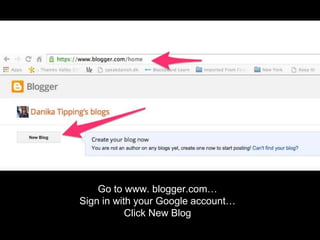
Go to www. blogger.com…
Sign in with your Google account…
Click New Blog
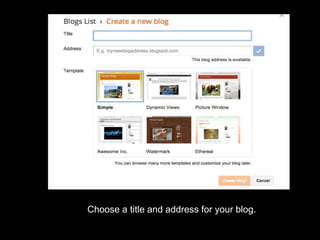
Choose a title and address for your blog.
Pick a template (You can change it later)
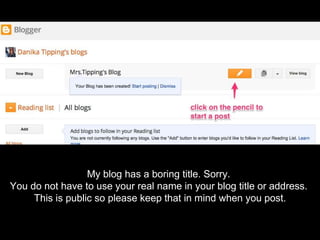
My blog has a boring title. Sorry.
You do not have to use your real name in your blog title or address.
This is public so please keep that in mind when you post.
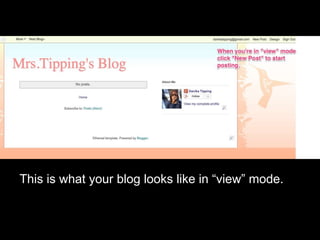
This is what your blog looks like in “view” mode.
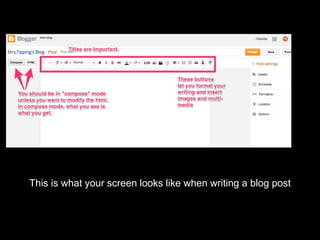
This is what your screen looks like when writing a blog post
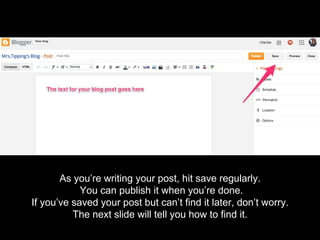
As you’re writing your post, hit save regularly.
You can publish it when you’re done.
If you’ve saved your post but can’t find it later, don’t worry.
The next slide will tell you how to find it.
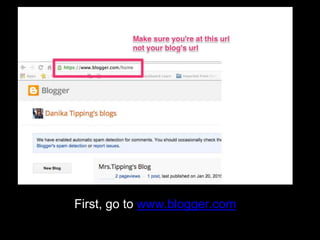
First, go to www.blogger.com
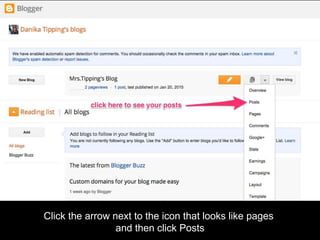
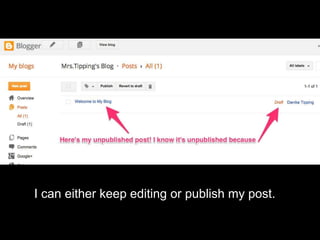
Click the arrow next to the icon that looks like pages
and then click Posts
I can either keep editing or publish my post.
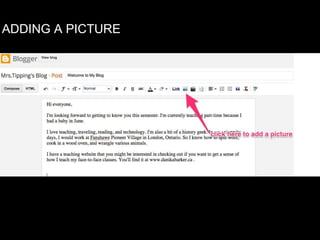
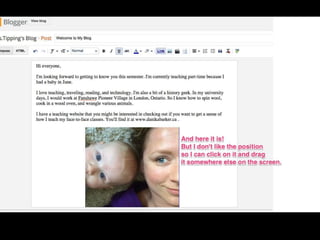
ADDING A PICTURE
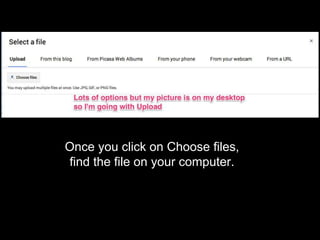
Once you click on Choose files,
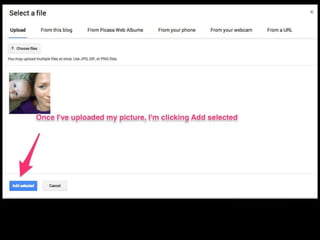
find the file on your computer.
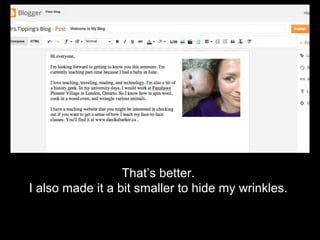
That’s better.
I also made it a bit smaller to hide my wrinkles.
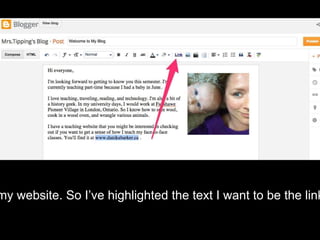
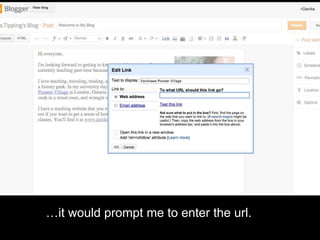
my website. So I’ve highlighted the text I want to be the link
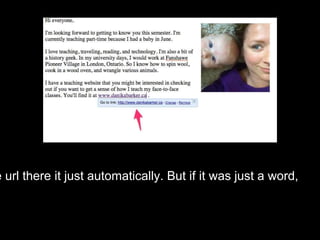
e url there it just automatically. But if it was just a word,
…it would prompt me to enter the url.
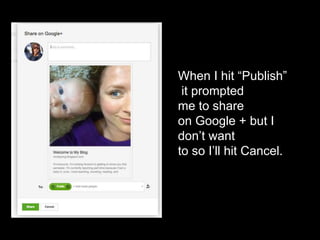
When I hit “Publish”
it prompted
me to share
on Google + but I
don’t want
to so I’ll hit Cancel.
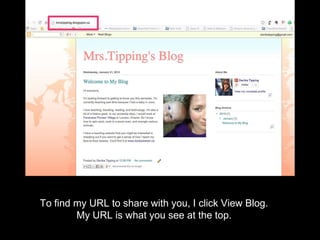
To find my URL to share with you, I click View Blog.
My URL is what you see at the top.
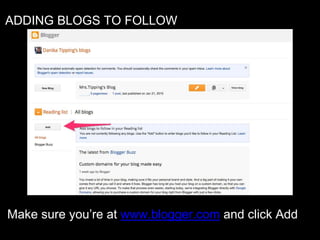
ADDING BLOGS TO FOLLOW
Make sure you’re at www.blogger.com and click Add
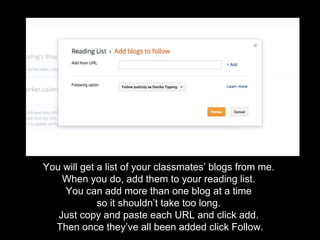
You will get a list of your classmates’ blogs from me.
When you do, add them to your reading list.
You can add more than one blog at a time
so it shouldn’t take too long.
Just copy and paste each URL and click add.
Then once they’ve all been added click Follow.
HOW TO COMMENT
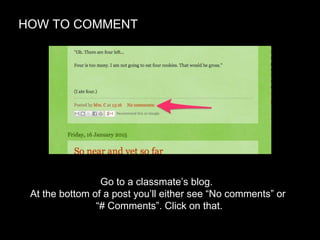
Go to a classmate’s blog.
At the bottom of a post you’ll either see “No comments” or
“# Comments”. Click on that.
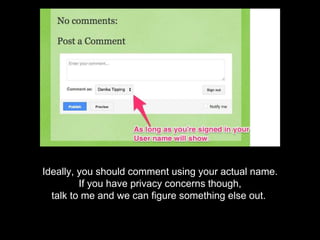
Ideally, you should comment using your actual name.
If you have privacy concerns though,
talk to me and we can figure something else out.

Setting up your blog

  • 1.
    B L OG G I N G ! G E T T I N G S E T U P
  • 2.
    Go to www.blogger.com… Sign in with your Google account… Click New Blog
  • 3.
    Choose a titleand address for your blog. Pick a template (You can change it later)
  • 4.
    My blog hasa boring title. Sorry. You do not have to use your real name in your blog title or address. This is public so please keep that in mind when you post.
  • 5.
    This is whatyour blog looks like in “view” mode.
  • 6.
    This is whatyour screen looks like when writing a blog post
  • 7.
    As you’re writingyour post, hit save regularly. You can publish it when you’re done. If you’ve saved your post but can’t find it later, don’t worry. The next slide will tell you how to find it.
  • 8.
    First, go towww.blogger.com
  • 9.
    Click the arrownext to the icon that looks like pages and then click Posts
  • 10.
    I can eitherkeep editing or publish my post.
  • 11.
  • 12.
    Once you clickon Choose files, find the file on your computer.
  • 15.
    That’s better. I alsomade it a bit smaller to hide my wrinkles.
  • 16.
    my website. SoI’ve highlighted the text I want to be the link
  • 17.
    e url thereit just automatically. But if it was just a word,
  • 18.
    …it would promptme to enter the url.
  • 19.
    When I hit“Publish” it prompted me to share on Google + but I don’t want to so I’ll hit Cancel.
  • 20.
    To find myURL to share with you, I click View Blog. My URL is what you see at the top.
  • 21.
    ADDING BLOGS TOFOLLOW Make sure you’re at www.blogger.com and click Add
  • 22.
    You will geta list of your classmates’ blogs from me. When you do, add them to your reading list. You can add more than one blog at a time so it shouldn’t take too long. Just copy and paste each URL and click add. Then once they’ve all been added click Follow.
  • 23.
    HOW TO COMMENT Goto a classmate’s blog. At the bottom of a post you’ll either see “No comments” or “# Comments”. Click on that.
  • 24.
    Ideally, you shouldcomment using your actual name. If you have privacy concerns though, talk to me and we can figure something else out.