IFTTT
( “if this, then that” statement )
( TUTORIAL )
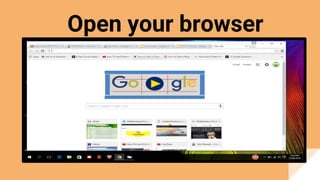
Open your browser
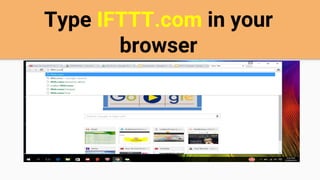
Type IFTTT.com in your
browser
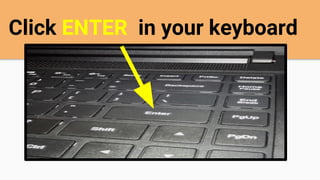
Click ENTER in your keyboard
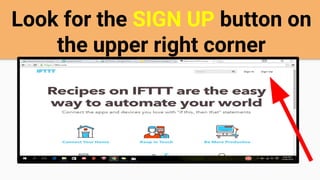
Look for the SIGN UP button on
the upper right corner
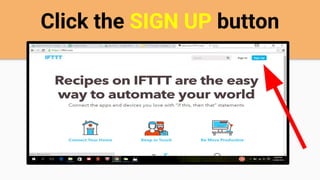
Click the SIGN UP button
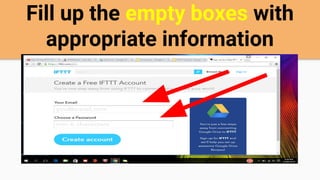
Fill up the empty boxes with
appropriate information
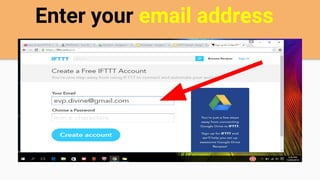
Enter your email address
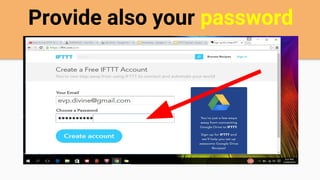
Provide also your password
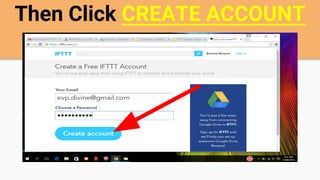
Then Click CREATE ACCOUNT
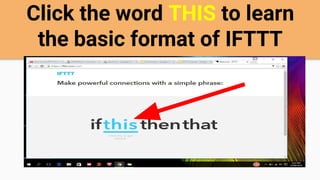
Click the word THIS to learn
the basic format of IFTTT
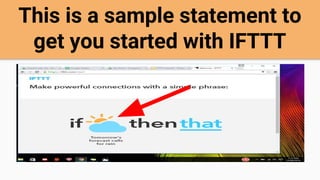
This is a sample statement to
get you started with IFTTT
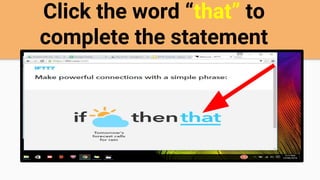
Click the word “that” to
complete the statement
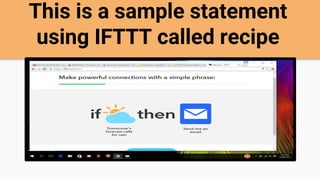
This is a sample statement
using IFTTT called recipe
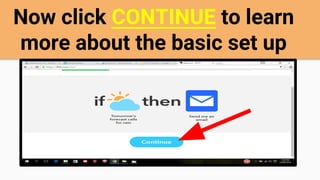
Now click CONTINUE to learn
more about the basic set up
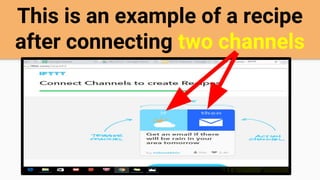
This is an example of a recipe
after connecting two channels
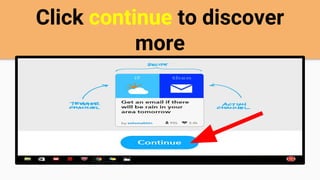
Click continue to discover
more
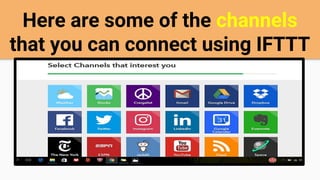
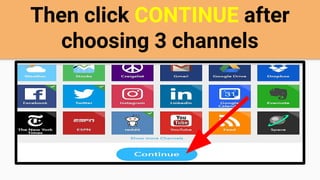
Here are some of the channels
that you can connect using IFTTT
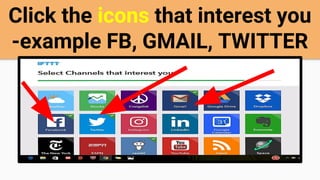
Click the icons that interest you
-example FB, GMAIL, TWITTER
Then click CONTINUE after
choosing 3 channels
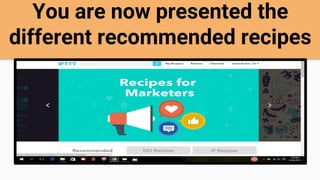
You are now presented the
different recommended recipes
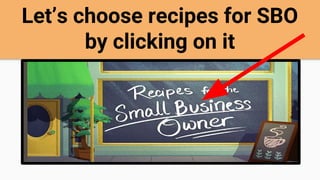
Let’s choose recipes for SBO
by clicking on it
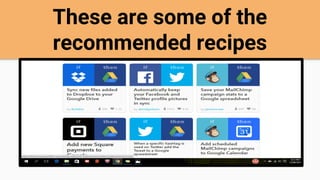
These are some of the
recommended recipes
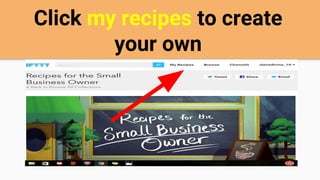
Click my recipes to create
your own
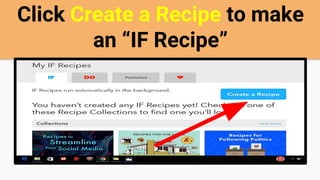
Click Create a Recipe to make
an “IF Recipe”
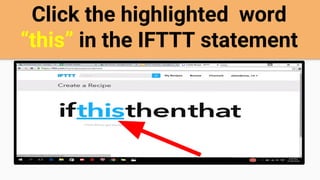
Click the highlighted word
“this” in the IFTTT statement
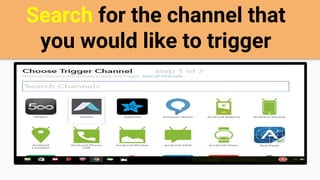
Search for the channel that
you would like to trigger
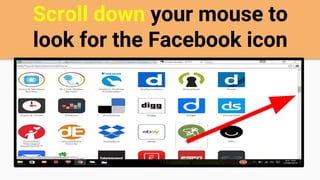
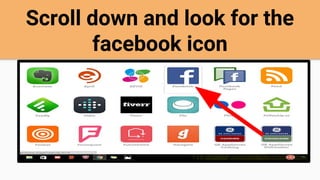
Scroll down your mouse to
look for the Facebook icon
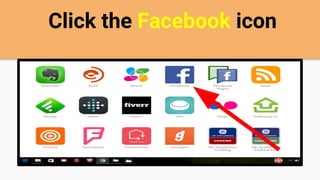
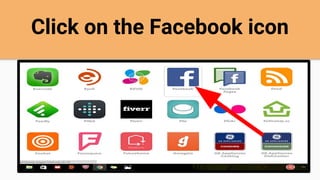
Click the Facebook icon
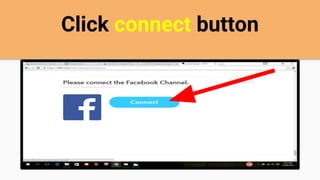
Click connect button
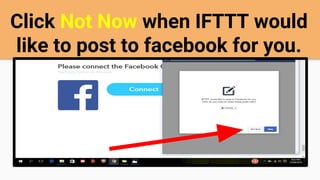
Click Not Now when IFTTT would
like to post to facebook for you.
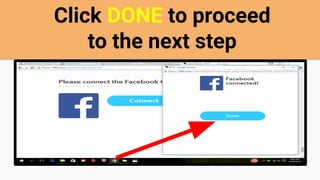
Click DONE to proceed
to the next step
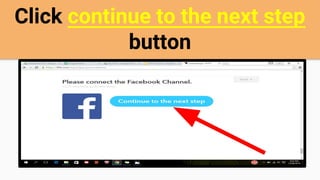
Click continue to the next step
button
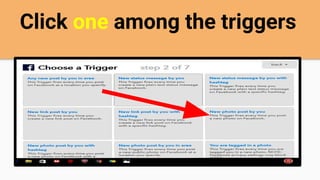
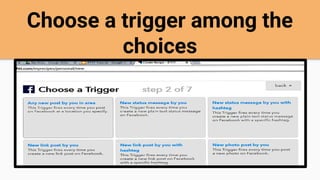
Click one among the triggers
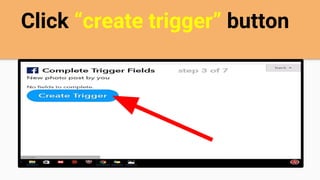
Click “create trigger” button
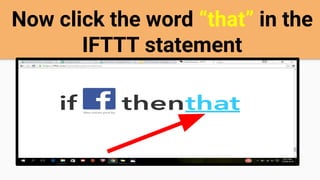
Now click the word “that” in the
IFTTT statement
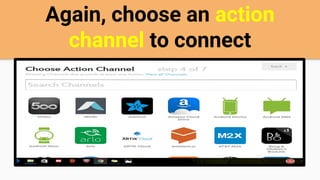
Again, choose an action
channel to connect
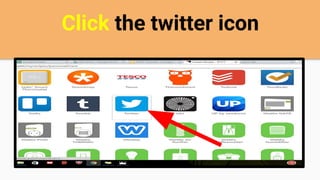
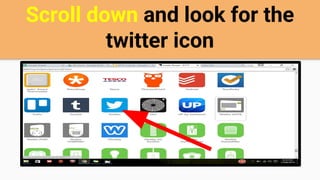
Scroll down and look for the
twitter icon
Click the twitter icon
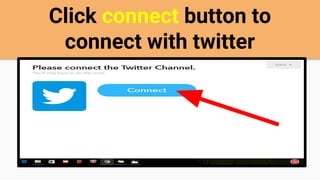
Click connect button to
connect with twitter
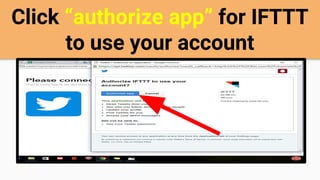
Click “authorize app” for IFTTT
to use your account
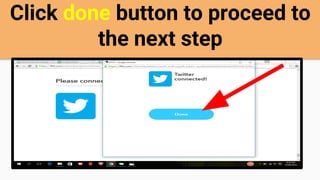
Click done button to proceed to
the next step
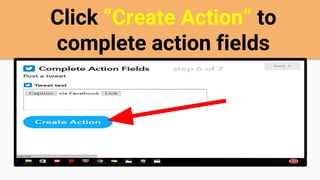
Click “Create Action” to
complete action fields
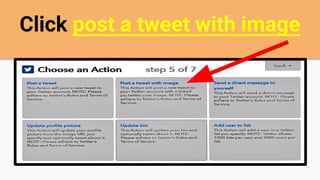
Click post a tweet with image
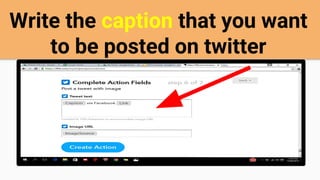
Write the caption that you want
to be posted on twitter
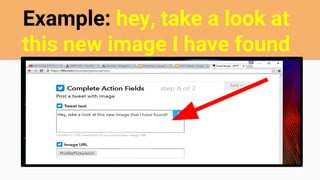
Example: hey, take a look at
this new image I have found
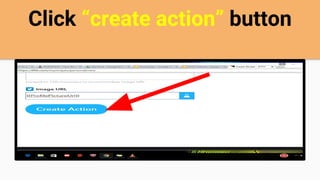
Click “create action” button
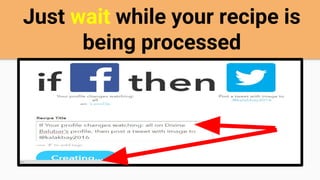
Just wait while your recipe is
being processed
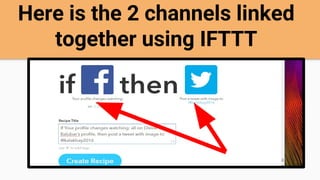
Here is the 2 channels linked
together using IFTTT
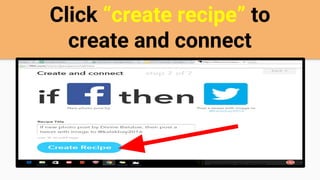
Click “create recipe” to
create and connect
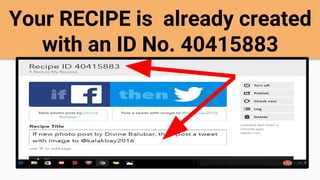
Your RECIPE is already created
with an ID No. 40415883
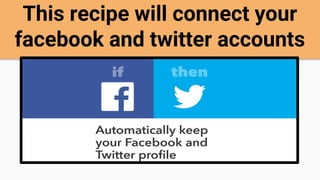
This recipe will connect your
facebook and twitter accounts
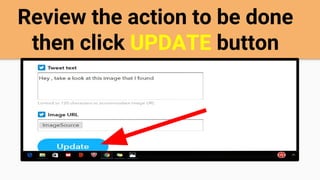
Review the action to be done
then click UPDATE button
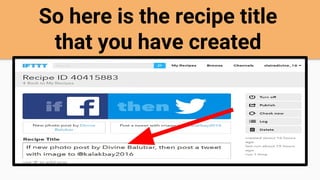
So here is the recipe title
that you have created
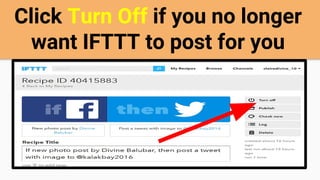
Click Turn Off if you no longer
want IFTTT to post for you
Now let’s check if the new
recipe works
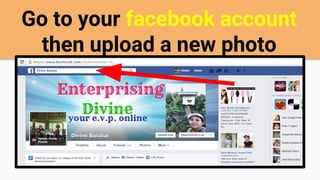
Go to your facebook account
then upload a new photo
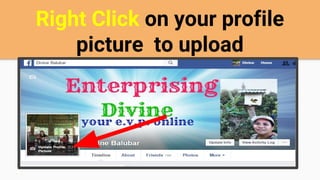
Right Click on your profile
picture to upload
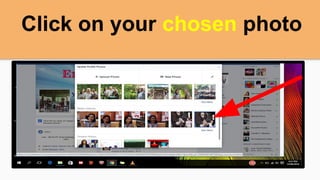
Click on your chosen photo
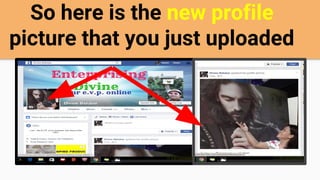
So here is the new profile
picture that you just uploaded
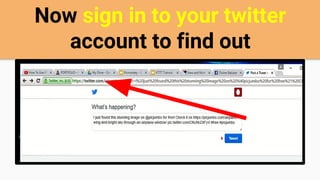
Now sign in to your twitter
account to find out
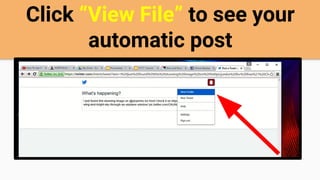
Click “View File” to see your
automatic post
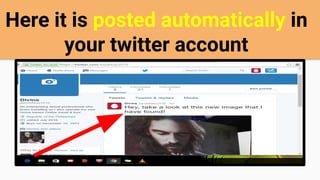
Here it is posted automatically in
your twitter account
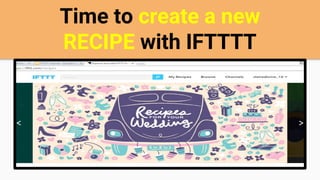
Time to create a new
RECIPE with IFTTTT
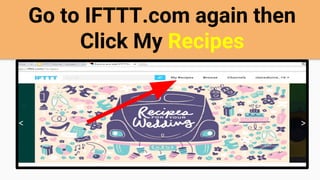
Go to IFTTT.com again then
Click My Recipes
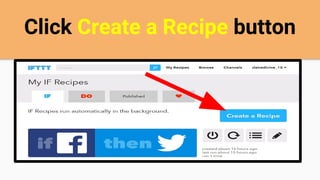
Click Create a Recipe button
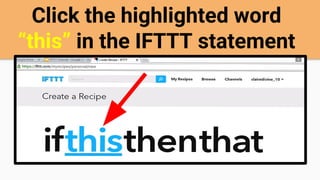
Click the highlighted word
“this” in the IFTTT statement
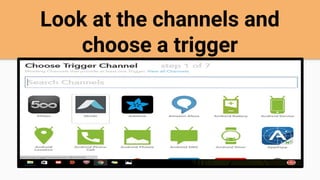
Look at the channels and
choose a trigger
Scroll down and look for the
facebook icon
Click on the Facebook icon
Choose a trigger among the
choices
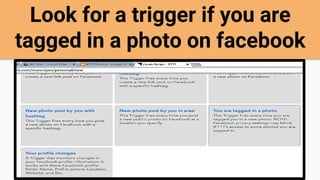
Look for a trigger if you are
tagged in a photo on facebook
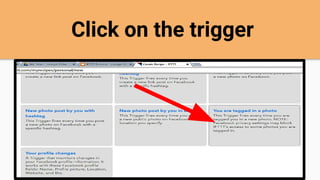
Click on the trigger
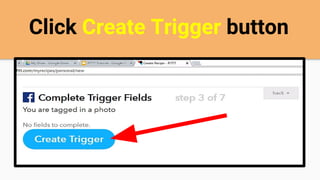
Click Create Trigger button
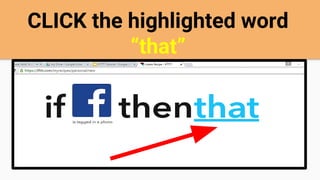
CLICK the highlighted word
“that”
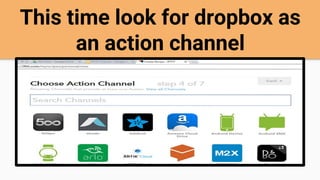
This time look for dropbox as
an action channel
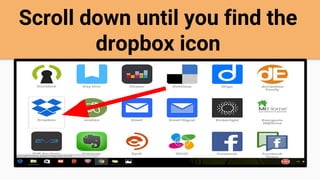
Scroll down until you find the
dropbox icon
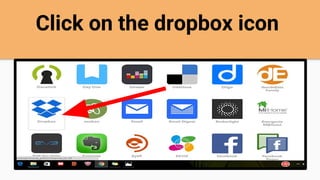
Click on the dropbox icon
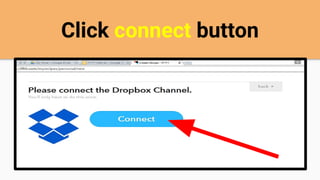
Click connect button
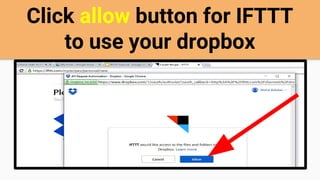
Click allow button for IFTTT
to use your dropbox
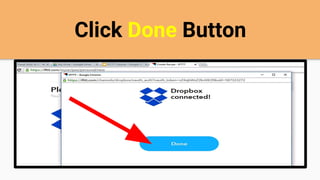
Click Done Button
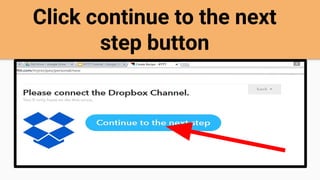
Click continue to the next
step button
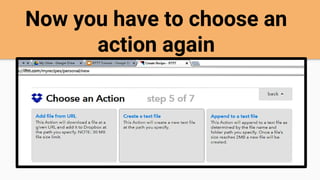
Now you have to choose an
action again
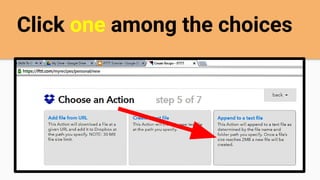
Click one among the choices
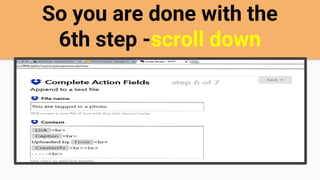
So you are done with the
6th step -scroll down
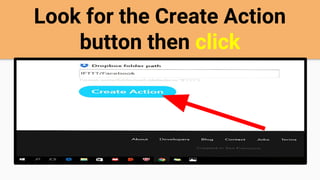
Look for the Create Action
button then click
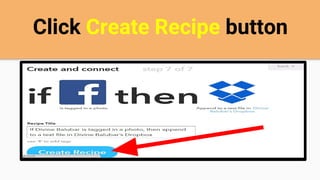
Click Create Recipe button
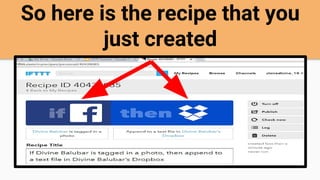
So here is the recipe that you
just created
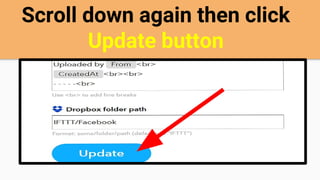
Scroll down again then click
Update button
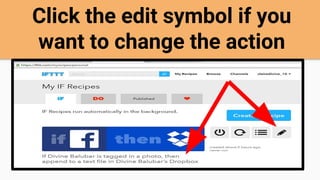
Click the edit symbol if you
want to change the action
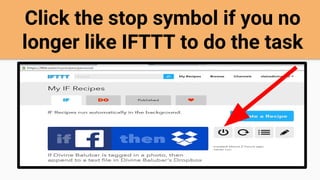
Click the stop symbol if you no
longer like IFTTT to do the task
And there are lots of other
recipes that you may create
based on your personal or
business needs
That is the awesome IFTTT
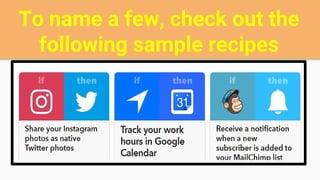
To name a few, check out the
following sample recipes
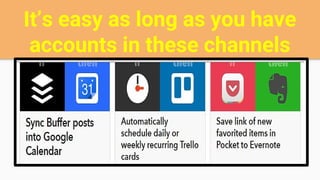
It’s easy as long as you have
accounts in these channels
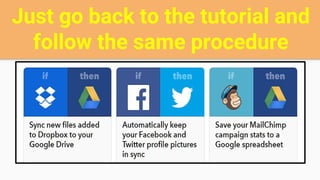
Just go back to the tutorial and
follow the same procedure
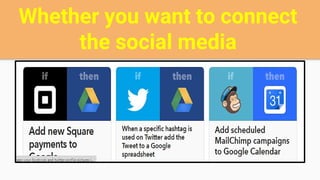
Whether you want to connect
the social media
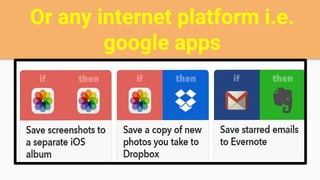
Or any internet platform i.e.
google apps
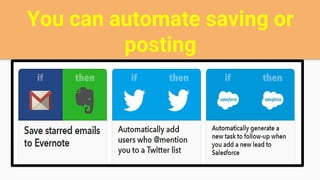
You can automate saving or
posting
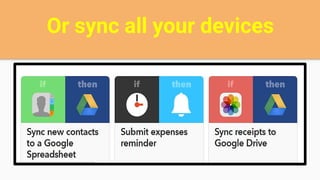
Or sync all your devices
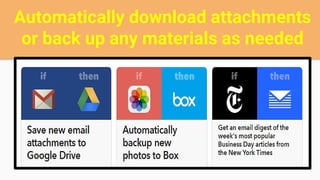
Automatically download attachments
or back up any materials as needed
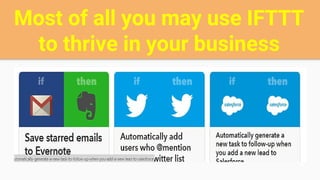
Most of all you may use IFTTT
to thrive in your business
So, that’s IFTTT!
Thank you for your time.
Hope you learned something from me again.
Remember, if you need a VA just contact me:
ENTERPRISING DIVINE, YOUR E.V.P. ONLINE
(enterprising virtual professional)

How to use IFTTT for Beginners