Creating a Blog using Google
           Blogger
This tutorial will show you how to
create your own blog with Google
blogger


Blogger allows users to create and edit
blogs in a quick, easy and efficient way
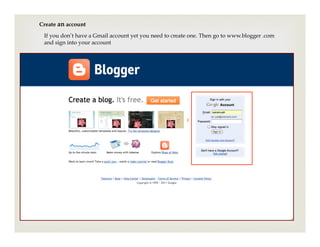
Create an account
 If you don’t have a Gmail account yet you need to create one. Then go to www.blogger .com
 and sign into your account
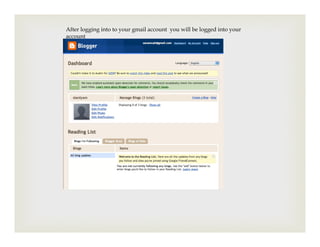
After logging into to your gmail account you will be logged into your
account
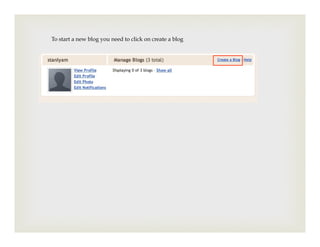
To start a new blog you need to click on create a blog
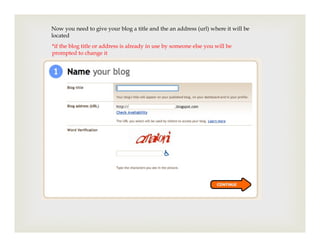
Now you need to give your blog a title and the an address (url) where it will be
located
*if the blog title or address is already in use by someone else you will be
prompted to change it
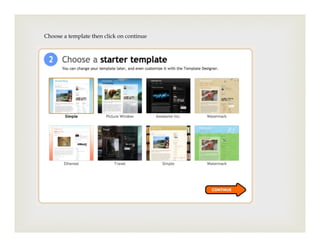
Choose a template then click on continue
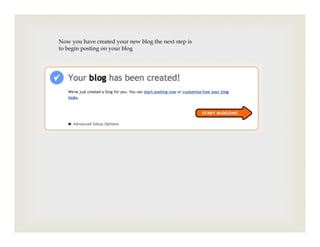
Now you have created your new blog the next step is
to begin posting on your blog
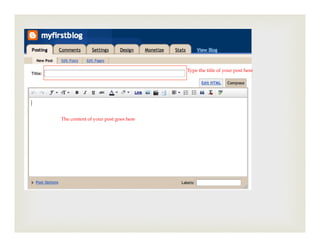
Type the title of your post here


The content of your post goes here
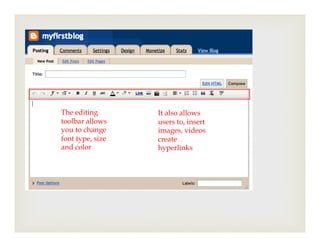
The editing       It also allows
toolbar allows    users to, insert
you to change     images, videos
font type, size   create
and color         hyperlinks
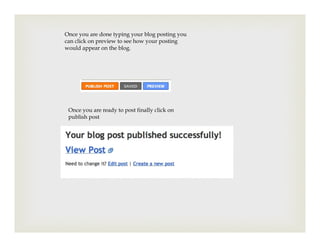
Once you are done typing your blog posting you
can click on preview to see how your posting
would appear on the blog.


 Once you are ready to post finally click on
 publish post
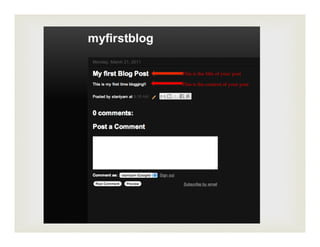
This is the title of your post

This is the content of your post
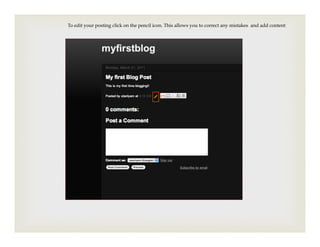
To edit your posting click on the pencil icon. This allows you to correct any mistakes and add content
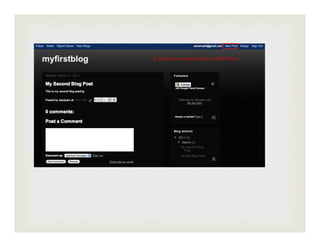
To add more content click on NEW Post
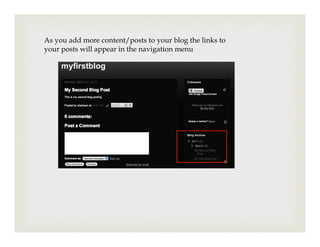
As you add more content/posts to your blog the links to
your posts will appear in the navigation menu
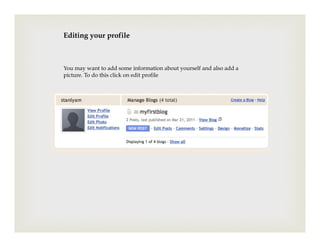
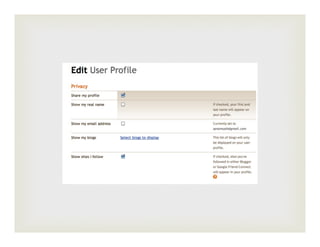
Editing your profile


You may want to add some information about yourself and also add a
picture. To do this click on edit profile
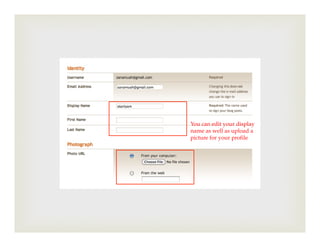
You can edit your display
name as well as upload a
picture for your profile
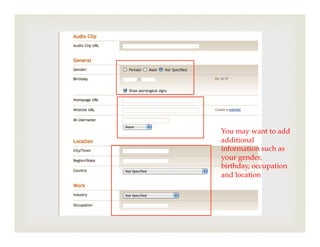
You may want to add
additional
information such as
your gender,
birthday, occupation
and location
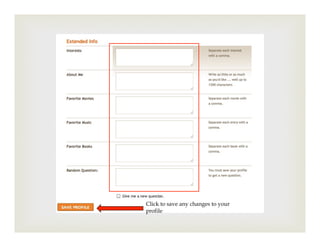
Click to save any changes to your
profile
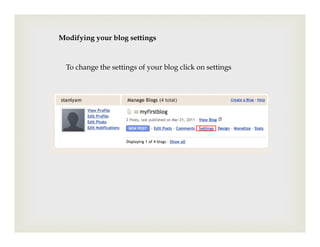
Modifying your blog settings


  To change the settings of your blog click on settings
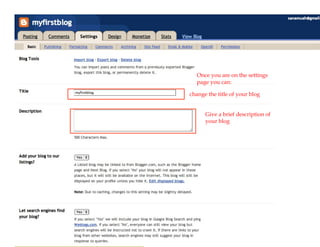
Once you are on the settings
   page you can:

change the title of your blog


      Give a brief description of
      your blog
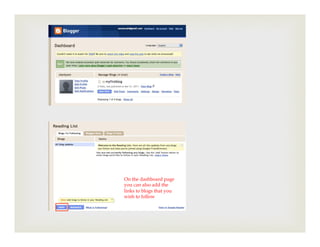
On the dashboard page
you can also add the
links to blogs that you
wish to follow
If you have further questions about blogger
you can probably find the answers in
Google’s Blogger Help Page located at :
http://www.google.com/support/blogger/?
hl=en&rd=1

Blogger tutorial

  • 1.
    Creating a Blogusing Google Blogger
  • 2.
    This tutorial willshow you how to create your own blog with Google blogger Blogger allows users to create and edit blogs in a quick, easy and efficient way
  • 3.
    Create an account If you don’t have a Gmail account yet you need to create one. Then go to www.blogger .com and sign into your account
  • 4.
    After logging intoto your gmail account you will be logged into your account
  • 5.
    To start anew blog you need to click on create a blog
  • 6.
    Now you needto give your blog a title and the an address (url) where it will be located *if the blog title or address is already in use by someone else you will be prompted to change it
  • 7.
    Choose a templatethen click on continue
  • 8.
    Now you havecreated your new blog the next step is to begin posting on your blog
  • 9.
    Type the titleof your post here The content of your post goes here
  • 10.
    The editing It also allows toolbar allows users to, insert you to change images, videos font type, size create and color hyperlinks
  • 11.
    Once you aredone typing your blog posting you can click on preview to see how your posting would appear on the blog. Once you are ready to post finally click on publish post
  • 12.
    This is thetitle of your post This is the content of your post
  • 13.
    To edit yourposting click on the pencil icon. This allows you to correct any mistakes and add content
  • 14.
    To add morecontent click on NEW Post
  • 15.
    As you addmore content/posts to your blog the links to your posts will appear in the navigation menu
  • 16.
    Editing your profile Youmay want to add some information about yourself and also add a picture. To do this click on edit profile
  • 18.
    You can edityour display name as well as upload a picture for your profile
  • 19.
    You may wantto add additional information such as your gender, birthday, occupation and location
  • 20.
    Click to saveany changes to your profile
  • 21.
    Modifying your blogsettings To change the settings of your blog click on settings
  • 22.
    Once you areon the settings page you can: change the title of your blog Give a brief description of your blog
  • 23.
    On the dashboardpage you can also add the links to blogs that you wish to follow
  • 24.
    If you havefurther questions about blogger you can probably find the answers in Google’s Blogger Help Page located at : http://www.google.com/support/blogger/? hl=en&rd=1