

Barbara B. Nixon :: Southeastern University & Florida Southern CollegeGetting Started in WordPress
Blogging Do’s & No-No’s
Blog Do’sWrite in short paragraphsUse images for visual impactFind Creative Commons-licensed images at Compfight.comProofread. Then proofread again.Even ONE error is too many in a postAlways give credit to original sourcesExample: For Reading Notes, link back to textbookReview Blogging Guidelines Write “enough” posts in each categoryWrite posts that are long enough
Blog No-No’sNever “scrape” another writer’s contentIt’s plagiarismNever let reader see a URL (http://address.com)Simply hyperlink from the appropriate wordsAvoid tiny text, especially on a dark backgroundMakes it hard to readAvoid changing text colors from the defaultMakes your blog look “My Spacey”Avoid boring or non-descriptive titles for posts“TOW #4” will mean nothing to a reader outside of this class
Step One: Signing Up for Your WordPress Account
Sign up for an accountGo to WordPress.comChoose account name wiselyDon’t use your student login nameChoose a real nameEither your name or some combination of your initials, orA phraseAvoid a random-looking combo of letters & numbersYour new blog’s address will beusername.wordpress.com
Step Two: Setting Up
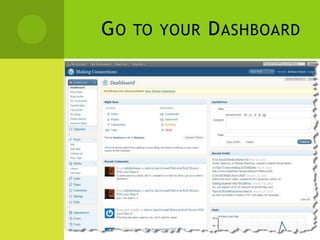
Go to your Dashboard
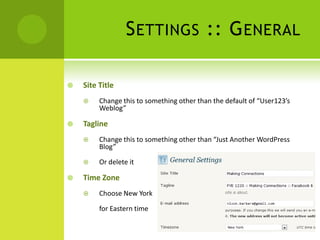
Settings :: GeneralSite TitleChange this to something other than the default of “User123’s Weblog”TaglineChange this to something other than “Just Another WordPressBlog”Or delete itTime ZoneChoose New York	for Eastern time
Appearance :: ThemesTry out several Themes until you find one you likePreviewThen ActivateBe sure your Theme allows you to use WidgetsClick Feature Filters, then check WidgetsRecommended Themes for our classINonveCutlineMisty LookBlixAvoid Themes with dark backgrounds and tiny text
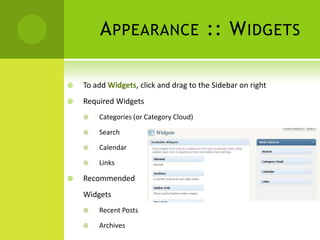
Appearance :: WidgetsTo add Widgets, click and drag to the Sidebar on rightRequired WidgetsCategories (or Category Cloud)SearchCalendarLinksRecommended 	WidgetsRecent PostsArchives
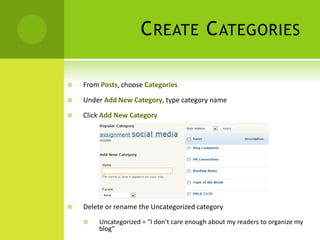
Create CategoriesFrom Posts, choose CategoriesUnder Add New Category, type category nameClick Add New CategoryDelete or rename the Uncategorized categoryUncategorized = “I don’t care enough about my readers to organize my blog”
Categories :: RequiredFor my PR classes, create a category for each of the followingTopic of the Week [course name & number]PR Connections [course name & number]Blog Comments [course name & number]Personal (if you have any personal posts) [course name & number]Additional categories as you choose
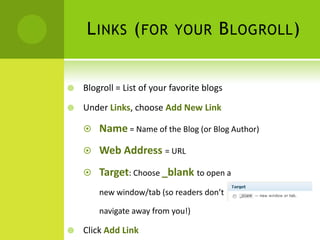
Links (for your Blogroll)Blogroll = List of your favorite blogsUnder Links, choose Add New LinkName = Name of the Blog (or Blog Author)Web Address = URLTarget: Choose _blank to open a 	new window/tab (so readers don’t 	navigate away from you!)Click Add Link
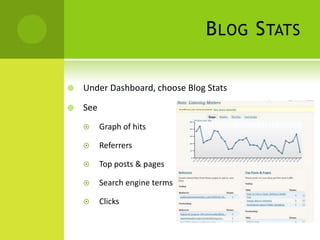
Blog StatsUnder Dashboard, choose Blog StatsSeeGraph of hitsReferrersTop posts & pagesSearch engine termsClicks
Step Three: Writing Posts & Pages
Post v. PagePostNewest information shows up at top of blogAs information is added, older posts “sink down”Eventually, older posts will move to another place in your blog “Previous Posts”
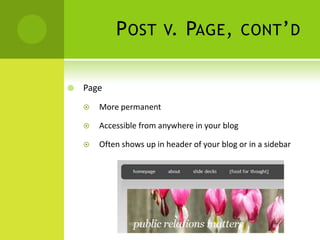
Post v. Page, cont’dPageMore permanentAccessible from anywhere in your blogOften shows up in header of your blog or in a sidebar
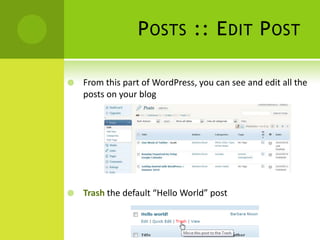
Posts :: Edit PostFrom this part of WordPress, you can see and edit all the posts on your blogTrash the default “Hello World” post
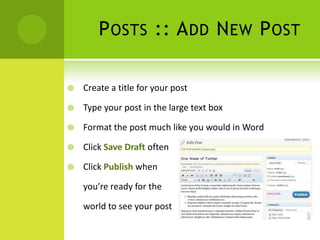
Posts :: Add New PostCreate a title for your postType your post in the large text boxFormat the post much like you would in WordClick Save Draft oftenClick Publish when 	you’re ready for the 	world to see your post
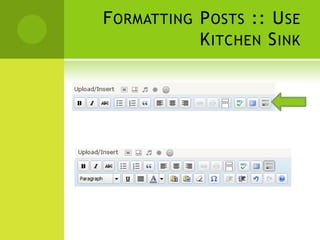
Formatting Posts :: Use Kitchen Sink
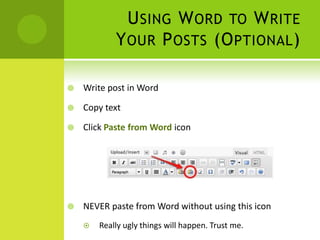
Using Word to Write Your Posts (Optional)Write post in WordCopy textClick Paste from Word iconNEVER paste from Word without using this iconReally ugly things will happen. Trust me.
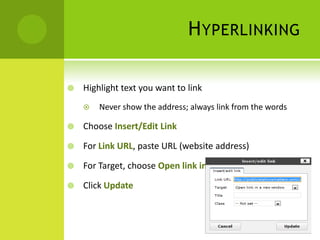
HyperlinkingHighlight text you want to link Never show the address; always link from the wordsChoose Insert/Edit LinkFor Link URL, paste URL (website address)For Target, choose Open link in a new windowClick Update
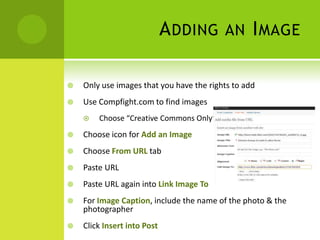
Adding an ImageOnly use images that you have the rights to addUse Compfight.com to find imagesChoose “Creative Commons Only”Choose icon for Add an ImageChoose From URL tabPaste URLPaste URL again into Link Image ToFor Image Caption, include the name of the photo & the photographerClick Insert into Post
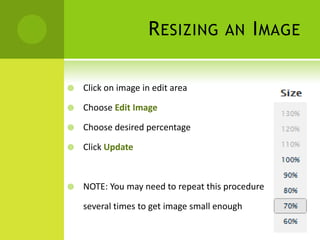
Resizing an ImageClick on image in edit areaChoose Edit ImageChoose desired percentageClick UpdateNOTE: You may need to repeat this procedure 	several times to get image small enough
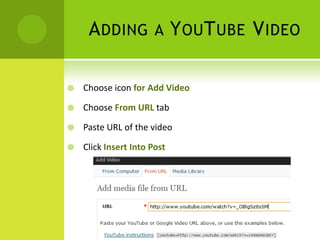
Adding a YouTube VideoChoose icon for Add VideoChoose From URL tabPaste URL of the videoClick Insert Into Post
Adding a PowerPoint from SlideShareIn SlideShare, choose the WordPress iconCopy the text under WordPress.com Hosted BlogsPaste the “shortcode” [slideshare id=…] into your post
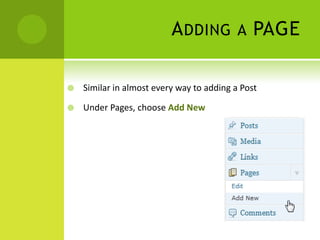
Adding a PAGESimilar in almost every way to adding a PostUnder Pages, choose Add New
Create YourAbout Me PageLets reader know a bit about the blog authorKeep it professionalInclude information such asYour namePhoto (if desired)University affiliationMajorCareer goalsLinks to other places you can be found online (if desired)
Step Four: Blog Comments
Finding Blogs to Comment onSee list of your classmates’ blogs at PublicRelationsMatters.com Visit my Diigo bookmarks for PR Blogshttp://www.diigo.com/user/barbaranixon/pr_blogs_2011 Subscribe to Ragan’s PRDaily.com
Tracking Your Blog CommentsCopy your comment BEFORE you submit itSometimes blog authors moderate comments, so you might not see it posted for a whileIn WordPress, under Dashboard : My Comments, you can see SOME of the comments you have written on others’ WordPress blogs It does not always capture all of them, so don’t rely on it
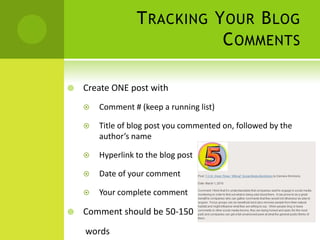
Tracking Your Blog CommentsCreate ONE post withComment # (keep a running list)Title of blog post you commented on, followed by the author’s nameHyperlink to the blog postDate of your commentYour complete commentComment should be 50-150 words
Attract More Readers: Publicize via Twitter & FacebookFrom My Account, choose My BlogsIn row with your blog information, under Publicize column, click Twitter (and Facebook, if you wish)With every post you write, a tweet will automatically publish on Twitter  helps draw in readers
Questions?
Contact MeBarbara B. Nixon, Ph.D. (ABD)Public Relations Faculty Member at Southeastern University & Florida Southern CollegeLife Member & Past President                                                                                     of the International Listening Association (listen.org)E-mail: 	bbnixon@seniversity.eduTwitter: 	barbaranixonSkype: 	barbara.b.nixonBlogs:  	publicrelationsmatters.com

Getting Started in WordPress

  • 1.
    Barbara B. Nixon:: Southeastern University & Florida Southern CollegeGetting Started in WordPress
  • 2.
  • 3.
    Blog Do’sWrite inshort paragraphsUse images for visual impactFind Creative Commons-licensed images at Compfight.comProofread. Then proofread again.Even ONE error is too many in a postAlways give credit to original sourcesExample: For Reading Notes, link back to textbookReview Blogging Guidelines Write “enough” posts in each categoryWrite posts that are long enough
  • 4.
    Blog No-No’sNever “scrape”another writer’s contentIt’s plagiarismNever let reader see a URL (http://address.com)Simply hyperlink from the appropriate wordsAvoid tiny text, especially on a dark backgroundMakes it hard to readAvoid changing text colors from the defaultMakes your blog look “My Spacey”Avoid boring or non-descriptive titles for posts“TOW #4” will mean nothing to a reader outside of this class
  • 5.
    Step One: SigningUp for Your WordPress Account
  • 6.
    Sign up foran accountGo to WordPress.comChoose account name wiselyDon’t use your student login nameChoose a real nameEither your name or some combination of your initials, orA phraseAvoid a random-looking combo of letters & numbersYour new blog’s address will beusername.wordpress.com
  • 7.
  • 8.
    Go to yourDashboard
  • 9.
    Settings :: GeneralSiteTitleChange this to something other than the default of “User123’s Weblog”TaglineChange this to something other than “Just Another WordPressBlog”Or delete itTime ZoneChoose New York for Eastern time
  • 10.
    Appearance :: ThemesTryout several Themes until you find one you likePreviewThen ActivateBe sure your Theme allows you to use WidgetsClick Feature Filters, then check WidgetsRecommended Themes for our classINonveCutlineMisty LookBlixAvoid Themes with dark backgrounds and tiny text
  • 11.
    Appearance :: WidgetsToadd Widgets, click and drag to the Sidebar on rightRequired WidgetsCategories (or Category Cloud)SearchCalendarLinksRecommended WidgetsRecent PostsArchives
  • 12.
    Create CategoriesFrom Posts,choose CategoriesUnder Add New Category, type category nameClick Add New CategoryDelete or rename the Uncategorized categoryUncategorized = “I don’t care enough about my readers to organize my blog”
  • 13.
    Categories :: RequiredFormy PR classes, create a category for each of the followingTopic of the Week [course name & number]PR Connections [course name & number]Blog Comments [course name & number]Personal (if you have any personal posts) [course name & number]Additional categories as you choose
  • 14.
    Links (for yourBlogroll)Blogroll = List of your favorite blogsUnder Links, choose Add New LinkName = Name of the Blog (or Blog Author)Web Address = URLTarget: Choose _blank to open a new window/tab (so readers don’t navigate away from you!)Click Add Link
  • 15.
    Blog StatsUnder Dashboard,choose Blog StatsSeeGraph of hitsReferrersTop posts & pagesSearch engine termsClicks
  • 16.
    Step Three: WritingPosts & Pages
  • 17.
    Post v. PagePostNewestinformation shows up at top of blogAs information is added, older posts “sink down”Eventually, older posts will move to another place in your blog “Previous Posts”
  • 18.
    Post v. Page,cont’dPageMore permanentAccessible from anywhere in your blogOften shows up in header of your blog or in a sidebar
  • 19.
    Posts :: EditPostFrom this part of WordPress, you can see and edit all the posts on your blogTrash the default “Hello World” post
  • 20.
    Posts :: AddNew PostCreate a title for your postType your post in the large text boxFormat the post much like you would in WordClick Save Draft oftenClick Publish when you’re ready for the world to see your post
  • 21.
    Formatting Posts ::Use Kitchen Sink
  • 22.
    Using Word toWrite Your Posts (Optional)Write post in WordCopy textClick Paste from Word iconNEVER paste from Word without using this iconReally ugly things will happen. Trust me.
  • 23.
    HyperlinkingHighlight text youwant to link Never show the address; always link from the wordsChoose Insert/Edit LinkFor Link URL, paste URL (website address)For Target, choose Open link in a new windowClick Update
  • 24.
    Adding an ImageOnlyuse images that you have the rights to addUse Compfight.com to find imagesChoose “Creative Commons Only”Choose icon for Add an ImageChoose From URL tabPaste URLPaste URL again into Link Image ToFor Image Caption, include the name of the photo & the photographerClick Insert into Post
  • 25.
    Resizing an ImageClickon image in edit areaChoose Edit ImageChoose desired percentageClick UpdateNOTE: You may need to repeat this procedure several times to get image small enough
  • 26.
    Adding a YouTubeVideoChoose icon for Add VideoChoose From URL tabPaste URL of the videoClick Insert Into Post
  • 27.
    Adding a PowerPointfrom SlideShareIn SlideShare, choose the WordPress iconCopy the text under WordPress.com Hosted BlogsPaste the “shortcode” [slideshare id=…] into your post
  • 28.
    Adding a PAGESimilarin almost every way to adding a PostUnder Pages, choose Add New
  • 29.
    Create YourAbout MePageLets reader know a bit about the blog authorKeep it professionalInclude information such asYour namePhoto (if desired)University affiliationMajorCareer goalsLinks to other places you can be found online (if desired)
  • 30.
  • 31.
    Finding Blogs toComment onSee list of your classmates’ blogs at PublicRelationsMatters.com Visit my Diigo bookmarks for PR Blogshttp://www.diigo.com/user/barbaranixon/pr_blogs_2011 Subscribe to Ragan’s PRDaily.com
  • 32.
    Tracking Your BlogCommentsCopy your comment BEFORE you submit itSometimes blog authors moderate comments, so you might not see it posted for a whileIn WordPress, under Dashboard : My Comments, you can see SOME of the comments you have written on others’ WordPress blogs It does not always capture all of them, so don’t rely on it
  • 33.
    Tracking Your BlogCommentsCreate ONE post withComment # (keep a running list)Title of blog post you commented on, followed by the author’s nameHyperlink to the blog postDate of your commentYour complete commentComment should be 50-150 words
  • 34.
    Attract More Readers:Publicize via Twitter & FacebookFrom My Account, choose My BlogsIn row with your blog information, under Publicize column, click Twitter (and Facebook, if you wish)With every post you write, a tweet will automatically publish on Twitter  helps draw in readers
  • 35.
  • 36.
    Contact MeBarbara B.Nixon, Ph.D. (ABD)Public Relations Faculty Member at Southeastern University & Florida Southern CollegeLife Member & Past President of the International Listening Association (listen.org)E-mail: bbnixon@seniversity.eduTwitter: barbaranixonSkype: barbara.b.nixonBlogs: publicrelationsmatters.com

Editor's Notes

  • #4 Image Credit: http://www.flickr.com/photos/18619970@N00/8359237/
  • #5 Image Credit: http://www.flickr.com/photos/cassidy/2729645265/
  • #23 Image Credit: http://en.support.wordpress.com/microsoft-word/
  • #34 Comment from Marie Walker Ervin’s blog: http://marielorelei.wordpress.com/category/prca-3030-social-media-and-public-relations/blog-comments/