Introduction
This guide will help lead you through the
process of creating a blog on Blogger.com.
Blogger.com makes creating a blog easy and
fun.
This guide explains only the basic features of
Blogger.com.
Get Started
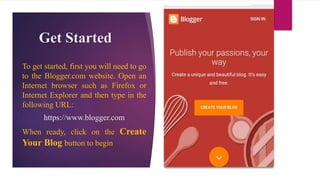
To get started, first you will need to go
to the Blogger.com website. Open an
Internet browser such as Firefox or
Internet Explorer and then type in the
following URL:
https://www.blogger.com
When ready, click on the Create
Your Blog button to begin
If you already have a Google Account,
then enter your email and password in
the Sign in section on the right side of
the webpage.
If you do not have a Google Account
you must first create one at:
www.google.com
Name Your Blog
You will now be at the Name your
blog section. This is probably the
hardest step, because you
have to create a Blog title for your
blog and also a Blog address (URL).
Finally, click on the Create Blog
button to finish creating your blog.
1
2
3
4
After clicking the Create blog button,
you will be taken to the page below.
You are now ready to begin blogging.
New Post
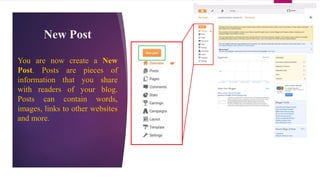
You are now create a New
Post. Posts are pieces of
information that you share
with readers of your blog.
Posts can contain words,
images, links to other websites
and more.
The first step is to give a
name to your post by filling
in the Title: text box.
Next you can fill out the
Text box with your
message/content. You can
use the text editing tools
(bold, italic, text alignments,
bullets, etc.) located in the
top portion of the message
box to format your post and
give it some style.
Finally, click on the Publish
button.
Post content
1
2
3
The page below is displayed
after your post is published
successfully.
In dashboard page, a listing of your
posts will be displayed. You may
“view” the post by clicking on name
of the post or click on View link.
In order to “edit” an existing post,
click on the Edit link that is located
under the post’s title.
You can “delete” a post by clicking
on the Delete link.
View, Edit or
Delete Post
2 1 3
To view your blog post that
your just published, click on
the View Post button.

Blogger user guide

  • 2.
    Introduction This guide willhelp lead you through the process of creating a blog on Blogger.com. Blogger.com makes creating a blog easy and fun. This guide explains only the basic features of Blogger.com.
  • 3.
    Get Started To getstarted, first you will need to go to the Blogger.com website. Open an Internet browser such as Firefox or Internet Explorer and then type in the following URL: https://www.blogger.com When ready, click on the Create Your Blog button to begin
  • 4.
    If you alreadyhave a Google Account, then enter your email and password in the Sign in section on the right side of the webpage. If you do not have a Google Account you must first create one at: www.google.com
  • 5.
    Name Your Blog Youwill now be at the Name your blog section. This is probably the hardest step, because you have to create a Blog title for your blog and also a Blog address (URL). Finally, click on the Create Blog button to finish creating your blog. 1 2 3 4
  • 6.
    After clicking theCreate blog button, you will be taken to the page below. You are now ready to begin blogging.
  • 7.
    New Post You arenow create a New Post. Posts are pieces of information that you share with readers of your blog. Posts can contain words, images, links to other websites and more.
  • 8.
    The first stepis to give a name to your post by filling in the Title: text box. Next you can fill out the Text box with your message/content. You can use the text editing tools (bold, italic, text alignments, bullets, etc.) located in the top portion of the message box to format your post and give it some style. Finally, click on the Publish button. Post content 1 2 3
  • 9.
    The page belowis displayed after your post is published successfully.
  • 10.
    In dashboard page,a listing of your posts will be displayed. You may “view” the post by clicking on name of the post or click on View link. In order to “edit” an existing post, click on the Edit link that is located under the post’s title. You can “delete” a post by clicking on the Delete link. View, Edit or Delete Post 2 1 3
  • 11.
    To view yourblog post that your just published, click on the View Post button.