
Creating a Blog in BloggerAnd Setting Up a Google Account
What is a Blog?A blog is a frequent, online publication of personal thoughts, opinions, or information. The name blog is short for Web Log.Many people uses blogs for journaling, personally or professionally. Blog entries can also include images, embedded videos, and Web links.Readers can also comment on your blog posts.
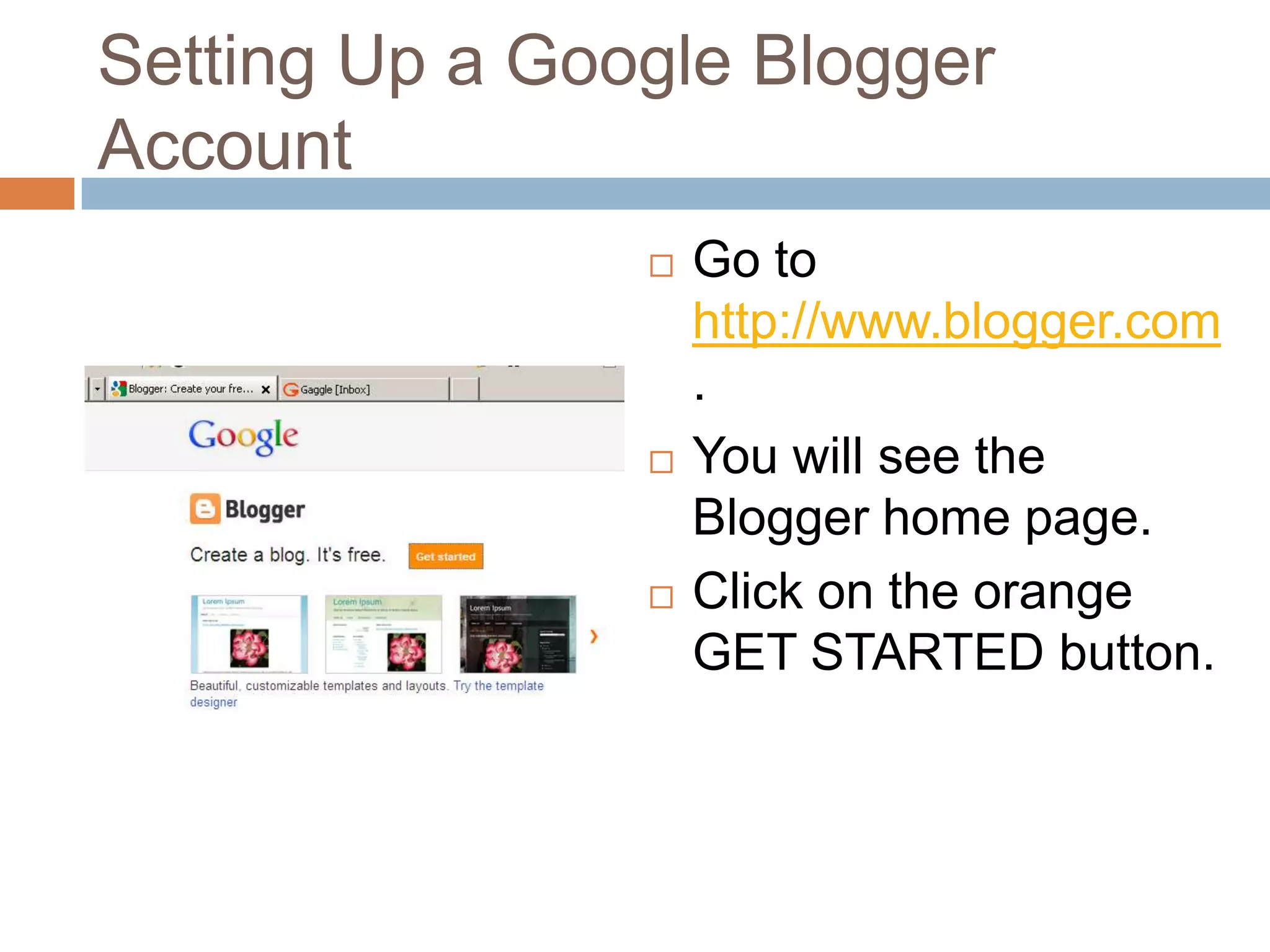
Setting Up a Google Blogger AccountGo to http://www.blogger.com.You will see the Blogger home page.Click on the orange GET STARTED button.
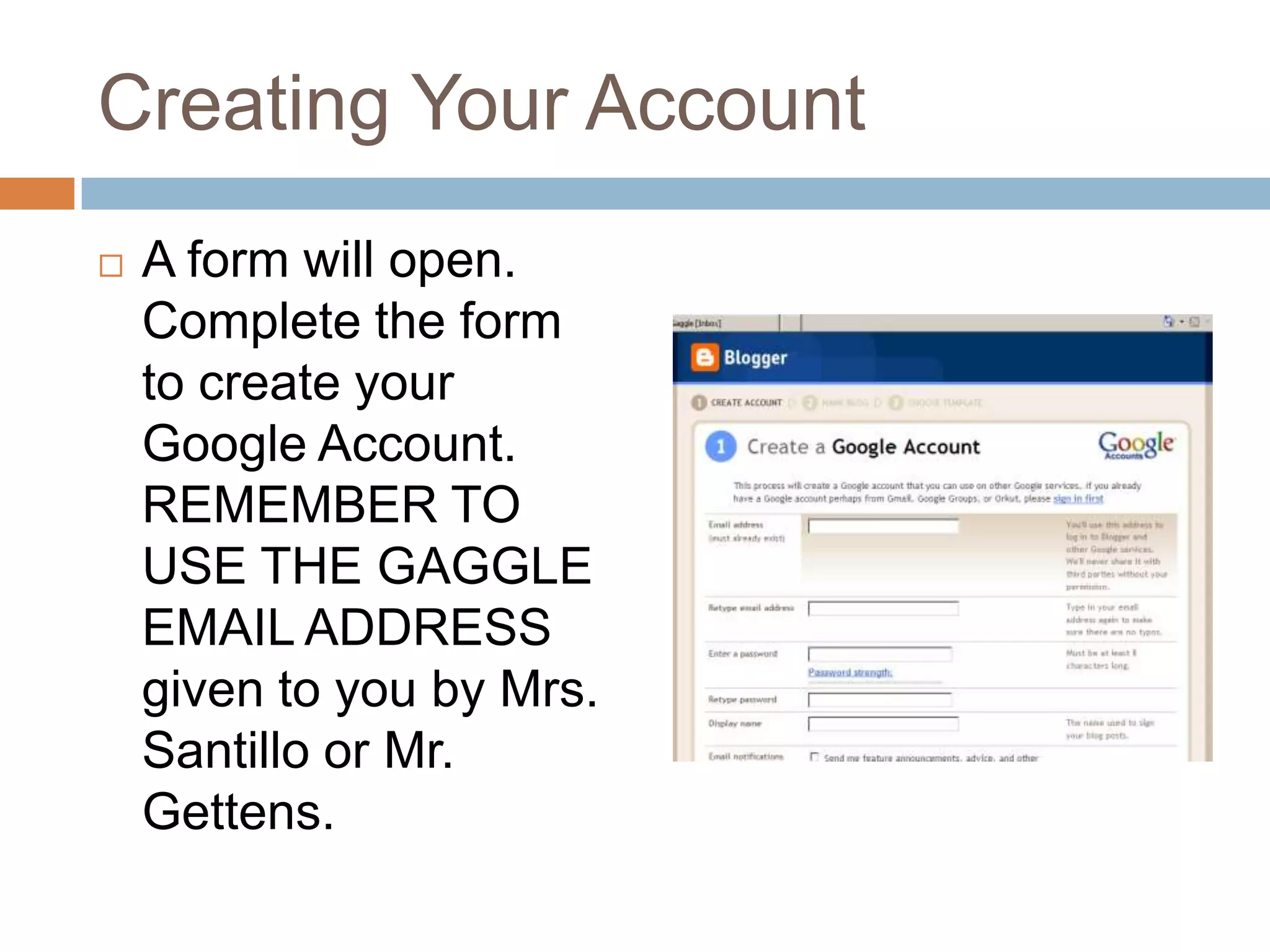
Creating Your AccountA form will open. Complete the form to create your Google Account. REMEMBER TO USE THE GAGGLE EMAIL ADDRESS given to you by Mrs. Santillo or Mr. Gettens.
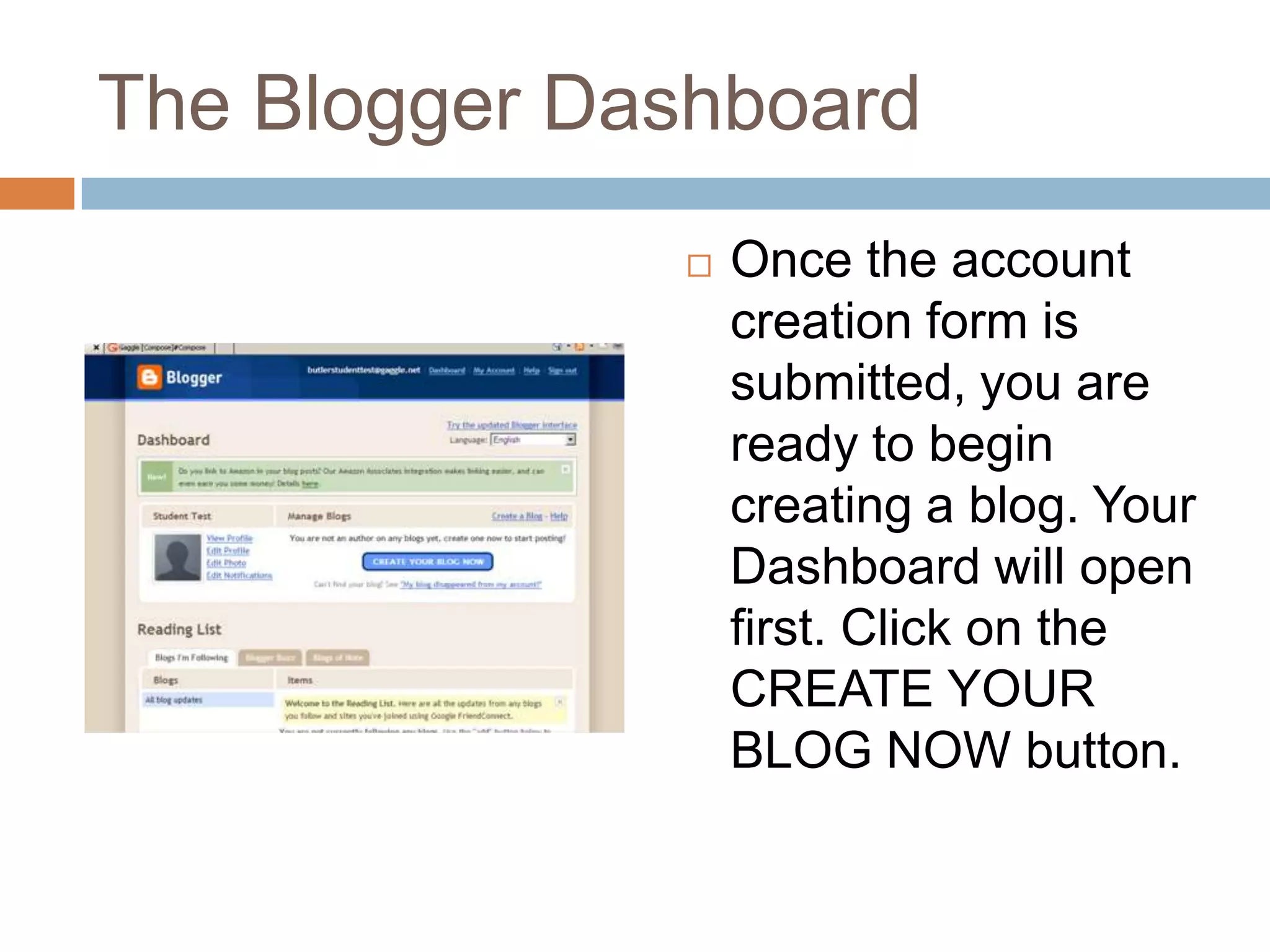
The Blogger DashboardOnce the account creation form is submitted, you are ready to begin creating a blog. Your Dashboard will open first. Click on the CREATE YOUR BLOG NOW button.
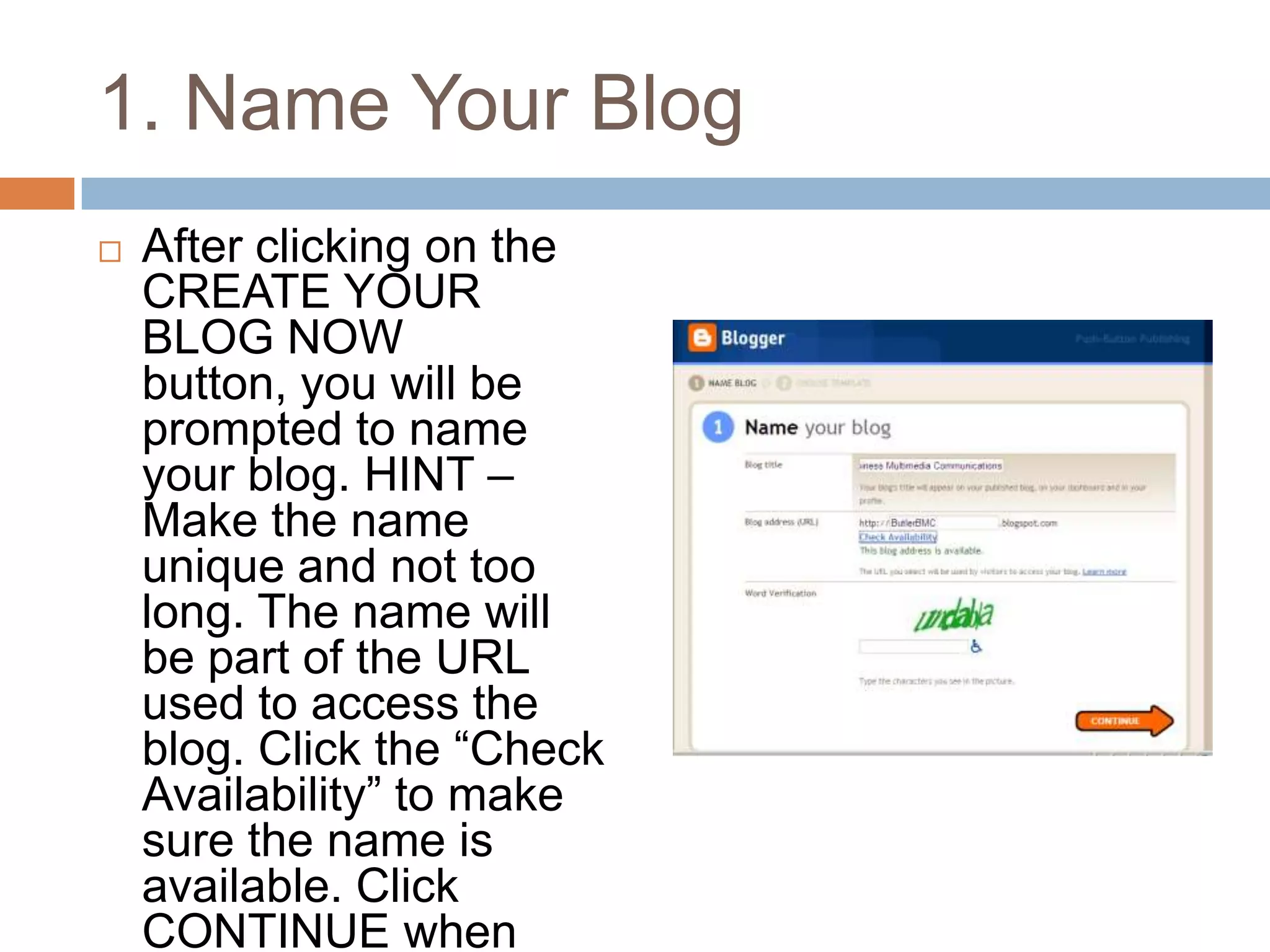
1. Name Your BlogAfter clicking on the CREATE YOUR BLOG NOW button, you will be prompted to name your blog. HINT – Make the name unique and not too long. The name will be part of the URL used to access the blog. Click the “Check Availability” to make sure the name is available. Click CONTINUE when done.
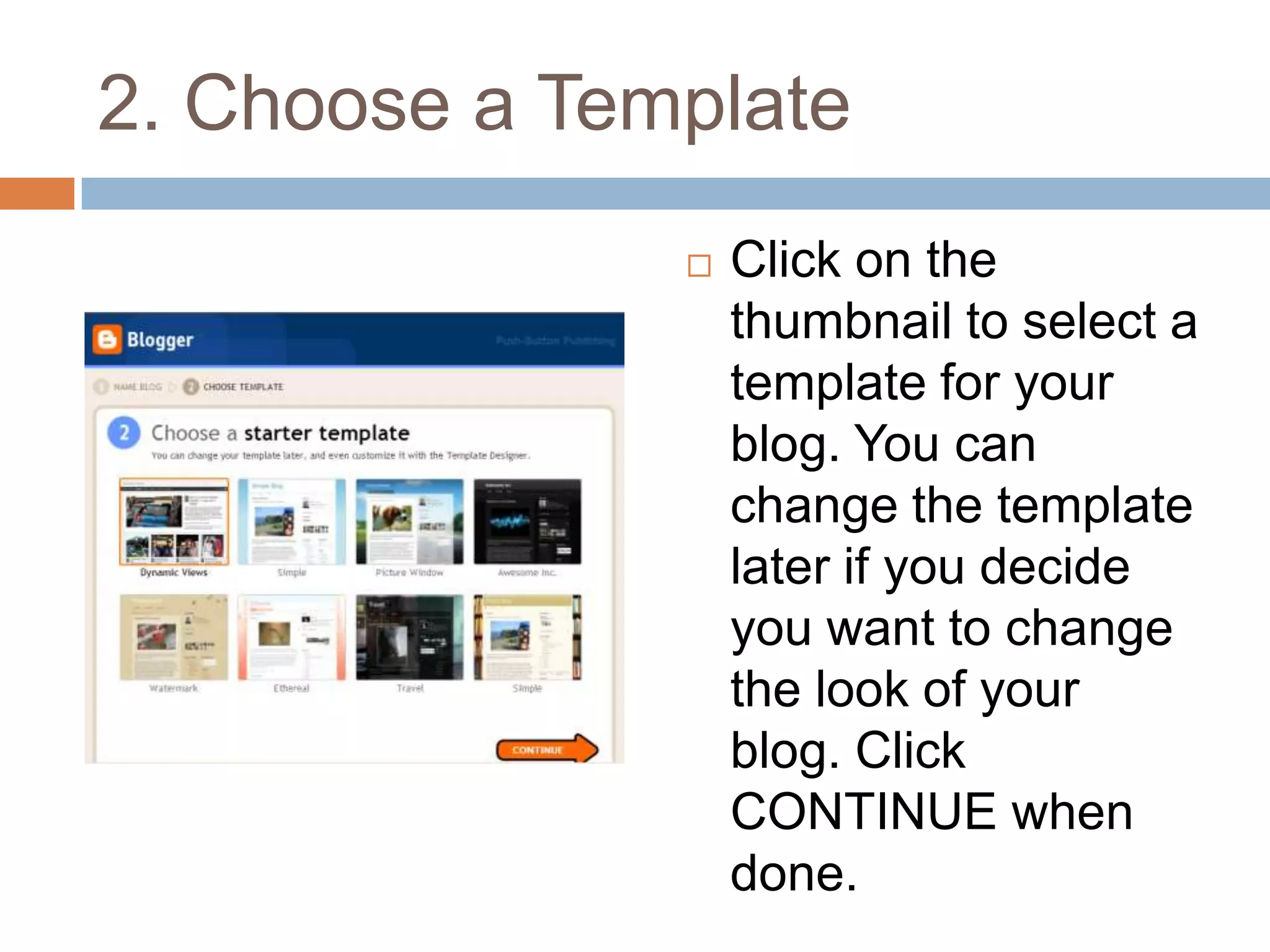
2. Choose a TemplateClick on the thumbnail to select a template for your blog. You can change the template later if you decide you want to change the look of your blog. Click CONTINUE when done.
Start Blogging!Your blog has been created. Click on the START BLOGGING orange arrow to write your first post, and to change settings in your blog.
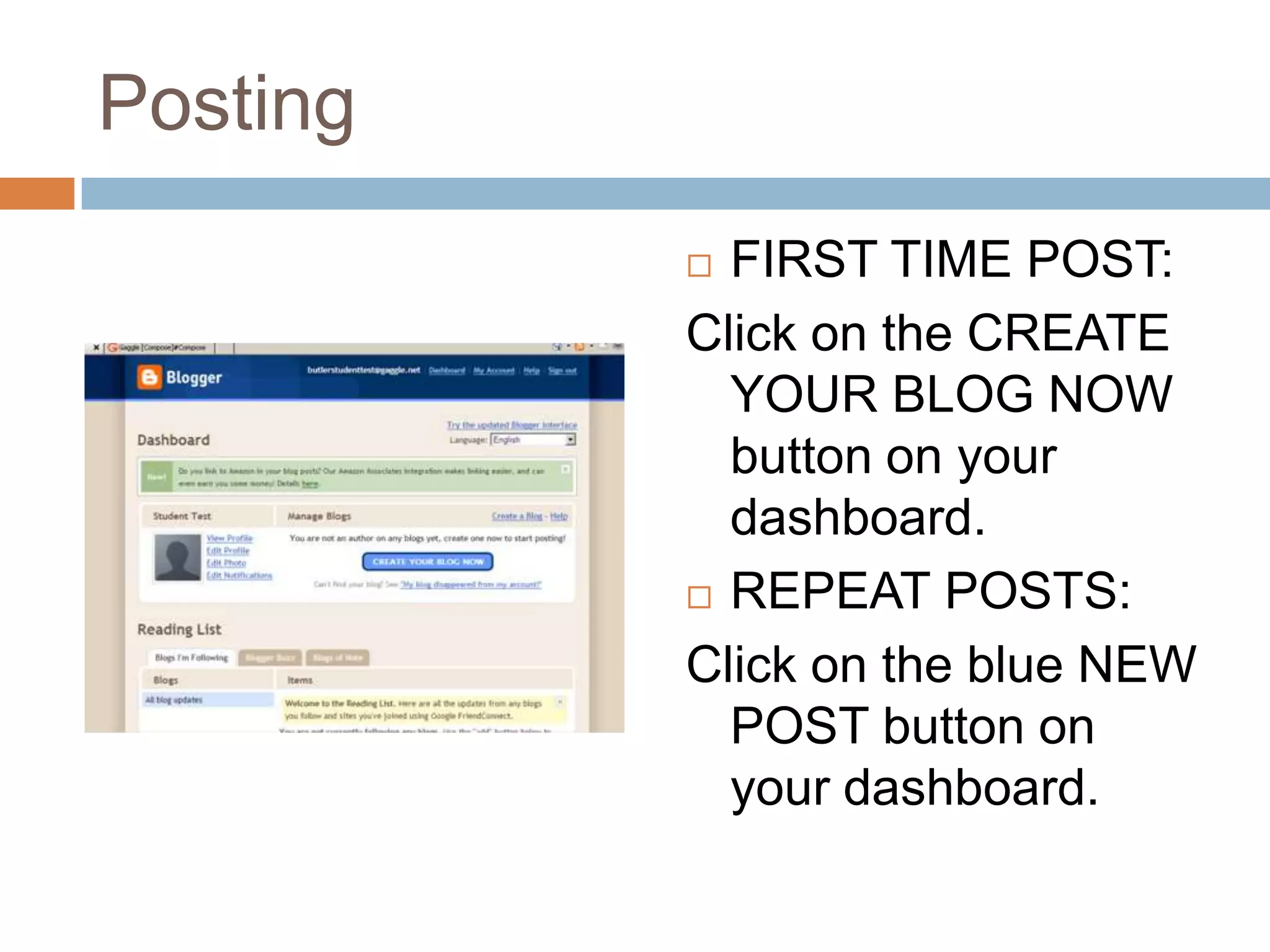
PostingFIRST TIME POST:Click on the CREATE YOUR BLOG NOW button on your dashboard.REPEAT POSTS:Click on the blue NEW POST button on your dashboard.
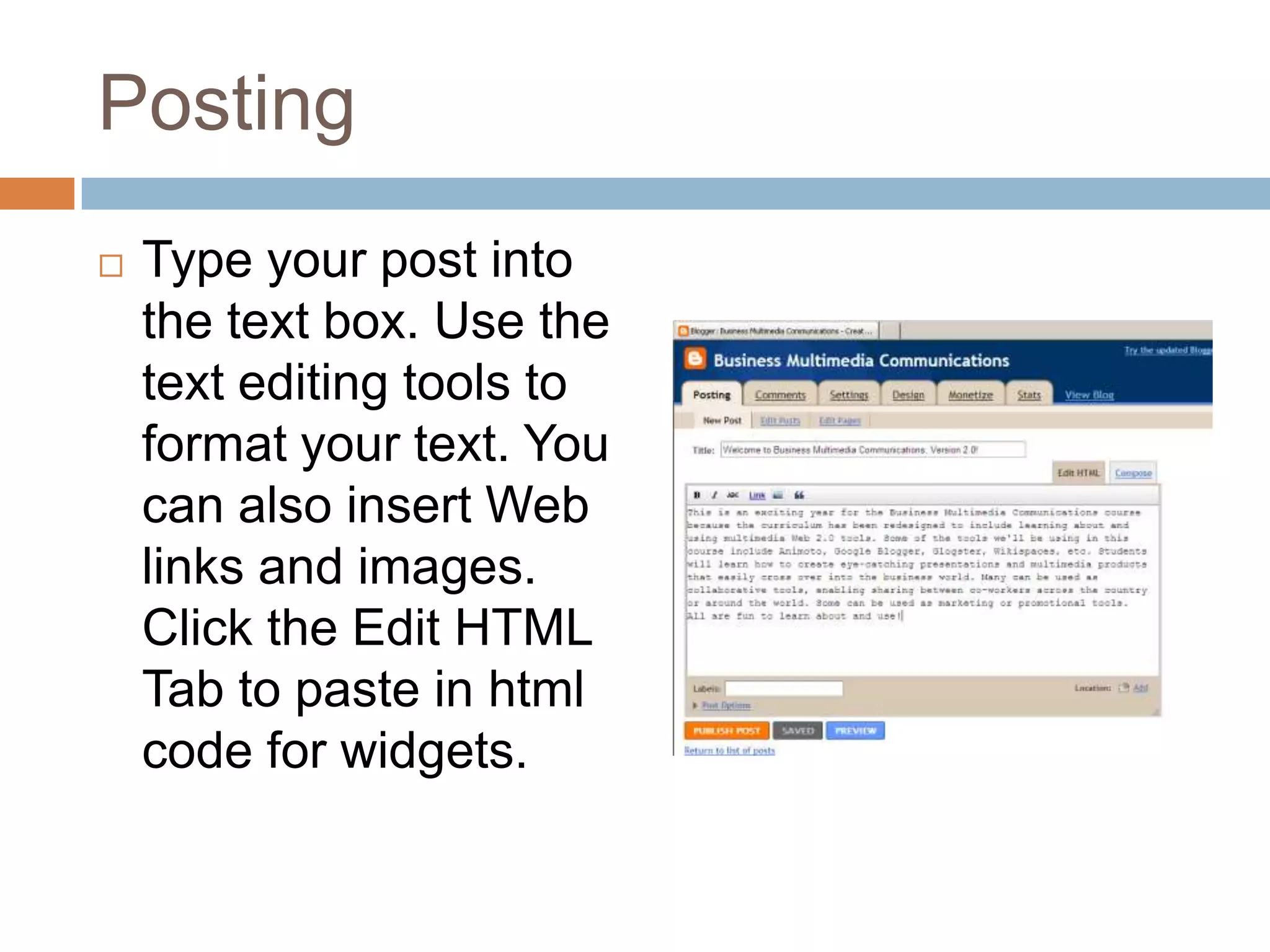
PostingType your post into the text box. Use the text editing tools to format your text. You can also insert Web links and images. Click the Edit HTML Tab to paste in html code for widgets.
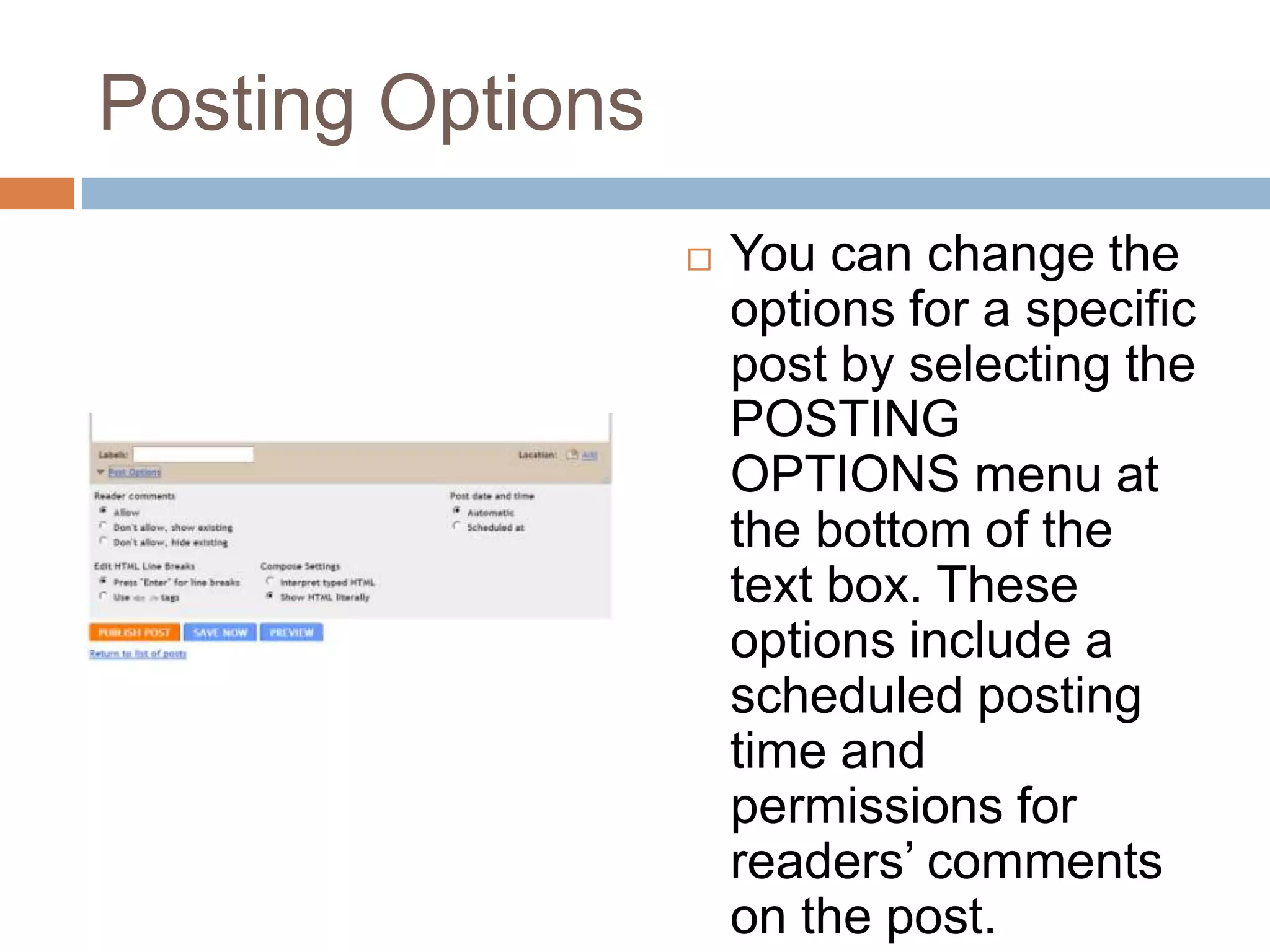
Posting OptionsYou can change the options for a specific post by selecting the POSTING OPTIONS menu at the bottom of the text box. These options include a scheduled posting time and permissions for readers’ comments on the post.
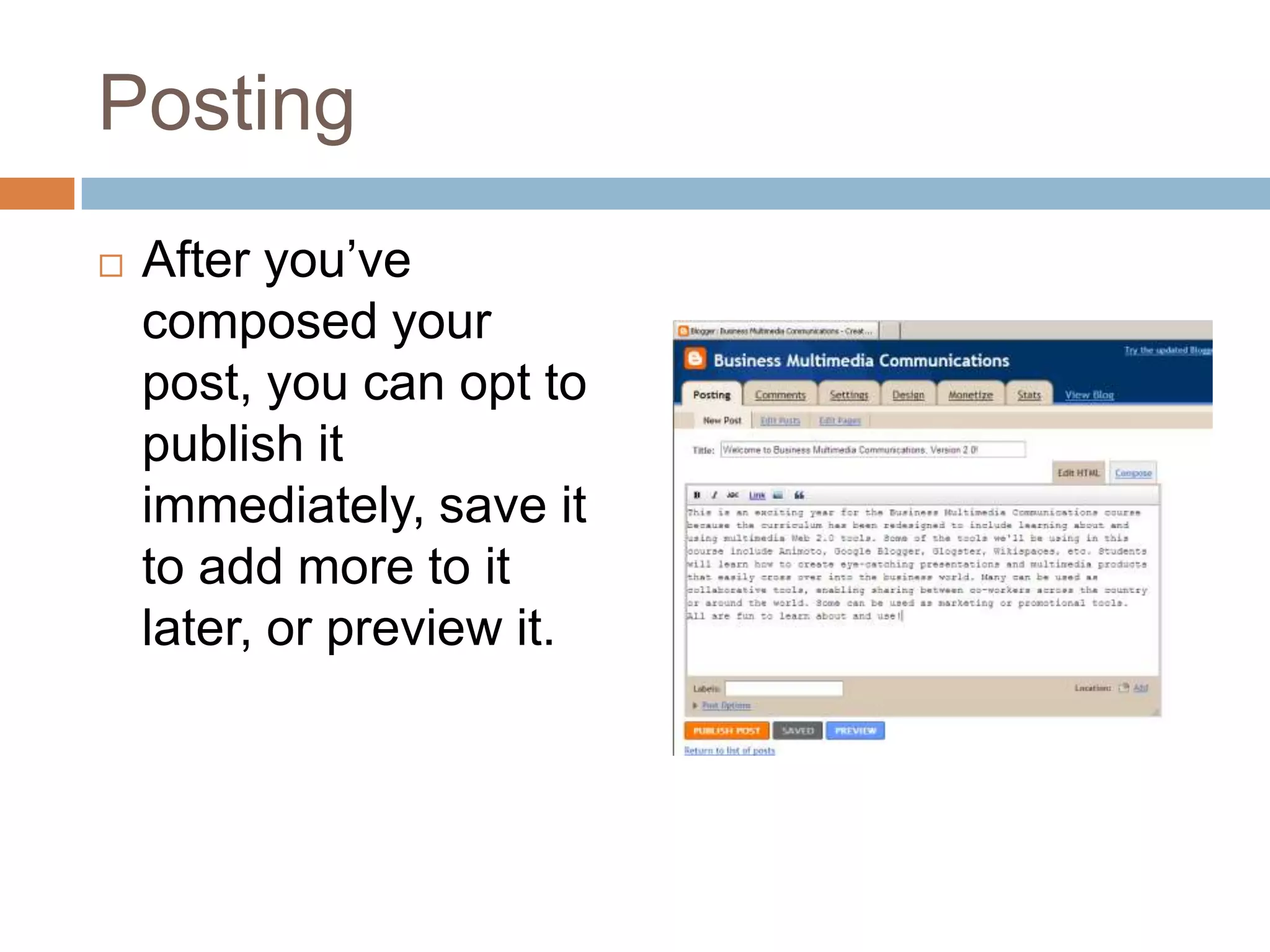
PostingAfter you’ve composed your post, you can opt to publish it immediately, save it to add more to it later, or preview it.
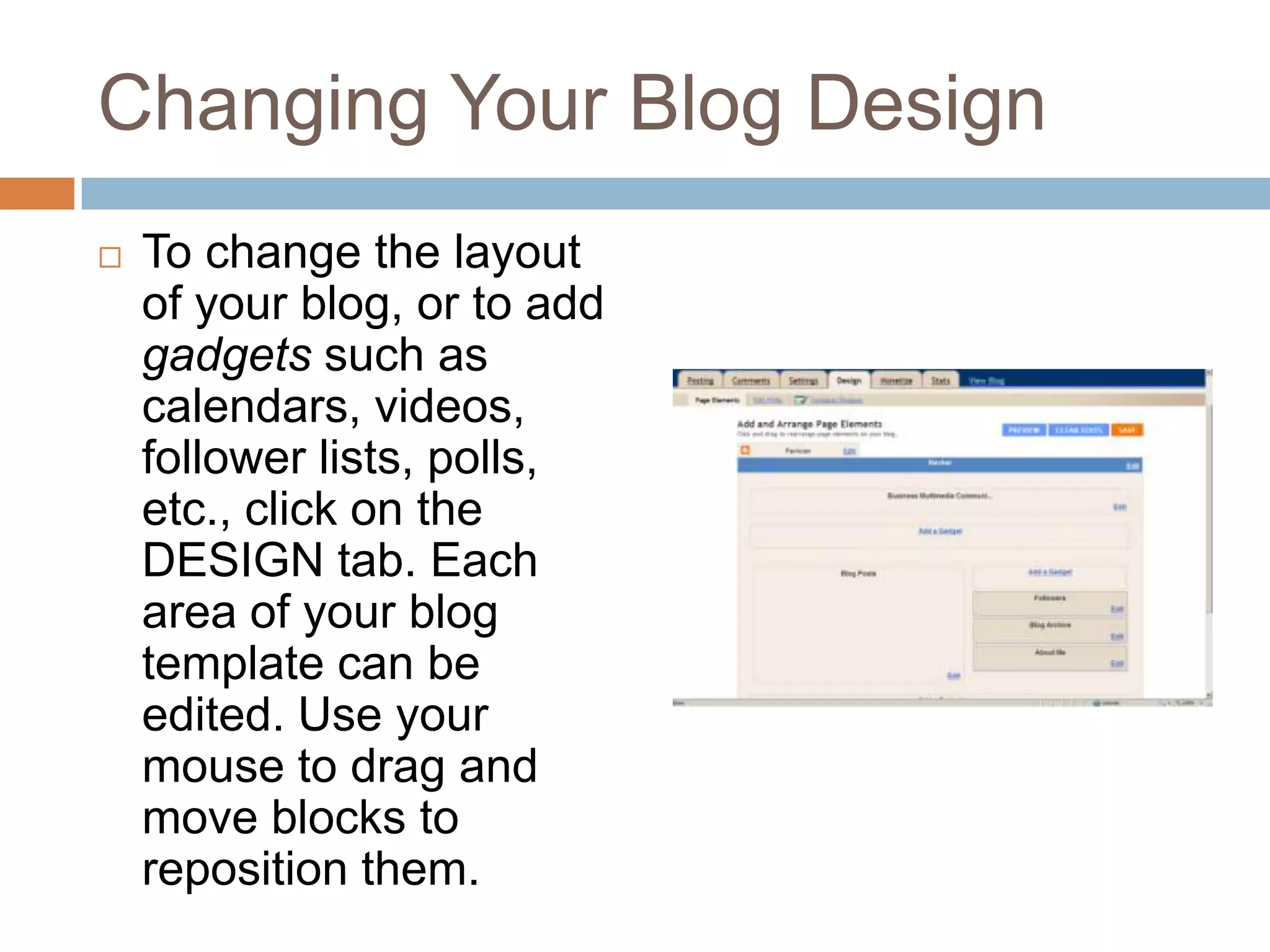
Changing Your Blog DesignTo change the layout of your blog, or to add gadgets such as calendars, videos, follower lists, polls, etc., click on the DESIGN tab. Each area of your blog template can be edited. Use your mouse to drag and move blocks to reposition them.

Creating a blog in blogger

  • 1.
    Creating a Blogin BloggerAnd Setting Up a Google Account
  • 2.
    What is aBlog?A blog is a frequent, online publication of personal thoughts, opinions, or information. The name blog is short for Web Log.Many people uses blogs for journaling, personally or professionally. Blog entries can also include images, embedded videos, and Web links.Readers can also comment on your blog posts.
  • 3.
    Setting Up aGoogle Blogger AccountGo to http://www.blogger.com.You will see the Blogger home page.Click on the orange GET STARTED button.
  • 4.
    Creating Your AccountAform will open. Complete the form to create your Google Account. REMEMBER TO USE THE GAGGLE EMAIL ADDRESS given to you by Mrs. Santillo or Mr. Gettens.
  • 5.
    The Blogger DashboardOncethe account creation form is submitted, you are ready to begin creating a blog. Your Dashboard will open first. Click on the CREATE YOUR BLOG NOW button.
  • 6.
    1. Name YourBlogAfter clicking on the CREATE YOUR BLOG NOW button, you will be prompted to name your blog. HINT – Make the name unique and not too long. The name will be part of the URL used to access the blog. Click the “Check Availability” to make sure the name is available. Click CONTINUE when done.
  • 7.
    2. Choose aTemplateClick on the thumbnail to select a template for your blog. You can change the template later if you decide you want to change the look of your blog. Click CONTINUE when done.
  • 8.
    Start Blogging!Your bloghas been created. Click on the START BLOGGING orange arrow to write your first post, and to change settings in your blog.
  • 9.
    PostingFIRST TIME POST:Clickon the CREATE YOUR BLOG NOW button on your dashboard.REPEAT POSTS:Click on the blue NEW POST button on your dashboard.
  • 10.
    PostingType your postinto the text box. Use the text editing tools to format your text. You can also insert Web links and images. Click the Edit HTML Tab to paste in html code for widgets.
  • 11.
    Posting OptionsYou canchange the options for a specific post by selecting the POSTING OPTIONS menu at the bottom of the text box. These options include a scheduled posting time and permissions for readers’ comments on the post.
  • 12.
    PostingAfter you’ve composedyour post, you can opt to publish it immediately, save it to add more to it later, or preview it.
  • 13.
    Changing Your BlogDesignTo change the layout of your blog, or to add gadgets such as calendars, videos, follower lists, polls, etc., click on the DESIGN tab. Each area of your blog template can be edited. Use your mouse to drag and move blocks to reposition them.