Server control, validation control
Session 10
Objectives
• Calendar Server Control
• Panel server control
• Overview of validation controls
• Client-Side versus Server-Side Validation
• RequiredField Validator
• Compare Validator
• Range Validator
• RegularExpression Validator
• Custom Validator
• Validation Summary
Calendar Server Control
The Calendar server control is a rich control that
enables you to place a full-featured calendar directly
on your Web pages. It allows for a high degree of
customization to ensure that it looks and behaves in a
unique manner. The Calendar control, in its simplest
form, is coded in the
following manner:
<asp:Calendar ID="Calendar1" runat="server">
</asp:Calendar>
Panel server control
 The Panel server control encapsulates a set of controls you can
use to manipulate or lay out your ASP.NET pages. It is
basically a wrapper for other controls, enabling you to take a
group of server controls along with other elements (such as
HTML and images) and turn them into a single unit.
 The advantage of using the Panel control to encapsulate a set
of other elements is that you can manipulate these elements as
a single unit using one attribute set in the Panel control itself.
<asp:Panel ID="Panel1" runat="server" Height="300"
Width="300“ ScrollBars="auto">
Overview of validation controls
People have been constructing Web
applications for a number of years. Usually the
motivation is to provide or gather information.
If you collect data with your applications,
collecting valid data should be important to
you. If the information isn ’ t valid, there
really isn ’ t much point in collecting it.
Overview of validation controls
• Validation is a set of rules that you apply to
the data you collect.
• The trick is to find the right balance of the
fewest rules and the proper strictness, without
compromising the usability of the application.
Client-Side versus Server-Side
Validation
server-side validation
If you are new to Web application development, you might
not be aware of the difference between clientside and server-
side validation. Suppose that the end user clicks the Submit
button on a form after filling out some information. What
happens in ASP.NET is that this form is packaged in a request
and sent to the server where the application resides. At this
point in the request/response cycle, you can run validation
checks on the information submitted. Doing this is called
server-side validation because it occurs on the server.
Client-Side versus Server-Side
Validation
client-side validation
On the other hand, supplying a script (usually in the
form of JavaScript) in the page that is posted to the
end user’s browser to perform validations on the data
entered in the form before the form is posted back to
the originating server is also possible. In this case,
client-side validation has occurred.
Required Field Validator
The RequiredFieldValidator control simply
checks to see whether something was entered
into the HTML form element. It is a simple
validation control, but it is one of the most
frequently used. You must have a
RequiredFieldValidator control for each form
element on which you want to enforce a value-
required rule.
RequiredFieldValidator
<form id="form1" runat="server">
<div>
<asp:TextBox ID="TextBox1" runat="server"></asp:TextBox>
<asp:RequiredFieldValidator ID="RequiredFieldValidator1" runat="server"
ControlToValidate="TextBox1"
ErrorMessage="Required"></asp:RequiredFieldValidator>
<br />
<asp:Button ID="Button1" runat="server" Text="Submit"
OnClick="Button1_Click" />
<br />
<br />
<asp:Label ID="Label1" runat="server"></asp:Label>
</div>
</form>
The CompareValidator Server Control
The CompareValidator control enables you to
compare two form elements as well as to
compare values contained within form
elements to constants that you specify. For
example, you can specify that a form
element’s value must be an integer and
greater than a specified number. You can also
state that values must be strings, dates, or
other data types that are at your disposal.
<form runat="server" id="Form1">
<p>
Password<br />
<asp:TextBox ID="TextBox1" runat="server"
TextMode="Password"></asp:TextBox>
&nbsp;
<asp:CompareValidator ID="CompareValidator1"
runat="server" Text="Passwords do not match!"
ControlToValidate="TextBox2"
ControlToCompare="TextBox1"></asp:CompareValidator>
</p>
<p>
Confirm Password<br />
<asp:TextBox ID="TextBox2" runat="server"
TextMode="Password"></asp:TextBox>
</p>
<p>
<asp:Button ID="Button1"
OnClick="Button1_Click"
runat="server" Text="Login"></asp:Button>
</p>
<p>
<asp:Label ID="Label1"
runat="server"></asp:Label>
</p>
</form>
The RangeValidator Server Control
The RangeValidator control is quite similar to that of
the CompareValidator control, but it makes sure that
the end-user value or selection provided is within a
specified range as opposed to being just greater than
or less than a specified constant. For an example of
this control, think back to the text-box element that
asks for the age of the end user and performs a
validation on the value provided.
<form runat="server" id="Form1">
<p>
Age:
<asp:TextBox ID="TextBox1" runat="server"></asp:TextBox>
&nbsp;
<asp:RangeValidator ID="RangeValidator1" runat="server"
ControlToValidate="TextBox1" Type="Integer“
Text="You must be between 30 and 40"
MaximumValue="40" MinimumValue="30"></asp:RangeValidator>
</p>
<p>
<asp:Button ID="Button1" OnClick="Button1_Click"
runat="server" Text="Submit"></asp:Button>
</p>
<p>
<asp:Label ID="Label1" runat="server"></asp:Label>
</p>
</form>
The RegularExpressionValidator
Server Control
One exciting control that developers like to
use is the RegularExpressionValidator control.
This control offers a lot of flexibility when you
apply validation rules to your Web forms.
Using the RegularExpressionValidator control,
you can check a user’s input based on a
pattern that you define using a regular
expression.
Making sure the text-box value is an e-mail address
<form runat="server" id="Form1">
<p>
Email:
<asp:TextBox ID="TextBox1"
runat="server"></asp:TextBox>
&nbsp;
<asp:RegularExpressionValidator
ID="RegularExpressionValidator1" runat="server"
ErrorMessage="You must type correct Email
Address"
ValidationExpression="w+([-+.']w+)*@w+([
-.]w+)*.w+([-.]w+)*"
ControlToValidate="TextBox1"></asp:RegularExpressi
onValidator>
</p>
<p>
<asp:Button ID="Button1" OnClick="Button1_Click"
runat="server" Text="Submit"></asp:Button>
</p>
<p>
<asp:Label ID="Label1" runat="server"></asp:Label>
</p>
</form>
CustomValidator Server Control
So far, you have seen a wide variety of
validation controls that are at your disposal. In
many cases, these validation controls address
many of the validation rules that you want to
apply to your Web forms. Sometimes,
however, none of these controls works for you,
and you have to go beyond what they offer.
This is where the CustomValidator control
comes into play.
CustomValidator Server Control
CustomValidator Server Control is of two type:
1. Using Client-Side Validation
2. Using Server-Side Validation
Client-Side Validation
One of the worthwhile functions of the
CustomValidator control is its capability to
easily provide custom client-side
validations. Many developers have their
own collections of JavaScript functions they
employ in their applications, and using the
CustomValidator control is one easy way of
getting these functions implemented.
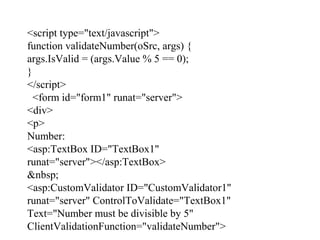
<script type="text/javascript">
function validateNumber(oSrc, args) {
args.IsValid = (args.Value % 5 == 0);
}
</script>
<form id="form1" runat="server">
<div>
<p>
Number:
<asp:TextBox ID="TextBox1"
runat="server"></asp:TextBox>
&nbsp;
<asp:CustomValidator ID="CustomValidator1"
runat="server" ControlToValidate="TextBox1"
Text="Number must be divisible by 5"
ClientValidationFunction="validateNumber">
</asp:CustomValidator>
</p>
<p>
<asp:Button ID="Button1" OnClick="Button1_Click"
runat="server" Text="Button"></asp:Button>
</p>
<p>
<asp:Label ID="Label1" runat="server"></asp:Label>
</p>
</div>
</form>
Server-Side Validation
Now let’s move this same validation check from the client to
the server. The CustomValidator control enables you to make
custom server-side validations a reality as well. You will find
that creating your server-side validations is just as easy as
creating client-side validations.
<asp:TextBox ID="TextBox1" runat="server"></asp:TextBox>
&nbsp;
<asp:CustomValidator ID="CustomValidator1" runat="server"
ControlToValidate="TextBox1" Text="Number must be
divisible by 5"
OnServerValidate="ValidateNumber"></asp:CustomValidator>
ValidationSummary Control
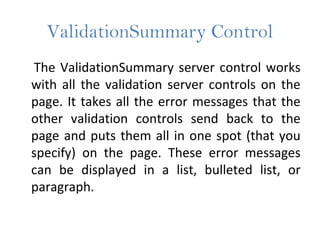
The ValidationSummary server control works
with all the validation server controls on the
page. It takes all the error messages that the
other validation controls send back to the
page and puts them all in one spot (that you
specify) on the page. These error messages
can be displayed in a list, bulleted list, or
paragraph.
Example
<form id="form1" runat="server">
<p>First name
<asp:TextBox id="TextBox1"
runat="server"></asp:TextBox>
&nbsp;
<asp:RequiredFieldValidator id="RequiredFieldValidator1"
runat="server" ErrorMessage="You must enter your first
name"
ControlToValidate="TextBox1"></asp:RequiredFieldVali
dator>
</p>
<p>Last name
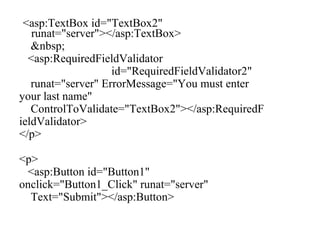
<asp:TextBox id="TextBox2"
runat="server"></asp:TextBox>
&nbsp;
<asp:RequiredFieldValidator
id="RequiredFieldValidator2"
runat="server" ErrorMessage="You must enter
your last name"
ControlToValidate="TextBox2"></asp:RequiredF
ieldValidator>
</p>
<p>
<asp:Button id="Button1"
onclick="Button1_Click" runat="server"
Text="Submit"></asp:Button>
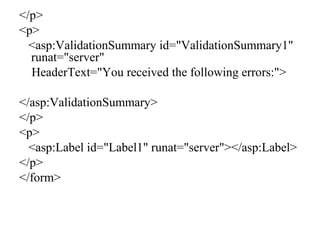
</p>
<p>
<asp:ValidationSummary id="ValidationSummary1"
runat="server"
HeaderText="You received the following errors:">
</asp:ValidationSummary>
</p>
<p>
<asp:Label id="Label1" runat="server"></asp:Label>
</p>
</form>
Output
Summary
• Requirement of validation in web page
• Different types of validation controls in asp.net
• Applications of validation control
• Combination of validation controls

ASP.NET Session 10

  • 1.
    Server control, validationcontrol Session 10
  • 2.
    Objectives • Calendar ServerControl • Panel server control • Overview of validation controls • Client-Side versus Server-Side Validation • RequiredField Validator • Compare Validator • Range Validator • RegularExpression Validator • Custom Validator • Validation Summary
  • 3.
    Calendar Server Control TheCalendar server control is a rich control that enables you to place a full-featured calendar directly on your Web pages. It allows for a high degree of customization to ensure that it looks and behaves in a unique manner. The Calendar control, in its simplest form, is coded in the following manner: <asp:Calendar ID="Calendar1" runat="server"> </asp:Calendar>
  • 4.
    Panel server control The Panel server control encapsulates a set of controls you can use to manipulate or lay out your ASP.NET pages. It is basically a wrapper for other controls, enabling you to take a group of server controls along with other elements (such as HTML and images) and turn them into a single unit.  The advantage of using the Panel control to encapsulate a set of other elements is that you can manipulate these elements as a single unit using one attribute set in the Panel control itself. <asp:Panel ID="Panel1" runat="server" Height="300" Width="300“ ScrollBars="auto">
  • 5.
    Overview of validationcontrols People have been constructing Web applications for a number of years. Usually the motivation is to provide or gather information. If you collect data with your applications, collecting valid data should be important to you. If the information isn ’ t valid, there really isn ’ t much point in collecting it.
  • 6.
    Overview of validationcontrols • Validation is a set of rules that you apply to the data you collect. • The trick is to find the right balance of the fewest rules and the proper strictness, without compromising the usability of the application.
  • 7.
    Client-Side versus Server-Side Validation server-sidevalidation If you are new to Web application development, you might not be aware of the difference between clientside and server- side validation. Suppose that the end user clicks the Submit button on a form after filling out some information. What happens in ASP.NET is that this form is packaged in a request and sent to the server where the application resides. At this point in the request/response cycle, you can run validation checks on the information submitted. Doing this is called server-side validation because it occurs on the server.
  • 8.
    Client-Side versus Server-Side Validation client-sidevalidation On the other hand, supplying a script (usually in the form of JavaScript) in the page that is posted to the end user’s browser to perform validations on the data entered in the form before the form is posted back to the originating server is also possible. In this case, client-side validation has occurred.
  • 9.
    Required Field Validator TheRequiredFieldValidator control simply checks to see whether something was entered into the HTML form element. It is a simple validation control, but it is one of the most frequently used. You must have a RequiredFieldValidator control for each form element on which you want to enforce a value- required rule.
  • 10.
    RequiredFieldValidator <form id="form1" runat="server"> <div> <asp:TextBoxID="TextBox1" runat="server"></asp:TextBox> <asp:RequiredFieldValidator ID="RequiredFieldValidator1" runat="server" ControlToValidate="TextBox1" ErrorMessage="Required"></asp:RequiredFieldValidator> <br /> <asp:Button ID="Button1" runat="server" Text="Submit" OnClick="Button1_Click" /> <br /> <br /> <asp:Label ID="Label1" runat="server"></asp:Label> </div> </form>
  • 11.
    The CompareValidator ServerControl The CompareValidator control enables you to compare two form elements as well as to compare values contained within form elements to constants that you specify. For example, you can specify that a form element’s value must be an integer and greater than a specified number. You can also state that values must be strings, dates, or other data types that are at your disposal.
  • 12.
    <form runat="server" id="Form1"> <p> Password<br/> <asp:TextBox ID="TextBox1" runat="server" TextMode="Password"></asp:TextBox> &nbsp; <asp:CompareValidator ID="CompareValidator1" runat="server" Text="Passwords do not match!" ControlToValidate="TextBox2" ControlToCompare="TextBox1"></asp:CompareValidator> </p> <p> Confirm Password<br /> <asp:TextBox ID="TextBox2" runat="server" TextMode="Password"></asp:TextBox> </p> <p>
  • 13.
  • 14.
    The RangeValidator ServerControl The RangeValidator control is quite similar to that of the CompareValidator control, but it makes sure that the end-user value or selection provided is within a specified range as opposed to being just greater than or less than a specified constant. For an example of this control, think back to the text-box element that asks for the age of the end user and performs a validation on the value provided.
  • 15.
    <form runat="server" id="Form1"> <p> Age: <asp:TextBoxID="TextBox1" runat="server"></asp:TextBox> &nbsp; <asp:RangeValidator ID="RangeValidator1" runat="server" ControlToValidate="TextBox1" Type="Integer“ Text="You must be between 30 and 40" MaximumValue="40" MinimumValue="30"></asp:RangeValidator> </p> <p> <asp:Button ID="Button1" OnClick="Button1_Click" runat="server" Text="Submit"></asp:Button> </p> <p> <asp:Label ID="Label1" runat="server"></asp:Label> </p> </form>
  • 17.
    The RegularExpressionValidator Server Control Oneexciting control that developers like to use is the RegularExpressionValidator control. This control offers a lot of flexibility when you apply validation rules to your Web forms. Using the RegularExpressionValidator control, you can check a user’s input based on a pattern that you define using a regular expression.
  • 18.
    Making sure thetext-box value is an e-mail address <form runat="server" id="Form1"> <p> Email: <asp:TextBox ID="TextBox1" runat="server"></asp:TextBox> &nbsp; <asp:RegularExpressionValidator ID="RegularExpressionValidator1" runat="server" ErrorMessage="You must type correct Email Address" ValidationExpression="w+([-+.']w+)*@w+([ -.]w+)*.w+([-.]w+)*"
  • 19.
    ControlToValidate="TextBox1"></asp:RegularExpressi onValidator> </p> <p> <asp:Button ID="Button1" OnClick="Button1_Click" runat="server"Text="Submit"></asp:Button> </p> <p> <asp:Label ID="Label1" runat="server"></asp:Label> </p> </form>
  • 20.
    CustomValidator Server Control Sofar, you have seen a wide variety of validation controls that are at your disposal. In many cases, these validation controls address many of the validation rules that you want to apply to your Web forms. Sometimes, however, none of these controls works for you, and you have to go beyond what they offer. This is where the CustomValidator control comes into play.
  • 21.
    CustomValidator Server Control CustomValidatorServer Control is of two type: 1. Using Client-Side Validation 2. Using Server-Side Validation
  • 22.
    Client-Side Validation One ofthe worthwhile functions of the CustomValidator control is its capability to easily provide custom client-side validations. Many developers have their own collections of JavaScript functions they employ in their applications, and using the CustomValidator control is one easy way of getting these functions implemented.
  • 23.
    <script type="text/javascript"> function validateNumber(oSrc,args) { args.IsValid = (args.Value % 5 == 0); } </script> <form id="form1" runat="server"> <div> <p> Number: <asp:TextBox ID="TextBox1" runat="server"></asp:TextBox> &nbsp; <asp:CustomValidator ID="CustomValidator1" runat="server" ControlToValidate="TextBox1" Text="Number must be divisible by 5" ClientValidationFunction="validateNumber">
  • 24.
    </asp:CustomValidator> </p> <p> <asp:Button ID="Button1" OnClick="Button1_Click" runat="server"Text="Button"></asp:Button> </p> <p> <asp:Label ID="Label1" runat="server"></asp:Label> </p> </div> </form>
  • 25.
    Server-Side Validation Now let’smove this same validation check from the client to the server. The CustomValidator control enables you to make custom server-side validations a reality as well. You will find that creating your server-side validations is just as easy as creating client-side validations. <asp:TextBox ID="TextBox1" runat="server"></asp:TextBox> &nbsp; <asp:CustomValidator ID="CustomValidator1" runat="server" ControlToValidate="TextBox1" Text="Number must be divisible by 5" OnServerValidate="ValidateNumber"></asp:CustomValidator>
  • 26.
    ValidationSummary Control The ValidationSummaryserver control works with all the validation server controls on the page. It takes all the error messages that the other validation controls send back to the page and puts them all in one spot (that you specify) on the page. These error messages can be displayed in a list, bulleted list, or paragraph.
  • 27.
    Example <form id="form1" runat="server"> <p>Firstname <asp:TextBox id="TextBox1" runat="server"></asp:TextBox> &nbsp; <asp:RequiredFieldValidator id="RequiredFieldValidator1" runat="server" ErrorMessage="You must enter your first name" ControlToValidate="TextBox1"></asp:RequiredFieldVali dator> </p> <p>Last name
  • 28.
    <asp:TextBox id="TextBox2" runat="server"></asp:TextBox> &nbsp; <asp:RequiredFieldValidator id="RequiredFieldValidator2" runat="server" ErrorMessage="Youmust enter your last name" ControlToValidate="TextBox2"></asp:RequiredF ieldValidator> </p> <p> <asp:Button id="Button1" onclick="Button1_Click" runat="server" Text="Submit"></asp:Button>
  • 29.
    </p> <p> <asp:ValidationSummary id="ValidationSummary1" runat="server" HeaderText="You receivedthe following errors:"> </asp:ValidationSummary> </p> <p> <asp:Label id="Label1" runat="server"></asp:Label> </p> </form>
  • 30.
  • 31.
    Summary • Requirement ofvalidation in web page • Different types of validation controls in asp.net • Applications of validation control • Combination of validation controls