   A custom Web control is a control that inherits
    from a WebServer control.

   A custom Web control can be compiled into a
    separate .dll file that can be shared among
    applications.

   It allows to define a better design-time
    experience for the consumers of the control.

   This includes Toolbox and designer functionality
There are two common approaches to creating a
    custom Web server control.

   The first approach is to create a Web server control that
    inherits directly from WebControl Class. The Web-
    Control class provides a base set of functionality.
    This leaves a lot of work to develop the control.

   The second approach is to inherit from an existing Web
    control that already provides the core features of your
    control.
    This can give you a jump start and allow you to focus
    on what makes your control different.
    This is the more common scenario.
   If the custom Web server control is targeted to multiple
    Web sites, you should place the new custom Web
    server control class into a class library project to create
    a .dll file that can be shared.

   If the custom Web server control is only meant for the
    current Web site, you can add the custom Web server
    control’s class file to the Web site.
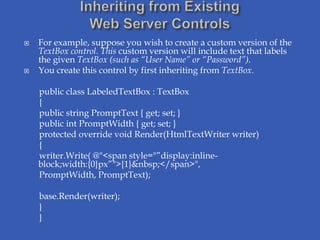
   For example, suppose you wish to create a custom version of the
    TextBox control. This custom version will include text that labels
    the given TextBox (such as “User Name” or “Password”).
   You create this control by first inheriting from TextBox.

    public class LabeledTextBox : TextBox
    {
    public string PromptText { get; set; }
    public int PromptWidth { get; set; }
    protected override void Render(HtmlTextWriter writer)
    {
    writer.Write( @"<span style="”display:inline-
    block;width:{0}px”">{1}&nbsp;</span>",
    PromptWidth, PromptText);

    base.Render(writer);
    }
    }
   This approach is desirable when there is no
    control that currently provides default
    behavior similar to the control you wish to
    implement.
   When inheriting from the WebControl class,
    you must override the Render method to
    provide the desired output.
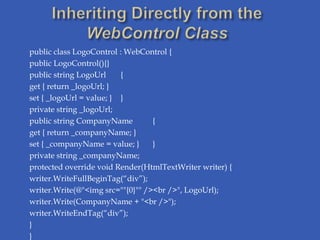
   For example, suppose you wish to create a
    custom control that allows a user to display a
    logo and an associated company name for
    the logo. For this, you might create two
    properties: LogoUrl and CompanyName.
public class LogoControl : WebControl {
public LogoControl(){}
public string LogoUrl     {
get { return _logoUrl; }
set { _logoUrl = value; } }
private string _logoUrl;
public string CompanyName         {
get { return _companyName; }
set { _companyName = value; }     }
private string _companyName;
protected override void Render(HtmlTextWriter writer) {
writer.WriteFullBeginTag(“div”);
writer.Write(@"<img src=""{0}"" /><br />", LogoUrl);
writer.Write(CompanyName + "<br />");
writer.WriteEndTag(“div”);
}
}
   The primary requirement to allow a custom Web
    control to be added to the Toolbox is that the Web
    control be placed into a separate .dll file.

   You can set a reference to this .dll file to add the
    .dll to the Bin folder of your project.

   In this case, you can right-click the Toolbox and
    select Choose Items. You can then browse to the
    given user control’s .dll to add the controls that
    are contained in the file to the Toolbox.
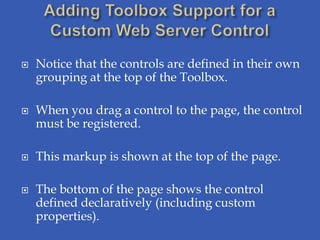
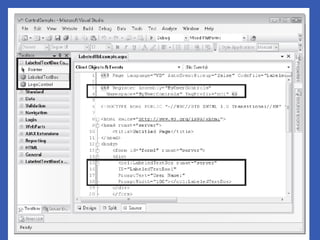
   Notice that the controls are defined in their own
    grouping at the top of the Toolbox.

   When you drag a control to the page, the control
    must be registered.

   This markup is shown at the top of the page.

   The bottom of the page shows the control
    defined declaratively (including custom
    properties).
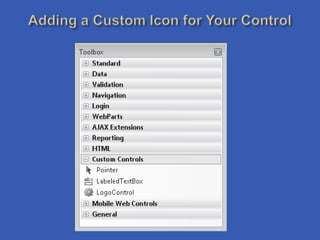
   You can add your own custom icon through an
    attribute called ToolboxBitmap of the System.Drawing
    namespace.
   This attribute specifies a bitmap that is 16 × 16 pixels in
    size.
    [ToolboxBitmap(typeof(LabeledTextBox),
    “MyUserControls.LabeledTextBox.bmp”)]
    public class LabeledTextBox : TextBox
   A default property is accessed without actually
    specifying a property.
   You set the default property for your control through
    the DefaultProperty attribute class in the
    System.ComponentModel namespace.
   Apply this attribute at the class level.
   Simply pass the name of one of your properties to this
    attribute.

    [DefaultProperty(“PromptText”)]
    public class LabeledTextBox : TextBox
   You can further change the way your custom
    server control behaves when it is dropped onto
    the Web page by setting the ToolboxDataAttribute
    in your control class.

   This attribute is used to change the markup that
    gets generated by Visual Studio.

   A common scenario is to set default values for
    properties on the control inside the generated
    markup.
   You might wish to alter the default rendering of the control
    in design mode.

   To do so, you start by adding a reference to the
    System.Design.dll assembly in your user control.

   You then create a new class in your user control that
    inherits from the ControlDesigner class. This class will
    override the GetDesignTimeHtml method of the
    ControlDesigner class to render separate design-time HTML
    that can be set based on the property settings of the control
    instance.

   You then apply the Designer attribute to your control.

   To this, you pass an instance of your ControlDesigner class.
[Designer(“MyUserControls.LabeledTextBoxDesigner, MyUserControls”)]
public class LabeledTextBoxDesigner : ControlDesigner
{
private LabeledTextBox _labeledTextBoxControl;
public override string GetDesignTimeHtml()
{
if (_labeledTextBoxControl.PromptText.Trim().Length == 0)
return "<div style='color: Gray'>[Define PromptText]</div>";
else
return base.GetDesignTimeHtml();
}
public override void Initialize(IComponent component)
{
_labeledTextBoxControl = (LabeledTextBox)component;
base.Initialize(component);
return;
}}
   A composite control is a custom Web control that
    contains other controls.

   This sounds like a user control, but the composite
    control doesn’t provide a designer screen for creating
    the control, nor an .ascx file that lets you drag and
    drop controls on it at design time.

   Instead, you create a custom control that inherits
    from the CompositeControl class. You then add
    constituent controls to this control.

   The composite control then handles events raised by
    its child controls.
   To create a composite control, you start by creating a
    class that inherits from the CompositeControl class and
    overrides the CreateChildControls method.

   The CreateChildControls method contains the code to
    instantiate the child controls and set their properties.

   If you want to be able to assign styles to the composite
    control, you should create an instance of the Panel class
    to provide a container that can have attributes assigned
    to it.

   In this case, you add it to the Controls collection of your
    composite control, and then add your controls to the
    Panel control.
   A templated custom Web control provides separation
    of control data from its presentation.

   This means that a templated control does not provide
    a default UI.

   For example, if you know that you need to display
    product data, but you don’t know how the developer
    who intends to use your control wants to format the
    product data, you could create a templated control
    that allows the page designer to supply the format for
    the product data as a template.

Custom controls

  • 2.
    A custom Web control is a control that inherits from a WebServer control.  A custom Web control can be compiled into a separate .dll file that can be shared among applications.  It allows to define a better design-time experience for the consumers of the control.  This includes Toolbox and designer functionality
  • 3.
    There are twocommon approaches to creating a custom Web server control.  The first approach is to create a Web server control that inherits directly from WebControl Class. The Web- Control class provides a base set of functionality. This leaves a lot of work to develop the control.  The second approach is to inherit from an existing Web control that already provides the core features of your control. This can give you a jump start and allow you to focus on what makes your control different. This is the more common scenario.
  • 4.
    If the custom Web server control is targeted to multiple Web sites, you should place the new custom Web server control class into a class library project to create a .dll file that can be shared.  If the custom Web server control is only meant for the current Web site, you can add the custom Web server control’s class file to the Web site.
  • 5.
    For example, suppose you wish to create a custom version of the TextBox control. This custom version will include text that labels the given TextBox (such as “User Name” or “Password”).  You create this control by first inheriting from TextBox. public class LabeledTextBox : TextBox { public string PromptText { get; set; } public int PromptWidth { get; set; } protected override void Render(HtmlTextWriter writer) { writer.Write( @"<span style="”display:inline- block;width:{0}px”">{1}&nbsp;</span>", PromptWidth, PromptText); base.Render(writer); } }
  • 6.
    This approach is desirable when there is no control that currently provides default behavior similar to the control you wish to implement.  When inheriting from the WebControl class, you must override the Render method to provide the desired output.  For example, suppose you wish to create a custom control that allows a user to display a logo and an associated company name for the logo. For this, you might create two properties: LogoUrl and CompanyName.
  • 7.
    public class LogoControl: WebControl { public LogoControl(){} public string LogoUrl { get { return _logoUrl; } set { _logoUrl = value; } } private string _logoUrl; public string CompanyName { get { return _companyName; } set { _companyName = value; } } private string _companyName; protected override void Render(HtmlTextWriter writer) { writer.WriteFullBeginTag(“div”); writer.Write(@"<img src=""{0}"" /><br />", LogoUrl); writer.Write(CompanyName + "<br />"); writer.WriteEndTag(“div”); } }
  • 8.
    The primary requirement to allow a custom Web control to be added to the Toolbox is that the Web control be placed into a separate .dll file.  You can set a reference to this .dll file to add the .dll to the Bin folder of your project.  In this case, you can right-click the Toolbox and select Choose Items. You can then browse to the given user control’s .dll to add the controls that are contained in the file to the Toolbox.
  • 9.
    Notice that the controls are defined in their own grouping at the top of the Toolbox.  When you drag a control to the page, the control must be registered.  This markup is shown at the top of the page.  The bottom of the page shows the control defined declaratively (including custom properties).
  • 11.
    You can add your own custom icon through an attribute called ToolboxBitmap of the System.Drawing namespace.  This attribute specifies a bitmap that is 16 × 16 pixels in size. [ToolboxBitmap(typeof(LabeledTextBox), “MyUserControls.LabeledTextBox.bmp”)] public class LabeledTextBox : TextBox
  • 13.
    A default property is accessed without actually specifying a property.  You set the default property for your control through the DefaultProperty attribute class in the System.ComponentModel namespace.  Apply this attribute at the class level.  Simply pass the name of one of your properties to this attribute. [DefaultProperty(“PromptText”)] public class LabeledTextBox : TextBox
  • 14.
    You can further change the way your custom server control behaves when it is dropped onto the Web page by setting the ToolboxDataAttribute in your control class.  This attribute is used to change the markup that gets generated by Visual Studio.  A common scenario is to set default values for properties on the control inside the generated markup.
  • 15.
    You might wish to alter the default rendering of the control in design mode.  To do so, you start by adding a reference to the System.Design.dll assembly in your user control.  You then create a new class in your user control that inherits from the ControlDesigner class. This class will override the GetDesignTimeHtml method of the ControlDesigner class to render separate design-time HTML that can be set based on the property settings of the control instance.  You then apply the Designer attribute to your control.  To this, you pass an instance of your ControlDesigner class.
  • 16.
    [Designer(“MyUserControls.LabeledTextBoxDesigner, MyUserControls”)] public classLabeledTextBoxDesigner : ControlDesigner { private LabeledTextBox _labeledTextBoxControl; public override string GetDesignTimeHtml() { if (_labeledTextBoxControl.PromptText.Trim().Length == 0) return "<div style='color: Gray'>[Define PromptText]</div>"; else return base.GetDesignTimeHtml(); } public override void Initialize(IComponent component) { _labeledTextBoxControl = (LabeledTextBox)component; base.Initialize(component); return; }}
  • 17.
    A composite control is a custom Web control that contains other controls.  This sounds like a user control, but the composite control doesn’t provide a designer screen for creating the control, nor an .ascx file that lets you drag and drop controls on it at design time.  Instead, you create a custom control that inherits from the CompositeControl class. You then add constituent controls to this control.  The composite control then handles events raised by its child controls.
  • 18.
    To create a composite control, you start by creating a class that inherits from the CompositeControl class and overrides the CreateChildControls method.  The CreateChildControls method contains the code to instantiate the child controls and set their properties.  If you want to be able to assign styles to the composite control, you should create an instance of the Panel class to provide a container that can have attributes assigned to it.  In this case, you add it to the Controls collection of your composite control, and then add your controls to the Panel control.
  • 19.
    A templated custom Web control provides separation of control data from its presentation.  This means that a templated control does not provide a default UI.  For example, if you know that you need to display product data, but you don’t know how the developer who intends to use your control wants to format the product data, you could create a templated control that allows the page designer to supply the format for the product data as a template.