+
Technology Integration
Region 1 ESC
June 24, 2016
Project PaCE
+
Contact info:
Diane Sidoroff
Instructional Technology
Facilitator
Austin ISD
diane.sidoroff@austinisd.org
http://techintegrate.pbworks.com/
+
We will begin soon…
+
Technology Standards
 Technology Application TEKS
 Elementary K-2, 3-5
 Middle School 6-8
 Technology Application courses – high school
 International Society for Technology in Education
(ISTE)
 National Educational Technology Standards (NETS) for
students, teachers, and administrators
 Technology Applications for All Beginning Teachers
(SBEC 2002)
 STaR Chart – (School Technology and Readiness Chart)
+
ISTE Standards
http://www.iste.org/
+
+ Technology Applications Standards for All
Beginning Educators (SBEC)
I. All teachers use technology-related
terms, concepts, data input strategies, and
ethical practices to make informed
decisions about current technologies and
their applications.
Using the Technology Application TEKS,
list 10 technology-related terms.
What ethical practices should be modeled
at your grade/subject level?
+ Technology Applications Standards for All
Beginning Educators
II. All teachers identify task requirements,
apply search strategies, and use current
technology to efficiently acquire, analyze,
and evaluate a variety of electronic
information.
 Are you familiar with using Boolean searches?
 http://www.boolify.org/index.php
 Other than Google, what search engines could help
your students find the information they need?
 http://www.askkids.com/
+ Technology Applications Standards for All
Beginning Educators
III. All teachers use task-appropriate tools
to synthesize knowledge, create and modify
solutions, and evaluate results in a way
that supports the work of individuals and
groups in problem-solving situations.
How can you help your students use task-
appropriate tools?
+ Technology Applications Standards for All
Beginning Educators
IV. All teachers communicate information
in different formats and for diverse
audiences.
What are some ways you can communicate
with your students, parents, and
community members digitally?
+ Technology Applications Standards for All
Beginning Educators
V. All teachers know how to plan, organize,
deliver, and evaluate instruction for all
students that incorporates the effective use
of current technology for teaching and
integrating the Technology Applications
Texas Essential Knowledge and Skills
(TEKS) into the curriculum.
How do you plan to integrate technology
into your grade/subject area?
+
21st Century Teaching
http://www.youtube.com/watch?v=5KmYHDNB-Uc
+
21st Century Teaching
http://www.youtube.com/watch?v=Qd6B92pB8Wk
+
21st Century Skills
Twenty-First Century
Student Outcomes Twenty-First Century
Support Systems
http://www.p21.org/
+
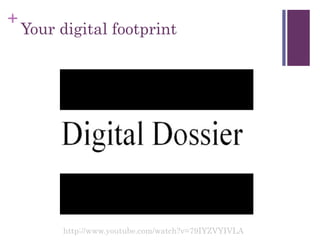
Your digital footprint
http://www.youtube.com/watch?v=79IYZVYIVLA
+ Your digital footprint and your employer
+
Reflect
 What type of digital footprint are you creating?
 What online presence do you plan to have with
your students, parents, and community?
+
Cyber Safety
 As a classroom teacher, what is your responsibility
when it comes to the safety of your students as
they are using technology in your classroom?
Outside your classroom?
 How might you handle issues such as:
 Permission to have picture, etc. online
 Student accessing inappropriate materials
 Netiquette, Cyberbullying
 Resources – CyberSmart, NetSmartz
+
Digital Natives
http://www.youtube.com/watch?v=OBFcZVTagWs
+
10
minute
break
Bloom’s Revised Taxonomy
Knowledge
Evaluation
Application
Synthesis
Analysis
Comprehension
+
Web 2.0 Tools that help
communicate and collaborate
 Collaborate
 PBWorks
 Padlet
 Lino
 Diigo/Delicious
 Mindomo / Lucidchart
 Create
 PhotoPeach
 ToonDoo
 Easel.ly / Piktochart
 Screencast-o-matic
 Communication
 Weebly
 Smore
 VoiceThread
 Slideshare
 Learn
 LearnZillion
 Duolingo
 Kideos
 TedEd
+
PBWorks
Additional options – wikispaces, wetpaint
http://pbworks.com
+
PBWorks
 Class Resources - Publish class notes, PowerPoint
lectures, schedules and policies; show off examples
of great student work.
 Group Projects - Build collaborative pages, start
discussions and encourage comments.
 Parent Outreach - Keep parents involved. Post
assignments, key dates and volunteer lists. All
available at home, from work, or anywhere.
 Student Portfolios - Give students their own page
to post content, upload homework, and share their
work.
+
Padlet
http://www.padlet.com/
 Padlet is a virtual wall that allows people to express
their thoughts on a common topic easily. It works like an
online sheet of paper where people can put any content
(e.g. images, videos, documents, text) anywhere on the
page, together with anyone, from any device.
+
Lino
 LinoIt is a free service that
allows you to create a canvas of
online multimedia sticky notes.
In addition to basic text, the
sticky notes you place on your
canvas can contain videos,
images, and file attachments.
 Unlike some similar sticky note
services, LinoIt allows you to
alter the size and color of your
fonts. You can use LinoIt's built-
in calendar tool to set due dates
on your sticky notes.
http://en.linoit.com/
+
Social Bookmarking
 a social bookmarking website which allows signed-up users
to bookmark and tag web-pages
http://www.diigo.com/
http://www.delicious.com/
+
Mindomo
http://www.mindomo.com/
+
Lucidchart
http://www.lucidchart.com/
+
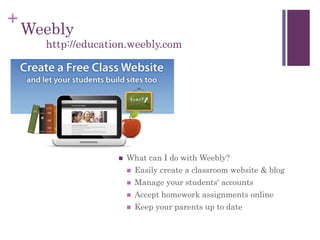
Weebly
 What can I do with Weebly?
 Easily create a classroom website & blog
 Manage your students' accounts
 Accept homework assignments online
 Keep your parents up to date
http://education.weebly.com
+
Smore
http://www.smore.com
+
Voice Thread
http://ed.voicethread.com/
+
PhotoPeach
http://photopeach.com/
+
Slideshare
http://www.slideshare.com/
Upload and share your PowerPoint &
Keynote presentations, Word & PDF
documents and professional videos on
SlideShare. Add audio to make a webinar.
+
ToonDoo
http://www.toondoo.com/
Toondoo lets you create comic strips and
cartoons easily with just a few clicks, drags
and drops. Get started now!
+
Easel.ly
http://www.easel.ly/
+
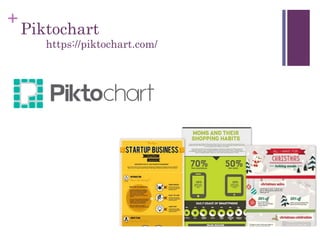
Piktochart
https://piktochart.com/
+
Screencast-o-matic
https://screencast-o-matic.com
+
LearnZillon
 LearnZillion is a learning platform that combines video
lessons, assessments, and progress reporting. Each lesson
highlights a Common Core standard, starting with math in
grades 3-9.
https://learnzillion.com/
+
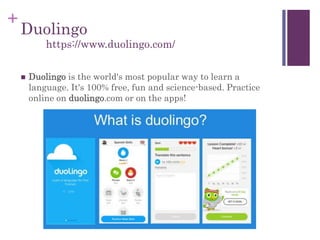
Duolingo
 Duolingo is the world's most popular way to learn a
language. It's 100% free, fun and science-based. Practice
online on duolingo.com or on the apps!
https://www.duolingo.com/
+
Ted Ed
 TED-Ed’s mission is to spark and celebrate the ideas of
teachers and students around the world. Everything we do
supports learning — from producing a growing library of
original animated videos , to providing an international
platform for teachers to create their own interactive lessons,
to helping curious students around the globe bring TED to
their schools and gain presentation literacy skills, to
celebrating innovative leadership within TED-Ed’s global
network of over 250,000 teachers.
http://ed.ted.com/
+
Kideos
 Kideos is a video site made especially for children. Kids can
find videos based on age group, subject matter or channels
like "Elmo," "cats," "babies," or "spider-man."
All videos feature kids or material that kids would find
interesting or amusing.
http://www.kideos.com/
+
Web 2.0 Tools by subject
 Mathematics
 Geogebra
 Desmos
 MathisPower4u
 Science
 Phet Simulations
 Concord Consortium
 English Language Arts
 Storybird
 Automotivator
 ReadWriteThink
 Social Studies
 Digital History
 TimeToast
 iCivics
+
Geogebra
 GeoGebra is dynamic mathematics software for all levels of
education that brings together geometry, algebra,
spreadsheets, graphing, statistics and calculus in one easy-
to-use package. GeoGebra has become the leading provider
of dynamic mathematics software, supporting science,
technology, engineering and mathematics (STEM) education
and innovations in teaching and learning worldwide.
https://www.geogebra.org/cms/en/
+
Desmos
 Graph functions, plot tables of data, evaluate equations,
explore transformations, and much more – for free!
https://www.desmos.com/
+
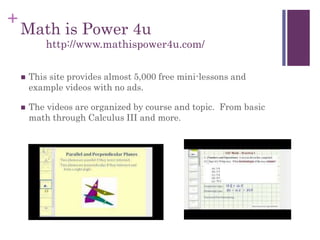
Math is Power 4u
 This site provides almost 5,000 free mini-lessons and
example videos with no ads.
 The videos are organized by course and topic. From basic
math through Calculus III and more.
http://www.mathispower4u.com/
+
Phet Simulations
 Founded in 2002 by Nobel Laureate Carl Wieman, the PhET
Interactive Simulations project at the University of Colorado
Boulder creates free interactive math and science simulations.
PhET sims are based on extensive education research and
engage students through an intuitive, game-like environment
where students learn through exploration and discovery.
https://phet.colorado.edu
+
Concord Consortium
 The STEM Resource Finder features some of the best of their
free, open source educational activities, models and software
tools. You can search by keyword or filter by subject, grade
level and type to find the right resources for your learning
goals.
https://concord.org/stem-resources
+
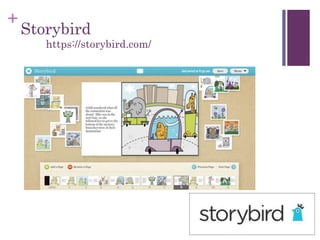
Storybird
https://storybird.com/
+
Automotivator
 AutoMotivator is for making printable motivational posters.
You choose the picture, colors, and text, and we make your
poster.
http://wigflip.com/automotivator/
+
Read Write Think
 Engage your students in online literacy learning with these
interactive tools that help them accomplish a variety of
goals—from organizing their thoughts to learning about
language—all while having fun.
http://www.readwritethink.org/
+
Digital History
http://www.digitalhistory.uh.edu
+
TimeToast
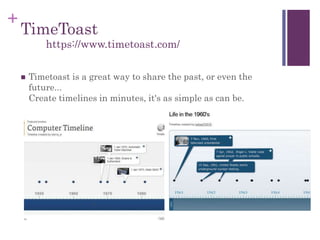
 Timetoast is a great way to share the past, or even the
future...
Create timelines in minutes, it's as simple as can be.
https://www.timetoast.com/
+
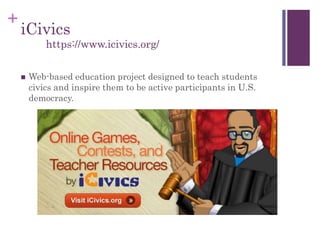
iCivics
 Web-based education project designed to teach students
civics and inspire them to be active participants in U.S.
democracy.
https://www.icivics.org/
+
Even more Web 2.0 Tools
 Evernote
 Dropbox
 Google Apps
 Google Drive
 Google Docs
 FreePlayMusic
 Keepvid
 Edmodo
 Moodle
+
Evernote
 Take notes to a new level with Evernote, the productivity
app that keeps your projects, ideas, and inspiration handy
across all your digital devices.
https://evernote.com/
+
Dropbox
 Dropbox keeps your files safe, synced, and easy to share.
Bring your photos, docs, and videos anywhere and never lose
a file again.
https://www.dropbox.com/
+
Freeplay Music
 First of all, Freeplay Music is a music library... That means
you can license a song to use it for your video, project,
advertisement, business presentation, movie blockbuster,
video game, YouTube kitty cat fashion show - our licenses
cover pretty much anything you can think of doing with our
music!
http://www.freeplaymusic.com/
+
Keepvid
http://keepvid.com/
+
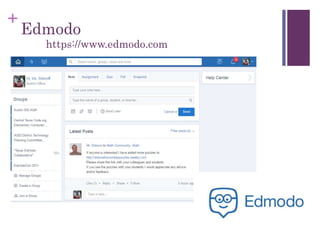
Edmodo
https://www.edmodo.com
+
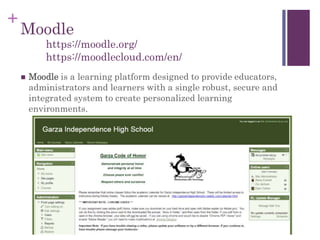
Moodle
 Moodle is a learning platform designed to provide educators,
administrators and learners with a single robust, secure and
integrated system to create personalized learning
environments.
https://moodle.org/
https://moodlecloud.com/en/
+
Google Apps
https://www.google.com/edu/
+
Code.org
 Launched in 2013, Code.org® is a non-profit dedicated to
expanding access to computer science, and increasing
participation by women and underrepresented students of
color. Our vision is that every student in every school should
have the opportunity to learn computer science. We believe
computer science should be part of core curriculum, alongside
other courses such as biology, chemistry or algebra.
https://code.org/
+
Scratch
 With Scratch, you can program your own interactive stories,
games, and animations — and share your creations with
others in the online community.
 Scratch helps young people learn to think creatively, reason
systematically, and work collaboratively — essential skills for
life in the 21st century.
https://scratch.mit.edu/
+
Evaluating Technology Projects
 A rubric is an assessment tool that provides the criteria for
evaluating a piece of student work. Specific levels of
performance are listed along with a rating system such as
need improvement, acceptable, or excellent. Rubrics can be
used by both students and teachers.
 Rubistar
 Sample Rubric
+
What is your plan of action?
 So know that you have seen a variety of web tools…
How do you plan to integrate technology into your
grade/subject area?
 Take a few moments to talk at your table. Share how you
could use 4 of these Web 2.0 tools in your classroom.
+
Contact info:
Diane Sidoroff
Instructional Technology
Facilitator
Austin ISD
diane.sidoroff@austinisd.org
http://techintegrate.pbworks.com/

Region 1 2016

  • 1.
    + Technology Integration Region 1ESC June 24, 2016 Project PaCE
  • 2.
    + Contact info: Diane Sidoroff InstructionalTechnology Facilitator Austin ISD diane.sidoroff@austinisd.org http://techintegrate.pbworks.com/
  • 3.
  • 4.
    + Technology Standards  TechnologyApplication TEKS  Elementary K-2, 3-5  Middle School 6-8  Technology Application courses – high school  International Society for Technology in Education (ISTE)  National Educational Technology Standards (NETS) for students, teachers, and administrators  Technology Applications for All Beginning Teachers (SBEC 2002)  STaR Chart – (School Technology and Readiness Chart)
  • 5.
  • 6.
  • 7.
    + Technology ApplicationsStandards for All Beginning Educators (SBEC) I. All teachers use technology-related terms, concepts, data input strategies, and ethical practices to make informed decisions about current technologies and their applications. Using the Technology Application TEKS, list 10 technology-related terms. What ethical practices should be modeled at your grade/subject level?
  • 8.
    + Technology ApplicationsStandards for All Beginning Educators II. All teachers identify task requirements, apply search strategies, and use current technology to efficiently acquire, analyze, and evaluate a variety of electronic information.  Are you familiar with using Boolean searches?  http://www.boolify.org/index.php  Other than Google, what search engines could help your students find the information they need?  http://www.askkids.com/
  • 9.
    + Technology ApplicationsStandards for All Beginning Educators III. All teachers use task-appropriate tools to synthesize knowledge, create and modify solutions, and evaluate results in a way that supports the work of individuals and groups in problem-solving situations. How can you help your students use task- appropriate tools?
  • 10.
    + Technology ApplicationsStandards for All Beginning Educators IV. All teachers communicate information in different formats and for diverse audiences. What are some ways you can communicate with your students, parents, and community members digitally?
  • 11.
    + Technology ApplicationsStandards for All Beginning Educators V. All teachers know how to plan, organize, deliver, and evaluate instruction for all students that incorporates the effective use of current technology for teaching and integrating the Technology Applications Texas Essential Knowledge and Skills (TEKS) into the curriculum. How do you plan to integrate technology into your grade/subject area?
  • 12.
  • 13.
  • 14.
    + 21st Century Skills Twenty-FirstCentury Student Outcomes Twenty-First Century Support Systems http://www.p21.org/
  • 15.
  • 16.
    + Your digitalfootprint and your employer
  • 17.
    + Reflect  What typeof digital footprint are you creating?  What online presence do you plan to have with your students, parents, and community?
  • 18.
    + Cyber Safety  Asa classroom teacher, what is your responsibility when it comes to the safety of your students as they are using technology in your classroom? Outside your classroom?  How might you handle issues such as:  Permission to have picture, etc. online  Student accessing inappropriate materials  Netiquette, Cyberbullying  Resources – CyberSmart, NetSmartz
  • 19.
  • 20.
  • 21.
  • 22.
    + Web 2.0 Toolsthat help communicate and collaborate  Collaborate  PBWorks  Padlet  Lino  Diigo/Delicious  Mindomo / Lucidchart  Create  PhotoPeach  ToonDoo  Easel.ly / Piktochart  Screencast-o-matic  Communication  Weebly  Smore  VoiceThread  Slideshare  Learn  LearnZillion  Duolingo  Kideos  TedEd
  • 23.
    + PBWorks Additional options –wikispaces, wetpaint http://pbworks.com
  • 24.
    + PBWorks  Class Resources- Publish class notes, PowerPoint lectures, schedules and policies; show off examples of great student work.  Group Projects - Build collaborative pages, start discussions and encourage comments.  Parent Outreach - Keep parents involved. Post assignments, key dates and volunteer lists. All available at home, from work, or anywhere.  Student Portfolios - Give students their own page to post content, upload homework, and share their work.
  • 25.
    + Padlet http://www.padlet.com/  Padlet isa virtual wall that allows people to express their thoughts on a common topic easily. It works like an online sheet of paper where people can put any content (e.g. images, videos, documents, text) anywhere on the page, together with anyone, from any device.
  • 26.
    + Lino  LinoIt isa free service that allows you to create a canvas of online multimedia sticky notes. In addition to basic text, the sticky notes you place on your canvas can contain videos, images, and file attachments.  Unlike some similar sticky note services, LinoIt allows you to alter the size and color of your fonts. You can use LinoIt's built- in calendar tool to set due dates on your sticky notes. http://en.linoit.com/
  • 27.
    + Social Bookmarking  asocial bookmarking website which allows signed-up users to bookmark and tag web-pages http://www.diigo.com/ http://www.delicious.com/
  • 28.
  • 29.
  • 30.
    + Weebly  What canI do with Weebly?  Easily create a classroom website & blog  Manage your students' accounts  Accept homework assignments online  Keep your parents up to date http://education.weebly.com
  • 31.
  • 32.
  • 33.
  • 34.
    + Slideshare http://www.slideshare.com/ Upload and shareyour PowerPoint & Keynote presentations, Word & PDF documents and professional videos on SlideShare. Add audio to make a webinar.
  • 35.
    + ToonDoo http://www.toondoo.com/ Toondoo lets youcreate comic strips and cartoons easily with just a few clicks, drags and drops. Get started now!
  • 36.
  • 37.
  • 38.
  • 39.
    + LearnZillon  LearnZillion isa learning platform that combines video lessons, assessments, and progress reporting. Each lesson highlights a Common Core standard, starting with math in grades 3-9. https://learnzillion.com/
  • 40.
    + Duolingo  Duolingo isthe world's most popular way to learn a language. It's 100% free, fun and science-based. Practice online on duolingo.com or on the apps! https://www.duolingo.com/
  • 41.
    + Ted Ed  TED-Ed’smission is to spark and celebrate the ideas of teachers and students around the world. Everything we do supports learning — from producing a growing library of original animated videos , to providing an international platform for teachers to create their own interactive lessons, to helping curious students around the globe bring TED to their schools and gain presentation literacy skills, to celebrating innovative leadership within TED-Ed’s global network of over 250,000 teachers. http://ed.ted.com/
  • 42.
    + Kideos  Kideos isa video site made especially for children. Kids can find videos based on age group, subject matter or channels like "Elmo," "cats," "babies," or "spider-man." All videos feature kids or material that kids would find interesting or amusing. http://www.kideos.com/
  • 43.
    + Web 2.0 Toolsby subject  Mathematics  Geogebra  Desmos  MathisPower4u  Science  Phet Simulations  Concord Consortium  English Language Arts  Storybird  Automotivator  ReadWriteThink  Social Studies  Digital History  TimeToast  iCivics
  • 44.
    + Geogebra  GeoGebra isdynamic mathematics software for all levels of education that brings together geometry, algebra, spreadsheets, graphing, statistics and calculus in one easy- to-use package. GeoGebra has become the leading provider of dynamic mathematics software, supporting science, technology, engineering and mathematics (STEM) education and innovations in teaching and learning worldwide. https://www.geogebra.org/cms/en/
  • 45.
    + Desmos  Graph functions,plot tables of data, evaluate equations, explore transformations, and much more – for free! https://www.desmos.com/
  • 46.
    + Math is Power4u  This site provides almost 5,000 free mini-lessons and example videos with no ads.  The videos are organized by course and topic. From basic math through Calculus III and more. http://www.mathispower4u.com/
  • 47.
    + Phet Simulations  Foundedin 2002 by Nobel Laureate Carl Wieman, the PhET Interactive Simulations project at the University of Colorado Boulder creates free interactive math and science simulations. PhET sims are based on extensive education research and engage students through an intuitive, game-like environment where students learn through exploration and discovery. https://phet.colorado.edu
  • 48.
    + Concord Consortium  TheSTEM Resource Finder features some of the best of their free, open source educational activities, models and software tools. You can search by keyword or filter by subject, grade level and type to find the right resources for your learning goals. https://concord.org/stem-resources
  • 49.
  • 50.
    + Automotivator  AutoMotivator isfor making printable motivational posters. You choose the picture, colors, and text, and we make your poster. http://wigflip.com/automotivator/
  • 51.
    + Read Write Think Engage your students in online literacy learning with these interactive tools that help them accomplish a variety of goals—from organizing their thoughts to learning about language—all while having fun. http://www.readwritethink.org/
  • 52.
  • 53.
    + TimeToast  Timetoast isa great way to share the past, or even the future... Create timelines in minutes, it's as simple as can be. https://www.timetoast.com/
  • 54.
    + iCivics  Web-based educationproject designed to teach students civics and inspire them to be active participants in U.S. democracy. https://www.icivics.org/
  • 55.
    + Even more Web2.0 Tools  Evernote  Dropbox  Google Apps  Google Drive  Google Docs  FreePlayMusic  Keepvid  Edmodo  Moodle
  • 56.
    + Evernote  Take notesto a new level with Evernote, the productivity app that keeps your projects, ideas, and inspiration handy across all your digital devices. https://evernote.com/
  • 57.
    + Dropbox  Dropbox keepsyour files safe, synced, and easy to share. Bring your photos, docs, and videos anywhere and never lose a file again. https://www.dropbox.com/
  • 58.
    + Freeplay Music  Firstof all, Freeplay Music is a music library... That means you can license a song to use it for your video, project, advertisement, business presentation, movie blockbuster, video game, YouTube kitty cat fashion show - our licenses cover pretty much anything you can think of doing with our music! http://www.freeplaymusic.com/
  • 59.
  • 60.
  • 61.
    + Moodle  Moodle isa learning platform designed to provide educators, administrators and learners with a single robust, secure and integrated system to create personalized learning environments. https://moodle.org/ https://moodlecloud.com/en/
  • 62.
  • 63.
    + Code.org  Launched in2013, Code.org® is a non-profit dedicated to expanding access to computer science, and increasing participation by women and underrepresented students of color. Our vision is that every student in every school should have the opportunity to learn computer science. We believe computer science should be part of core curriculum, alongside other courses such as biology, chemistry or algebra. https://code.org/
  • 64.
    + Scratch  With Scratch,you can program your own interactive stories, games, and animations — and share your creations with others in the online community.  Scratch helps young people learn to think creatively, reason systematically, and work collaboratively — essential skills for life in the 21st century. https://scratch.mit.edu/
  • 65.
    + Evaluating Technology Projects A rubric is an assessment tool that provides the criteria for evaluating a piece of student work. Specific levels of performance are listed along with a rating system such as need improvement, acceptable, or excellent. Rubrics can be used by both students and teachers.  Rubistar  Sample Rubric
  • 66.
    + What is yourplan of action?  So know that you have seen a variety of web tools… How do you plan to integrate technology into your grade/subject area?  Take a few moments to talk at your table. Share how you could use 4 of these Web 2.0 tools in your classroom.
  • 67.
    + Contact info: Diane Sidoroff InstructionalTechnology Facilitator Austin ISD diane.sidoroff@austinisd.org http://techintegrate.pbworks.com/