
1º Meeting Aims: to see a demo of eLearning – Teacher to save a webpage for offline use to use printscreen to save visual support to save a Youtube video to make an online collage to save pictures from websites free of copyright to use Google Docs to evaluate online exercises to creat a personal blog and collaborate in a class blog
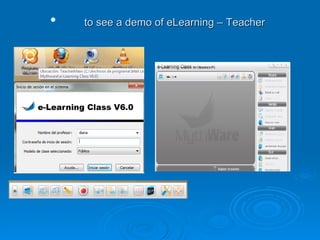
to see a demo of eLearning – Teacher
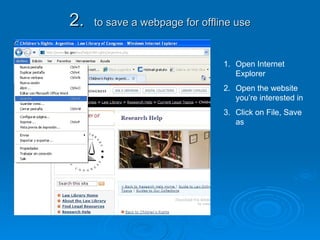
2.  to save a webpage for offline use Open Internet Explorer Open the website you’re interested in Click on File, Save as
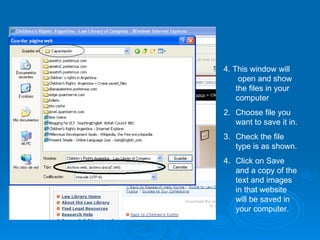
4. This window will  open and show the files in your computer Choose file you want to save it in. Check the file type is as shown. Click on Save and a copy of the text and images in that website will be saved in your computer.
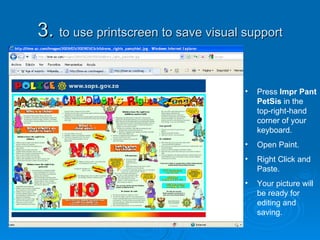
3.  to use printscreen to save visual support Press  Impr Pant PetSis  in the top-right-hand corner of your keyboard. Open Paint. Right Click and Paste. Your picture will be ready for editing and saving.
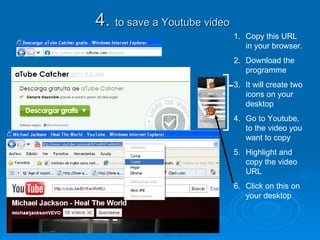
4.  to save a Youtube video Copy this URL in your browser. Download the programme  It will create two icons on your desktop Go to Youtube, to the video you want to copy Highlight and copy the video URL Click on this on your desktop
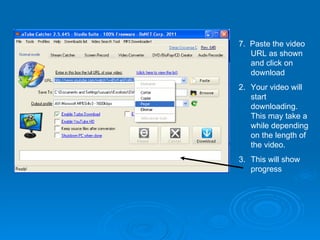
7.  Paste the video URL as shown and click on download Your video will start downloading. This may take a while depending on the length of the video. This will show progress
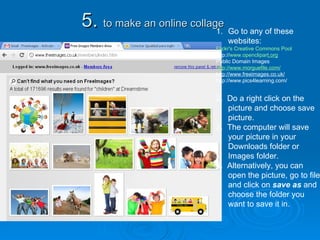
5.  to make an online collage Go to any of these websites:  Flickr's  Creative Commons Pool http:// www.openclipar t,org Public Domain Images http:// www.morguefile.com / http://www.freeimages.co.uk/ http://www.pics4learning.com/  2.  Do a right click on the picture and choose save picture. 3.  The computer will save your picture in your Downloads folder or Images folder. 4.  Alternatively, you can open the picture, go to file and click on  save as  and choose the folder you want to save it in.
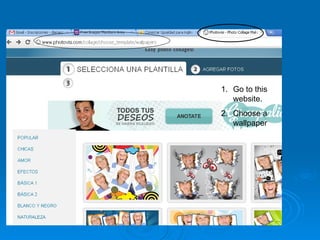
Go Go to this website. Choose a wallpaper
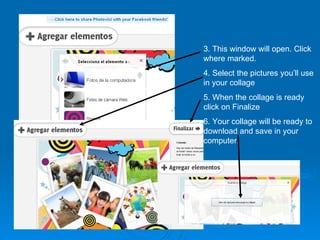
3. This window will open. Click where marked. 4. Select the pictures you’ll use in your collage 5. When the collage is ready click on Finalize 6. Your collage will be ready to download and save in your computer.
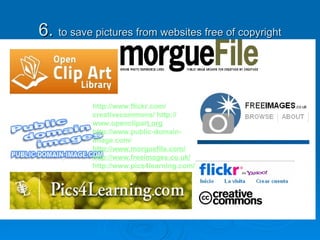
6.  to save pictures from websites free of copyright http:// www.flickr.com / creativecommons /   http:// www.openclipar t,org http:// www.public - domain - image.com /   http:// www.morguefile.com / http://www.freeimages.co.uk/ http://www.pics4learning.com/
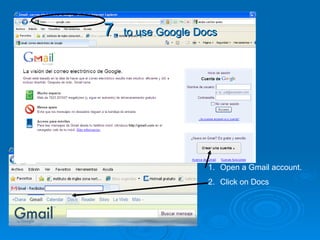
7.  to use Google Docs Open a Gmail account. Click on Docs
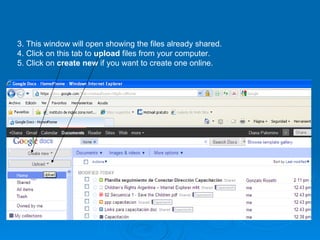
3. This window will open showing the files already shared. 4. Click on this tab to  upload  files from your computer. 5. Click on  create new  if you want to create one online.
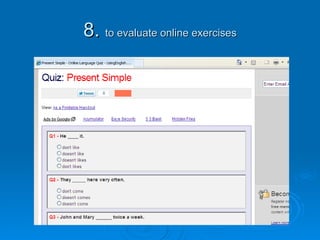
8.  to evaluate online exercises
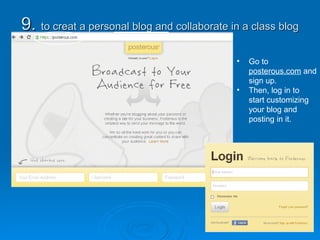
9.  to creat a personal blog and collaborate in a class blog Go to  posterous.com  and sign up. Then, log in to start customizing your blog and posting in it.
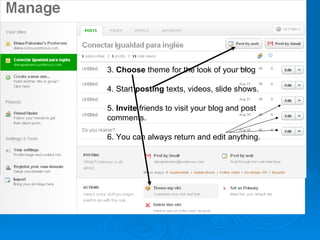
3.  Choose  theme for the look of your blog 4. Start  posting  texts, videos, slide shows. 5.  Invite  friends to visit your blog and post  comments. 6. You can always return and edit anything.
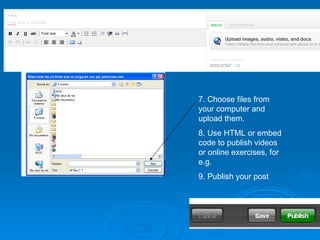
7. Choose files from your computer and upload them. 8. Use HTML or embed code to publish videos or online exercises, for e.g. 9. Publish your post
THE END 1ST SESSION

Recap ppp

  • 1.
    1º Meeting Aims:to see a demo of eLearning – Teacher to save a webpage for offline use to use printscreen to save visual support to save a Youtube video to make an online collage to save pictures from websites free of copyright to use Google Docs to evaluate online exercises to creat a personal blog and collaborate in a class blog
  • 2.
    to see ademo of eLearning – Teacher
  • 3.
    2. tosave a webpage for offline use Open Internet Explorer Open the website you’re interested in Click on File, Save as
  • 4.
    4. This windowwill open and show the files in your computer Choose file you want to save it in. Check the file type is as shown. Click on Save and a copy of the text and images in that website will be saved in your computer.
  • 5.
    3. touse printscreen to save visual support Press Impr Pant PetSis in the top-right-hand corner of your keyboard. Open Paint. Right Click and Paste. Your picture will be ready for editing and saving.
  • 6.
    4. tosave a Youtube video Copy this URL in your browser. Download the programme It will create two icons on your desktop Go to Youtube, to the video you want to copy Highlight and copy the video URL Click on this on your desktop
  • 7.
    7. Pastethe video URL as shown and click on download Your video will start downloading. This may take a while depending on the length of the video. This will show progress
  • 8.
    5. tomake an online collage Go to any of these websites: Flickr's Creative Commons Pool http:// www.openclipar t,org Public Domain Images http:// www.morguefile.com / http://www.freeimages.co.uk/ http://www.pics4learning.com/ 2. Do a right click on the picture and choose save picture. 3. The computer will save your picture in your Downloads folder or Images folder. 4. Alternatively, you can open the picture, go to file and click on save as and choose the folder you want to save it in.
  • 9.
    Go Go tothis website. Choose a wallpaper
  • 10.
    3. This windowwill open. Click where marked. 4. Select the pictures you’ll use in your collage 5. When the collage is ready click on Finalize 6. Your collage will be ready to download and save in your computer.
  • 11.
    6. tosave pictures from websites free of copyright http:// www.flickr.com / creativecommons / http:// www.openclipar t,org http:// www.public - domain - image.com / http:// www.morguefile.com / http://www.freeimages.co.uk/ http://www.pics4learning.com/
  • 12.
    7. touse Google Docs Open a Gmail account. Click on Docs
  • 13.
    3. This windowwill open showing the files already shared. 4. Click on this tab to upload files from your computer. 5. Click on create new if you want to create one online.
  • 14.
    8. toevaluate online exercises
  • 15.
    9. tocreat a personal blog and collaborate in a class blog Go to posterous.com and sign up. Then, log in to start customizing your blog and posting in it.
  • 16.
    3. Choose theme for the look of your blog 4. Start posting texts, videos, slide shows. 5. Invite friends to visit your blog and post comments. 6. You can always return and edit anything.
  • 17.
    7. Choose filesfrom your computer and upload them. 8. Use HTML or embed code to publish videos or online exercises, for e.g. 9. Publish your post
  • 18.
    THE END 1STSESSION