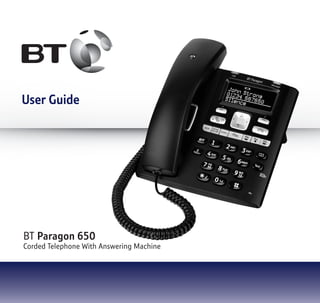
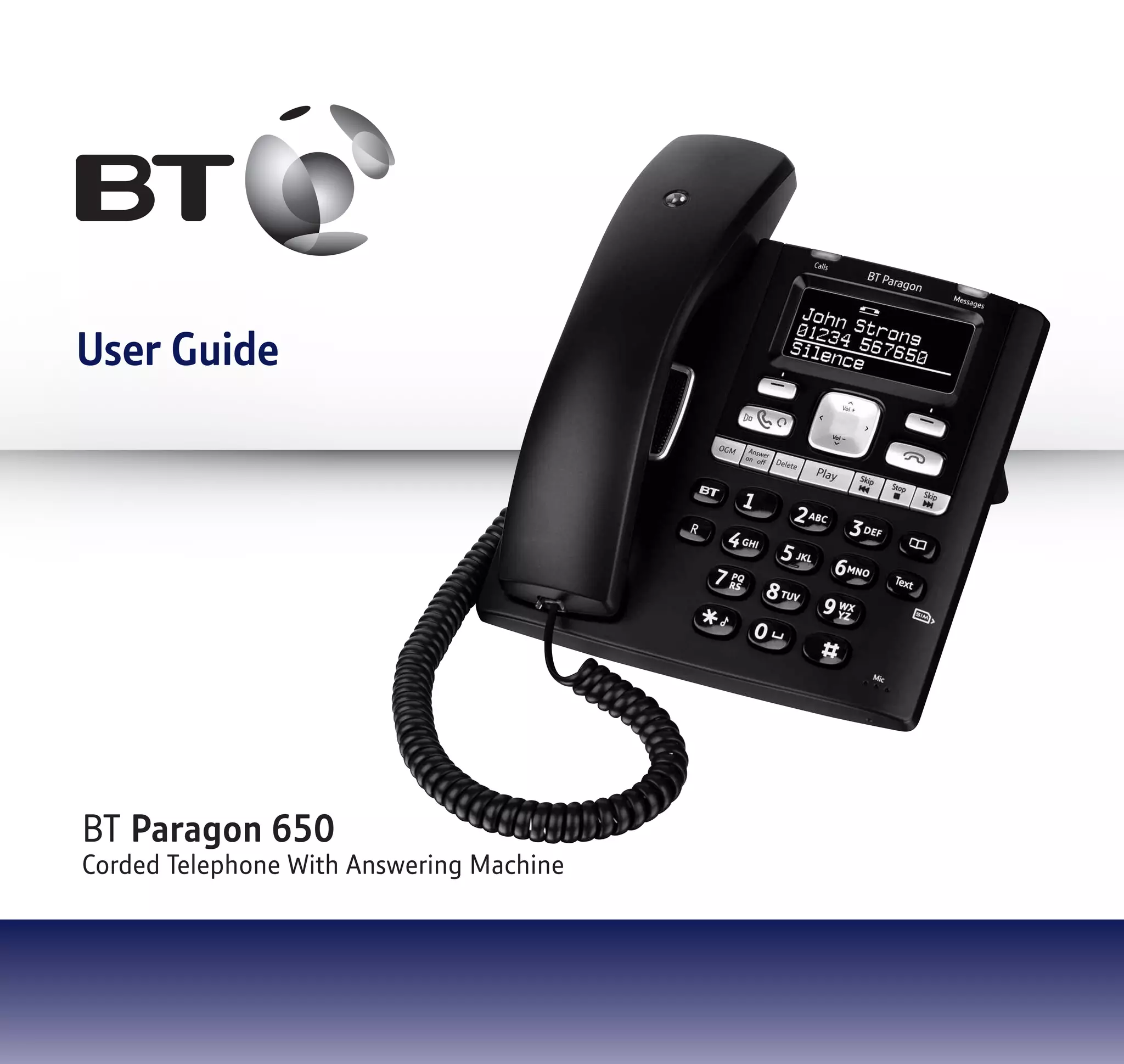
BT Paragon 650
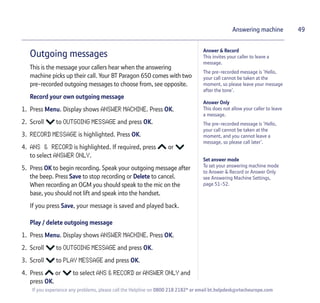
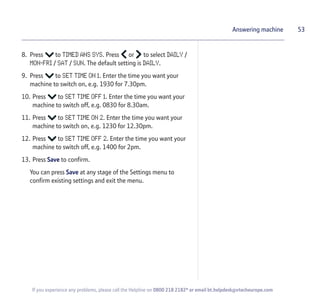
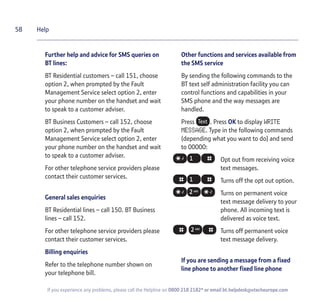
Corded Telephone With Answering Machine
User Guide
Section
• Directory lets you store up to 200 names and numbers for
easy dialling.
• Copy the whole directory or individual entries to and from
your mobile phone SIM card.
• Send and receive SMS text messages.1
• Caller Display lets you see who’s calling and your phone stores
details of the last 50 callers in a Calls list.2
• Answering machine with up to 32 minutes recording time.
• Hear your messages via the loudspeaker or privately via
the handset when using the remote access feature.
• Handsfree – make and receive calls using the
built-in loudspeaker.
• Calendar and alarm.
1 Requires subscription to a Caller Display Service and you must not withhold
your telephone number. A quarterly fee maybe payable.
2 Requires subscription to a Caller Display Service. A quarterly fee maybe payable.
Welcome…
to your BT Paragon 650 corded digital
telephone and answering machine
Section
This User Guide provides you with all the
information you need to get the most from
your phone.
You must first set up your phone before
you can use it. This doesn’t take long as it
is easy to do.
Just follow the simple instructions on the
next few pages.
Need help?
If you have any problems setting up or using your
BT Paragon 650, contact the Helpline on 0800 218 2182*
or email bt.helpdesk@vtecheurope.com. Our dedicated
advisors are more likely to be able to help you than the
retailer where you made your purchase.
Alternatively, you may find the answer in the ‘Help’ section at
the back of this guide. Additional answers to Frequently Asked
Questions are also available from www.bt.com/producthelp
Got everything?
• BT Paragon 650
corded telephone
• Mains power adaptor
(Item code: 039953)
• Telephone line cord
(pre-installed)
• Desk mounting plinth
IMPORTANT
Only use the telephone
line cord supplied.
IMPORTANT
If you select a polyphonic
ringtone the tune will
continue to play for a few
seconds once the handset
is lifted. This is normal.
* Calls made from within the UK mainland network are free.
Mobile and International call costs may vary.
4
If you experience any problems, please call the Helpline on 0800 218 2182* or email bt.helpdesk@vtecheurope.com
In this guide
Getting started
Location . . . . . . . . . . . . . . . . . . . . . . . . . . . . . 7
Setting up. . . . . . . . . . . . . . . . . . . . . . . . . . . . 7
Getting to know your phone
Buttons . . . . . . . . . . . . . . . . . . . . . . . . . . . . . . 9
Main display icons . . . . . . . . . . . . . . . . . . . . . 11
Navigating the menu. . . . . . . . . . . . . . . . . . . 11
Menu map . . . . . . . . . . . . . . . . . . . . . . . . . . . 12
Using your phone
Making calls . . . . . . . . . . . . . . . . . . . . . . . . . . 13
Dial a number. . . . . . . . . . . . . . . . . . . . . . . . . 13
Preparatory dialling . . . . . . . . . . . . . . . . . . . . 13
End a call . . . . . . . . . . . . . . . . . . . . . . . . . . . . 13
Handsfree . . . . . . . . . . . . . . . . . . . . . . . . . . . . 13
Headset. . . . . . . . . . . . . . . . . . . . . . . . . . . . . . 14
Volume . . . . . . . . . . . . . . . . . . . . . . . . . . . . . . 14
Secrecy . . . . . . . . . . . . . . . . . . . . . . . . . . . . . . 15
Redial . . . . . . . . . . . . . . . . . . . . . . . . . . . . . . . 15
Delete a redial number . . . . . . . . . . . . . . . . . 15
Save a redial number to the directory . . . . . 16
Delete all redial numbers. . . . . . . . . . . . . . . . 16
If the mains power fails . . . . . . . . . . . . . . . . . 16
Phonebook
Open the phonebook. . . . . . . . . . . . . . . . . . . 17
Character map . . . . . . . . . . . . . . . . . . . . . . . . 17
New phonebook entry. . . . . . . . . . . . . . . . . . 17
Dial from the phonebook . . . . . . . . . . . . . . . 18
View an entry . . . . . . . . . . . . . . . . . . . . . . . . . 18
Edit an entry. . . . . . . . . . . . . . . . . . . . . . . . . . 18
Delete an entry. . . . . . . . . . . . . . . . . . . . . . . . 19
Delete the entire phonebook . . . . . . . . . . . . 19
Copy SIM. . . . . . . . . . . . . . . . . . . . . . . . . . . . . 20
Copy phonebook entries to/from SIM card . 20
Memory full . . . . . . . . . . . . . . . . . . . . . . . . . . 21
Caller Display
View the calls list . . . . . . . . . . . . . . . . . . . . . . 22
Dial from the calls list. . . . . . . . . . . . . . . . . . . 22
Save a number to the phonebook. . . . . . . . . 23
Delete an entry. . . . . . . . . . . . . . . . . . . . . . . . 23
Delete the entire calls list . . . . . . . . . . . . . . . 24
BT Calling Features
BT Helpdesk . . . . . . . . . . . . . . . . . . . . . . . . . . 25
BT Directory Enquiries . . . . . . . . . . . . . . . . . . 25
Call Divert on/off . . . . . . . . . . . . . . . . . . . . . . 26
Check Divert . . . . . . . . . . . . . . . . . . . . . . . . . . 26
Call Waiting on/off . . . . . . . . . . . . . . . . . . . . . 26
4
Check Call Waiting . . . . . . . . . . . . . . . . . . . . . 27
Store/edit Calling Feature numbers . . . . . . . 27
SMS text messages
Subscribe to SMS service . . . . . . . . . . . . . . . 28
Cost of fixed line service . . . . . . . . . . . . . . . . 28
Send an SMS text message . . . . . . . . . . . . . . 28
Receiving a call while writing a text . . . . . . . 30
Entering text. . . . . . . . . . . . . . . . . . . . . . . . . . 31
Writing tips . . . . . . . . . . . . . . . . . . . . . . . . . . . 32
SMS templates . . . . . . . . . . . . . . . . . . . . . . . . 32
Edit SMS template . . . . . . . . . . . . . . . . . . . . . 32
Delete SMS template . . . . . . . . . . . . . . . . . . . 33
Read, edit and send draft SMS messages . . 33
Reading SMS text messages . . . . . . . . . . . . . 34
SMS alert . . . . . . . . . . . . . . . . . . . . . . . . . . . . 35
SMS Service Centre numbers. . . . . . . . . . . . . 35
Adding or changing
SMS Service Centre numbers. . . . . . . . . . . . . 36
Select a Send Service Centre number . . . . . . 36
Set auto delete for texts . . . . . . . . . . . . . . . . 37
Other features
Set an appointment reminder . . . . . . . . . . . . 38
Delete an appointment . . . . . . . . . . . . . . . . . 39
Set alarm clock . . . . . . . . . . . . . . . . . . . . . . . . 40
Settings
Set date and time. . . . . . . . . . . . . . . . . . . . . . 41
Set ringtone and ringer volume . . . . . . . . . . 41
Switch keypad tones on/off. . . . . . . . . . . . . . 42
Switch text alert on/off . . . . . . . . . . . . . . . . . 42
Adjust display contrast and backlight. . . . . . 43
Speed dial. . . . . . . . . . . . . . . . . . . . . . . . . . . . 43
Dial mode . . . . . . . . . . . . . . . . . . . . . . . . . . . . 44
Store an access code (Auto prefix) . . . . . . . . 44
Reset your phone. . . . . . . . . . . . . . . . . . . . . . 45
Default settings . . . . . . . . . . . . . . . . . . . . . . . 45
Answering machine
Operating the answering machine
at the base . . . . . . . . . . . . . . . . . . . . . . . . . . . 46
Switch on/off . . . . . . . . . . . . . . . . . . . . . . . . . 46
Loudspeaker volume . . . . . . . . . . . . . . . . . . . 46
Play, repeat, skip and delete . . . . . . . . . . . . . 47
Play outgoing message (OGM) . . . . . . . . . . . 47
Call screening . . . . . . . . . . . . . . . . . . . . . . . . . 48
Operating the answering machine
via the menu. . . . . . . . . . . . . . . . . . . . . . . . . . 48
Switch on/off . . . . . . . . . . . . . . . . . . . . . . . . . 48
Outgoing messages . . . . . . . . . . . . . . . . . . . . 49
Record your own outgoing message . . . . . . 49
Play/delete outgoing message . . . . . . . . . . . 49
Play messages . . . . . . . . . . . . . . . . . . . . . . . . 50
5In this guide
If you experience any problems, please call the Helpline on 0800 218 2182* or email bt.helpdesk@vtecheurope.com
6 In this guide
If you experience any problems, please call the Helpline on 0800 218 2182* or email bt.helpdesk@vtecheurope.com
Record a memo . . . . . . . . . . . . . . . . . . . . . . . 50
Delete all old messages . . . . . . . . . . . . . . . . . 51
Memory full . . . . . . . . . . . . . . . . . . . . . . . . . . 51
Answer settings . . . . . . . . . . . . . . . . . . . . . . . 51
Remote access . . . . . . . . . . . . . . . . . . . . . . . . 54
Security PIN . . . . . . . . . . . . . . . . . . . . . . . . . . 54
Switch remote access on or off . . . . . . . . . . . 54
Switch answering machine on remotely. . . . 55
Operating your answering machine
from another phone. . . . . . . . . . . . . . . . . . . . 55
Help . . . . . . . . . . . . . . . . . . . . . . . . . . . . . . . . 57
General information
Safety . . . . . . . . . . . . . . . . . . . . . . . . . . . . . . . 60
Cleaning . . . . . . . . . . . . . . . . . . . . . . . . . . . . . 60
Environmental . . . . . . . . . . . . . . . . . . . . . . . . 60
Product disposal instructions . . . . . . . . . . . . 60
Connecting to a switchboard. . . . . . . . . . . . . 61
Dialling mode . . . . . . . . . . . . . . . . . . . . . . . . . 61
Guarantee. . . . . . . . . . . . . . . . . . . . . . . . . . . . 61
How many telephones can you have? . . . . . 62
R&TTE . . . . . . . . . . . . . . . . . . . . . . . . . . . . . . . 62
Getting started 7
Location
You need to place your BT Paragon 650 close enough to a mains
power and telephone socket so that the cables will reach.
Setting up
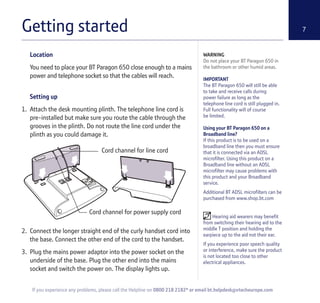
1. Attach the desk mounting plinth. The telephone line cord is
pre-installed but make sure you route the cable through the
grooves in the plinth. Do not route the line cord under the
plinth as you could damage it.
2. Connect the longer straight end of the curly handset cord into
the base. Connect the other end of the cord to the handset.
3. Plug the mains power adaptor into the power socket on the
underside of the base. Plug the other end into the mains
socket and switch the power on. The display lights up.
WARNING
Do not place your BT Paragon 650 in
the bathroom or other humid areas.
IMPORTANT
The BT Paragon 650 will still be able
to take and receive calls during
power failure as long as the
telephone line cord is still plugged in.
Full functionality will of course
be limited.
Using your BT Paragon 650 on a
Broadband line?
If this product is to be used on a
broadband line then you must ensure
that it is connected via an ADSL
microfilter. Using this product on a
Broadband line without an ADSL
microfilter may cause problems with
this product and your Broadband
service.
Additional BT ADSL microfilters can be
purchased from www.shop.bt.com
Hearing aid wearers may benefit
from switching their hearing aid to the
middle T position and holding the
earpiece up to the aid not their ear.
If you experience poor speech quality
or interference, make sure the product
is not located too close to other
electrical appliances.
If you experience any problems, please call the Helpline on 0800 218 2182* or email bt.helpdesk@vtecheurope.com
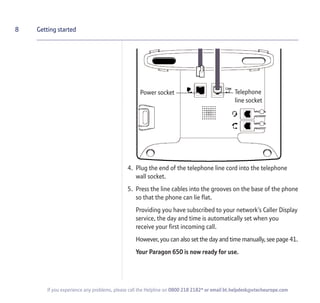
Cord channel for line cord
Cord channel for power supply cord
4. Plug the end of the telephone line cord into the telephone
wall socket.
5. Press the line cables into the grooves on the base of the phone
so that the phone can lie flat.
Providing you have subscribed to your network’s Caller Display
service, the day and time is automatically set when you
receive your first incoming call.
However, you can also set the day and time manually, see page 41.
Your Paragon 650 is now ready for use.
8 Getting started
If you experience any problems, please call the Helpline on 0800 218 2182* or email bt.helpdesk@vtecheurope.com
Power socket Telephone
line socket
Getting to know your phone 9
If you experience any problems, please call the Helpline on 0800 218 2182* or email bt.helpdesk@vtecheurope.com
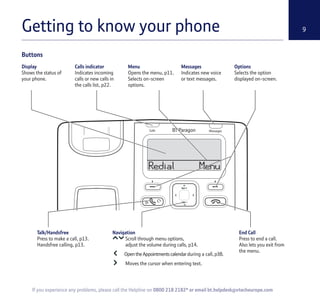
Display
Shows the status of
your phone.
Calls indicator
Indicates incoming
calls or new calls in
the calls list, p22.
Menu
Opens the menu, p11.
Selects on-screen
options.
Messages
Indicates new voice
or text messages.
Options
Selects the option
displayed on-screen.
Navigation
Scroll through menu options,
adjust the volume during calls, p14.
Open the Appointments calendar during a call, p38.
Moves the cursor when entering text.
End Call
Press to end a call.
Also lets you exit from
the menu.
Talk/Handsfree
Press to make a call, p13.
Handsfree calling, p13.
Buttons
Buttons
If you experience any problems, please call the Helpline on 0800 218 2182* or email bt.helpdesk@vtecheurope.com
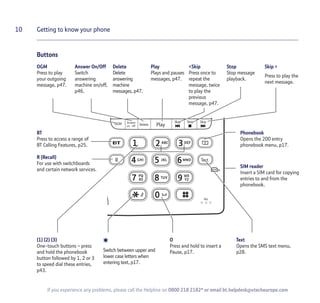
(1) (2) (3)
One-touch buttons – press
and hold the phonebook
button followed by 1, 2 or 3
to speed dial these entries,
p43.
*
Switch between upper and
lower case letters when
entering text, p17.
O
Press and hold to insert a
Pause, p17.
Text
Opens the SMS text menu,
p28.
OGM
Press to play
your outgoing
message, p47.
Answer On/Off
Switch
answering
machine on/off,
p46.
Delete
Delete
answering
machine
messages, p47.
Play
Plays and pauses
messages, p47.
<Skip
Press once to
repeat the
message, twice
to play the
previous
message, p47.
Stop
Stop message
playback.
Skip >
Press to play the
next message.
BT
Press to access a range of
BT Calling Features, p25.
R (Recall)
For use with switchboards
and certain network services.
Phonebook
Opens the 200 entry
phonebook menu, p17.
SIM reader
Insert a SIM card for copying
entries to and from the
phonebook.
10 Getting to know your phone
Display icons & menu navigation 11
Navigating the menu
Your BT Paragon 650 has an easy menu system.
1. Press Menu to open the main menu or press the individual feature button e.g. to open a
specific menu.
2. Scroll or to the option you want.
3. Press the OK option button to select the feature displayed or press the Back option button to
return to the previous level.
Exit menu
If you want to exit a menu or the directory, either press to return to standby or press the
Back option button until the standby screen appears.
If you experience any problems, please call the Helpline on 0800 218 2182* or email bt.helpdesk@vtecheurope.com
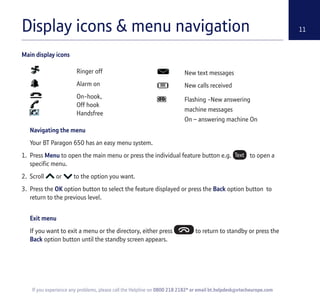
Ringer off
Alarm on
On-hook,
Off hook
Handsfree
New text messages
New calls received
Flashing -New answering
machine messages
On – answering machine On
Main display icons
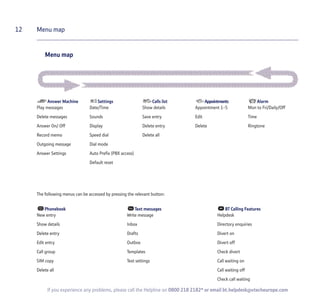
Menu map
12 Menu map
If you experience any problems, please call the Helpline on 0800 218 2182* or email bt.helpdesk@vtecheurope.com
Answer Machine
Play messages
Delete messages
Answer On/ Off
Record memo
Outgoing message
Answer Settings
Settings
Date/Time
Sounds
Display
Speed dial
Dial mode
Auto Prefix (PBX access)
Default reset
Calls list
Show details
Save entry
Delete entry
Delete all
Appointments
Appointment 1-5
Edit
Delete
Alarm
Mon to Fri/Daily/Off
Time
Ringtone
Phonebook
New entry
Show details
Delete entry
Edit entry
Call group
SIM copy
Delete all
Text messages
Write message
Inbox
Drafts
Outbox
Templates
Text settings
BT Calling Features
Helpdesk
Directory enquiries
Divert on
Divert off
Check divert
Call waiting on
Call waiting off
Check call waiting
The following menus can be accessed by pressing the relevant button:
Using your phone 13
Making calls
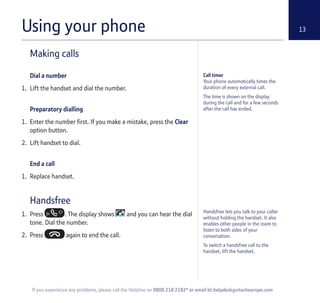
Dial a number
1. Lift the handset and dial the number.
Preparatory dialling
1. Enter the number first. If you make a mistake, press the Clear
option button.
2. Lift handset to dial.
End a call
1. Replace handset.
Handsfree
1. Press . The display shows and you can hear the dial
tone. Dial the number.
2. Press again to end the call.
Call timer
Your phone automatically times the
duration of every external call.
The time is shown on the display
during the call and for a few seconds
after the call has ended.
If you experience any problems, please call the Helpline on 0800 218 2182* or email bt.helpdesk@vtecheurope.com
Handsfree lets you talk to your caller
without holding the handset. It also
enables other people in the room to
listen to both sides of your
conversation.
To switch a handsfree call to the
handset, lift the handset.
You can use a headset with your BT
Paragon 650. A headset is not
supplied with the product.
When using the headset, you can
switch to using the handsfree
loudspeaker by simply pressing
the button.
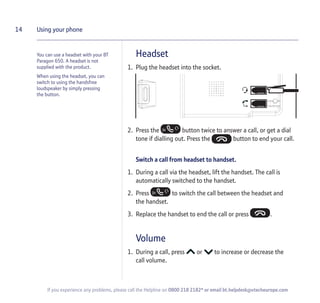
Headset
1. Plug the headset into the socket.
2. Press the button twice to answer a call, or get a dial
tone if dialling out. Press the button to end your call.
Switch a call from headset to handset.
1. During a call via the headset, lift the handset. The call is
automatically switched to the handset.
2. Press to switch the call between the headset and
the handset.
3. Replace the handset to end the call or press .
Volume
1. During a call, press or to increase or decrease the
call volume.
14 Using your phone
If you experience any problems, please call the Helpline on 0800 218 2182* or email bt.helpdesk@vtecheurope.com
Secrecy
1. During a call, press the Secrecy option button.
Display shows SECRECY ON. Your caller cannot hear you.
2. Press OFF to resume your call.
Redial
You can redial any of the last ten numbers.
1. Press the Redial option button. The last number dialled
is displayed.
2. Scroll or to the number you want.
3. Lift the handset or press to dial.
Delete a redial number
1. Press the Redial option button. Scroll or to the
number you want.
2. Press the Options option button. DELETE ENTRY is
highlighted.
3. Press OK. The number is deleted. Press the Back option button
until you return to standby.
15Using your phone
When on a call, you can talk to
someone in the same room without
your caller hearing.
When in ‘call’ and ‘secrecy’ mode,
please note that no other features such
as ‘appointments’ or ‘phonebook’ can
be accessed.
If you experience any problems, please call the Helpline on 0800 218 2182* or email bt.helpdesk@vtecheurope.com
You can still make 999 and 112
emergency services calls on your BT
Paragon 650 if the mains power fails.
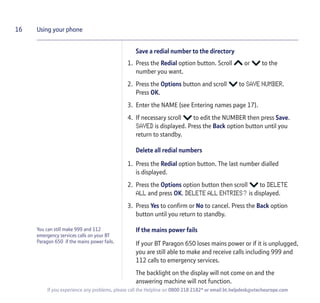
Save a redial number to the directory
1. Press the Redial option button. Scroll or to the
number you want.
2. Press the Options button and scroll to SAVE NUMBER.
Press OK.
3. Enter the NAME (see Entering names page 17).
4. If necessary scroll to edit the NUMBER then press Save.
SAVED is displayed. Press the Back option button until you
return to standby.
Delete all redial numbers
1. Press the Redial option button. The last number dialled
is displayed.
2. Press the Options option button then scroll to DELETE
ALL and press OK. DELETE ALL ENTRIES? is displayed.
3. Press Yes to confirm or No to cancel. Press the Back option
button until you return to standby.
If the mains power fails
If your BT Paragon 650 loses mains power or if it is unplugged,
you are still able to make and receive calls including 999 and
112 calls to emergency services.
The backlight on the display will not come on and the
answering machine will not function.
16 Using your phone
If you experience any problems, please call the Helpline on 0800 218 2182* or email bt.helpdesk@vtecheurope.com
Phonebook 17
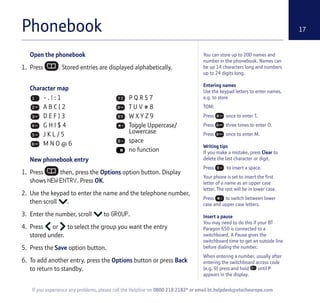
Open the phonebook
1. Press . Stored entries are displayed alphabetically.
Character map
New phonebook entry
1. Press then, press the Options option button. Display
shows NEW ENTRY. Press OK.
2. Use the keypad to enter the name and the telephone number,
then scroll .
3. Enter the number, scroll to GROUP.
4. Press or to select the group you want the entry
stored under.
5. Press the Save option button.
6. To add another entry, press the Options button or press Back
to return to standby.
You can store up to 200 names and
number in the phonebook. Names can
be up 14 characters long and numbers
up to 24 digits long.
Entering names
Use the keypad letters to enter names,
e.g. to store
TOM:
Press once to enter T.
Press three times to enter O.
Press once to enter M.
Writing tips
If you make a mistake, press Clear to
delete the last character or digit.
Press to insert a space.
Your phone is set to insert the first
letter of a name as an upper case
letter. The rest will be in lower case.
Press to switch between lower
case and upper case letters.
Insert a pause
You may need to do this if your BT
Paragon 650 is connected to a
switchboard. A Pause gives the
switchboard time to get an outside line
before dialing the number.
When entering a number, usually after
entering the switchboard access code
(e.g. 9) press and hold until P
appears in the display.
If you experience any problems, please call the Helpline on 0800 218 2182* or email bt.helpdesk@vtecheurope.com
- . ! : 1
A B C ( 2
D E F ) 3
G H I $ 4
J K L / 5
M N O @ 6
P Q R S 7
T U V # 8
W X Y Z 9
Toggle Uppercase/
Lowercase
space
no function
When using the first few letters of a
name to search the phonebook you
may have a 1 – 2 second wait for the
number to appear.
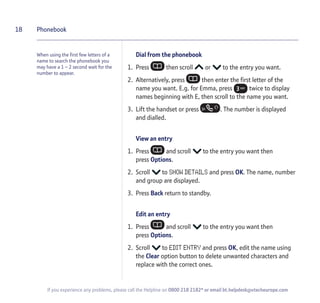
Dial from the phonebook
1. Press then scroll or to the entry you want.
2. Alternatively, press then enter the first letter of the
name you want. E.g. for Emma, press twice to display
names beginning with E, then scroll to the name you want.
3. Lift the handset or press . The number is displayed
and dialled.
View an entry
1. Press and scroll to the entry you want then
press Options.
2. Scroll to SHOW DETAILS and press OK. The name, number
and group are displayed.
3. Press Back return to standby.
Edit an entry
1. Press and scroll to the entry you want then
press Options.
2. Scroll to EDIT ENTRY and press OK, edit the name using
the Clear option button to delete unwanted characters and
replace with the correct ones.
18 Phonebook
If you experience any problems, please call the Helpline on 0800 218 2182* or email bt.helpdesk@vtecheurope.com
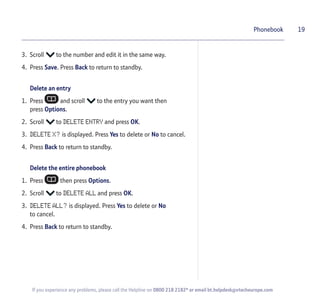
3. Scroll to the number and edit it in the same way.
4. Press Save. Press Back to return to standby.
Delete an entry
1. Press and scroll to the entry you want then
press Options.
2. Scroll to DELETE ENTRY and press OK.
3. DELETE X? is displayed. Press Yes to delete or No to cancel.
4. Press Back to return to standby.
Delete the entire phonebook
1. Press then press Options.
2. Scroll to DELETE ALL and press OK.
3. DELETE ALL? is displayed. Press Yes to delete or No
to cancel.
4. Press Back to return to standby.
19Phonebook
If you experience any problems, please call the Helpline on 0800 218 2182* or email bt.helpdesk@vtecheurope.com
If a copied name has more than 16
characters, your BT Paragon 650 will
store the first 16 characters only.
If the copied entry has more than 24
digits, your BT Paragon 650 will store
the first 24 digits only.
Copy SIM
Copy entries to and from compatible mobile phone SIM cards.
Copied entries are added to any existing entries that have
been stored. You can accept or reject each entry until your
directory is full.
Copy phonebook entries to or from a SIM card
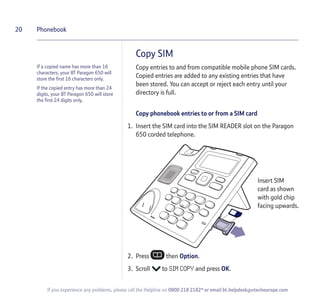
1. Insert the SIM card into the SIM READER slot on the Paragon
650 corded telephone.
2. Press then Option.
3. Scroll to SIM COPY and press OK.
20 Phonebook
If you experience any problems, please call the Helpline on 0800 218 2182* or email bt.helpdesk@vtecheurope.com
Insert SIM
card as shown
with gold chip
facing upwards.
4. If the SIM you have inserted is PIN protected SIM LOCKED!
will appear on your screen. You must return the SIM to your
mobile handset and remove the PIN* before you can copy the
SIM to your Paragon.
The screen displays SIM TO PHONE or PHONE TO SIM.
If copying to the SIM Card, scroll to highlight
PHONE TO SIM.
5. When SIM entries are displayed select which one you want
and press Option. Screen shows COPY ENTRY/COPY ALL.
6. Press or if required to highlight the option you want
and press OK. When viewing or selecting a name from the SIM
prior to copying to your Paragon, the names may not be in
alphabetical order.
7. The screen confirms COPIED.
8. Press Back to return to standby.
Memory Full
If your phonebook memory becomes full, the display shows
MEMORY FULL! All entries stored up until the memory
becomes full are kept in the phonebook.
If you have problems copying directory entries from your SIM
onto the Paragon 650 place the SIM back into your mobile
and confirm that the directory entries are stored on the SIM
and not within the mobile handset directory. If this is not the
case then you will need to copy the entries from your mobile
handset directory onto the SIM. Refer to your mobile user
guide for details.
21Phonebook
Sometimes the mobile handset
directory entries will appear differently
when they are copied to the SIM, with
the name being appended with a
number, e.g.Tom1.
If handset directory is empty, the
screen only shows SIM TO PHONE.
If no SIM card is inserted INSERT SIM
is displayed on the screen.
WARNING
While copying international format
numbers (prefixed by + or 00) from
SIM, please make sure after SIM copy
that entries stored in your Paragon are
in the current format. You may have to
manually edit the copied local,
national and international numbers
before you can use them to make calls.
If you experience any problems, please call the Helpline on 0800 218 2182* or email bt.helpdesk@vtecheurope.com
Your Paragon may take up to 3
minutes to read your SIM card before
copying can begin. An hourglass icon
will appear on the screen during this
time, please be patient as the menu
will prompt you when it’s ready for
your next action.
*Please ensure you reinstate your
PIN to your SIM when you return it to
your mobile handset for regular use.
Caller Display22
IMPORTANT
To use Caller Display you must first
subscribe to your network provider’s
Caller Display service.
For more details on BT’s Calling
Features, call BT free on 0800 800
150.
When you have missed calls, the
missed calls LED flashes and the screen
tells you there are new calls in the Calls
list. If the same number rings you
more than once, each call is stored in
the calls list.
Calls displayed as International,
Withheld and Unavailable are not
stored in the Calls List as no phone
number is provided from the caller’s
network.
Calls list
The Calls list contains the telephone
numbers of your last 50 callers.
Whether you take a call or not, the
caller’s details are stored in the Calls
list. You can display, scroll through,
dial and copy numbers in the list.
If a call is received when the Calls list is
full, then the oldest entry will be
deleted automatically.
New calls indicator
Displayed next to each new call.
If you subscribe to a Caller Display service, your handset shows
who is calling (provided the number is not withheld,
unavailable or is an international call).
If you have stored a name to go with the number in your
handset directory, the name will be displayed instead.
View the Calls list
1. Press .
Or
Press the Menu option button and scroll to CALLS LIST.
Press OK.
2. Display shows details of calls. Scroll or through the list.
3. Press the Options option button. SHOW DETAILS is
highlighted. Press OK to view further information including
the date and time of the call.
4. Press Back to return to standby.
Dial from the Calls list
1. Press .
Or
Press the Menu option button and scroll to CALLS LIST.
Press OK.
If you experience any problems, please call the Helpline on 0800 218 2182* or email bt.helpdesk@vtecheurope.com
2. Scroll or to the name or number you want.
3. Lift the handset or press to dial.
Save a number to the phonebook
1. Press .
Or
Press the Menu option button and scroll to CALLS LIST.
Press OK.
2. Scroll or through the list to the entry you want.
3. Press Options, scroll to SAVE ENTRY and press OK.
4. Enter the name. If necessary scroll to edit the number.
Scroll to GROUP and press or to select the group you
want the entry stored under then press Save.
5. Press Back to return to standby.
Delete an entry
1. Press .
Or
Press the Menu option button and scroll to CALLS LIST.
Press OK.
23Caller Display
If you experience any problems, please call the Helpline on 0800 218 2182* or email bt.helpdesk@vtecheurope.com
If you manually dial a number and add
an 'auto prefix' such as '9', the number
will appear in the calls list with a '9' at
the start. If you then try to save this
number from the calls list to your
directory, and you also have the 'auto
prefix' function set to '9' on your
Paragon then the number you have
saved would have two 9's at the front
when next dialled.
To avoid this, you should edit any such
numbers in the calls list to remove the
'9' that you had manually added when
initially dialling the number.
2. Scroll or through the list to the entry you want.
3. Press Options, scroll to DELETE ENTRY and press OK.
4. Press Back to return to standby.
Delete the entire Calls list
1. Press .
Or
Press the Menu option button and scroll to CALLS LIST.
Press OK.
2. Press Option, then scroll to DELETE ALL and press OK.
3. Press Yes to confirm or No to cancel.
4. Press Back to return to standby.
24 Caller Display
If you experience any problems, please call the Helpline on 0800 218 2182* or email bt.helpdesk@vtecheurope.com
BT Calling Features 25
By pressing the button your BT Paragon 650 gives you
easy access to a range of pre-stored BT Calling Features.
These are:
BT 1571
1. Press . 1571 is displayed, lift the handset or press .
1571 will be automatically dialled.
BT Helpdesk
1. Press BT HELPDESK is displayed, lift the handset or
press . The BT Helpdesk for this product will be
automatically dialled.
BT Directory Enquiries
1. Press then scroll to DIR ENQUIRIES.
2. Lift the handset or press .
The BT Calling Features works in
exactly the same way as the main
name and number directory and can
store up to 10 entries.
If you prefer, you can delete the
pre-stored entries and replace them
with your own numbers. New stored
numbers are added to the end of
the list.
If you experience any problems, please call the Helpline on 0800 218 2182* or email bt.helpdesk@vtecheurope.com
• 1571.
• BT Helpdesk.
• BT Dir. Enquiries.
• Call Divert On.
• Call Divert Off.
• Check Divert.
• Call Waiting On.
• Call Waiting Off.
• Check Call Wait.
If you are not connected to the BT
network, some of these services may
not be available. Please contact your
Network Provider.
Call Diversion services may allow other
divert options. Check with your
network provider for details.
For further information, see the BT
Calling Features User Guide supplied
when you subscribe to the services of
your choice.
Call Divert on/off
When switched on you can divert all incoming calls to another
number of your choice.
1. Press then scroll to CALL DIVERT ON or
CALL DIVERT OFF.
2. Lift the handset or press to dial and follow the spoken
instructions.
Check Divert
1. Press then scroll to CHECK DIVERT.
2. Lift the handset or press to dial and listen to the
status of your Call Divert.
Call Waiting on/off
1. Press then scroll to CALL WAITING ON or
CALL WAITING OFF.
2. Lift the handset or press to dial and listen for
confirmation of your instructions.
26 BT Calling Features
If you experience any problems, please call the Helpline on 0800 218 2182* or email bt.helpdesk@vtecheurope.com
Call Waiting lets you know if another
person is trying to contact you whilst
on a call. If a second caller rings you
will hear a beep in the handset.
Providing you have Caller Display, the
screen will show the caller’s details.
Check Call Waiting
1. Press then scroll to CHECK CALL WAITING.
2. Lift the handset or press to dial and listen for
confirmation to hear the status of your Call Waiting.
Store / edit Calling Feature numbers
1. Press then scroll to EMPTY or the entry you want.
2. Press Options.
Scroll or and press OK to select:
NEW ENTRY – to enter a new number and name
SHOW DETAILS – to see number details.
DELETE ENTRY – to delete the entry selected
EDIT ENTRY – to change the existing entry
DELETE ALL – to delete all entries in the BT Calling Features list.
3. Press Back to return to standby.
27BT Calling Features
If you experience any problems, please call the Helpline on 0800 218 2182* or email bt.helpdesk@vtecheurope.com
There are two empty slots so you can
use the BT button to store and dial
your own preferred numbers.
You can also edit the existing Calling
Feature numbers.
SMS Text messaging28
SMS stands for Short
Messaging Service.
IMPORTANT
You must subscribe to your Network
Provider’s Caller Display service so that
you can use SMS text messaging. A
quarterly fee may be payable, please
contact your network provider for
more details.
When you are using SMS text
messaging you must not withhold your
telephone number or the service will
not allow you to connect.
You may also send messages to
landline phones that are NOT SMS
compatible. Messages to non-
compatible lines will be connected to
voice text and delivered in spoken
words to the telephone as a call.
Please note that the conversion can
translate common abbreviations and
smileys etc, but to ensure maximum
clarity of message delivery,
abbreviations etc should be used
sparingly.
Cost of the fixed line service
There is no subscription charge (other
than the subscription to Caller
Display). Visit the BT.com website
(www.bt.com) to find out how much it
costs to send a text message (depends
upon your call package).
Welcome to the BT Text Service on your BT Paragon 650.
The SMS service is provided by BT.
Your BT Paragon 650 can send and receive messages to any
mobile phone from participating mobile networks and
compatible landline telephones in the UK.
The fixed line SMS service is provided under BT’s terms and
conditions for telephone service. These can be found by
visiting the BT.com website at:
http://www.bt.com/terms
Subscribe to the SMS service
When you send your first SMS text message from your BT
Paragon 650 you will automatically be registered for the
service.
On receipt of your first SMS through the service, the system
will send you a welcome SMS message back.
You may also register by sending the word ‘Register’ to 00000
upon which you will receive a confirmation message.
Send an SMS text message
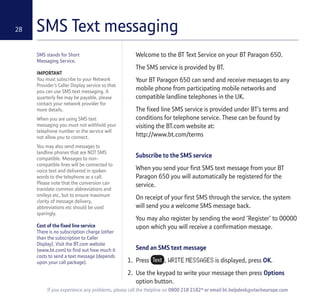
1. Press , WRITE MESSAGES is displayed, press OK.
2. Use the keypad to write your message then press Options
option button.
If you experience any problems, please call the Helpline on 0800 218 2182* or email bt.helpdesk@vtecheurope.com
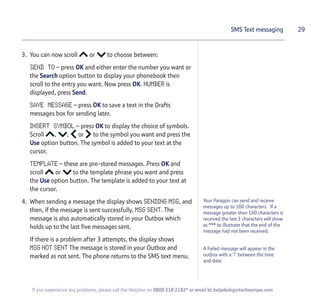
3. You can now scroll or to choose between:
SEND TO – press OK and either enter the number you want or
the Search option button to display your phonebook then
scroll to the entry you want. Now press OK. NUMBER is
displayed, press Send.
SAVE MESSAGE – press OK to save a text in the Drafts
messages box for sending later.
INSERT SYMBOL – press OK to display the choice of symbols.
Scroll , , or to the symbol you want and press the
Use option button. The symbol is added to your text at the
cursor.
TEMPLATE – these are pre-stored messages. Press OK and
scroll or to the template phrase you want and press
the Use option button. The template is added to your text at
the cursor.
4. When sending a message the display shows SENDING MSG, and
then, if the message is sent successfully, MSG SENT. The
message is also automatically stored in your Outbox which
holds up to the last five messages sent.
If there is a problem after 3 attempts, the display shows
MSG NOT SENT The message is stored in your Outbox and
marked as not sent. The phone returns to the SMS text menu.
29SMS Text messaging
If you experience any problems, please call the Helpline on 0800 218 2182* or email bt.helpdesk@vtecheurope.com
A Failed message will appear in the
outbox with a ‘!’ between the time
and date.
Your Paragon can send and receive
messages up to 160 characters. If a
message greater then 160 characters is
received the last 3 characters will show
as *** to illustrate that the end of the
message had not been received.
Receiving a call while writing a text
1. If you are writing a text and you receive a call, the text is
automatically stored in the Drafts folder.
2. After the call, press , WRITE MESSAGE is highlighted,
press OK and scroll to DRAFTS. Press OK.
If necessary, scroll to your message then press Edit. You can
now continue writing your message. Press Options to send,
save or delete your message.
Sent messages are stored in the Outbox
Your BT Paragon 650 outbox holds a copy of sent messages.
When full, the newest message replaces the oldest.
Saved messages are stored in the Drafts folder
If you want to save a message to complete and/or send later
you can store it in the drafts folder. When full, the newest
message replaces the oldest.
The inbox, outbox and drafts folders can hold up to a
combined total of 40 text messages.
30 SMS Text messaging
If you experience any problems, please call the Helpline on 0800 218 2182* or email bt.helpdesk@vtecheurope.com
Entering text
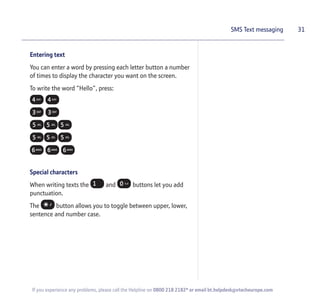
You can enter a word by pressing each letter button a number
of times to display the character you want on the screen.
To write the word “Hello”, press:
Special characters
When writing texts the and buttons let you add
punctuation.
The button allows you to toggle between upper, lower,
sentence and number case.
31SMS Text messaging
If you experience any problems, please call the Helpline on 0800 218 2182* or email bt.helpdesk@vtecheurope.com
To use a template, see Send an SMS
text message, page 28-29.
SMS templates
Use a template to add pre-set
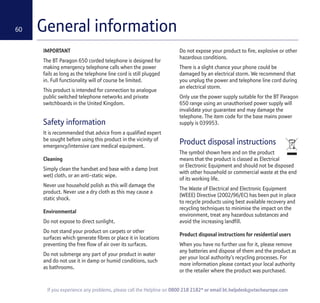
statements to make your texts easier
to write.
The templates are:
• Happy Birthday!
• I’ll be there soon
• I’ll call you at 7pm
• Please call me at 7pm
• What time will you be available?
When you delete a template, it is
shown on the screen as EMPTY.
Writing tips
If you make a mistake, press Clear to delete the last character
or digit to the left of the cursor.
1. Press or to move the cursor.
2. Press once to insert a space.
3. Press to switch between upper and lower case characters.
The cursor automatically moves on to the next space after a
couple of seconds.
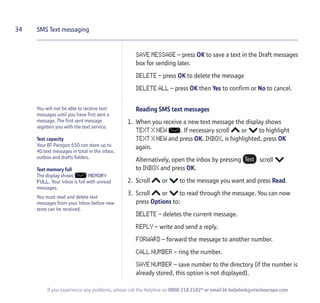
SMS Character map
Edit SMS templates
You can overwrite the existing templates with your own
messages, up to 28 characters long.
1. Press , and scroll to TEMPLATES and press OK.
2. The available templates are displayed. Scroll to the template
you want and press Options.
3. EDIT TEMPLATE is highlighted, press OK. Press Clear to delete
characters then enter your own template and press OK. You
can now insert the new template into any text message.
32 SMS Text messaging
If you experience any problems, please call the Helpline on 0800 218 2182* or email bt.helpdesk@vtecheurope.com
1 . , - ? !  @ : ; / ( )
A B C 2
D E F 3
G H I 4
J K L 5
M N O 6
P Q R S 7
T U V 8
W X Y Z 9
space # *
Toggle Upper, lower, sentence
case and numbers:
Abc, ABC, abc, 123
space 0
Delete SMS templates
1. Press , press OK and scroll to TEMPLATES and
press OK.
2. The available templates are displayed. Scroll to the template
you want and press Options.
3. Scroll to DELETE TEMPLATE and press OK. DELETE
TEMPLATE? is highlighted. Press Yes to confirm or No
to cancel.
Read, edit and send draft SMS messages
If you have saved a message you have written for sending
later, you can view, edit and send it from the Draft
Messages box.
1. Press , press OK and scroll to DRAFTS. Press OK.
The date and time of the latest draft message is displayed.
If necessary, scroll or to the message you want and
press Edit.
2. The message is displayed. Edit the message or press Options.
3. You can now choose between:
SEND TO – press OK and either enter the number you want or
press Search to display your Directory then scroll to the entry
you want. Now press OK. NUMBER is displayed, press Send.
33SMS Text messaging
If you experience any problems, please call the Helpline on 0800 218 2182* or email bt.helpdesk@vtecheurope.com
You will not be able to receive text
messages until you have first sent a
message. The first sent message
registers you with the text service.
Text capacity
Your BT Paragon 650 can store up to
40 text messages in total in the inbox,
outbox and drafts folders.
Text memory full
The display shows MEMORY
FULL. Your Inbox is full with unread
messages.
You must read and delete text
messages from your Inbox before new
texts can be received.
SAVE MESSAGE – press OK to save a text in the Draft messages
box for sending later.
DELETE – press OK to delete the message
DELETE ALL – press OK then Yes to confirm or No to cancel.
Reading SMS text messages
1. When you receive a new text message the display shows
TEXT X NEW . If necessary scroll or to highlight
TEXT X NEW and press OK. INBOX, is highlighted, press OK
again.
Alternatively, open the inbox by pressing scroll
to INBOX and press OK.
2. Scroll or to the message you want and press Read.
3. Scroll or to read through the message. You can now
press Options to:
DELETE – deletes the current message.
REPLY – write and send a reply.
FORWARD – forward the message to another number.
CALL NUMBER – ring the number.
SAVE NUMBER – save number to the directory (if the number is
already stored, this option is not displayed).
34 SMS Text messaging
If you experience any problems, please call the Helpline on 0800 218 2182* or email bt.helpdesk@vtecheurope.com
DELETE ALL – delete all messages in the Inbox.
4. Follow the on-screen prompts to save, write, send
or delete the messages. Or press to return to the
previous menu level.
SMS alert
The default setting is On. You can switch this off.
1. Press Menu, scroll to SETTINGS and press OK.
2. Scroll to SOUNDS and press OK.
3. Scroll to TEXT ALERT and press OK.
4. Press or to select On or Off. Press Save.
SMS Service Centre numbers
To send and receive SMS text messages you need the
telephone number of your Network’s SMS Centre.
If you accidentally delete the SEND or RECEIVE SMS Service
Centre numbers you will need to re-enter them in order for
your SMS Service to work.
The SEND SMS Service number is: 1470P170940090.
The RECEIVE SMS Service number is: 08005875290.
35SMS Text messaging
Your phone will beep when you receive
an SMS text message.
If you experience any problems, please call the Helpline on 0800 218 2182* or email bt.helpdesk@vtecheurope.com
Using more than one SMS text enabled
telephone?
Only one SMS text enabled telephone
base unit (digital corded or cordless)
can be plugged into any one
telephone line.
If you do find you want to use two
base units and still receive written text
messages then you will need to
remove the RECEIVE service centre
number from one of the phones. This
will allow you to send text messages
from any SMS phone but text mesages
will only be received on one base unit.
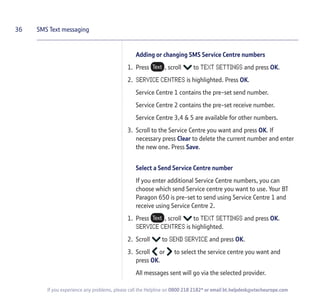
Adding or changing SMS Service Centre numbers
1. Press , scroll to TEXT SETTINGS and press OK.
2. SERVICE CENTRES is highlighted. Press OK.
Service Centre 1 contains the pre-set send number.
Service Centre 2 contains the pre-set receive number.
Service Centre 3,4 & 5 are available for other numbers.
3. Scroll to the Service Centre you want and press OK. If
necessary press Clear to delete the current number and enter
the new one. Press Save.
Select a Send Service Centre number
If you enter additional Service Centre numbers, you can
choose which send Service centre you want to use. Your BT
Paragon 650 is pre-set to send using Service Centre 1 and
receive using Service Centre 2.
1. Press , scroll to TEXT SETTINGS and press OK.
SERVICE CENTRES is highlighted.
2. Scroll to SEND SERVICE and press OK.
3. Scroll or to select the service centre you want and
press OK.
All messages sent will go via the selected provider.
36 SMS Text messaging
If you experience any problems, please call the Helpline on 0800 218 2182* or email bt.helpdesk@vtecheurope.com
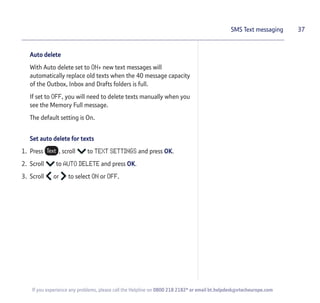
Auto delete
With Auto delete set to ON, new text messages will
automatically replace old texts when the 40 message capacity
of the Outbox, Inbox and Drafts folders is full.
If set to OFF, you will need to delete texts manually when you
see the Memory Full message.
The default setting is On.
Set auto delete for texts
1. Press , scroll to TEXT SETTINGS and press OK.
2. Scroll to AUTO DELETE and press OK.
3. Scroll or to select ON or OFF.
37SMS Text messaging
If you experience any problems, please call the Helpline on 0800 218 2182* or email bt.helpdesk@vtecheurope.com
Other features38
You can enter titles of appointments or
other events you want to be reminded
of, up to a maximum of 14 characters.
When the reminder is due, the phone
rings and the display shows the title of
your appointment or event.
The default ringtone will always be set
as Poly 1.
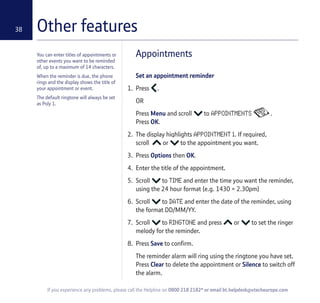
Appointments
Set an appointment reminder
1. Press .
OR
Press Menu and scroll to APPOINTMENTS .
Press OK.
2. The display highlights APPOINTMENT 1. If required,
scroll or to the appointment you want.
3. Press Options then OK.
4. Enter the title of the appointment.
5. Scroll to TIME and enter the time you want the reminder,
using the 24 hour format (e.g. 1430 = 2.30pm)
6. Scroll to DATE and enter the date of the reminder, using
the format DD/MM/YY.
7. Scroll to RINGTONE and press or to set the ringer
melody for the reminder.
8. Press Save to confirm.
The reminder alarm will ring using the ringtone you have set.
Press Clear to delete the appointment or Silence to switch off
the alarm.
If you experience any problems, please call the Helpline on 0800 218 2182* or email bt.helpdesk@vtecheurope.com
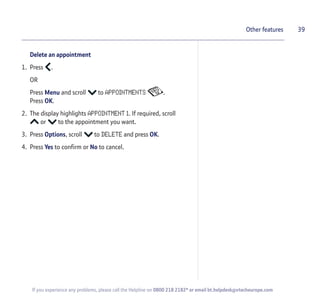
Delete an appointment
1. Press .
OR
Press Menu and scroll to APPOINTMENTS .
Press OK.
2. The display highlights APPOINTMENT 1. If required, scroll
or to the appointment you want.
3. Press Options, scroll to DELETE and press OK.
4. Press Yes to confirm or No to cancel.
39Other features
If you experience any problems, please call the Helpline on 0800 218 2182* or email bt.helpdesk@vtecheurope.com
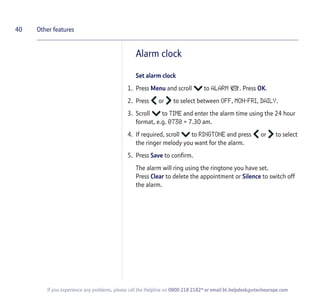
Alarm clock
Set alarm clock
1. Press Menu and scroll to ALARM . Press OK.
2. Press or to select between OFF, MON-FRI, DAILY.
3. Scroll to TIME and enter the alarm time using the 24 hour
format, e.g. 0730 = 7.30 am.
4. If required, scroll to RINGTONE and press or to select
the ringer melody you want for the alarm.
5. Press Save to confirm.
The alarm will ring using the ringtone you have set.
Press Clear to delete the appointment or Silence to switch off
the alarm.
40 Other features
If you experience any problems, please call the Helpline on 0800 218 2182* or email bt.helpdesk@vtecheurope.com
41
If you experience any problems, please call the Helpline on 0800 218 2182* or email bt.helpdesk@vtecheurope.com
Settings
Display the time in 12 or 24
hour format
Set the current time and dates.
When selecting 12 or 24 hour format
please be aware that this only alters
the way the time is displayed on the
main screen. You will always have to
enter the time in the Date/Time
Settings menu using 24 hour format,
even if you have selected 12 hour for
the display format
Date and time
Set date and time
1. Press Menu, scroll to SETTINGS and press OK.
2. DATE/TIME is highlighted. Press OK.
3. Press or to switch between 12 and 24 hour format.
4. If required press and enter the time.
5. If required, press and enter the date using the format
DD/MM/YY.
6. Press Save to confirm.
Sounds
Set ringtone and ringer volume
1. Press Menu, scroll to SETTINGS and press OK.
2. Scroll to SOUNDS. Press OK.
3. RINGTONE is highlighted. Press OK. Press or to select the
ringtone. A sample of each ringtone is played.
4. Scroll to VOLUME and press or to select the level.
A sample of the volume is played.
5. Press OK to confirm.
Choose from 15 ringtones. Choose the
volume level from 1-5 and off.
42
If you experience any problems, please call the Helpline on 0800 218 2182* or email bt.helpdesk@vtecheurope.com
Switch keypad tones on/off
1. Press Menu, scroll to SETTINGS and press OK.
2. Scroll to SOUNDS. Press OK.
3. Scroll to TONES and press OK.
4. Press or to select ON or OFF.
5. Press Save to confirm.
Switch text alert tone on/off
1. Press Menu, scroll to SETTINGS and press OK.
2. Scroll to SOUNDS. Press OK.
3. Scroll to TEXT ALERT and press OK.
4. Press or to select ON or OFF.
5. Press Save to confirm.
Settings
When you press a button on the
keypad you hear a tone. You can
switch this tone on or off.
When you receive a new text message
your BT Paragon 650 gives a beep.
43
If you experience any problems, please call the Helpline on 0800 218 2182* or email bt.helpdesk@vtecheurope.com
Display
Adjust display contrast and backlight
1. Press Menu, scroll to SETTINGS and press OK.
2. Scroll to DISPLAY. Press OK.
3. CONTRAST is highlighted. Press or to select the level.
The effect of the current level is displayed.
4. Scroll to BACKLIGHT and press OK.
5. Press or to select ON or OFF.
6. Press Save to confirm.
Speed dial
1. Press Menu, scroll to SETTINGS and press OK.
2. Scroll to SPEED DIAL. Press OK.
3. SPEED DIAL 1 is highlighted. Press OK or scroll down to SPEED
DIAL 2 or 3 and press OK.
4. Enter the number you want to store and press Save. If you
make a mistake, press Clear to delete digits.
5. Press Save to confirm.
Settings
To allow for different lighting
conditions, you can: change the
contrast on the screen (there are 5
levels) and switch the backlight On
or Off.
You can store your own preferred
numbers in the speed dial buttons
, .
To dial, lift the handset, press and hold
the button, then scroll to select
speed dial 1, 2 or 3.
If connected to a switchboard, you
may need to enter an access code (e.g.
9) before each number is dialled. Your
BT Paragon 650 can store an access
code which is automatically dialled
before each number.
If set to ON, Auto prefix will only apply
to numbers stored in your phonebook.
Any numbers dialled manually will not
be auto prefixed; this is because
internal numbers are unlikely to need
the prefix.
44
If you experience any problems, please call the Helpline on 0800 218 2182* or email bt.helpdesk@vtecheurope.com
Dial mode
1. Press Menu, scroll to SETTINGS and press OK.
2. Scroll to DIAL MODE. Press OK.
3. Press or to select the setting you want.
4. Press Save to confirm.
PBX/switchboard access (Auto prefix)
Store an access code
1. Press Menu, scroll to SETTINGS and press OK.
2. Scroll to AUTO PREFIX and press OK.
3. Use and to select ON or OFF. If you select ON follow
steps 4 and 5. If you select OFF you will go back one level.
4. Enter the access code, e.g. 9.
5. Press Save to confirm.
Settings
You can set the dialling mode as
Tone/Timed Break, /Tone/Earth or
Pulse/Earth.
Tone is the default setting for the UK
you should only have to change this if
connected to a switchboard that
requires Pulse dialling.
45
If you experience any problems, please call the Helpline on 0800 218 2182* or email bt.helpdesk@vtecheurope.com
The default settings are:
Ringtone 1
Ringer volume 5
Handset earpiece
volume 3
Handsfree volume 5
Button beeps On
Confirmation tone On
Text alert On
Contrast level 3
Backlight On
Time 12:01
Date 01.01.2007
12/24 hour format 24
Appointment ringtone 1
Auto Delete
(for text settings) Off
Answer Mode Answer
& Record
Call screening On
Remote access PIN empty and not
in use until
a new PIN
is entered
Return to standby 15 seconds
Speed dial buttons Empty
Recall Tone/Break
Phonebook Entries not erased
Redial list Entries not erased
SMS inbox, outbox Entries not erased
and drafts folders
Service centre 1 1470P170940090
Service centre 2 08005875290
Service centre 3-5 Empty
Templates Happy Birthday!
I’ll be there soon
I’ll call you at 7pm
Please call at 7pm
What time will
you be available?
Default reset
Reset your phone
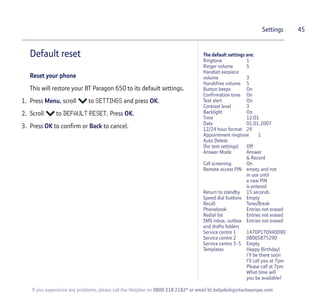
This will restore your BT Paragon 650 to its default settings.
1. Press Menu, scroll to SETTINGS and press OK.
2. Scroll to DEFAULT RESET. Press OK.
3. Press OK to confirm or Back to cancel.
Settings
46
If you experience any problems, please call the Helpline on 0800 218 2182* or email bt.helpdesk@vtecheurope.com
Answering machine
Voice prompts
Your answering machine gives voice
prompts to help you operate it.
Date and time
An announcement of date and time of
recording will be added automatically
to each message and memo.
If you subscribe to your network
provider’s Caller Display service, the
date and time are set automatically
when your BT Paragon 650 receives its
first call, but you will also need to set
the year using a handset, see page 41.
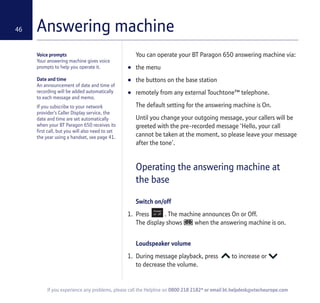
You can operate your BT Paragon 650 answering machine via:
• the menu
• the buttons on the base station
• remotely from any external Touchtone™ telephone.
The default setting for the answering machine is On.
Until you change your outgoing message, your callers will be
greeted with the pre-recorded message ‘Hello, your call
cannot be taken at the moment, so please leave your message
after the tone’.
Operating the answering machine at
the base
Switch on/off
1. Press . The machine announces On or Off.
The display shows when the answering machine is on.
Loudspeaker volume
1. During message playback, press to increase or
to decrease the volume.
47
If you experience any problems, please call the Helpline on 0800 218 2182* or email bt.helpdesk@vtecheurope.com
Answering machine
Play, repeat, skip and delete
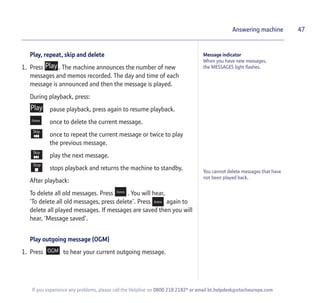
1. Press . The machine announces the number of new
messages and memos recorded. The day and time of each
message is announced and then the message is played.
During playback, press:
pause playback, press again to resume playback.
once to delete the current message.
once to repeat the current message or twice to play
the previous message.
play the next message.
stops playback and returns the machine to standby.
After playback:
To delete all old messages. Press . You will hear,
‘To delete all old messages, press delete’. Press again to
delete all played messages. If messages are saved then you will
hear, ‘Message saved’.
Play outgoing message (OGM)
1. Press to hear your current outgoing message.
Message indicator
When you have new messages,
the MESSAGES light flashes.
You cannot delete messages that have
not been played back.
Call screening
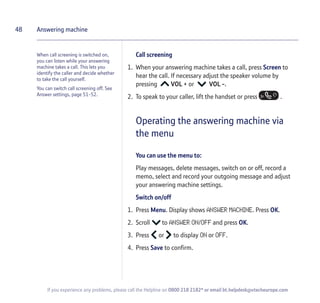
1. When your answering machine takes a call, press Screen to
hear the call. If necessary adjust the speaker volume by
pressing VOL + or VOL -.
2. To speak to your caller, lift the handset or press .
Operating the answering machine via
the menu
You can use the menu to:
Play messages, delete messages, switch on or off, record a
memo, select and record your outgoing message and adjust
your answering machine settings.
Switch on/off
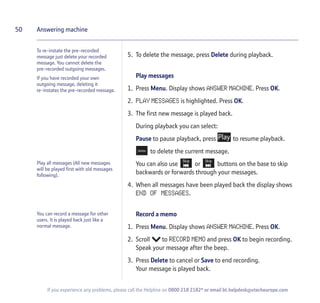
1. Press Menu. Display shows ANSWER MACHINE. Press OK.
2. Scroll to ANSWER ON/OFF and press OK.
3. Press or to display ON or OFF.
4. Press Save to confirm.
48
If you experience any problems, please call the Helpline on 0800 218 2182* or email bt.helpdesk@vtecheurope.com
Answering machine
When call screening is switched on,
you can listen while your answering
machine takes a call. This lets you
identify the caller and decide whether
to take the call yourself.
You can switch call screening off. See
Answer settings, page 51-52.
Outgoing messages
This is the message your callers hear when the answering
machine picks up their call. Your BT Paragon 650 comes with two
pre-recorded outgoing messages to choose from, see opposite.
Record your own outgoing message
1. Press Menu. Display shows ANSWER MACHINE. Press OK.
2. Scroll to OUTGOING MESSAGE and press OK.
3. RECORD MESSAGE is highlighted. Press OK.
4. ANS & RECORD is highlighted. If required, press or
to select ANSWER ONLY.
5. Press OK to begin recording. Speak your outgoing message after
the beep. Press Save to stop recording or Delete to cancel.
When recording an OGM you should speak to the mic on the
base, you should not lift and speak into the handset.
If you press Save, your message is saved and played back.
Play / delete outgoing message
1. Press Menu. Display shows ANSWER MACHINE. Press OK.
2. Scroll to OUTGOING MESSAGE and press OK.
3. Scroll to PLAY MESSAGE and press OK.
4. Press or to select ANS & RECORD or ANSWER ONLY and
press OK.
49
If you experience any problems, please call the Helpline on 0800 218 2182* or email bt.helpdesk@vtecheurope.com
Answer & Record
This invites your caller to leave a
message.
The pre-recorded message is ‘Hello,
your call cannot be taken at the
moment, so please leave your message
after the tone’.
Answer Only
This does not allow your caller to leave
a message.
The pre-recorded message is ‘Hello,
your call cannot be taken at the
moment, and you cannot leave a
message, so please call later’.
Answering machine
Set answer mode
To set your answering machine mode
to Answer & Record or Answer Only
see Answering Machine Settings,
page 51-52.
5. To delete the message, press Delete during playback.
Play messages
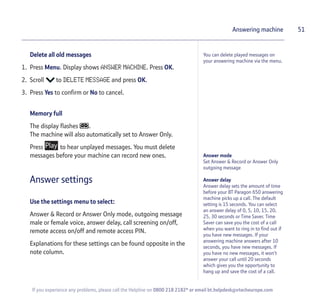
1. Press Menu. Display shows ANSWER MACHINE. Press OK.
2. PLAY MESSAGES is highlighted. Press OK.
3. The first new message is played back.
During playback you can select:
Pause to pause playback, press to resume playback.
to delete the current message.
You can also use or buttons on the base to skip
backwards or forwards through your messages.
4. When all messages have been played back the display shows
END OF MESSAGES.
Record a memo
1. Press Menu. Display shows ANSWER MACHINE. Press OK.
2. Scroll to RECORD MEMO and press OK to begin recording.
Speak your message after the beep.
3. Press Delete to cancel or Save to end recording.
Your message is played back.
50
If you experience any problems, please call the Helpline on 0800 218 2182* or email bt.helpdesk@vtecheurope.com
Answering machine
To re-instate the pre-recorded
message just delete your recorded
message. You cannot delete the
pre-recorded outgoing messages.
If you have recorded your own
outgoing message, deleting it
re-instates the pre-recorded message.
You can record a message for other
users. It is played back just like a
normal message.
Play all messages (All new messages
will be played first with old messages
following).
51
If you experience any problems, please call the Helpline on 0800 218 2182* or email bt.helpdesk@vtecheurope.com
Answering machine
You can delete played messages on
your answering machine via the menu.
Answer mode
Set Answer & Record or Answer Only
outgoing message
Answer delay
Answer delay sets the amount of time
before your BT Paragon 650 answering
machine picks up a call. The default
setting is 15 seconds. You can select
an answer delay of 0, 5, 10, 15, 20,
25, 30 seconds or Time Saver. Time
Saver can save you the cost of a call
when you want to ring in to find out if
you have new messages. If your
answering machine answers after 10
seconds, you have new messages. If
you have no new messages, it won’t
answer your call until 20 seconds
which gives you the opportunity to
hang up and save the cost of a call.
Delete all old messages
1. Press Menu. Display shows ANSWER MACHINE. Press OK.
2. Scroll to DELETE MESSAGE and press OK.
3. Press Yes to confirm or No to cancel.
Memory full
The display flashes .
The machine will also automatically set to Answer Only.
Press to hear unplayed messages. You must delete
messages before your machine can record new ones.
Answer settings
Use the settings menu to select:
Answer & Record or Answer Only mode, outgoing message
male or female voice, answer delay, call screening on/off,
remote access on/off and remote access PIN.
Explanations for these settings can be found opposite in the
note column.
52
If you experience any problems, please call the Helpline on 0800 218 2182* or email bt.helpdesk@vtecheurope.com
Answering machine
Call screening
You can listen while your answering
machine takes a call. This lets you
identify the caller and decide whether
to take the call yourself. If you select
the Disable option, you will not be able
to use call screening.
Remote access on/off
You can prevent any remote access to
your messages by selecting the Disable
option. If you disable remote access,
any remote access PIN you have set is
deleted.
Remote access PIN
For added security, you can set a 4-
digit PIN code that has to be entered
before you can listen to your messages
from another phone. Keep a note of
your Remote Access Security PIN by
writing it in the space provided on
page 59.
If you select Disable. The Remote
Access Security PIN is reset to 0000.
Set on/off times
When the Answering Machine is
switched on, you can use the menu to
set your BT Paragon 650 to switch on
and off at preset times.
You can use one or two sets of on and
off time settings.
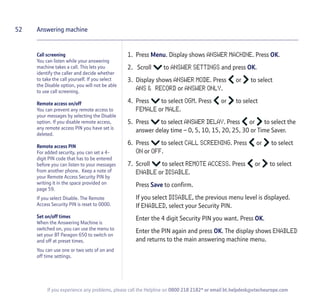
1. Press Menu. Display shows ANSWER MACHINE. Press OK.
2. Scroll to ANSWER SETTINGS and press OK.
3. Display shows ANSWER MODE. Press or to select
ANS & RECORD or ANSWER ONLY.
4. Press to select OGM. Press or to select
FEMALE or MALE.
5. Press to select ANSWER DELAY. Press or to select the
answer delay time – 0, 5, 10, 15, 20, 25, 30 or Time Saver.
6. Press to select CALL SCREENING. Press or to select
ON or OFF.
7. Scroll to select REMOTE ACCESS. Press or to select
ENABLE or DISABLE.
Press Save to confirm.
If you select DISABLE, the previous menu level is displayed.
If ENABLED, select your Security PIN.
Enter the 4 digit Security PIN you want. Press OK.
Enter the PIN again and press OK. The display shows ENABLED
and returns to the main answering machine menu.
53
If you experience any problems, please call the Helpline on 0800 218 2182* or email bt.helpdesk@vtecheurope.com
Answering machine
8. Press to TIMED ANS SYS. Press or to select DAILY /
MON-FRI / SAT / SUN. The default setting is DAILY.
9. Press to SET TIME ON 1. Enter the time you want your
machine to switch on, e.g. 1930 for 7.30pm.
10. Press to SET TIME OFF 1. Enter the time you want your
machine to switch off, e.g. 0830 for 8.30am.
11. Press to SET TIME ON 2. Enter the time you want your
machine to switch on, e.g. 1230 for 12.30pm.
12. Press to SET TIME OFF 2. Enter the time you want your
machine to switch off, e.g. 1400 for 2pm.
13. Press Save to confirm.
You can press Save at any stage of the Settings menu to
confirm existing settings and exit the menu.
54
If you experience any problems, please call the Helpline on 0800 218 2182* or email bt.helpdesk@vtecheurope.com
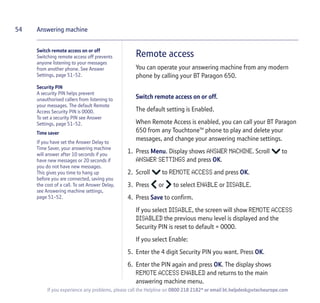
Answering machine
Remote access
You can operate your answering machine from any modern
phone by calling your BT Paragon 650.
Switch remote access on or off.
The default setting is Enabled.
When Remote Access is enabled, you can call your BT Paragon
650 from any TouchtoneTM
phone to play and delete your
messages, and change your answering machine settings.
1. Press Menu. Display shows ANSWER MACHINE. Scroll to
ANSWER SETTINGS and press OK.
2. Scroll to REMOTE ACCESS and press OK.
3. Press or to select ENABLE or DISABLE.
4. Press Save to confirm.
If you select DISABLE, the screen will show REMOTE ACCESS
DISABLED the previous menu level is displayed and the
Security PIN is reset to default = 0000.
If you select Enable:
5. Enter the 4 digit Security PIN you want. Press OK.
6. Enter the PIN again and press OK. The display shows
REMOTE ACCESS ENABLED and returns to the main
answering machine menu.
Switch remote access on or off
Switching remote access off prevents
anyone listening to your messages
from another phone. See Answer
Settings, page 51-52.
Security PIN
A security PIN helps prevent
unauthorised callers from listening to
your messages. The default Remote
Access Security PIN is 0000.
To set a security PIN see Answer
Settings, page 51-52.
Time saver
If you have set the Answer Delay to
Time Saver, your answering machine
will answer after 10 seconds if you
have new messages or 20 seconds if
you do not have new messages.
This gives you time to hang up
before you are connected, saving you
the cost of a call. To set Answer Delay,
see Answering machine settings,
page 51-52.
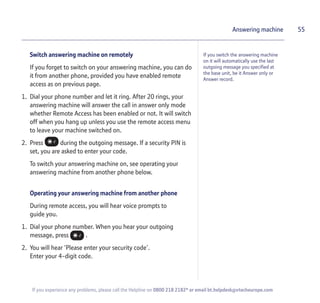
Switch answering machine on remotely
If you forget to switch on your answering machine, you can do
it from another phone, provided you have enabled remote
access as on previous page.
1. Dial your phone number and let it ring. After 20 rings, your
answering machine will answer the call in answer only mode
whether Remote Access has been enabled or not. It will switch
off when you hang up unless you use the remote access menu
to leave your machine switched on.
2. Press during the outgoing message. If a security PIN is
set, you are asked to enter your code.
To switch your answering machine on, see operating your
answering machine from another phone below.
Operating your answering machine from another phone
During remote access, you will hear voice prompts to
guide you.
1. Dial your phone number. When you hear your outgoing
message, press .
2. You will hear ‘Please enter your security code’.
Enter your 4-digit code.
55Answering machine
If you switch the answering machine
on it will automatically use the last
outgoing message you specified at
the base unit, be it Answer only or
Answer record.
If you experience any problems, please call the Helpline on 0800 218 2182* or email bt.helpdesk@vtecheurope.com
If the memory is full you will hear the
announcement 'Memory full' after
entering your Remote Access Security
PIN. You can play and delete messages
as normal.
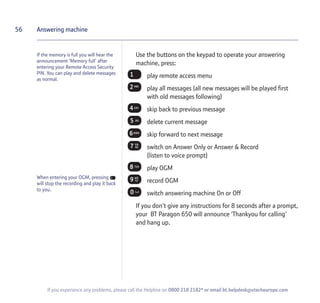
Use the buttons on the keypad to operate your answering
machine, press:
play remote access menu
play all messages (all new messages will be played first
with old messages following)
skip back to previous message
delete current message
skip forward to next message
switch on Answer Only or Answer & Record
(listen to voice prompt)
play OGM
record OGM
switch answering machine On or Off
If you don't give any instructions for 8 seconds after a prompt,
your BT Paragon 650 will announce 'Thankyou for calling'
and hang up.
56 Answering machine
If you experience any problems, please call the Helpline on 0800 218 2182* or email bt.helpdesk@vtecheurope.com
When entering your OGM, pressing
will stop the recording and play it back
to you.
57
If you experience any problems, please call the Helpline on 0800 218 2182* or email bt.helpdesk@vtecheurope.com
Help
No display
Check that the phone is connected to the
mains power and that the mains power is
switched on.
Your caller cannot hear you
Secrecy is switched on. Press the secrecy OFF
option button to speak to your caller again.
Incoming caller’s number is not displayed
even though you have Caller Display
Caller has to allow their number to be sent. It
has been withheld or is unavailable.
Possible problems with SMS
SMS messages cannot be sent and screen
displays MESSAGE SENDING FAILED.
The base station power supply or telephone
line cord might not be properly connected.
Check that the BT Paragon 650 power supply
is plugged into the mains socket and
switched on and that the telephone is
plugged into the telephone wall socket.
There might be a fault on the line. Check
your telephone line is working properly.
You might have deleted the server number in
error. See pages 35-36. for instructions on
how to enter the number.
More than one SMS product is plugged into
the line. Remove other products. Please also
see the note on page 35, "Using more than
one SMS text enabled telephone?
Cannot send text
Check service centre number is correct
including 1470P prefix.
Cannot receive text
Check service centre number is correct.
Ensure you have subscribed to a Caller
Display service and that it is active. You can
check this by noting if your phone displays
your caller's number when you receive an
incoming call.
58
If you experience any problems, please call the Helpline on 0800 218 2182* or email bt.helpdesk@vtecheurope.com
Help
Further help and advice for SMS queries on
BT lines:
BT Residential customers – call 151, choose
option 2, when prompted by the Fault
Management Service select option 2, enter
your phone number on the handset and wait
to speak to a customer adviser.
BT Business Customers – call 152, choose
option 2, when prompted by the Fault
Management Service select option 2, enter
your phone number on the handset and wait
to speak to a customer adviser.
For other telephone service providers please
contact their customer services.
General sales enquiries
BT Residential lines – call 150. BT Business
lines – call 152.
For other telephone service providers please
contact their customer services.
Billing enquiries
Refer to the telephone number shown on
your telephone bill.
Other functions and services available from
the SMS service
By sending the following commands to the
BT text self administration facility you can
control functions and capabilities in your
SMS phone and the way messages are
handled.
Press . Press OK to display WRITE
MESSAGE. Type in the following commands
(depending what you want to do) and send
to 00000:
Opt out from receiving voice
text messages.
Turns off the opt out option.
Turns on permanent voice
text message delivery to your
phone. All incoming text is
delivered as voice text.
Turns off permanent voice
text message delivery.
If you are sending a message from a fixed
line phone to another fixed line phone
59
If you experience any problems, please call the Helpline on 0800 218 2182* or email bt.helpdesk@vtecheurope.com
Help
Forces a message you send to
be delivered as a voice text
even though the recipient
may have an SMS enabled
phone and usually receives
written text.
This command is inserted at the start of the
message and applies only to that message,
e.g. ‘Hello I will be home
late’.
If you are sending a message from a fixed
line phone and require a status report
Will allow a status report to be
sent back to you when you
have sent a message to
confirm delivery. Place * 0 #
at the start of your text
message. Write the message
and send it. You will receive a
reply text back to your phone
giving the status report for
that message.
You keep hearing an error beep
You have pressed the wrong button in a
sequence. Check the prompts in the display
or refer to instructions in this user guide.
Customer Helpline
If you experience any difficulties please call
the BT Paragon Helpline on 0800 218 2182*
or email bt.helpdesk@vtecheurope.com
For your records
Date of purchase:
Place of purchase:
Serial number:
For guarantee purposes proof of purchase is
required so please keep your receipt.
Enter your remote access PIN here:
[ / / / ]
For more information on your Remote Access
PIN, see page 54.
60
If you experience any problems, please call the Helpline on 0800 218 2182* or email bt.helpdesk@vtecheurope.com
General information
IMPORTANT
The BT Paragon 650 corded telephone is designed for
making emergency telephone calls when the power
fails as long as the telephone line cord is still plugged
in. Full functionality will of course be limited.
This product is intended for connection to analogue
public switched telephone networks and private
switchboards in the United Kingdom.
Safety information
It is recommended that advice from a qualified expert
be sought before using this product in the vicinity of
emergency/intensive care medical equipment.
Cleaning
Simply clean the handset and base with a damp (not
wet) cloth, or an anti-static wipe.
Never use household polish as this will damage the
product. Never use a dry cloth as this may cause a
static shock.
Environmental
Do not expose to direct sunlight.
Do not stand your product on carpets or other
surfaces which generate fibres or place it in locations
preventing the free flow of air over its surfaces.
Do not submerge any part of your product in water
and do not use it in damp or humid conditions, such
as bathrooms.
Do not expose your product to fire, explosive or other
hazardous conditions.
There is a slight chance your phone could be
damaged by an electrical storm. We recommend that
you unplug the power and telephone line cord during
an electrical storm.
Only use the power supply suitable for the BT Paragon
650 range using an unauthorised power supply will
invalidate your guarantee and may damage the
telephone. The item code for the base mains power
supply is 039953.
Product disposal instructions
The symbol shown here and on the product
means that the product is classed as Electrical
or Electronic Equipment and should not be disposed
with other household or commercial waste at the end
of its working life.
The Waste of Electrical and Electronic Equipment
(WEEE) Directive (2002/96/EC) has been put in place
to recycle products using best available recovery and
recycling techniques to minimise the impact on the
environment, treat any hazardous substances and
avoid the increasing landfill.
Product disposal instructions for residential users
When you have no further use for it, please remove
any batteries and dispose of them and the product as
per your local authority’s recycling processes. For
more information please contact your local authority
or the retailer where the product was purchased.
61
If you experience any problems, please call the Helpline on 0800 218 2182* or email bt.helpdesk@vtecheurope.com
General information
Product disposal instructions for business users
Business users should contact their suppliers and
check the terms and conditions of the purchase
contract and ensure that this product is not mixed
with other commercial waste for disposal.
Declaration of Conformance
Hereby, BT declares that this BT Paragon 650 is in
compliance with the essential requirements and other
relevant provisions of Directive 1999/5/EC.
The Declaration of Conformance for the BT Elements
is published on the website:
www.bt.com/producthelp
Connecting to a switchboard
Switchboard compatibility
This telephone may be connected to most types of
switchboard, however in the event of any difficulties,
consult your switchboard Service Provider.
Dialling mode
Your BT Paragon 650 is set to Tone dialling. Some
switchboards may require Pulse dialling. To change
the dialling mode, see Dialling mode, page 44.
Guarantee
Your BT Paragon 650 is guaranteed for a period of 12
months from the date of purchase.
Subject to the terms listed below, the guarantee will
provide for the repair of, or at BT’s or its agent’s
discretion the option to replace the BT Paragon 650,
or any component thereof, (other than batteries),
which is identified as faulty or below standard, or as a
result of inferior workmanship or materials. Products
over 28 days old from the date of purchase may be
replaced with a refurbished or repaired product.
The conditions of this guarantee are:
The guarantee shall only apply to defects that occur
within the 12 month guarantee period.
Proof of purchase is required.
The equipment is returned to BT or its agent as
instructed.
This guarantee does not cover any faults or defects
caused by accidents, misuse, fair wear and tear,
neglect, tampering with the equipment, or any
attempt at adjustment or repair other than through
approved agents.
This guarantee does not affect your statutory rights.
Within the 12 month guarantee period:
If you experience difficulty using the product, prior to
returning your product, please read the Help section
beginning on page 57 or contact the BT Paragon
Helpdesk for assistance on 0800 218 2182* or email
bt.helpdesk@vtecheurope.com. Additional answers
to Frequently Asked Questions are available from
www.bt.com/producthelp
62
If you experience any problems, please call the Helpline on 0800 218 2182* or email bt.helpdesk@vtecheurope.com
General information
In the unlikely event of a defect occurring, the
helpdesk will issue a Fault Reference Authorisation
(FRA) number and instructions for replacement or
repair. Please note you will need the FRA number
before returning the product. This does not affect
your statutory rights.
Outside of the 12 month guarantee period:
If your product needs repair after the guarantee
period has ended, the repair must meet the approval
requirements for connection to the telephone
network. We suggest that you call our recommended
repair agents on 0870 240 5029.
Returning your phone
If the Helpline is unable to remedy your problem they
will issue a Fault Reference Authorisation number and
ask you to return the product to your original place of
purchase. Where possible, pack the product in its
original packaging. Please remember to include all
parts, including the line cord and power supply unit.
Technical information
How many telephones can you have?
All items of equipment have a Ringer Equivalence
Number (REN) which is used to calculate the
number of items that may be connected to any
one telephone line.
The BT Paragon 650 has a total REN of 1. Any other
instrument provided by BT may be assumed to have
a REN of 1 unless stated otherwise.
A total REN of 4 is allowed per telephone line.
(For example, if the BT Paragon 650 is used in
conjunction with three extension telephones,
each with a REN of 1, then the total = 4.)
R&TTE
This product is intended for use within the UK for
connection to the public telephone network and
compatible switchboards.
This equipment complies with the essential
requirements for the Radio Equipment and
Telecommunications Terminal Equipment Directive
(1999/5/EC). In demonstration with the Essential
Requirement for efficient use of the radio spectrum,
the product complies with EN301 406. For a copy of
the Declaration of Conformity please contact the BT
Paragon Helpline on 0800 218 2182* or email
bt.helpdesk@vtecheurope.com
Offices worldwide
The telecommunications services described in this publication
are subject to availability and may be modified from time to time.
Services and equipment are provided subject to British Telecommunications
plc’s respective standard conditions of contract. Nothing in this publication
forms any part of any contract.
© British Telecommunications plc 2012.
Registered Office: 81 Newgate Street, London EC1A 7AJ.
Registered in England No. 1800000.
BT Paragon 650 Issue 5 (12/12)
Designed and produced by The Art & Design Partnership Ltd.
Printed in China
For a Better Future
We’re always looking to make our products last longer
and use less power, so we don’t have such a big impact
on the environment.
To find out about what we are doing, visit
bt.com/betterfuture

BT Paragon 650

  • 1.
    BT Paragon 650 CordedTelephone With Answering Machine User Guide
  • 2.
    Section • Directory letsyou store up to 200 names and numbers for easy dialling. • Copy the whole directory or individual entries to and from your mobile phone SIM card. • Send and receive SMS text messages.1 • Caller Display lets you see who’s calling and your phone stores details of the last 50 callers in a Calls list.2 • Answering machine with up to 32 minutes recording time. • Hear your messages via the loudspeaker or privately via the handset when using the remote access feature. • Handsfree – make and receive calls using the built-in loudspeaker. • Calendar and alarm. 1 Requires subscription to a Caller Display Service and you must not withhold your telephone number. A quarterly fee maybe payable. 2 Requires subscription to a Caller Display Service. A quarterly fee maybe payable. Welcome… to your BT Paragon 650 corded digital telephone and answering machine
  • 3.
    Section This User Guideprovides you with all the information you need to get the most from your phone. You must first set up your phone before you can use it. This doesn’t take long as it is easy to do. Just follow the simple instructions on the next few pages. Need help? If you have any problems setting up or using your BT Paragon 650, contact the Helpline on 0800 218 2182* or email bt.helpdesk@vtecheurope.com. Our dedicated advisors are more likely to be able to help you than the retailer where you made your purchase. Alternatively, you may find the answer in the ‘Help’ section at the back of this guide. Additional answers to Frequently Asked Questions are also available from www.bt.com/producthelp Got everything? • BT Paragon 650 corded telephone • Mains power adaptor (Item code: 039953) • Telephone line cord (pre-installed) • Desk mounting plinth IMPORTANT Only use the telephone line cord supplied. IMPORTANT If you select a polyphonic ringtone the tune will continue to play for a few seconds once the handset is lifted. This is normal. * Calls made from within the UK mainland network are free. Mobile and International call costs may vary.
  • 4.
    4 If you experienceany problems, please call the Helpline on 0800 218 2182* or email bt.helpdesk@vtecheurope.com In this guide Getting started Location . . . . . . . . . . . . . . . . . . . . . . . . . . . . . 7 Setting up. . . . . . . . . . . . . . . . . . . . . . . . . . . . 7 Getting to know your phone Buttons . . . . . . . . . . . . . . . . . . . . . . . . . . . . . . 9 Main display icons . . . . . . . . . . . . . . . . . . . . . 11 Navigating the menu. . . . . . . . . . . . . . . . . . . 11 Menu map . . . . . . . . . . . . . . . . . . . . . . . . . . . 12 Using your phone Making calls . . . . . . . . . . . . . . . . . . . . . . . . . . 13 Dial a number. . . . . . . . . . . . . . . . . . . . . . . . . 13 Preparatory dialling . . . . . . . . . . . . . . . . . . . . 13 End a call . . . . . . . . . . . . . . . . . . . . . . . . . . . . 13 Handsfree . . . . . . . . . . . . . . . . . . . . . . . . . . . . 13 Headset. . . . . . . . . . . . . . . . . . . . . . . . . . . . . . 14 Volume . . . . . . . . . . . . . . . . . . . . . . . . . . . . . . 14 Secrecy . . . . . . . . . . . . . . . . . . . . . . . . . . . . . . 15 Redial . . . . . . . . . . . . . . . . . . . . . . . . . . . . . . . 15 Delete a redial number . . . . . . . . . . . . . . . . . 15 Save a redial number to the directory . . . . . 16 Delete all redial numbers. . . . . . . . . . . . . . . . 16 If the mains power fails . . . . . . . . . . . . . . . . . 16 Phonebook Open the phonebook. . . . . . . . . . . . . . . . . . . 17 Character map . . . . . . . . . . . . . . . . . . . . . . . . 17 New phonebook entry. . . . . . . . . . . . . . . . . . 17 Dial from the phonebook . . . . . . . . . . . . . . . 18 View an entry . . . . . . . . . . . . . . . . . . . . . . . . . 18 Edit an entry. . . . . . . . . . . . . . . . . . . . . . . . . . 18 Delete an entry. . . . . . . . . . . . . . . . . . . . . . . . 19 Delete the entire phonebook . . . . . . . . . . . . 19 Copy SIM. . . . . . . . . . . . . . . . . . . . . . . . . . . . . 20 Copy phonebook entries to/from SIM card . 20 Memory full . . . . . . . . . . . . . . . . . . . . . . . . . . 21 Caller Display View the calls list . . . . . . . . . . . . . . . . . . . . . . 22 Dial from the calls list. . . . . . . . . . . . . . . . . . . 22 Save a number to the phonebook. . . . . . . . . 23 Delete an entry. . . . . . . . . . . . . . . . . . . . . . . . 23 Delete the entire calls list . . . . . . . . . . . . . . . 24 BT Calling Features BT Helpdesk . . . . . . . . . . . . . . . . . . . . . . . . . . 25 BT Directory Enquiries . . . . . . . . . . . . . . . . . . 25 Call Divert on/off . . . . . . . . . . . . . . . . . . . . . . 26 Check Divert . . . . . . . . . . . . . . . . . . . . . . . . . . 26 Call Waiting on/off . . . . . . . . . . . . . . . . . . . . . 26 4
  • 5.
    Check Call Waiting. . . . . . . . . . . . . . . . . . . . . 27 Store/edit Calling Feature numbers . . . . . . . 27 SMS text messages Subscribe to SMS service . . . . . . . . . . . . . . . 28 Cost of fixed line service . . . . . . . . . . . . . . . . 28 Send an SMS text message . . . . . . . . . . . . . . 28 Receiving a call while writing a text . . . . . . . 30 Entering text. . . . . . . . . . . . . . . . . . . . . . . . . . 31 Writing tips . . . . . . . . . . . . . . . . . . . . . . . . . . . 32 SMS templates . . . . . . . . . . . . . . . . . . . . . . . . 32 Edit SMS template . . . . . . . . . . . . . . . . . . . . . 32 Delete SMS template . . . . . . . . . . . . . . . . . . . 33 Read, edit and send draft SMS messages . . 33 Reading SMS text messages . . . . . . . . . . . . . 34 SMS alert . . . . . . . . . . . . . . . . . . . . . . . . . . . . 35 SMS Service Centre numbers. . . . . . . . . . . . . 35 Adding or changing SMS Service Centre numbers. . . . . . . . . . . . . 36 Select a Send Service Centre number . . . . . . 36 Set auto delete for texts . . . . . . . . . . . . . . . . 37 Other features Set an appointment reminder . . . . . . . . . . . . 38 Delete an appointment . . . . . . . . . . . . . . . . . 39 Set alarm clock . . . . . . . . . . . . . . . . . . . . . . . . 40 Settings Set date and time. . . . . . . . . . . . . . . . . . . . . . 41 Set ringtone and ringer volume . . . . . . . . . . 41 Switch keypad tones on/off. . . . . . . . . . . . . . 42 Switch text alert on/off . . . . . . . . . . . . . . . . . 42 Adjust display contrast and backlight. . . . . . 43 Speed dial. . . . . . . . . . . . . . . . . . . . . . . . . . . . 43 Dial mode . . . . . . . . . . . . . . . . . . . . . . . . . . . . 44 Store an access code (Auto prefix) . . . . . . . . 44 Reset your phone. . . . . . . . . . . . . . . . . . . . . . 45 Default settings . . . . . . . . . . . . . . . . . . . . . . . 45 Answering machine Operating the answering machine at the base . . . . . . . . . . . . . . . . . . . . . . . . . . . 46 Switch on/off . . . . . . . . . . . . . . . . . . . . . . . . . 46 Loudspeaker volume . . . . . . . . . . . . . . . . . . . 46 Play, repeat, skip and delete . . . . . . . . . . . . . 47 Play outgoing message (OGM) . . . . . . . . . . . 47 Call screening . . . . . . . . . . . . . . . . . . . . . . . . . 48 Operating the answering machine via the menu. . . . . . . . . . . . . . . . . . . . . . . . . . 48 Switch on/off . . . . . . . . . . . . . . . . . . . . . . . . . 48 Outgoing messages . . . . . . . . . . . . . . . . . . . . 49 Record your own outgoing message . . . . . . 49 Play/delete outgoing message . . . . . . . . . . . 49 Play messages . . . . . . . . . . . . . . . . . . . . . . . . 50 5In this guide If you experience any problems, please call the Helpline on 0800 218 2182* or email bt.helpdesk@vtecheurope.com
  • 6.
    6 In thisguide If you experience any problems, please call the Helpline on 0800 218 2182* or email bt.helpdesk@vtecheurope.com Record a memo . . . . . . . . . . . . . . . . . . . . . . . 50 Delete all old messages . . . . . . . . . . . . . . . . . 51 Memory full . . . . . . . . . . . . . . . . . . . . . . . . . . 51 Answer settings . . . . . . . . . . . . . . . . . . . . . . . 51 Remote access . . . . . . . . . . . . . . . . . . . . . . . . 54 Security PIN . . . . . . . . . . . . . . . . . . . . . . . . . . 54 Switch remote access on or off . . . . . . . . . . . 54 Switch answering machine on remotely. . . . 55 Operating your answering machine from another phone. . . . . . . . . . . . . . . . . . . . 55 Help . . . . . . . . . . . . . . . . . . . . . . . . . . . . . . . . 57 General information Safety . . . . . . . . . . . . . . . . . . . . . . . . . . . . . . . 60 Cleaning . . . . . . . . . . . . . . . . . . . . . . . . . . . . . 60 Environmental . . . . . . . . . . . . . . . . . . . . . . . . 60 Product disposal instructions . . . . . . . . . . . . 60 Connecting to a switchboard. . . . . . . . . . . . . 61 Dialling mode . . . . . . . . . . . . . . . . . . . . . . . . . 61 Guarantee. . . . . . . . . . . . . . . . . . . . . . . . . . . . 61 How many telephones can you have? . . . . . 62 R&TTE . . . . . . . . . . . . . . . . . . . . . . . . . . . . . . . 62
  • 7.
    Getting started 7 Location Youneed to place your BT Paragon 650 close enough to a mains power and telephone socket so that the cables will reach. Setting up 1. Attach the desk mounting plinth. The telephone line cord is pre-installed but make sure you route the cable through the grooves in the plinth. Do not route the line cord under the plinth as you could damage it. 2. Connect the longer straight end of the curly handset cord into the base. Connect the other end of the cord to the handset. 3. Plug the mains power adaptor into the power socket on the underside of the base. Plug the other end into the mains socket and switch the power on. The display lights up. WARNING Do not place your BT Paragon 650 in the bathroom or other humid areas. IMPORTANT The BT Paragon 650 will still be able to take and receive calls during power failure as long as the telephone line cord is still plugged in. Full functionality will of course be limited. Using your BT Paragon 650 on a Broadband line? If this product is to be used on a broadband line then you must ensure that it is connected via an ADSL microfilter. Using this product on a Broadband line without an ADSL microfilter may cause problems with this product and your Broadband service. Additional BT ADSL microfilters can be purchased from www.shop.bt.com Hearing aid wearers may benefit from switching their hearing aid to the middle T position and holding the earpiece up to the aid not their ear. If you experience poor speech quality or interference, make sure the product is not located too close to other electrical appliances. If you experience any problems, please call the Helpline on 0800 218 2182* or email bt.helpdesk@vtecheurope.com Cord channel for line cord Cord channel for power supply cord
  • 8.
    4. Plug theend of the telephone line cord into the telephone wall socket. 5. Press the line cables into the grooves on the base of the phone so that the phone can lie flat. Providing you have subscribed to your network’s Caller Display service, the day and time is automatically set when you receive your first incoming call. However, you can also set the day and time manually, see page 41. Your Paragon 650 is now ready for use. 8 Getting started If you experience any problems, please call the Helpline on 0800 218 2182* or email bt.helpdesk@vtecheurope.com Power socket Telephone line socket
  • 9.
    Getting to knowyour phone 9 If you experience any problems, please call the Helpline on 0800 218 2182* or email bt.helpdesk@vtecheurope.com Display Shows the status of your phone. Calls indicator Indicates incoming calls or new calls in the calls list, p22. Menu Opens the menu, p11. Selects on-screen options. Messages Indicates new voice or text messages. Options Selects the option displayed on-screen. Navigation Scroll through menu options, adjust the volume during calls, p14. Open the Appointments calendar during a call, p38. Moves the cursor when entering text. End Call Press to end a call. Also lets you exit from the menu. Talk/Handsfree Press to make a call, p13. Handsfree calling, p13. Buttons
  • 10.
    Buttons If you experienceany problems, please call the Helpline on 0800 218 2182* or email bt.helpdesk@vtecheurope.com (1) (2) (3) One-touch buttons – press and hold the phonebook button followed by 1, 2 or 3 to speed dial these entries, p43. * Switch between upper and lower case letters when entering text, p17. O Press and hold to insert a Pause, p17. Text Opens the SMS text menu, p28. OGM Press to play your outgoing message, p47. Answer On/Off Switch answering machine on/off, p46. Delete Delete answering machine messages, p47. Play Plays and pauses messages, p47. <Skip Press once to repeat the message, twice to play the previous message, p47. Stop Stop message playback. Skip > Press to play the next message. BT Press to access a range of BT Calling Features, p25. R (Recall) For use with switchboards and certain network services. Phonebook Opens the 200 entry phonebook menu, p17. SIM reader Insert a SIM card for copying entries to and from the phonebook. 10 Getting to know your phone
  • 11.
    Display icons &menu navigation 11 Navigating the menu Your BT Paragon 650 has an easy menu system. 1. Press Menu to open the main menu or press the individual feature button e.g. to open a specific menu. 2. Scroll or to the option you want. 3. Press the OK option button to select the feature displayed or press the Back option button to return to the previous level. Exit menu If you want to exit a menu or the directory, either press to return to standby or press the Back option button until the standby screen appears. If you experience any problems, please call the Helpline on 0800 218 2182* or email bt.helpdesk@vtecheurope.com Ringer off Alarm on On-hook, Off hook Handsfree New text messages New calls received Flashing -New answering machine messages On – answering machine On Main display icons
  • 12.
    Menu map 12 Menumap If you experience any problems, please call the Helpline on 0800 218 2182* or email bt.helpdesk@vtecheurope.com Answer Machine Play messages Delete messages Answer On/ Off Record memo Outgoing message Answer Settings Settings Date/Time Sounds Display Speed dial Dial mode Auto Prefix (PBX access) Default reset Calls list Show details Save entry Delete entry Delete all Appointments Appointment 1-5 Edit Delete Alarm Mon to Fri/Daily/Off Time Ringtone Phonebook New entry Show details Delete entry Edit entry Call group SIM copy Delete all Text messages Write message Inbox Drafts Outbox Templates Text settings BT Calling Features Helpdesk Directory enquiries Divert on Divert off Check divert Call waiting on Call waiting off Check call waiting The following menus can be accessed by pressing the relevant button:
  • 13.
    Using your phone13 Making calls Dial a number 1. Lift the handset and dial the number. Preparatory dialling 1. Enter the number first. If you make a mistake, press the Clear option button. 2. Lift handset to dial. End a call 1. Replace handset. Handsfree 1. Press . The display shows and you can hear the dial tone. Dial the number. 2. Press again to end the call. Call timer Your phone automatically times the duration of every external call. The time is shown on the display during the call and for a few seconds after the call has ended. If you experience any problems, please call the Helpline on 0800 218 2182* or email bt.helpdesk@vtecheurope.com Handsfree lets you talk to your caller without holding the handset. It also enables other people in the room to listen to both sides of your conversation. To switch a handsfree call to the handset, lift the handset.
  • 14.
    You can usea headset with your BT Paragon 650. A headset is not supplied with the product. When using the headset, you can switch to using the handsfree loudspeaker by simply pressing the button. Headset 1. Plug the headset into the socket. 2. Press the button twice to answer a call, or get a dial tone if dialling out. Press the button to end your call. Switch a call from headset to handset. 1. During a call via the headset, lift the handset. The call is automatically switched to the handset. 2. Press to switch the call between the headset and the handset. 3. Replace the handset to end the call or press . Volume 1. During a call, press or to increase or decrease the call volume. 14 Using your phone If you experience any problems, please call the Helpline on 0800 218 2182* or email bt.helpdesk@vtecheurope.com
  • 15.
    Secrecy 1. During acall, press the Secrecy option button. Display shows SECRECY ON. Your caller cannot hear you. 2. Press OFF to resume your call. Redial You can redial any of the last ten numbers. 1. Press the Redial option button. The last number dialled is displayed. 2. Scroll or to the number you want. 3. Lift the handset or press to dial. Delete a redial number 1. Press the Redial option button. Scroll or to the number you want. 2. Press the Options option button. DELETE ENTRY is highlighted. 3. Press OK. The number is deleted. Press the Back option button until you return to standby. 15Using your phone When on a call, you can talk to someone in the same room without your caller hearing. When in ‘call’ and ‘secrecy’ mode, please note that no other features such as ‘appointments’ or ‘phonebook’ can be accessed. If you experience any problems, please call the Helpline on 0800 218 2182* or email bt.helpdesk@vtecheurope.com
  • 16.
    You can stillmake 999 and 112 emergency services calls on your BT Paragon 650 if the mains power fails. Save a redial number to the directory 1. Press the Redial option button. Scroll or to the number you want. 2. Press the Options button and scroll to SAVE NUMBER. Press OK. 3. Enter the NAME (see Entering names page 17). 4. If necessary scroll to edit the NUMBER then press Save. SAVED is displayed. Press the Back option button until you return to standby. Delete all redial numbers 1. Press the Redial option button. The last number dialled is displayed. 2. Press the Options option button then scroll to DELETE ALL and press OK. DELETE ALL ENTRIES? is displayed. 3. Press Yes to confirm or No to cancel. Press the Back option button until you return to standby. If the mains power fails If your BT Paragon 650 loses mains power or if it is unplugged, you are still able to make and receive calls including 999 and 112 calls to emergency services. The backlight on the display will not come on and the answering machine will not function. 16 Using your phone If you experience any problems, please call the Helpline on 0800 218 2182* or email bt.helpdesk@vtecheurope.com
  • 17.
    Phonebook 17 Open thephonebook 1. Press . Stored entries are displayed alphabetically. Character map New phonebook entry 1. Press then, press the Options option button. Display shows NEW ENTRY. Press OK. 2. Use the keypad to enter the name and the telephone number, then scroll . 3. Enter the number, scroll to GROUP. 4. Press or to select the group you want the entry stored under. 5. Press the Save option button. 6. To add another entry, press the Options button or press Back to return to standby. You can store up to 200 names and number in the phonebook. Names can be up 14 characters long and numbers up to 24 digits long. Entering names Use the keypad letters to enter names, e.g. to store TOM: Press once to enter T. Press three times to enter O. Press once to enter M. Writing tips If you make a mistake, press Clear to delete the last character or digit. Press to insert a space. Your phone is set to insert the first letter of a name as an upper case letter. The rest will be in lower case. Press to switch between lower case and upper case letters. Insert a pause You may need to do this if your BT Paragon 650 is connected to a switchboard. A Pause gives the switchboard time to get an outside line before dialing the number. When entering a number, usually after entering the switchboard access code (e.g. 9) press and hold until P appears in the display. If you experience any problems, please call the Helpline on 0800 218 2182* or email bt.helpdesk@vtecheurope.com - . ! : 1 A B C ( 2 D E F ) 3 G H I $ 4 J K L / 5 M N O @ 6 P Q R S 7 T U V # 8 W X Y Z 9 Toggle Uppercase/ Lowercase space no function
  • 18.
    When using thefirst few letters of a name to search the phonebook you may have a 1 – 2 second wait for the number to appear. Dial from the phonebook 1. Press then scroll or to the entry you want. 2. Alternatively, press then enter the first letter of the name you want. E.g. for Emma, press twice to display names beginning with E, then scroll to the name you want. 3. Lift the handset or press . The number is displayed and dialled. View an entry 1. Press and scroll to the entry you want then press Options. 2. Scroll to SHOW DETAILS and press OK. The name, number and group are displayed. 3. Press Back return to standby. Edit an entry 1. Press and scroll to the entry you want then press Options. 2. Scroll to EDIT ENTRY and press OK, edit the name using the Clear option button to delete unwanted characters and replace with the correct ones. 18 Phonebook If you experience any problems, please call the Helpline on 0800 218 2182* or email bt.helpdesk@vtecheurope.com
  • 19.
    3. Scroll tothe number and edit it in the same way. 4. Press Save. Press Back to return to standby. Delete an entry 1. Press and scroll to the entry you want then press Options. 2. Scroll to DELETE ENTRY and press OK. 3. DELETE X? is displayed. Press Yes to delete or No to cancel. 4. Press Back to return to standby. Delete the entire phonebook 1. Press then press Options. 2. Scroll to DELETE ALL and press OK. 3. DELETE ALL? is displayed. Press Yes to delete or No to cancel. 4. Press Back to return to standby. 19Phonebook If you experience any problems, please call the Helpline on 0800 218 2182* or email bt.helpdesk@vtecheurope.com
  • 20.
    If a copiedname has more than 16 characters, your BT Paragon 650 will store the first 16 characters only. If the copied entry has more than 24 digits, your BT Paragon 650 will store the first 24 digits only. Copy SIM Copy entries to and from compatible mobile phone SIM cards. Copied entries are added to any existing entries that have been stored. You can accept or reject each entry until your directory is full. Copy phonebook entries to or from a SIM card 1. Insert the SIM card into the SIM READER slot on the Paragon 650 corded telephone. 2. Press then Option. 3. Scroll to SIM COPY and press OK. 20 Phonebook If you experience any problems, please call the Helpline on 0800 218 2182* or email bt.helpdesk@vtecheurope.com Insert SIM card as shown with gold chip facing upwards.
  • 21.
    4. If theSIM you have inserted is PIN protected SIM LOCKED! will appear on your screen. You must return the SIM to your mobile handset and remove the PIN* before you can copy the SIM to your Paragon. The screen displays SIM TO PHONE or PHONE TO SIM. If copying to the SIM Card, scroll to highlight PHONE TO SIM. 5. When SIM entries are displayed select which one you want and press Option. Screen shows COPY ENTRY/COPY ALL. 6. Press or if required to highlight the option you want and press OK. When viewing or selecting a name from the SIM prior to copying to your Paragon, the names may not be in alphabetical order. 7. The screen confirms COPIED. 8. Press Back to return to standby. Memory Full If your phonebook memory becomes full, the display shows MEMORY FULL! All entries stored up until the memory becomes full are kept in the phonebook. If you have problems copying directory entries from your SIM onto the Paragon 650 place the SIM back into your mobile and confirm that the directory entries are stored on the SIM and not within the mobile handset directory. If this is not the case then you will need to copy the entries from your mobile handset directory onto the SIM. Refer to your mobile user guide for details. 21Phonebook Sometimes the mobile handset directory entries will appear differently when they are copied to the SIM, with the name being appended with a number, e.g.Tom1. If handset directory is empty, the screen only shows SIM TO PHONE. If no SIM card is inserted INSERT SIM is displayed on the screen. WARNING While copying international format numbers (prefixed by + or 00) from SIM, please make sure after SIM copy that entries stored in your Paragon are in the current format. You may have to manually edit the copied local, national and international numbers before you can use them to make calls. If you experience any problems, please call the Helpline on 0800 218 2182* or email bt.helpdesk@vtecheurope.com Your Paragon may take up to 3 minutes to read your SIM card before copying can begin. An hourglass icon will appear on the screen during this time, please be patient as the menu will prompt you when it’s ready for your next action. *Please ensure you reinstate your PIN to your SIM when you return it to your mobile handset for regular use.
  • 22.
    Caller Display22 IMPORTANT To useCaller Display you must first subscribe to your network provider’s Caller Display service. For more details on BT’s Calling Features, call BT free on 0800 800 150. When you have missed calls, the missed calls LED flashes and the screen tells you there are new calls in the Calls list. If the same number rings you more than once, each call is stored in the calls list. Calls displayed as International, Withheld and Unavailable are not stored in the Calls List as no phone number is provided from the caller’s network. Calls list The Calls list contains the telephone numbers of your last 50 callers. Whether you take a call or not, the caller’s details are stored in the Calls list. You can display, scroll through, dial and copy numbers in the list. If a call is received when the Calls list is full, then the oldest entry will be deleted automatically. New calls indicator Displayed next to each new call. If you subscribe to a Caller Display service, your handset shows who is calling (provided the number is not withheld, unavailable or is an international call). If you have stored a name to go with the number in your handset directory, the name will be displayed instead. View the Calls list 1. Press . Or Press the Menu option button and scroll to CALLS LIST. Press OK. 2. Display shows details of calls. Scroll or through the list. 3. Press the Options option button. SHOW DETAILS is highlighted. Press OK to view further information including the date and time of the call. 4. Press Back to return to standby. Dial from the Calls list 1. Press . Or Press the Menu option button and scroll to CALLS LIST. Press OK. If you experience any problems, please call the Helpline on 0800 218 2182* or email bt.helpdesk@vtecheurope.com
  • 23.
    2. Scroll orto the name or number you want. 3. Lift the handset or press to dial. Save a number to the phonebook 1. Press . Or Press the Menu option button and scroll to CALLS LIST. Press OK. 2. Scroll or through the list to the entry you want. 3. Press Options, scroll to SAVE ENTRY and press OK. 4. Enter the name. If necessary scroll to edit the number. Scroll to GROUP and press or to select the group you want the entry stored under then press Save. 5. Press Back to return to standby. Delete an entry 1. Press . Or Press the Menu option button and scroll to CALLS LIST. Press OK. 23Caller Display If you experience any problems, please call the Helpline on 0800 218 2182* or email bt.helpdesk@vtecheurope.com If you manually dial a number and add an 'auto prefix' such as '9', the number will appear in the calls list with a '9' at the start. If you then try to save this number from the calls list to your directory, and you also have the 'auto prefix' function set to '9' on your Paragon then the number you have saved would have two 9's at the front when next dialled. To avoid this, you should edit any such numbers in the calls list to remove the '9' that you had manually added when initially dialling the number.
  • 24.
    2. Scroll orthrough the list to the entry you want. 3. Press Options, scroll to DELETE ENTRY and press OK. 4. Press Back to return to standby. Delete the entire Calls list 1. Press . Or Press the Menu option button and scroll to CALLS LIST. Press OK. 2. Press Option, then scroll to DELETE ALL and press OK. 3. Press Yes to confirm or No to cancel. 4. Press Back to return to standby. 24 Caller Display If you experience any problems, please call the Helpline on 0800 218 2182* or email bt.helpdesk@vtecheurope.com
  • 25.
    BT Calling Features25 By pressing the button your BT Paragon 650 gives you easy access to a range of pre-stored BT Calling Features. These are: BT 1571 1. Press . 1571 is displayed, lift the handset or press . 1571 will be automatically dialled. BT Helpdesk 1. Press BT HELPDESK is displayed, lift the handset or press . The BT Helpdesk for this product will be automatically dialled. BT Directory Enquiries 1. Press then scroll to DIR ENQUIRIES. 2. Lift the handset or press . The BT Calling Features works in exactly the same way as the main name and number directory and can store up to 10 entries. If you prefer, you can delete the pre-stored entries and replace them with your own numbers. New stored numbers are added to the end of the list. If you experience any problems, please call the Helpline on 0800 218 2182* or email bt.helpdesk@vtecheurope.com • 1571. • BT Helpdesk. • BT Dir. Enquiries. • Call Divert On. • Call Divert Off. • Check Divert. • Call Waiting On. • Call Waiting Off. • Check Call Wait.
  • 26.
    If you arenot connected to the BT network, some of these services may not be available. Please contact your Network Provider. Call Diversion services may allow other divert options. Check with your network provider for details. For further information, see the BT Calling Features User Guide supplied when you subscribe to the services of your choice. Call Divert on/off When switched on you can divert all incoming calls to another number of your choice. 1. Press then scroll to CALL DIVERT ON or CALL DIVERT OFF. 2. Lift the handset or press to dial and follow the spoken instructions. Check Divert 1. Press then scroll to CHECK DIVERT. 2. Lift the handset or press to dial and listen to the status of your Call Divert. Call Waiting on/off 1. Press then scroll to CALL WAITING ON or CALL WAITING OFF. 2. Lift the handset or press to dial and listen for confirmation of your instructions. 26 BT Calling Features If you experience any problems, please call the Helpline on 0800 218 2182* or email bt.helpdesk@vtecheurope.com Call Waiting lets you know if another person is trying to contact you whilst on a call. If a second caller rings you will hear a beep in the handset. Providing you have Caller Display, the screen will show the caller’s details.
  • 27.
    Check Call Waiting 1.Press then scroll to CHECK CALL WAITING. 2. Lift the handset or press to dial and listen for confirmation to hear the status of your Call Waiting. Store / edit Calling Feature numbers 1. Press then scroll to EMPTY or the entry you want. 2. Press Options. Scroll or and press OK to select: NEW ENTRY – to enter a new number and name SHOW DETAILS – to see number details. DELETE ENTRY – to delete the entry selected EDIT ENTRY – to change the existing entry DELETE ALL – to delete all entries in the BT Calling Features list. 3. Press Back to return to standby. 27BT Calling Features If you experience any problems, please call the Helpline on 0800 218 2182* or email bt.helpdesk@vtecheurope.com There are two empty slots so you can use the BT button to store and dial your own preferred numbers. You can also edit the existing Calling Feature numbers.
  • 28.
    SMS Text messaging28 SMSstands for Short Messaging Service. IMPORTANT You must subscribe to your Network Provider’s Caller Display service so that you can use SMS text messaging. A quarterly fee may be payable, please contact your network provider for more details. When you are using SMS text messaging you must not withhold your telephone number or the service will not allow you to connect. You may also send messages to landline phones that are NOT SMS compatible. Messages to non- compatible lines will be connected to voice text and delivered in spoken words to the telephone as a call. Please note that the conversion can translate common abbreviations and smileys etc, but to ensure maximum clarity of message delivery, abbreviations etc should be used sparingly. Cost of the fixed line service There is no subscription charge (other than the subscription to Caller Display). Visit the BT.com website (www.bt.com) to find out how much it costs to send a text message (depends upon your call package). Welcome to the BT Text Service on your BT Paragon 650. The SMS service is provided by BT. Your BT Paragon 650 can send and receive messages to any mobile phone from participating mobile networks and compatible landline telephones in the UK. The fixed line SMS service is provided under BT’s terms and conditions for telephone service. These can be found by visiting the BT.com website at: http://www.bt.com/terms Subscribe to the SMS service When you send your first SMS text message from your BT Paragon 650 you will automatically be registered for the service. On receipt of your first SMS through the service, the system will send you a welcome SMS message back. You may also register by sending the word ‘Register’ to 00000 upon which you will receive a confirmation message. Send an SMS text message 1. Press , WRITE MESSAGES is displayed, press OK. 2. Use the keypad to write your message then press Options option button. If you experience any problems, please call the Helpline on 0800 218 2182* or email bt.helpdesk@vtecheurope.com
  • 29.
    3. You cannow scroll or to choose between: SEND TO – press OK and either enter the number you want or the Search option button to display your phonebook then scroll to the entry you want. Now press OK. NUMBER is displayed, press Send. SAVE MESSAGE – press OK to save a text in the Drafts messages box for sending later. INSERT SYMBOL – press OK to display the choice of symbols. Scroll , , or to the symbol you want and press the Use option button. The symbol is added to your text at the cursor. TEMPLATE – these are pre-stored messages. Press OK and scroll or to the template phrase you want and press the Use option button. The template is added to your text at the cursor. 4. When sending a message the display shows SENDING MSG, and then, if the message is sent successfully, MSG SENT. The message is also automatically stored in your Outbox which holds up to the last five messages sent. If there is a problem after 3 attempts, the display shows MSG NOT SENT The message is stored in your Outbox and marked as not sent. The phone returns to the SMS text menu. 29SMS Text messaging If you experience any problems, please call the Helpline on 0800 218 2182* or email bt.helpdesk@vtecheurope.com A Failed message will appear in the outbox with a ‘!’ between the time and date. Your Paragon can send and receive messages up to 160 characters. If a message greater then 160 characters is received the last 3 characters will show as *** to illustrate that the end of the message had not been received.
  • 30.
    Receiving a callwhile writing a text 1. If you are writing a text and you receive a call, the text is automatically stored in the Drafts folder. 2. After the call, press , WRITE MESSAGE is highlighted, press OK and scroll to DRAFTS. Press OK. If necessary, scroll to your message then press Edit. You can now continue writing your message. Press Options to send, save or delete your message. Sent messages are stored in the Outbox Your BT Paragon 650 outbox holds a copy of sent messages. When full, the newest message replaces the oldest. Saved messages are stored in the Drafts folder If you want to save a message to complete and/or send later you can store it in the drafts folder. When full, the newest message replaces the oldest. The inbox, outbox and drafts folders can hold up to a combined total of 40 text messages. 30 SMS Text messaging If you experience any problems, please call the Helpline on 0800 218 2182* or email bt.helpdesk@vtecheurope.com
  • 31.
    Entering text You canenter a word by pressing each letter button a number of times to display the character you want on the screen. To write the word “Hello”, press: Special characters When writing texts the and buttons let you add punctuation. The button allows you to toggle between upper, lower, sentence and number case. 31SMS Text messaging If you experience any problems, please call the Helpline on 0800 218 2182* or email bt.helpdesk@vtecheurope.com
  • 32.
    To use atemplate, see Send an SMS text message, page 28-29. SMS templates Use a template to add pre-set statements to make your texts easier to write. The templates are: • Happy Birthday! • I’ll be there soon • I’ll call you at 7pm • Please call me at 7pm • What time will you be available? When you delete a template, it is shown on the screen as EMPTY. Writing tips If you make a mistake, press Clear to delete the last character or digit to the left of the cursor. 1. Press or to move the cursor. 2. Press once to insert a space. 3. Press to switch between upper and lower case characters. The cursor automatically moves on to the next space after a couple of seconds. SMS Character map Edit SMS templates You can overwrite the existing templates with your own messages, up to 28 characters long. 1. Press , and scroll to TEMPLATES and press OK. 2. The available templates are displayed. Scroll to the template you want and press Options. 3. EDIT TEMPLATE is highlighted, press OK. Press Clear to delete characters then enter your own template and press OK. You can now insert the new template into any text message. 32 SMS Text messaging If you experience any problems, please call the Helpline on 0800 218 2182* or email bt.helpdesk@vtecheurope.com 1 . , - ? ! @ : ; / ( ) A B C 2 D E F 3 G H I 4 J K L 5 M N O 6 P Q R S 7 T U V 8 W X Y Z 9 space # * Toggle Upper, lower, sentence case and numbers: Abc, ABC, abc, 123 space 0
  • 33.
    Delete SMS templates 1.Press , press OK and scroll to TEMPLATES and press OK. 2. The available templates are displayed. Scroll to the template you want and press Options. 3. Scroll to DELETE TEMPLATE and press OK. DELETE TEMPLATE? is highlighted. Press Yes to confirm or No to cancel. Read, edit and send draft SMS messages If you have saved a message you have written for sending later, you can view, edit and send it from the Draft Messages box. 1. Press , press OK and scroll to DRAFTS. Press OK. The date and time of the latest draft message is displayed. If necessary, scroll or to the message you want and press Edit. 2. The message is displayed. Edit the message or press Options. 3. You can now choose between: SEND TO – press OK and either enter the number you want or press Search to display your Directory then scroll to the entry you want. Now press OK. NUMBER is displayed, press Send. 33SMS Text messaging If you experience any problems, please call the Helpline on 0800 218 2182* or email bt.helpdesk@vtecheurope.com
  • 34.
    You will notbe able to receive text messages until you have first sent a message. The first sent message registers you with the text service. Text capacity Your BT Paragon 650 can store up to 40 text messages in total in the inbox, outbox and drafts folders. Text memory full The display shows MEMORY FULL. Your Inbox is full with unread messages. You must read and delete text messages from your Inbox before new texts can be received. SAVE MESSAGE – press OK to save a text in the Draft messages box for sending later. DELETE – press OK to delete the message DELETE ALL – press OK then Yes to confirm or No to cancel. Reading SMS text messages 1. When you receive a new text message the display shows TEXT X NEW . If necessary scroll or to highlight TEXT X NEW and press OK. INBOX, is highlighted, press OK again. Alternatively, open the inbox by pressing scroll to INBOX and press OK. 2. Scroll or to the message you want and press Read. 3. Scroll or to read through the message. You can now press Options to: DELETE – deletes the current message. REPLY – write and send a reply. FORWARD – forward the message to another number. CALL NUMBER – ring the number. SAVE NUMBER – save number to the directory (if the number is already stored, this option is not displayed). 34 SMS Text messaging If you experience any problems, please call the Helpline on 0800 218 2182* or email bt.helpdesk@vtecheurope.com
  • 35.
    DELETE ALL –delete all messages in the Inbox. 4. Follow the on-screen prompts to save, write, send or delete the messages. Or press to return to the previous menu level. SMS alert The default setting is On. You can switch this off. 1. Press Menu, scroll to SETTINGS and press OK. 2. Scroll to SOUNDS and press OK. 3. Scroll to TEXT ALERT and press OK. 4. Press or to select On or Off. Press Save. SMS Service Centre numbers To send and receive SMS text messages you need the telephone number of your Network’s SMS Centre. If you accidentally delete the SEND or RECEIVE SMS Service Centre numbers you will need to re-enter them in order for your SMS Service to work. The SEND SMS Service number is: 1470P170940090. The RECEIVE SMS Service number is: 08005875290. 35SMS Text messaging Your phone will beep when you receive an SMS text message. If you experience any problems, please call the Helpline on 0800 218 2182* or email bt.helpdesk@vtecheurope.com Using more than one SMS text enabled telephone? Only one SMS text enabled telephone base unit (digital corded or cordless) can be plugged into any one telephone line. If you do find you want to use two base units and still receive written text messages then you will need to remove the RECEIVE service centre number from one of the phones. This will allow you to send text messages from any SMS phone but text mesages will only be received on one base unit.
  • 36.
    Adding or changingSMS Service Centre numbers 1. Press , scroll to TEXT SETTINGS and press OK. 2. SERVICE CENTRES is highlighted. Press OK. Service Centre 1 contains the pre-set send number. Service Centre 2 contains the pre-set receive number. Service Centre 3,4 & 5 are available for other numbers. 3. Scroll to the Service Centre you want and press OK. If necessary press Clear to delete the current number and enter the new one. Press Save. Select a Send Service Centre number If you enter additional Service Centre numbers, you can choose which send Service centre you want to use. Your BT Paragon 650 is pre-set to send using Service Centre 1 and receive using Service Centre 2. 1. Press , scroll to TEXT SETTINGS and press OK. SERVICE CENTRES is highlighted. 2. Scroll to SEND SERVICE and press OK. 3. Scroll or to select the service centre you want and press OK. All messages sent will go via the selected provider. 36 SMS Text messaging If you experience any problems, please call the Helpline on 0800 218 2182* or email bt.helpdesk@vtecheurope.com
  • 37.
    Auto delete With Autodelete set to ON, new text messages will automatically replace old texts when the 40 message capacity of the Outbox, Inbox and Drafts folders is full. If set to OFF, you will need to delete texts manually when you see the Memory Full message. The default setting is On. Set auto delete for texts 1. Press , scroll to TEXT SETTINGS and press OK. 2. Scroll to AUTO DELETE and press OK. 3. Scroll or to select ON or OFF. 37SMS Text messaging If you experience any problems, please call the Helpline on 0800 218 2182* or email bt.helpdesk@vtecheurope.com
  • 38.
    Other features38 You canenter titles of appointments or other events you want to be reminded of, up to a maximum of 14 characters. When the reminder is due, the phone rings and the display shows the title of your appointment or event. The default ringtone will always be set as Poly 1. Appointments Set an appointment reminder 1. Press . OR Press Menu and scroll to APPOINTMENTS . Press OK. 2. The display highlights APPOINTMENT 1. If required, scroll or to the appointment you want. 3. Press Options then OK. 4. Enter the title of the appointment. 5. Scroll to TIME and enter the time you want the reminder, using the 24 hour format (e.g. 1430 = 2.30pm) 6. Scroll to DATE and enter the date of the reminder, using the format DD/MM/YY. 7. Scroll to RINGTONE and press or to set the ringer melody for the reminder. 8. Press Save to confirm. The reminder alarm will ring using the ringtone you have set. Press Clear to delete the appointment or Silence to switch off the alarm. If you experience any problems, please call the Helpline on 0800 218 2182* or email bt.helpdesk@vtecheurope.com
  • 39.
    Delete an appointment 1.Press . OR Press Menu and scroll to APPOINTMENTS . Press OK. 2. The display highlights APPOINTMENT 1. If required, scroll or to the appointment you want. 3. Press Options, scroll to DELETE and press OK. 4. Press Yes to confirm or No to cancel. 39Other features If you experience any problems, please call the Helpline on 0800 218 2182* or email bt.helpdesk@vtecheurope.com
  • 40.
    Alarm clock Set alarmclock 1. Press Menu and scroll to ALARM . Press OK. 2. Press or to select between OFF, MON-FRI, DAILY. 3. Scroll to TIME and enter the alarm time using the 24 hour format, e.g. 0730 = 7.30 am. 4. If required, scroll to RINGTONE and press or to select the ringer melody you want for the alarm. 5. Press Save to confirm. The alarm will ring using the ringtone you have set. Press Clear to delete the appointment or Silence to switch off the alarm. 40 Other features If you experience any problems, please call the Helpline on 0800 218 2182* or email bt.helpdesk@vtecheurope.com
  • 41.
    41 If you experienceany problems, please call the Helpline on 0800 218 2182* or email bt.helpdesk@vtecheurope.com Settings Display the time in 12 or 24 hour format Set the current time and dates. When selecting 12 or 24 hour format please be aware that this only alters the way the time is displayed on the main screen. You will always have to enter the time in the Date/Time Settings menu using 24 hour format, even if you have selected 12 hour for the display format Date and time Set date and time 1. Press Menu, scroll to SETTINGS and press OK. 2. DATE/TIME is highlighted. Press OK. 3. Press or to switch between 12 and 24 hour format. 4. If required press and enter the time. 5. If required, press and enter the date using the format DD/MM/YY. 6. Press Save to confirm. Sounds Set ringtone and ringer volume 1. Press Menu, scroll to SETTINGS and press OK. 2. Scroll to SOUNDS. Press OK. 3. RINGTONE is highlighted. Press OK. Press or to select the ringtone. A sample of each ringtone is played. 4. Scroll to VOLUME and press or to select the level. A sample of the volume is played. 5. Press OK to confirm. Choose from 15 ringtones. Choose the volume level from 1-5 and off.
  • 42.
    42 If you experienceany problems, please call the Helpline on 0800 218 2182* or email bt.helpdesk@vtecheurope.com Switch keypad tones on/off 1. Press Menu, scroll to SETTINGS and press OK. 2. Scroll to SOUNDS. Press OK. 3. Scroll to TONES and press OK. 4. Press or to select ON or OFF. 5. Press Save to confirm. Switch text alert tone on/off 1. Press Menu, scroll to SETTINGS and press OK. 2. Scroll to SOUNDS. Press OK. 3. Scroll to TEXT ALERT and press OK. 4. Press or to select ON or OFF. 5. Press Save to confirm. Settings When you press a button on the keypad you hear a tone. You can switch this tone on or off. When you receive a new text message your BT Paragon 650 gives a beep.
  • 43.
    43 If you experienceany problems, please call the Helpline on 0800 218 2182* or email bt.helpdesk@vtecheurope.com Display Adjust display contrast and backlight 1. Press Menu, scroll to SETTINGS and press OK. 2. Scroll to DISPLAY. Press OK. 3. CONTRAST is highlighted. Press or to select the level. The effect of the current level is displayed. 4. Scroll to BACKLIGHT and press OK. 5. Press or to select ON or OFF. 6. Press Save to confirm. Speed dial 1. Press Menu, scroll to SETTINGS and press OK. 2. Scroll to SPEED DIAL. Press OK. 3. SPEED DIAL 1 is highlighted. Press OK or scroll down to SPEED DIAL 2 or 3 and press OK. 4. Enter the number you want to store and press Save. If you make a mistake, press Clear to delete digits. 5. Press Save to confirm. Settings To allow for different lighting conditions, you can: change the contrast on the screen (there are 5 levels) and switch the backlight On or Off. You can store your own preferred numbers in the speed dial buttons , . To dial, lift the handset, press and hold the button, then scroll to select speed dial 1, 2 or 3.
  • 44.
    If connected toa switchboard, you may need to enter an access code (e.g. 9) before each number is dialled. Your BT Paragon 650 can store an access code which is automatically dialled before each number. If set to ON, Auto prefix will only apply to numbers stored in your phonebook. Any numbers dialled manually will not be auto prefixed; this is because internal numbers are unlikely to need the prefix. 44 If you experience any problems, please call the Helpline on 0800 218 2182* or email bt.helpdesk@vtecheurope.com Dial mode 1. Press Menu, scroll to SETTINGS and press OK. 2. Scroll to DIAL MODE. Press OK. 3. Press or to select the setting you want. 4. Press Save to confirm. PBX/switchboard access (Auto prefix) Store an access code 1. Press Menu, scroll to SETTINGS and press OK. 2. Scroll to AUTO PREFIX and press OK. 3. Use and to select ON or OFF. If you select ON follow steps 4 and 5. If you select OFF you will go back one level. 4. Enter the access code, e.g. 9. 5. Press Save to confirm. Settings You can set the dialling mode as Tone/Timed Break, /Tone/Earth or Pulse/Earth. Tone is the default setting for the UK you should only have to change this if connected to a switchboard that requires Pulse dialling.
  • 45.
    45 If you experienceany problems, please call the Helpline on 0800 218 2182* or email bt.helpdesk@vtecheurope.com The default settings are: Ringtone 1 Ringer volume 5 Handset earpiece volume 3 Handsfree volume 5 Button beeps On Confirmation tone On Text alert On Contrast level 3 Backlight On Time 12:01 Date 01.01.2007 12/24 hour format 24 Appointment ringtone 1 Auto Delete (for text settings) Off Answer Mode Answer & Record Call screening On Remote access PIN empty and not in use until a new PIN is entered Return to standby 15 seconds Speed dial buttons Empty Recall Tone/Break Phonebook Entries not erased Redial list Entries not erased SMS inbox, outbox Entries not erased and drafts folders Service centre 1 1470P170940090 Service centre 2 08005875290 Service centre 3-5 Empty Templates Happy Birthday! I’ll be there soon I’ll call you at 7pm Please call at 7pm What time will you be available? Default reset Reset your phone This will restore your BT Paragon 650 to its default settings. 1. Press Menu, scroll to SETTINGS and press OK. 2. Scroll to DEFAULT RESET. Press OK. 3. Press OK to confirm or Back to cancel. Settings
  • 46.
    46 If you experienceany problems, please call the Helpline on 0800 218 2182* or email bt.helpdesk@vtecheurope.com Answering machine Voice prompts Your answering machine gives voice prompts to help you operate it. Date and time An announcement of date and time of recording will be added automatically to each message and memo. If you subscribe to your network provider’s Caller Display service, the date and time are set automatically when your BT Paragon 650 receives its first call, but you will also need to set the year using a handset, see page 41. You can operate your BT Paragon 650 answering machine via: • the menu • the buttons on the base station • remotely from any external Touchtone™ telephone. The default setting for the answering machine is On. Until you change your outgoing message, your callers will be greeted with the pre-recorded message ‘Hello, your call cannot be taken at the moment, so please leave your message after the tone’. Operating the answering machine at the base Switch on/off 1. Press . The machine announces On or Off. The display shows when the answering machine is on. Loudspeaker volume 1. During message playback, press to increase or to decrease the volume.
  • 47.
    47 If you experienceany problems, please call the Helpline on 0800 218 2182* or email bt.helpdesk@vtecheurope.com Answering machine Play, repeat, skip and delete 1. Press . The machine announces the number of new messages and memos recorded. The day and time of each message is announced and then the message is played. During playback, press: pause playback, press again to resume playback. once to delete the current message. once to repeat the current message or twice to play the previous message. play the next message. stops playback and returns the machine to standby. After playback: To delete all old messages. Press . You will hear, ‘To delete all old messages, press delete’. Press again to delete all played messages. If messages are saved then you will hear, ‘Message saved’. Play outgoing message (OGM) 1. Press to hear your current outgoing message. Message indicator When you have new messages, the MESSAGES light flashes. You cannot delete messages that have not been played back.
  • 48.
    Call screening 1. Whenyour answering machine takes a call, press Screen to hear the call. If necessary adjust the speaker volume by pressing VOL + or VOL -. 2. To speak to your caller, lift the handset or press . Operating the answering machine via the menu You can use the menu to: Play messages, delete messages, switch on or off, record a memo, select and record your outgoing message and adjust your answering machine settings. Switch on/off 1. Press Menu. Display shows ANSWER MACHINE. Press OK. 2. Scroll to ANSWER ON/OFF and press OK. 3. Press or to display ON or OFF. 4. Press Save to confirm. 48 If you experience any problems, please call the Helpline on 0800 218 2182* or email bt.helpdesk@vtecheurope.com Answering machine When call screening is switched on, you can listen while your answering machine takes a call. This lets you identify the caller and decide whether to take the call yourself. You can switch call screening off. See Answer settings, page 51-52.
  • 49.
    Outgoing messages This isthe message your callers hear when the answering machine picks up their call. Your BT Paragon 650 comes with two pre-recorded outgoing messages to choose from, see opposite. Record your own outgoing message 1. Press Menu. Display shows ANSWER MACHINE. Press OK. 2. Scroll to OUTGOING MESSAGE and press OK. 3. RECORD MESSAGE is highlighted. Press OK. 4. ANS & RECORD is highlighted. If required, press or to select ANSWER ONLY. 5. Press OK to begin recording. Speak your outgoing message after the beep. Press Save to stop recording or Delete to cancel. When recording an OGM you should speak to the mic on the base, you should not lift and speak into the handset. If you press Save, your message is saved and played back. Play / delete outgoing message 1. Press Menu. Display shows ANSWER MACHINE. Press OK. 2. Scroll to OUTGOING MESSAGE and press OK. 3. Scroll to PLAY MESSAGE and press OK. 4. Press or to select ANS & RECORD or ANSWER ONLY and press OK. 49 If you experience any problems, please call the Helpline on 0800 218 2182* or email bt.helpdesk@vtecheurope.com Answer & Record This invites your caller to leave a message. The pre-recorded message is ‘Hello, your call cannot be taken at the moment, so please leave your message after the tone’. Answer Only This does not allow your caller to leave a message. The pre-recorded message is ‘Hello, your call cannot be taken at the moment, and you cannot leave a message, so please call later’. Answering machine Set answer mode To set your answering machine mode to Answer & Record or Answer Only see Answering Machine Settings, page 51-52.
  • 50.
    5. To deletethe message, press Delete during playback. Play messages 1. Press Menu. Display shows ANSWER MACHINE. Press OK. 2. PLAY MESSAGES is highlighted. Press OK. 3. The first new message is played back. During playback you can select: Pause to pause playback, press to resume playback. to delete the current message. You can also use or buttons on the base to skip backwards or forwards through your messages. 4. When all messages have been played back the display shows END OF MESSAGES. Record a memo 1. Press Menu. Display shows ANSWER MACHINE. Press OK. 2. Scroll to RECORD MEMO and press OK to begin recording. Speak your message after the beep. 3. Press Delete to cancel or Save to end recording. Your message is played back. 50 If you experience any problems, please call the Helpline on 0800 218 2182* or email bt.helpdesk@vtecheurope.com Answering machine To re-instate the pre-recorded message just delete your recorded message. You cannot delete the pre-recorded outgoing messages. If you have recorded your own outgoing message, deleting it re-instates the pre-recorded message. You can record a message for other users. It is played back just like a normal message. Play all messages (All new messages will be played first with old messages following).
  • 51.
    51 If you experienceany problems, please call the Helpline on 0800 218 2182* or email bt.helpdesk@vtecheurope.com Answering machine You can delete played messages on your answering machine via the menu. Answer mode Set Answer & Record or Answer Only outgoing message Answer delay Answer delay sets the amount of time before your BT Paragon 650 answering machine picks up a call. The default setting is 15 seconds. You can select an answer delay of 0, 5, 10, 15, 20, 25, 30 seconds or Time Saver. Time Saver can save you the cost of a call when you want to ring in to find out if you have new messages. If your answering machine answers after 10 seconds, you have new messages. If you have no new messages, it won’t answer your call until 20 seconds which gives you the opportunity to hang up and save the cost of a call. Delete all old messages 1. Press Menu. Display shows ANSWER MACHINE. Press OK. 2. Scroll to DELETE MESSAGE and press OK. 3. Press Yes to confirm or No to cancel. Memory full The display flashes . The machine will also automatically set to Answer Only. Press to hear unplayed messages. You must delete messages before your machine can record new ones. Answer settings Use the settings menu to select: Answer & Record or Answer Only mode, outgoing message male or female voice, answer delay, call screening on/off, remote access on/off and remote access PIN. Explanations for these settings can be found opposite in the note column.
  • 52.
    52 If you experienceany problems, please call the Helpline on 0800 218 2182* or email bt.helpdesk@vtecheurope.com Answering machine Call screening You can listen while your answering machine takes a call. This lets you identify the caller and decide whether to take the call yourself. If you select the Disable option, you will not be able to use call screening. Remote access on/off You can prevent any remote access to your messages by selecting the Disable option. If you disable remote access, any remote access PIN you have set is deleted. Remote access PIN For added security, you can set a 4- digit PIN code that has to be entered before you can listen to your messages from another phone. Keep a note of your Remote Access Security PIN by writing it in the space provided on page 59. If you select Disable. The Remote Access Security PIN is reset to 0000. Set on/off times When the Answering Machine is switched on, you can use the menu to set your BT Paragon 650 to switch on and off at preset times. You can use one or two sets of on and off time settings. 1. Press Menu. Display shows ANSWER MACHINE. Press OK. 2. Scroll to ANSWER SETTINGS and press OK. 3. Display shows ANSWER MODE. Press or to select ANS & RECORD or ANSWER ONLY. 4. Press to select OGM. Press or to select FEMALE or MALE. 5. Press to select ANSWER DELAY. Press or to select the answer delay time – 0, 5, 10, 15, 20, 25, 30 or Time Saver. 6. Press to select CALL SCREENING. Press or to select ON or OFF. 7. Scroll to select REMOTE ACCESS. Press or to select ENABLE or DISABLE. Press Save to confirm. If you select DISABLE, the previous menu level is displayed. If ENABLED, select your Security PIN. Enter the 4 digit Security PIN you want. Press OK. Enter the PIN again and press OK. The display shows ENABLED and returns to the main answering machine menu.
  • 53.
    53 If you experienceany problems, please call the Helpline on 0800 218 2182* or email bt.helpdesk@vtecheurope.com Answering machine 8. Press to TIMED ANS SYS. Press or to select DAILY / MON-FRI / SAT / SUN. The default setting is DAILY. 9. Press to SET TIME ON 1. Enter the time you want your machine to switch on, e.g. 1930 for 7.30pm. 10. Press to SET TIME OFF 1. Enter the time you want your machine to switch off, e.g. 0830 for 8.30am. 11. Press to SET TIME ON 2. Enter the time you want your machine to switch on, e.g. 1230 for 12.30pm. 12. Press to SET TIME OFF 2. Enter the time you want your machine to switch off, e.g. 1400 for 2pm. 13. Press Save to confirm. You can press Save at any stage of the Settings menu to confirm existing settings and exit the menu.
  • 54.
    54 If you experienceany problems, please call the Helpline on 0800 218 2182* or email bt.helpdesk@vtecheurope.com Answering machine Remote access You can operate your answering machine from any modern phone by calling your BT Paragon 650. Switch remote access on or off. The default setting is Enabled. When Remote Access is enabled, you can call your BT Paragon 650 from any TouchtoneTM phone to play and delete your messages, and change your answering machine settings. 1. Press Menu. Display shows ANSWER MACHINE. Scroll to ANSWER SETTINGS and press OK. 2. Scroll to REMOTE ACCESS and press OK. 3. Press or to select ENABLE or DISABLE. 4. Press Save to confirm. If you select DISABLE, the screen will show REMOTE ACCESS DISABLED the previous menu level is displayed and the Security PIN is reset to default = 0000. If you select Enable: 5. Enter the 4 digit Security PIN you want. Press OK. 6. Enter the PIN again and press OK. The display shows REMOTE ACCESS ENABLED and returns to the main answering machine menu. Switch remote access on or off Switching remote access off prevents anyone listening to your messages from another phone. See Answer Settings, page 51-52. Security PIN A security PIN helps prevent unauthorised callers from listening to your messages. The default Remote Access Security PIN is 0000. To set a security PIN see Answer Settings, page 51-52. Time saver If you have set the Answer Delay to Time Saver, your answering machine will answer after 10 seconds if you have new messages or 20 seconds if you do not have new messages. This gives you time to hang up before you are connected, saving you the cost of a call. To set Answer Delay, see Answering machine settings, page 51-52.
  • 55.
    Switch answering machineon remotely If you forget to switch on your answering machine, you can do it from another phone, provided you have enabled remote access as on previous page. 1. Dial your phone number and let it ring. After 20 rings, your answering machine will answer the call in answer only mode whether Remote Access has been enabled or not. It will switch off when you hang up unless you use the remote access menu to leave your machine switched on. 2. Press during the outgoing message. If a security PIN is set, you are asked to enter your code. To switch your answering machine on, see operating your answering machine from another phone below. Operating your answering machine from another phone During remote access, you will hear voice prompts to guide you. 1. Dial your phone number. When you hear your outgoing message, press . 2. You will hear ‘Please enter your security code’. Enter your 4-digit code. 55Answering machine If you switch the answering machine on it will automatically use the last outgoing message you specified at the base unit, be it Answer only or Answer record. If you experience any problems, please call the Helpline on 0800 218 2182* or email bt.helpdesk@vtecheurope.com
  • 56.
    If the memoryis full you will hear the announcement 'Memory full' after entering your Remote Access Security PIN. You can play and delete messages as normal. Use the buttons on the keypad to operate your answering machine, press: play remote access menu play all messages (all new messages will be played first with old messages following) skip back to previous message delete current message skip forward to next message switch on Answer Only or Answer & Record (listen to voice prompt) play OGM record OGM switch answering machine On or Off If you don't give any instructions for 8 seconds after a prompt, your BT Paragon 650 will announce 'Thankyou for calling' and hang up. 56 Answering machine If you experience any problems, please call the Helpline on 0800 218 2182* or email bt.helpdesk@vtecheurope.com When entering your OGM, pressing will stop the recording and play it back to you.
  • 57.
    57 If you experienceany problems, please call the Helpline on 0800 218 2182* or email bt.helpdesk@vtecheurope.com Help No display Check that the phone is connected to the mains power and that the mains power is switched on. Your caller cannot hear you Secrecy is switched on. Press the secrecy OFF option button to speak to your caller again. Incoming caller’s number is not displayed even though you have Caller Display Caller has to allow their number to be sent. It has been withheld or is unavailable. Possible problems with SMS SMS messages cannot be sent and screen displays MESSAGE SENDING FAILED. The base station power supply or telephone line cord might not be properly connected. Check that the BT Paragon 650 power supply is plugged into the mains socket and switched on and that the telephone is plugged into the telephone wall socket. There might be a fault on the line. Check your telephone line is working properly. You might have deleted the server number in error. See pages 35-36. for instructions on how to enter the number. More than one SMS product is plugged into the line. Remove other products. Please also see the note on page 35, "Using more than one SMS text enabled telephone? Cannot send text Check service centre number is correct including 1470P prefix. Cannot receive text Check service centre number is correct. Ensure you have subscribed to a Caller Display service and that it is active. You can check this by noting if your phone displays your caller's number when you receive an incoming call.
  • 58.
    58 If you experienceany problems, please call the Helpline on 0800 218 2182* or email bt.helpdesk@vtecheurope.com Help Further help and advice for SMS queries on BT lines: BT Residential customers – call 151, choose option 2, when prompted by the Fault Management Service select option 2, enter your phone number on the handset and wait to speak to a customer adviser. BT Business Customers – call 152, choose option 2, when prompted by the Fault Management Service select option 2, enter your phone number on the handset and wait to speak to a customer adviser. For other telephone service providers please contact their customer services. General sales enquiries BT Residential lines – call 150. BT Business lines – call 152. For other telephone service providers please contact their customer services. Billing enquiries Refer to the telephone number shown on your telephone bill. Other functions and services available from the SMS service By sending the following commands to the BT text self administration facility you can control functions and capabilities in your SMS phone and the way messages are handled. Press . Press OK to display WRITE MESSAGE. Type in the following commands (depending what you want to do) and send to 00000: Opt out from receiving voice text messages. Turns off the opt out option. Turns on permanent voice text message delivery to your phone. All incoming text is delivered as voice text. Turns off permanent voice text message delivery. If you are sending a message from a fixed line phone to another fixed line phone
  • 59.
    59 If you experienceany problems, please call the Helpline on 0800 218 2182* or email bt.helpdesk@vtecheurope.com Help Forces a message you send to be delivered as a voice text even though the recipient may have an SMS enabled phone and usually receives written text. This command is inserted at the start of the message and applies only to that message, e.g. ‘Hello I will be home late’. If you are sending a message from a fixed line phone and require a status report Will allow a status report to be sent back to you when you have sent a message to confirm delivery. Place * 0 # at the start of your text message. Write the message and send it. You will receive a reply text back to your phone giving the status report for that message. You keep hearing an error beep You have pressed the wrong button in a sequence. Check the prompts in the display or refer to instructions in this user guide. Customer Helpline If you experience any difficulties please call the BT Paragon Helpline on 0800 218 2182* or email bt.helpdesk@vtecheurope.com For your records Date of purchase: Place of purchase: Serial number: For guarantee purposes proof of purchase is required so please keep your receipt. Enter your remote access PIN here: [ / / / ] For more information on your Remote Access PIN, see page 54.
  • 60.
    60 If you experienceany problems, please call the Helpline on 0800 218 2182* or email bt.helpdesk@vtecheurope.com General information IMPORTANT The BT Paragon 650 corded telephone is designed for making emergency telephone calls when the power fails as long as the telephone line cord is still plugged in. Full functionality will of course be limited. This product is intended for connection to analogue public switched telephone networks and private switchboards in the United Kingdom. Safety information It is recommended that advice from a qualified expert be sought before using this product in the vicinity of emergency/intensive care medical equipment. Cleaning Simply clean the handset and base with a damp (not wet) cloth, or an anti-static wipe. Never use household polish as this will damage the product. Never use a dry cloth as this may cause a static shock. Environmental Do not expose to direct sunlight. Do not stand your product on carpets or other surfaces which generate fibres or place it in locations preventing the free flow of air over its surfaces. Do not submerge any part of your product in water and do not use it in damp or humid conditions, such as bathrooms. Do not expose your product to fire, explosive or other hazardous conditions. There is a slight chance your phone could be damaged by an electrical storm. We recommend that you unplug the power and telephone line cord during an electrical storm. Only use the power supply suitable for the BT Paragon 650 range using an unauthorised power supply will invalidate your guarantee and may damage the telephone. The item code for the base mains power supply is 039953. Product disposal instructions The symbol shown here and on the product means that the product is classed as Electrical or Electronic Equipment and should not be disposed with other household or commercial waste at the end of its working life. The Waste of Electrical and Electronic Equipment (WEEE) Directive (2002/96/EC) has been put in place to recycle products using best available recovery and recycling techniques to minimise the impact on the environment, treat any hazardous substances and avoid the increasing landfill. Product disposal instructions for residential users When you have no further use for it, please remove any batteries and dispose of them and the product as per your local authority’s recycling processes. For more information please contact your local authority or the retailer where the product was purchased.
  • 61.
    61 If you experienceany problems, please call the Helpline on 0800 218 2182* or email bt.helpdesk@vtecheurope.com General information Product disposal instructions for business users Business users should contact their suppliers and check the terms and conditions of the purchase contract and ensure that this product is not mixed with other commercial waste for disposal. Declaration of Conformance Hereby, BT declares that this BT Paragon 650 is in compliance with the essential requirements and other relevant provisions of Directive 1999/5/EC. The Declaration of Conformance for the BT Elements is published on the website: www.bt.com/producthelp Connecting to a switchboard Switchboard compatibility This telephone may be connected to most types of switchboard, however in the event of any difficulties, consult your switchboard Service Provider. Dialling mode Your BT Paragon 650 is set to Tone dialling. Some switchboards may require Pulse dialling. To change the dialling mode, see Dialling mode, page 44. Guarantee Your BT Paragon 650 is guaranteed for a period of 12 months from the date of purchase. Subject to the terms listed below, the guarantee will provide for the repair of, or at BT’s or its agent’s discretion the option to replace the BT Paragon 650, or any component thereof, (other than batteries), which is identified as faulty or below standard, or as a result of inferior workmanship or materials. Products over 28 days old from the date of purchase may be replaced with a refurbished or repaired product. The conditions of this guarantee are: The guarantee shall only apply to defects that occur within the 12 month guarantee period. Proof of purchase is required. The equipment is returned to BT or its agent as instructed. This guarantee does not cover any faults or defects caused by accidents, misuse, fair wear and tear, neglect, tampering with the equipment, or any attempt at adjustment or repair other than through approved agents. This guarantee does not affect your statutory rights. Within the 12 month guarantee period: If you experience difficulty using the product, prior to returning your product, please read the Help section beginning on page 57 or contact the BT Paragon Helpdesk for assistance on 0800 218 2182* or email bt.helpdesk@vtecheurope.com. Additional answers to Frequently Asked Questions are available from www.bt.com/producthelp
  • 62.
    62 If you experienceany problems, please call the Helpline on 0800 218 2182* or email bt.helpdesk@vtecheurope.com General information In the unlikely event of a defect occurring, the helpdesk will issue a Fault Reference Authorisation (FRA) number and instructions for replacement or repair. Please note you will need the FRA number before returning the product. This does not affect your statutory rights. Outside of the 12 month guarantee period: If your product needs repair after the guarantee period has ended, the repair must meet the approval requirements for connection to the telephone network. We suggest that you call our recommended repair agents on 0870 240 5029. Returning your phone If the Helpline is unable to remedy your problem they will issue a Fault Reference Authorisation number and ask you to return the product to your original place of purchase. Where possible, pack the product in its original packaging. Please remember to include all parts, including the line cord and power supply unit. Technical information How many telephones can you have? All items of equipment have a Ringer Equivalence Number (REN) which is used to calculate the number of items that may be connected to any one telephone line. The BT Paragon 650 has a total REN of 1. Any other instrument provided by BT may be assumed to have a REN of 1 unless stated otherwise. A total REN of 4 is allowed per telephone line. (For example, if the BT Paragon 650 is used in conjunction with three extension telephones, each with a REN of 1, then the total = 4.) R&TTE This product is intended for use within the UK for connection to the public telephone network and compatible switchboards. This equipment complies with the essential requirements for the Radio Equipment and Telecommunications Terminal Equipment Directive (1999/5/EC). In demonstration with the Essential Requirement for efficient use of the radio spectrum, the product complies with EN301 406. For a copy of the Declaration of Conformity please contact the BT Paragon Helpline on 0800 218 2182* or email bt.helpdesk@vtecheurope.com
  • 64.
    Offices worldwide The telecommunicationsservices described in this publication are subject to availability and may be modified from time to time. Services and equipment are provided subject to British Telecommunications plc’s respective standard conditions of contract. Nothing in this publication forms any part of any contract. © British Telecommunications plc 2012. Registered Office: 81 Newgate Street, London EC1A 7AJ. Registered in England No. 1800000. BT Paragon 650 Issue 5 (12/12) Designed and produced by The Art & Design Partnership Ltd. Printed in China For a Better Future We’re always looking to make our products last longer and use less power, so we don’t have such a big impact on the environment. To find out about what we are doing, visit bt.com/betterfuture