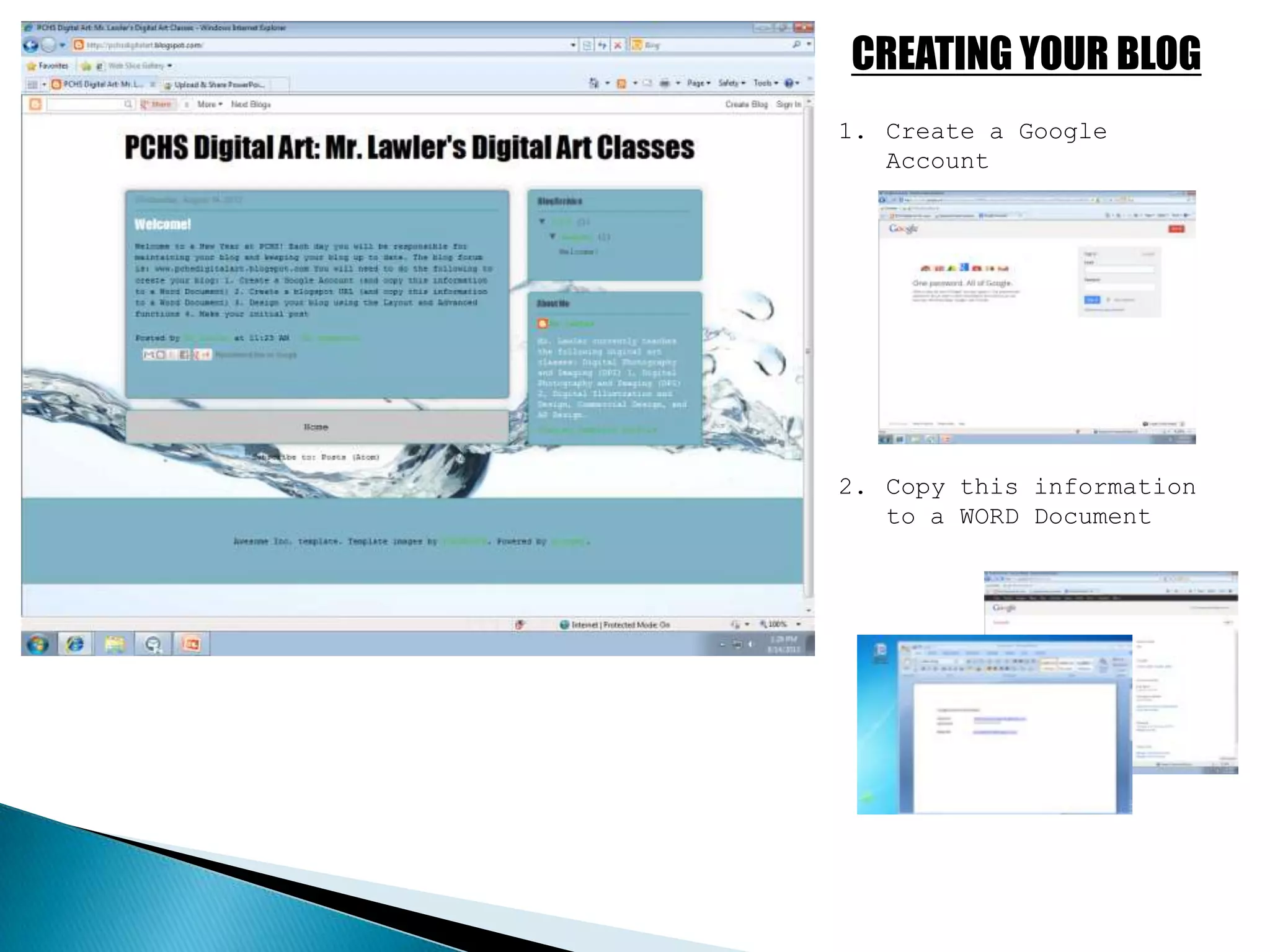
CREATING YOUR BLOG
1. Create a Google
Account
2. Copy this information
to a WORD Document
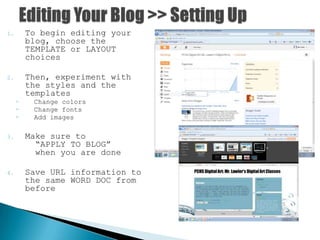
1. To begin editing your
blog, choose the
TEMPLATE or LAYOUT
choices
2. Then, experiment with
the styles and the
templates
◦ Change colors
◦ Change fonts
◦ Add images
3. Make sure to
“APPLY TO BLOG”
when you are done
4. Save URL information to
the same WORD DOC from
before
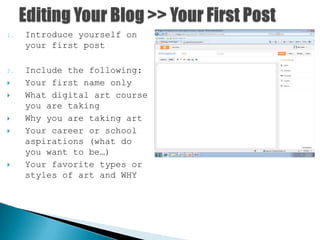
1. Introduce yourself on
your first post
2. Include the following:
 Your first name only
 What digital art course
you are taking
 Why you are taking art
 Your career or school
aspirations (what do
you want to be…)
 Your favorite types or
styles of art and WHY
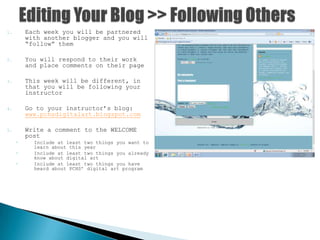
1. Each week you will be partnered
with another blogger and you will
“follow” them
2. You will respond to their work
and place comments on their page
3. This week will be different, in
that you will be following your
instructor
4. Go to your instructor’s blog:
www.pchsdigitalart.blogspot.com
5. Write a comment to the WELCOME
post
◦ Include at least two things you want to
learn about this year
◦ Include at least two things you already
know about digital art
◦ Include at least two things you have
heard about PCHS’ digital art program
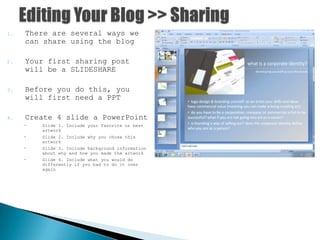
1. There are several ways we
can share using the blog
2. Your first sharing post
will be a SLIDESHARE
3. Before you do this, you
will first need a PPT
4. Create 4 slide a PowerPoint
 Slide 1. Include your favorite or best
artwork
 Slide 2. Include why you chose this
artwork
 Slide 3. Include background information
about why and how you made the artwork
 Slide 4. Include what you would do
differently if you had to do it over
again
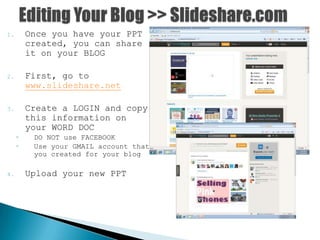
1. Once you have your PPT
created, you can share
it on your BLOG
2. First, go to
www.slideshare.net
3. Create a LOGIN and copy
this information on
your WORD DOC
◦ DO NOT use FACEBOOK
◦ Use your GMAIL account that
you created for your blog
4. Upload your new PPT
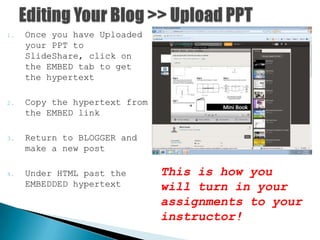
1. Once you have Uploaded
your PPT to
SlideShare, click on
the EMBED tab to get
the hypertext
2. Copy the hypertext from
the EMBED link
3. Return to BLOGGER and
make a new post
4. Under HTML past the
EMBEDDED hypertext
This is how you
will turn in your
assignments to your
instructor!

Creating your blog

  • 1.
    CREATING YOUR BLOG 1.Create a Google Account 2. Copy this information to a WORD Document
  • 2.
    1. To beginediting your blog, choose the TEMPLATE or LAYOUT choices 2. Then, experiment with the styles and the templates ◦ Change colors ◦ Change fonts ◦ Add images 3. Make sure to “APPLY TO BLOG” when you are done 4. Save URL information to the same WORD DOC from before
  • 3.
    1. Introduce yourselfon your first post 2. Include the following:  Your first name only  What digital art course you are taking  Why you are taking art  Your career or school aspirations (what do you want to be…)  Your favorite types or styles of art and WHY
  • 4.
    1. Each weekyou will be partnered with another blogger and you will “follow” them 2. You will respond to their work and place comments on their page 3. This week will be different, in that you will be following your instructor 4. Go to your instructor’s blog: www.pchsdigitalart.blogspot.com 5. Write a comment to the WELCOME post ◦ Include at least two things you want to learn about this year ◦ Include at least two things you already know about digital art ◦ Include at least two things you have heard about PCHS’ digital art program
  • 5.
    1. There areseveral ways we can share using the blog 2. Your first sharing post will be a SLIDESHARE 3. Before you do this, you will first need a PPT 4. Create 4 slide a PowerPoint  Slide 1. Include your favorite or best artwork  Slide 2. Include why you chose this artwork  Slide 3. Include background information about why and how you made the artwork  Slide 4. Include what you would do differently if you had to do it over again
  • 6.
    1. Once youhave your PPT created, you can share it on your BLOG 2. First, go to www.slideshare.net 3. Create a LOGIN and copy this information on your WORD DOC ◦ DO NOT use FACEBOOK ◦ Use your GMAIL account that you created for your blog 4. Upload your new PPT
  • 7.
    1. Once youhave Uploaded your PPT to SlideShare, click on the EMBED tab to get the hypertext 2. Copy the hypertext from the EMBED link 3. Return to BLOGGER and make a new post 4. Under HTML past the EMBEDDED hypertext This is how you will turn in your assignments to your instructor!