Uploading to Slideshare
         and
embedding in your blog
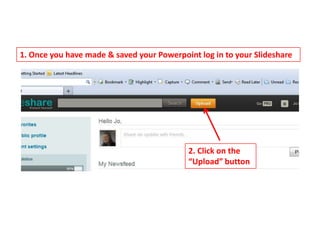
1. Once you have made & saved your Powerpoint log in to your Slideshare


                                           2. Click on the
                                           “Upload” button
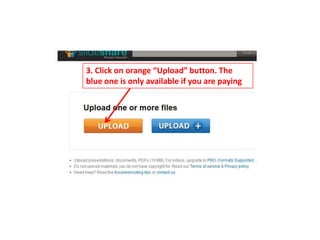
3. Click on orange “Upload” button. The
blue one is only available if you are paying
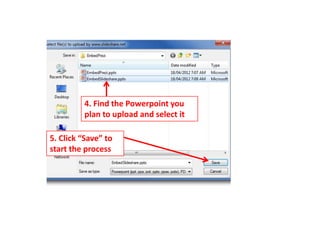
4. Find the Powerpoint you
         plan to upload and select it

5. Click “Save” to
start the process
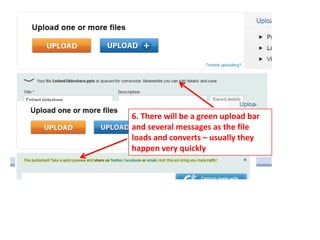
6. There will be a green upload bar
and several messages as the file
loads and converts – usually they
happen very quickly
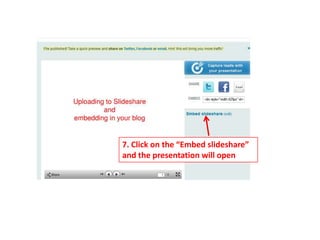
7. Click on the “Embed slideshare”
and the presentation will open
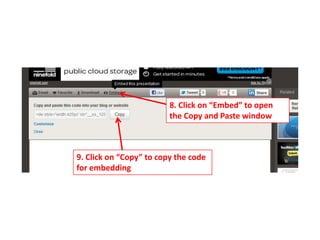
8. Click on “Embed” to open
                         the Copy and Paste window


9. Click on “Copy” to copy the code
for embedding
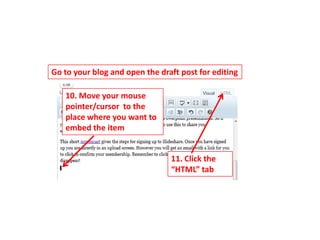
Go to your blog and open the draft post for editing

   10. Move your mouse
   pointer/cursor to the
   place where you want to
   embed the item


                                11. Click the
                                “HTML” tab
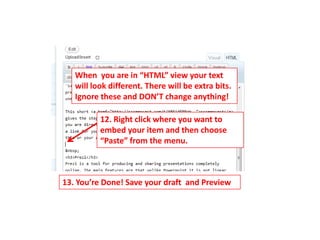
When you are in “HTML” view your text
   will look different. There will be extra bits.
   Ignore these and DON’T change anything!

          12. Right click where you want to
          embed your item and then choose
          “Paste” from the menu.


13. You’re Done! Save your draft and Preview

Embed slideshare

  • 1.
    Uploading to Slideshare and embedding in your blog
  • 2.
    1. Once youhave made & saved your Powerpoint log in to your Slideshare 2. Click on the “Upload” button
  • 3.
    3. Click onorange “Upload” button. The blue one is only available if you are paying
  • 4.
    4. Find thePowerpoint you plan to upload and select it 5. Click “Save” to start the process
  • 5.
    6. There willbe a green upload bar and several messages as the file loads and converts – usually they happen very quickly
  • 6.
    7. Click onthe “Embed slideshare” and the presentation will open
  • 7.
    8. Click on“Embed” to open the Copy and Paste window 9. Click on “Copy” to copy the code for embedding
  • 8.
    Go to yourblog and open the draft post for editing 10. Move your mouse pointer/cursor to the place where you want to embed the item 11. Click the “HTML” tab
  • 9.
    When you arein “HTML” view your text will look different. There will be extra bits. Ignore these and DON’T change anything! 12. Right click where you want to embed your item and then choose “Paste” from the menu. 13. You’re Done! Save your draft and Preview