. Widgets and Layouts Qt in Education Semana de tecnologia do  Barão de Mauá Instrutor: Marcelo Barros de Almeida [email_address]
© 2010 Nokia Corporation and its Subsidiary(-ies). The enclosed Qt Educational Training Materials are provided under the Creative Commons  Attribution-Non-Commercial-Share Alike 2.5 License Agreement.  The full license text is available here:  http://creativecommons.org/licenses/by-nc-sa/2.5/legalcode . Nokia, Qt and the Nokia and Qt logos are the registered trademarks of Nokia Corporation in Finland and other countries worldwide.
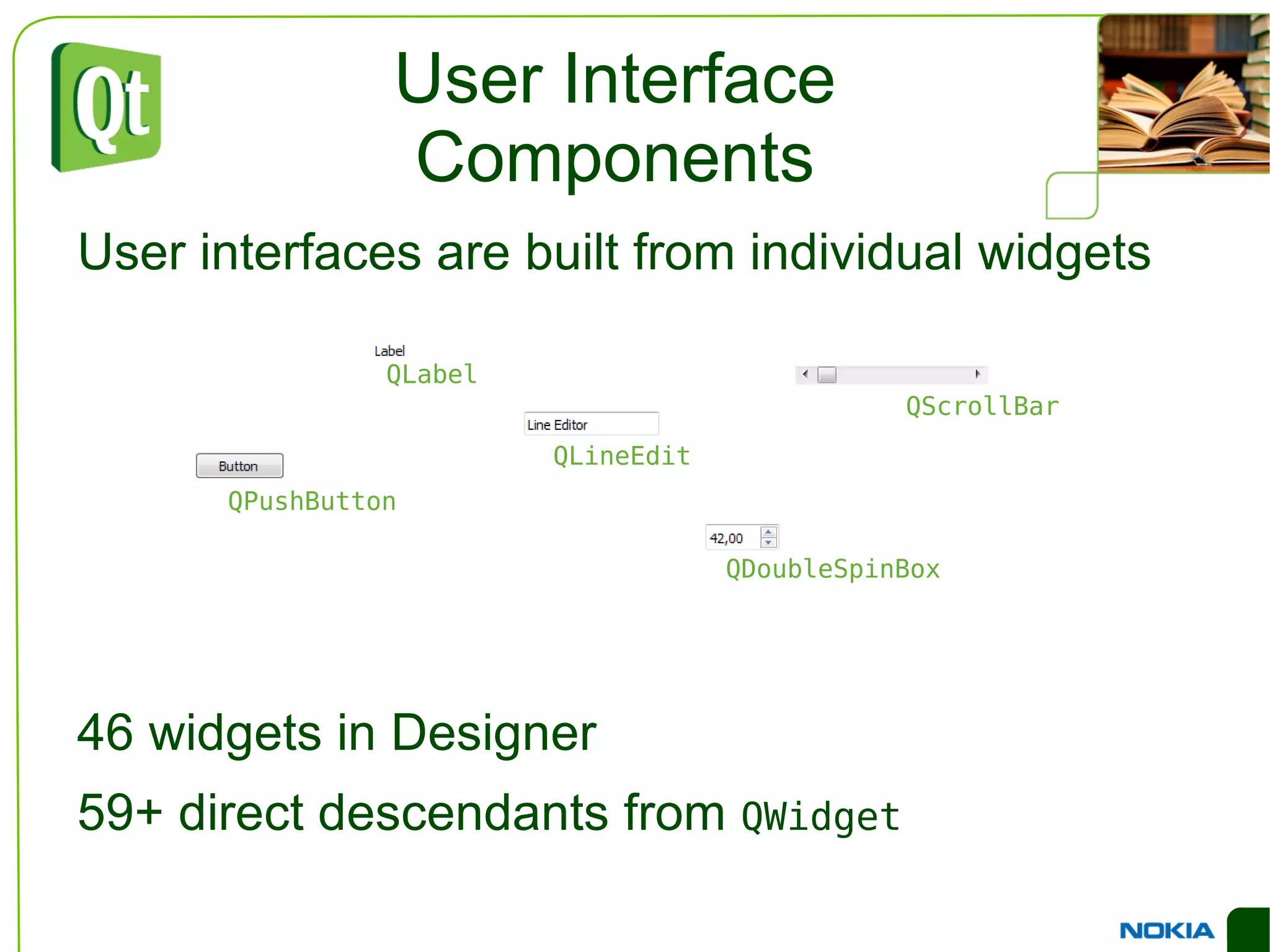
User Interface Components User interfaces are built from individual widgets
46 widgets in Designer
59+ direct descendants from  QWidget QLabel QPushButton QLineEdit QDoubleSpinBox QScrollBar
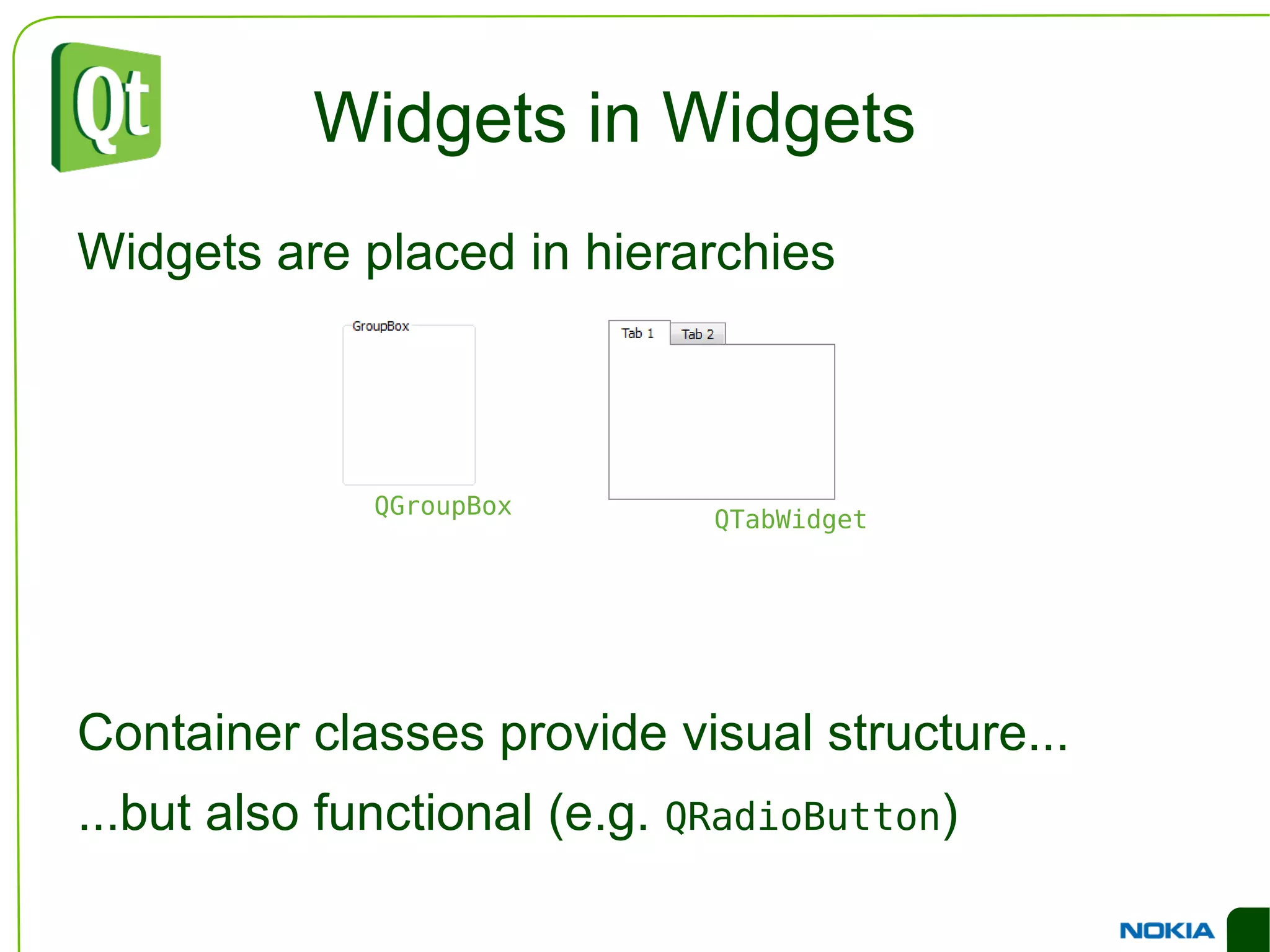
Widgets in Widgets Widgets are placed in hierarchies
Container classes provide visual structure...
...but also functional (e.g.  QRadioButton ) QGroupBox QTabWidget
Traits of a Widget Occupies a rectangular area of the screen
Receives events from input devices
Emits signals for “notable” changes
Are structured in a hierarchy
Can contain other widgets
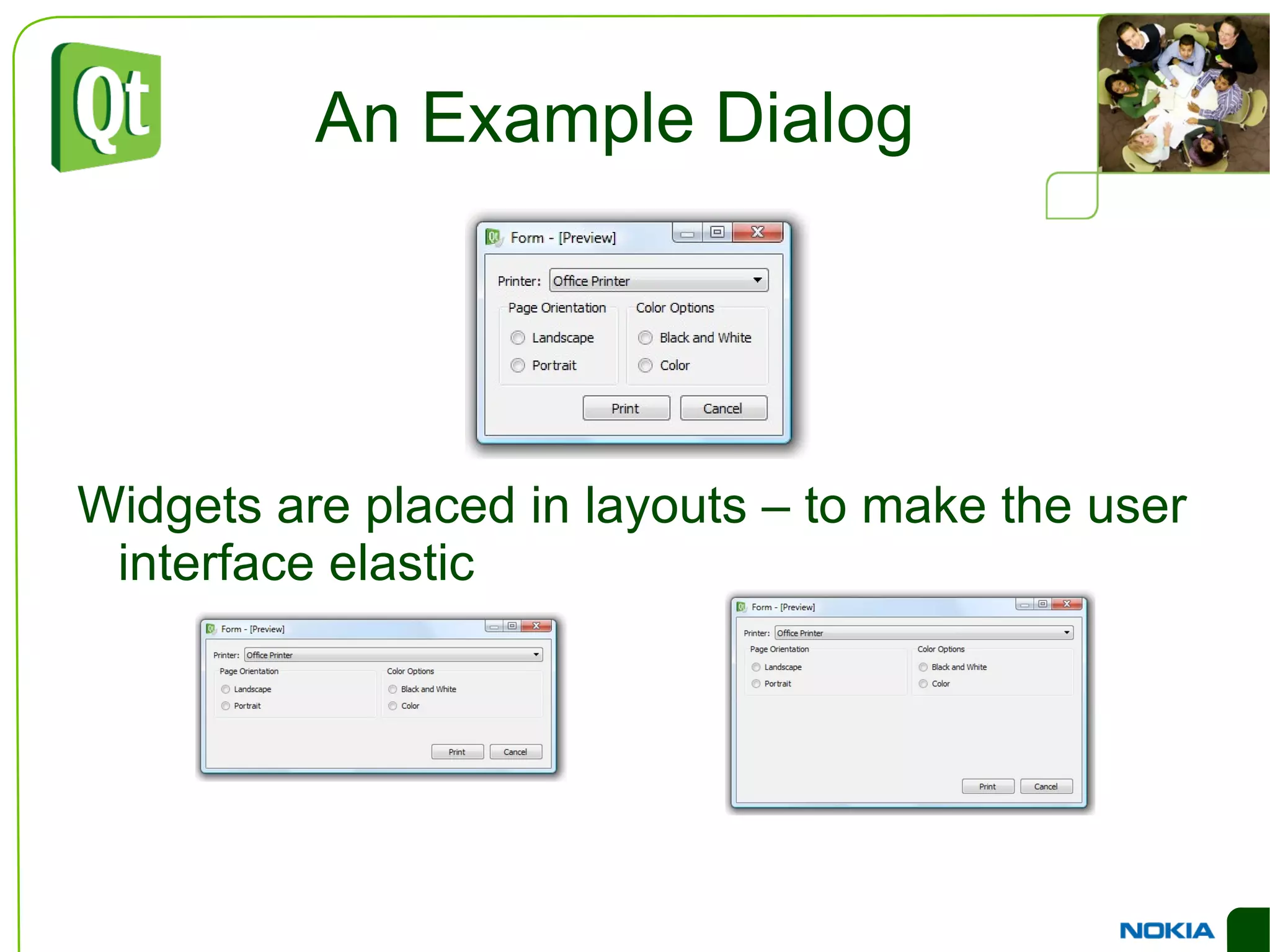
An Example Dialog Widgets are placed in layouts – to make the user interface elastic
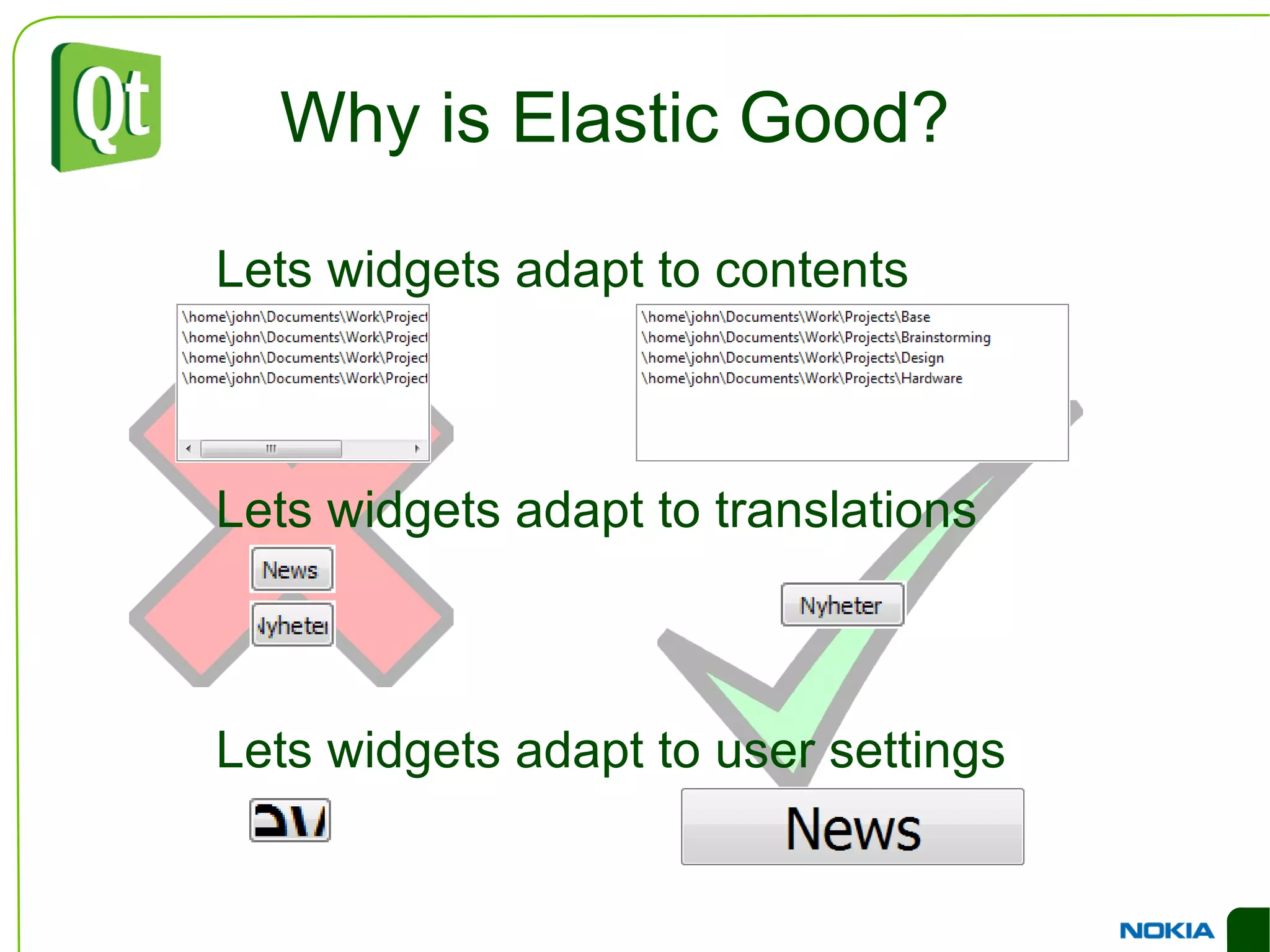
Why is Elastic Good? Lets widgets adapt to contents
Lets widgets adapt to translations
Lets widgets adapt to user settings
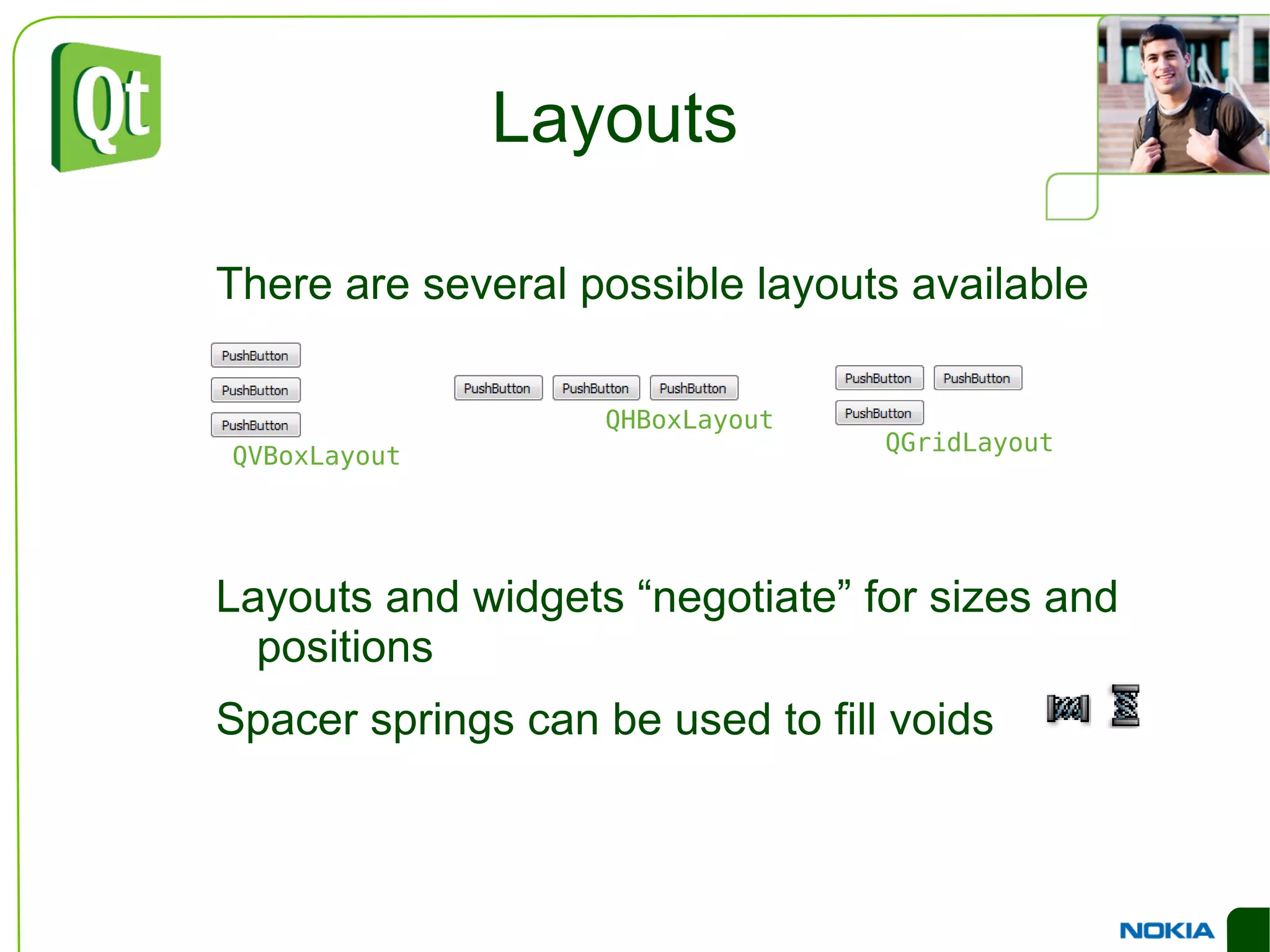
Layouts There are several possible layouts available
Layouts and widgets “negotiate” for sizes and positions
Spacer springs can be used to fill voids QGridLayout QVBoxLayout QHBoxLayout
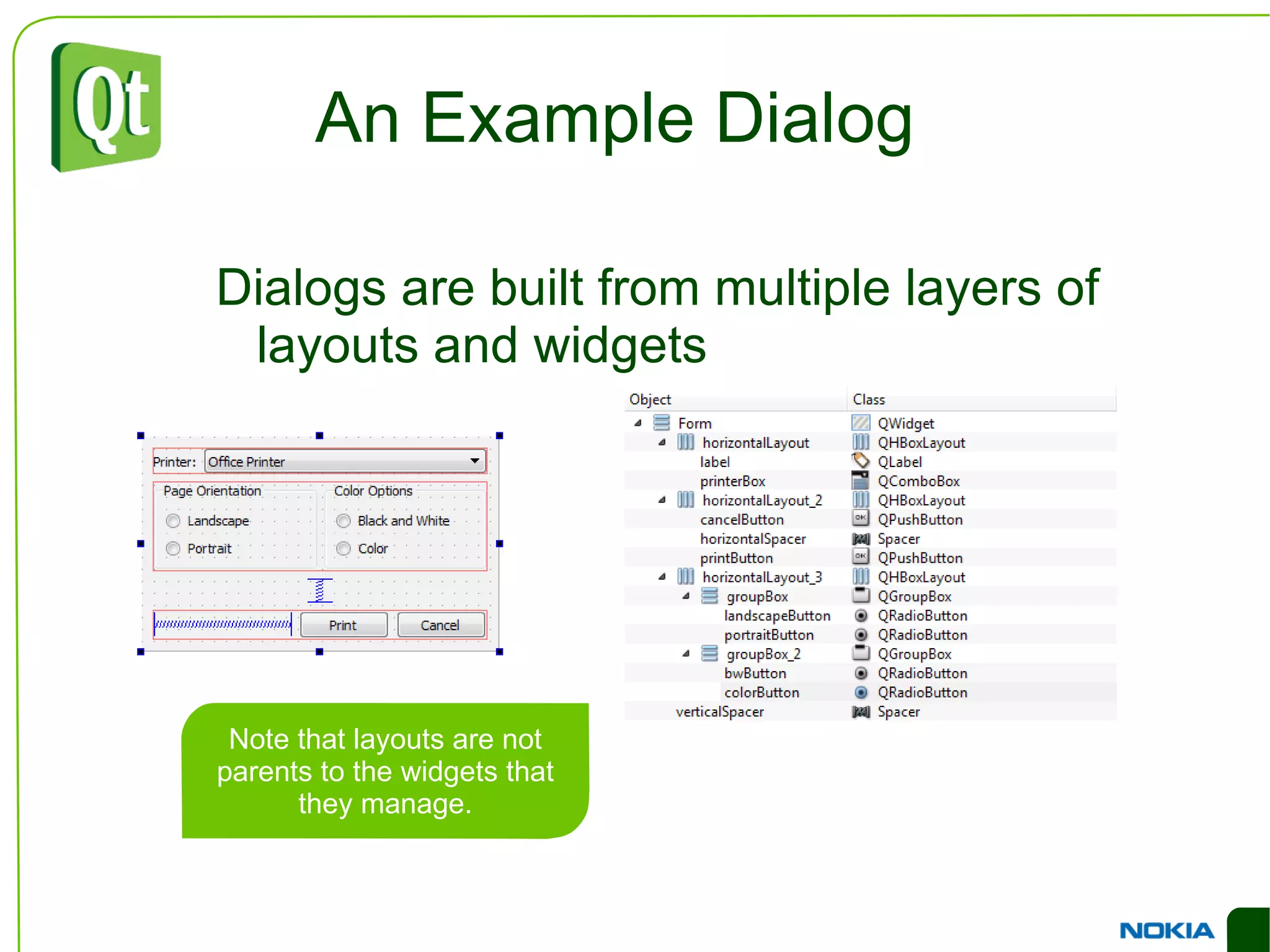
An Example Dialog Dialogs are built from multiple layers of layouts and widgets
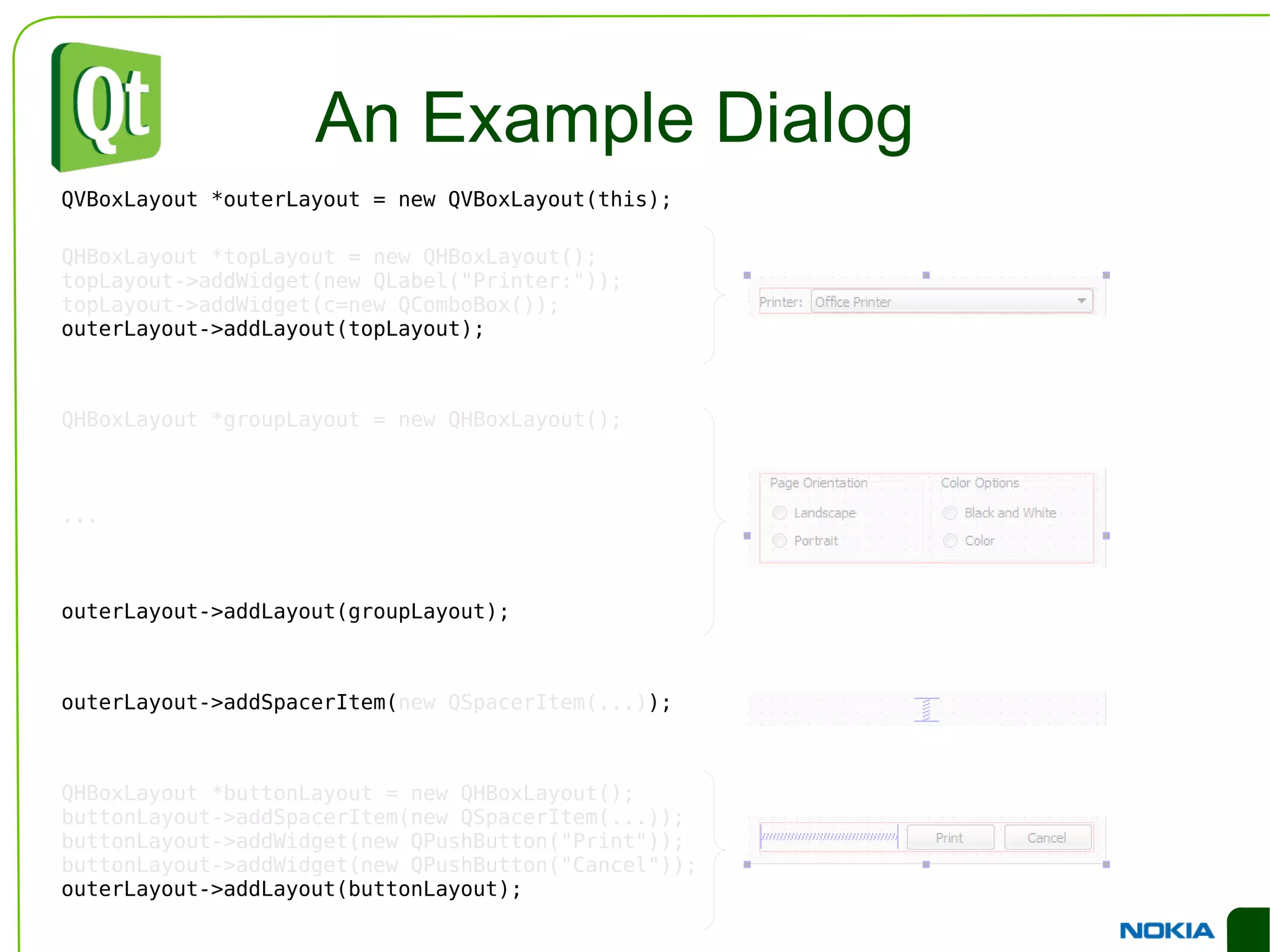
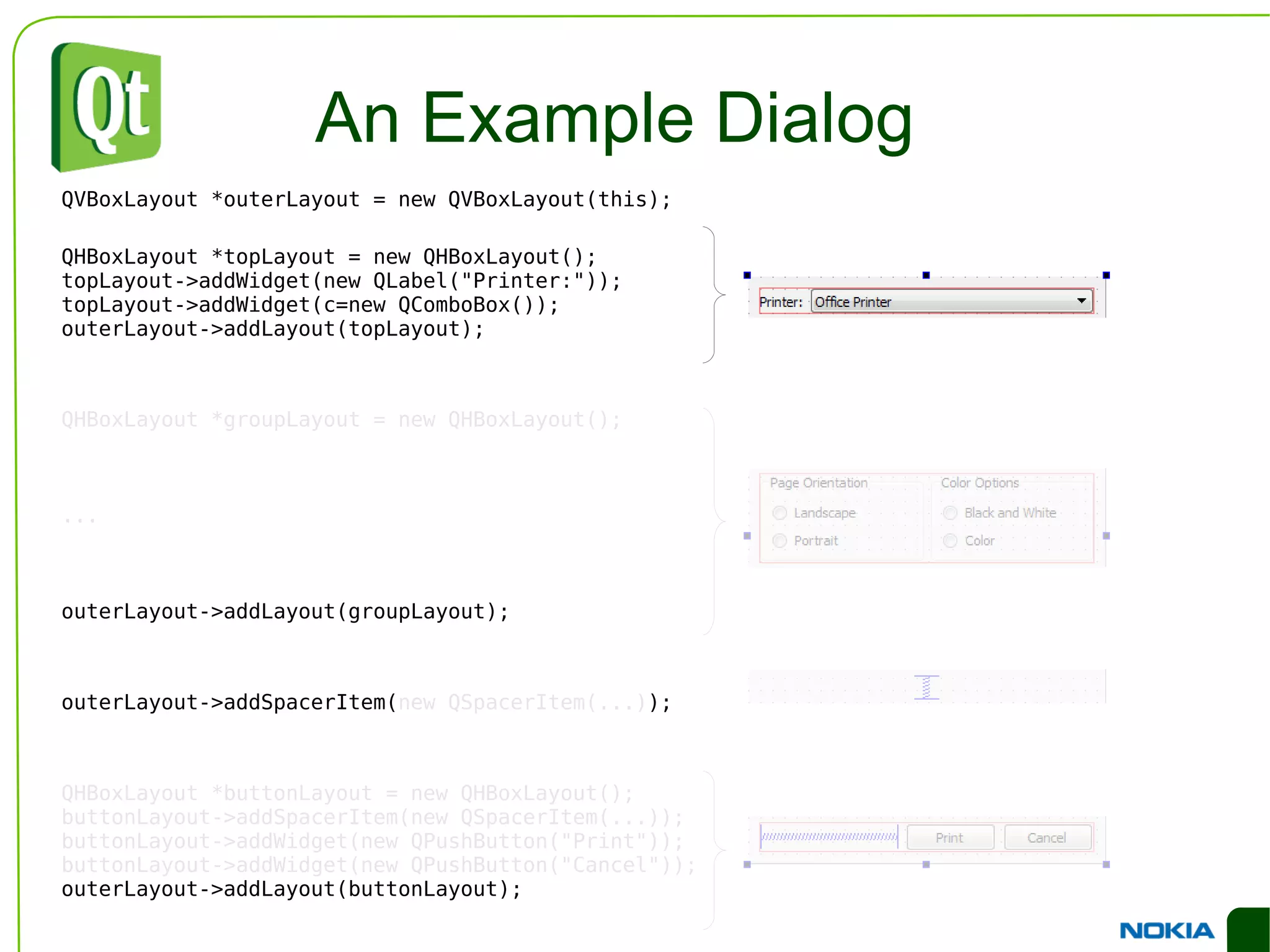
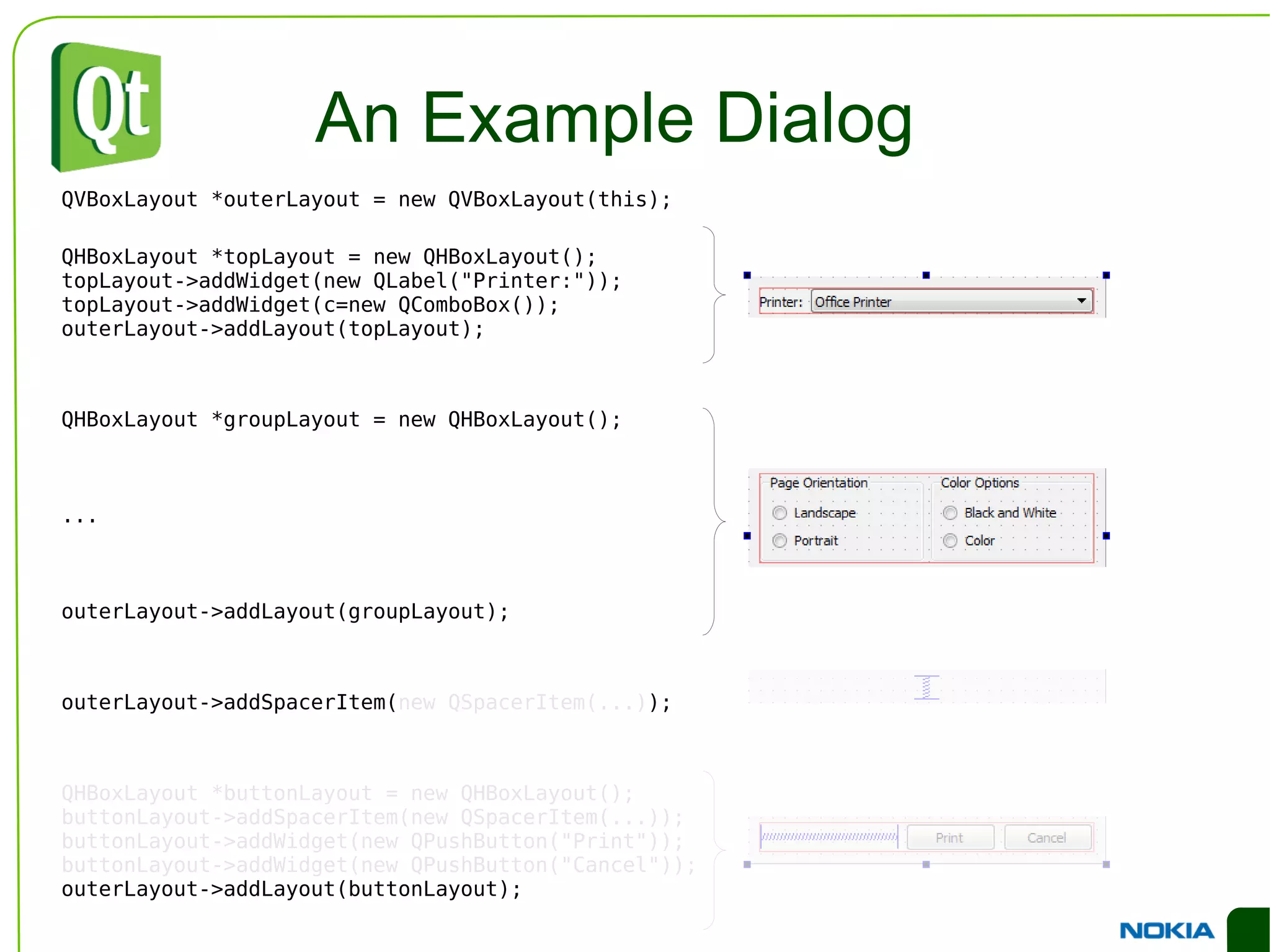
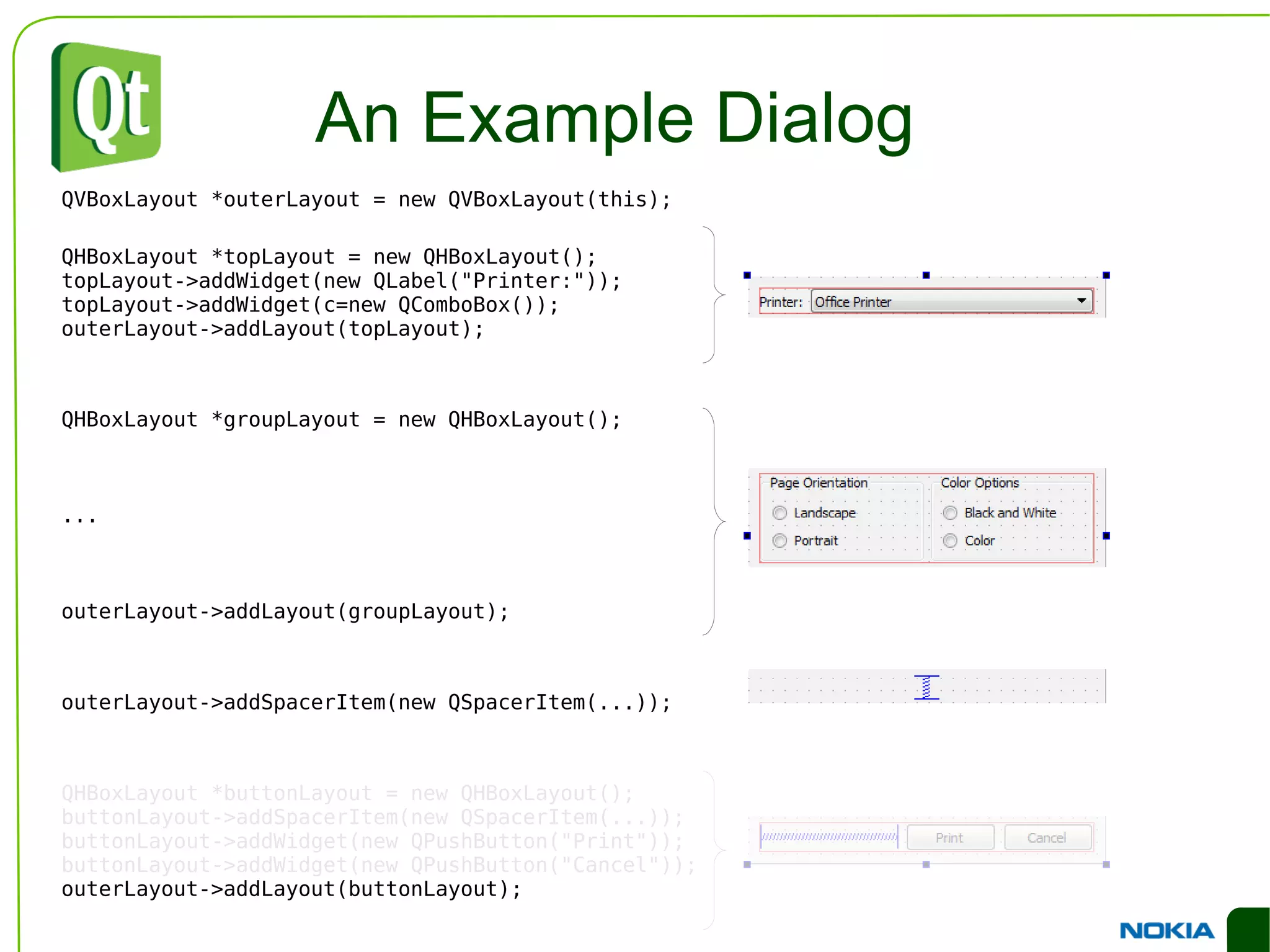
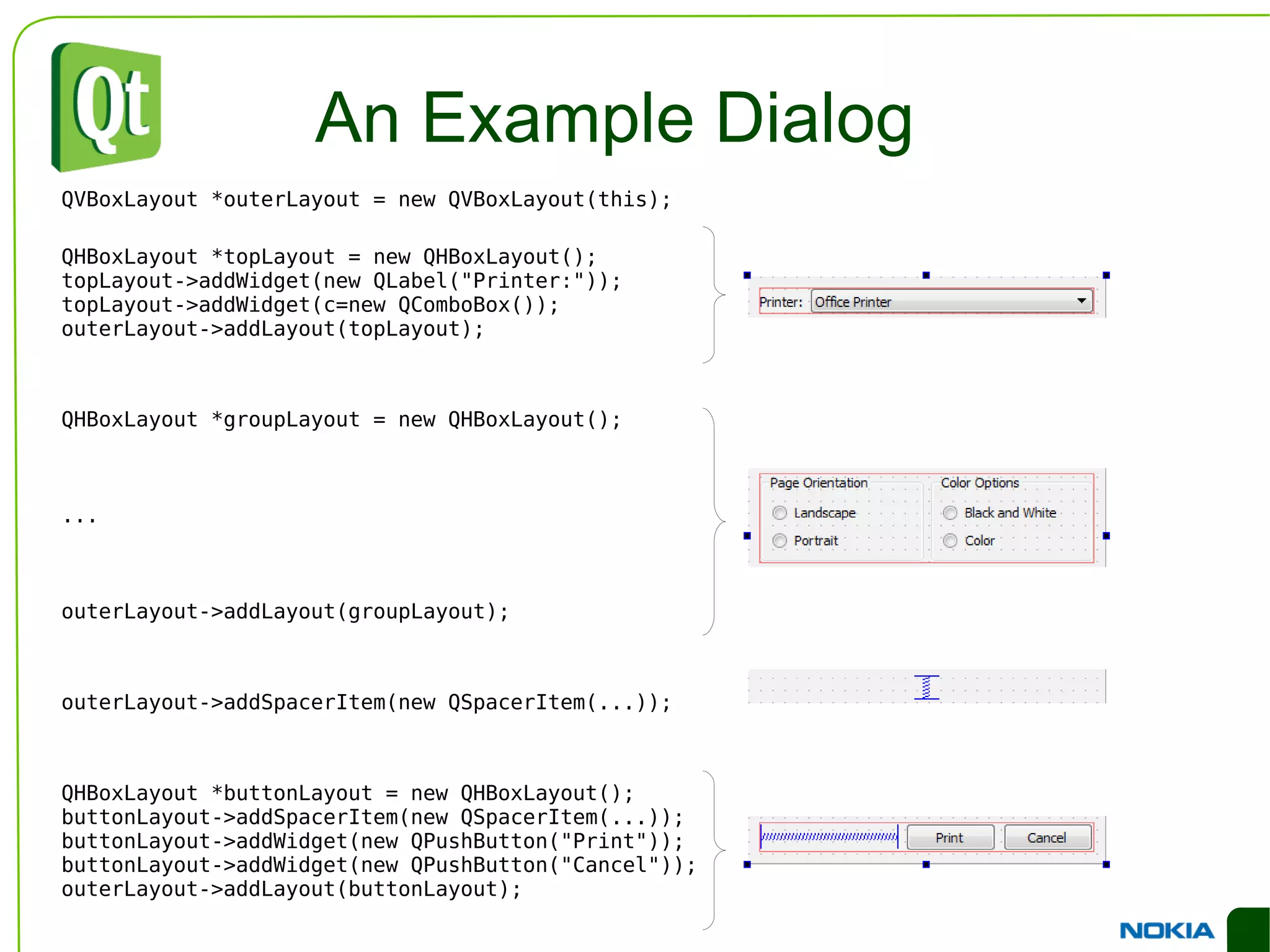
An Example Dialog QVBoxLayout *outerLayout = new QVBoxLayout(this); QHBoxLayout *topLayout = new QHBoxLayout(); topLayout->addWidget(new QLabel("Printer:")); topLayout->addWidget(c=new QComboBox()); outerLayout->addLayout(topLayout); QHBoxLayout *groupLayout = new QHBoxLayout(); ... outerLayout->addLayout(groupLayout); outerLayout->addSpacerItem( new QSpacerItem(...) ); QHBoxLayout *buttonLayout = new QHBoxLayout(); buttonLayout->addSpacerItem(new QSpacerItem(...)); buttonLayout->addWidget(new QPushButton("Print")); buttonLayout->addWidget(new QPushButton("Cancel")); outerLayout->addLayout(buttonLayout);
An Example Dialog QVBoxLayout *outerLayout = new QVBoxLayout(this); QHBoxLayout *topLayout = new QHBoxLayout(); topLayout->addWidget(new QLabel("Printer:")); topLayout->addWidget(c=new QComboBox()); outerLayout->addLayout(topLayout); QHBoxLayout *groupLayout = new QHBoxLayout(); ... outerLayout->addLayout(groupLayout); outerLayout->addSpacerIte m(new QSpacerItem(...)); QHBoxLayout *buttonLayout = new QHBoxLayout(); buttonLayout->addSpacerItem(new QSpacerItem(...)); buttonLayout->addWidget(new QPushButton("Print")); buttonLayout->addWidget(new QPushButton("Cancel")); outerLayout->addLayout(buttonLayout);
An Example Dialog QVBoxLayout *outerLayout = new QVBoxLayout(this); QHBoxLayout *topLayout = new QHBoxLayout(); topLayout->addWidget(new QLabel("Printer:")); topLayout->addWidget(c=new QComboBox()); outerLayout->addLayout(topLayout); QHBoxLayout *groupLayout = new QHBoxLayout(); ... outerLayout->addLayout(groupLayout); outerLayout->addSpacerItem(new QSpacerItem(...)); QHBoxLayout *buttonLayout = new QHBoxLayout(); buttonLayout->addSpacerItem(new QSpacerItem(...)); buttonLayout->addWidget(new QPushButton("Print")); buttonLayout->addWidget(new QPushButton("Cancel")); outerLayout->addLayout(buttonLayout);
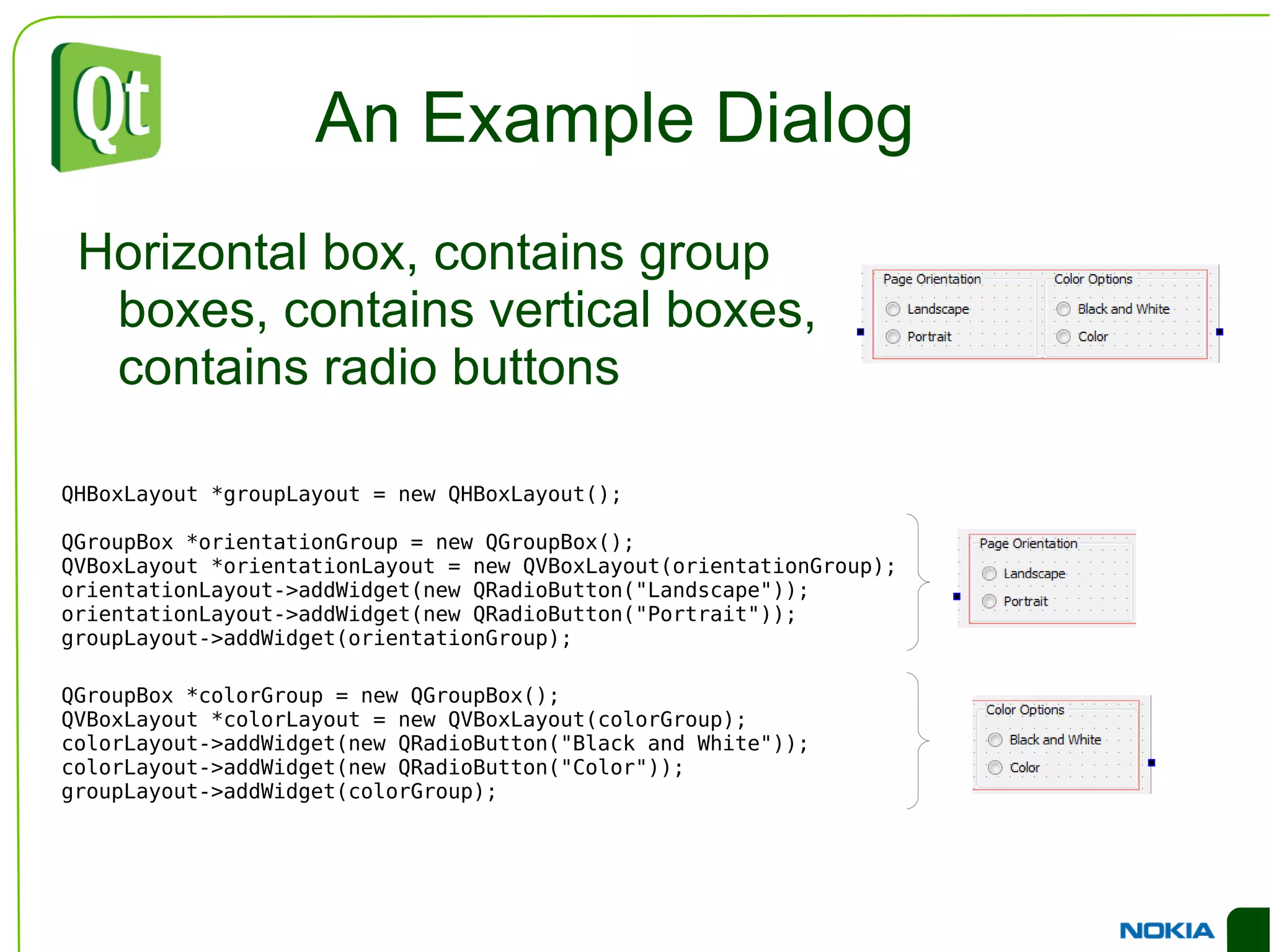
An Example Dialog QHBoxLayout *groupLayout = new QHBoxLayout(); QGroupBox *orientationGroup = new QGroupBox(); QVBoxLayout *orientationLayout = new QVBoxLayout(orientationGroup); orientationLayout->addWidget(new QRadioButton("Landscape")); orientationLayout->addWidget(new QRadioButton("Portrait")); groupLayout->addWidget(orientationGroup); QGroupBox *colorGroup = new QGroupBox(); QVBoxLayout *colorLayout = new QVBoxLayout(colorGroup); colorLayout->addWidget(new QRadioButton("Black and White")); colorLayout->addWidget(new QRadioButton("Color")); groupLayout->addWidget(colorGroup); Horizontal box, contains group boxes, contains vertical boxes, contains radio buttons
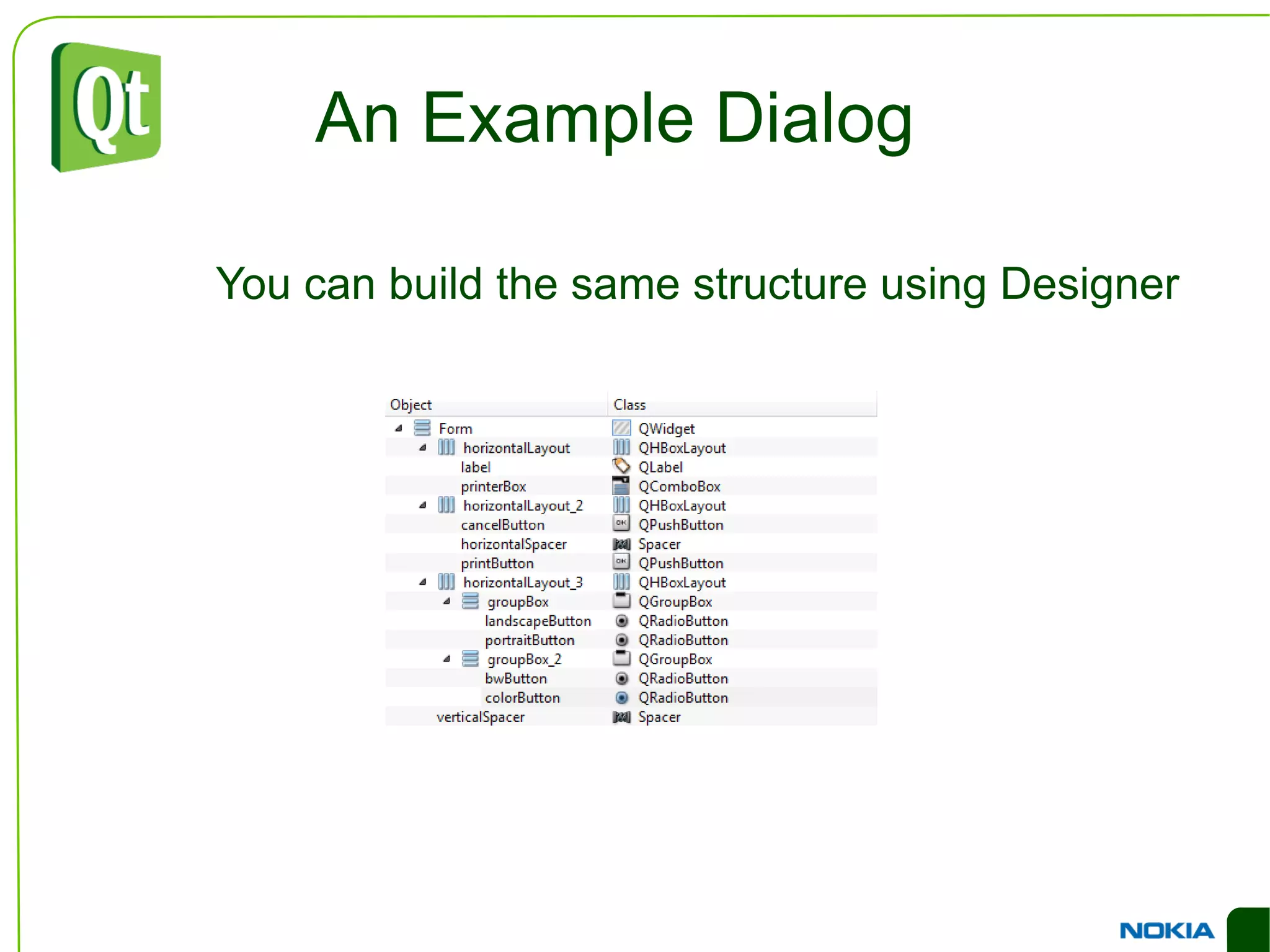
An Example Dialog You can build the same structure using Designer
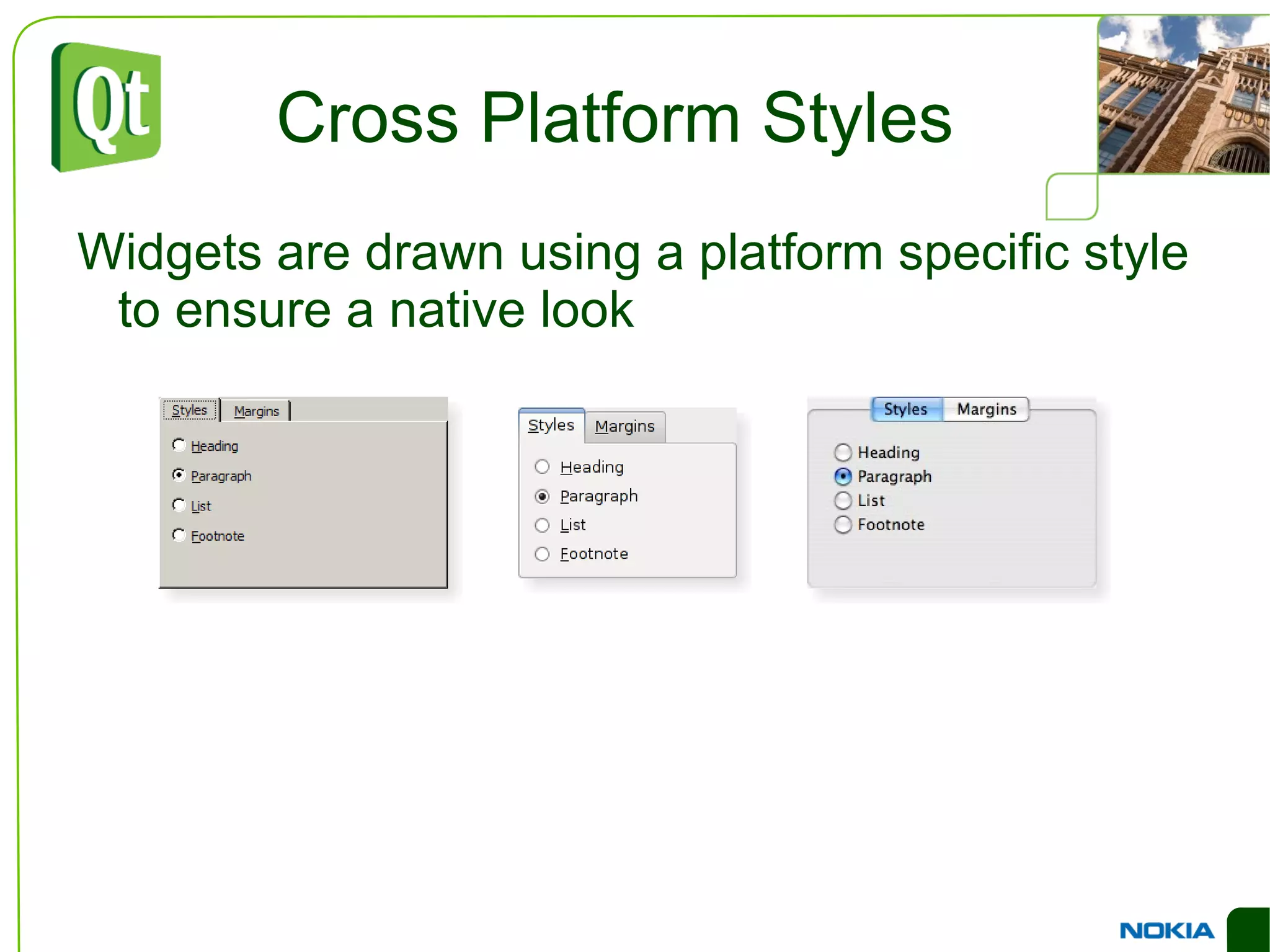
Cross Platform Styles Widgets are drawn using a platform specific style to ensure a native look
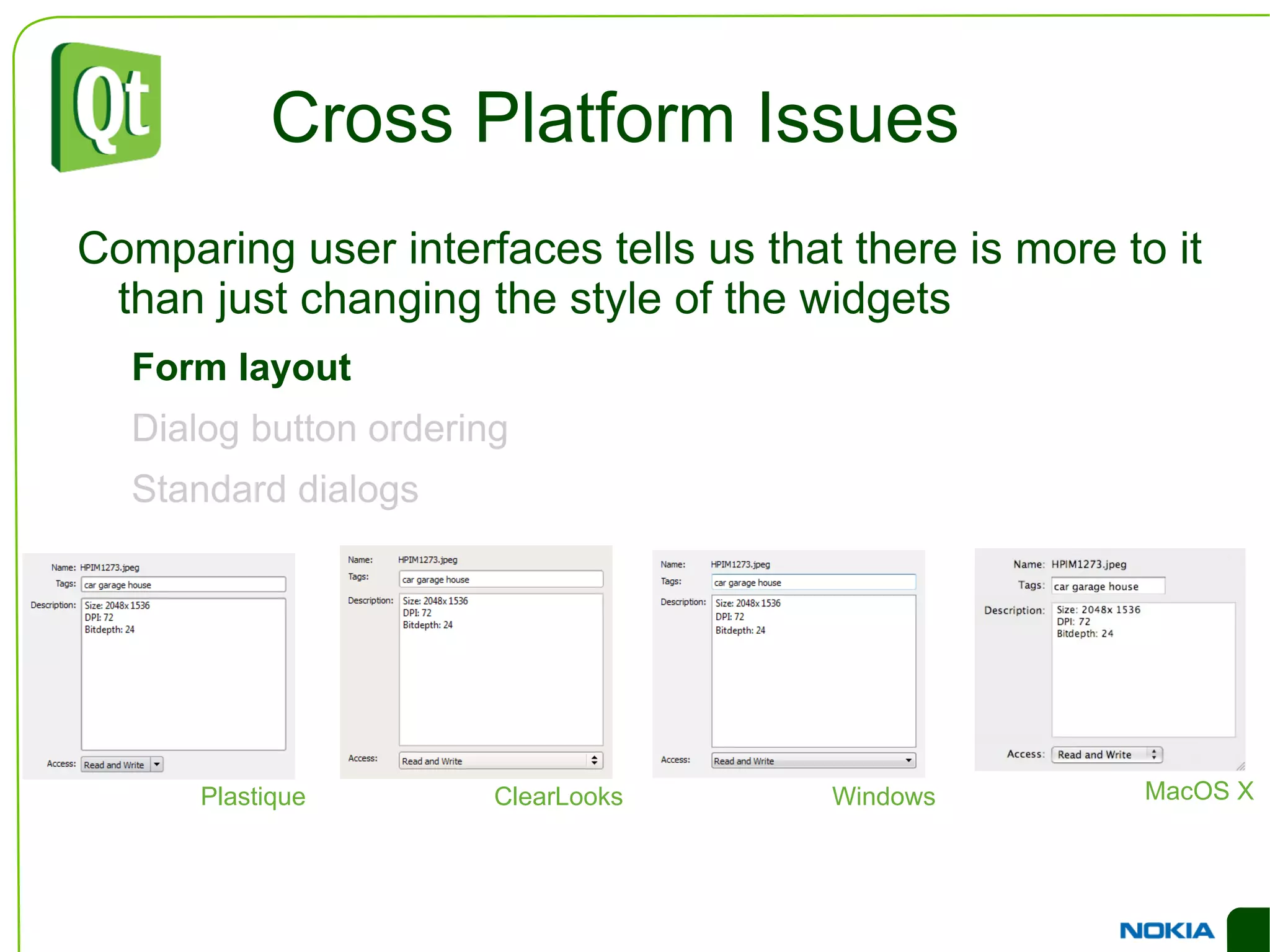
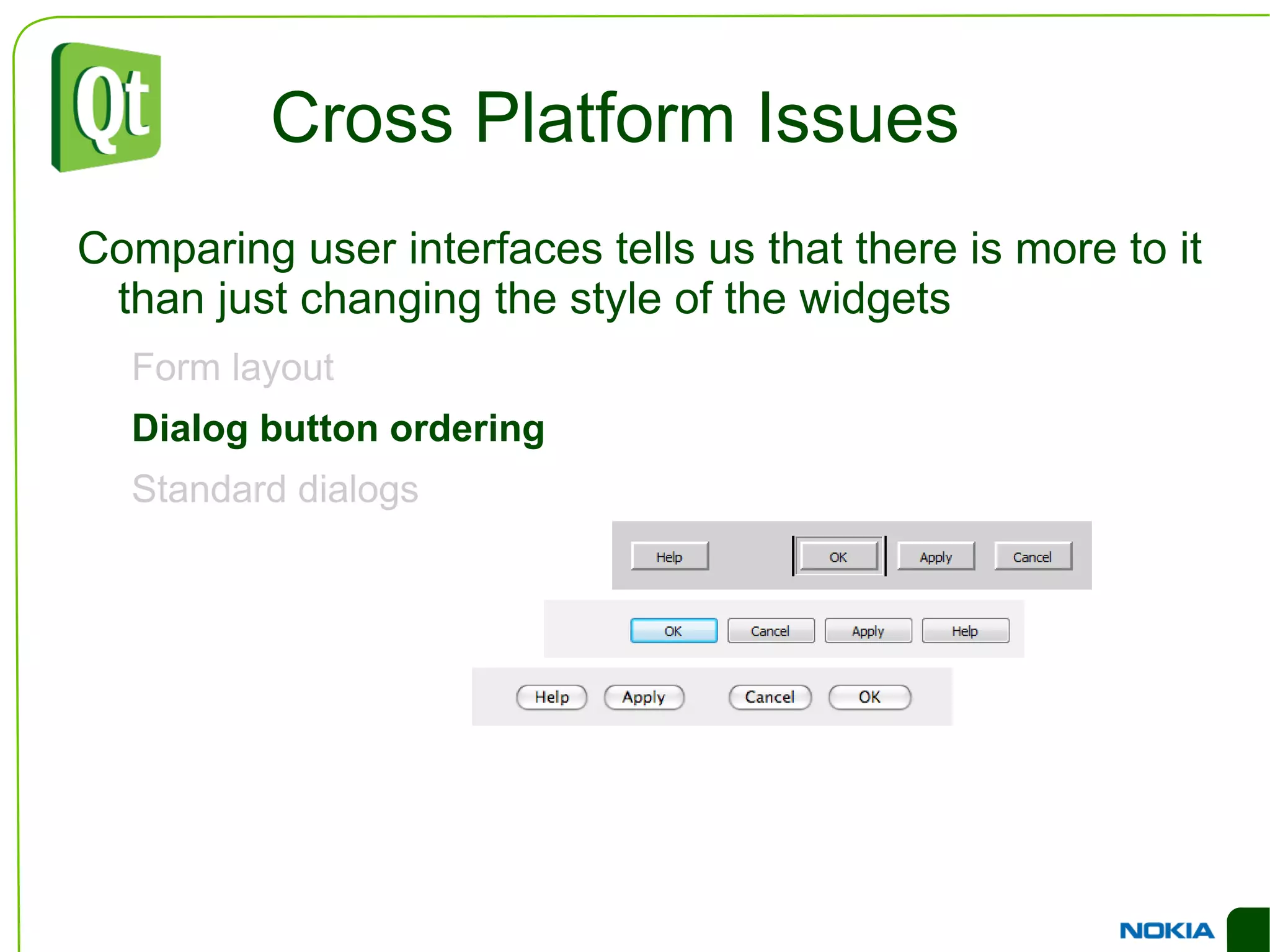
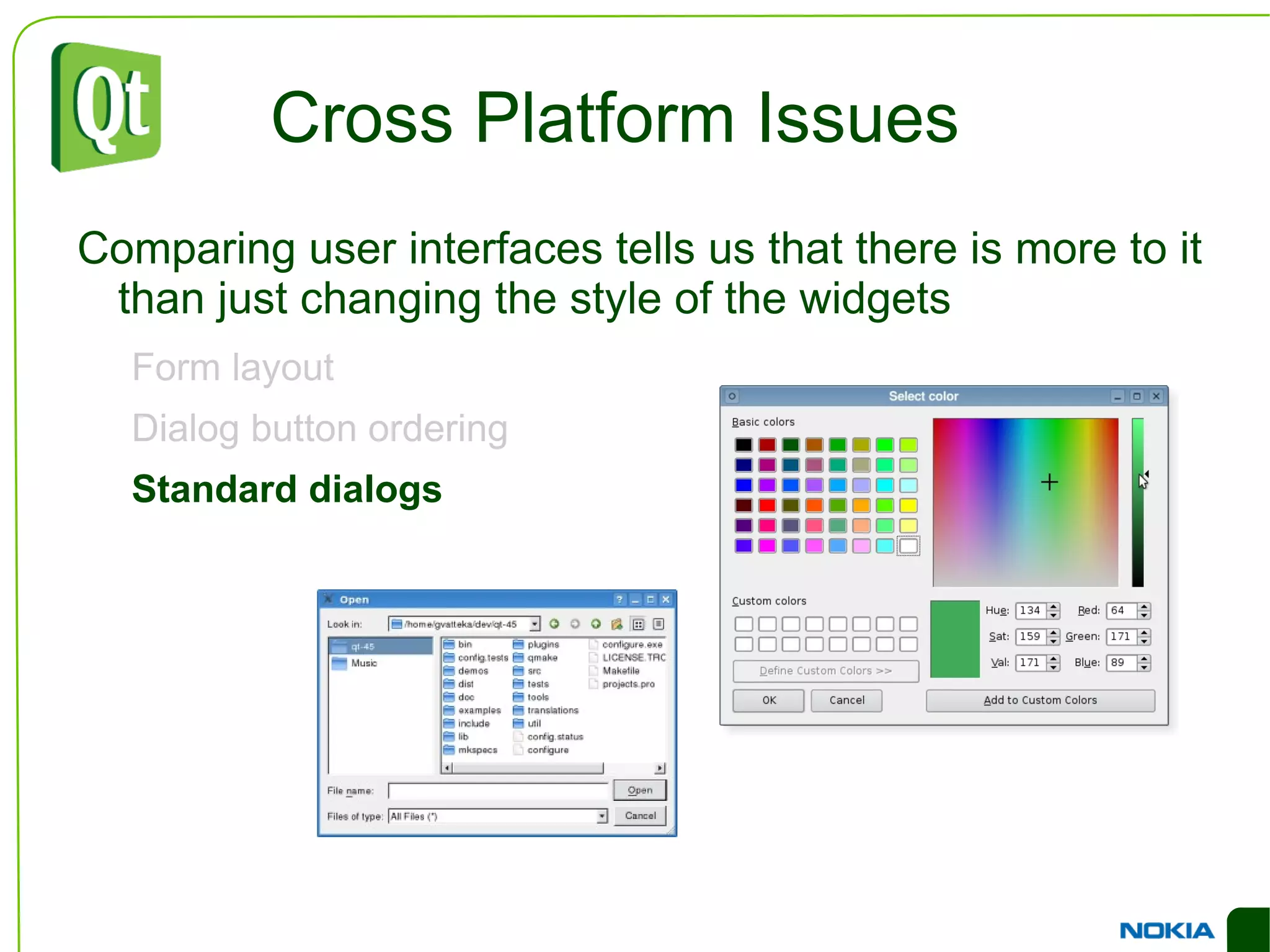
Cross Platform Issues Comparing user interfaces tells us that there is more to it than just changing the style of the widgets Form layout
Dialog button ordering
Standard dialogs
Cross Platform Issues Comparing user interfaces tells us that there is more to it than just changing the style of the widgets Form layout
Dialog button ordering
Standard dialogs Plastique ClearLooks Windows MacOS X
Cross Platform Issues Comparing user interfaces tells us that there is more to it than just changing the style of the widgets Form layout
Dialog button ordering
Standard dialogs
Cross Platform Issues Comparing user interfaces tells us that there is more to it than just changing the style of the widgets Form layout
Dialog button ordering
Standard dialogs
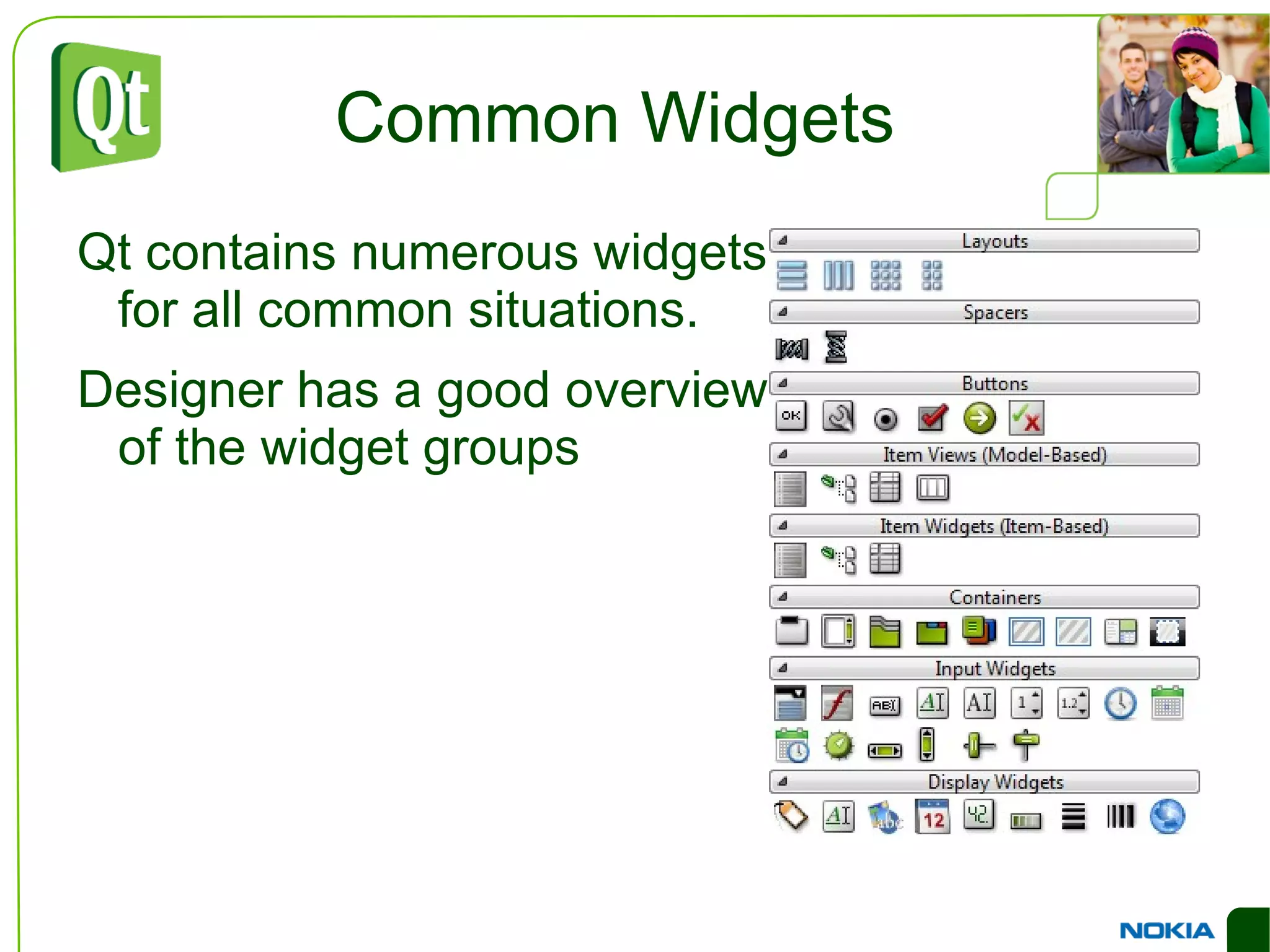
Common Widgets Qt contains numerous widgets for all common situations.
Designer has a good overview of the widget groups
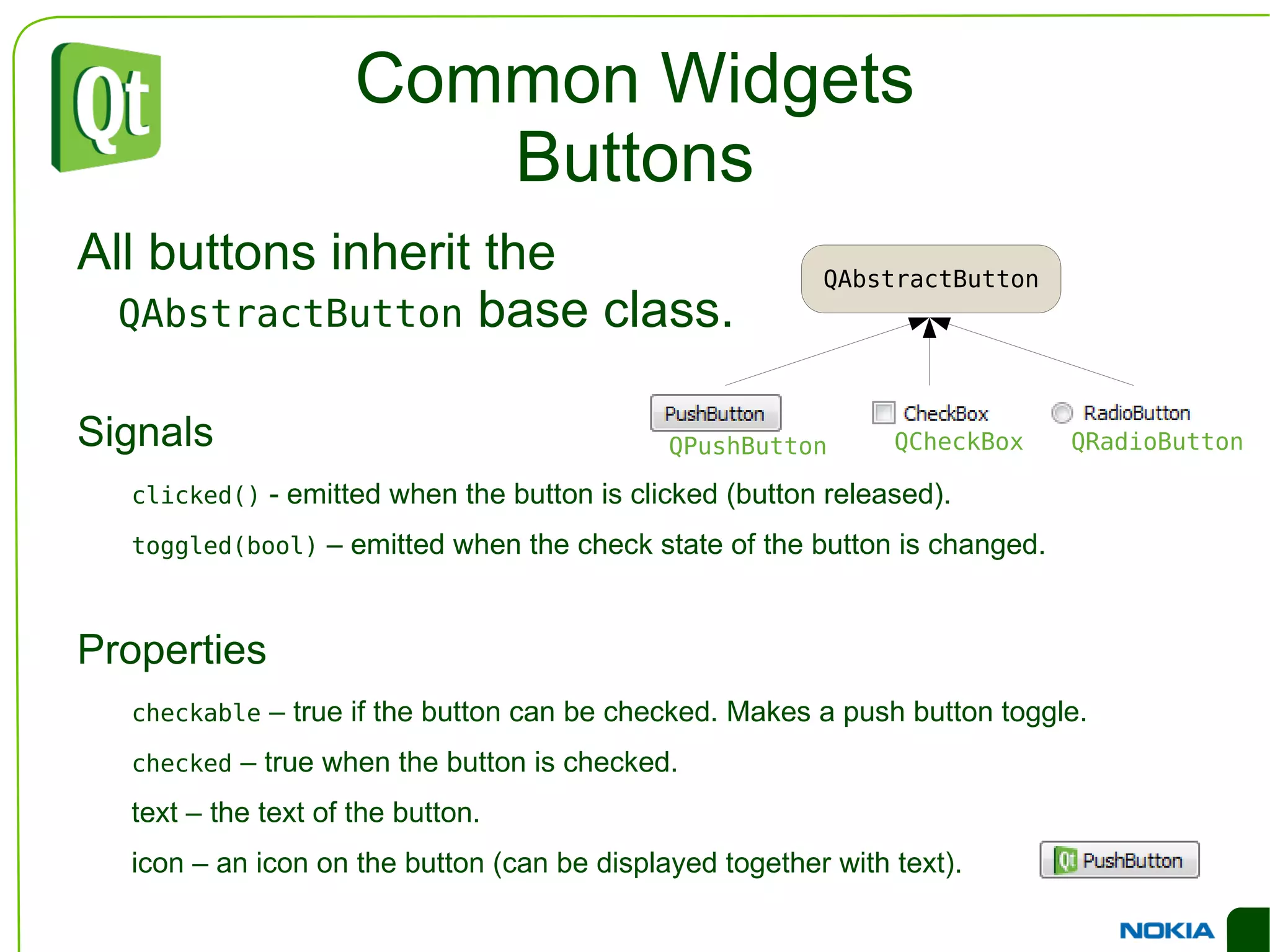
Common Widgets Buttons All buttons inherit the  QAbstractButton  base class.
Signals clicked()  - emitted when the button is clicked (button released).
toggled(bool)  – emitted when the check state of the button is changed. Properties checkable  – true if the button can be checked. Makes a push button toggle.
checked  – true when the button is checked.
text – the text of the button.
icon – an icon on the button (can be displayed together with text). QPushButton QCheckBox QRadioButton
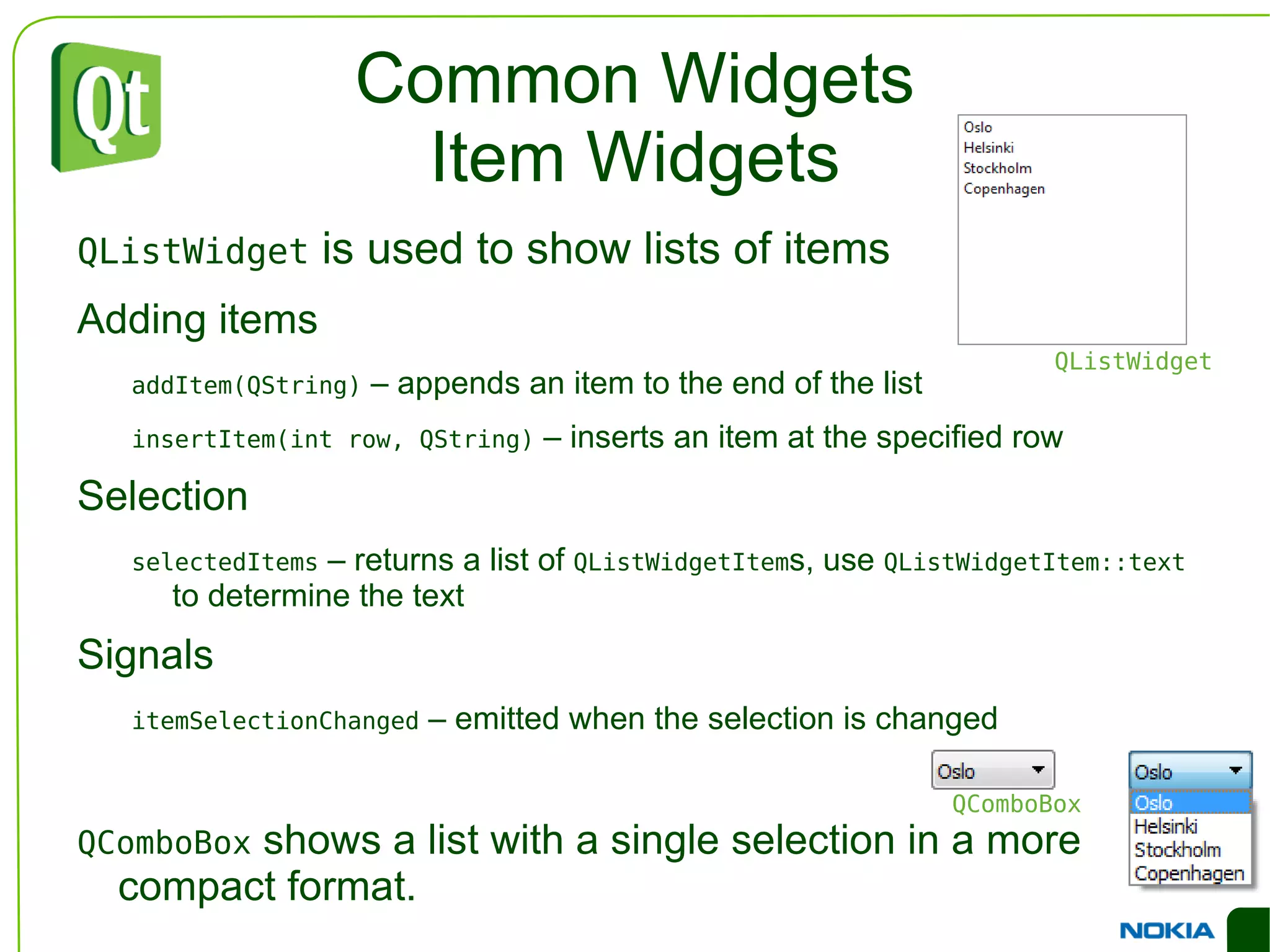
Common Widgets Item Widgets QListWidget  is used to show lists of items
Adding items addItem(QString)  – appends an item to the end of the list
insertItem(int row, QString)  – inserts an item at the specified row Selection selectedItems  – returns a list of  QListWidgetItem s, use  QListWidgetItem::text  to determine the text Signals itemSelectionChanged  – emitted when the selection is changed QComboBox  shows a list with a single selection in a more compact format. QListWidget QComboBox
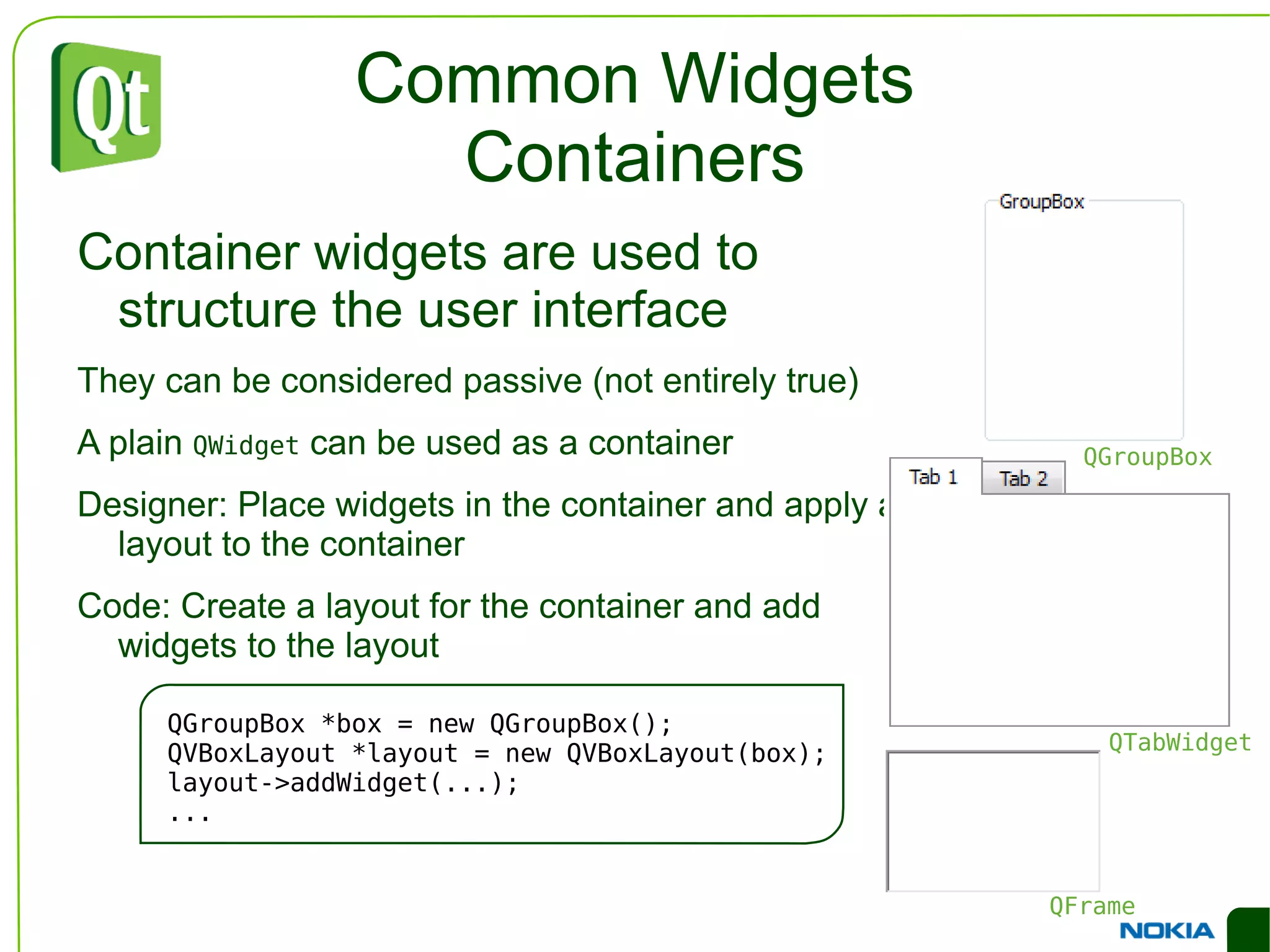
Common Widgets Containers Container widgets are used to structure the user interface
They can be considered passive (not entirely true)
A plain  QWidget  can be used as a container
Designer: Place widgets in the container and apply a layout to the container
Code: Create a layout for the container and add widgets to the layout QGroupBox *box = new QGroupBox(); QVBoxLayout *layout = new QVBoxLayout(box); layout->addWidget(...); ... QGroupBox QTabWidget QFrame
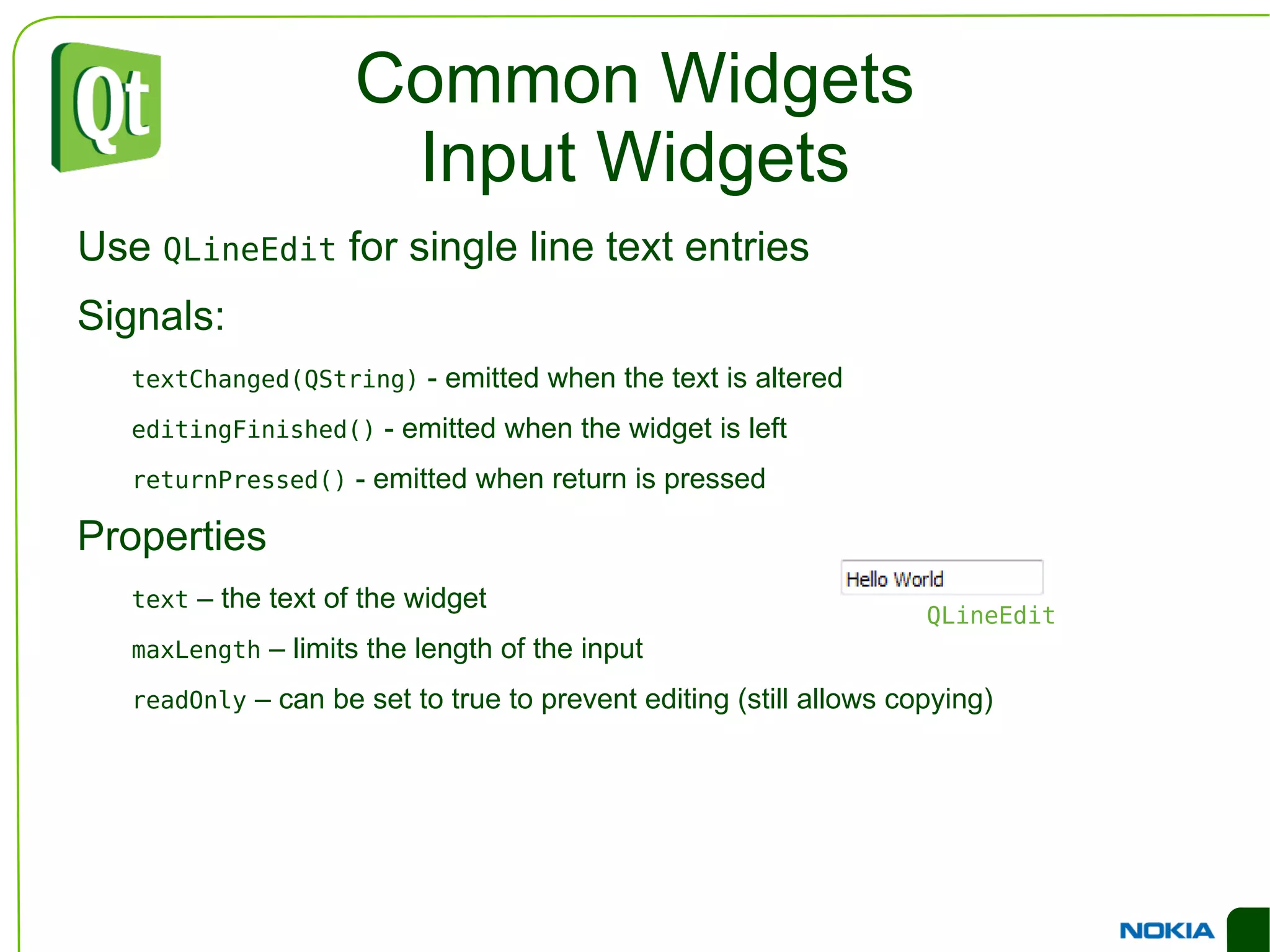
Common Widgets Input Widgets Use  QLineEdit  for single line text entries
Signals:  textChanged(QString)  - emitted when the text is altered
editingFinished()  - emitted when the widget is left
returnPressed()  - emitted when return is pressed Properties text  – the text of the widget
maxLength  – limits the length of the input
readOnly  – can be set to true to prevent editing (still allows copying) QLineEdit
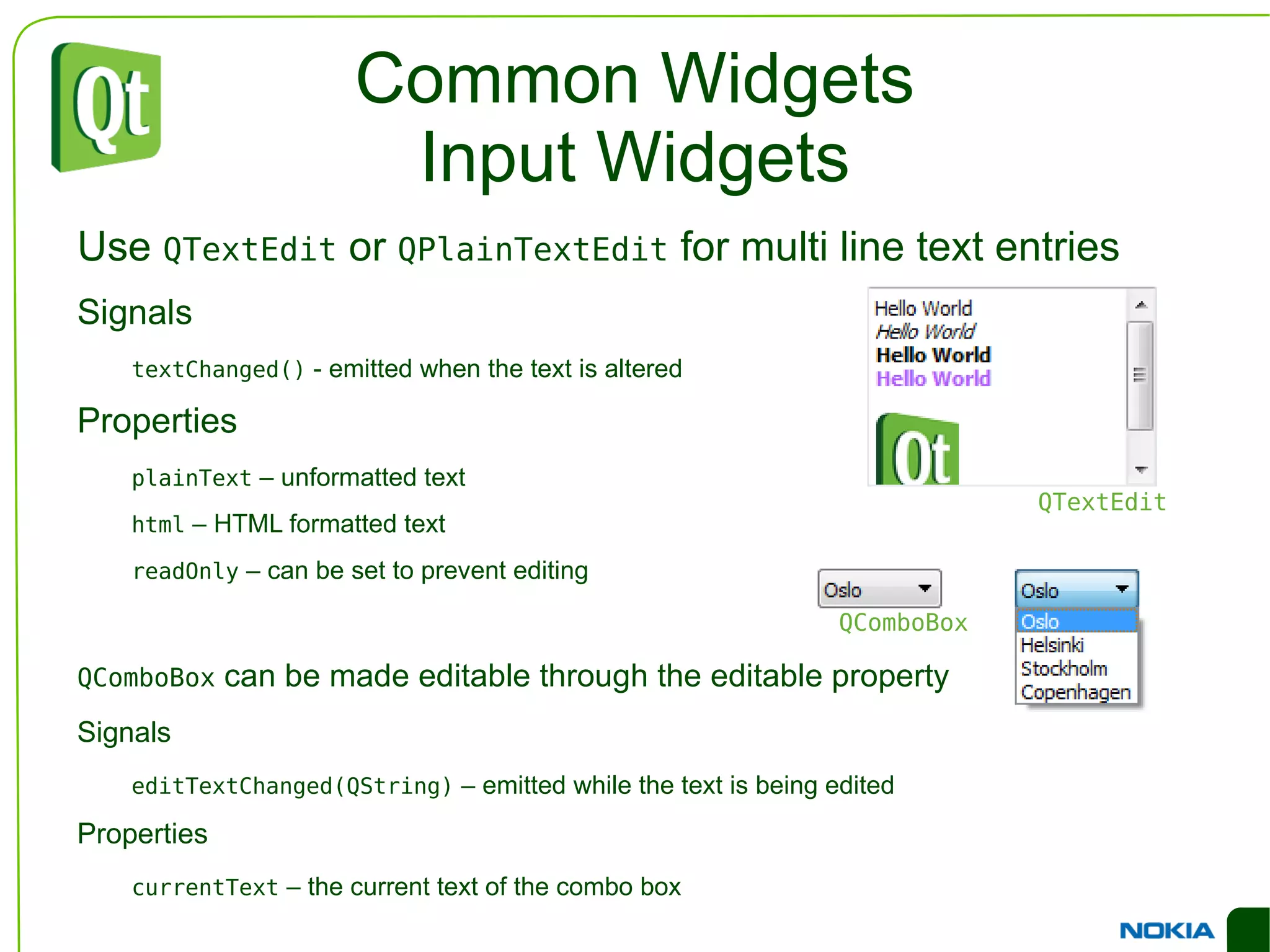
Common Widgets Input Widgets Use  QTextEdit  or  QPlainTextEdit  for multi line text entries
Signals textChanged()  - emitted when the text is altered Properties plainText  – unformatted text
html  – HTML formatted text
readOnly  – can be set to prevent editing QComboBox  can be made editable through the editable property
Signals editTextChanged(QString)  – emitted while the text is being edited Properties currentText  – the current text of the combo box QComboBox QTextEdit
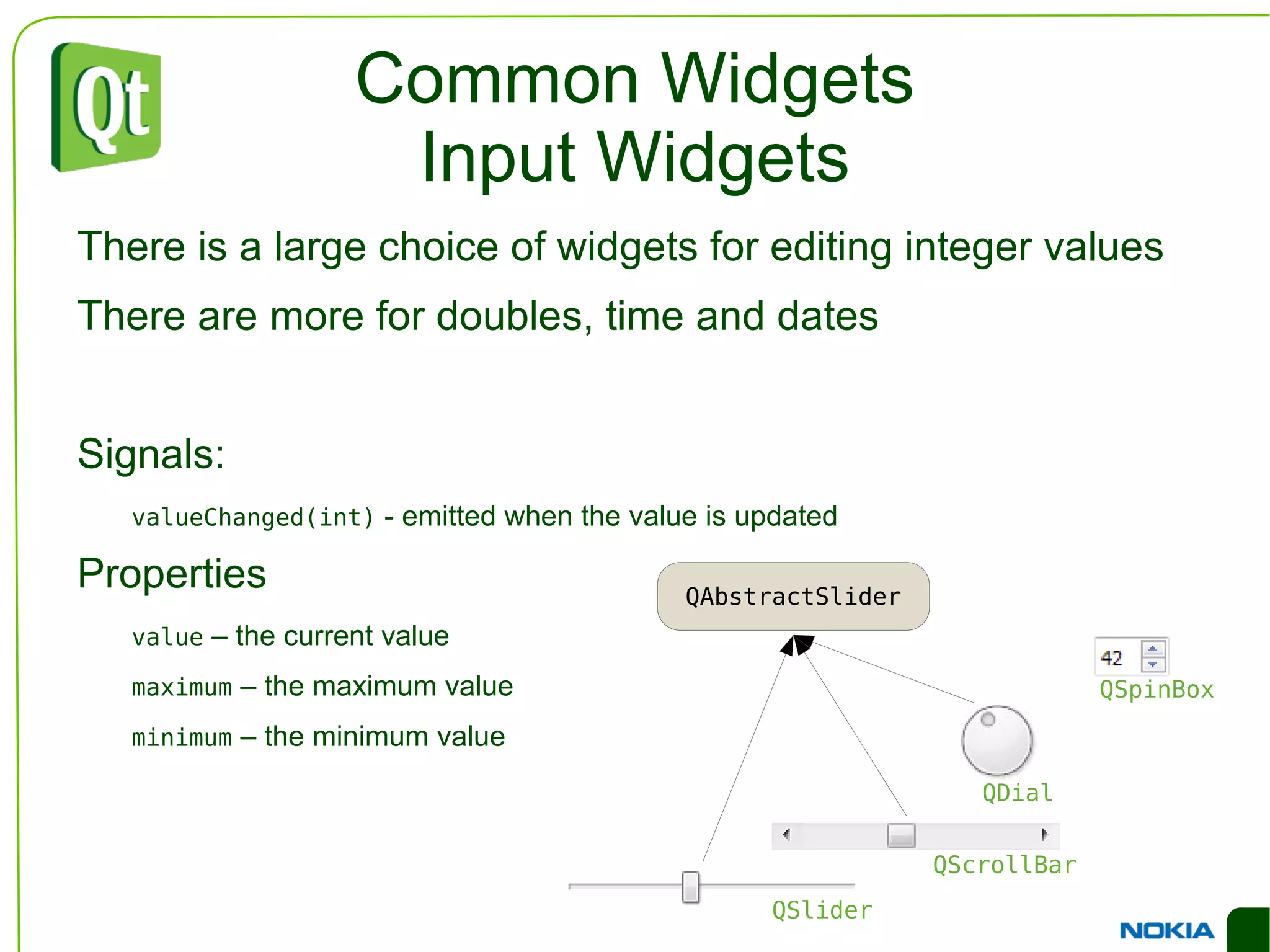
Common Widgets Input Widgets There is a large choice of widgets for editing integer values
There are more for doubles, time and dates

Treinamento Qt básico - aula III

  • 1.
    . Widgets andLayouts Qt in Education Semana de tecnologia do Barão de Mauá Instrutor: Marcelo Barros de Almeida [email_address]
  • 2.
    © 2010 NokiaCorporation and its Subsidiary(-ies). The enclosed Qt Educational Training Materials are provided under the Creative Commons Attribution-Non-Commercial-Share Alike 2.5 License Agreement. The full license text is available here: http://creativecommons.org/licenses/by-nc-sa/2.5/legalcode . Nokia, Qt and the Nokia and Qt logos are the registered trademarks of Nokia Corporation in Finland and other countries worldwide.
  • 3.
    User Interface ComponentsUser interfaces are built from individual widgets
  • 4.
    46 widgets inDesigner
  • 5.
    59+ direct descendantsfrom QWidget QLabel QPushButton QLineEdit QDoubleSpinBox QScrollBar
  • 6.
    Widgets in WidgetsWidgets are placed in hierarchies
  • 7.
    Container classes providevisual structure...
  • 8.
    ...but also functional(e.g. QRadioButton ) QGroupBox QTabWidget
  • 9.
    Traits of aWidget Occupies a rectangular area of the screen
  • 10.
    Receives events frominput devices
  • 11.
    Emits signals for“notable” changes
  • 12.
    Are structured ina hierarchy
  • 13.
  • 14.
    An Example DialogWidgets are placed in layouts – to make the user interface elastic
  • 15.
    Why is ElasticGood? Lets widgets adapt to contents
  • 16.
    Lets widgets adaptto translations
  • 17.
    Lets widgets adaptto user settings
  • 18.
    Layouts There areseveral possible layouts available
  • 19.
    Layouts and widgets“negotiate” for sizes and positions
  • 20.
    Spacer springs canbe used to fill voids QGridLayout QVBoxLayout QHBoxLayout
  • 21.
    An Example DialogDialogs are built from multiple layers of layouts and widgets
  • 22.
    An Example DialogQVBoxLayout *outerLayout = new QVBoxLayout(this); QHBoxLayout *topLayout = new QHBoxLayout(); topLayout->addWidget(new QLabel("Printer:")); topLayout->addWidget(c=new QComboBox()); outerLayout->addLayout(topLayout); QHBoxLayout *groupLayout = new QHBoxLayout(); ... outerLayout->addLayout(groupLayout); outerLayout->addSpacerItem( new QSpacerItem(...) ); QHBoxLayout *buttonLayout = new QHBoxLayout(); buttonLayout->addSpacerItem(new QSpacerItem(...)); buttonLayout->addWidget(new QPushButton("Print")); buttonLayout->addWidget(new QPushButton("Cancel")); outerLayout->addLayout(buttonLayout);
  • 23.
    An Example DialogQVBoxLayout *outerLayout = new QVBoxLayout(this); QHBoxLayout *topLayout = new QHBoxLayout(); topLayout->addWidget(new QLabel("Printer:")); topLayout->addWidget(c=new QComboBox()); outerLayout->addLayout(topLayout); QHBoxLayout *groupLayout = new QHBoxLayout(); ... outerLayout->addLayout(groupLayout); outerLayout->addSpacerItem( new QSpacerItem(...) ); QHBoxLayout *buttonLayout = new QHBoxLayout(); buttonLayout->addSpacerItem(new QSpacerItem(...)); buttonLayout->addWidget(new QPushButton("Print")); buttonLayout->addWidget(new QPushButton("Cancel")); outerLayout->addLayout(buttonLayout);
  • 24.
    An Example DialogQVBoxLayout *outerLayout = new QVBoxLayout(this); QHBoxLayout *topLayout = new QHBoxLayout(); topLayout->addWidget(new QLabel("Printer:")); topLayout->addWidget(c=new QComboBox()); outerLayout->addLayout(topLayout); QHBoxLayout *groupLayout = new QHBoxLayout(); ... outerLayout->addLayout(groupLayout); outerLayout->addSpacerItem( new QSpacerItem(...) ); QHBoxLayout *buttonLayout = new QHBoxLayout(); buttonLayout->addSpacerItem(new QSpacerItem(...)); buttonLayout->addWidget(new QPushButton("Print")); buttonLayout->addWidget(new QPushButton("Cancel")); outerLayout->addLayout(buttonLayout);
  • 25.
    An Example DialogQVBoxLayout *outerLayout = new QVBoxLayout(this); QHBoxLayout *topLayout = new QHBoxLayout(); topLayout->addWidget(new QLabel("Printer:")); topLayout->addWidget(c=new QComboBox()); outerLayout->addLayout(topLayout); QHBoxLayout *groupLayout = new QHBoxLayout(); ... outerLayout->addLayout(groupLayout); outerLayout->addSpacerIte m(new QSpacerItem(...)); QHBoxLayout *buttonLayout = new QHBoxLayout(); buttonLayout->addSpacerItem(new QSpacerItem(...)); buttonLayout->addWidget(new QPushButton("Print")); buttonLayout->addWidget(new QPushButton("Cancel")); outerLayout->addLayout(buttonLayout);
  • 26.
    An Example DialogQVBoxLayout *outerLayout = new QVBoxLayout(this); QHBoxLayout *topLayout = new QHBoxLayout(); topLayout->addWidget(new QLabel("Printer:")); topLayout->addWidget(c=new QComboBox()); outerLayout->addLayout(topLayout); QHBoxLayout *groupLayout = new QHBoxLayout(); ... outerLayout->addLayout(groupLayout); outerLayout->addSpacerItem(new QSpacerItem(...)); QHBoxLayout *buttonLayout = new QHBoxLayout(); buttonLayout->addSpacerItem(new QSpacerItem(...)); buttonLayout->addWidget(new QPushButton("Print")); buttonLayout->addWidget(new QPushButton("Cancel")); outerLayout->addLayout(buttonLayout);
  • 27.
    An Example DialogQHBoxLayout *groupLayout = new QHBoxLayout(); QGroupBox *orientationGroup = new QGroupBox(); QVBoxLayout *orientationLayout = new QVBoxLayout(orientationGroup); orientationLayout->addWidget(new QRadioButton("Landscape")); orientationLayout->addWidget(new QRadioButton("Portrait")); groupLayout->addWidget(orientationGroup); QGroupBox *colorGroup = new QGroupBox(); QVBoxLayout *colorLayout = new QVBoxLayout(colorGroup); colorLayout->addWidget(new QRadioButton("Black and White")); colorLayout->addWidget(new QRadioButton("Color")); groupLayout->addWidget(colorGroup); Horizontal box, contains group boxes, contains vertical boxes, contains radio buttons
  • 28.
    An Example DialogYou can build the same structure using Designer
  • 29.
    Cross Platform StylesWidgets are drawn using a platform specific style to ensure a native look
  • 30.
    Cross Platform IssuesComparing user interfaces tells us that there is more to it than just changing the style of the widgets Form layout
  • 31.
  • 32.
  • 33.
    Cross Platform IssuesComparing user interfaces tells us that there is more to it than just changing the style of the widgets Form layout
  • 34.
  • 35.
    Standard dialogs PlastiqueClearLooks Windows MacOS X
  • 36.
    Cross Platform IssuesComparing user interfaces tells us that there is more to it than just changing the style of the widgets Form layout
  • 37.
  • 38.
  • 39.
    Cross Platform IssuesComparing user interfaces tells us that there is more to it than just changing the style of the widgets Form layout
  • 40.
  • 41.
  • 42.
    Common Widgets Qtcontains numerous widgets for all common situations.
  • 43.
    Designer has agood overview of the widget groups
  • 44.
    Common Widgets ButtonsAll buttons inherit the QAbstractButton base class.
  • 45.
    Signals clicked() - emitted when the button is clicked (button released).
  • 46.
    toggled(bool) –emitted when the check state of the button is changed. Properties checkable – true if the button can be checked. Makes a push button toggle.
  • 47.
    checked –true when the button is checked.
  • 48.
    text – thetext of the button.
  • 49.
    icon – anicon on the button (can be displayed together with text). QPushButton QCheckBox QRadioButton
  • 50.
    Common Widgets ItemWidgets QListWidget is used to show lists of items
  • 51.
    Adding items addItem(QString) – appends an item to the end of the list
  • 52.
    insertItem(int row, QString) – inserts an item at the specified row Selection selectedItems – returns a list of QListWidgetItem s, use QListWidgetItem::text to determine the text Signals itemSelectionChanged – emitted when the selection is changed QComboBox shows a list with a single selection in a more compact format. QListWidget QComboBox
  • 53.
    Common Widgets ContainersContainer widgets are used to structure the user interface
  • 54.
    They can beconsidered passive (not entirely true)
  • 55.
    A plain QWidget can be used as a container
  • 56.
    Designer: Place widgetsin the container and apply a layout to the container
  • 57.
    Code: Create alayout for the container and add widgets to the layout QGroupBox *box = new QGroupBox(); QVBoxLayout *layout = new QVBoxLayout(box); layout->addWidget(...); ... QGroupBox QTabWidget QFrame
  • 58.
    Common Widgets InputWidgets Use QLineEdit for single line text entries
  • 59.
    Signals: textChanged(QString) - emitted when the text is altered
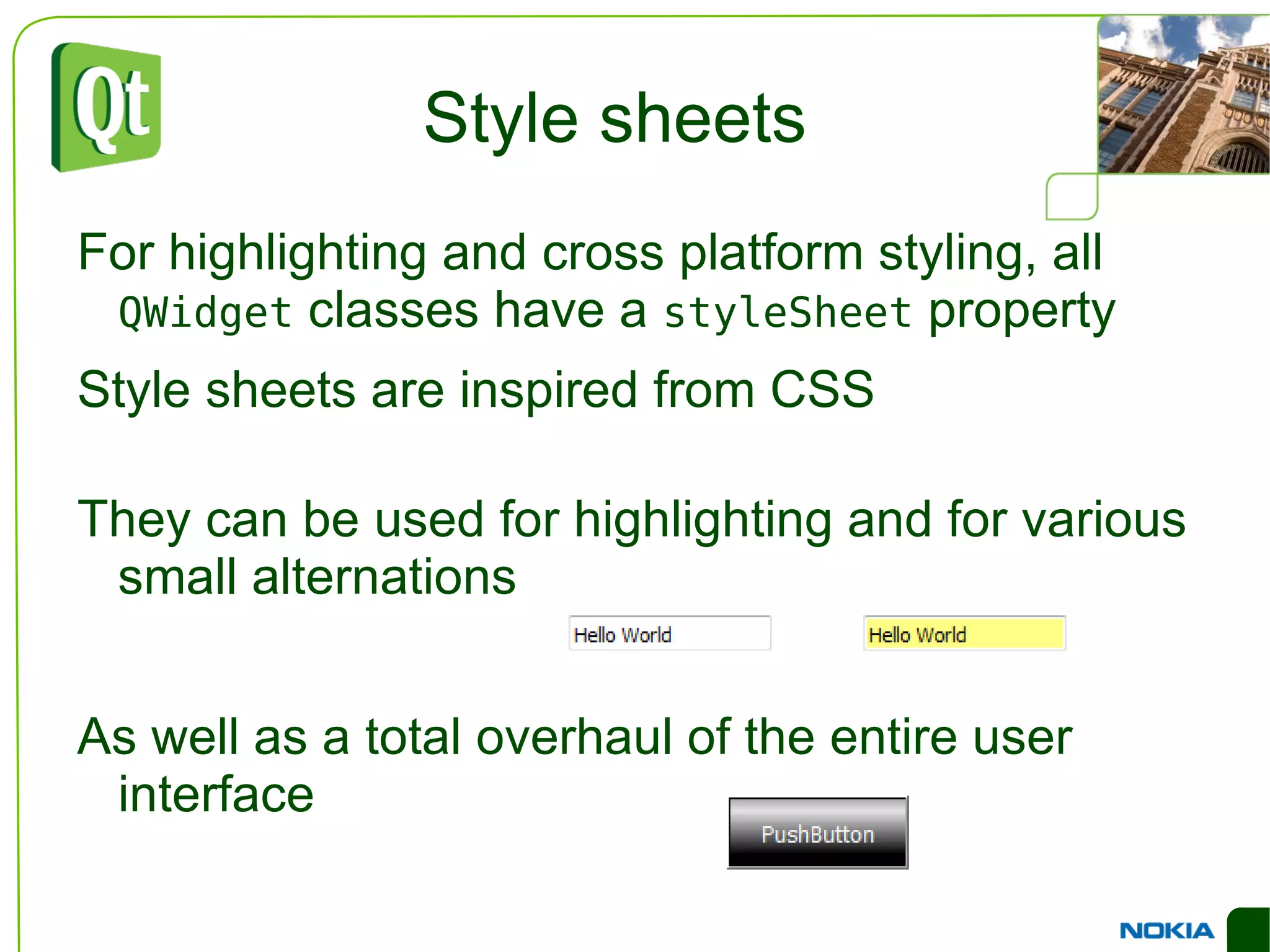
  • 60.
    editingFinished() -emitted when the widget is left
  • 61.
    returnPressed() -emitted when return is pressed Properties text – the text of the widget
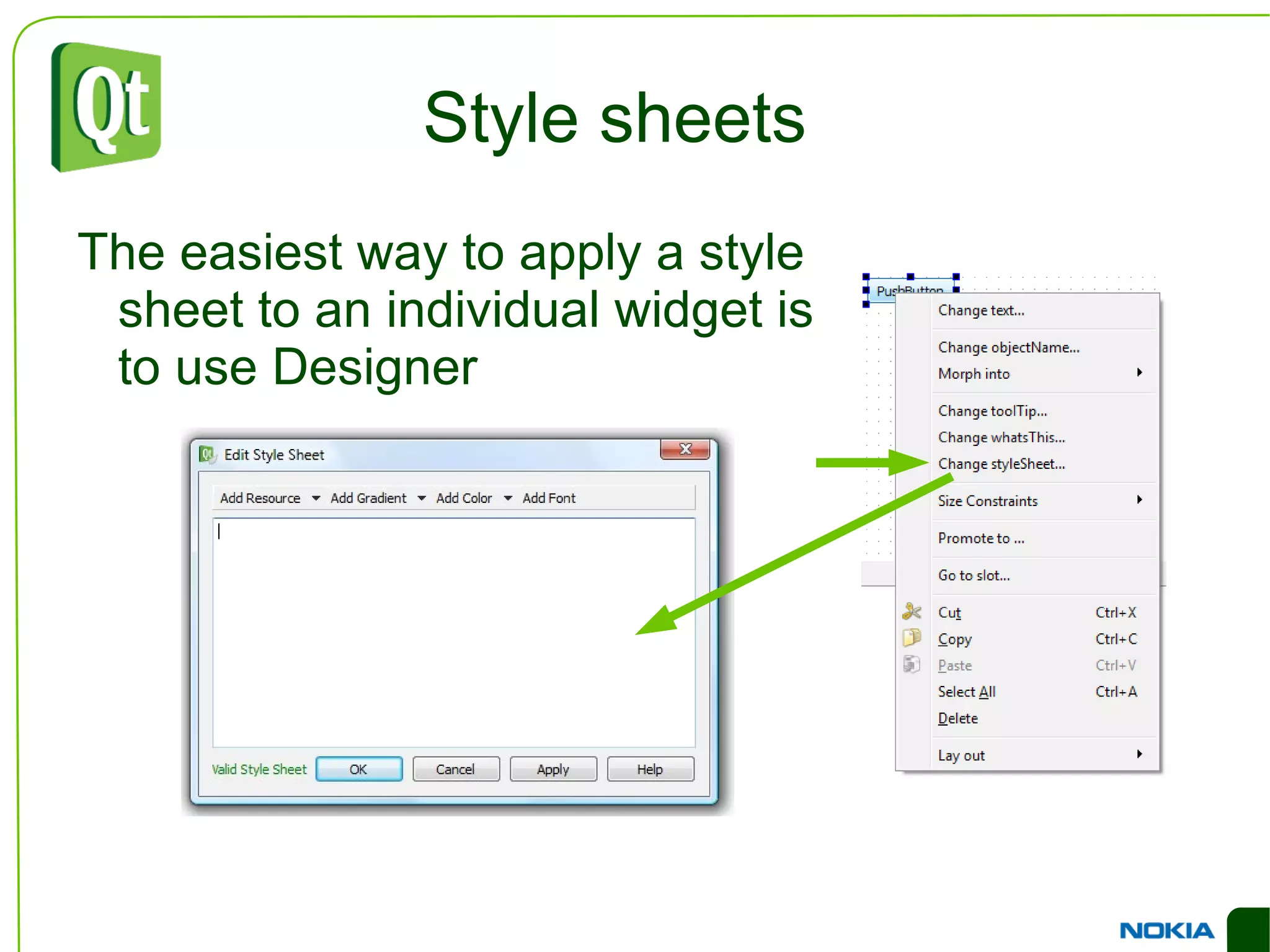
  • 62.
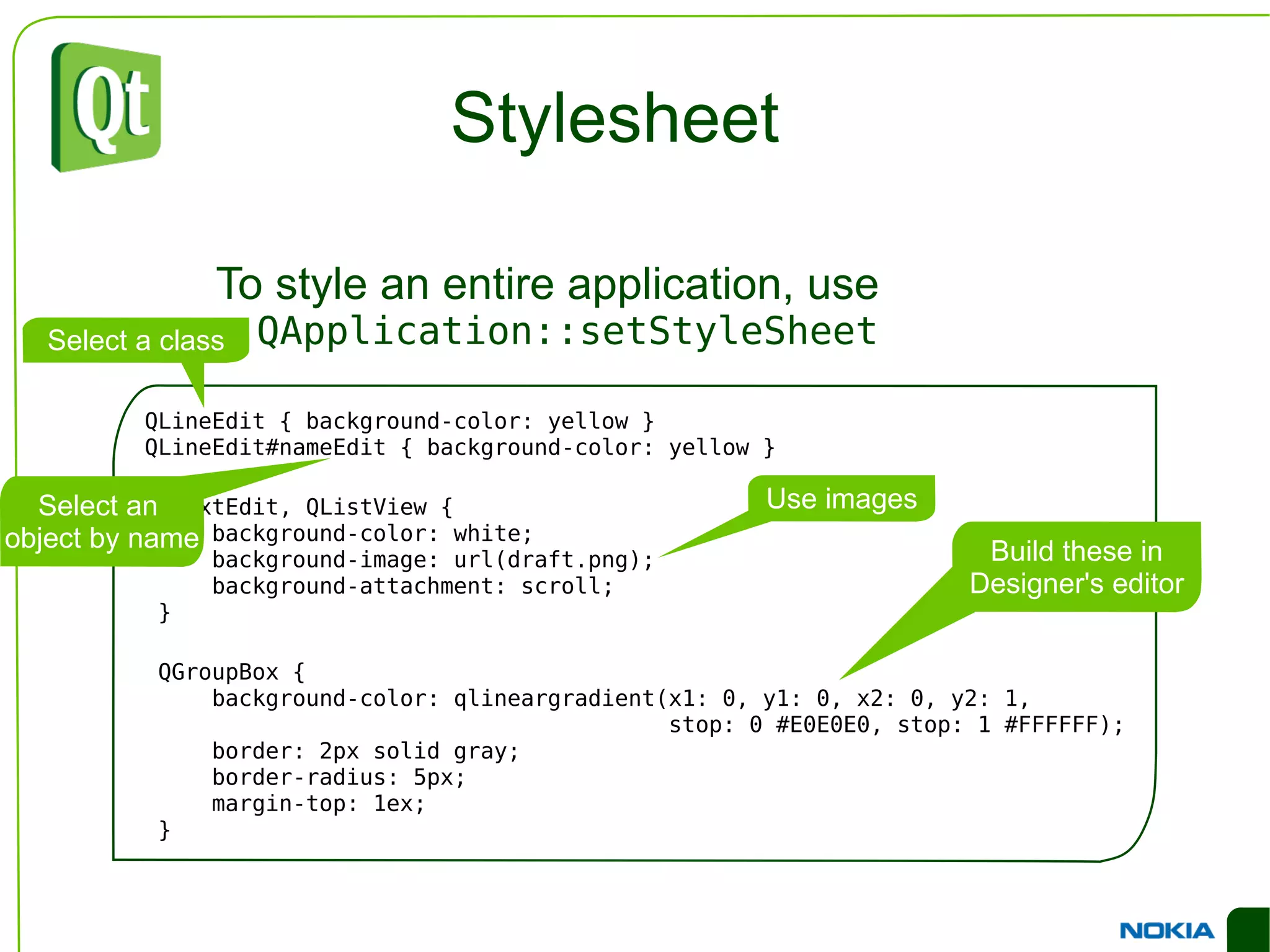
    maxLength –limits the length of the input
  • 63.
    readOnly –can be set to true to prevent editing (still allows copying) QLineEdit
  • 64.
    Common Widgets InputWidgets Use QTextEdit or QPlainTextEdit for multi line text entries
  • 65.
    Signals textChanged() - emitted when the text is altered Properties plainText – unformatted text
  • 66.
    html –HTML formatted text
  • 67.
    readOnly –can be set to prevent editing QComboBox can be made editable through the editable property
  • 68.
    Signals editTextChanged(QString) – emitted while the text is being edited Properties currentText – the current text of the combo box QComboBox QTextEdit
  • 69.
    Common Widgets InputWidgets There is a large choice of widgets for editing integer values
  • 70.
    There are morefor doubles, time and dates
  • 71.
    Signals: valueChanged(int) - emitted when the value is updated Properties value – the current value
  • 72.
    maximum –the maximum value
  • 73.
    minimum –the minimum value QSlider QScrollBar QDial QSpinBox
  • 74.
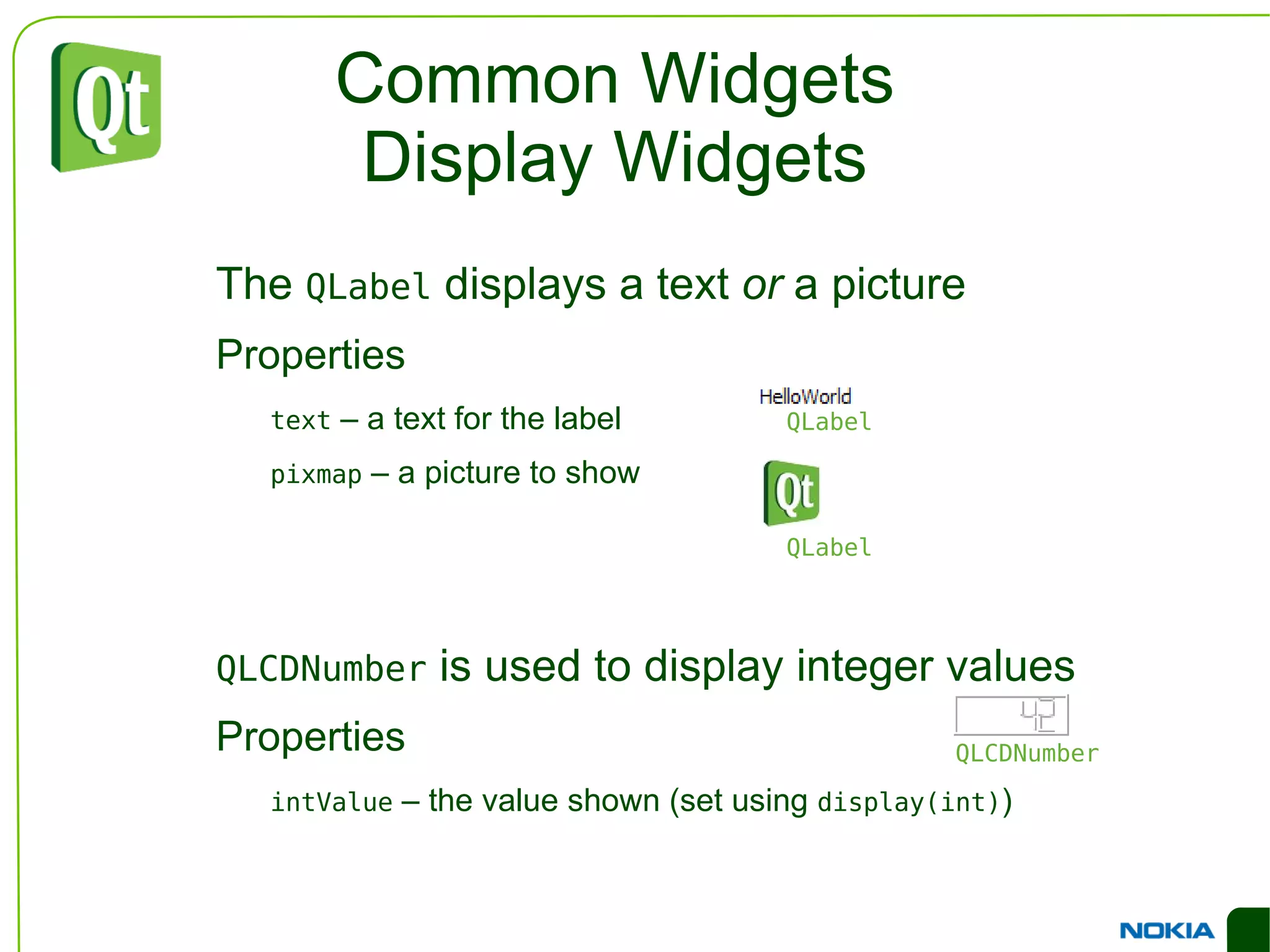
    Common Widgets DisplayWidgets The QLabel displays a text or a picture
  • 75.
    Properties text – a text for the label
  • 76.
    pixmap –a picture to show QLCDNumber is used to display integer values
  • 77.
    Properties intValue – the value shown (set using display(int) ) QLabel QLCDNumber QLabel
  • 78.
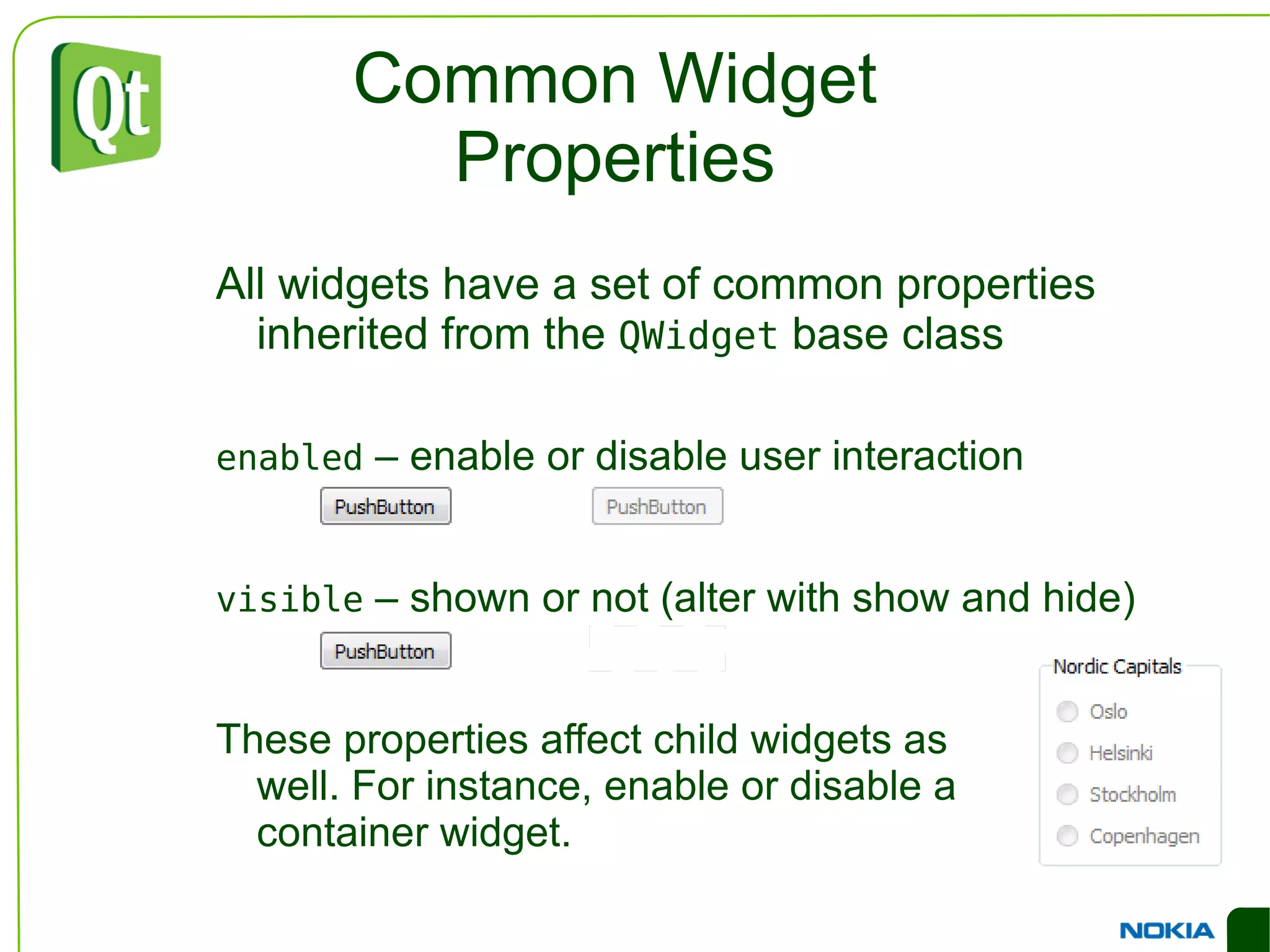
    Common Widget PropertiesAll widgets have a set of common properties inherited from the QWidget base class
  • 79.
    enabled –enable or disable user interaction
  • 80.
    visible –shown or not (alter with show and hide)
  • 81.
    These properties affectchild widgets as well. For instance, enable or disable a container widget.
  • 82.
    Size Policies Layoutis a negotiation process between widgets and layouts
  • 83.
    Layouts bring structurehorizontal and vertical boxes
  • 84.
    grid Widgets supplysize policies for each direction
  • 85.
  • 86.
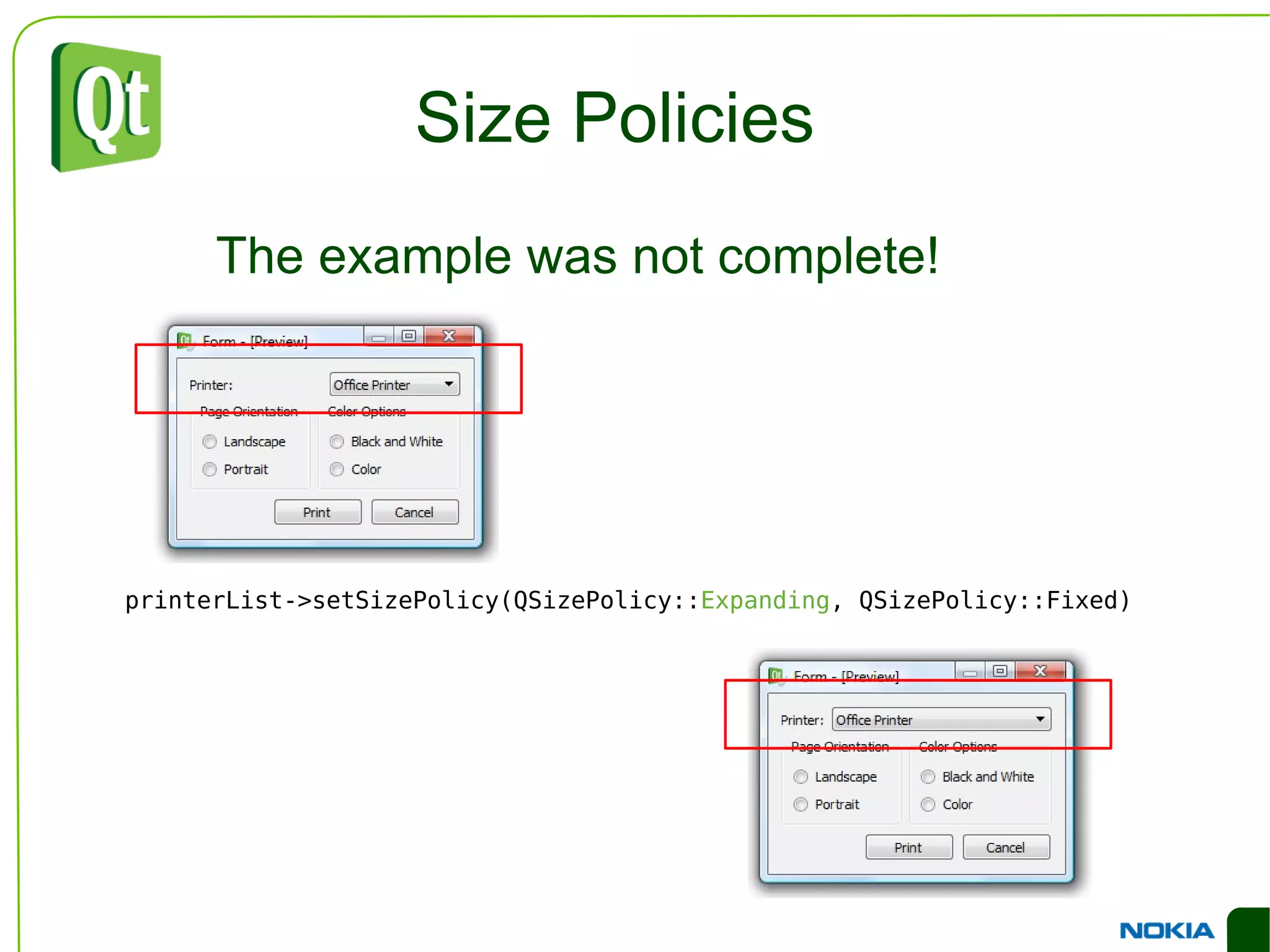
    Size Policies Theexample was not complete! printerList->setSizePolicy(QSizePolicy:: Expanding , QSizePolicy::Fixed)
  • 87.
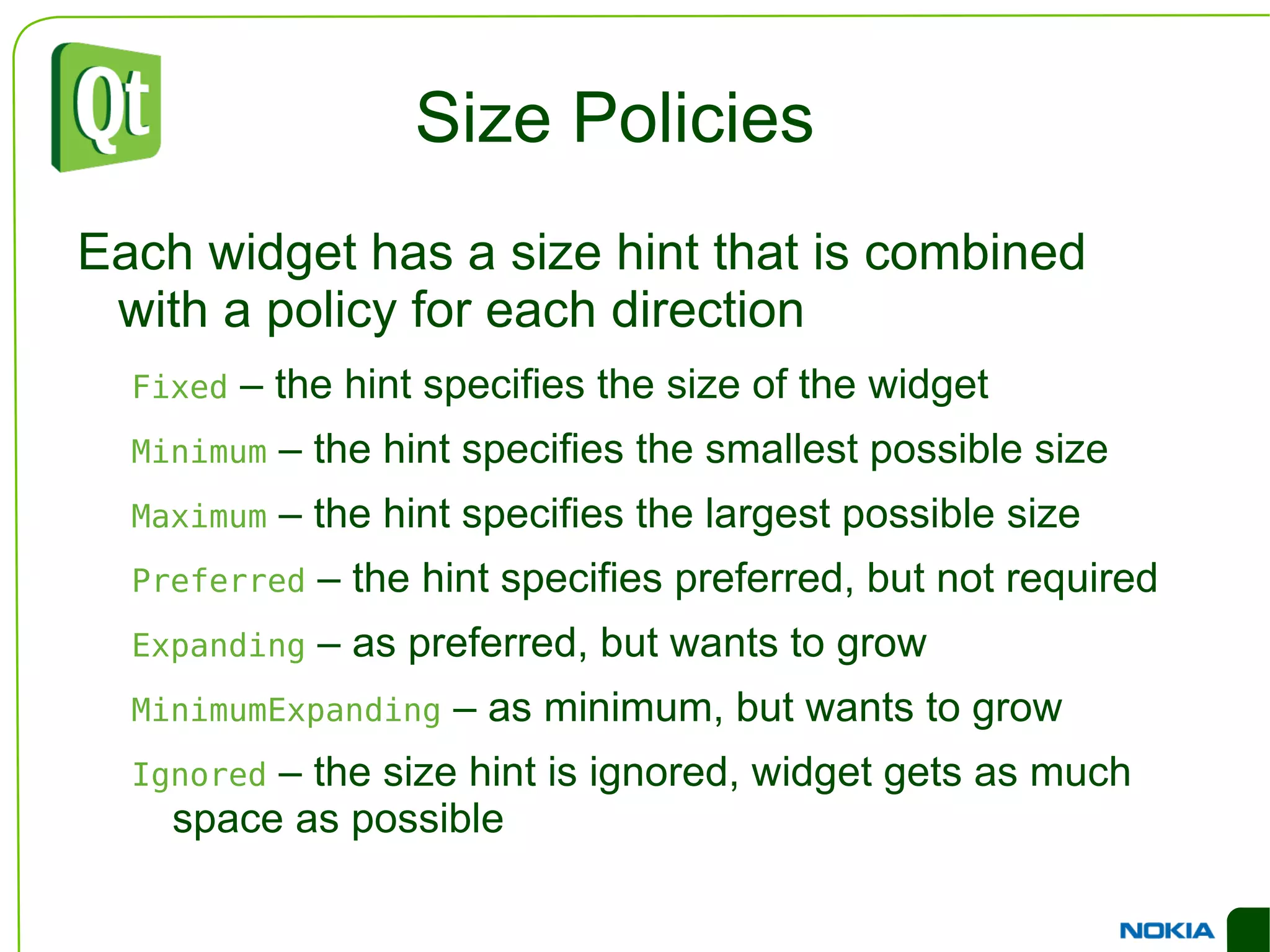
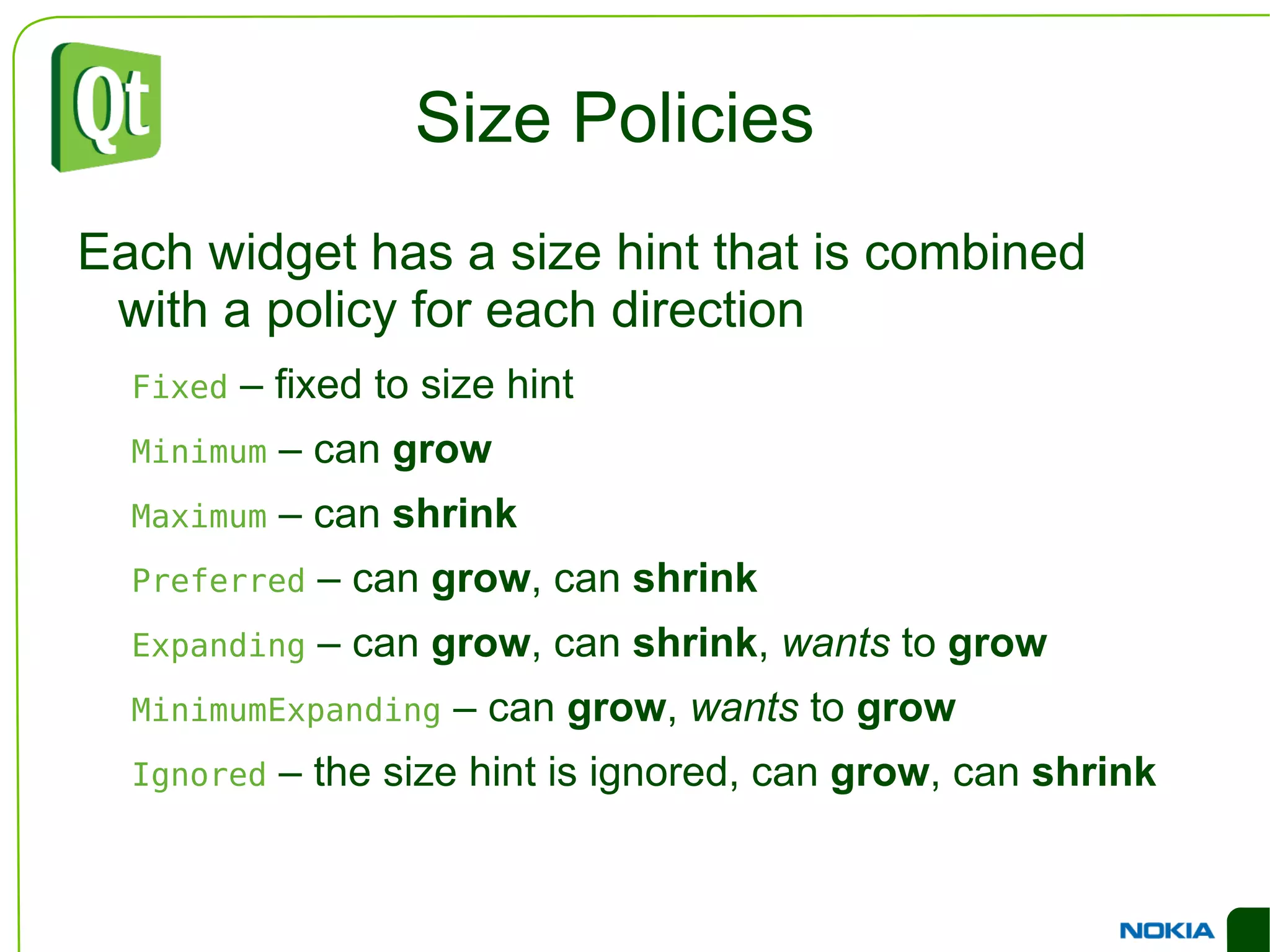
    Size Policies Eachwidget has a size hint that is combined with a policy for each direction Fixed – the hint specifies the size of the widget
  • 88.
    Minimum –the hint specifies the smallest possible size
  • 89.
    Maximum –the hint specifies the largest possible size
  • 90.
    Preferred –the hint specifies preferred, but not required
  • 91.
    Expanding –as preferred, but wants to grow
  • 92.
    MinimumExpanding –as minimum, but wants to grow
  • 93.
    Ignored –the size hint is ignored, widget gets as much space as possible
  • 94.
    Size Policies Eachwidget has a size hint that is combined with a policy for each direction Fixed – fixed to size hint
  • 95.
    Minimum –can grow
  • 96.
    Maximum –can shrink
  • 97.
    Preferred –can grow , can shrink
  • 98.
    Expanding –can grow , can shrink , wants to grow
  • 99.
    MinimumExpanding –can grow , wants to grow
  • 100.
    Ignored –the size hint is ignored, can grow , can shrink
  • 101.
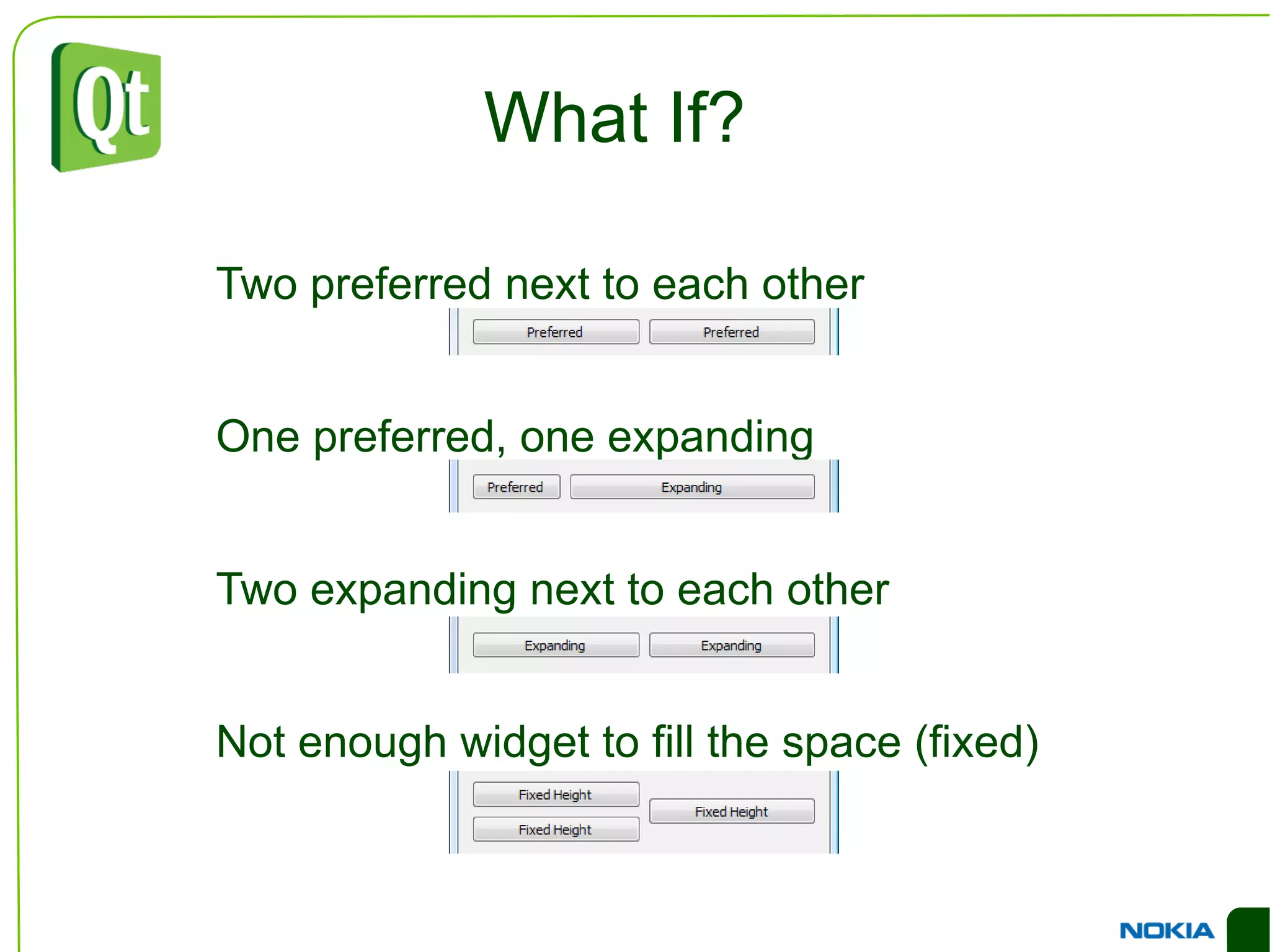
    What If? Twopreferred next to each other
  • 102.
  • 103.
    Two expanding nextto each other
  • 104.
    Not enough widgetto fill the space (fixed)
  • 105.
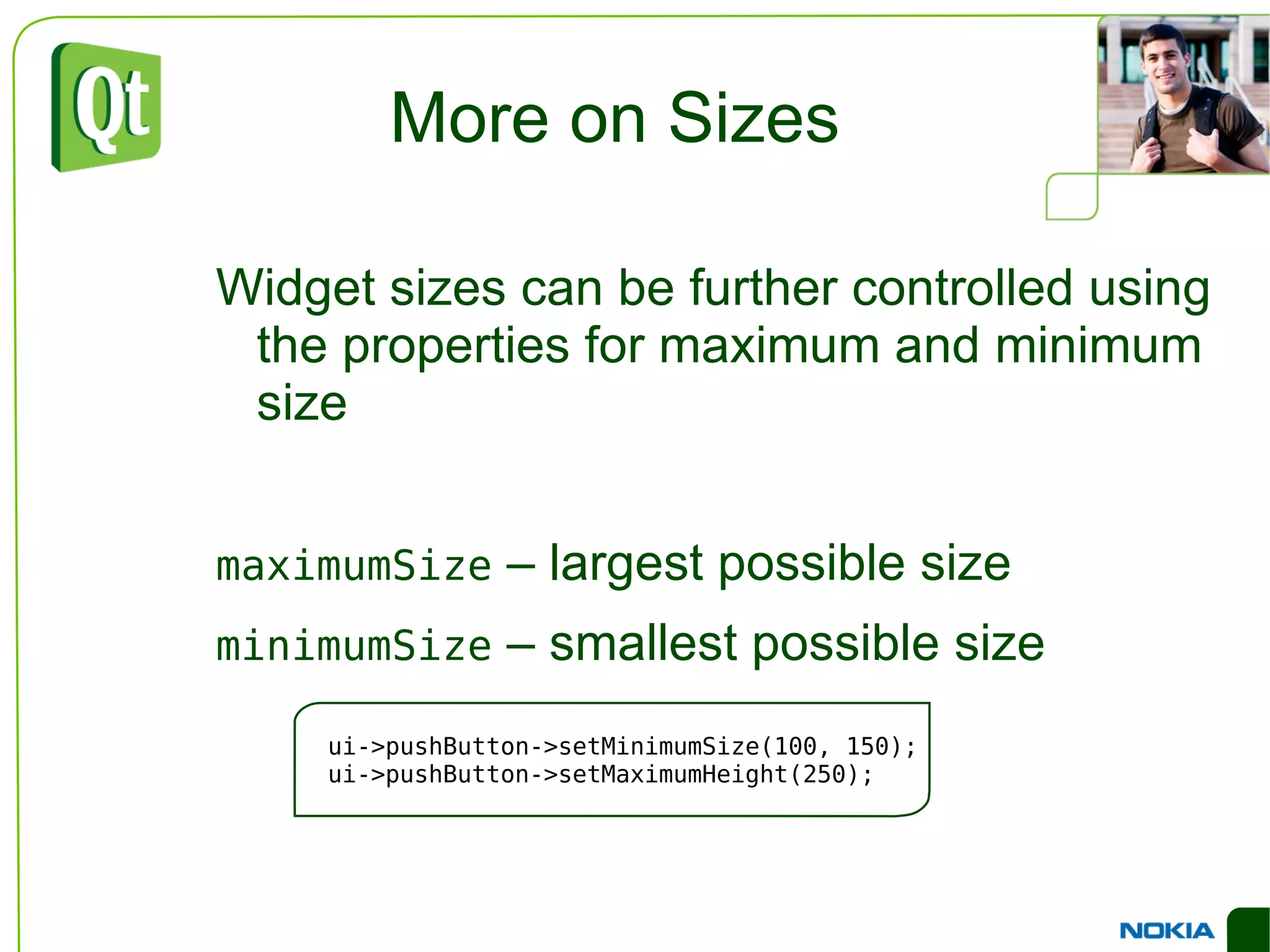
    More on SizesWidget sizes can be further controlled using the properties for maximum and minimum size
  • 106.
    maximumSize –largest possible size
  • 107.
    minimumSize –smallest possible size ui->pushButton->setMinimumSize(100, 150); ui->pushButton->setMaximumHeight(250);
  • 108.
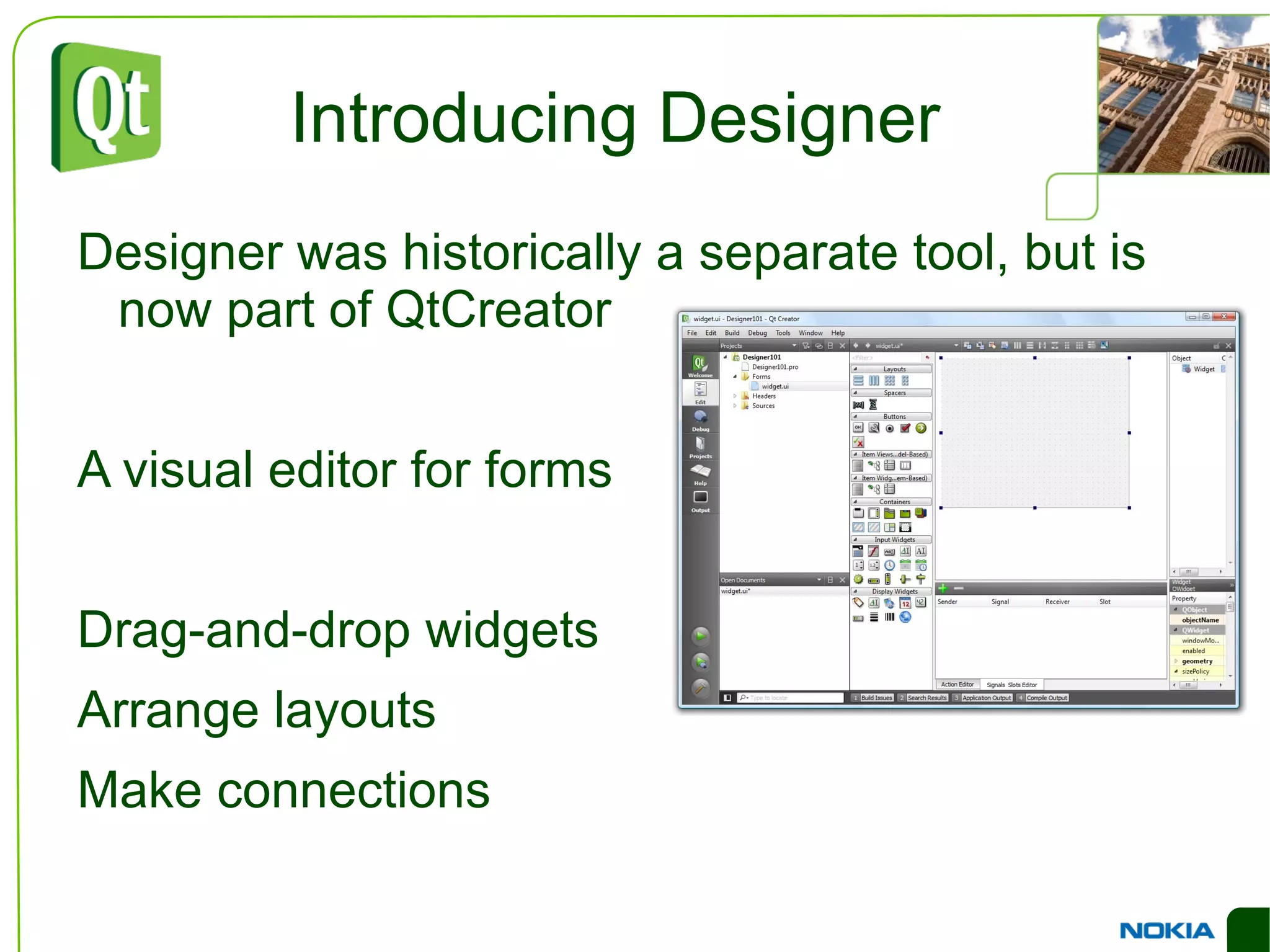
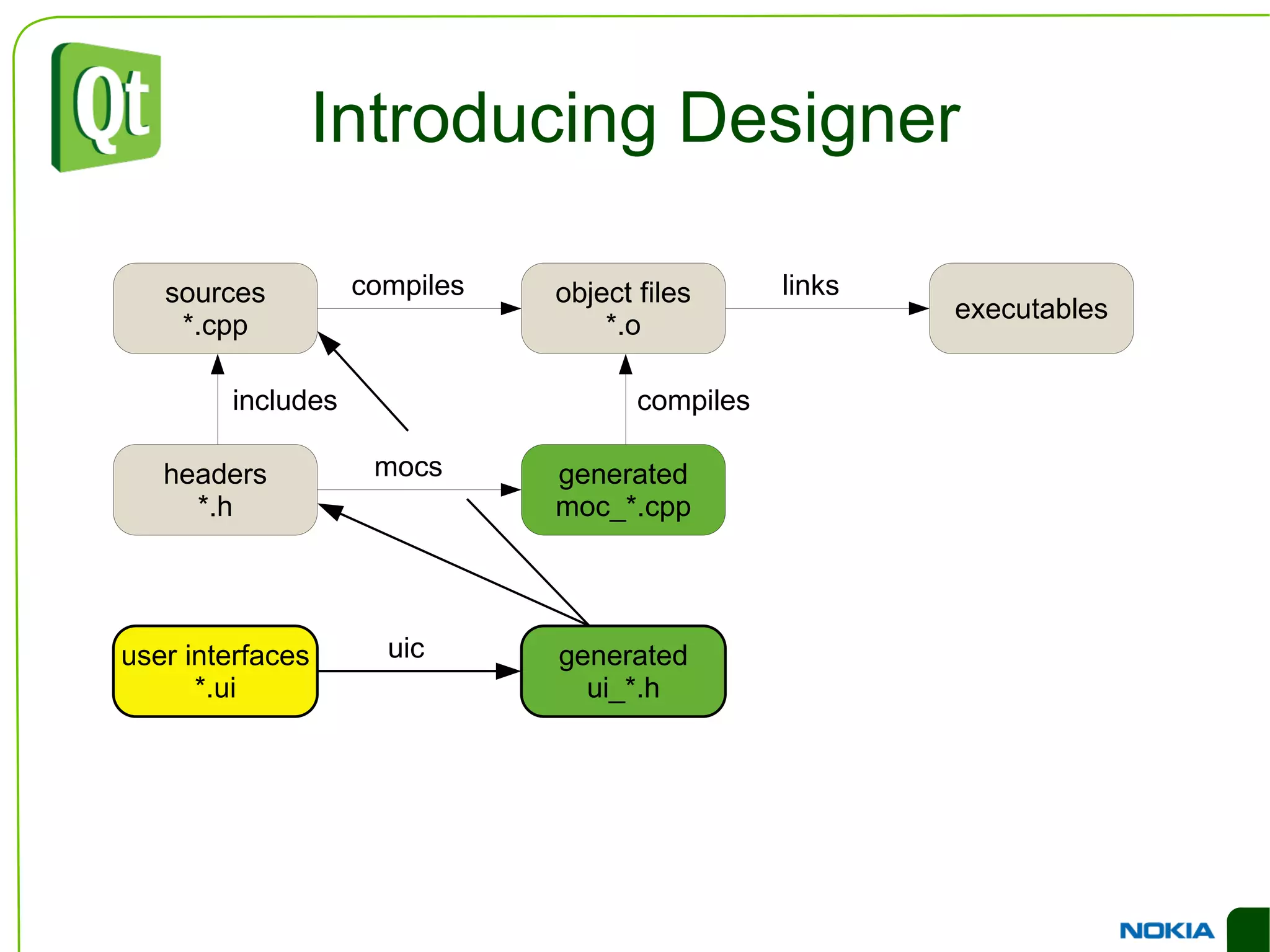
    Introducing Designer Designerwas historically a separate tool, but is now part of QtCreator
  • 109.
    A visual editorfor forms
  • 110.
  • 111.
  • 112.
  • 113.
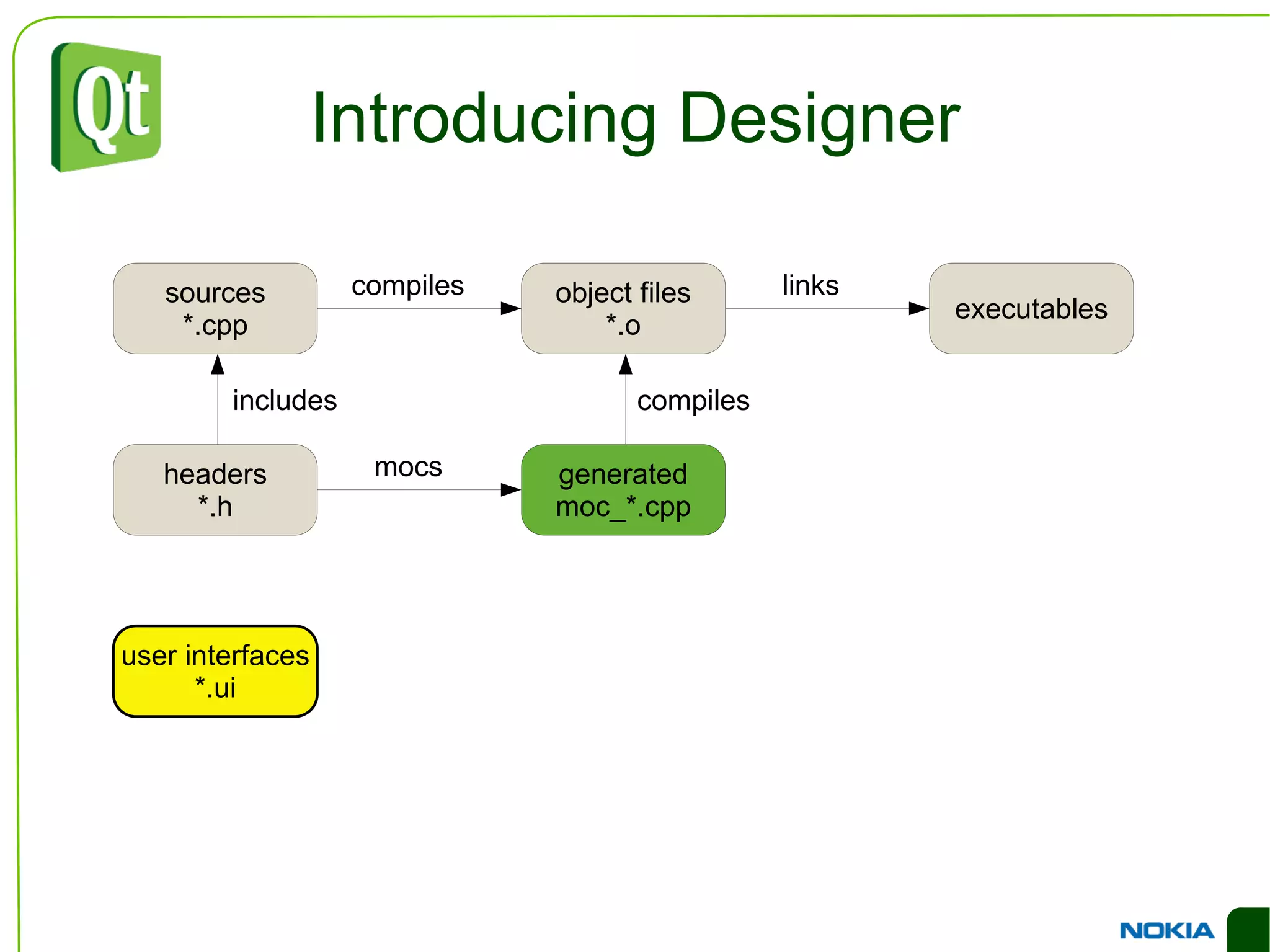
    Introducing Designer includescompiles links compiles mocs
  • 114.
    Introducing Designer uicincludes compiles links compiles mocs
  • 115.
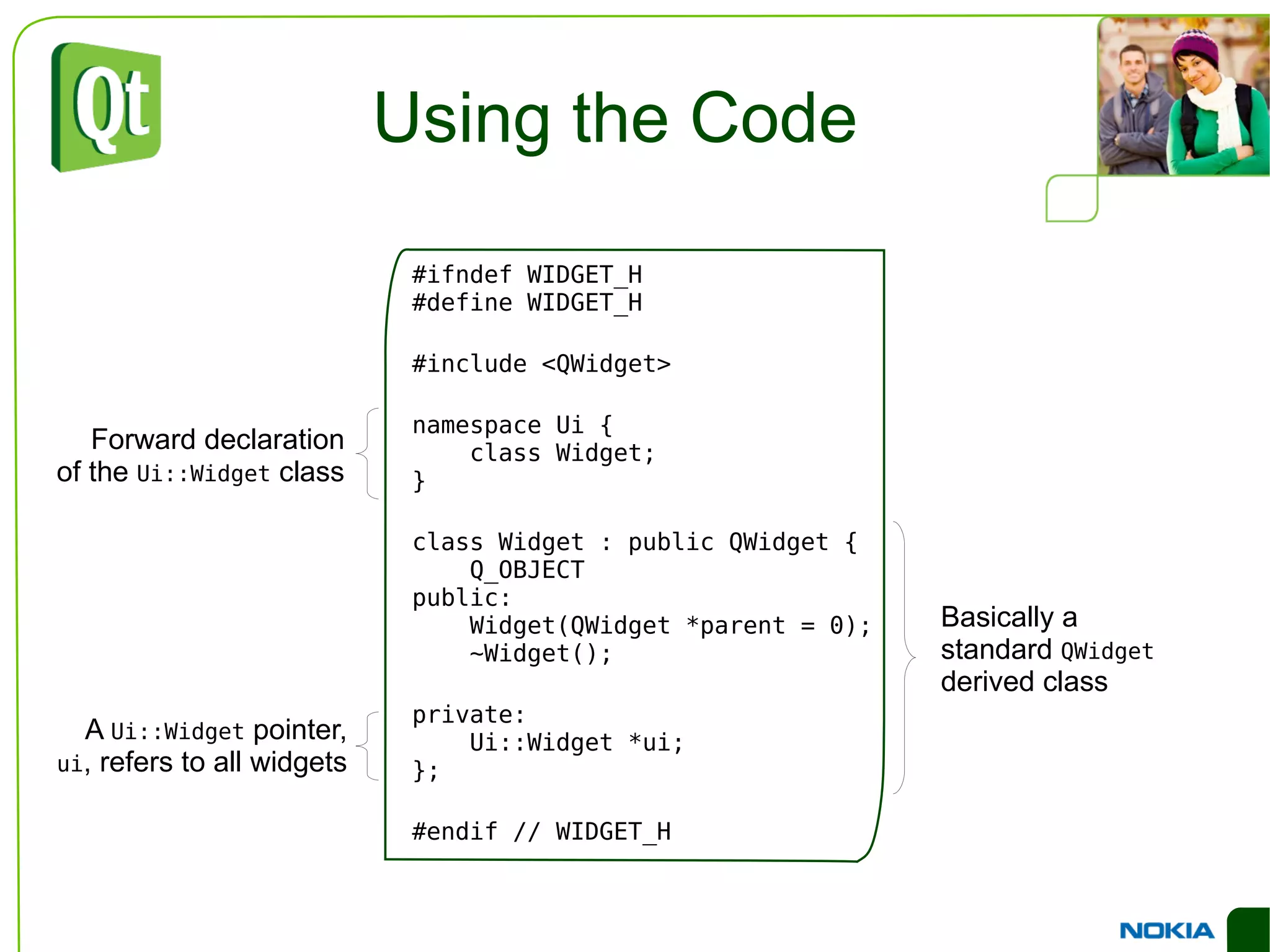
    Using the Code#ifndef WIDGET_H #define WIDGET_H #include <QWidget> namespace Ui { class Widget; } class Widget : public QWidget { Q_OBJECT public: Widget(QWidget *parent = 0); ~Widget(); private: Ui::Widget *ui; }; #endif // WIDGET_H Forward declaration of the Ui::Widget class A Ui::Widget pointer, ui , refers to all widgets Basically a standard QWidget derived class
  • 116.
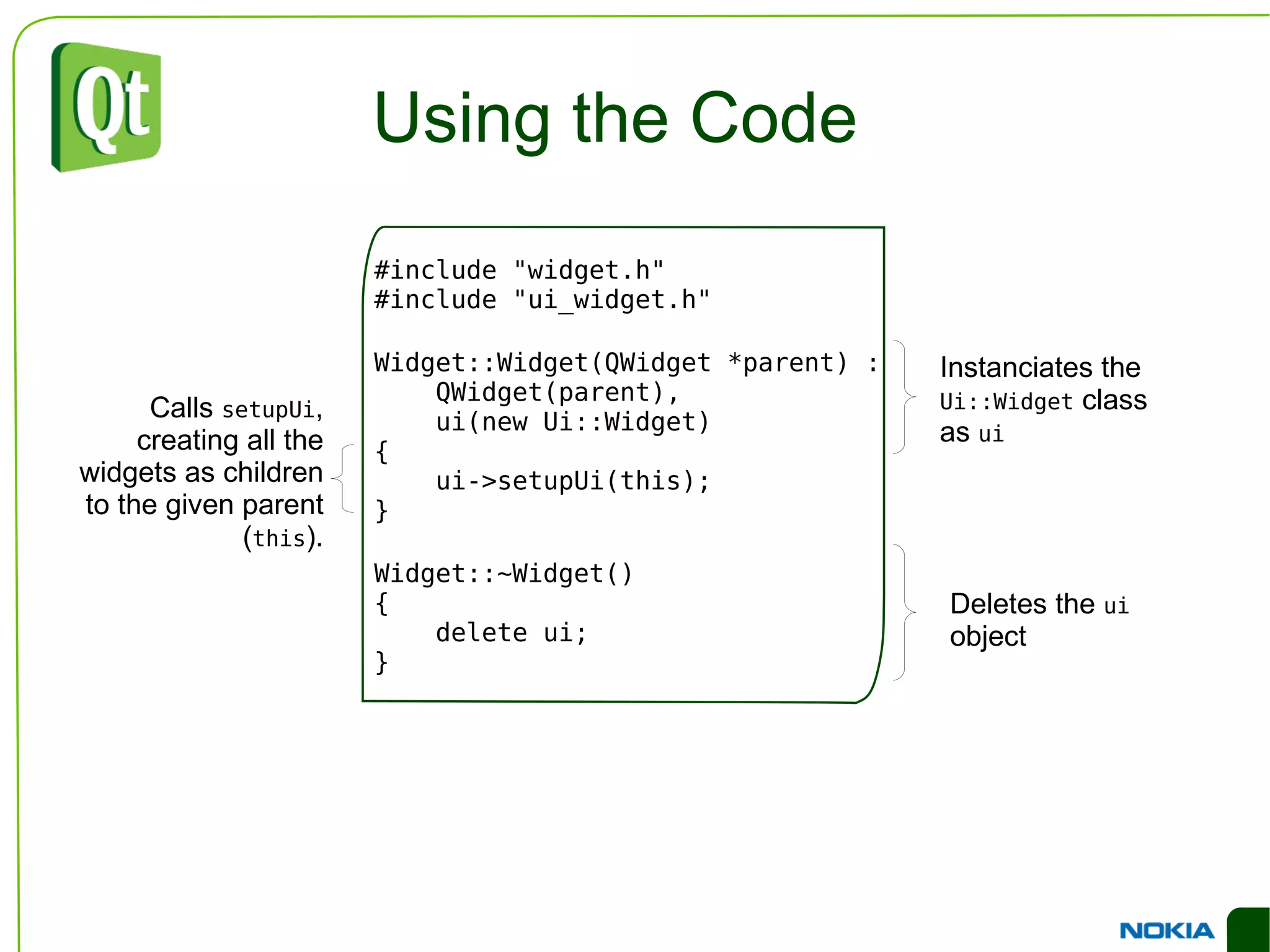
    Using the Code#include &quot;widget.h&quot; #include &quot;ui_widget.h&quot; Widget::Widget(QWidget *parent) : QWidget(parent), ui(new Ui::Widget) { ui->setupUi(this); } Widget::~Widget() { delete ui; } Instanciates the Ui::Widget class as ui Deletes the ui object Calls setupUi , creating all the widgets as children to the given parent ( this ).
  • 117.
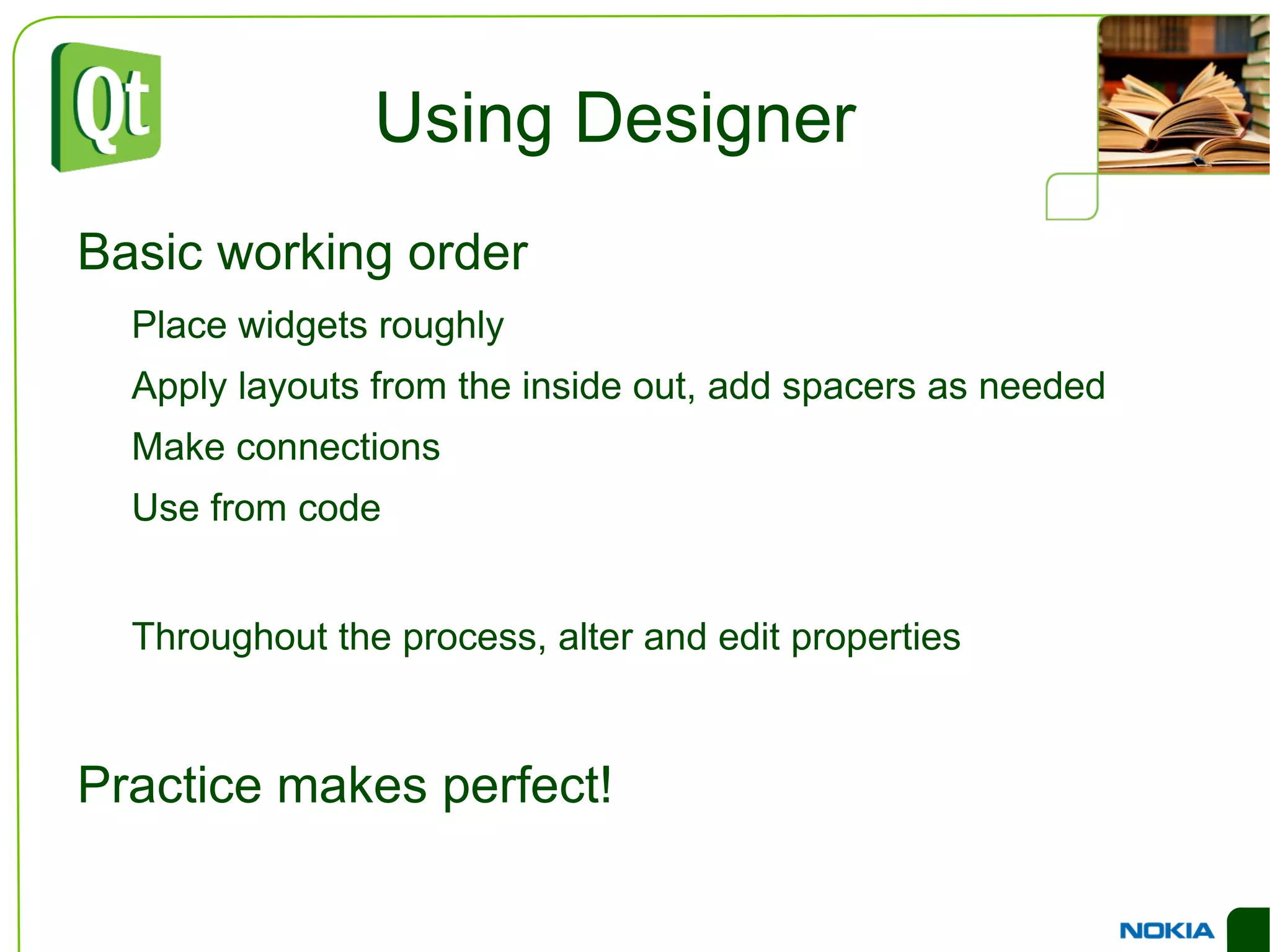
    Using Designer Basicworking order Place widgets roughly
  • 118.
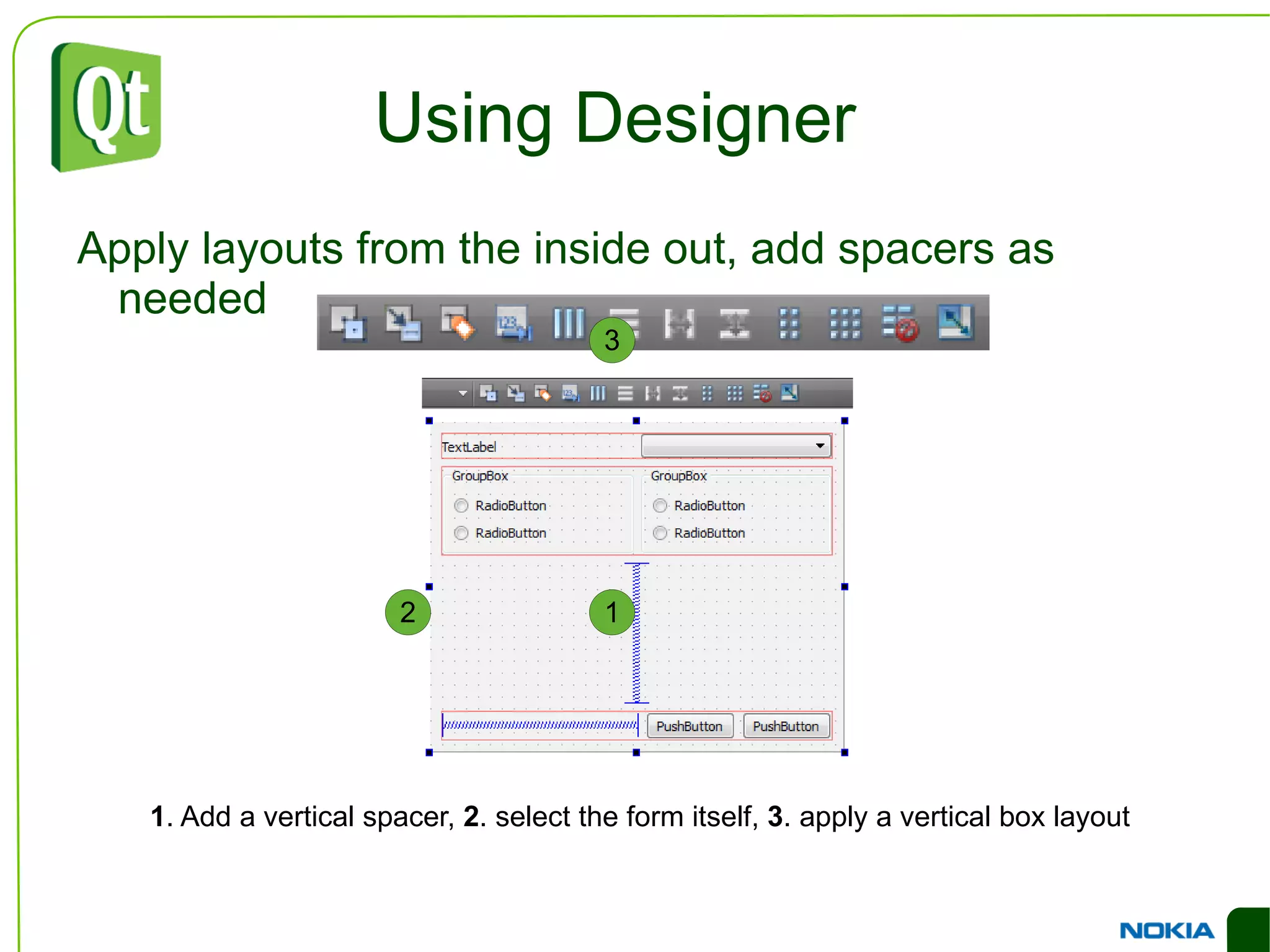
    Apply layouts fromthe inside out, add spacers as needed
  • 119.
  • 120.
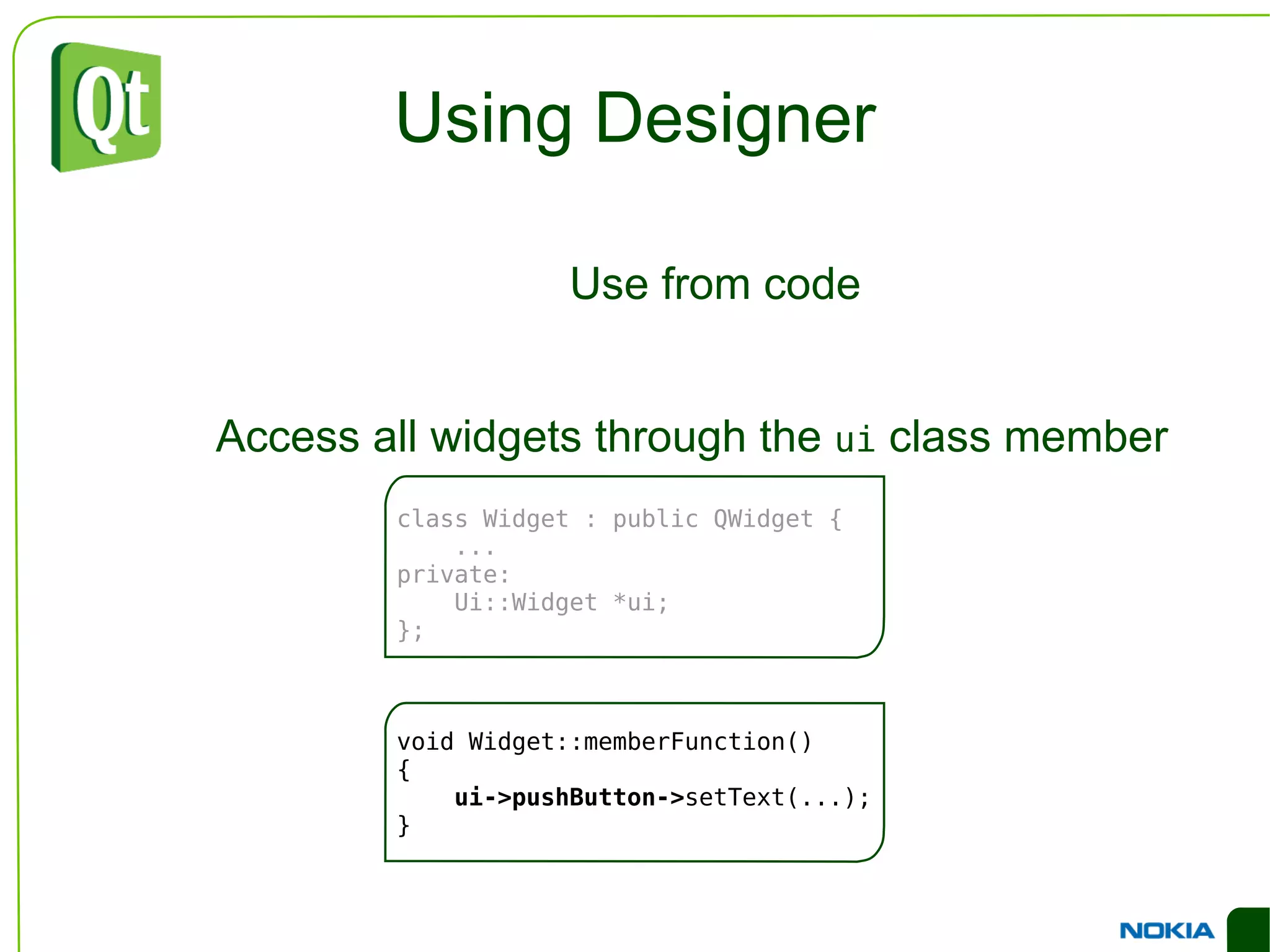
    Use from codeThroughout the process, alter and edit properties Practice makes perfect!
  • 121.
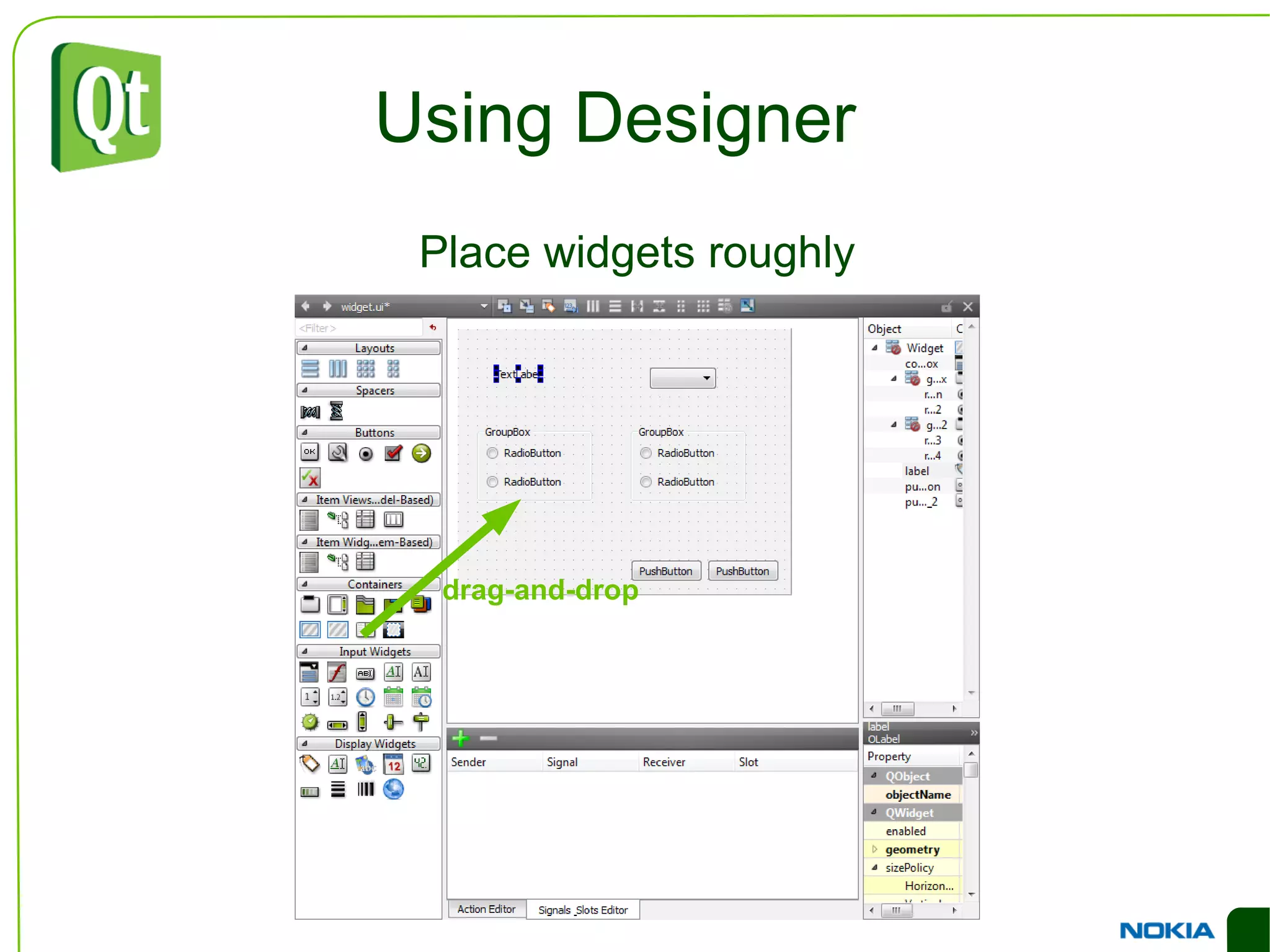
    Using Designer drag-and-dropPlace widgets roughly
  • 122.
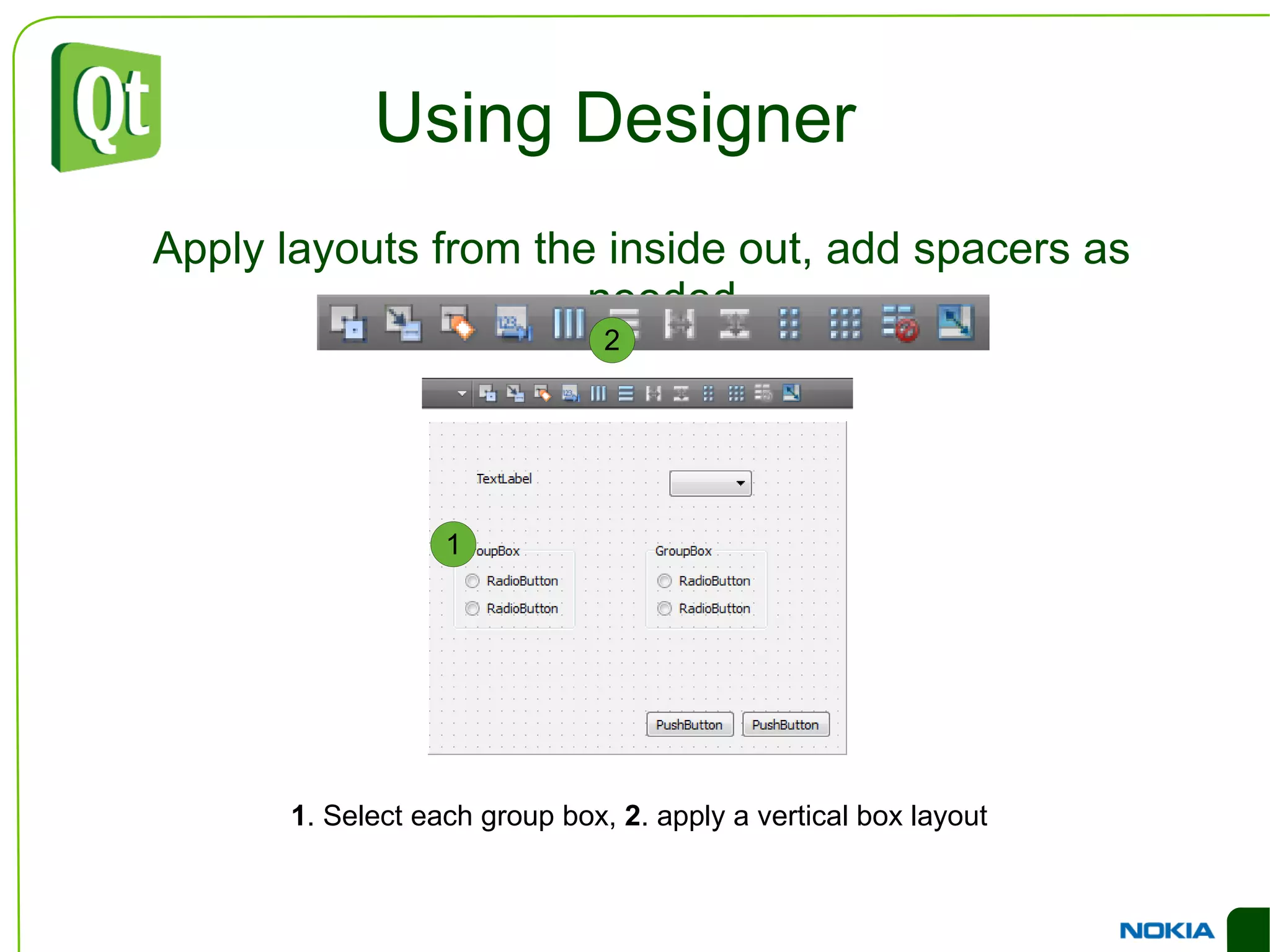
    Using Designer Applylayouts from the inside out, add spacers as needed 1 . Select each group box, 2 . apply a vertical box layout
  • 123.
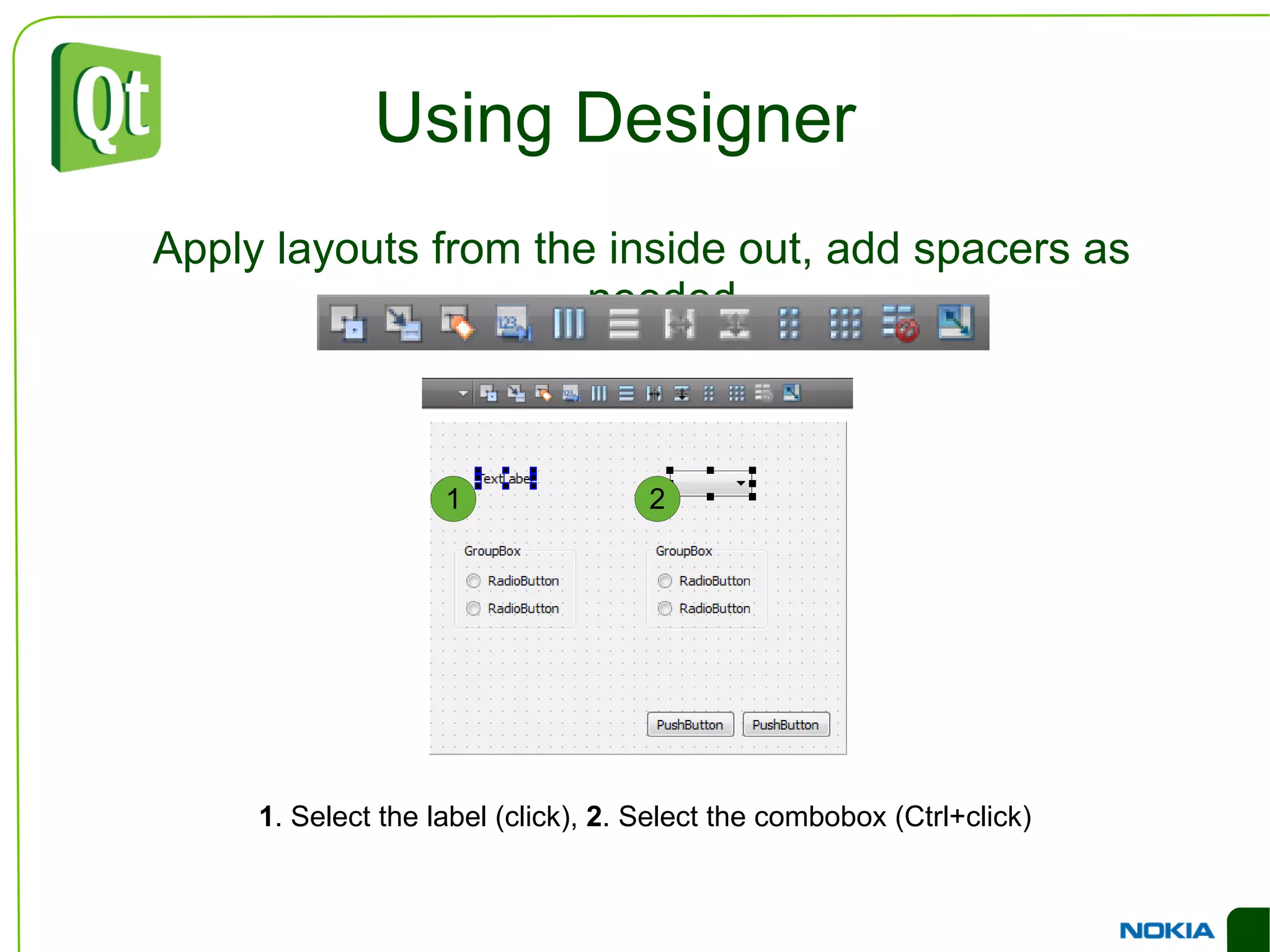
    Using Designer Applylayouts from the inside out, add spacers as needed 1 . Select the label (click), 2 . Select the combobox (Ctrl+click)
  • 124.
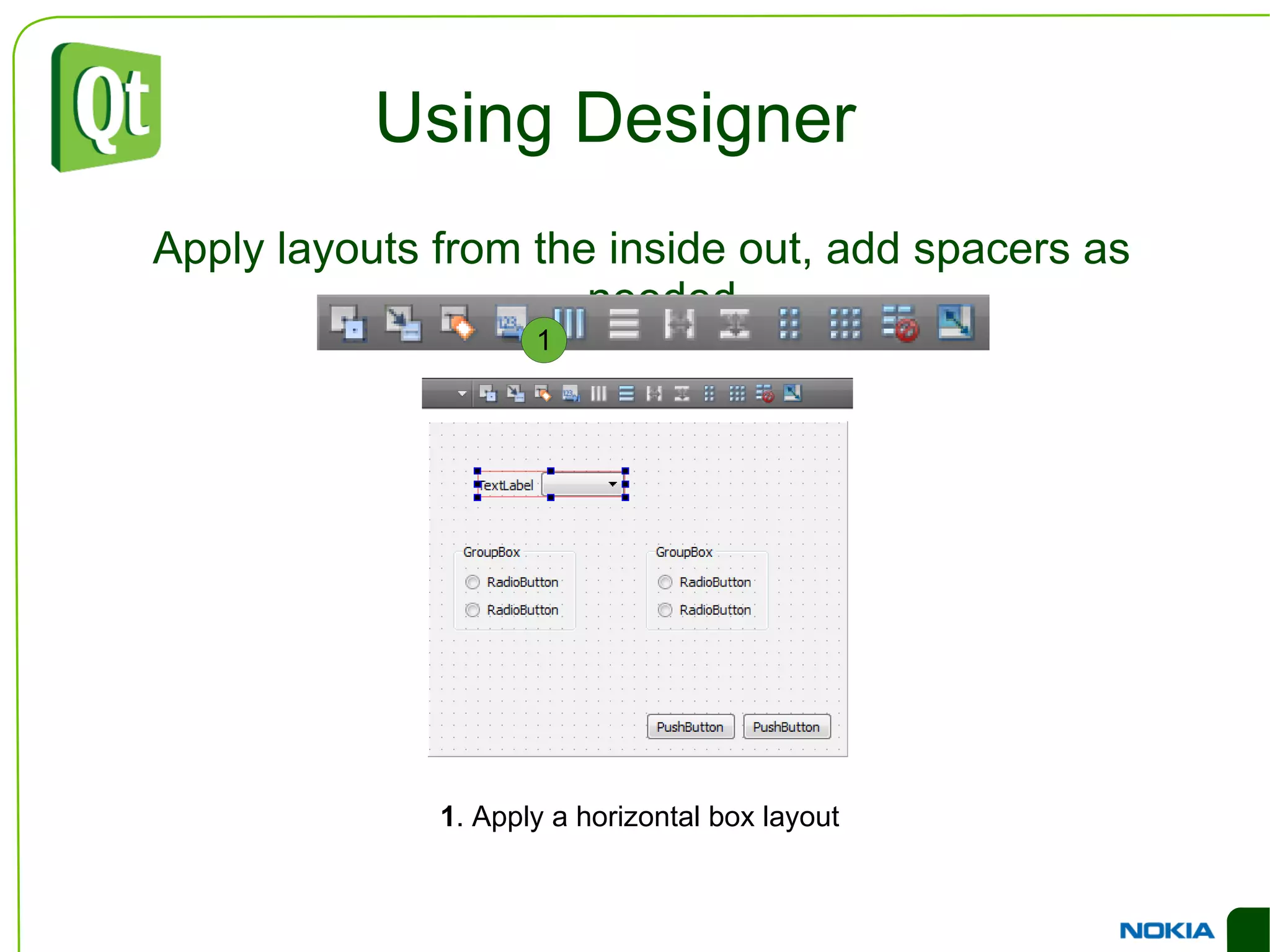
    Using Designer Applylayouts from the inside out, add spacers as needed 1 . Apply a horizontal box layout
  • 125.
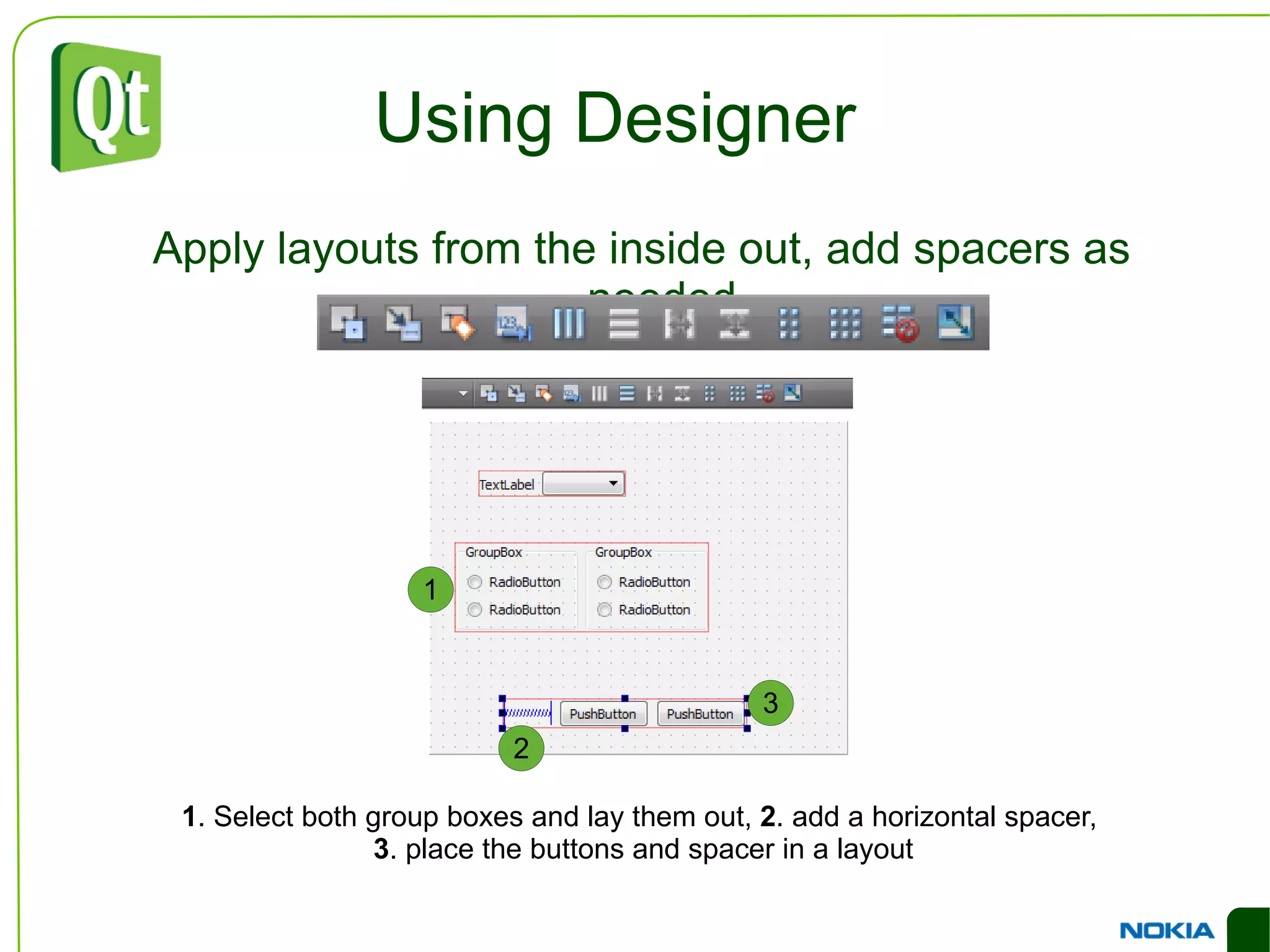
    Using Designer Applylayouts from the inside out, add spacers as needed 1 . Select both group boxes and lay them out, 2 . add a horizontal spacer, 3 . place the buttons and spacer in a layout
  • 126.
    Using Designer Applylayouts from the inside out, add spacers as needed 1 . Add a vertical spacer, 2 . select the form itself, 3 . apply a vertical box layout
  • 127.
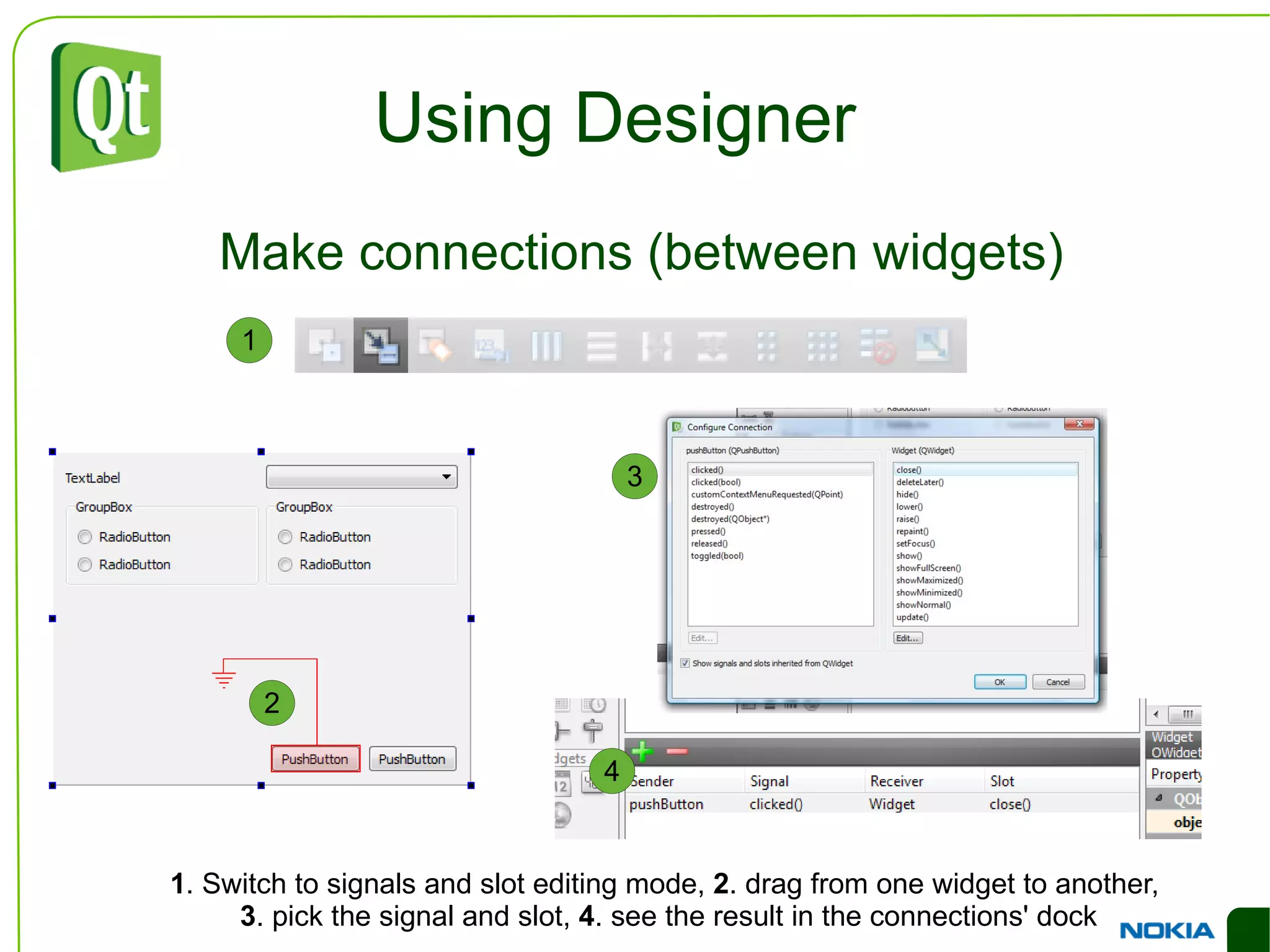
    Using Designer Makeconnections (between widgets) 1 . Switch to signals and slot editing mode, 2 . drag from one widget to another, 3 . pick the signal and slot, 4 . see the result in the connections' dock
  • 128.
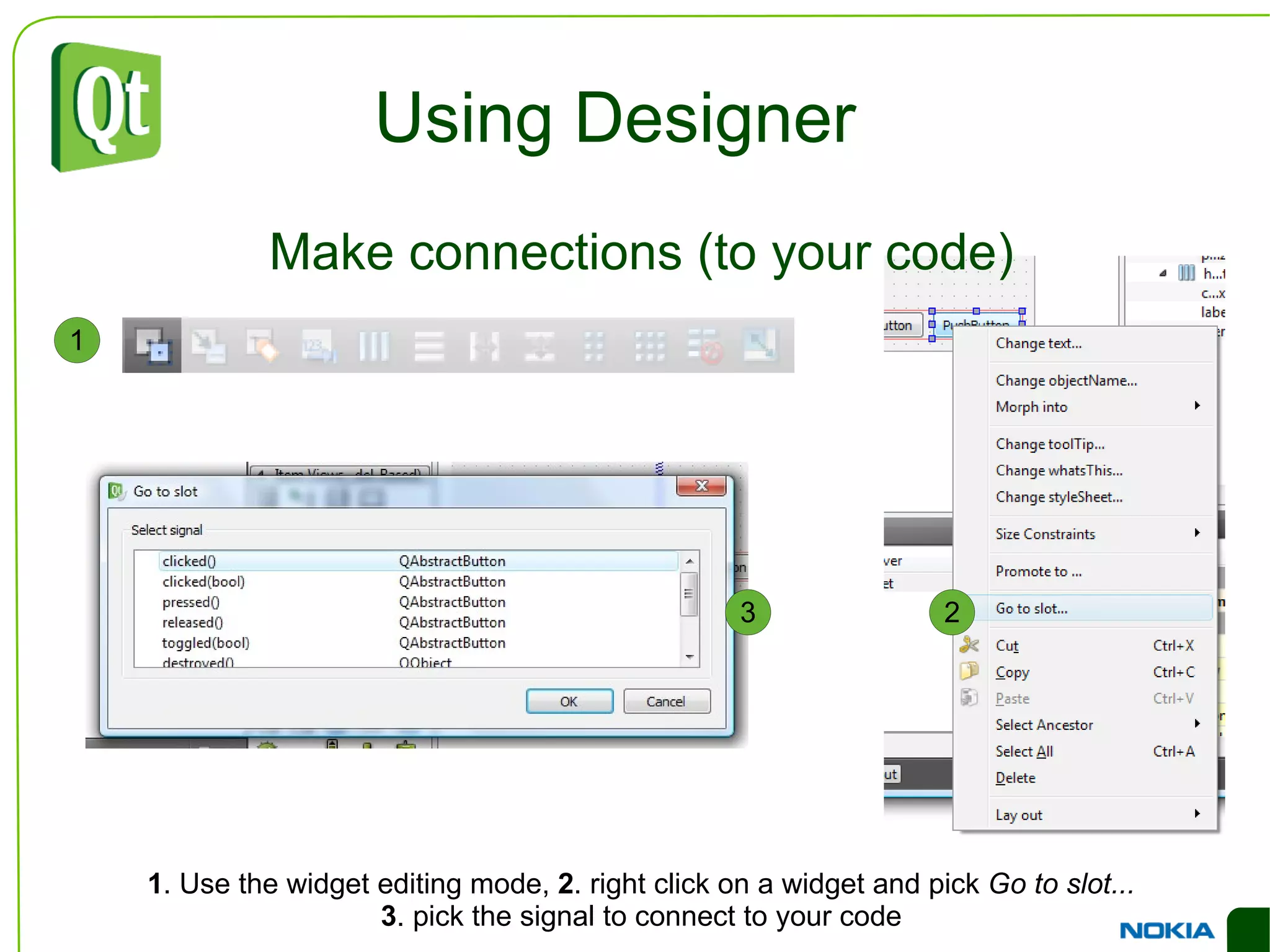
    Using Designer Makeconnections (to your code) 1 . Use the widget editing mode, 2 . right click on a widget and pick Go to slot... 3 . pick the signal to connect to your code
  • 129.
    Using Designer Usefrom code Access all widgets through the ui class member class Widget : public QWidget { ... private: Ui::Widget *ui; }; void Widget::memberFunction() { ui->pushButton-> setText(...); }
  • 130.
    Top-level Windows Widgetswithout a parent widget automatically become windows QWidget – a plain window, usually non-modal
  • 131.
    QDialog –a dialog, usually expecting a result such as Ok, Cancel, etc
  • 132.
    QMainWindow –an application window with menus, toolbars, statusbar, etc QDialog and QMainWindow inherit QWidget
  • 133.
    Using QWidget asWindow Any widget can be a window
  • 134.
    Widgets without parentare automatically windows
  • 135.
    Widgets with parenthave to pass the Qt::Window flag to the QWidget constructor
  • 136.
    Use setWindowModality to make modal NonModal – all windows can be used at once
  • 137.
    WindowModal –the parent window is blocked
  • 138.
    ApplicationModal –all other windows are blocked
  • 139.
    Window Properties Setthe window title using setWindowTitle
  • 140.
    The QWidget constructor and window flags QWidget::QWidget(QWidget *parent, Qt::WindowFlags f=0 ) Qt::Window – creates a window
  • 141.
    Qt::CustomizeWindowHint –clear defaults Qt::WindowMinimizeButtonHint
  • 142.
  • 143.
  • 144.
  • 145.
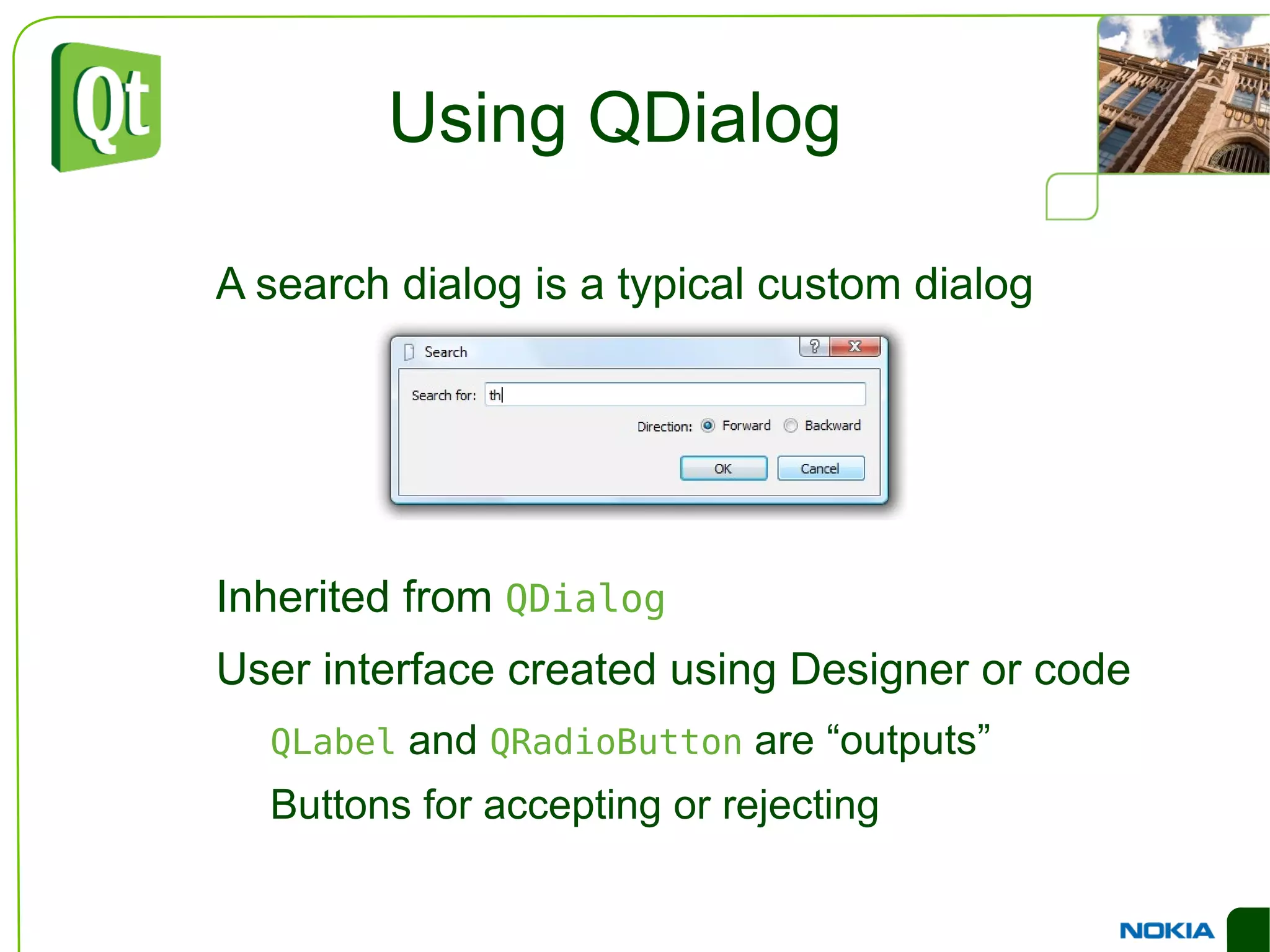
    Using QDialog Asearch dialog is a typical custom dialog
  • 146.
  • 147.
    User interface createdusing Designer or code QLabel and QRadioButton are “outputs”
  • 148.
  • 149.
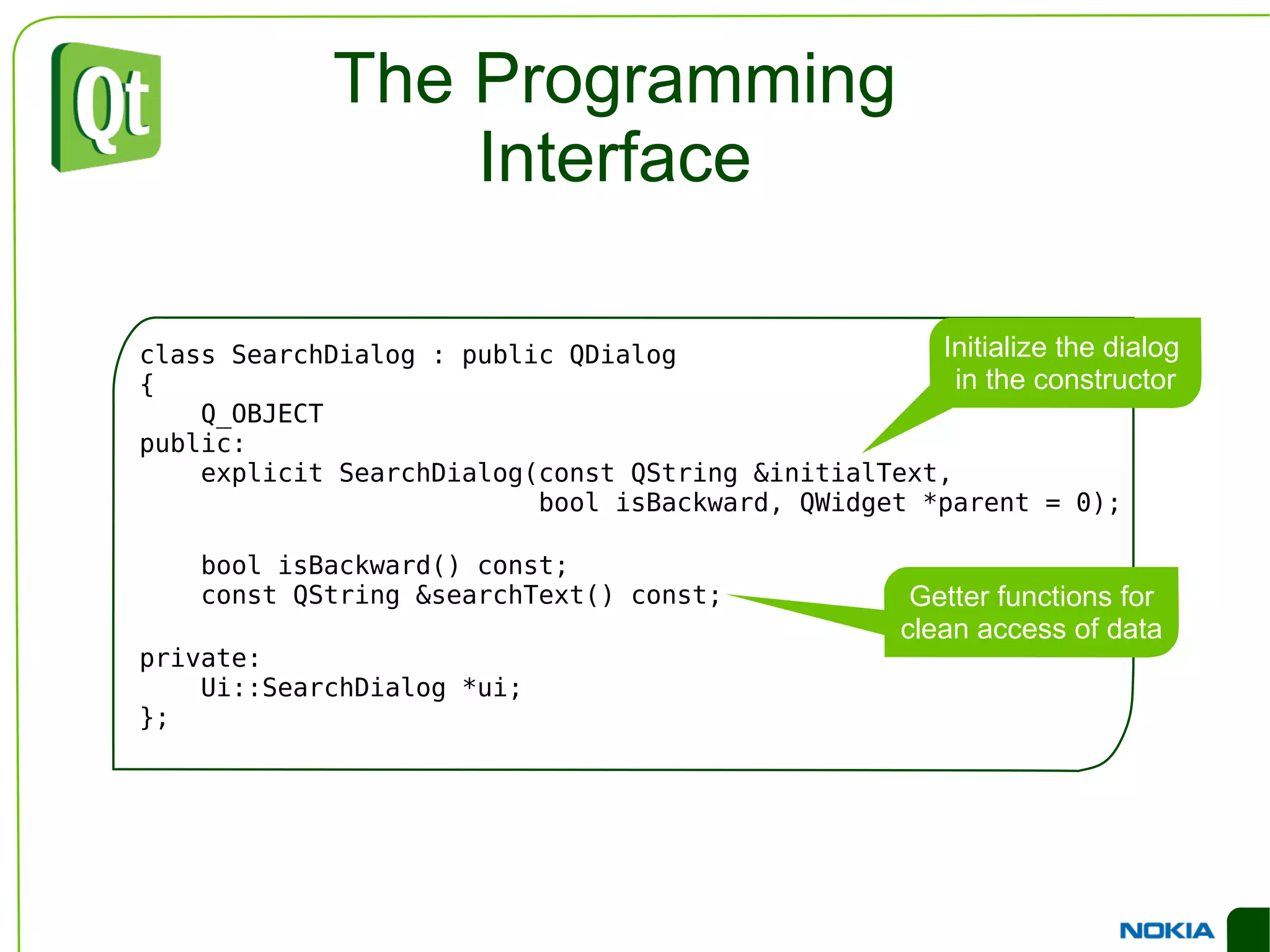
    The Programming Interfaceclass SearchDialog : public QDialog { Q_OBJECT public: explicit SearchDialog(const QString &initialText, bool isBackward, QWidget *parent = 0); bool isBackward() const; const QString &searchText() const; private: Ui::SearchDialog *ui; };
  • 150.
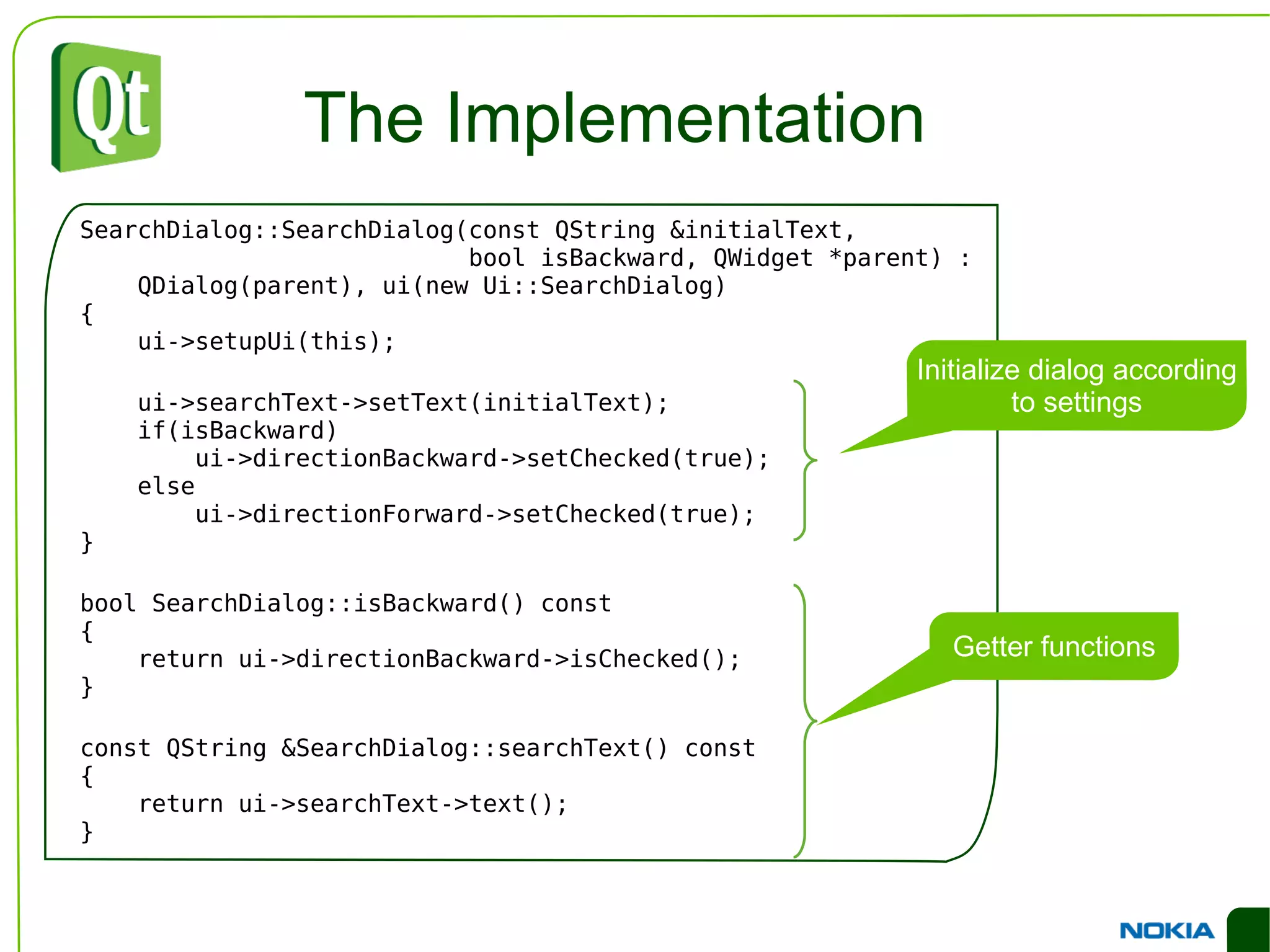
    The Implementation SearchDialog::SearchDialog(constQString &initialText, bool isBackward, QWidget *parent) : QDialog(parent), ui(new Ui::SearchDialog) { ui->setupUi(this); ui->searchText->setText(initialText); if(isBackward) ui->directionBackward->setChecked(true); else ui->directionForward->setChecked(true); } bool SearchDialog::isBackward() const { return ui->directionBackward->isChecked(); } const QString &SearchDialog::searchText() const { return ui->searchText->text(); }
  • 151.
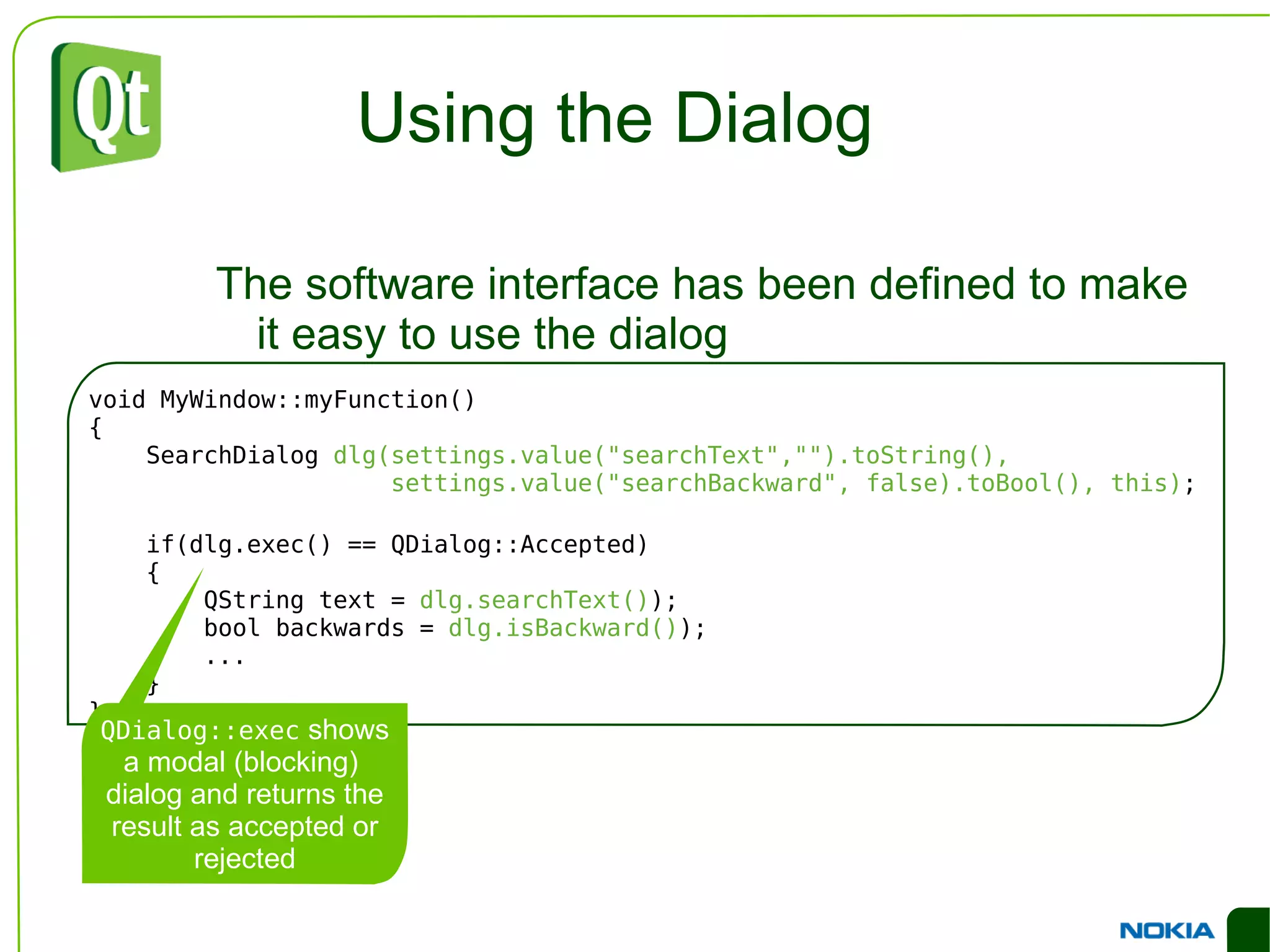
    Using the Dialogvoid MyWindow::myFunction() { SearchDialog dlg(settings.value(&quot;searchText&quot;,&quot;&quot;).toString(), settings.value(&quot;searchBackward&quot;, false).toBool(), this) ; if(dlg.exec() == QDialog::Accepted) { QString text = dlg.searchText() ); bool backwards = dlg.isBackward() ); ... } } The software interface has been defined to make it easy to use the dialog
  • 152.
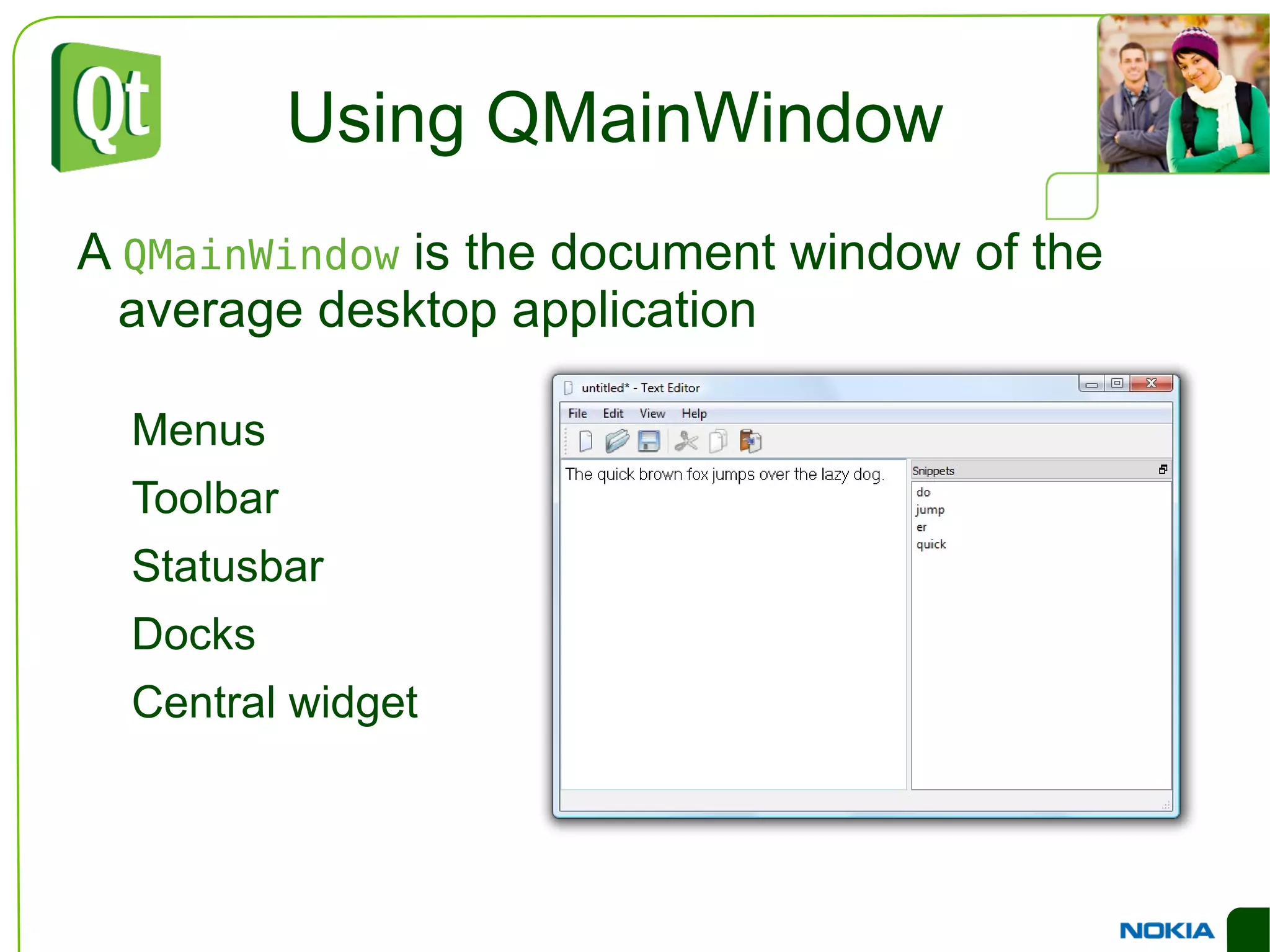
    Using QMainWindow A QMainWindow is the document window of the average desktop application Menus
  • 153.
  • 154.
  • 155.
  • 156.
  • 157.
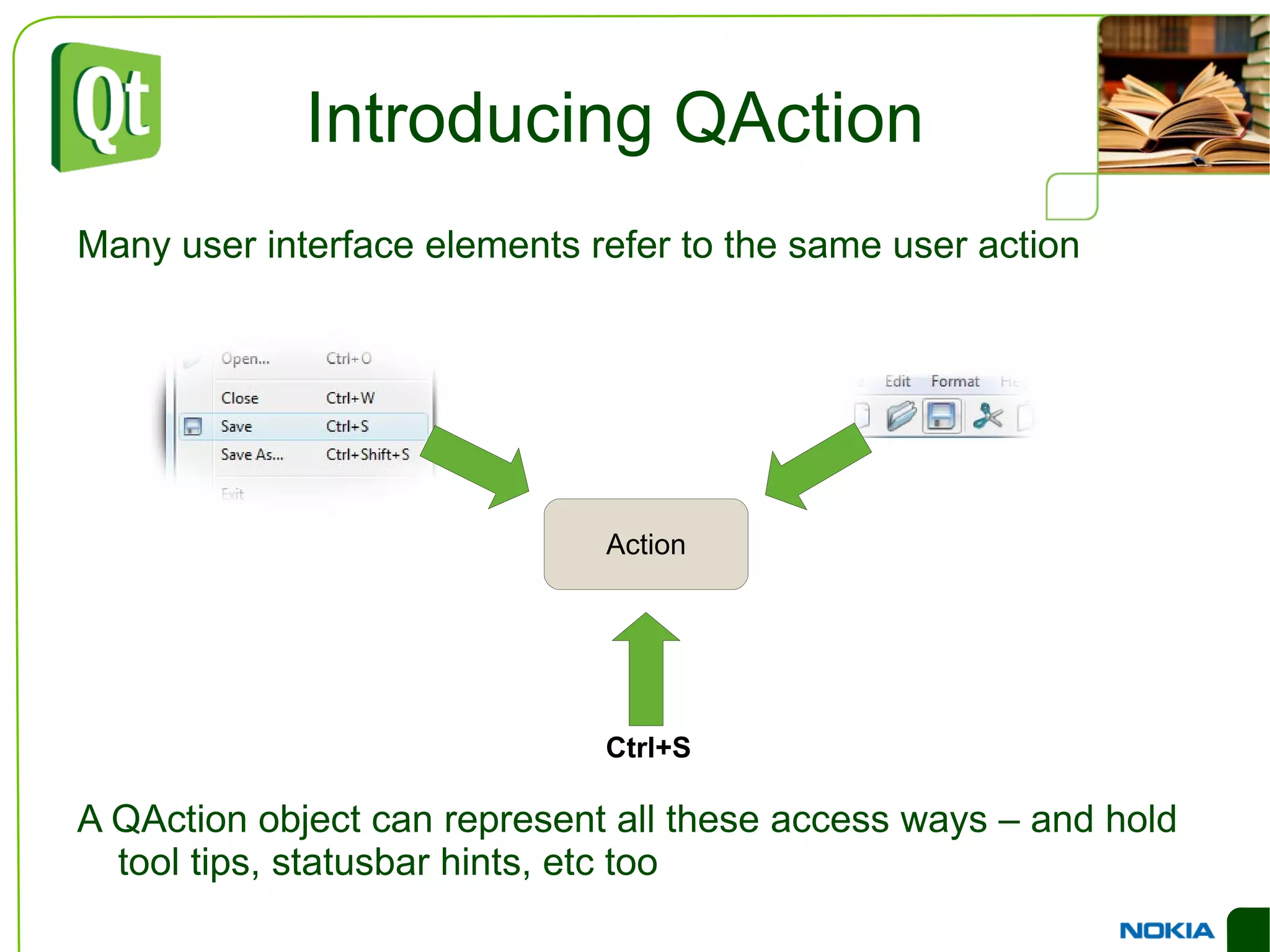
    Introducing QAction Manyuser interface elements refer to the same user action
  • 158.
    A QAction objectcan represent all these access ways – and hold tool tips, statusbar hints, etc too Ctrl+S Action
  • 159.
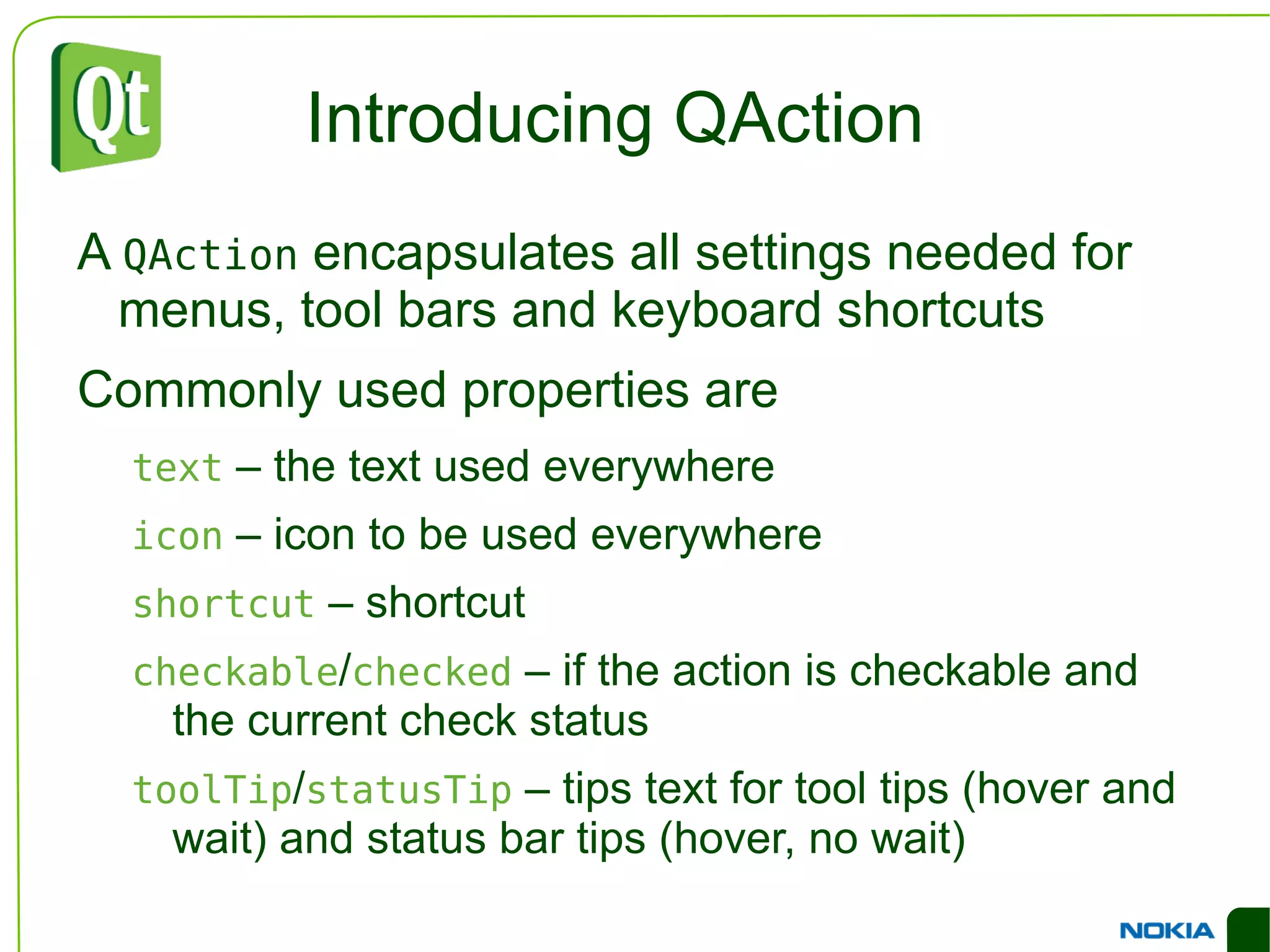
    Introducing QAction A QAction encapsulates all settings needed for menus, tool bars and keyboard shortcuts
  • 160.
    Commonly used propertiesare text – the text used everywhere
  • 161.
    icon –icon to be used everywhere
  • 162.
    shortcut –shortcut
  • 163.
    checkable / checked – if the action is checkable and the current check status
  • 164.
    toolTip / statusTip – tips text for tool tips (hover and wait) and status bar tips (hover, no wait)
  • 165.
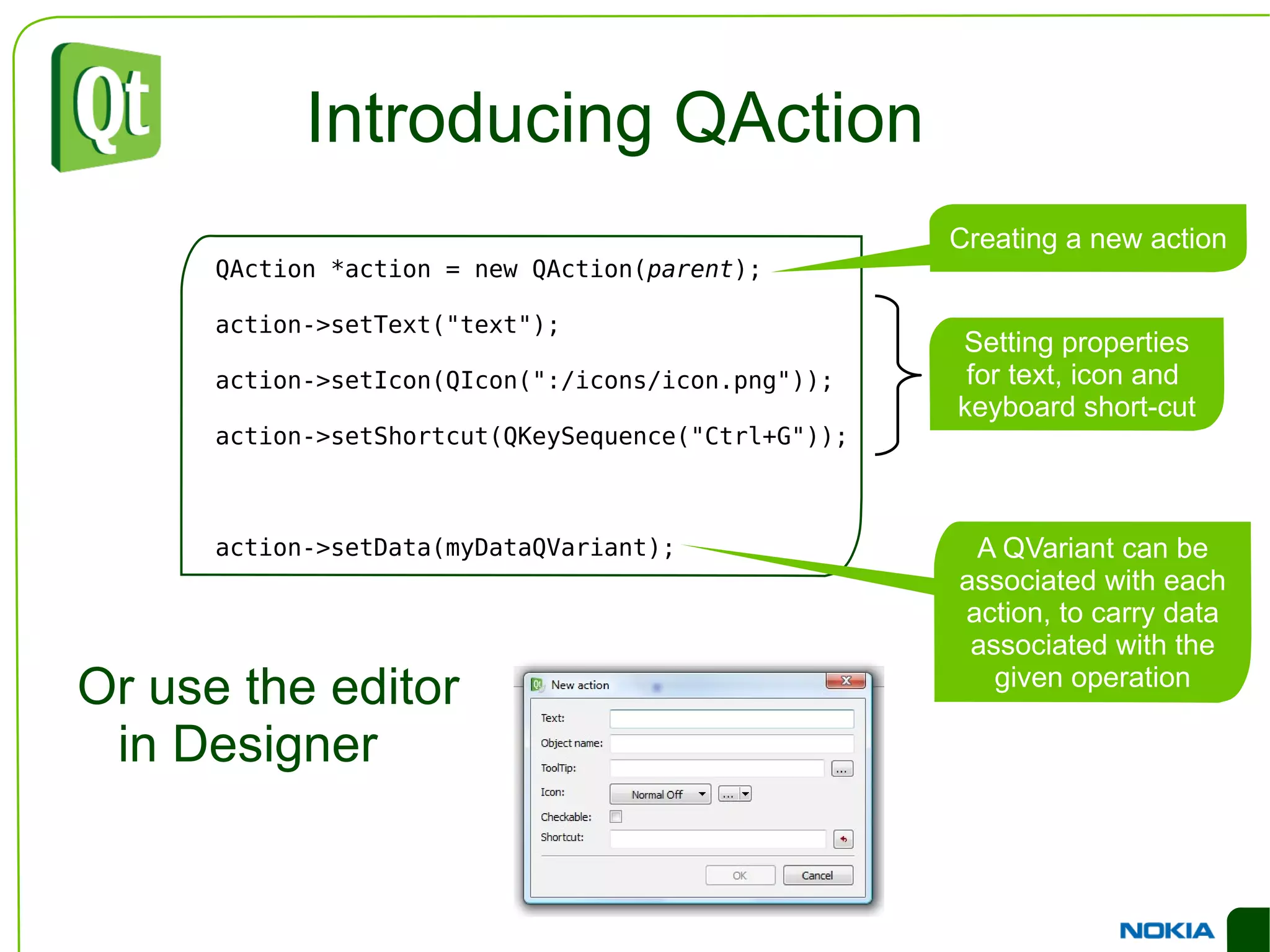
    Introducing QAction QAction*action = new QAction( parent ); action->setText(&quot;text&quot;); action->setIcon(QIcon(&quot;:/icons/icon.png&quot;)); action->setShortcut(QKeySequence(&quot;Ctrl+G&quot;)); action->setData(myDataQVariant); Or use the editor in Designer
  • 166.
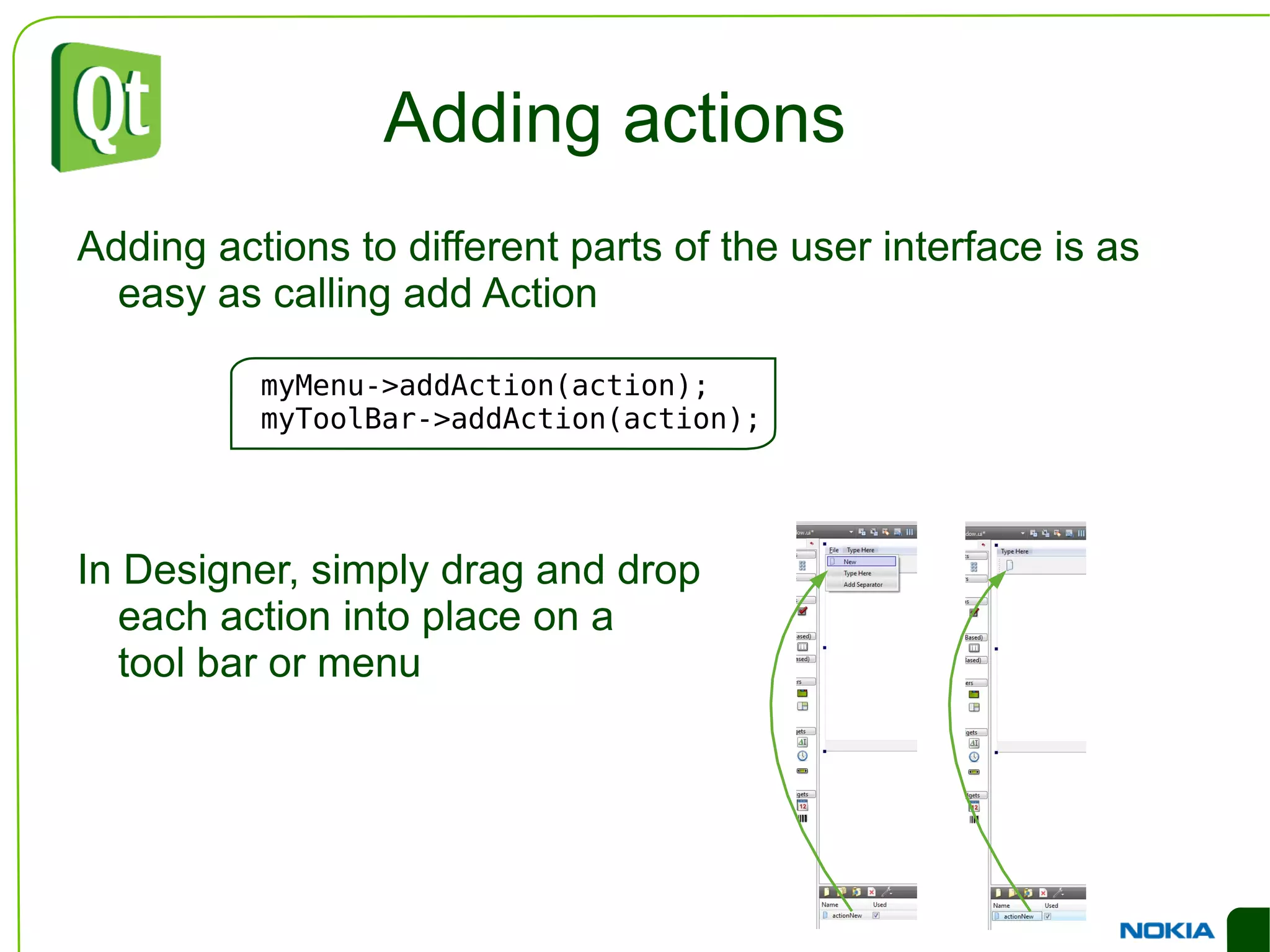
    Adding actions Addingactions to different parts of the user interface is as easy as calling add Action
  • 167.
    In Designer, simplydrag and drop each action into place on a tool bar or menu myMenu->addAction(action); myToolBar->addAction(action);
  • 168.
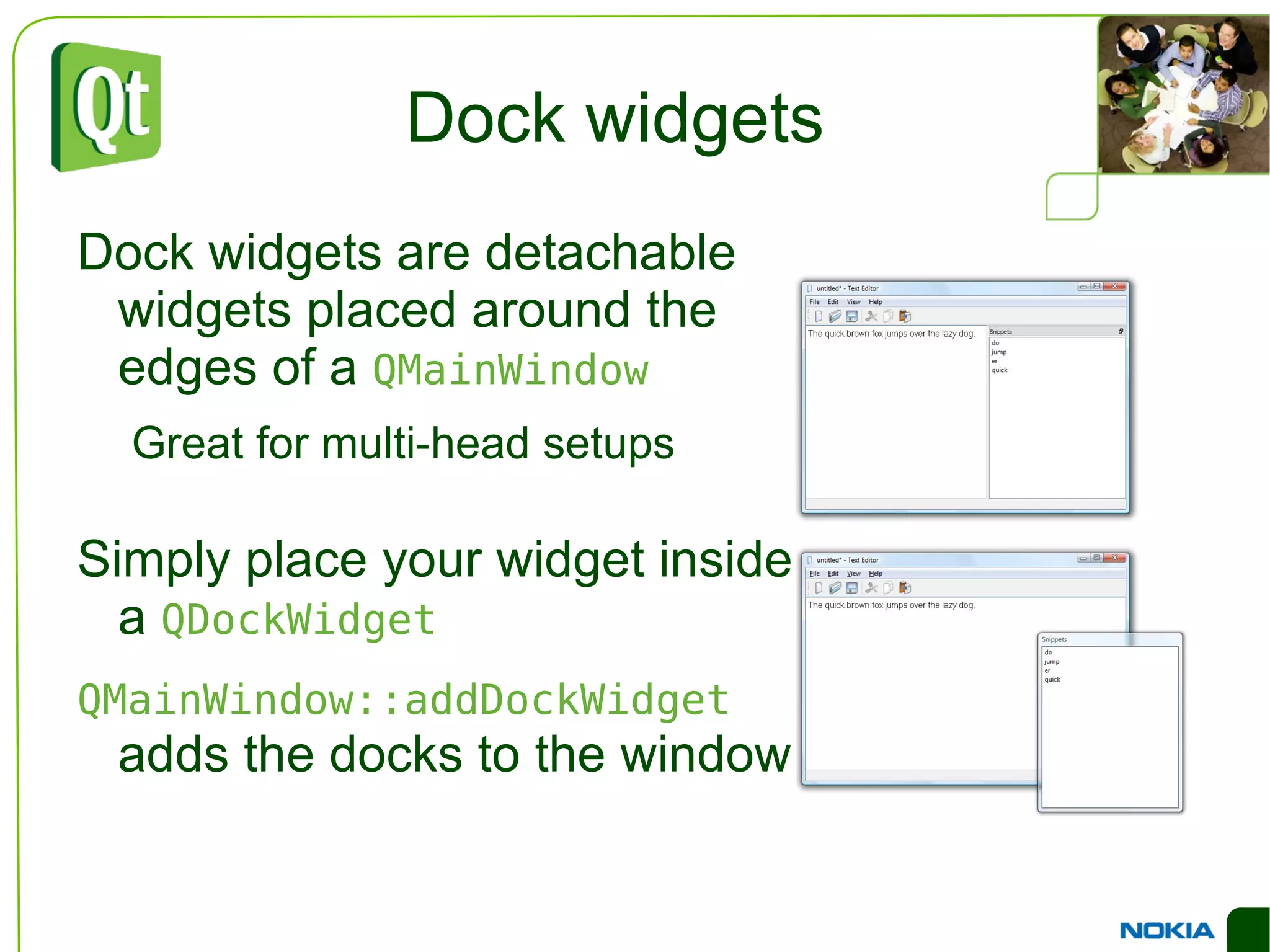
    Dock widgets Dockwidgets are detachable widgets placed around the edges of a QMainWindow Great for multi-head setups Simply place your widget inside a QDockWidget
  • 169.
    QMainWindow::addDockWidget addsthe docks to the window
  • 170.
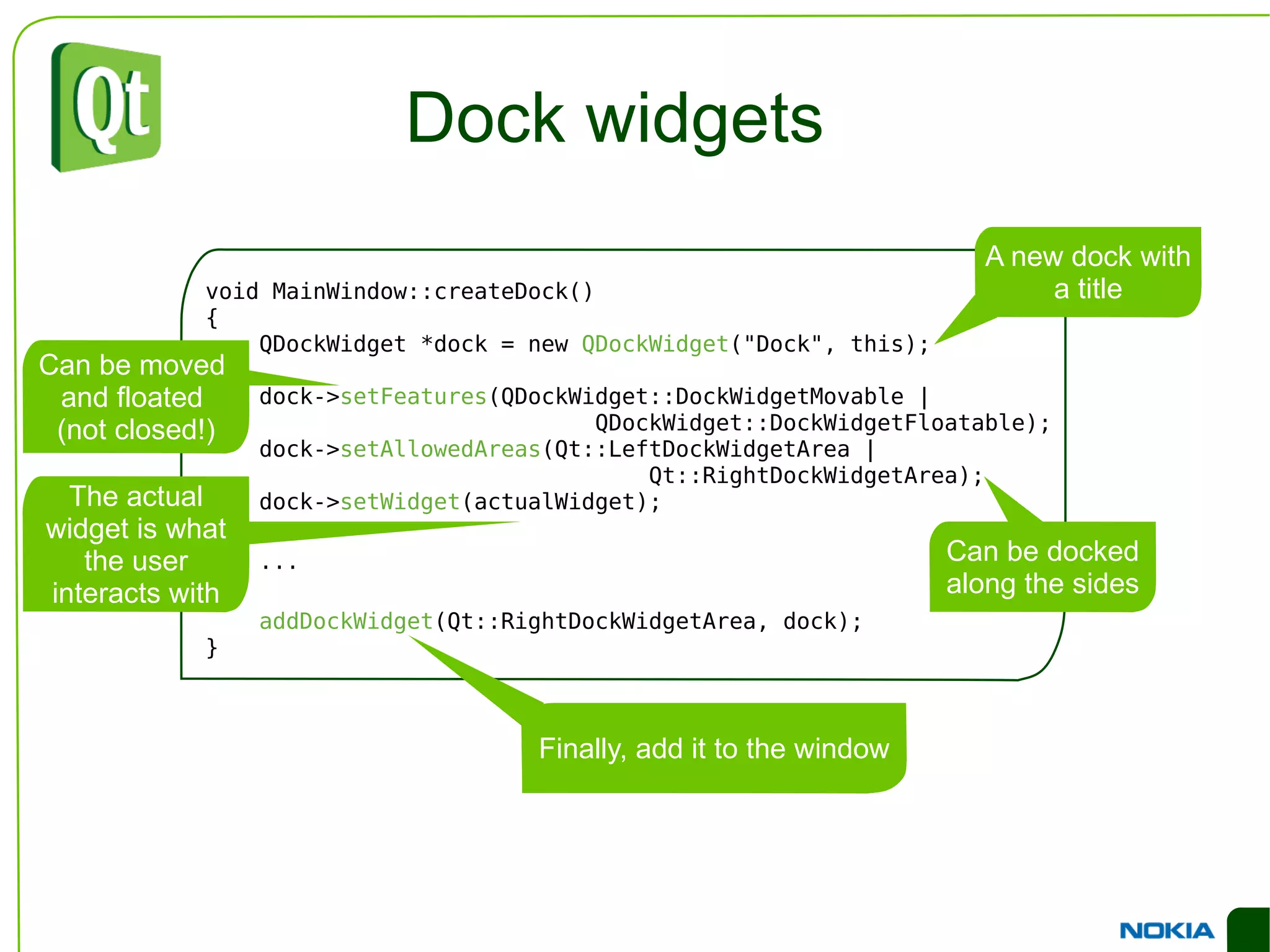
    Dock widgets voidMainWindow::createDock() { QDockWidget *dock = new QDockWidget (&quot;Dock&quot;, this); dock-> setFeatures (QDockWidget::DockWidgetMovable | QDockWidget::DockWidgetFloatable); dock-> setAllowedAreas (Qt::LeftDockWidgetArea | Qt::RightDockWidgetArea); dock-> setWidget (actualWidget); ... addDockWidget (Qt::RightDockWidgetArea, dock); }
  • 171.
    Icon resources Puttingicons in a resource file lets Qt embed them into the executable Avoid having to deploy multiple files
  • 172.
    No need totry to determine the path for the icons for each specific install type
  • 173.
    All fits neatlyinto the build system
  • 174.
  • 175.
    You can addanything into resources, not only icons
  • 176.
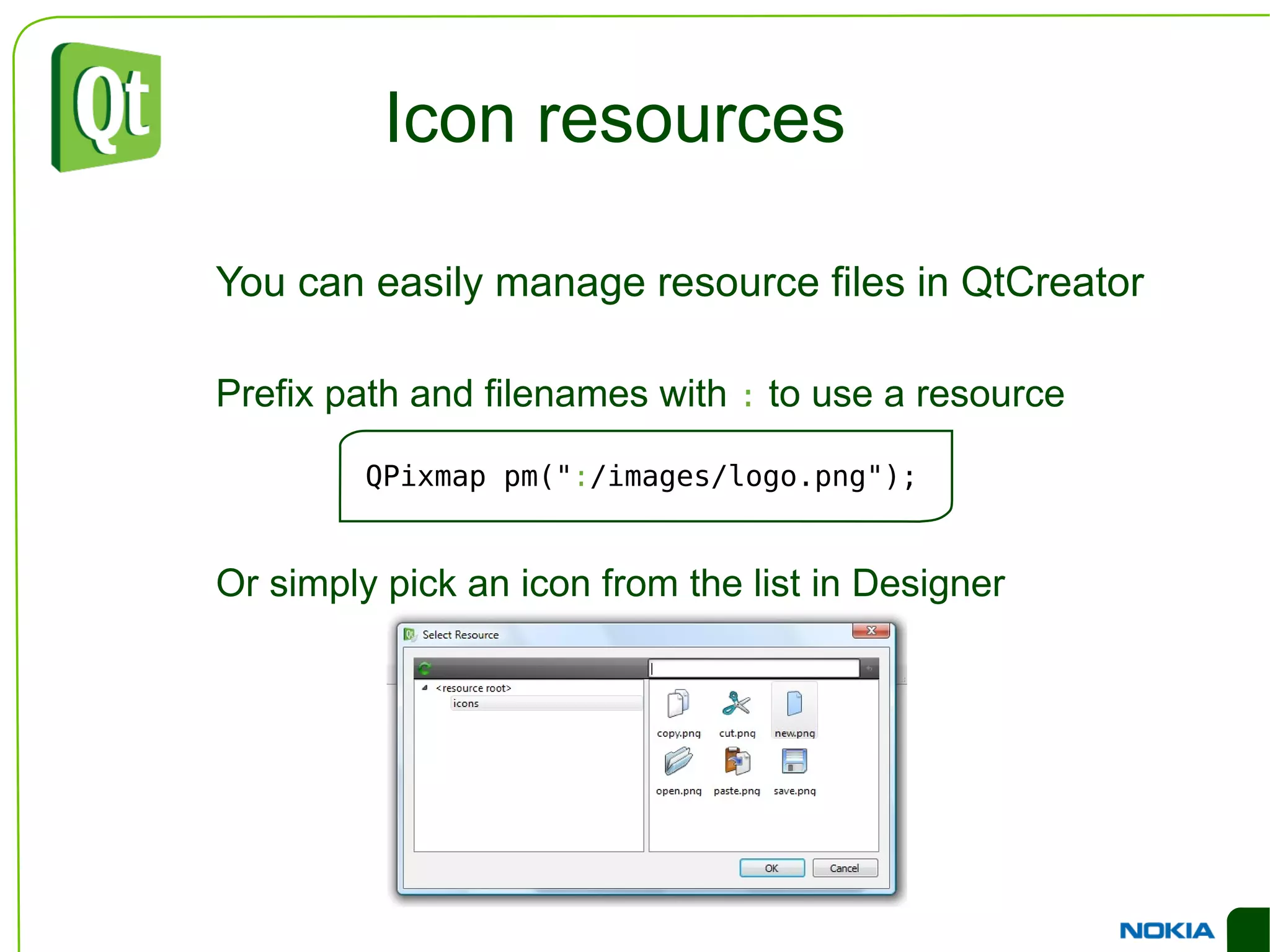
    Icon resources Youcan easily manage resource files in QtCreator
  • 177.
    Prefix path andfilenames with : to use a resource
  • 178.
    Or simply pickan icon from the list in Designer QPixmap pm(&quot; : / images/logo.png&quot;);
  • 179.
    Style sheets Forhighlighting and cross platform styling, all QWidget classes have a styleSheet property
  • 180.
    Style sheets areinspired from CSS
  • 181.
    They can beused for highlighting and for various small alternations
  • 182.
    As well asa total overhaul of the entire user interface
  • 183.
    Style sheets Theeasiest way to apply a style sheet to an individual widget is to use Designer
  • 184.
    Stylesheet To stylean entire application, use QApplication::setStyleSheet QLineEdit { background-color: yellow } QLineEdit#nameEdit { background-color: yellow } QTextEdit, QListView { background-color: white; background-image: url(draft.png); background-attachment: scroll; } QGroupBox { background-color: qlineargradient(x1: 0, y1: 0, x2: 0, y2: 1, stop: 0 #E0E0E0, stop: 1 #FFFFFF); border: 2px solid gray; border-radius: 5px; margin-top: 1ex; }