

   Motherboard aka (system board, planar
    board, main board, logic board)

   Motherboard: is the main circuit
    board of a microcomputer.
   The following is some of the ways in determining
    if your motherboard is an AT motherboard or
    an ATX motherboard.

    The Keyboard:
    AT Motherboard = DIN/5 connector

    ATX Motherboard = PS/2 connector
   AT Motherboard = Single Row two connectors
    5v & 12v
    ATX Motherboard = Double row single
    connector 5v, 12v, and 3.3v
    In this section, you learned that the
    motherboard holds all the components of the
    computer that serves as their main attachment
    point.
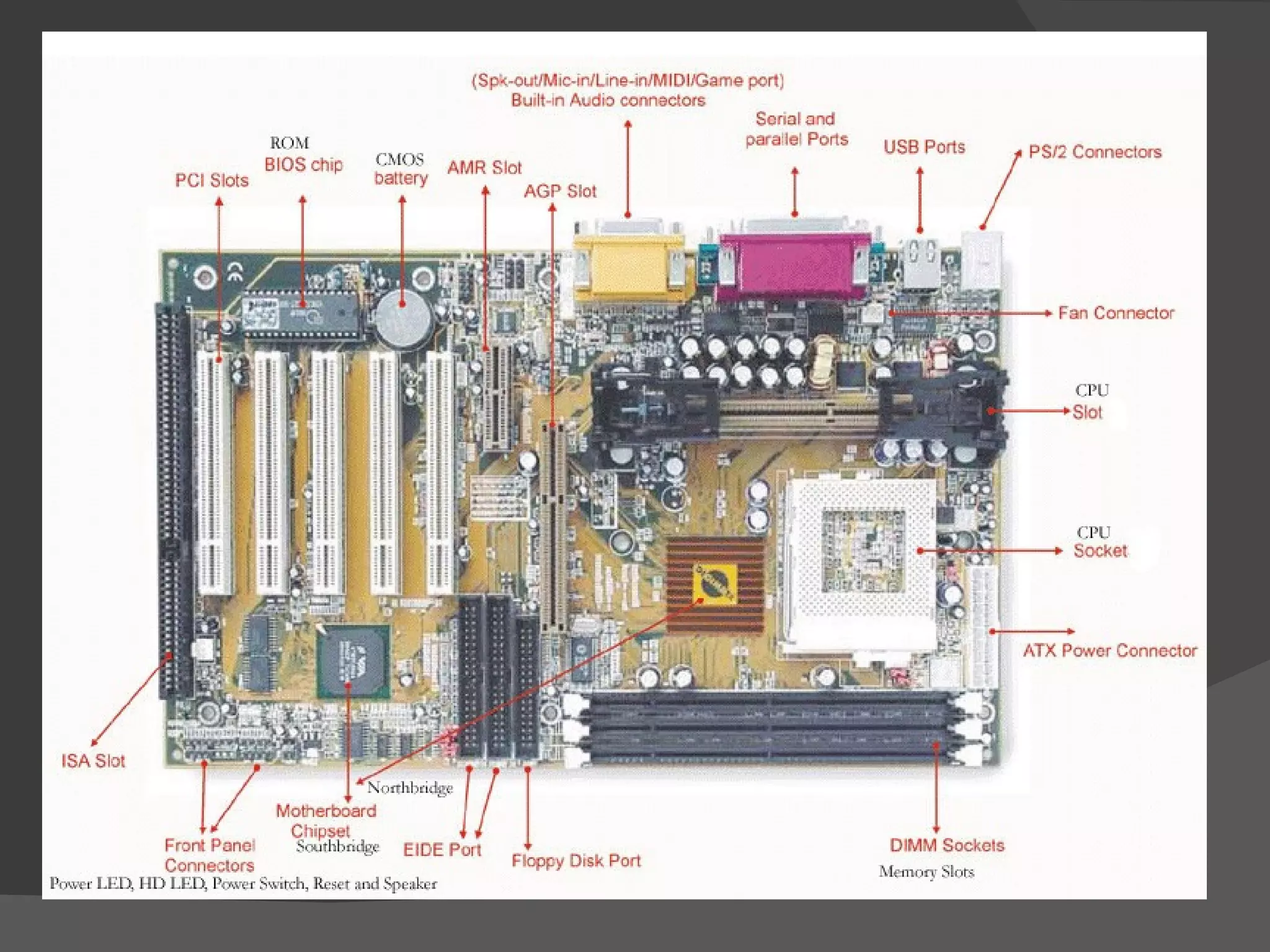
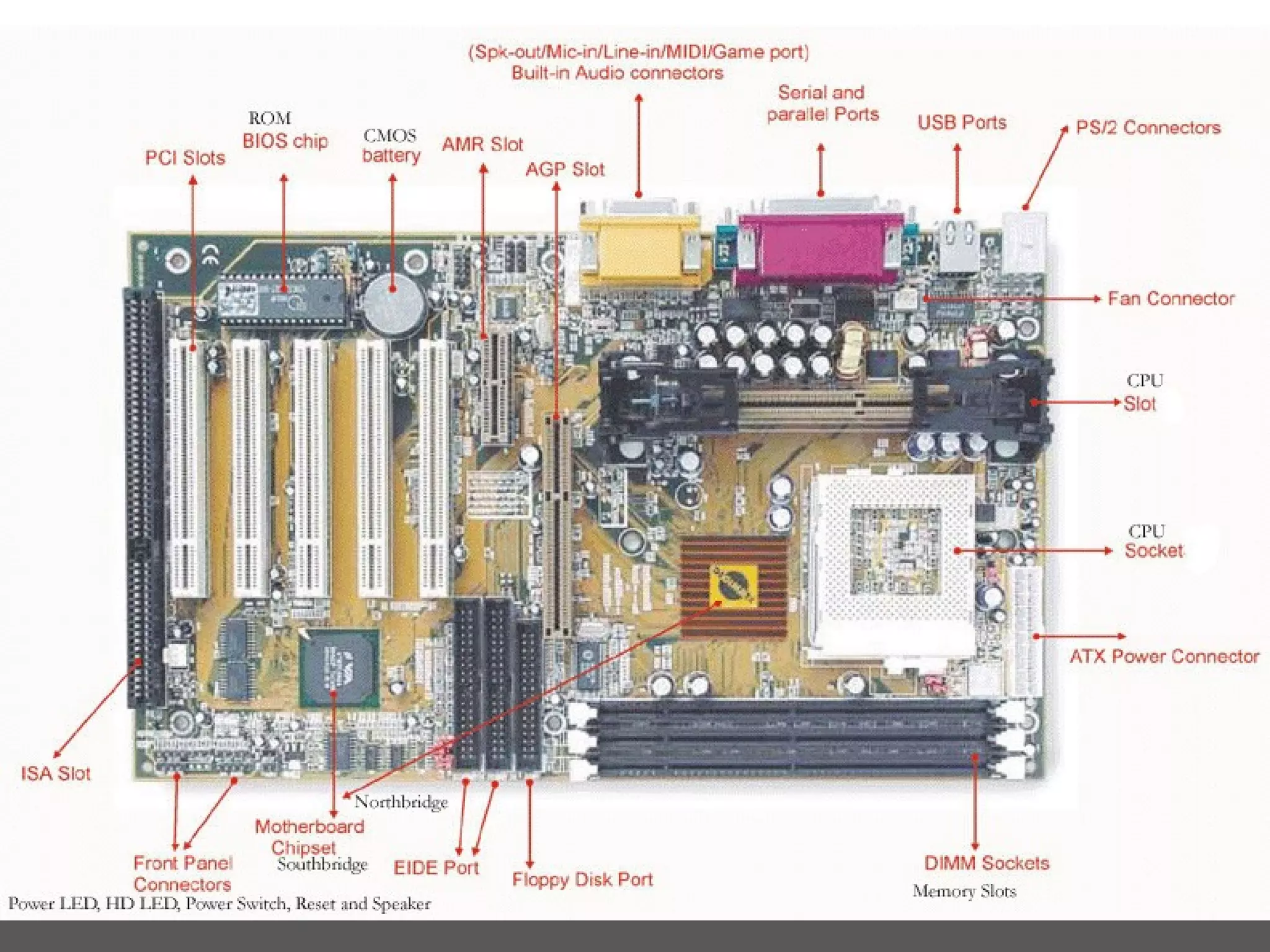
   CPU type: CPU socket or CPU slot
    Memory slots: SIMM slots, DIMM slots or RIMM slots
    Cache memory: Internal or External Cache found on the
    CPU and as support chips
    Chipsets: Northbridge, Southbridge, Cache, Heatsink,
    MCC, sound and video chipsets
    System BIOS: ROM usually a DIPP chip and
    complemented by the CMOS battery
    Expansion slots: AGP, ISA, PCI, AMR and CNR
    Motherboard connectors: FDC, IDE Controllers, Fan
    Controllers, CD/DVD and sound controllers
    Motherboard settings: Jumpers and Switches
    Power connectors: AT socket vs. ATX socket
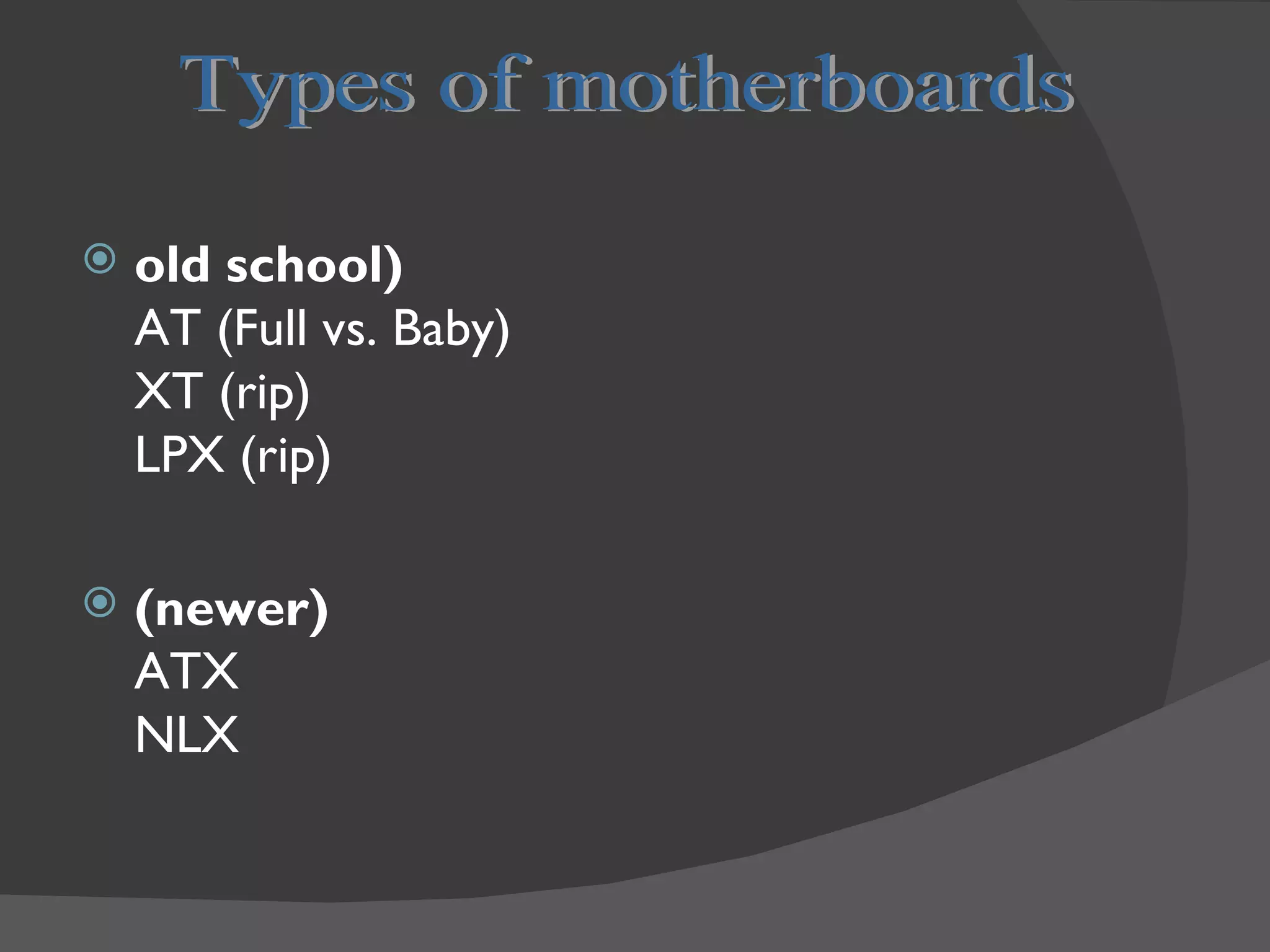
   old school)
    AT (Full vs. Baby)
    XT (rip)
    LPX (rip)

   (newer)
    ATX
    NLX
   Full-AT (12" wide x 13.8" deep) Matches the
    original IBM AT motherboard design, which only
    fits into full size AT or tower cases only, not
    being produced much any more if any. This form
    factor is no longer produced because it cannot
    be placed into the popular Baby-AT chassis.
   Baby- AT (8.57" wide x 13.04" deep) Almost
    the same as the original IBM XT motherboard
    with modifications in the screw hole position to
    fit into AT style case, with connections built
    onto the motherboard to fit the holes in the
    case
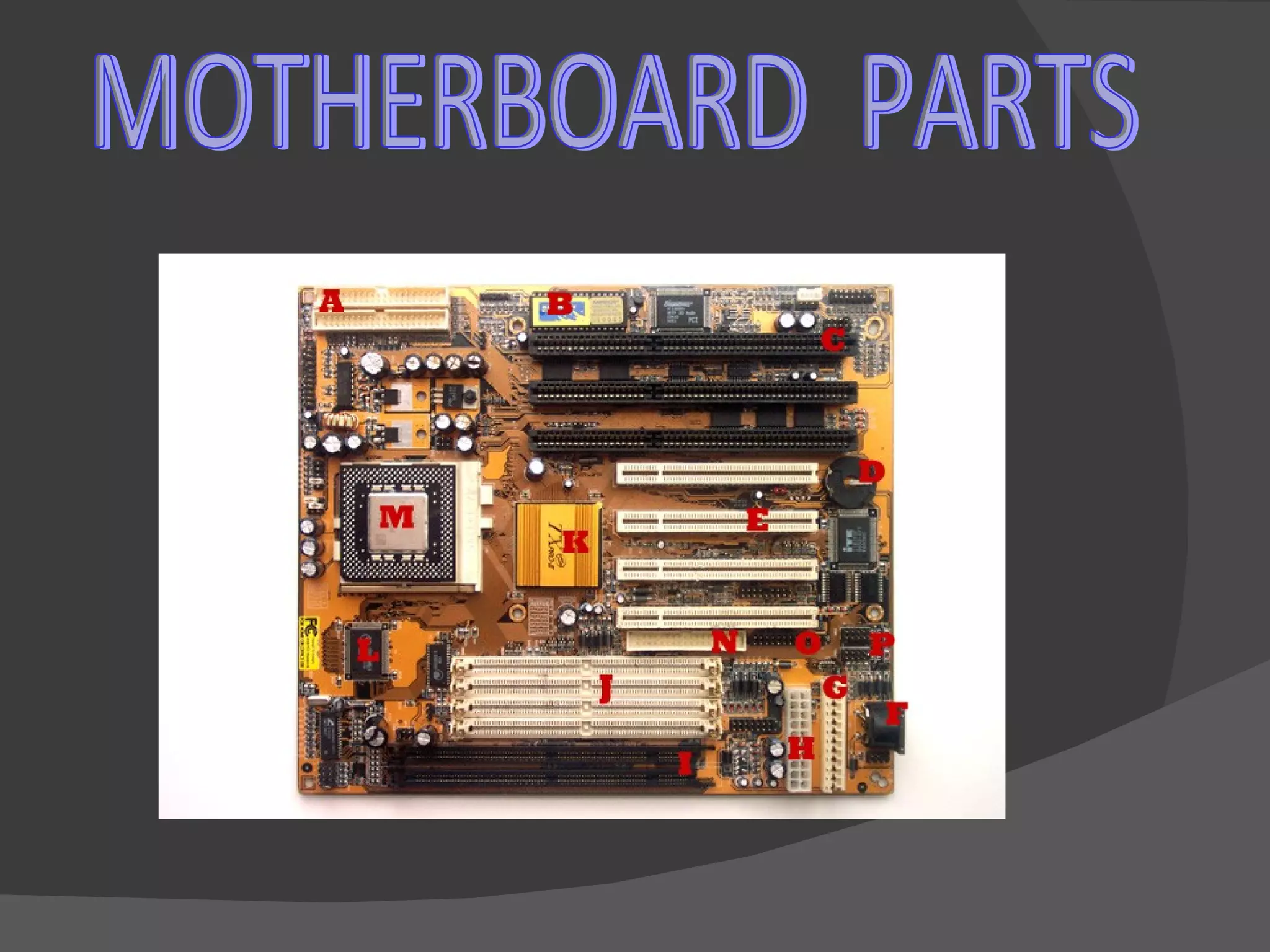
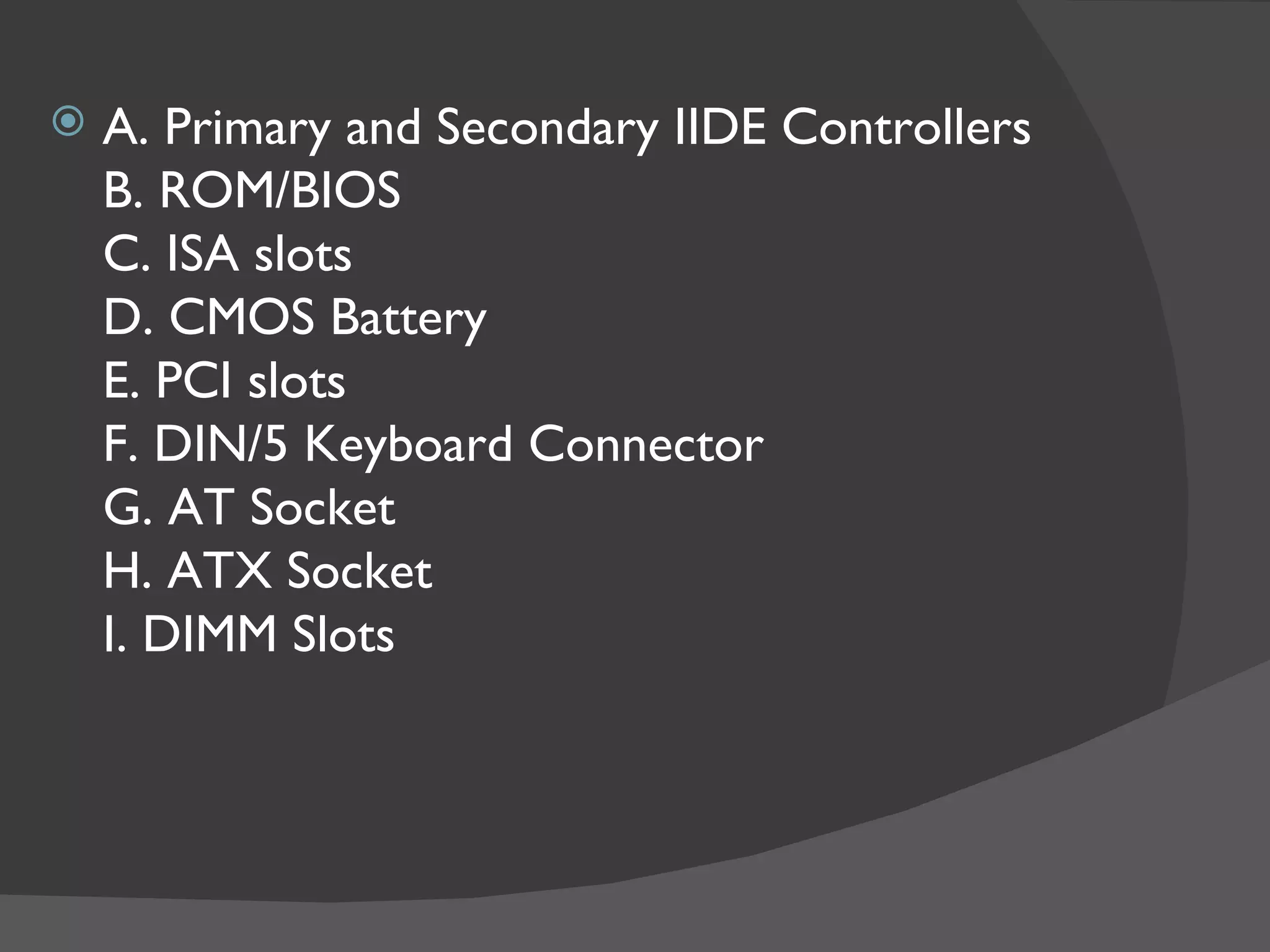
   A. Primary and Secondary IIDE Controllers
    B. ROM/BIOS
    C. ISA slots
    D. CMOS Battery
    E. PCI slots
    F. DIN/5 Keyboard Connector
    G. AT Socket
    H. ATX Socket
    I. DIMM Slots
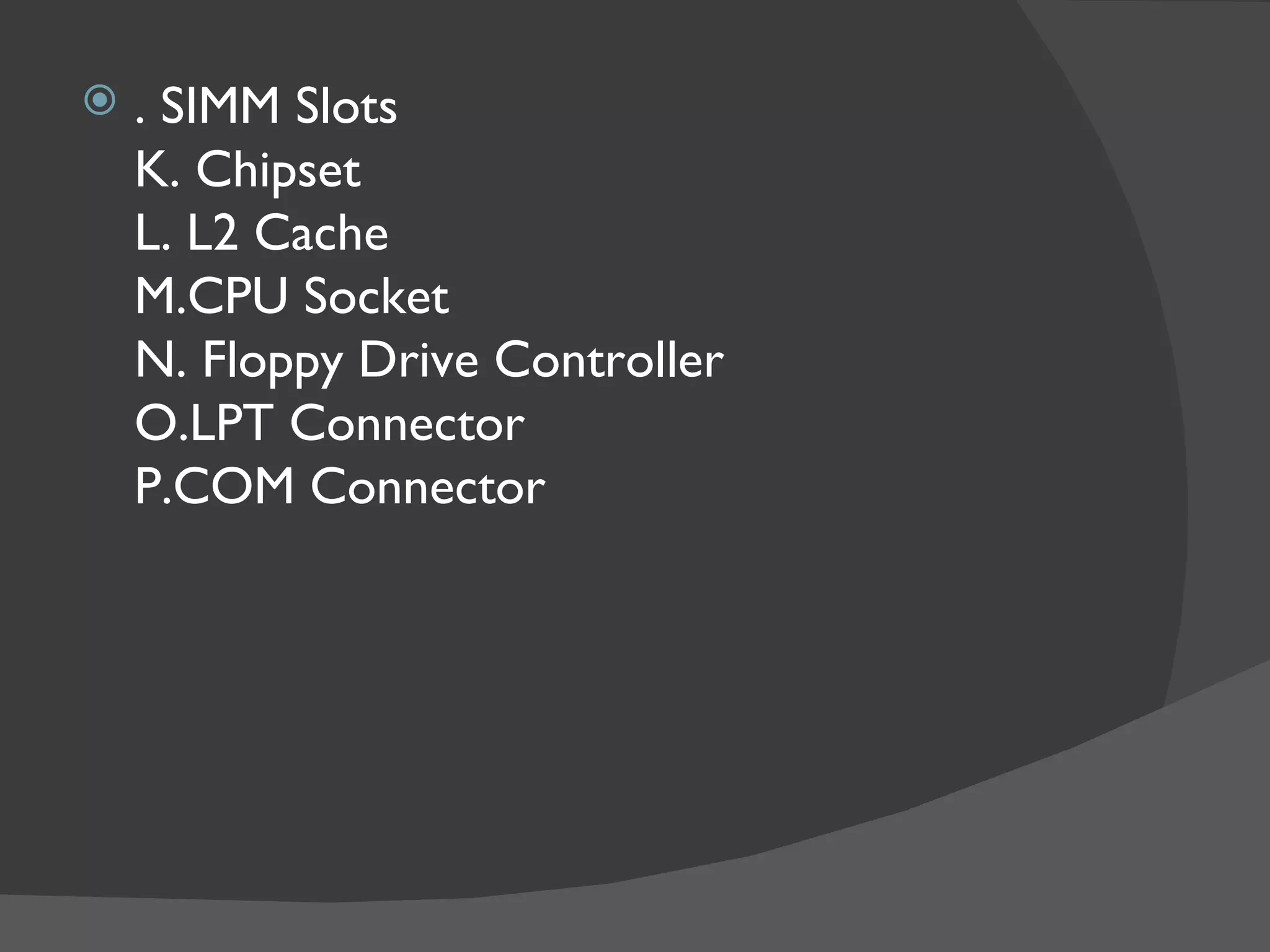
   . SIMM Slots
    K. Chipset
    L. L2 Cache
    M.CPU Socket
    N. Floppy Drive Controller
    O.LPT Connector
    P.COM Connector
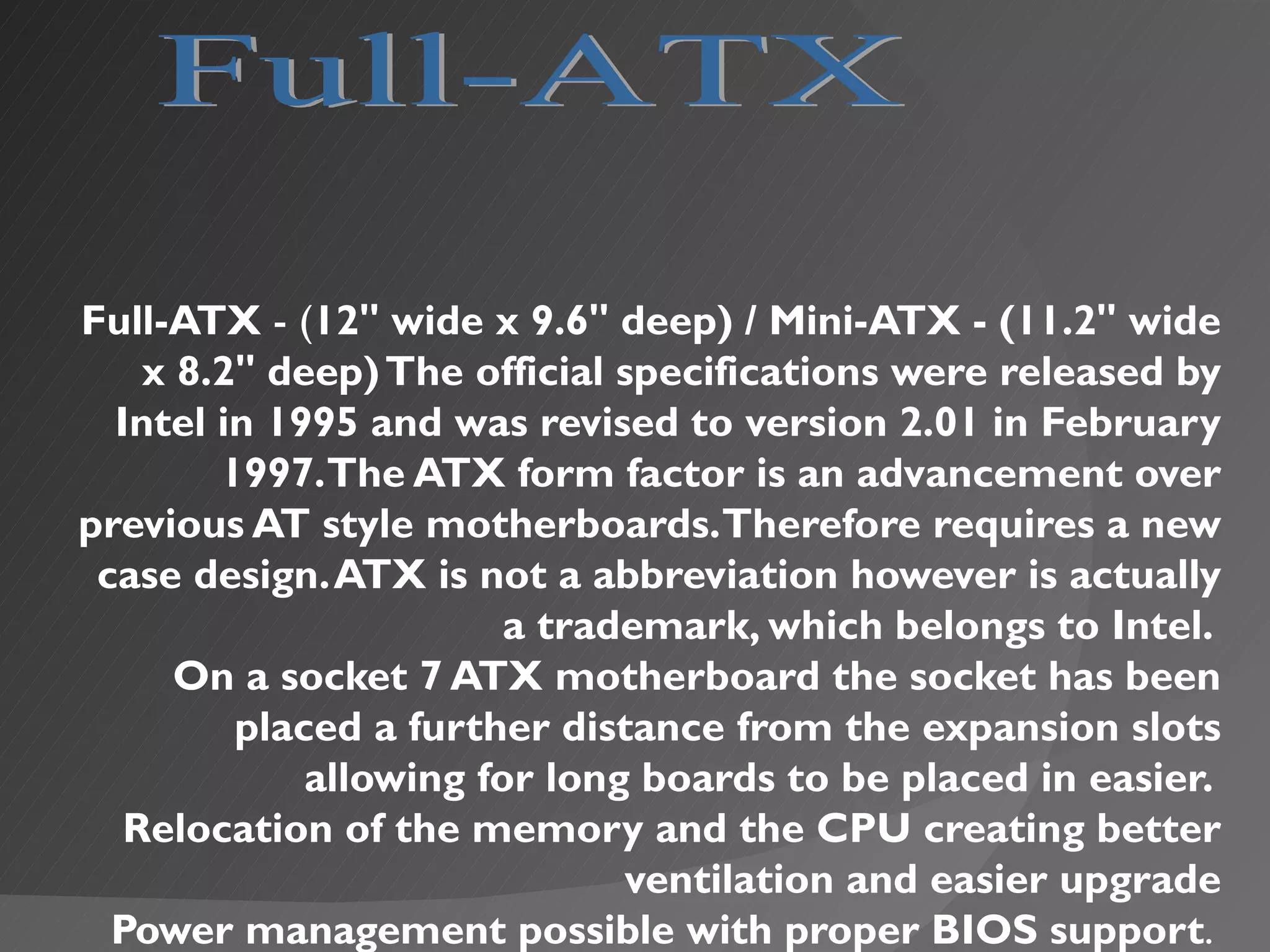
Full-ATX - (12" wide x 9.6" deep) / Mini-ATX - (11.2" wide
    x 8.2" deep) The official specifications were released by
  Intel in 1995 and was revised to version 2.01 in February
        1997.The ATX form factor is an advancement over
previous AT style motherboards. Therefore requires a new
 case design. ATX is not a abbreviation however is actually
                        a trademark, which belongs to Intel.
      On a socket 7 ATX motherboard the socket has been
         placed a further distance from the expansion slots
             allowing for long boards to be placed in easier.
   Relocation of the memory and the CPU creating better
                              ventilation and easier upgrade
  Power management possible with proper BIOS support.
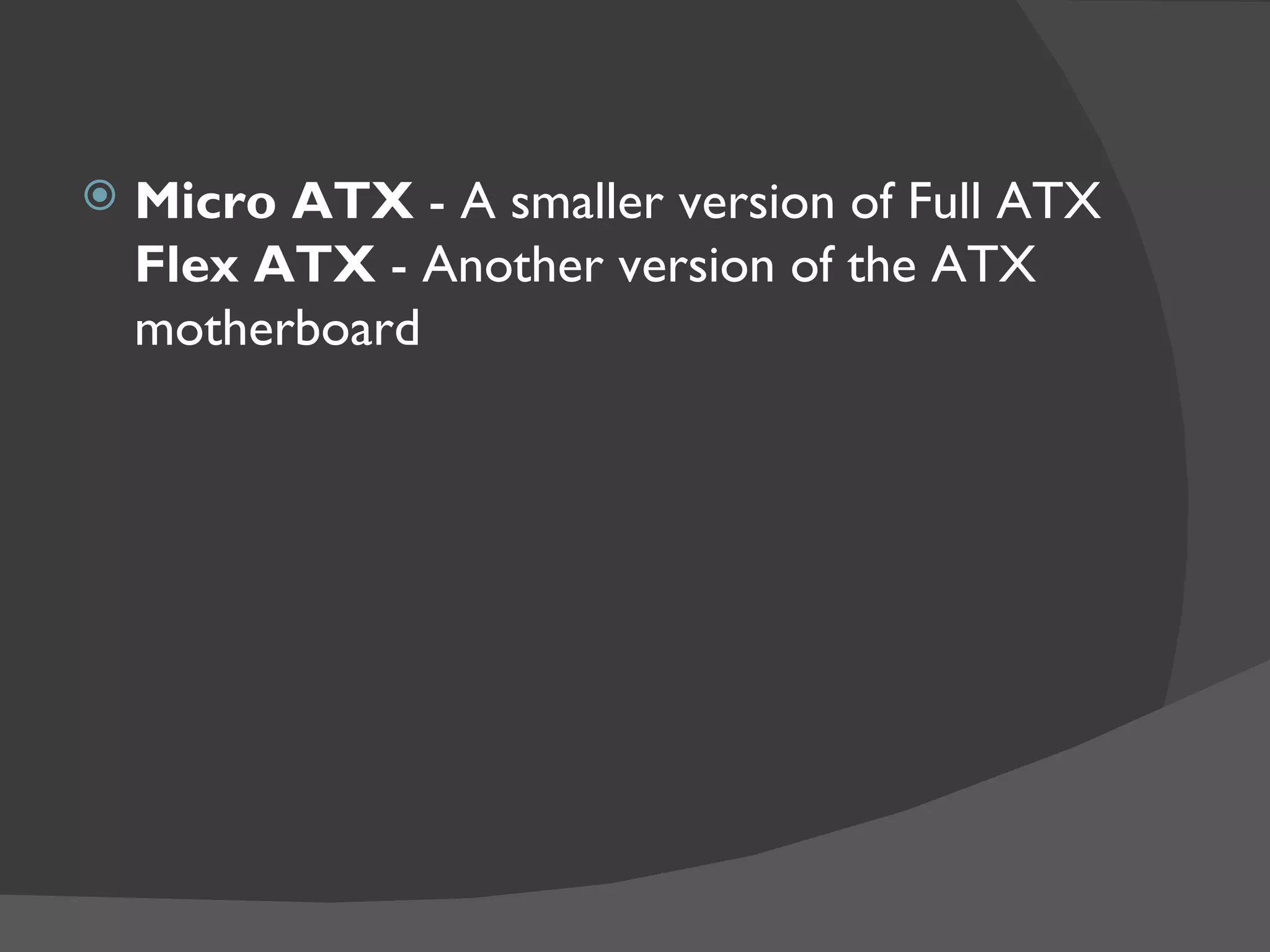
   Micro ATX - A smaller version of Full ATX
    Flex ATX - Another version of the ATX
    motherboard
   NLX (Supports motherboards with overall
    dimensions of 9.0" x 13.6" [maximum] to 8.0" x 10.0"
    [minimum]) Implemented in 1998 by Intel this form
    factor is gaining popularity the last couple of years
    because there found on most clone computers
    Support for the Pentium II
    Support for AGP
    Support for USB.
    Support for DIMM.
    Easier Access to internal components
    Support for motherboards that can be removed
    without using tools
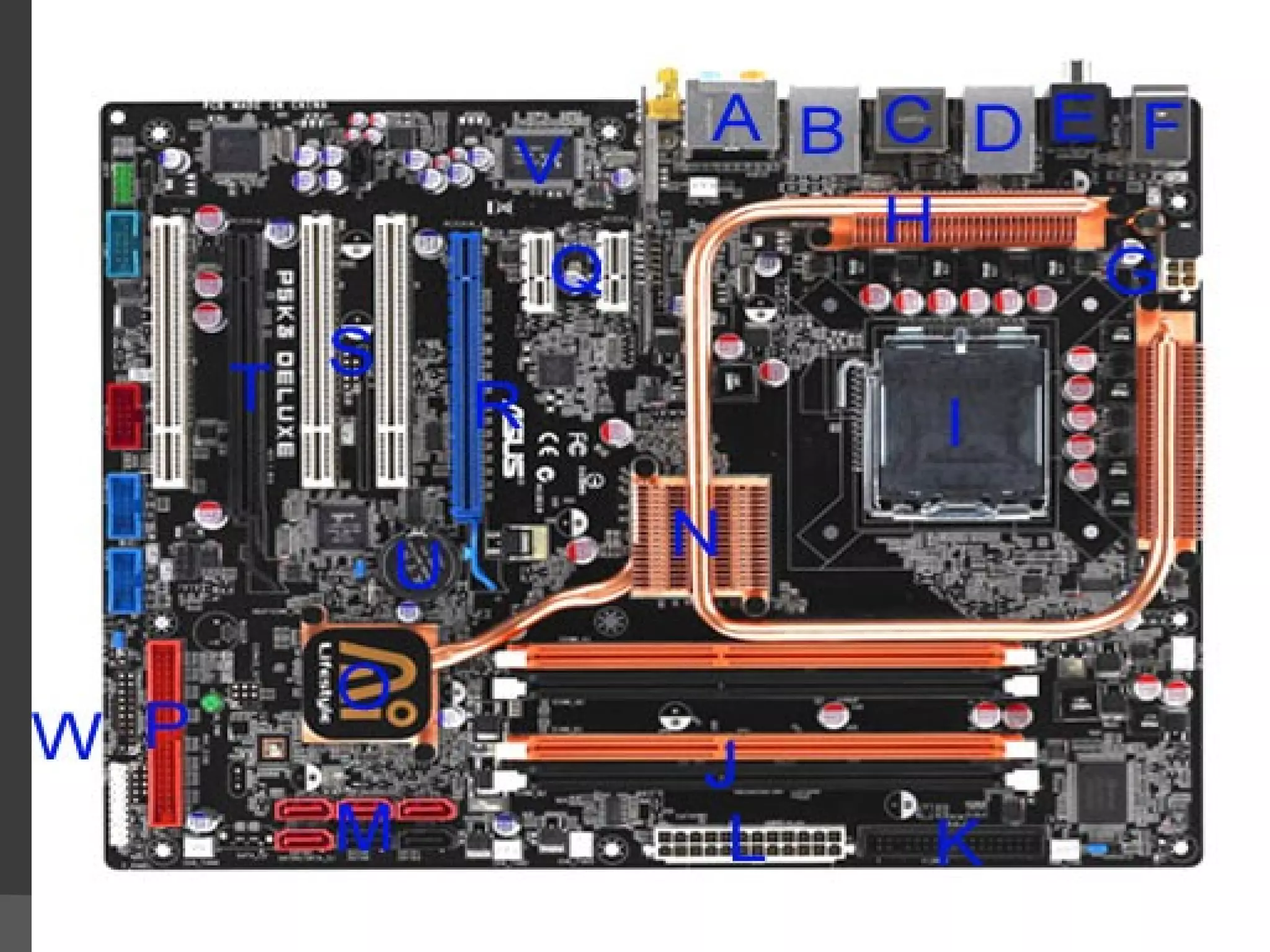
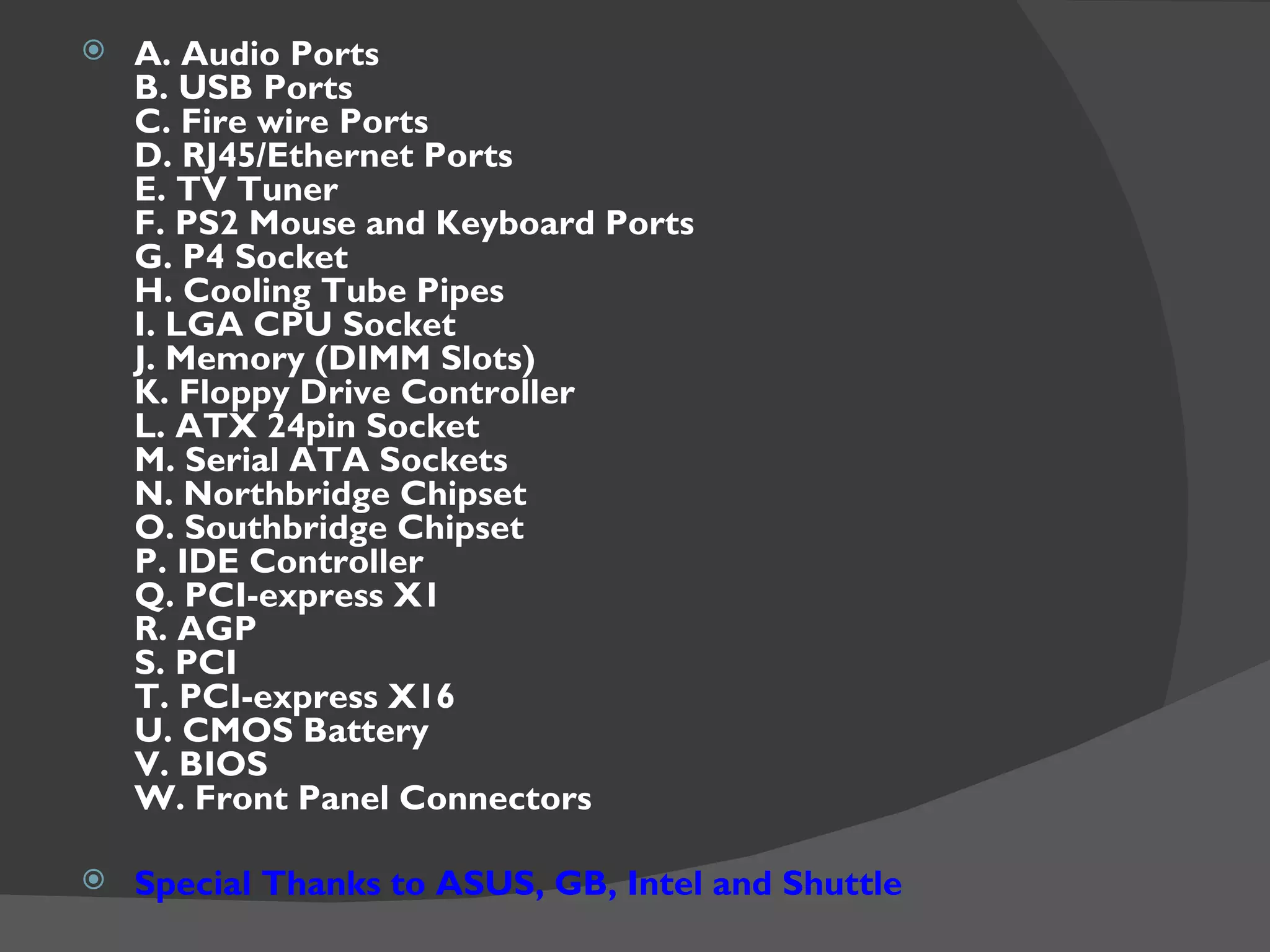
   A. Audio Ports
    B. USB Ports
    C. Fire wire Ports
    D. RJ45/Ethernet Ports
    E. TV Tuner
    F. PS2 Mouse and Keyboard Ports
    G. P4 Socket
    H. Cooling Tube Pipes
    I. LGA CPU Socket
    J. Memory (DIMM Slots)
    K. Floppy Drive Controller
    L. ATX 24pin Socket
    M. Serial ATA Sockets
    N. Northbridge Chipset
    O. Southbridge Chipset
    P. IDE Controller
    Q. PCI-express X1
    R. AGP
    S. PCI
    T. PCI-express X16
    U. CMOS Battery
    V. BIOS
    W. Front Panel Connectors

   Special Thanks to ASUS, GB, Intel and Shuttle
   There are many reasons for wanting to build
    your own PC. Building your own PC can be an
    enjoyable learning experience (especially when it
    works first go!) and greatly improve your
    understanding of hardware systems. In addition,
    building your own system may be the only option if
    you've sourced the individual components from
    different supplies, or if you're building a machine from
    parts that have been lying around. Further, building
    your own PC can help your gain skills in PC
    troubleshooting as well.
   This article describes the general procedure for
    building a PC from individual components, rather
    than focus on any specific type of hardware. In
    which case, it is important to always consult the
    installation guide for each piece of hardware in
    your system before commencing the build. This
    article assumes you have a basic understanding of
    computer hardware terminology.
   Perhaps the greatest threat facing system builders is
    electrostatic discharge (ESD). ESD is the sudden
    discharge of static electricity causing a momentary
    current flow that can weaken or permanently damage
    semiconductor components (such as the processor,
    memory, motherboard, and video card). Therefore it
    is imperative that you follow the correct ESD storage
    and handling procedures.
   All components that are susceptible to ESD
    damage are shipped in antistatic bags. Always keep
    these components in their correct packaging until
    you need to use them. You'll also need to purchase
    an antistatic wrist strap. This device ensures that
    your body has not built up a static charge that can
    damage sensitive components when you handle
    them. When handling sensitive components, always
    handle them by the edges. Never allow your fingers
    to touch any electrical connectors or electronic
    components.
 To build a working system, you'll need the following
  minimum components:
 » Computer case and power supply
  » Motherboard (mainboard) and mounting hardware
  » Processor (or central processing unit - CPU)
  » Processor heatsink and fan assembly
  » Memory module (RAM)
  » Hard disk drive
  » CD or DVD ROM drive
  » Video card (optional if not integrated on
  motherboard)
  » Network card (optional)
  » Floppy disk drive (optional)
 Data cables for connecting drives
  » Installation guides for each component
  » Monitor
  » Keyboard
  » Mouse
  » Operating system installation disks
  » Any additional driver software shipped with
  hardware components
 The starting point is to decide on the type and speed
  of processor your system will be based on. Once this
  has been decided, choose a motherboard that can
  support that type of processor. You can now choose a
  type of memory module that is supported by the
  motherboard. be sure to also choose a hard disk drive
  that the motherboard can support. Finally, choose a
  case that's big enough for your build and that suits the
  form factor (physical dimensions) of your
  motherboard.
 At the very least you'll need the following
  tools and equipment:
 » Selection of flat-head screwdrivers
  » Selection of Phillips head screwdrivers
  » Long-nose pliers
  » Torch (flashlight)
  » Antistatic wrist strap
  » Clean static-free workbench
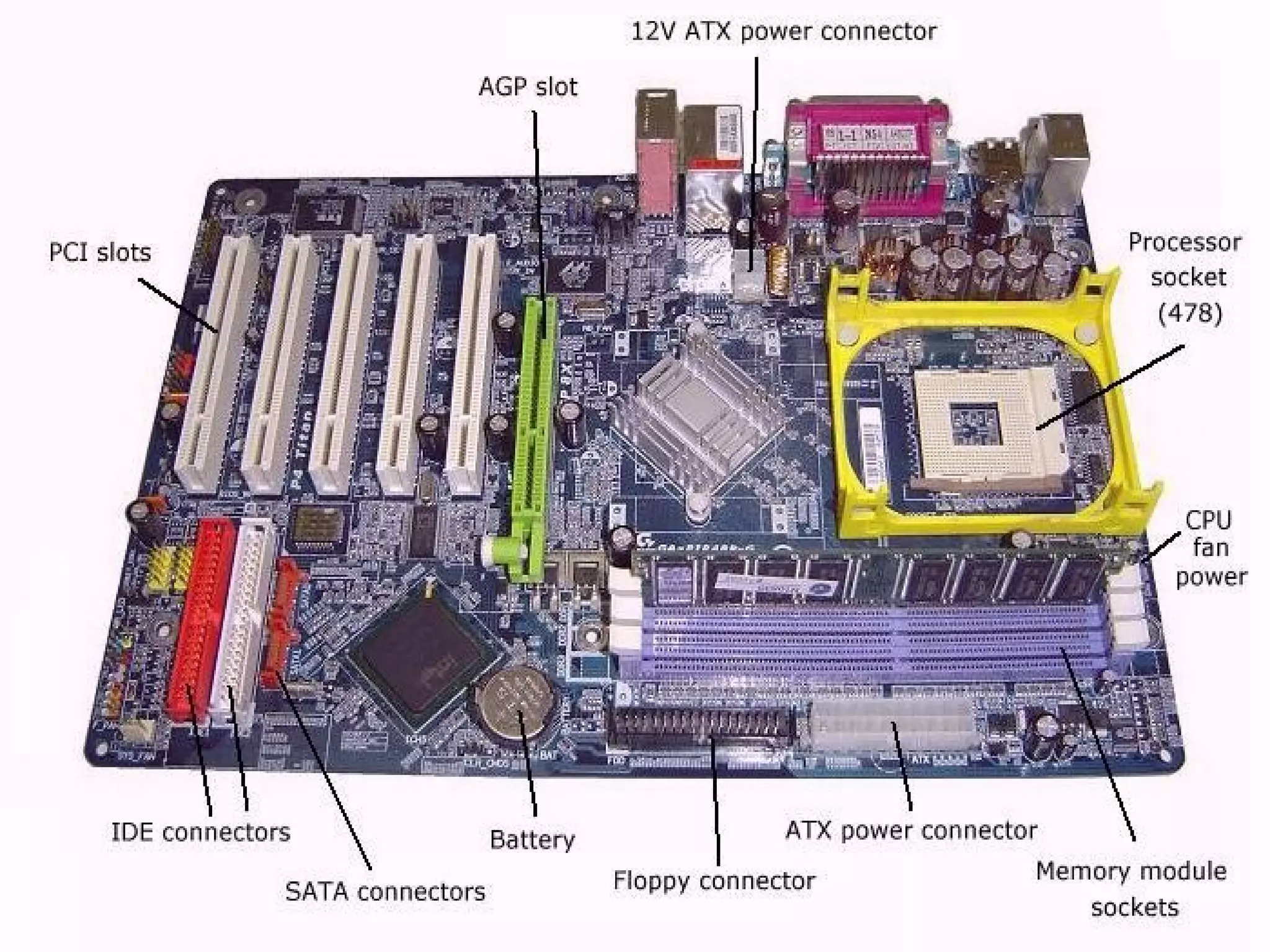
   1.Familiarise yourself with the
    motherboard layout.Read the
    motherboard installation guide and
    familiarise yourself with the motherboard
    layout. A typical arrangement is shown in
    the diagram below:
   Install the motherboard.Install any plastic
    spacers that came with the case in the correct
    positions to support the motherboard. Ensure
    there case is not plugged in to the mains power
    outlet. Following the correct ESD prevention
    procedures, carefully remove the motherboard
    from its antistatic bag and correctly position it in
    the case. Use the screws supplied to firmly
    mount the motherboard.
   Consult the documentation that came with your
    case (or do some clever tracing!) to locate
    connections to the case front panel. These will
    include the power light and switch, reset switch,
    hard disk light, loudspeaker and so on. Connect
    these to the appropriate connectors on the
    motherboard (consult the motherboard
   Following the correct ESD prevention
    procedures, carefully remove the memory
    module(s) from their antistatic bag and correctly
    insert them in the memory module sockets,
    begging with Slot 1. Push the clips on each side of
    the slots inwards so that the memory modules
    are firmly in place.
   Most processors are installed using a ZIF (zero
    insertion force) socket. Lift the ZIF socket's
    leaver fully upwards, and, following the correct
    ESD prevention procedures, carefully install the
    processor. Most processors are keyed (should
    only go in one way) and should not require any
    force (see picture below).
P.C motherboard

P.C motherboard

  • 2.
    Motherboard aka (system board, planar board, main board, logic board)  Motherboard: is the main circuit board of a microcomputer.
  • 3.
    The following is some of the ways in determining if your motherboard is an AT motherboard or an ATX motherboard. The Keyboard: AT Motherboard = DIN/5 connector ATX Motherboard = PS/2 connector
  • 4.
    AT Motherboard = Single Row two connectors 5v & 12v ATX Motherboard = Double row single connector 5v, 12v, and 3.3v In this section, you learned that the motherboard holds all the components of the computer that serves as their main attachment point.
  • 5.
    CPU type: CPU socket or CPU slot Memory slots: SIMM slots, DIMM slots or RIMM slots Cache memory: Internal or External Cache found on the CPU and as support chips Chipsets: Northbridge, Southbridge, Cache, Heatsink, MCC, sound and video chipsets System BIOS: ROM usually a DIPP chip and complemented by the CMOS battery Expansion slots: AGP, ISA, PCI, AMR and CNR Motherboard connectors: FDC, IDE Controllers, Fan Controllers, CD/DVD and sound controllers Motherboard settings: Jumpers and Switches Power connectors: AT socket vs. ATX socket
  • 6.
    old school) AT (Full vs. Baby) XT (rip) LPX (rip)  (newer) ATX NLX
  • 7.
    Full-AT (12" wide x 13.8" deep) Matches the original IBM AT motherboard design, which only fits into full size AT or tower cases only, not being produced much any more if any. This form factor is no longer produced because it cannot be placed into the popular Baby-AT chassis.
  • 8.
    Baby- AT (8.57" wide x 13.04" deep) Almost the same as the original IBM XT motherboard with modifications in the screw hole position to fit into AT style case, with connections built onto the motherboard to fit the holes in the case
  • 10.
    A. Primary and Secondary IIDE Controllers B. ROM/BIOS C. ISA slots D. CMOS Battery E. PCI slots F. DIN/5 Keyboard Connector G. AT Socket H. ATX Socket I. DIMM Slots
  • 11.
    . SIMM Slots K. Chipset L. L2 Cache M.CPU Socket N. Floppy Drive Controller O.LPT Connector P.COM Connector
  • 12.
    Full-ATX - (12"wide x 9.6" deep) / Mini-ATX - (11.2" wide x 8.2" deep) The official specifications were released by Intel in 1995 and was revised to version 2.01 in February 1997.The ATX form factor is an advancement over previous AT style motherboards. Therefore requires a new case design. ATX is not a abbreviation however is actually a trademark, which belongs to Intel. On a socket 7 ATX motherboard the socket has been placed a further distance from the expansion slots allowing for long boards to be placed in easier. Relocation of the memory and the CPU creating better ventilation and easier upgrade Power management possible with proper BIOS support.
  • 13.
    Micro ATX - A smaller version of Full ATX Flex ATX - Another version of the ATX motherboard
  • 14.
    NLX (Supports motherboards with overall dimensions of 9.0" x 13.6" [maximum] to 8.0" x 10.0" [minimum]) Implemented in 1998 by Intel this form factor is gaining popularity the last couple of years because there found on most clone computers Support for the Pentium II Support for AGP Support for USB. Support for DIMM. Easier Access to internal components Support for motherboards that can be removed without using tools
  • 17.
    A. Audio Ports B. USB Ports C. Fire wire Ports D. RJ45/Ethernet Ports E. TV Tuner F. PS2 Mouse and Keyboard Ports G. P4 Socket H. Cooling Tube Pipes I. LGA CPU Socket J. Memory (DIMM Slots) K. Floppy Drive Controller L. ATX 24pin Socket M. Serial ATA Sockets N. Northbridge Chipset O. Southbridge Chipset P. IDE Controller Q. PCI-express X1 R. AGP S. PCI T. PCI-express X16 U. CMOS Battery V. BIOS W. Front Panel Connectors  Special Thanks to ASUS, GB, Intel and Shuttle
  • 18.
    There are many reasons for wanting to build your own PC. Building your own PC can be an enjoyable learning experience (especially when it works first go!) and greatly improve your understanding of hardware systems. In addition, building your own system may be the only option if you've sourced the individual components from different supplies, or if you're building a machine from parts that have been lying around. Further, building your own PC can help your gain skills in PC troubleshooting as well.
  • 19.
    This article describes the general procedure for building a PC from individual components, rather than focus on any specific type of hardware. In which case, it is important to always consult the installation guide for each piece of hardware in your system before commencing the build. This article assumes you have a basic understanding of computer hardware terminology.
  • 20.
    Perhaps the greatest threat facing system builders is electrostatic discharge (ESD). ESD is the sudden discharge of static electricity causing a momentary current flow that can weaken or permanently damage semiconductor components (such as the processor, memory, motherboard, and video card). Therefore it is imperative that you follow the correct ESD storage and handling procedures.
  • 21.
    All components that are susceptible to ESD damage are shipped in antistatic bags. Always keep these components in their correct packaging until you need to use them. You'll also need to purchase an antistatic wrist strap. This device ensures that your body has not built up a static charge that can damage sensitive components when you handle them. When handling sensitive components, always handle them by the edges. Never allow your fingers to touch any electrical connectors or electronic components.
  • 22.
     To builda working system, you'll need the following minimum components:  » Computer case and power supply » Motherboard (mainboard) and mounting hardware » Processor (or central processing unit - CPU) » Processor heatsink and fan assembly » Memory module (RAM) » Hard disk drive » CD or DVD ROM drive » Video card (optional if not integrated on motherboard) » Network card (optional) » Floppy disk drive (optional)
  • 23.
     Data cablesfor connecting drives » Installation guides for each component » Monitor » Keyboard » Mouse » Operating system installation disks » Any additional driver software shipped with hardware components  The starting point is to decide on the type and speed of processor your system will be based on. Once this has been decided, choose a motherboard that can support that type of processor. You can now choose a type of memory module that is supported by the motherboard. be sure to also choose a hard disk drive that the motherboard can support. Finally, choose a case that's big enough for your build and that suits the form factor (physical dimensions) of your motherboard.
  • 24.
     At thevery least you'll need the following tools and equipment:  » Selection of flat-head screwdrivers » Selection of Phillips head screwdrivers » Long-nose pliers » Torch (flashlight) » Antistatic wrist strap » Clean static-free workbench
  • 25.
    1.Familiarise yourself with the motherboard layout.Read the motherboard installation guide and familiarise yourself with the motherboard layout. A typical arrangement is shown in the diagram below:
  • 27.
    Install the motherboard.Install any plastic spacers that came with the case in the correct positions to support the motherboard. Ensure there case is not plugged in to the mains power outlet. Following the correct ESD prevention procedures, carefully remove the motherboard from its antistatic bag and correctly position it in the case. Use the screws supplied to firmly mount the motherboard.
  • 28.
    Consult the documentation that came with your case (or do some clever tracing!) to locate connections to the case front panel. These will include the power light and switch, reset switch, hard disk light, loudspeaker and so on. Connect these to the appropriate connectors on the motherboard (consult the motherboard
  • 29.
    Following the correct ESD prevention procedures, carefully remove the memory module(s) from their antistatic bag and correctly insert them in the memory module sockets, begging with Slot 1. Push the clips on each side of the slots inwards so that the memory modules are firmly in place.
  • 30.
    Most processors are installed using a ZIF (zero insertion force) socket. Lift the ZIF socket's leaver fully upwards, and, following the correct ESD prevention procedures, carefully install the processor. Most processors are keyed (should only go in one way) and should not require any force (see picture below).