Pivot Tables and Pivot
Charts: Data
Summarization and
Visualization
Unlock insights from your data with powerful summarization and
visualization tools. Learn to create, analyze, and present data effectively
using Pivot Tables and Charts. Focus: Practical examples, step-by-step
instructions, and real-world applications.
by
Dr. K Hussain
What is a Pivot Table?
Dynamic Tool
A dynamic tool for summarizing and analyzing large
datasets. Enables quick rearrangement and aggregation of
data.
Interactive Exploration
Interactive exploration through filtering, grouping, and
calculations. Example: Sales data – region, product, sales
rep, revenue.
Creating Your First Pivot Table: Step-by-Step
Data Preparation
Ensure your data is clean
and well-structured.
Insert Pivot Table
Select your data range and
choose a location.
PivotTable Fields
Pane
Drag and drop fields into
Rows, Columns, Values, and
Filters.
Example Dataset
Sample sales data with
Region (North, South, East,
West), Product (A, B, C),
Sales (Units Sold), and
Revenue ($).
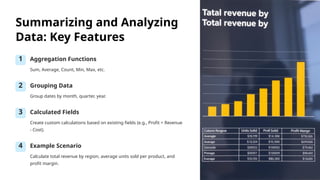
Summarizing and Analyzing
Data: Key Features
1 Aggregation Functions
Sum, Average, Count, Min, Max, etc.
2 Grouping Data
Group dates by month, quarter, year.
3 Calculated Fields
Create custom calculations based on existing fields (e.g., Profit = Revenue
- Cost).
4 Example Scenario
Calculate total revenue by region, average units sold per product, and
profit margin.
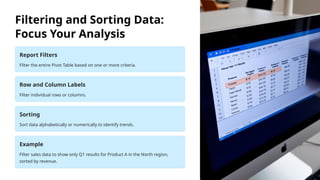
Filtering and Sorting Data:
Focus Your Analysis
Report Filters
Filter the entire Pivot Table based on one or more criteria.
Row and Column Labels
Filter individual rows or columns.
Sorting
Sort data alphabetically or numerically to identify trends.
Example
Filter sales data to show only Q1 results for Product A in the North region,
sorted by revenue.
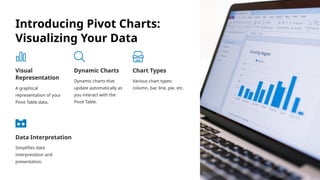
Introducing Pivot Charts:
Visualizing Your Data
Visual
Representation
A graphical
representation of your
Pivot Table data.
Dynamic Charts
Dynamic charts that
update automatically as
you interact with the
Pivot Table.
Chart Types
Various chart types:
column, bar, line, pie, etc.
Data Interpretation
Simplifies data
interpretation and
presentation.
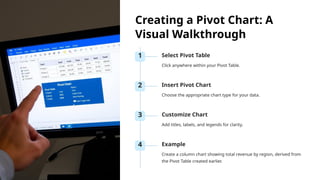
Creating a Pivot Chart: A
Visual Walkthrough
1 Select Pivot Table
Click anywhere within your Pivot Table.
2 Insert Pivot Chart
Choose the appropriate chart type for your data.
3 Customize Chart
Add titles, labels, and legends for clarity.
4 Example
Create a column chart showing total revenue by region, derived from
the Pivot Table created earlier.
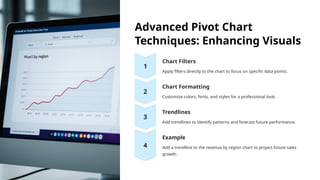
Advanced Pivot Chart
Techniques: Enhancing Visuals
Chart Filters
Apply filters directly to the chart to focus on specific data points.
Chart Formatting
Customize colors, fonts, and styles for a professional look.
Trendlines
Add trendlines to identify patterns and forecast future performance.
Example
Add a trendline to the revenue by region chart to project future sales
growth.
Real-World Applications: Beyond Sales Data
1
Financial Analysis
Budget vs. Actual, Expense Tracking.
2
Inventory Management
Stock Levels, Reorder Points.
3
Survey Analysis
Respondent Demographics, Opinion Distribution.
4
Website Analytics
Traffic Sources, User Behavior.
Conclusion: Unleash the Power of Pivot
Tables and Charts
Master the skills to analyze, summarize, and visualize data effectively. Make data-driven decisions with confidence and
clarity. Practice with your own data to unlock new insights and opportunities. Resources: Microsoft Excel Help, Online
tutorials, and Community forums.

Pivot Tables and Pivot Charts: Data Summarization and Visualization

  • 1.
    Pivot Tables andPivot Charts: Data Summarization and Visualization Unlock insights from your data with powerful summarization and visualization tools. Learn to create, analyze, and present data effectively using Pivot Tables and Charts. Focus: Practical examples, step-by-step instructions, and real-world applications. by Dr. K Hussain
  • 2.
    What is aPivot Table? Dynamic Tool A dynamic tool for summarizing and analyzing large datasets. Enables quick rearrangement and aggregation of data. Interactive Exploration Interactive exploration through filtering, grouping, and calculations. Example: Sales data – region, product, sales rep, revenue.
  • 3.
    Creating Your FirstPivot Table: Step-by-Step Data Preparation Ensure your data is clean and well-structured. Insert Pivot Table Select your data range and choose a location. PivotTable Fields Pane Drag and drop fields into Rows, Columns, Values, and Filters. Example Dataset Sample sales data with Region (North, South, East, West), Product (A, B, C), Sales (Units Sold), and Revenue ($).
  • 4.
    Summarizing and Analyzing Data:Key Features 1 Aggregation Functions Sum, Average, Count, Min, Max, etc. 2 Grouping Data Group dates by month, quarter, year. 3 Calculated Fields Create custom calculations based on existing fields (e.g., Profit = Revenue - Cost). 4 Example Scenario Calculate total revenue by region, average units sold per product, and profit margin.
  • 5.
    Filtering and SortingData: Focus Your Analysis Report Filters Filter the entire Pivot Table based on one or more criteria. Row and Column Labels Filter individual rows or columns. Sorting Sort data alphabetically or numerically to identify trends. Example Filter sales data to show only Q1 results for Product A in the North region, sorted by revenue.
  • 6.
    Introducing Pivot Charts: VisualizingYour Data Visual Representation A graphical representation of your Pivot Table data. Dynamic Charts Dynamic charts that update automatically as you interact with the Pivot Table. Chart Types Various chart types: column, bar, line, pie, etc. Data Interpretation Simplifies data interpretation and presentation.
  • 7.
    Creating a PivotChart: A Visual Walkthrough 1 Select Pivot Table Click anywhere within your Pivot Table. 2 Insert Pivot Chart Choose the appropriate chart type for your data. 3 Customize Chart Add titles, labels, and legends for clarity. 4 Example Create a column chart showing total revenue by region, derived from the Pivot Table created earlier.
  • 8.
    Advanced Pivot Chart Techniques:Enhancing Visuals Chart Filters Apply filters directly to the chart to focus on specific data points. Chart Formatting Customize colors, fonts, and styles for a professional look. Trendlines Add trendlines to identify patterns and forecast future performance. Example Add a trendline to the revenue by region chart to project future sales growth.
  • 9.
    Real-World Applications: BeyondSales Data 1 Financial Analysis Budget vs. Actual, Expense Tracking. 2 Inventory Management Stock Levels, Reorder Points. 3 Survey Analysis Respondent Demographics, Opinion Distribution. 4 Website Analytics Traffic Sources, User Behavior.
  • 10.
    Conclusion: Unleash thePower of Pivot Tables and Charts Master the skills to analyze, summarize, and visualize data effectively. Make data-driven decisions with confidence and clarity. Practice with your own data to unlock new insights and opportunities. Resources: Microsoft Excel Help, Online tutorials, and Community forums.