A.H. Memorial Library
847.870.5224
   This class is intended only as a basic demo
    that gives an introduction to Pinterest and
    explains how Pinterest accounts are created.

   It is not primarily a “hands on” class. However,
    the concepts and resources provided can be
    used to learn to create your own account.

      Note: This class assumes a good working
      knowledge of computers, email, and the
                       internet.
 Basic  introduction to Pinterest.
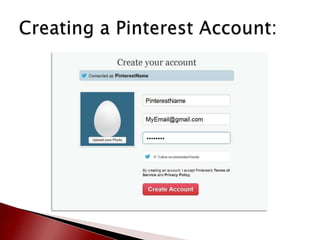
 Briefly describe how to create an account.
 Provide a website where you can view the
  links and slides that are presented today.

 For those with prior computer experience
 and an accessible email account time will
 be provided to create a Pinterest account.
   Board: This is where you organize your “favorites” into categories.
    The categories can be as broad or as specific as you’d like. Ex.
    “recipes,” “little black dresses,” “funny,” etc.
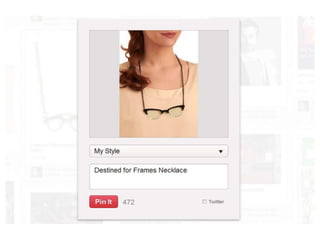
   To Pin: To place a visual representation of a particular
    website, video, or image on your board.
   Pins: These are the images you have added to your Pinterest
    boards.
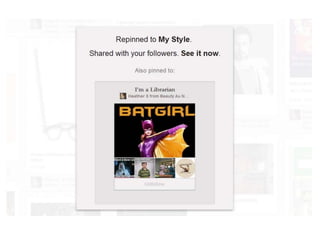
   Repin / Repins: A step beyond a “like,” a repin allows you to share
    someone else’s pin directly with your followers.
   Followers: Anyone who has chosen to regularly view your pins.
   Following: Any accounts you have chosen to follow. Note: You can
    choose to follow all of someone’s boards or just individual ones.
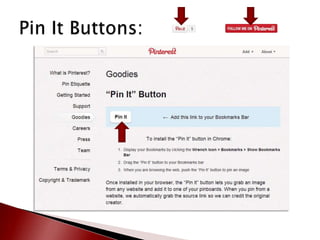
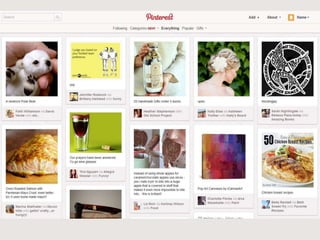
   Pinterest is a visual representation of something (ex.
    web page). In order for a web page to be pinned it
    must have at least one image that is “pinnable!”


                Click
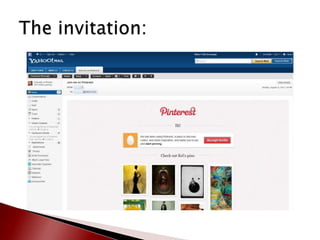
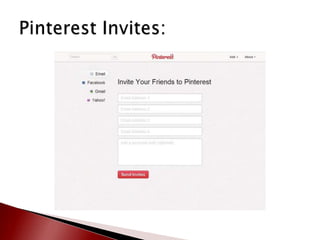
   Ask for an invitation to join or get “invited.”
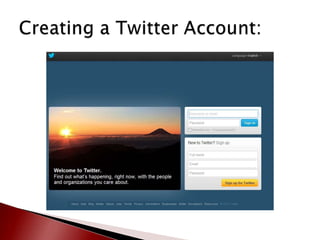
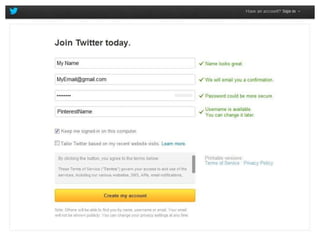
   Sign in via Twitter, Facebook, etc.
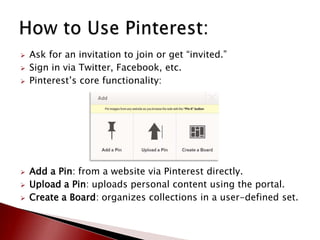
   Pinterest’s core functionality:


   Add a Pin: from a website via Pinterest directly.
   Upload a Pin: uploads personal content using the portal.
   Create a Board: organizes collections in a user-defined set.
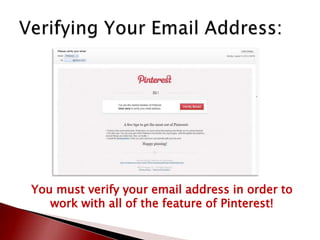
You must verify your email address in order to
   work with all of the feature of Pinterest!
Categories
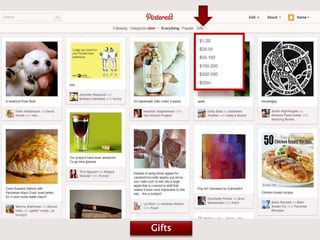
Gifts
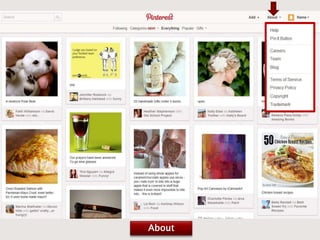
About
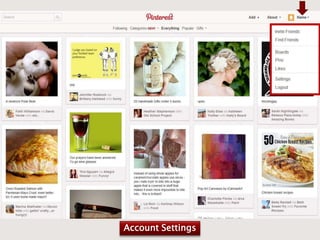
Account Settings
   We’re happy to introduce you to resources that will
    help you learn the basics of working with social media.

   Arlington Heights Memorial Library card holders can
    also setup one-on-one 30 minute appointments with a
    Digital Services Assistant to learn:
      to create a Pinterest account
      the basics of editing your Pin Boards


   We’re also happy to try to help with other issues
    pertaining to social media.
 AHML  Digital Services Appointment:
 http://ahml.info/appointment

 Slidesfrom today:
 http://www.slideshare.net/ahml

 Linksfrom today:
 http://www.delicious.com/ahmldigital

 Pinterest
          help website:
 http://pinterest.com/about/help/

Pinterest Class

  • 1.
  • 2.
    This class is intended only as a basic demo that gives an introduction to Pinterest and explains how Pinterest accounts are created.  It is not primarily a “hands on” class. However, the concepts and resources provided can be used to learn to create your own account. Note: This class assumes a good working knowledge of computers, email, and the internet.
  • 3.
     Basic introduction to Pinterest.  Briefly describe how to create an account.  Provide a website where you can view the links and slides that are presented today. For those with prior computer experience and an accessible email account time will be provided to create a Pinterest account.
  • 5.
    Board: This is where you organize your “favorites” into categories. The categories can be as broad or as specific as you’d like. Ex. “recipes,” “little black dresses,” “funny,” etc.  To Pin: To place a visual representation of a particular website, video, or image on your board.  Pins: These are the images you have added to your Pinterest boards.  Repin / Repins: A step beyond a “like,” a repin allows you to share someone else’s pin directly with your followers.  Followers: Anyone who has chosen to regularly view your pins.  Following: Any accounts you have chosen to follow. Note: You can choose to follow all of someone’s boards or just individual ones.
  • 6.
    Pinterest is a visual representation of something (ex. web page). In order for a web page to be pinned it must have at least one image that is “pinnable!” Click
  • 7.
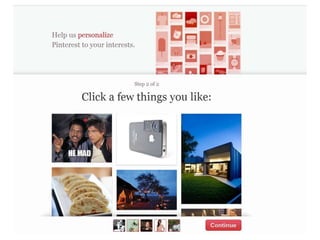
    Ask for an invitation to join or get “invited.”  Sign in via Twitter, Facebook, etc.  Pinterest’s core functionality:  Add a Pin: from a website via Pinterest directly.  Upload a Pin: uploads personal content using the portal.  Create a Board: organizes collections in a user-defined set.
  • 17.
    You must verifyyour email address in order to work with all of the feature of Pinterest!
  • 19.
  • 20.
  • 21.
  • 22.
  • 29.
    We’re happy to introduce you to resources that will help you learn the basics of working with social media.  Arlington Heights Memorial Library card holders can also setup one-on-one 30 minute appointments with a Digital Services Assistant to learn:  to create a Pinterest account  the basics of editing your Pin Boards  We’re also happy to try to help with other issues pertaining to social media.
  • 30.
     AHML Digital Services Appointment: http://ahml.info/appointment  Slidesfrom today: http://www.slideshare.net/ahml  Linksfrom today: http://www.delicious.com/ahmldigital  Pinterest help website: http://pinterest.com/about/help/