PREPARED BY
MS.V.MANOCHITRA,
HOD, DEPT OF IT
BON SECOURS COLLEGE FOR WOMEN
WEB DESIGN
Subject Code: 16SMBEIT1:1
Class: III-IT
(Affiliated to Bharathidasan University)
Frames
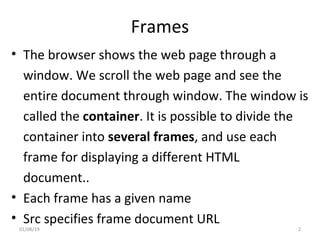
• The browser shows the web page through a
window. We scroll the web page and see the
entire document through window. The window is
called the container. It is possible to divide the
container into several frames, and use each
frame for displaying a different HTML
document..
• Each frame has a given name
• Src specifies frame document URL
01/08/19 2
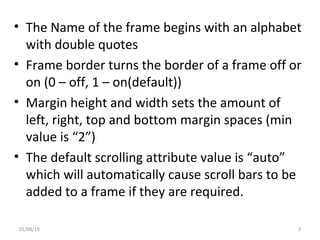
• The Name of the frame begins with an alphabet
with double quotes
• Frame border turns the border of a frame off or
on (0 – off, 1 – on(default))
• Margin height and width sets the amount of
left, right, top and bottom margin spaces (min
value is “2”)
• The default scrolling attribute value is “auto”
which will automatically cause scroll bars to be
added to a frame if they are required.
01/08/19 3
FRAME STRUCTURE
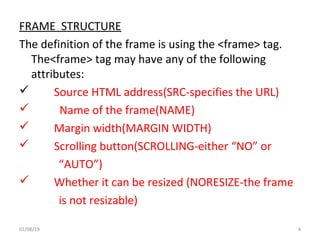
The definition of the frame is using the <frame> tag.
The<frame> tag may have any of the following
attributes:
 Source HTML address(SRC-specifies the URL)
 Name of the frame(NAME)
 Margin width(MARGIN WIDTH)
 Scrolling button(SCROLLING-either “NO” or
“AUTO”)
 Whether it can be resized (NORESIZE-the frame
is not resizable)
01/08/19 4
Attribute Description
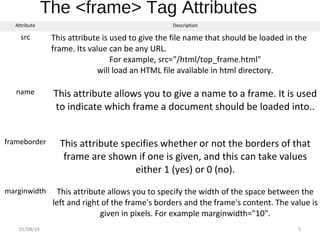
src This attribute is used to give the file name that should be loaded in the
frame. Its value can be any URL.
For example, src="/html/top_frame.html"
will load an HTML file available in html directory.
name This attribute allows you to give a name to a frame. It is used
to indicate which frame a document should be loaded into..
frameborder This attribute specifies whether or not the borders of that
frame are shown if one is given, and this can take values
either 1 (yes) or 0 (no).
marginwidth This attribute allows you to specify the width of the space between the
left and right of the frame's borders and the frame's content. The value is
given in pixels. For example marginwidth="10".
01/08/19 5
The <frame> Tag Attributes
01/08/19 6
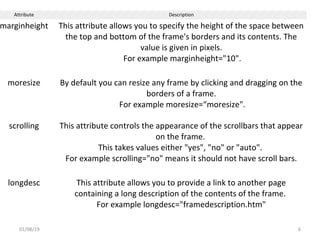
Attribute Description
marginheight This attribute allows you to specify the height of the space between
the top and bottom of the frame's borders and its contents. The
value is given in pixels.
For example marginheight="10".
moresize By default you can resize any frame by clicking and dragging on the
borders of a frame.
For example moresize=“moresize".
scrolling This attribute controls the appearance of the scrollbars that appear
on the frame.
This takes values either "yes", "no" or "auto".
For example scrolling="no" means it should not have scroll bars.
longdesc This attribute allows you to provide a link to another page
containing a long description of the contents of the frame.
For example longdesc="framedescription.htm"
01/08/19 7
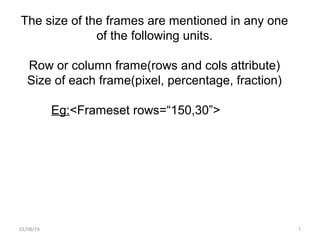
The size of the frames are mentioned in any one
of the following units.
Row or column frame(rows and cols attribute)
Size of each frame(pixel, percentage, fraction)
Eg:<Frameset rows=“150,30”>
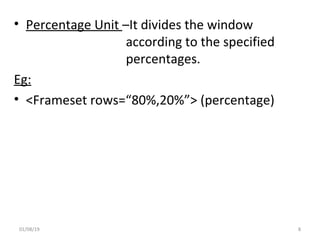
• Percentage Unit –It divides the window
according to the specified
percentages.
Eg:
• <Frameset rows=“80%,20%”> (percentage)
01/08/19 8
01/08/19 9
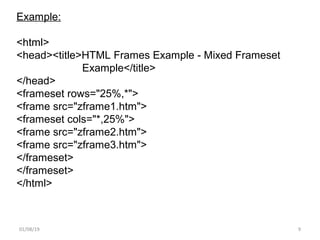
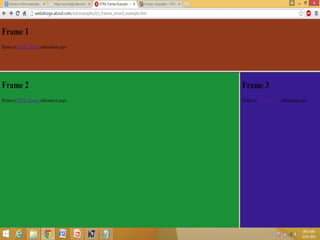
Example:
<html>
<head><title>HTML Frames Example - Mixed Frameset
Example</title>
</head>
<frameset rows="25%,*">
<frame src="zframe1.htm">
<frameset cols="*,25%">
<frame src="zframe2.htm">
<frame src="zframe3.htm">
</frameset>
</frameset>
</html>
01/08/19 10
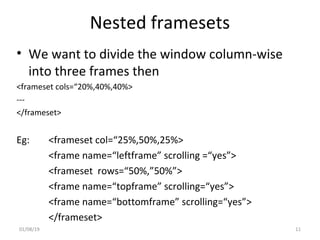
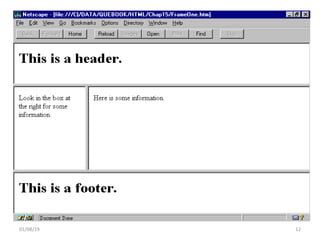
Nested framesets
• We want to divide the window column-wise
into three frames then
<frameset cols=“20%,40%,40%>
---
</frameset>
Eg: <frameset col=“25%,50%,25%>
<frame name=“leftframe” scrolling =“yes”>
<frameset rows=“50%,”50%”>
<frame name=“topframe” scrolling=“yes”>
<frame name=“bottomframe” scrolling=“yes”>
</frameset>
01/08/19 11
01/08/19 12
Advantages of frames
• One of the most beneficial feature of frames is it lets
the user to have multiple pages in the same
browser.
• Using frames we can keep one part of the page static
while changing the other parts of the page.
01/08/19 13
Disadvantages of Frames
There are few drawbacks with using frames
• Some smaller devices cannot cope with frames often because
their screen is not big enough to be divided up.
• Sometimes your page will be displayed differently on
different computers due to different screen resolution.
• There are still few browsers that do not support frame
technology.
• Its difficult to print the content of all frames when compared
to a normal web page.
01/08/19 14
FORMS
• Forms are used to get input from the users.
• The user input is submitted to the server.
• A form is an area that can contain form
elements.
• <form> </form>
01/08/19 15
• The form tag has three attributes. They are,
-Action -Method -enctype
1.Action: The action attributes inform the browser the
location of the server to which the form input to
be submitted.
form action=“----path------/index.html”
2. Method: This attribute has only two choices of values.
method=“get” or method=“post”
method=“post” is the recommended protocol.
3.Enctype: This attribute is used to inform the server the way
to handle the encryption process.
<enctype=“application/x-www-form-urlencoded”> 1601/08/19
DROP DOWN LIST
• A drop down list present a list to the user. The
user can select his choice from the list. This is
done using <select> Tag.
• The <select> tag has three attributes:
• Name attribute
• Size attribute
• Multiple attribute
01/08/19 17
Name attribute:
• This is assigns a name for a variable, which will
hold the selected choice.
• eg:
• <select name=qualification>
• <option> BCA</option>
• <option> BA</option>
• <option> BSc</option>
• </select>
01/08/19 18
• Size attribute: This is used adjust the corner in
the field.
• Eg:
<select name=qualification size=3>
<option value=“1”> BCA</option>
<option value=“2”> BA</option>
<option value=“3”> BSc</option>
</select>
01/08/19 19
• Multiple Attribute: is used , the user can be
given freedom to select more than one of the
options.
Eg:
<select name=qualification multiple=“multiple”>
<option value=“C”> CA</option>
<option value=“B”> BA</option>
<option value=“BS”> BSc</option>
</select>
01/08/19 20
Commonly used form elements includes:
Text fields Radio buttons Checkboxes Submit buttons
Text Input Fields
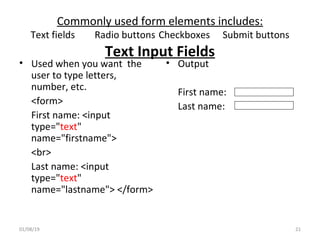
• Used when you want the
user to type letters,
number, etc.
<form>
First name: <input
type="text"
name="firstname">
<br>
Last name: <input
type="text"
name="lastname"> </form>
• Output
First name:
Last name:
01/08/19 21
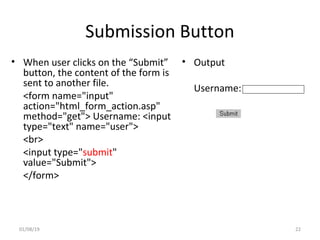
Submission Button
• When user clicks on the “Submit”
button, the content of the form is
sent to another file.
<form name="input"
action="html_form_action.asp"
method="get"> Username: <input
type="text" name="user">
<br>
<input type="submit"
value="Submit">
</form>
• Output
Username:
01/08/19 22
Reset Button
• The Reset button is used to reset the values of
all the values in the form of the user.
<form name="input"
action="html_form_action.asp"
method="get"> Username: <input type="text"
name="user">
<br>
<input type=“reset" value=“start">
</form>
01/08/19 23
Checkboxes
• Used when you want the
user to select one or more
options of a limited number
of choices.
<form>
<input type="checkbox"
name="bike“ value=“bike”>
I have a bike
<br>
<input type="checkbox"
name="car“ value=“car”>
I have a car </form>
• Output
I have a bike
I have a car
01/08/19 24
Radio Buttons
• Used when you want the
user to select one of a
limited number of choices.
<form>
<input type="radio“
name="sex" value="male">
Male
<br>
<input type="radio"
name="sex"
value="female">
Female
</form>
• Output
Male
Female
01/08/19 25
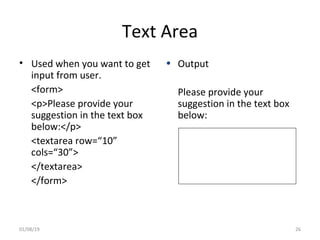
Text Area
• Used when you want to get
input from user.
<form>
<p>Please provide your
suggestion in the text box
below:</p>
<textarea row=“10”
cols=“30”>
</textarea>
</form>
• Output
Please provide your
suggestion in the text box
below:
01/08/19 26
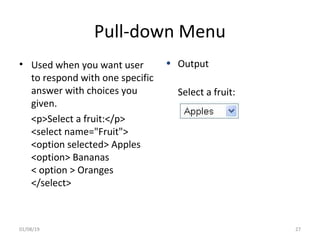
Pull-down Menu
• Used when you want user
to respond with one specific
answer with choices you
given.
<p>Select a fruit:</p>
<select name="Fruit">
<option selected> Apples
<option> Bananas
< option > Oranges
</select>
• Output
Select a fruit:
01/08/19 27
Password
• There is a special type of test field called a
password field which also gets and sends text
input from the user.
• When the user types the input, only
asterisks(*) are displayed on the screen.
Ex:
<p> type your phone number
<input type=“password”>
01/08/19 28
Hidden Fields
• In the <input> tag, we can specify
type=“hidden” to hide the text typed by the
user.
• This is only for maintaining privacy from other
persons watching the monitor of the
computer.
01/08/19 29

Unit 3 (frames)

  • 1.
    PREPARED BY MS.V.MANOCHITRA, HOD, DEPTOF IT BON SECOURS COLLEGE FOR WOMEN WEB DESIGN Subject Code: 16SMBEIT1:1 Class: III-IT (Affiliated to Bharathidasan University)
  • 2.
    Frames • The browsershows the web page through a window. We scroll the web page and see the entire document through window. The window is called the container. It is possible to divide the container into several frames, and use each frame for displaying a different HTML document.. • Each frame has a given name • Src specifies frame document URL 01/08/19 2
  • 3.
    • The Nameof the frame begins with an alphabet with double quotes • Frame border turns the border of a frame off or on (0 – off, 1 – on(default)) • Margin height and width sets the amount of left, right, top and bottom margin spaces (min value is “2”) • The default scrolling attribute value is “auto” which will automatically cause scroll bars to be added to a frame if they are required. 01/08/19 3
  • 4.
    FRAME STRUCTURE The definitionof the frame is using the <frame> tag. The<frame> tag may have any of the following attributes:  Source HTML address(SRC-specifies the URL)  Name of the frame(NAME)  Margin width(MARGIN WIDTH)  Scrolling button(SCROLLING-either “NO” or “AUTO”)  Whether it can be resized (NORESIZE-the frame is not resizable) 01/08/19 4
  • 5.
    Attribute Description src Thisattribute is used to give the file name that should be loaded in the frame. Its value can be any URL. For example, src="/html/top_frame.html" will load an HTML file available in html directory. name This attribute allows you to give a name to a frame. It is used to indicate which frame a document should be loaded into.. frameborder This attribute specifies whether or not the borders of that frame are shown if one is given, and this can take values either 1 (yes) or 0 (no). marginwidth This attribute allows you to specify the width of the space between the left and right of the frame's borders and the frame's content. The value is given in pixels. For example marginwidth="10". 01/08/19 5 The <frame> Tag Attributes
  • 6.
    01/08/19 6 Attribute Description marginheightThis attribute allows you to specify the height of the space between the top and bottom of the frame's borders and its contents. The value is given in pixels. For example marginheight="10". moresize By default you can resize any frame by clicking and dragging on the borders of a frame. For example moresize=“moresize". scrolling This attribute controls the appearance of the scrollbars that appear on the frame. This takes values either "yes", "no" or "auto". For example scrolling="no" means it should not have scroll bars. longdesc This attribute allows you to provide a link to another page containing a long description of the contents of the frame. For example longdesc="framedescription.htm"
  • 7.
    01/08/19 7 The sizeof the frames are mentioned in any one of the following units. Row or column frame(rows and cols attribute) Size of each frame(pixel, percentage, fraction) Eg:<Frameset rows=“150,30”>
  • 8.
    • Percentage Unit–It divides the window according to the specified percentages. Eg: • <Frameset rows=“80%,20%”> (percentage) 01/08/19 8
  • 9.
    01/08/19 9 Example: <html> <head><title>HTML FramesExample - Mixed Frameset Example</title> </head> <frameset rows="25%,*"> <frame src="zframe1.htm"> <frameset cols="*,25%"> <frame src="zframe2.htm"> <frame src="zframe3.htm"> </frameset> </frameset> </html>
  • 10.
  • 11.
    Nested framesets • Wewant to divide the window column-wise into three frames then <frameset cols=“20%,40%,40%> --- </frameset> Eg: <frameset col=“25%,50%,25%> <frame name=“leftframe” scrolling =“yes”> <frameset rows=“50%,”50%”> <frame name=“topframe” scrolling=“yes”> <frame name=“bottomframe” scrolling=“yes”> </frameset> 01/08/19 11
  • 12.
  • 13.
    Advantages of frames •One of the most beneficial feature of frames is it lets the user to have multiple pages in the same browser. • Using frames we can keep one part of the page static while changing the other parts of the page. 01/08/19 13
  • 14.
    Disadvantages of Frames Thereare few drawbacks with using frames • Some smaller devices cannot cope with frames often because their screen is not big enough to be divided up. • Sometimes your page will be displayed differently on different computers due to different screen resolution. • There are still few browsers that do not support frame technology. • Its difficult to print the content of all frames when compared to a normal web page. 01/08/19 14
  • 15.
    FORMS • Forms areused to get input from the users. • The user input is submitted to the server. • A form is an area that can contain form elements. • <form> </form> 01/08/19 15
  • 16.
    • The formtag has three attributes. They are, -Action -Method -enctype 1.Action: The action attributes inform the browser the location of the server to which the form input to be submitted. form action=“----path------/index.html” 2. Method: This attribute has only two choices of values. method=“get” or method=“post” method=“post” is the recommended protocol. 3.Enctype: This attribute is used to inform the server the way to handle the encryption process. <enctype=“application/x-www-form-urlencoded”> 1601/08/19
  • 17.
    DROP DOWN LIST •A drop down list present a list to the user. The user can select his choice from the list. This is done using <select> Tag. • The <select> tag has three attributes: • Name attribute • Size attribute • Multiple attribute 01/08/19 17
  • 18.
    Name attribute: • Thisis assigns a name for a variable, which will hold the selected choice. • eg: • <select name=qualification> • <option> BCA</option> • <option> BA</option> • <option> BSc</option> • </select> 01/08/19 18
  • 19.
    • Size attribute:This is used adjust the corner in the field. • Eg: <select name=qualification size=3> <option value=“1”> BCA</option> <option value=“2”> BA</option> <option value=“3”> BSc</option> </select> 01/08/19 19
  • 20.
    • Multiple Attribute:is used , the user can be given freedom to select more than one of the options. Eg: <select name=qualification multiple=“multiple”> <option value=“C”> CA</option> <option value=“B”> BA</option> <option value=“BS”> BSc</option> </select> 01/08/19 20
  • 21.
    Commonly used formelements includes: Text fields Radio buttons Checkboxes Submit buttons Text Input Fields • Used when you want the user to type letters, number, etc. <form> First name: <input type="text" name="firstname"> <br> Last name: <input type="text" name="lastname"> </form> • Output First name: Last name: 01/08/19 21
  • 22.
    Submission Button • Whenuser clicks on the “Submit” button, the content of the form is sent to another file. <form name="input" action="html_form_action.asp" method="get"> Username: <input type="text" name="user"> <br> <input type="submit" value="Submit"> </form> • Output Username: 01/08/19 22
  • 23.
    Reset Button • TheReset button is used to reset the values of all the values in the form of the user. <form name="input" action="html_form_action.asp" method="get"> Username: <input type="text" name="user"> <br> <input type=“reset" value=“start"> </form> 01/08/19 23
  • 24.
    Checkboxes • Used whenyou want the user to select one or more options of a limited number of choices. <form> <input type="checkbox" name="bike“ value=“bike”> I have a bike <br> <input type="checkbox" name="car“ value=“car”> I have a car </form> • Output I have a bike I have a car 01/08/19 24
  • 25.
    Radio Buttons • Usedwhen you want the user to select one of a limited number of choices. <form> <input type="radio“ name="sex" value="male"> Male <br> <input type="radio" name="sex" value="female"> Female </form> • Output Male Female 01/08/19 25
  • 26.
    Text Area • Usedwhen you want to get input from user. <form> <p>Please provide your suggestion in the text box below:</p> <textarea row=“10” cols=“30”> </textarea> </form> • Output Please provide your suggestion in the text box below: 01/08/19 26
  • 27.
    Pull-down Menu • Usedwhen you want user to respond with one specific answer with choices you given. <p>Select a fruit:</p> <select name="Fruit"> <option selected> Apples <option> Bananas < option > Oranges </select> • Output Select a fruit: 01/08/19 27
  • 28.
    Password • There isa special type of test field called a password field which also gets and sends text input from the user. • When the user types the input, only asterisks(*) are displayed on the screen. Ex: <p> type your phone number <input type=“password”> 01/08/19 28
  • 29.
    Hidden Fields • Inthe <input> tag, we can specify type=“hidden” to hide the text typed by the user. • This is only for maintaining privacy from other persons watching the monitor of the computer. 01/08/19 29

Editor's Notes

  • #16 Many Web applications require that a user to provides some input. Typically a user fills out a form by filling in some fields with text and/or selecting from lists of options. HTML forms provide a mechanism for including many input boxes (and buttons) that the user can use to provide input to a web application.
  • #22 TEXT is the most common type of input field, it allows the user to type in a single line of text. There are some additional attributes that can control the maximum length of the field (MAXLENGTH).
  • #23 Another type of input field is the SUBMIT type, this tells the browser to draw a button. When the user clicks on the button the browser knows to submit the contents of the form to the URL specified as the ACTION in the form tag. Submit inputs support the attribute VALUE which is the string you want displayed in the button. If you don&amp;apos;t include a VALUE attribute the browser will put the string &amp;quot;Submit&amp;quot; in the button. Note that the NAME attribute is not required for a submit input.
  • #25 Inputs of type CHECKBOX present user with an item that can be selected or deselected. Each checkbox has a name and a value and can be initially selected/deselected.
  • #26 Radio Button inputs are like checkboxes, except that the user must select only one item from group of choices.
  • #27 You can create a multiline text field with the TEXTAREA tag. The TEXTAREA tag requires the NAME attribute and supports the attributes ROWS and COLS (to define the size of the box drawn on the screen). Unlike the INPUT tag - the TEXTAREA tag has an end tag, so you need to include a &amp;lt;/TEXTAREa&amp;gt; tag.
  • #28 The SELECT and OPTION tags can be used to create pull-down menus and scrolling lists of choices. The SELECT tag must include a NAME attribute (this is the name of the form field sent by the browser). Between the &amp;lt;SELECT&amp;gt; tag and the corresponding end tag &amp;lt;/SELECT&amp;gt; there can be number of OPTION tags - one for each choice you want displayed. The text that follows the OPTION tag is the text that will be displayed by the browser. The value sent by the browser if a choice is selected can be specified with a VALUE attribute, if none is specified the value sent will be the text that follows the OPTION tag.