© 2021 CustomGuide, Inc.
Click the topic links for free lessons!
Contact Us: sales@customguide.com
Microsoft®
Outlook 2016 Basic
Quick Reference Guide
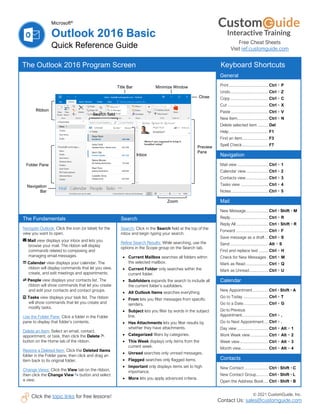
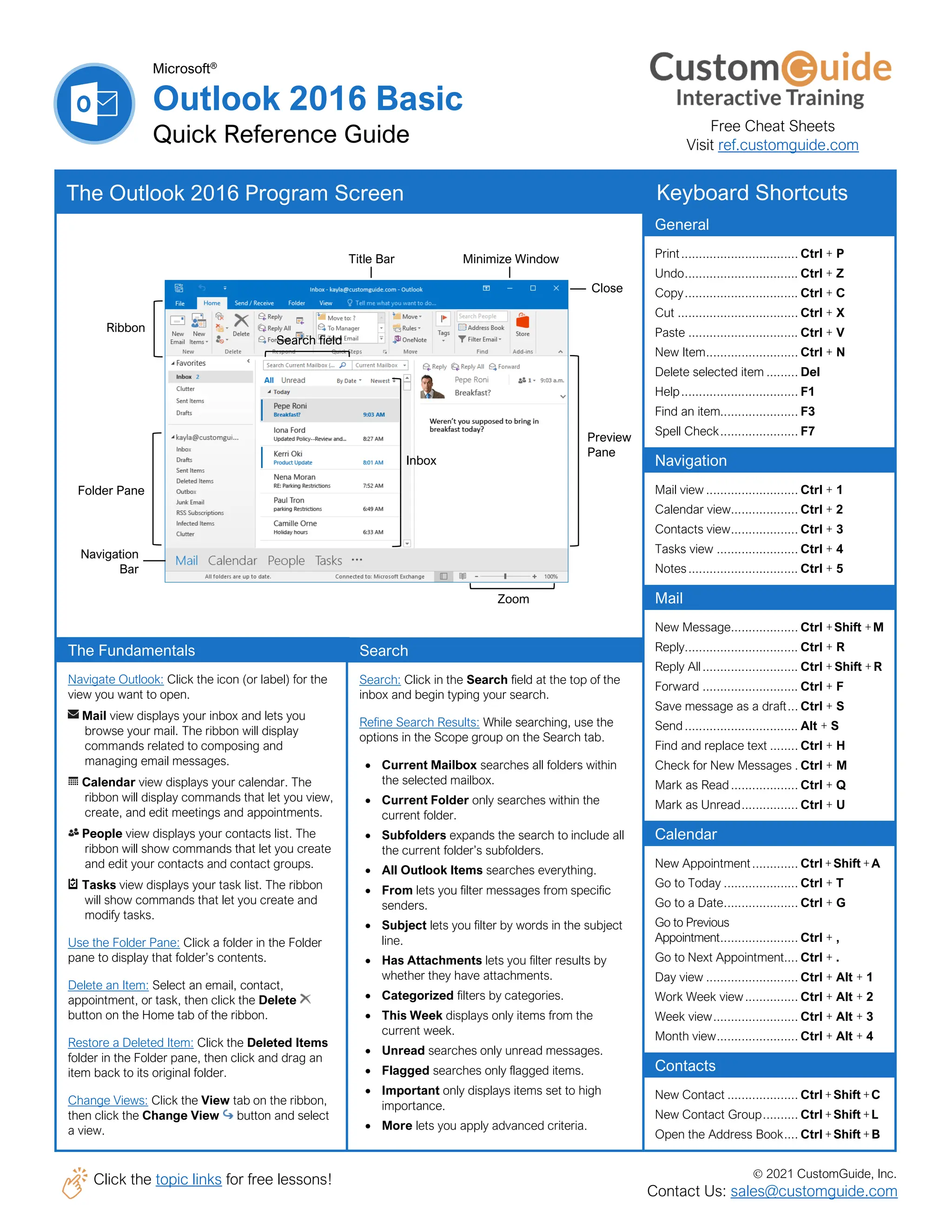
The Outlook 2016 Program Screen
The Fundamentals
Navigate Outlook: Click the icon (or label) for the
view you want to open.
Mail view displays your inbox and lets you
browse your mail. The ribbon will display
commands related to composing and
managing email messages.
Calendar view displays your calendar. The
ribbon will display commands that let you view,
create, and edit meetings and appointments.
People view displays your contacts list. The
ribbon will show commands that let you create
and edit your contacts and contact groups.
Tasks view displays your task list. The ribbon
will show commands that let you create and
modify tasks.
Use the Folder Pane: Click a folder in the Folder
pane to display that folder’s contents.
Delete an Item: Select an email, contact,
appointment, or task, then click the Delete
button on the Home tab of the ribbon.
Restore a Deleted Item: Click the Deleted Items
folder in the Folder pane, then click and drag an
item back to its original folder.
Change Views: Click the View tab on the ribbon,
then click the Change View button and select
a view.
Search
Search: Click in the Search field at the top of the
inbox and begin typing your search.
Refine Search Results: While searching, use the
options in the Scope group on the Search tab.
• Current Mailbox searches all folders within
the selected mailbox.
• Current Folder only searches within the
current folder.
• Subfolders expands the search to include all
the current folder’s subfolders.
• All Outlook Items searches everything.
• From lets you filter messages from specific
senders.
• Subject lets you filter by words in the subject
line.
• Has Attachments lets you filter results by
whether they have attachments.
• Categorized filters by categories.
• This Week displays only items from the
current week.
• Unread searches only unread messages.
• Flagged searches only flagged items.
• Important only displays items set to high
importance.
• More lets you apply advanced criteria.
General
Print................................. Ctrl + P
Undo................................ Ctrl + Z
Copy................................ Ctrl + C
Cut .................................. Ctrl + X
Paste ............................... Ctrl + V
New Item.......................... Ctrl + N
Delete selected item ......... Del
Help................................. F1
Find an item...................... F3
Spell Check...................... F7
Navigation
Mail view .......................... Ctrl + 1
Calendar view................... Ctrl + 2
Contacts view................... Ctrl + 3
Tasks view ....................... Ctrl + 4
Notes............................... Ctrl + 5
Mail
New Message................... Ctrl +Shift +M
Reply................................ Ctrl + R
Reply All........................... Ctrl + Shift +R
Forward ........................... Ctrl + F
Save message as a draft... Ctrl + S
Send ................................ Alt + S
Find and replace text ........ Ctrl + H
Check for New Messages . Ctrl + M
Mark as Read................... Ctrl + Q
Mark as Unread................ Ctrl + U
Calendar
New Appointment............. Ctrl +Shift +A
Go to Today ..................... Ctrl + T
Go to a Date..................... Ctrl + G
Go to Previous
Appointment...................... Ctrl + ,
Go to Next Appointment.... Ctrl + .
Day view .......................... Ctrl + Alt + 1
Work Week view............... Ctrl + Alt + 2
Week view........................ Ctrl + Alt + 3
Month view....................... Ctrl + Alt + 4
Contacts
New Contact .................... Ctrl +Shift +C
New Contact Group.......... Ctrl +Shift +L
Open the Address Book.... Ctrl +Shift +B
Keyboard Shortcuts
Title Bar Minimize Window
Search field
Inbox
Close
Zoom
Preview
Pane
Ribbon
Folder Pane
Navigation
Bar
Free Cheat Sheets
Visit ref.customguide.com
© 2021 CustomGuide, Inc.
Click the topic links for free lessons!
Contact Us: sales@customguide.com
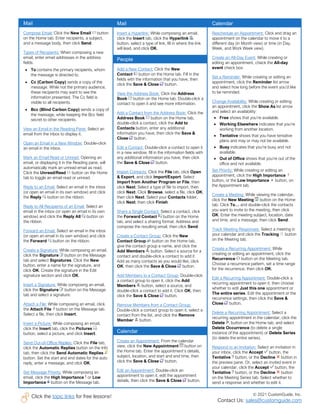
Mail
Insert a Hyperlink: While composing an email,
click the Insert tab, click the Hyperlink
button, select a type of link, fill in where the link
will lead, and click OK.
People
Add a New Contact: Click the New
Contact button on the Home tab. Fill in the
fields with the information that you have, then
click the Save & Close button.
View the Address Book: Click the Address
Book button on the Home tab. Double-click a
contact to open it and see more information.
Add a Contact from the Address Book: Click the
Address Book button on the Home tab,
double-click a contact, click the Add to
Contacts button, enter any additional
information you have, then click the Save &
Close button.
Edit a Contact: Double-click a contact to open it
in a new window, fill in the information fields with
any additional information you have, then click
the Save & Close button.
Import Contacts: Click the File tab, click Open
& Export, and click Import/Export. Select
Import from Another Program or File, then
click Next. Select a type of file to import, then
click Next. Click Browse, select a file, click OK,
then click Next. Select your Contacts folder,
click Next, then click Finish.
Share a Single Contact: Select a contact, click
the Forward Contact button on the Home
tab, and select a sharing format. Address and
compose the resulting email, then click Send.
Create a Contact Group: Click the New
Contact Group button on the Home tab,
give the contact group a name, and click the
Add Members button. Select a source for a
contact and double-click a contact to add it.
Add as many contacts as you would like, click
OK, then click the Save & Close button.
Add Members to a Contact Group: Double-click
a contact group to open it, click the Add
Members button, select a source, and
double-click a contact to add it. Click OK, then
click the Save & Close button.
Remove Members from a Contact Group:
Double-click a contact group to open it, select a
contact from the list, and click the Remove
Member button.
Calendar
Create an Appointment: From the calendar
view, click the New Appointment button on
the Home tab. Enter the appointment’s details,
subject, location, and start and end time, then
click the Save & Close button.
Edit an Appointment: Double-click an
appointment to open it, edit the appointment
details, then click the Save & Close button.
Mail
Compose Email: Click the New Email button
on the Home tab. Enter recipients, a subject,
and a message body, then click Send.
Types of Recipients: When composing a new
email, enter email addresses in the address
fields.
• To contains the primary recipients, whom
the message is directed to.
• Cc (Carbon Copy) sends a copy of the
message. While not the primary audience,
these recipients may want to see the
information presented. The Cc field is
visible to all recipients.
• Bcc (Blind Carbon Copy) sends a copy of
the message, while keeping the Bcc field
secret to other recipients.
View an Email in the Reading Pane: Select an
email from the inbox to display it.
Open an Email in a New Window: Double-click
an email in the inbox.
Mark an Email Read or Unread: Opening an
email, or displaying it in the Reading pane, will
automatically mark an unread email as read.
Click the Unread/Read button on the Home
tab to toggle an email read or unread.
Reply to an Email: Select an email in the inbox
(or open an email in its own window) and click
the Reply button on the ribbon.
Reply to All Recipients of an Email: Select an
email in the inbox (or open an email in its own
window) and click the Reply All button on
the ribbon.
Forward an Email: Select an email in the inbox
(or open an email in its own window) and click
the Forward button on the ribbon.
Create a Signature: While composing an email,
click the Signature button on the Message
tab and select Signatures. Click the New
button, enter a name for the signature, and
click OK. Create the signature in the Edit
signature section and click OK.
Insert a Signature: While composing an email,
click the Signature button on the Message
tab and select a signature.
Attach a File: While composing an email, click
the Attach File button on the Message tab.
Select a file, then click Insert.
Insert a Picture: While composing an email,
click the Insert tab, click the Pictures
button, select a picture, and click Insert.
Send Out-of-Office Replies: Click the File tab,
click the Automatic Replies button on the Info
tab, then click the Send Automatic Replies
button. Set the start and end dates for the auto
reply, enter a message, and click OK.
Set Message Priority: While composing an
email, click the High Importance or Low
Importance button on the Message tab.
Calendar
Reschedule an Appointment: Click and drag an
appointment on the calendar to move it to a
different day (in Month view) or time (in Day,
Week, and Work Week view).
Create an All-Day Event: While creating or
editing an appointment, check the All-day
event check box.
Set a Reminder: While creating or editing an
appointment, click the Reminder list arrow
and select how long before the event you’d like
to be reminded.
Change Availability: While creating or editing
an appointment, click the Show As list arrow
and select an availability:
• Free shows that you’re available.
• Working Elsewhere indicates that you’re
working from another location.
• Tentative shows that you have tentative
plans and may or may not be available.
• Busy indicates that you’re busy and not
available.
• Out of Office shows that you’re out of the
office and not available.
Set Priority: While creating or editing an
appointment, click the High Importance
button, or the Low Importance button, on
the Appointment tab.
Create a Meeting: While viewing the calendar,
click the New Meeting button on the Home
tab. Click To… and double-click the contacts
you want to invite to the meeting, then click
OK. Enter the meeting subject, location, date
and time, and a message, then click Send.
Track Meeting Responses: Select a meeting in
your calendar and click the Tracking button
on the Meeting tab.
Create a Recurring Appointment: While
creating or editing an appointment, click the
Recurrence button on the Meeting tab.
Choose a recurrence pattern, set a time range
for the recurrence, then click OK.
Edit a Recurring Appointment: Double-click a
recurring appointment to open it, then choose
whether to edit Just this one appointment or
The entire series. Edit the appointment or the
recurrence settings, then click the Save &
Close button.
Delete a Recurring Appointment: Select a
recurring appointment in the calendar, click the
Delete button on the Home tab, and select
Delete Occurrence (to delete a single
instance of the appointment) or Delete Series
(to delete the entire series).
Respond to an Invitation: Select an invitation in
your inbox, click the Accept button, the
Tentative button, or the Decline button in
the preview pane. Or, select an invited event in
your calendar, click the Accept button, the
Tentative button, or the Decline button
on the Meeting Series tab. Select whether to
send a response and whether to edit it.
Contact Us! sales@customguide.com 612.871.5004
Get More Free Quick References!
Visit ref.customguide.com to download.
Microsoft
Access
Excel
Office 365
OneNote
Outlook
PowerPoint
Teams
Word
Google
Gmail
Google Classroom
Google Docs
Google Drive
Google Meet
Google Sheets
Google Slides
Google Workspace
OS
macOS
Windows 10
Productivity
Computer Basics
Salesforce
Zoom
Soft Skills
Business Writing
Email Etiquette
Manage Meetings
Presentations
Security Basics
SMART Goals
+ more, including Spanish versions
Loved by Learners, Trusted by Trainers
Please consider our other training products!
Interactive eLearning
Get hands-on training with bite-sized tutorials that
recreate the experience of using actual software.
SCORM-compatible lessons.
Customizable Courseware
Why write training materials when we’ve done it
for you? Training manuals with unlimited printing
rights!
Over 3,000 Organizations Rely on CustomGuide
The toughest part [in training] is creating the material, which CustomGuide has
done for us. Employees have found the courses easy to follow and, most
importantly, they were able to use what they learned immediately.
“
Outlook 2016 Basic - Quick Reference.pdf

  • 1.
    © 2021 CustomGuide,Inc. Click the topic links for free lessons! Contact Us: sales@customguide.com Microsoft® Outlook 2016 Basic Quick Reference Guide The Outlook 2016 Program Screen The Fundamentals Navigate Outlook: Click the icon (or label) for the view you want to open. Mail view displays your inbox and lets you browse your mail. The ribbon will display commands related to composing and managing email messages. Calendar view displays your calendar. The ribbon will display commands that let you view, create, and edit meetings and appointments. People view displays your contacts list. The ribbon will show commands that let you create and edit your contacts and contact groups. Tasks view displays your task list. The ribbon will show commands that let you create and modify tasks. Use the Folder Pane: Click a folder in the Folder pane to display that folder’s contents. Delete an Item: Select an email, contact, appointment, or task, then click the Delete button on the Home tab of the ribbon. Restore a Deleted Item: Click the Deleted Items folder in the Folder pane, then click and drag an item back to its original folder. Change Views: Click the View tab on the ribbon, then click the Change View button and select a view. Search Search: Click in the Search field at the top of the inbox and begin typing your search. Refine Search Results: While searching, use the options in the Scope group on the Search tab. • Current Mailbox searches all folders within the selected mailbox. • Current Folder only searches within the current folder. • Subfolders expands the search to include all the current folder’s subfolders. • All Outlook Items searches everything. • From lets you filter messages from specific senders. • Subject lets you filter by words in the subject line. • Has Attachments lets you filter results by whether they have attachments. • Categorized filters by categories. • This Week displays only items from the current week. • Unread searches only unread messages. • Flagged searches only flagged items. • Important only displays items set to high importance. • More lets you apply advanced criteria. General Print................................. Ctrl + P Undo................................ Ctrl + Z Copy................................ Ctrl + C Cut .................................. Ctrl + X Paste ............................... Ctrl + V New Item.......................... Ctrl + N Delete selected item ......... Del Help................................. F1 Find an item...................... F3 Spell Check...................... F7 Navigation Mail view .......................... Ctrl + 1 Calendar view................... Ctrl + 2 Contacts view................... Ctrl + 3 Tasks view ....................... Ctrl + 4 Notes............................... Ctrl + 5 Mail New Message................... Ctrl +Shift +M Reply................................ Ctrl + R Reply All........................... Ctrl + Shift +R Forward ........................... Ctrl + F Save message as a draft... Ctrl + S Send ................................ Alt + S Find and replace text ........ Ctrl + H Check for New Messages . Ctrl + M Mark as Read................... Ctrl + Q Mark as Unread................ Ctrl + U Calendar New Appointment............. Ctrl +Shift +A Go to Today ..................... Ctrl + T Go to a Date..................... Ctrl + G Go to Previous Appointment...................... Ctrl + , Go to Next Appointment.... Ctrl + . Day view .......................... Ctrl + Alt + 1 Work Week view............... Ctrl + Alt + 2 Week view........................ Ctrl + Alt + 3 Month view....................... Ctrl + Alt + 4 Contacts New Contact .................... Ctrl +Shift +C New Contact Group.......... Ctrl +Shift +L Open the Address Book.... Ctrl +Shift +B Keyboard Shortcuts Title Bar Minimize Window Search field Inbox Close Zoom Preview Pane Ribbon Folder Pane Navigation Bar Free Cheat Sheets Visit ref.customguide.com
  • 2.
    © 2021 CustomGuide,Inc. Click the topic links for free lessons! Contact Us: sales@customguide.com Mail Insert a Hyperlink: While composing an email, click the Insert tab, click the Hyperlink button, select a type of link, fill in where the link will lead, and click OK. People Add a New Contact: Click the New Contact button on the Home tab. Fill in the fields with the information that you have, then click the Save & Close button. View the Address Book: Click the Address Book button on the Home tab. Double-click a contact to open it and see more information. Add a Contact from the Address Book: Click the Address Book button on the Home tab, double-click a contact, click the Add to Contacts button, enter any additional information you have, then click the Save & Close button. Edit a Contact: Double-click a contact to open it in a new window, fill in the information fields with any additional information you have, then click the Save & Close button. Import Contacts: Click the File tab, click Open & Export, and click Import/Export. Select Import from Another Program or File, then click Next. Select a type of file to import, then click Next. Click Browse, select a file, click OK, then click Next. Select your Contacts folder, click Next, then click Finish. Share a Single Contact: Select a contact, click the Forward Contact button on the Home tab, and select a sharing format. Address and compose the resulting email, then click Send. Create a Contact Group: Click the New Contact Group button on the Home tab, give the contact group a name, and click the Add Members button. Select a source for a contact and double-click a contact to add it. Add as many contacts as you would like, click OK, then click the Save & Close button. Add Members to a Contact Group: Double-click a contact group to open it, click the Add Members button, select a source, and double-click a contact to add it. Click OK, then click the Save & Close button. Remove Members from a Contact Group: Double-click a contact group to open it, select a contact from the list, and click the Remove Member button. Calendar Create an Appointment: From the calendar view, click the New Appointment button on the Home tab. Enter the appointment’s details, subject, location, and start and end time, then click the Save & Close button. Edit an Appointment: Double-click an appointment to open it, edit the appointment details, then click the Save & Close button. Mail Compose Email: Click the New Email button on the Home tab. Enter recipients, a subject, and a message body, then click Send. Types of Recipients: When composing a new email, enter email addresses in the address fields. • To contains the primary recipients, whom the message is directed to. • Cc (Carbon Copy) sends a copy of the message. While not the primary audience, these recipients may want to see the information presented. The Cc field is visible to all recipients. • Bcc (Blind Carbon Copy) sends a copy of the message, while keeping the Bcc field secret to other recipients. View an Email in the Reading Pane: Select an email from the inbox to display it. Open an Email in a New Window: Double-click an email in the inbox. Mark an Email Read or Unread: Opening an email, or displaying it in the Reading pane, will automatically mark an unread email as read. Click the Unread/Read button on the Home tab to toggle an email read or unread. Reply to an Email: Select an email in the inbox (or open an email in its own window) and click the Reply button on the ribbon. Reply to All Recipients of an Email: Select an email in the inbox (or open an email in its own window) and click the Reply All button on the ribbon. Forward an Email: Select an email in the inbox (or open an email in its own window) and click the Forward button on the ribbon. Create a Signature: While composing an email, click the Signature button on the Message tab and select Signatures. Click the New button, enter a name for the signature, and click OK. Create the signature in the Edit signature section and click OK. Insert a Signature: While composing an email, click the Signature button on the Message tab and select a signature. Attach a File: While composing an email, click the Attach File button on the Message tab. Select a file, then click Insert. Insert a Picture: While composing an email, click the Insert tab, click the Pictures button, select a picture, and click Insert. Send Out-of-Office Replies: Click the File tab, click the Automatic Replies button on the Info tab, then click the Send Automatic Replies button. Set the start and end dates for the auto reply, enter a message, and click OK. Set Message Priority: While composing an email, click the High Importance or Low Importance button on the Message tab. Calendar Reschedule an Appointment: Click and drag an appointment on the calendar to move it to a different day (in Month view) or time (in Day, Week, and Work Week view). Create an All-Day Event: While creating or editing an appointment, check the All-day event check box. Set a Reminder: While creating or editing an appointment, click the Reminder list arrow and select how long before the event you’d like to be reminded. Change Availability: While creating or editing an appointment, click the Show As list arrow and select an availability: • Free shows that you’re available. • Working Elsewhere indicates that you’re working from another location. • Tentative shows that you have tentative plans and may or may not be available. • Busy indicates that you’re busy and not available. • Out of Office shows that you’re out of the office and not available. Set Priority: While creating or editing an appointment, click the High Importance button, or the Low Importance button, on the Appointment tab. Create a Meeting: While viewing the calendar, click the New Meeting button on the Home tab. Click To… and double-click the contacts you want to invite to the meeting, then click OK. Enter the meeting subject, location, date and time, and a message, then click Send. Track Meeting Responses: Select a meeting in your calendar and click the Tracking button on the Meeting tab. Create a Recurring Appointment: While creating or editing an appointment, click the Recurrence button on the Meeting tab. Choose a recurrence pattern, set a time range for the recurrence, then click OK. Edit a Recurring Appointment: Double-click a recurring appointment to open it, then choose whether to edit Just this one appointment or The entire series. Edit the appointment or the recurrence settings, then click the Save & Close button. Delete a Recurring Appointment: Select a recurring appointment in the calendar, click the Delete button on the Home tab, and select Delete Occurrence (to delete a single instance of the appointment) or Delete Series (to delete the entire series). Respond to an Invitation: Select an invitation in your inbox, click the Accept button, the Tentative button, or the Decline button in the preview pane. Or, select an invited event in your calendar, click the Accept button, the Tentative button, or the Decline button on the Meeting Series tab. Select whether to send a response and whether to edit it.
  • 3.
    Contact Us! sales@customguide.com612.871.5004 Get More Free Quick References! Visit ref.customguide.com to download. Microsoft Access Excel Office 365 OneNote Outlook PowerPoint Teams Word Google Gmail Google Classroom Google Docs Google Drive Google Meet Google Sheets Google Slides Google Workspace OS macOS Windows 10 Productivity Computer Basics Salesforce Zoom Soft Skills Business Writing Email Etiquette Manage Meetings Presentations Security Basics SMART Goals + more, including Spanish versions Loved by Learners, Trusted by Trainers Please consider our other training products! Interactive eLearning Get hands-on training with bite-sized tutorials that recreate the experience of using actual software. SCORM-compatible lessons. Customizable Courseware Why write training materials when we’ve done it for you? Training manuals with unlimited printing rights! Over 3,000 Organizations Rely on CustomGuide The toughest part [in training] is creating the material, which CustomGuide has done for us. Employees have found the courses easy to follow and, most importantly, they were able to use what they learned immediately. “