WELCOME TO BASIC EMAIL Instructor Donna DeMedicis 22 Years of Library Service BPL Support Staff In Opening The Regional Library Computer Center (Gates Foundation) Instructor For Basic Publisher XP, Basic Email, Build Your Own Resume Classes Computer Service Liaison For  Automation Department @ Springville  Road Library
BASIC ELECTRONIC MAIL What is Email? Email is a text-based message exchange by computer users via a network.
EMAIL ADDRESS What is an  email address? Electronic mail works very much like postal mail.  You receive mail at your own  “ address ”  and   you send mail to others at their addresses.
USERNAME [email_address] You can choose any user name as long as that name has not already been registered by  another subscriber.  You can use part of your name, an alias or  numbers. User name is also known as  member name  or  login name .  Hotmail uses : Window Live ID
@ SYMBOL [email_address] The  @  ( at )  symbol separates your user name from the domain portion of your address.
THE ( . ) SYMBOL [email_address] This period or dot  (  .  )  separates the provider’s name   from the type of organization.
TYPE OF ORGANIZATION This identifies your provider’s type  of organization. Usually the provider’s type  is one of the following: EDU   Educational sites COM   Commercial sites GOV   Government sites NET   Network administrative organizations MIL   Military sites ORG  International Organizations
OUTSIDE the USA Outside the USA, addresses also contain a  two-letter suffix  for identifying the country where the server is located.
SETTING UP AN ACCOUNT We will use  Hotmail  as  our provider for today’s class. The Hotmail site will be our   post office .  We will go to the   Hotmail web site to send or   get our mail  ( messages ). www.hotmail.com Click SIGN UP
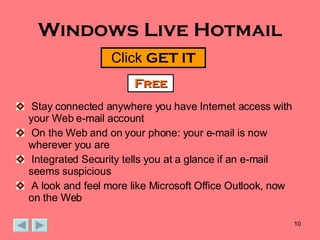
Windows Live Hotmail Stay connected anywhere you have Internet access with  your Web e-mail account On the Web and on your phone: your e-mail is now wherever you are  Integrated Security tells you at a glance if an e-mail seems suspicious  A look and feel more like Microsoft Office Outlook, now on the Web Click  GET IT Free
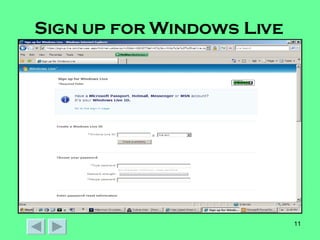
Sign up for Windows Live
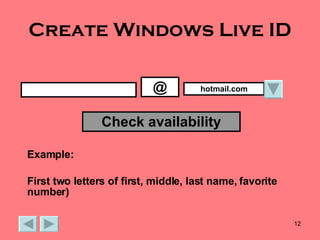
Create Windows Live ID @ hotmail.com Check availability Example: First two letters of first, middle, last name, favorite number)
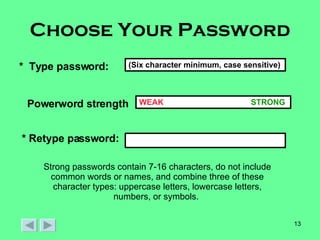
Choose Your Password *  Type password: (Six character minimum, case sensitive) Powerword strength WEAK  STRONG * Retype password: Strong passwords contain 7-16 characters, do not include common words or names, and combine three of these character types: uppercase letters, lowercase letters, numbers, or symbols.
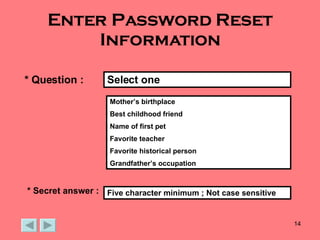
Enter Password Reset Information * Question : Mother’s birthplace Best childhood friend Name of first pet Favorite teacher Favorite historical person Grandfather’s occupation Select one * Secret answer : Five character minimum ; Not case sensitive
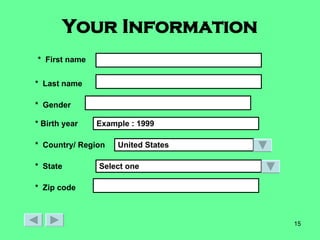
Your Information *  First name *  Last name *  Gender * Birth year *  Country/ Region *  State *  Zip code Example : 1999 United States Select one
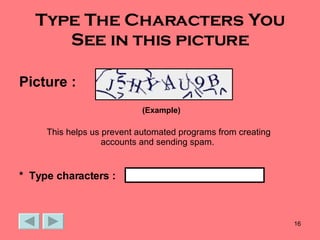
Type The Characters You See in this picture Picture :   (Example) *  Type characters : This helps us prevent automated programs from creating accounts and sending spam.
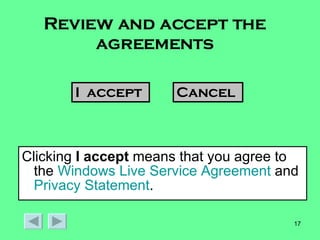
Review and accept the agreements Clicking  I accept  means that you agree to the  Windows Live Service Agreement  and  Privacy Statement .  I  accept Cancel
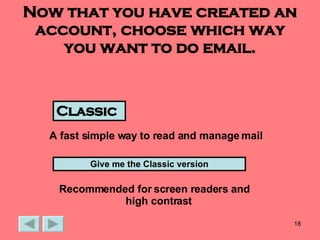
Now that you have created an account, choose which way you want to do email. A fast simple way to read and manage mail Classic Give me the Classic version Recommended for screen readers and  high contrast
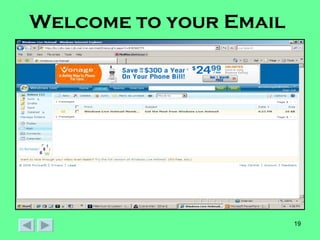
Welcome to your Email
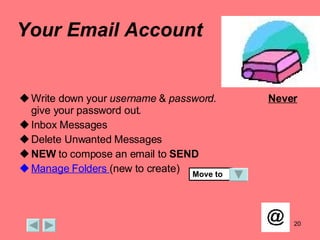
Your Email Account Write down your  username  &  password.   Never  give your password out . Inbox Messages Delete Unwanted Messages NEW  to compose an email to  SEND Manage Folders  (new to create)  Move to
SIGN OUT Always sign out of your email account. security
Email Don’t ‘s Do  NOT  write in all capital letters.  WRITING IN ALL CAPS IS CALLED SHOUTING AND SIGNIFIES THAT YOU ARE ANGRY OR RESPONDING EMOTIONALLY. Do  NOT  flame other students. Flaming is responding to a heated or touchy topic in the heat of emotions. If someone writes you a message that annoys you or makes you angry, compose a message but wait a few hours or a day before sending it. Once you hit the  SEND  button, you cannot retrieve your message. Do  NOT  spam other patrons. Spam is unwanted, unsolicited email, often commercial in nature. Don’t sign other patrons up to receive offers and advertisements.
Email Do’s Think carefully before using the  FORWARD  command to send messages to other friends that have been forwarded to you.  Do so only when you know that the person you are forwarding to wants to read the message. Delete messages you no longer need. They take up valuable space. Do remember to sign out on public computers.
How to Handle Suspicious email If you think you’ve received a phishing email message, do not respond to it. Report suspicious email. Don’t click links in email messages. Type addresses directly into your browser or use your personal bookmarks. Check the security certificate before you enter personal or financial information into the web site. Don’t enter personal or financial information into pop-up windows. Update your computer software.
CONGRATULATIONS! You have  successfully  completed  Basic Email Instruction. Sign up for basic computer classes @ your library.
Basic Email PowerPoint  Designer Donna DeMedicis revised February 2008

Basic Email

  • 1.
    WELCOME TO BASICEMAIL Instructor Donna DeMedicis 22 Years of Library Service BPL Support Staff In Opening The Regional Library Computer Center (Gates Foundation) Instructor For Basic Publisher XP, Basic Email, Build Your Own Resume Classes Computer Service Liaison For Automation Department @ Springville Road Library
  • 2.
    BASIC ELECTRONIC MAILWhat is Email? Email is a text-based message exchange by computer users via a network.
  • 3.
    EMAIL ADDRESS Whatis an email address? Electronic mail works very much like postal mail. You receive mail at your own “ address ” and you send mail to others at their addresses.
  • 4.
    USERNAME [email_address] Youcan choose any user name as long as that name has not already been registered by another subscriber. You can use part of your name, an alias or numbers. User name is also known as member name or login name . Hotmail uses : Window Live ID
  • 5.
    @ SYMBOL [email_address]The @ ( at ) symbol separates your user name from the domain portion of your address.
  • 6.
    THE ( .) SYMBOL [email_address] This period or dot ( . ) separates the provider’s name from the type of organization.
  • 7.
    TYPE OF ORGANIZATIONThis identifies your provider’s type of organization. Usually the provider’s type is one of the following: EDU Educational sites COM Commercial sites GOV Government sites NET Network administrative organizations MIL Military sites ORG International Organizations
  • 8.
    OUTSIDE the USAOutside the USA, addresses also contain a two-letter suffix for identifying the country where the server is located.
  • 9.
    SETTING UP ANACCOUNT We will use Hotmail as our provider for today’s class. The Hotmail site will be our post office . We will go to the Hotmail web site to send or get our mail ( messages ). www.hotmail.com Click SIGN UP
  • 10.
    Windows Live HotmailStay connected anywhere you have Internet access with your Web e-mail account On the Web and on your phone: your e-mail is now wherever you are Integrated Security tells you at a glance if an e-mail seems suspicious A look and feel more like Microsoft Office Outlook, now on the Web Click GET IT Free
  • 11.
    Sign up forWindows Live
  • 12.
    Create Windows LiveID @ hotmail.com Check availability Example: First two letters of first, middle, last name, favorite number)
  • 13.
    Choose Your Password* Type password: (Six character minimum, case sensitive) Powerword strength WEAK STRONG * Retype password: Strong passwords contain 7-16 characters, do not include common words or names, and combine three of these character types: uppercase letters, lowercase letters, numbers, or symbols.
  • 14.
    Enter Password ResetInformation * Question : Mother’s birthplace Best childhood friend Name of first pet Favorite teacher Favorite historical person Grandfather’s occupation Select one * Secret answer : Five character minimum ; Not case sensitive
  • 15.
    Your Information * First name * Last name * Gender * Birth year * Country/ Region * State * Zip code Example : 1999 United States Select one
  • 16.
    Type The CharactersYou See in this picture Picture : (Example) * Type characters : This helps us prevent automated programs from creating accounts and sending spam.
  • 17.
    Review and acceptthe agreements Clicking I accept means that you agree to the Windows Live Service Agreement and Privacy Statement . I accept Cancel
  • 18.
    Now that youhave created an account, choose which way you want to do email. A fast simple way to read and manage mail Classic Give me the Classic version Recommended for screen readers and high contrast
  • 19.
  • 20.
    Your Email AccountWrite down your username & password. Never give your password out . Inbox Messages Delete Unwanted Messages NEW to compose an email to SEND Manage Folders (new to create) Move to
  • 21.
    SIGN OUT Alwayssign out of your email account. security
  • 22.
    Email Don’t ‘sDo NOT write in all capital letters. WRITING IN ALL CAPS IS CALLED SHOUTING AND SIGNIFIES THAT YOU ARE ANGRY OR RESPONDING EMOTIONALLY. Do NOT flame other students. Flaming is responding to a heated or touchy topic in the heat of emotions. If someone writes you a message that annoys you or makes you angry, compose a message but wait a few hours or a day before sending it. Once you hit the SEND button, you cannot retrieve your message. Do NOT spam other patrons. Spam is unwanted, unsolicited email, often commercial in nature. Don’t sign other patrons up to receive offers and advertisements.
  • 23.
    Email Do’s Thinkcarefully before using the FORWARD command to send messages to other friends that have been forwarded to you.  Do so only when you know that the person you are forwarding to wants to read the message. Delete messages you no longer need. They take up valuable space. Do remember to sign out on public computers.
  • 24.
    How to HandleSuspicious email If you think you’ve received a phishing email message, do not respond to it. Report suspicious email. Don’t click links in email messages. Type addresses directly into your browser or use your personal bookmarks. Check the security certificate before you enter personal or financial information into the web site. Don’t enter personal or financial information into pop-up windows. Update your computer software.
  • 25.
    CONGRATULATIONS! You have successfully completed Basic Email Instruction. Sign up for basic computer classes @ your library.
  • 26.
    Basic Email PowerPoint Designer Donna DeMedicis revised February 2008