Optimizing SharePoint Search for
Transactional Content
Management (TCM)
About Hershey Technologies…
• Founded in 1991
• Microsoft Partner
• Specialists in
• Document Imaging / Scanning
• OCR (data and document capture)
• ECM
• BPM / workflow
• End to End SharePoint Consulting Services
• Follow us onTwitter: @HersheyTech
About Tom Castiglia…
•Principal at HersheyTechnologies
• Twitter: @tomcastiglia
• Email: tcastiglia@hersheytech.com
• Joined HersheyTech in 1998
• Director of Hershey’s professional services team
since 2001
Agenda
• Explanation of “Transactional Content Management” (TCM)
• Overview of SharePoint features that are relevant toTCM
• How to make SharePoint supportTCM
• Demo of solutions that fill the feature gaps to ensure SharePoint is
successful for your transactional content management project
• Ad-hoc scanning / document capture into SharePoint
• Optimizing SharePoint search for large scaleTCM deployments
• Enable collaboration of static, transactional documents
• Make scanned images and PDF documents a 1st class citizen within SharePoint
Topics not covered in this presentation
• Assumptions - I presume that you understand:
• Columns (document metadata)
• ContentTypes
• Document Libraries
• Other topics not covered (just not enough time to include):
• Automated Data Capture/OCR
• Records Management
• Workflow
• RBS
Enterprise Content Management
in SharePoint
SharePoint Rocks at this!Web Content
SharePoint Rocks at this!Document Collaboration
SharePoint needs a little help hereTransactional Documents
What is “Transactional Content Management”?
“high-volume throughput of
relatively static documents”
“content which typically originates outside and
organization from external parties – customers
or partners-and relies on workflow or business
process management (BPM) to drive
transactional, back-office business processes.”
-Forrester Research
Typical types of documents
TRANSACTIONAL DOCUMENTS
• Purchase Orders
• Vendor Invoices
• Application Forms
• Insurance claims
• Student Records
• Enrollment Forms
• (Not project based)
COLLABORATIVE DOCUMENTS
• Proposals, reports, spreadsheets,
presentations and other
documents created and edited by
knowledge worker users
• Office docs (Word, Excel, PowerPoint)
• PDF files
• Created and uploaded on an ad-
hoc basis to support day to day
operations
• (Often project based)
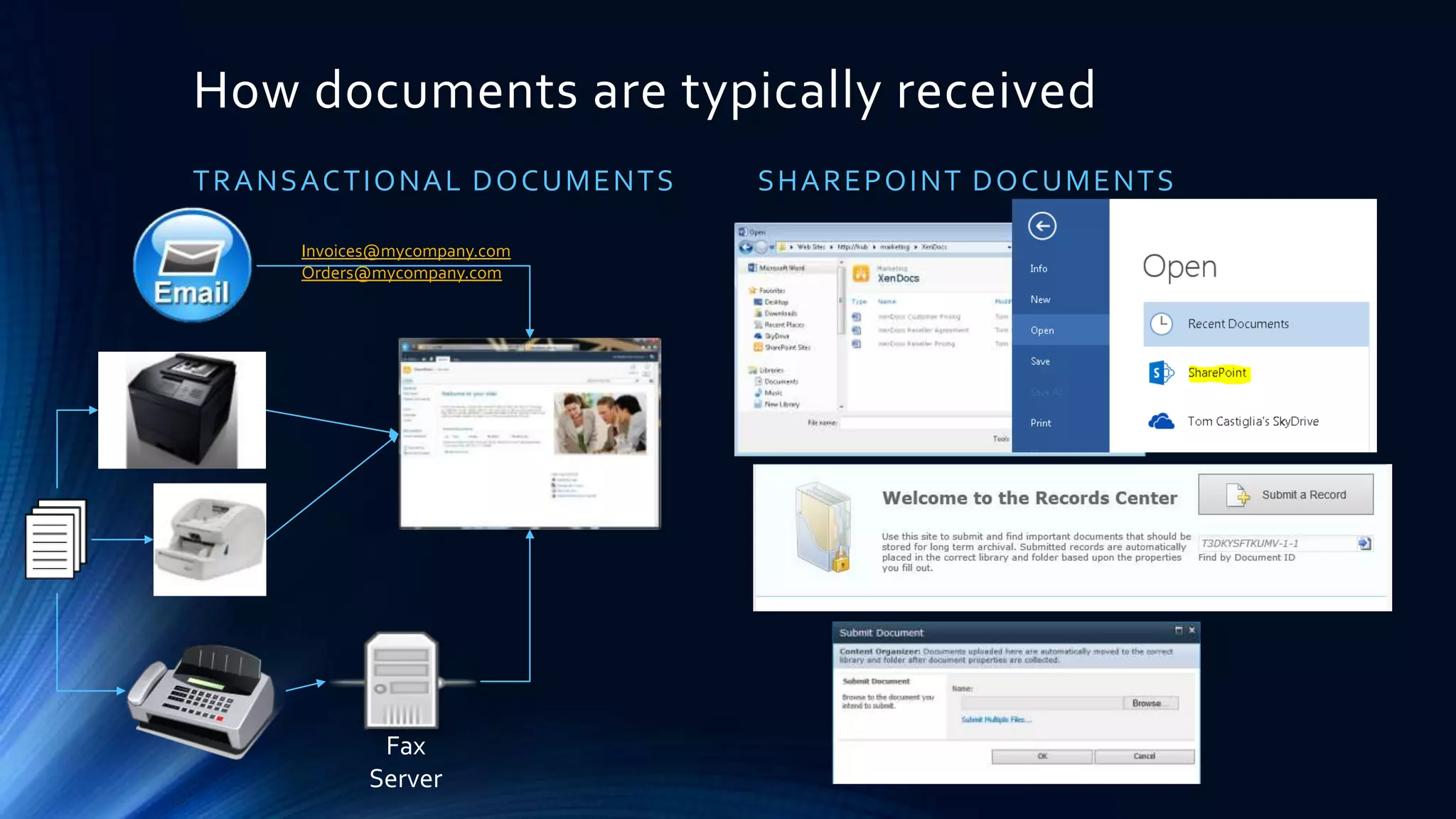
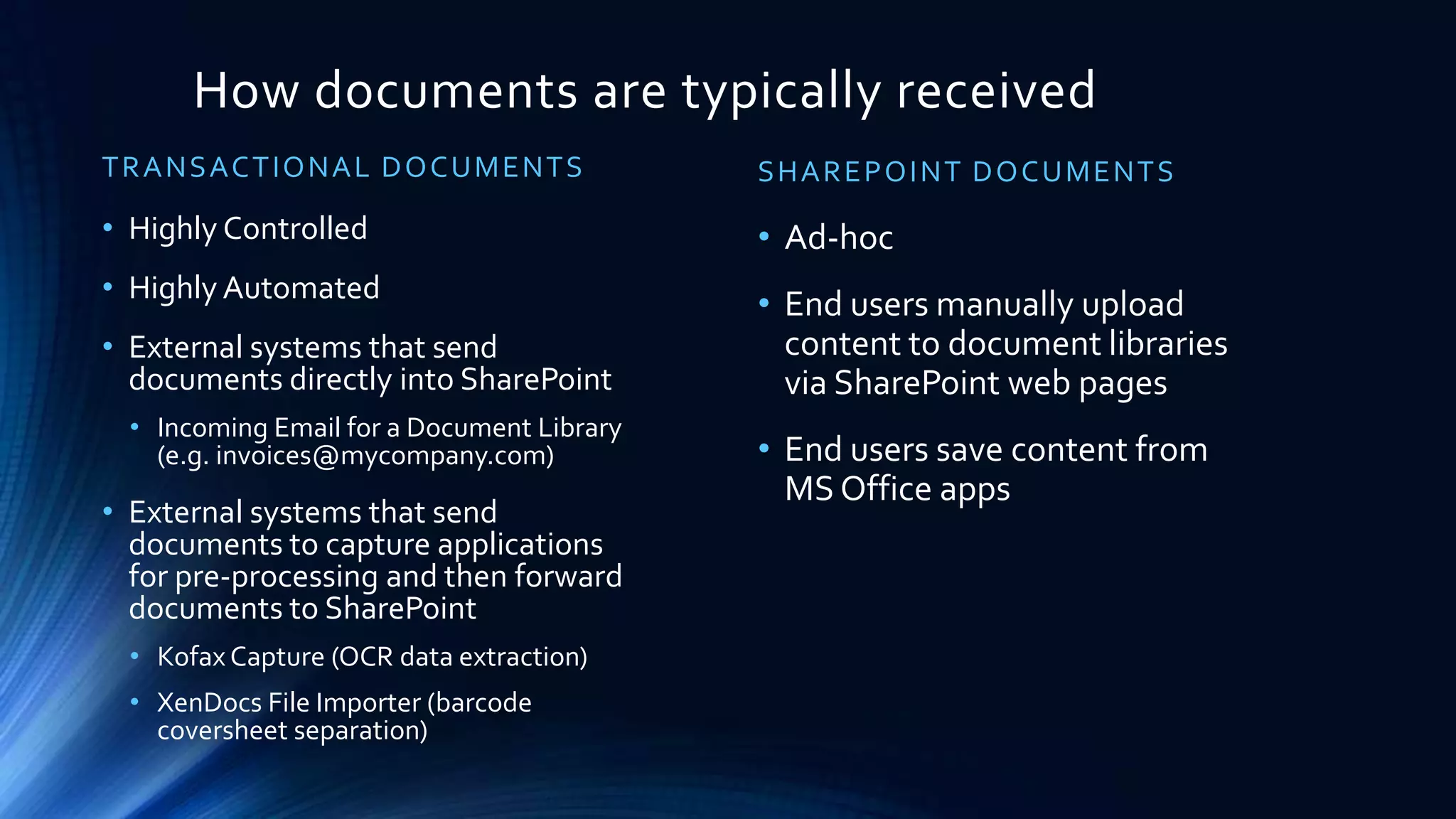
How documents are typically received
TRANSACTIONAL DOCUMENTS
Fax Server
Invoices@mycompany.com
Orders@mycompany.com
OCR
Form
Processing
External
Systems
(AP, claims,
etc.)
Information Architecture
TRANSACTIONAL CONTENT
• Centralized
• Often isolated to just one or a
few site collections
• Document Center or Record Center
• Thousands to millions of
documents per library
COLLABORATIVE CONTENT
• Decentralized
• Documents are often spread
throughout many site
collections, sub-sites, libraries
and content types
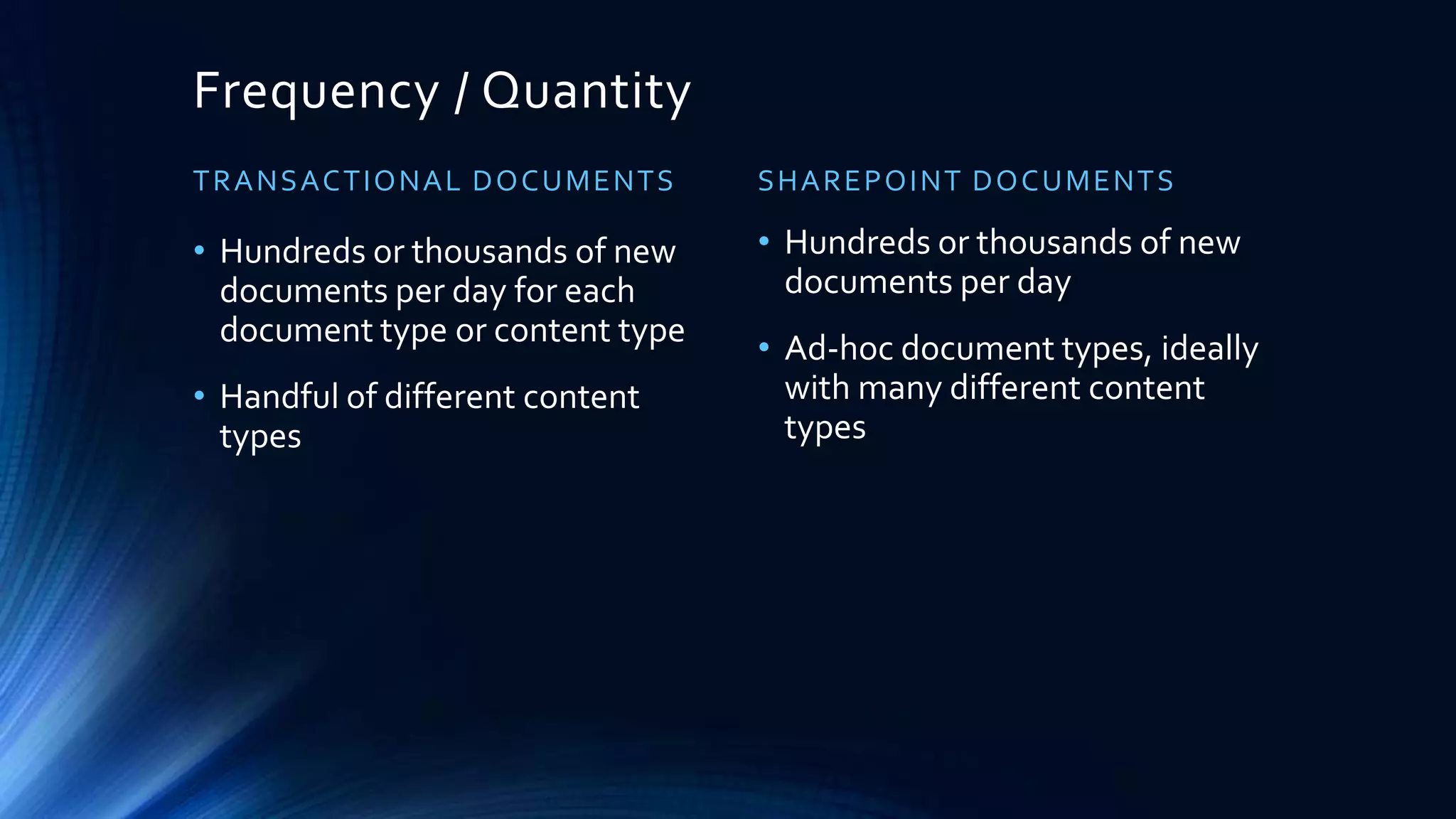
• Typically under 5K documents
per library.
How users find documents
TRANSACTIONAL DOCUMENTS
• Navigation doesn’t work - too many
documents per library
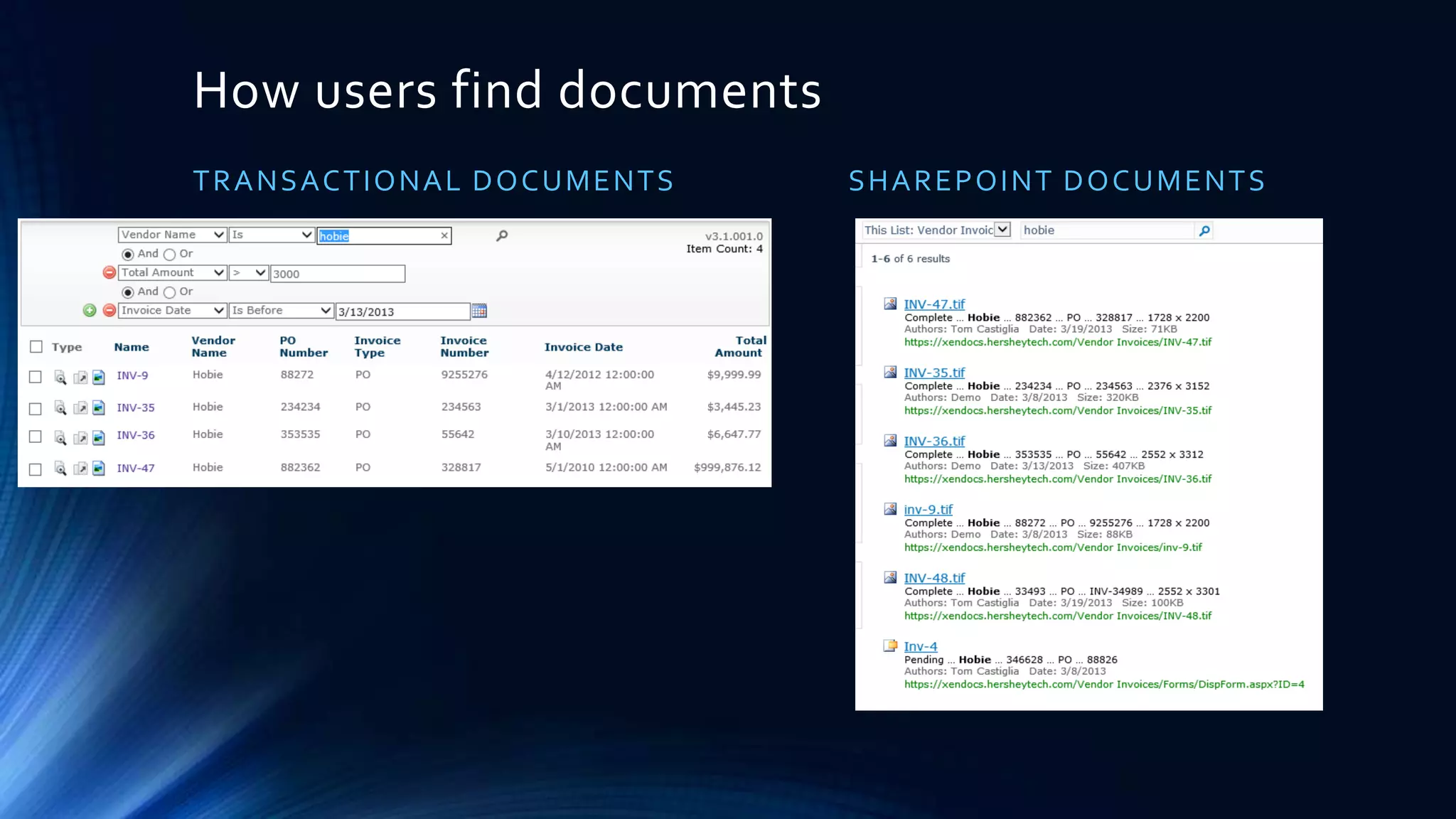
• Search via metadata queries only
• Ignore document content
• Ignore social based algorithms like
ratings
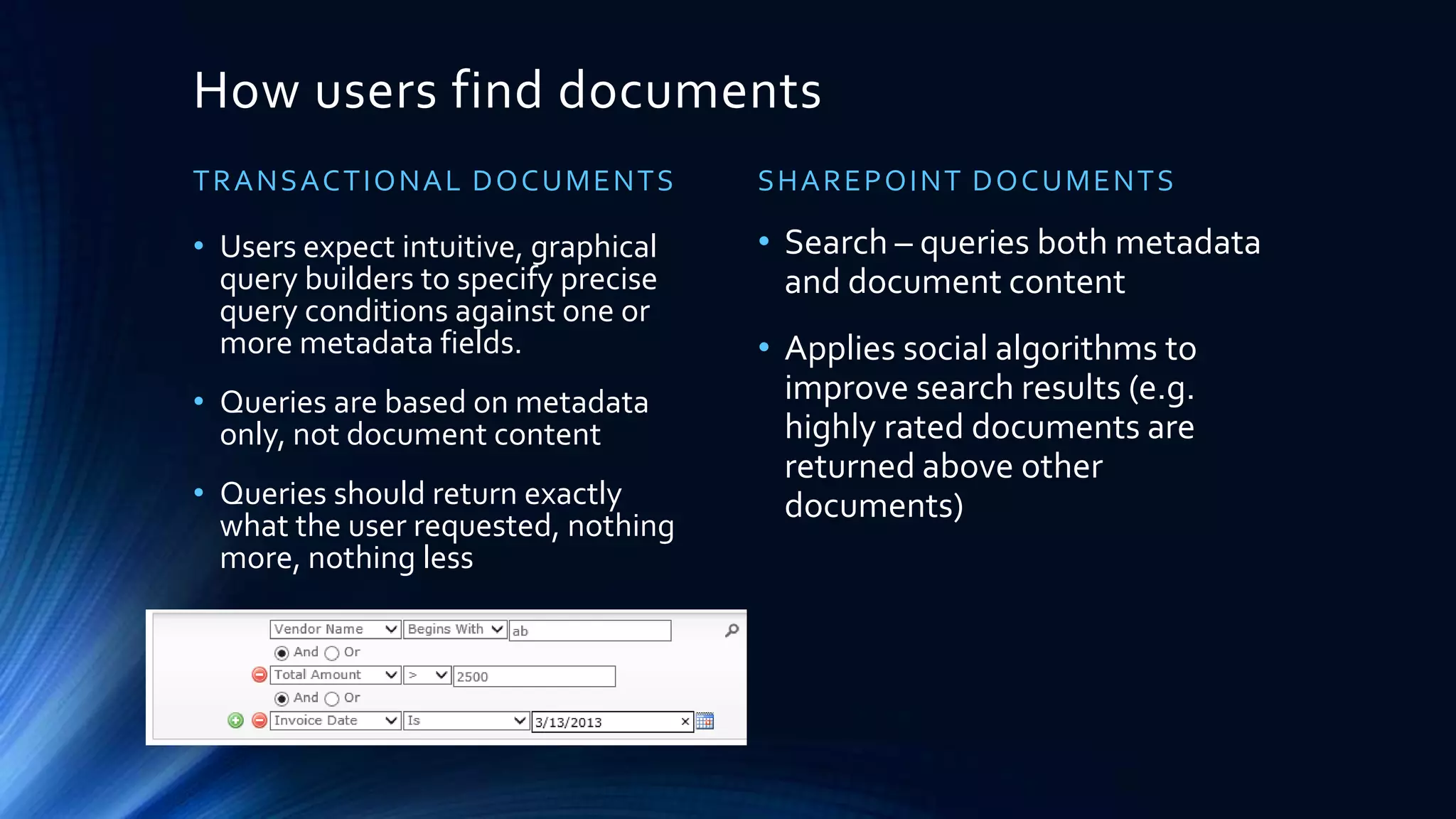
• Users expect intuitive, graphical
query builders to specify precise
search conditions against one or
more metadata fields.
COLLABORATION SCENARIOS
• Navigation
• SiteSub-SiteLibraryFolderDocument
• Keyword Search
• Searches both metadata and document
content
• Use of social algorithms improve search
results (e.g. highly rated documents are
returned above other documents)
How users find documents
TRANSACTIONAL DOCUMENT SEARCHTYPICAL SHAREPOINT SEARCH
What about Metadata Navigation and Filtering?
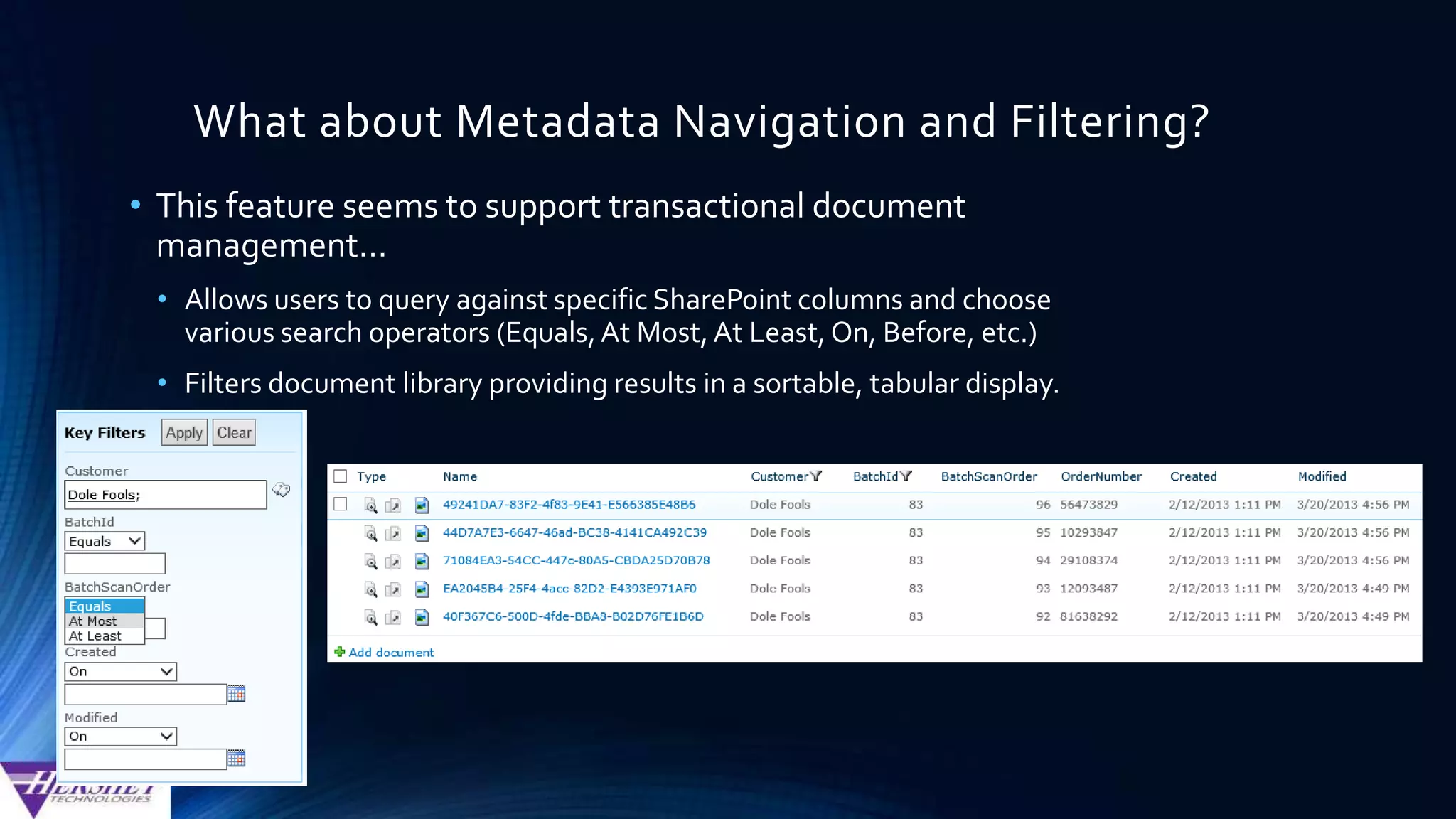
• This native SharePoint feature does provide a limited query
builder …
• Allows users to query against specific SharePoint columns and choose
various search operators (Equals,At Most, At Least, On, Before, etc.)
• Filters document library providing results in a sortable, tabular display.
Limits of Metadata Navigation and Filtering
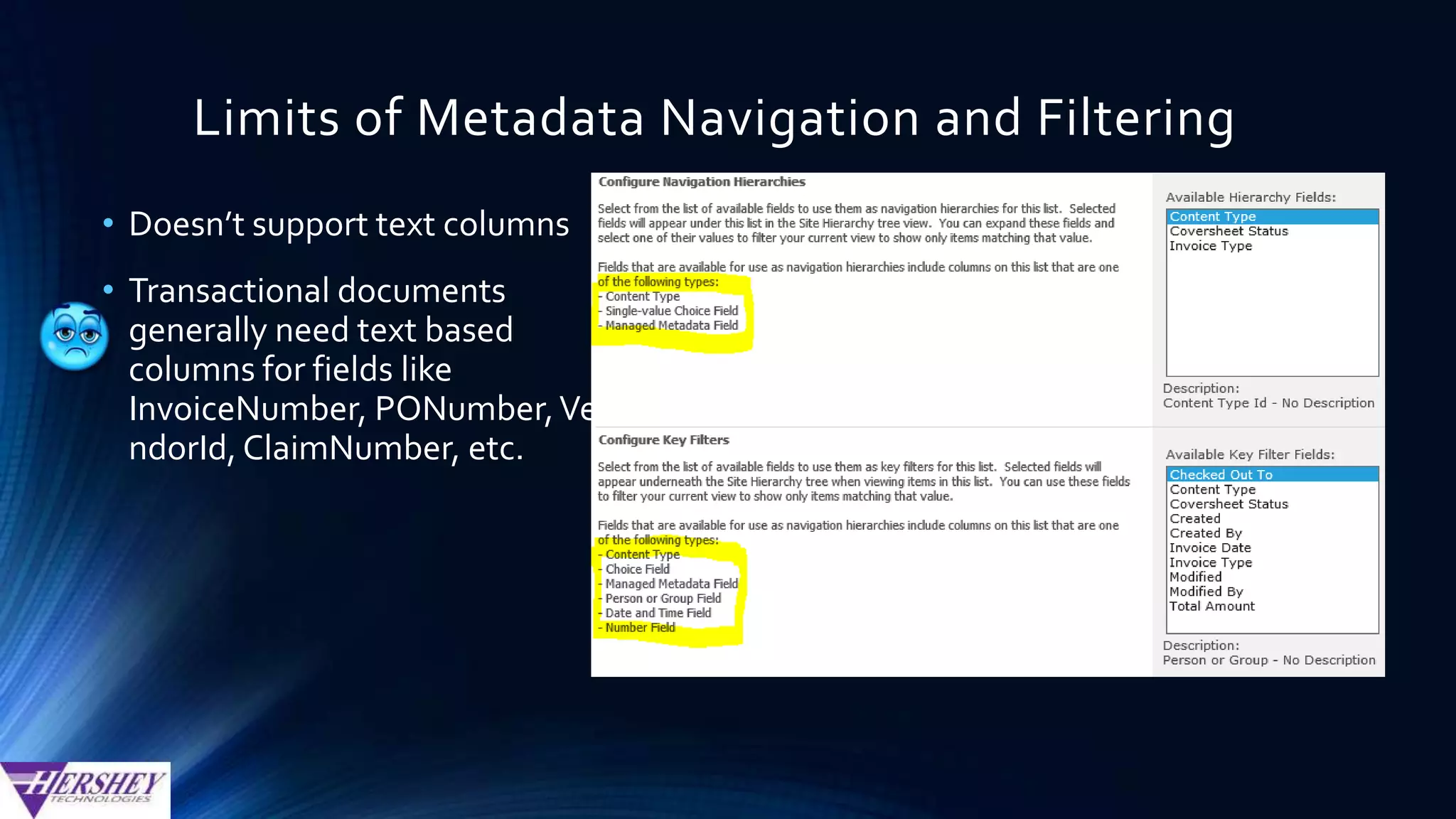
• Doesn’t support text columns
• Transactional documents
generally need text based
columns for fields like
InvoiceNumber, PONumber,
VendorId, ClaimNumber, etc.
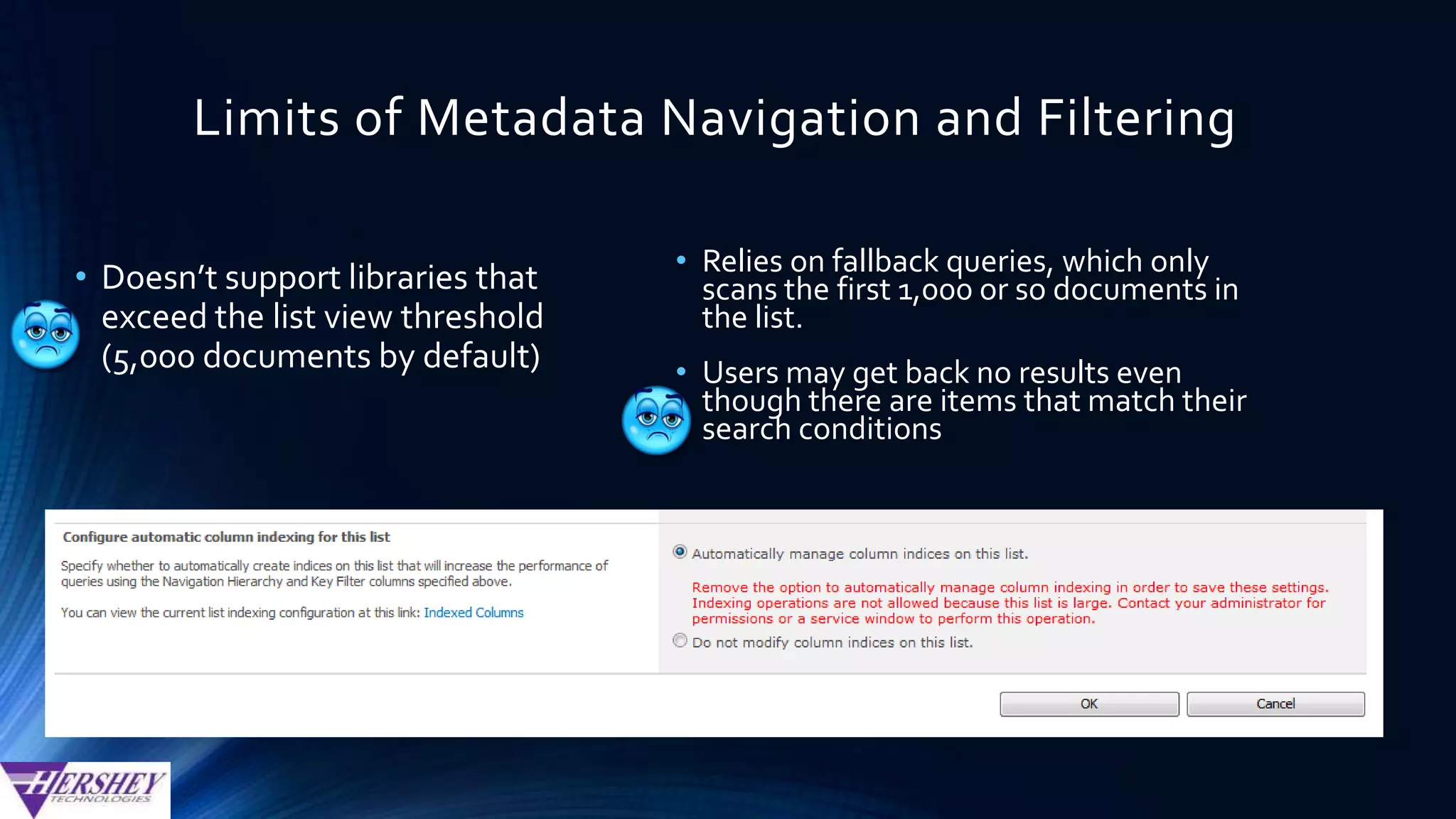
• Doesn’t scale well for libraries
that exceed the list view
threshold (5,000 documents by
default)
Integrating Metadata with Search
Metadata
Columns
Crawled
Properties
Managed
Properties
Search
Results
Four Challenges to Transactional Content
Management in SharePoint
• Configuring Managed Properties in SharePoint Search is more
complex than it needs to be.
• SharePoint does not provide a robust query builder for users to
intuitively query documents (other ECM solutions offer this OOB)
• SharePoint formats Search results like a search engine, not like a
document management product.
• SharePoint treats PDF documents and scanned images as a 2nd class
citizen.
Crawled Properties
• Crawled properties are metadata (such as author, title, or subject) that
are extracted from SharePoint columns during crawls.
• However, this is the internal representation of the metadata. To
enable users to search on this metadata, we need to use managed
properties that are mapped to the crawled properties.
Crawled Properties
• A new crawled property is created for each new
custom column, after…
• The column is added to at least one list or library
• The column is populated with a value in at least one item
• A Full Crawl is performed
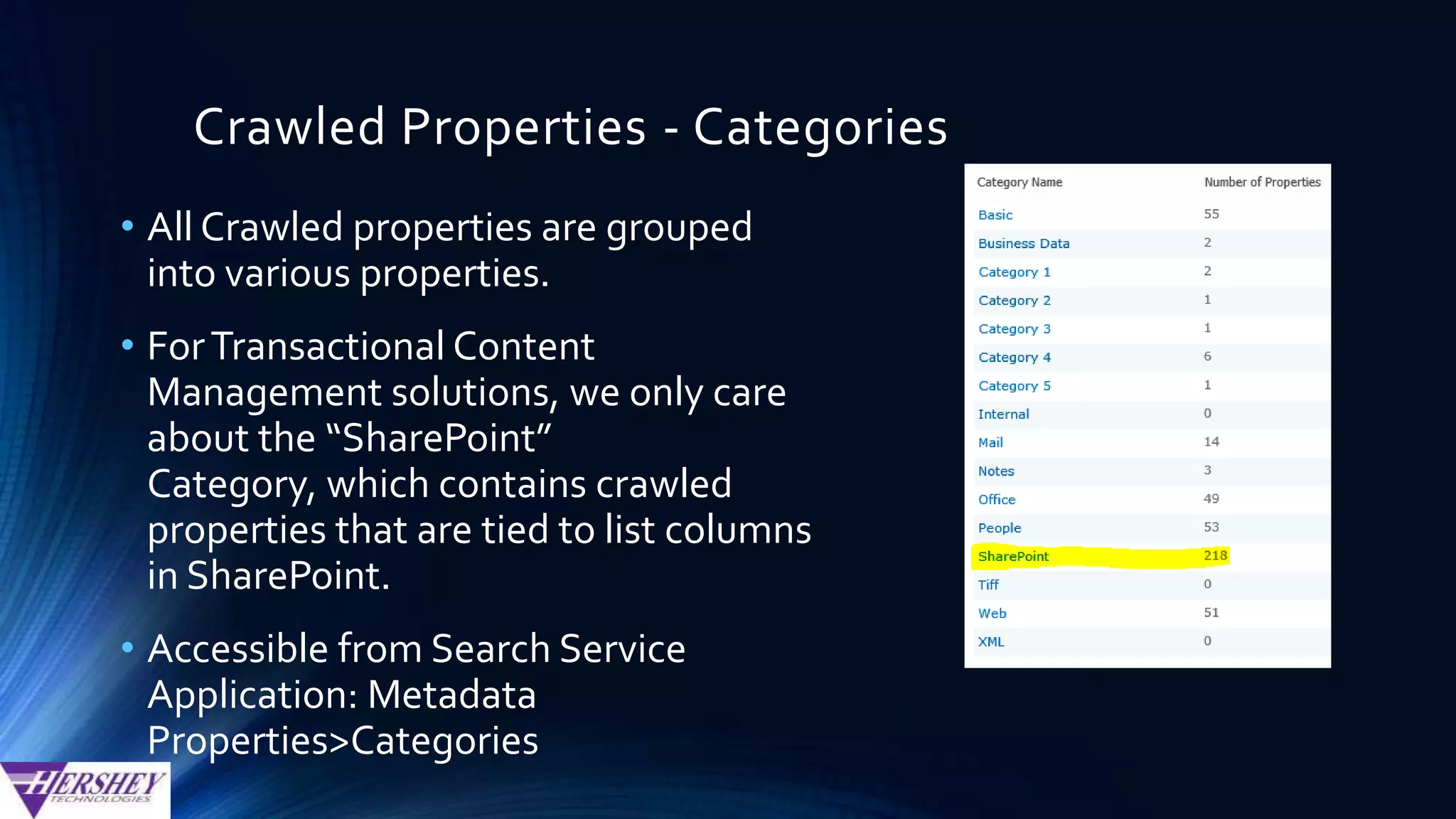
Crawled Properties - Categories
• All Crawled properties are grouped
into various categories.
• ForTransactional Content
Management solutions, we generally
care about the “SharePoint” Category,
which contains crawled properties
that are tied to list columns in
SharePoint.
• Accessible from Search Service
Application: Metadata
Properties>Categories
Crawled Properties
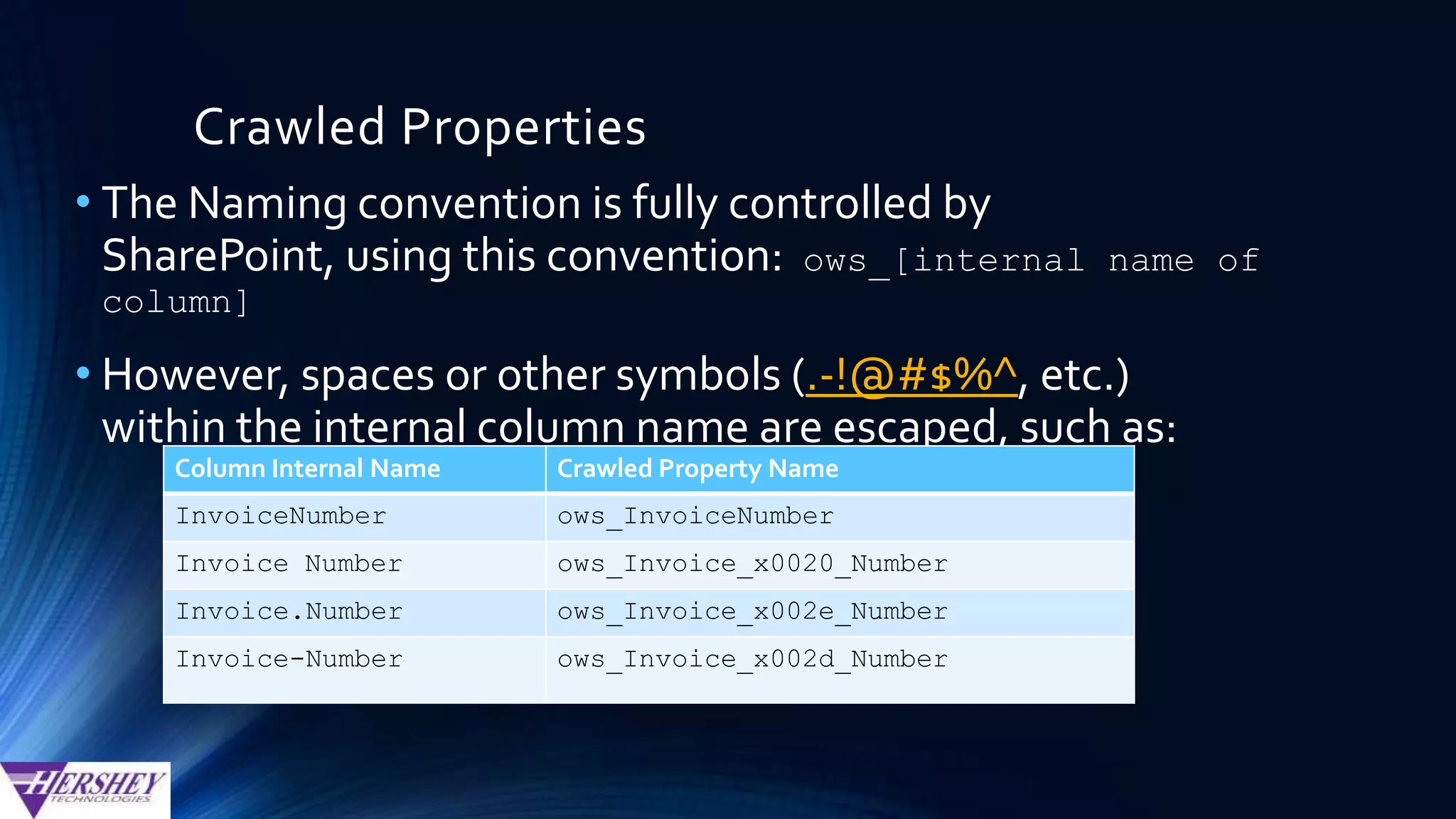
• The Naming convention is fully controlled by SharePoint,
using this convention: ows_[internal name of column]
• However, spaces or other symbols (.-!@#$%^, etc.)
within the internal column name are escaped, such as:
Column Internal Name Crawled Property Name
InvoiceNumber ows_InvoiceNumber
Invoice Number ows_Invoice_x0020_Number
Invoice.Number ows_Invoice_x002e_Number
Invoice-Number ows_Invoice_x002d_Number
Crawled Properties
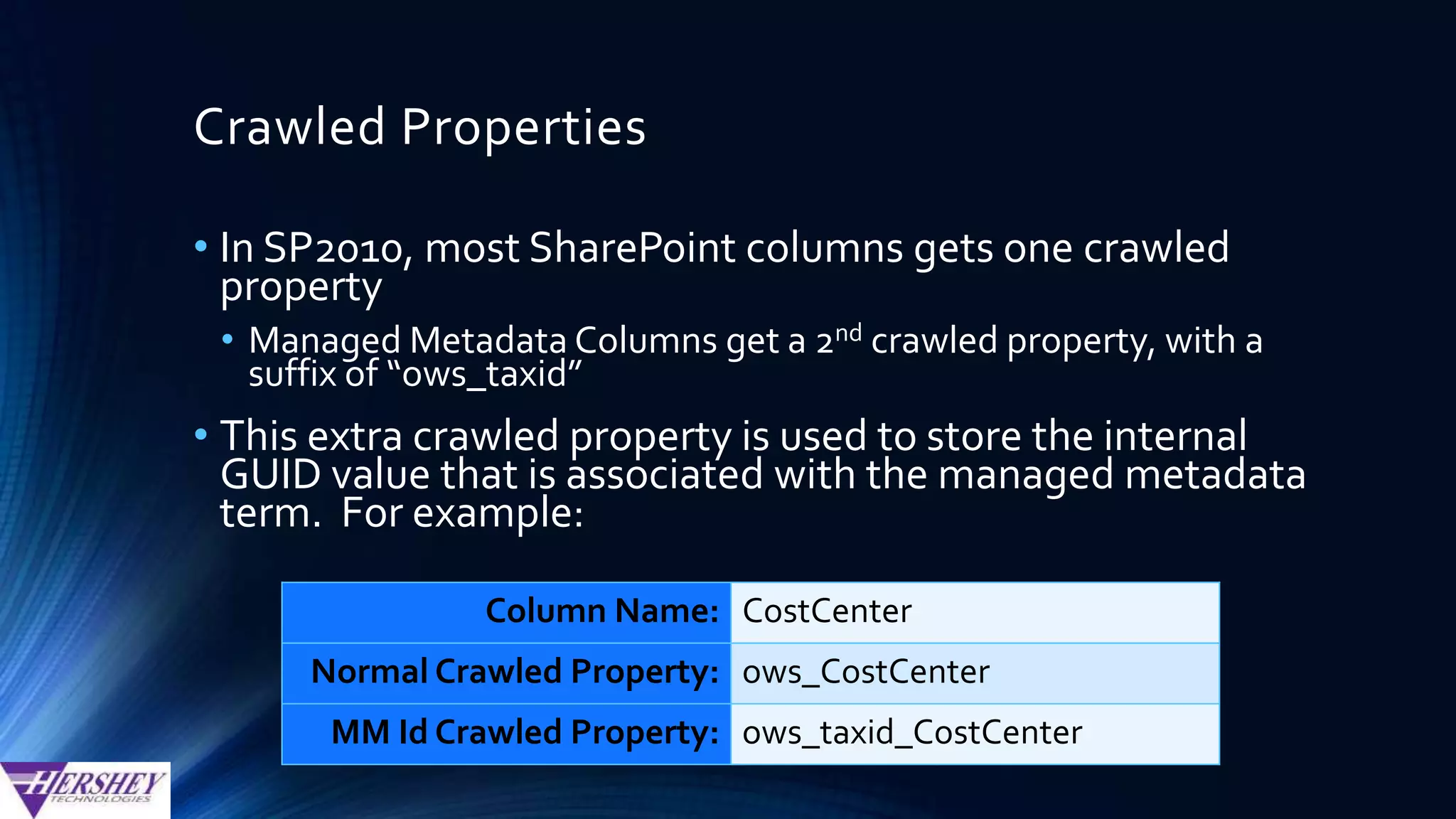
• In SP2010, most SharePoint columns gets one crawled
property
• Managed Metadata Columns get a 2nd crawled property, with a
prefix of “ows_taxid”
• This extra crawled property is used to store the internal
GUID value that is associated with the managed metadata
term. For example:
Column Name: CostCenter
Normal Crawled Property: ows_CostCenter
MM Id Crawled Property: ows_taxid_CostCenter
Managed Properties…
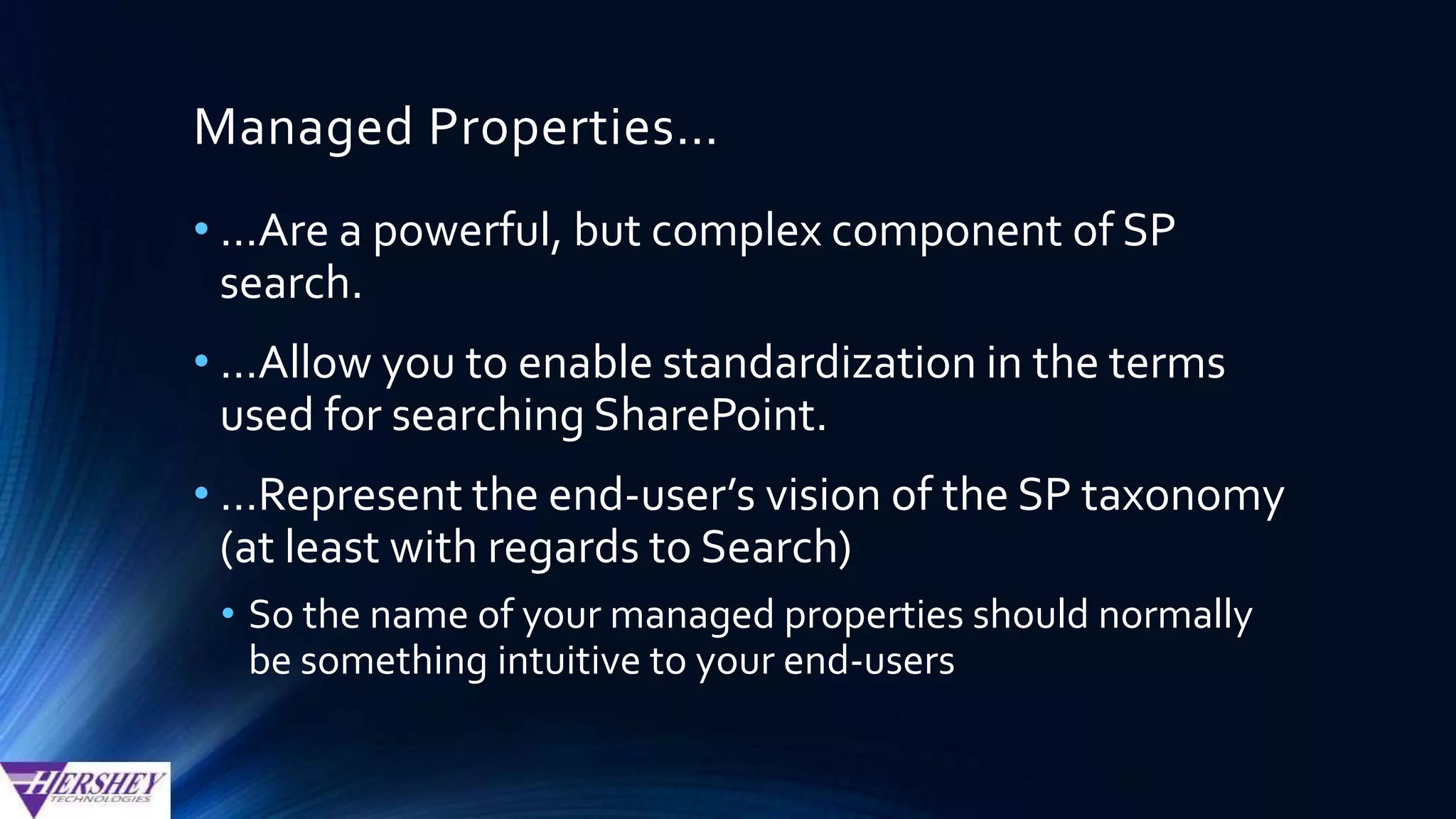
•…Allow you to enable standardization in
the terms used for searching SharePoint.
•…Represent the end-user’s vision of the SP
taxonomy (at least with regards to Search)
• So the name of your managed properties
should normally be something intuitive to
your end-users
Managed Properties
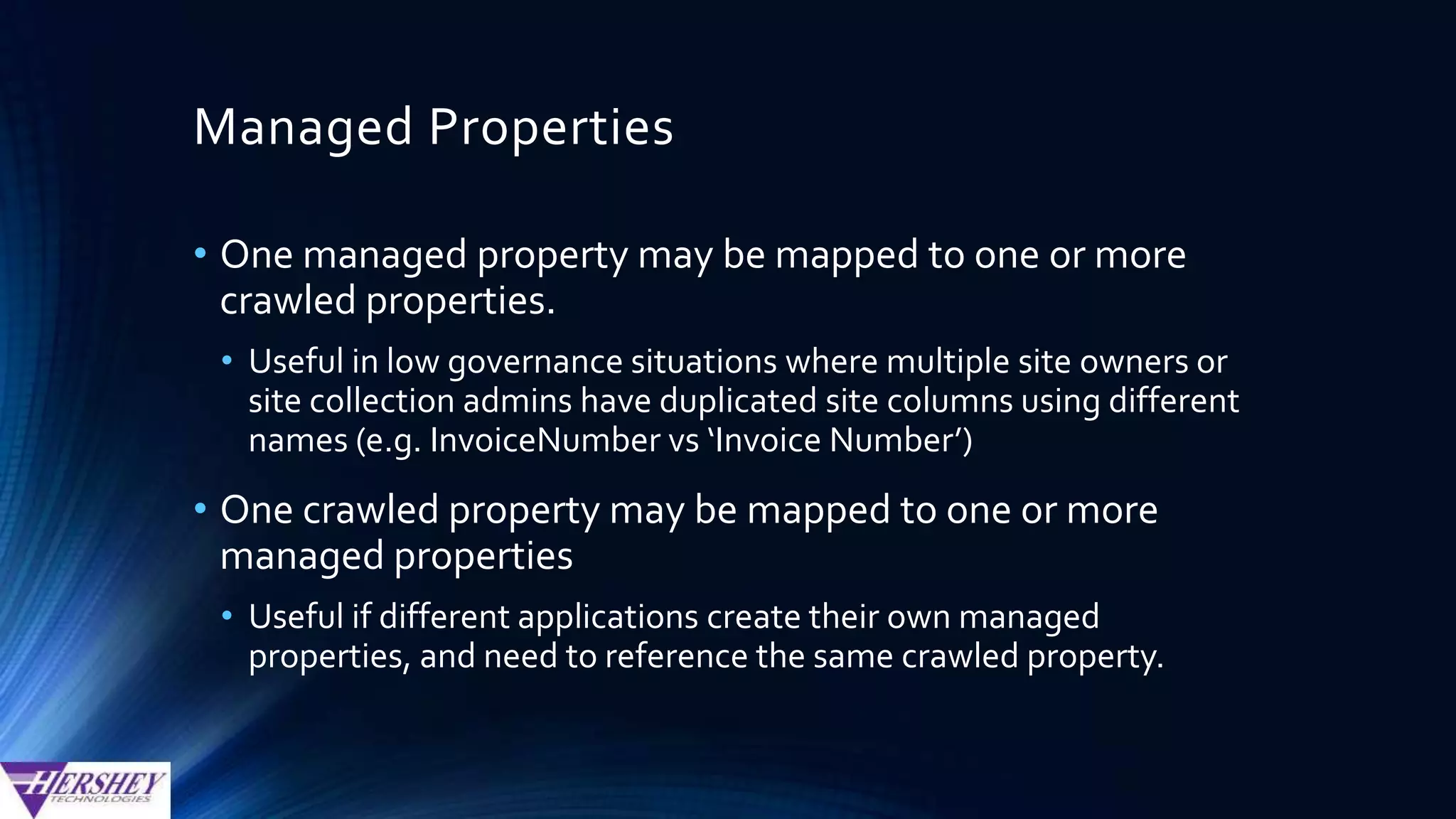
• One managed property may be mapped to one or more
crawled properties.
• Useful in low governance situations where multiple site owners or
site collection admins have duplicated site columns using different
names (e.g. InvoiceNumber vs ‘Invoice Number’)
• One crawled property may be mapped to one or more
managed properties
• Useful if different applications create their own managed
properties, and need to reference the same crawled property.
Using Managed Properties
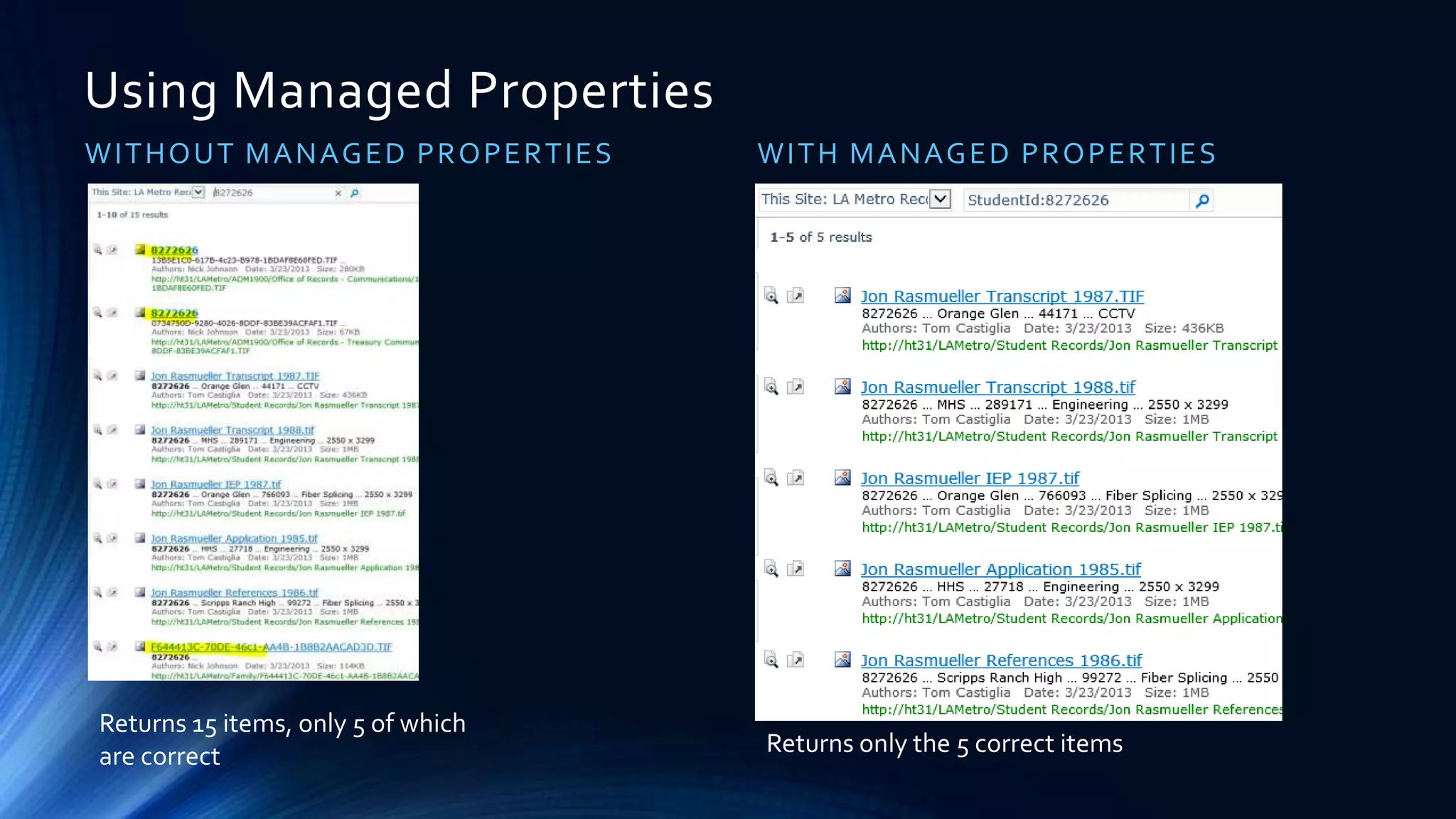
WITHOUT MANAGED PROPERTIES WITH MANAGED PROPERTIES
Returns 16 items, only 6
of which are related to
what I wanted.
Included other
documents that happen
to contain the StudentId
value either as text in
the document or in
some other field (like an
Invoice Number, or
something else)
Returns only
the 6 correct
items
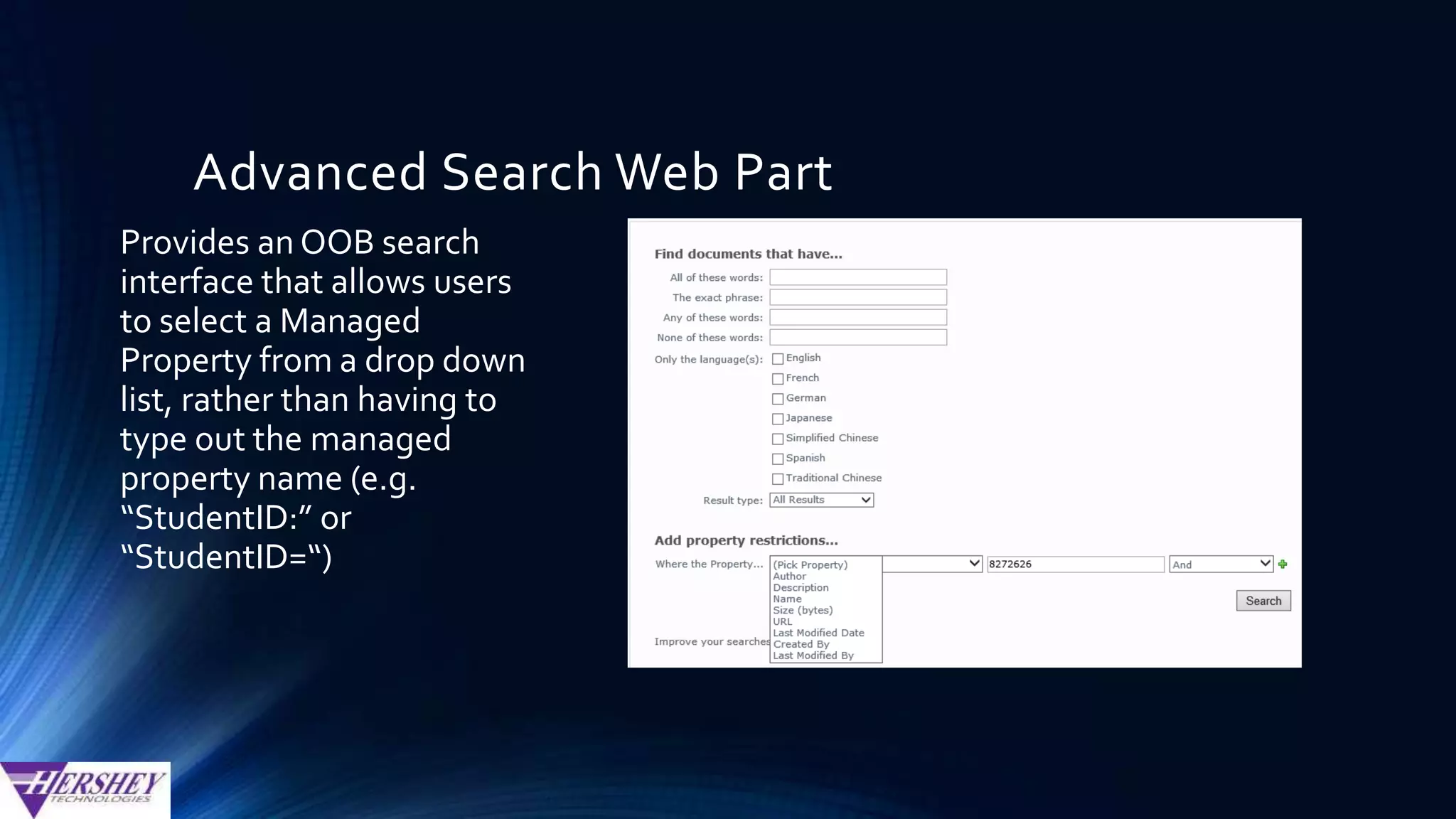
Advanced Search Web Part
Provides an OOB search
interface that allows users
to select a Managed
Property from a drop down
list, rather than having to
type out the managed
property name (e.g.
“StudentID:” or
“StudentID=“)
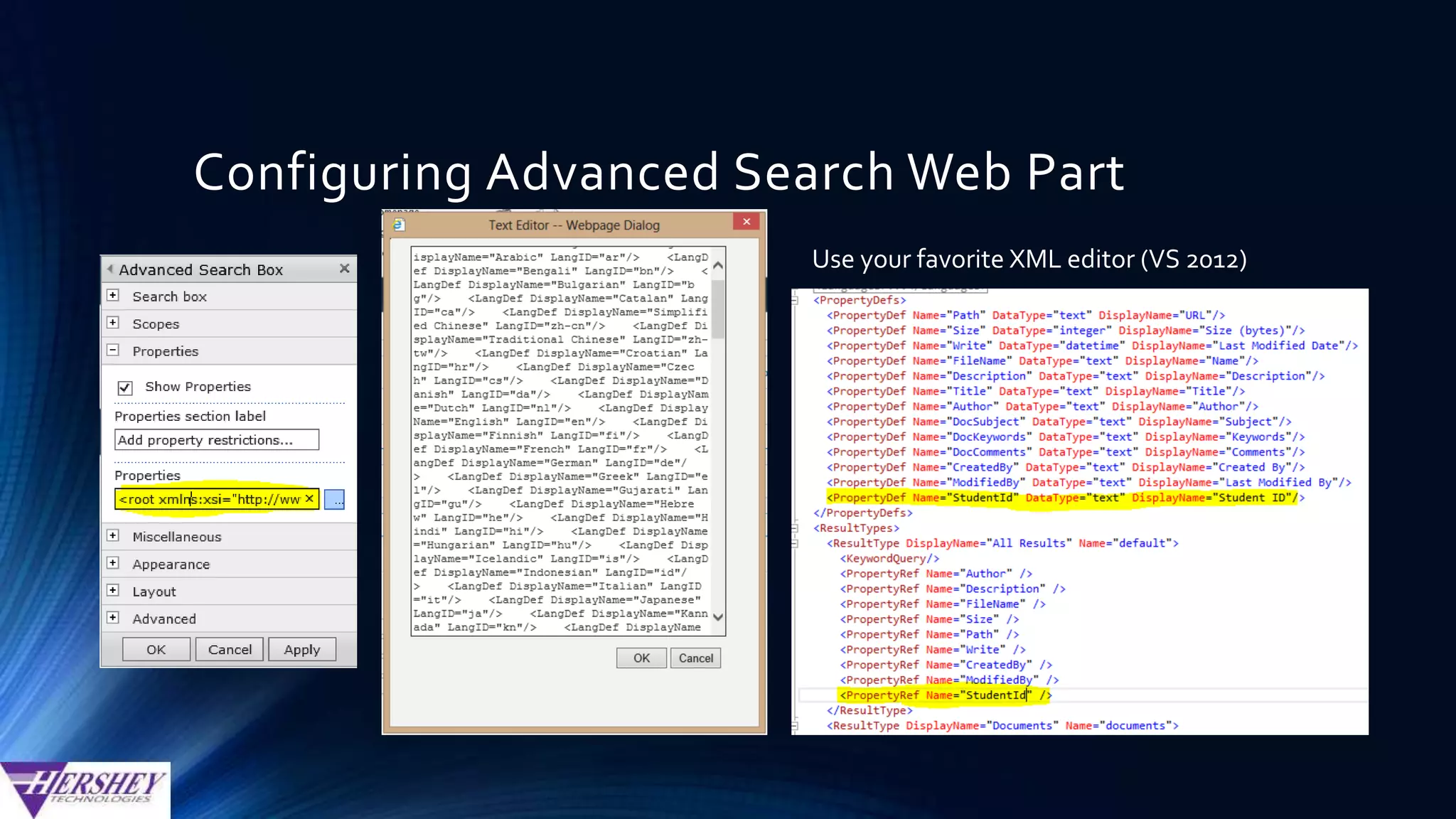
Configuring Advanced Search Web Part
Use your favorite XML editor (VS 2012)
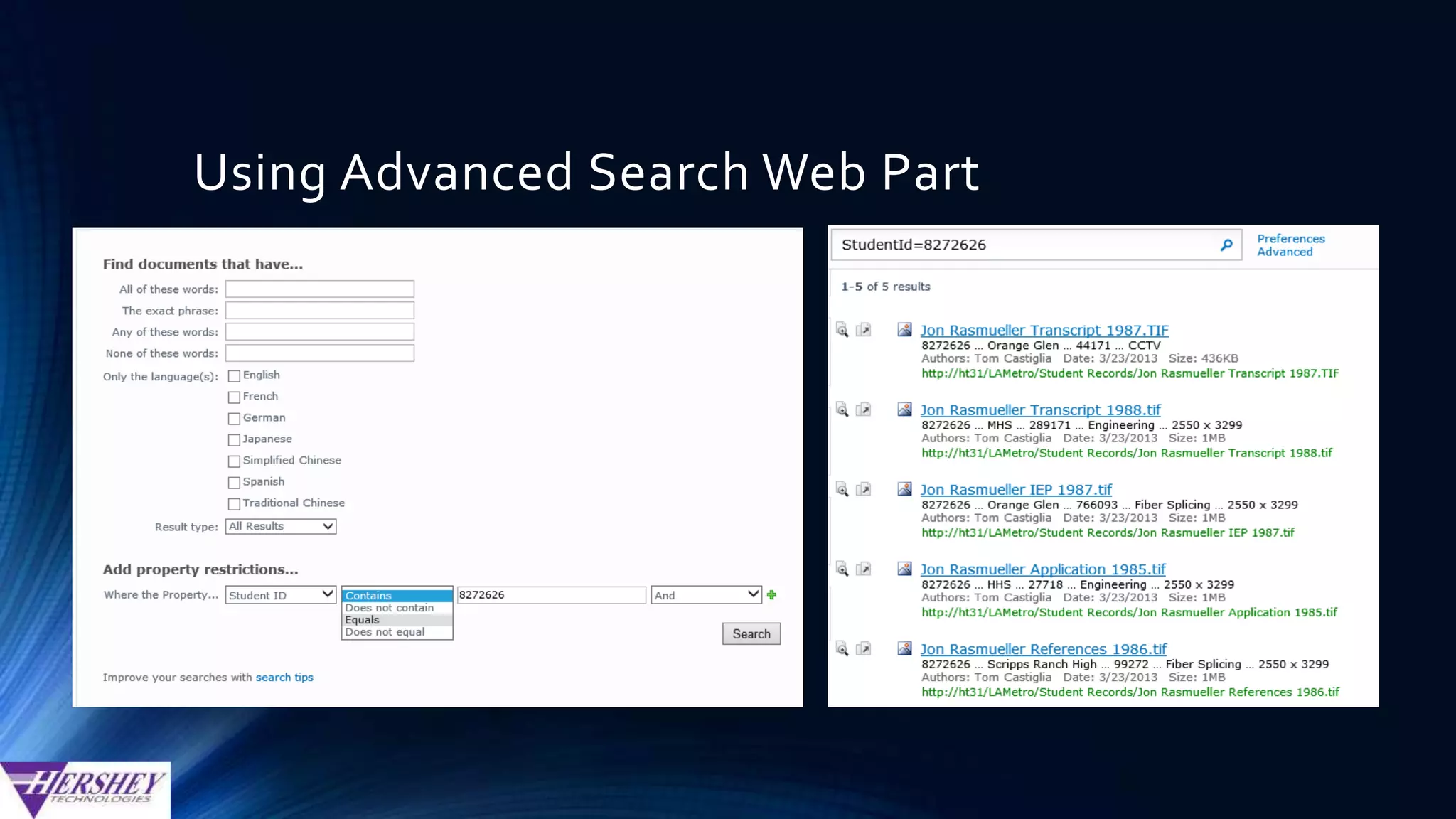
Using Advanced Search Web Part
Creating Managed Properties
Unlike Crawled Properties (which are
always auto-generated by SharePoint…
Managed properties can be created in one
of three ways…
Creating Managed Properties (Option 1)
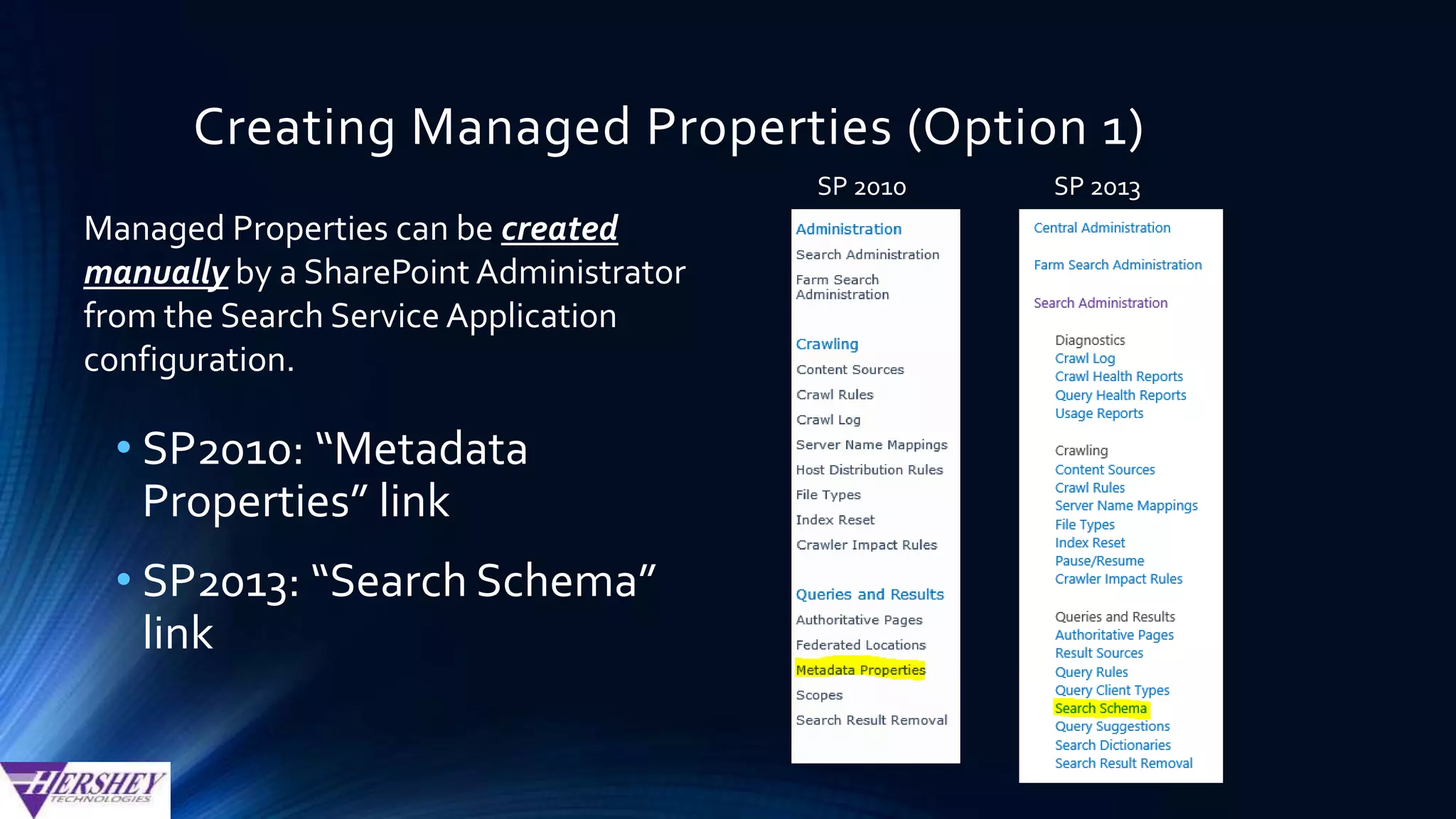
• SP2010: “Metadata
Properties” link
• SP2013: “Search Schema”
link
SP 2010 SP 2013
Managed Properties can be created
manually by a SharePoint Administrator
from the Search Service Application
configuration.
Creating Managed Property (SP2010)
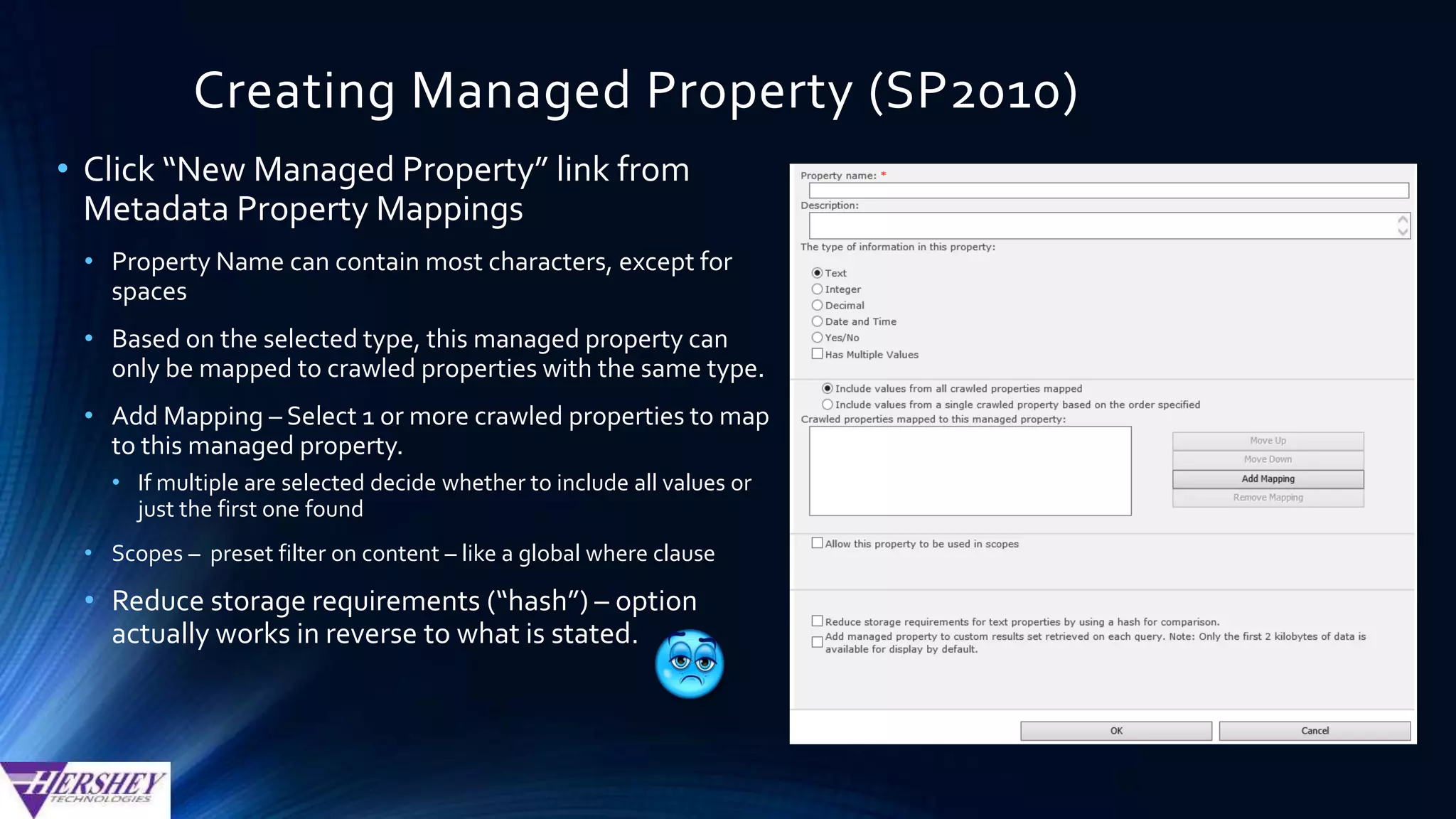
• Click “New Managed Property” link from
Metadata Property Mappings
• Property Name can contain most characters, except for
spaces (but please don’t use special characters)
• Based on the selected type, this managed property can
only be mapped to crawled properties with the same type.
• Add Mapping – Select 1 or more crawled properties to map
to this managed property.
• If multiple are selected decide whether to include all values or
just the first one found
• Scopes – preset filter on content – like a global where clause
• Reduce storage requirements (“hash”) – option
actually works in reverse to what is stated.
Creating Managed Property (SP2013)
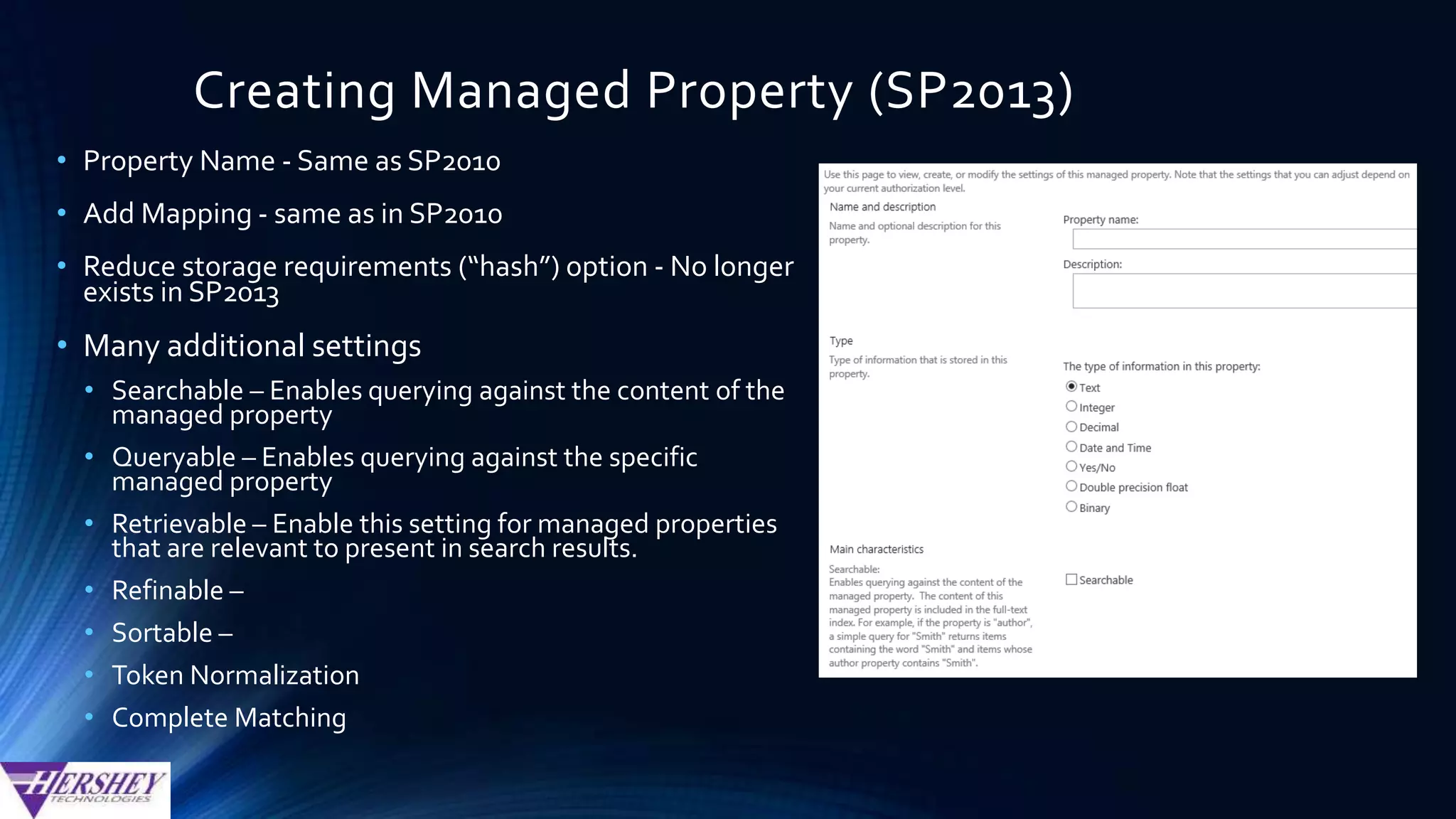
• Property Name - Same as SP2010
• Add Mapping - same as in SP2010
• Reduce storage requirements (“hash”) option - No longer
exists in SP2013
• Many additional settings
• Searchable – Enables querying against the content of the
managed property
• Queryable – Enables querying against the specific
managed property
• Retrievable – Enable this setting for managed properties
that are relevant to present in search results.
• Refinable – Can be used as a search refiner
• Sortable –
• Token Normalization
• Complete Matching
Creating Managed Properties (Option 2)
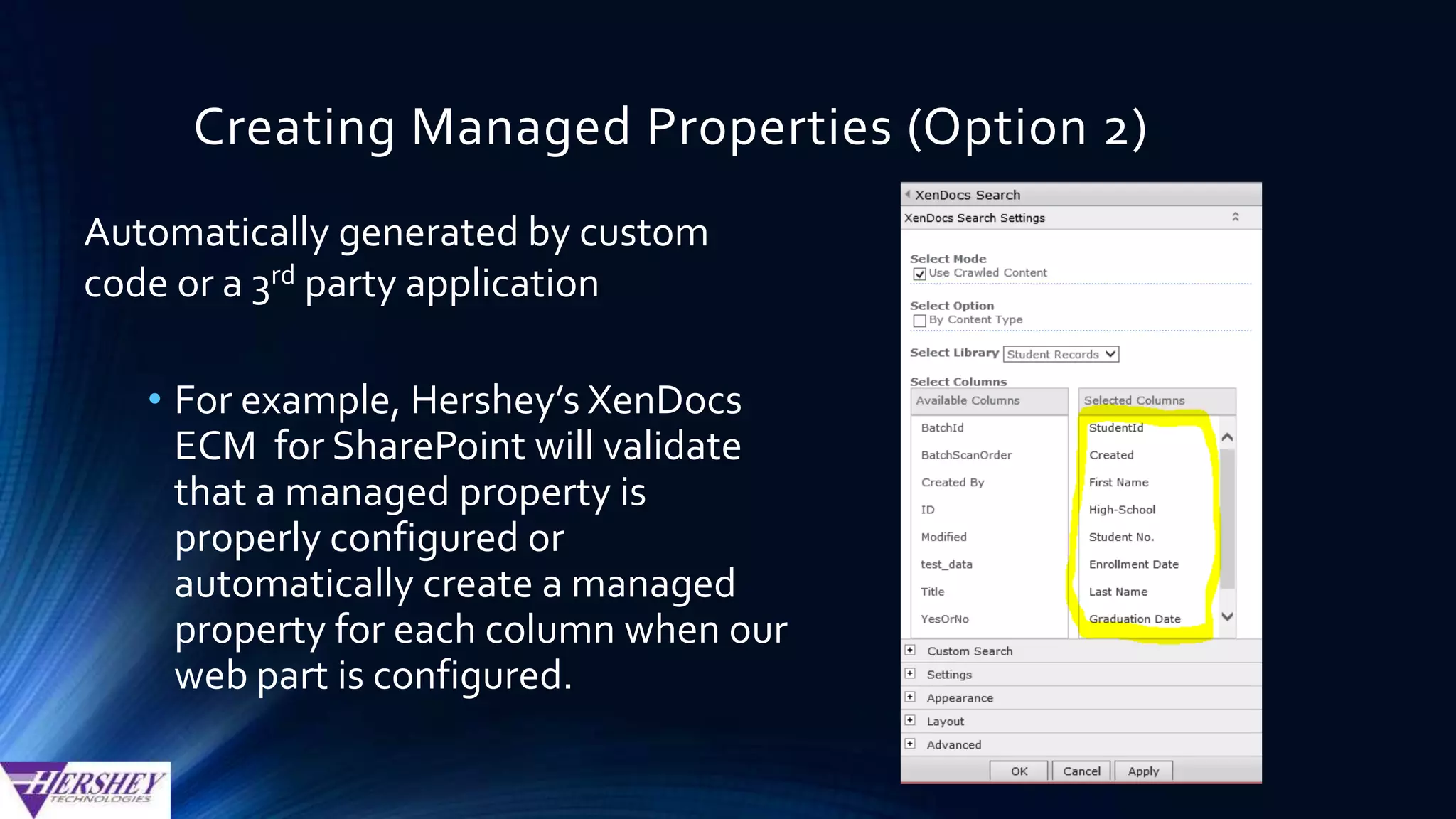
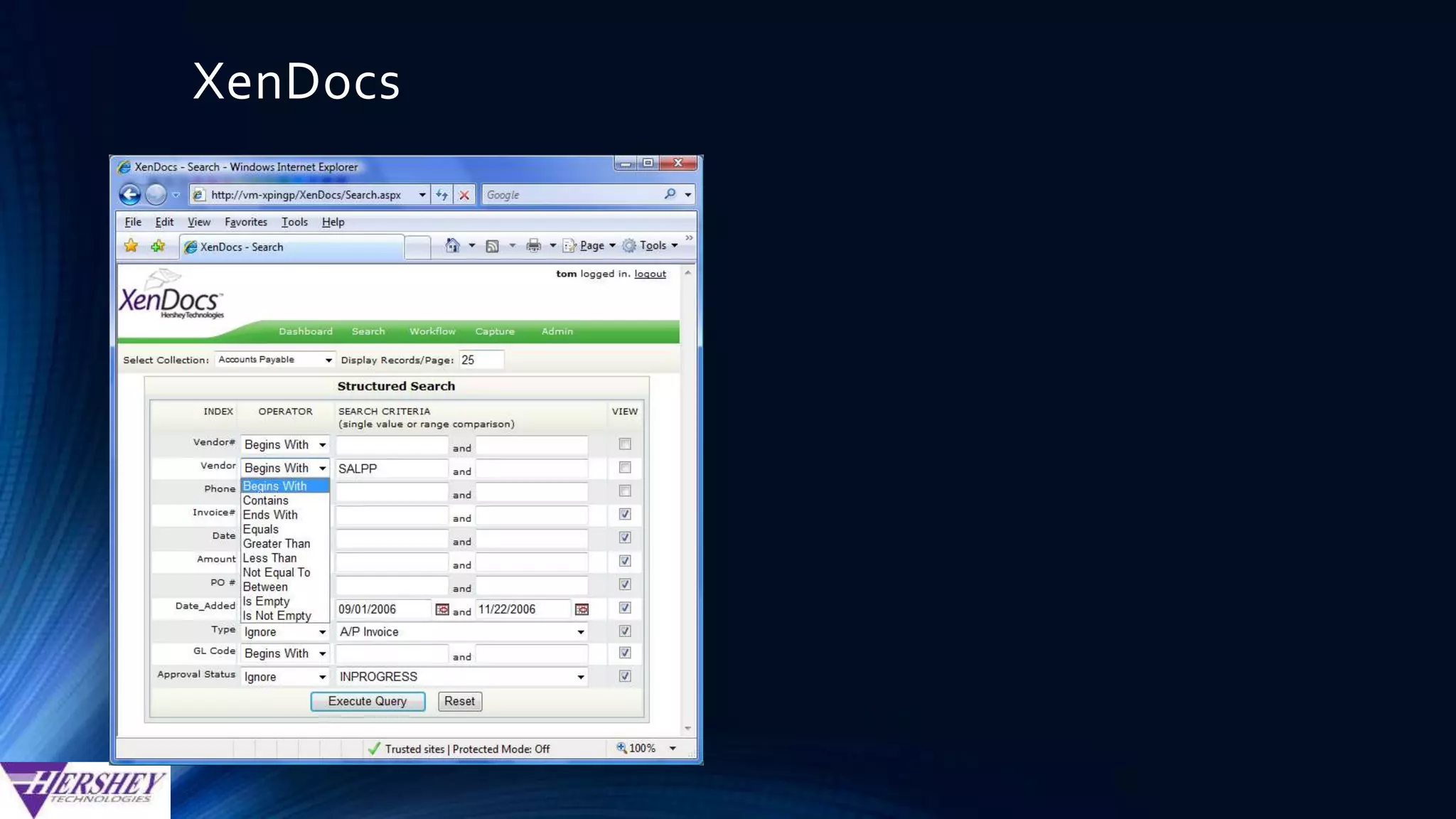
• For example, Hershey’s XenDocs
ECM for SharePoint will validate
that a managed property is
properly configured or
automatically create a managed
property for each column when our
web part is configured.
Automatically generated by custom
code or a 3rd party application
Creating Managed Properties (Option 3)
Let SharePointAuto-Generate new
managed properties when it crawls
Auto-Generating Managed Properties
•In SharePoint 2010…
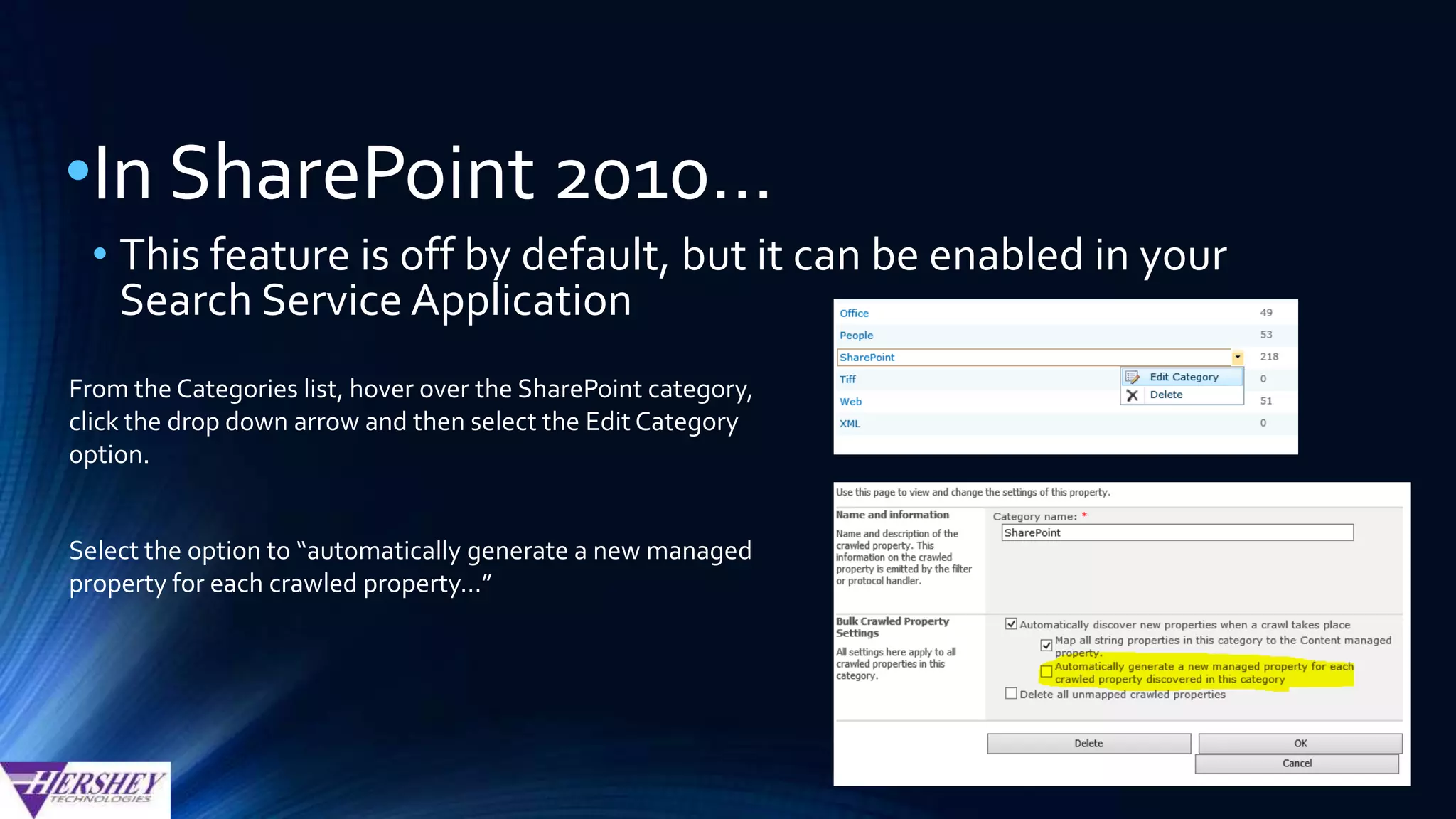
• This feature is off by default, but it can be enabled in your
Search Service Application
From the Categories list, hover over the SharePoint category,
click the drop down arrow and then select the Edit Category
option.
Select the option to “automatically generate a new managed
property for each crawled property…”
Auto-Generating Managed Properties
•In SharePoint 2013…
• All site columns that contain data will have a managed property
auto-generated upon a full crawl
• This does not happen for list columns
• This feature cannot be turned off and is not configurable (as far as I
can tell)
http://technet.microsoft.com/en-us/library/jj613136.aspx
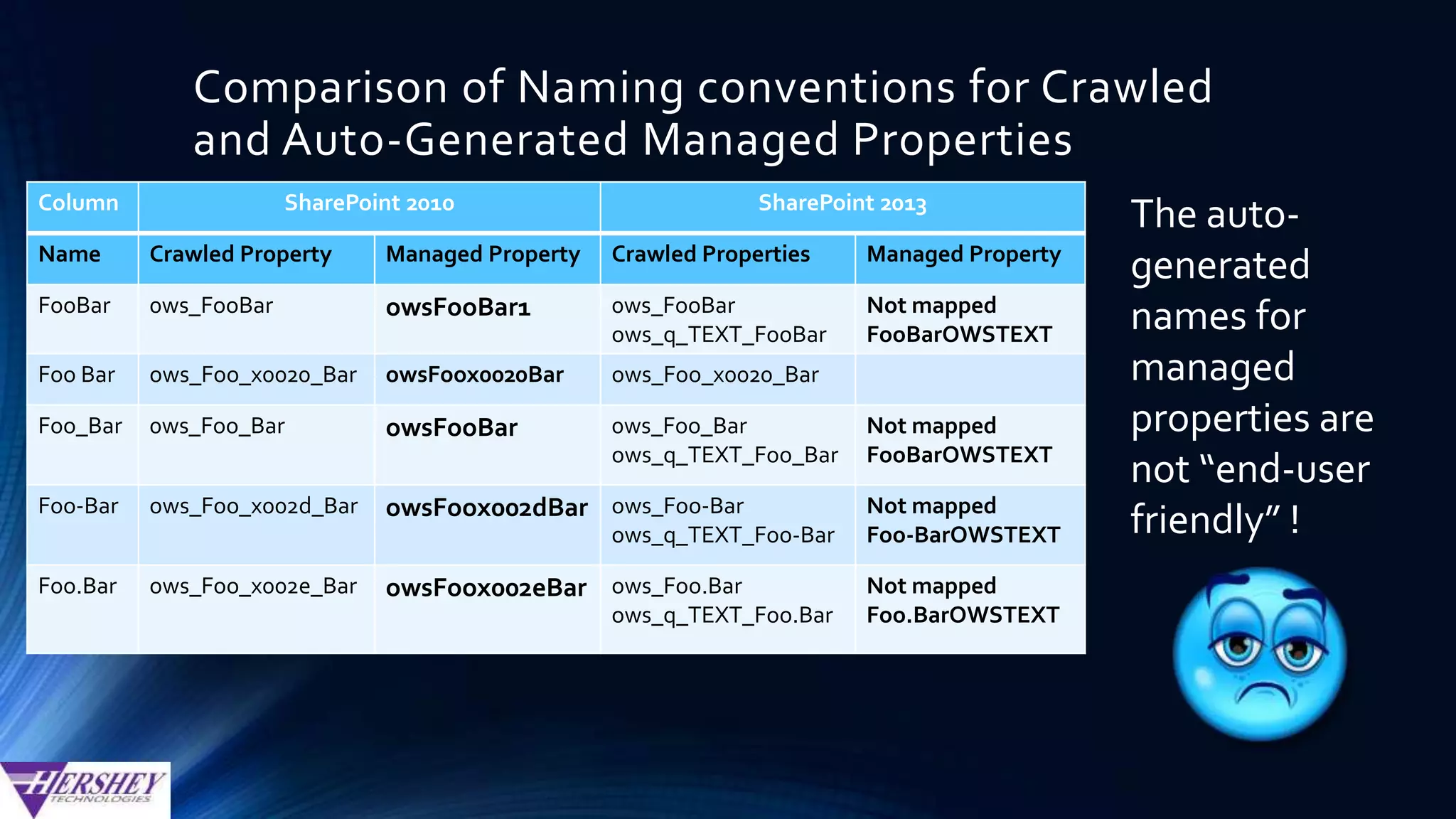
Comparison of Naming conventions for Crawled
and Auto-Generated Managed Properties
Column SharePoint 2010 SharePoint 2013
Name Crawled Property Managed Property Crawled Properties Managed Property
FooBar 0ws_FooBar owsFooBar1 0ws_FooBar
ows_q_TEXT_FooBar
Not mapped
FooBarOWSTEXT
Foo Bar ows_Foo_x0020_Bar owsFoox0020Bar ows_Foo_x0020_Bar FooBarOWSTEXT
Foo_Bar 0ws_Foo_Bar owsFooBar 0ws_Foo_Bar
ows_q_TEXT_Foo_Bar
Not mapped
FooBarOWSTEXT
Foo-Bar ows_Foo_x002d_Bar owsFoox002dBar ows_Foo-Bar
ows_q_TEXT_Foo-Bar
Not mapped
Foo-BarOWSTEXT
Foo.Bar ows_Foo_x002e_Bar owsFoox002eBar ows_Foo.Bar
ows_q_TEXT_Foo.Bar
Not mapped
Foo.BarOWSTEXT
The auto-
generated
names for
managed
properties are
not “end-user
friendly” !
Enhancing the User Experience…
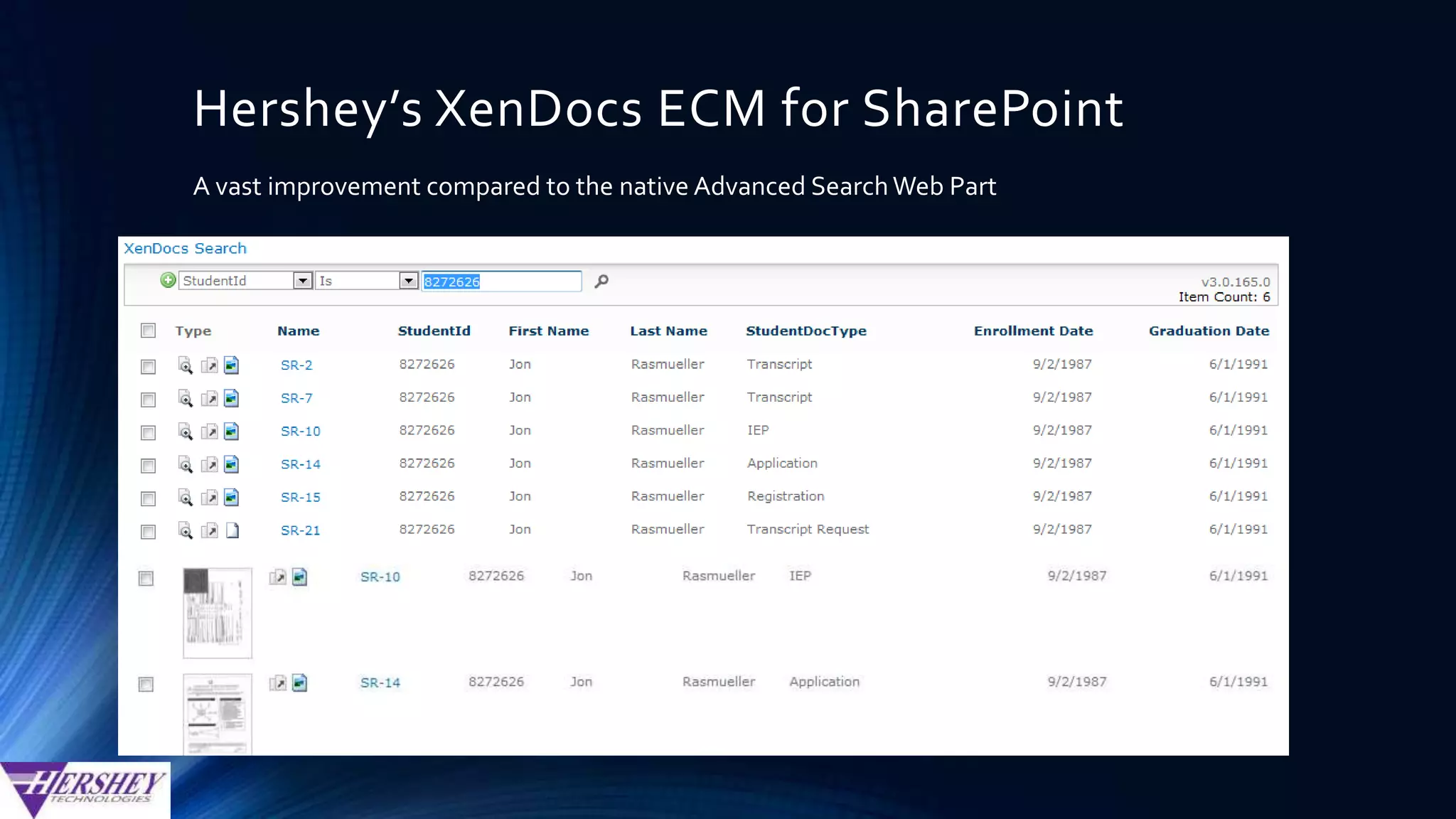
Hershey’s XenDocs ECM for SharePoint
A vast improvement compared to the native Advanced SearchWeb Part
Viewing PDF files and scanned images
• MS Office Documents are first 1st class citizens in SharePoint
• When office files are opened in Office 2007, 2010 or 2013, users can perform
many SharePoint functions on those documents:
• Edit document content
• Check in/out/discard
• See version history
• Edit metadata
• PreviewThumbnails in SP 2013
• Most other file types, especially PDF files and scanned images are 2nd
class citizens
• Read only view of document
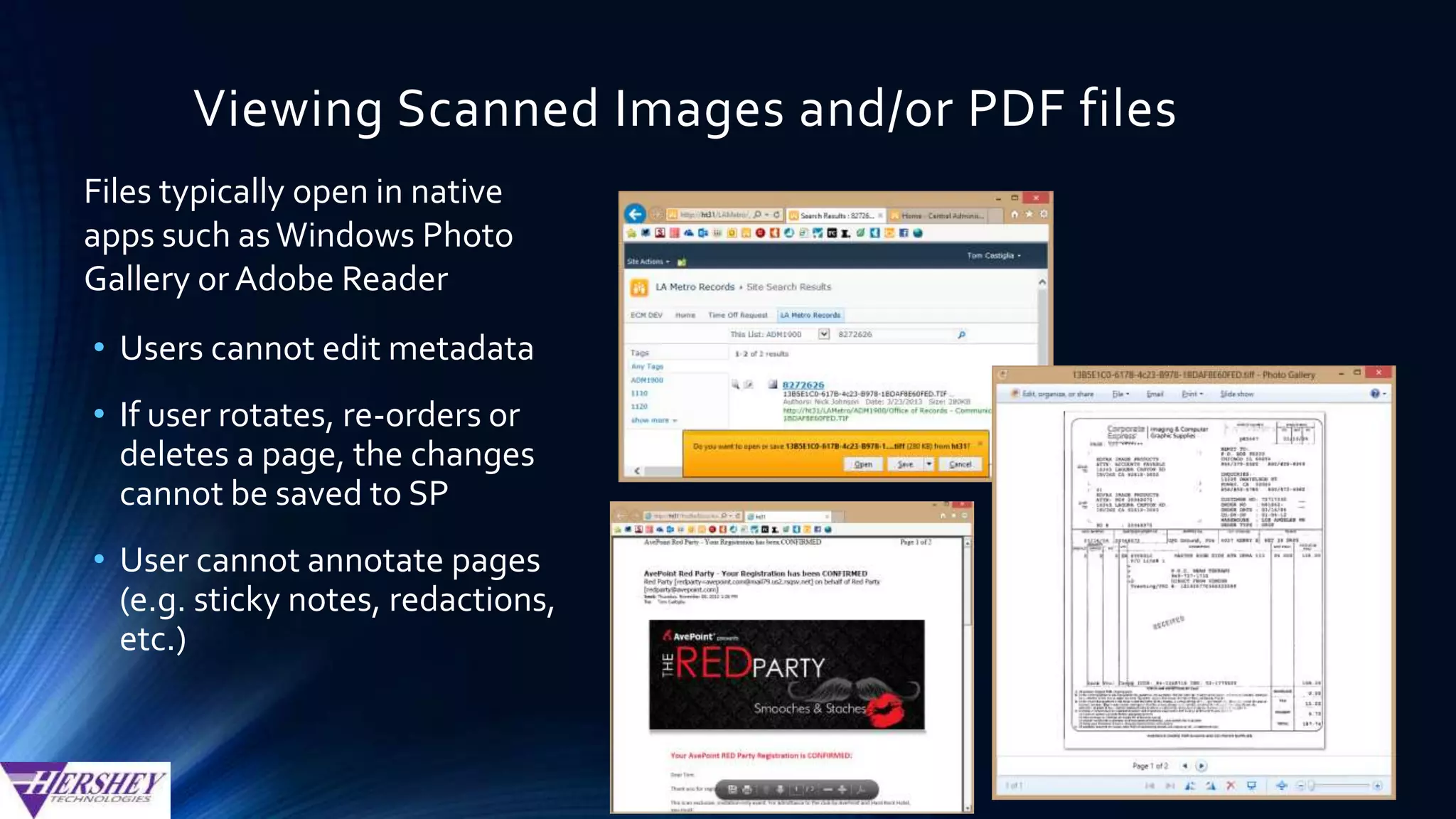
Viewing Scanned Images and/or PDF files
Files typically open in native
apps such asWindows Photo
Gallery or Adobe Reader
• Users cannot edit metadata
• If user rotates, re-orders or
deletes a page, the changes
cannot be saved to SP
• User cannot annotate pages
(e.g. sticky notes, redactions,
etc.)
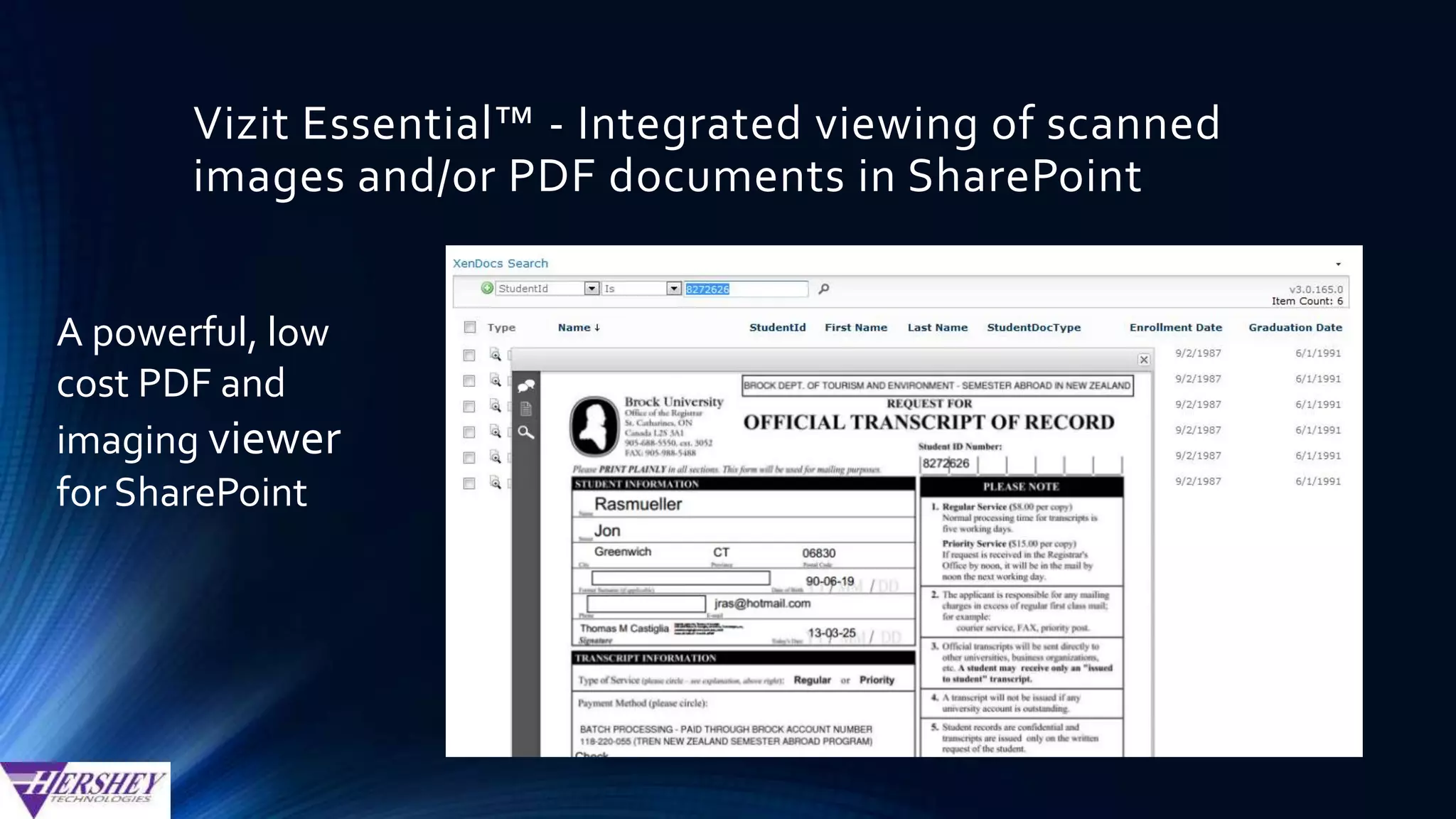
Vizit Essential™ - Integrated viewing of scanned
images and/or PDF documents in SharePoint
A powerful, low
cost PDF and
imaging viewer
for SharePoint
Vizit Essential - Integrated viewing of scanned
images and/or PDF documents in SharePoint
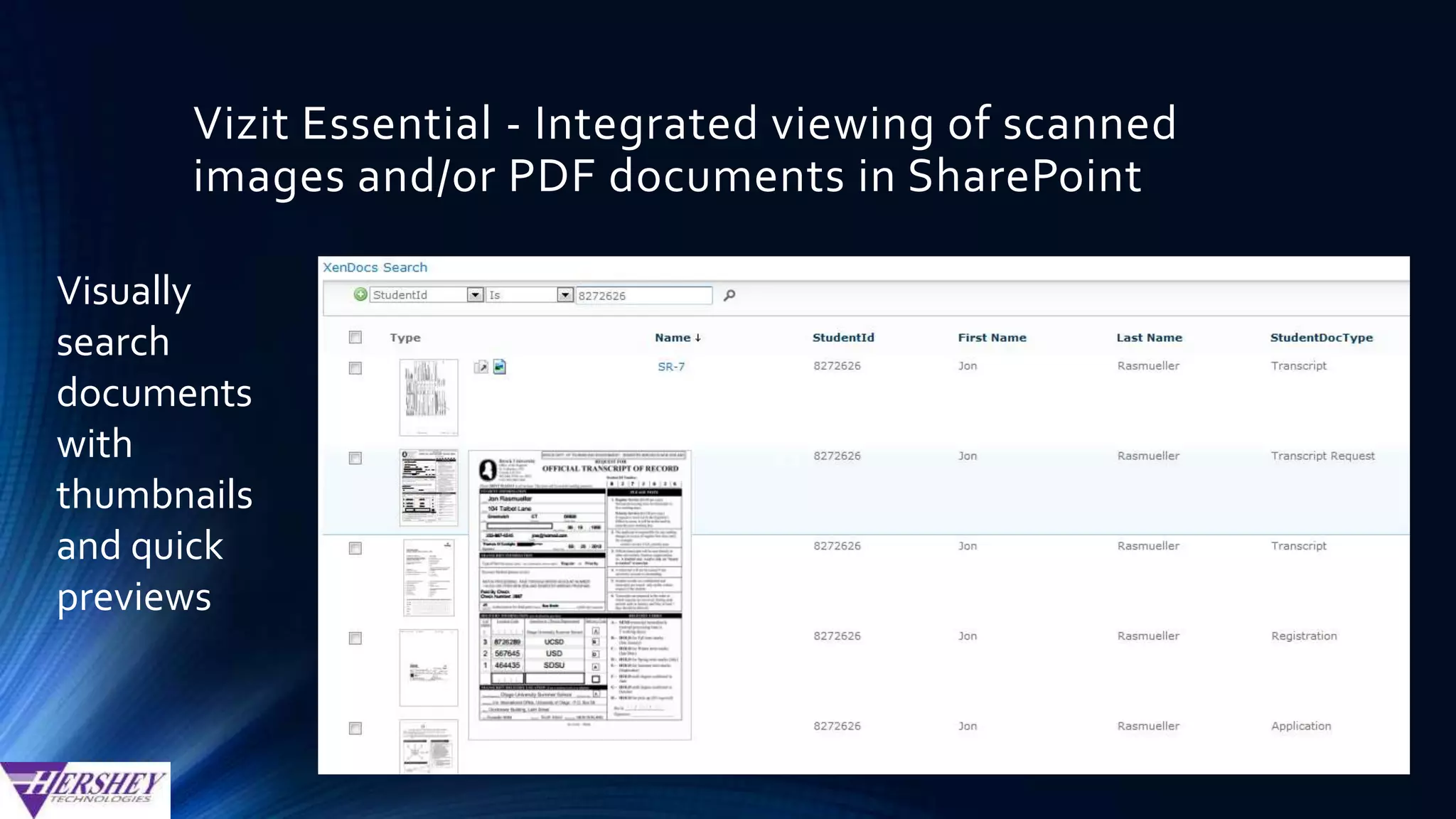
Visually
search
documents
with
thumbnails
and quick
previews
Vizit Essential - Integrated viewing of scanned
images and/or PDF documents in SharePoint
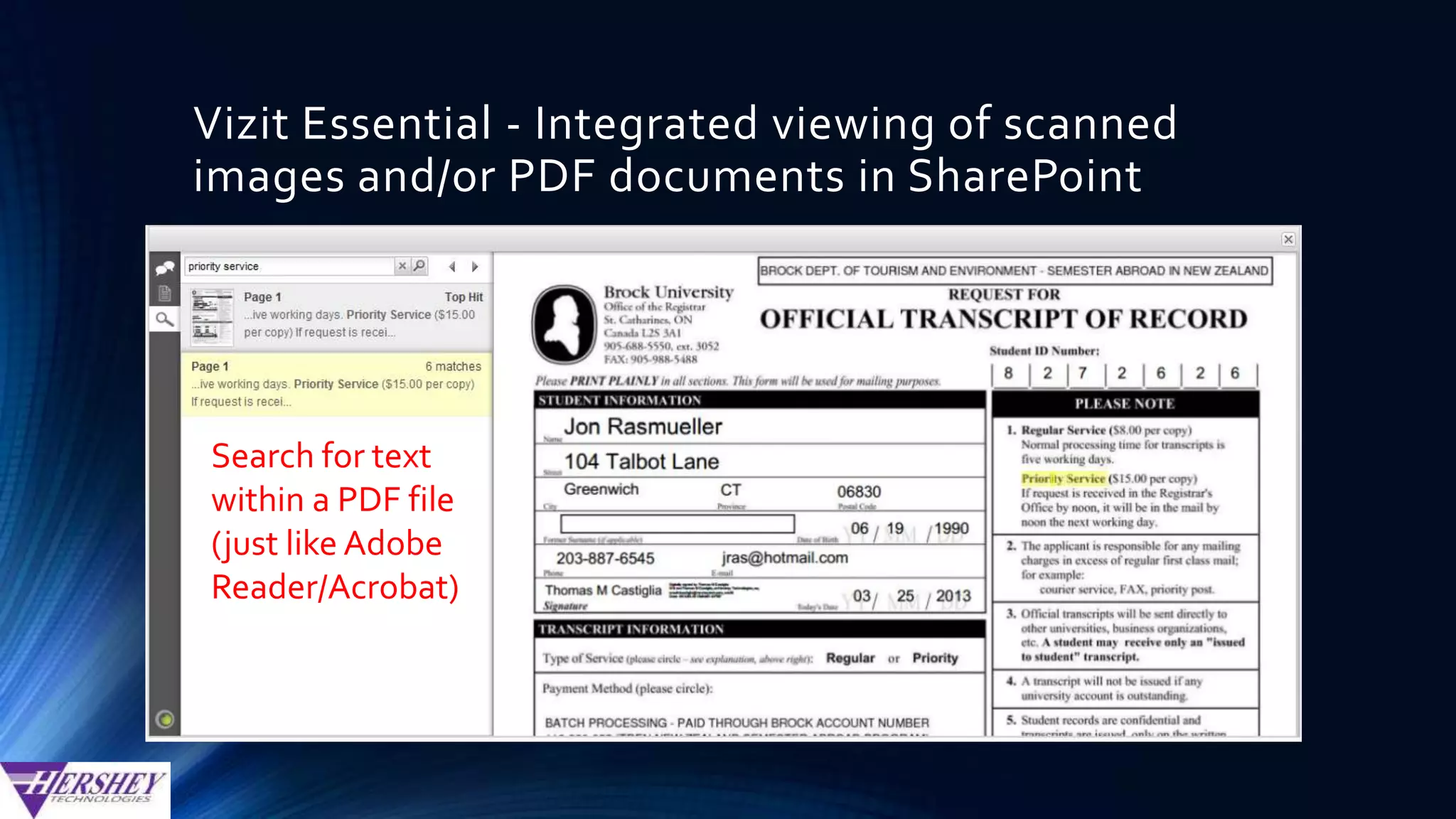
Search for text
within a PDF file
(just like Adobe
Reader/Acrobat)
Vizit Essential - Integrated viewing of scanned
images and/or PDF documents in SharePoint
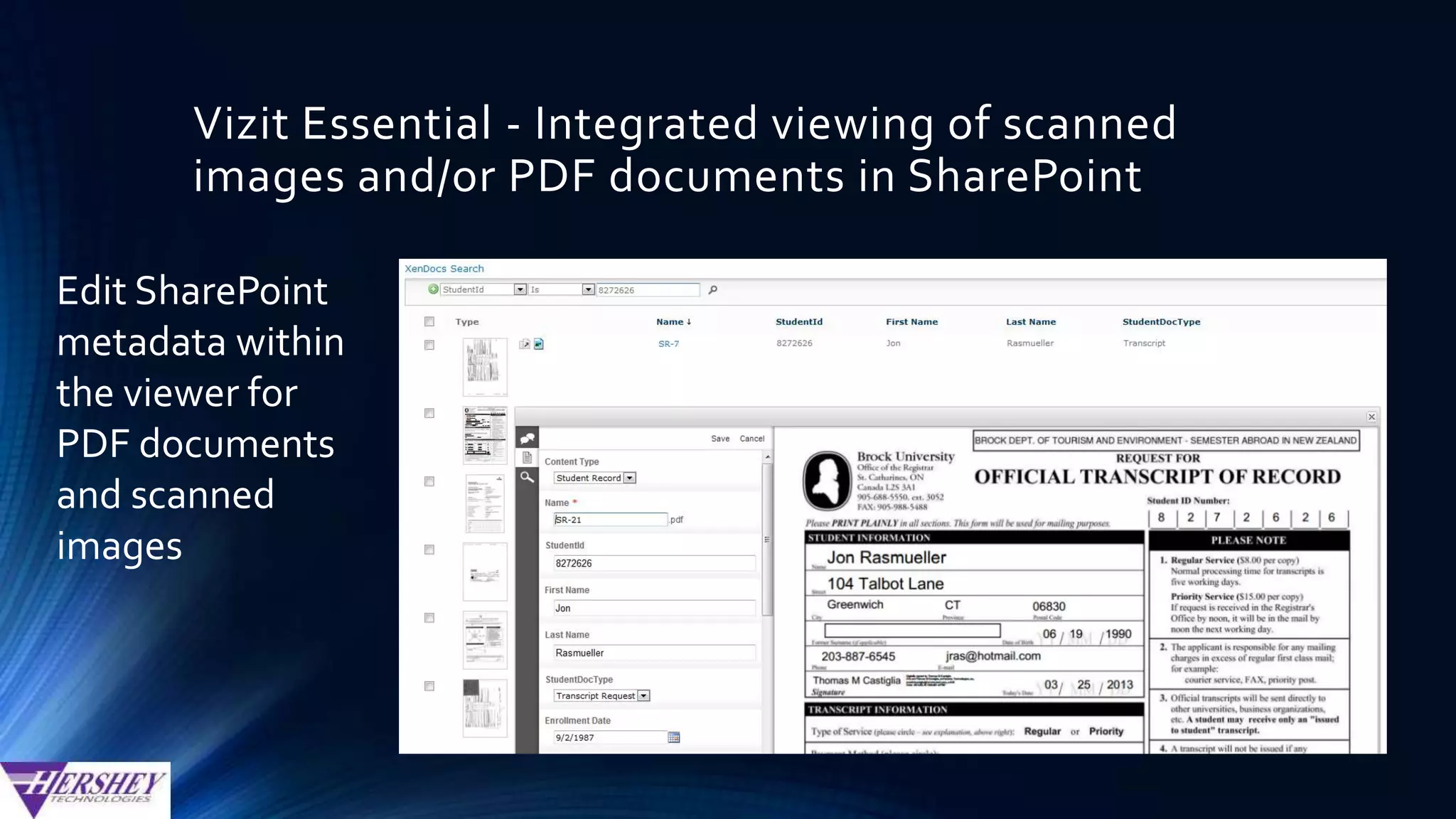
Edit SharePoint
metadata within
the viewer for
PDF documents
and scanned
images
Vizit Pro™ - Integrated viewing of scanned
images and/or PDF documents in SharePoint
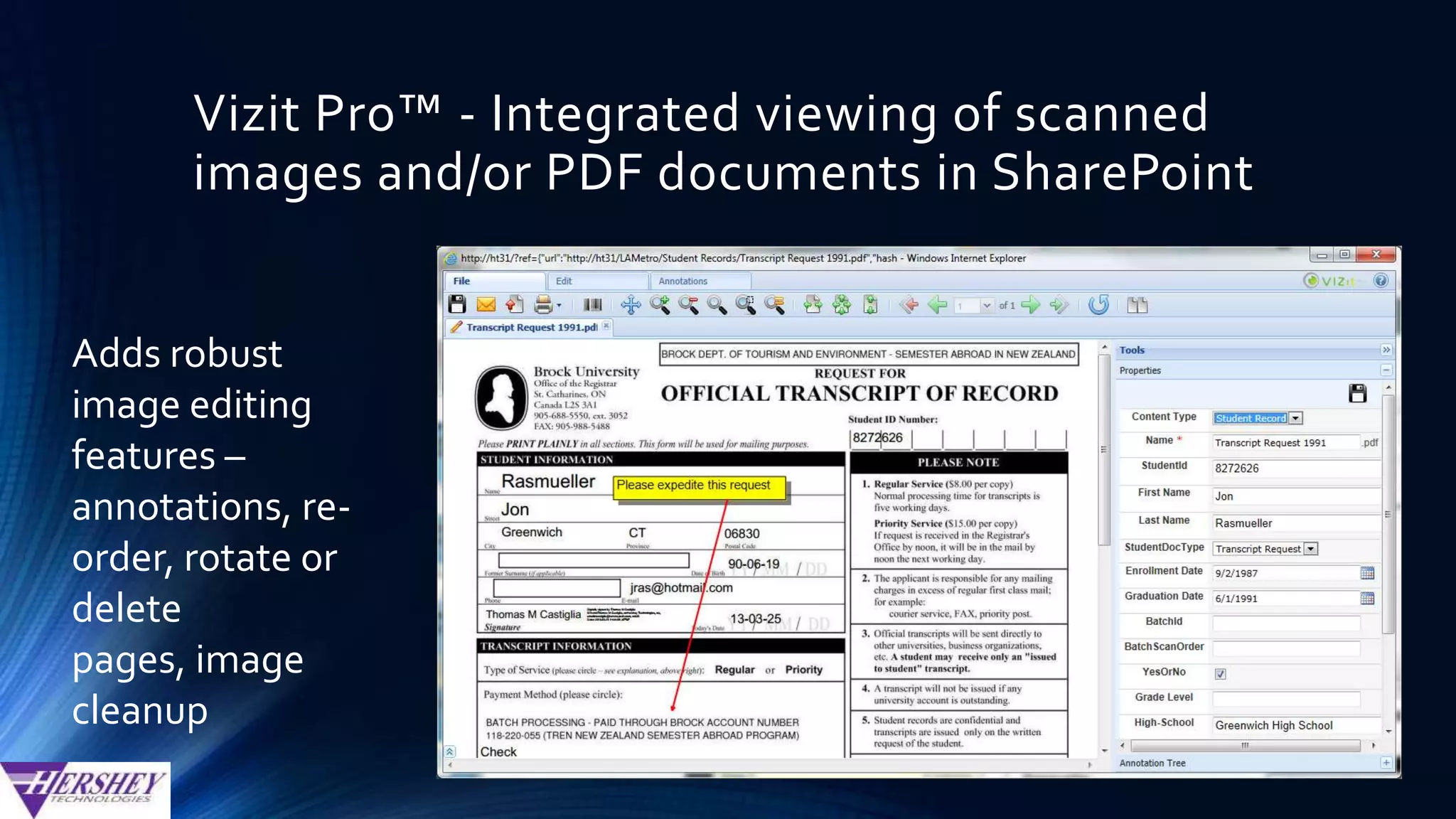
Adds robust
image editing
features –
annotations, re-
order, rotate or
delete pages,
image cleanup
Conclusion
• To leverage SharePoint’s native features for transactional document
management…
• Extensive upfront planning
• Complex configuration (many more steps to configure SP compared to most
dedicated document management products)
• To make the overall user experience in SharePoint comparable with
dedicated Document Management products, plan on:
• Lots of custom code ... OR …
• 3rd party solutions
Join us right after the event at the Firehouse Grill!
Socialize and unwind after our day of learning.
1765 E. Bayshore Road
East Palo Alto, CA

Optimizing SharePoint for Transactional Content Management

  • 1.
    Optimizing SharePoint Searchfor Transactional Content Management (TCM)
  • 2.
    About Hershey Technologies… •Founded in 1991 • Microsoft Partner • Specialists in • Document Imaging / Scanning • OCR (data and document capture) • ECM • BPM / workflow • End to End SharePoint Consulting Services • Follow us onTwitter: @HersheyTech
  • 3.
    About Tom Castiglia… •Principalat HersheyTechnologies • Twitter: @tomcastiglia • Email: tcastiglia@hersheytech.com • Joined HersheyTech in 1998 • Director of Hershey’s professional services team since 2001
  • 4.
    Agenda • Explanation of“Transactional Content Management” (TCM) • Overview of SharePoint features that are relevant toTCM • How to make SharePoint supportTCM • Demo of solutions that fill the feature gaps to ensure SharePoint is successful for your transactional content management project • Ad-hoc scanning / document capture into SharePoint • Optimizing SharePoint search for large scaleTCM deployments • Enable collaboration of static, transactional documents • Make scanned images and PDF documents a 1st class citizen within SharePoint
  • 5.
    Topics not coveredin this presentation • Assumptions - I presume that you understand: • Columns (document metadata) • ContentTypes • Document Libraries • Other topics not covered (just not enough time to include): • Automated Data Capture/OCR • Records Management • Workflow • RBS
  • 6.
    Enterprise Content Management inSharePoint SharePoint Rocks at this!Web Content SharePoint Rocks at this!Document Collaboration SharePoint needs a little help hereTransactional Documents
  • 7.
    What is “TransactionalContent Management”? “high-volume throughput of relatively static documents” “content which typically originates outside and organization from external parties – customers or partners-and relies on workflow or business process management (BPM) to drive transactional, back-office business processes.” -Forrester Research
  • 8.
    Typical types ofdocuments TRANSACTIONAL DOCUMENTS • Purchase Orders • Vendor Invoices • Application Forms • Insurance claims • Student Records • Enrollment Forms • (Not project based) COLLABORATIVE DOCUMENTS • Proposals, reports, spreadsheets, presentations and other documents created and edited by knowledge worker users • Office docs (Word, Excel, PowerPoint) • PDF files • Created and uploaded on an ad- hoc basis to support day to day operations • (Often project based)
  • 9.
    How documents aretypically received TRANSACTIONAL DOCUMENTS Fax Server Invoices@mycompany.com Orders@mycompany.com OCR Form Processing External Systems (AP, claims, etc.)
  • 10.
    Information Architecture TRANSACTIONAL CONTENT •Centralized • Often isolated to just one or a few site collections • Document Center or Record Center • Thousands to millions of documents per library COLLABORATIVE CONTENT • Decentralized • Documents are often spread throughout many site collections, sub-sites, libraries and content types • Typically under 5K documents per library.
  • 11.
    How users finddocuments TRANSACTIONAL DOCUMENTS • Navigation doesn’t work - too many documents per library • Search via metadata queries only • Ignore document content • Ignore social based algorithms like ratings • Users expect intuitive, graphical query builders to specify precise search conditions against one or more metadata fields. COLLABORATION SCENARIOS • Navigation • SiteSub-SiteLibraryFolderDocument • Keyword Search • Searches both metadata and document content • Use of social algorithms improve search results (e.g. highly rated documents are returned above other documents)
  • 12.
    How users finddocuments TRANSACTIONAL DOCUMENT SEARCHTYPICAL SHAREPOINT SEARCH
  • 13.
    What about MetadataNavigation and Filtering? • This native SharePoint feature does provide a limited query builder … • Allows users to query against specific SharePoint columns and choose various search operators (Equals,At Most, At Least, On, Before, etc.) • Filters document library providing results in a sortable, tabular display.
  • 14.
    Limits of MetadataNavigation and Filtering • Doesn’t support text columns • Transactional documents generally need text based columns for fields like InvoiceNumber, PONumber, VendorId, ClaimNumber, etc. • Doesn’t scale well for libraries that exceed the list view threshold (5,000 documents by default)
  • 15.
    Integrating Metadata withSearch Metadata Columns Crawled Properties Managed Properties Search Results
  • 16.
    Four Challenges toTransactional Content Management in SharePoint • Configuring Managed Properties in SharePoint Search is more complex than it needs to be. • SharePoint does not provide a robust query builder for users to intuitively query documents (other ECM solutions offer this OOB) • SharePoint formats Search results like a search engine, not like a document management product. • SharePoint treats PDF documents and scanned images as a 2nd class citizen.
  • 17.
    Crawled Properties • Crawledproperties are metadata (such as author, title, or subject) that are extracted from SharePoint columns during crawls. • However, this is the internal representation of the metadata. To enable users to search on this metadata, we need to use managed properties that are mapped to the crawled properties.
  • 18.
    Crawled Properties • Anew crawled property is created for each new custom column, after… • The column is added to at least one list or library • The column is populated with a value in at least one item • A Full Crawl is performed
  • 19.
    Crawled Properties -Categories • All Crawled properties are grouped into various categories. • ForTransactional Content Management solutions, we generally care about the “SharePoint” Category, which contains crawled properties that are tied to list columns in SharePoint. • Accessible from Search Service Application: Metadata Properties>Categories
  • 20.
    Crawled Properties • TheNaming convention is fully controlled by SharePoint, using this convention: ows_[internal name of column] • However, spaces or other symbols (.-!@#$%^, etc.) within the internal column name are escaped, such as: Column Internal Name Crawled Property Name InvoiceNumber ows_InvoiceNumber Invoice Number ows_Invoice_x0020_Number Invoice.Number ows_Invoice_x002e_Number Invoice-Number ows_Invoice_x002d_Number
  • 21.
    Crawled Properties • InSP2010, most SharePoint columns gets one crawled property • Managed Metadata Columns get a 2nd crawled property, with a prefix of “ows_taxid” • This extra crawled property is used to store the internal GUID value that is associated with the managed metadata term. For example: Column Name: CostCenter Normal Crawled Property: ows_CostCenter MM Id Crawled Property: ows_taxid_CostCenter
  • 22.
    Managed Properties… •…Allow youto enable standardization in the terms used for searching SharePoint. •…Represent the end-user’s vision of the SP taxonomy (at least with regards to Search) • So the name of your managed properties should normally be something intuitive to your end-users
  • 23.
    Managed Properties • Onemanaged property may be mapped to one or more crawled properties. • Useful in low governance situations where multiple site owners or site collection admins have duplicated site columns using different names (e.g. InvoiceNumber vs ‘Invoice Number’) • One crawled property may be mapped to one or more managed properties • Useful if different applications create their own managed properties, and need to reference the same crawled property.
  • 24.
    Using Managed Properties WITHOUTMANAGED PROPERTIES WITH MANAGED PROPERTIES Returns 16 items, only 6 of which are related to what I wanted. Included other documents that happen to contain the StudentId value either as text in the document or in some other field (like an Invoice Number, or something else) Returns only the 6 correct items
  • 25.
    Advanced Search WebPart Provides an OOB search interface that allows users to select a Managed Property from a drop down list, rather than having to type out the managed property name (e.g. “StudentID:” or “StudentID=“)
  • 26.
    Configuring Advanced SearchWeb Part Use your favorite XML editor (VS 2012)
  • 27.
  • 28.
    Creating Managed Properties UnlikeCrawled Properties (which are always auto-generated by SharePoint… Managed properties can be created in one of three ways…
  • 29.
    Creating Managed Properties(Option 1) • SP2010: “Metadata Properties” link • SP2013: “Search Schema” link SP 2010 SP 2013 Managed Properties can be created manually by a SharePoint Administrator from the Search Service Application configuration.
  • 30.
    Creating Managed Property(SP2010) • Click “New Managed Property” link from Metadata Property Mappings • Property Name can contain most characters, except for spaces (but please don’t use special characters) • Based on the selected type, this managed property can only be mapped to crawled properties with the same type. • Add Mapping – Select 1 or more crawled properties to map to this managed property. • If multiple are selected decide whether to include all values or just the first one found • Scopes – preset filter on content – like a global where clause • Reduce storage requirements (“hash”) – option actually works in reverse to what is stated.
  • 31.
    Creating Managed Property(SP2013) • Property Name - Same as SP2010 • Add Mapping - same as in SP2010 • Reduce storage requirements (“hash”) option - No longer exists in SP2013 • Many additional settings • Searchable – Enables querying against the content of the managed property • Queryable – Enables querying against the specific managed property • Retrievable – Enable this setting for managed properties that are relevant to present in search results. • Refinable – Can be used as a search refiner • Sortable – • Token Normalization • Complete Matching
  • 32.
    Creating Managed Properties(Option 2) • For example, Hershey’s XenDocs ECM for SharePoint will validate that a managed property is properly configured or automatically create a managed property for each column when our web part is configured. Automatically generated by custom code or a 3rd party application
  • 33.
    Creating Managed Properties(Option 3) Let SharePointAuto-Generate new managed properties when it crawls
  • 34.
    Auto-Generating Managed Properties •InSharePoint 2010… • This feature is off by default, but it can be enabled in your Search Service Application From the Categories list, hover over the SharePoint category, click the drop down arrow and then select the Edit Category option. Select the option to “automatically generate a new managed property for each crawled property…”
  • 35.
    Auto-Generating Managed Properties •InSharePoint 2013… • All site columns that contain data will have a managed property auto-generated upon a full crawl • This does not happen for list columns • This feature cannot be turned off and is not configurable (as far as I can tell) http://technet.microsoft.com/en-us/library/jj613136.aspx
  • 36.
    Comparison of Namingconventions for Crawled and Auto-Generated Managed Properties Column SharePoint 2010 SharePoint 2013 Name Crawled Property Managed Property Crawled Properties Managed Property FooBar 0ws_FooBar owsFooBar1 0ws_FooBar ows_q_TEXT_FooBar Not mapped FooBarOWSTEXT Foo Bar ows_Foo_x0020_Bar owsFoox0020Bar ows_Foo_x0020_Bar FooBarOWSTEXT Foo_Bar 0ws_Foo_Bar owsFooBar 0ws_Foo_Bar ows_q_TEXT_Foo_Bar Not mapped FooBarOWSTEXT Foo-Bar ows_Foo_x002d_Bar owsFoox002dBar ows_Foo-Bar ows_q_TEXT_Foo-Bar Not mapped Foo-BarOWSTEXT Foo.Bar ows_Foo_x002e_Bar owsFoox002eBar ows_Foo.Bar ows_q_TEXT_Foo.Bar Not mapped Foo.BarOWSTEXT The auto- generated names for managed properties are not “end-user friendly” !
  • 37.
    Enhancing the UserExperience…
  • 38.
    Hershey’s XenDocs ECMfor SharePoint A vast improvement compared to the native Advanced SearchWeb Part
  • 39.
    Viewing PDF filesand scanned images • MS Office Documents are first 1st class citizens in SharePoint • When office files are opened in Office 2007, 2010 or 2013, users can perform many SharePoint functions on those documents: • Edit document content • Check in/out/discard • See version history • Edit metadata • PreviewThumbnails in SP 2013 • Most other file types, especially PDF files and scanned images are 2nd class citizens • Read only view of document
  • 40.
    Viewing Scanned Imagesand/or PDF files Files typically open in native apps such asWindows Photo Gallery or Adobe Reader • Users cannot edit metadata • If user rotates, re-orders or deletes a page, the changes cannot be saved to SP • User cannot annotate pages (e.g. sticky notes, redactions, etc.)
  • 41.
    Vizit Essential™ -Integrated viewing of scanned images and/or PDF documents in SharePoint A powerful, low cost PDF and imaging viewer for SharePoint
  • 42.
    Vizit Essential -Integrated viewing of scanned images and/or PDF documents in SharePoint Visually search documents with thumbnails and quick previews
  • 43.
    Vizit Essential -Integrated viewing of scanned images and/or PDF documents in SharePoint Search for text within a PDF file (just like Adobe Reader/Acrobat)
  • 44.
    Vizit Essential -Integrated viewing of scanned images and/or PDF documents in SharePoint Edit SharePoint metadata within the viewer for PDF documents and scanned images
  • 45.
    Vizit Pro™ -Integrated viewing of scanned images and/or PDF documents in SharePoint Adds robust image editing features – annotations, re- order, rotate or delete pages, image cleanup
  • 46.
    Conclusion • To leverageSharePoint’s native features for transactional document management… • Extensive upfront planning • Complex configuration (many more steps to configure SP compared to most dedicated document management products) • To make the overall user experience in SharePoint comparable with dedicated Document Management products, plan on: • Lots of custom code ... OR … • 3rd party solutions
  • 48.
    Join us rightafter the event at the Firehouse Grill! Socialize and unwind after our day of learning. 1765 E. Bayshore Road East Palo Alto, CA

Editor's Notes

  • #2 Introduction slide
  • #13 Transactional DocsUsers need graphical "query builders" that allow them to combine multiple search conditions. Queries should search metadata only, not keywords or content in the document. Queries should return the exact results specified by the user. System should not attempt to "figure out" what the user really wanted, based on ratings or other social algorithms, or removing duplicates, etc. Results displayed in tabular format, with sort default order determined by the user or admin, and allowing ad-hoc sorting by any column.SharePoint DocsUsers find documents using Search. Query Builders is not OOB, but available through 3rd party vendors. Search looks at both metadata and document content. Search tries to be "intelligent" figure out what you really want. Search results are formatted like a Google or Bing search. Search engine decides how to order the results. Results cannot be re-sorted by user. Metadata Navigation supports tablular results with sorting, but is limited in terms of what column types are supported (e.g. single line of text is not supported). However, with large libraries, it only searches through the most recent 1,000 rows or so (fallback queries)
  • #14 Transactional DocsUsers need graphical "query builders" that allow them to combine multiple search conditions. Queries should search metadata only, not keywords or content in the document. Queries should return the exact results specified by the user. System should not attempt to "figure out" what the user really wanted, based on ratings or other social algorithms, or removing duplicates, etc. Results displayed in tabular format, with sort default order determined by the user or admin, and allowing ad-hoc sorting by any column.SharePoint DocsUsers find documents using Search. Query Builders is not OOB, but available through 3rd party vendors. Search looks at both metadata and document content. Search tries to be "intelligent" figure out what you really want. Search results are formatted like a Google or Bing search. Search engine decides how to order the results. Results cannot be re-sorted by user. Metadata Navigation supports tablular results with sorting, but is limited in terms of what column types are supported (e.g. single line of text is not supported). However, with large libraries, it only searches through the most recent 1,000 rows or so (fallback queries)
  • #50 Conclusion slide
  • #51 SharePint