


Donald Donais
April 21st, 2014
Findability within the SharePoint 2013
Platform
2
Avtex Portals and Customer Experience Sales Engineer
ddonais@avtex.com
Blog – Tales from IT Side
http://talesfromitside.wordpress.com
Twitter
@dondonais
Donald Donais
3
• What is Findability?
• Planning for Findability
• Increase Findability with SharePoint 2013
Finding Out!
4
What is Findability?
5
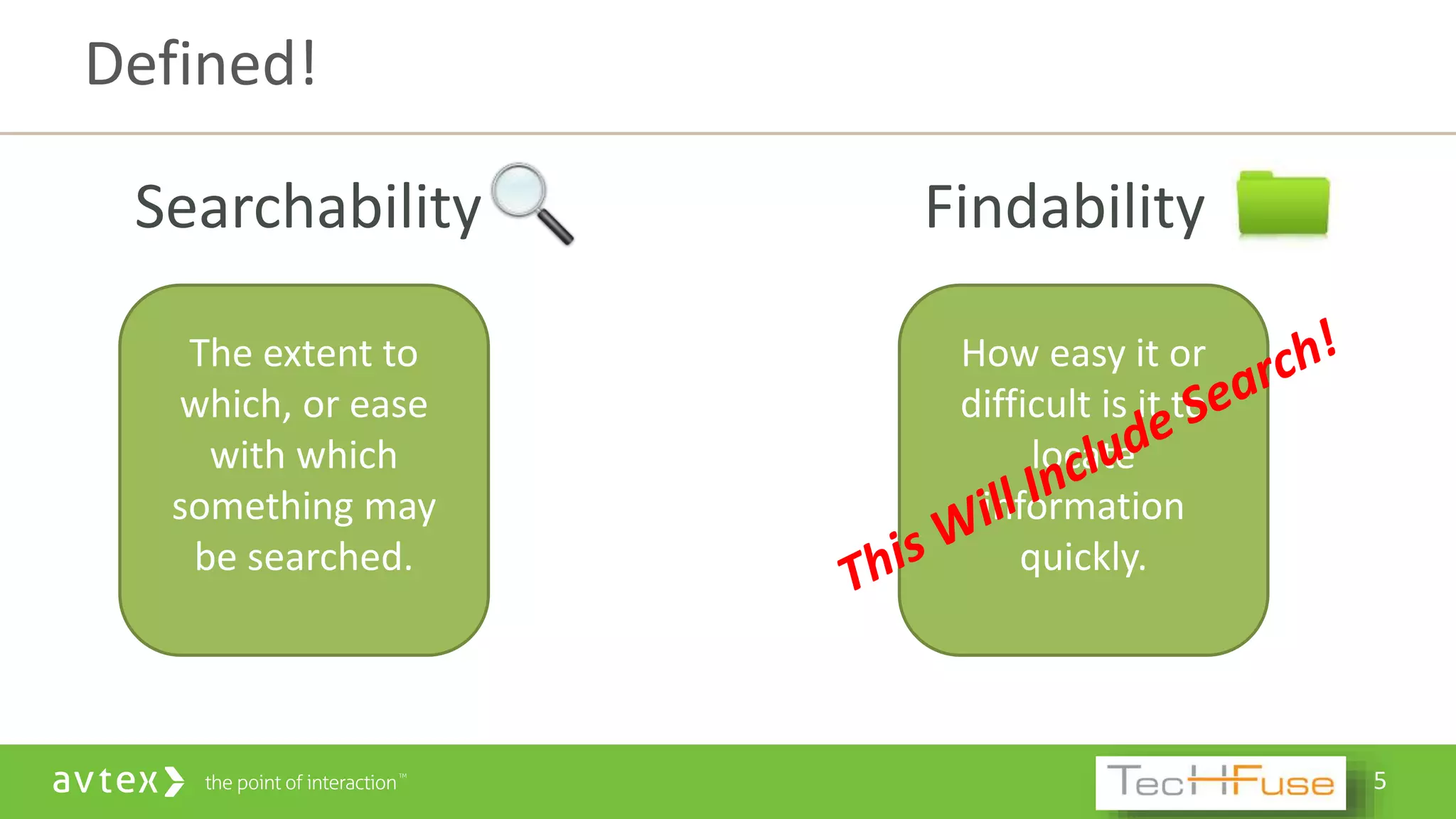
Searchability
Defined!
The extent to
which, or ease
with which
something may
be searched.
Findability
How easy it or
difficult is it to
locate
information
quickly.
6
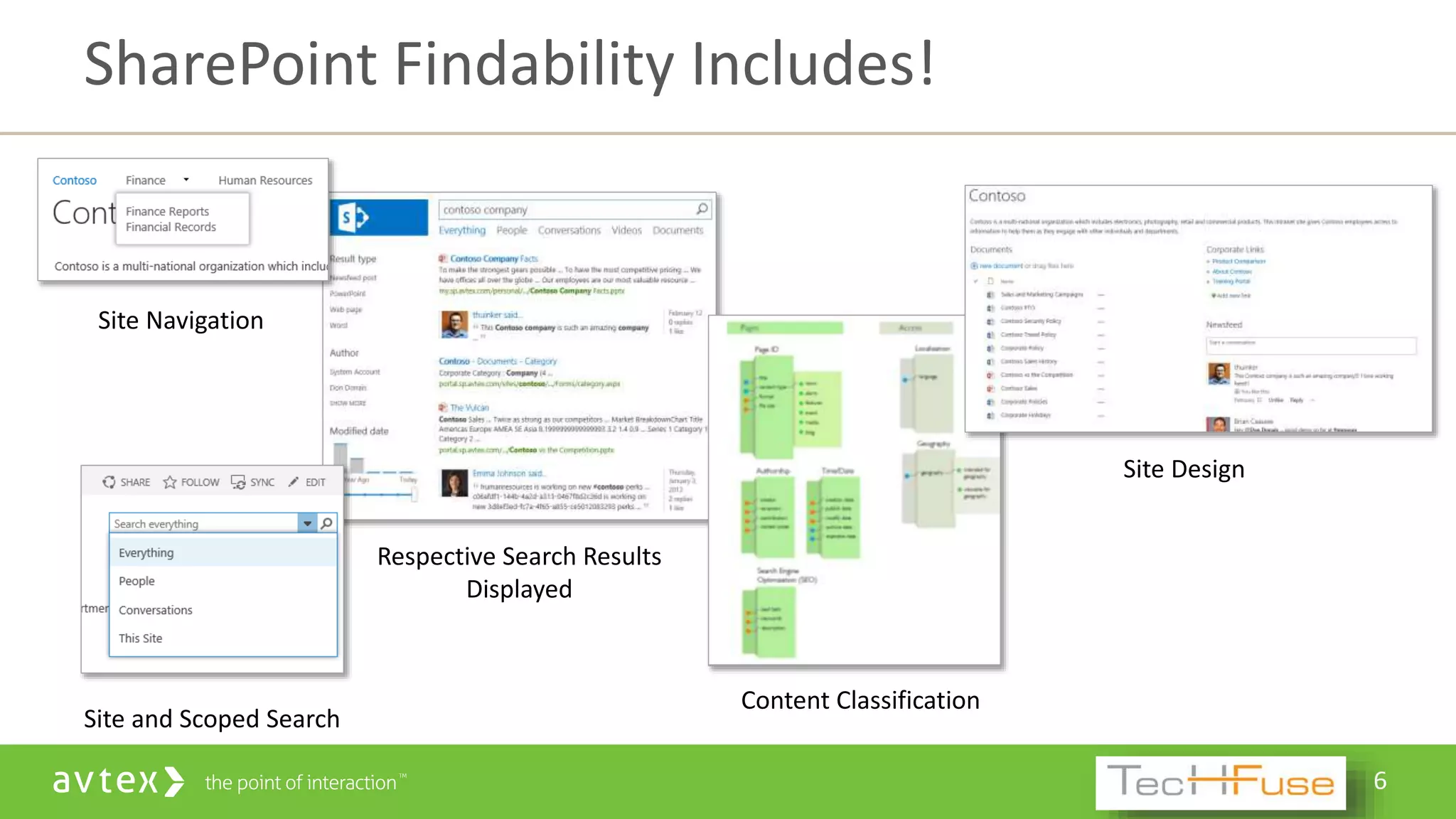
Respective Search Results
Displayed
SharePoint Findability Includes!
Site Navigation
Site and Scoped Search
Content Classification
Site Design
7
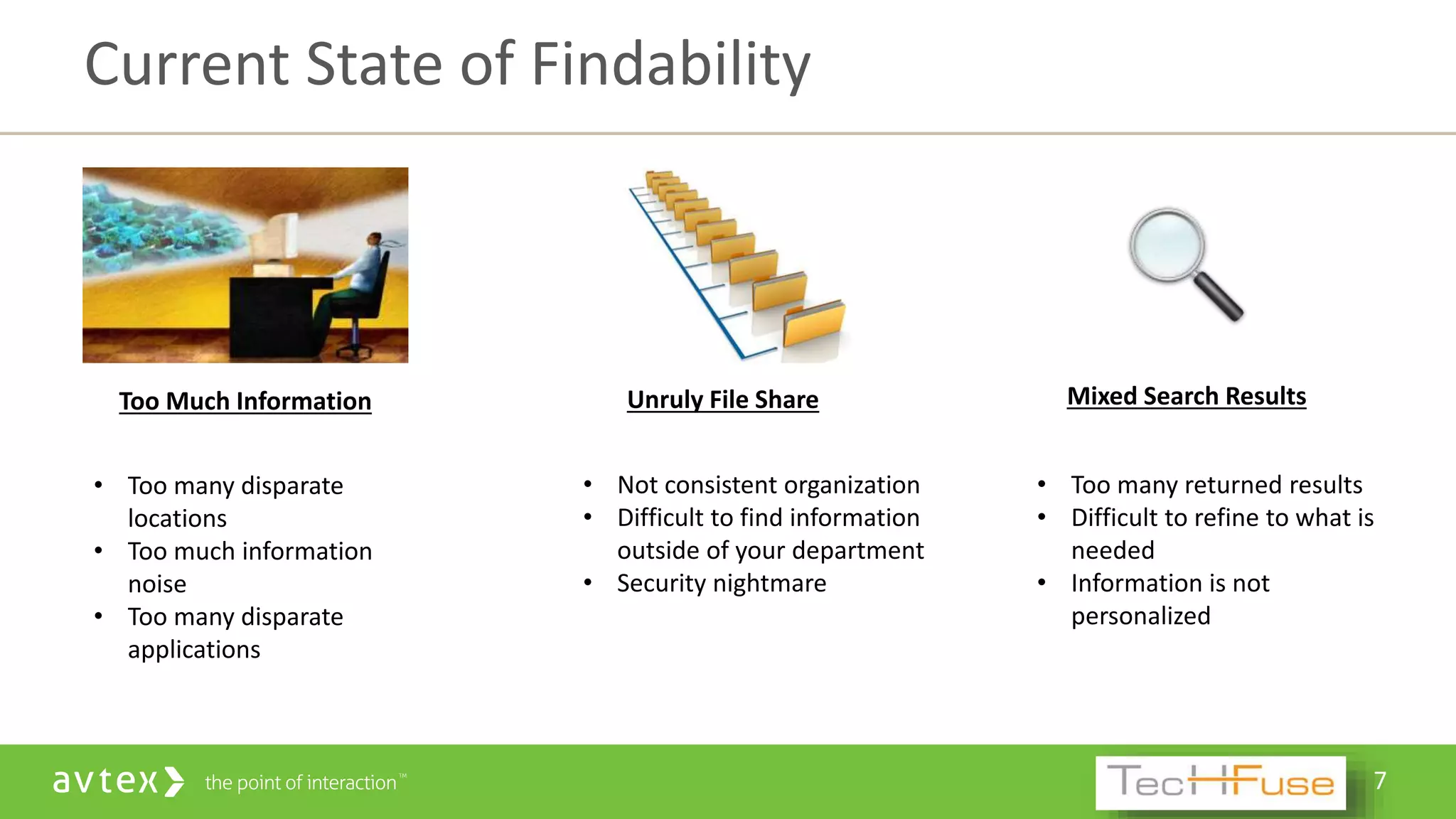
Current State of Findability
Too Much Information
• Too many disparate
locations
• Too much information
noise
• Too many disparate
applications
Unruly File Share
• Not consistent organization
• Difficult to find information
outside of your department
• Security nightmare
Mixed Search Results
• Too many returned results
• Difficult to refine to what is
needed
• Information is not
personalized
8
Planning for Findability
9
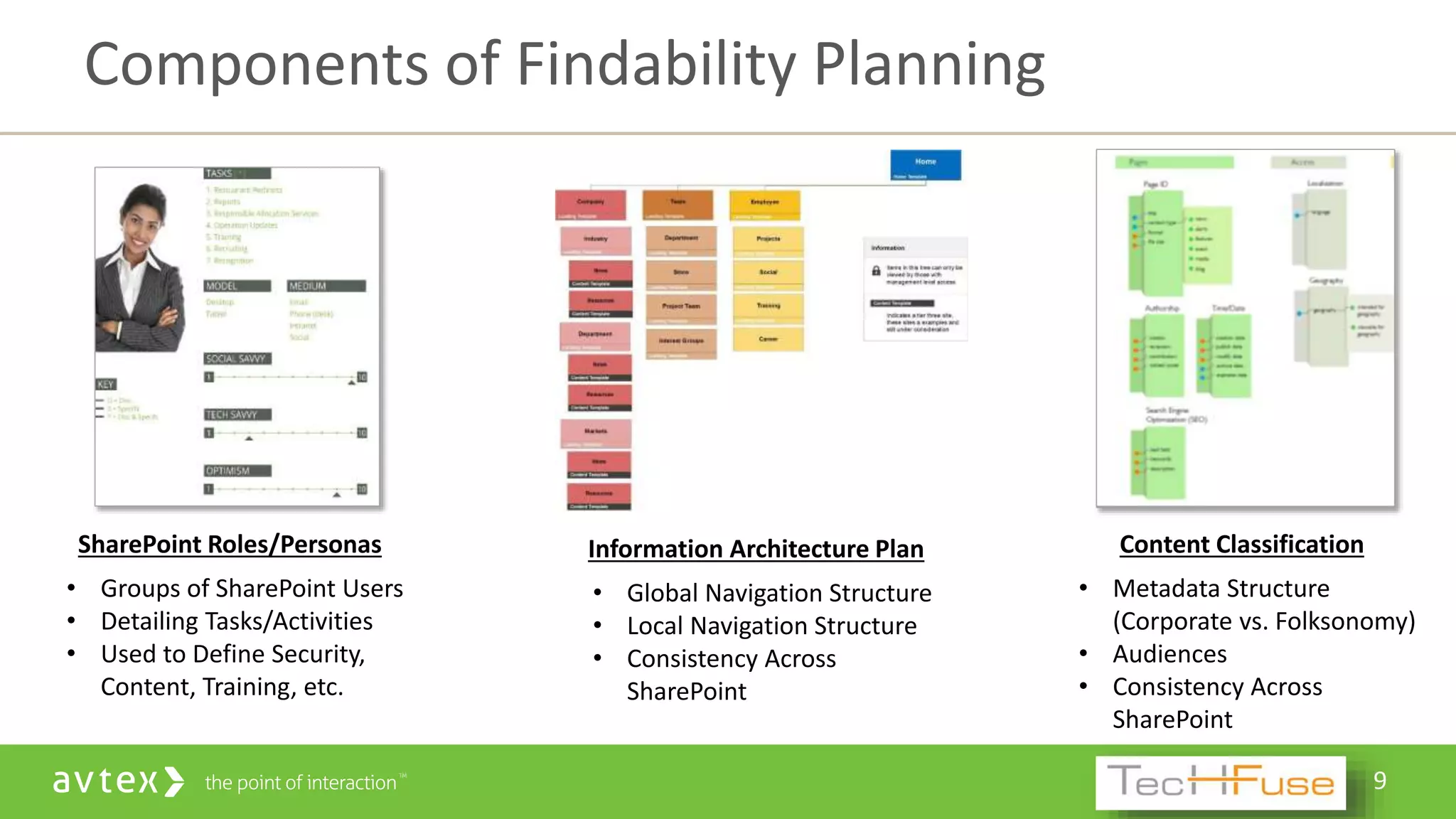
Components of Findability Planning
Information Architecture Plan
• Global Navigation Structure
• Local Navigation Structure
• Consistency Across
SharePoint
Content Classification
• Metadata Structure
(Corporate vs. Folksonomy)
• Audiences
• Consistency Across
SharePoint
SharePoint Roles/Personas
• Groups of SharePoint Users
• Detailing Tasks/Activities
• Used to Define Security,
Content, Training, etc.
10
More Components of Findability Planning
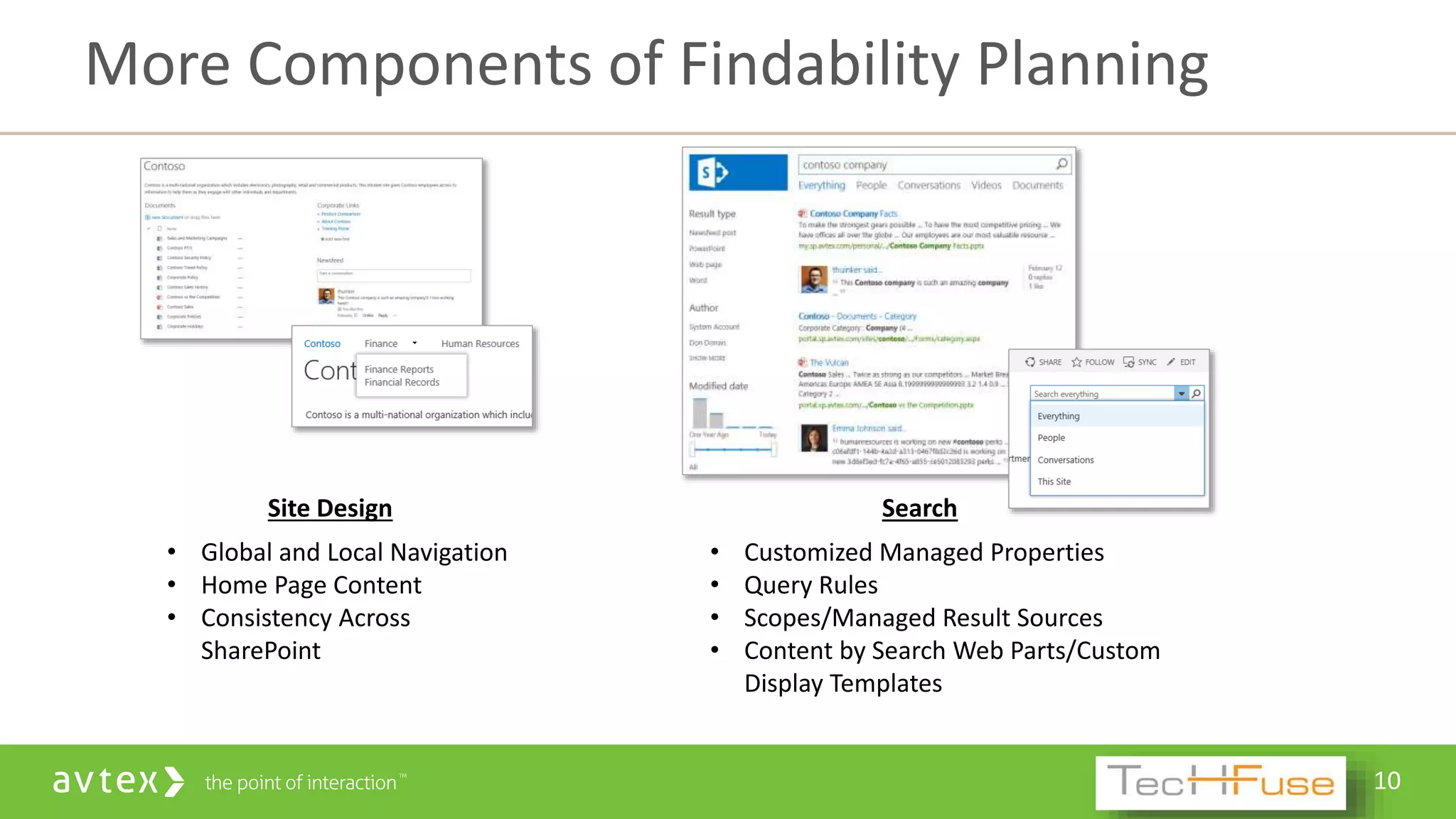
Site Design
• Global and Local Navigation
• Home Page Content
• Consistency Across
SharePoint
Search
• Customized Managed Properties
• Query Rules
• Scopes/Managed Result Sources
• Content by Search Web Parts/Custom
Display Templates
11
Increase Findability with SharePoint 2013
12
• Built In Content Management Features
• Personalized Information
• SharePoint Search Changes
• Other Findability Considerations
Increasing Findability within SharePoint 2013
13
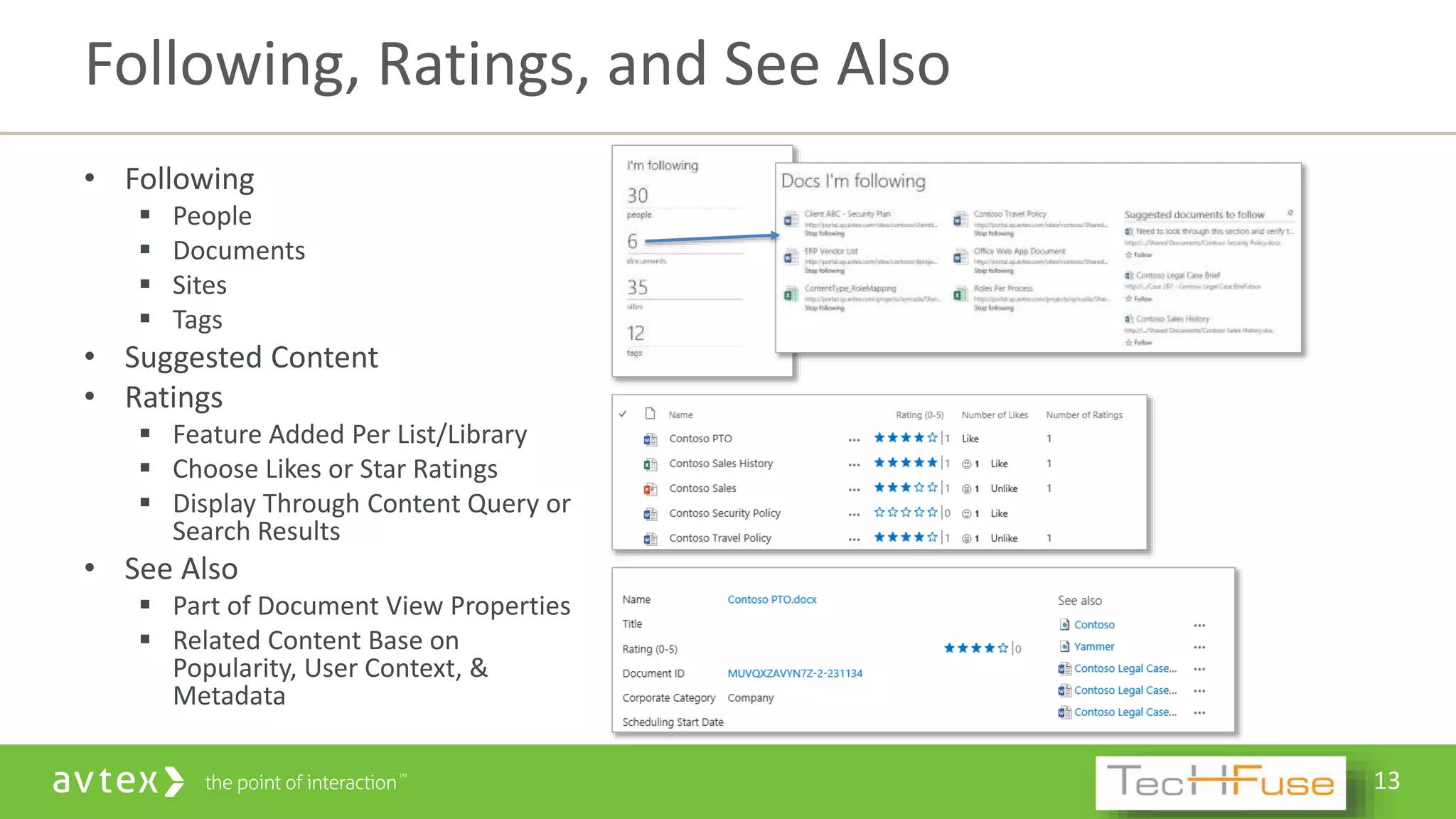
• Following
 People
 Documents
 Sites
 Tags
• Suggested Content
• Ratings
 Feature Added Per List/Library
 Choose Likes or Star Ratings
 Display Through Content Query or
Search Results
• See Also
 Part of Document View Properties
 Related Content Base on
Popularity, User Context, &
Metadata
Following, Ratings, and See Also
14
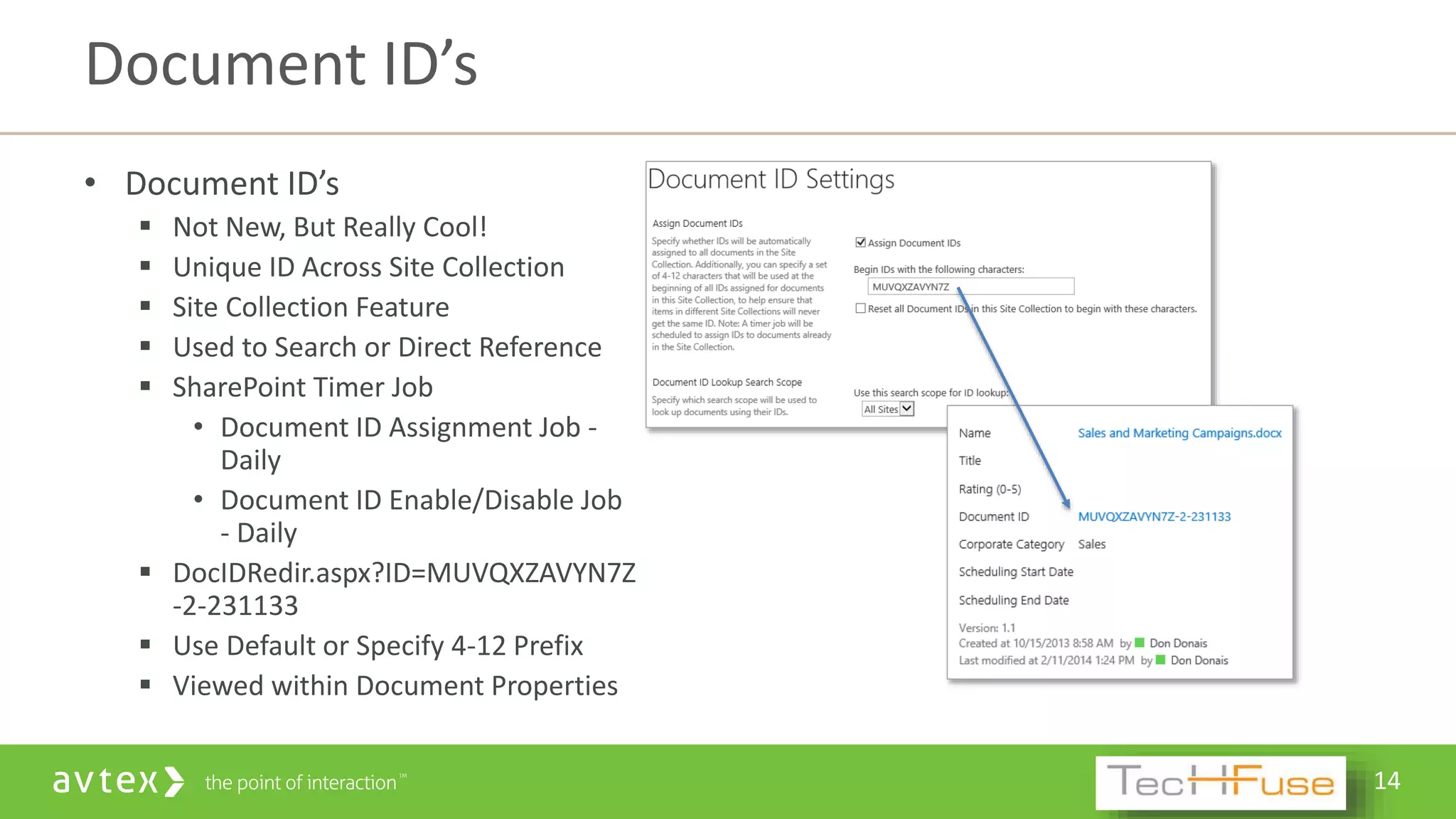
• Document ID’s
 Not New, But Really Cool!
 Unique ID Across Site Collection
 Site Collection Feature
 Used to Search or Direct Reference
 SharePoint Timer Job
• Document ID Assignment Job -
Daily
• Document ID Enable/Disable Job
- Daily
 DocIDRedir.aspx?ID=MUVQXZAVYN7Z
-2-231133
 Use Default or Specify 4-12 Prefix
 Viewed within Document Properties
Document ID’s
15
DEMO
• Following, Ratings, See Also
• Document ID
16
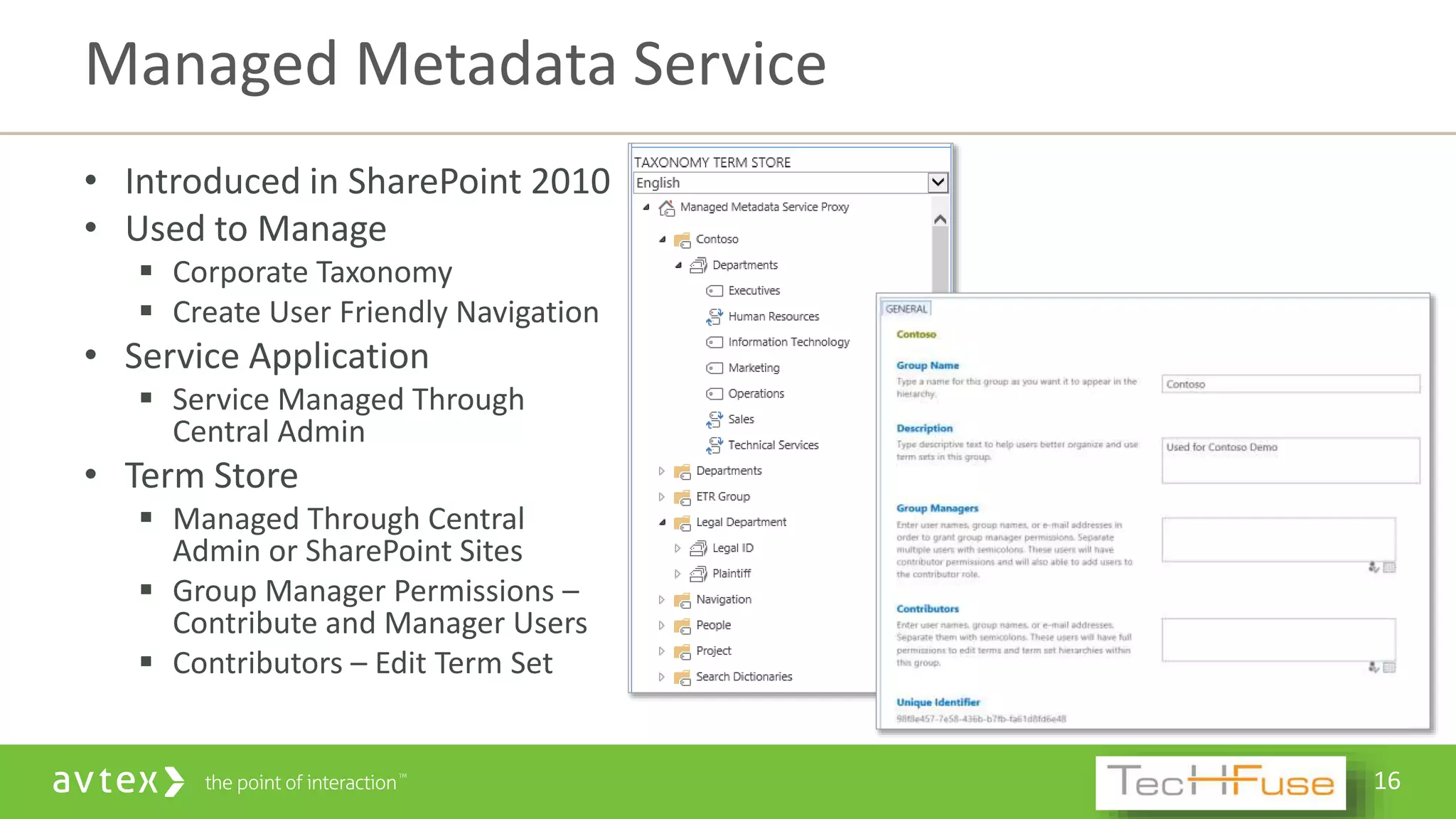
• Introduced in SharePoint 2010
• Used to Manage
 Corporate Taxonomy
 Create User Friendly Navigation
• Service Application
 Service Managed Through
Central Admin
• Term Store
 Managed Through Central
Admin or SharePoint Sites
 Group Manager Permissions –
Contribute and Manager Users
 Contributors – Edit Term Set
Managed Metadata Service
17
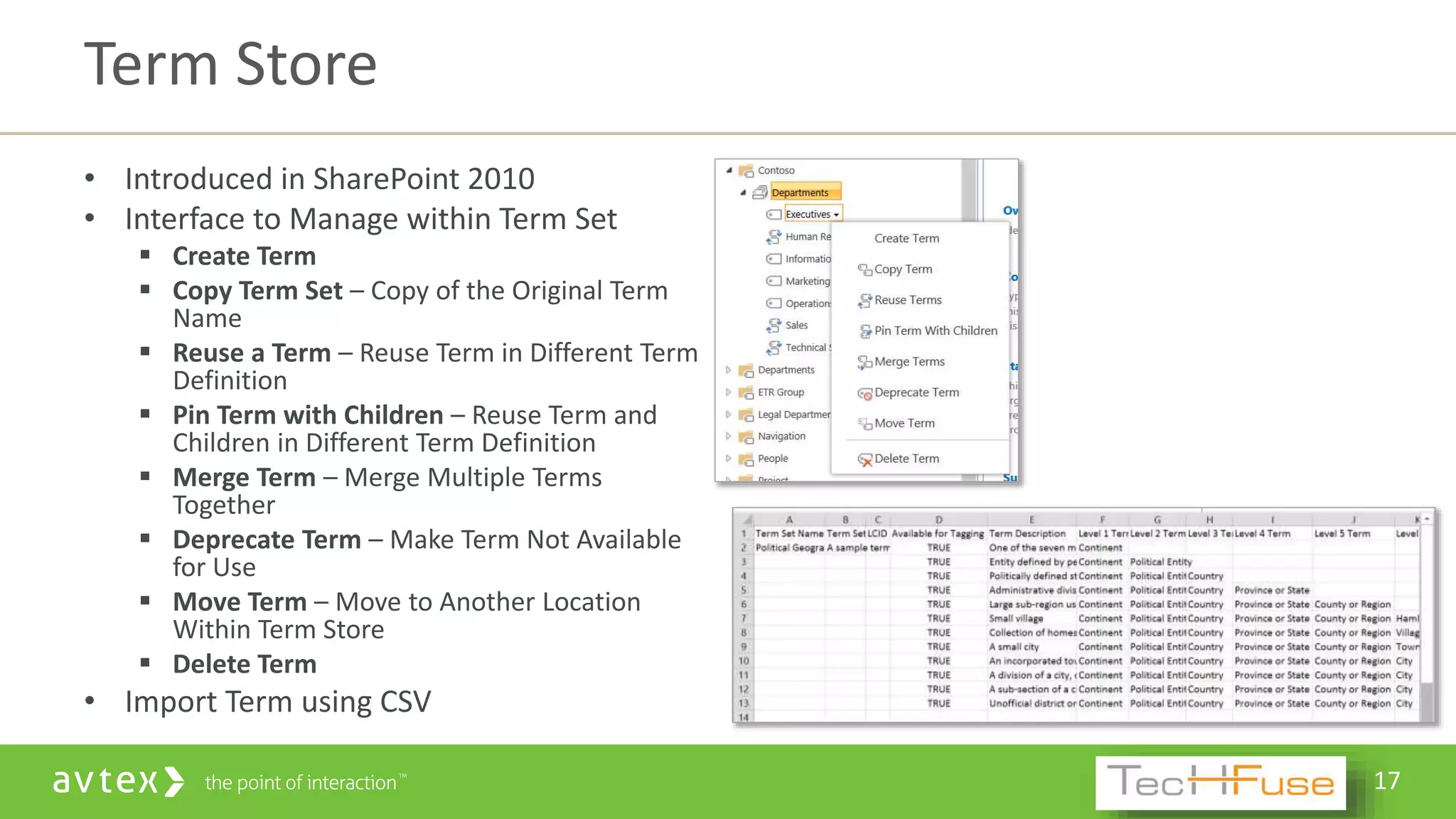
• Introduced in SharePoint 2010
• Interface to Manage within Term Set
 Create Term
 Copy Term Set – Copy of the Original Term
Name
 Reuse a Term – Reuse Term in Different Term
Definition
 Pin Term with Children – Reuse Term and
Children in Different Term Definition
 Merge Term – Merge Multiple Terms
Together
 Deprecate Term – Make Term Not Available
for Use
 Move Term – Move to Another Location
Within Term Store
 Delete Term
• Import Term using CSV
Term Store
18
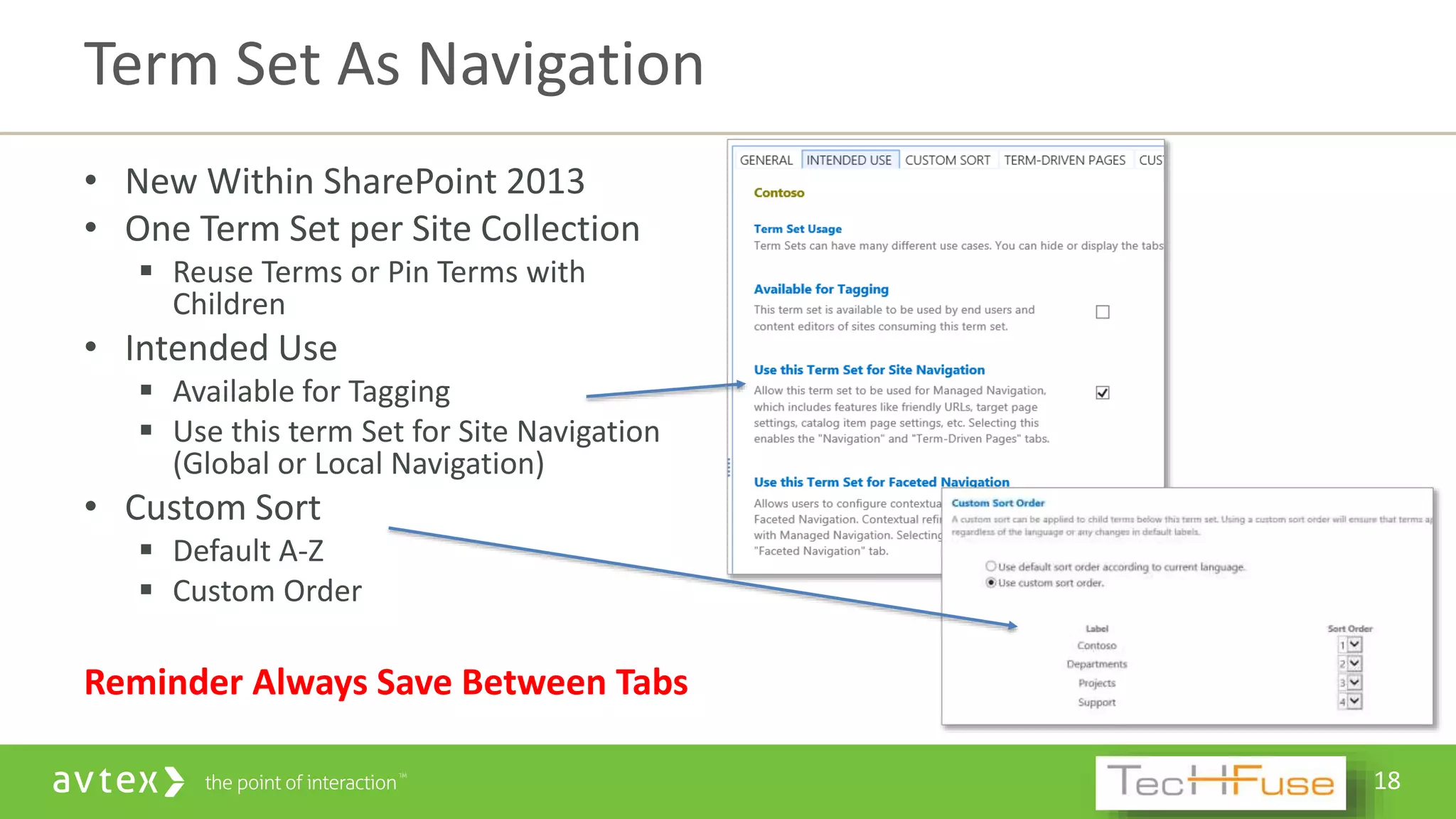
• New Within SharePoint 2013
• One Term Set per Site Collection
 Reuse Terms or Pin Terms with
Children
• Intended Use
 Available for Tagging
 Use this term Set for Site Navigation
(Global or Local Navigation)
• Custom Sort
 Default A-Z
 Custom Order
Reminder Always Save Between Tabs
Term Set As Navigation
19
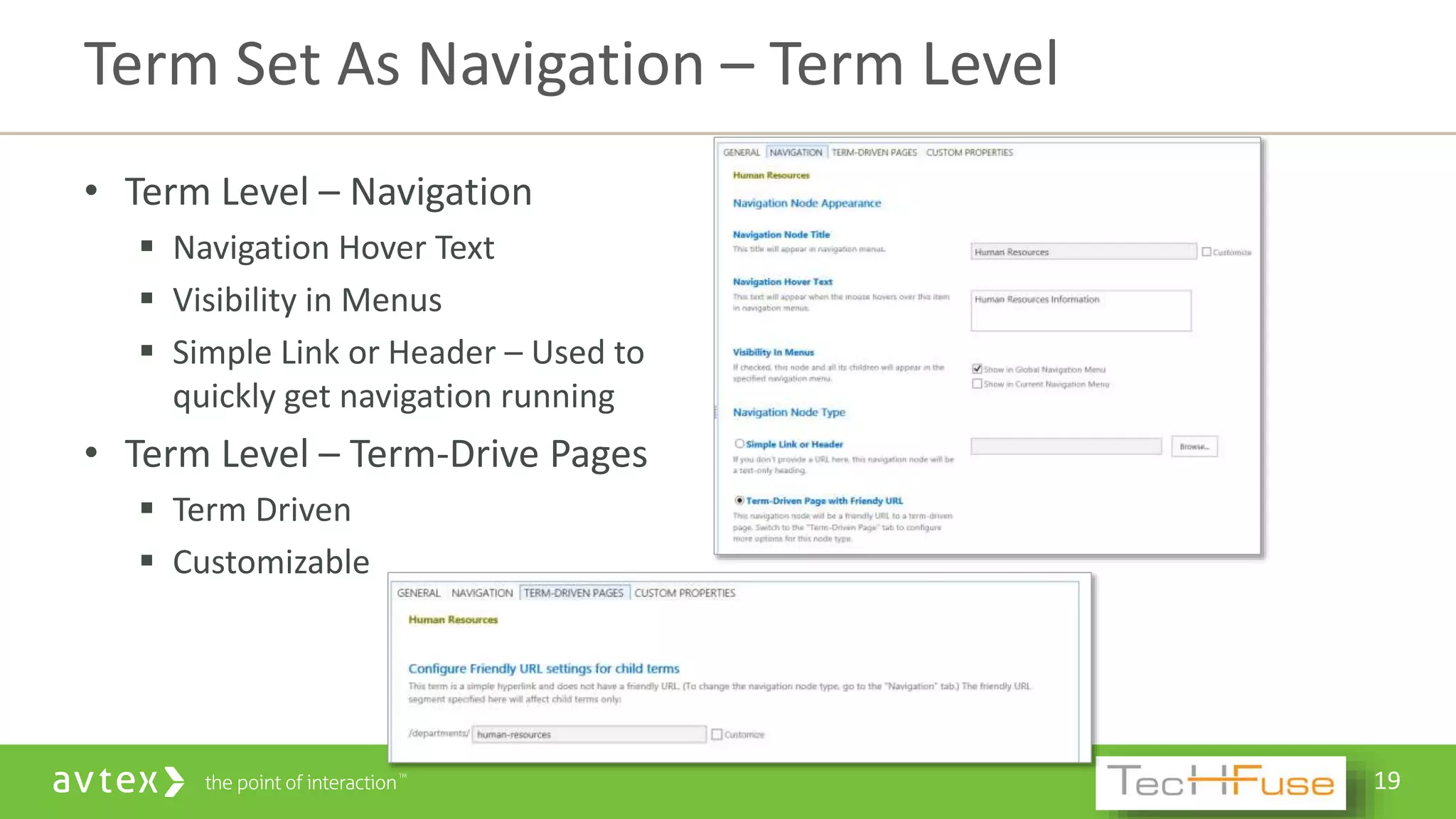
• Term Level – Navigation
 Navigation Hover Text
 Visibility in Menus
 Simple Link or Header – Used to
quickly get navigation running
• Term Level – Term-Drive Pages
 Term Driven
 Customizable
Term Set As Navigation – Term Level
20
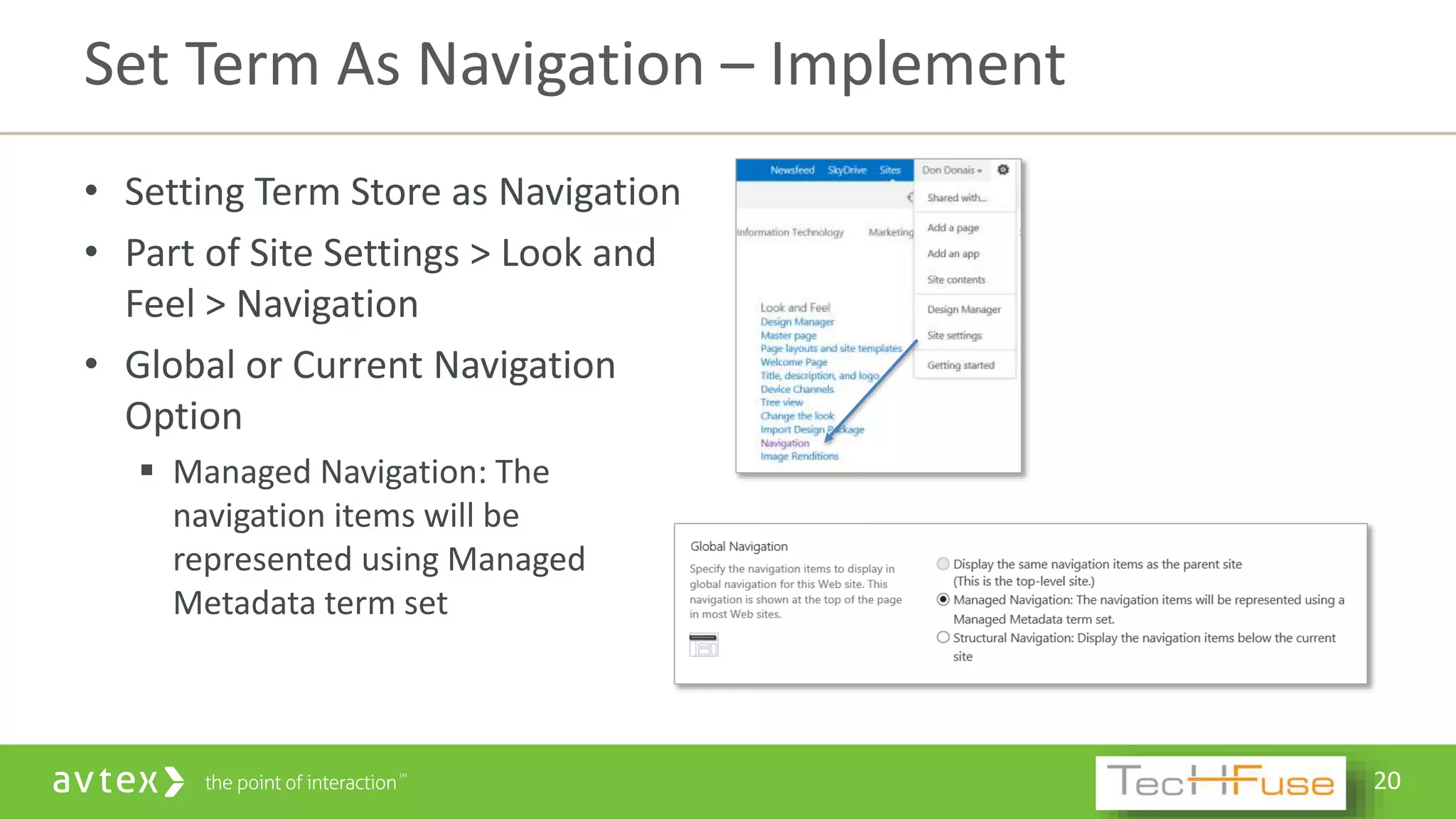
• Setting Term Store as Navigation
• Part of Site Settings > Look and
Feel > Navigation
• Global or Current Navigation
Option
 Managed Navigation: The
navigation items will be
represented using Managed
Metadata term set
Set Term As Navigation – Implement
21
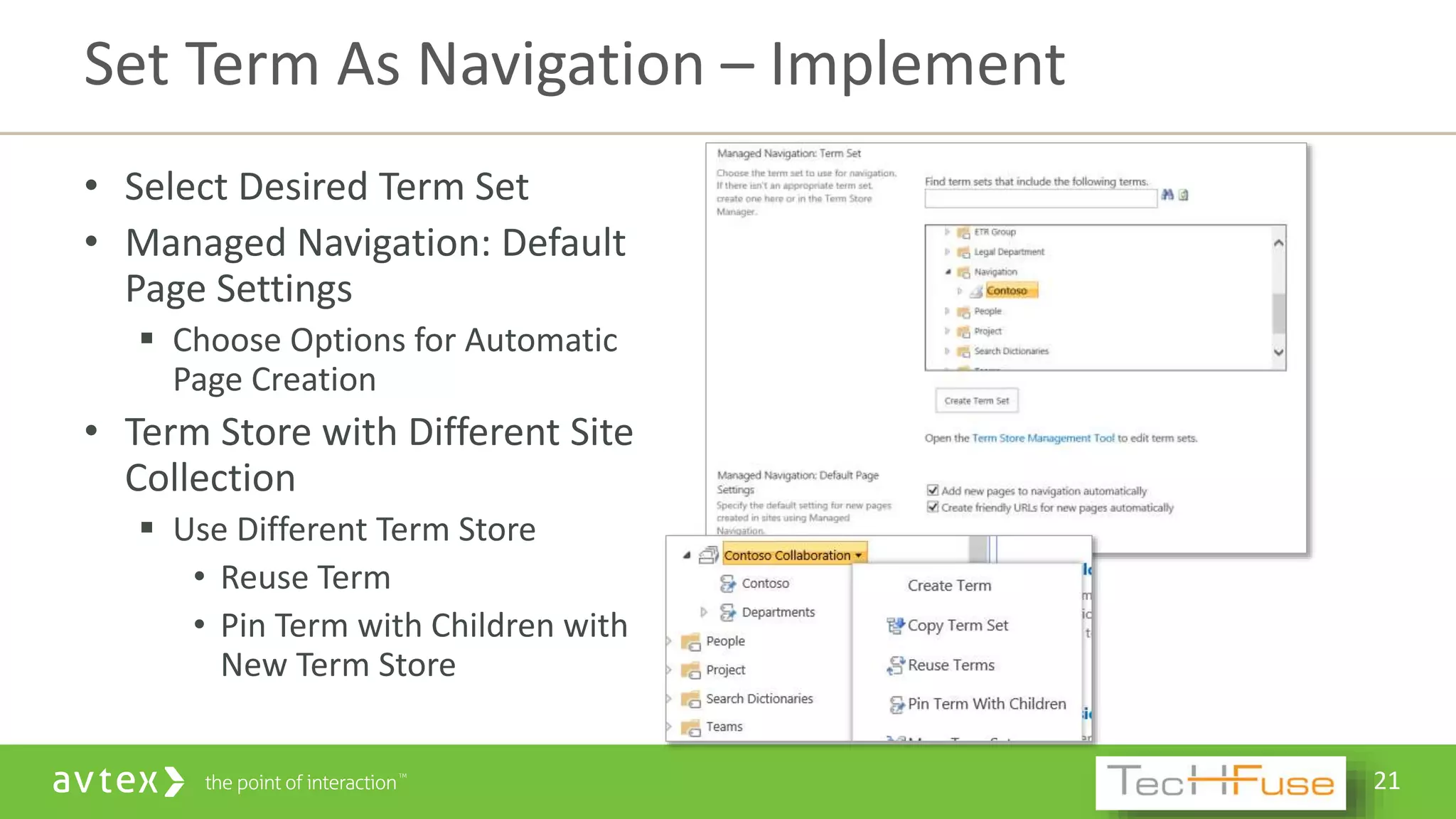
• Select Desired Term Set
• Managed Navigation: Default
Page Settings
 Choose Options for Automatic
Page Creation
• Term Store with Different Site
Collection
 Use Different Term Store
• Reuse Term
• Pin Term with Children with
New Term Store
Set Term As Navigation – Implement
22
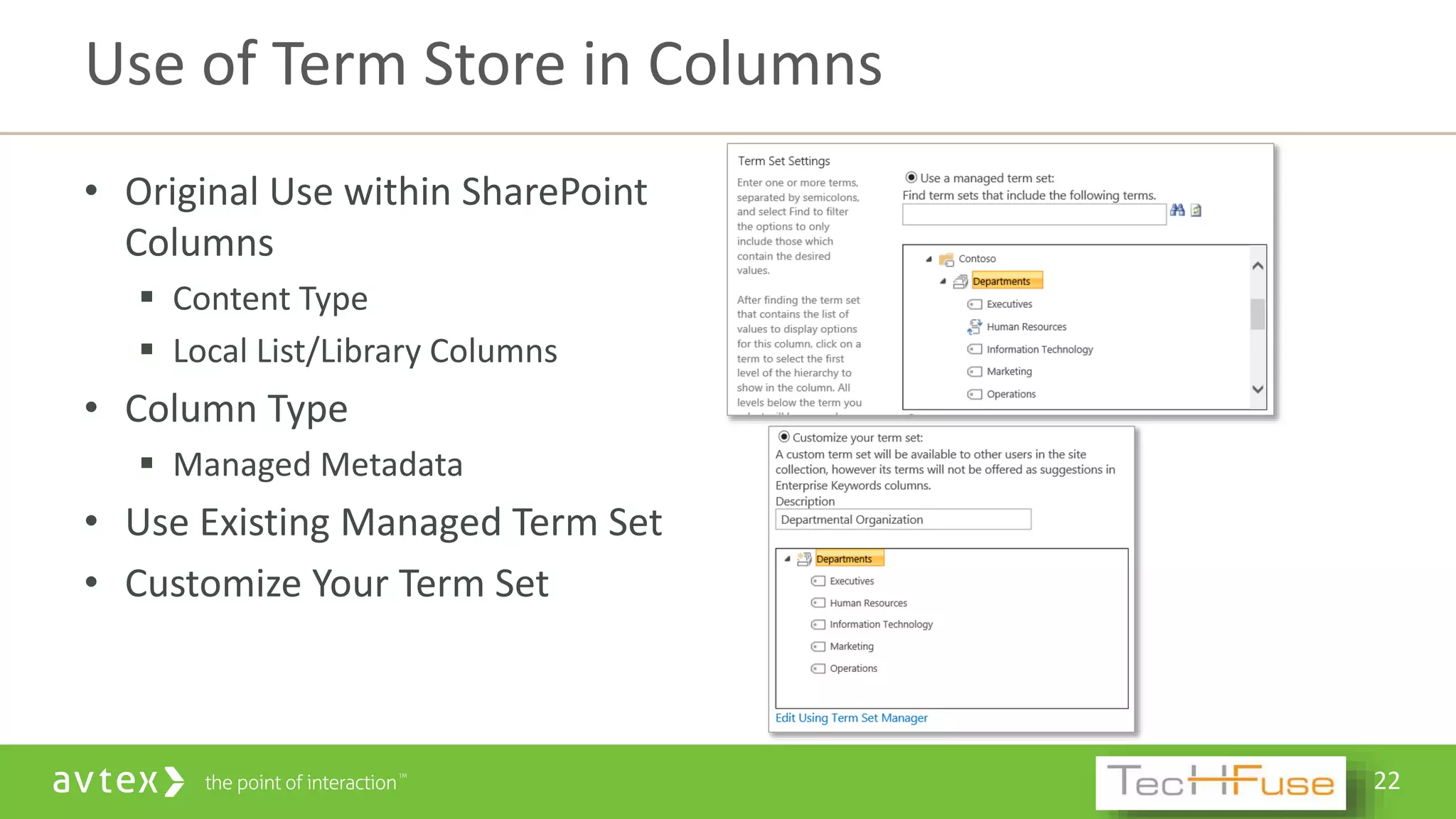
• Original Use within SharePoint
Columns
 Content Type
 Local List/Library Columns
• Column Type
 Managed Metadata
• Use Existing Managed Term Set
• Customize Your Term Set
Use of Term Store in Columns
23
DEMO
• Term Store
• Managed Metadata Column
• Setting Term Set as Navigation
24
Personalized Information
25
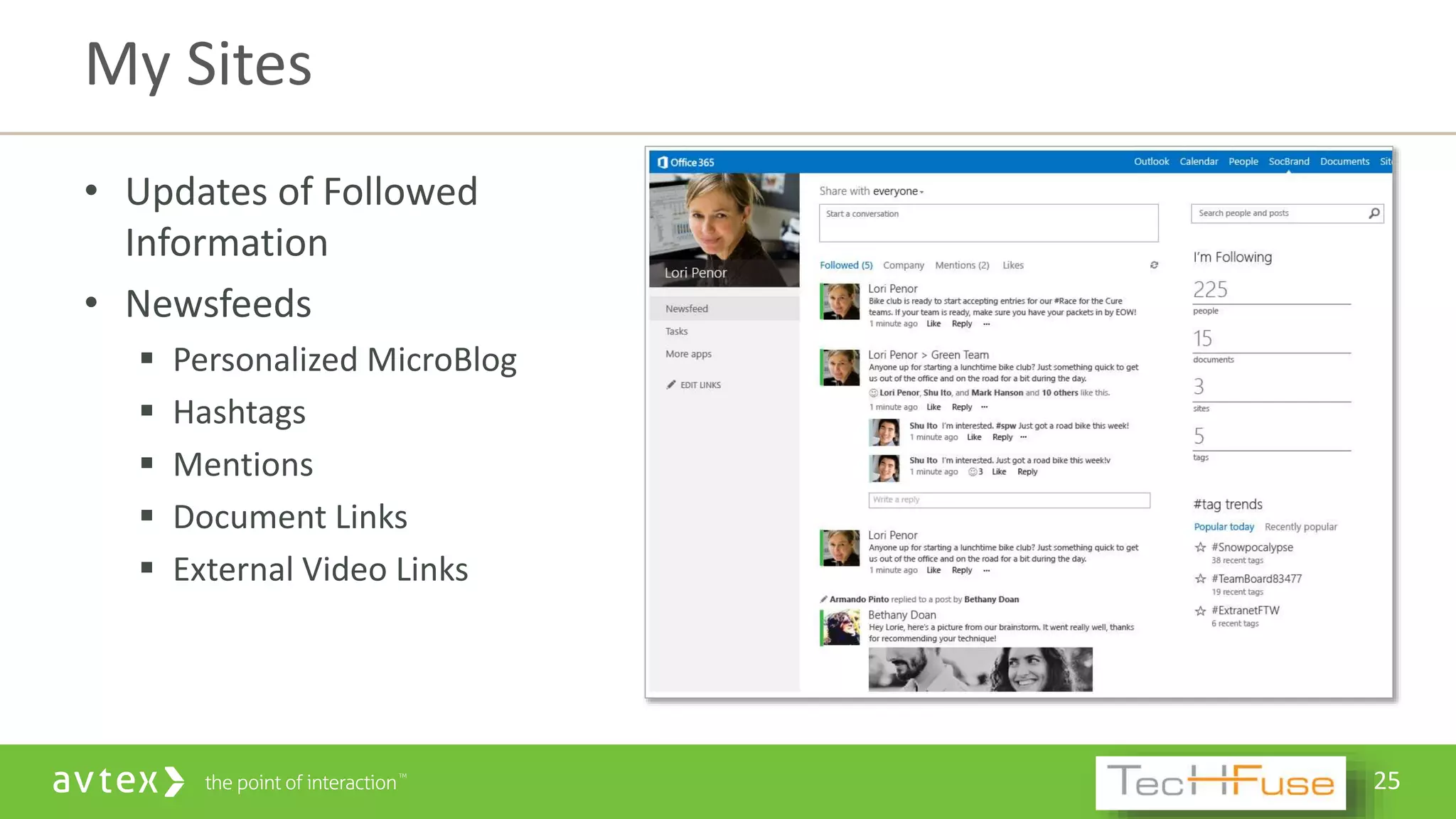
• Updates of Followed
Information
• Newsfeeds
 Personalized MicroBlog
 Hashtags
 Mentions
 Document Links
 External Video Links
My Sites
26
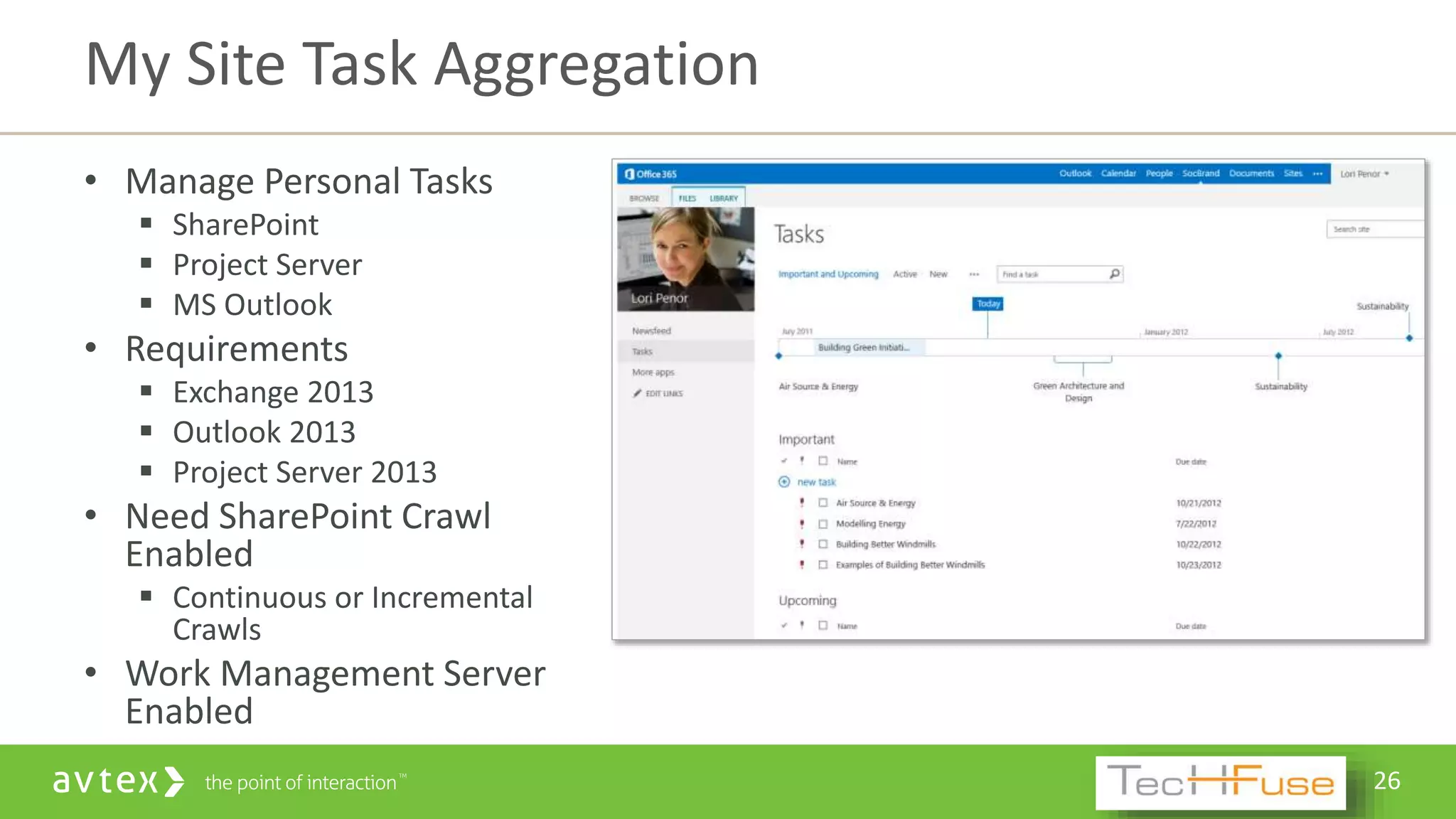
• Manage Personal Tasks
 SharePoint
 Project Server
 MS Outlook
• Requirements
 Exchange 2013
 Outlook 2013
 Project Server 2013
• Need SharePoint Crawl
Enabled
 Continuous or Incremental
Crawls
• Work Management Server
Enabled
My Site Task Aggregation
27
DEMO
• Newsfeeds
• Tasks Aggregation
28
SharePoint Search Changes
29
• 2010 – FAST Search
 Separate SKU/Licenses
 High End Search Capabilities
 API’s
 Relevance Settings
• 2013 – FAST Integrated into Search
 Experience From Foundation to Enterprise Similar
 No Separate Licenses Outside of SharePoint
• All Versions of SharePoint Use Same Search Service
Search Got Better
30
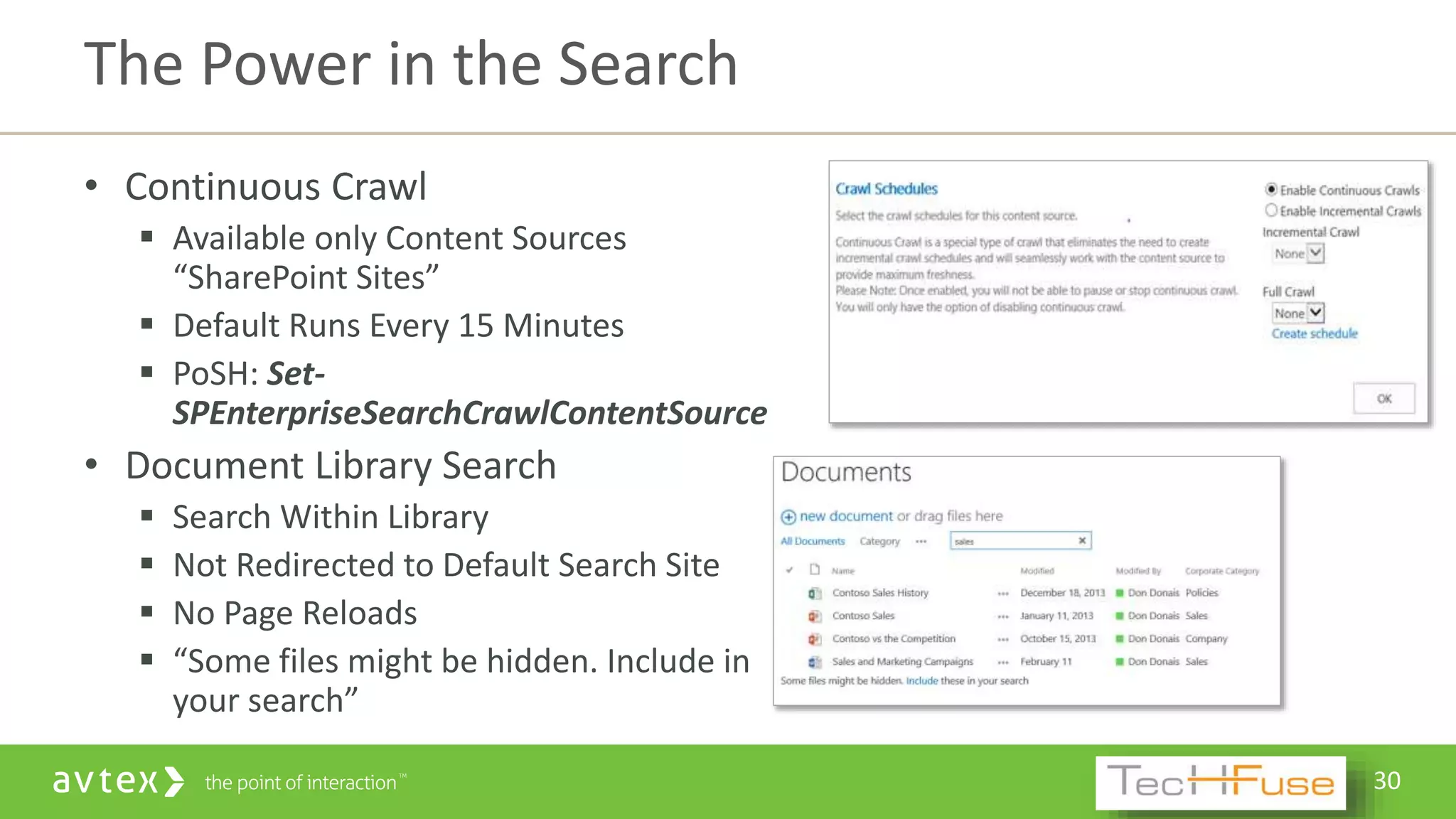
• Continuous Crawl
 Available only Content Sources
“SharePoint Sites”
 Default Runs Every 15 Minutes
 PoSH: Set-
SPEnterpriseSearchCrawlContentSource
• Document Library Search
 Search Within Library
 Not Redirected to Default Search Site
 No Page Reloads
 “Some files might be hidden. Include in
your search”
The Power in the Search
31
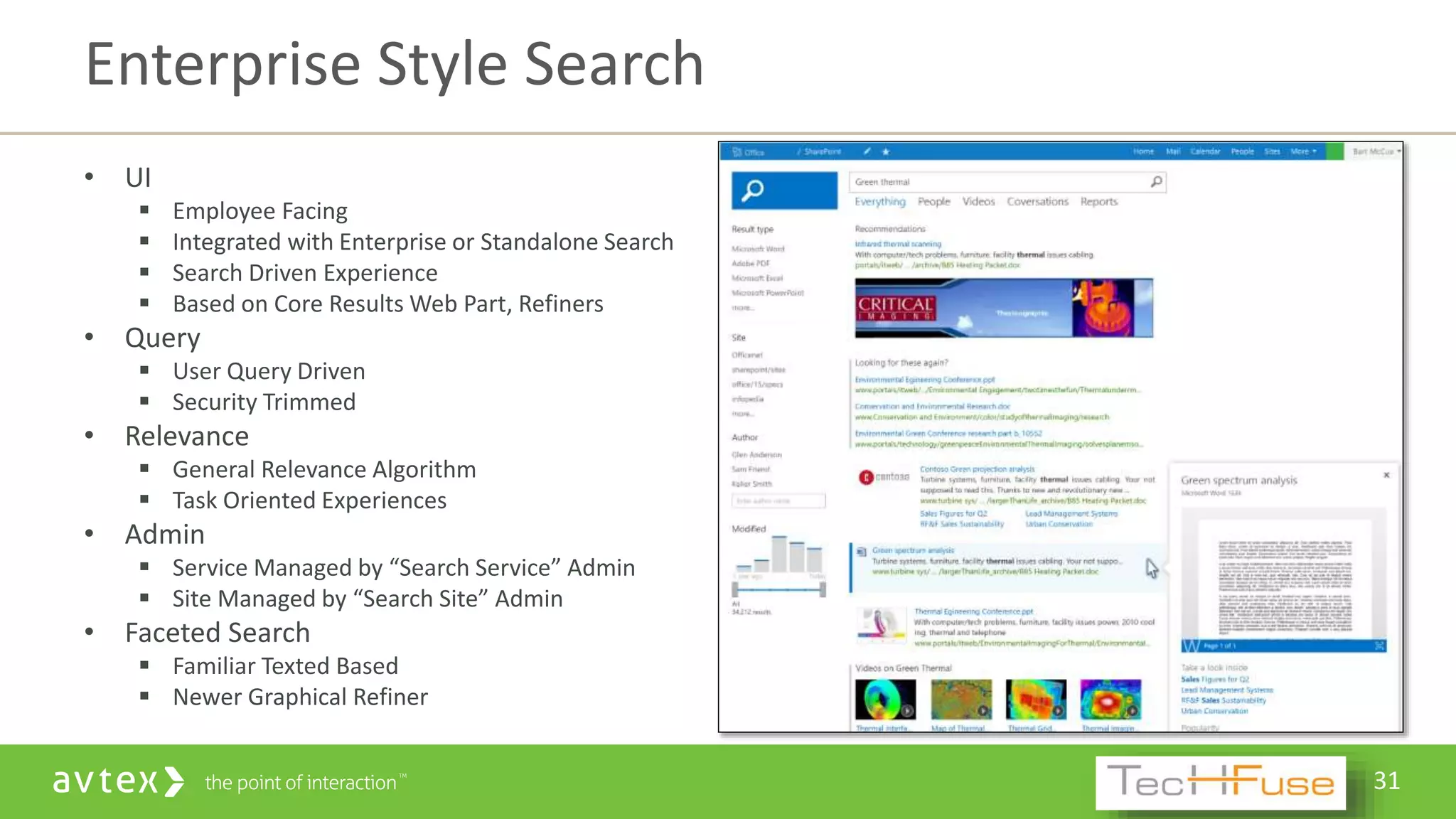
• UI
 Employee Facing
 Integrated with Enterprise or Standalone Search
 Search Driven Experience
 Based on Core Results Web Part, Refiners
• Query
 User Query Driven
 Security Trimmed
• Relevance
 General Relevance Algorithm
 Task Oriented Experiences
• Admin
 Service Managed by “Search Service” Admin
 Site Managed by “Search Site” Admin
• Faceted Search
 Familiar Texted Based
 Newer Graphical Refiner
Enterprise Style Search
32
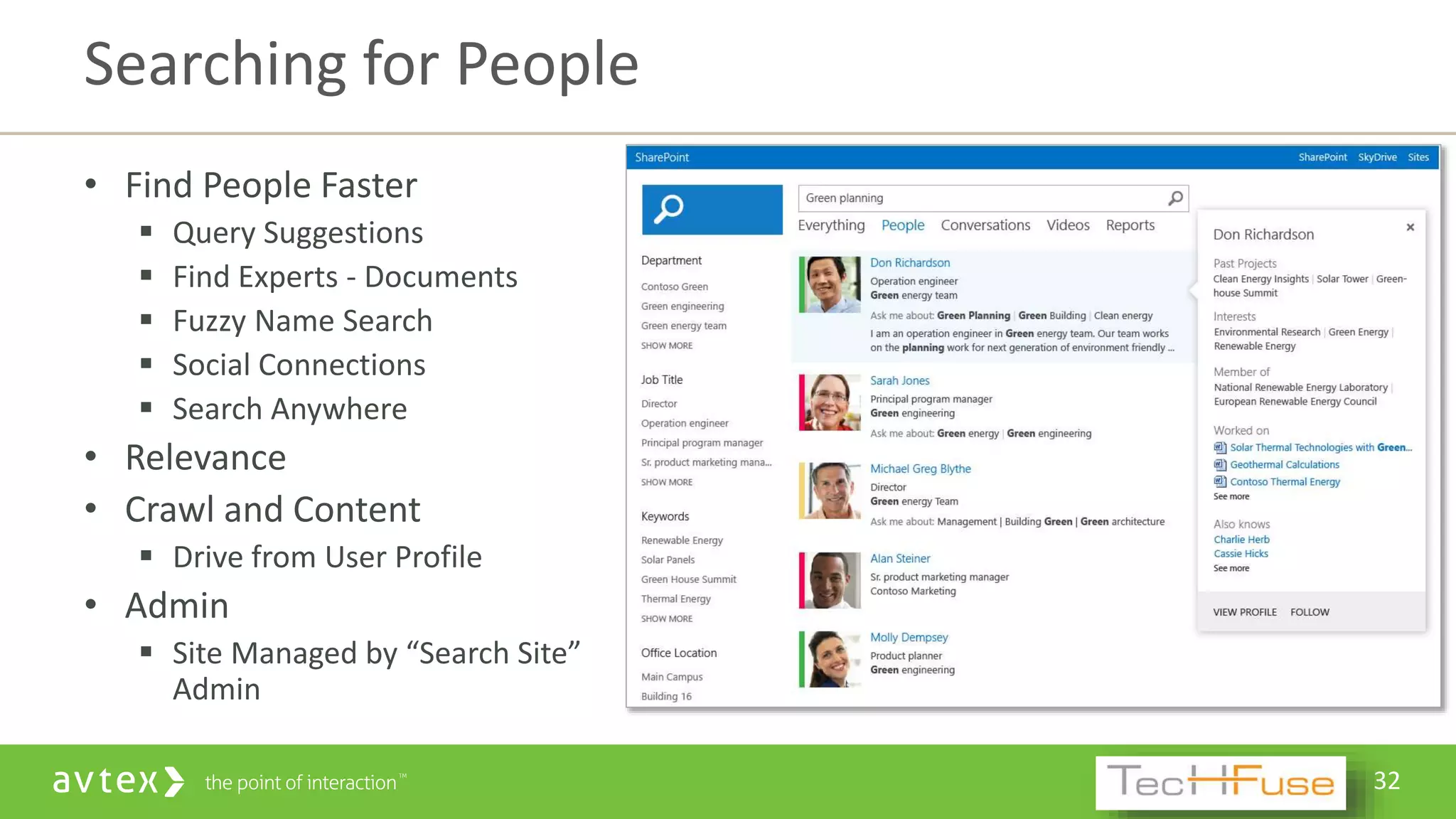
• Find People Faster
 Query Suggestions
 Find Experts - Documents
 Fuzzy Name Search
 Social Connections
 Search Anywhere
• Relevance
• Crawl and Content
 Drive from User Profile
• Admin
 Site Managed by “Search Site”
Admin
Searching for People
33
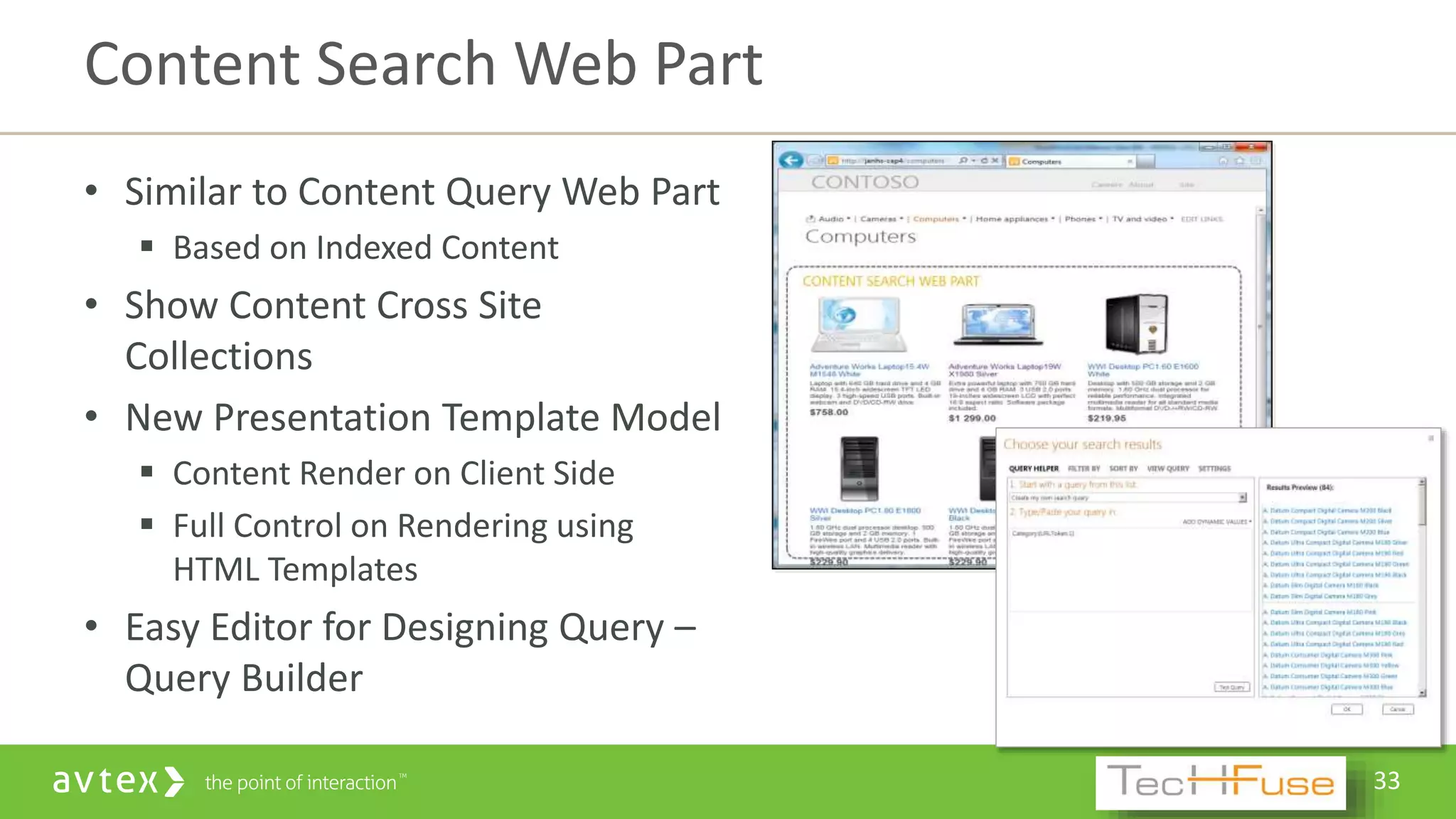
• Similar to Content Query Web Part
 Based on Indexed Content
• Show Content Cross Site
Collections
• New Presentation Template Model
 Content Render on Client Side
 Full Control on Rendering using
HTML Templates
• Easy Editor for Designing Query –
Query Builder
Content Search Web Part
34
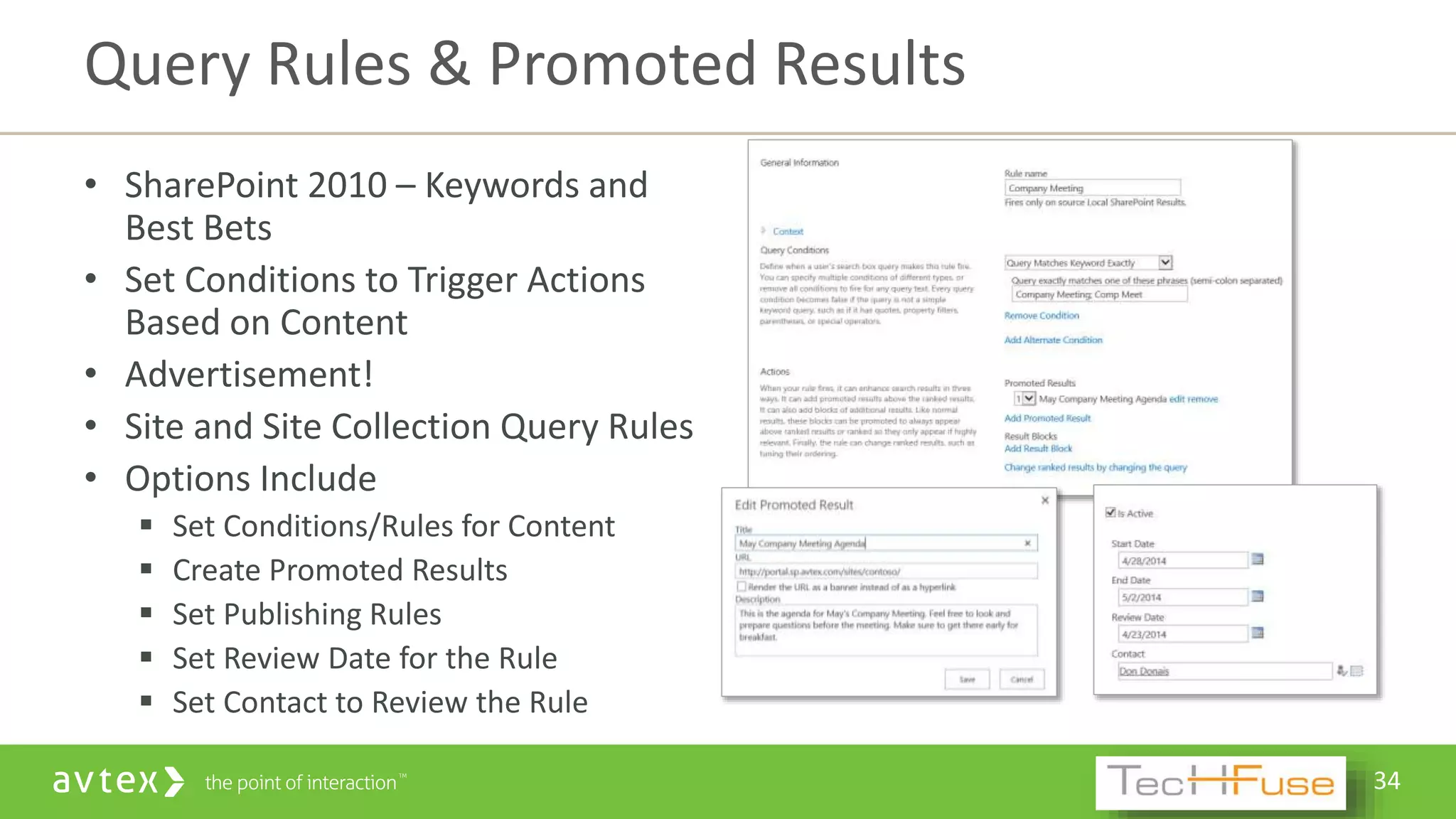
• SharePoint 2010 – Keywords and
Best Bets
• Set Conditions to Trigger Actions
Based on Content
• Advertisement!
• Site and Site Collection Query Rules
• Options Include
 Set Conditions/Rules for Content
 Create Promoted Results
 Set Publishing Rules
 Set Review Date for the Rule
 Set Contact to Review the Rule
Query Rules & Promoted Results
35
Crawl
Crawled
Properties
Content
Processing
Managed
Properties
Index
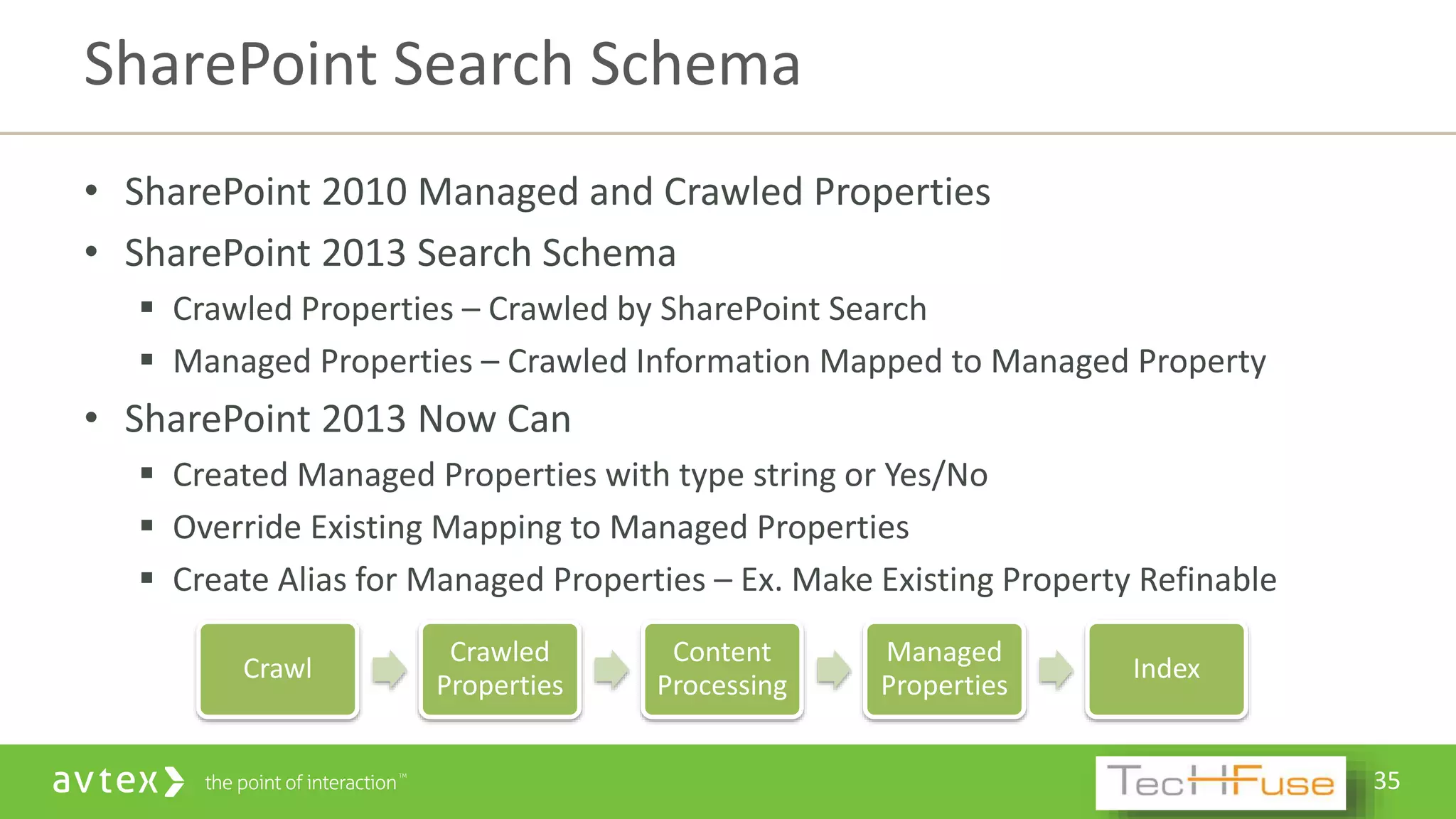
• SharePoint 2010 Managed and Crawled Properties
• SharePoint 2013 Search Schema
 Crawled Properties – Crawled by SharePoint Search
 Managed Properties – Crawled Information Mapped to Managed Property
• SharePoint 2013 Now Can
 Created Managed Properties with type string or Yes/No
 Override Existing Mapping to Managed Properties
 Create Alias for Managed Properties – Ex. Make Existing Property Refinable
SharePoint Search Schema
36
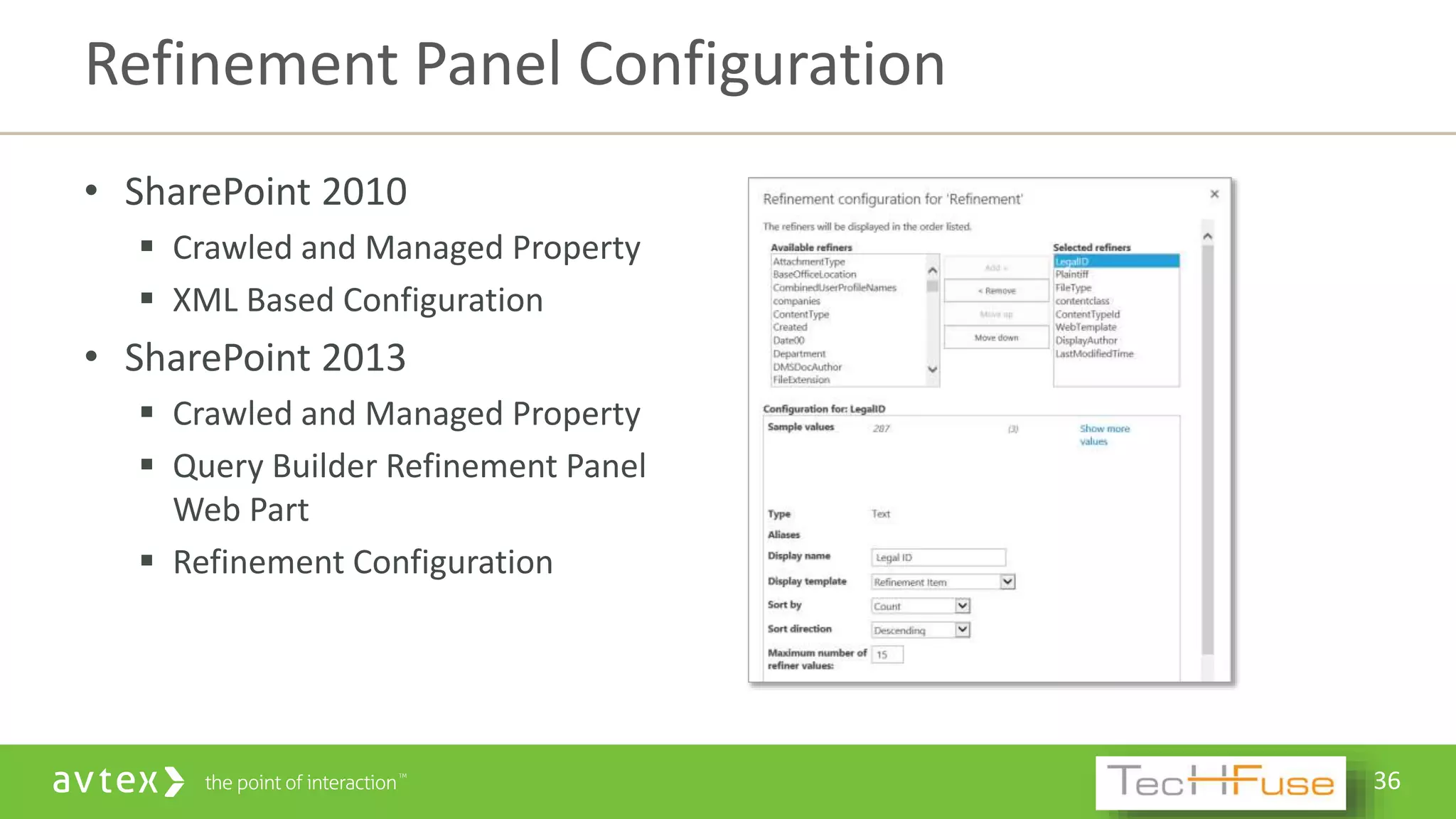
• SharePoint 2010
 Crawled and Managed Property
 XML Based Configuration
• SharePoint 2013
 Crawled and Managed Property
 Query Builder Refinement Panel
Web Part
 Refinement Configuration
Refinement Panel Configuration
37
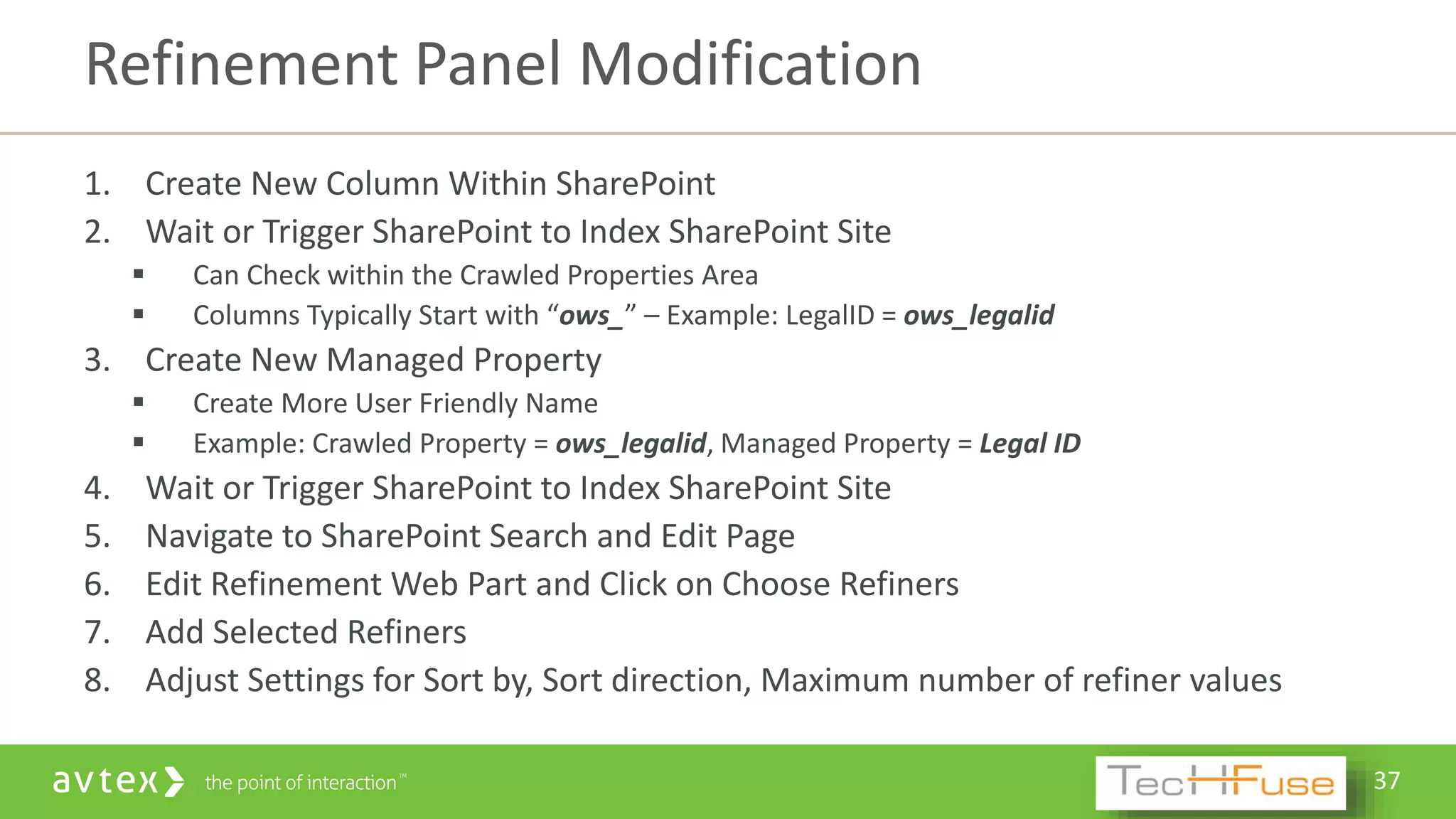
1. Create New Column Within SharePoint
2. Wait or Trigger SharePoint to Index SharePoint Site
 Can Check within the Crawled Properties Area
 Columns Typically Start with “ows_” – Example: LegalID = ows_legalid
3. Create New Managed Property
 Create More User Friendly Name
 Example: Crawled Property = ows_legalid, Managed Property = Legal ID
4. Wait or Trigger SharePoint to Index SharePoint Site
5. Navigate to SharePoint Search and Edit Page
6. Edit Refinement Web Part and Click on Choose Refiners
7. Add Selected Refiners
8. Adjust Settings for Sort by, Sort direction, Maximum number of refiner values
Refinement Panel Modification
38
DEMO
• Search Results
• Refinement Panel Configuration
• Content By Search Web Part
39
Other Findability Considerations
40
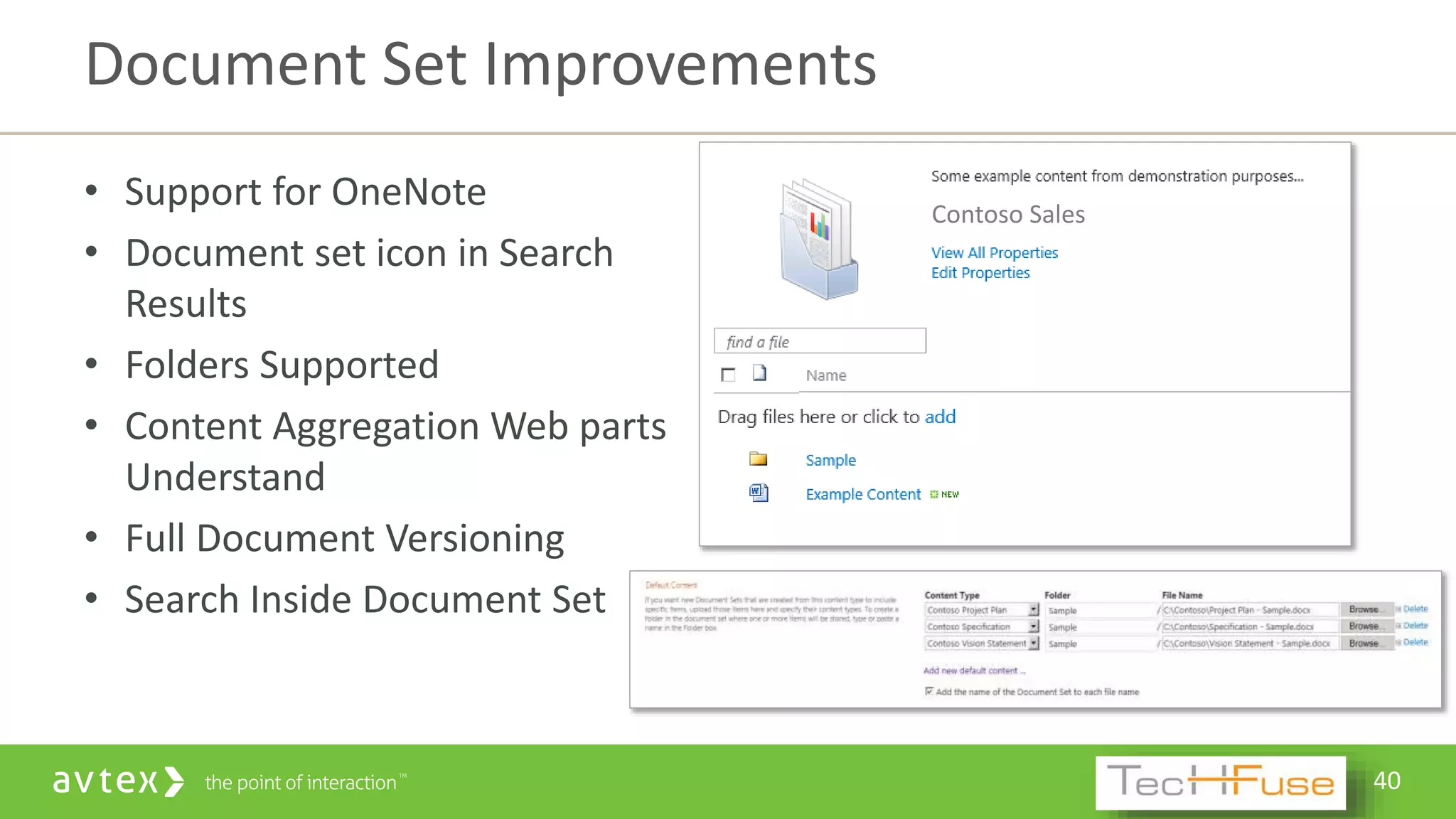
• Support for OneNote
• Document set icon in Search
Results
• Folders Supported
• Content Aggregation Web parts
Understand
• Full Document Versioning
• Search Inside Document Set
Document Set Improvements
Contoso Sales
41
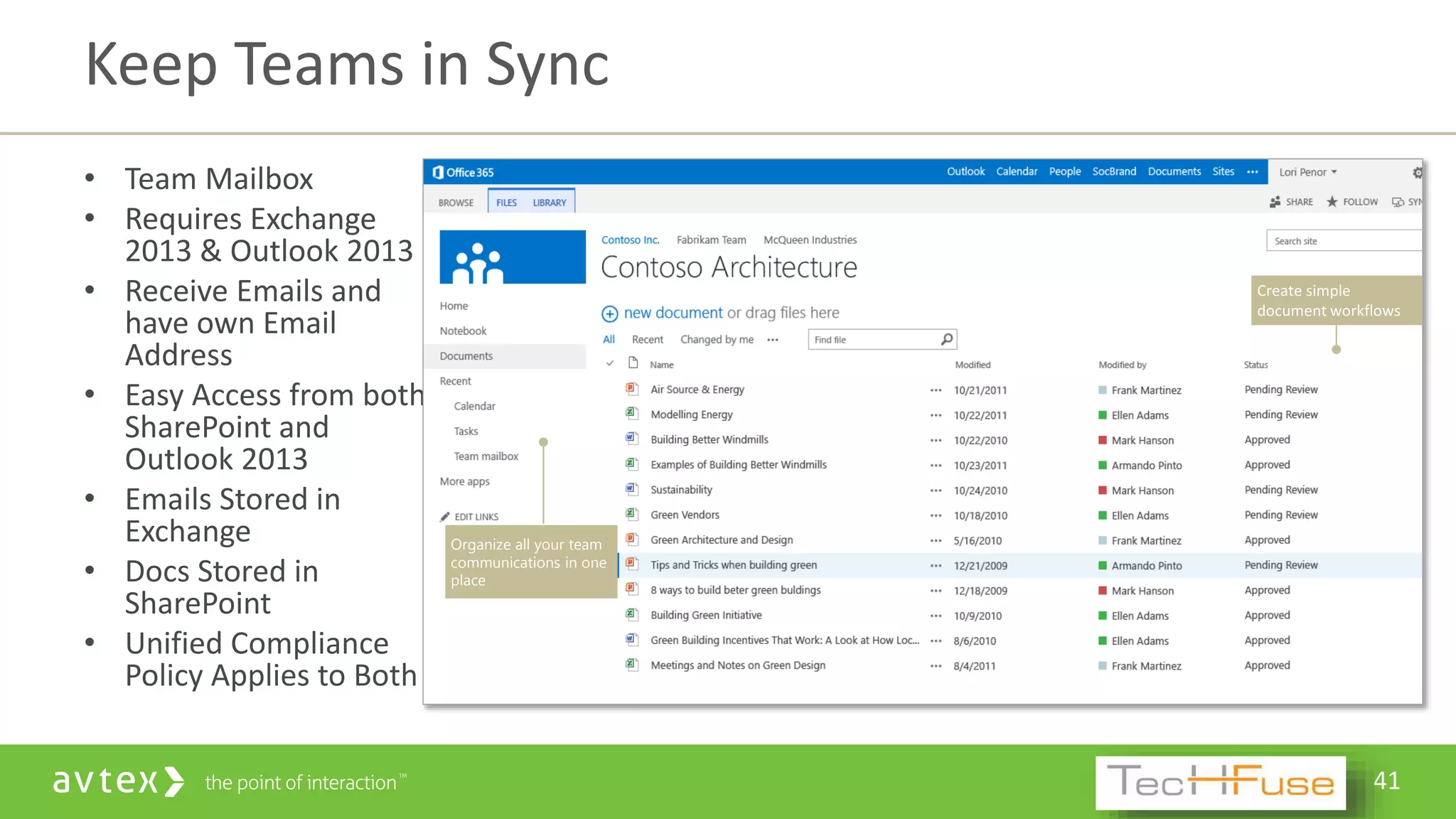
• Team Mailbox
• Requires Exchange
2013 & Outlook 2013
• Receive Emails and
have own Email
Address
• Easy Access from both
SharePoint and
Outlook 2013
• Emails Stored in
Exchange
• Docs Stored in
SharePoint
• Unified Compliance
Policy Applies to Both
Keep Teams in Sync
Organize all your team
communications in one
place
42
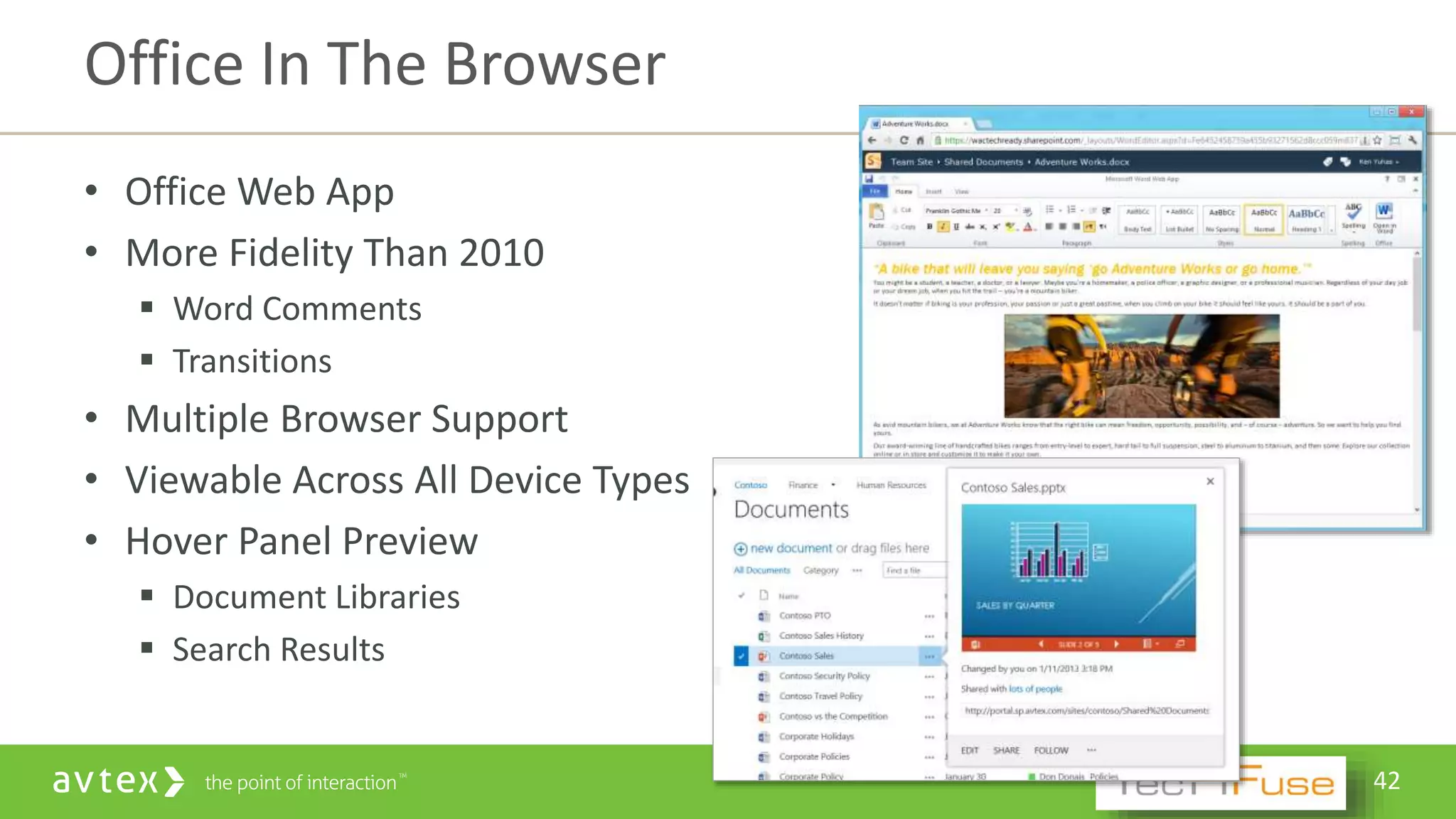
• Office Web App
• More Fidelity Than 2010
 Word Comments
 Transitions
• Multiple Browser Support
• Viewable Across All Device Types
• Hover Panel Preview
 Document Libraries
 Search Results
Office In The Browser
43
Resources
44
• Managed Metadata Service
 http://blogs.office.com/2013/09/04/the-improved-managed-metadata-service-
in-sharepoint-2013/
 http://en.share-gate.com/blog/sharepoint-2013-whats-new-with-managed-
metadata
 http://microsoftstrategy.com/using-the-sharepoint-2013-term-store-to-drive-
navigation
 http://community.bamboosolutions.com/blogs/sharepoint-
2013/archive/2013/01/31/term-store-management-in-sharepoint-2013-how-to-
s-for-common-actions.aspx
 http://venkychilukuri.wordpress.com/2013/07/03/term-based-navigation-in-
sharepoint-2013/
Resources
45
• SharePoint 2013 My Site
 http://sp2013.blogspot.com/2012/07/mysite.html
• Search Schema
 http://blogs.technet.com/b/tothesharepoint/archive/2012/11/26/introducing-
search-schema-for-sharepoint-2013.aspx
 http://ajbigdata.ulitzer.com/node/2751391
• Refinement Panel Modification
 http://blogs.msdn.com/b/russmax/archive/2013/03/15/sharepoint-2013-search-
adding-company-to-the-refinement-panel.aspx
Resources Continued
46
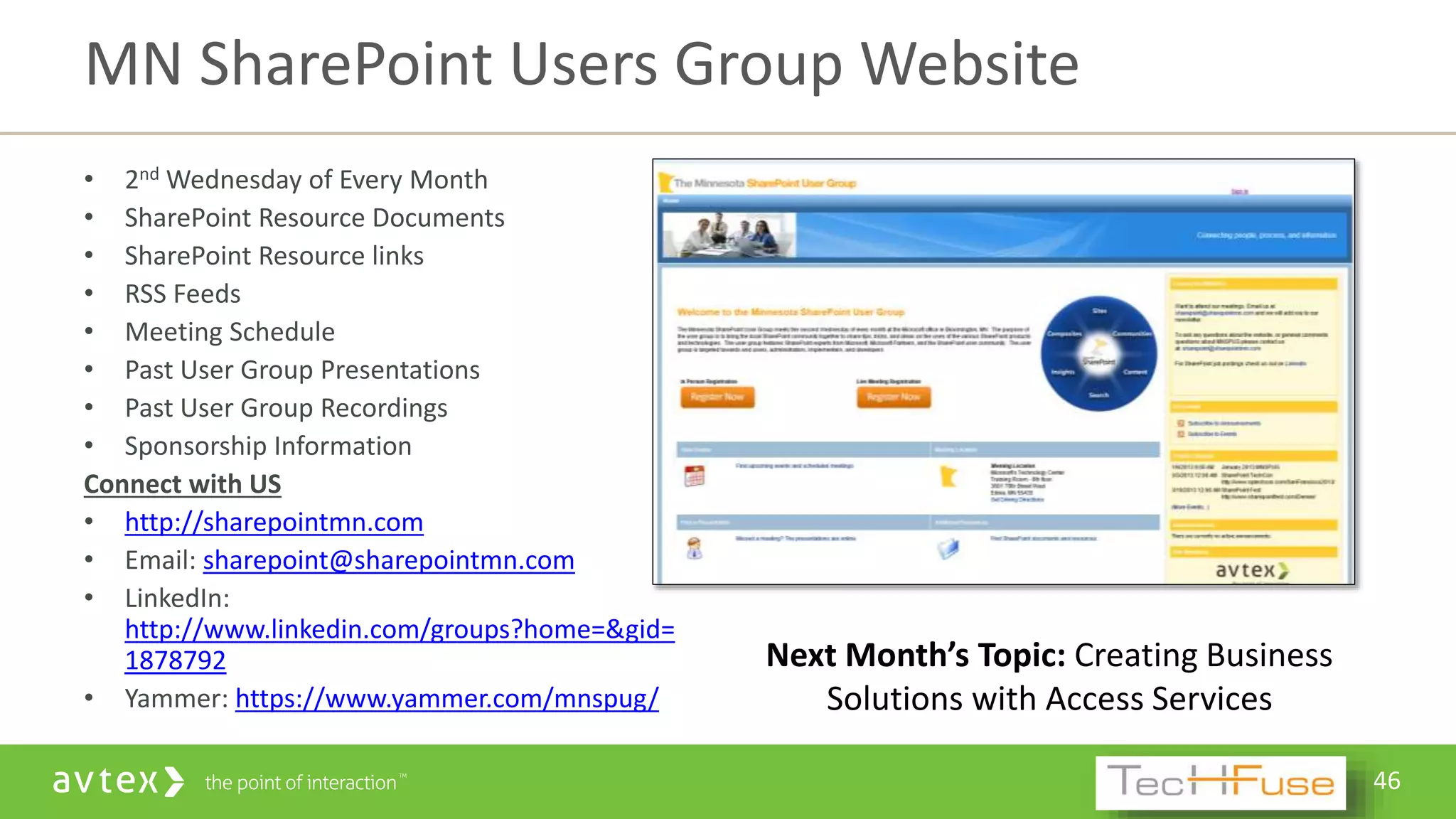
• 2nd Wednesday of Every Month
• SharePoint Resource Documents
• SharePoint Resource links
• RSS Feeds
• Meeting Schedule
• Past User Group Presentations
• Past User Group Recordings
• Sponsorship Information
Connect with US
• http://sharepointmn.com
• Email: sharepoint@sharepointmn.com
• LinkedIn:
http://www.linkedin.com/groups?home=&gid=
1878792
• Yammer: https://www.yammer.com/mnspug/
MN SharePoint Users Group Website
Next Month’s Topic: Creating Business
Solutions with Access Services
47
Thank You!
Avtex Portals and CX Sales Engineer
ddonais@avtex.com
Blog – Tales from IT Side
http://talesfromitside.wordpress.com
Twitter
@dondonais

2014 TechFuse - Findability Within SharePoint 2013

  • 1.
    Donald Donais April 21st,2014 Findability within the SharePoint 2013 Platform
  • 2.
    2 Avtex Portals andCustomer Experience Sales Engineer ddonais@avtex.com Blog – Tales from IT Side http://talesfromitside.wordpress.com Twitter @dondonais Donald Donais
  • 3.
    3 • What isFindability? • Planning for Findability • Increase Findability with SharePoint 2013 Finding Out!
  • 4.
  • 5.
    5 Searchability Defined! The extent to which,or ease with which something may be searched. Findability How easy it or difficult is it to locate information quickly.
  • 6.
    6 Respective Search Results Displayed SharePointFindability Includes! Site Navigation Site and Scoped Search Content Classification Site Design
  • 7.
    7 Current State ofFindability Too Much Information • Too many disparate locations • Too much information noise • Too many disparate applications Unruly File Share • Not consistent organization • Difficult to find information outside of your department • Security nightmare Mixed Search Results • Too many returned results • Difficult to refine to what is needed • Information is not personalized
  • 8.
  • 9.
    9 Components of FindabilityPlanning Information Architecture Plan • Global Navigation Structure • Local Navigation Structure • Consistency Across SharePoint Content Classification • Metadata Structure (Corporate vs. Folksonomy) • Audiences • Consistency Across SharePoint SharePoint Roles/Personas • Groups of SharePoint Users • Detailing Tasks/Activities • Used to Define Security, Content, Training, etc.
  • 10.
    10 More Components ofFindability Planning Site Design • Global and Local Navigation • Home Page Content • Consistency Across SharePoint Search • Customized Managed Properties • Query Rules • Scopes/Managed Result Sources • Content by Search Web Parts/Custom Display Templates
  • 11.
  • 12.
    12 • Built InContent Management Features • Personalized Information • SharePoint Search Changes • Other Findability Considerations Increasing Findability within SharePoint 2013
  • 13.
    13 • Following  People Documents  Sites  Tags • Suggested Content • Ratings  Feature Added Per List/Library  Choose Likes or Star Ratings  Display Through Content Query or Search Results • See Also  Part of Document View Properties  Related Content Base on Popularity, User Context, & Metadata Following, Ratings, and See Also
  • 14.
    14 • Document ID’s Not New, But Really Cool!  Unique ID Across Site Collection  Site Collection Feature  Used to Search or Direct Reference  SharePoint Timer Job • Document ID Assignment Job - Daily • Document ID Enable/Disable Job - Daily  DocIDRedir.aspx?ID=MUVQXZAVYN7Z -2-231133  Use Default or Specify 4-12 Prefix  Viewed within Document Properties Document ID’s
  • 15.
    15 DEMO • Following, Ratings,See Also • Document ID
  • 16.
    16 • Introduced inSharePoint 2010 • Used to Manage  Corporate Taxonomy  Create User Friendly Navigation • Service Application  Service Managed Through Central Admin • Term Store  Managed Through Central Admin or SharePoint Sites  Group Manager Permissions – Contribute and Manager Users  Contributors – Edit Term Set Managed Metadata Service
  • 17.
    17 • Introduced inSharePoint 2010 • Interface to Manage within Term Set  Create Term  Copy Term Set – Copy of the Original Term Name  Reuse a Term – Reuse Term in Different Term Definition  Pin Term with Children – Reuse Term and Children in Different Term Definition  Merge Term – Merge Multiple Terms Together  Deprecate Term – Make Term Not Available for Use  Move Term – Move to Another Location Within Term Store  Delete Term • Import Term using CSV Term Store
  • 18.
    18 • New WithinSharePoint 2013 • One Term Set per Site Collection  Reuse Terms or Pin Terms with Children • Intended Use  Available for Tagging  Use this term Set for Site Navigation (Global or Local Navigation) • Custom Sort  Default A-Z  Custom Order Reminder Always Save Between Tabs Term Set As Navigation
  • 19.
    19 • Term Level– Navigation  Navigation Hover Text  Visibility in Menus  Simple Link or Header – Used to quickly get navigation running • Term Level – Term-Drive Pages  Term Driven  Customizable Term Set As Navigation – Term Level
  • 20.
    20 • Setting TermStore as Navigation • Part of Site Settings > Look and Feel > Navigation • Global or Current Navigation Option  Managed Navigation: The navigation items will be represented using Managed Metadata term set Set Term As Navigation – Implement
  • 21.
    21 • Select DesiredTerm Set • Managed Navigation: Default Page Settings  Choose Options for Automatic Page Creation • Term Store with Different Site Collection  Use Different Term Store • Reuse Term • Pin Term with Children with New Term Store Set Term As Navigation – Implement
  • 22.
    22 • Original Usewithin SharePoint Columns  Content Type  Local List/Library Columns • Column Type  Managed Metadata • Use Existing Managed Term Set • Customize Your Term Set Use of Term Store in Columns
  • 23.
    23 DEMO • Term Store •Managed Metadata Column • Setting Term Set as Navigation
  • 24.
  • 25.
    25 • Updates ofFollowed Information • Newsfeeds  Personalized MicroBlog  Hashtags  Mentions  Document Links  External Video Links My Sites
  • 26.
    26 • Manage PersonalTasks  SharePoint  Project Server  MS Outlook • Requirements  Exchange 2013  Outlook 2013  Project Server 2013 • Need SharePoint Crawl Enabled  Continuous or Incremental Crawls • Work Management Server Enabled My Site Task Aggregation
  • 27.
  • 28.
  • 29.
    29 • 2010 –FAST Search  Separate SKU/Licenses  High End Search Capabilities  API’s  Relevance Settings • 2013 – FAST Integrated into Search  Experience From Foundation to Enterprise Similar  No Separate Licenses Outside of SharePoint • All Versions of SharePoint Use Same Search Service Search Got Better
  • 30.
    30 • Continuous Crawl Available only Content Sources “SharePoint Sites”  Default Runs Every 15 Minutes  PoSH: Set- SPEnterpriseSearchCrawlContentSource • Document Library Search  Search Within Library  Not Redirected to Default Search Site  No Page Reloads  “Some files might be hidden. Include in your search” The Power in the Search
  • 31.
    31 • UI  EmployeeFacing  Integrated with Enterprise or Standalone Search  Search Driven Experience  Based on Core Results Web Part, Refiners • Query  User Query Driven  Security Trimmed • Relevance  General Relevance Algorithm  Task Oriented Experiences • Admin  Service Managed by “Search Service” Admin  Site Managed by “Search Site” Admin • Faceted Search  Familiar Texted Based  Newer Graphical Refiner Enterprise Style Search
  • 32.
    32 • Find PeopleFaster  Query Suggestions  Find Experts - Documents  Fuzzy Name Search  Social Connections  Search Anywhere • Relevance • Crawl and Content  Drive from User Profile • Admin  Site Managed by “Search Site” Admin Searching for People
  • 33.
    33 • Similar toContent Query Web Part  Based on Indexed Content • Show Content Cross Site Collections • New Presentation Template Model  Content Render on Client Side  Full Control on Rendering using HTML Templates • Easy Editor for Designing Query – Query Builder Content Search Web Part
  • 34.
    34 • SharePoint 2010– Keywords and Best Bets • Set Conditions to Trigger Actions Based on Content • Advertisement! • Site and Site Collection Query Rules • Options Include  Set Conditions/Rules for Content  Create Promoted Results  Set Publishing Rules  Set Review Date for the Rule  Set Contact to Review the Rule Query Rules & Promoted Results
  • 35.
    35 Crawl Crawled Properties Content Processing Managed Properties Index • SharePoint 2010Managed and Crawled Properties • SharePoint 2013 Search Schema  Crawled Properties – Crawled by SharePoint Search  Managed Properties – Crawled Information Mapped to Managed Property • SharePoint 2013 Now Can  Created Managed Properties with type string or Yes/No  Override Existing Mapping to Managed Properties  Create Alias for Managed Properties – Ex. Make Existing Property Refinable SharePoint Search Schema
  • 36.
    36 • SharePoint 2010 Crawled and Managed Property  XML Based Configuration • SharePoint 2013  Crawled and Managed Property  Query Builder Refinement Panel Web Part  Refinement Configuration Refinement Panel Configuration
  • 37.
    37 1. Create NewColumn Within SharePoint 2. Wait or Trigger SharePoint to Index SharePoint Site  Can Check within the Crawled Properties Area  Columns Typically Start with “ows_” – Example: LegalID = ows_legalid 3. Create New Managed Property  Create More User Friendly Name  Example: Crawled Property = ows_legalid, Managed Property = Legal ID 4. Wait or Trigger SharePoint to Index SharePoint Site 5. Navigate to SharePoint Search and Edit Page 6. Edit Refinement Web Part and Click on Choose Refiners 7. Add Selected Refiners 8. Adjust Settings for Sort by, Sort direction, Maximum number of refiner values Refinement Panel Modification
  • 38.
    38 DEMO • Search Results •Refinement Panel Configuration • Content By Search Web Part
  • 39.
  • 40.
    40 • Support forOneNote • Document set icon in Search Results • Folders Supported • Content Aggregation Web parts Understand • Full Document Versioning • Search Inside Document Set Document Set Improvements Contoso Sales
  • 41.
    41 • Team Mailbox •Requires Exchange 2013 & Outlook 2013 • Receive Emails and have own Email Address • Easy Access from both SharePoint and Outlook 2013 • Emails Stored in Exchange • Docs Stored in SharePoint • Unified Compliance Policy Applies to Both Keep Teams in Sync Organize all your team communications in one place
  • 42.
    42 • Office WebApp • More Fidelity Than 2010  Word Comments  Transitions • Multiple Browser Support • Viewable Across All Device Types • Hover Panel Preview  Document Libraries  Search Results Office In The Browser
  • 43.
  • 44.
    44 • Managed MetadataService  http://blogs.office.com/2013/09/04/the-improved-managed-metadata-service- in-sharepoint-2013/  http://en.share-gate.com/blog/sharepoint-2013-whats-new-with-managed- metadata  http://microsoftstrategy.com/using-the-sharepoint-2013-term-store-to-drive- navigation  http://community.bamboosolutions.com/blogs/sharepoint- 2013/archive/2013/01/31/term-store-management-in-sharepoint-2013-how-to- s-for-common-actions.aspx  http://venkychilukuri.wordpress.com/2013/07/03/term-based-navigation-in- sharepoint-2013/ Resources
  • 45.
    45 • SharePoint 2013My Site  http://sp2013.blogspot.com/2012/07/mysite.html • Search Schema  http://blogs.technet.com/b/tothesharepoint/archive/2012/11/26/introducing- search-schema-for-sharepoint-2013.aspx  http://ajbigdata.ulitzer.com/node/2751391 • Refinement Panel Modification  http://blogs.msdn.com/b/russmax/archive/2013/03/15/sharepoint-2013-search- adding-company-to-the-refinement-panel.aspx Resources Continued
  • 46.
    46 • 2nd Wednesdayof Every Month • SharePoint Resource Documents • SharePoint Resource links • RSS Feeds • Meeting Schedule • Past User Group Presentations • Past User Group Recordings • Sponsorship Information Connect with US • http://sharepointmn.com • Email: sharepoint@sharepointmn.com • LinkedIn: http://www.linkedin.com/groups?home=&gid= 1878792 • Yammer: https://www.yammer.com/mnspug/ MN SharePoint Users Group Website Next Month’s Topic: Creating Business Solutions with Access Services
  • 47.
    47 Thank You! Avtex Portalsand CX Sales Engineer ddonais@avtex.com Blog – Tales from IT Side http://talesfromitside.wordpress.com Twitter @dondonais

Editor's Notes

  • #41 Document Set Basics Create documents directly in SP Tag w/Office backstage Property Management for whole Document Set Multiple Content Types in a single Document Set Individual Properties on each Document NEW  Bulk meta-data editing!
  • #42 We’ve introduced a new feature that’s available in both SharePoint and Outlook so you can bring together all your team’s email and documents in one place. So if a colleague updates a client proposal or sends an email to the team on new product pricing you see the changes instantly and your team’s always in sync. Often teams cross company boundaries. You could be working with an external partner or customer. Site mailboxes are a key part of your ECM Social Interaction