Networking Basics
    A Tutorial for Teachers
Overview
 In this tutorial, you will be introduced to the basics of
 computer networks and details regarding the networks
 our school is part of. Topics will include:
    Why Learn About Networks?

    What is a Network?

    Components of a Network

    Types of Networks

    Network Design

    Workspace Networking Info
Why Learn About Networks?
  All technology within our school is networked in some
  way. This tutorial
     provides an overview of computer networks, which will help build
     an understanding of how our own school network operates.

     provides school-specific examples, which are real-life illustrations
     of broader topics.

     presents information which will enable users to take full
     advantage of the capabilities that are available in our network.

     will help build an understanding of network components which
     will streamline troubleshooting: network administration
     (outsourced - Net56), equipment (outsourced - Chuck), and
     everything else (in-house - Casey).
What is a Network?

  In this section, we will discuss:
    Network Definition
    Benefits and Disadvantages
    How Networks Work
    Examples of Networks
    Characteristics Common to Networks
Definition:


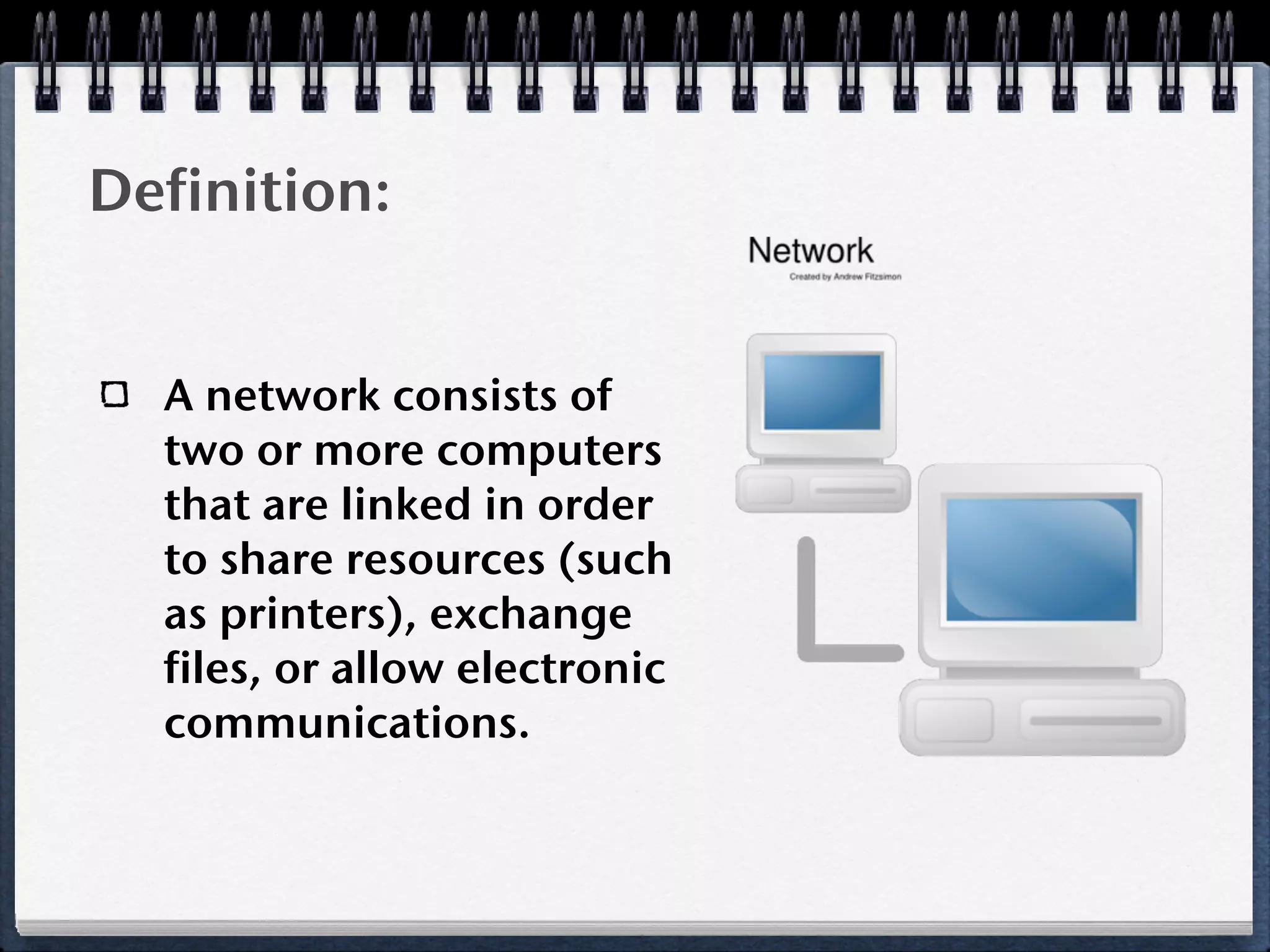
  A network consists of
  two or more computers
  that are linked in order
  to share resources (such
  as printers), exchange
  files, or allow electronic
  communications.
Benefits of Networks:

  Connectivity and Communication: Electronic
  communication (e-mail) is more efficient and less
  expensive than without the network.
  Sharing Data – Data can be easily shared. No more
  “sneakernet” needed to transfer files!
  Sharing Hardware – Sharing a printer, for example, is
  a cost effective way to manage equipment use.
  Sharing Internet Access – Multiple users can share an
  Internet connection.
Disadvantages of Networks:
  Cost – Investment in hardware and software can be
  costly for initial set-up and administration costs will
  be ongoing. It is recommended that there be one
  network administrator for every 50-70 users.
  Undesirable Sharing – Viruses.
  Security – Without proper security precautions in
  place, like firewalls and file encryption, data will be at
  risk.
  While some components of the network design are
  expected to last for many years (life-span on some
  cables can be up to 20 years), others will become
  obsolete or malfunction and need to be replaced.
How Networks Work:
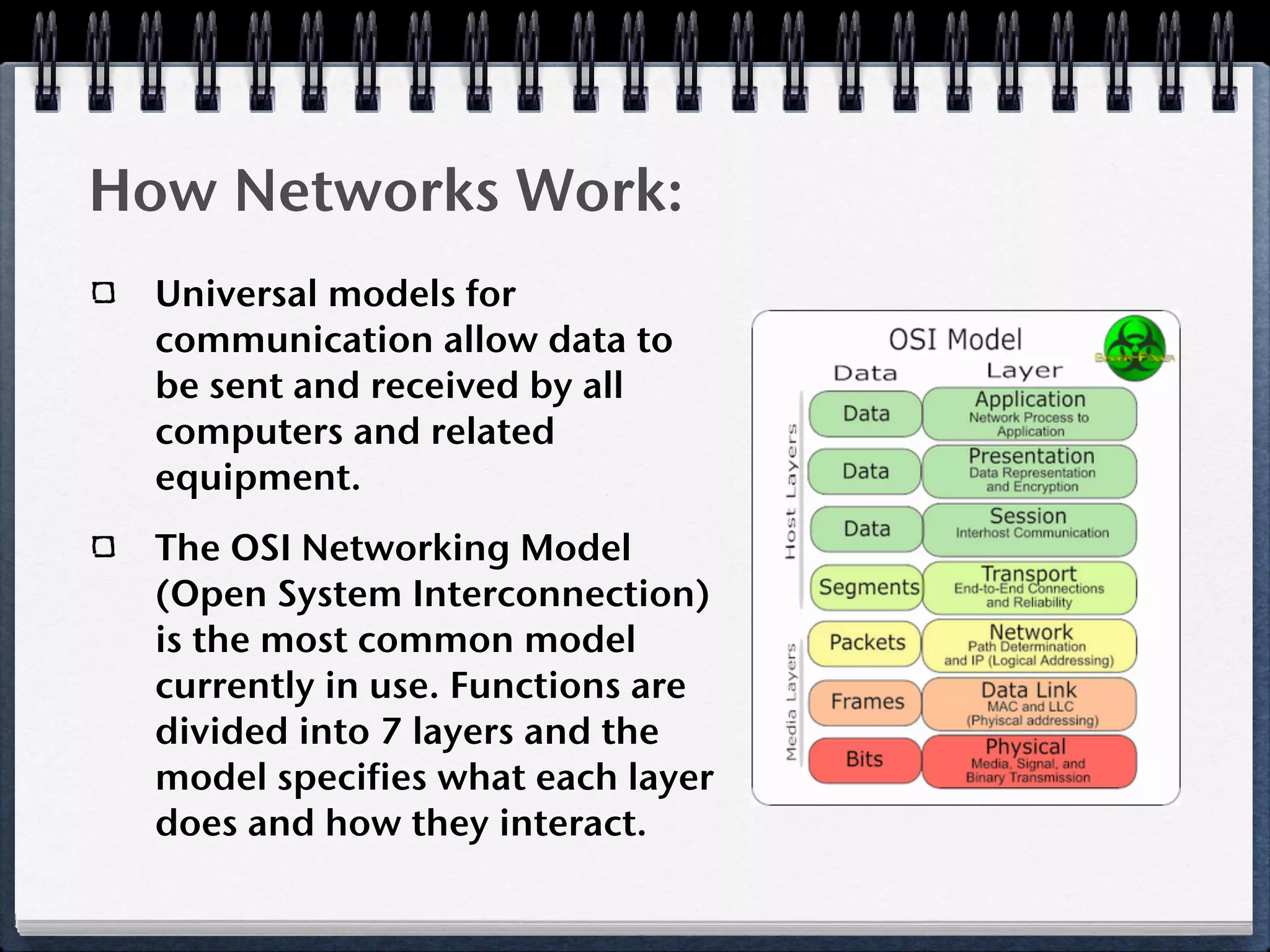
  Universal models for
  communication allow data to
  be sent and received by all
  computers and related
  equipment.
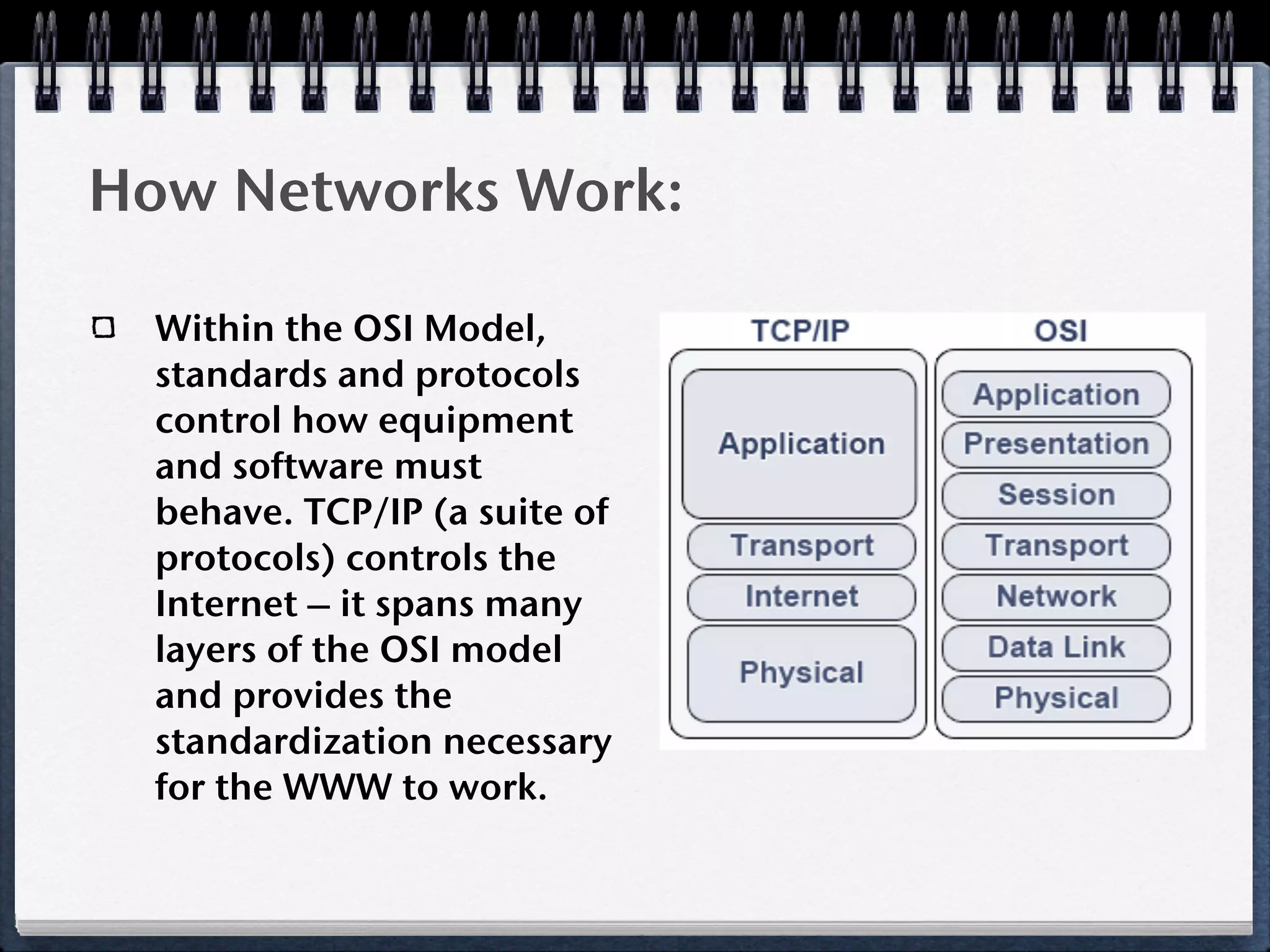
  The OSI Networking Model
  (Open System Interconnection)
  is the most common model
  currently in use. Functions are
  divided into 7 layers and the
  model specifies what each layer
  does and how they interact.
How Networks Work:

  Within the OSI Model,
  standards and protocols
  control how equipment
  and software must
  behave. TCP/IP (a suite of
  protocols) controls the
  Internet – it spans many
  layers of the OSI model
  and provides the
  standardization necessary
  for the WWW to work.
Examples of Networks:

  Peer-to-Peer: A circuit is formed by connecting two
  computers with a copper cable. This is the smallest,
  simplest and cheapest type of network.
  Client/Server: Servers are powerful computers that
  serve many smaller computers (clients). They have
  lots of memory and storage space. This is the most
  commonly used type of network.
  Internet (short for “Interconnected networks”):
  Connect all of the individual networks together and
  you have the Internet (capital “I” since it is a name).
Common Characteristics:
  One of two categories: enterprise network or home
  network.
      Home network set-up – phone jack, cable, satellite feed,
      perhaps connects to a router or modem.

      Kipling is part of the District 109 enterprise network. The
      network is set up for communication within and between
      schools and to the Internet.

  ISP (Internet Service Provider) is needed to connect
  the Internet. Our ISP is Net56.
  Combination of computer hardware (including
  Network Interface Card), cables, networking devices,
  and computer software.
Components of a Network

  In this section, we will discuss:
    Computer hardware
    Cables
    Networking Devices
    Computer Software
Computer Hardware:
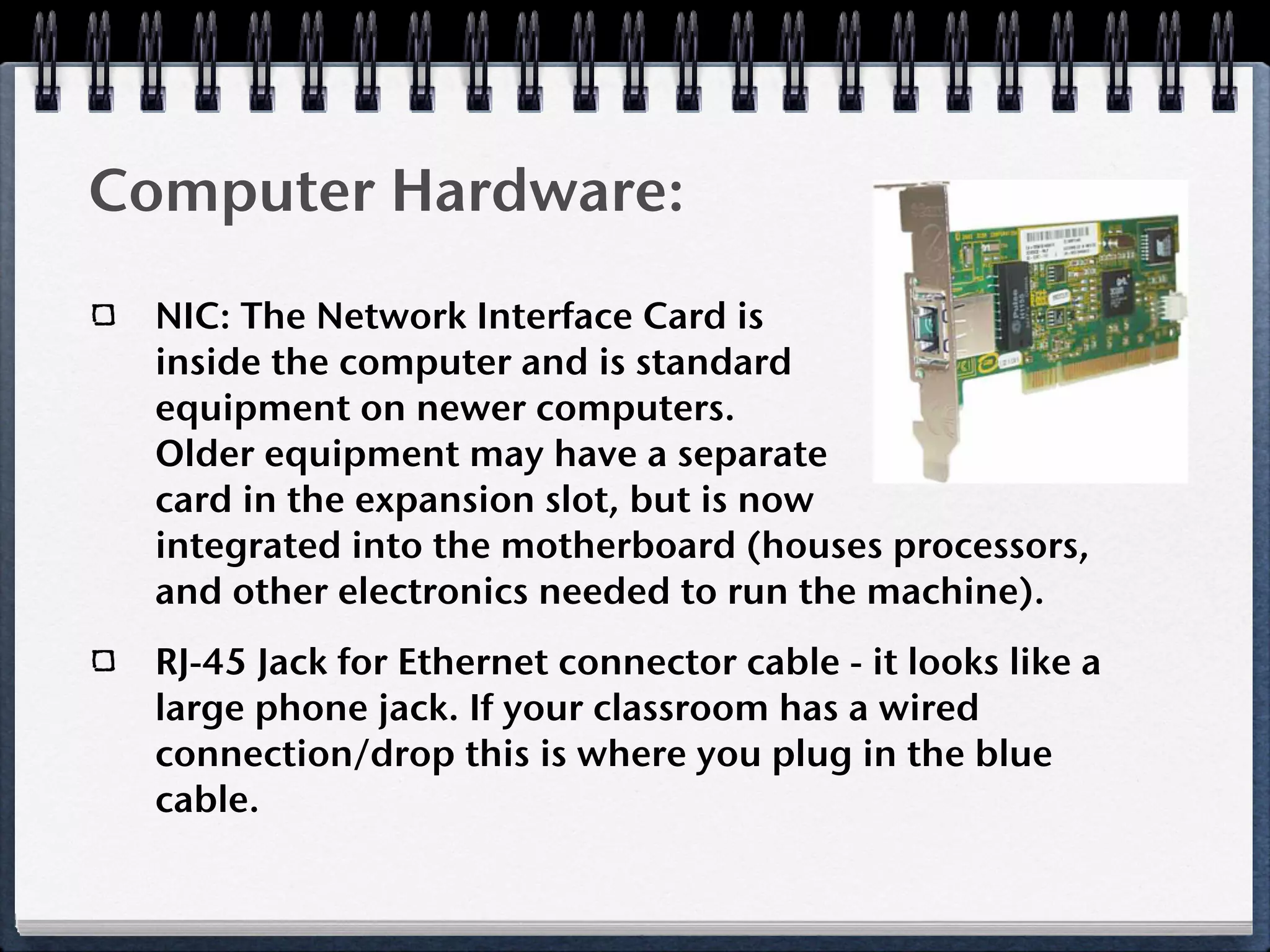
  NIC: The Network Interface Card is
  inside the computer and is standard
  equipment on newer computers.
  Older equipment may have a separate
  card in the expansion slot, but is now
  integrated into the motherboard (houses processors,
  and other electronics needed to run the machine).
  RJ-45 Jack for Ethernet connector cable - it looks like a
  large phone jack. If your classroom has a wired
  connection/drop this is where you plug in the blue
  cable.
Cables:
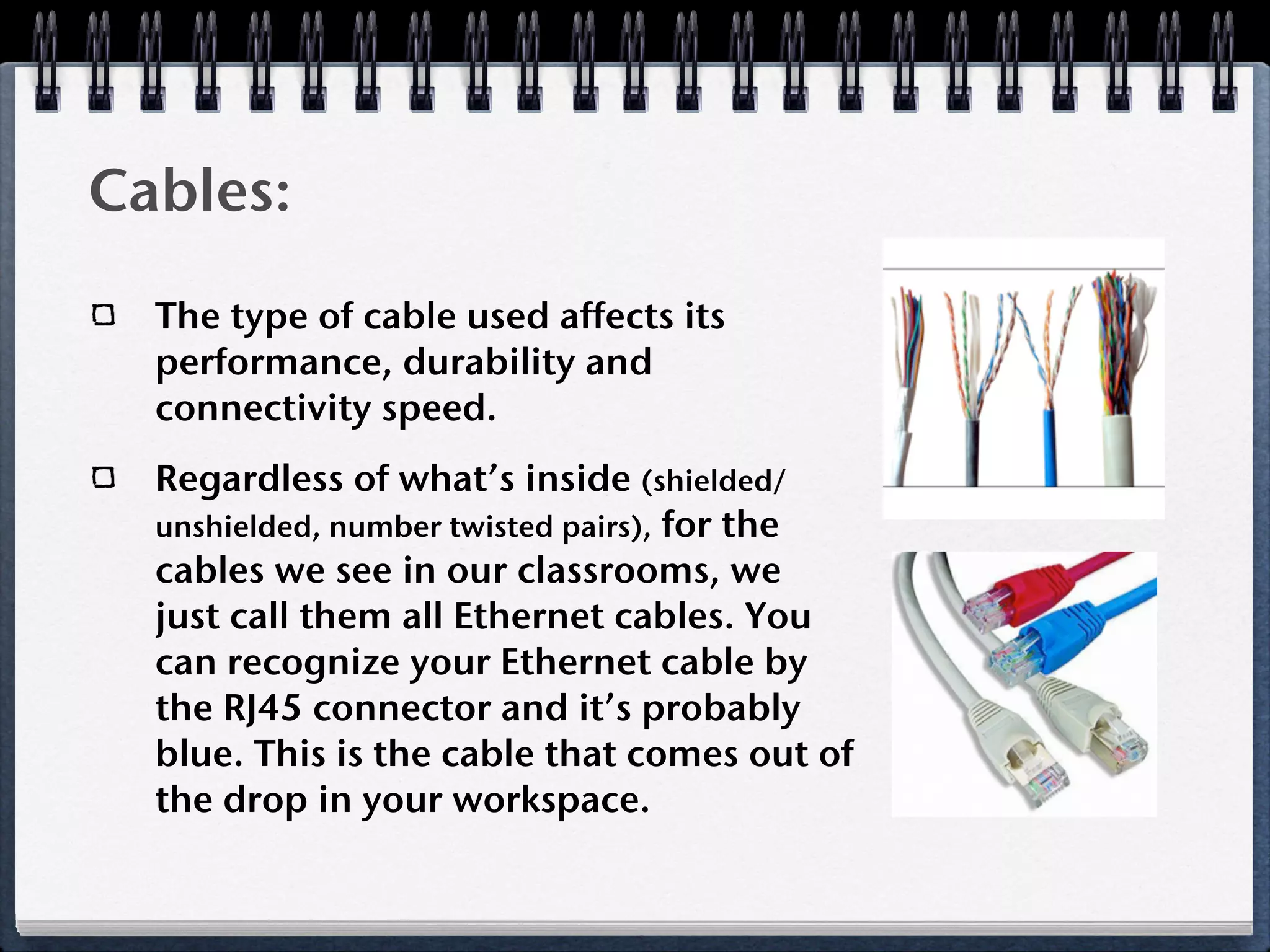
  The type of cable used affects its
  performance, durability and
  connectivity speed.
  Regardless of what’s inside (shielded/
  unshielded, number twisted pairs), for the
  cables we see in our classrooms, we
  just call them all Ethernet cables. You
  can recognize your Ethernet cable by
  the RJ45 connector and it’s probably
  blue. This is the cable that comes out of
  the drop in your workspace.
Cables:

  Deerfield schools are connected to the Internet
  via fiber optic cables that are leased as part of our
  outsourcing contract with Net56. The
  “guts” of our network is
  in Palatine and fiber optic
  cables gets all the data back
  and forth.
  The cable sends data at the
  rate of 44.6 Mbps - that’s
  44,600,000 bits per second!
Networking Devices:
  Hardware specifically designed for creating networks.
  Router: A “smart” device which sends info to the
  correct destination. Routers send info/data long
  distances. Kipling’s router is in a box in the Project
  Success room.
  Switch: Repeats the signals to data packets along over
  short distances. We have switches throughout the
  building (above the drop ceiling).
  A combination of switches and cables connect
  networked equipment to the router, and router
  connects you to the world.
Computer Software:

  Web-browser software is one of many softwares that
  allow your computer to communicate with others’,
  via networking devices.
  HTTP is the standard software for the Internet.
  Hypertext Transfer Protocol, the “http://” part of the
  website address tells the computer how to read the
  data that is sent and received.
  This is software that runs in the background - you will
  never have to open/close programs or install
  anything. It’s just there.
Network Design
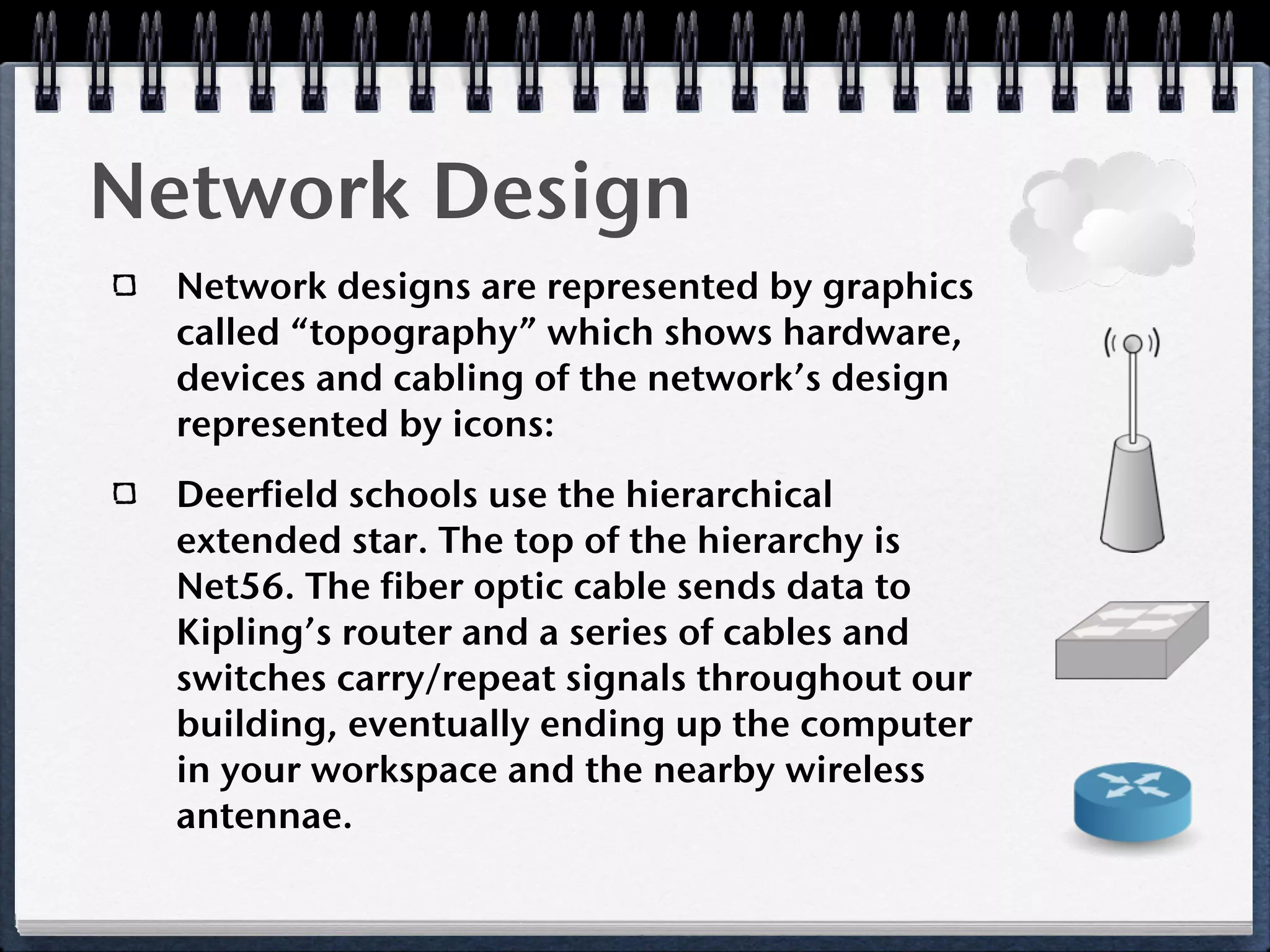
  Network designs are represented by graphics
  called “topography” which shows hardware,
  devices and cabling of the network’s design
  represented by icons:
  Deerfield schools use the hierarchical
  extended star. The top of the hierarchy is
  Net56. The fiber optic cable sends data to
  Kipling’s router and a series of cables and
  switches carry/repeat signals throughout our
  building, eventually ending up the computer
  in your workspace and the nearby wireless
  antennae.
Types of Networks:

  In this section, we will discuss:
    Local Area Network (LAN)
    Wide Area Network (WAN)
    Other types of Networks (PAN, CAN, MAN,
    SAN)
    Virtual Personal Network (VPN)
Local Area Network (LAN):

  LAN/WLAN: This type of network operates in a limited
  geographic area. It connects devices and equipment
  that is close together and multiple devices access
  media. Unlike a dial-up modem connection, it is
  always on. A Wireless Local Area Connection (WLAN)
  can be completely wireless but most are a
  combination of wired and wireless.
  Kipling’s network is not a LAN because the
  geographic distance to our servers is too great. We
  are however, a WLAN since there is a wireless local
  network within our building.
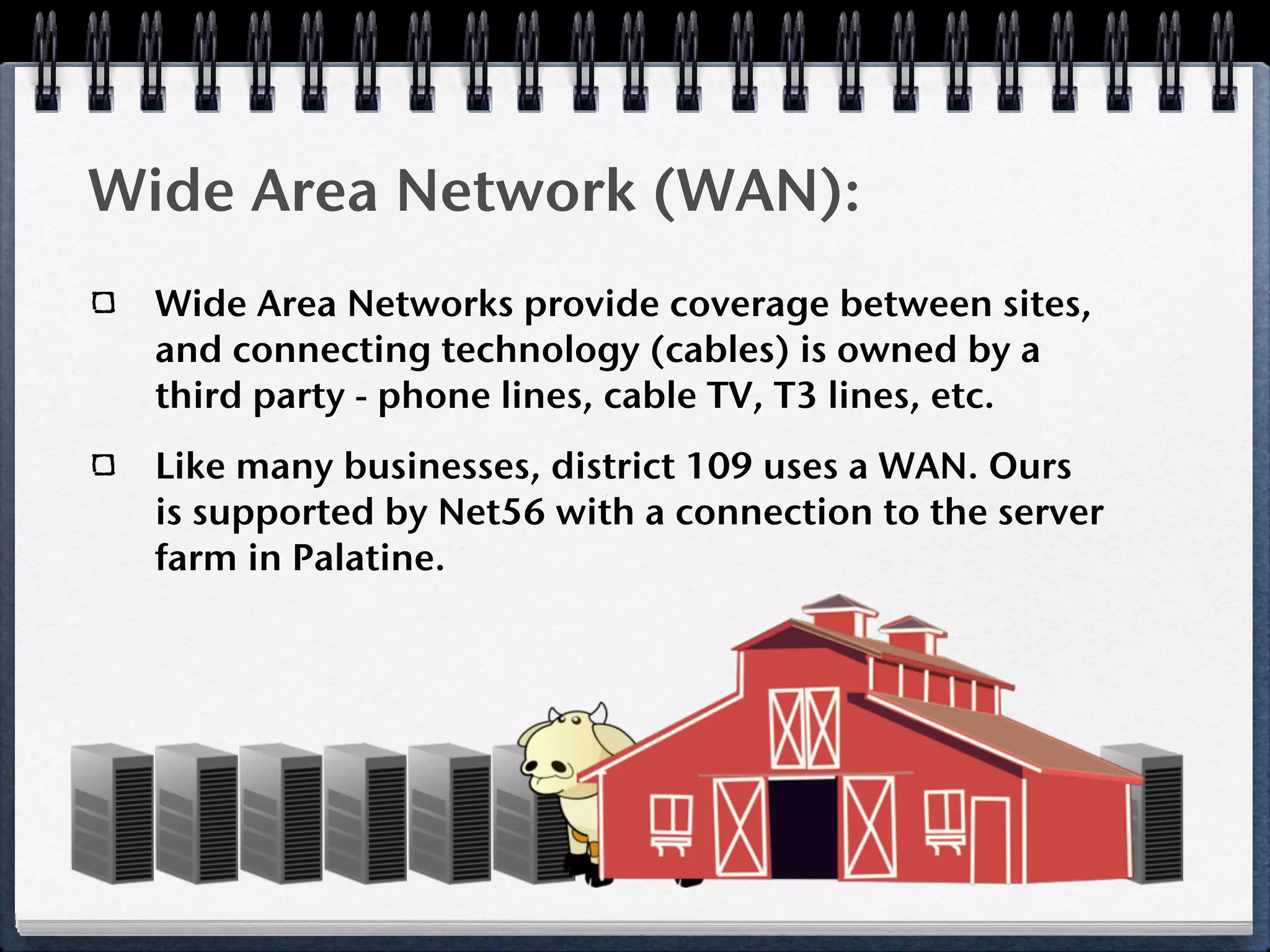
Wide Area Network (WAN):
  Wide Area Networks provide coverage between sites,
  and connecting technology (cables) is owned by a
  third party - phone lines, cable TV, T3 lines, etc.
  Like many businesses, district 109 uses a WAN. Ours
  is supported by Net56 with a connection to the server
  farm in Palatine.
Other Types of Networks:
  CANs (campus) - Bigger than a LAN as multiple
  buildings are connected. Most schools are part of
  CANs but ours is not.
  MANs (Metropolitan area) – Created by ISPs; shorter
  cables, less expense, high speeds for less than what a
  WAN would cost.
  SANs (Storage) – The purpose to communicate with
  storage devices – huge databases (like Amazon).
  Concurrent access to data enhances performance.
  Our district has entered into a contract to outsource
  storage and reporting of student data.
  So far, we have a WLAN, a WAN and a SAN.
Personal Area Network:
  This is the smallest type of network. This is the area
  immediately surrounding your computer.
  Connecting peripherals - like a document camera,
  Promethean Board, digital camera, video camera, or
  printer – to a single computer creates a PAN.
  Your classroom is a PAN within the district’s WAN.
  Troubleshooting PANs is much simpler than larger
  networks – this is something that coworkers and/or
  Casey would be able to help with should trouble
  arise.
Virtual Personal Networks:
  A VPN enables you to connect to another computer
  remotely, via your normal Internet Service Provider.
  Because data travels through unprotected space the
  data packets are encrypted so that only the intended
  recipient can read them.
  District 109 has a VPN - Thin Client. Install Remote
  Access software on your desktop and then access your
  work files by typing www.thin.dps109.org. You can
  access your Z: drive files from any location that has an
  Internet connection.
  Did you keep track? Here at Kipling we have a WLAN,
  a WAN, a SAN, a PAN and a VPN.
Workspace Networking Info

 In this section, we will discuss:
  Getting Connected
  VoIP
  Intranet
  Netbooks
  Troubleshooting
Getting Connected:
  If your workspace has a desktop computer, connect
  the blue/Ethernet cable to the tower. One end goes in
  the drop and the other into your computer.
  If you use a school laptop, check that the wireless
  network is found (icon in lower right corner).
  Connect any peripherals: Promethean Board, printer,
  document camera, DVD player, etc. If you are in the
  same workspace as last year, everything you need is
  in your room.
  Set up network printing: This will allow you to print
  to the copy machines (secure print feature is
  available).
VOIP:

  Voice Over Internet Protocol (VOIP) is the
  reason you have a phone in your room.
  Telephone signals go through the same wireless
  that provides Internet connectivity for our computers.
  Voicemail messages can be accessed through your
  Cisco phone and will also appear in your e-mail as
  audio files.
  That adds one more acronym to our collection: We
  have a WLAN, a WAN, a SAN, a PAN, a VPN and VOIP.
Intranet:
  In addition to all the Internet-related networks,
  Deerfield schools also have Intranet.
  Intranet is the name for a private network, typically
  one that operates within a business or organization.
  Our Intranet is accessed through the district website:
  www.dsp109.org. Mouseover “staff” in the
  navigation bar then select “Intranet (Staff only) from
  the drop-down menu. The Intranet is protected, so
  you will have type in your login and password
  information (same one you use for e-mail).
  There is a wealth of information on the Intranet and is
  well worth the time you spend exploring!
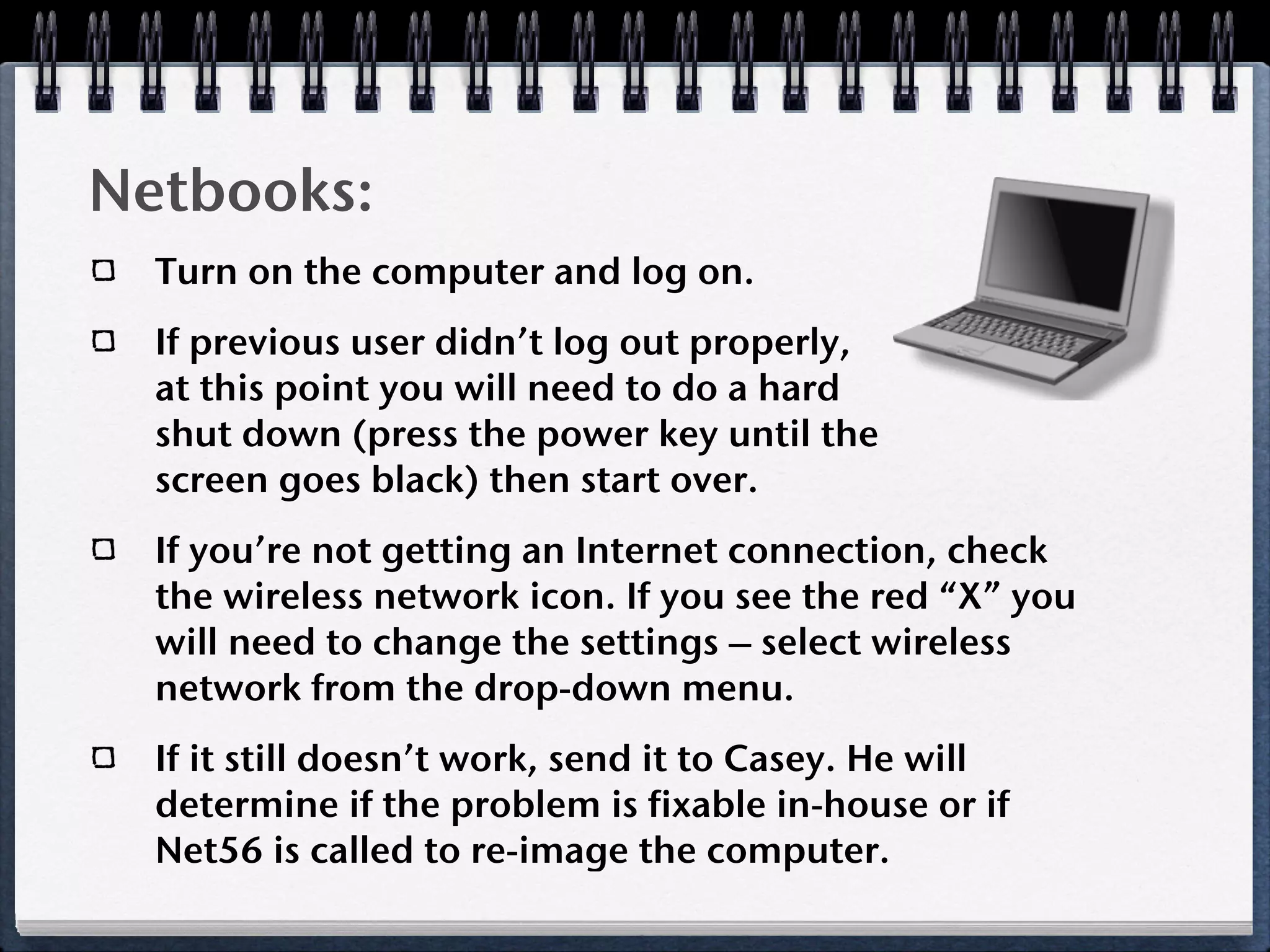
Netbooks:
  Turn on the computer and log on.
  If previous user didn’t log out properly,
  at this point you will need to do a hard
  shut down (press the power key until the
  screen goes black) then start over.
  If you’re not getting an Internet connection, check
  the wireless network icon. If you see the red “X” you
  will need to change the settings – select wireless
  network from the drop-down menu.
  If it still doesn’t work, send it to Casey. He will
  determine if the problem is fixable in-house or if
  Net56 is called to re-image the computer.
Troubleshooting:
  If something doesn’t work, check the
  obvious things first: make sure it’s
  plugged in, turned on, and all cables
  are firmly connected.
  Remember the rule in your classroom: “Ask three
  before me.” Try asking a colleague to help with basic
  connections before looking further afield. Grade level
  teammates may be able to provide very timely
  assistance.
  The next tier of support is Casey, our tech
  coordinator.
Troubleshooting:

  If the problem is related to the network (Internet
  connection, e-mail, etc.), check with co-workers to
  see if it is a system-wide problem.
  If the problem is not network-wide, contact the Net56
  help desk via e-mail.
  Net56 has two engineers on-site and their office
  happens to be right across the parking lot in the
  Administration Building. Although Net56 offices are
  about 15 miles away, help is just next door.
References:


  Kozierok, C. M., (2005). TCP/IP guide. http://
  www.tcpipguide.com/
  Odom, W., & Knott, T., (2006). Networking basics:
  CCNA 1 companion guide. Cisco Press: Indianapolis, IN.
Images:
Slide 1 - Internet image: http://www.clker.com/clipart-applications-internet.html

Slide 4 – Web background: http://www.clker.com/clipart-25638.html

Slide 5 – Network: http://www.clker.com/cliparts/4/1/e/
6/11949856402013519194gnome-fs-network.svg.hi.png

Slide 8 – OSI Layers: http://www.bauer-power.net/2008/09/osi-reference-model-and-
tcpip.html

Slide 9 – TCP/IP Layers: http://www.learn-networking.com/wp-content/oldimages/osi-tcp-
model.jpg

Slide 12 – Network Diagram: http://www.warepin.com/wp-content/uploads/2009/11/
computer-hardware-and-networking.gif

Slide 13 – RJ45/NIC: http://www.ictcompany.com/products/3Com/NIC/3c905cx-mlp.jpg

Slide 14 – Cable: http://img.alibaba.com/photo/51373470/LAN_Cable.jpg
Images:
Slide 14 – RJ45 Connector: http://image.made-in-china.com/2f0j00veOEYqdMCapH/
CAT5E-UTP-FTP-Lan-Cable.jpg

Slide 15 – Net56: http://www.net56.com/Pages/Net56Info.aspx

Slide 18 – Topography icons courtesy of Clker.com

Slide 19 – Network Cloud: http://www.clker.com/cliparts/8/c/
5/3/1194985641489642568network.svg.hi.png

Slide 21 – Server: http://www.clker.com/cliparts/b/d/6/d/
12252153401560296931penalva34_rack.svg.hi.png

Slide 21 – Cow: http://www.clker.com/cliparts/8/4/5/f/
12065786631181281651rygle_Colour_Cows_1.svg.hi.png

Slide 21 – Barn: http://www.clker.com/cliparts/F/0/L/h/3/P/red-barn-hi.png

Slide 25 – Workstation: http://www.clker.com/cliparts/2/1/f/f/
1194983950939265703workstation_hash_0x89c79_01.svg.hi.png
Images:

Slide 27 – Phone: http://www.clker.com/cliparts/5/e/
7/4/11949863967740061mobile.svg.hi.png

Slide 29 – Netbook: http://www.clker.com/cliparts/5/3/f/e/
12065590311349068989mystica_Laptop.svg.hi.png

Slide 30 – Tools: http://www.clker.com/cliparts/6/d/a/b/
1194985019172195635tools_nicu_buculei_01.svg.hi.png

Networking Basics - Ferdon

  • 1.
    Networking Basics A Tutorial for Teachers
  • 2.
    Overview In thistutorial, you will be introduced to the basics of computer networks and details regarding the networks our school is part of. Topics will include: Why Learn About Networks? What is a Network? Components of a Network Types of Networks Network Design Workspace Networking Info
  • 3.
    Why Learn AboutNetworks? All technology within our school is networked in some way. This tutorial provides an overview of computer networks, which will help build an understanding of how our own school network operates. provides school-specific examples, which are real-life illustrations of broader topics. presents information which will enable users to take full advantage of the capabilities that are available in our network. will help build an understanding of network components which will streamline troubleshooting: network administration (outsourced - Net56), equipment (outsourced - Chuck), and everything else (in-house - Casey).
  • 4.
    What is aNetwork? In this section, we will discuss: Network Definition Benefits and Disadvantages How Networks Work Examples of Networks Characteristics Common to Networks
  • 5.
    Definition: Anetwork consists of two or more computers that are linked in order to share resources (such as printers), exchange files, or allow electronic communications.
  • 6.
    Benefits of Networks: Connectivity and Communication: Electronic communication (e-mail) is more efficient and less expensive than without the network. Sharing Data – Data can be easily shared. No more “sneakernet” needed to transfer files! Sharing Hardware – Sharing a printer, for example, is a cost effective way to manage equipment use. Sharing Internet Access – Multiple users can share an Internet connection.
  • 7.
    Disadvantages of Networks: Cost – Investment in hardware and software can be costly for initial set-up and administration costs will be ongoing. It is recommended that there be one network administrator for every 50-70 users. Undesirable Sharing – Viruses. Security – Without proper security precautions in place, like firewalls and file encryption, data will be at risk. While some components of the network design are expected to last for many years (life-span on some cables can be up to 20 years), others will become obsolete or malfunction and need to be replaced.
  • 8.
    How Networks Work: Universal models for communication allow data to be sent and received by all computers and related equipment. The OSI Networking Model (Open System Interconnection) is the most common model currently in use. Functions are divided into 7 layers and the model specifies what each layer does and how they interact.
  • 9.
    How Networks Work: Within the OSI Model, standards and protocols control how equipment and software must behave. TCP/IP (a suite of protocols) controls the Internet – it spans many layers of the OSI model and provides the standardization necessary for the WWW to work.
  • 10.
    Examples of Networks: Peer-to-Peer: A circuit is formed by connecting two computers with a copper cable. This is the smallest, simplest and cheapest type of network. Client/Server: Servers are powerful computers that serve many smaller computers (clients). They have lots of memory and storage space. This is the most commonly used type of network. Internet (short for “Interconnected networks”): Connect all of the individual networks together and you have the Internet (capital “I” since it is a name).
  • 11.
    Common Characteristics: One of two categories: enterprise network or home network. Home network set-up – phone jack, cable, satellite feed, perhaps connects to a router or modem. Kipling is part of the District 109 enterprise network. The network is set up for communication within and between schools and to the Internet. ISP (Internet Service Provider) is needed to connect the Internet. Our ISP is Net56. Combination of computer hardware (including Network Interface Card), cables, networking devices, and computer software.
  • 12.
    Components of aNetwork In this section, we will discuss: Computer hardware Cables Networking Devices Computer Software
  • 13.
    Computer Hardware: NIC: The Network Interface Card is inside the computer and is standard equipment on newer computers. Older equipment may have a separate card in the expansion slot, but is now integrated into the motherboard (houses processors, and other electronics needed to run the machine). RJ-45 Jack for Ethernet connector cable - it looks like a large phone jack. If your classroom has a wired connection/drop this is where you plug in the blue cable.
  • 14.
    Cables: Thetype of cable used affects its performance, durability and connectivity speed. Regardless of what’s inside (shielded/ unshielded, number twisted pairs), for the cables we see in our classrooms, we just call them all Ethernet cables. You can recognize your Ethernet cable by the RJ45 connector and it’s probably blue. This is the cable that comes out of the drop in your workspace.
  • 15.
    Cables: Deerfieldschools are connected to the Internet via fiber optic cables that are leased as part of our outsourcing contract with Net56. The “guts” of our network is in Palatine and fiber optic cables gets all the data back and forth. The cable sends data at the rate of 44.6 Mbps - that’s 44,600,000 bits per second!
  • 16.
    Networking Devices: Hardware specifically designed for creating networks. Router: A “smart” device which sends info to the correct destination. Routers send info/data long distances. Kipling’s router is in a box in the Project Success room. Switch: Repeats the signals to data packets along over short distances. We have switches throughout the building (above the drop ceiling). A combination of switches and cables connect networked equipment to the router, and router connects you to the world.
  • 17.
    Computer Software: Web-browser software is one of many softwares that allow your computer to communicate with others’, via networking devices. HTTP is the standard software for the Internet. Hypertext Transfer Protocol, the “http://” part of the website address tells the computer how to read the data that is sent and received. This is software that runs in the background - you will never have to open/close programs or install anything. It’s just there.
  • 18.
    Network Design Network designs are represented by graphics called “topography” which shows hardware, devices and cabling of the network’s design represented by icons: Deerfield schools use the hierarchical extended star. The top of the hierarchy is Net56. The fiber optic cable sends data to Kipling’s router and a series of cables and switches carry/repeat signals throughout our building, eventually ending up the computer in your workspace and the nearby wireless antennae.
  • 19.
    Types of Networks: In this section, we will discuss: Local Area Network (LAN) Wide Area Network (WAN) Other types of Networks (PAN, CAN, MAN, SAN) Virtual Personal Network (VPN)
  • 20.
    Local Area Network(LAN): LAN/WLAN: This type of network operates in a limited geographic area. It connects devices and equipment that is close together and multiple devices access media. Unlike a dial-up modem connection, it is always on. A Wireless Local Area Connection (WLAN) can be completely wireless but most are a combination of wired and wireless. Kipling’s network is not a LAN because the geographic distance to our servers is too great. We are however, a WLAN since there is a wireless local network within our building.
  • 21.
    Wide Area Network(WAN): Wide Area Networks provide coverage between sites, and connecting technology (cables) is owned by a third party - phone lines, cable TV, T3 lines, etc. Like many businesses, district 109 uses a WAN. Ours is supported by Net56 with a connection to the server farm in Palatine.
  • 22.
    Other Types ofNetworks: CANs (campus) - Bigger than a LAN as multiple buildings are connected. Most schools are part of CANs but ours is not. MANs (Metropolitan area) – Created by ISPs; shorter cables, less expense, high speeds for less than what a WAN would cost. SANs (Storage) – The purpose to communicate with storage devices – huge databases (like Amazon). Concurrent access to data enhances performance. Our district has entered into a contract to outsource storage and reporting of student data. So far, we have a WLAN, a WAN and a SAN.
  • 23.
    Personal Area Network: This is the smallest type of network. This is the area immediately surrounding your computer. Connecting peripherals - like a document camera, Promethean Board, digital camera, video camera, or printer – to a single computer creates a PAN. Your classroom is a PAN within the district’s WAN. Troubleshooting PANs is much simpler than larger networks – this is something that coworkers and/or Casey would be able to help with should trouble arise.
  • 24.
    Virtual Personal Networks: A VPN enables you to connect to another computer remotely, via your normal Internet Service Provider. Because data travels through unprotected space the data packets are encrypted so that only the intended recipient can read them. District 109 has a VPN - Thin Client. Install Remote Access software on your desktop and then access your work files by typing www.thin.dps109.org. You can access your Z: drive files from any location that has an Internet connection. Did you keep track? Here at Kipling we have a WLAN, a WAN, a SAN, a PAN and a VPN.
  • 25.
    Workspace Networking Info In this section, we will discuss: Getting Connected VoIP Intranet Netbooks Troubleshooting
  • 26.
    Getting Connected: If your workspace has a desktop computer, connect the blue/Ethernet cable to the tower. One end goes in the drop and the other into your computer. If you use a school laptop, check that the wireless network is found (icon in lower right corner). Connect any peripherals: Promethean Board, printer, document camera, DVD player, etc. If you are in the same workspace as last year, everything you need is in your room. Set up network printing: This will allow you to print to the copy machines (secure print feature is available).
  • 27.
    VOIP: VoiceOver Internet Protocol (VOIP) is the reason you have a phone in your room. Telephone signals go through the same wireless that provides Internet connectivity for our computers. Voicemail messages can be accessed through your Cisco phone and will also appear in your e-mail as audio files. That adds one more acronym to our collection: We have a WLAN, a WAN, a SAN, a PAN, a VPN and VOIP.
  • 28.
    Intranet: Inaddition to all the Internet-related networks, Deerfield schools also have Intranet. Intranet is the name for a private network, typically one that operates within a business or organization. Our Intranet is accessed through the district website: www.dsp109.org. Mouseover “staff” in the navigation bar then select “Intranet (Staff only) from the drop-down menu. The Intranet is protected, so you will have type in your login and password information (same one you use for e-mail). There is a wealth of information on the Intranet and is well worth the time you spend exploring!
  • 29.
    Netbooks: Turnon the computer and log on. If previous user didn’t log out properly, at this point you will need to do a hard shut down (press the power key until the screen goes black) then start over. If you’re not getting an Internet connection, check the wireless network icon. If you see the red “X” you will need to change the settings – select wireless network from the drop-down menu. If it still doesn’t work, send it to Casey. He will determine if the problem is fixable in-house or if Net56 is called to re-image the computer.
  • 30.
    Troubleshooting: Ifsomething doesn’t work, check the obvious things first: make sure it’s plugged in, turned on, and all cables are firmly connected. Remember the rule in your classroom: “Ask three before me.” Try asking a colleague to help with basic connections before looking further afield. Grade level teammates may be able to provide very timely assistance. The next tier of support is Casey, our tech coordinator.
  • 31.
    Troubleshooting: Ifthe problem is related to the network (Internet connection, e-mail, etc.), check with co-workers to see if it is a system-wide problem. If the problem is not network-wide, contact the Net56 help desk via e-mail. Net56 has two engineers on-site and their office happens to be right across the parking lot in the Administration Building. Although Net56 offices are about 15 miles away, help is just next door.
  • 32.
    References: Kozierok,C. M., (2005). TCP/IP guide. http:// www.tcpipguide.com/ Odom, W., & Knott, T., (2006). Networking basics: CCNA 1 companion guide. Cisco Press: Indianapolis, IN.
  • 33.
    Images: Slide 1 -Internet image: http://www.clker.com/clipart-applications-internet.html Slide 4 – Web background: http://www.clker.com/clipart-25638.html Slide 5 – Network: http://www.clker.com/cliparts/4/1/e/ 6/11949856402013519194gnome-fs-network.svg.hi.png Slide 8 – OSI Layers: http://www.bauer-power.net/2008/09/osi-reference-model-and- tcpip.html Slide 9 – TCP/IP Layers: http://www.learn-networking.com/wp-content/oldimages/osi-tcp- model.jpg Slide 12 – Network Diagram: http://www.warepin.com/wp-content/uploads/2009/11/ computer-hardware-and-networking.gif Slide 13 – RJ45/NIC: http://www.ictcompany.com/products/3Com/NIC/3c905cx-mlp.jpg Slide 14 – Cable: http://img.alibaba.com/photo/51373470/LAN_Cable.jpg
  • 34.
    Images: Slide 14 –RJ45 Connector: http://image.made-in-china.com/2f0j00veOEYqdMCapH/ CAT5E-UTP-FTP-Lan-Cable.jpg Slide 15 – Net56: http://www.net56.com/Pages/Net56Info.aspx Slide 18 – Topography icons courtesy of Clker.com Slide 19 – Network Cloud: http://www.clker.com/cliparts/8/c/ 5/3/1194985641489642568network.svg.hi.png Slide 21 – Server: http://www.clker.com/cliparts/b/d/6/d/ 12252153401560296931penalva34_rack.svg.hi.png Slide 21 – Cow: http://www.clker.com/cliparts/8/4/5/f/ 12065786631181281651rygle_Colour_Cows_1.svg.hi.png Slide 21 – Barn: http://www.clker.com/cliparts/F/0/L/h/3/P/red-barn-hi.png Slide 25 – Workstation: http://www.clker.com/cliparts/2/1/f/f/ 1194983950939265703workstation_hash_0x89c79_01.svg.hi.png
  • 35.
    Images: Slide 27 –Phone: http://www.clker.com/cliparts/5/e/ 7/4/11949863967740061mobile.svg.hi.png Slide 29 – Netbook: http://www.clker.com/cliparts/5/3/f/e/ 12065590311349068989mystica_Laptop.svg.hi.png Slide 30 – Tools: http://www.clker.com/cliparts/6/d/a/b/ 1194985019172195635tools_nicu_buculei_01.svg.hi.png