Network Basics Introduction
Networking Basics A  network  is a group of computers, printers, and other devices that are connected together with cables. Information travels over the cables, allowing network users to exchange documents & data with each other, print to the same printers, and generally share any hardware or software that is connected to the network. Each computer, printer, or other peripheral device that is connected to the network is called a  node . Networks can have tens, thousands, or even millions of nodes.
Too many rules Like most things, networks are are assembled according to certain rules. Cabling, for example, has to be a certain length, each cabling strand can only support a certain amount of network traffic, etc. The rules that govern how a network is set up is called its  topology . The most popular topology in use today is called  Ethernet , which consists of computers and peripherals cabled together in specific ways. Ethernet is relatively inexpensive, easy to set up and use, and very, very fast.
Need for Speed Ethernet networks are categorized by how fast they can move information. Speed is expressed in  megabits per second  (or  Mbps ), where one "bit" is equal to 1/8th of a character, letter, or number. There are currently two Ethernet speed categories.  Standard Ethernet  operates at a fast 10Mbps, which is quick enough for most networking tasks.  Fast Ethernet , by contrast, races along at a blistering 100Mbps, making it ideal for desktop video, multimedia, and other speed-hungry applications.
Choosing a type The new technology behind Fast Ethernet, which was introduced in the beginning of 1995, is not readily compatible with standard Ethernet. Making the two "talk" with each other requires special equipment and some knowledge of internetworking. If you're building your first network, decide whether to go with standard or Fast Ethernet before you begin shopping around for network hardware and software. Unless you plan on using video, multimedia, or heavy graphics software, plan on using standard Ethernet.
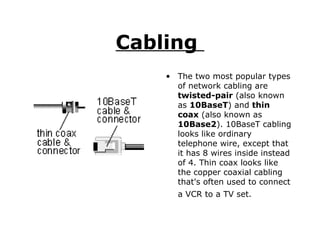
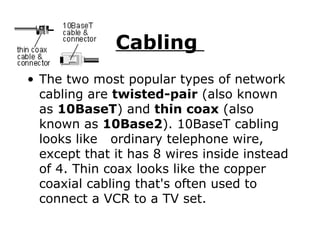
Cabling  The two most popular types of network cabling are  twisted-pair  (also known as  10BaseT ) and  thin coax  (also known as  10Base2 ). 10BaseT cabling looks like ordinary telephone wire, except that it has 8 wires inside instead of 4. Thin coax looks like the copper coaxial cabling that's often used to connect a VCR to a TV set.
Which one? Which type of cabling is best for you? Thin coax and 10BaseT can both be used exclusively or together, depending on the type of network that you're  putting together. Small networks, for example, may want to use 10BaseT cabling by itself, because it's inexpensive, flexible, and ideal for going short distances. Larger networks (usually with 10 or more computers) may use a thin coax backbone with small clusters of 10BaseT cabling that branch off from it at regular intervals.
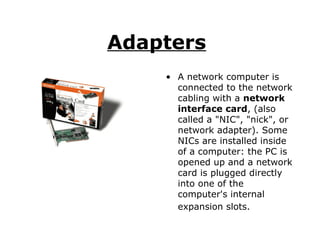
Adapters   A network computer is connected to the network cabling with a  network interface card , (also called a "NIC", "nick", or network adapter). Some NICs are installed inside of a computer: the PC is opened up and a network card is plugged directly into one of the computer's internal expansion slots.
How fast is fast? 286, 386, and many 486 computers have  16-bit  slots, so a 16-bit NIC is needed. Faster computers, like high-speed 486s and Pentiums, often have  32-bit , or  PCI  slots. These PCs require 32-bit NICs to achieve the fastest networking speeds possible for speed-critical applications like desktop video, multimedia, publishing, and databases. And if a computer is going to be used with a Fast Ethernet network, it will need a network adapter that supports 100Mbps data speeds as well.
Where do I plug in? If a PC lacks expansion slots (which is true with portable PCs), special network adapters are used. A PCMCIA network adapter connects a PC to a network if the PC has a credit card-sized PCMCIA expansion slot, while a pocket adapter connects a PC to a network through the its printer port.
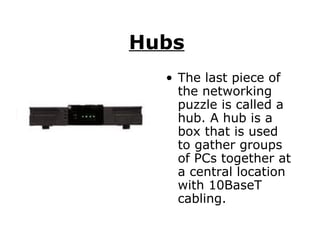
Hubs   The last piece of the networking puzzle is called a hub. A hub is a box that is used to gather groups of PCs together at a central location with 10BaseT cabling.
Switching Hubs If you're networking a small group of computers together, you may be able to get  by with a hub, some 10BaseT cables, and a handful of network adapters. Larger networks often use a thin coax "backbone" that connects a row of 10BaseT hubs together. Each hub, in turn, may connect a handful of computer together using 10BaseT cabling, which allows you to build networks of tens, hundreds, or thousands of nodes.  Like network cards, hubs are available in both standard (10Mbps) and Fast Ethernet (100Mbps) versions. Some switching hubs allow both 10Mbps and 100Mbps networking hardware to be used on the same network.
Cabling  The two most popular types of network cabling are  twisted-pair  (also known as  10BaseT ) and  thin coax  (also known as  10Base2 ). 10BaseT cabling looks like  ordinary telephone wire, except that it has 8 wires inside instead of 4. Thin coax looks like the copper coaxial cabling that's often used to connect a VCR to a TV set.
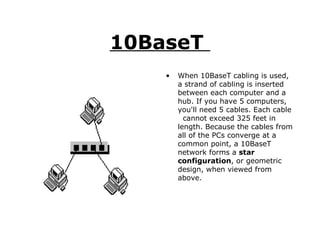
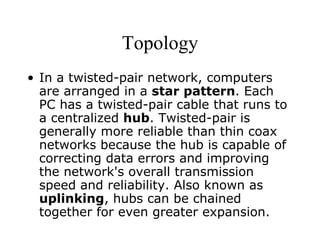
10BaseT  When 10BaseT cabling is used, a strand of cabling is inserted between each computer and a hub. If you have 5 computers, you'll need 5 cables. Each cable  cannot exceed 325 feet in length. Because the cables from all of the PCs converge at a common point, a 10BaseT network forms a  star configuration , or geometric design, when viewed from above.
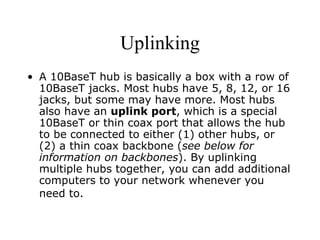
Uplinking A 10BaseT hub is basically a box with a row of 10BaseT jacks. Most hubs have 5, 8, 12, or 16 jacks, but some may have more. Most hubs also have an  uplink port , which is a special 10BaseT or thin coax port that allows the hub to be connected to either (1) other hubs, or (2) a thin coax backbone ( see below for information on backbones ). By uplinking multiple hubs together, you can add additional computers to your network whenever you need to.
Cable Category 10BaseT cabling is available in different grades or  categories . Some grades, or "cats", are required for Fast Ethernet networks, while others are perfectly acceptable for standard 10Mbps networks--and less expensive, too. About 85% of the networks in the U.S. use standard  unshielded twisted-pair (UTP) Category 5  10BaseT cabling because it offers a performance advantage over lower grades. If you are using a 10Mbps network, category 3 is fine. If you plan on building a Fast Ethernet network at some time in the future, it's best to install Category 5 cabling.
Cable Category types Cat 5  Fast Ethernet (and everything below)  Cat 4  Networks other than Ethernet  Cat 3  10Mbps 10BaseT  Cat 2  Alarms, telephone voice lines  Cat 1  Unknown (not rated for anything specific)
Notes If possible, decide whether you'll be using standard Ethernet or Fast Ethernet technology before you begin building your network. If you're not sure which technology you'll eventually use, choose to install Category 5 cabling. Remember, Fast Ethernet network adapters and hubs are not directly compatible with each other. It is possible to have both 10Mbps and 100Mbps segments on the same network, provided you have a switching hub between them that allows them to communicate
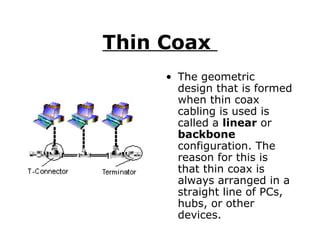
Thin Coax  The geometric design that is formed when thin coax cabling is used is called a  linear  or  backbone  configuration. The reason for this is that thin coax is always arranged in a straight line of PCs, hubs, or other devices.
Terminators Thin coax networks always require  termination , which is the act of "plugging up" both ends of the network. Instead of inserting an incoming thin coax cable directly into a PC, a T-connector is inserted instead, splitting the network adapter's input port into two separate ports. One port receives an incoming network cable; the other receives an outgoing network cable. If the PC is at the end of the network chain, a terminator plug is inserted into the empty hole of the T-connector.
Thin Coax Thin coax is only used with 10Mbps Ethernet networks. Fast Ethernet networks, which are 10 times faster than standard Ethernet, use category 5 10BaseT cabling.  The maximum length for any thin coax segment is 607 feet.
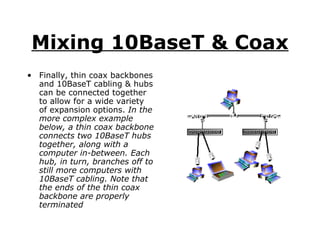
Mixing 10BaseT & Coax Finally, thin coax backbones and 10BaseT cabling & hubs can be connected together to allow for a wide variety of expansion options.  In the more complex example  below, a thin coax backbone connects two 10BaseT hubs together, along with a computer in-between. Each hub, in turn, branches off to still more computers with 10BaseT cabling. Note that the ends of the thin coax backbone are properly terminated
How to Pick Cabling   There are two things to consider when deciding on the type of cable to use for your network.  1. How many PCs do you want to link together? 2. How long (in feet) is your network going to be? The answers to these two questions will determine the cabling that's best for you, and whether or not you'll need a hub.
Use thin coax cabling if you... have fewer than 10 PCs, don't have any portable computers, and  don't plan to expand
Use 10BaseT cabling with a hub if you... have 16 or fewer PCs within a 325 foot radius of each other, have portable computers, and/or  you plan to expand
Use both thin coax and 10BaseT together if... you have more than 16 computers, or  the radius of your workgroup is more than 300 feet
Avoid Interference Network cabling can be run under floors, around office dividers, or over dropped ceilings. When planning your wiring layout, try to keep cables away from power outlets, florescent lighting fixtures, uninterruptable power supplies, and other sources of strong electromagnetic interference. Coiling up cables can also cause interference
Thin Coax Cabling When using thin coax cabling, you must  always  use a T-connector at each PC  and  termination at both ends of the network, even if you're only connecting a couple of computers together.
10BaseT Cabling When using 10BaseT cabling, you  must  use a hub--even if you're only networking 2 PCs together. Many first time networkers forego a hub and simply plug a 10BaseT cable between two PCs' network cards. Such an installation is guaranteed to either (1) not work, or (2) be unreliable
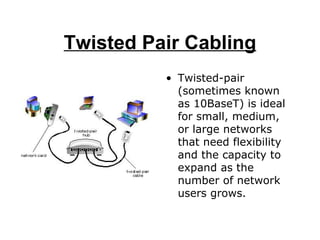
Twisted Pair Cabling Twisted-pair (sometimes known as 10BaseT) is ideal for small, medium, or large networks that need flexibility and the capacity to expand as the number of network users grows.
Topology In a twisted-pair network, computers are arranged in a  star pattern . Each PC has a twisted-pair cable that runs to a centralized  hub . Twisted-pair is generally more reliable than thin coax networks because the hub is capable of correcting data errors and improving the network's overall transmission speed and reliability. Also known as  uplinking , hubs can be chained together for even greater expansion.
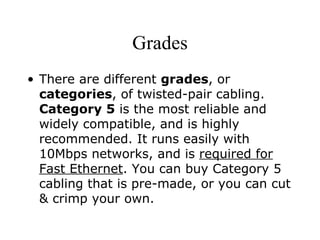
Grades There are different  grades , or  categories , of twisted-pair cabling.  Category 5  is the most reliable and widely compatible, and is highly recommended. It runs easily with 10Mbps networks, and is  required for Fast Ethernet . You can buy Category 5 cabling that is pre-made, or you can cut & crimp your own.
Buy or make? Category 5 cables can be purchased or crimped as either  straight-through or crossed . A Category 5 cable has 8 thin, color-coded wires inside that run from one end of the cable to the other. Only wires 1, 2, 3, and 6 are used by Ethernet networks for communication. Although only four wires are used, if the cable has 8 wires, all the wires have to be connected in both jacks.
Straight Through Cable Straight-through  cables are used for connecting computers to a hub.  Crossed cables  are used for connecting a hub to another hub (there is an exception: some hubs have a built-in uplink port that is crossed internally, which allows you to uplink hubs together with a straight cable instead).
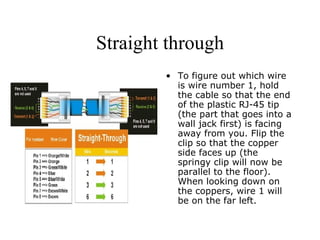
Which wires? In a  straight-through cable , wires 1, 2, 3, and 6 at one end of the cable are also wires 1, 2, 3, and 6 at the other end. In a
Straight through To figure out which wire is wire number 1, hold the cable so that the end of the plastic RJ-45 tip (the part that goes into a wall jack first) is facing away from you. Flip the clip so that the copper side faces up (the springy clip will now be parallel to the floor). When looking down on the coppers, wire 1 will be on the far left.
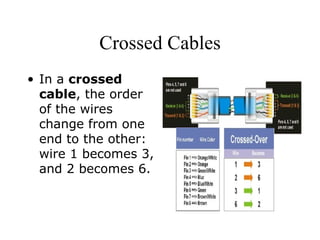
Crossed Cables In a  crossed cable , the order of the wires change from one end to the other: wire 1 becomes 3, and 2 becomes 6.
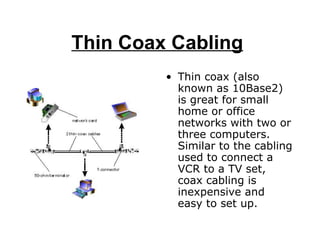
Thin Coax Cabling   Thin coax (also known as 10Base2) is great for small home or office networks with two or three computers. Similar to the cabling used to connect a VCR to a TV set, coax cabling is inexpensive and easy to set up.
Thin Coax In a thin coax network, which is sometimes called a  backbone , computers are arranged in a "chain" with a beginning and an end.  Each computer in a backbone requires a  network card , a  T-connector , and at least one incoming or outgoing coax  cable .  The computer at each end of the network will also require a 50-ohm terminator plug

Network Basics

  • 1.
  • 2.
    Networking Basics A network is a group of computers, printers, and other devices that are connected together with cables. Information travels over the cables, allowing network users to exchange documents & data with each other, print to the same printers, and generally share any hardware or software that is connected to the network. Each computer, printer, or other peripheral device that is connected to the network is called a node . Networks can have tens, thousands, or even millions of nodes.
  • 3.
    Too many rulesLike most things, networks are are assembled according to certain rules. Cabling, for example, has to be a certain length, each cabling strand can only support a certain amount of network traffic, etc. The rules that govern how a network is set up is called its topology . The most popular topology in use today is called Ethernet , which consists of computers and peripherals cabled together in specific ways. Ethernet is relatively inexpensive, easy to set up and use, and very, very fast.
  • 4.
    Need for SpeedEthernet networks are categorized by how fast they can move information. Speed is expressed in megabits per second (or Mbps ), where one "bit" is equal to 1/8th of a character, letter, or number. There are currently two Ethernet speed categories. Standard Ethernet operates at a fast 10Mbps, which is quick enough for most networking tasks. Fast Ethernet , by contrast, races along at a blistering 100Mbps, making it ideal for desktop video, multimedia, and other speed-hungry applications.
  • 5.
    Choosing a typeThe new technology behind Fast Ethernet, which was introduced in the beginning of 1995, is not readily compatible with standard Ethernet. Making the two "talk" with each other requires special equipment and some knowledge of internetworking. If you're building your first network, decide whether to go with standard or Fast Ethernet before you begin shopping around for network hardware and software. Unless you plan on using video, multimedia, or heavy graphics software, plan on using standard Ethernet.
  • 6.
    Cabling Thetwo most popular types of network cabling are twisted-pair (also known as 10BaseT ) and thin coax (also known as 10Base2 ). 10BaseT cabling looks like ordinary telephone wire, except that it has 8 wires inside instead of 4. Thin coax looks like the copper coaxial cabling that's often used to connect a VCR to a TV set.
  • 7.
    Which one? Whichtype of cabling is best for you? Thin coax and 10BaseT can both be used exclusively or together, depending on the type of network that you're putting together. Small networks, for example, may want to use 10BaseT cabling by itself, because it's inexpensive, flexible, and ideal for going short distances. Larger networks (usually with 10 or more computers) may use a thin coax backbone with small clusters of 10BaseT cabling that branch off from it at regular intervals.
  • 8.
    Adapters A network computer is connected to the network cabling with a network interface card , (also called a "NIC", "nick", or network adapter). Some NICs are installed inside of a computer: the PC is opened up and a network card is plugged directly into one of the computer's internal expansion slots.
  • 9.
    How fast isfast? 286, 386, and many 486 computers have 16-bit slots, so a 16-bit NIC is needed. Faster computers, like high-speed 486s and Pentiums, often have 32-bit , or PCI slots. These PCs require 32-bit NICs to achieve the fastest networking speeds possible for speed-critical applications like desktop video, multimedia, publishing, and databases. And if a computer is going to be used with a Fast Ethernet network, it will need a network adapter that supports 100Mbps data speeds as well.
  • 10.
    Where do Iplug in? If a PC lacks expansion slots (which is true with portable PCs), special network adapters are used. A PCMCIA network adapter connects a PC to a network if the PC has a credit card-sized PCMCIA expansion slot, while a pocket adapter connects a PC to a network through the its printer port.
  • 11.
    Hubs The last piece of the networking puzzle is called a hub. A hub is a box that is used to gather groups of PCs together at a central location with 10BaseT cabling.
  • 12.
    Switching Hubs Ifyou're networking a small group of computers together, you may be able to get by with a hub, some 10BaseT cables, and a handful of network adapters. Larger networks often use a thin coax "backbone" that connects a row of 10BaseT hubs together. Each hub, in turn, may connect a handful of computer together using 10BaseT cabling, which allows you to build networks of tens, hundreds, or thousands of nodes. Like network cards, hubs are available in both standard (10Mbps) and Fast Ethernet (100Mbps) versions. Some switching hubs allow both 10Mbps and 100Mbps networking hardware to be used on the same network.
  • 13.
    Cabling Thetwo most popular types of network cabling are twisted-pair (also known as 10BaseT ) and thin coax (also known as 10Base2 ). 10BaseT cabling looks like ordinary telephone wire, except that it has 8 wires inside instead of 4. Thin coax looks like the copper coaxial cabling that's often used to connect a VCR to a TV set.
  • 14.
    10BaseT When10BaseT cabling is used, a strand of cabling is inserted between each computer and a hub. If you have 5 computers, you'll need 5 cables. Each cable cannot exceed 325 feet in length. Because the cables from all of the PCs converge at a common point, a 10BaseT network forms a star configuration , or geometric design, when viewed from above.
  • 15.
    Uplinking A 10BaseThub is basically a box with a row of 10BaseT jacks. Most hubs have 5, 8, 12, or 16 jacks, but some may have more. Most hubs also have an uplink port , which is a special 10BaseT or thin coax port that allows the hub to be connected to either (1) other hubs, or (2) a thin coax backbone ( see below for information on backbones ). By uplinking multiple hubs together, you can add additional computers to your network whenever you need to.
  • 16.
    Cable Category 10BaseTcabling is available in different grades or categories . Some grades, or "cats", are required for Fast Ethernet networks, while others are perfectly acceptable for standard 10Mbps networks--and less expensive, too. About 85% of the networks in the U.S. use standard unshielded twisted-pair (UTP) Category 5 10BaseT cabling because it offers a performance advantage over lower grades. If you are using a 10Mbps network, category 3 is fine. If you plan on building a Fast Ethernet network at some time in the future, it's best to install Category 5 cabling.
  • 17.
    Cable Category typesCat 5 Fast Ethernet (and everything below) Cat 4 Networks other than Ethernet Cat 3 10Mbps 10BaseT Cat 2 Alarms, telephone voice lines Cat 1 Unknown (not rated for anything specific)
  • 18.
    Notes If possible,decide whether you'll be using standard Ethernet or Fast Ethernet technology before you begin building your network. If you're not sure which technology you'll eventually use, choose to install Category 5 cabling. Remember, Fast Ethernet network adapters and hubs are not directly compatible with each other. It is possible to have both 10Mbps and 100Mbps segments on the same network, provided you have a switching hub between them that allows them to communicate
  • 19.
    Thin Coax The geometric design that is formed when thin coax cabling is used is called a linear or backbone configuration. The reason for this is that thin coax is always arranged in a straight line of PCs, hubs, or other devices.
  • 20.
    Terminators Thin coaxnetworks always require termination , which is the act of "plugging up" both ends of the network. Instead of inserting an incoming thin coax cable directly into a PC, a T-connector is inserted instead, splitting the network adapter's input port into two separate ports. One port receives an incoming network cable; the other receives an outgoing network cable. If the PC is at the end of the network chain, a terminator plug is inserted into the empty hole of the T-connector.
  • 21.
    Thin Coax Thincoax is only used with 10Mbps Ethernet networks. Fast Ethernet networks, which are 10 times faster than standard Ethernet, use category 5 10BaseT cabling. The maximum length for any thin coax segment is 607 feet.
  • 22.
    Mixing 10BaseT &Coax Finally, thin coax backbones and 10BaseT cabling & hubs can be connected together to allow for a wide variety of expansion options. In the more complex example below, a thin coax backbone connects two 10BaseT hubs together, along with a computer in-between. Each hub, in turn, branches off to still more computers with 10BaseT cabling. Note that the ends of the thin coax backbone are properly terminated
  • 23.
    How to PickCabling There are two things to consider when deciding on the type of cable to use for your network. 1. How many PCs do you want to link together? 2. How long (in feet) is your network going to be? The answers to these two questions will determine the cabling that's best for you, and whether or not you'll need a hub.
  • 24.
    Use thin coaxcabling if you... have fewer than 10 PCs, don't have any portable computers, and don't plan to expand
  • 25.
    Use 10BaseT cablingwith a hub if you... have 16 or fewer PCs within a 325 foot radius of each other, have portable computers, and/or you plan to expand
  • 26.
    Use both thincoax and 10BaseT together if... you have more than 16 computers, or the radius of your workgroup is more than 300 feet
  • 27.
    Avoid Interference Networkcabling can be run under floors, around office dividers, or over dropped ceilings. When planning your wiring layout, try to keep cables away from power outlets, florescent lighting fixtures, uninterruptable power supplies, and other sources of strong electromagnetic interference. Coiling up cables can also cause interference
  • 28.
    Thin Coax CablingWhen using thin coax cabling, you must always use a T-connector at each PC and termination at both ends of the network, even if you're only connecting a couple of computers together.
  • 29.
    10BaseT Cabling Whenusing 10BaseT cabling, you must use a hub--even if you're only networking 2 PCs together. Many first time networkers forego a hub and simply plug a 10BaseT cable between two PCs' network cards. Such an installation is guaranteed to either (1) not work, or (2) be unreliable
  • 30.
    Twisted Pair CablingTwisted-pair (sometimes known as 10BaseT) is ideal for small, medium, or large networks that need flexibility and the capacity to expand as the number of network users grows.
  • 31.
    Topology In atwisted-pair network, computers are arranged in a star pattern . Each PC has a twisted-pair cable that runs to a centralized hub . Twisted-pair is generally more reliable than thin coax networks because the hub is capable of correcting data errors and improving the network's overall transmission speed and reliability. Also known as uplinking , hubs can be chained together for even greater expansion.
  • 32.
    Grades There aredifferent grades , or categories , of twisted-pair cabling. Category 5 is the most reliable and widely compatible, and is highly recommended. It runs easily with 10Mbps networks, and is required for Fast Ethernet . You can buy Category 5 cabling that is pre-made, or you can cut & crimp your own.
  • 33.
    Buy or make?Category 5 cables can be purchased or crimped as either straight-through or crossed . A Category 5 cable has 8 thin, color-coded wires inside that run from one end of the cable to the other. Only wires 1, 2, 3, and 6 are used by Ethernet networks for communication. Although only four wires are used, if the cable has 8 wires, all the wires have to be connected in both jacks.
  • 34.
    Straight Through CableStraight-through cables are used for connecting computers to a hub. Crossed cables are used for connecting a hub to another hub (there is an exception: some hubs have a built-in uplink port that is crossed internally, which allows you to uplink hubs together with a straight cable instead).
  • 35.
    Which wires? Ina straight-through cable , wires 1, 2, 3, and 6 at one end of the cable are also wires 1, 2, 3, and 6 at the other end. In a
  • 36.
    Straight through Tofigure out which wire is wire number 1, hold the cable so that the end of the plastic RJ-45 tip (the part that goes into a wall jack first) is facing away from you. Flip the clip so that the copper side faces up (the springy clip will now be parallel to the floor). When looking down on the coppers, wire 1 will be on the far left.
  • 37.
    Crossed Cables Ina crossed cable , the order of the wires change from one end to the other: wire 1 becomes 3, and 2 becomes 6.
  • 38.
    Thin Coax Cabling Thin coax (also known as 10Base2) is great for small home or office networks with two or three computers. Similar to the cabling used to connect a VCR to a TV set, coax cabling is inexpensive and easy to set up.
  • 39.
    Thin Coax Ina thin coax network, which is sometimes called a backbone , computers are arranged in a "chain" with a beginning and an end. Each computer in a backbone requires a network card , a T-connector , and at least one incoming or outgoing coax cable . The computer at each end of the network will also require a 50-ohm terminator plug