
REPORT ON
Computer Network
Understanding Networking Jobs
• Network Administrator

 ▫ Network administrators are responsible for the operations
   of a network or, in larger companies, for the operations of
   key parts of the network. In a smaller company that has
   only one network administrator, duties include the
   following:

    Creating, maintaining, and removing user accounts.
    Ensuring that necessary backups are made on a regular basis
    Managing the “keys” to the network, such as the administrative
     accounts and their passwords.
    Managing network security policies.
    Adding new networking equipment, such as servers, routers,
     hubs, and switches, and managing that equipment.
    Troubleshooting network problems
    Also known as System Administrators, LAN Administrators.
Understanding Networking Jobs
• Network Engineer
    Network engineers are more deeply involved in the bits and bytes
     of a network. They are expected to be expert in the network
     operating systems with which they work, especially in the
     network’s key hardware, such as its hubs, routers, switches, and so
     forth.

    Network engineers are also usually the troubleshooters of last
     resort, who are brought in to diagnose and fix the most vexing
     problems that surpass the ability of the network administrator to
     resolve.

    Aside from often holding a degree in electrical engineering or
     computer science, network engineers typically have at least five
     years’ experience running and troubleshooting complex networks.
     Also, network engineers typically carry certifications from
     networking equipment companies, such as Cisco’s well-regarded
     certification program.
Understanding Networking Jobs
• Network Architect/Designer

    Network architects (sometimes also called network designers)
     usually work for companies that sell and support networks or
     for organizations with large networks that are constantly
     changing and expanding.

    Essentially, network architects design networks. They must
     know the business requirements that the network needs to
     meet and have a thorough understanding of all of the
     networking products available, as well as how those products
     interact.

    Network architects are also important when growing a
     sophisticated network and helping to ensure that new additions
     to the network don’t cause problems elsewhere in the network.
Understanding Networking Jobs
• Other Network-Related Jobs

    There are a wide variety of other network-related
     jobs, including some that do not involve working
     directly with the network, such as the job of database
     administrator.

    Organizations employ e-mail administrators,
     webmasters, web designers, network support
     technicians, and so on.

    In fact, a dizzying number of different jobs are
     available in the networking field.
Understanding Networking: The
Corporate Perspective

• What Does the Company Need?

• How Will the Network Benefit the Company?
Networking Speeds
• Basic Terminology to Describe Networking Speeds
     The business of networking is almost entirely about moving data from
      one point to     another. Accordingly, one of the most important
      things that you need to understand about any network connection is
      how much data it can carry. Broadly, this capacity is called
      bandwidth, which is measured by the amount of data that a
      connection can carry in a given period of time.

     The most basic measurement of bandwidth is bits per second,
      abbreviated as bps.

     Bandwidth is how many bits the connection can carry within a second.
      More commonly used are various multiples of this measurement,
      including thousands of bits per second         (Kbps), millions of bits
      per second (Mbps), or billions of bits per second (Gbps).


• Remember that bits per second is not bytes per second. To
  arrive at the bytes per second when you know the bits per
  second (approximately), divide the bps number by 8.
Networking Speeds
   A closely related measurement that you will also see bandied
    about is hertz, which is the number of cycles being carried per
    second. Hertz is abbreviated as Hz.

   Just as with bps, it is the multiples of hertz that are talked
    about the most, including thousands of hertz (KHz, or
    kilohertz) and millions of hertz (MHz, or megahertz).

   For example a microprocessor running at 100 MHz is running
    at 100 million cycles per second. The electricity in the United
    States runs at 60 Hz; in Europe, the speed is 50 Hz.

   Hertz and bits per second are essentially the same and are
    sometimes intermixed. For example, thin Ethernet cable is said
    to run at 10 MHz and also to carry 10 Mbps of bandwidth.
Understanding Networking
• The term network relationships refers to how one computer makes
  use of another computer’s resources over the network. Two
  fundamental types of network relationships exist:

  ▫ Peer-to-Peer .
  ▫ Client/Server.

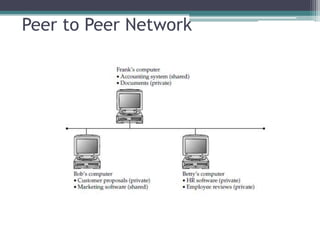
     A peer-to-peer network is much like a company with a decentralized
      management philosophy, where decisions are made locally and resources are
      managed according to the most immediate needs.

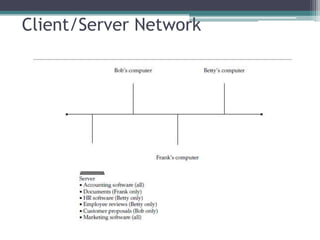
     A client/server network is more like a company that uses centralized
      management, where decisions are made in a central location by a relatively
      small group of people.

     Circumstances exist where both peer-to-peer and client/server relationships
      are appropriate, and many networks incorporate aspects of both types.
Peer to Peer Network
• Pros for Peer-to-Peer Networks

 ▫ Peer-to-peer networks offer a number of
   advantages, particularly for smaller firms, as
   follows:

   Use less expensive Computer Hardware

   Easy to Administer

   No Network Operating System required.

   More built-in redundancy.
• Cons for Peer-to-Peer Networks
 There are also various drawbacks to peer-to-peer
 networks, particularly for larger networks or for
 networks that have more complex or sophisticated
 requirements. The disadvantages include the
 following:
    Might impact user’s performance.

    Not very secure.

    Difficult to back up.

    Hard to maintain version control.
Client/Server Network
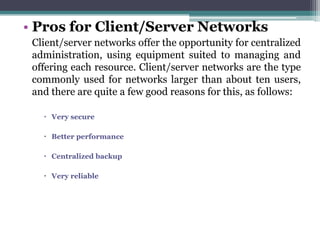
• Pros for Client/Server Networks
 Client/server networks offer the opportunity for centralized
 administration, using equipment suited to managing and
 offering each resource. Client/server networks are the type
 commonly used for networks larger than about ten users,
 and there are quite a few good reasons for this, as follows:

    Very secure

    Better performance

    Centralized backup

    Very reliable
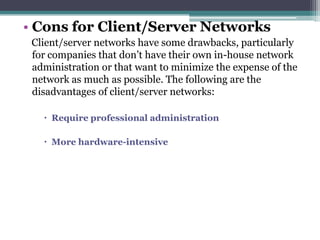
• Cons for Client/Server Networks
 Client/server networks have some drawbacks, particularly
 for companies that don’t have their own in-house network
 administration or that want to minimize the expense of the
 network as much as possible. The following are the
 disadvantages of client/server networks:

    Require professional administration

    More hardware-intensive
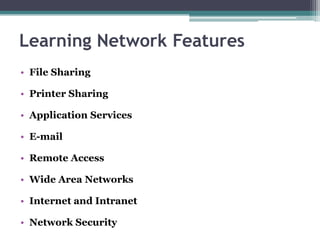
Learning Network Features
• File Sharing

• Printer Sharing

• Application Services

• E-mail

• Remote Access

• Wide Area Networks

• Internet and Intranet

• Network Security
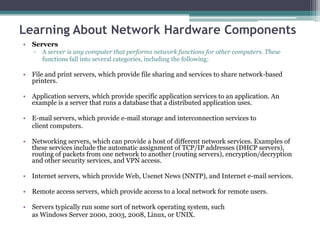
Learning About Network Hardware Components
• Servers
   ▫   A server is any computer that performs network functions for other computers. These
       functions fall into several categories, including the following:

• File and print servers, which provide file sharing and services to share network-based
  printers.

• Application servers, which provide specific application services to an application. An
  example is a server that runs a database that a distributed application uses.

• E-mail servers, which provide e-mail storage and interconnection services to
  client computers.

• Networking servers, which can provide a host of different network services. Examples of
  these services include the automatic assignment of TCP/IP addresses (DHCP servers),
  routing of packets from one network to another (routing servers), encryption/decryption
  and other security services, and VPN access.

• Internet servers, which provide Web, Usenet News (NNTP), and Internet e-mail services.

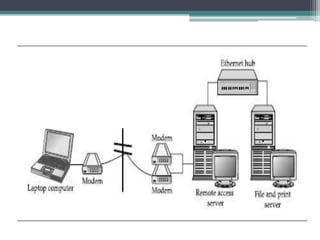
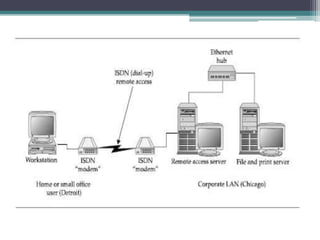
• Remote access servers, which provide access to a local network for remote users.

• Servers typically run some sort of network operating system, such
  as Windows Server 2000, 2003, 2008, Linux, or UNIX.
• A number of features distinguish a true server-class computer
  from a more pedestrian client computer, including the following:

  ▫ Built-in redundancy with multiple power supplies and fans (for
    instance) to keep the server running if something breaks.

  ▫ Special high-performance designs for disk subsystems, memory, and
    network subsystems to optimize the movement of data to and from
    the server, the network, and the client computers.

  ▫ Special monitoring software and hardware that keeps a close watch
    on the health of the server, warning of failures before they occur.

  ▫ For example, most servers have temperature monitors; if the
    temperature starts getting too high, a warning is issued so the
    problem can be resolved before it causes failure of any of the
    hardware components in the server.
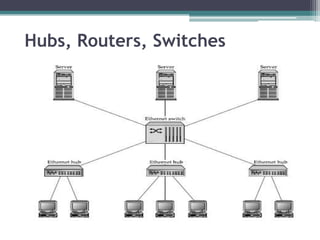
Hubs, Routers, Switches
Cabling and Cable Plants
• The term cable plant refers to the entire installation of all
  your network cable.

• It includes not only the cable run throughout a building, but
  also the connectors, wall plates, patch panels, and so forth.

• It’s extremely important that a new installation of a cable
  plant be performed by a qualified contractor trained to install
  that type of cable.

• Cable may appear simple, but it is actually quite complicated,
  and its installation is also complex.

• Moreover, if problems develop in a cable plant, they can be
  expensive to resolve. It’s best to get it right the first time!
Workstation Hardware
• Any computer on a network that is used by people is
  usually referred to as a network workstation.
  Sometimes such workstations are also called
  network clients.

• Usually, a network client is an Intel-based PC
  running some version of Windows, which has a
  NIC and network client software installed, allowing
  the workstation to participate on the network.

• Network workstations can also be any other type of
  computer that includes the necessary network
  hardware and software, such as an Apple Macintosh
  or some form of UNIX-based computer.
Tips
• Even in a pure peer-to-peer network, using a dedicated computer for certain
  frequently accessed resources is possible. For example, you might host the
  application and data files for an accounting system on a single workstation, and not
  use that computer for typical workstation tasks, such as word processing, so that all
  of the computer’s performance is available for the accounting system. The computer
  is still working in a peer-to-peer fashion; it’s just used for a single purpose.

• Make sure any applications you host on a network server are licensed appropriately.
  Most software licenses do not let you run an application on multiple computers.
  Even if you need only one actual copy of the application to set up the files on the
  server, you still must have a license for every user. Different applications have
  different fine print regarding licensing—some require one license per user, some
  require one license per computer, some allow your network users to use a copy at
  home freely, and so forth. Make sure to carefully read the license agreements for your
  business software and adhere to their terms and conditions.

• Most database programs do allow multiple users to access a database simultaneously.
  Often, this is done using a technique called row locking, which restricts changes to
  any given record to only one user at a time.
Tips
• DEFINE-IT! xAN
  A myriad of terms refer to what are essentially wide area networks, all with
  variations on the xAN acronym scheme. Some examples include
  metropolitan area network (MAN), distance area network (DAN), campus
  area network (CAN), and even—I’m not making this up—personal area
  network (PAN), which was an IBM demonstration technology where two
  people shaking hands could exchange data through electrical signals carried
  on the surface of their skin. Just stick with the two core terms: LAN and
  WAN.

• Server computers can be nearly any type of computer, but today they are
  usually high-end Intel-based PCs. You might also see certain types of
  servers that use a different platform. For instance, many dedicated web
  servers run on UNIX-based computers, such as those from Sun
  Microsystems, IBM, Hewlett-Packard, and other vendors.

• The twisting of each pair in the cable jacket reduces the chances of the cable
  picking up electrical interference.
Tips
• It is possible to run a Cat-3 network connection over Cat-5 cable. Because of
  this, many companies installed the higher-grade cable, even if they didn’t
  immediately need it, because the cost of rewiring an entire building is very
  high.

• Don’t confuse network workstations (a generic term) with workstation-
  class computers. Workstation-class computers are higher-end desktop
  computers used for computer-aided design, engineering, and graphics
  work.

• Don’t confuse client/server networks with client/server database systems.
  While the two mean essentially the same thing (conceptually), a
  client/server database is one where the processing of the database
  application is divided between the database server and the database clients.
  The server is responsible for responding to data requests from the clients
  and supplying them with the appropriate data, while the clients are
  responsible for formatting, displaying, and printing that data for the user.
  For instance, Windows Server 2008 is a client/server network operating
  system, while Oracle’s database or Microsoft’s SQL Server are client/server
  database systems.
Making WAN Connections
• Many companies have multiple locations that
  need to share network resources.

• Some companies have offices all around the
  globe, and each office has different requirements
  both to access and update data in other
  locations.

• All of these are situations in which a wide area
  network (WAN) can be useful.
Determining WAN Needs
• WAN links are almost always fairly expensive to maintain.

• Bandwidth needs increase over time; and these upgrades are
  costly. Also, WAN links are generally much more prone to
  trouble than LANs, because many additional possible points
  of failure exist.

• For these reasons, it’s important to assess the need for a WAN
  carefully, and then study the different options available, their
  costs, and the trade-offs involved.

• Costs can vary wildly between different technologies, speeds,
  and other factors (including your location), so you need to rely
  heavily on cost and availability data from local providers for
  your own WAN analysis.
VPN
• Often, the need for a WAN can be satisfied using a
  technology called virtual private networks (VPNs). A
  VPN is a private network created through a public
  network, typically the Internet.
• A VPN is called “private” because all of the packets
  between two points are encrypted, so even though
  the packets are transmitted over a public network,
  their information remains secure.
• And because VPNs use the Internet, they’re usually
  much cheaper than dedicated WAN links, and they
  often can make use of existing Internet connections
  for two (or more) locations.
Analyzing Requirements
• What are the locations that will participate in the WAN
  and what kind of WAN services are available to them?
• How much data needs to be transferred from each site to
  each other site, and in what time frame?
• How quickly does the data need to be transferred?
• Does the data transfer need to be synchronous or can it
  be asynchronous?
• When do the data transfers need to be accomplished?
  Do they need to occur 24hours a day, 7 days a week? Or
  do they need to occur once every 30 minutes, or follow
  some other schedule?
• What are the budget constraints, and what are the costs
  of the different available alternatives?
Switched or Dedicated?
• A switched WAN link is one that is not active all
  the time.

• For instance, a dial-up modem connection or an
  ISDN connection from one location to another is
  a switched connection. These are connections
  that are formed only when you need them, and
  you usually pay for the time the connection is
  open, rather than the amount of data you’re
  able to transmit over the connection.
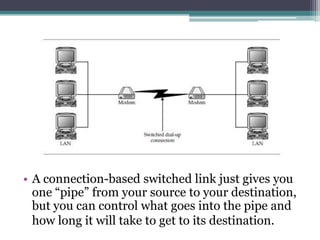
• Switched links can be either connection-based or
  packet-based.
• A connection-based switched link forms a
  connection as needed and makes a fixed amount
  of bandwidth available over that link.
• A packet-based switched link sends data
  packets into a network cloud in which they can
  follow a number of paths to their destination,
  and then emerge from the cloud.
• Packet-switched networks can be more reliable
  because the data can take many different paths,
  but you are not guaranteed that each packet will
  arrive in a certain amount of time.
• A connection-based switched link just gives you
  one “pipe” from your source to your destination,
  but you can control what goes into the pipe and
  how long it will take to get to its destination.
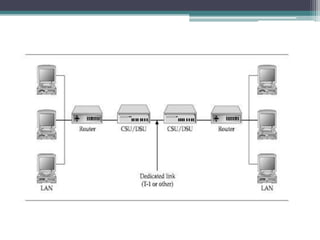
• A dedicated WAN link is one that is always up
  and running.

• Examples of dedicated WAN connections are
  DS1 (T-1) lines, xDSL lines, and leased telephone
  lines.

• You use a dedicated connection when you need
  the connection to be up all the time or when the
  overall economics show that such a connection is
  cheaper than a switched link.
Private or Public?
• A private network is one that is exclusive to a
  particular company.
• No other company’s data is sent over the private
  network. The advantages are that the data is secure,
  you can control how the network is used, and you
  can predict how much bandwidth you have
  available.
• A public network (or external network), such as the
  Internet, is a network through which many
  companies’ data passes.
• Public networks are less secure than private
  networks, but the advantages are that public
  networks are less expensive to use and you don’t
  need to maintain the external network yourself.
Public Network
• You don’t care if data occasionally takes longer
  to reach its destination or if the delay between
  sites is relatively unpredictable.
• You want the lowest cost network connection
  possible.
• The data does not need to be secure or you have
  the ability to make it secure over the public
  network.
• Technologies such as virtual private networks or
  some types of data encryption can provide such
  security.
Private Network
• Data security is of utmost concern.

• You have a large, experienced staff to set up and
  maintain the public network.

• Cost is unimportant relative to the benefits that
  the network brings.

• You need full, reliable control over the network’s
  bandwidth use.
Comparing WAN Connection Types

• Plain Old Telephone Service (POTS)


• Integrated Services Digital Network (ISDN)


• Digital Subscriber Line (DSL)
•
    POTS?
    Plain old telephone service (POTS) is the telephone service everyone knows.

•   While it does not technically qualify as a WAN connection, POTS can still serve to link two or more sites
    together for certain low bandwidth needs. Although it is among the slowest methods of establishing a
    network connection.

•   POTS is ubiquitous and easily used throughout the world.

•   POTS is carried over one set of twisted-pair wires (in other words, just two wires).

•   In some cases, two sets of twisted-pair wires are used, but only the two main wires
    carry the telephone signal and ring signals.

•   The maximum theoretical speed of basic analog POTS is 33.6 Kbps. Many factors
    can decrease this speed; chief among them is line quality. Telephone lines with static
    typically do not connect at the top speed of 33.6 Kbps, and they might lose their
    connections unexpectedly, lose data being transmitted, or pause for excessive periods
    of time as bursts of static inhibit the ability to transfer data.

•   When you are using POTS to establish a network connection, having matched
    modems at both ends is optimal. Matched modems from the same manufacturer
    more easily negotiate the highest possible data transmission rates and often can
    support “step-down” modes, which automatically use a slower speed when line noise
    unexpectedly becomes a problem.

•   With much higher speed Internet connections being ubiquitous these days, POTS is
    not often used for transmitting data, except in extremely rare cases. However, given its
    heavy past use, and the remote chance that you might run into a system using a POTS
    connection for some type of data transmission, you should be familiar with it.
Digital Subscriber Line (DSL)

• The digital subscriber line (DSL) connection
  type has become widely available. A number of
  different flavors of DSL exist. Each of these types
  begins with a different initial or combination of
  initials, which is why DSL is often called xDSL.
• ADSL Asymmetric DSL (ADSL) allows for up
  to 8 Mbps of data to be received and up to 1
  Mbps of data to be sent.

• However, many Companies offer only up to 1.5
  Mbps to be received (which is called the
  downstream direction) and 256 Kbps to be sent
  (called the upstream direction).

• At further distances, connections might be
  available only at much slower speeds (although
  in all cases, ADSL is still faster than POTS
  connections using a modem).
• HDSL High-speed DSL (HDSL) allows from 768 Kbps to
  2.048 Mbps connections between two sites. HDSL is
  symmetric, meaning that the available upstream bandwidth
  and downstream bandwidth are the same.

• RADSL Rate-adaptive DSL (RADSL) allows for 600 Kbps to
  12 Mbps of data to be received and 128 Kbps to 1 Mbps of data
  to be sent. RADSL is asymmetric.

• SDSL Symmetric DSL (SDSL) allows bidirectional rates
  varying from 160 Kbps to 2.048 Mbps.

• VDSL Very-high-speed DSL (VDSL) allows up to
  approximately 52 Mbps of bandwidth. VDSL can be either
  symmetric or asymmetric.

• IDSL ISDN-based DSL (IDSL) speed is about the same as
  ISDN. IDSL is used for data almost exclusively, because it’s an
  always-on connection to a single destination.
Why Asymmetric DSL?
• Many data access needs are asymmetrical. In other words, at any
  given time, a system often needs to receive more data than it needs
  to send, or vice versa. Most remote access connections, particularly
  Internet connections, are asymmetrical.

• The emphasis is on being able to receive data rapidly, rather than on
  sending data rapidly. Because of this, ADSL is the most popular
  among the xDSL implementations, simply because it offers more
  benefits within the same amount of total frequency bandwidth.

• Many applications will work far better with the data rate being
  faster downstream than upstream.

• Some xDSL implementations are symmetric, such as SDSL and
  HDSL. These connection types are more suited to uses where the
  exchange of data is roughly equal in both directions, such as two
  remote LANs that are connected to one another.
T-1/T-3 (DS1/DS3) Connections
• More than 40 years ago, Bell Laboratories
  developed a hierarchy of systems that can carry
  digital voice signals.
• At the lowest level in this hierarchy is a DS0
  connection (DS stands for Digital Signal), which
  carries 64 Kbps of bandwidth.
• A DS1 connection aggregates 24 DS0 channels
  and can carry up to 1.544 Mbps when all
  channels are in use.
• The next-common level is called a DS3, which
  carries 672 DS0 channels, for an aggregate total
  of 44.736 Mbps.
• The DS1 connection is commonly called a T-1 connection,
  which actually refers to the system of repeaters that can carry
  the DS1 traffic over a four-wire twisted-pair connection.

• A DS1 connection can handle up to 24 voice calls or as many
  as 24 data connections simultaneously.

• Or, using a multiplexer and a DS1, you can form one big 1.544
  Mbps connection.

• A popular technology called fractional T-1 also exists, where
  a full DS1 is installed, but only the number of channels you
  pay for are turned on and available for use.

• Fractional T-1 is great because you can buy just the bandwidth
  you need, and increasing the bandwidth (up to the maximum
  for a DS1) is just a phone call (and some more money!) away.
Asynchronous Transfer Mode (ATM)
• Asynchronous Transfer Mode, commonly called just ATM, is a
  very high-speed technology for transmitting data between
  locations.

• ATM is a multiplexed, cell-based networking technology that
  collects data into entities called cells and then transmits the
  cells over the ATM network connection.

• ATM networks can carry both voice and data. ATM is very
  fast, with speeds ranging from 155 Mbps to 622 Mbps, and in
  some cases can go as high as 10 Gbps.

• Usually, ATM is used only by relatively large companies that
  need ATM’s speed for their WAN links, or by companies that
  need to send enormous amounts of data through a network
  connection, such as a lot of video data.
How xDSL Works
• The twisted-pair copper wire that carries POTS is capable of
  carrying signals with up to a 1 MHz spread of frequencies.

• However, POTS uses only 8 KHz of that potential frequency
  bandwidth.

• The CO switch contains a card that interfaces with the analog
  signal that the twisted-pair wire sends to the phone
  company’s digital network.

• This interface card allows only 4 KHz of signaling frequencies
  in each direction, even though the wire itself is capable of
  carrying a far broader frequency range. This limitation exists
  for standard telephone service because 4 KHz provides
  reasonable clarity for voice communications, and much of the
  telephone system is designed around those types of circuits.
• xDSL works by opening up that 1 MHz maximum
  capability through the use of new xDSL interface
  cards, which the Companies install in their CO
  switch in place of the cards used for voice lines.

• The distance from the computer equipment to the
  CO switch limits the data rate, however.

• Most xDSL implementations function optimally at
  up to 3,600 meters (12,000 feet, or about 2 miles).

• In particular, the 8 Mbps downstream and 1 Mbps
  upstream data rates of ADSL are possible only
  within the 3600-meter distance to the CO. Longer
  distances are possible, but not at that full possible
  data rate.
Connections from Afar:

Remote Network Access
Why Remote Access ?
• With today’s travel-happy corporate cultures,
  and with companies needing to support such
  things as working from home and small remote
  offices, remote access has become more
  important than ever.

• Unfortunately, it’s also one of the most difficult
  parts of a network to get right.
• One of the big problems with remote access is that it
  can seem as though all the remote users have
  different requirements, the various solutions
  address different needs, and none of those solutions
  takes care of all the needs.

• Finding solid solutions that meet those needs is
  usually nontrivial and requires a fair amount of time
  and effort.
• Understanding Application Implications for Remote
  Access
• Client/server applications consist of processes (programs) that run on both the
  server side and the client side, and work in concert. For example, a database
  server performs queries for the client, and then transmits to the client only the
  results of that query. The client’s job is just to display the results and maybe
  format them for printing.

• A monolithic application, on the other hand, performs all of its work on one
  computer, typically the client computer. The server for a monolithic application
  serves up only the files needed for the application to run and the data files that
  the application manipulates.

• Generally, client/server applications require much less bandwidth to work
  at acceptable speeds than monolithic applications. A slow network connection
  might be adequate for a client/server application, such as an accounting system,
  whereas that connection would be totally inadequate for that same application
  designed to be monolithic.
What Types of Remote Users Do You
Need to Support?
• Users who require remote access generally
  fall into one of the following four categories:

• Broad traveler

• Narrow traveler

• Remote office user

• Remote office group
Broad Traveler
• The broad traveler is the most common type of remote access
  user. This is someone who normally is based in an office that
  has LAN access, but also travels on business.

• Travel takes this person to virtually any place in the world, so
  the traveler must contend with different telephone systems,
  long-distance carriers, and other geographic Challenges.

• Often, this type of user mostly needs e-mail access, with
  occasional access to stored or e-mailed files. The user might
  normally use a desktop computer on the LAN but have a
  laptop computer for traveling, might use a single laptop both
  on the LAN and when traveling, might check out laptop
  computers from a shared pool when travel needs arise, or
  might even rent a laptop computer for an occasional travel
  need. These different approaches further complicate
  providing services to the broad traveler.
Narrow Traveler
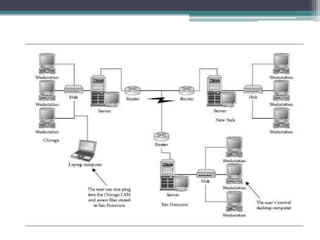
• The narrow traveler is someone who travels to
  relatively few locations, such as from corporate
  headquarters to the company’s manufacturing
  plants or distribution centers.
• Since you can predict the sites from which the user
  might need to access data, local support may be
  available to help.
• For instance, you might have a way for the user to
  log in to the distribution center’s LAN and access e-
  mail and files at the headquarters location through
  an existing WAN link. This type of user needs e-
  mail, file access, and possibly access to a centralized
  application, such as an accounting system.
Remote Office User
• The remote office user is in a single location and
  needs access to the corporate LAN for e-mail and
  possibly for application access.

• This person usually does not need file access, except
  to send files through the e-mail system, because this
  person maintains local file storage.

• This user is in a single location, so you can pursue
  certain high-speed links that are not feasible for the
  travelers. A person telecommuting from home
  would fall into the category of remote office user.
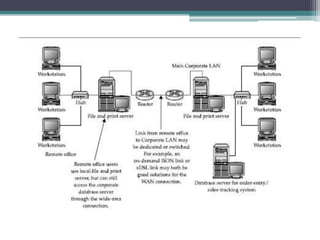
Remote Office Group
• Sometimes a small group (two to five people)
  stationed in a remote location needs certain services
  from the corporate LAN. These services are not cost-
  effective for this group to have locally, yet these
  users have a small local LAN for printer and file
  sharing.

• These users fall into the remote office group
  category, which needs a combination of services.
  Partly they are like any user of a remote LAN, and
  partly they are like a remote office user. They
  usually require a mixture of both types of solutions
  for proper support.
What Types of Remote Access Are
  Required?
• Easy remote access to e-mail and to files stored in e-mail.
• Remote access to stored private or shared files on the LAN.
• Remote access to a centralized application, such as an
  accounting system or a sales order system.
• Remote access to groupware programs or custom
  applications
• Internet access
• Intranet/extranet access, including any hosted web-based
  applications on those systems
• Remote access to any of the previous features from a fixed
  location, such as a remote sales office
• Remote access to any of the previous features from
  anywhere in the world
How Much Bandwidth Do You Need?
• When examining remote access needs, you need to estimate bandwidth
  requirements and tolerances for the different users. This is important for
  planning and also for appropriately setting user expectations.

• On the LAN, you can monitor the amount of data being sent to a
  particular node that uses the application in the way it would be used
  remotely. You can measure the data in a number of ways.

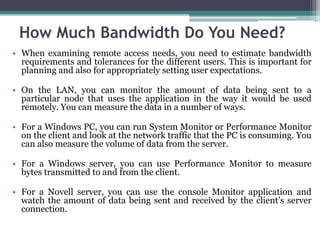
• For a Windows PC, you can run System Monitor or Performance Monitor
  on the client and look at the network traffic that the PC is consuming. You
  can also measure the volume of data from the server.

• For a Windows server, you can use Performance Monitor to measure
  bytes transmitted to and from the client.

• For a Novell server, you can use the console Monitor application and
  watch the amount of data being sent and received by the client’s server
  connection.
• If the bandwidth requirements of an application are
  simply too great to handle over the type of remote
  connection that you have available (such as a 33.6
  Kbps modem connection), you need to explore other
  alternatives.
• These include using a remote control solution or
  using the application in a different way.
• For example, you might load the application onto
  the remote computer rather than use it across the
  LAN.
• Also, perhaps the user does not need the data to be
  updated so frequently, and you can set up a
  procedure whereby the user receives weekly data
  updates on a CD-R disc or an overnight download.
Learning Remote Access Technologies
• A variety of different ways exist to accomplish
  remote access connections for users.

• Sometimes these different technologies are
  appropriate for some users but not for others.

• Sometimes the choices you have are restricted by
  how the remote user needs to access the data.
Remote Node Versus Remote Control
• A remote node connection is one in which the remote computer
  becomes a node on the network. Data flows between the remote
  node and the network much as it would for a LAN-connected user,
  albeit usually at much slower rates. When you connect to an
  Internet service provider (ISP) to access the Internet, you are using
  a remote node connection.

• A remote control connection is one in which a remote user takes
  control of another computer directly connected to the LAN, with
  only the screen, keyboard, and mouse information being
  transmitted through the connection. Because the remote control
  computer is directly connected to the LAN, its network performance
  is just as fast as that of any other LAN workstation. The information
  actually transmitted—the screen information, keyboard data, and
  mouse data—usually doesn’t require much bandwidth.

• Remote control connections also have ways to transfer files back
  and forth from the remote computer to the controlled computer, so
  files can still be downloaded from the LAN to the remote computer
  and vice versa.
• Two types of remote control applications are
  available. The first runs on a single computer and
  supports a single remote computer at a time.
  pcAnywhere and GoToMyPC are examples of this
  type.

• Another type allows multiple sessions to run on a
  single computer, so you can allow more than one
  user making use of a single computer connected to
  the LAN. Windows NT Terminal Server, Windows
  Terminal Services, and Citrix XenServer are
  examples of this type. The ultiuser solutions use the
  LAN computer’s multitasking capabilities to
  construct multiple virtual PCs, windows, and
  desktops, sort of like a mainframe with multiple
  terminal sessions.
• When a remote user needs only LAN file access and e-mail access, a remote
node connection can meet these needs and is often simpler to set up and
maintain on both sides of the connection.

• If a remote user needs to run an application that is LAN-connected, choose
remote control. A few applications might be able to run reasonably well over
a remote node connection, provided the application itself is already installed
on the remote computer and the application must access only relatively small
amounts of data through the remote link. E.g. MS Outlook

• Many applications are now web-enabled, so a remote user can use a web
browser to access and use such applications. These types of applications run
equally well—more or less—over a remote node or remote control connection.

• If you need to maintain an application directly for the users, remote control
might be the way to go, because it leaves the application on the LAN-connected
machine, where you can easily access it to make configuration changes or
perform other maintenance. The remote user runs only the remote control
software and instantly benefits from any work you do on the LAN-connected
machine. This capability can provide a real advantage if your network’s users
are not comfortable doing their own maintenance or troubleshooting on the
software. With such a connection, you can more easily handle any problems
that arise, without needing to travel to some remote location or requiring users
to ship their computers to you for repair or maintenance.
Virtual Private Networks
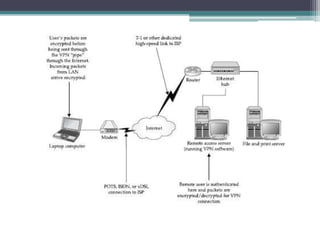
• A virtual private network (VPN) is a network link
  formed through the Internet between the remote
  user connected to an ISP and the company LAN.

• A VPN connection is carried over a shared or public
  network—which is almost always the Internet.

• VPNs use sophisticated packet encryption and other
  technologies, so the link from the user to the LAN is
  secure, even though it may be carried over a public
  network.
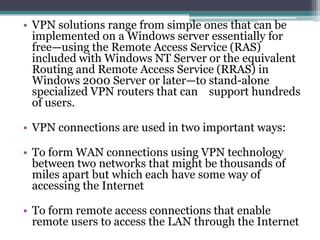
• VPN solutions range from simple ones that can be
  implemented on a Windows server essentially for
  free—using the Remote Access Service (RAS)
  included with Windows NT Server or the equivalent
  Routing and Remote Access Service (RRAS) in
  Windows 2000 Server or later—to stand-alone
  specialized VPN routers that can support hundreds
  of users.

• VPN connections are used in two important ways:

• To form WAN connections using VPN technology
  between two networks that might be thousands of
  miles apart but which each have some way of
  accessing the Internet

• To form remote access connections that enable
  remote users to access the LAN through the Internet
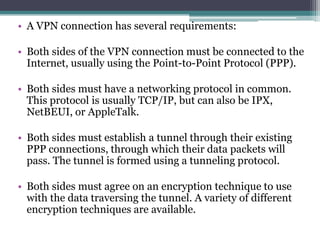
• A VPN connection has several requirements:

• Both sides of the VPN connection must be connected to the
  Internet, usually using the Point-to-Point Protocol (PPP).

• Both sides must have a networking protocol in common.
  This protocol is usually TCP/IP, but can also be IPX,
  NetBEUI, or AppleTalk.

• Both sides must establish a tunnel through their existing
  PPP connections, through which their data packets will
  pass. The tunnel is formed using a tunneling protocol.

• Both sides must agree on an encryption technique to use
  with the data traversing the tunnel. A variety of different
  encryption techniques are available.
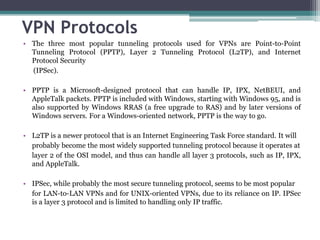
VPN Protocols
• The three most popular tunneling protocols used for VPNs are Point-to-Point
  Tunneling Protocol (PPTP), Layer 2 Tunneling Protocol (L2TP), and Internet
  Protocol Security
  (IPSec).

• PPTP is a Microsoft-designed protocol that can handle IP, IPX, NetBEUI, and
  AppleTalk packets. PPTP is included with Windows, starting with Windows 95, and is
  also supported by Windows RRAS (a free upgrade to RAS) and by later versions of
  Windows servers. For a Windows-oriented network, PPTP is the way to go.

• L2TP is a newer protocol that is an Internet Engineering Task Force standard. It will
  probably become the most widely supported tunneling protocol because it operates at
  layer 2 of the OSI model, and thus can handle all layer 3 protocols, such as IP, IPX,
  and AppleTalk.

• IPSec, while probably the most secure tunneling protocol, seems to be most popular
  for LAN-to-LAN VPNs and for UNIX-oriented VPNs, due to its reliance on IP. IPSec
  is a layer 3 protocol and is limited to handling only IP traffic.
Types of VPNs
• Four major types of VPNs are in use today.

• One type uses a router with added VPN
  capabilities. VPN routers not only can handle
  normal routing duties, but they can also be
  configured to form VPNs over the Internet to
  other similar routers, located on remote
  networks. This method is used to create VPN
  WAN links over the Internet,
  usually between multiple company locations.
• Another major type of VPN is one built into a
  firewall device. Most popular firewalls, such as
  Check Point’s Firewall-1 or WatchGuard’s
  Firebox, serve not only as firewall devices, but
  also as VPN hosts. Firewall VPNs can be used
  both to support remote users and also to provide
  WAN VPN links. The benefit of using a firewall-
  based VPN is that you can administer your
  network’s security—including both standard
  firewall security and VPN security—entirely
  within the firewall.
• The third major type of VPN includes those offered
  as part of a network operating system. The best
  example of this type is Windows RRAS, and Novell’s
  Border Manager software. These VPNs are most
  often used to support remote access, and they are
  generally the least expensive to purchase and install.

• The fourth major type is the SSL VPN, a relatively
  new category. An SSL VPN takes advantage of the
  Secure Sockets Layer (SSL) encryption technology
  built into most web browsers to offer VPN services
  through the web browser. SSL is the same
  Technology used to encrypt information in web
  pages that use the https:// prefix, such as for
  shopping or online banking web sites.
• SSL VPNs bring a number of attractive benefits to supporting remote access:

• No client software needs to be installed on the remote computer, except for
• usually an ActiveX or Java add-in that installs into the browser automatically.

• There is essentially no configuration or management required on the remote
  system. This is an important point, because most VPN client software is very
  difficult to support.

• Provided the users know the web address of the SSL VPN server and have the
  correct information to authenticate (log in) to the system, they can log in from
  almost any Internet-connected computer in the world and access a wide range
  of network services through simple web pages.

• Because many common functions, such as file management, can be performed
  using web pages, SSL VPNs work much better over lower-bandwidth
  connections than other VPN alternatives. HTML was designed to be stingy in
  its use of network bandwidth, so many tasks that are slow over a traditional
  VPN connection are much faster with an SSL VPN.

• Most SSL VPNs, in addition to their web-based access features, also allow
  the user to start a remote node connection on demand, and this remote node
  connection runs using automatically installing and configuring browser plug-ins.
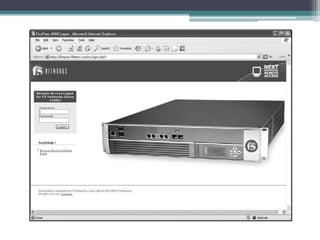
• SSL VPNs are typically offered as an appliance—
  a rack-mountable piece of equipment that
  contains all of the hardware and software
  needed to run the VPN.

• This gives rise to the only real drawback to SSL
  VPNs: They are still fairly expensive for smaller
  companies, with the smallest configurations
  starting at $8,000 to $10,000 to support up to
  100 simultaneous users. Still, even if you need to
  support only 20 to 30 remote users, you may
  find this to be a small price to pay to reduce the
  administrative burden of a traditional VPN,
  which is often considerable.
• There are a number of SSL VPN vendors.

• The pioneer in this space is the NetScreen
  product family from Juniper Networks (which
  acquired a product originally launched by a
  company called Neoteris, which pioneered SSL
  VPNs).

• Another leader is the FirePass line of products
  from F5 Networks.

• AEP Networks, SonicWALL, and Nokia are some
  other firms that offer SSL VPNs.
• SSL VPNs can authenticate users using a variety of different techniques,
  including the following:

• Through user names and passwords defined in the SSL VPN for each user.

• Through integration with an existing authentication system, such as
  Windows Active Directory. Choosing this option lets remote users use their
  normal network user name and password, and the SSL VPN then integrates
  with the preexisting authentication system on the network.

• Through the integration of a two-factor authentication system. Two-factor
  authentication systems usually include a small device for each user that
  displays a number that changes every minute or so. Users log in by typing
  the number on the device at the time they are logging on, plus an additional
  number that is known only to them (sort of like an ATM PIN). Two-factor
  authentication systems are extremely secure, because the devices use a
  randomized sequence of numbers known only to a secure server installed in
  the network.
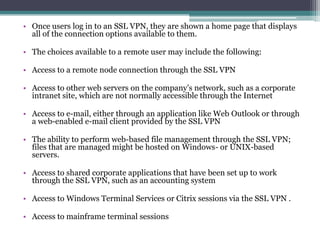
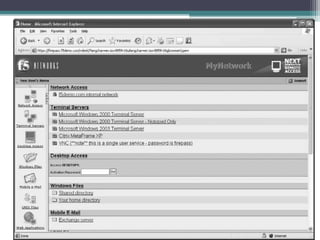
• Once users log in to an SSL VPN, they are shown a home page that displays
  all of the connection options available to them.

• The choices available to a remote user may include the following:

• Access to a remote node connection through the SSL VPN

• Access to other web servers on the company’s network, such as a corporate
  intranet site, which are not normally accessible through the Internet

• Access to e-mail, either through an application like Web Outlook or through
  a web-enabled e-mail client provided by the SSL VPN

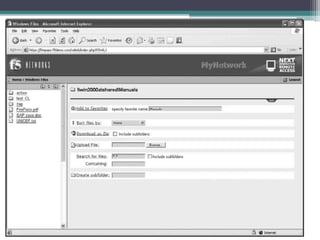
• The ability to perform web-based file management through the SSL VPN;
  files that are managed might be hosted on Windows- or UNIX-based
  servers.

• Access to shared corporate applications that have been set up to work
  through the SSL VPN, such as an accounting system

• Access to Windows Terminal Services or Citrix sessions via the SSL VPN .

• Access to mainframe terminal sessions
Important to Remember
• Remote users can connect to your network in two ways: through
  devices connected to the network in some fashion, or by connecting
  to an ISP and then accessing the network over the LAN’s Internet
  connection.

• For small networks, it can often be easiest to simply add a modem
  or two to a computer set up to accept remote connections, and then
  let the users use those modems to connect. You can set up the
  modems on individual PCs that run remote control software, on PCs
  that run remote node software (such as Windows Routing and
• Remote Access Service), or on special LAN-connected interfaces
  built for the purpose of providing remote node connections.

• You can also build your own “modem farms” with tens or hundreds
  of modems, using special hardware that supports such uses.

• However, it can be a real hassle to manage your own modems—not
  only do you need to manage the modems themselves, but also the
  remote node software and hardware, the telephone lines used, and
  all the problems that can occur at any time.
• If a LAN already has a high-speed link to the
  Internet, such as through a fractional or full T-1, it
  can be easier to let the remote users dial in to a local
  ISP and then connect to the LAN through the
  Internet.

• No need to support modems directly

• No long-distance tolls

• Minimal impact on LAN performance

• High-speed connections

• Better global access
Securing Your
  Network
Network Jobs vs. Security
• Most     networking     tasks      are    relatively
  straightforward. Do you want a new file and
  print server? You install it and set it up, and it
  either works or it doesn’t. If it doesn’t work, you
  proceed to troubleshoot it, fix any issues, and
  ultimately complete the task

• Network security, on the other hand, is a horse
  of a different color. You can never really finish
  the project of securing a network, and you can
  never be certain that a network is completely
  secure.
• Network Security is one of the most important
  jobs facing any network administrator.

• Good network security helps prevent the
  following:
 ▫ Company secrets, such as proprietary designs or
   processes, falling into the wrong hands (both
   internally and externally)
 ▫ Personal information about employees falling into
   the wrong hands
 ▫ Loss of important information and software
 ▫ Loss of use of the network itself or any part of the
   network
 ▫ Corruption or inappropriate modification of
   important Data
Understanding Internal Security
• Internal security is the process of securing your network from internal threats, which
  are generally much more common than external threats.

• Examples of internal threats include the following:

• Internal users inappropriately accessing information such as payroll records,
  accounting records, or business development information.

• Internal users accessing other users’ files to which they should not have access.

• Internal users impersonating other users and causing mischief, such as sending
  e-mail under another person’s name.

• Internal users accessing systems to carry out criminal activities, such as
  embezzling funds.

• Internal users compromising the security of the network, such as by
  accidentally (or deliberately) introducing viruses to the network.

• Internal users “sniffing” packets on the network to discover user accounts and
  passwords.
• One of the more unpleasant parts of managing
  security is that you need to expect the worst of people,
  and then you must take steps to prevent those actions
  you expect.

• Remember, too, that you’re likely to get better results
  if you hire an outside firm to help manage the
  network’s security. Not only should the outside firm
  have a higher skill level in this area, but its workers
  will be used to thinking as security people, and they
  will have invaluable experience gained from solving
  security problems at other companies.

• Perhaps even more important, using an external firm
  doesn’t put employees in the position of being in an
  adversarial relationship with other employees.
Account Security
• Account security refers to the process of managing the
  user accounts enabled on the network. A number of
  tasks are required to manage user accounts properly,
  and the accounts should be periodically audited to
  ensure that no holes exist.

• Most network operating systems start up with a user
  account called Guest. You should remove this account
  immediately, because it is the frequent target of crackers.

• Most network operating systems start up with a default
  name for the administrative account. Under Windows
  server operating systems, the account is called
  Administrator; under NetWare, it is called either
  Supervisor or Admin (depending on which version you
  are using). You should immediately rename this account
  to avoid directed attacks against the account.
• You should know the steps required to remove
  access to network resources quickly from any
  user account and be sure to explore all network
  resources that might contain their own security
  systems.
• Work closely with the human resources (HR)
  department. Make sure that the HR staff is
  comfortable working with you on handling
  security issues related to employee departures,
  and develop a checklist to use for standard
  employment changes that affect IT.
• Consider setting up a program whereby new
  users on the network have their assigned
  permissions reviewed and signed off by their
  supervisor.
Password Security
• Another important aspect of account security is account password security.

• Most network operating systems enable you to set policies related to password security.

• These policies control how often the system forces users to change their passwords,
  how long their passwords must be, the complexity of the password (alphanumeric,
  capital letters, or symbols), whether users can reuse previously used passwords, and so
  forth.

• At a minimum, consider these suggestions for password policies:

• Require users (through network password policy settings) to change their main
  network password every 90 to 180 days. (Actually, 30 days is a common
  recommendation, but this might be too frequent in most environments.)

• Set the reuse policy so that passwords cannot be reused for at least a year.

• Require passwords that are at least eight characters long. For case-insensitive
  passwords that do not allow special characters, this yields potentially 368 possible
  permutations, or almost 3 trillion possibilities. And if the network operating system
  uses case-sensitive passwords, the possibilities are much larger: 628 (218 trillion).

• For systems that allow special characters to be part of the password (characters like a
  space, comma, period, asterisk, and so forth), the number of possible combinations is
  even higher still.
• Even 2 billion possible combinations for
  passwords is a lot. If crackers were able to try
  one password a second, they would need to
  spend 63 years to try that many permutations.

• Or, with an optimized program that can try 5
  million possibilities a second, it would take
  about a year to crack an eight-character mixed-
  case password using brute force.
Brute-force attack
• In cryptography, a brute-force attack or exhaustive key search
  is a strategy that can in theory be used against any encrypted
  data by an attacker who is unable to take advantage of any
  weakness in an encryption system that would otherwise make
  his/her task easier. It involves systematically checking all
  possible keys until the correct key is found. In the worst case,
  this would involve traversing the entire search space.

• The key length used in the encryption determines the practical
  feasibility of performing a brute-force attack, with longer keys
  exponentially more difficult to crack than shorter ones. Brute-
  force attacks can be made less effective by obfuscating the data
  to be encoded, something that makes it more difficult for an
  attacker to recognize when he/she has cracked the code. One of
  the measures of the strength of an encryption system is how
  long it would theoretically take an attacker to mount a
  successful brute-force attack against it.
Other Tips
• Encourage users to create passwords that are not
  words in any language or, if they are words, that they
  have numbers and other non alphanumeric characters
  inserted somewhere in the word, so a “dictionary
  attack” won’t easily work.

• Make sure that you turn on any policies that monitor
  for and deal with people entering in wrong passwords.
  Often called intruder detection, this type of policy
  watches for incorrect password attempts. If too many
  attempts occur within a set period of time, the system
  can lock out the user account, preventing further
  attempts.
• Novell NetWare and Windows servers enable you to
  establish limits on when and where a user can log in to
  the network. You can establish times of day that a user
  is allowed to log in, and you can also restrict a user
  account to particular network computers.

• There’s an interesting catch-22 concerning network
  security policies.
Are There Alternatives to Passwords?
• There are a number of emerging alternatives to passwords that should
  make networks more secure, and also make network security easier on the
  users. The first alternative is something called two-factor identification.
  This is a system whereby the user carries around a small electronic device
  called a fob, which is about the size of a USB key. The fob displays a
  constantly changing set of numbers that are specific to that particular fob.
  The user remembers just a four-digit PIN. When users log in to the system,
  they enter in whatever number is currently displayed on the fob, plus their
  PIN.

• Because the network side of the system has a matching inventory of fobs
  and their sequence of numbers, and also has the user’s PIN, the user can be
  very securely identified. If a fob is lost, it can be easily deactivated in the
  system and a new one issued. Two-factor identification is often used for
  remote access identification.

• Another emerging alternative to passwords is the use of biometric data,
  such as fingerprint readers. Some notebook computers now come with
  integrated fingerprint readers that can quickly scan users’ fingerprints and
  log them in to a system. Other companies sell similar stand-alone devices.
  However, the vendors specifically state that they are not intended for
  corporate use. So, although such devices are not yet suitable for corporate
  use, security is rapidly moving in this direction.
File and Directory Permissions
• Another type of internal security that you need to maintain for
  information on your network involves the users’ access to files and
  directories.

• These settings are actually a bit tougher to manage than user
  accounts, because you usually have at least 20 directories and several
  hundred files for every user on the network.

• The sheer volume of directories and files makes managing these
  settings a more difficult job.

• The solution is to establish regular procedures, follow them, and then
  periodically spot-audit parts of the directory tree, particularly areas
  that contain sensitive files.

• Also, structure the overall network directories so that you can, for the
  most part, simply assign permissions at the top levels. These
  permissions will “flow down” to subdirectories automatically, which
  makes it much easier to review who has access to which directories.
• Network operating systems allow considerable flexibility
  in setting permissions on files and directories. Using the
  built-in permissions, you can enable users for different
  roles in any given directory. These roles control what the
  user can and cannot do within that directory. Examples
  of generic directory roles include the following:

• Create only

• Read only

• Change

• Full control
Tip

• For     a     network     of   any     size,
  recommendation is to avoid the use of
  file-specific network permissions, except
  in very rare cases. It can quickly become
  an unmanageable mess to remember to
  which files each user has special
  permissions and to which files a new hire
  needs to be given specific permission.
Understanding External Threats
• External security is the process of securing the
  network from external threats. Before the Internet,
  this process wasn’t difficult. Most networks had only
  external modems for users to dial in to the network,
  and it was easy to keep those access points secure.

• However, now that nearly all networks are
  connected to the Internet, external security becomes
  much more important and also much more difficult.
Types of External Threats
• Front-door threats

• Back-door threats

• Denial of service (DoS)

• Another type of external threat exists: computer
  viruses, Trojan horses, worms, and other
  malicious software from outside the company.
Important Network Security Devices
• A firewall is s system that enforces a security policy between two networks,
  such as between a local area network (LAN) and the Internet. Firewalls can
  use many different techniques to enforce security policies.

• A proxy server acts as a proxy (an anonymous intermediary), usually for
  users of a network. For example, it might stand in as a proxy for browsing
  web pages, so that the user’s computer isn’t connected to the remote
  system except through the proxy server. In the process of providing proxy
  access to web pages, a proxy server might also speed web access by caching
  web pages that are accessed so that other users can benefit from having
  them more quickly available from the local proxy server, and might also
  provide some firewall protection for the LAN.

• Usually built into a router or a firewall, a packet filter enables you to set
  criteria for allowed and disallowed packets, source and destination
  IP addresses, and IP ports
• An important aspect of both internal and
  external security is physical security. Make sure
  that the room in which your servers are located
  is physically locked and secure.

• Don’t rely on the vendor’s web site for the best
  information about software security holes. A
  good web site to use to stay current on security
  holes is the one maintained by the Computer
  Emergency Response Team (CERT), located at
  http://www.cert.org.    Aside    from    finding
  advisories on security holes, you can also
  discover much valuable security information on
  the site.
Demilitarized Zone
• When you place computers between your firewall
  (on the other side of the firewall from your network)
  and your connection to an external network, such as
  the Internet, the area between those two devices is
  called the demilitarized zone, or DMZ for short.

• Usually, an organization will place its public web
  server in the DMZ, and that computer will not have
  any sort of confidential information on it. This way,
  if the security of that computer is broken, the
  attacker hasn’t gained entry to the network itself.
Viruses and Other Malicious Software
• Viruses

• A computer virus is a program that spreads by infecting other files
  with a copy of itself. Files that can be infected by viruses include program files
  (COM, EXE, and DLL) and document files for applications that support macro
  languages sophisticated enough to allow virus behavior. (Microsoft Word and
  Excel are common targets of macro-based viruses.) Sometimes even data files
  like JPEG image files can be infected by sophisticated viruses.

• Worms

• A worm is a program that propagates by sending copies of itself to
  other computers, which run the worm and then send copies to other computers.
  Recently, worms have spread through e-mail systems like wildfire. One way
  they spread is by attaching to e-mail along with a message that entices the
  recipients to open the attachment. The attachment contains the worm, which
  then sends out copies of itself to other people defined in the user’s e-mail
  address book, without the user knowing that this is happening. Those recipients
  then have the same thing happen to them. A worm like this can spread rapidly
  through the Internet in a matter of hours.
• Trojan horses

• A Trojan horse is a program that purports to do
  something interesting or useful and then performs
  malicious actions in the background while the user is
  interacting with the main program.


• Logic bombs

• Logic bombs are malicious pieces of programming
  code inserted into an otherwise normal program. They
  are often included by the program’s original author or
  by someone else who participated in developing the
  source code. Logic bombs can be timed to execute at a
  certain time, erasing key files or performing other
  actions.
• Consider using antivirus software from different
  companies for different parts of your network.

• For example, you might use one company’s
  antivirus software for your e-mail server and
  some other company’s software for your other
  computers.

• While rare, cases have been seen where one
  company’s offerings do not detect certain viruses,
  while a different company’s offering does.
External Threats
• Control which users can access the LAN from outside the LAN.

• For example, you might be running VPN software for your traveling or home-
  based users to access the LAN remotely through the Internet. You should enable
  this access only for users who need it and not for everyone.

• Consider setting up remote access accounts for remote users who are separate
  from their normal accounts, and make these accounts more restrictive than
  their normal LAN accounts. This might not be practicable in all cases, but it’s
        a strategy that can help, particularly for users who normally have broad
  LAN security clearances.

• For modems that users dial in to from a fixed location, such as from their homes,
  set up their accounts to use dial-back. Dial-back is a feature whereby you
  securely enter the phone number of the system from which users are calling
  (such as their home phone numbers). When the users want to connect, they dial
  the system, request access, and then the remote access system
       terminates the connection and dials the preprogrammed phone number to
  make the real connection. Their computer answers the call and then proceeds
       to connect them normally. Someone trying to access the system from
  another phone number won’t be able to get in if you have dial-back enabled.

• If employees with broad access leave the company, review user accounts where
  they might have known the password. Consider forcing an immediate password
  change to such accounts once the employees are gone.
Back Door Threats
• You’re better off if you can host the company’s web site on an external server, such as an Internet
  service provider’s (ISP’s) system, rather than on your own network. Not only is an ISP better able to
  provide the server service 24 hours a day, 7 days a week, but it also probably has better security.
  Also, you don’t need to worry about allowing web server access to your LAN from outside the
  company, which can sometimes leave open other holes.

• Make sure that you implement a strong firewall router for your network. You should also have
  someone knowledgeable about the specific firewall and web server you implement test your
  configuration or help with the configuration. Remember that firewalls also need to have their
  software kept current.

• Make absolutely certain that you’ve carefully reviewed the security settings appropriate for your
  web server and have implemented all of them, and that you audit these settings occasionally.

• Consider placing a web server designed for people outside the company outside your firewall (in
  other words, between the firewall and the router that connects you to the Internet—this area is
  called a demilitarized zone). This way, even if crackers are able to break into the web server, they
  won’t have an easy time getting to the rest of your network.

• Safely guard your e-mail traffic. E-mail is one of the most commonly used means to get viruses or
  Trojan horse programs into a company. Make sure you run virus-scanning software suitable for
  your e-mail server, and that the virus signatures are updated at least daily.
DOS
• Make sure to keep your various network software
  current.

• Use settings on your firewall to disallow Internet
  Control Message Protocol (ICMP) traffic service
  (which handles ping requests) into the network.

• Deny access to servers from outside the LAN that do
  not need to be accessed from outside the LAN. For
  example, the company’s accounting system server
  probably does not need to be accessed from outside
  the LAN. In such a case, you would configure the
  firewall or packet-filtering router to deny all outside
  traffic to or from that server’s IP address.
Network Disaster
   Recovery
Disaster Recovery Plans
 • A disaster recovery plan is a document that
   explores how a network recovers from a
   disaster that either imperils its data or stops its
   functioning.

 • A company’s external financial auditors often
   require annual disaster recovery plans, because
   of the data’s importance to the business and the
   effect that such a network failure would have on
   a company.
Considering Disaster Scenarios
• A fire in your server room—or somewhere else in the building— destroys
  computers and tapes.

• Flooding destroys computers and backup batteries low enough to the
  server room floor to be affected. Remember that floods may be caused by
  something within the building itself, such as a bad water leak in a nearby
  room or a fire that activates the fire sprinklers.

• An electrical problem of some kind causes power to fail.

• Some problem causes total loss of connectivity to the outside world. For
  example, a critical wide area network (WAN) or Internet link may go down.

• A structural building failure of some kind affects the network or its servers.

• Any of the preceding problems affects computers elsewhere in the building
  that are critical to the company’s operations. For example, such an event
  may happen in the manufacturing areas, in the customer service center, or
  in the telephone system closet or room.
• The motherboard in your main server fails, and
  the vendor cannot get a replacement to you for
  three or more days.

• Disks in one of your servers fail in such a way
  that data is lost.

• Your tape backup drive fails and cannot be
  repaired for one to two weeks. While this doesn’t
  cause a loss of data in and of itself, it certainly
  increases your exposure to such an event.
Planning Off-Site Storage
• Off-site storage is an important way of protecting
  some of your backup tapes in the event that a physical
  disaster, such as a fire, destroys all of your on-site
  copies. Because off-site storage is such an important
  aspect of disaster protection, it should be discussed
  in your disaster recovery plan.
• Companies that provide off-site storage of files often also offer
  standardized tape storage practices. These usually work on a
  rotation basis, where a storage company employee comes to
  your office periodically—usually weekly—and drops off one set
  of tapes and picks up the next set of tapes.

• The companies typically use stainless steel boxes to hold the
  tapes, and the network administrator is responsible for
  keeping the boxes locked and safeguarding the keys. You need
  to decide which tapes you should keep on-site and which ones
  to send off-site.

• One rule of thumb is always to keep the two most recent
  complete backups on-site (so that they’re available to restore
  deleted files for users) and send the older tapes off-site. This
  way, you keep on hand the tapes that you need on a regular
  basis, and you minimize your exposure to a disaster.

• After all, if a disaster destroys your server room and all of the
  tapes in it, you probably won’t be too worried about losing
  just a week’s worth of data.
Tips
• The amount of data that you can accept exposing to a disaster will
  vary widely depending on the nature of your company’s business
  and the nature of the data. Some operations are so sensitive that the
  loss of even a few minutes’ worth of data would be catastrophic.

• For example, a banking firm simply cannot lose any transactions.
  Businesses that need to protect supersensitive data sometimes enlist
  a third-party vendor to provide off-site online data storage.

• Such a vendor replicates a business’s data onto the vendor’s servers
  over a high-speed connection, such as a T-1 or T-3. These vendors
  usually also offer failover services, where their computers can pick
  up the jobs of your computers should your computers fail.

• Alternatively, if a business runs multiple sites, it might set up
  software and procedures that enable it to accomplish the same
  services using its own sites.
Network Backup and Restore
  Procedures
• A network disaster recovery plan is worthless without
  some way of recovering the data stored on the server.
  This is where network backup and restore procedures
  come in.
Assessing Backup Needs
• How dynamic is the data stored on the servers? How often does it change,
  and in what ways does it change?

• How much data needs to be backed up, and at what rate is the amount of
  data growing?

• How much time is available to make the backup? Make sure that you avoid
  situations where you need to back up terabytes of data using a system that
  can handle only megabytes per hour.

• If a partial or complete restoration from a backup is required, how quickly
  must it take place?

• How coherent does the backed up data need to be? In other words, does a
  collection of data files need to be handled as a single unit?

• What is the required trade-off between cost and recoverability?

• How many levels of redundancy does the company need in its backups?
Acquiring Backup Media and Technologies
• Reliability of the hardware and the media

• Cost of the hardware and the media

• Storage capacity

• Likely frequency of restorations

• The importance of fitting the entire backup onto a
  single piece of media
• If your company can afford digital linear tape (DLT) or Linear
  Tape-Open (LTO) systems and can make use of their
  capacities, you should definitely look into purchasing this
  technology. DLT and LTO tapes are rock solid, can be used a
  rated million times, and are said to have a shelf life of 30
  years.

• Moreover, the drives are fast for both backups and
  restorations. Finally, robotic auto changers are available for
  DLT and LTO drives, which means that there is plenty of head
  room if you outgrow the size of your drive.

• Also, the robotic systems are relatively inexpensive and range
  from small systems that can hold five tapes up to large
  libraries that can hold tens or hundreds of tapes. Some newer
  backup technologies, such as Super DLT S4 (600GB per tape)
  and LTO-4 (800GB per tape), promise to up DLT’s ante. For
  larger networks, these emerging technologies may make
  sense. Both DLT and LTO are reliable tape formats with a lot
  of support from various computer equipment vendors.
Choosing Backup Strategies
• Backup rotations are designed to accomplish the following
  goals:

• Rebuild the system with the most recent data possible, in
  case of a catastrophic failure

• Restore files from older tapes that may have been
  accidentally erased or damaged without anyone noticing
  the potential loss of data immediately

• Protect against backup media failure

• Protect the data from an environmental failure, such as a
  fire, that destroys the original system and data
• A full backup, where all selected directories and files are backed up, regardless
  of their archive bit state. Full backups clear the archive bit on all of the backed-up
  files when they are finished.

• An incremental backup, where only files with their archive bit set are backed
  up. This backs up all files changed since the last full or incremental backup.
  Incremental backups clear the archive bit of the backed-up files; those files will
  not be backed up during the next incremental backup unless they are modified
  again and their archive bits are reset to the on state. Incremental backups
  generally minimize the amount of time needed to perform each daily backup,
  but they take longer to restore and pose a greater risk of media failure.


• A differential backup, which is similar to the incremental backup in that it backs up
  only files with their archive bits set. The key difference in a differential backup
  is that the archive bits are left turned on. Subsequent differential backups will
  back up those same files again, plus any new ones that have been modified.
  Differential backups take longer to make, but reduce the time required to restore
  and reduce the risk of media failure
• Full backup Friday nights and incremental
  backups on Monday–Thursday

• If the system fails Monday morning before any data is
  entered, you need to restore only the full backup from
  the previous Friday night. If the system fails on Thursday
  morning, you need to restore four tapes sequentially in
  order to retrieve all of the data: the full backup from the
  previous Friday, then the incremental tapes from
  Monday, Tuesday, and Wednesday nights.

• Moreover, to guarantee the integrity of the data, you
  must be able to restore all of those tapes, and in their
  proper sequence. Otherwise, you run the risk of ending
  up with mismatched data files. In this scenario, you have
  four media-based points of failure, which might entail
  more risk than you care to take.
• Full backup Friday night and differential
  backups Monday–Thursday

• In this scenario, if the system fails Monday
  morning, you just restore the tape from the previous
  Friday night. However, if the system fails on
  Thursday morning, you need to restore only two
  tapes: the last full backup from Friday night, plus
  the differential backup from Wednesday night.

• Because differential backups back up all changed
  files since the last full backup, you never need to
  restore more than two tapes, thereby reducing the
  number of possible points of media failure.
• The most common backup rotation scheme is called
  grandfather-father-son (GFS). A common way to
  implement this scheme is to use at least eight tapes. You
  label four of the tapes as “Monday” through “Thursday,”
  and four others “Friday 1,” “Friday 2,” “Friday 3,” and
  “Friday 4.”

• Every Monday through Thursday, you use one of those
  labeled tapes, replacing the data stored the previous
  week. Each Friday tape corresponds to which Friday in
  the month you are on: for the first Friday, you use Friday
  1, and so forth.

• Finally, on the last day of each month, you prepare a
  month-end tape, which you do not reuse, but instead
  keep off-site in case an environmental failure destroys
  the system and all locally stored tapes.
• There are three main variations of the GFS scheme.
  In the first, you simply make a full backup of the
  system each time you perform a backup. This
  variation offers the greatest amount of media
  redundancy and the minimum amount of
  restoration time.

• In the second, you perform a full backup on each of
  the Friday tapes and the monthly tape, but perform
  only incremental backups during the week.

• In the third, you do much the same thing, but use
  differential backups instead of incremental backups.
• Granularity and Data Corruption: A Tricky Balance

• One reason to consider granularity carefully is the possibility of data
  becoming corrupted and the situation not being noticed. For
  instance, there can be a database file that had been corrupted several
  weeks earlier, but had continued to function and seemed normal.

• After problems started to develop, however, the database vendor’s
  technical support staff discovered that a portion of the database that
  wasn’t regularly used had become lost and wasn’t repairable. The
  problem was caused by a bad sector on the database’s hard disk. The
  only way that the support people could recover the database and
  ensure that it was clean was to restore backups, going further and
  further back in time, until they found a copy of the database that
  didn’t have the damage.

• They then reentered the data that had been added since the non
  damaged copy was made. Because of the increasing time span
  between backups as the support people dug further and further back
  in time, the amount of data that we needed to reenter grew rapidly.
Tip
• If your data is extremely critical and not easily
  reconstructed, you can often perform full
  backups every night and also squeeze in a quick
  incremental backup midday. This way, you can’t
  lose more than a half day’s worth of data.
Purchasing and
    Managing
Client Computers
• Desktop computers are really where the “rubber meets
  the road” when it comes to networks. These machines
  are the users’ primary interface to the network and the
  resource on which users most rely to get their jobs
  done.

• In fact, the network is designed to support the desktop
  computers’ work, rather than the other way around.
  Maintaining desktop computers is also the task on
  which you often spend the most time in managing a
  network, so their purchase, implementation, and
  management are important.

• You can have the best network in the world, but if your
  desktop computers aren’t up to the task, the network’s
  users won’t be productive.
Desktop Platforms
• You need to know which desktop computer
  platform you will use. Generally, companies tend
  to gravitate toward either PC- or Macintosh-
  based desktop computers.

• In a few rare cases, companies might
  alternatively gravitate toward Linux- or UNIX-
  based desktop computers, but you’ll usually
  choose between PCs and Macintoshes.
Supporting Two platforms or One
• You need to maintain expertise in two platforms, as well as expertise
  in their applications and platform-specific peculiarities. In a small
  company, you need more people to keep the requisite levels of
  expertise on both platforms than you would need if you had to support
  only one platform.

• You need to stock more spare parts and expansion hardware.
  Generally, components that work in a PC won’t work in a Macintosh,
  and vice versa.

• You need to license and inventory more software titles (on average,
  twice as many).
• Problems that would never occur with one platform or another occur when
  you must support both, even in the network itself. Supporting two
  platforms is more complex than supporting one, so the servers must run
  additional software, must allow for the different ways that each platform
  works, and so forth. All this increases the complexity of the network, and
  increased complexity means less reliability for everyone.

• Inter platform incompatibilities cause problems for users who must work
  together. Even if they use the same application (such as Microsoft Word)
  on both PCs and Macintoshes, platform differences still exist. For example,
  Adobe fonts with the same name may look and paginate differently on
  Macs and PCs. Users might painstakingly format a document in Word,
  Excel, In Design, or another application available on both platforms, only
  to find that the other platform doesn’t present their work in exactly the
  same way. When users who frequently interact with one another have their
  files formatted for a variety of platforms, the incompatibilities become a
  real problem.

• In some cases, you might be unable to find software titles with matching
  versions available for both platforms. This usually means users who are
  using a particular application won’t be able to interact with users who are
  using the    other platform’s functionally equivalent application. For
  example, Microsoft Access is available only for Windows.
Reliability
• The most important features to look for in any desktop
  computer are its reliability and serviceability. Studies have
  shown that the actual price of a desktop computer is a small
  percentage of its lifetime cost, which includes software costs,
  training costs, and support costs.

• The computer uses tested, high-quality components.

• Those components are engineered to work well together. Even
  the best components don’t always work well together.

• Top-tier manufacturers test all the components that go into
  their systems and ensure that they’re compatible with one
  another. A reliable combination of software is used on the
  unit, and whenever possible, the software has been certified
  on the computer.
Serviceability
• Serviceability is closely related to reliability.
  Serviceability simply means that working on or
  repairing a particular computer is relatively fast and
  easy.

• Features that enhance serviceability include cases that
  are easy to open (requiring no tools), quickly
  replaceable internal components (such as hard disks,
  memory, or video cards that require simple or no
  tools), and Basic Input Output System (BIOS) that is
  easy to update.
• Does the computer manufacturer stay current in offering updates to
  its computers?

• Does its web site offer a lookup that lets you determine the
  configuration of a computer based on its serial or service ID
  numbers?

• Is technical information about its systems readily available, or does
  the vendor tend to gloss over any discovered problems?

• How quickly can you get replacement parts?

• Does the manufacturer include on-site service for a period of time
  that reduces your support burden?

• What is the warranty on any given computer?

• Is the vendor sufficiently successful and stable that you can expect
  the company to be around for the entire useful life of the unit?

• What other value-added services are offered if problems occur?
Tip
• Always go for Top Tier Manufacturers with top selling model.

• If you support many computers, make sure that they are as consistent as
  possible. Not only do you want to ensure (as much as possible) that they are
  the same model and the same configuration, you also want to make sure the
  manufacturer uses the same components for all computers of a particular
  model.

• Some manufacturers are not careful about this; they will slip in different
  motherboards or network interface cards (NICs) without any notice.

• For someone buying a single computer, this isn’t a problem. When you need
  to support 500 or 5,000 computers that are all supposed to be exactly the
  same but aren’t, it becomes a huge problem, because then you also must
  keep track of different drivers and configuration information.

• Also, if you install and maintain computers through the use of disk images
  (such as those made by Norton Ghost), you will need to maintain different
  images for all of the different sub models of the computer.
Price and Performance
• Once the preceding priorities are satisfied, you can then strike the appropriate
  balance between performance and price. You need to take into account the useful life
  that you plan for new computers and make certain to purchase systems that will be
  productive over that useful life. In determining this balance, don’t look at how well a
  particular configuration can handle today’s needs; look at how well it can handle
  tomorrow’s needs.

• Some people might disagree, but it is firmly believed that price should be your last
  priority when you purchase computers. Although purchase price is important, you
  first need to determine your needs and then find the most reasonably priced
  computers that best fulfill those needs.

• Different strategies exist for getting the best price. These strategies range from
  straightforward bargaining and competitive bids, to slightly under-purchasing on the
  performance side but planning to upgrade the existing computers when needed (at
  least in terms of RAM and hard disk space, both of which decrease pretty rapidly in
  price over time).

• Don’t forget to estimate the cost involved to replace a computer or to upgrade a
  computer when you choose a system. It might be less expensive overall to purchase a
  more capable computer that you won’t need to upgrade or replace as quickly, when
  you factor in the labor costs and user productivity impact from installing a
  replacement.
DEFINE-IT! Useful Life
• The term useful life refers to the length of time a particular
  asset, such as a computer, will be able to perform useful work.

• The useful life of a computer will change depending on the
  computer, the software it needs to run, the user who uses it,
  and the budget available to upgrade or replace it.

• A programmer who needs the latest and greatest hardware
  and software all the time will get a relatively short useful life
  out of a computer, while a person who uses a computer only
  for word processing or e-mail and doesn’t care about running
  the latest software will get a much longer useful life out of a
  computer.

• For most desktop computers, the useful life is around three to
  four years, although exceptions to this rule of thumb are easy
  to find.
• As a rule of thumb, you can estimate that the demands
  placed on a desktop computer will double every 24
  months or so, taking into account your planned useful
  life. Set your performance levels to meet that need.
  (People used to assume performance requirements
  doubled every 18 months, but this seems to be slowing
  a bit in recent years.)

• For example, suppose that you’ve determined that
  today’s user requires 40GB of disk space, 2GB of RAM,
  and a Pentium 2.8 GHz processor. In 24 months, your
  users are likely to be clamoring for 80GB of disk space,
  4GB of RAM, and a Pentium quad-core 3 GHz processor.
  In another 24 months (about four years from purchase),
  these demands will double again, to 160GB of disk space,
  8GB of RAM, and the equivalent of a Pentium 8-core
  processor. These projected demands might seem
  unlikely today, but when you look back at the needs of
  four years ago, such projections seem reasonable.
Understanding Network
Workstation Requirements
• All network computers need an installed network interface to connect to the network.

• Generally, most desktop computers these days have an integrated Ethernet network
  interface built-into them. And if a computer does not, then it can be added as a network
  interface card.

• NICs are also usually specific to the cable media you have installed. For example,
  Ethernet NICs are available for 10Base-2, 10Base-T, 100Base-T, and 1000Base-T media.
  Some NICs also support multiple media types, which can be a blessing if you’re in the
  middle of migrating from one media type to another. For example, a single Ethernet
  NIC may support 10Base-2, 10Base-T, and 100Base-T. These days generally most business
  computers come with integrated Ethernet ports capable of 100Base-T or 1000Base-T.
Network Workstation Software
• Network workstations also need networking software to work with the network. This
  software consists of several components: a driver for the NIC, driver software for the
  protocols being used, and a network requestor (sometimes called a network
  redirector).

• Workstations acting in a peer-to-peer fashion also have peer software that provides
  network services to other workstations. Additionally, network service software might
  be needed, such as that required to use a particular network directory service (for
  example, Novell’s eDirectory).

• For Windows-based computers, you can choose to use software that is included with
  Windows to connect to both Novell networks and to Windows-based networks. You
  can also use Novell’s network software for Novell-based networks. Both sets of
  network software work well, although differences exist.

• For Novell-based networks, Microsoft’s networking software consumes less memory
  than Novell’s, but it doesn’t offer as many features and doesn’t integrate with the
  Novell servers quite as well. Still, it’s reliable and performs well. Novell’s client
  software (called Novell Client) works well and makes good use of the Novell server’s
  features, and is also more secure than Microsoft’s Novell network software.
• When using the Microsoft software with
  NetWare 4.x or later servers, you must also run
  service software to access Novell’s directory
  service. This software is included both with
  Windows and Novell Client.

• Under Windows, you manage the network
  software through the network Properties dialog
  box for Network Neighborhood or through the
  Network object in the Control Panel (which also
  accesses the network Properties dialog box).
• The network Properties dialog box contains a number of entries,
  including the following main categories:

• Client
  ▫ You might have client software installed for Novell networks
    or Microsoft networks. This client software interacts with the servers to
    request network services.

• Network interface
  ▫ This entry represents the driver software that is installed for
    any installed NICs or for “virtual NICs” used to connect to a network
    through a modem.

• Protocols
  ▫ This software adds support for any needed networking
    protocols, such as TCP/IP, IPX/SPX, or NetBEUI.

• Services
  ▫ Any additional network service software, such as that used for
    Novell eDirectory, also appears in the network Properties dialog box.
Designing a Network
• Networking professionals rarely have the
  opportunity to walk into a company and design a
  new network from the ground up, but those who do
  are certainly lucky.

• It’s true that such an effort involves long hours,
  stress, deadlines, and the nagging worry that maybe
  you’re forgetting something.

• In practice, you usually start with some sort of
  network already in place. Networks start small and
  simply grow over time. Networks are almost like
  skin, where you’re sure to replace each and every
  cell every few years, but only a few at a time. The
  process is usually evolutionary rather than
  revolutionary.
• Regardless of whether you’re building a brand-new
  network from scratch or renovating an existing
  network, the tools you use are much the same, and
  the process of designing the network is also much
  the same.

• The concept is actually simple: You assess the needs
  that the network must meet and then you design to
  meet those needs. In practice, this process is much
  more involved, but the idea is straightforward.

• Even in an evolving network, using network
  planning to formulate a long-term plan to renovate
  the network makes sense.
The Network Design Process
• Network design is not an exact science. Getting it exactly
  right the first time is nearly impossible, even with the
  best design tools and resources available.

• This is because every network has different demands
  placed on it, and these demands often interact in
  surprising ways.

• Moreover, predicting what new demands will be placed
  on the network over time, how users will use the network
  resources, and what other changes you might need to
  make is almost impossible.

• The entire situation is both fluid and chaotic. The trick is
  to do a good job of estimating needs, and then do the
  best job possible to create a design to meet those needs.
• Having fallback plans is also important, once the
  network is up and running, you might find that the
  distribution of bandwidth across segments is poor.

• You want to know in advance how you can measure
  and address these types of problems.

• You might also find storage requirements are much
  higher or lower than you expected.

• You need to know what to do if this happens.

• The point is that network design is a process, often
  an iterative one. Your job as a network designer is to
  get as close as possible to the needed design, and
  then fine-tune the design as needed
Assessing Network Needs
• “Measure twice and cut once” is a common adage
  that conveys the importance of planning.

• Before you even think about any specifics—network
  topology; network operating system (NOS)
  platform; a structure for hubs, bridges, and routers;
  or the grade of wiring—you must first know what the
  network needs to accomplish.

• Doing a proper job can be tedious, but assessing
  needs is where you should place the most emphasis
  during a design process.
• When assessing needs, you are trying to come up
  with detailed answers to the following questions:


• How much storage space is required?

• How much bandwidth is required?

• What network services are required?

• What is the budget for the project?
• For example, it might be easy to determine that the
  network must be able to support up to 100 Mbps of
  bandwidth, but you need to know how, when, and where
  that bandwidth is used.

• If the accounting department is using 90 percent of the
  bandwidth when communicating to the accounting
  server, for example, then naturally you want to put the
  accounting system’s server and its users on their own
  network segment.

• You won’t recognize such issues and how to address them
  unless your assessment leads you to determine with some
  degree of detail how the network resources will be used.
Applications
• A good place to start with a network design is to list
  and understand the applications that will run on the
  network.

• Ultimately, a network is only as good as the work it
  helps people accomplish, and people do their work
  most directly through the application software they
  use. If the applications don’t work right, then the
  users won’t work right.

• Most companies usually meet the common
  application needs through a suite of desktop
  applications, such as Microsoft Office or Lotus
  SmartSuite.
• Word processor

• Spreadsheet

• End-user database

• Presentation graphics

• E-mail

• Personal information manager (calendar,
  contact list, and so forth)

• Virus-scanning software
• For example, in a 1,000-user population, you might
  determine that 90 percent will use word processing
  to generate an average of ten documents a month,
  with each document averaging 100KB, and the users
  probably will want to keep two years’ worth of
  documents on hand at any given time.

• Yes, these will be educated guesses, but it’s
  important to come up with reasonable estimates.
  Experience with similar user populations and
  companies can pay off handsomely in determining
  these estimates.

• With this information alone, you know immediately
  that you need about 24MB of storage per user, or
  21.6GB for the word processing population of 900
  users, just for word processing documents.
• Following are common departmental applications you should consider:

• Accounting

• Distribution and inventory control

• Manufacturing/material requirements planning (MRP)

• Information technology

• Electronic commerce

• Human resources

• Payroll and stock administration

• Publishing

• Marketing support Legal

• Other line-of-business applications specific to the company’s industry
• For each of the departmental applications you identify,
  you need to ask several questions:

• How much storage will they consume?

• From where will the applications be run (from local
  computers with data on a server or completely
  centralized, where both the data and the application
  run on a central computer)?

• Will they have their own dedicated servers?

• How much network bandwidth will the application
  need?

• How will all these factors change as the company
  grows?
Users
• A company estimating that it will have 100 users
  immediately, 115 users in one year, 130 users in
  three years, and 150 users in five years needs a
  different network design than a company
  estimating 100 users immediately, 115 users in
  one year, 300 users in three years, and 1,000
  users in five years.

• In the latter case, you must invest more in a
  design that is more quickly scalable, and you are
  likely to spend much more at inception to build
  the network, even though the network will have
  the same number of users in the first two years
• Bandwidth requirements

  Aside from the bandwidth required to save and retrieve files, send and receive e-mail, and
  perform an average amount of browsing on the Internet, do any users need significant
  amounts of bandwidth? For example, will scientists download a fresh copy of the human
  genome from the Internet once a week? Will groups of users need to exchange large
  quantities of data among different sites? Will any users be running videoconferencing
  software over your network connection? How much web browsing do you expect the
  network’s users to do? Will people be sending large e-mail attachments
  frequently?

• Storage requirements

  Will any group of users need significantly more storage capacity than the overall average
  you already determined? For instance, will an electronic imaging group catalog millions of
  documents into image files on a server? If so, how many people need access to that data?
  Will the accounting group need to keep the previous ten years of financial information
  online? Will the company use or install an executive information system where all the
  managers have query capability into the company’s accounting, distribution, and
  manufacturing systems, and, if so, how much additional bandwidth or server performance
  could that capability require?

• Service requirements

  Will any groups of users require additional network services not needed by most users? For
  example, does part of the company do work of such sensitivity that it should be separated
  from the rest of the local area network (LAN) by a network firewall? Will a subset of users
  need direct inward fax capability?
TIP
• When examining user bandwidth requirements,
  remember to look at the timeliness of the
  bandwidth needs. If certain known activities
  require a lot of bandwidth and must be carried
  out during the normal workday, that high-
  bandwidth use might interfere with the
  performance of the rest of the network. herefore,
  make sure to estimate both average and peak
  bandwidth needs.
Network Services
• Next, you should look at the services that the
  network must provide. These can vary widely in
  different companies.

• A very basic network might need only file and print
  services, plus perhaps Internet connectivity. A more
  complex network will need many additional
  services.

• Consider which of the following types of services the
  network you are designing will need to provide, as
  well as any others that are specific to the company:

  ▫ File and print services
  ▫ Backup and restore services
• Continued…

 ▫   Internet web browsing
 ▫   FTP and Telnet
 ▫   Internet or external e-mail
 ▫   Internet security services
 ▫   Remote access to the LAN through a VPN or a modem
     pool
 ▫   Fax into the LAN (manually distributed or
     automatically distributed)
 ▫   Dynamic Host Configuration Protocol (DHCP) services
 ▫   Centralized virus-protection services
 ▫   Wide area network (WAN) services to other locations
 ▫   Streaming Internet radio and other media
 ▫   Voice over IP (VoIP)
• For each service, you must answer a number of questions.

• First, you need to know the storage and bandwidth requirements for
  each service, and any other impacts they might have. For instance, a
  fax-in service might itself require a small amount of storage space,
  but all the fax bitmaps that users will end up storing could have a
  large impact on total storage needs.

• Second, you need to know how the service is to be provided. Usually,
  this means that you need to know which server will host the service.
  Some services require such little overhead that you can easily host
  them on a server that does other jobs. A DHCP server, which
  requires minimal resources, is a good example of such a service. On
  the other hand, an e-mail system might require such high resources
  that you must plan to host it on its own dedicated server.

• Third, you need to know what users or groups of users need which
  services. This is because, to minimize backbone traffic, you might
  need to break down the network into smaller segments and locate
  frequently used services for a particular user population on the same
  segment as the users use.
Security and Safety
• Some applications might be perfectly well suited to keeping
  their data on a striped RAID 0 array of disks, where the risk of
  loss is high (relative to other RAID levels), because the data
  might be static and easy to restore from tape if the disk array
  is lost.

• Other applications might require the highest level of data-loss
  safety possible, with failover servers each having mirrored
  RAID 1 or RAID 10 arrays and online tape backup systems
  updating a backup tape every hour or for every transaction.

• Similarly, some companies might work with data that is so
  sensitive that they must install the best firewalls, perhaps
  even two levels of firewalls, and hire full-time professionals
  dedicated to keeping the data secure.

• Other companies might be satisfied if they are only reasonably
  secure.
Growth and Capacity Planning
• The final area to consider is the expected growth of
  the network, particularly if the company expects this
  growth to be substantial.

• As mentioned earlier in this chapter, a network
  designed for a rapidly growing company looks
  different from one for a slowly growing company,
  even if both companies start out at the same size.

• In the former case, you want a design that you can
  quickly and easily expand without needing to
  replace much of the existing hardware and software.
  In the latter case, you can get by with a simpler
  network design.
• Ethernet uses a collision detection mechanism to manage
  network traffic. We also know that Ethernet scales linearly,
  but only up to a point. Once the network starts to become
  saturated, performance begins to drop rapidly because of the
  chaotic nature of Ethernet’s collision detection scheme.

• Consider a 10 Mbps Ethernet network transmitting 3 Mbps of
  traffic. This traffic probably flows smoothly, with few
  collisions and few retransmissions required.

• Push the network demand up to 4 or 5 Mbps, however, and its
  performance grinds to a halt as the network becomes
  saturated, and you end up with as many collisions and
  retransmissions as real data.

• In fact, the total amount of good data flowing over a saturated
  Ethernet network will be less than the amount flowing over a
  less-saturated network.
• You can also find examples where an increase in
  demand doesn’t cause a corresponding increase
  in network or server load.

• Examples are email system and accounting
  system.

• Email which uses better header file system and
  Accounts system with better indexing provides
  less load on server.
TIP
• Be careful not only to consider how applications
  behave as they scale, but how they behave as
  they are scaled in your planned network
  environment.

• Different NOSs, network topologies, and client
  and server computers will all affect how well a
  particular application can support growth.
Meeting Network Needs


• Choosing a Network Type

• Structuring the Network
• Ethernet’s CDMA/CD collision handling means that an Ethernet network
  will handle only about one-third of its rated speed. In other words, a
  100Base-T segment, which is rated at 100 Mbps, will handle about 33 Mbps
  of actual data before starting to degrade.

• Whenever possible, use “home-run” wiring (in which each network cable
  runs from each workstation to a single location) for all nodes to a single
  wiring closet or server room. Doing so enables you to change the network
  structure more easily (for example, to break segments into smaller
  segments) as needs change.

• Except in the smallest networks, plan on installing a network backbone to
  which the hubs connect. An Ethernet switch rather than a nonswitching hub
  should handle the backbone, so each hub constitutes a single segment or
  collision domain. You still must plan to keep each segment’s traffic below
  the Ethernet saturation point, but this structure will give you plenty of
  flexibility to meet this goal.

• The physical building might dictate how you structure your network. For
  example, a building larger than 200 meters (about 600 feet) in any
  dimension probably means you won’t be able to employ a home-run wiring
  scheme for all your nodes. This is because twisted-pair Ethernet usually
  reaches only 100 meters (about 300 feet), which includes routing around
  building obstructions, patch cables, and other things that make the actual
  cable distance longer than you might measure on a map of the building.
• For multifloor buildings that are too big for a home-run wiring
  scheme, consider running the backbone vertically from floor to
  floor, and then have a wiring closet on each floor that contains the
  switches to service that floor’s nodes. The wiring from the closet on
  each floor then fans out to each of the nodes on that floor.

• Consider running the backbone speed at ten times the hub/desktop
  network speed. If you’re using 100Base-T hubs to connect to the
  desktop computers, plan on a 1000Base-T backbone.

• Most of the time, most nodes do the majority of their
  communication to one or two servers on the network. If you are
  planning department-specific servers or if you can identify similar
  patterns, make sure that each server is on the same segment as the
  nodes that it primarily serves.

• If your servers tend not to be assigned to support departments and
  instead support the entire company, make sure that the servers are
  directly connected to the backbone’s Ethernet switch.
• If you have any high-bandwidth users, consider
  keeping them on a segment separate from the rest of
  the network (if appropriate) and also consider
  upgrading the speed of that segment to 100 Mbps or
  1,000 Mbps if needed.

• As you start to implement the network, carefully
  watch the ratio of collision packets to data packets.
  If the number of collisions on any segment climbs 5
  to 7 percent of the total number of packets,
  performance is starting to suffer, so you need to
  investigate the cause and find a way to decrease this
  ratio.

• You can usually do so by breaking the segment into
  smaller pieces or by configuring capable switches
  into what is called a virtual LAN (VLAN), unless you
  know of another way to reduce the amount of traffic.
Selecting Servers
• All else being equal, using more small servers to host
  fewer services each is more reliable than using fewer
  large servers to each host many services.

• Conversely, having more small servers increases your
  chance of having a server fail at any given time.

• Using more small servers is more expensive and requires
  more maintenance than using fewer large servers.

• If you plan to use more than one server, consider which
  services should be redundant on another server or how
  you plan to deal with the failure of any server.
Final Tip on Servers
• However, it’s much harder to know how capable each
  server should be in terms of processor power, installed
  RAM, and other features, such as bus configuration.

• For these specifications, you need to rely on the advice of
  the NOS vendor and the manufacturer of the servers that
  you are considering.

• Fortunately, both Microsoft and Novell have published
  tests and recommendations for sizing servers given
  different service and user loads.

• Many first-tier server manufacturers also have such data
  to help you choose an actual server model and its
  specifications.
Understanding
Networking Protocols
• A network protocol is a set of rules that data communications over
  a network follow to complete various network transactions.

• For example, TCP/IP defines a set of rules used to send data from
  one node on a network to another node.

• SMTP is a set of rules and standards used to transfer e-mail and
  attachments from one node to another.

• DHCP is a set of rules and standards used to allocate IP addresses
  dynamically for a network, so they do not need to be set manually
  for each workstation.

• Many protocols are used in networking. In fact, in a sense, almost
  every activity on a network follows a protocol of one sort or
  another. Some protocols function at a low level in the OSI network
  model, others operate at a high level, and some operate in between.
Datagrams, Frames, and Packets
• A packet is any collection of data sent over a network,
  and the term is usually used generically to refer to units
  of data sent at any layer of the OSI model.

• For instance, people talk about IP packets, even though
  technically the correct term is IP datagrams.

• The persnickety definition of packet applies only to
  messages sent at the top layer of the OSI model, the
  application layer.

• Network layer units of data, such as those carried by IP,
  are called datagrams.

• Units of data carried at the data-link layer (layer 2) are
  called frames. All of these terms to refer to a collection
  of data that is transmitted as a single unit.
TCP and UDP Ports
• Both TCP and UDP support the concept of ports, or
  application-specific addresses, to which packets are directed
  on any given receiving machine. For example, most web
  servers run on a server machine and receive requests through
  port 80.

• When a machine receives any packets that are intended for
  the web server (such as a request to serve up a web page), the
  requesting machine directs those packets to that port number.

• When you request a web page from a web server, your
  computer sends the request to the web server computer and
  specifies that its request should go to port 80, which is where
  HTTP requests are directed.

• Hundreds of different ports have standardized uses. Defining
  your own ports on a server for specific applications is easy. A
  text file called SERVICES defines the ports on a computer.
•   # Copyright (c) 1993-1999 Microsoft Corp.
•   #
•   # This file contains port numbers for well-known
•   # services as defined by
•   # RFC 1700 (Assigned Numbers).
•   #
•   # Format:
•   #
•   # <service name>port number></protocol> [aliases ...][# <comments>]
•   #
•   echo              7/tcp
•   Echo              7/udp
•   Discard            9/tcp sink null
•   discard           9/udp sink null
•   systat            11/tcp users #Active users
•   daytime           13/tcp
•   daytime           13/udp
•   chargen           19/tcp ttytst source #Character generator
•   chargen           19/udp ttytst source #Character generator
•   ftp-data           20/tcp #FTP, data
•   ftp               21/tcp #FTP. control
•   telnet             23/tcp
•   Smtp               25/tcp mail #SMTP
•   time              37/tcp timserver
•   Time               37/udp timserver
•   tftp           69/udp #Trivial File Transfer
•   gopher         70/tcp
•   finger         79/tcp
•   http           80/tcp www www-http #World Wide Web
•   kerberos-sec   88/tcp krb5 #Kerberos
•   kerberos-sec   88/udp krb5 #Kerberos
•   rtelnet        107/tcp #Remote Telnet Service
•   pop2           109/tcp postoffice #POP-V2
•   pop3           110/tcp #POP v3-
•   nntp           119/tcp usenet #NNTP
•   Ntp             123/udp #Network Time Protocol
•   Snmp            161/udp #SNMP
•   snmptrap       162/udp snmp-trap #SNMP trap
•   print-srv      170/tcp #Network PostScript
•   irc            194/tcp #Relay Chat Prot
•   ipx            213/udp #IPX over IP
•   ldap           389/tcp #Lightweight DAP
•   https          443/tcp MCom
•   https          443/udp MCom
•   who            513/udp whod
•   cmd            514/tcp shell
•   Syslog          514/udp
•   printer        515/tcp spooler
•   router         520/udp route routed
•   netnews        532/tcp readnews
•   uucp           540/tcp uucpd
•   wins           1512/tcp #Windows Name Service
• As you can see, most of the Internet services that you
  might be familiar with actually work through the use of
  TCP and/or UDP ports, such as HTTP for the Web,
  SMTP for e-mail, NNTP for Usenet, and so forth.

• The use of ports ensures that network communications
  intended for a particular purpose are not confused with
  others that might also be arriving at the same machine.

• Ports allow the receiving machine to direct arriving data
  appropriately.

• An example is a server that hosts web pages and also
  receives and processes e-mail. Packets arriving at port
  80 will be sent to the web-serving software, while those
  that arrive at port 25 will go to the e-mail software.

• Other services on the machine, such as Telnet and FTP,
  can also function concurrently through this mechanism.
• In addition to carrying its data, each IP packet
  contains a number of fields, which are organized in the
  following order:
• Version This field indicates the version of the IP protocol
  being used.

• Header length This field indicates the length of the header
  information before the data begins in the packet.

• Type of service This field is used for different purposes by
  different vendors. It can be used for features such as requesting
  high-priority routing, requesting highest possible reliability, and so
  forth.

• Total length This field indicates the total length of the
  packet.

• Identification, flags, and fragment offset These three fields
  are used to reassemble an IP packet that was disassembled at some
  point during transmission. They include all the information
  necessary for the correct reassembly of the packet at the receiving
  end.
• Time to live This field defines how many network hops
  the packet can traverse before it is declared dead and the
  routers stop forwarding it to other routers. This number is set
  when the packet is sent, and each router that handles the
  packet decrements the value by one. When the number
  reaches zero, the packet is dead and is no longer transmitted.
  If there is a routing configuration error on the path to the
  destination that causes the packet to go into an endless loop
  between routers, this is the feature that will stop it after a
  period of time.

• Protocol This field indicates whether the IP packet is
  contained within a TCP or a UDP packet.

• Header checksum The header checksum is used to
  help ensure that none of the packet’s header data (the
  fields discussed in this list) is damaged.

• Source IP address This field contains the address of
  the sending computer. It is needed in case a packet must
  be retransmitted, to tell the receiving node (or, in some cases,
  a router) from which node to request a retransmission.
• Destination IP address This field contains
  the address of the receiving node.

• Options and padding These final two
  fields of the header of the IP packet are
  used to request any required specific routing
  instructions or to specify the time that the
  packet was sent.

• Data The final field of an IP packet is the
  actual data being sent.
Domain Name System (DNS)
• If you had only IP address numbers to address computers
  over the Internet, trying to keep track of them and using their
  correct addresses might make you a little crazy.

• To go to the web site for Google, for example, you would need
  to remember to type the address http://209.85.171.100.

• To solve this problem, a system called the Domain Name
  System (DNS) was developed.

• DNS enables people to register domain names with ICANN
  and then use them to access a particular node over the
  Internet. Therefore, DNS is the service that allows you to open
  a web browser and type http://www.google.com to connect to
  a particular computer over the Internet.

• In this case, google.com is the full domain name.
• Domains are organized in a tree arrangement, like a directory
  tree on a disk drive.

• The top level defines different domain types, called top-level
  domain names (TLDs).

• The most common is the .com domain type, usually used with
  for-profit commercial entities.

• Internet Corporation for Assigned Names and Numbers
  (ICANN)

• The following are other common domain types:
  .edu for educational institutions
  .gov for governmental entities
  .mil for military entities
  .net for Internet-related entities
  .org for nonprofit entities
  .xx for different countries, such as .it for Italy and .de for Germany
    (Deutschland)
• Domain names are resolved to IP addresses
  through the use of domain name servers (DNS
  servers), which are servers that accept the typed
  domain name, perform a database query, and
  then return the actual address that should be
  used for that domain name.

• Generally, each ISP maintains its own DNS
  servers (and many companies and organizations
  maintain their own DNS servers as well).

• Any changes are propagated throughout all the
  Internet’s DNS servers within about an hour.
Dynamic Host Configuration Protocol
(DHCP)
• In the early days of TCP/IP-based networks,
  administrators defined each node’s address in a text
  file or dialog box. From then on, the address was
  fixed unless someone changed it.

• The problem was that administrators occasionally
  would mistakenly put conflicting addresses into
  other nodes on the network, causing a network’s
  version of pandemonium.

• To resolve this problem and to make it easier to
  assign TCP/IP addresses, a service called Dynamic
  Host Configuration Protocol (DHCP) was invented.
• DHCP services run on a DHCP server, where they
  control a range of IP addresses called a scope. When
  nodes connect to the network, they contact the
  DHCP server to get an assigned address that they
  can use.

• Addresses from a DHCP server are said to be leased
  to the client that uses them, meaning they remain
  assigned to a particular node for a set period of
  time before they expire and become available for
  another node to use.

• Often, lease periods are for just a few days, but
  network administrators can set any time period they
  want.
• You should not use DHCP for nodes that provide
  network services, particularly for servers that
  provide services over the Internet. This is
  because changing a TCP/IP address would make
  reliably connecting to those computers
  impossible.

• Instead, use DHCP to support client
  workstations that do not need to host services
  for other nodes.
Host
• You might think a host is a server, and in some
  networking contexts, you would be right.

• However, in the jargon of Internet names and
  addresses, every computer that has an IP
  address is called a host, thus the name, Dynamic
  Host Configuration Protocol.

• Remembering that every computer is called a
  host is particularly important in the UNIX and
  Linux worlds, where the term is much more
  common than in the Windows or Macintosh
  worlds.
Hypertext Transfer Protocol (HTTP)
• The World Wide Web is made up of documents that use a
  formatting language called Hypertext Markup Language
  (HTML). These documents are composed of text to be
  displayed, graphic images, formatting commands, and
  hyperlinks to other documents located somewhere on the
  Web. HTML documents are displayed most often using web
  browsers, such as Mozilla Firefox or Microsoft Internet
  Explorer.

• A protocol called Hypertext Transfer Protocol (HTTP)
  controls the transactions between a web client and a web
  server.

• HTTP is an application-layer protocol. The HTTP protocol
  transparently makes use of DNS and other Internet protocols
  to form connections between the web client and the web
  server, so the user is aware of only the web site’s domain
  name and the name of the document itself.
• HTTP is fundamentally an insecure protocol. Text-
  based information is sent “in the clear” between the
  client and the server.

• To address the need for secure web networking,
  alternatives are available, such as HTTP Secure
  (HTTPS) and Secure Sockets Layer (SSL).

• Requests from a web client to a web server are
  connection-oriented, but they are not persistent.
  Once the client receives the contents of an HTML
  page, the connection is no longer active. Clicking a
  hyperlink in the HTML document reactivates the
  link, either to the original server (if that is where the
  hyperlink points) or to another server somewhere
  else.
File Transfer Protocol (FTP)
• FTP is an application-layer protocol used to send
  and receive files between an FTP client and an
  FTP server. Usually, this is done with the FTP
  program or another program that can also use
  the protocol (many are available). FTP transfers
  can be either text-based or binary-based, and
  they can handle files of any size.
Network News Transfer Protocol
(NNTP)
• Usenet (NetNews) is a set of discussion groups
  devoted to an extremely wide variety of topics. There
  are well over 100,000 such such groups in existence.

• Usenet conversations are posted to Usenet servers,
  which then echo their messages to all other Usenet
  servers around the world.

• A posted message can travel to all the Usenet servers
  in a matter of hours, and then be available to users
  accessing any particular Usenet server.
• Usenet discussion groups are loosely organized into
  the branches of a tree. The following are some of the
  main branches:

•   Alt, for discussions about miscellaneous topics
•   Comp, for computer-oriented discussions
•   Gov, for government-oriented discussions
•   Rec, devoted to recreational topics
•   Sci, for science-based discussions

• Usenet groups can either be public, which are
  echoed to other Usenet servers, or private, which are
  usually hosted by a particular organization and
  require the user to enter appropriate login
  credentials before reading and posting messages.
• The NNTP protocol is what makes Usenet possible.
  It allows for a connection between a Usenet reader
  (also called a news reader) and a Usenet server.

• It also provides for message formatting, so
  messages can be text-based or can also contain
  binary attachments.

• Binary attachments in Usenet postings are usually
  encoded using Multipurpose Internet Message
  Encoding (MIME), which is also used for most e-
  mail attachments.

• Some older systems use different methods to encode
  attachments, including one method called
  UUEncode/ UUDecode and, on the Macintosh, a
  method called BinHex.
Telnet
• Telnet defines a protocol that allows a remote
  terminal session to be established with an
  Internet host, so remote users have access
  similar to using a terminal connected directly to
  the                host               computer.

• Using Telnet, users can control the remote host,
  performing tasks such as managing files,
  running applications, or even (with appropriate
  permissions) administering the remote system.
  Telnet is a session-layer protocol in the OSI
  model.
• For Telnet to work, Telnet software must be
  running on both the server and client computer.
  You run the program Telnet on a client
  computer and run the program Telnetd on the
  server computer to allow the connection.

• Telnet is specific to the TCP protocol and
  typically runs on port 23 (although it can run on
  any port that has been enabled on the server
  system).

• Once users connect using Telnet, they must log
  in to the remote system using the same
  credentials they would use if they were working
  from a directly connected terminal.
Simple Mail Transfer Protocol (SMTP)
• E-mail had a somewhat rocky start on the
  Internet, with early e-mail programs sharing few
  standards with other e-mail programs,
  particularly in the handling of attached binary
  data.

• The Simple Mail Transfer Protocol (SMTP) is
  used to send and receive e-mail messages from
  one e-mail server to another. The SMTP protocol
  defines a dialog between a sending system and a
  receiving system.
Voice over IP (VoIP)
• An important emerging set of IP protocols concerns the
  transmission of voice and facsimile information over IP-
  based networks, called Voice over IP, or VoIP for short
  (pronounced “voyp”).

• VoIP is a protocol that allows analog voice data—for
  telephone calls—to be digitized and then encapsulated
  into IP packets and transmitted over a network. VoIP
  can be used to carry voice telephone calls over any IP
  network, such as a company’s local area network (LAN)
  or wide area network (WAN), or the Internet.

• Sending voice data over IP networks has some very
  attractive possible payoffs. One is more efficient use of
  available connections.
• Consider a large company with two main offices. At any given time,
  hundreds of voice conversations might be occurring between those two
  offices.

• Each traditional voice connection consumes one DS0 line, capable of
  carrying up to 56 Kbps of data if the line were used digitally.

• Each conversation does not use all of the available bandwidth on the line.
  Part of this is because most conversations have a lot of silent spaces—time
  between words or sentences, time where one party stops speaking and the
  other starts, and so forth. Plus, most conversations, were they encoded
  digitally, could be significantly compressed.

• Add all of this up, and each voice conversation is likely to use only one-
  third to one-half of the available bandwidth on a single DS0 circuit.

• If you were able to carry all of these voice conversations digitally, much less
  bandwidth would be required. Instead of 100 DS0 lines for 100
  conversations, for example, the same conversations might use up only 25 to
  33 DS0 lines if they were digitally packaged.

• Many companies can save a significant amount of money by using VoIP.
• Another advantage of VoIP is that the connections are
  packet-oriented. When the user places a call, a single
  connection is formed between the caller and the receiver.

• This connection is static for the duration of the call. If
  the conversation were digitized and sent over a packet-
  oriented network, however, many possible paths would
  be available for each packet, and much more redundancy
  would be automatically available.

• For instance, if some portion of the network between the
  two points went down, the packets could still arrive at
  their destination through an alternate route, just as data
  packets do over the Internet.

• Also, available circuits would be used more efficiently,
  allowing more calls to be routed within a particular
  geographic area.
Need to Remember
• No guaranteed delivery

• Out-of-sequence packets

• QoS not widely implemented
 ▫ Real-time uses of the Internet, such as VoIP or
   multimedia       streaming      and      time-sensitive
   transmissions, should be given priority over
   transmissions that are not particularly time-sensitive,
   such as the transmission of an e-mail message.

 ▫ Fortunately, IP has a quality of service (QoS) field that
   enables the user to prioritize traffic for such reasons.
   However, QoS is not widely implemented in all parts
   of the Internet.
Comparing Important Proprietary
Protocols

• While Microsoft-based, Novell-based, and
  Apple-based networks can work with TCP/IP
  and all the previously discussed protocols, each
  type of network got its start supporting
  proprietary protocols unique to the company,
  and each of these protocols can still be found in
  current networks.

• All these companies have embraced TCP/IP and
  support it fully, both for servers and for network
  clients.
• Microsoft and Novell networks (as of Windows
  NT 4 and Novell NetWare 5) can be easily
  deployed using only TCP/IP.

• In theory, you could do the same thing with an
  Apple-based network, but you would lose a good
  deal of the Macintosh’s network functionality if
  you did so.

• Because of this, an Apple-based network should
  support both AppleTalk (Apple’s proprietary
  protocol) and TCP/IP.
• Novell networks originally used the Internetwork
  Packet Exchange/Sequenced Packet Exchange
  (IPX/SPX) protocols. These are not the same as
  TCP/IP, but they are comparable. IPX is analogous
  to IP, and SPX is analogous to TCP.

• Microsoft networks were originally based on an
  IBM-developed protocol called Network Basic
  Input/output System (NetBIOS). NetBIOS is a
  relatively high-level protocol that, in essence,
  extends the functionality of DOS to a network.
  Microsoft also used IBM’s NetBIOS Extended User
  Interface (NetBEUI), an enhancement to
  NetBIOS.
• Apple Macintosh computer networks originally
  supported only AppleTalk. The protocol was
  designed expressly for the purpose of sharing Apple
  LaserWriter printers within small workgroups using
  a low-bandwidth (230 Kbps originally) network
  media called LocalTalk.

• Over time, Apple extended AppleTalk somewhat to
  enable file sharing and other network functions.

• However, AppleTalk is still an extremely inefficient
  network protocol that, even over Ethernet (called
  EtherTalk in Apple’s implementation), works
  slowly.
Novell’s IPX/SPX
• Novell’s IPX protocol was originally a derivative of
  the Xerox Network Systems (XNS) architecture and
  closely resembles it. While IPX can be used on any
  of the popular network media (Ethernet, Token
  Ring, and so forth), it was originally designed for
  Ethernet networks and works best with that media.

• In fact, the IPX protocol depends on Ethernet MAC
  addresses for part of its own addresses. IPX
  addresses are dynamic and are automatically
  negotiated with the server at login, rather than being
  statically set, as is the case with TCP/IP without
  DHCP services.
• IPX was originally designed only for LANs, but it
  has been enhanced to support WAN connections.
  While typically considered a “chatty” protocol that
  requires a lot of send/acknowledgment transactions,
  IPX has been enhanced with burst-mode
  capabilities, which increase the size of packets
  destined for a WAN and decrease the number of
  back-and-forth communications required.

• IPX can be routed, but only if the network includes
  an IPX-capable router.

• An IPX network address is composed of both a 32-
  bit network address and a 48-bit node address. In
  addition, another 16 bits are used for a connection
  ID, which allows up to 65,000 unique connections
  between a client and a server.
NetBIOS and NetBEUI
• IBM originally developed NetBIOS and NetBEUI to support small
  networks. Microsoft adopted the protocols as part of LAN Manager,
  a network operating system built on top of early versions of the
  OS/2 operating system.

• Neither protocol is routable, so each is suitable only for small LANs
  that do not rely on routers between different LAN segments.

• However, NetBIOS can be encapsulated within TCP/IP packets on
  Windows networks using a service called NetBIOS over TCP/IP
  (abbreviated as NBT).

• Because some networking applications still use NetBIOS Names,
  either WINS or LMHOSTS allows such applications to continue to
  function in a TCP/IP-only network.

• As far as the application is concerned, it is still working with
  NetBIOS, while TCP/IP performs the actual work in the
  background.
AppleTalk
• AppleTalk has been extended into AppleTalk Phase
  2, which now allows routing of AppleTalk packets
  (assuming an AppleTalk Phase 2-capable router).

• The Phase 2 variant can run over Ethernet, Token
  Ring, or Apple’s LocalTalk media.

• Under Ethernet, AppleTalk uses a variant of the
  802.2 frame type called Ethernet Sub network
  Access Point (SNAP).

• However, Apple now fully supports           and
  recommends TCP/IP for its computers.

Computer network

  • 1.
  • 2.
    Understanding Networking Jobs •Network Administrator ▫ Network administrators are responsible for the operations of a network or, in larger companies, for the operations of key parts of the network. In a smaller company that has only one network administrator, duties include the following:  Creating, maintaining, and removing user accounts.  Ensuring that necessary backups are made on a regular basis  Managing the “keys” to the network, such as the administrative accounts and their passwords.  Managing network security policies.  Adding new networking equipment, such as servers, routers, hubs, and switches, and managing that equipment.  Troubleshooting network problems  Also known as System Administrators, LAN Administrators.
  • 3.
    Understanding Networking Jobs •Network Engineer  Network engineers are more deeply involved in the bits and bytes of a network. They are expected to be expert in the network operating systems with which they work, especially in the network’s key hardware, such as its hubs, routers, switches, and so forth.  Network engineers are also usually the troubleshooters of last resort, who are brought in to diagnose and fix the most vexing problems that surpass the ability of the network administrator to resolve.  Aside from often holding a degree in electrical engineering or computer science, network engineers typically have at least five years’ experience running and troubleshooting complex networks. Also, network engineers typically carry certifications from networking equipment companies, such as Cisco’s well-regarded certification program.
  • 4.
    Understanding Networking Jobs •Network Architect/Designer  Network architects (sometimes also called network designers) usually work for companies that sell and support networks or for organizations with large networks that are constantly changing and expanding.  Essentially, network architects design networks. They must know the business requirements that the network needs to meet and have a thorough understanding of all of the networking products available, as well as how those products interact.  Network architects are also important when growing a sophisticated network and helping to ensure that new additions to the network don’t cause problems elsewhere in the network.
  • 5.
    Understanding Networking Jobs •Other Network-Related Jobs  There are a wide variety of other network-related jobs, including some that do not involve working directly with the network, such as the job of database administrator.  Organizations employ e-mail administrators, webmasters, web designers, network support technicians, and so on.  In fact, a dizzying number of different jobs are available in the networking field.
  • 6.
    Understanding Networking: The CorporatePerspective • What Does the Company Need? • How Will the Network Benefit the Company?
  • 7.
    Networking Speeds • BasicTerminology to Describe Networking Speeds  The business of networking is almost entirely about moving data from one point to another. Accordingly, one of the most important things that you need to understand about any network connection is how much data it can carry. Broadly, this capacity is called bandwidth, which is measured by the amount of data that a connection can carry in a given period of time.  The most basic measurement of bandwidth is bits per second, abbreviated as bps.  Bandwidth is how many bits the connection can carry within a second. More commonly used are various multiples of this measurement, including thousands of bits per second (Kbps), millions of bits per second (Mbps), or billions of bits per second (Gbps). • Remember that bits per second is not bytes per second. To arrive at the bytes per second when you know the bits per second (approximately), divide the bps number by 8.
  • 8.
    Networking Speeds  A closely related measurement that you will also see bandied about is hertz, which is the number of cycles being carried per second. Hertz is abbreviated as Hz.  Just as with bps, it is the multiples of hertz that are talked about the most, including thousands of hertz (KHz, or kilohertz) and millions of hertz (MHz, or megahertz).  For example a microprocessor running at 100 MHz is running at 100 million cycles per second. The electricity in the United States runs at 60 Hz; in Europe, the speed is 50 Hz.  Hertz and bits per second are essentially the same and are sometimes intermixed. For example, thin Ethernet cable is said to run at 10 MHz and also to carry 10 Mbps of bandwidth.
  • 9.
    Understanding Networking • Theterm network relationships refers to how one computer makes use of another computer’s resources over the network. Two fundamental types of network relationships exist: ▫ Peer-to-Peer . ▫ Client/Server.  A peer-to-peer network is much like a company with a decentralized management philosophy, where decisions are made locally and resources are managed according to the most immediate needs.  A client/server network is more like a company that uses centralized management, where decisions are made in a central location by a relatively small group of people.  Circumstances exist where both peer-to-peer and client/server relationships are appropriate, and many networks incorporate aspects of both types.
  • 10.
    Peer to PeerNetwork
  • 11.
    • Pros forPeer-to-Peer Networks ▫ Peer-to-peer networks offer a number of advantages, particularly for smaller firms, as follows:  Use less expensive Computer Hardware  Easy to Administer  No Network Operating System required.  More built-in redundancy.
  • 12.
    • Cons forPeer-to-Peer Networks There are also various drawbacks to peer-to-peer networks, particularly for larger networks or for networks that have more complex or sophisticated requirements. The disadvantages include the following:  Might impact user’s performance.  Not very secure.  Difficult to back up.  Hard to maintain version control.
  • 13.
  • 14.
    • Pros forClient/Server Networks Client/server networks offer the opportunity for centralized administration, using equipment suited to managing and offering each resource. Client/server networks are the type commonly used for networks larger than about ten users, and there are quite a few good reasons for this, as follows:  Very secure  Better performance  Centralized backup  Very reliable
  • 15.
    • Cons forClient/Server Networks Client/server networks have some drawbacks, particularly for companies that don’t have their own in-house network administration or that want to minimize the expense of the network as much as possible. The following are the disadvantages of client/server networks:  Require professional administration  More hardware-intensive
  • 16.
    Learning Network Features •File Sharing • Printer Sharing • Application Services • E-mail • Remote Access • Wide Area Networks • Internet and Intranet • Network Security
  • 17.
    Learning About NetworkHardware Components • Servers ▫ A server is any computer that performs network functions for other computers. These functions fall into several categories, including the following: • File and print servers, which provide file sharing and services to share network-based printers. • Application servers, which provide specific application services to an application. An example is a server that runs a database that a distributed application uses. • E-mail servers, which provide e-mail storage and interconnection services to client computers. • Networking servers, which can provide a host of different network services. Examples of these services include the automatic assignment of TCP/IP addresses (DHCP servers), routing of packets from one network to another (routing servers), encryption/decryption and other security services, and VPN access. • Internet servers, which provide Web, Usenet News (NNTP), and Internet e-mail services. • Remote access servers, which provide access to a local network for remote users. • Servers typically run some sort of network operating system, such as Windows Server 2000, 2003, 2008, Linux, or UNIX.
  • 18.
    • A numberof features distinguish a true server-class computer from a more pedestrian client computer, including the following: ▫ Built-in redundancy with multiple power supplies and fans (for instance) to keep the server running if something breaks. ▫ Special high-performance designs for disk subsystems, memory, and network subsystems to optimize the movement of data to and from the server, the network, and the client computers. ▫ Special monitoring software and hardware that keeps a close watch on the health of the server, warning of failures before they occur. ▫ For example, most servers have temperature monitors; if the temperature starts getting too high, a warning is issued so the problem can be resolved before it causes failure of any of the hardware components in the server.
  • 19.
  • 20.
    Cabling and CablePlants • The term cable plant refers to the entire installation of all your network cable. • It includes not only the cable run throughout a building, but also the connectors, wall plates, patch panels, and so forth. • It’s extremely important that a new installation of a cable plant be performed by a qualified contractor trained to install that type of cable. • Cable may appear simple, but it is actually quite complicated, and its installation is also complex. • Moreover, if problems develop in a cable plant, they can be expensive to resolve. It’s best to get it right the first time!
  • 21.
    Workstation Hardware • Anycomputer on a network that is used by people is usually referred to as a network workstation. Sometimes such workstations are also called network clients. • Usually, a network client is an Intel-based PC running some version of Windows, which has a NIC and network client software installed, allowing the workstation to participate on the network. • Network workstations can also be any other type of computer that includes the necessary network hardware and software, such as an Apple Macintosh or some form of UNIX-based computer.
  • 22.
    Tips • Even ina pure peer-to-peer network, using a dedicated computer for certain frequently accessed resources is possible. For example, you might host the application and data files for an accounting system on a single workstation, and not use that computer for typical workstation tasks, such as word processing, so that all of the computer’s performance is available for the accounting system. The computer is still working in a peer-to-peer fashion; it’s just used for a single purpose. • Make sure any applications you host on a network server are licensed appropriately. Most software licenses do not let you run an application on multiple computers. Even if you need only one actual copy of the application to set up the files on the server, you still must have a license for every user. Different applications have different fine print regarding licensing—some require one license per user, some require one license per computer, some allow your network users to use a copy at home freely, and so forth. Make sure to carefully read the license agreements for your business software and adhere to their terms and conditions. • Most database programs do allow multiple users to access a database simultaneously. Often, this is done using a technique called row locking, which restricts changes to any given record to only one user at a time.
  • 23.
    Tips • DEFINE-IT! xAN A myriad of terms refer to what are essentially wide area networks, all with variations on the xAN acronym scheme. Some examples include metropolitan area network (MAN), distance area network (DAN), campus area network (CAN), and even—I’m not making this up—personal area network (PAN), which was an IBM demonstration technology where two people shaking hands could exchange data through electrical signals carried on the surface of their skin. Just stick with the two core terms: LAN and WAN. • Server computers can be nearly any type of computer, but today they are usually high-end Intel-based PCs. You might also see certain types of servers that use a different platform. For instance, many dedicated web servers run on UNIX-based computers, such as those from Sun Microsystems, IBM, Hewlett-Packard, and other vendors. • The twisting of each pair in the cable jacket reduces the chances of the cable picking up electrical interference.
  • 24.
    Tips • It ispossible to run a Cat-3 network connection over Cat-5 cable. Because of this, many companies installed the higher-grade cable, even if they didn’t immediately need it, because the cost of rewiring an entire building is very high. • Don’t confuse network workstations (a generic term) with workstation- class computers. Workstation-class computers are higher-end desktop computers used for computer-aided design, engineering, and graphics work. • Don’t confuse client/server networks with client/server database systems. While the two mean essentially the same thing (conceptually), a client/server database is one where the processing of the database application is divided between the database server and the database clients. The server is responsible for responding to data requests from the clients and supplying them with the appropriate data, while the clients are responsible for formatting, displaying, and printing that data for the user. For instance, Windows Server 2008 is a client/server network operating system, while Oracle’s database or Microsoft’s SQL Server are client/server database systems.
  • 25.
    Making WAN Connections •Many companies have multiple locations that need to share network resources. • Some companies have offices all around the globe, and each office has different requirements both to access and update data in other locations. • All of these are situations in which a wide area network (WAN) can be useful.
  • 26.
    Determining WAN Needs •WAN links are almost always fairly expensive to maintain. • Bandwidth needs increase over time; and these upgrades are costly. Also, WAN links are generally much more prone to trouble than LANs, because many additional possible points of failure exist. • For these reasons, it’s important to assess the need for a WAN carefully, and then study the different options available, their costs, and the trade-offs involved. • Costs can vary wildly between different technologies, speeds, and other factors (including your location), so you need to rely heavily on cost and availability data from local providers for your own WAN analysis.
  • 27.
    VPN • Often, theneed for a WAN can be satisfied using a technology called virtual private networks (VPNs). A VPN is a private network created through a public network, typically the Internet. • A VPN is called “private” because all of the packets between two points are encrypted, so even though the packets are transmitted over a public network, their information remains secure. • And because VPNs use the Internet, they’re usually much cheaper than dedicated WAN links, and they often can make use of existing Internet connections for two (or more) locations.
  • 28.
    Analyzing Requirements • Whatare the locations that will participate in the WAN and what kind of WAN services are available to them? • How much data needs to be transferred from each site to each other site, and in what time frame? • How quickly does the data need to be transferred? • Does the data transfer need to be synchronous or can it be asynchronous? • When do the data transfers need to be accomplished? Do they need to occur 24hours a day, 7 days a week? Or do they need to occur once every 30 minutes, or follow some other schedule? • What are the budget constraints, and what are the costs of the different available alternatives?
  • 29.
    Switched or Dedicated? •A switched WAN link is one that is not active all the time. • For instance, a dial-up modem connection or an ISDN connection from one location to another is a switched connection. These are connections that are formed only when you need them, and you usually pay for the time the connection is open, rather than the amount of data you’re able to transmit over the connection.
  • 30.
    • Switched linkscan be either connection-based or packet-based. • A connection-based switched link forms a connection as needed and makes a fixed amount of bandwidth available over that link. • A packet-based switched link sends data packets into a network cloud in which they can follow a number of paths to their destination, and then emerge from the cloud. • Packet-switched networks can be more reliable because the data can take many different paths, but you are not guaranteed that each packet will arrive in a certain amount of time.
  • 31.
    • A connection-basedswitched link just gives you one “pipe” from your source to your destination, but you can control what goes into the pipe and how long it will take to get to its destination.
  • 32.
    • A dedicatedWAN link is one that is always up and running. • Examples of dedicated WAN connections are DS1 (T-1) lines, xDSL lines, and leased telephone lines. • You use a dedicated connection when you need the connection to be up all the time or when the overall economics show that such a connection is cheaper than a switched link.
  • 34.
    Private or Public? •A private network is one that is exclusive to a particular company. • No other company’s data is sent over the private network. The advantages are that the data is secure, you can control how the network is used, and you can predict how much bandwidth you have available. • A public network (or external network), such as the Internet, is a network through which many companies’ data passes. • Public networks are less secure than private networks, but the advantages are that public networks are less expensive to use and you don’t need to maintain the external network yourself.
  • 35.
    Public Network • Youdon’t care if data occasionally takes longer to reach its destination or if the delay between sites is relatively unpredictable. • You want the lowest cost network connection possible. • The data does not need to be secure or you have the ability to make it secure over the public network. • Technologies such as virtual private networks or some types of data encryption can provide such security.
  • 36.
    Private Network • Datasecurity is of utmost concern. • You have a large, experienced staff to set up and maintain the public network. • Cost is unimportant relative to the benefits that the network brings. • You need full, reliable control over the network’s bandwidth use.
  • 37.
    Comparing WAN ConnectionTypes • Plain Old Telephone Service (POTS) • Integrated Services Digital Network (ISDN) • Digital Subscriber Line (DSL)
  • 38.
    POTS? Plain old telephone service (POTS) is the telephone service everyone knows. • While it does not technically qualify as a WAN connection, POTS can still serve to link two or more sites together for certain low bandwidth needs. Although it is among the slowest methods of establishing a network connection. • POTS is ubiquitous and easily used throughout the world. • POTS is carried over one set of twisted-pair wires (in other words, just two wires). • In some cases, two sets of twisted-pair wires are used, but only the two main wires carry the telephone signal and ring signals. • The maximum theoretical speed of basic analog POTS is 33.6 Kbps. Many factors can decrease this speed; chief among them is line quality. Telephone lines with static typically do not connect at the top speed of 33.6 Kbps, and they might lose their connections unexpectedly, lose data being transmitted, or pause for excessive periods of time as bursts of static inhibit the ability to transfer data. • When you are using POTS to establish a network connection, having matched modems at both ends is optimal. Matched modems from the same manufacturer more easily negotiate the highest possible data transmission rates and often can support “step-down” modes, which automatically use a slower speed when line noise unexpectedly becomes a problem. • With much higher speed Internet connections being ubiquitous these days, POTS is not often used for transmitting data, except in extremely rare cases. However, given its heavy past use, and the remote chance that you might run into a system using a POTS connection for some type of data transmission, you should be familiar with it.
  • 39.
    Digital Subscriber Line(DSL) • The digital subscriber line (DSL) connection type has become widely available. A number of different flavors of DSL exist. Each of these types begins with a different initial or combination of initials, which is why DSL is often called xDSL.
  • 40.
    • ADSL AsymmetricDSL (ADSL) allows for up to 8 Mbps of data to be received and up to 1 Mbps of data to be sent. • However, many Companies offer only up to 1.5 Mbps to be received (which is called the downstream direction) and 256 Kbps to be sent (called the upstream direction). • At further distances, connections might be available only at much slower speeds (although in all cases, ADSL is still faster than POTS connections using a modem).
  • 41.
    • HDSL High-speedDSL (HDSL) allows from 768 Kbps to 2.048 Mbps connections between two sites. HDSL is symmetric, meaning that the available upstream bandwidth and downstream bandwidth are the same. • RADSL Rate-adaptive DSL (RADSL) allows for 600 Kbps to 12 Mbps of data to be received and 128 Kbps to 1 Mbps of data to be sent. RADSL is asymmetric. • SDSL Symmetric DSL (SDSL) allows bidirectional rates varying from 160 Kbps to 2.048 Mbps. • VDSL Very-high-speed DSL (VDSL) allows up to approximately 52 Mbps of bandwidth. VDSL can be either symmetric or asymmetric. • IDSL ISDN-based DSL (IDSL) speed is about the same as ISDN. IDSL is used for data almost exclusively, because it’s an always-on connection to a single destination.
  • 42.
    Why Asymmetric DSL? •Many data access needs are asymmetrical. In other words, at any given time, a system often needs to receive more data than it needs to send, or vice versa. Most remote access connections, particularly Internet connections, are asymmetrical. • The emphasis is on being able to receive data rapidly, rather than on sending data rapidly. Because of this, ADSL is the most popular among the xDSL implementations, simply because it offers more benefits within the same amount of total frequency bandwidth. • Many applications will work far better with the data rate being faster downstream than upstream. • Some xDSL implementations are symmetric, such as SDSL and HDSL. These connection types are more suited to uses where the exchange of data is roughly equal in both directions, such as two remote LANs that are connected to one another.
  • 43.
    T-1/T-3 (DS1/DS3) Connections •More than 40 years ago, Bell Laboratories developed a hierarchy of systems that can carry digital voice signals. • At the lowest level in this hierarchy is a DS0 connection (DS stands for Digital Signal), which carries 64 Kbps of bandwidth. • A DS1 connection aggregates 24 DS0 channels and can carry up to 1.544 Mbps when all channels are in use. • The next-common level is called a DS3, which carries 672 DS0 channels, for an aggregate total of 44.736 Mbps.
  • 44.
    • The DS1connection is commonly called a T-1 connection, which actually refers to the system of repeaters that can carry the DS1 traffic over a four-wire twisted-pair connection. • A DS1 connection can handle up to 24 voice calls or as many as 24 data connections simultaneously. • Or, using a multiplexer and a DS1, you can form one big 1.544 Mbps connection. • A popular technology called fractional T-1 also exists, where a full DS1 is installed, but only the number of channels you pay for are turned on and available for use. • Fractional T-1 is great because you can buy just the bandwidth you need, and increasing the bandwidth (up to the maximum for a DS1) is just a phone call (and some more money!) away.
  • 45.
    Asynchronous Transfer Mode(ATM) • Asynchronous Transfer Mode, commonly called just ATM, is a very high-speed technology for transmitting data between locations. • ATM is a multiplexed, cell-based networking technology that collects data into entities called cells and then transmits the cells over the ATM network connection. • ATM networks can carry both voice and data. ATM is very fast, with speeds ranging from 155 Mbps to 622 Mbps, and in some cases can go as high as 10 Gbps. • Usually, ATM is used only by relatively large companies that need ATM’s speed for their WAN links, or by companies that need to send enormous amounts of data through a network connection, such as a lot of video data.
  • 46.
    How xDSL Works •The twisted-pair copper wire that carries POTS is capable of carrying signals with up to a 1 MHz spread of frequencies. • However, POTS uses only 8 KHz of that potential frequency bandwidth. • The CO switch contains a card that interfaces with the analog signal that the twisted-pair wire sends to the phone company’s digital network. • This interface card allows only 4 KHz of signaling frequencies in each direction, even though the wire itself is capable of carrying a far broader frequency range. This limitation exists for standard telephone service because 4 KHz provides reasonable clarity for voice communications, and much of the telephone system is designed around those types of circuits.
  • 47.
    • xDSL worksby opening up that 1 MHz maximum capability through the use of new xDSL interface cards, which the Companies install in their CO switch in place of the cards used for voice lines. • The distance from the computer equipment to the CO switch limits the data rate, however. • Most xDSL implementations function optimally at up to 3,600 meters (12,000 feet, or about 2 miles). • In particular, the 8 Mbps downstream and 1 Mbps upstream data rates of ADSL are possible only within the 3600-meter distance to the CO. Longer distances are possible, but not at that full possible data rate.
  • 48.
  • 49.
    Why Remote Access? • With today’s travel-happy corporate cultures, and with companies needing to support such things as working from home and small remote offices, remote access has become more important than ever. • Unfortunately, it’s also one of the most difficult parts of a network to get right.
  • 50.
    • One ofthe big problems with remote access is that it can seem as though all the remote users have different requirements, the various solutions address different needs, and none of those solutions takes care of all the needs. • Finding solid solutions that meet those needs is usually nontrivial and requires a fair amount of time and effort.
  • 51.
    • Understanding ApplicationImplications for Remote Access • Client/server applications consist of processes (programs) that run on both the server side and the client side, and work in concert. For example, a database server performs queries for the client, and then transmits to the client only the results of that query. The client’s job is just to display the results and maybe format them for printing. • A monolithic application, on the other hand, performs all of its work on one computer, typically the client computer. The server for a monolithic application serves up only the files needed for the application to run and the data files that the application manipulates. • Generally, client/server applications require much less bandwidth to work at acceptable speeds than monolithic applications. A slow network connection might be adequate for a client/server application, such as an accounting system, whereas that connection would be totally inadequate for that same application designed to be monolithic.
  • 52.
    What Types ofRemote Users Do You Need to Support? • Users who require remote access generally fall into one of the following four categories: • Broad traveler • Narrow traveler • Remote office user • Remote office group
  • 53.
    Broad Traveler • Thebroad traveler is the most common type of remote access user. This is someone who normally is based in an office that has LAN access, but also travels on business. • Travel takes this person to virtually any place in the world, so the traveler must contend with different telephone systems, long-distance carriers, and other geographic Challenges. • Often, this type of user mostly needs e-mail access, with occasional access to stored or e-mailed files. The user might normally use a desktop computer on the LAN but have a laptop computer for traveling, might use a single laptop both on the LAN and when traveling, might check out laptop computers from a shared pool when travel needs arise, or might even rent a laptop computer for an occasional travel need. These different approaches further complicate providing services to the broad traveler.
  • 55.
    Narrow Traveler • Thenarrow traveler is someone who travels to relatively few locations, such as from corporate headquarters to the company’s manufacturing plants or distribution centers. • Since you can predict the sites from which the user might need to access data, local support may be available to help. • For instance, you might have a way for the user to log in to the distribution center’s LAN and access e- mail and files at the headquarters location through an existing WAN link. This type of user needs e- mail, file access, and possibly access to a centralized application, such as an accounting system.
  • 57.
    Remote Office User •The remote office user is in a single location and needs access to the corporate LAN for e-mail and possibly for application access. • This person usually does not need file access, except to send files through the e-mail system, because this person maintains local file storage. • This user is in a single location, so you can pursue certain high-speed links that are not feasible for the travelers. A person telecommuting from home would fall into the category of remote office user.
  • 59.
    Remote Office Group •Sometimes a small group (two to five people) stationed in a remote location needs certain services from the corporate LAN. These services are not cost- effective for this group to have locally, yet these users have a small local LAN for printer and file sharing. • These users fall into the remote office group category, which needs a combination of services. Partly they are like any user of a remote LAN, and partly they are like a remote office user. They usually require a mixture of both types of solutions for proper support.
  • 61.
    What Types ofRemote Access Are Required? • Easy remote access to e-mail and to files stored in e-mail. • Remote access to stored private or shared files on the LAN. • Remote access to a centralized application, such as an accounting system or a sales order system. • Remote access to groupware programs or custom applications • Internet access • Intranet/extranet access, including any hosted web-based applications on those systems • Remote access to any of the previous features from a fixed location, such as a remote sales office • Remote access to any of the previous features from anywhere in the world
  • 62.
    How Much BandwidthDo You Need? • When examining remote access needs, you need to estimate bandwidth requirements and tolerances for the different users. This is important for planning and also for appropriately setting user expectations. • On the LAN, you can monitor the amount of data being sent to a particular node that uses the application in the way it would be used remotely. You can measure the data in a number of ways. • For a Windows PC, you can run System Monitor or Performance Monitor on the client and look at the network traffic that the PC is consuming. You can also measure the volume of data from the server. • For a Windows server, you can use Performance Monitor to measure bytes transmitted to and from the client. • For a Novell server, you can use the console Monitor application and watch the amount of data being sent and received by the client’s server connection.
  • 64.
    • If thebandwidth requirements of an application are simply too great to handle over the type of remote connection that you have available (such as a 33.6 Kbps modem connection), you need to explore other alternatives. • These include using a remote control solution or using the application in a different way. • For example, you might load the application onto the remote computer rather than use it across the LAN. • Also, perhaps the user does not need the data to be updated so frequently, and you can set up a procedure whereby the user receives weekly data updates on a CD-R disc or an overnight download.
  • 65.
    Learning Remote AccessTechnologies • A variety of different ways exist to accomplish remote access connections for users. • Sometimes these different technologies are appropriate for some users but not for others. • Sometimes the choices you have are restricted by how the remote user needs to access the data.
  • 66.
    Remote Node VersusRemote Control • A remote node connection is one in which the remote computer becomes a node on the network. Data flows between the remote node and the network much as it would for a LAN-connected user, albeit usually at much slower rates. When you connect to an Internet service provider (ISP) to access the Internet, you are using a remote node connection. • A remote control connection is one in which a remote user takes control of another computer directly connected to the LAN, with only the screen, keyboard, and mouse information being transmitted through the connection. Because the remote control computer is directly connected to the LAN, its network performance is just as fast as that of any other LAN workstation. The information actually transmitted—the screen information, keyboard data, and mouse data—usually doesn’t require much bandwidth. • Remote control connections also have ways to transfer files back and forth from the remote computer to the controlled computer, so files can still be downloaded from the LAN to the remote computer and vice versa.
  • 67.
    • Two typesof remote control applications are available. The first runs on a single computer and supports a single remote computer at a time. pcAnywhere and GoToMyPC are examples of this type. • Another type allows multiple sessions to run on a single computer, so you can allow more than one user making use of a single computer connected to the LAN. Windows NT Terminal Server, Windows Terminal Services, and Citrix XenServer are examples of this type. The ultiuser solutions use the LAN computer’s multitasking capabilities to construct multiple virtual PCs, windows, and desktops, sort of like a mainframe with multiple terminal sessions.
  • 68.
    • When aremote user needs only LAN file access and e-mail access, a remote node connection can meet these needs and is often simpler to set up and maintain on both sides of the connection. • If a remote user needs to run an application that is LAN-connected, choose remote control. A few applications might be able to run reasonably well over a remote node connection, provided the application itself is already installed on the remote computer and the application must access only relatively small amounts of data through the remote link. E.g. MS Outlook • Many applications are now web-enabled, so a remote user can use a web browser to access and use such applications. These types of applications run equally well—more or less—over a remote node or remote control connection. • If you need to maintain an application directly for the users, remote control might be the way to go, because it leaves the application on the LAN-connected machine, where you can easily access it to make configuration changes or perform other maintenance. The remote user runs only the remote control software and instantly benefits from any work you do on the LAN-connected machine. This capability can provide a real advantage if your network’s users are not comfortable doing their own maintenance or troubleshooting on the software. With such a connection, you can more easily handle any problems that arise, without needing to travel to some remote location or requiring users to ship their computers to you for repair or maintenance.
  • 69.
    Virtual Private Networks •A virtual private network (VPN) is a network link formed through the Internet between the remote user connected to an ISP and the company LAN. • A VPN connection is carried over a shared or public network—which is almost always the Internet. • VPNs use sophisticated packet encryption and other technologies, so the link from the user to the LAN is secure, even though it may be carried over a public network.
  • 70.
    • VPN solutionsrange from simple ones that can be implemented on a Windows server essentially for free—using the Remote Access Service (RAS) included with Windows NT Server or the equivalent Routing and Remote Access Service (RRAS) in Windows 2000 Server or later—to stand-alone specialized VPN routers that can support hundreds of users. • VPN connections are used in two important ways: • To form WAN connections using VPN technology between two networks that might be thousands of miles apart but which each have some way of accessing the Internet • To form remote access connections that enable remote users to access the LAN through the Internet
  • 72.
    • A VPNconnection has several requirements: • Both sides of the VPN connection must be connected to the Internet, usually using the Point-to-Point Protocol (PPP). • Both sides must have a networking protocol in common. This protocol is usually TCP/IP, but can also be IPX, NetBEUI, or AppleTalk. • Both sides must establish a tunnel through their existing PPP connections, through which their data packets will pass. The tunnel is formed using a tunneling protocol. • Both sides must agree on an encryption technique to use with the data traversing the tunnel. A variety of different encryption techniques are available.
  • 73.
    VPN Protocols • Thethree most popular tunneling protocols used for VPNs are Point-to-Point Tunneling Protocol (PPTP), Layer 2 Tunneling Protocol (L2TP), and Internet Protocol Security (IPSec). • PPTP is a Microsoft-designed protocol that can handle IP, IPX, NetBEUI, and AppleTalk packets. PPTP is included with Windows, starting with Windows 95, and is also supported by Windows RRAS (a free upgrade to RAS) and by later versions of Windows servers. For a Windows-oriented network, PPTP is the way to go. • L2TP is a newer protocol that is an Internet Engineering Task Force standard. It will probably become the most widely supported tunneling protocol because it operates at layer 2 of the OSI model, and thus can handle all layer 3 protocols, such as IP, IPX, and AppleTalk. • IPSec, while probably the most secure tunneling protocol, seems to be most popular for LAN-to-LAN VPNs and for UNIX-oriented VPNs, due to its reliance on IP. IPSec is a layer 3 protocol and is limited to handling only IP traffic.
  • 74.
    Types of VPNs •Four major types of VPNs are in use today. • One type uses a router with added VPN capabilities. VPN routers not only can handle normal routing duties, but they can also be configured to form VPNs over the Internet to other similar routers, located on remote networks. This method is used to create VPN WAN links over the Internet, usually between multiple company locations.
  • 75.
    • Another majortype of VPN is one built into a firewall device. Most popular firewalls, such as Check Point’s Firewall-1 or WatchGuard’s Firebox, serve not only as firewall devices, but also as VPN hosts. Firewall VPNs can be used both to support remote users and also to provide WAN VPN links. The benefit of using a firewall- based VPN is that you can administer your network’s security—including both standard firewall security and VPN security—entirely within the firewall.
  • 76.
    • The thirdmajor type of VPN includes those offered as part of a network operating system. The best example of this type is Windows RRAS, and Novell’s Border Manager software. These VPNs are most often used to support remote access, and they are generally the least expensive to purchase and install. • The fourth major type is the SSL VPN, a relatively new category. An SSL VPN takes advantage of the Secure Sockets Layer (SSL) encryption technology built into most web browsers to offer VPN services through the web browser. SSL is the same Technology used to encrypt information in web pages that use the https:// prefix, such as for shopping or online banking web sites.
  • 77.
    • SSL VPNsbring a number of attractive benefits to supporting remote access: • No client software needs to be installed on the remote computer, except for • usually an ActiveX or Java add-in that installs into the browser automatically. • There is essentially no configuration or management required on the remote system. This is an important point, because most VPN client software is very difficult to support. • Provided the users know the web address of the SSL VPN server and have the correct information to authenticate (log in) to the system, they can log in from almost any Internet-connected computer in the world and access a wide range of network services through simple web pages. • Because many common functions, such as file management, can be performed using web pages, SSL VPNs work much better over lower-bandwidth connections than other VPN alternatives. HTML was designed to be stingy in its use of network bandwidth, so many tasks that are slow over a traditional VPN connection are much faster with an SSL VPN. • Most SSL VPNs, in addition to their web-based access features, also allow the user to start a remote node connection on demand, and this remote node connection runs using automatically installing and configuring browser plug-ins.
  • 78.
    • SSL VPNsare typically offered as an appliance— a rack-mountable piece of equipment that contains all of the hardware and software needed to run the VPN. • This gives rise to the only real drawback to SSL VPNs: They are still fairly expensive for smaller companies, with the smallest configurations starting at $8,000 to $10,000 to support up to 100 simultaneous users. Still, even if you need to support only 20 to 30 remote users, you may find this to be a small price to pay to reduce the administrative burden of a traditional VPN, which is often considerable.
  • 79.
    • There area number of SSL VPN vendors. • The pioneer in this space is the NetScreen product family from Juniper Networks (which acquired a product originally launched by a company called Neoteris, which pioneered SSL VPNs). • Another leader is the FirePass line of products from F5 Networks. • AEP Networks, SonicWALL, and Nokia are some other firms that offer SSL VPNs.
  • 81.
    • SSL VPNscan authenticate users using a variety of different techniques, including the following: • Through user names and passwords defined in the SSL VPN for each user. • Through integration with an existing authentication system, such as Windows Active Directory. Choosing this option lets remote users use their normal network user name and password, and the SSL VPN then integrates with the preexisting authentication system on the network. • Through the integration of a two-factor authentication system. Two-factor authentication systems usually include a small device for each user that displays a number that changes every minute or so. Users log in by typing the number on the device at the time they are logging on, plus an additional number that is known only to them (sort of like an ATM PIN). Two-factor authentication systems are extremely secure, because the devices use a randomized sequence of numbers known only to a secure server installed in the network.
  • 82.
    • Once userslog in to an SSL VPN, they are shown a home page that displays all of the connection options available to them. • The choices available to a remote user may include the following: • Access to a remote node connection through the SSL VPN • Access to other web servers on the company’s network, such as a corporate intranet site, which are not normally accessible through the Internet • Access to e-mail, either through an application like Web Outlook or through a web-enabled e-mail client provided by the SSL VPN • The ability to perform web-based file management through the SSL VPN; files that are managed might be hosted on Windows- or UNIX-based servers. • Access to shared corporate applications that have been set up to work through the SSL VPN, such as an accounting system • Access to Windows Terminal Services or Citrix sessions via the SSL VPN . • Access to mainframe terminal sessions
  • 85.
    Important to Remember •Remote users can connect to your network in two ways: through devices connected to the network in some fashion, or by connecting to an ISP and then accessing the network over the LAN’s Internet connection. • For small networks, it can often be easiest to simply add a modem or two to a computer set up to accept remote connections, and then let the users use those modems to connect. You can set up the modems on individual PCs that run remote control software, on PCs that run remote node software (such as Windows Routing and • Remote Access Service), or on special LAN-connected interfaces built for the purpose of providing remote node connections. • You can also build your own “modem farms” with tens or hundreds of modems, using special hardware that supports such uses. • However, it can be a real hassle to manage your own modems—not only do you need to manage the modems themselves, but also the remote node software and hardware, the telephone lines used, and all the problems that can occur at any time.
  • 86.
    • If aLAN already has a high-speed link to the Internet, such as through a fractional or full T-1, it can be easier to let the remote users dial in to a local ISP and then connect to the LAN through the Internet. • No need to support modems directly • No long-distance tolls • Minimal impact on LAN performance • High-speed connections • Better global access
  • 87.
  • 88.
    Network Jobs vs.Security • Most networking tasks are relatively straightforward. Do you want a new file and print server? You install it and set it up, and it either works or it doesn’t. If it doesn’t work, you proceed to troubleshoot it, fix any issues, and ultimately complete the task • Network security, on the other hand, is a horse of a different color. You can never really finish the project of securing a network, and you can never be certain that a network is completely secure.
  • 89.
    • Network Securityis one of the most important jobs facing any network administrator. • Good network security helps prevent the following: ▫ Company secrets, such as proprietary designs or processes, falling into the wrong hands (both internally and externally) ▫ Personal information about employees falling into the wrong hands ▫ Loss of important information and software ▫ Loss of use of the network itself or any part of the network ▫ Corruption or inappropriate modification of important Data
  • 90.
    Understanding Internal Security •Internal security is the process of securing your network from internal threats, which are generally much more common than external threats. • Examples of internal threats include the following: • Internal users inappropriately accessing information such as payroll records, accounting records, or business development information. • Internal users accessing other users’ files to which they should not have access. • Internal users impersonating other users and causing mischief, such as sending e-mail under another person’s name. • Internal users accessing systems to carry out criminal activities, such as embezzling funds. • Internal users compromising the security of the network, such as by accidentally (or deliberately) introducing viruses to the network. • Internal users “sniffing” packets on the network to discover user accounts and passwords.
  • 91.
    • One ofthe more unpleasant parts of managing security is that you need to expect the worst of people, and then you must take steps to prevent those actions you expect. • Remember, too, that you’re likely to get better results if you hire an outside firm to help manage the network’s security. Not only should the outside firm have a higher skill level in this area, but its workers will be used to thinking as security people, and they will have invaluable experience gained from solving security problems at other companies. • Perhaps even more important, using an external firm doesn’t put employees in the position of being in an adversarial relationship with other employees.
  • 92.
    Account Security • Accountsecurity refers to the process of managing the user accounts enabled on the network. A number of tasks are required to manage user accounts properly, and the accounts should be periodically audited to ensure that no holes exist. • Most network operating systems start up with a user account called Guest. You should remove this account immediately, because it is the frequent target of crackers. • Most network operating systems start up with a default name for the administrative account. Under Windows server operating systems, the account is called Administrator; under NetWare, it is called either Supervisor or Admin (depending on which version you are using). You should immediately rename this account to avoid directed attacks against the account.
  • 93.
    • You shouldknow the steps required to remove access to network resources quickly from any user account and be sure to explore all network resources that might contain their own security systems. • Work closely with the human resources (HR) department. Make sure that the HR staff is comfortable working with you on handling security issues related to employee departures, and develop a checklist to use for standard employment changes that affect IT. • Consider setting up a program whereby new users on the network have their assigned permissions reviewed and signed off by their supervisor.
  • 94.
    Password Security • Anotherimportant aspect of account security is account password security. • Most network operating systems enable you to set policies related to password security. • These policies control how often the system forces users to change their passwords, how long their passwords must be, the complexity of the password (alphanumeric, capital letters, or symbols), whether users can reuse previously used passwords, and so forth. • At a minimum, consider these suggestions for password policies: • Require users (through network password policy settings) to change their main network password every 90 to 180 days. (Actually, 30 days is a common recommendation, but this might be too frequent in most environments.) • Set the reuse policy so that passwords cannot be reused for at least a year. • Require passwords that are at least eight characters long. For case-insensitive passwords that do not allow special characters, this yields potentially 368 possible permutations, or almost 3 trillion possibilities. And if the network operating system uses case-sensitive passwords, the possibilities are much larger: 628 (218 trillion). • For systems that allow special characters to be part of the password (characters like a space, comma, period, asterisk, and so forth), the number of possible combinations is even higher still.
  • 95.
    • Even 2billion possible combinations for passwords is a lot. If crackers were able to try one password a second, they would need to spend 63 years to try that many permutations. • Or, with an optimized program that can try 5 million possibilities a second, it would take about a year to crack an eight-character mixed- case password using brute force.
  • 96.
    Brute-force attack • Incryptography, a brute-force attack or exhaustive key search is a strategy that can in theory be used against any encrypted data by an attacker who is unable to take advantage of any weakness in an encryption system that would otherwise make his/her task easier. It involves systematically checking all possible keys until the correct key is found. In the worst case, this would involve traversing the entire search space. • The key length used in the encryption determines the practical feasibility of performing a brute-force attack, with longer keys exponentially more difficult to crack than shorter ones. Brute- force attacks can be made less effective by obfuscating the data to be encoded, something that makes it more difficult for an attacker to recognize when he/she has cracked the code. One of the measures of the strength of an encryption system is how long it would theoretically take an attacker to mount a successful brute-force attack against it.
  • 97.
    Other Tips • Encourageusers to create passwords that are not words in any language or, if they are words, that they have numbers and other non alphanumeric characters inserted somewhere in the word, so a “dictionary attack” won’t easily work. • Make sure that you turn on any policies that monitor for and deal with people entering in wrong passwords. Often called intruder detection, this type of policy watches for incorrect password attempts. If too many attempts occur within a set period of time, the system can lock out the user account, preventing further attempts.
  • 98.
    • Novell NetWareand Windows servers enable you to establish limits on when and where a user can log in to the network. You can establish times of day that a user is allowed to log in, and you can also restrict a user account to particular network computers. • There’s an interesting catch-22 concerning network security policies.
  • 99.
    Are There Alternativesto Passwords? • There are a number of emerging alternatives to passwords that should make networks more secure, and also make network security easier on the users. The first alternative is something called two-factor identification. This is a system whereby the user carries around a small electronic device called a fob, which is about the size of a USB key. The fob displays a constantly changing set of numbers that are specific to that particular fob. The user remembers just a four-digit PIN. When users log in to the system, they enter in whatever number is currently displayed on the fob, plus their PIN. • Because the network side of the system has a matching inventory of fobs and their sequence of numbers, and also has the user’s PIN, the user can be very securely identified. If a fob is lost, it can be easily deactivated in the system and a new one issued. Two-factor identification is often used for remote access identification. • Another emerging alternative to passwords is the use of biometric data, such as fingerprint readers. Some notebook computers now come with integrated fingerprint readers that can quickly scan users’ fingerprints and log them in to a system. Other companies sell similar stand-alone devices. However, the vendors specifically state that they are not intended for corporate use. So, although such devices are not yet suitable for corporate use, security is rapidly moving in this direction.
  • 100.
    File and DirectoryPermissions • Another type of internal security that you need to maintain for information on your network involves the users’ access to files and directories. • These settings are actually a bit tougher to manage than user accounts, because you usually have at least 20 directories and several hundred files for every user on the network. • The sheer volume of directories and files makes managing these settings a more difficult job. • The solution is to establish regular procedures, follow them, and then periodically spot-audit parts of the directory tree, particularly areas that contain sensitive files. • Also, structure the overall network directories so that you can, for the most part, simply assign permissions at the top levels. These permissions will “flow down” to subdirectories automatically, which makes it much easier to review who has access to which directories.
  • 101.
    • Network operatingsystems allow considerable flexibility in setting permissions on files and directories. Using the built-in permissions, you can enable users for different roles in any given directory. These roles control what the user can and cannot do within that directory. Examples of generic directory roles include the following: • Create only • Read only • Change • Full control
  • 102.
    Tip • For a network of any size, recommendation is to avoid the use of file-specific network permissions, except in very rare cases. It can quickly become an unmanageable mess to remember to which files each user has special permissions and to which files a new hire needs to be given specific permission.
  • 103.
    Understanding External Threats •External security is the process of securing the network from external threats. Before the Internet, this process wasn’t difficult. Most networks had only external modems for users to dial in to the network, and it was easy to keep those access points secure. • However, now that nearly all networks are connected to the Internet, external security becomes much more important and also much more difficult.
  • 104.
    Types of ExternalThreats • Front-door threats • Back-door threats • Denial of service (DoS) • Another type of external threat exists: computer viruses, Trojan horses, worms, and other malicious software from outside the company.
  • 105.
    Important Network SecurityDevices • A firewall is s system that enforces a security policy between two networks, such as between a local area network (LAN) and the Internet. Firewalls can use many different techniques to enforce security policies. • A proxy server acts as a proxy (an anonymous intermediary), usually for users of a network. For example, it might stand in as a proxy for browsing web pages, so that the user’s computer isn’t connected to the remote system except through the proxy server. In the process of providing proxy access to web pages, a proxy server might also speed web access by caching web pages that are accessed so that other users can benefit from having them more quickly available from the local proxy server, and might also provide some firewall protection for the LAN. • Usually built into a router or a firewall, a packet filter enables you to set criteria for allowed and disallowed packets, source and destination IP addresses, and IP ports
  • 106.
    • An importantaspect of both internal and external security is physical security. Make sure that the room in which your servers are located is physically locked and secure. • Don’t rely on the vendor’s web site for the best information about software security holes. A good web site to use to stay current on security holes is the one maintained by the Computer Emergency Response Team (CERT), located at http://www.cert.org. Aside from finding advisories on security holes, you can also discover much valuable security information on the site.
  • 107.
    Demilitarized Zone • Whenyou place computers between your firewall (on the other side of the firewall from your network) and your connection to an external network, such as the Internet, the area between those two devices is called the demilitarized zone, or DMZ for short. • Usually, an organization will place its public web server in the DMZ, and that computer will not have any sort of confidential information on it. This way, if the security of that computer is broken, the attacker hasn’t gained entry to the network itself.
  • 108.
    Viruses and OtherMalicious Software • Viruses • A computer virus is a program that spreads by infecting other files with a copy of itself. Files that can be infected by viruses include program files (COM, EXE, and DLL) and document files for applications that support macro languages sophisticated enough to allow virus behavior. (Microsoft Word and Excel are common targets of macro-based viruses.) Sometimes even data files like JPEG image files can be infected by sophisticated viruses. • Worms • A worm is a program that propagates by sending copies of itself to other computers, which run the worm and then send copies to other computers. Recently, worms have spread through e-mail systems like wildfire. One way they spread is by attaching to e-mail along with a message that entices the recipients to open the attachment. The attachment contains the worm, which then sends out copies of itself to other people defined in the user’s e-mail address book, without the user knowing that this is happening. Those recipients then have the same thing happen to them. A worm like this can spread rapidly through the Internet in a matter of hours.
  • 109.
    • Trojan horses •A Trojan horse is a program that purports to do something interesting or useful and then performs malicious actions in the background while the user is interacting with the main program. • Logic bombs • Logic bombs are malicious pieces of programming code inserted into an otherwise normal program. They are often included by the program’s original author or by someone else who participated in developing the source code. Logic bombs can be timed to execute at a certain time, erasing key files or performing other actions.
  • 110.
    • Consider usingantivirus software from different companies for different parts of your network. • For example, you might use one company’s antivirus software for your e-mail server and some other company’s software for your other computers. • While rare, cases have been seen where one company’s offerings do not detect certain viruses, while a different company’s offering does.
  • 111.
    External Threats • Controlwhich users can access the LAN from outside the LAN. • For example, you might be running VPN software for your traveling or home- based users to access the LAN remotely through the Internet. You should enable this access only for users who need it and not for everyone. • Consider setting up remote access accounts for remote users who are separate from their normal accounts, and make these accounts more restrictive than their normal LAN accounts. This might not be practicable in all cases, but it’s a strategy that can help, particularly for users who normally have broad LAN security clearances. • For modems that users dial in to from a fixed location, such as from their homes, set up their accounts to use dial-back. Dial-back is a feature whereby you securely enter the phone number of the system from which users are calling (such as their home phone numbers). When the users want to connect, they dial the system, request access, and then the remote access system terminates the connection and dials the preprogrammed phone number to make the real connection. Their computer answers the call and then proceeds to connect them normally. Someone trying to access the system from another phone number won’t be able to get in if you have dial-back enabled. • If employees with broad access leave the company, review user accounts where they might have known the password. Consider forcing an immediate password change to such accounts once the employees are gone.
  • 112.
    Back Door Threats •You’re better off if you can host the company’s web site on an external server, such as an Internet service provider’s (ISP’s) system, rather than on your own network. Not only is an ISP better able to provide the server service 24 hours a day, 7 days a week, but it also probably has better security. Also, you don’t need to worry about allowing web server access to your LAN from outside the company, which can sometimes leave open other holes. • Make sure that you implement a strong firewall router for your network. You should also have someone knowledgeable about the specific firewall and web server you implement test your configuration or help with the configuration. Remember that firewalls also need to have their software kept current. • Make absolutely certain that you’ve carefully reviewed the security settings appropriate for your web server and have implemented all of them, and that you audit these settings occasionally. • Consider placing a web server designed for people outside the company outside your firewall (in other words, between the firewall and the router that connects you to the Internet—this area is called a demilitarized zone). This way, even if crackers are able to break into the web server, they won’t have an easy time getting to the rest of your network. • Safely guard your e-mail traffic. E-mail is one of the most commonly used means to get viruses or Trojan horse programs into a company. Make sure you run virus-scanning software suitable for your e-mail server, and that the virus signatures are updated at least daily.
  • 113.
    DOS • Make sureto keep your various network software current. • Use settings on your firewall to disallow Internet Control Message Protocol (ICMP) traffic service (which handles ping requests) into the network. • Deny access to servers from outside the LAN that do not need to be accessed from outside the LAN. For example, the company’s accounting system server probably does not need to be accessed from outside the LAN. In such a case, you would configure the firewall or packet-filtering router to deny all outside traffic to or from that server’s IP address.
  • 114.
  • 115.
    Disaster Recovery Plans • A disaster recovery plan is a document that explores how a network recovers from a disaster that either imperils its data or stops its functioning. • A company’s external financial auditors often require annual disaster recovery plans, because of the data’s importance to the business and the effect that such a network failure would have on a company.
  • 116.
    Considering Disaster Scenarios •A fire in your server room—or somewhere else in the building— destroys computers and tapes. • Flooding destroys computers and backup batteries low enough to the server room floor to be affected. Remember that floods may be caused by something within the building itself, such as a bad water leak in a nearby room or a fire that activates the fire sprinklers. • An electrical problem of some kind causes power to fail. • Some problem causes total loss of connectivity to the outside world. For example, a critical wide area network (WAN) or Internet link may go down. • A structural building failure of some kind affects the network or its servers. • Any of the preceding problems affects computers elsewhere in the building that are critical to the company’s operations. For example, such an event may happen in the manufacturing areas, in the customer service center, or in the telephone system closet or room.
  • 117.
    • The motherboardin your main server fails, and the vendor cannot get a replacement to you for three or more days. • Disks in one of your servers fail in such a way that data is lost. • Your tape backup drive fails and cannot be repaired for one to two weeks. While this doesn’t cause a loss of data in and of itself, it certainly increases your exposure to such an event.
  • 118.
    Planning Off-Site Storage •Off-site storage is an important way of protecting some of your backup tapes in the event that a physical disaster, such as a fire, destroys all of your on-site copies. Because off-site storage is such an important aspect of disaster protection, it should be discussed in your disaster recovery plan.
  • 119.
    • Companies thatprovide off-site storage of files often also offer standardized tape storage practices. These usually work on a rotation basis, where a storage company employee comes to your office periodically—usually weekly—and drops off one set of tapes and picks up the next set of tapes. • The companies typically use stainless steel boxes to hold the tapes, and the network administrator is responsible for keeping the boxes locked and safeguarding the keys. You need to decide which tapes you should keep on-site and which ones to send off-site. • One rule of thumb is always to keep the two most recent complete backups on-site (so that they’re available to restore deleted files for users) and send the older tapes off-site. This way, you keep on hand the tapes that you need on a regular basis, and you minimize your exposure to a disaster. • After all, if a disaster destroys your server room and all of the tapes in it, you probably won’t be too worried about losing just a week’s worth of data.
  • 120.
    Tips • The amountof data that you can accept exposing to a disaster will vary widely depending on the nature of your company’s business and the nature of the data. Some operations are so sensitive that the loss of even a few minutes’ worth of data would be catastrophic. • For example, a banking firm simply cannot lose any transactions. Businesses that need to protect supersensitive data sometimes enlist a third-party vendor to provide off-site online data storage. • Such a vendor replicates a business’s data onto the vendor’s servers over a high-speed connection, such as a T-1 or T-3. These vendors usually also offer failover services, where their computers can pick up the jobs of your computers should your computers fail. • Alternatively, if a business runs multiple sites, it might set up software and procedures that enable it to accomplish the same services using its own sites.
  • 121.
    Network Backup andRestore Procedures • A network disaster recovery plan is worthless without some way of recovering the data stored on the server. This is where network backup and restore procedures come in.
  • 122.
    Assessing Backup Needs •How dynamic is the data stored on the servers? How often does it change, and in what ways does it change? • How much data needs to be backed up, and at what rate is the amount of data growing? • How much time is available to make the backup? Make sure that you avoid situations where you need to back up terabytes of data using a system that can handle only megabytes per hour. • If a partial or complete restoration from a backup is required, how quickly must it take place? • How coherent does the backed up data need to be? In other words, does a collection of data files need to be handled as a single unit? • What is the required trade-off between cost and recoverability? • How many levels of redundancy does the company need in its backups?
  • 123.
    Acquiring Backup Mediaand Technologies • Reliability of the hardware and the media • Cost of the hardware and the media • Storage capacity • Likely frequency of restorations • The importance of fitting the entire backup onto a single piece of media
  • 124.
    • If yourcompany can afford digital linear tape (DLT) or Linear Tape-Open (LTO) systems and can make use of their capacities, you should definitely look into purchasing this technology. DLT and LTO tapes are rock solid, can be used a rated million times, and are said to have a shelf life of 30 years. • Moreover, the drives are fast for both backups and restorations. Finally, robotic auto changers are available for DLT and LTO drives, which means that there is plenty of head room if you outgrow the size of your drive. • Also, the robotic systems are relatively inexpensive and range from small systems that can hold five tapes up to large libraries that can hold tens or hundreds of tapes. Some newer backup technologies, such as Super DLT S4 (600GB per tape) and LTO-4 (800GB per tape), promise to up DLT’s ante. For larger networks, these emerging technologies may make sense. Both DLT and LTO are reliable tape formats with a lot of support from various computer equipment vendors.
  • 125.
    Choosing Backup Strategies •Backup rotations are designed to accomplish the following goals: • Rebuild the system with the most recent data possible, in case of a catastrophic failure • Restore files from older tapes that may have been accidentally erased or damaged without anyone noticing the potential loss of data immediately • Protect against backup media failure • Protect the data from an environmental failure, such as a fire, that destroys the original system and data
  • 126.
    • A fullbackup, where all selected directories and files are backed up, regardless of their archive bit state. Full backups clear the archive bit on all of the backed-up files when they are finished. • An incremental backup, where only files with their archive bit set are backed up. This backs up all files changed since the last full or incremental backup. Incremental backups clear the archive bit of the backed-up files; those files will not be backed up during the next incremental backup unless they are modified again and their archive bits are reset to the on state. Incremental backups generally minimize the amount of time needed to perform each daily backup, but they take longer to restore and pose a greater risk of media failure. • A differential backup, which is similar to the incremental backup in that it backs up only files with their archive bits set. The key difference in a differential backup is that the archive bits are left turned on. Subsequent differential backups will back up those same files again, plus any new ones that have been modified. Differential backups take longer to make, but reduce the time required to restore and reduce the risk of media failure
  • 127.
    • Full backupFriday nights and incremental backups on Monday–Thursday • If the system fails Monday morning before any data is entered, you need to restore only the full backup from the previous Friday night. If the system fails on Thursday morning, you need to restore four tapes sequentially in order to retrieve all of the data: the full backup from the previous Friday, then the incremental tapes from Monday, Tuesday, and Wednesday nights. • Moreover, to guarantee the integrity of the data, you must be able to restore all of those tapes, and in their proper sequence. Otherwise, you run the risk of ending up with mismatched data files. In this scenario, you have four media-based points of failure, which might entail more risk than you care to take.
  • 128.
    • Full backupFriday night and differential backups Monday–Thursday • In this scenario, if the system fails Monday morning, you just restore the tape from the previous Friday night. However, if the system fails on Thursday morning, you need to restore only two tapes: the last full backup from Friday night, plus the differential backup from Wednesday night. • Because differential backups back up all changed files since the last full backup, you never need to restore more than two tapes, thereby reducing the number of possible points of media failure.
  • 129.
    • The mostcommon backup rotation scheme is called grandfather-father-son (GFS). A common way to implement this scheme is to use at least eight tapes. You label four of the tapes as “Monday” through “Thursday,” and four others “Friday 1,” “Friday 2,” “Friday 3,” and “Friday 4.” • Every Monday through Thursday, you use one of those labeled tapes, replacing the data stored the previous week. Each Friday tape corresponds to which Friday in the month you are on: for the first Friday, you use Friday 1, and so forth. • Finally, on the last day of each month, you prepare a month-end tape, which you do not reuse, but instead keep off-site in case an environmental failure destroys the system and all locally stored tapes.
  • 130.
    • There arethree main variations of the GFS scheme. In the first, you simply make a full backup of the system each time you perform a backup. This variation offers the greatest amount of media redundancy and the minimum amount of restoration time. • In the second, you perform a full backup on each of the Friday tapes and the monthly tape, but perform only incremental backups during the week. • In the third, you do much the same thing, but use differential backups instead of incremental backups.
  • 131.
    • Granularity andData Corruption: A Tricky Balance • One reason to consider granularity carefully is the possibility of data becoming corrupted and the situation not being noticed. For instance, there can be a database file that had been corrupted several weeks earlier, but had continued to function and seemed normal. • After problems started to develop, however, the database vendor’s technical support staff discovered that a portion of the database that wasn’t regularly used had become lost and wasn’t repairable. The problem was caused by a bad sector on the database’s hard disk. The only way that the support people could recover the database and ensure that it was clean was to restore backups, going further and further back in time, until they found a copy of the database that didn’t have the damage. • They then reentered the data that had been added since the non damaged copy was made. Because of the increasing time span between backups as the support people dug further and further back in time, the amount of data that we needed to reenter grew rapidly.
  • 132.
    Tip • If yourdata is extremely critical and not easily reconstructed, you can often perform full backups every night and also squeeze in a quick incremental backup midday. This way, you can’t lose more than a half day’s worth of data.
  • 133.
    Purchasing and Managing Client Computers
  • 134.
    • Desktop computersare really where the “rubber meets the road” when it comes to networks. These machines are the users’ primary interface to the network and the resource on which users most rely to get their jobs done. • In fact, the network is designed to support the desktop computers’ work, rather than the other way around. Maintaining desktop computers is also the task on which you often spend the most time in managing a network, so their purchase, implementation, and management are important. • You can have the best network in the world, but if your desktop computers aren’t up to the task, the network’s users won’t be productive.
  • 135.
    Desktop Platforms • Youneed to know which desktop computer platform you will use. Generally, companies tend to gravitate toward either PC- or Macintosh- based desktop computers. • In a few rare cases, companies might alternatively gravitate toward Linux- or UNIX- based desktop computers, but you’ll usually choose between PCs and Macintoshes.
  • 136.
    Supporting Two platformsor One • You need to maintain expertise in two platforms, as well as expertise in their applications and platform-specific peculiarities. In a small company, you need more people to keep the requisite levels of expertise on both platforms than you would need if you had to support only one platform. • You need to stock more spare parts and expansion hardware. Generally, components that work in a PC won’t work in a Macintosh, and vice versa. • You need to license and inventory more software titles (on average, twice as many).
  • 137.
    • Problems thatwould never occur with one platform or another occur when you must support both, even in the network itself. Supporting two platforms is more complex than supporting one, so the servers must run additional software, must allow for the different ways that each platform works, and so forth. All this increases the complexity of the network, and increased complexity means less reliability for everyone. • Inter platform incompatibilities cause problems for users who must work together. Even if they use the same application (such as Microsoft Word) on both PCs and Macintoshes, platform differences still exist. For example, Adobe fonts with the same name may look and paginate differently on Macs and PCs. Users might painstakingly format a document in Word, Excel, In Design, or another application available on both platforms, only to find that the other platform doesn’t present their work in exactly the same way. When users who frequently interact with one another have their files formatted for a variety of platforms, the incompatibilities become a real problem. • In some cases, you might be unable to find software titles with matching versions available for both platforms. This usually means users who are using a particular application won’t be able to interact with users who are using the other platform’s functionally equivalent application. For example, Microsoft Access is available only for Windows.
  • 138.
    Reliability • The mostimportant features to look for in any desktop computer are its reliability and serviceability. Studies have shown that the actual price of a desktop computer is a small percentage of its lifetime cost, which includes software costs, training costs, and support costs. • The computer uses tested, high-quality components. • Those components are engineered to work well together. Even the best components don’t always work well together. • Top-tier manufacturers test all the components that go into their systems and ensure that they’re compatible with one another. A reliable combination of software is used on the unit, and whenever possible, the software has been certified on the computer.
  • 139.
    Serviceability • Serviceability isclosely related to reliability. Serviceability simply means that working on or repairing a particular computer is relatively fast and easy. • Features that enhance serviceability include cases that are easy to open (requiring no tools), quickly replaceable internal components (such as hard disks, memory, or video cards that require simple or no tools), and Basic Input Output System (BIOS) that is easy to update.
  • 140.
    • Does thecomputer manufacturer stay current in offering updates to its computers? • Does its web site offer a lookup that lets you determine the configuration of a computer based on its serial or service ID numbers? • Is technical information about its systems readily available, or does the vendor tend to gloss over any discovered problems? • How quickly can you get replacement parts? • Does the manufacturer include on-site service for a period of time that reduces your support burden? • What is the warranty on any given computer? • Is the vendor sufficiently successful and stable that you can expect the company to be around for the entire useful life of the unit? • What other value-added services are offered if problems occur?
  • 141.
    Tip • Always gofor Top Tier Manufacturers with top selling model. • If you support many computers, make sure that they are as consistent as possible. Not only do you want to ensure (as much as possible) that they are the same model and the same configuration, you also want to make sure the manufacturer uses the same components for all computers of a particular model. • Some manufacturers are not careful about this; they will slip in different motherboards or network interface cards (NICs) without any notice. • For someone buying a single computer, this isn’t a problem. When you need to support 500 or 5,000 computers that are all supposed to be exactly the same but aren’t, it becomes a huge problem, because then you also must keep track of different drivers and configuration information. • Also, if you install and maintain computers through the use of disk images (such as those made by Norton Ghost), you will need to maintain different images for all of the different sub models of the computer.
  • 142.
    Price and Performance •Once the preceding priorities are satisfied, you can then strike the appropriate balance between performance and price. You need to take into account the useful life that you plan for new computers and make certain to purchase systems that will be productive over that useful life. In determining this balance, don’t look at how well a particular configuration can handle today’s needs; look at how well it can handle tomorrow’s needs. • Some people might disagree, but it is firmly believed that price should be your last priority when you purchase computers. Although purchase price is important, you first need to determine your needs and then find the most reasonably priced computers that best fulfill those needs. • Different strategies exist for getting the best price. These strategies range from straightforward bargaining and competitive bids, to slightly under-purchasing on the performance side but planning to upgrade the existing computers when needed (at least in terms of RAM and hard disk space, both of which decrease pretty rapidly in price over time). • Don’t forget to estimate the cost involved to replace a computer or to upgrade a computer when you choose a system. It might be less expensive overall to purchase a more capable computer that you won’t need to upgrade or replace as quickly, when you factor in the labor costs and user productivity impact from installing a replacement.
  • 143.
    DEFINE-IT! Useful Life •The term useful life refers to the length of time a particular asset, such as a computer, will be able to perform useful work. • The useful life of a computer will change depending on the computer, the software it needs to run, the user who uses it, and the budget available to upgrade or replace it. • A programmer who needs the latest and greatest hardware and software all the time will get a relatively short useful life out of a computer, while a person who uses a computer only for word processing or e-mail and doesn’t care about running the latest software will get a much longer useful life out of a computer. • For most desktop computers, the useful life is around three to four years, although exceptions to this rule of thumb are easy to find.
  • 144.
    • As arule of thumb, you can estimate that the demands placed on a desktop computer will double every 24 months or so, taking into account your planned useful life. Set your performance levels to meet that need. (People used to assume performance requirements doubled every 18 months, but this seems to be slowing a bit in recent years.) • For example, suppose that you’ve determined that today’s user requires 40GB of disk space, 2GB of RAM, and a Pentium 2.8 GHz processor. In 24 months, your users are likely to be clamoring for 80GB of disk space, 4GB of RAM, and a Pentium quad-core 3 GHz processor. In another 24 months (about four years from purchase), these demands will double again, to 160GB of disk space, 8GB of RAM, and the equivalent of a Pentium 8-core processor. These projected demands might seem unlikely today, but when you look back at the needs of four years ago, such projections seem reasonable.
  • 145.
    Understanding Network Workstation Requirements •All network computers need an installed network interface to connect to the network. • Generally, most desktop computers these days have an integrated Ethernet network interface built-into them. And if a computer does not, then it can be added as a network interface card. • NICs are also usually specific to the cable media you have installed. For example, Ethernet NICs are available for 10Base-2, 10Base-T, 100Base-T, and 1000Base-T media. Some NICs also support multiple media types, which can be a blessing if you’re in the middle of migrating from one media type to another. For example, a single Ethernet NIC may support 10Base-2, 10Base-T, and 100Base-T. These days generally most business computers come with integrated Ethernet ports capable of 100Base-T or 1000Base-T.
  • 146.
    Network Workstation Software •Network workstations also need networking software to work with the network. This software consists of several components: a driver for the NIC, driver software for the protocols being used, and a network requestor (sometimes called a network redirector). • Workstations acting in a peer-to-peer fashion also have peer software that provides network services to other workstations. Additionally, network service software might be needed, such as that required to use a particular network directory service (for example, Novell’s eDirectory). • For Windows-based computers, you can choose to use software that is included with Windows to connect to both Novell networks and to Windows-based networks. You can also use Novell’s network software for Novell-based networks. Both sets of network software work well, although differences exist. • For Novell-based networks, Microsoft’s networking software consumes less memory than Novell’s, but it doesn’t offer as many features and doesn’t integrate with the Novell servers quite as well. Still, it’s reliable and performs well. Novell’s client software (called Novell Client) works well and makes good use of the Novell server’s features, and is also more secure than Microsoft’s Novell network software.
  • 147.
    • When usingthe Microsoft software with NetWare 4.x or later servers, you must also run service software to access Novell’s directory service. This software is included both with Windows and Novell Client. • Under Windows, you manage the network software through the network Properties dialog box for Network Neighborhood or through the Network object in the Control Panel (which also accesses the network Properties dialog box).
  • 148.
    • The networkProperties dialog box contains a number of entries, including the following main categories: • Client ▫ You might have client software installed for Novell networks or Microsoft networks. This client software interacts with the servers to request network services. • Network interface ▫ This entry represents the driver software that is installed for any installed NICs or for “virtual NICs” used to connect to a network through a modem. • Protocols ▫ This software adds support for any needed networking protocols, such as TCP/IP, IPX/SPX, or NetBEUI. • Services ▫ Any additional network service software, such as that used for Novell eDirectory, also appears in the network Properties dialog box.
  • 150.
  • 151.
    • Networking professionalsrarely have the opportunity to walk into a company and design a new network from the ground up, but those who do are certainly lucky. • It’s true that such an effort involves long hours, stress, deadlines, and the nagging worry that maybe you’re forgetting something. • In practice, you usually start with some sort of network already in place. Networks start small and simply grow over time. Networks are almost like skin, where you’re sure to replace each and every cell every few years, but only a few at a time. The process is usually evolutionary rather than revolutionary.
  • 152.
    • Regardless ofwhether you’re building a brand-new network from scratch or renovating an existing network, the tools you use are much the same, and the process of designing the network is also much the same. • The concept is actually simple: You assess the needs that the network must meet and then you design to meet those needs. In practice, this process is much more involved, but the idea is straightforward. • Even in an evolving network, using network planning to formulate a long-term plan to renovate the network makes sense.
  • 153.
    The Network DesignProcess • Network design is not an exact science. Getting it exactly right the first time is nearly impossible, even with the best design tools and resources available. • This is because every network has different demands placed on it, and these demands often interact in surprising ways. • Moreover, predicting what new demands will be placed on the network over time, how users will use the network resources, and what other changes you might need to make is almost impossible. • The entire situation is both fluid and chaotic. The trick is to do a good job of estimating needs, and then do the best job possible to create a design to meet those needs.
  • 154.
    • Having fallbackplans is also important, once the network is up and running, you might find that the distribution of bandwidth across segments is poor. • You want to know in advance how you can measure and address these types of problems. • You might also find storage requirements are much higher or lower than you expected. • You need to know what to do if this happens. • The point is that network design is a process, often an iterative one. Your job as a network designer is to get as close as possible to the needed design, and then fine-tune the design as needed
  • 155.
    Assessing Network Needs •“Measure twice and cut once” is a common adage that conveys the importance of planning. • Before you even think about any specifics—network topology; network operating system (NOS) platform; a structure for hubs, bridges, and routers; or the grade of wiring—you must first know what the network needs to accomplish. • Doing a proper job can be tedious, but assessing needs is where you should place the most emphasis during a design process.
  • 156.
    • When assessingneeds, you are trying to come up with detailed answers to the following questions: • How much storage space is required? • How much bandwidth is required? • What network services are required? • What is the budget for the project?
  • 157.
    • For example,it might be easy to determine that the network must be able to support up to 100 Mbps of bandwidth, but you need to know how, when, and where that bandwidth is used. • If the accounting department is using 90 percent of the bandwidth when communicating to the accounting server, for example, then naturally you want to put the accounting system’s server and its users on their own network segment. • You won’t recognize such issues and how to address them unless your assessment leads you to determine with some degree of detail how the network resources will be used.
  • 158.
    Applications • A goodplace to start with a network design is to list and understand the applications that will run on the network. • Ultimately, a network is only as good as the work it helps people accomplish, and people do their work most directly through the application software they use. If the applications don’t work right, then the users won’t work right. • Most companies usually meet the common application needs through a suite of desktop applications, such as Microsoft Office or Lotus SmartSuite.
  • 159.
    • Word processor •Spreadsheet • End-user database • Presentation graphics • E-mail • Personal information manager (calendar, contact list, and so forth) • Virus-scanning software
  • 160.
    • For example,in a 1,000-user population, you might determine that 90 percent will use word processing to generate an average of ten documents a month, with each document averaging 100KB, and the users probably will want to keep two years’ worth of documents on hand at any given time. • Yes, these will be educated guesses, but it’s important to come up with reasonable estimates. Experience with similar user populations and companies can pay off handsomely in determining these estimates. • With this information alone, you know immediately that you need about 24MB of storage per user, or 21.6GB for the word processing population of 900 users, just for word processing documents.
  • 161.
    • Following arecommon departmental applications you should consider: • Accounting • Distribution and inventory control • Manufacturing/material requirements planning (MRP) • Information technology • Electronic commerce • Human resources • Payroll and stock administration • Publishing • Marketing support Legal • Other line-of-business applications specific to the company’s industry
  • 162.
    • For eachof the departmental applications you identify, you need to ask several questions: • How much storage will they consume? • From where will the applications be run (from local computers with data on a server or completely centralized, where both the data and the application run on a central computer)? • Will they have their own dedicated servers? • How much network bandwidth will the application need? • How will all these factors change as the company grows?
  • 163.
    Users • A companyestimating that it will have 100 users immediately, 115 users in one year, 130 users in three years, and 150 users in five years needs a different network design than a company estimating 100 users immediately, 115 users in one year, 300 users in three years, and 1,000 users in five years. • In the latter case, you must invest more in a design that is more quickly scalable, and you are likely to spend much more at inception to build the network, even though the network will have the same number of users in the first two years
  • 164.
    • Bandwidth requirements Aside from the bandwidth required to save and retrieve files, send and receive e-mail, and perform an average amount of browsing on the Internet, do any users need significant amounts of bandwidth? For example, will scientists download a fresh copy of the human genome from the Internet once a week? Will groups of users need to exchange large quantities of data among different sites? Will any users be running videoconferencing software over your network connection? How much web browsing do you expect the network’s users to do? Will people be sending large e-mail attachments frequently? • Storage requirements Will any group of users need significantly more storage capacity than the overall average you already determined? For instance, will an electronic imaging group catalog millions of documents into image files on a server? If so, how many people need access to that data? Will the accounting group need to keep the previous ten years of financial information online? Will the company use or install an executive information system where all the managers have query capability into the company’s accounting, distribution, and manufacturing systems, and, if so, how much additional bandwidth or server performance could that capability require? • Service requirements Will any groups of users require additional network services not needed by most users? For example, does part of the company do work of such sensitivity that it should be separated from the rest of the local area network (LAN) by a network firewall? Will a subset of users need direct inward fax capability?
  • 165.
    TIP • When examininguser bandwidth requirements, remember to look at the timeliness of the bandwidth needs. If certain known activities require a lot of bandwidth and must be carried out during the normal workday, that high- bandwidth use might interfere with the performance of the rest of the network. herefore, make sure to estimate both average and peak bandwidth needs.
  • 166.
    Network Services • Next,you should look at the services that the network must provide. These can vary widely in different companies. • A very basic network might need only file and print services, plus perhaps Internet connectivity. A more complex network will need many additional services. • Consider which of the following types of services the network you are designing will need to provide, as well as any others that are specific to the company: ▫ File and print services ▫ Backup and restore services
  • 167.
    • Continued… ▫ Internet web browsing ▫ FTP and Telnet ▫ Internet or external e-mail ▫ Internet security services ▫ Remote access to the LAN through a VPN or a modem pool ▫ Fax into the LAN (manually distributed or automatically distributed) ▫ Dynamic Host Configuration Protocol (DHCP) services ▫ Centralized virus-protection services ▫ Wide area network (WAN) services to other locations ▫ Streaming Internet radio and other media ▫ Voice over IP (VoIP)
  • 168.
    • For eachservice, you must answer a number of questions. • First, you need to know the storage and bandwidth requirements for each service, and any other impacts they might have. For instance, a fax-in service might itself require a small amount of storage space, but all the fax bitmaps that users will end up storing could have a large impact on total storage needs. • Second, you need to know how the service is to be provided. Usually, this means that you need to know which server will host the service. Some services require such little overhead that you can easily host them on a server that does other jobs. A DHCP server, which requires minimal resources, is a good example of such a service. On the other hand, an e-mail system might require such high resources that you must plan to host it on its own dedicated server. • Third, you need to know what users or groups of users need which services. This is because, to minimize backbone traffic, you might need to break down the network into smaller segments and locate frequently used services for a particular user population on the same segment as the users use.
  • 169.
    Security and Safety •Some applications might be perfectly well suited to keeping their data on a striped RAID 0 array of disks, where the risk of loss is high (relative to other RAID levels), because the data might be static and easy to restore from tape if the disk array is lost. • Other applications might require the highest level of data-loss safety possible, with failover servers each having mirrored RAID 1 or RAID 10 arrays and online tape backup systems updating a backup tape every hour or for every transaction. • Similarly, some companies might work with data that is so sensitive that they must install the best firewalls, perhaps even two levels of firewalls, and hire full-time professionals dedicated to keeping the data secure. • Other companies might be satisfied if they are only reasonably secure.
  • 170.
    Growth and CapacityPlanning • The final area to consider is the expected growth of the network, particularly if the company expects this growth to be substantial. • As mentioned earlier in this chapter, a network designed for a rapidly growing company looks different from one for a slowly growing company, even if both companies start out at the same size. • In the former case, you want a design that you can quickly and easily expand without needing to replace much of the existing hardware and software. In the latter case, you can get by with a simpler network design.
  • 171.
    • Ethernet usesa collision detection mechanism to manage network traffic. We also know that Ethernet scales linearly, but only up to a point. Once the network starts to become saturated, performance begins to drop rapidly because of the chaotic nature of Ethernet’s collision detection scheme. • Consider a 10 Mbps Ethernet network transmitting 3 Mbps of traffic. This traffic probably flows smoothly, with few collisions and few retransmissions required. • Push the network demand up to 4 or 5 Mbps, however, and its performance grinds to a halt as the network becomes saturated, and you end up with as many collisions and retransmissions as real data. • In fact, the total amount of good data flowing over a saturated Ethernet network will be less than the amount flowing over a less-saturated network.
  • 172.
    • You canalso find examples where an increase in demand doesn’t cause a corresponding increase in network or server load. • Examples are email system and accounting system. • Email which uses better header file system and Accounts system with better indexing provides less load on server.
  • 173.
    TIP • Be carefulnot only to consider how applications behave as they scale, but how they behave as they are scaled in your planned network environment. • Different NOSs, network topologies, and client and server computers will all affect how well a particular application can support growth.
  • 174.
    Meeting Network Needs •Choosing a Network Type • Structuring the Network
  • 175.
    • Ethernet’s CDMA/CDcollision handling means that an Ethernet network will handle only about one-third of its rated speed. In other words, a 100Base-T segment, which is rated at 100 Mbps, will handle about 33 Mbps of actual data before starting to degrade. • Whenever possible, use “home-run” wiring (in which each network cable runs from each workstation to a single location) for all nodes to a single wiring closet or server room. Doing so enables you to change the network structure more easily (for example, to break segments into smaller segments) as needs change. • Except in the smallest networks, plan on installing a network backbone to which the hubs connect. An Ethernet switch rather than a nonswitching hub should handle the backbone, so each hub constitutes a single segment or collision domain. You still must plan to keep each segment’s traffic below the Ethernet saturation point, but this structure will give you plenty of flexibility to meet this goal. • The physical building might dictate how you structure your network. For example, a building larger than 200 meters (about 600 feet) in any dimension probably means you won’t be able to employ a home-run wiring scheme for all your nodes. This is because twisted-pair Ethernet usually reaches only 100 meters (about 300 feet), which includes routing around building obstructions, patch cables, and other things that make the actual cable distance longer than you might measure on a map of the building.
  • 176.
    • For multifloorbuildings that are too big for a home-run wiring scheme, consider running the backbone vertically from floor to floor, and then have a wiring closet on each floor that contains the switches to service that floor’s nodes. The wiring from the closet on each floor then fans out to each of the nodes on that floor. • Consider running the backbone speed at ten times the hub/desktop network speed. If you’re using 100Base-T hubs to connect to the desktop computers, plan on a 1000Base-T backbone. • Most of the time, most nodes do the majority of their communication to one or two servers on the network. If you are planning department-specific servers or if you can identify similar patterns, make sure that each server is on the same segment as the nodes that it primarily serves. • If your servers tend not to be assigned to support departments and instead support the entire company, make sure that the servers are directly connected to the backbone’s Ethernet switch.
  • 177.
    • If youhave any high-bandwidth users, consider keeping them on a segment separate from the rest of the network (if appropriate) and also consider upgrading the speed of that segment to 100 Mbps or 1,000 Mbps if needed. • As you start to implement the network, carefully watch the ratio of collision packets to data packets. If the number of collisions on any segment climbs 5 to 7 percent of the total number of packets, performance is starting to suffer, so you need to investigate the cause and find a way to decrease this ratio. • You can usually do so by breaking the segment into smaller pieces or by configuring capable switches into what is called a virtual LAN (VLAN), unless you know of another way to reduce the amount of traffic.
  • 178.
    Selecting Servers • Allelse being equal, using more small servers to host fewer services each is more reliable than using fewer large servers to each host many services. • Conversely, having more small servers increases your chance of having a server fail at any given time. • Using more small servers is more expensive and requires more maintenance than using fewer large servers. • If you plan to use more than one server, consider which services should be redundant on another server or how you plan to deal with the failure of any server.
  • 179.
    Final Tip onServers • However, it’s much harder to know how capable each server should be in terms of processor power, installed RAM, and other features, such as bus configuration. • For these specifications, you need to rely on the advice of the NOS vendor and the manufacturer of the servers that you are considering. • Fortunately, both Microsoft and Novell have published tests and recommendations for sizing servers given different service and user loads. • Many first-tier server manufacturers also have such data to help you choose an actual server model and its specifications.
  • 180.
    Understanding Networking Protocols • Anetwork protocol is a set of rules that data communications over a network follow to complete various network transactions. • For example, TCP/IP defines a set of rules used to send data from one node on a network to another node. • SMTP is a set of rules and standards used to transfer e-mail and attachments from one node to another. • DHCP is a set of rules and standards used to allocate IP addresses dynamically for a network, so they do not need to be set manually for each workstation. • Many protocols are used in networking. In fact, in a sense, almost every activity on a network follows a protocol of one sort or another. Some protocols function at a low level in the OSI network model, others operate at a high level, and some operate in between.
  • 181.
    Datagrams, Frames, andPackets • A packet is any collection of data sent over a network, and the term is usually used generically to refer to units of data sent at any layer of the OSI model. • For instance, people talk about IP packets, even though technically the correct term is IP datagrams. • The persnickety definition of packet applies only to messages sent at the top layer of the OSI model, the application layer. • Network layer units of data, such as those carried by IP, are called datagrams. • Units of data carried at the data-link layer (layer 2) are called frames. All of these terms to refer to a collection of data that is transmitted as a single unit.
  • 182.
    TCP and UDPPorts • Both TCP and UDP support the concept of ports, or application-specific addresses, to which packets are directed on any given receiving machine. For example, most web servers run on a server machine and receive requests through port 80. • When a machine receives any packets that are intended for the web server (such as a request to serve up a web page), the requesting machine directs those packets to that port number. • When you request a web page from a web server, your computer sends the request to the web server computer and specifies that its request should go to port 80, which is where HTTP requests are directed. • Hundreds of different ports have standardized uses. Defining your own ports on a server for specific applications is easy. A text file called SERVICES defines the ports on a computer.
  • 183.
    # Copyright (c) 1993-1999 Microsoft Corp. • # • # This file contains port numbers for well-known • # services as defined by • # RFC 1700 (Assigned Numbers). • # • # Format: • # • # <service name>port number></protocol> [aliases ...][# <comments>] • # • echo 7/tcp • Echo 7/udp • Discard 9/tcp sink null • discard 9/udp sink null • systat 11/tcp users #Active users • daytime 13/tcp • daytime 13/udp • chargen 19/tcp ttytst source #Character generator • chargen 19/udp ttytst source #Character generator • ftp-data 20/tcp #FTP, data • ftp 21/tcp #FTP. control • telnet 23/tcp • Smtp 25/tcp mail #SMTP • time 37/tcp timserver • Time 37/udp timserver
  • 184.
    tftp 69/udp #Trivial File Transfer • gopher 70/tcp • finger 79/tcp • http 80/tcp www www-http #World Wide Web • kerberos-sec 88/tcp krb5 #Kerberos • kerberos-sec 88/udp krb5 #Kerberos • rtelnet 107/tcp #Remote Telnet Service • pop2 109/tcp postoffice #POP-V2 • pop3 110/tcp #POP v3- • nntp 119/tcp usenet #NNTP • Ntp 123/udp #Network Time Protocol • Snmp 161/udp #SNMP • snmptrap 162/udp snmp-trap #SNMP trap • print-srv 170/tcp #Network PostScript • irc 194/tcp #Relay Chat Prot • ipx 213/udp #IPX over IP • ldap 389/tcp #Lightweight DAP • https 443/tcp MCom • https 443/udp MCom • who 513/udp whod • cmd 514/tcp shell • Syslog 514/udp • printer 515/tcp spooler • router 520/udp route routed • netnews 532/tcp readnews • uucp 540/tcp uucpd • wins 1512/tcp #Windows Name Service
  • 185.
    • As youcan see, most of the Internet services that you might be familiar with actually work through the use of TCP and/or UDP ports, such as HTTP for the Web, SMTP for e-mail, NNTP for Usenet, and so forth. • The use of ports ensures that network communications intended for a particular purpose are not confused with others that might also be arriving at the same machine. • Ports allow the receiving machine to direct arriving data appropriately. • An example is a server that hosts web pages and also receives and processes e-mail. Packets arriving at port 80 will be sent to the web-serving software, while those that arrive at port 25 will go to the e-mail software. • Other services on the machine, such as Telnet and FTP, can also function concurrently through this mechanism.
  • 186.
    • In additionto carrying its data, each IP packet contains a number of fields, which are organized in the following order: • Version This field indicates the version of the IP protocol being used. • Header length This field indicates the length of the header information before the data begins in the packet. • Type of service This field is used for different purposes by different vendors. It can be used for features such as requesting high-priority routing, requesting highest possible reliability, and so forth. • Total length This field indicates the total length of the packet. • Identification, flags, and fragment offset These three fields are used to reassemble an IP packet that was disassembled at some point during transmission. They include all the information necessary for the correct reassembly of the packet at the receiving end.
  • 187.
    • Time tolive This field defines how many network hops the packet can traverse before it is declared dead and the routers stop forwarding it to other routers. This number is set when the packet is sent, and each router that handles the packet decrements the value by one. When the number reaches zero, the packet is dead and is no longer transmitted. If there is a routing configuration error on the path to the destination that causes the packet to go into an endless loop between routers, this is the feature that will stop it after a period of time. • Protocol This field indicates whether the IP packet is contained within a TCP or a UDP packet. • Header checksum The header checksum is used to help ensure that none of the packet’s header data (the fields discussed in this list) is damaged. • Source IP address This field contains the address of the sending computer. It is needed in case a packet must be retransmitted, to tell the receiving node (or, in some cases, a router) from which node to request a retransmission.
  • 188.
    • Destination IPaddress This field contains the address of the receiving node. • Options and padding These final two fields of the header of the IP packet are used to request any required specific routing instructions or to specify the time that the packet was sent. • Data The final field of an IP packet is the actual data being sent.
  • 189.
    Domain Name System(DNS) • If you had only IP address numbers to address computers over the Internet, trying to keep track of them and using their correct addresses might make you a little crazy. • To go to the web site for Google, for example, you would need to remember to type the address http://209.85.171.100. • To solve this problem, a system called the Domain Name System (DNS) was developed. • DNS enables people to register domain names with ICANN and then use them to access a particular node over the Internet. Therefore, DNS is the service that allows you to open a web browser and type http://www.google.com to connect to a particular computer over the Internet. • In this case, google.com is the full domain name.
  • 190.
    • Domains areorganized in a tree arrangement, like a directory tree on a disk drive. • The top level defines different domain types, called top-level domain names (TLDs). • The most common is the .com domain type, usually used with for-profit commercial entities. • Internet Corporation for Assigned Names and Numbers (ICANN) • The following are other common domain types: .edu for educational institutions .gov for governmental entities .mil for military entities .net for Internet-related entities .org for nonprofit entities .xx for different countries, such as .it for Italy and .de for Germany (Deutschland)
  • 191.
    • Domain namesare resolved to IP addresses through the use of domain name servers (DNS servers), which are servers that accept the typed domain name, perform a database query, and then return the actual address that should be used for that domain name. • Generally, each ISP maintains its own DNS servers (and many companies and organizations maintain their own DNS servers as well). • Any changes are propagated throughout all the Internet’s DNS servers within about an hour.
  • 192.
    Dynamic Host ConfigurationProtocol (DHCP) • In the early days of TCP/IP-based networks, administrators defined each node’s address in a text file or dialog box. From then on, the address was fixed unless someone changed it. • The problem was that administrators occasionally would mistakenly put conflicting addresses into other nodes on the network, causing a network’s version of pandemonium. • To resolve this problem and to make it easier to assign TCP/IP addresses, a service called Dynamic Host Configuration Protocol (DHCP) was invented.
  • 193.
    • DHCP servicesrun on a DHCP server, where they control a range of IP addresses called a scope. When nodes connect to the network, they contact the DHCP server to get an assigned address that they can use. • Addresses from a DHCP server are said to be leased to the client that uses them, meaning they remain assigned to a particular node for a set period of time before they expire and become available for another node to use. • Often, lease periods are for just a few days, but network administrators can set any time period they want.
  • 194.
    • You shouldnot use DHCP for nodes that provide network services, particularly for servers that provide services over the Internet. This is because changing a TCP/IP address would make reliably connecting to those computers impossible. • Instead, use DHCP to support client workstations that do not need to host services for other nodes.
  • 195.
    Host • You mightthink a host is a server, and in some networking contexts, you would be right. • However, in the jargon of Internet names and addresses, every computer that has an IP address is called a host, thus the name, Dynamic Host Configuration Protocol. • Remembering that every computer is called a host is particularly important in the UNIX and Linux worlds, where the term is much more common than in the Windows or Macintosh worlds.
  • 196.
    Hypertext Transfer Protocol(HTTP) • The World Wide Web is made up of documents that use a formatting language called Hypertext Markup Language (HTML). These documents are composed of text to be displayed, graphic images, formatting commands, and hyperlinks to other documents located somewhere on the Web. HTML documents are displayed most often using web browsers, such as Mozilla Firefox or Microsoft Internet Explorer. • A protocol called Hypertext Transfer Protocol (HTTP) controls the transactions between a web client and a web server. • HTTP is an application-layer protocol. The HTTP protocol transparently makes use of DNS and other Internet protocols to form connections between the web client and the web server, so the user is aware of only the web site’s domain name and the name of the document itself.
  • 197.
    • HTTP isfundamentally an insecure protocol. Text- based information is sent “in the clear” between the client and the server. • To address the need for secure web networking, alternatives are available, such as HTTP Secure (HTTPS) and Secure Sockets Layer (SSL). • Requests from a web client to a web server are connection-oriented, but they are not persistent. Once the client receives the contents of an HTML page, the connection is no longer active. Clicking a hyperlink in the HTML document reactivates the link, either to the original server (if that is where the hyperlink points) or to another server somewhere else.
  • 198.
    File Transfer Protocol(FTP) • FTP is an application-layer protocol used to send and receive files between an FTP client and an FTP server. Usually, this is done with the FTP program or another program that can also use the protocol (many are available). FTP transfers can be either text-based or binary-based, and they can handle files of any size.
  • 199.
    Network News TransferProtocol (NNTP) • Usenet (NetNews) is a set of discussion groups devoted to an extremely wide variety of topics. There are well over 100,000 such such groups in existence. • Usenet conversations are posted to Usenet servers, which then echo their messages to all other Usenet servers around the world. • A posted message can travel to all the Usenet servers in a matter of hours, and then be available to users accessing any particular Usenet server.
  • 200.
    • Usenet discussiongroups are loosely organized into the branches of a tree. The following are some of the main branches: • Alt, for discussions about miscellaneous topics • Comp, for computer-oriented discussions • Gov, for government-oriented discussions • Rec, devoted to recreational topics • Sci, for science-based discussions • Usenet groups can either be public, which are echoed to other Usenet servers, or private, which are usually hosted by a particular organization and require the user to enter appropriate login credentials before reading and posting messages.
  • 201.
    • The NNTPprotocol is what makes Usenet possible. It allows for a connection between a Usenet reader (also called a news reader) and a Usenet server. • It also provides for message formatting, so messages can be text-based or can also contain binary attachments. • Binary attachments in Usenet postings are usually encoded using Multipurpose Internet Message Encoding (MIME), which is also used for most e- mail attachments. • Some older systems use different methods to encode attachments, including one method called UUEncode/ UUDecode and, on the Macintosh, a method called BinHex.
  • 202.
    Telnet • Telnet definesa protocol that allows a remote terminal session to be established with an Internet host, so remote users have access similar to using a terminal connected directly to the host computer. • Using Telnet, users can control the remote host, performing tasks such as managing files, running applications, or even (with appropriate permissions) administering the remote system. Telnet is a session-layer protocol in the OSI model.
  • 203.
    • For Telnetto work, Telnet software must be running on both the server and client computer. You run the program Telnet on a client computer and run the program Telnetd on the server computer to allow the connection. • Telnet is specific to the TCP protocol and typically runs on port 23 (although it can run on any port that has been enabled on the server system). • Once users connect using Telnet, they must log in to the remote system using the same credentials they would use if they were working from a directly connected terminal.
  • 204.
    Simple Mail TransferProtocol (SMTP) • E-mail had a somewhat rocky start on the Internet, with early e-mail programs sharing few standards with other e-mail programs, particularly in the handling of attached binary data. • The Simple Mail Transfer Protocol (SMTP) is used to send and receive e-mail messages from one e-mail server to another. The SMTP protocol defines a dialog between a sending system and a receiving system.
  • 206.
    Voice over IP(VoIP) • An important emerging set of IP protocols concerns the transmission of voice and facsimile information over IP- based networks, called Voice over IP, or VoIP for short (pronounced “voyp”). • VoIP is a protocol that allows analog voice data—for telephone calls—to be digitized and then encapsulated into IP packets and transmitted over a network. VoIP can be used to carry voice telephone calls over any IP network, such as a company’s local area network (LAN) or wide area network (WAN), or the Internet. • Sending voice data over IP networks has some very attractive possible payoffs. One is more efficient use of available connections.
  • 207.
    • Consider alarge company with two main offices. At any given time, hundreds of voice conversations might be occurring between those two offices. • Each traditional voice connection consumes one DS0 line, capable of carrying up to 56 Kbps of data if the line were used digitally. • Each conversation does not use all of the available bandwidth on the line. Part of this is because most conversations have a lot of silent spaces—time between words or sentences, time where one party stops speaking and the other starts, and so forth. Plus, most conversations, were they encoded digitally, could be significantly compressed. • Add all of this up, and each voice conversation is likely to use only one- third to one-half of the available bandwidth on a single DS0 circuit. • If you were able to carry all of these voice conversations digitally, much less bandwidth would be required. Instead of 100 DS0 lines for 100 conversations, for example, the same conversations might use up only 25 to 33 DS0 lines if they were digitally packaged. • Many companies can save a significant amount of money by using VoIP.
  • 208.
    • Another advantageof VoIP is that the connections are packet-oriented. When the user places a call, a single connection is formed between the caller and the receiver. • This connection is static for the duration of the call. If the conversation were digitized and sent over a packet- oriented network, however, many possible paths would be available for each packet, and much more redundancy would be automatically available. • For instance, if some portion of the network between the two points went down, the packets could still arrive at their destination through an alternate route, just as data packets do over the Internet. • Also, available circuits would be used more efficiently, allowing more calls to be routed within a particular geographic area.
  • 209.
    Need to Remember •No guaranteed delivery • Out-of-sequence packets • QoS not widely implemented ▫ Real-time uses of the Internet, such as VoIP or multimedia streaming and time-sensitive transmissions, should be given priority over transmissions that are not particularly time-sensitive, such as the transmission of an e-mail message. ▫ Fortunately, IP has a quality of service (QoS) field that enables the user to prioritize traffic for such reasons. However, QoS is not widely implemented in all parts of the Internet.
  • 210.
    Comparing Important Proprietary Protocols •While Microsoft-based, Novell-based, and Apple-based networks can work with TCP/IP and all the previously discussed protocols, each type of network got its start supporting proprietary protocols unique to the company, and each of these protocols can still be found in current networks. • All these companies have embraced TCP/IP and support it fully, both for servers and for network clients.
  • 211.
    • Microsoft andNovell networks (as of Windows NT 4 and Novell NetWare 5) can be easily deployed using only TCP/IP. • In theory, you could do the same thing with an Apple-based network, but you would lose a good deal of the Macintosh’s network functionality if you did so. • Because of this, an Apple-based network should support both AppleTalk (Apple’s proprietary protocol) and TCP/IP.
  • 212.
    • Novell networksoriginally used the Internetwork Packet Exchange/Sequenced Packet Exchange (IPX/SPX) protocols. These are not the same as TCP/IP, but they are comparable. IPX is analogous to IP, and SPX is analogous to TCP. • Microsoft networks were originally based on an IBM-developed protocol called Network Basic Input/output System (NetBIOS). NetBIOS is a relatively high-level protocol that, in essence, extends the functionality of DOS to a network. Microsoft also used IBM’s NetBIOS Extended User Interface (NetBEUI), an enhancement to NetBIOS.
  • 213.
    • Apple Macintoshcomputer networks originally supported only AppleTalk. The protocol was designed expressly for the purpose of sharing Apple LaserWriter printers within small workgroups using a low-bandwidth (230 Kbps originally) network media called LocalTalk. • Over time, Apple extended AppleTalk somewhat to enable file sharing and other network functions. • However, AppleTalk is still an extremely inefficient network protocol that, even over Ethernet (called EtherTalk in Apple’s implementation), works slowly.
  • 214.
    Novell’s IPX/SPX • Novell’sIPX protocol was originally a derivative of the Xerox Network Systems (XNS) architecture and closely resembles it. While IPX can be used on any of the popular network media (Ethernet, Token Ring, and so forth), it was originally designed for Ethernet networks and works best with that media. • In fact, the IPX protocol depends on Ethernet MAC addresses for part of its own addresses. IPX addresses are dynamic and are automatically negotiated with the server at login, rather than being statically set, as is the case with TCP/IP without DHCP services.
  • 215.
    • IPX wasoriginally designed only for LANs, but it has been enhanced to support WAN connections. While typically considered a “chatty” protocol that requires a lot of send/acknowledgment transactions, IPX has been enhanced with burst-mode capabilities, which increase the size of packets destined for a WAN and decrease the number of back-and-forth communications required. • IPX can be routed, but only if the network includes an IPX-capable router. • An IPX network address is composed of both a 32- bit network address and a 48-bit node address. In addition, another 16 bits are used for a connection ID, which allows up to 65,000 unique connections between a client and a server.
  • 216.
    NetBIOS and NetBEUI •IBM originally developed NetBIOS and NetBEUI to support small networks. Microsoft adopted the protocols as part of LAN Manager, a network operating system built on top of early versions of the OS/2 operating system. • Neither protocol is routable, so each is suitable only for small LANs that do not rely on routers between different LAN segments. • However, NetBIOS can be encapsulated within TCP/IP packets on Windows networks using a service called NetBIOS over TCP/IP (abbreviated as NBT). • Because some networking applications still use NetBIOS Names, either WINS or LMHOSTS allows such applications to continue to function in a TCP/IP-only network. • As far as the application is concerned, it is still working with NetBIOS, while TCP/IP performs the actual work in the background.
  • 217.
    AppleTalk • AppleTalk hasbeen extended into AppleTalk Phase 2, which now allows routing of AppleTalk packets (assuming an AppleTalk Phase 2-capable router). • The Phase 2 variant can run over Ethernet, Token Ring, or Apple’s LocalTalk media. • Under Ethernet, AppleTalk uses a variant of the 802.2 frame type called Ethernet Sub network Access Point (SNAP). • However, Apple now fully supports and recommends TCP/IP for its computers.