Susan
Ferdon,
EDTECH
552
SP11


Module 7, Server Project


Overview
      The goal of this project was to set up my home computer to be a server and
create a webpage to be hosted by that server. The assignment required that I download
and install an Apache server and use no-IP to set up dynamic DNS, to allow the server
to be found when my ISP changes the IP address of the computer the server is on. My
computer is a MacBook Pro running Windows XP on Parallels and, when at home, I
connect to the Internet via Comcast wireless Netgear router. I also have an AT&T USB
modem that is used for Internet access when away from home or work. My initial plan
was to set up the server on the Parallels side of my Mac using my home wireless
network. I encountered some difficulty along the way, as you will see in the procedures
listed below, and finally ended up using my husband’s Windows laptop as the server.
The website template I selected was Pedestrian from www.freecsstemplates.org.


Network Layout
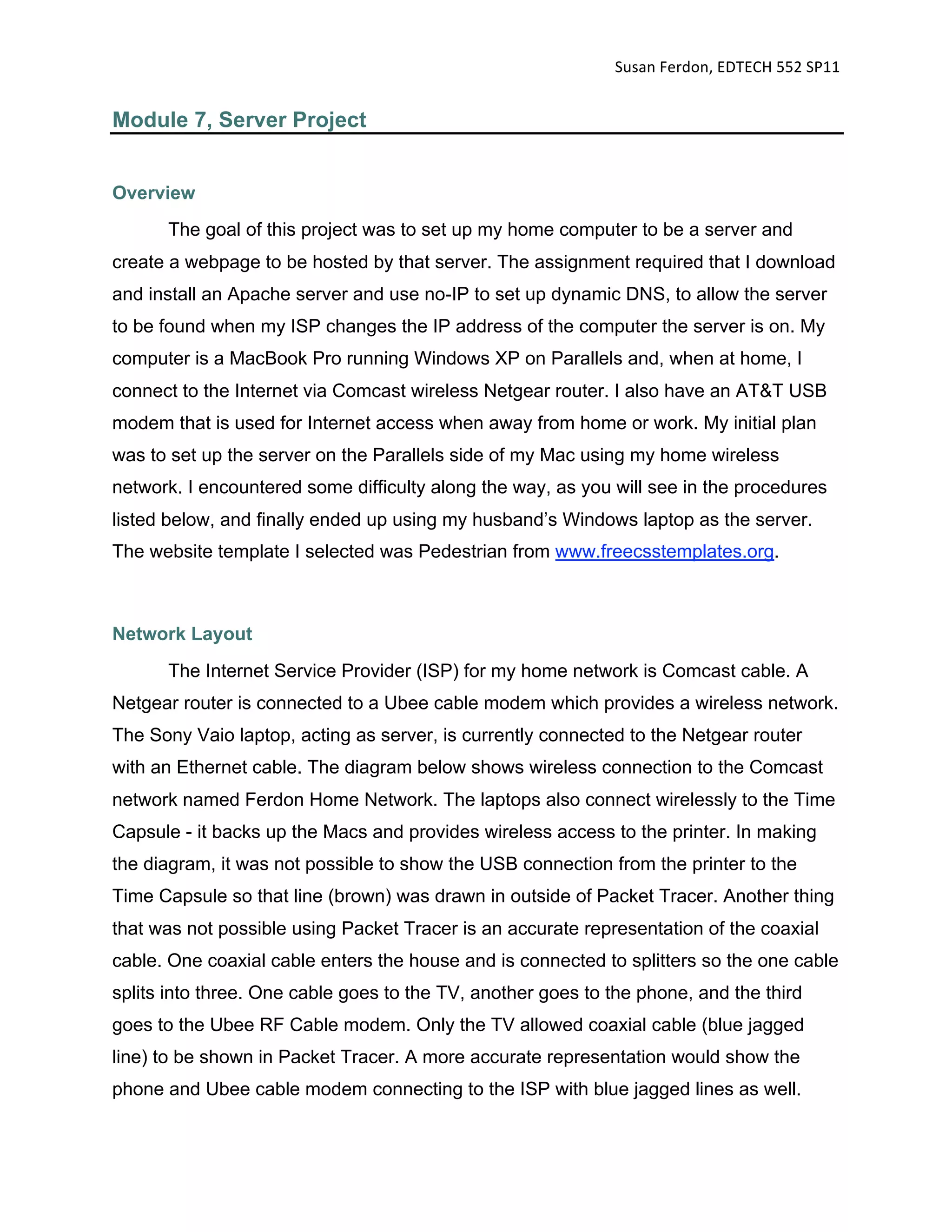
      The Internet Service Provider (ISP) for my home network is Comcast cable. A
Netgear router is connected to a Ubee cable modem which provides a wireless network.
The Sony Vaio laptop, acting as server, is currently connected to the Netgear router
with an Ethernet cable. The diagram below shows wireless connection to the Comcast
network named Ferdon Home Network. The laptops also connect wirelessly to the Time
Capsule - it backs up the Macs and provides wireless access to the printer. In making
the diagram, it was not possible to show the USB connection from the printer to the
Time Capsule so that line (brown) was drawn in outside of Packet Tracer. Another thing
that was not possible using Packet Tracer is an accurate representation of the coaxial
cable. One coaxial cable enters the house and is connected to splitters so the one cable
splits into three. One cable goes to the TV, another goes to the phone, and the third
goes to the Ubee RF Cable modem. Only the TV allowed coaxial cable (blue jagged
line) to be shown in Packet Tracer. A more accurate representation would show the
phone and Ubee cable modem connecting to the ISP with blue jagged lines as well.
Susan
Ferdon,
EDTECH
552
SP11


Process/Procedures

Step 1: Download
and install Apache
Server

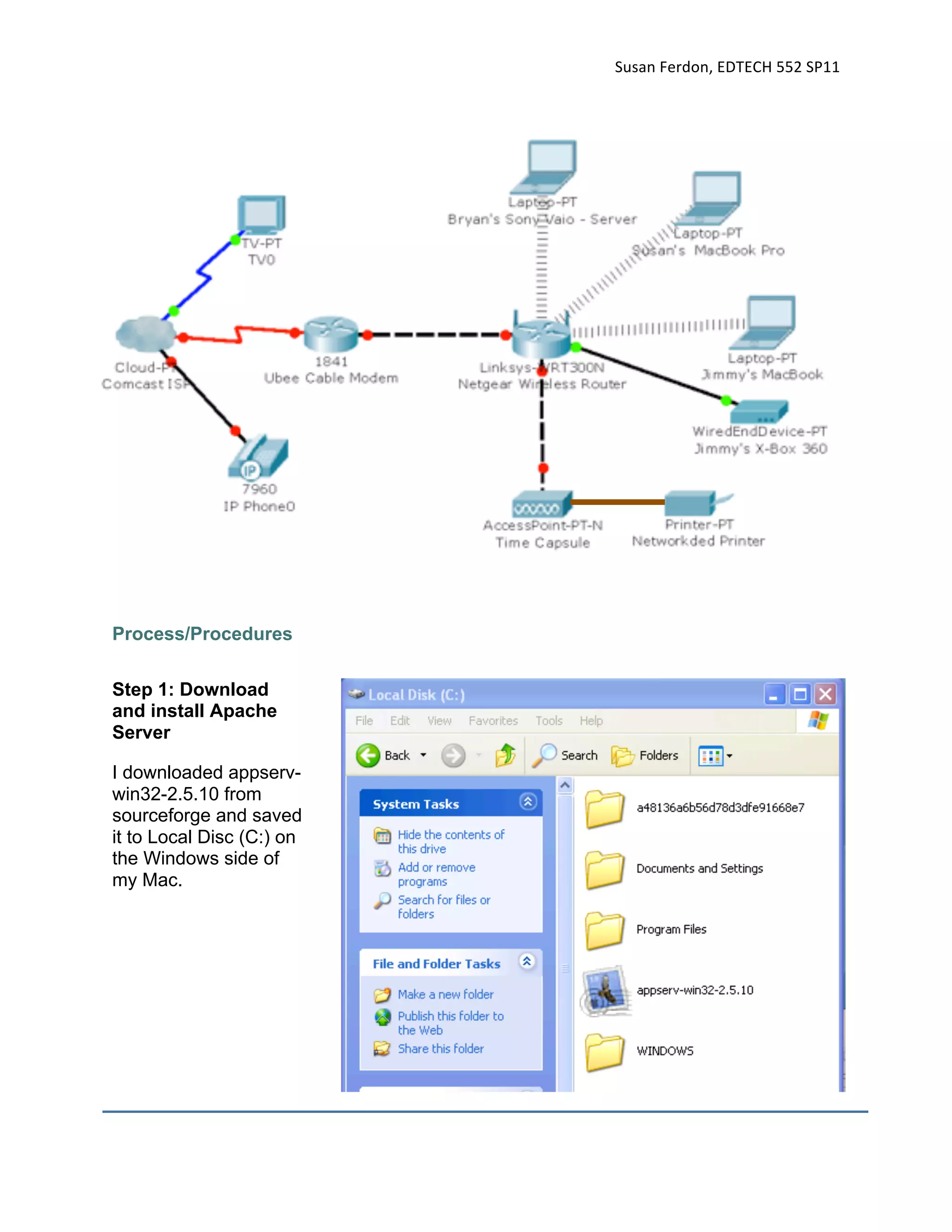
I downloaded appserv-
win32-2.5.10 from
sourceforge and saved
it to Local Disc (C:) on
the Windows side of
my Mac.
Susan
Ferdon,
EDTECH
552
SP11


Step 2: Confirm
Installation

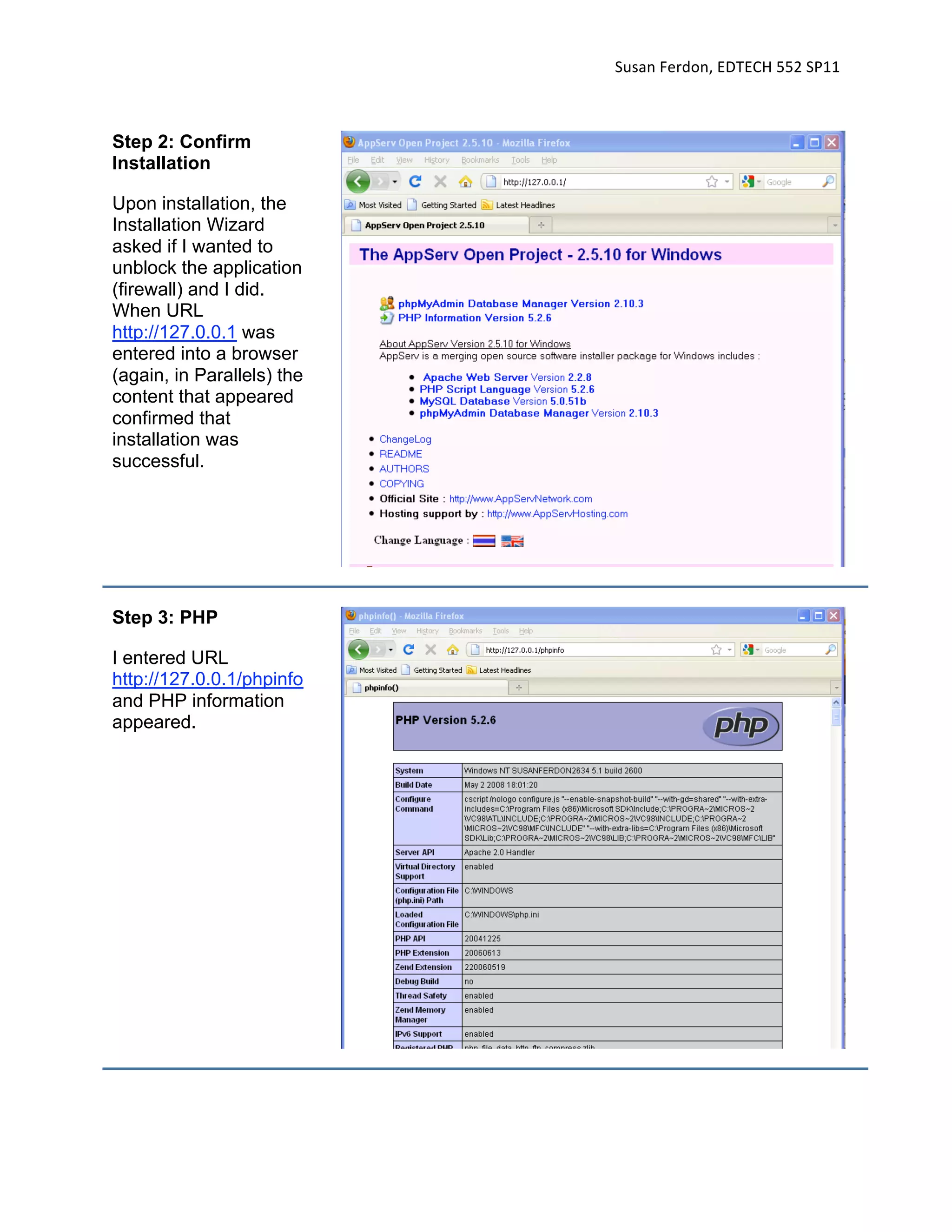
Upon installation, the
Installation Wizard
asked if I wanted to
unblock the application
(firewall) and I did.
When URL
http://127.0.0.1 was
entered into a browser
(again, in Parallels) the
content that appeared
confirmed that
installation was
successful.


Step 3: PHP

I entered URL
http://127.0.0.1/phpinfo
and PHP information
appeared.
Susan
Ferdon,
EDTECH
552
SP11


Step 4: Download
Template

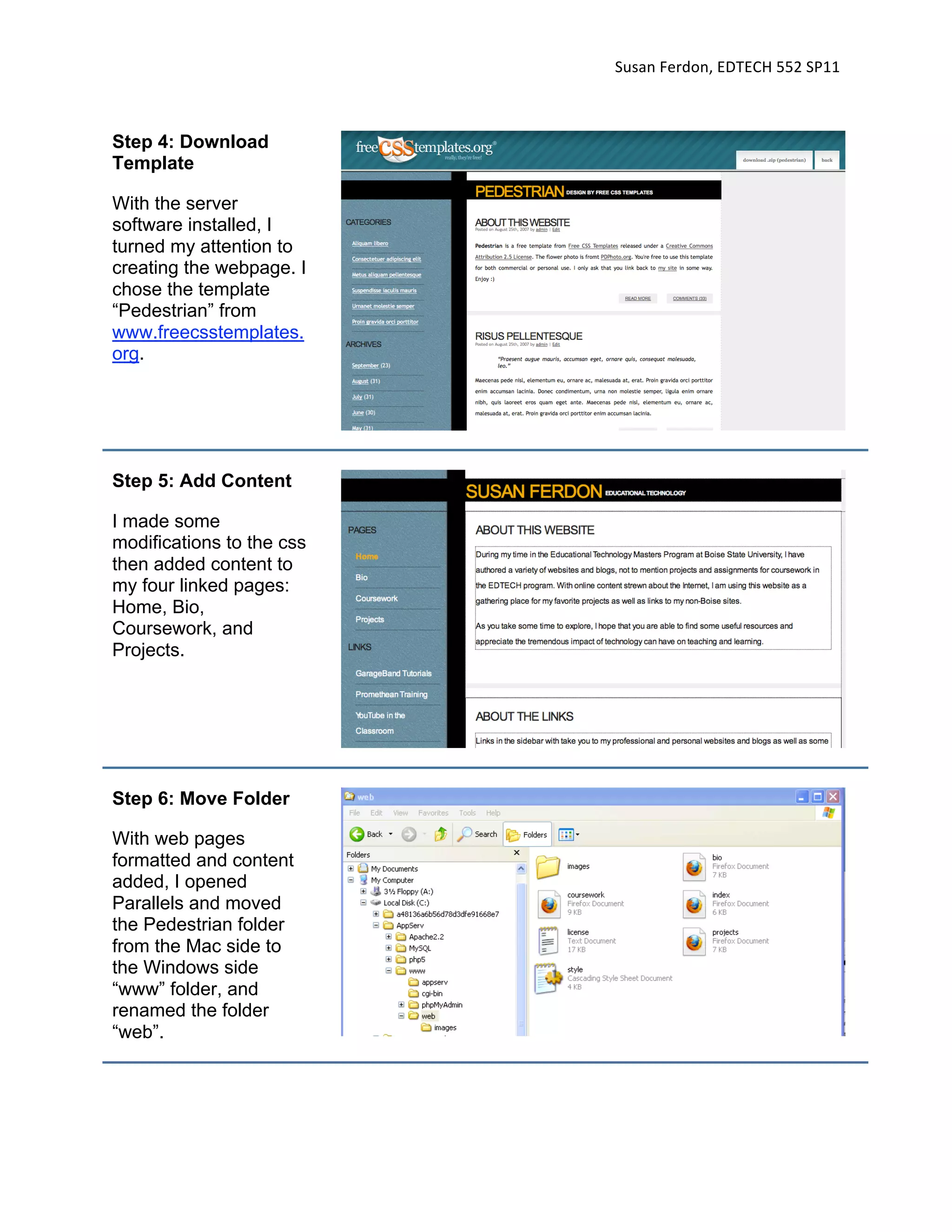
With the server
software installed, I
turned my attention to
creating the webpage. I
chose the template
“Pedestrian” from
www.freecsstemplates.
org.


Step 5: Add Content

I made some
modifications to the css
then added content to
my four linked pages:
Home, Bio,
Coursework, and
Projects.


Step 6: Move Folder

With web pages
formatted and content
added, I opened
Parallels and moved
the Pedestrian folder
from the Mac side to
the Windows side
“www” folder, and
renamed the folder
“web”.
Susan
Ferdon,
EDTECH
552
SP11


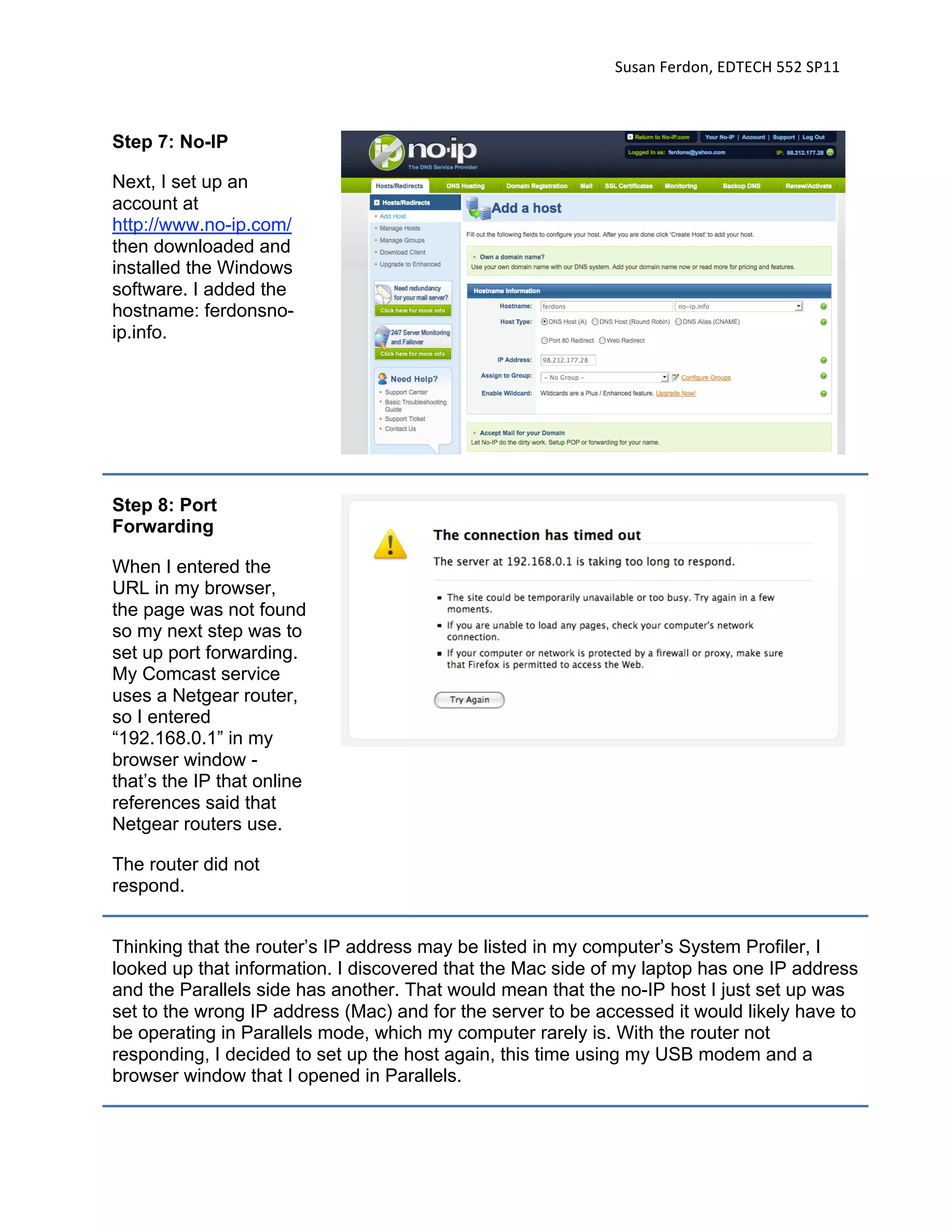
Step 7: No-IP

Next, I set up an
account at
http://www.no-ip.com/
then downloaded and
installed the Windows
software. I added the
hostname: ferdonsno-
ip.info.


Step 8: Port
Forwarding

When I entered the
URL in my browser,
the page was not found
so my next step was to
set up port forwarding.
My Comcast service
uses a Netgear router,
so I entered
“192.168.0.1” in my
browser window -
that’s the IP that online
references said that
Netgear routers use.

The router did not
respond.


Thinking that the router’s IP address may be listed in my computer’s System Profiler, I
looked up that information. I discovered that the Mac side of my laptop has one IP address
and the Parallels side has another. That would mean that the no-IP host I just set up was
set to the wrong IP address (Mac) and for the server to be accessed it would likely have to
be operating in Parallels mode, which my computer rarely is. With the router not
responding, I decided to set up the host again, this time using my USB modem and a
browser window that I opened in Parallels.
Susan
Ferdon,
EDTECH
552
SP11


I later learned that the reason the router did not respond was that it uses 192.168.1.1, not
192.168.0.1. Either way, I wanted to go through my USB modem at this point in hopes that
it would be easier to set up and would also keep my home network more secure.


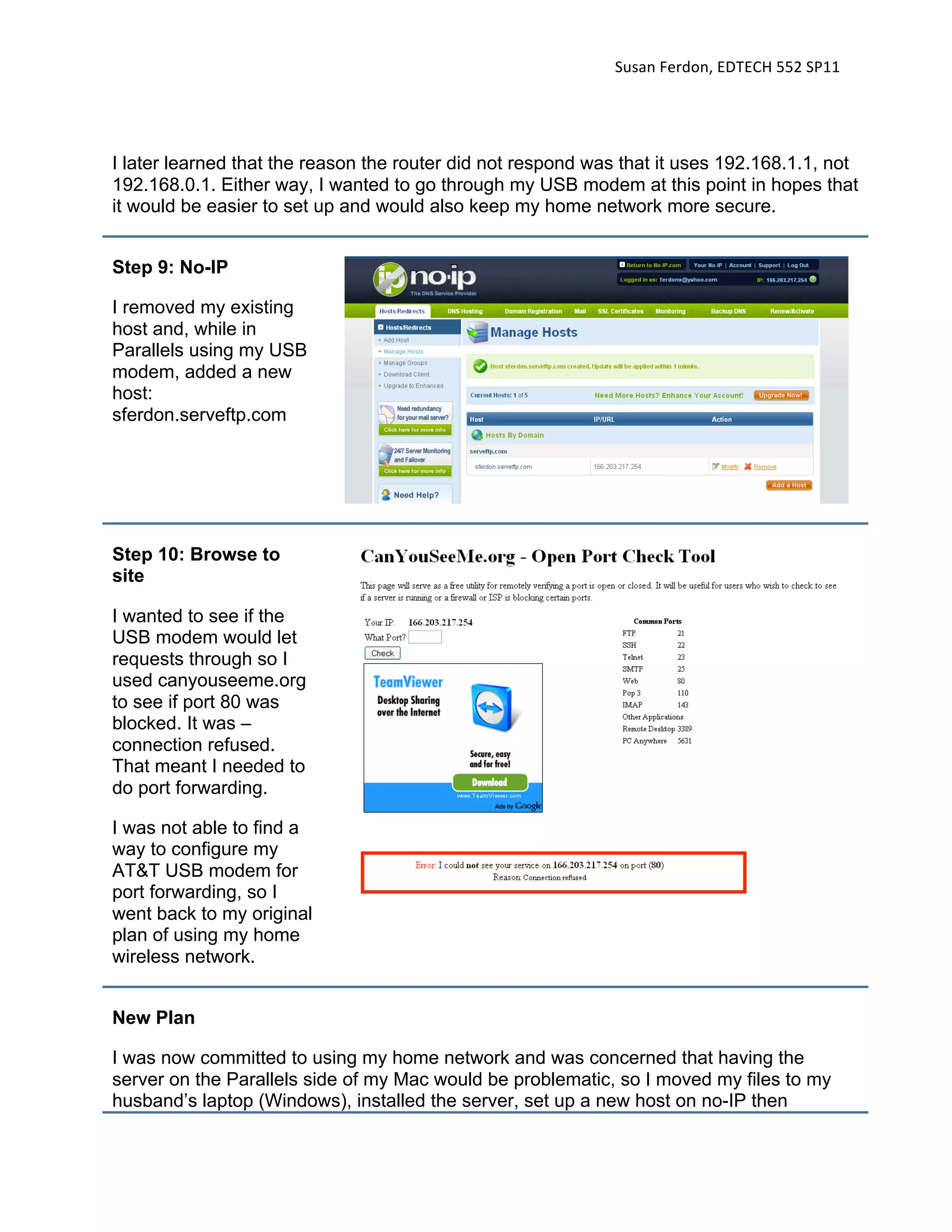
Step 9: No-IP

I removed my existing
host and, while in
Parallels using my USB
modem, added a new
host:
sferdon.serveftp.com


Step 10: Browse to
site

I wanted to see if the
USB modem would let
requests through so I
used canyouseeme.org
to see if port 80 was
blocked. It was –
connection refused.
That meant I needed to
do port forwarding.

I was not able to find a
way to configure my
AT&T USB modem for
port forwarding, so I
went back to my original
plan of using my home
wireless network.


New Plan

I was now committed to using my home network and was concerned that having the
server on the Parallels side of my Mac would be problematic, so I moved my files to my
husband’s laptop (Windows), installed the server, set up a new host on no-IP then
Susan
Ferdon,
EDTECH
552
SP11


configured the router.

New host name: www.sferdon.loginto.me


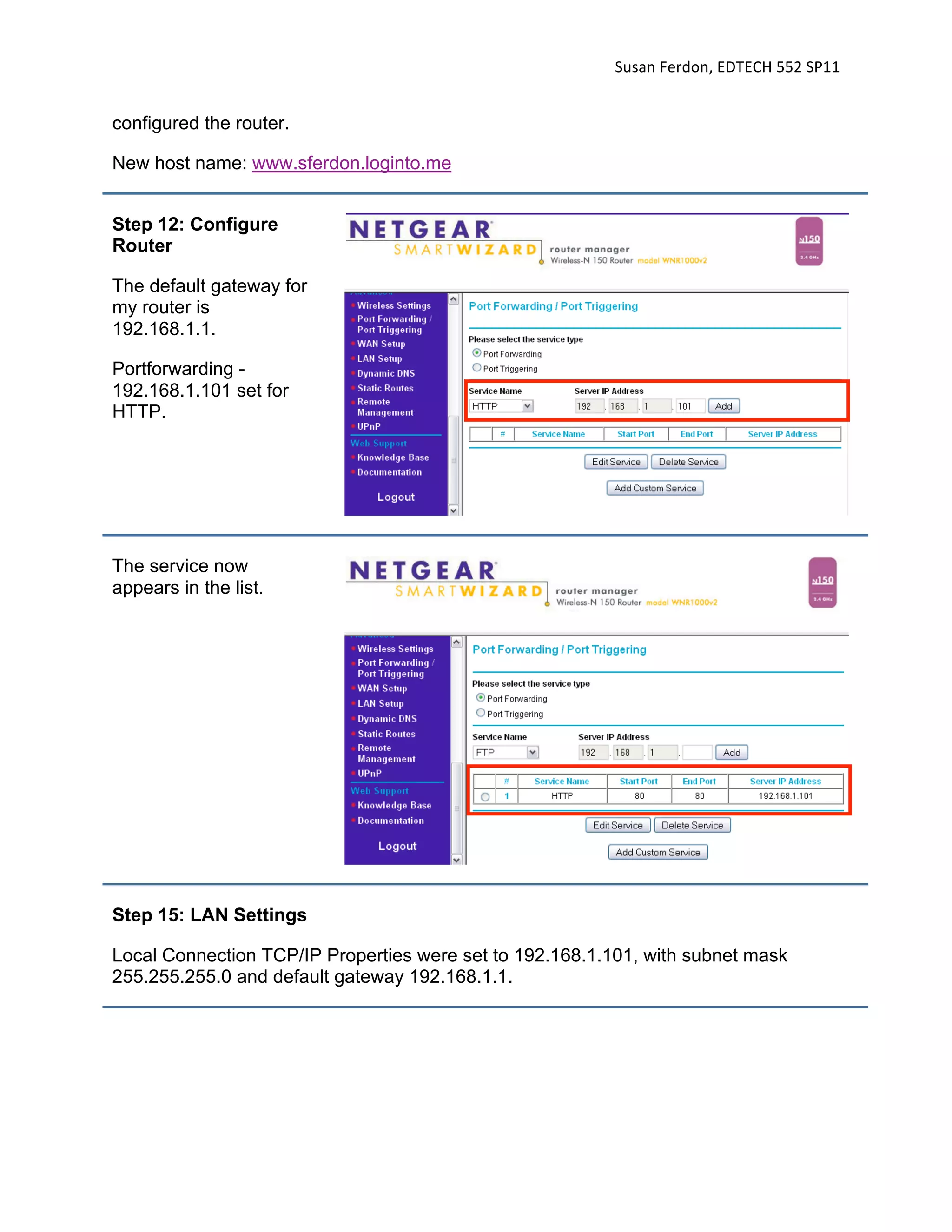
Step 12: Configure
Router

The default gateway for
my router is
192.168.1.1.

Portforwarding -
192.168.1.101 set for
HTTP.


The service now
appears in the list.


Step 15: LAN Settings

Local Connection TCP/IP Properties were set to 192.168.1.101, with subnet mask
255.255.255.0 and default gateway 192.168.1.1.
Susan
Ferdon,
EDTECH
552
SP11


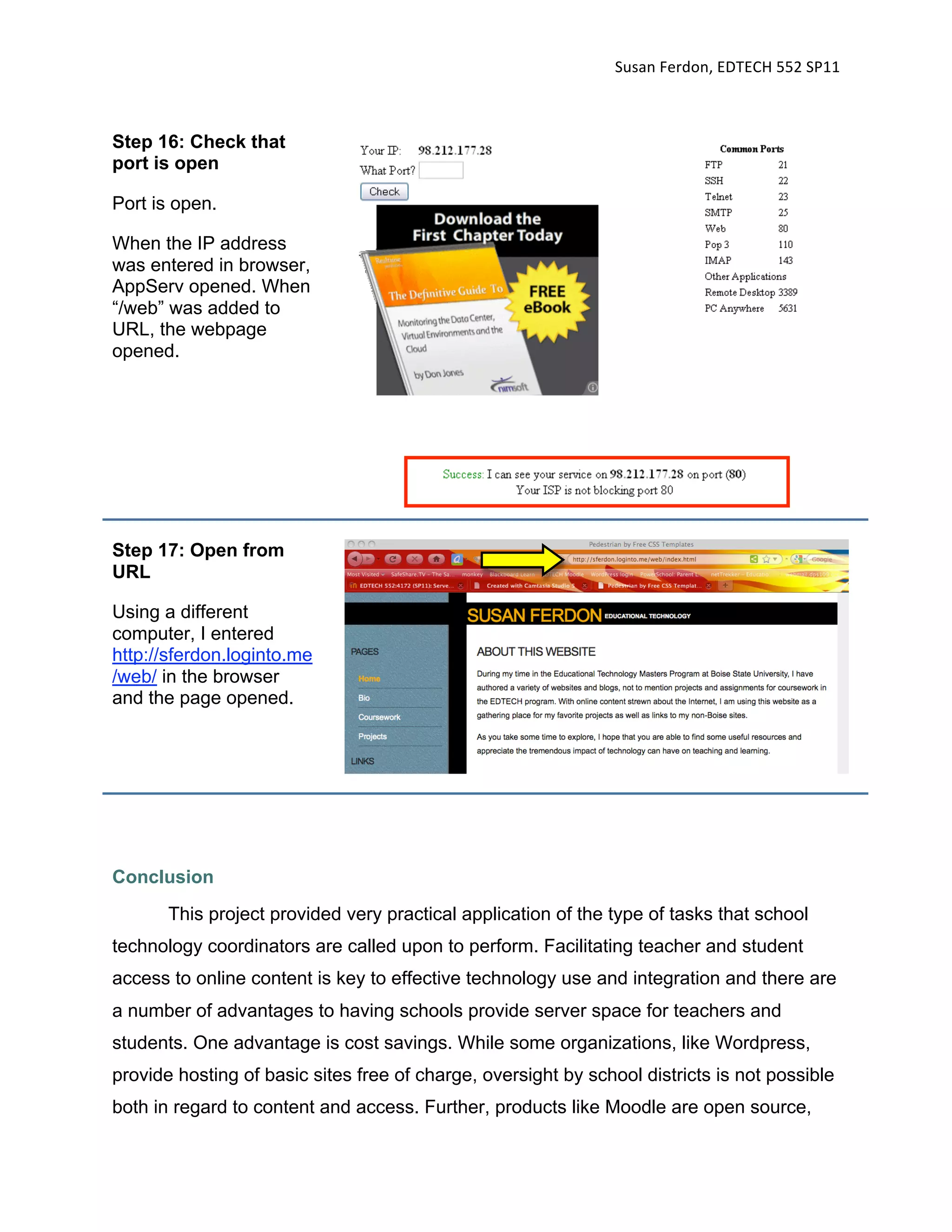
Step 16: Check that
port is open

Port is open.

When the IP address
was entered in browser,
AppServ opened. When
“/web” was added to
URL, the webpage
opened.


Step 17: Open from
URL

Using a different
computer, I entered
http://sferdon.loginto.me
/web/ in the browser
and the page opened.


Conclusion
       This project provided very practical application of the type of tasks that school
technology coordinators are called upon to perform. Facilitating teacher and student
access to online content is key to effective technology use and integration and there are
a number of advantages to having schools provide server space for teachers and
students. One advantage is cost savings. While some organizations, like Wordpress,
provide hosting of basic sites free of charge, oversight by school districts is not possible
both in regard to content and access. Further, products like Moodle are open source,
Susan
Ferdon,
EDTECH
552
SP11


therefore free of charge, but hosting services charge based on the number of users.
Hosting websites and Learning Management Systems on school equipment means that
access can be controlled and there is in-house support at no additional cost, aside from
hardware requirements. PHP and MySQL environments, like Moodle, Joomla and
Wordpress provide a means for teachers communicate and provide content to students
in a customizable format that is easy to access.

       Setting up a server was both a rewarding and frustrating process. I see great
benefits in being able to provide server space for educational applications but it seems
that most of my classmates and I ran into trouble related to our ISPs. Dealing with
downloads, file management, and creation of online content appeared to go well for all,
but port forwarding and DMZ proved to be problematic due to the great variety of
devices/routers and ISP configurations we were dealing with. It would be interesting to
find out if setting up a server is easier in an educational setting than in a home setting,
due to the differences in ISPs.
Susan
Ferdon,
EDTECH
552
SP11


Module 7, Server Project – Extra Credit


Overview
       One of the extra credit options was to set up a Wordpress blog on the home
server. I followed the steps from Dr. Hung’s tutorial for downloading and installation.
The Wordpress installation comes with one theme and I chose to download and apply
another, Paper3. The one difficulty I encountered was in the formatting of the page
when it is access remotely. While the formatting appears as expected in localhost, the
page is improperly formatted when accessed from the URL:
http://sferdon.loginto.me/wordpress. The page format differs, depending upon which
theme I have applied, but neither includes images, colors, fonts, etc. from the theme.


Process/Procedures

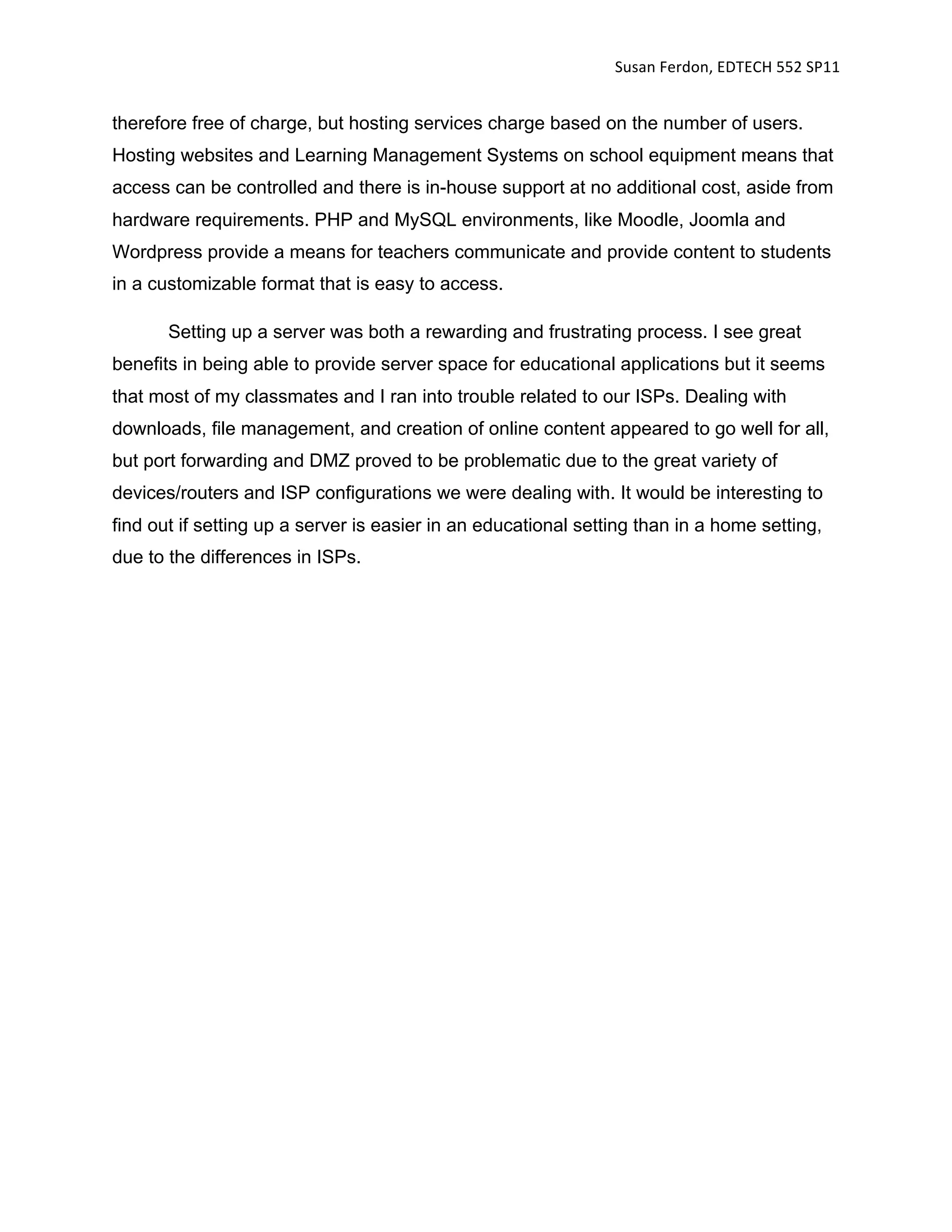
Step 1: Download
Wordpress

I downloaded
Wordpress saved it to
Local Disc
(C:)/AppServ/web.

I accessed Wordpress
index.php via mySQL,
localhost.
Susan
Ferdon,
EDTECH
552
SP11


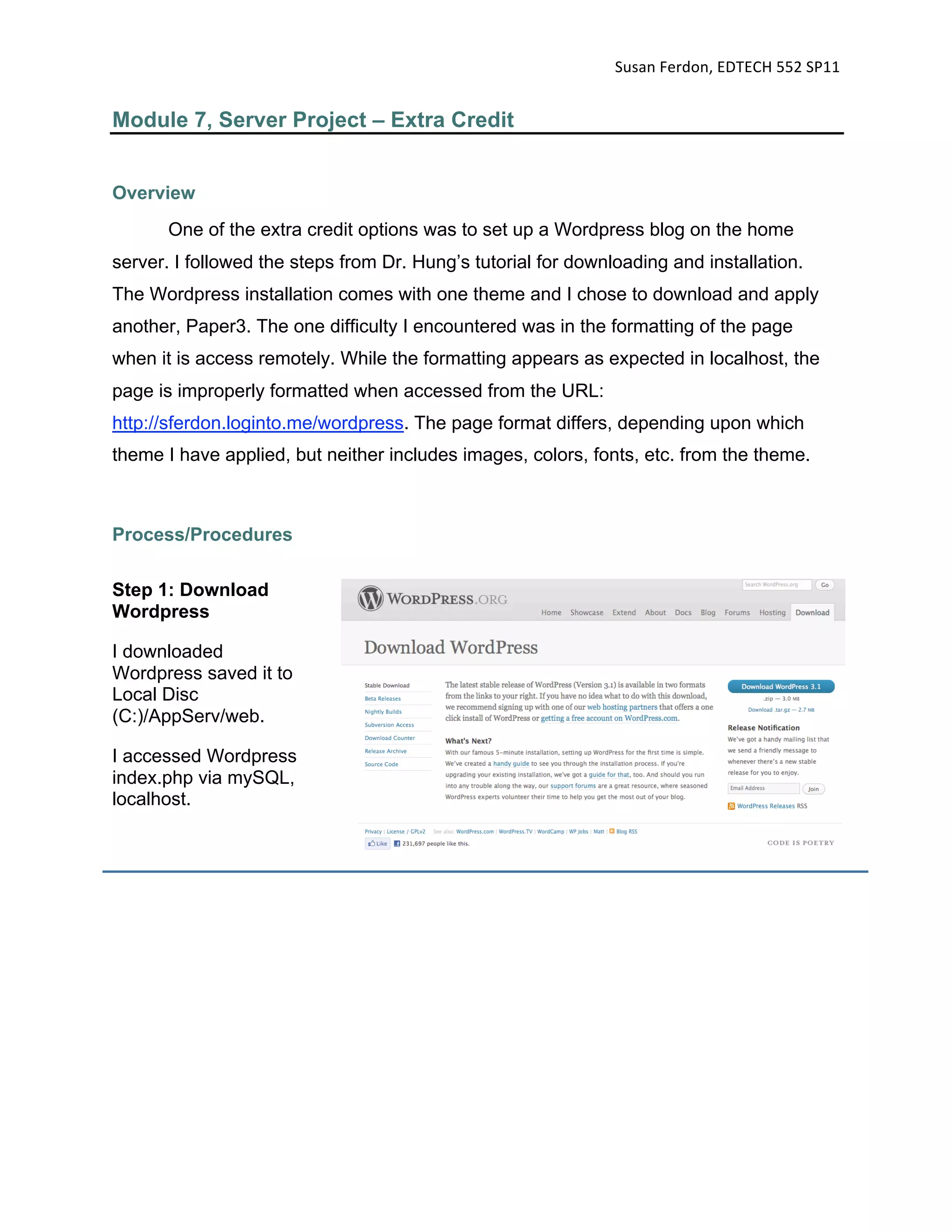
Step 2: Set Up
Database and
Connection Details

I created a new
database, wpdb, and
completed the form
fields for the
connection.


Connection was
successful.


Step 3: Install
Wordpress
Susan
Ferdon,
EDTECH
552
SP11


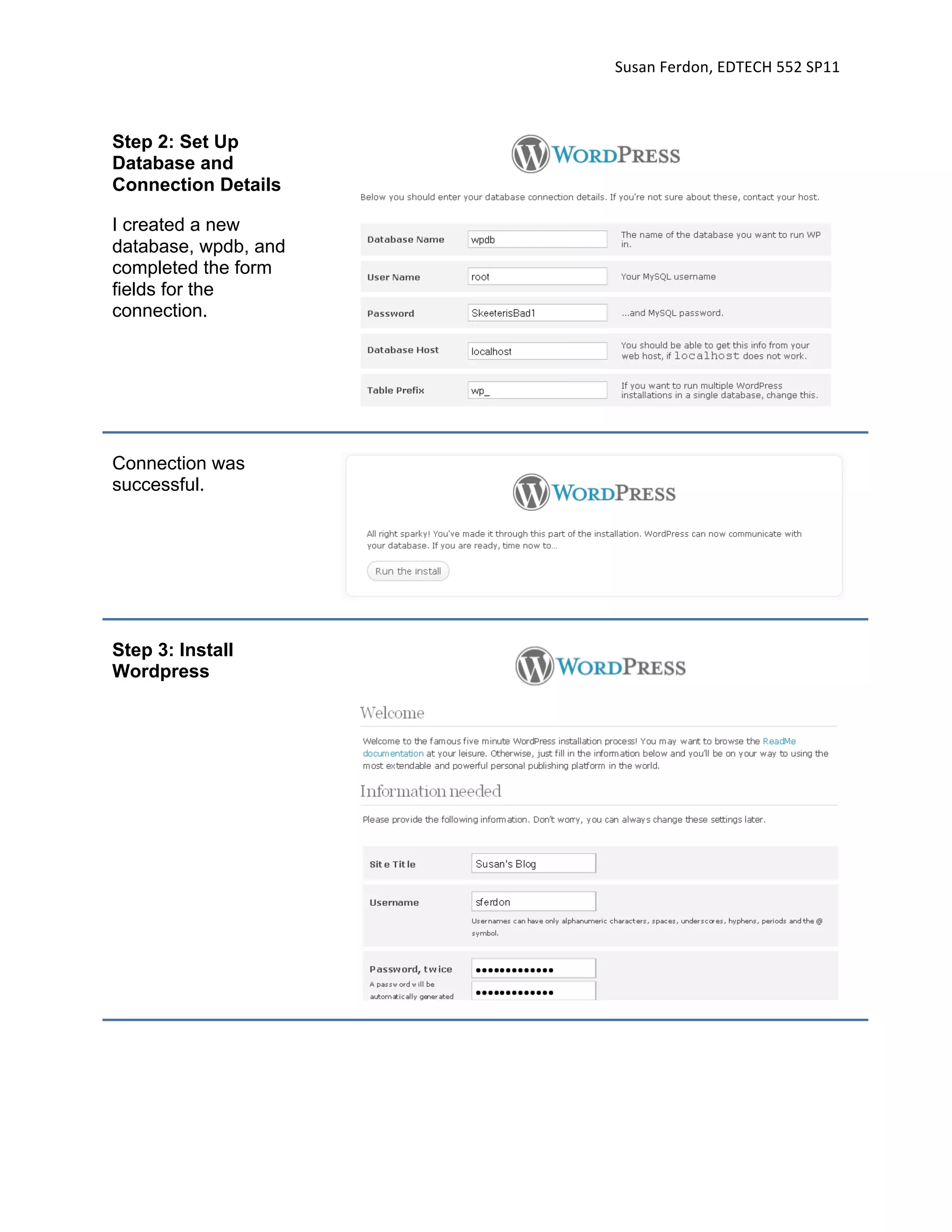
Installation was
successful.


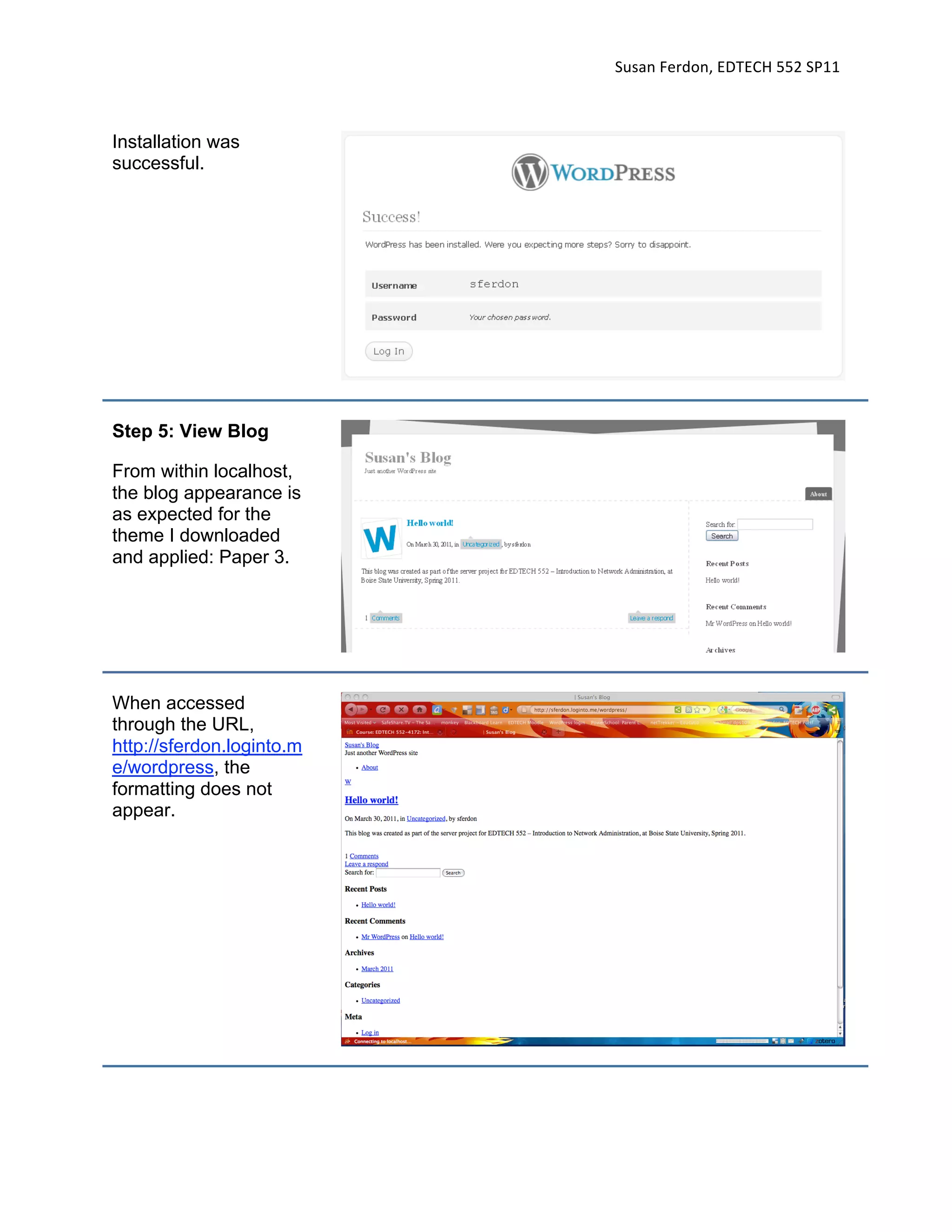
Step 5: View Blog

From within localhost,
the blog appearance is
as expected for the
theme I downloaded
and applied: Paper 3.


When accessed
through the URL,
http://sferdon.loginto.m
e/wordpress, the
formatting does not
appear.
Susan
Ferdon,
EDTECH
552
SP11


Closing Thoughts
      Having locally hosted blogs will make it easy for school technology coordinators
to help teachers get blogs up and running. However, I noticed a tremendous difference
in loading time between my simple four-page website and the database-driven blog.
The Wordpress blog has many more files to begin with and I added very little to it.
Loading time was such that, if I were a casual visitor, I would have given up before the
page loaded. School network administrators must be very aware of processing needs or
students and teachers will have a very difficult time accessing the content.

552ferdon serverproject

  • 1.
    Susan
Ferdon,
EDTECH
552
SP11
 Module 7, ServerProject Overview The goal of this project was to set up my home computer to be a server and create a webpage to be hosted by that server. The assignment required that I download and install an Apache server and use no-IP to set up dynamic DNS, to allow the server to be found when my ISP changes the IP address of the computer the server is on. My computer is a MacBook Pro running Windows XP on Parallels and, when at home, I connect to the Internet via Comcast wireless Netgear router. I also have an AT&T USB modem that is used for Internet access when away from home or work. My initial plan was to set up the server on the Parallels side of my Mac using my home wireless network. I encountered some difficulty along the way, as you will see in the procedures listed below, and finally ended up using my husband’s Windows laptop as the server. The website template I selected was Pedestrian from www.freecsstemplates.org. Network Layout The Internet Service Provider (ISP) for my home network is Comcast cable. A Netgear router is connected to a Ubee cable modem which provides a wireless network. The Sony Vaio laptop, acting as server, is currently connected to the Netgear router with an Ethernet cable. The diagram below shows wireless connection to the Comcast network named Ferdon Home Network. The laptops also connect wirelessly to the Time Capsule - it backs up the Macs and provides wireless access to the printer. In making the diagram, it was not possible to show the USB connection from the printer to the Time Capsule so that line (brown) was drawn in outside of Packet Tracer. Another thing that was not possible using Packet Tracer is an accurate representation of the coaxial cable. One coaxial cable enters the house and is connected to splitters so the one cable splits into three. One cable goes to the TV, another goes to the phone, and the third goes to the Ubee RF Cable modem. Only the TV allowed coaxial cable (blue jagged line) to be shown in Packet Tracer. A more accurate representation would show the phone and Ubee cable modem connecting to the ISP with blue jagged lines as well.
  • 2.
    Susan
Ferdon,
EDTECH
552
SP11
 Process/Procedures Step 1: Download andinstall Apache Server I downloaded appserv- win32-2.5.10 from sourceforge and saved it to Local Disc (C:) on the Windows side of my Mac.
  • 3.
    Susan
Ferdon,
EDTECH
552
SP11
 Step 2: Confirm Installation Uponinstallation, the Installation Wizard asked if I wanted to unblock the application (firewall) and I did. When URL http://127.0.0.1 was entered into a browser (again, in Parallels) the content that appeared confirmed that installation was successful. Step 3: PHP I entered URL http://127.0.0.1/phpinfo and PHP information appeared.
  • 4.
    Susan
Ferdon,
EDTECH
552
SP11
 Step 4: Download Template Withthe server software installed, I turned my attention to creating the webpage. I chose the template “Pedestrian” from www.freecsstemplates. org. Step 5: Add Content I made some modifications to the css then added content to my four linked pages: Home, Bio, Coursework, and Projects. Step 6: Move Folder With web pages formatted and content added, I opened Parallels and moved the Pedestrian folder from the Mac side to the Windows side “www” folder, and renamed the folder “web”.
  • 5.
    Susan
Ferdon,
EDTECH
552
SP11
 Step 7: No-IP Next,I set up an account at http://www.no-ip.com/ then downloaded and installed the Windows software. I added the hostname: ferdonsno- ip.info. Step 8: Port Forwarding When I entered the URL in my browser, the page was not found so my next step was to set up port forwarding. My Comcast service uses a Netgear router, so I entered “192.168.0.1” in my browser window - that’s the IP that online references said that Netgear routers use. The router did not respond. Thinking that the router’s IP address may be listed in my computer’s System Profiler, I looked up that information. I discovered that the Mac side of my laptop has one IP address and the Parallels side has another. That would mean that the no-IP host I just set up was set to the wrong IP address (Mac) and for the server to be accessed it would likely have to be operating in Parallels mode, which my computer rarely is. With the router not responding, I decided to set up the host again, this time using my USB modem and a browser window that I opened in Parallels.
  • 6.
    Susan
Ferdon,
EDTECH
552
SP11
 I later learnedthat the reason the router did not respond was that it uses 192.168.1.1, not 192.168.0.1. Either way, I wanted to go through my USB modem at this point in hopes that it would be easier to set up and would also keep my home network more secure. Step 9: No-IP I removed my existing host and, while in Parallels using my USB modem, added a new host: sferdon.serveftp.com Step 10: Browse to site I wanted to see if the USB modem would let requests through so I used canyouseeme.org to see if port 80 was blocked. It was – connection refused. That meant I needed to do port forwarding. I was not able to find a way to configure my AT&T USB modem for port forwarding, so I went back to my original plan of using my home wireless network. New Plan I was now committed to using my home network and was concerned that having the server on the Parallels side of my Mac would be problematic, so I moved my files to my husband’s laptop (Windows), installed the server, set up a new host on no-IP then
  • 7.
    Susan
Ferdon,
EDTECH
552
SP11
 configured the router. Newhost name: www.sferdon.loginto.me Step 12: Configure Router The default gateway for my router is 192.168.1.1. Portforwarding - 192.168.1.101 set for HTTP. The service now appears in the list. Step 15: LAN Settings Local Connection TCP/IP Properties were set to 192.168.1.101, with subnet mask 255.255.255.0 and default gateway 192.168.1.1.
  • 8.
    Susan
Ferdon,
EDTECH
552
SP11
 Step 16: Checkthat port is open Port is open. When the IP address was entered in browser, AppServ opened. When “/web” was added to URL, the webpage opened. Step 17: Open from URL Using a different computer, I entered http://sferdon.loginto.me /web/ in the browser and the page opened. Conclusion This project provided very practical application of the type of tasks that school technology coordinators are called upon to perform. Facilitating teacher and student access to online content is key to effective technology use and integration and there are a number of advantages to having schools provide server space for teachers and students. One advantage is cost savings. While some organizations, like Wordpress, provide hosting of basic sites free of charge, oversight by school districts is not possible both in regard to content and access. Further, products like Moodle are open source,
  • 9.
    Susan
Ferdon,
EDTECH
552
SP11
 therefore free ofcharge, but hosting services charge based on the number of users. Hosting websites and Learning Management Systems on school equipment means that access can be controlled and there is in-house support at no additional cost, aside from hardware requirements. PHP and MySQL environments, like Moodle, Joomla and Wordpress provide a means for teachers communicate and provide content to students in a customizable format that is easy to access. Setting up a server was both a rewarding and frustrating process. I see great benefits in being able to provide server space for educational applications but it seems that most of my classmates and I ran into trouble related to our ISPs. Dealing with downloads, file management, and creation of online content appeared to go well for all, but port forwarding and DMZ proved to be problematic due to the great variety of devices/routers and ISP configurations we were dealing with. It would be interesting to find out if setting up a server is easier in an educational setting than in a home setting, due to the differences in ISPs.
  • 10.
    Susan
Ferdon,
EDTECH
552
SP11
 Module 7, ServerProject – Extra Credit Overview One of the extra credit options was to set up a Wordpress blog on the home server. I followed the steps from Dr. Hung’s tutorial for downloading and installation. The Wordpress installation comes with one theme and I chose to download and apply another, Paper3. The one difficulty I encountered was in the formatting of the page when it is access remotely. While the formatting appears as expected in localhost, the page is improperly formatted when accessed from the URL: http://sferdon.loginto.me/wordpress. The page format differs, depending upon which theme I have applied, but neither includes images, colors, fonts, etc. from the theme. Process/Procedures Step 1: Download Wordpress I downloaded Wordpress saved it to Local Disc (C:)/AppServ/web. I accessed Wordpress index.php via mySQL, localhost.
  • 11.
    Susan
Ferdon,
EDTECH
552
SP11
 Step 2: SetUp Database and Connection Details I created a new database, wpdb, and completed the form fields for the connection. Connection was successful. Step 3: Install Wordpress
  • 12.
    Susan
Ferdon,
EDTECH
552
SP11
 Installation was successful. Step 5:View Blog From within localhost, the blog appearance is as expected for the theme I downloaded and applied: Paper 3. When accessed through the URL, http://sferdon.loginto.m e/wordpress, the formatting does not appear.
  • 13.
    Susan
Ferdon,
EDTECH
552
SP11
 Closing Thoughts Having locally hosted blogs will make it easy for school technology coordinators to help teachers get blogs up and running. However, I noticed a tremendous difference in loading time between my simple four-page website and the database-driven blog. The Wordpress blog has many more files to begin with and I added very little to it. Loading time was such that, if I were a casual visitor, I would have given up before the page loaded. School network administrators must be very aware of processing needs or students and teachers will have a very difficult time accessing the content.