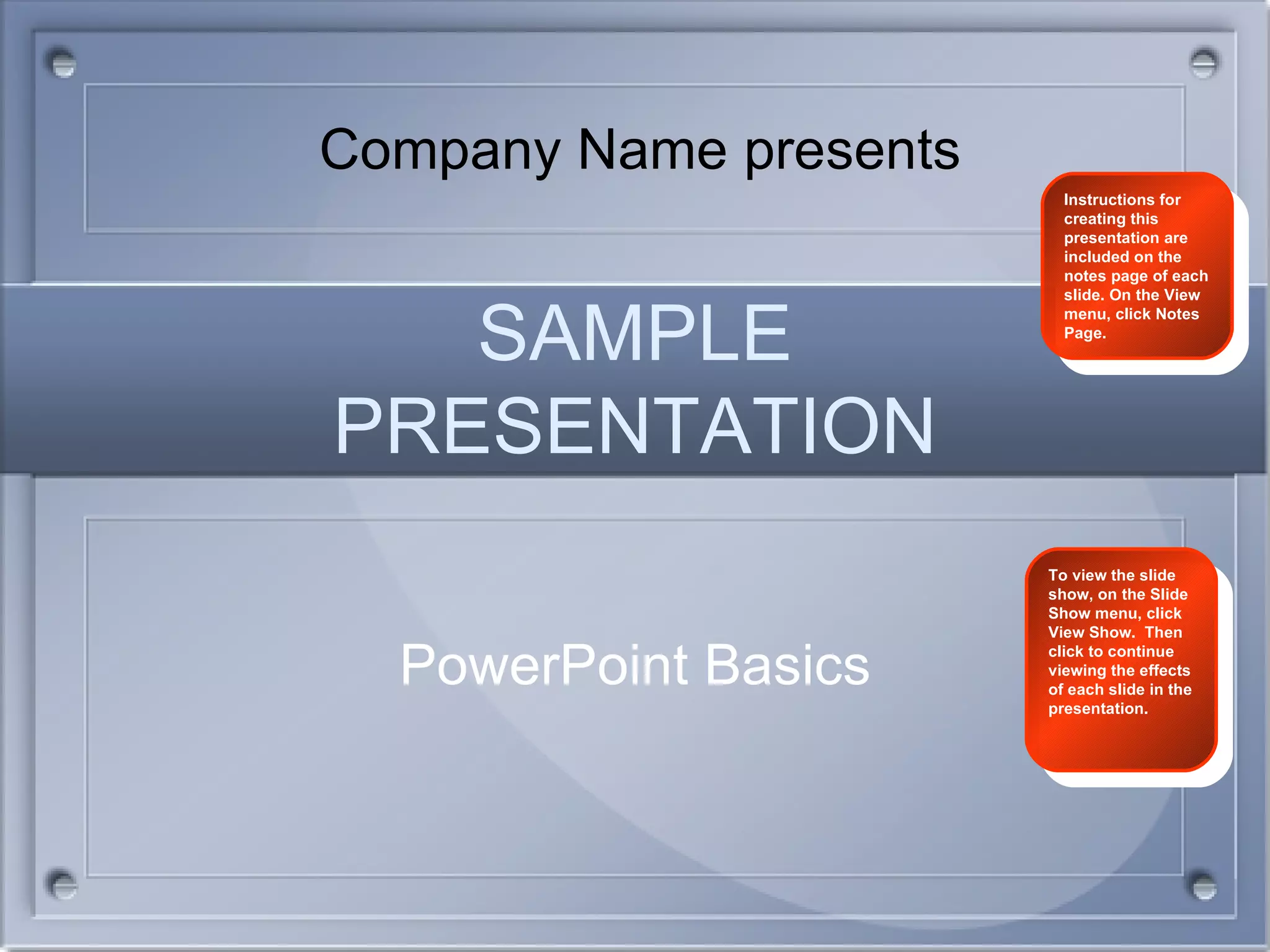
SAMPLE PRESENTATION PowerPoint Basics Instructions for creating this presentation are included on the notes page of each slide. On the View menu, click Notes Page. Company Name presents To view the slide show, on the Slide Show menu, click View Show.  Then click to continue viewing the effects of each slide in the presentation.
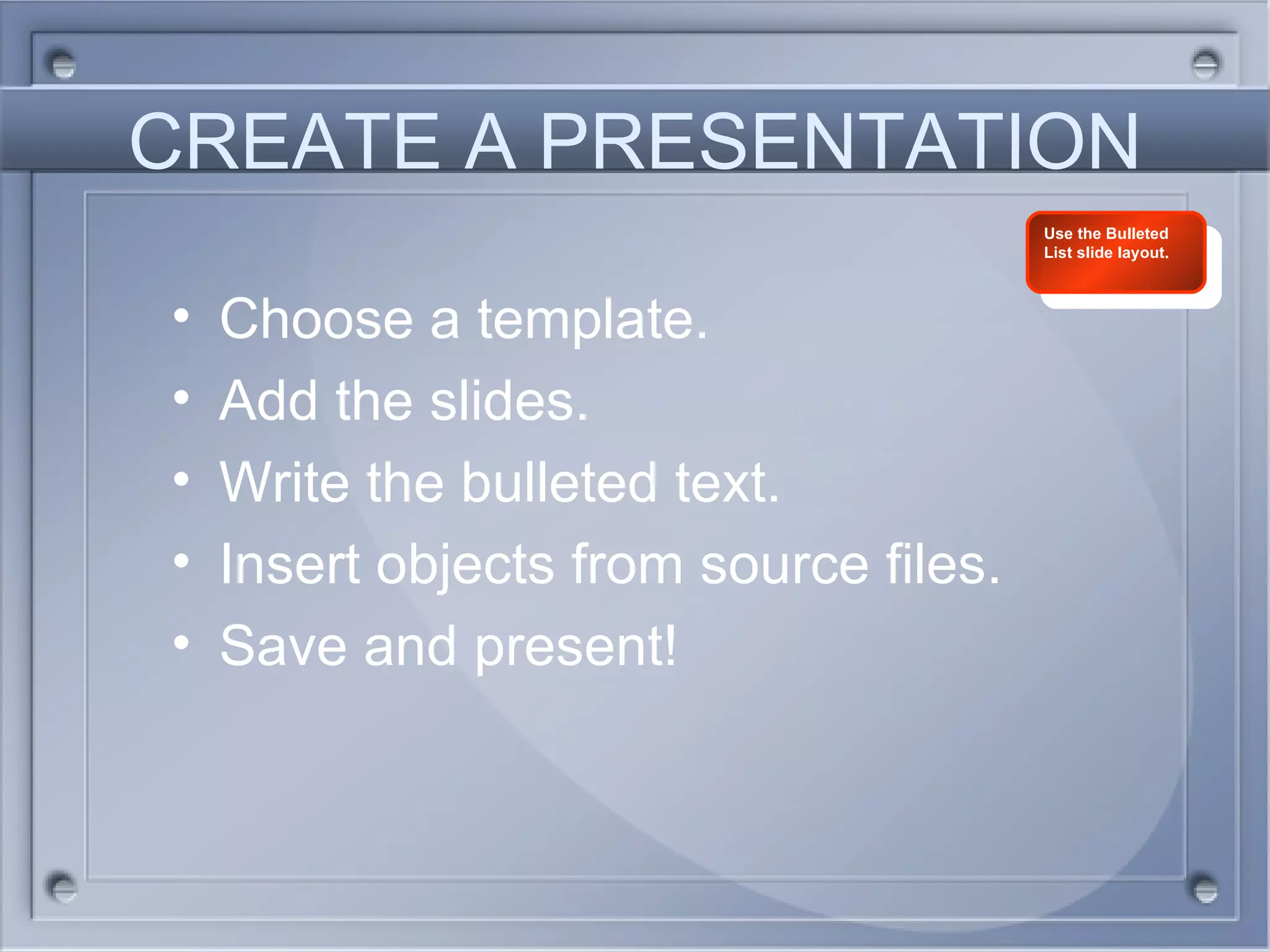
CREATE A PRESENTATION Choose a template. Add the slides. Write the bulleted text. Insert objects from source files. Save and present! Use the Bulleted List slide layout.
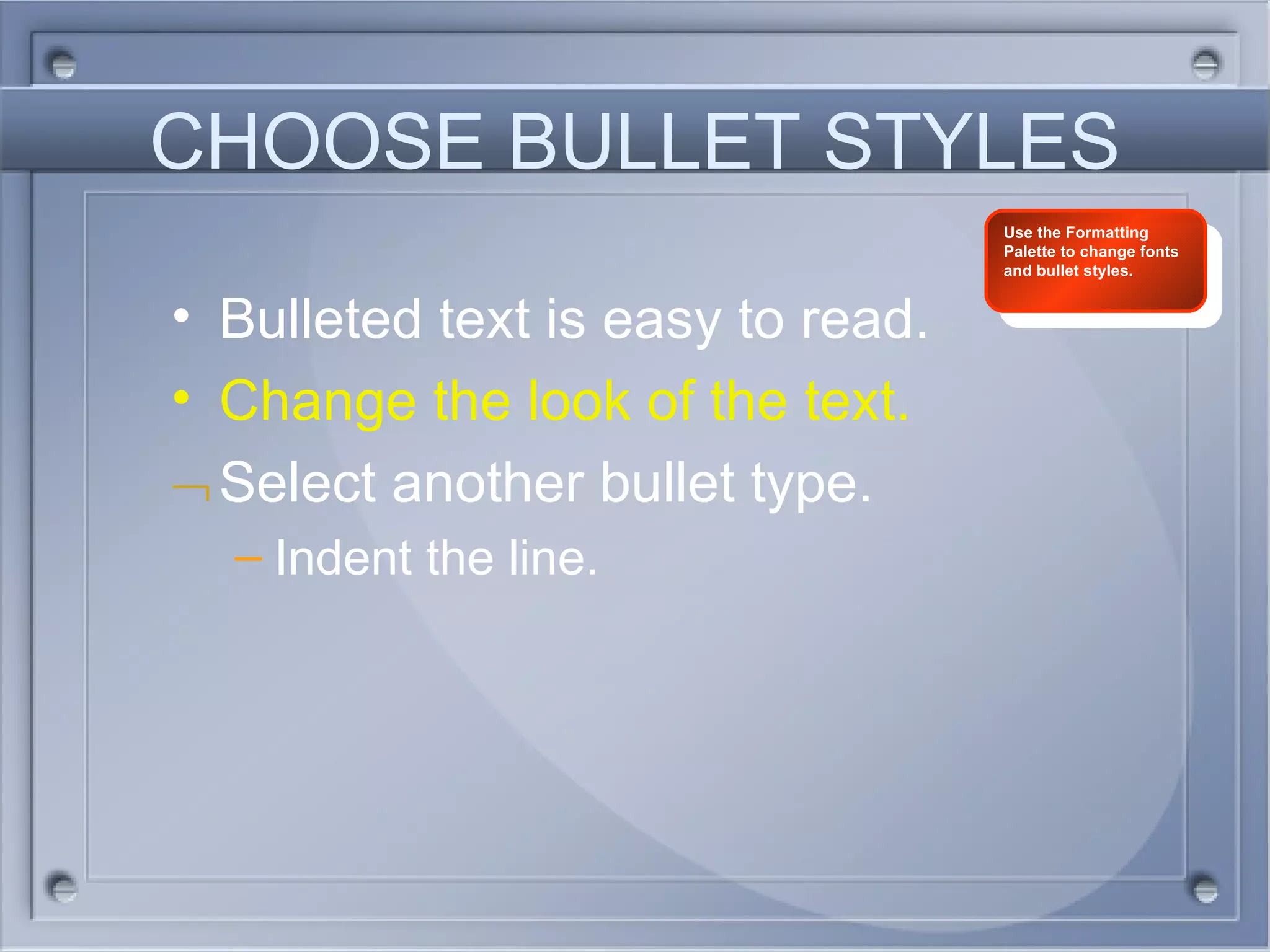
CHOOSE BULLET STYLES Bulleted text is easy to read. Change the look of the text. Select another bullet type. Indent the line. Use the Formatting Palette to change fonts and bullet styles.
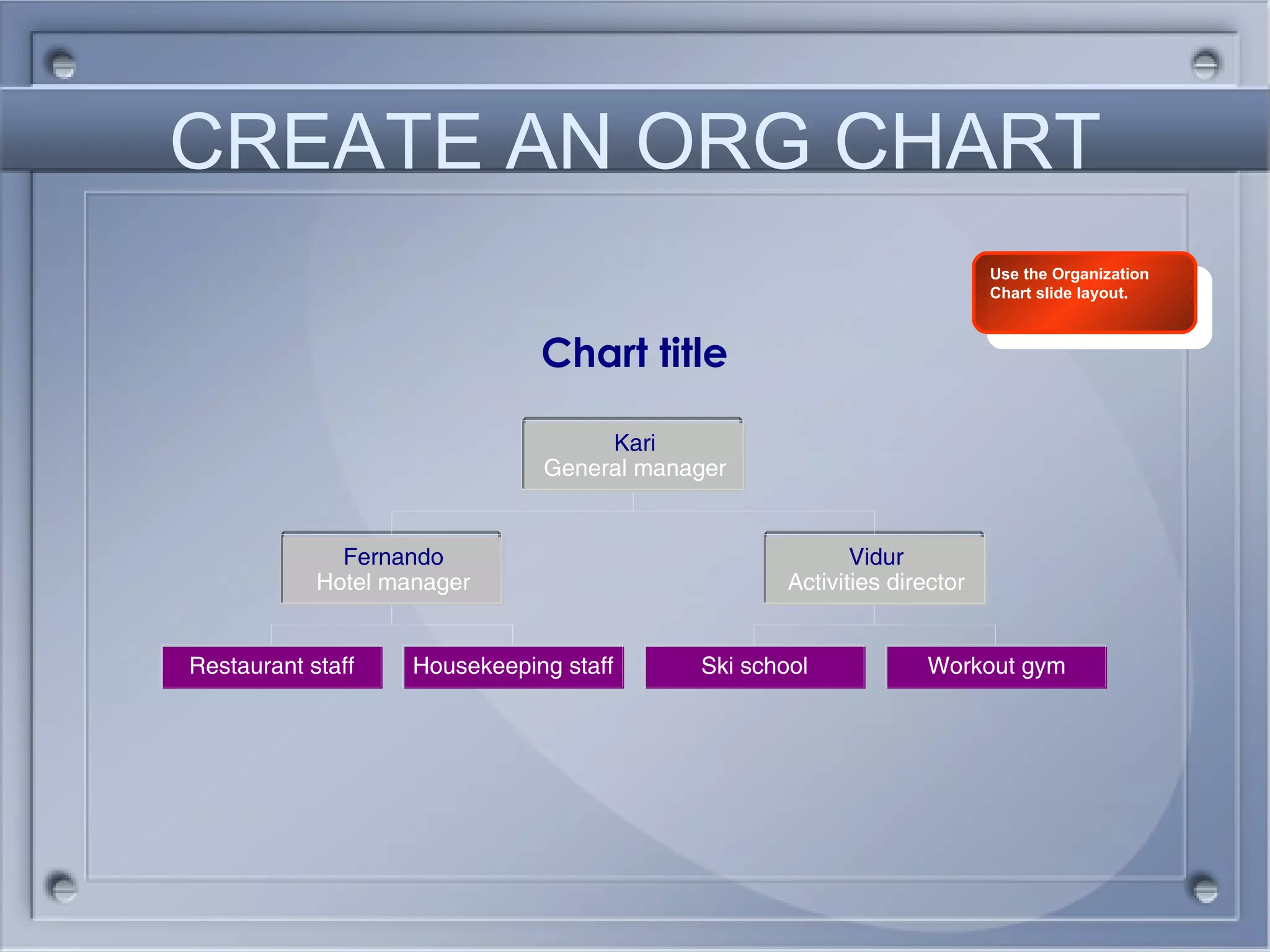
CREATE AN ORG CHART Use the Organization Chart slide layout.
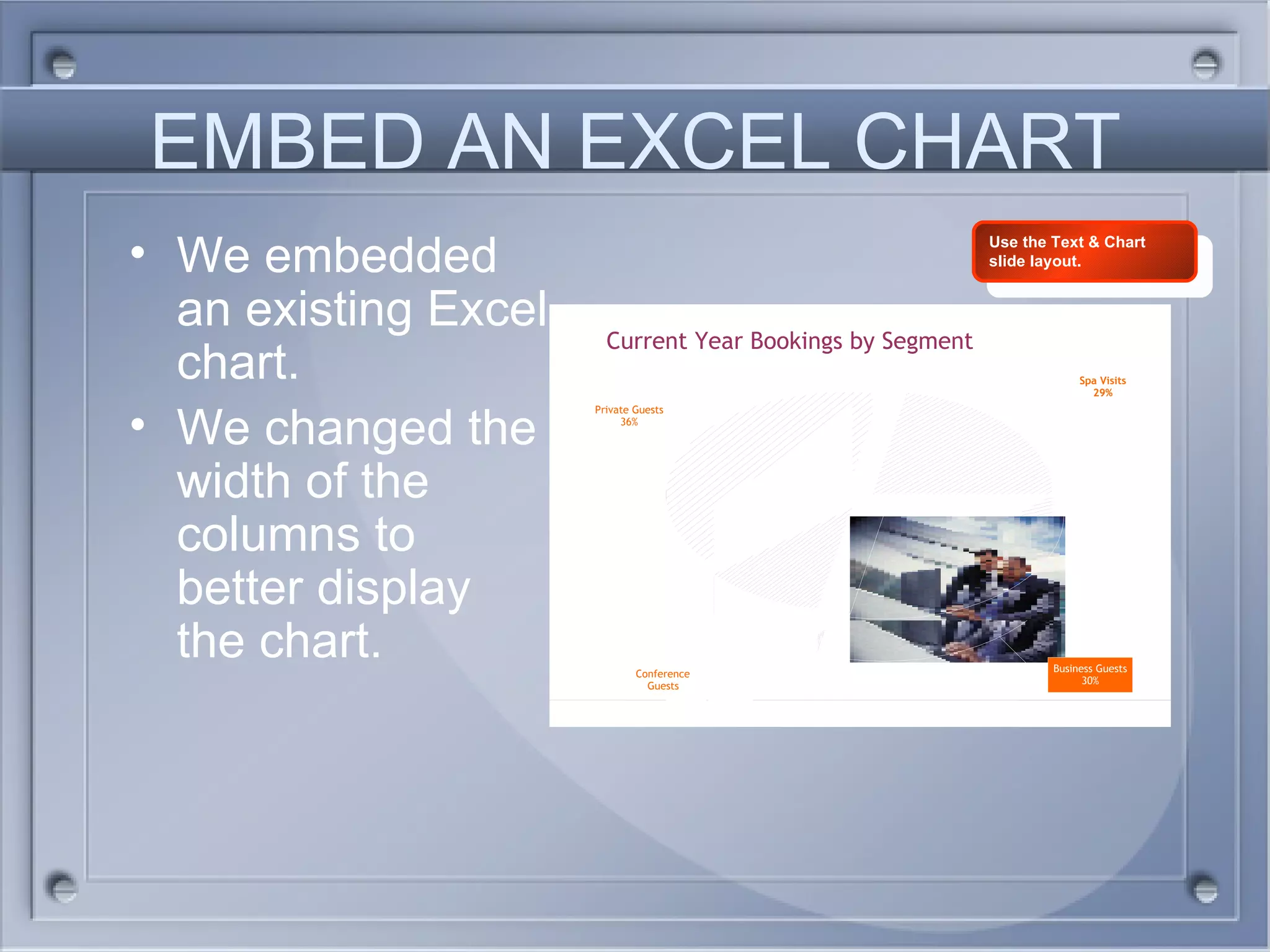
EMBED AN EXCEL CHART We embedded an existing Excel chart. We changed the width of the columns to better display the chart. Use the Text & Chart slide layout.
Change the design Check out the new designs under Presentation on the Formatting Palette. Change the design for the presentation or for just one slide. This slide is based on the Northern Lights design template.
PREPARE FOR DELIVERY Create notes and handouts. Preview the slide show. Set up the show. And away we go! Use the new presenter tools to show your presentation on a second monitor.

Sample Presentation1

  • 1.
    SAMPLE PRESENTATION PowerPointBasics Instructions for creating this presentation are included on the notes page of each slide. On the View menu, click Notes Page. Company Name presents To view the slide show, on the Slide Show menu, click View Show. Then click to continue viewing the effects of each slide in the presentation.
  • 2.
    CREATE A PRESENTATIONChoose a template. Add the slides. Write the bulleted text. Insert objects from source files. Save and present! Use the Bulleted List slide layout.
  • 3.
    CHOOSE BULLET STYLESBulleted text is easy to read. Change the look of the text. Select another bullet type. Indent the line. Use the Formatting Palette to change fonts and bullet styles.
  • 4.
    CREATE AN ORGCHART Use the Organization Chart slide layout.
  • 5.
    EMBED AN EXCELCHART We embedded an existing Excel chart. We changed the width of the columns to better display the chart. Use the Text & Chart slide layout.
  • 6.
    Change the designCheck out the new designs under Presentation on the Formatting Palette. Change the design for the presentation or for just one slide. This slide is based on the Northern Lights design template.
  • 7.
    PREPARE FOR DELIVERYCreate notes and handouts. Preview the slide show. Set up the show. And away we go! Use the new presenter tools to show your presentation on a second monitor.

Editor's Notes

  • #2 This sample presentation was created in a minimal amount of time and makes use of the designs, transitions, and animations in Microsoft PowerPoint. In the presentation, we created an organizational chart, embedded an Excel chart, and changed the design template. When you’ve finished examining the slides, view the slide show to see the animations, transitions, and movies, and hear the sounds. This first slide uses the Title Slide layout. To add a slide, on the Formatting Palette under Add Objects , click the Slides tab, and then select a layout. Click a placeholder and type your text. PowerPoint automatically formats the text according to the specifications of the design template. For each slide in this presentation, we used the slide layout that best represents the type of information we wanted to include on the slide. Text On the title slide, we used the text placeholders to type “SAMPLE PRESENTATION” as the title and “PowerPoint Basics” as the subtitle. To enter text in a text placeholder, click the placeholder and type the text. The top line of text, “Company Name presents,” is in a text box instead of a text placeholder. When you use text boxes, the text style matches that of the template you’re using, but you’ll need to size and position the text box on the slide yourself. Note that text entered in a text box does not appear in the outline. To add a text box: On the Insert menu, click Text Box . On the slide, drag to create the box. Type the text.