PROJECT ON DATA TAB
(Get External Data and Sort & Filter Group)
Submitted By:-
KULDEEP MALIK
Roll No. – 123
Reg No. – CRO0414269
Submitter to:-
MR. ALOK GUPTA
XPXPXPContents
1. Get External Data 3-21
a) Importing Data from Text Files 3-4
b) Exploring Connections 5
c) Exploring Data Ranges 6 7 6-7
d) Definig a Trust Location 8 8
e) Introducing Database 9 9
f) Introducing Queries 10,11,12, 13, 14 ,15 10-15
g) Importing data into pivottables and pivotcharts 16,17 16-17
h) Importind data from the Web Query18 19 20 21 18-21
2. Sort & Filter 22-25
a) Data Sorting 22 23 22-23
b) Data Filtering 24 25 24-24
New Perspectives on Microsoft Excel 2010 2
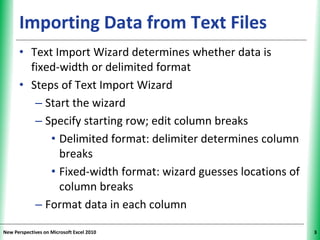
XPXPXPImporting Data from Text Files
• Text Import Wizard determines whether data is
fixed-width or delimited format
• Steps of Text Import Wizard
– Start the wizard
– Specify starting row; edit column breaks
• Delimited format: delimiter determines column
breaks
• Fixed-width format: wizard guesses locations of
column breaks
– Format data in each column
New Perspectives on Microsoft Excel 2010 3
XPXPXP
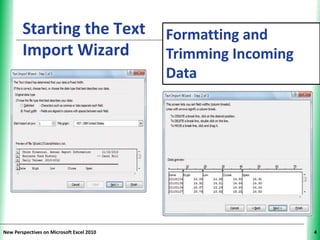
Starting the Text
Import Wizard
New Perspectives on Microsoft Excel 2010 4
Formatting and
Trimming Incoming
Data
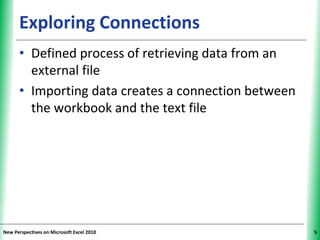
XPXPXPExploring Connections
• Defined process of retrieving data from an
external file
• Importing data creates a connection between
the workbook and the text file
New Perspectives on Microsoft Excel 2010 5
XPXPXPExploring Data Ranges
• External data range
–Each location in which a connection is
applied
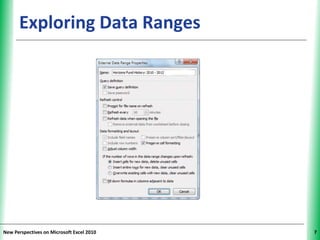
• Each external data range is given a name,
which can be edited
• Excel can update (refresh) data ranges
and connections manually or
automatically
New Perspectives on Microsoft Excel 2010 6
XPXPXPExploring Data Ranges
New Perspectives on Microsoft Excel 2010 7
XPXPXPDefining a Trusted Location
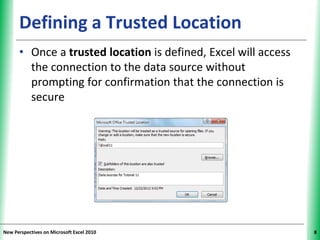
• Once a trusted location is defined, Excel will access
the connection to the data source without
prompting for confirmation that the connection is
secure
New Perspectives on Microsoft Excel 2010 8
XPXPXPIntroducing Databases
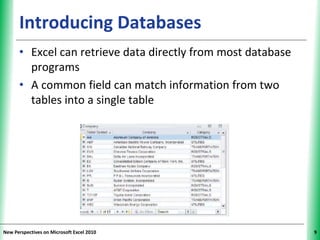
• Excel can retrieve data directly from most database
programs
• A common field can match information from two
tables into a single table
New Perspectives on Microsoft Excel 2010 9
XPXPXPIntroducing Queries
• Create a query to look at only specific information
from a database
• A query can:
– Contain criteria (conditions that limit the number
of records in the results)
– Specify how you want the data to appear
New Perspectives on Microsoft Excel 2010 10
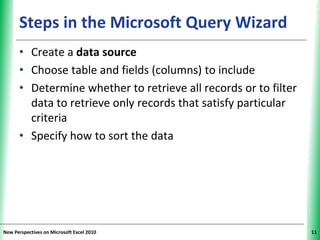
XPXPXPSteps in the Microsoft Query Wizard
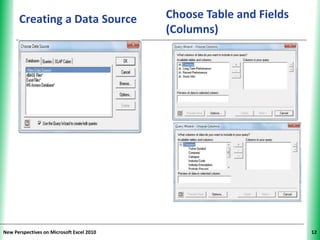
• Create a data source
• Choose table and fields (columns) to include
• Determine whether to retrieve all records or to filter
data to retrieve only records that satisfy particular
criteria
• Specify how to sort the data
New Perspectives on Microsoft Excel 2010 11
XPXPXPCreating a Data Source
New Perspectives on Microsoft Excel 2010 12
Choose Table and Fields
(Columns)
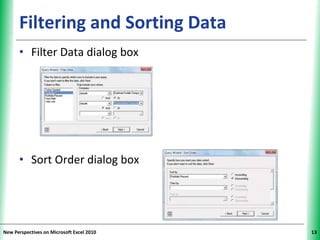
XPXPXPFiltering and Sorting Data
• Filter Data dialog box
• Sort Order dialog box
New Perspectives on Microsoft Excel 2010 13
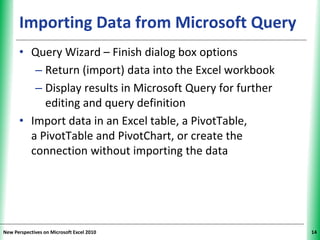
XPXPXPImporting Data from Microsoft Query
• Query Wizard – Finish dialog box options
– Return (import) data into the Excel workbook
– Display results in Microsoft Query for further
editing and query definition
• Import data in an Excel table, a PivotTable,
a PivotTable and PivotChart, or create the
connection without importing the data
New Perspectives on Microsoft Excel 2010 14
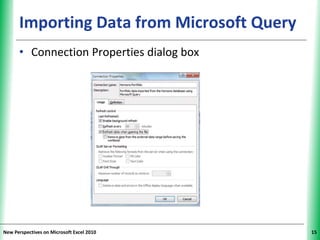
XPXPXPImporting Data from Microsoft Query
• Connection Properties dialog box
New Perspectives on Microsoft Excel 2010 15
XPXPXP
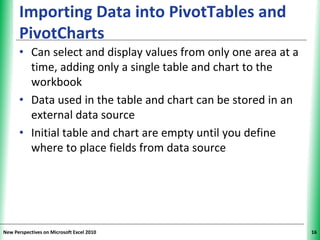
Importing Data into PivotTables and
PivotCharts
• Can select and display values from only one area at a
time, adding only a single table and chart to the
workbook
• Data used in the table and chart can be stored in an
external data source
• Initial table and chart are empty until you define
where to place fields from data source
New Perspectives on Microsoft Excel 2010 16
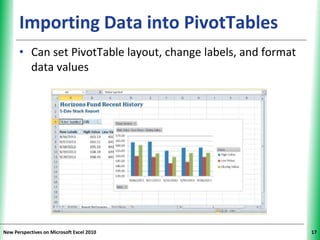
XPXPXPImporting Data into PivotTables
• Can set PivotTable layout, change labels, and format
data values
New Perspectives on Microsoft Excel 2010 17
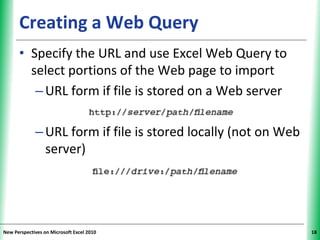
XPXPXPCreating a Web Query
• Specify the URL and use Excel Web Query to
select portions of the Web page to import
–URL form if file is stored on a Web server
–URL form if file is stored locally (not on Web
server)
New Perspectives on Microsoft Excel 2010 18
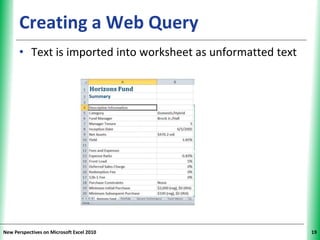
XPXPXPCreating a Web Query
• Text is imported into worksheet as unformatted text
New Perspectives on Microsoft Excel 2010 19
XPXPXPImporting Data from the Web
• Use a Web query to retrieve online data and
import it into a workbook
• Excel has several Web query files stored in a
library of built-in Web queries
– Some include parameters for specifying exact
information to be imported
New Perspectives on Microsoft Excel 2010 20
XPXPXPImporting Data from XML
• XML author can:
– Define what makes up a valid document (which
elements are required, which are optional)
– Indicate the type of values each element can
contain
• Schemas, though not required in XML, ensure that
data inserted into an XML document follows
predefined rules for content and structure
New Perspectives on Microsoft Excel 2010 21
XPXPXPSorting Data
New Perspectives on Microsoft Excel 2010 22
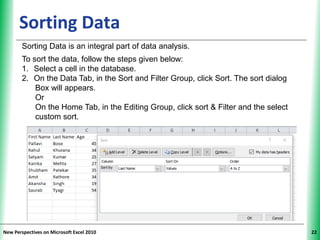
Sorting Data is an integral part of data analysis.
To sort the data, follow the steps given below:
1. Select a cell in the database.
2. On the Data Tab, in the Sort and Filter Group, click Sort. The sort dialog
Box will appears.
Or
On the Home Tab, in the Editing Group, click sort & Filter and the select
custom sort.
XPXPXPSort by Custom list
New Perspectives on Microsoft Excel 2010 23
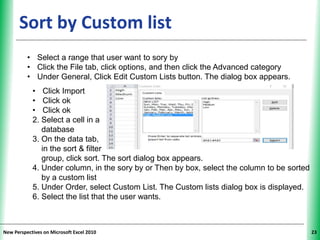
• Select a range that user want to sory by
• Click the File tab, click options, and then click the Advanced category
• Under General, Click Edit Custom Lists button. The dialog box appears.
• Click Import
• Click ok
• Click ok
2. Select a cell in a
database
3. On the data tab,
in the sort & filter
group, click sort. The sort dialog box appears.
4. Under column, in the sory by or Then by box, select the column to be sorted
by a custom list
5. Under Order, select Custom List. The Custom lists dialog box is displayed.
6. Select the list that the user wants.
XPXPXPFiltering a Database
New Perspectives on Microsoft Excel 2010 24
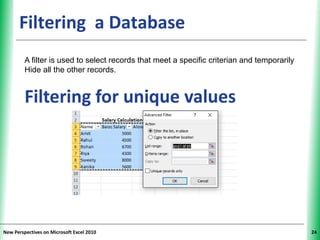
A filter is used to select records that meet a specific criterian and temporarily
Hide all the other records.
Filtering for unique values
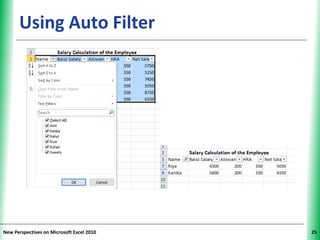
XPXPXPUsing Auto Filter
New Perspectives on Microsoft Excel 2010 25

Excel 2010 data tab

  • 1.
    PROJECT ON DATATAB (Get External Data and Sort & Filter Group) Submitted By:- KULDEEP MALIK Roll No. – 123 Reg No. – CRO0414269 Submitter to:- MR. ALOK GUPTA
  • 2.
    XPXPXPContents 1. Get ExternalData 3-21 a) Importing Data from Text Files 3-4 b) Exploring Connections 5 c) Exploring Data Ranges 6 7 6-7 d) Definig a Trust Location 8 8 e) Introducing Database 9 9 f) Introducing Queries 10,11,12, 13, 14 ,15 10-15 g) Importing data into pivottables and pivotcharts 16,17 16-17 h) Importind data from the Web Query18 19 20 21 18-21 2. Sort & Filter 22-25 a) Data Sorting 22 23 22-23 b) Data Filtering 24 25 24-24 New Perspectives on Microsoft Excel 2010 2
  • 3.
    XPXPXPImporting Data fromText Files • Text Import Wizard determines whether data is fixed-width or delimited format • Steps of Text Import Wizard – Start the wizard – Specify starting row; edit column breaks • Delimited format: delimiter determines column breaks • Fixed-width format: wizard guesses locations of column breaks – Format data in each column New Perspectives on Microsoft Excel 2010 3
  • 4.
    XPXPXP Starting the Text ImportWizard New Perspectives on Microsoft Excel 2010 4 Formatting and Trimming Incoming Data
  • 5.
    XPXPXPExploring Connections • Definedprocess of retrieving data from an external file • Importing data creates a connection between the workbook and the text file New Perspectives on Microsoft Excel 2010 5
  • 6.
    XPXPXPExploring Data Ranges •External data range –Each location in which a connection is applied • Each external data range is given a name, which can be edited • Excel can update (refresh) data ranges and connections manually or automatically New Perspectives on Microsoft Excel 2010 6
  • 7.
    XPXPXPExploring Data Ranges NewPerspectives on Microsoft Excel 2010 7
  • 8.
    XPXPXPDefining a TrustedLocation • Once a trusted location is defined, Excel will access the connection to the data source without prompting for confirmation that the connection is secure New Perspectives on Microsoft Excel 2010 8
  • 9.
    XPXPXPIntroducing Databases • Excelcan retrieve data directly from most database programs • A common field can match information from two tables into a single table New Perspectives on Microsoft Excel 2010 9
  • 10.
    XPXPXPIntroducing Queries • Createa query to look at only specific information from a database • A query can: – Contain criteria (conditions that limit the number of records in the results) – Specify how you want the data to appear New Perspectives on Microsoft Excel 2010 10
  • 11.
    XPXPXPSteps in theMicrosoft Query Wizard • Create a data source • Choose table and fields (columns) to include • Determine whether to retrieve all records or to filter data to retrieve only records that satisfy particular criteria • Specify how to sort the data New Perspectives on Microsoft Excel 2010 11
  • 12.
    XPXPXPCreating a DataSource New Perspectives on Microsoft Excel 2010 12 Choose Table and Fields (Columns)
  • 13.
    XPXPXPFiltering and SortingData • Filter Data dialog box • Sort Order dialog box New Perspectives on Microsoft Excel 2010 13
  • 14.
    XPXPXPImporting Data fromMicrosoft Query • Query Wizard – Finish dialog box options – Return (import) data into the Excel workbook – Display results in Microsoft Query for further editing and query definition • Import data in an Excel table, a PivotTable, a PivotTable and PivotChart, or create the connection without importing the data New Perspectives on Microsoft Excel 2010 14
  • 15.
    XPXPXPImporting Data fromMicrosoft Query • Connection Properties dialog box New Perspectives on Microsoft Excel 2010 15
  • 16.
    XPXPXP Importing Data intoPivotTables and PivotCharts • Can select and display values from only one area at a time, adding only a single table and chart to the workbook • Data used in the table and chart can be stored in an external data source • Initial table and chart are empty until you define where to place fields from data source New Perspectives on Microsoft Excel 2010 16
  • 17.
    XPXPXPImporting Data intoPivotTables • Can set PivotTable layout, change labels, and format data values New Perspectives on Microsoft Excel 2010 17
  • 18.
    XPXPXPCreating a WebQuery • Specify the URL and use Excel Web Query to select portions of the Web page to import –URL form if file is stored on a Web server –URL form if file is stored locally (not on Web server) New Perspectives on Microsoft Excel 2010 18
  • 19.
    XPXPXPCreating a WebQuery • Text is imported into worksheet as unformatted text New Perspectives on Microsoft Excel 2010 19
  • 20.
    XPXPXPImporting Data fromthe Web • Use a Web query to retrieve online data and import it into a workbook • Excel has several Web query files stored in a library of built-in Web queries – Some include parameters for specifying exact information to be imported New Perspectives on Microsoft Excel 2010 20
  • 21.
    XPXPXPImporting Data fromXML • XML author can: – Define what makes up a valid document (which elements are required, which are optional) – Indicate the type of values each element can contain • Schemas, though not required in XML, ensure that data inserted into an XML document follows predefined rules for content and structure New Perspectives on Microsoft Excel 2010 21
  • 22.
    XPXPXPSorting Data New Perspectiveson Microsoft Excel 2010 22 Sorting Data is an integral part of data analysis. To sort the data, follow the steps given below: 1. Select a cell in the database. 2. On the Data Tab, in the Sort and Filter Group, click Sort. The sort dialog Box will appears. Or On the Home Tab, in the Editing Group, click sort & Filter and the select custom sort.
  • 23.
    XPXPXPSort by Customlist New Perspectives on Microsoft Excel 2010 23 • Select a range that user want to sory by • Click the File tab, click options, and then click the Advanced category • Under General, Click Edit Custom Lists button. The dialog box appears. • Click Import • Click ok • Click ok 2. Select a cell in a database 3. On the data tab, in the sort & filter group, click sort. The sort dialog box appears. 4. Under column, in the sory by or Then by box, select the column to be sorted by a custom list 5. Under Order, select Custom List. The Custom lists dialog box is displayed. 6. Select the list that the user wants.
  • 24.
    XPXPXPFiltering a Database NewPerspectives on Microsoft Excel 2010 24 A filter is used to select records that meet a specific criterian and temporarily Hide all the other records. Filtering for unique values
  • 25.
    XPXPXPUsing Auto Filter NewPerspectives on Microsoft Excel 2010 25