© Micro:bit Educational Foundation 2020
© Micro:bit Educational Foundation 20202
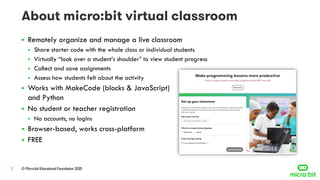
▪ Remotely organize and manage a live classroom
▪ Share starter code with the whole class or individual students
▪ Virtually “look over a student’s shoulder” to view student progress
▪ Collect and save assignments
▪ Assess how students felt about the activity
▪ Works with MakeCode (blocks & JavaScript)
and Python
▪ No student or teacher registration
▪ No accounts, no logins
▪ Browser-based, works cross-platform
▪ FREE
© Micro:bit Educational Foundation 20203
© Micro:bit Educational Foundation 20204
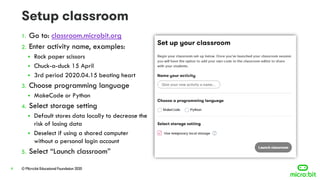
1. Go to: classroom.microbit.org
2. Enter activity name, examples:
▪ Rock paper scissors
▪ Chuck-a-duck 15 April
▪ 3rd period 2020.04.15 beating heart
3. Choose programming language
▪ MakeCode or Python
4. Select storage setting
▪ Default stores data locally to decrease the
risk of losing data
▪ Deselect if using a shared computer
without a personal login account
5. Select “Launch classroom”
© Micro:bit Educational Foundation 20205
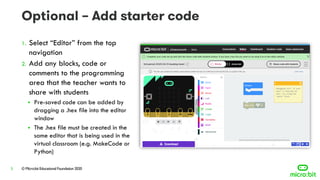
1. Select “Editor” from the top
navigation
2. Add any blocks, code or
comments to the programming
area that the teacher wants to
share with students
▪ Pre-saved code can be added by
dragging a .hex file into the editor
window
▪ The .hex file must be created in the
same editor that is being used in the
virtual classroom (e.g. MakeCode or
Python)
© Micro:bit Educational Foundation 20206
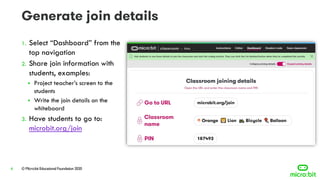
1. Select “Dashboard” from the
top navigation
2. Share join information with
students, examples:
▪ Project teacher’s screen to the
students
▪ Write the join details on the
whiteboard
3. Have students to go to:
microbit.org/join
© Micro:bit Educational Foundation 20207
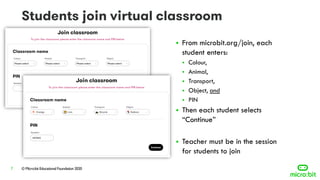
▪ From microbit.org/join, each
student enters:
▪ Colour,
▪ Animal,
▪ Transport,
▪ Object, and
▪ PIN
▪ Then each student selects
“Continue”
▪ Teacher must be in the session
for students to join
© Micro:bit Educational Foundation 20208
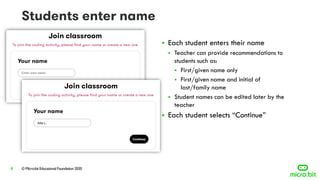
▪ Each student enters their name
▪ Teacher can provide recommendations to
students such as:
▪ First/given name only
▪ First/given name and initial of
last/family name
▪ Student names can be edited later by the
teacher
▪ Each student selects “Continue”
© Micro:bit Educational Foundation 20209
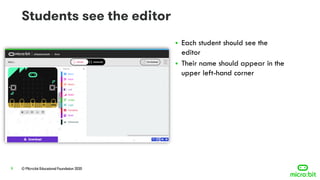
▪ Each student should see the
editor
▪ Their name should appear in the
upper left-hand corner
© Micro:bit Educational Foundation 202010
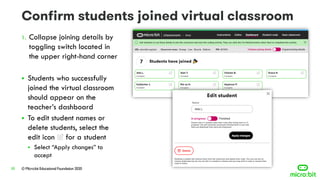
1. Collapse joining details by
toggling switch located in
the upper right-hand corner
▪ Students who successfully
joined the virtual classroom
should appear on the
teacher’s dashboard
▪ To edit student names or
delete students, select the
edit icon for a student
▪ Select “Apply changes” to
accept
© Micro:bit Educational Foundation 202011
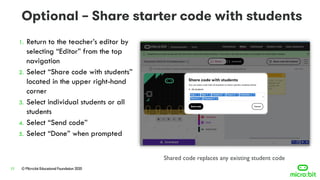
1. Return to the teacher’s editor by
selecting “Editor” from the top
navigation
2. Select “Share code with students”
located in the upper right-hand
corner
3. Select individual students or all
students
4. Select “Send code”
5. Select “Done” when prompted
Shared code replaces any existing student code
© Micro:bit Educational Foundation 202012
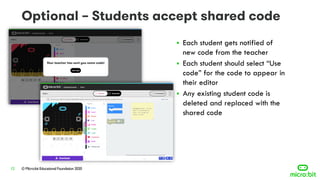
▪ Each student gets notified of
new code from the teacher
▪ Each student should select “Use
code” for the code to appear in
their editor
▪ Any existing student code is
deleted and replaced with the
shared code
© Micro:bit Educational Foundation 202013
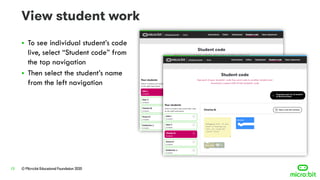
▪ To see individual student’s code
live, select “Student code” from
the top navigation
▪ Then select the student’s name
from the left navigation
© Micro:bit Educational Foundation 202014
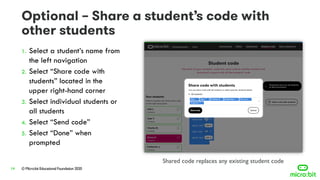
1. Select a student’s name from
the left navigation
2. Select “Share code with
students” located in the
upper right-hand corner
3. Select individual students or
all students
4. Select “Send code”
5. Select “Done” when
prompted
Shared code replaces any existing student code
© Micro:bit Educational Foundation 202015
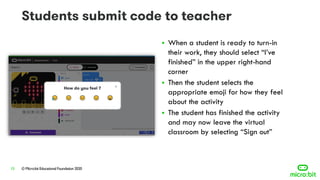
▪ When a student is ready to turn-in
their work, they should select “I’ve
finished” in the upper right-hand
corner
▪ Then the student selects the
appropriate emoji for how they feel
about the activity
▪ The student has finished the activity
and may now leave the virtual
classroom by selecting “Sign out”
© Micro:bit Educational Foundation 202016
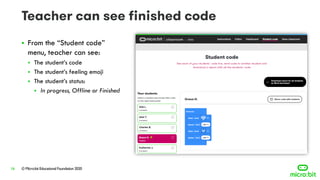
▪ From the “Student code”
menu, teacher can see:
▪ The student’s code
▪ The student’s feeling emoji
▪ The student’s status:
▪ In progress, Offline or Finished
© Micro:bit Educational Foundation 202017
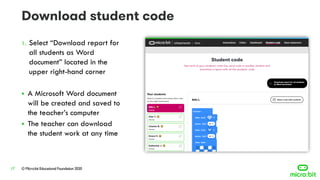
1. Select “Download report for
all students as Word
document” located in the
upper right-hand corner
▪ A Microsoft Word document
will be created and saved to
the teacher’s computer
▪ The teacher can download
the student work at any time
© Micro:bit Educational Foundation 202018
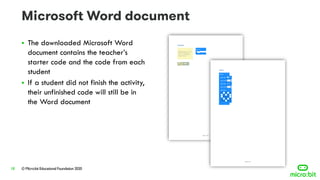
▪ The downloaded Microsoft Word
document contains the teacher’s
starter code and the code from each
student
▪ If a student did not finish the activity,
their unfinished code will still be in
the Word document
© Micro:bit Educational Foundation 202019
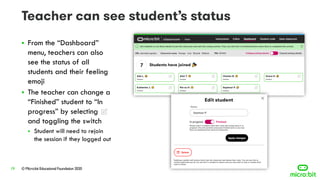
▪ From the “Dashboard”
menu, teachers can also
see the status of all
students and their feeling
emoji
▪ The teacher can change a
“Finished” student to “In
progress” by selecting
and toggling the switch
▪ Student will need to rejoin
the session if they logged out
© Micro:bit Educational Foundation 202020
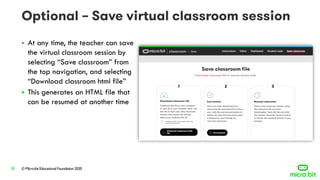
▪ At any time, the teacher can save
the virtual classroom session by
selecting “Save classroom” from
the top navigation, and selecting
“Download classroom html file”
▪ This generates an HTML file that
can be resumed at another time
© Micro:bit Educational Foundation 202021
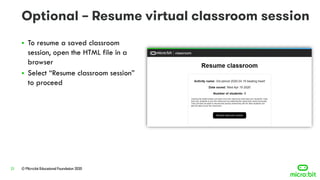
▪ To resume a saved classroom
session, open the HTML file in a
browser
▪ Select “Resume classroom session”
to proceed
© Micro:bit Educational Foundation 202022
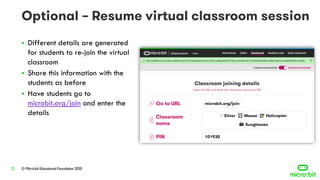
▪ Different details are generated
for students to re-join the virtual
classroom
▪ Share this information with the
students as before
▪ Have students go to
microbit.org/join and enter the
details
© Micro:bit Educational Foundation 202023
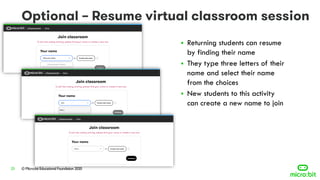
▪ Returning students can resume
by finding their name
▪ They type three letters of their
name and select their name
from the choices
▪ New students to this activity
can create a new name to join
© Micro:bit Educational Foundation 202024
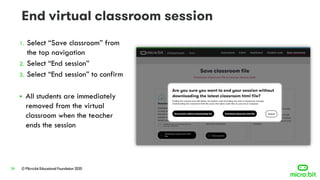
1. Select “Save classroom” from
the top navigation
2. Select “End session”
3. Select “End session” to confirm
▪ All students are immediately
removed from the virtual
classroom when the teacher
ends the session
© Micro:bit Educational Foundation 202025
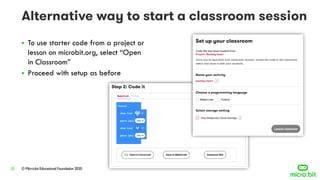
▪ To use starter code from a project or
lesson on microbit.org, select “Open
in Classroom”
▪ Proceed with setup as before

micro:bit classroom step-by-step setup guide

  • 1.
    © Micro:bit EducationalFoundation 2020
  • 2.
    © Micro:bit EducationalFoundation 20202 ▪ Remotely organize and manage a live classroom ▪ Share starter code with the whole class or individual students ▪ Virtually “look over a student’s shoulder” to view student progress ▪ Collect and save assignments ▪ Assess how students felt about the activity ▪ Works with MakeCode (blocks & JavaScript) and Python ▪ No student or teacher registration ▪ No accounts, no logins ▪ Browser-based, works cross-platform ▪ FREE
  • 3.
    © Micro:bit EducationalFoundation 20203
  • 4.
    © Micro:bit EducationalFoundation 20204 1. Go to: classroom.microbit.org 2. Enter activity name, examples: ▪ Rock paper scissors ▪ Chuck-a-duck 15 April ▪ 3rd period 2020.04.15 beating heart 3. Choose programming language ▪ MakeCode or Python 4. Select storage setting ▪ Default stores data locally to decrease the risk of losing data ▪ Deselect if using a shared computer without a personal login account 5. Select “Launch classroom”
  • 5.
    © Micro:bit EducationalFoundation 20205 1. Select “Editor” from the top navigation 2. Add any blocks, code or comments to the programming area that the teacher wants to share with students ▪ Pre-saved code can be added by dragging a .hex file into the editor window ▪ The .hex file must be created in the same editor that is being used in the virtual classroom (e.g. MakeCode or Python)
  • 6.
    © Micro:bit EducationalFoundation 20206 1. Select “Dashboard” from the top navigation 2. Share join information with students, examples: ▪ Project teacher’s screen to the students ▪ Write the join details on the whiteboard 3. Have students to go to: microbit.org/join
  • 7.
    © Micro:bit EducationalFoundation 20207 ▪ From microbit.org/join, each student enters: ▪ Colour, ▪ Animal, ▪ Transport, ▪ Object, and ▪ PIN ▪ Then each student selects “Continue” ▪ Teacher must be in the session for students to join
  • 8.
    © Micro:bit EducationalFoundation 20208 ▪ Each student enters their name ▪ Teacher can provide recommendations to students such as: ▪ First/given name only ▪ First/given name and initial of last/family name ▪ Student names can be edited later by the teacher ▪ Each student selects “Continue”
  • 9.
    © Micro:bit EducationalFoundation 20209 ▪ Each student should see the editor ▪ Their name should appear in the upper left-hand corner
  • 10.
    © Micro:bit EducationalFoundation 202010 1. Collapse joining details by toggling switch located in the upper right-hand corner ▪ Students who successfully joined the virtual classroom should appear on the teacher’s dashboard ▪ To edit student names or delete students, select the edit icon for a student ▪ Select “Apply changes” to accept
  • 11.
    © Micro:bit EducationalFoundation 202011 1. Return to the teacher’s editor by selecting “Editor” from the top navigation 2. Select “Share code with students” located in the upper right-hand corner 3. Select individual students or all students 4. Select “Send code” 5. Select “Done” when prompted Shared code replaces any existing student code
  • 12.
    © Micro:bit EducationalFoundation 202012 ▪ Each student gets notified of new code from the teacher ▪ Each student should select “Use code” for the code to appear in their editor ▪ Any existing student code is deleted and replaced with the shared code
  • 13.
    © Micro:bit EducationalFoundation 202013 ▪ To see individual student’s code live, select “Student code” from the top navigation ▪ Then select the student’s name from the left navigation
  • 14.
    © Micro:bit EducationalFoundation 202014 1. Select a student’s name from the left navigation 2. Select “Share code with students” located in the upper right-hand corner 3. Select individual students or all students 4. Select “Send code” 5. Select “Done” when prompted Shared code replaces any existing student code
  • 15.
    © Micro:bit EducationalFoundation 202015 ▪ When a student is ready to turn-in their work, they should select “I’ve finished” in the upper right-hand corner ▪ Then the student selects the appropriate emoji for how they feel about the activity ▪ The student has finished the activity and may now leave the virtual classroom by selecting “Sign out”
  • 16.
    © Micro:bit EducationalFoundation 202016 ▪ From the “Student code” menu, teacher can see: ▪ The student’s code ▪ The student’s feeling emoji ▪ The student’s status: ▪ In progress, Offline or Finished
  • 17.
    © Micro:bit EducationalFoundation 202017 1. Select “Download report for all students as Word document” located in the upper right-hand corner ▪ A Microsoft Word document will be created and saved to the teacher’s computer ▪ The teacher can download the student work at any time
  • 18.
    © Micro:bit EducationalFoundation 202018 ▪ The downloaded Microsoft Word document contains the teacher’s starter code and the code from each student ▪ If a student did not finish the activity, their unfinished code will still be in the Word document
  • 19.
    © Micro:bit EducationalFoundation 202019 ▪ From the “Dashboard” menu, teachers can also see the status of all students and their feeling emoji ▪ The teacher can change a “Finished” student to “In progress” by selecting and toggling the switch ▪ Student will need to rejoin the session if they logged out
  • 20.
    © Micro:bit EducationalFoundation 202020 ▪ At any time, the teacher can save the virtual classroom session by selecting “Save classroom” from the top navigation, and selecting “Download classroom html file” ▪ This generates an HTML file that can be resumed at another time
  • 21.
    © Micro:bit EducationalFoundation 202021 ▪ To resume a saved classroom session, open the HTML file in a browser ▪ Select “Resume classroom session” to proceed
  • 22.
    © Micro:bit EducationalFoundation 202022 ▪ Different details are generated for students to re-join the virtual classroom ▪ Share this information with the students as before ▪ Have students go to microbit.org/join and enter the details
  • 23.
    © Micro:bit EducationalFoundation 202023 ▪ Returning students can resume by finding their name ▪ They type three letters of their name and select their name from the choices ▪ New students to this activity can create a new name to join
  • 24.
    © Micro:bit EducationalFoundation 202024 1. Select “Save classroom” from the top navigation 2. Select “End session” 3. Select “End session” to confirm ▪ All students are immediately removed from the virtual classroom when the teacher ends the session
  • 25.
    © Micro:bit EducationalFoundation 202025 ▪ To use starter code from a project or lesson on microbit.org, select “Open in Classroom” ▪ Proceed with setup as before