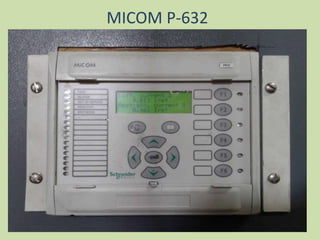
MICOM P-632
TOPICS TO BE COVERED 
1.INTRODUCTION. 
2.RELAY SPECIFICATION. 
3.PROTECTIONS AVAILABLE IN MICOM P-632. 
4.INPUT PARAMETERS REQUIRED FOR 
CONFIGURATION. 
5.STEPS TO CONFIGURE MICOM P-632. 
6.PROTECTION SCHEME FOR 16 MVA MUUL 
X-MER AT MRSS.
INTRODUCTION 
The MiCOM P63x series differential protection devices are 
intended for the fast and selective short circuit protection of 
transformers, motors, generators and other installations with 
two, three or four windings, respectively. 
• P630C: Two-end/winding schemes (two 3 pole CT inputs) 
• P631: Two-end/winding schemes (two 3 pole CT inputs) 
• P632: Two-end/winding schemes (two 4 pole CT inputs, one VT input) 
• P633: Three-end/winding schemes (three 4 pole CT inputs, one VT input) 
• P634: Four-end/winding schemes (three 4 pole CT inputs, one 3 pole CT input, one 
VT input)
RELAY SPECIFICATION 
1.AUXILLARY VOLTAGE RANGE : 60 -250 VOLTS 
AC OR DC. 
2.CT SECONDARY INPUT (In) : 1/5 AMP(EITHER 
OF ONE AVAILABLE NOT BOTH AT A TIME) 
3.VT SECONDARY INPUT (Vn) : 50-130 VOLTS. 
4.SYSTEM FREQUENCY (Fn) : 50/60 HZ. 
5.MOUNTING : Surface/flush.
KEY PAD AND INDICATIONS
RELAY TERMINAL BOCK DETAIL 
FROM 33 KV 
PT INPUT( 
R&Y PHASE ) 
TB: XO31 
FROM 33 KV 
SIDE CT (PS 
CORE) 
TB: XO32 
FROM 6.6 
KV SIDE CT 
(PSCORE) 
TB: XO52
OUTPUT RELAYS 
8 CONFIGURABLE OUTPUT RELAYS 
TB : XO91 & XO92 
Aux Supply
PROTECTIONS AVAILABE
INPUT PARAMETERS REQUIRED 
FOLLOWING PARAMETERS OF THE PROTECTED EQUIPMENT ARE REQUIRED 
1. S ref : Nominal MVA rating of transformer. 
2. I nom : Nominal CT ratio( both primary and secondary) 
3. V nom : Nominal PT ratio.(both primary and secondary) 
4. Vector Group : Vector group of the transformer 
5. Phase Sequence : Phase sequence of the system 
(a-b-c or a-c-b) 
a-b-c : R Y B with 120 deg phase angle difference. 
a-c-b : R Y B with (– 120 deg phase angle difference).
CALCULATION OF MATCHING FACTOR,REFERENCE CURRENT 
AMPLITUDE MATCHING.jpg 
AMPLITUDE MATCHING 1.jpg 
EX: MRSS 16 MVA MUUL X-MER 
SLD.jpg 
OLD DIFF SCHEME (1).jpg 
NOW THE ADVANTAGE WITH MICOM -P 632 IS THAT NO MORE NEED OF 
ICT(INTERPOSING CURRENT TRANSFORMERS) FOR AMPLITUDE AND PHASE 
MATCHING. 
CAL.jpg
STEPS TO CONFIGURE MICOM P632 
For configuring Micom P632, following 
configurations are done:- 
1.Date & Time. 
2.System specifications (CT, PT & Power system 
specifications). 
3.Selecting parameter subset(GROUP) 
4.Protection to be taken in line. 
5.O/P Relay configuration for each fault & Logic. 
6.LED configuration for Fault Identification. 
7.Fault Recording. 
8.Display Parameters. 
NOTE: end A-primary side, end B-secondary side 
1- refers to protection related to end A,2- refers to related to end B . ex: DTOC 1,REF 2 etc.
3 BASIC SUB MENUS OF 
MICOM P 632- 
1.PARAMETER PARAMETERS.jpg 
2.OPERATION OPERATION.jpg 
3.EVENTS EVENTS.jpg
SETTING DATE AND TIME 
Date & Time:- 
For setting Date & Time, the procedure is:- 
OperationCyclic MeasurementMeasured Operating data Main 
Date 
Time of Date 
DATE.jpg 
TIME.jpg 
CHANGING DATE.jpg
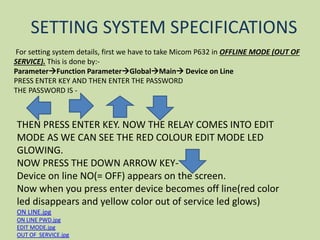
SETTING SYSTEM SPECIFICATIONS 
For setting system details, first we have to take Micom P632 in OFFLINE MODE (OUT OF 
SERVICE). This is done by:- 
ParameterFunction ParameterGlobalMain Device on Line 
PRESS ENTER KEY AND THEN ENTER THE PASSWORD 
THE PASSWORD IS - 
THEN PRESS ENTER KEY. NOW THE RELAY COMES INTO EDIT 
MODE AS WE CAN SEE THE RED COLOUR EDIT MODE LED 
GLOWING. 
NOW PRESS THE DOWN ARROW KEY-Device 
on line NO(= OFF) appears on the screen. 
Now when you press enter device becomes off line(red color 
led disappears and yellow color out of service led glows) 
ON LINE.jpg 
ON LINE PWD.jpg 
EDIT MODE.jpg 
OUT OF SERVICE.jpg
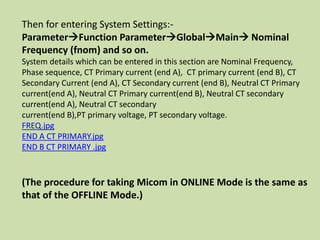
Then for entering System Settings:- 
ParameterFunction ParameterGlobalMain Nominal 
Frequency (fnom) and so on. 
System details which can be entered in this section are Nominal Frequency, 
Phase sequence, CT Primary current (end A), CT primary current (end B), CT 
Secondary Current (end A), CT Secondary current (end B), Neutral CT Primary 
current(end A), Neutral CT Primary current(end B), Neutral CT secondary 
current(end A), Neutral CT secondary 
current(end B),PT primary voltage, PT secondary voltage. 
FREQ.jpg 
END A CT PRIMARY.jpg 
END B CT PRIMARY .jpg 
(The procedure for taking Micom in ONLINE Mode is the same as 
that of the OFFLINE Mode.)
SELECTING PARAMETER SUBSET 
Parameter subset selection is done as follows: 
ParameterFunction GlobalPSS 
PSS.jpg 
CHANGE PSS.jpg 
Within this we can select the parameter subset we want to make active(out 
of the four parameter subset 1,2,3,4)
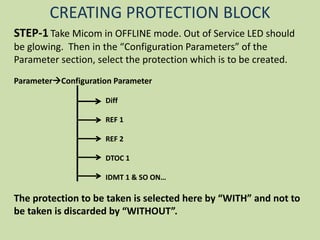
CREATING PROTECTION BLOCK 
STEP-1 Take Micom in OFFLINE mode. Out of Service LED should 
be glowing. Then in the “Configuration Parameters” of the 
Parameter section, select the protection which is to be created. 
ParameterConfiguration Parameter 
Diff 
REF 1 
REF 2 
DTOC 1 
IDMT 1 & SO ON… 
The protection to be taken is selected here by “WITH” and not to 
be taken is discarded by “WITHOUT”.
Ex. For selecting Differential Protection:- 
ParameterConfiguration Parameter DIFF 
Function group DIFF “WITH” 
“WITH” or “WITHOUT” can be selected by first entering password & then making 
selection by pressing either or 
REF WITHOUT.jpg 
DIFF WITH ..jpg 
STEP-2 The protections which are selected in the above section are 
now also available in “General Function” of “Function Parameter”. 
Here system details related for the respective Protections are 
provided. For example:-
Parameter Function Parameter General Function 
DIFF General Enable User “YES” 
Reference Power Sref (to be entered) 
Reference Current Iref,a ( Internally Calculated) 
Reference Current Iref,b ( Internally Calculated) 
Matching Factor, Kam,a (internally calculated) 
Matching Factor, Kam,b (internally calculated) 
Measured value Rel. Id (internally calculated) 
Measured value Rel. IR(internally calculated) 
REF_2 DIFF SET 1.jpg DIFF SET 2.jpg DIFF SET 3.jpg DIFF SET 4.jpg 
DIFF SET 5.jpg DIFF SET 6.jpg DIFF SET 7.jpg 
DTOC1 
… And so on if other protections are enabled.
STEP 3 Settings of the protection taken in line. The settings are 
done in ‘Parameter Subset 1’. Parameter subset 1 is also enabled in 
this section. 
Settings are entered in:- 
Parameter Function Parameter PSS1Main 
DIFF Enable PS1 Yes DIFF PS1 .jpg 
Vector Group End a, bDIFF PS 1 2.jpg 
Idiff> DIFF PS1 3.jpg 
Idiff>> DIFF PS1 4.jpg 
Idiff>>> DIFF PS1 5.jpg 
Idiff>(CTS) DIFF PS1 6.jpg 
m1 DIFF SET 7.jpg 
m2 DIFF PS1 8.jpg 
and so on... 
Settings to be 
done 
accordingly
IDMT 1 
REF 2 
REF 1 
. 
. 
. 
AND SO ON… 
Settings to be done 
accordingly
OUTPUT RELAY CONFIGURATION 
There are 8 output relays in Micom P632. The number of output 
relays may differ from one model number to other. 
The output relays are configured As follows – 
First ,take Micom in OFF Line mode.Now, 
ParameterConfiguration ParameterOutput 
Fct. Assigm. K901 ( Enter, Put Password & 
Select the tripping from the various options 
Fct. Assigm. K902 
Fct. Assigm. K903 
K 901.jpg K 902.jpg K 903 WITHOUT.jpg 
Fct. Assigm. K904 
Fct. Assigm. K905 
Fct. Assigm. K906 
Fct. Assigm. K907
LED CONFIGURATION 
LED indicators are provided for signal displays. 5 LED indicators 
are permanently assigned to Signals which are- Trip, Alarm, Out 
of service, Healthy & Edit Mode. 
The remaining 12 LED indicators are available for free 
assignment by the user. A separate adhesive label is provided for 
user defined labelling of these LED indicators according to the 
chosen configuration. 
Each led can be selected for two indication colours RED and 
GREEN. 
The configuration of LEDs are done as follows.
ParameterConfiguration Parameter LED 
Fct. Assigm. H5 red ( Enter, Put Password & Select from the various options). 
Fct. Assigm. H5 green 
Fct. Assigm. H6 red 
Fct. Assigm. H6 green 
. 
. 
. 
. 
And so on (LED H1 to H4 are pre-assigned.) LED H1.jpg LED H2.jpg 
LED H 3.jpg LED H 4.jpg 
LED H4 RED.jpg
NOTE:- Changes to the settings can be prepared and 
confirmed by the means of ENTER Key. In the event 
of erroneous entries, exit from the EDIT mode or 
OFFLINE Mode with rejection of entries is possible 
at any times by means of CLEAR key. When relay is 
not in OFFLINE mode, pressing CLEAR Key has the 
effect of restoring the indicators. Pressing the READ 
key provides direct access to a preselected point in 
the menu.

MICOM P 632

  • 1.
  • 2.
    TOPICS TO BECOVERED 1.INTRODUCTION. 2.RELAY SPECIFICATION. 3.PROTECTIONS AVAILABLE IN MICOM P-632. 4.INPUT PARAMETERS REQUIRED FOR CONFIGURATION. 5.STEPS TO CONFIGURE MICOM P-632. 6.PROTECTION SCHEME FOR 16 MVA MUUL X-MER AT MRSS.
  • 3.
    INTRODUCTION The MiCOMP63x series differential protection devices are intended for the fast and selective short circuit protection of transformers, motors, generators and other installations with two, three or four windings, respectively. • P630C: Two-end/winding schemes (two 3 pole CT inputs) • P631: Two-end/winding schemes (two 3 pole CT inputs) • P632: Two-end/winding schemes (two 4 pole CT inputs, one VT input) • P633: Three-end/winding schemes (three 4 pole CT inputs, one VT input) • P634: Four-end/winding schemes (three 4 pole CT inputs, one 3 pole CT input, one VT input)
  • 4.
    RELAY SPECIFICATION 1.AUXILLARYVOLTAGE RANGE : 60 -250 VOLTS AC OR DC. 2.CT SECONDARY INPUT (In) : 1/5 AMP(EITHER OF ONE AVAILABLE NOT BOTH AT A TIME) 3.VT SECONDARY INPUT (Vn) : 50-130 VOLTS. 4.SYSTEM FREQUENCY (Fn) : 50/60 HZ. 5.MOUNTING : Surface/flush.
  • 5.
    KEY PAD ANDINDICATIONS
  • 6.
    RELAY TERMINAL BOCKDETAIL FROM 33 KV PT INPUT( R&Y PHASE ) TB: XO31 FROM 33 KV SIDE CT (PS CORE) TB: XO32 FROM 6.6 KV SIDE CT (PSCORE) TB: XO52
  • 7.
    OUTPUT RELAYS 8CONFIGURABLE OUTPUT RELAYS TB : XO91 & XO92 Aux Supply
  • 8.
  • 9.
    INPUT PARAMETERS REQUIRED FOLLOWING PARAMETERS OF THE PROTECTED EQUIPMENT ARE REQUIRED 1. S ref : Nominal MVA rating of transformer. 2. I nom : Nominal CT ratio( both primary and secondary) 3. V nom : Nominal PT ratio.(both primary and secondary) 4. Vector Group : Vector group of the transformer 5. Phase Sequence : Phase sequence of the system (a-b-c or a-c-b) a-b-c : R Y B with 120 deg phase angle difference. a-c-b : R Y B with (– 120 deg phase angle difference).
  • 10.
    CALCULATION OF MATCHINGFACTOR,REFERENCE CURRENT AMPLITUDE MATCHING.jpg AMPLITUDE MATCHING 1.jpg EX: MRSS 16 MVA MUUL X-MER SLD.jpg OLD DIFF SCHEME (1).jpg NOW THE ADVANTAGE WITH MICOM -P 632 IS THAT NO MORE NEED OF ICT(INTERPOSING CURRENT TRANSFORMERS) FOR AMPLITUDE AND PHASE MATCHING. CAL.jpg
  • 11.
    STEPS TO CONFIGUREMICOM P632 For configuring Micom P632, following configurations are done:- 1.Date & Time. 2.System specifications (CT, PT & Power system specifications). 3.Selecting parameter subset(GROUP) 4.Protection to be taken in line. 5.O/P Relay configuration for each fault & Logic. 6.LED configuration for Fault Identification. 7.Fault Recording. 8.Display Parameters. NOTE: end A-primary side, end B-secondary side 1- refers to protection related to end A,2- refers to related to end B . ex: DTOC 1,REF 2 etc.
  • 12.
    3 BASIC SUBMENUS OF MICOM P 632- 1.PARAMETER PARAMETERS.jpg 2.OPERATION OPERATION.jpg 3.EVENTS EVENTS.jpg
  • 13.
    SETTING DATE ANDTIME Date & Time:- For setting Date & Time, the procedure is:- OperationCyclic MeasurementMeasured Operating data Main Date Time of Date DATE.jpg TIME.jpg CHANGING DATE.jpg
  • 14.
    SETTING SYSTEM SPECIFICATIONS For setting system details, first we have to take Micom P632 in OFFLINE MODE (OUT OF SERVICE). This is done by:- ParameterFunction ParameterGlobalMain Device on Line PRESS ENTER KEY AND THEN ENTER THE PASSWORD THE PASSWORD IS - THEN PRESS ENTER KEY. NOW THE RELAY COMES INTO EDIT MODE AS WE CAN SEE THE RED COLOUR EDIT MODE LED GLOWING. NOW PRESS THE DOWN ARROW KEY-Device on line NO(= OFF) appears on the screen. Now when you press enter device becomes off line(red color led disappears and yellow color out of service led glows) ON LINE.jpg ON LINE PWD.jpg EDIT MODE.jpg OUT OF SERVICE.jpg
  • 15.
    Then for enteringSystem Settings:- ParameterFunction ParameterGlobalMain Nominal Frequency (fnom) and so on. System details which can be entered in this section are Nominal Frequency, Phase sequence, CT Primary current (end A), CT primary current (end B), CT Secondary Current (end A), CT Secondary current (end B), Neutral CT Primary current(end A), Neutral CT Primary current(end B), Neutral CT secondary current(end A), Neutral CT secondary current(end B),PT primary voltage, PT secondary voltage. FREQ.jpg END A CT PRIMARY.jpg END B CT PRIMARY .jpg (The procedure for taking Micom in ONLINE Mode is the same as that of the OFFLINE Mode.)
  • 16.
    SELECTING PARAMETER SUBSET Parameter subset selection is done as follows: ParameterFunction GlobalPSS PSS.jpg CHANGE PSS.jpg Within this we can select the parameter subset we want to make active(out of the four parameter subset 1,2,3,4)
  • 17.
    CREATING PROTECTION BLOCK STEP-1 Take Micom in OFFLINE mode. Out of Service LED should be glowing. Then in the “Configuration Parameters” of the Parameter section, select the protection which is to be created. ParameterConfiguration Parameter Diff REF 1 REF 2 DTOC 1 IDMT 1 & SO ON… The protection to be taken is selected here by “WITH” and not to be taken is discarded by “WITHOUT”.
  • 18.
    Ex. For selectingDifferential Protection:- ParameterConfiguration Parameter DIFF Function group DIFF “WITH” “WITH” or “WITHOUT” can be selected by first entering password & then making selection by pressing either or REF WITHOUT.jpg DIFF WITH ..jpg STEP-2 The protections which are selected in the above section are now also available in “General Function” of “Function Parameter”. Here system details related for the respective Protections are provided. For example:-
  • 19.
    Parameter Function ParameterGeneral Function DIFF General Enable User “YES” Reference Power Sref (to be entered) Reference Current Iref,a ( Internally Calculated) Reference Current Iref,b ( Internally Calculated) Matching Factor, Kam,a (internally calculated) Matching Factor, Kam,b (internally calculated) Measured value Rel. Id (internally calculated) Measured value Rel. IR(internally calculated) REF_2 DIFF SET 1.jpg DIFF SET 2.jpg DIFF SET 3.jpg DIFF SET 4.jpg DIFF SET 5.jpg DIFF SET 6.jpg DIFF SET 7.jpg DTOC1 … And so on if other protections are enabled.
  • 20.
    STEP 3 Settingsof the protection taken in line. The settings are done in ‘Parameter Subset 1’. Parameter subset 1 is also enabled in this section. Settings are entered in:- Parameter Function Parameter PSS1Main DIFF Enable PS1 Yes DIFF PS1 .jpg Vector Group End a, bDIFF PS 1 2.jpg Idiff> DIFF PS1 3.jpg Idiff>> DIFF PS1 4.jpg Idiff>>> DIFF PS1 5.jpg Idiff>(CTS) DIFF PS1 6.jpg m1 DIFF SET 7.jpg m2 DIFF PS1 8.jpg and so on... Settings to be done accordingly
  • 21.
    IDMT 1 REF2 REF 1 . . . AND SO ON… Settings to be done accordingly
  • 22.
    OUTPUT RELAY CONFIGURATION There are 8 output relays in Micom P632. The number of output relays may differ from one model number to other. The output relays are configured As follows – First ,take Micom in OFF Line mode.Now, ParameterConfiguration ParameterOutput Fct. Assigm. K901 ( Enter, Put Password & Select the tripping from the various options Fct. Assigm. K902 Fct. Assigm. K903 K 901.jpg K 902.jpg K 903 WITHOUT.jpg Fct. Assigm. K904 Fct. Assigm. K905 Fct. Assigm. K906 Fct. Assigm. K907
  • 23.
    LED CONFIGURATION LEDindicators are provided for signal displays. 5 LED indicators are permanently assigned to Signals which are- Trip, Alarm, Out of service, Healthy & Edit Mode. The remaining 12 LED indicators are available for free assignment by the user. A separate adhesive label is provided for user defined labelling of these LED indicators according to the chosen configuration. Each led can be selected for two indication colours RED and GREEN. The configuration of LEDs are done as follows.
  • 24.
    ParameterConfiguration Parameter LED Fct. Assigm. H5 red ( Enter, Put Password & Select from the various options). Fct. Assigm. H5 green Fct. Assigm. H6 red Fct. Assigm. H6 green . . . . And so on (LED H1 to H4 are pre-assigned.) LED H1.jpg LED H2.jpg LED H 3.jpg LED H 4.jpg LED H4 RED.jpg
  • 25.
    NOTE:- Changes tothe settings can be prepared and confirmed by the means of ENTER Key. In the event of erroneous entries, exit from the EDIT mode or OFFLINE Mode with rejection of entries is possible at any times by means of CLEAR key. When relay is not in OFFLINE mode, pressing CLEAR Key has the effect of restoring the indicators. Pressing the READ key provides direct access to a preselected point in the menu.

Editor's Notes

  • #23 Fct. Assigm. K901 ( Enter, Put Password & Select the tripping from the various options).