Step 1: Geometry
Thisanalysisdirectlygeneratesthe nodesandelementsforthe finiteelementmodel,therefore
there isno needtocreate solidmodel geometry.
Step 2: Define ElementTypes
2-1. Define the elementtype requiredforthis model
• Preprocessor>ElementType>Add/Edit/Delete
• Clickthe “Add...”buttontobringup the Library of ElementTypes
• Inthe leftcolumnunder“Structural Mass”choose “Link”
• Inthe rightcolumn,choose “3D finitstn180”
• ClickOK
• Close the ElementTypes dialogbox
2-2. Assignsectionpropertiesto the linkelements
• Preprocessor>Sections>Link>Add
• For the LinkSectionID,enter1
• ClickOK
• For [SECDATA] SectionDataLinkarea,enter1
• ClickOK
Step 3: Define Material Properties
3-1. Define the material properties
• Preprocessor>MaterialProps>Material Models
• ClickonStructural>Linear>Elastic>Isotropic
• For EX,enter
• ClickOK
• Close the material modeldialogbox
Step 4: Mesh (Create Nodesand Elements)
There isno solidmodel geometrytomeshinthisanalysis.Instead,we willdirectlydefine the
nodesandelementsforthe finiteelementmodel.
4-1. Create Node 1 at (0,0)
• Preprocessor>Modeling>Create>Nodes>InActiveCS
• Enter1 for NODENode number
• Enter0 inthe firsttextbox forX,Y,ZLocation inactive CS
• Enter0 inthe secondtextbox forX,Y,ZLocationin active CS
• ClickApply
4-2. Create Node 2
• Reopenthe Create NodesinActive CoordinateSystemdialogbox if closed
• Enter2 for NODENode number
• Enter10 in the firsttextbox forX,Y,Z Locationinactive CS
• Enter0 inthe secondtextbox forX,Y,ZLocationin active CS
• ClickOK
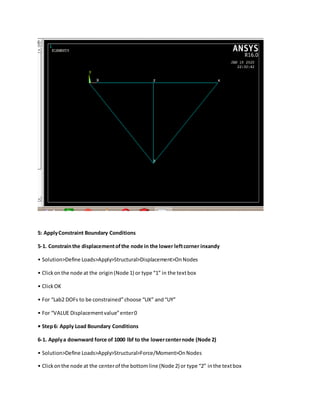
5: ApplyConstraint Boundary Conditions
5-1. Constrainthe displacementofthe node in the lower leftcorner inxandy
• Solution>Define Loads>Apply>Structural>Displacement>OnNodes
• Clickonthe node at the origin(Node 1) or type “1” in the textbox
• ClickOK
• For “Lab2 DOFs to be constrained”choose “UX” and“UY”
• For “VALUE Displacementvalue”enter0
• Step6: Apply Load Boundary Conditions
6-1. Applya downward force of 1000 lbf to the lowercenternode (Node 2)
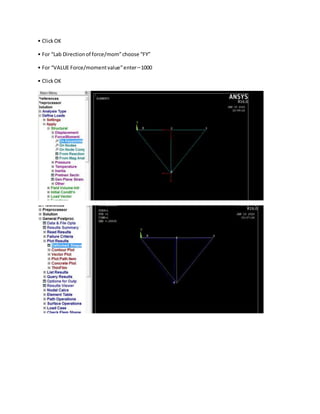
• Solution>Define Loads>Apply>Structural>Force/Moment>OnNodes
• Clickonthe node at the centerof the bottomline (Node 2) or type “2” inthe textbox
• ClickOK
• For “Lab Directionof force/mom”choose “FY”
• For “VALUE Force/momentvalue”enter−1000
• ClickOK
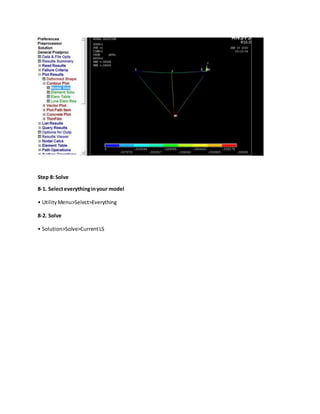
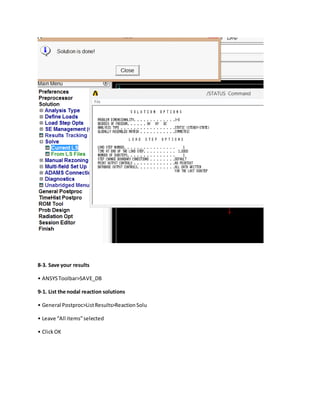
Step 8: Solve
8-1. Selecteverythinginyour model
• UtilityMenu>Select>Everything
8-2. Solve
• Solution>Solve>CurrentLS
8-3. Save your results
• ANSYSToolbar>SAVE_DB
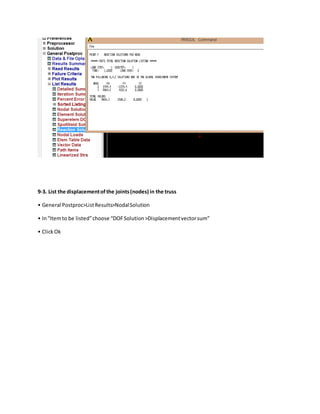
9-1. List the nodal reaction solutions
• General Postproc>ListResults>ReactionSolu
• Leave “All items”selected
• ClickOK
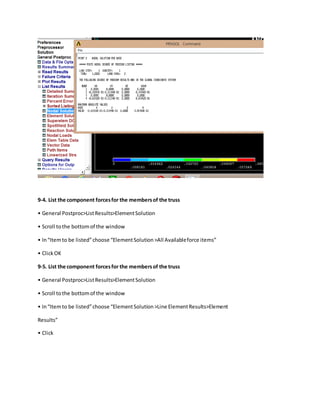
9-3. List the displacementofthe joints(nodes) in the truss
• General Postproc>ListResults>NodalSolution
• In“Itemto be listed”choose “DOFSolution>Displacementvectorsum”
• ClickOk
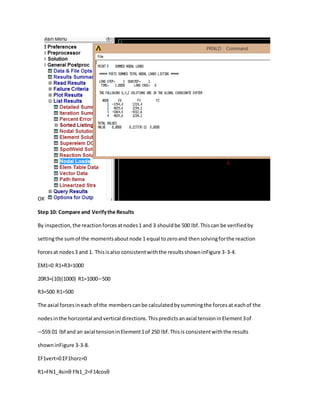
9-4. List the component forcesfor the membersof the truss
• General Postproc>ListResults>ElementSolution
• Scroll tothe bottomof the window
• In“Itemto be listed”choose “ElementSolution>All Availableforce items”
• ClickOK
9-5. List the component forcesfor the membersof the truss
• General Postproc>ListResults>ElementSolution
• Scroll tothe bottomof the window
• In“Itemto be listed”choose “ElementSolution>Line ElementResults>Element
Results”
• Click
OK
Step 10: Compare and Verifythe Results
By inspection,the reactionforcesatnodes1 and 3 shouldbe 500 lbf.Thiscan be verifiedby
settingthe sumof the momentsaboutnode 1 equal tozeroand thensolvingforthe reaction
forcesat nodes3 and 1. Thisisalso consistentwiththe resultsshowninFigure 3-3-4.
ΣM1=0 R1+R3=1000
20R3=(10)(1000) R1=1000−500
R3=500 R1=500
The axial forcesineach of the memberscanbe calculatedbysummingthe forcesat eachof the
nodesinthe horizontal andvertical directions.Thispredictsanaxial tensioninElement3of
−559.01 lbf and an axial tensioninElement1of 250 lbf.Thisis consistentwiththe results
showninFigure 3-3-8.
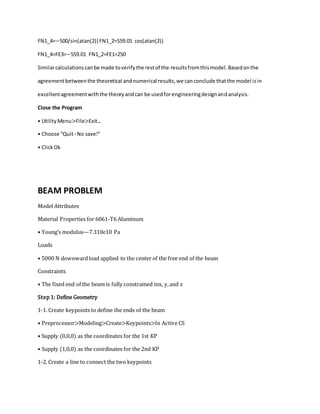
ΣF1vert=0 ΣF1horz=0
R1=FN1_4sinθ FN1_2=F14cosθ
FN1_4=−500/sin(atan(2)) FN1_2=559.01 cos(atan(2))
FN1_4=FE3=−559.01 FN1_2=FE1=250
Similarcalculationscanbe made toverifythe restof the resultsfromthismodel.Basedonthe
agreementbetweenthe theoretical andnumerical results,we canconclude thatthe model isin
excellentagreementwiththe theoryandcan be usedforengineeringdesignandanalysis.
Close the Program
• UtilityMenu>File>Exit...
• Choose “Quit-No save!”
• ClickOk
BEAM PROBLEM
Model Attributes
Material Properties for 6061-T6 Aluminum
• Young’s modulus—7.310e10 Pa
Loads
• 5000 N downwardload applied to the center of the free end of the beam
Constraints
• The fixed end of the beam is fully constrained inx, y,and z
Step 1: Define Geometry
1-1. Create keypoints to define the ends of the beam
• Preprocessor>Modeling>Create>Keypoints>In Active CS
• Supply (0,0,0) as the coordinates for the 1st KP
• Supply (1,0,0) as the coordinates for the 2nd KP
1-2. Create a line to connect the two keypoints
• Preprocessor>Modeling>Create>Lines>Lines>Straight Line
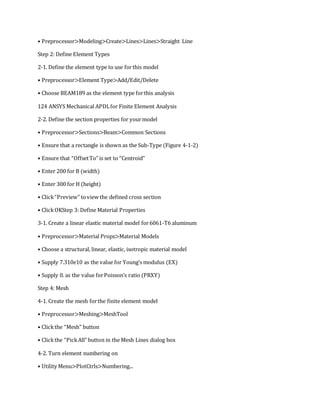
Step 2: Define Element Types
2-1. Define the element type to use forthis model
• Preprocessor>Element Type>Add/Edit/Delete
• Choose BEAM189 as the element type forthis analysis
124 ANSYS Mechanical APDLfor Finite Element Analysis
2-2. Define the section properties for yourmodel
• Preprocessor>Sections>Beam>Common Sections
• Ensure that a rectangle is shown as the Sub-Type (Figure 4-1-2)
• Ensure that “OffsetTo” is set to “Centroid”
• Enter 200 for B (width)
• Enter 300 for H (height)
• Click“Preview” toview the defined cross section
• ClickOKStep 3: Define Material Properties
3-1. Create a linear elastic material model for6061-T6 aluminum
• Preprocessor>Material Props>Material Models
• Choose a structural, linear, elastic, isotropic material model
• Supply 7.310e10 as the value for Young’s modulus (EX)
• Supply 0. as the value forPoisson’s ratio (PRXY)
Step 4: Mesh
4-1. Create the mesh forthe finite element model
• Preprocessor>Meshing>MeshTool
• Clickthe “Mesh” button
• Clickthe “PickAll” button in the Mesh Lines dialog box
4-2. Turn element numbering on
• Utility Menu>PlotCtrls>Numbering...
• Change “Elem/Attrib numbering” to “Element numbers”
• ClickOK
4-3. Plot the finite element mesh
• Utility Menu>Plot>Elements
4-4. Change to the isometric view
• Clickthe “Isometric View” button in the Pan Zoom Rotate menu
4-5. Turn element shape display on
• Utility Menu>PlotCtrls>Style>Size and Shape...
• Turn “[/ESHAPE]Display of element shapes based on real constant descriptions” on
• ClickOK
4-6. Return to the frontview
• Clickthe “Front View” button in the Pan Zoom Rotate menu
4-7. Turn element shape display off
• Utility Menu>PlotCtrls>Style>Size and Shape...
• Turn “[/ESHAPE]Display of element shapes based on real constant descriptions” off
• ClickOK
4-8. Turn element numbering off
• Utility Menu>PlotCtrls>Numbering...
• Change “Elem/Attrib numbering” to “No numbering”
• ClickOk
Step 5: Apply Constraint Boundary Conditions
5-1. Constrain the fixed end of the beam
• Solution>Define Loads>Apply>Structural>Displacement>On Keypoints
• Clickon the keypoint at the origin or specify Keypoint 1 in the text box
• ClickOK
• For “Lab2 DOFsto be constrained” choose “All DOF”
• For “VALUE Displacement value” enter 0
• ClickOK
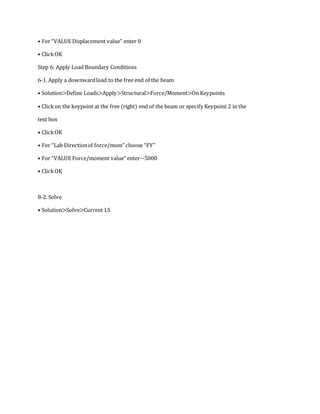
Step 6: Apply Load Boundary Conditions
6-1. Apply a downwardload to the free end of the beam
• Solution>Define Loads>Apply>Structural>Force/Moment>On Keypoints
• Clickon the keypoint at the free (right) end of the beam or specify Keypoint 2 in the
text box
• ClickOK
• For “Lab Directionof force/mom” choose “FY”
• For “VALUE Force/moment value” enter−5000
• ClickOK
8-2. Solve
• Solution>Solve>Current LS

mechanical apdl and ansys steps

  • 1.
    Step 1: Geometry Thisanalysisdirectlygeneratesthenodesandelementsforthe finiteelementmodel,therefore there isno needtocreate solidmodel geometry. Step 2: Define ElementTypes 2-1. Define the elementtype requiredforthis model • Preprocessor>ElementType>Add/Edit/Delete • Clickthe “Add...”buttontobringup the Library of ElementTypes • Inthe leftcolumnunder“Structural Mass”choose “Link” • Inthe rightcolumn,choose “3D finitstn180” • ClickOK • Close the ElementTypes dialogbox 2-2. Assignsectionpropertiesto the linkelements • Preprocessor>Sections>Link>Add • For the LinkSectionID,enter1 • ClickOK • For [SECDATA] SectionDataLinkarea,enter1 • ClickOK Step 3: Define Material Properties 3-1. Define the material properties • Preprocessor>MaterialProps>Material Models
  • 2.
    • ClickonStructural>Linear>Elastic>Isotropic • ForEX,enter • ClickOK • Close the material modeldialogbox Step 4: Mesh (Create Nodesand Elements) There isno solidmodel geometrytomeshinthisanalysis.Instead,we willdirectlydefine the nodesandelementsforthe finiteelementmodel. 4-1. Create Node 1 at (0,0) • Preprocessor>Modeling>Create>Nodes>InActiveCS • Enter1 for NODENode number • Enter0 inthe firsttextbox forX,Y,ZLocation inactive CS • Enter0 inthe secondtextbox forX,Y,ZLocationin active CS • ClickApply 4-2. Create Node 2 • Reopenthe Create NodesinActive CoordinateSystemdialogbox if closed • Enter2 for NODENode number • Enter10 in the firsttextbox forX,Y,Z Locationinactive CS • Enter0 inthe secondtextbox forX,Y,ZLocationin active CS • ClickOK
  • 3.
    5: ApplyConstraint BoundaryConditions 5-1. Constrainthe displacementofthe node in the lower leftcorner inxandy • Solution>Define Loads>Apply>Structural>Displacement>OnNodes • Clickonthe node at the origin(Node 1) or type “1” in the textbox • ClickOK • For “Lab2 DOFs to be constrained”choose “UX” and“UY” • For “VALUE Displacementvalue”enter0 • Step6: Apply Load Boundary Conditions 6-1. Applya downward force of 1000 lbf to the lowercenternode (Node 2) • Solution>Define Loads>Apply>Structural>Force/Moment>OnNodes • Clickonthe node at the centerof the bottomline (Node 2) or type “2” inthe textbox
  • 4.
    • ClickOK • For“Lab Directionof force/mom”choose “FY” • For “VALUE Force/momentvalue”enter−1000 • ClickOK
  • 5.
    Step 8: Solve 8-1.Selecteverythinginyour model • UtilityMenu>Select>Everything 8-2. Solve • Solution>Solve>CurrentLS
  • 6.
    8-3. Save yourresults • ANSYSToolbar>SAVE_DB 9-1. List the nodal reaction solutions • General Postproc>ListResults>ReactionSolu • Leave “All items”selected • ClickOK
  • 7.
    9-3. List thedisplacementofthe joints(nodes) in the truss • General Postproc>ListResults>NodalSolution • In“Itemto be listed”choose “DOFSolution>Displacementvectorsum” • ClickOk
  • 8.
    9-4. List thecomponent forcesfor the membersof the truss • General Postproc>ListResults>ElementSolution • Scroll tothe bottomof the window • In“Itemto be listed”choose “ElementSolution>All Availableforce items” • ClickOK 9-5. List the component forcesfor the membersof the truss • General Postproc>ListResults>ElementSolution • Scroll tothe bottomof the window • In“Itemto be listed”choose “ElementSolution>Line ElementResults>Element Results” • Click
  • 9.
    OK Step 10: Compareand Verifythe Results By inspection,the reactionforcesatnodes1 and 3 shouldbe 500 lbf.Thiscan be verifiedby settingthe sumof the momentsaboutnode 1 equal tozeroand thensolvingforthe reaction forcesat nodes3 and 1. Thisisalso consistentwiththe resultsshowninFigure 3-3-4. ΣM1=0 R1+R3=1000 20R3=(10)(1000) R1=1000−500 R3=500 R1=500 The axial forcesineach of the memberscanbe calculatedbysummingthe forcesat eachof the nodesinthe horizontal andvertical directions.Thispredictsanaxial tensioninElement3of −559.01 lbf and an axial tensioninElement1of 250 lbf.Thisis consistentwiththe results showninFigure 3-3-8. ΣF1vert=0 ΣF1horz=0 R1=FN1_4sinθ FN1_2=F14cosθ
  • 10.
    FN1_4=−500/sin(atan(2)) FN1_2=559.01 cos(atan(2)) FN1_4=FE3=−559.01FN1_2=FE1=250 Similarcalculationscanbe made toverifythe restof the resultsfromthismodel.Basedonthe agreementbetweenthe theoretical andnumerical results,we canconclude thatthe model isin excellentagreementwiththe theoryandcan be usedforengineeringdesignandanalysis. Close the Program • UtilityMenu>File>Exit... • Choose “Quit-No save!” • ClickOk BEAM PROBLEM Model Attributes Material Properties for 6061-T6 Aluminum • Young’s modulus—7.310e10 Pa Loads • 5000 N downwardload applied to the center of the free end of the beam Constraints • The fixed end of the beam is fully constrained inx, y,and z Step 1: Define Geometry 1-1. Create keypoints to define the ends of the beam • Preprocessor>Modeling>Create>Keypoints>In Active CS • Supply (0,0,0) as the coordinates for the 1st KP • Supply (1,0,0) as the coordinates for the 2nd KP 1-2. Create a line to connect the two keypoints
  • 11.
    • Preprocessor>Modeling>Create>Lines>Lines>Straight Line Step2: Define Element Types 2-1. Define the element type to use forthis model • Preprocessor>Element Type>Add/Edit/Delete • Choose BEAM189 as the element type forthis analysis 124 ANSYS Mechanical APDLfor Finite Element Analysis 2-2. Define the section properties for yourmodel • Preprocessor>Sections>Beam>Common Sections • Ensure that a rectangle is shown as the Sub-Type (Figure 4-1-2) • Ensure that “OffsetTo” is set to “Centroid” • Enter 200 for B (width) • Enter 300 for H (height) • Click“Preview” toview the defined cross section • ClickOKStep 3: Define Material Properties 3-1. Create a linear elastic material model for6061-T6 aluminum • Preprocessor>Material Props>Material Models • Choose a structural, linear, elastic, isotropic material model • Supply 7.310e10 as the value for Young’s modulus (EX) • Supply 0. as the value forPoisson’s ratio (PRXY) Step 4: Mesh 4-1. Create the mesh forthe finite element model • Preprocessor>Meshing>MeshTool • Clickthe “Mesh” button • Clickthe “PickAll” button in the Mesh Lines dialog box 4-2. Turn element numbering on • Utility Menu>PlotCtrls>Numbering...
  • 12.
    • Change “Elem/Attribnumbering” to “Element numbers” • ClickOK 4-3. Plot the finite element mesh • Utility Menu>Plot>Elements 4-4. Change to the isometric view • Clickthe “Isometric View” button in the Pan Zoom Rotate menu 4-5. Turn element shape display on • Utility Menu>PlotCtrls>Style>Size and Shape... • Turn “[/ESHAPE]Display of element shapes based on real constant descriptions” on • ClickOK 4-6. Return to the frontview • Clickthe “Front View” button in the Pan Zoom Rotate menu 4-7. Turn element shape display off • Utility Menu>PlotCtrls>Style>Size and Shape... • Turn “[/ESHAPE]Display of element shapes based on real constant descriptions” off • ClickOK 4-8. Turn element numbering off • Utility Menu>PlotCtrls>Numbering... • Change “Elem/Attrib numbering” to “No numbering” • ClickOk Step 5: Apply Constraint Boundary Conditions 5-1. Constrain the fixed end of the beam • Solution>Define Loads>Apply>Structural>Displacement>On Keypoints • Clickon the keypoint at the origin or specify Keypoint 1 in the text box • ClickOK • For “Lab2 DOFsto be constrained” choose “All DOF”
  • 13.
    • For “VALUEDisplacement value” enter 0 • ClickOK Step 6: Apply Load Boundary Conditions 6-1. Apply a downwardload to the free end of the beam • Solution>Define Loads>Apply>Structural>Force/Moment>On Keypoints • Clickon the keypoint at the free (right) end of the beam or specify Keypoint 2 in the text box • ClickOK • For “Lab Directionof force/mom” choose “FY” • For “VALUE Force/moment value” enter−5000 • ClickOK 8-2. Solve • Solution>Solve>Current LS