®
Microsoft Office 2010
Managing Your Files
XPXPXPObjectives
• Develop file management strategies
• Explore files, folders, and libraries
• Create, name, copy, move, and delete folders
• Name, copy, move, and delete files
• Work with compressed files
New Perspectives on Microsoft Office 2010 2
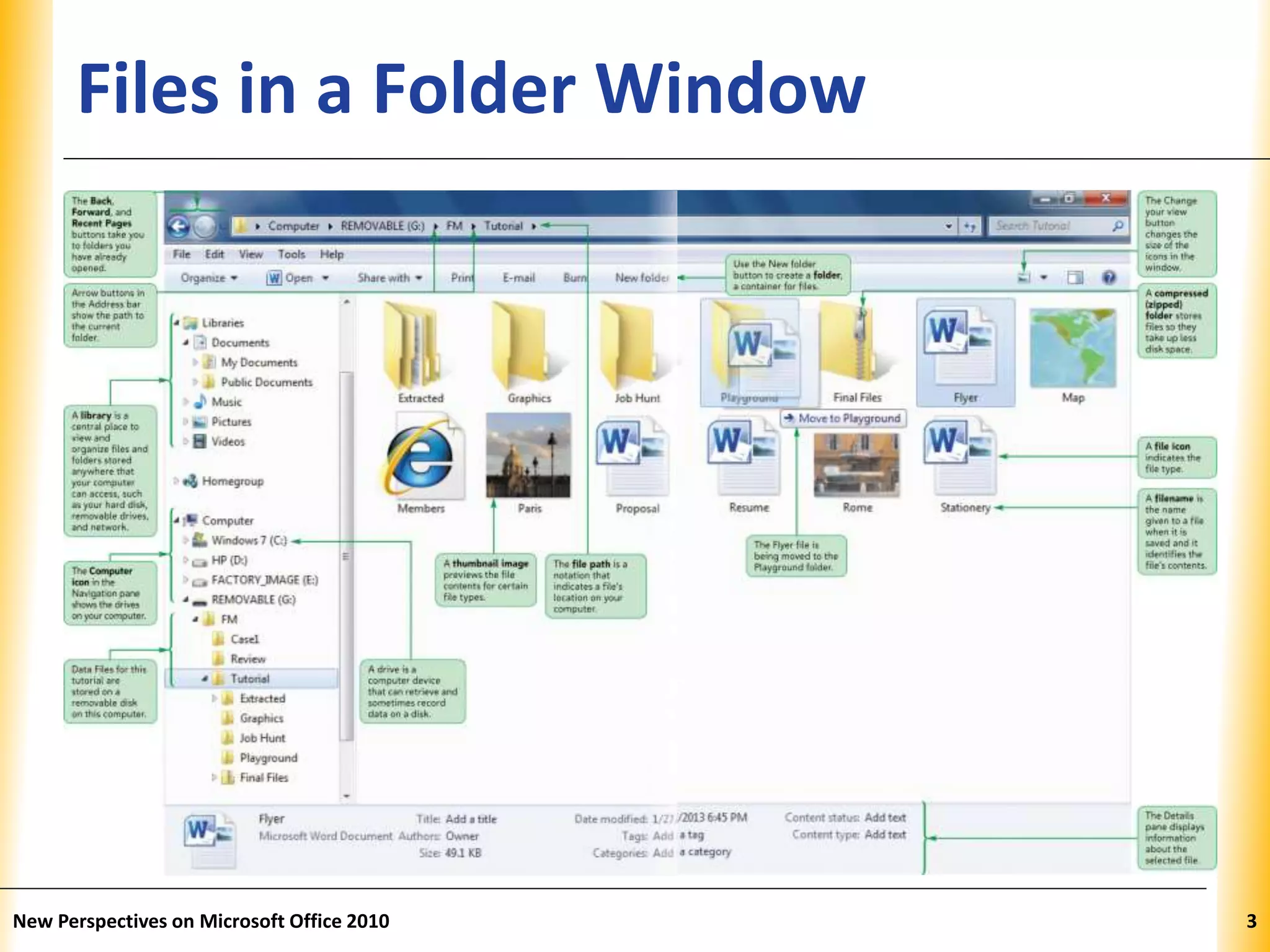
XPXPXPFiles in a Folder Window
New Perspectives on Microsoft Office 2010 3
XPXPXPOrganizing Files and Folders
• A file, or document, is a collection of data that has a
name and is stored in a computer
• Organize files by storing them in folders
• Disks contain folders that hold documents, or files
– USB drives
– Compact discs (CDs)
– Digital video discs (DVDs)
– Hard disks
• Each drive is assigned a letter
New Perspectives on Microsoft Office 2010 4
XPXPXP
Understanding the Need for Organizing
Files and Folders
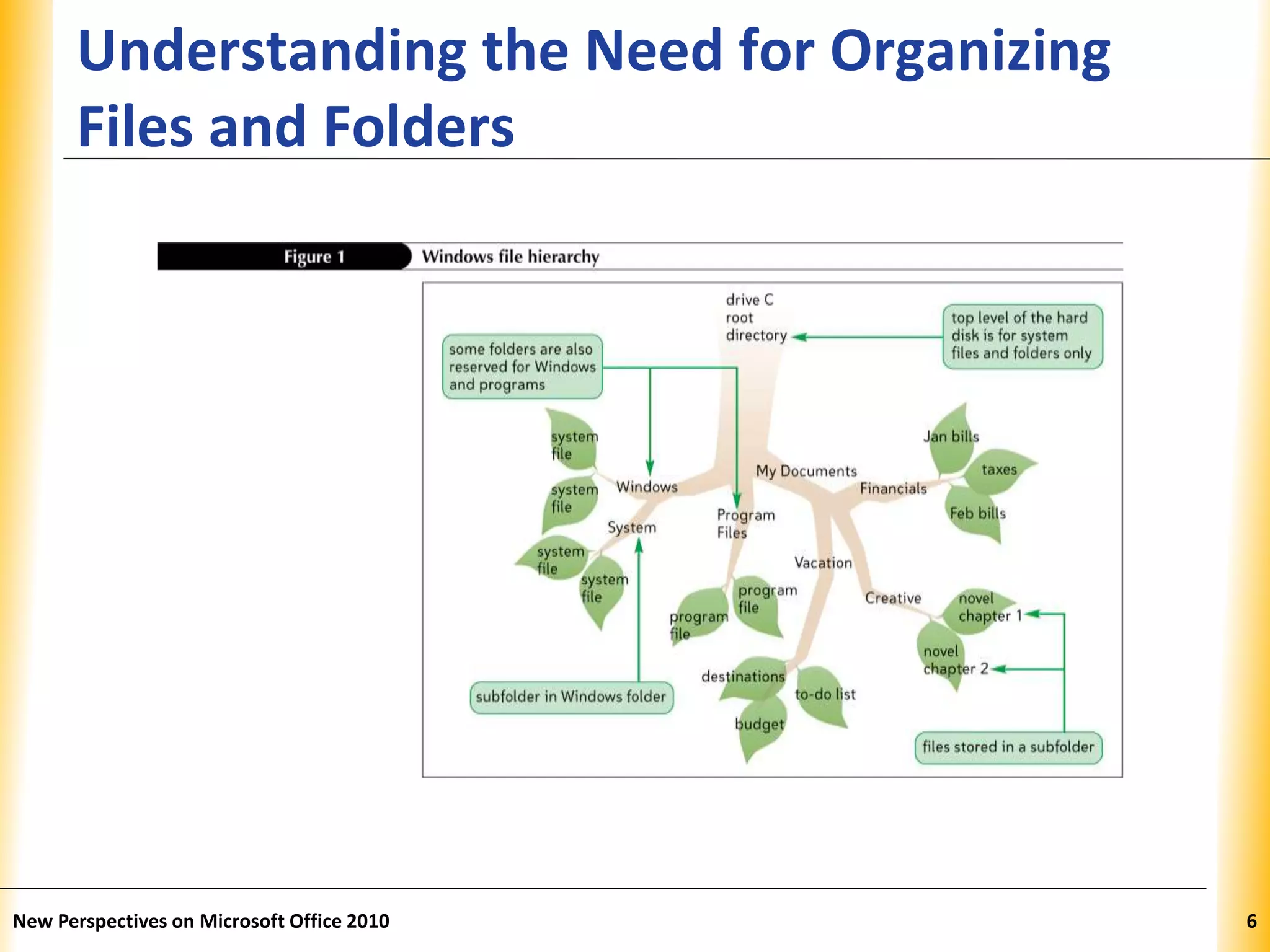
• Windows organizes folders and files in an hierarchy,
or file system
• Windows stores the folders and important files it
needs to turn on the computer in its root directory
• Folders stored within other folders are called
subfolders
New Perspectives on Microsoft Office 2010 5
XPXPXP
Understanding the Need for Organizing
Files and Folders
New Perspectives on Microsoft Office 2010 6
XPXPXP
Developing Strategies for Organizing Files
and Folders
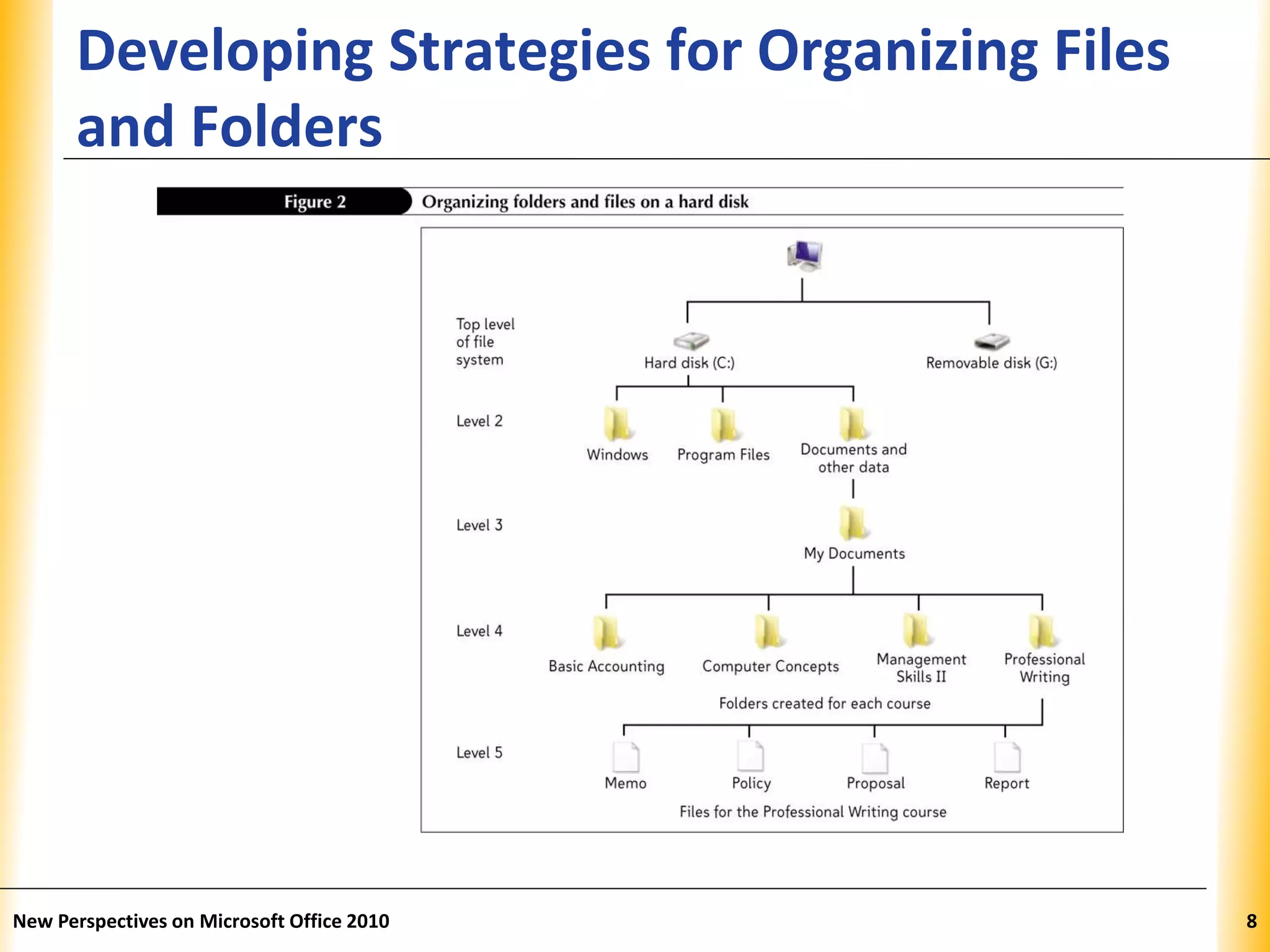
• Type of disk you use to store files determines how
you organize those files
• Storing files on removable media allows you to use
simpler organization
• The larger the medium, the more levels of folders
you should use
• You should have a backup, or duplicate copy, of
important files
New Perspectives on Microsoft Office 2010 7
XPXPXP
Developing Strategies for Organizing Files
and Folders
New Perspectives on Microsoft Office 2010 8
XPXPXP
Exploring Files, Folders,
and Libraries
• Windows Explorer and the Computer window show
the drives, folders, and files on your computer
– Each has a slightly different view
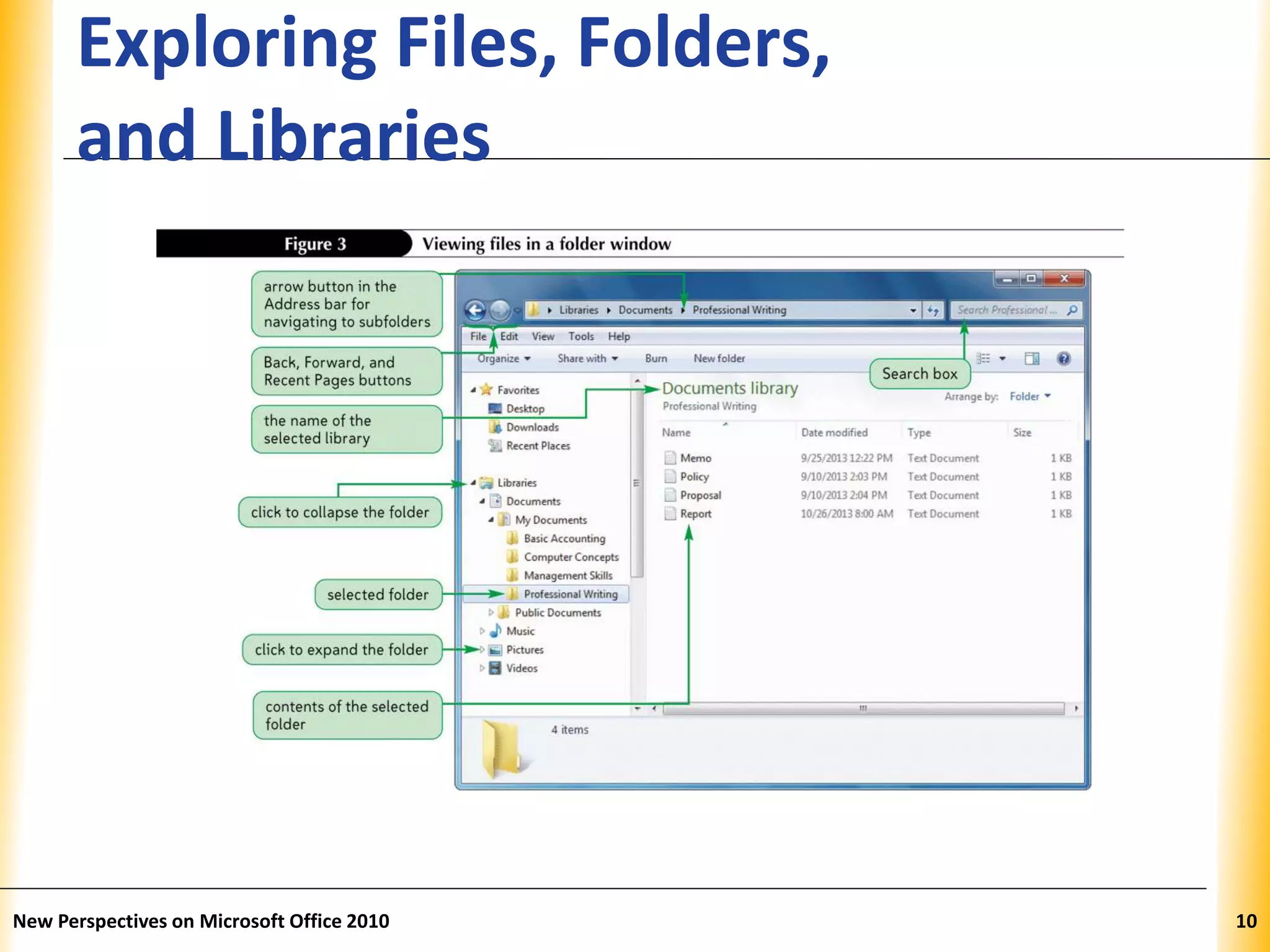
• A folder window displays the files and subfolders in a
folder
– Divided into two sections, called panes
New Perspectives on Microsoft Office 2010 9
XPXPXP
Exploring Files, Folders,
and Libraries
New Perspectives on Microsoft Office 2010 10
XPXPXPUsing Libraries and Folders
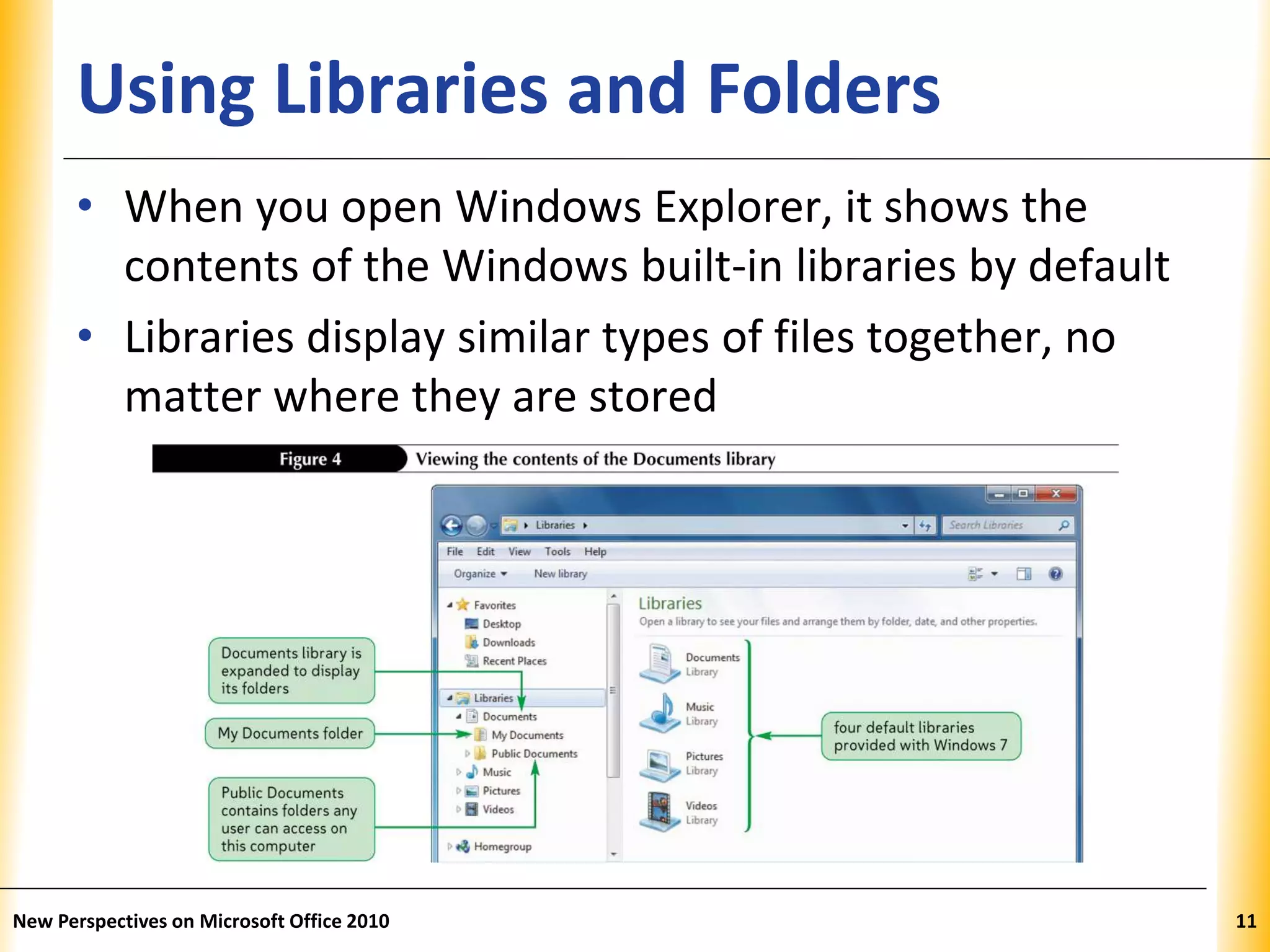
• When you open Windows Explorer, it shows the
contents of the Windows built-in libraries by default
• Libraries display similar types of files together, no
matter where they are stored
New Perspectives on Microsoft Office 2010 11
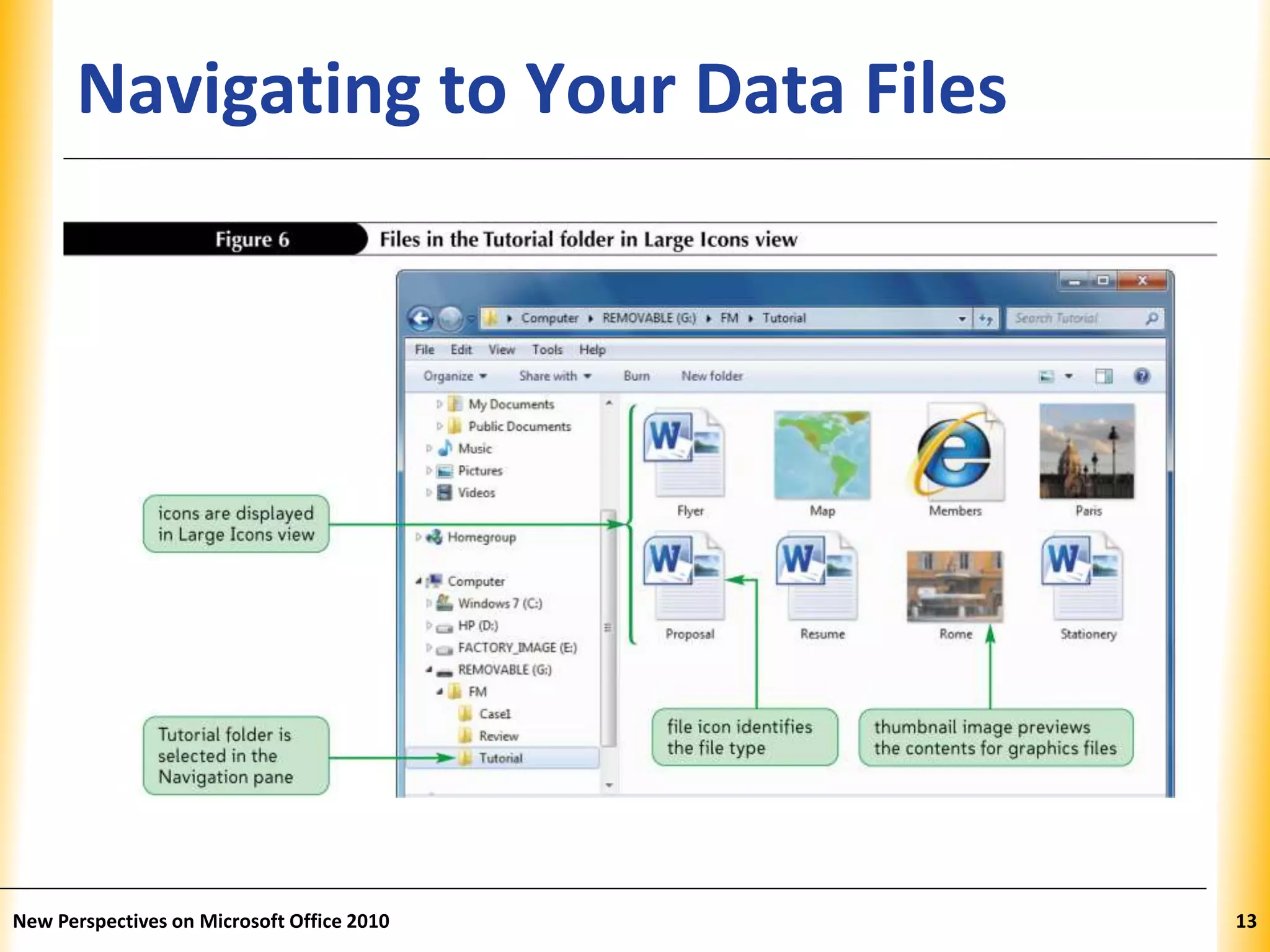
XPXPXPNavigating to Your Data Files
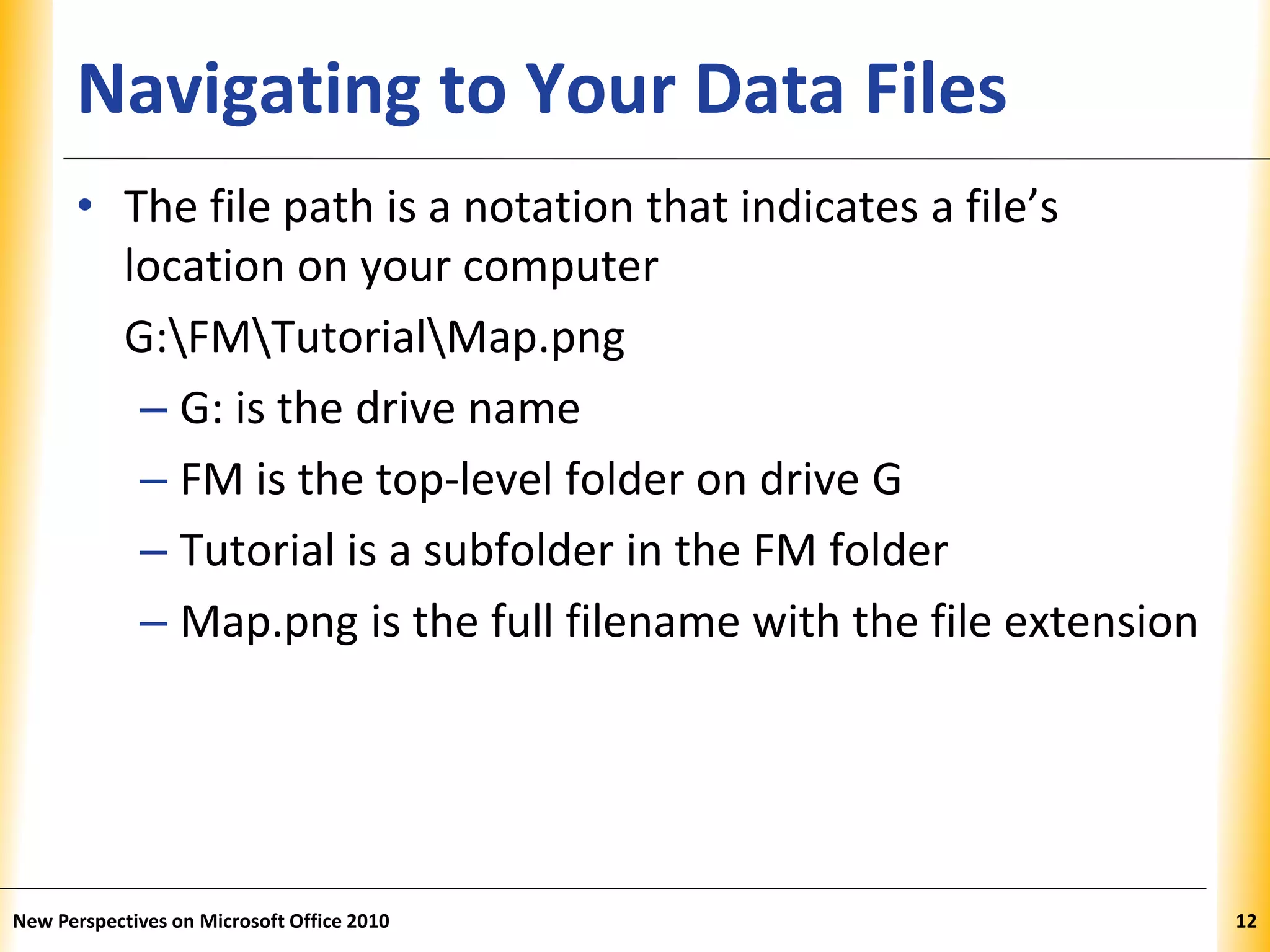
• The file path is a notation that indicates a file’s
location on your computer
G:FMTutorialMap.png
– G: is the drive name
– FM is the top-level folder on drive G
– Tutorial is a subfolder in the FM folder
– Map.png is the full filename with the file extension
New Perspectives on Microsoft Office 2010 12
XPXPXPNavigating to Your Data Files
New Perspectives on Microsoft Office 2010 13
XPXPXPManaging Folders and Files
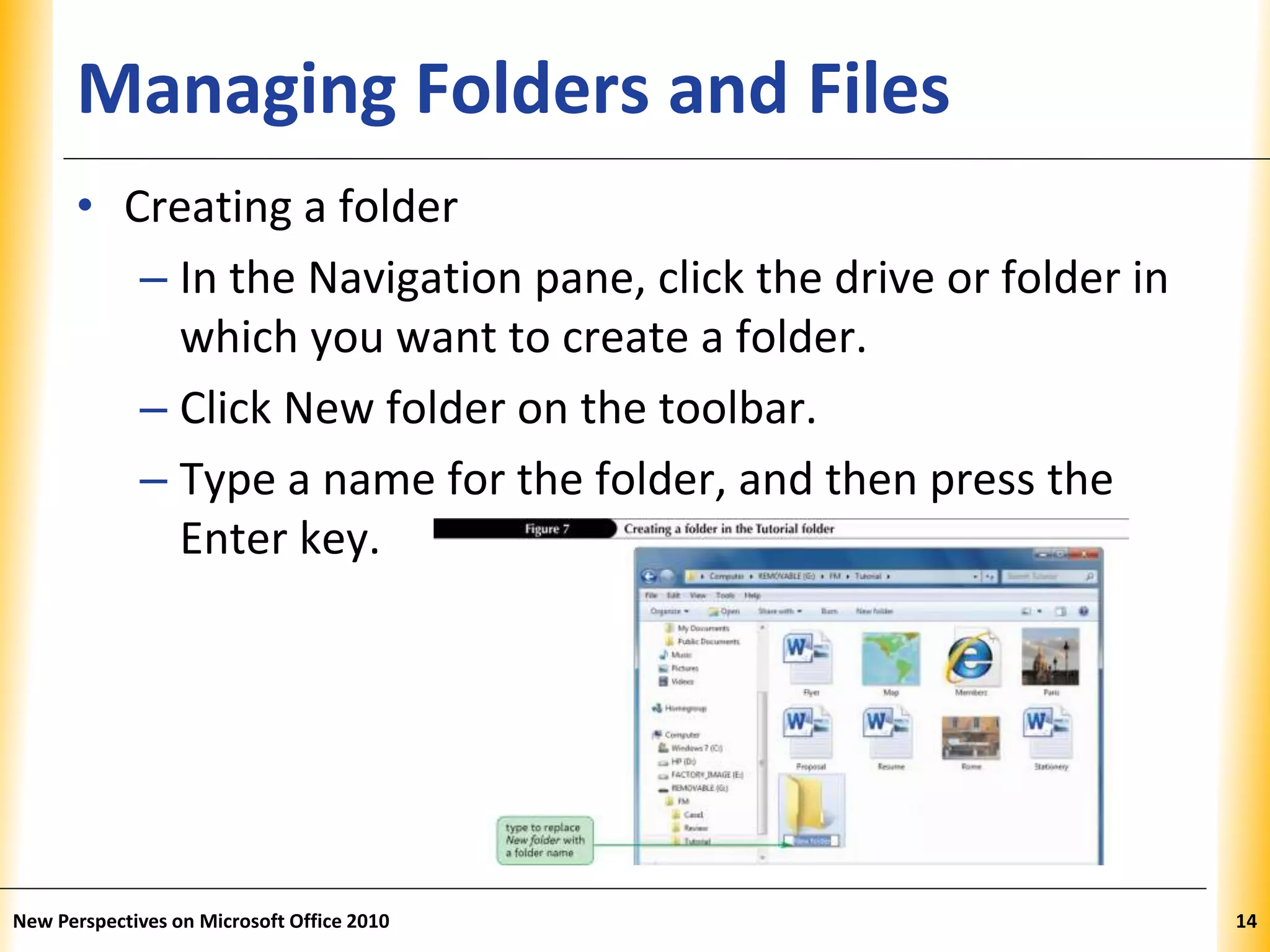
• Creating a folder
– In the Navigation pane, click the drive or folder in
which you want to create a folder.
– Click New folder on the toolbar.
– Type a name for the folder, and then press the
Enter key.
New Perspectives on Microsoft Office 2010 14
XPXPXPWorking with Folders and Files
• Moving and Copying Files and Folders
– Moving a file removes it from its current location
and places it in a new location you specify
– Copying places the file in both locations
New Perspectives on Microsoft Office 2010 15
XPXPXPWorking with Folders and Files
• Naming and Renaming Files
– Filenames provide important information about
the file, including its contents and purpose
• Main part of the filename
• Dot
• File extension
– A filename extension identifies file type and
indicates program in which file was created
New Perspectives on Microsoft Office 2010 16
XPXPXPWorking with Folders and Files
• Deleting Files and Folders
– Recycle Bin is an area on your hard disk that holds
deleted files until you remove them permanently
New Perspectives on Microsoft Office 2010 17
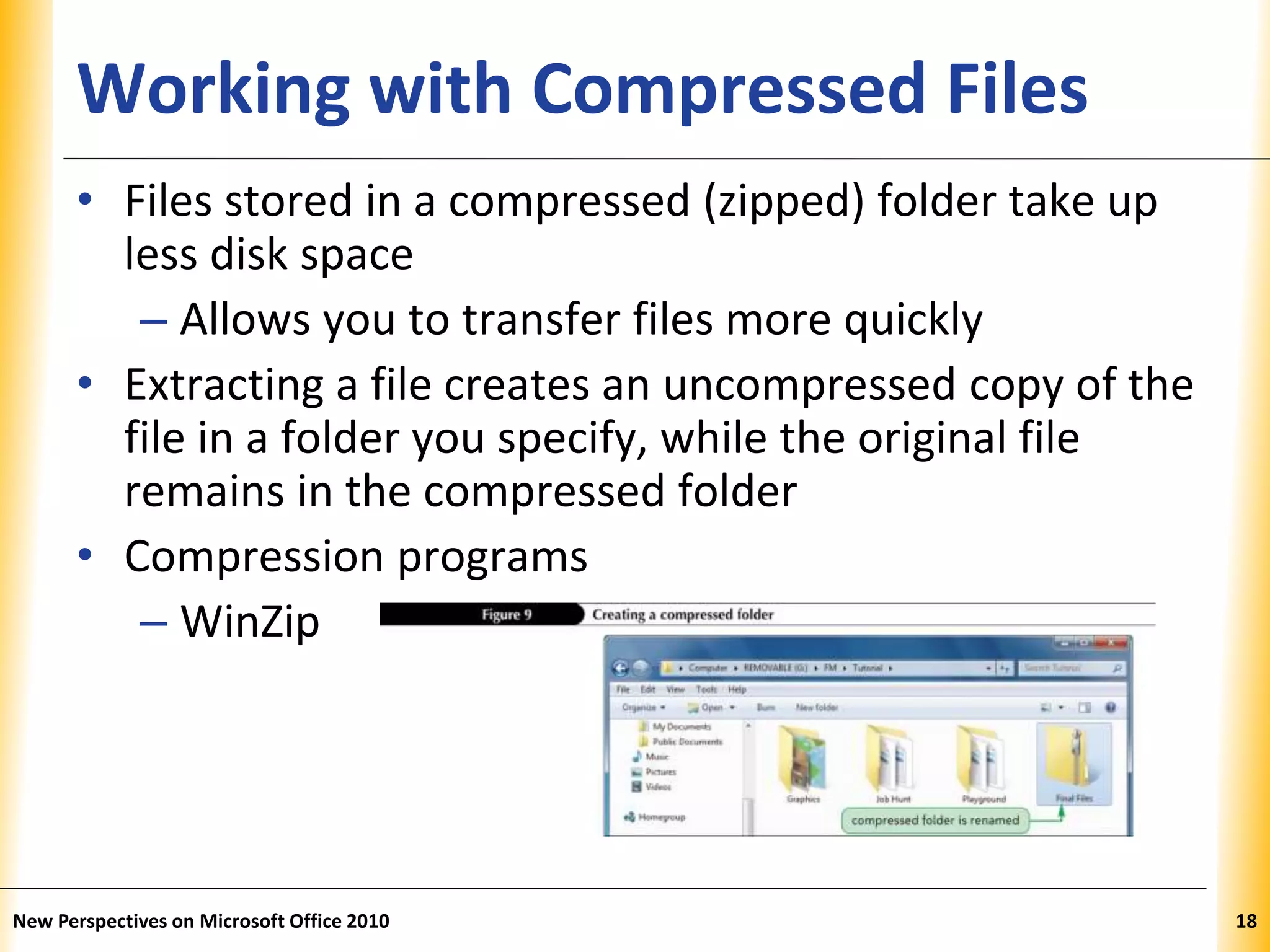
XPXPXPWorking with Compressed Files
• Files stored in a compressed (zipped) folder take up
less disk space
– Allows you to transfer files more quickly
• Extracting a file creates an uncompressed copy of the
file in a folder you specify, while the original file
remains in the compressed folder
• Compression programs
– WinZip
New Perspectives on Microsoft Office 2010 18

Managing your files

  • 1.
  • 2.
    XPXPXPObjectives • Develop filemanagement strategies • Explore files, folders, and libraries • Create, name, copy, move, and delete folders • Name, copy, move, and delete files • Work with compressed files New Perspectives on Microsoft Office 2010 2
  • 3.
    XPXPXPFiles in aFolder Window New Perspectives on Microsoft Office 2010 3
  • 4.
    XPXPXPOrganizing Files andFolders • A file, or document, is a collection of data that has a name and is stored in a computer • Organize files by storing them in folders • Disks contain folders that hold documents, or files – USB drives – Compact discs (CDs) – Digital video discs (DVDs) – Hard disks • Each drive is assigned a letter New Perspectives on Microsoft Office 2010 4
  • 5.
    XPXPXP Understanding the Needfor Organizing Files and Folders • Windows organizes folders and files in an hierarchy, or file system • Windows stores the folders and important files it needs to turn on the computer in its root directory • Folders stored within other folders are called subfolders New Perspectives on Microsoft Office 2010 5
  • 6.
    XPXPXP Understanding the Needfor Organizing Files and Folders New Perspectives on Microsoft Office 2010 6
  • 7.
    XPXPXP Developing Strategies forOrganizing Files and Folders • Type of disk you use to store files determines how you organize those files • Storing files on removable media allows you to use simpler organization • The larger the medium, the more levels of folders you should use • You should have a backup, or duplicate copy, of important files New Perspectives on Microsoft Office 2010 7
  • 8.
    XPXPXP Developing Strategies forOrganizing Files and Folders New Perspectives on Microsoft Office 2010 8
  • 9.
    XPXPXP Exploring Files, Folders, andLibraries • Windows Explorer and the Computer window show the drives, folders, and files on your computer – Each has a slightly different view • A folder window displays the files and subfolders in a folder – Divided into two sections, called panes New Perspectives on Microsoft Office 2010 9
  • 10.
    XPXPXP Exploring Files, Folders, andLibraries New Perspectives on Microsoft Office 2010 10
  • 11.
    XPXPXPUsing Libraries andFolders • When you open Windows Explorer, it shows the contents of the Windows built-in libraries by default • Libraries display similar types of files together, no matter where they are stored New Perspectives on Microsoft Office 2010 11
  • 12.
    XPXPXPNavigating to YourData Files • The file path is a notation that indicates a file’s location on your computer G:FMTutorialMap.png – G: is the drive name – FM is the top-level folder on drive G – Tutorial is a subfolder in the FM folder – Map.png is the full filename with the file extension New Perspectives on Microsoft Office 2010 12
  • 13.
    XPXPXPNavigating to YourData Files New Perspectives on Microsoft Office 2010 13
  • 14.
    XPXPXPManaging Folders andFiles • Creating a folder – In the Navigation pane, click the drive or folder in which you want to create a folder. – Click New folder on the toolbar. – Type a name for the folder, and then press the Enter key. New Perspectives on Microsoft Office 2010 14
  • 15.
    XPXPXPWorking with Foldersand Files • Moving and Copying Files and Folders – Moving a file removes it from its current location and places it in a new location you specify – Copying places the file in both locations New Perspectives on Microsoft Office 2010 15
  • 16.
    XPXPXPWorking with Foldersand Files • Naming and Renaming Files – Filenames provide important information about the file, including its contents and purpose • Main part of the filename • Dot • File extension – A filename extension identifies file type and indicates program in which file was created New Perspectives on Microsoft Office 2010 16
  • 17.
    XPXPXPWorking with Foldersand Files • Deleting Files and Folders – Recycle Bin is an area on your hard disk that holds deleted files until you remove them permanently New Perspectives on Microsoft Office 2010 17
  • 18.
    XPXPXPWorking with CompressedFiles • Files stored in a compressed (zipped) folder take up less disk space – Allows you to transfer files more quickly • Extracting a file creates an uncompressed copy of the file in a folder you specify, while the original file remains in the compressed folder • Compression programs – WinZip New Perspectives on Microsoft Office 2010 18