®
Microsoft Office 2010
Exploring the Basics of
Microsoft Windows 7
XPXPXPObjectives
• Start Windows 7 and tour the desktop
• Explore the Start menu
• Run software programs, switch between
them, and close them
• Identify and use the controls in windows and
dialog boxes
2
XPXPXPObjectives
• Navigate your computer using Windows
Explorer and the Computer window
• Change the view of the items in your
computer
• Get help with Windows 7 tasks
• Turn off Windows
3
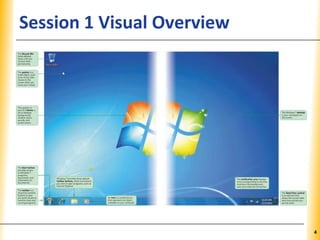
XPXPXPSession 1 Visual Overview
4
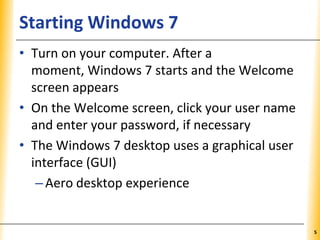
XPXPXPStarting Windows 7
• Turn on your computer. After a
moment, Windows 7 starts and the Welcome
screen appears
• On the Welcome screen, click your user name
and enter your password, if necessary
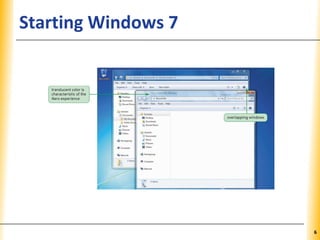
• The Windows 7 desktop uses a graphical user
interface (GUI)
–Aero desktop experience
5
XPXPXPStarting Windows 7
6
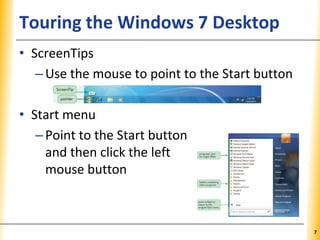
XPXPXPTouring the Windows 7 Desktop
• ScreenTips
–Use the mouse to point to the Start button
• Start menu
–Point to the Start button
and then click the left
mouse button
7
XPXPXPTouring the Windows 7 Desktop
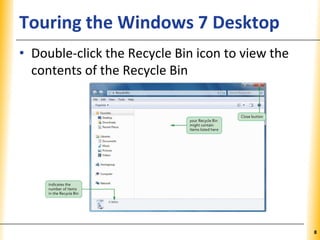
• Double-click the Recycle Bin icon to view the
contents of the Recycle Bin
8
XPXPXPTouring the Windows 7 Desktop
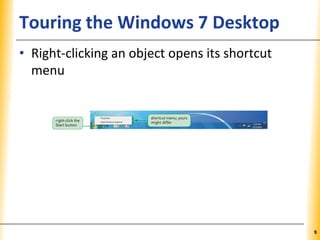
• Right-clicking an object opens its shortcut
menu
9
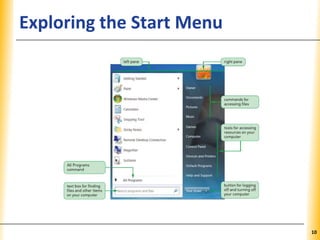
XPXPXPExploring the Start Menu
10
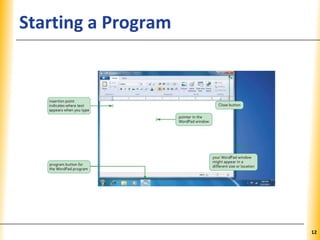
XPXPXPStarting a Program
• Click the Start button on the taskbar, and then
click the name of the program you want to
start.
or
• Click the Start button on the taskbar, and then
point to All Programs.
• If necessary, click the folder that contains the
program you want to start.
• Click the name of the program you want to
start.
11
XPXPXPStarting a Program
12
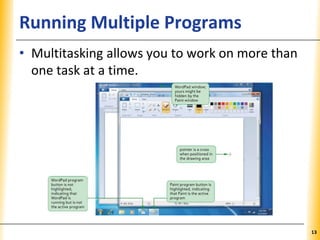
XPXPXPRunning Multiple Programs
• Multitasking allows you to work on more than
one task at a time.
13
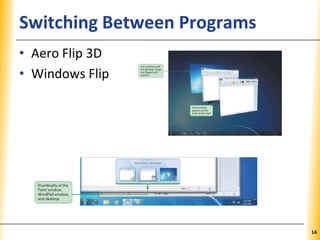
XPXPXPSwitching Between Programs
• Aero Flip 3D
• Windows Flip
14
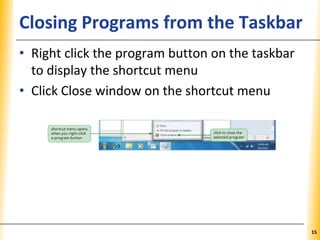
XPXPXPClosing Programs from the Taskbar
• Right click the program button on the taskbar
to display the shortcut menu
• Click Close window on the shortcut menu
15
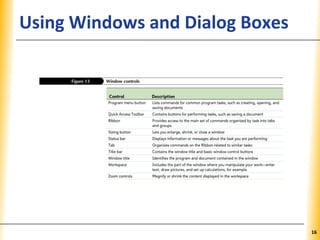
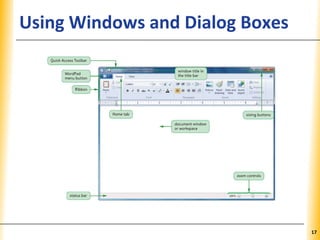
XPXPXPUsing Windows and Dialog Boxes
16
XPXPXPUsing Windows and Dialog Boxes
17
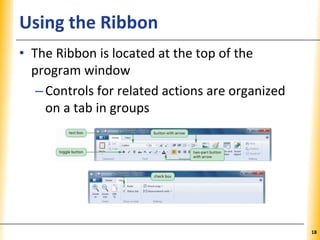
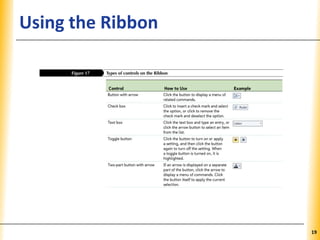
XPXPXPUsing the Ribbon
• The Ribbon is located at the top of the
program window
–Controls for related actions are organized
on a tab in groups
18
XPXPXPUsing the Ribbon
19
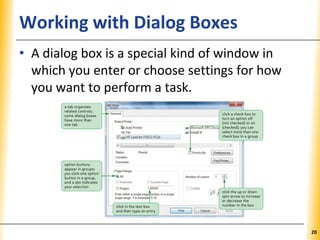
XPXPXPWorking with Dialog Boxes
• A dialog box is a special kind of window in
which you enter or choose settings for how
you want to perform a task.
20
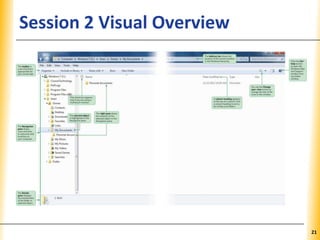
XPXPXPSession 2 Visual Overview
21
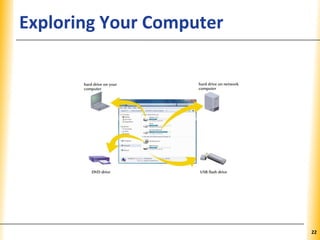
XPXPXPExploring Your Computer
22
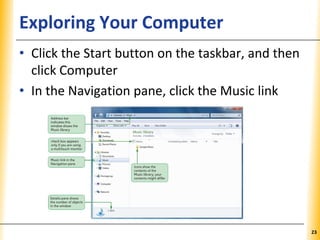
XPXPXPExploring Your Computer
• Click the Start button on the taskbar, and then
click Computer
• In the Navigation pane, click the Music link
23
XPXPXPExploring Your Computer
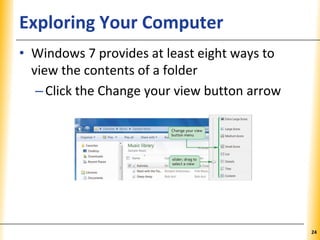
• Windows 7 provides at least eight ways to
view the contents of a folder
–Click the Change your view button arrow
24
XPXPXPNavigating with Windows Explorer
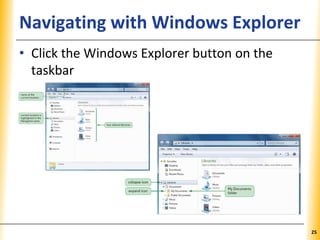
• Click the Windows Explorer button on the
taskbar
25
XPXPXPGetting Help
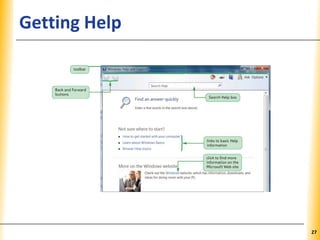
• Starting Windows Help and Support
–Click the Start button on the taskbar.
–Click Help and Support.
or
–Click the Help button on any folder window.
26
XPXPXPGetting Help
27
XPXPXPTurning Off Windows 7
• Click the Start button on the taskbar
• Click Shut down
• Shut down options
–Log off
–Sleep
–Shut down
28

Windows7