WORKING WITH FILES
AND FOLDERS
SPTVE_ICTC8- OPCO-If-7
Identify the Icons
Review
How do we create
a folder?
Review
How do we rename
a folder?
Lesson Objectives
3.1 Create, open, move, rename or copy a file or folder.
3.2 Locate, delete, and restore files.
3.3 Display or view details and properties of files and folders.
3.4 Organize various files for easy lookup and use.
3.5 Search files and information.
3.6 Check, erase or format disks as necessary.
To create a folder:
1.Right-click on your desktop.
2.Go to New.
3.Click Folder.
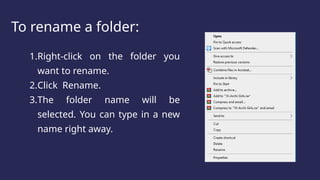
To rename a folder:
1.Right-click on the folder you
want to rename.
2.Click Rename.
3.The folder name will be
selected. You can type in a new
name right away.
To locate a folder:
1.Click on the File Explorer in
the task bar or in the Start
Menu.
2.Select a location in the left
pane to search or browse.
1.Right-click on a folder.
2.Select Delete.
Or
3.Click a folder.
4.Press the delete button on the
keyboard.
Deleted files or folders are placed in
the Recycle Bin.
To delete a folder:
To restore a file or folder:
1. Click the Recycle Bin to open it.
2.Right-click the file or folder you
want to restore.
3. Select Restore.
4.The restored file or folder is
moved to the folder where it was
previously saved before it was
deleted.
To permanently delete a file or folder:
1.Right-click on the Recycle Bin.
2.Select Empty Recycle Bin.
To check the file or folder Properties:
1.Right-click on the folder.
To check the file or folder Properties:
1.Right-click on the folder.
2.Select Properties.
• File name
• Type of File
• File size
• Date when file was created
• Attributes
Saving Files:
Files can be saved in storage devices such as:
• Floppy disks, CDs,
• CD-RW (compact discs-read/write)
• DVD RW
• zip disks
• flash disks
• memory sticks
• hard drives
Formatting Drives:
To format a storage device:
1.Right-click on the storage
device you want to
format.
2.Click Format.
3.Note that all the contents
of the storage device will
be erased.
Running a Check Disk:
1. Right-click the drive.
2.Click Properties.
3.Select the Tools tab.
4.Click the Check button to start.
Water Break
(10 Minutes)
Quiz
1
What icon is being shown?
2
What icon is being shown?
3
What icon is being shown?
4
To create a folder, right-click on your
________________ and select the “New”
option.
5
When you delete a file, it goes to the
_____________________ folder before it gets
permanently deleted.
6
To erase the content of a drive and get it
ready for use, right-click on it and select
_________________.
7
In running a check disk, you need to click
the Check button in the ________________
tab.
8
Mario wants to check the size of the file.
Which tool can give him this information?
9
Anna wanted to erase all the music files and
keep the documents in her flash drive.
Which option should she click:
Delete or Format?
10
Thomas wanted to keep the files he
accidentally deleted.
What should he do?
Activity
1.Create a folder inside the Documents folder.
2.Rename the folder with your section’s name.
3.Create a sub-folder and rename it with your name.
Example: Documents > 8-Australia > Dela Cruz-Juan.
4.Search for files such as documents, pictures, music, and
videos saved in your computer.
5.Save a copy in your own folder.
Questions:
Why is creating a folder necessary when working
with computers?
Questions:
Why is there a need to be organized when saving
your files and documents?
Questions:
How does being organized help you become
efficient when working with your computer?

Grade 8 - ComTech - Working with Folders.pptx

  • 1.
    WORKING WITH FILES ANDFOLDERS SPTVE_ICTC8- OPCO-If-7
  • 2.
  • 13.
    Review How do wecreate a folder?
  • 14.
    Review How do werename a folder?
  • 15.
    Lesson Objectives 3.1 Create,open, move, rename or copy a file or folder. 3.2 Locate, delete, and restore files. 3.3 Display or view details and properties of files and folders. 3.4 Organize various files for easy lookup and use. 3.5 Search files and information. 3.6 Check, erase or format disks as necessary.
  • 16.
    To create afolder: 1.Right-click on your desktop. 2.Go to New. 3.Click Folder.
  • 17.
    To rename afolder: 1.Right-click on the folder you want to rename. 2.Click Rename. 3.The folder name will be selected. You can type in a new name right away.
  • 18.
    To locate afolder: 1.Click on the File Explorer in the task bar or in the Start Menu. 2.Select a location in the left pane to search or browse.
  • 19.
    1.Right-click on afolder. 2.Select Delete. Or 3.Click a folder. 4.Press the delete button on the keyboard. Deleted files or folders are placed in the Recycle Bin. To delete a folder:
  • 20.
    To restore afile or folder: 1. Click the Recycle Bin to open it. 2.Right-click the file or folder you want to restore. 3. Select Restore. 4.The restored file or folder is moved to the folder where it was previously saved before it was deleted.
  • 21.
    To permanently deletea file or folder: 1.Right-click on the Recycle Bin. 2.Select Empty Recycle Bin.
  • 22.
    To check thefile or folder Properties: 1.Right-click on the folder.
  • 23.
    To check thefile or folder Properties: 1.Right-click on the folder. 2.Select Properties. • File name • Type of File • File size • Date when file was created • Attributes
  • 24.
    Saving Files: Files canbe saved in storage devices such as: • Floppy disks, CDs, • CD-RW (compact discs-read/write) • DVD RW • zip disks • flash disks • memory sticks • hard drives
  • 25.
    Formatting Drives: To formata storage device: 1.Right-click on the storage device you want to format. 2.Click Format. 3.Note that all the contents of the storage device will be erased.
  • 26.
    Running a CheckDisk: 1. Right-click the drive. 2.Click Properties. 3.Select the Tools tab. 4.Click the Check button to start.
  • 27.
  • 28.
  • 29.
    1 What icon isbeing shown?
  • 30.
    2 What icon isbeing shown?
  • 31.
    3 What icon isbeing shown?
  • 32.
    4 To create afolder, right-click on your ________________ and select the “New” option.
  • 33.
    5 When you deletea file, it goes to the _____________________ folder before it gets permanently deleted.
  • 34.
    6 To erase thecontent of a drive and get it ready for use, right-click on it and select _________________.
  • 35.
    7 In running acheck disk, you need to click the Check button in the ________________ tab.
  • 36.
    8 Mario wants tocheck the size of the file. Which tool can give him this information?
  • 37.
    9 Anna wanted toerase all the music files and keep the documents in her flash drive. Which option should she click: Delete or Format?
  • 38.
    10 Thomas wanted tokeep the files he accidentally deleted. What should he do?
  • 39.
  • 40.
    1.Create a folderinside the Documents folder. 2.Rename the folder with your section’s name. 3.Create a sub-folder and rename it with your name. Example: Documents > 8-Australia > Dela Cruz-Juan. 4.Search for files such as documents, pictures, music, and videos saved in your computer. 5.Save a copy in your own folder.
  • 41.
    Questions: Why is creatinga folder necessary when working with computers?
  • 42.
    Questions: Why is therea need to be organized when saving your files and documents?
  • 43.
    Questions: How does beingorganized help you become efficient when working with your computer?