Lesson 2 Using Tweens
What is a Tween? Tweening  is the process of creating “in-between” frames in an animation. It is used to create the animation effect of movement, or changing shape. There are 2 types of  tween  we will learn today: Motion Tween Shape Tween
Creating a Motion Tween Create a new Flash Animation. In  Frame 1 , draw a small shape on the background, this is the shape we will move. Insert a Key Frame  at  Frame 30 . Right Click between  Frame 1  and  Frame 30 . Click –  Create Motion Tween . That’s it. Now preview your movie.
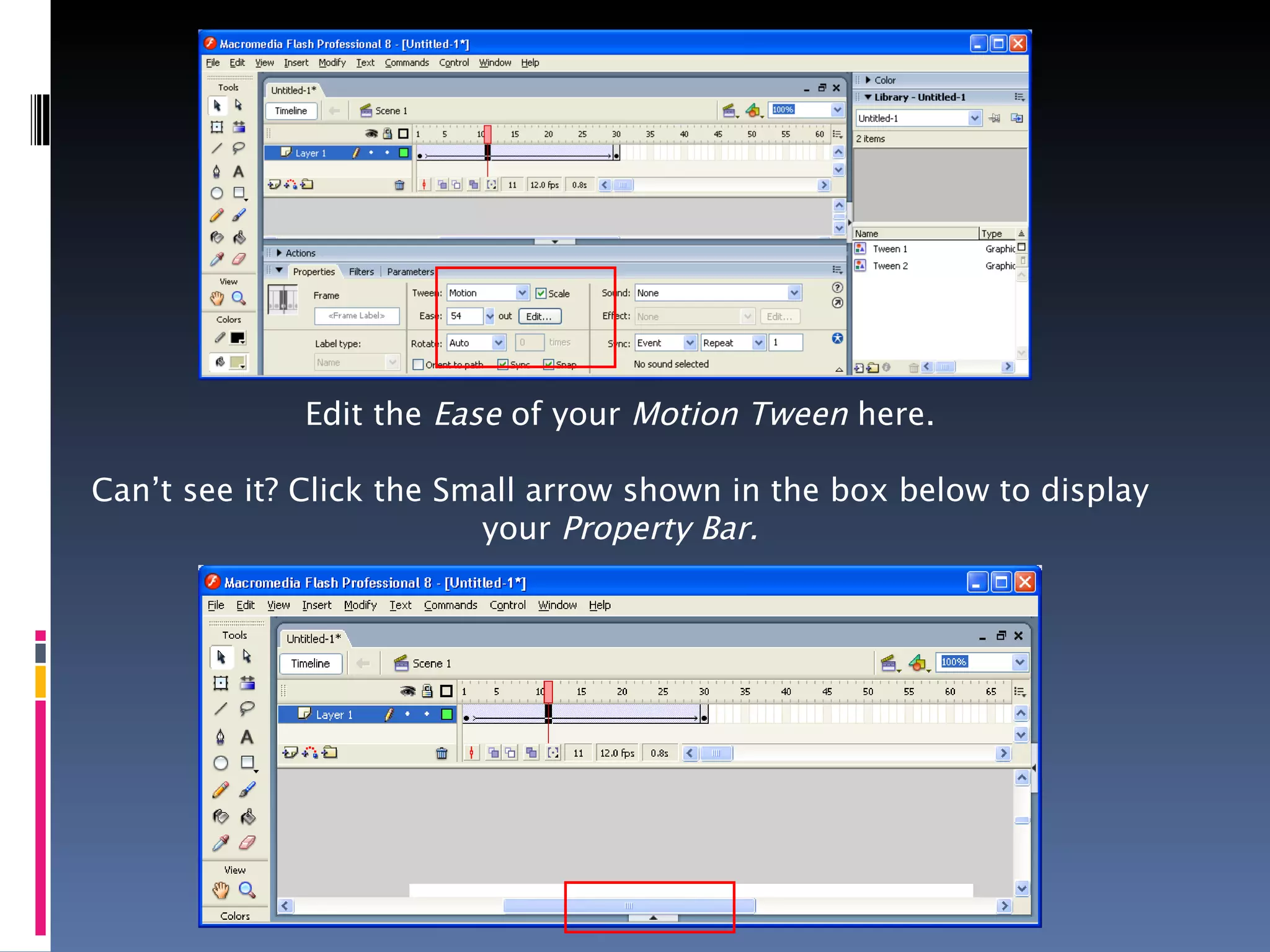
Creating a Motion Tween You can also speed up and slow down the speed of your Motion Tween. To speed up, remove frames, to slow down, add more frames. You can also make the shape  accelerate  or  decelerate .  Make sure you have selected your Motion Tween, then change the  Ease , located in the  Property Bar  at the bottom of the screen. Set it at -100. Your shape now starts slowly and speeds up. Try it at 100. What happens?
Edit the  Ease  of your  Motion Tween  here. Can’t see it? Click the Small arrow shown in the box below to display your  Property Bar.
Creating a Motion Tween After creating your  Motion Tween  select the  Final Frame , click the  Free Transform Tool  and change your shape. We can use this to make objects look like they are coming from a distance. Try it! You can rotate, flip and edit your shape to create some interesting looking animations.
Creating a Shape Tween A  Shape Tween  is when one object transforms into a different object. Create a new Flash Movie. Insert a shape or draw a simple picture. Then, at  Frame 30 , insert a  Blank Key Frame . Select a  Frame  in the middle, and at the bottom of your screen, click  Tween , and select  Shape . You have created a Shape Tween. Preview it to view your animation. We can use Ease in the same way as before. Try it.
Creating a Shape Tween This does not always create a clear animation.  Use of colours, more than one shape and text can create strange looking animations, have a play and try to create some smooth Shape Tweens. If you want to use Shape Tween on Text or an Imported Image, you must select the text/image and  Select Modify – Break Apart   TWICE  before you create your Shape Tween. Hint: Use Shape Tween with similar Shapes at different parts of the screen to create effects such as shapes coming from a distance.
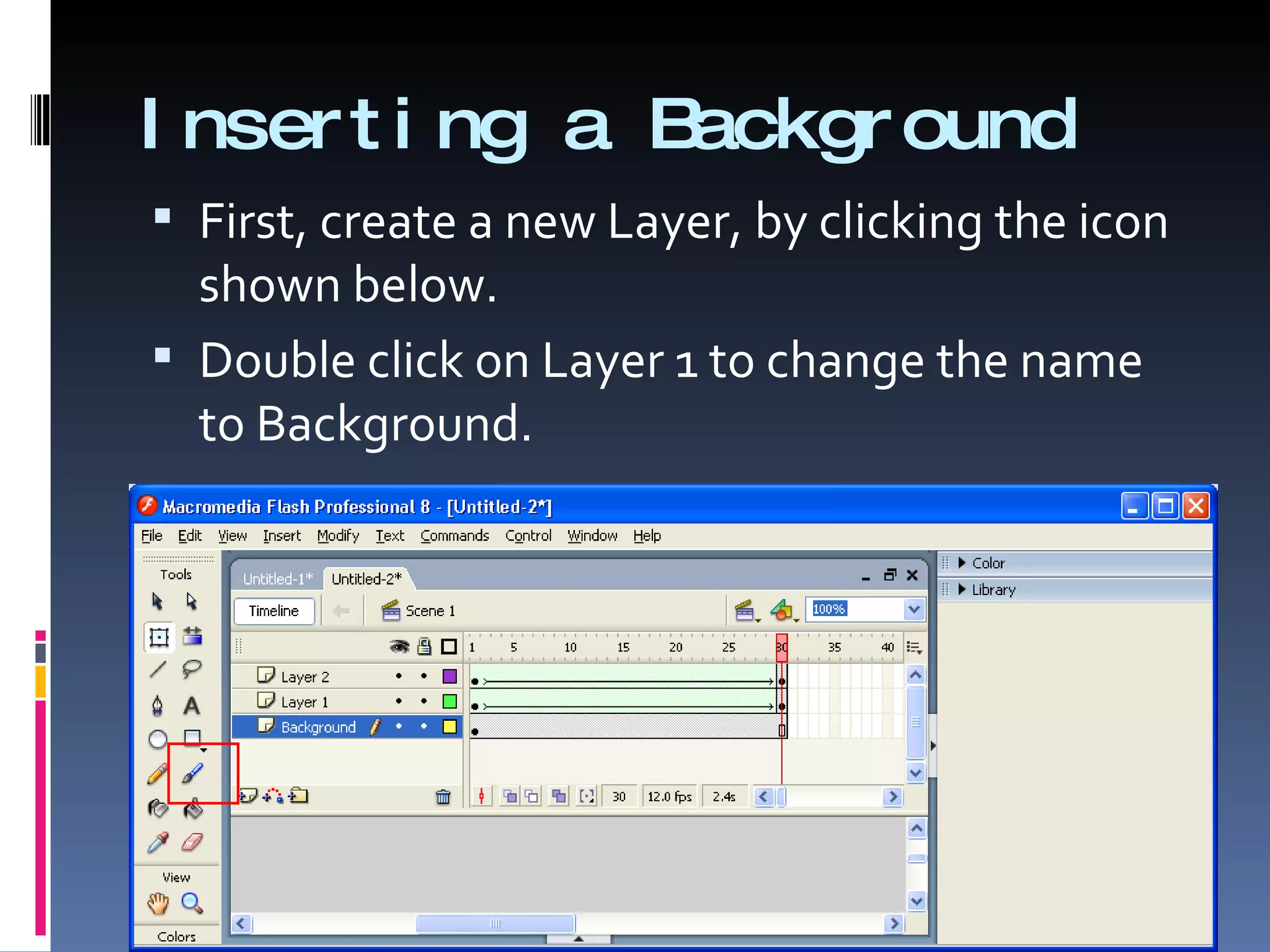
Inserting a Background First, create a new Layer, by clicking the icon shown below.  Double click on Layer 1 to change the name to Background.
Inserting a Background Make sure you are on your background layer. Now find your background, save it and use  File Import – Import to Stage,  or just  Cut and Paste  your Image into the Movie. Always keep different parts of your animation on separate  Layers , it makes editing simpler and tidier. Make sure you  Insert Frame  at the end of the animation on every layer to make sure the background does not disappear half way through your movie!
Task Today Create a Flash Movie, that contains a nice photographic background, Motion Tween and Shape Tween. I want the animation to be realistic.  Try one of these: A car driving along the road A bouncing ball A plane taking off A train passing by a city A sunrise
Task Today You must Save and Store your Animation today. Remember:  File – Export – Export Movie to save your COMPLETED Image. File – Save As to save your Image that you have NOT FINISHED. Next lesson we will be uploading your finished Animation to a simple website.

M5 - Graphical Animation - Lesson 2

  • 1.
  • 2.
    What is aTween? Tweening is the process of creating “in-between” frames in an animation. It is used to create the animation effect of movement, or changing shape. There are 2 types of tween we will learn today: Motion Tween Shape Tween
  • 3.
    Creating a MotionTween Create a new Flash Animation. In Frame 1 , draw a small shape on the background, this is the shape we will move. Insert a Key Frame at Frame 30 . Right Click between Frame 1 and Frame 30 . Click – Create Motion Tween . That’s it. Now preview your movie.
  • 4.
    Creating a MotionTween You can also speed up and slow down the speed of your Motion Tween. To speed up, remove frames, to slow down, add more frames. You can also make the shape accelerate or decelerate . Make sure you have selected your Motion Tween, then change the Ease , located in the Property Bar at the bottom of the screen. Set it at -100. Your shape now starts slowly and speeds up. Try it at 100. What happens?
  • 5.
    Edit the Ease of your Motion Tween here. Can’t see it? Click the Small arrow shown in the box below to display your Property Bar.
  • 6.
    Creating a MotionTween After creating your Motion Tween select the Final Frame , click the Free Transform Tool and change your shape. We can use this to make objects look like they are coming from a distance. Try it! You can rotate, flip and edit your shape to create some interesting looking animations.
  • 7.
    Creating a ShapeTween A Shape Tween is when one object transforms into a different object. Create a new Flash Movie. Insert a shape or draw a simple picture. Then, at Frame 30 , insert a Blank Key Frame . Select a Frame in the middle, and at the bottom of your screen, click Tween , and select Shape . You have created a Shape Tween. Preview it to view your animation. We can use Ease in the same way as before. Try it.
  • 8.
    Creating a ShapeTween This does not always create a clear animation. Use of colours, more than one shape and text can create strange looking animations, have a play and try to create some smooth Shape Tweens. If you want to use Shape Tween on Text or an Imported Image, you must select the text/image and Select Modify – Break Apart TWICE before you create your Shape Tween. Hint: Use Shape Tween with similar Shapes at different parts of the screen to create effects such as shapes coming from a distance.
  • 9.
    Inserting a BackgroundFirst, create a new Layer, by clicking the icon shown below. Double click on Layer 1 to change the name to Background.
  • 10.
    Inserting a BackgroundMake sure you are on your background layer. Now find your background, save it and use File Import – Import to Stage, or just Cut and Paste your Image into the Movie. Always keep different parts of your animation on separate Layers , it makes editing simpler and tidier. Make sure you Insert Frame at the end of the animation on every layer to make sure the background does not disappear half way through your movie!
  • 11.
    Task Today Createa Flash Movie, that contains a nice photographic background, Motion Tween and Shape Tween. I want the animation to be realistic. Try one of these: A car driving along the road A bouncing ball A plane taking off A train passing by a city A sunrise
  • 12.
    Task Today Youmust Save and Store your Animation today. Remember: File – Export – Export Movie to save your COMPLETED Image. File – Save As to save your Image that you have NOT FINISHED. Next lesson we will be uploading your finished Animation to a simple website.