Creating a Flip Animation
• To create a flip animation effect you need to have a
graphic for each side of an object.
• Insert the two graphics in a slide, one each for the
front and back view. They should be the same size.
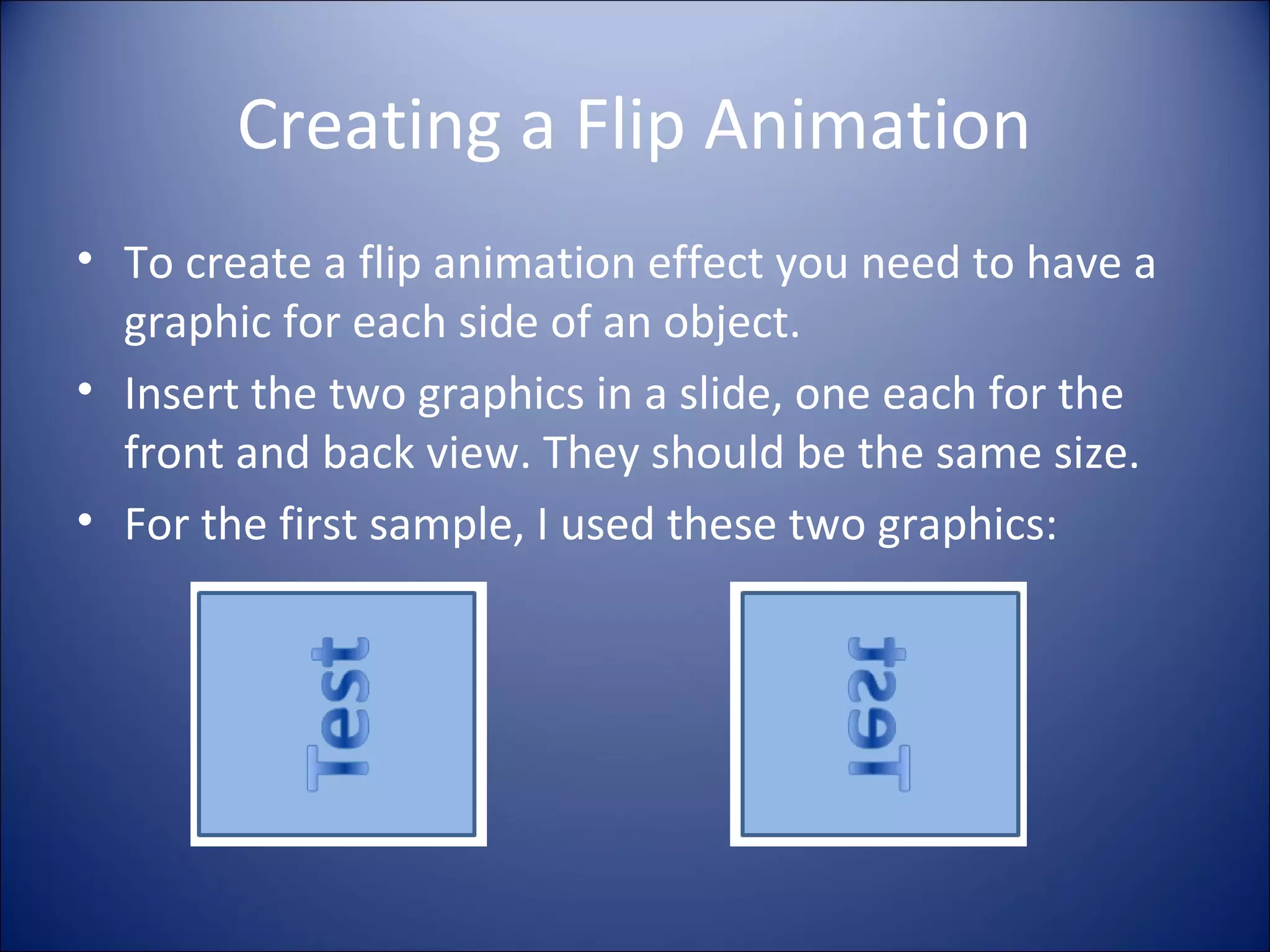
• For the first sample, I used these two graphics:
Click to Flip
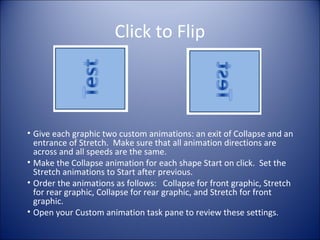
• Give each graphic two custom animations: an exit of Collapse and an
entrance of Stretch. Make sure that all animation directions are
across and all speeds are the same.
• Make the Collapse animation for each shape Start on click. Set the
Stretch animations to Start after previous.
• Order the animations as follows: Collapse for front graphic, Stretch
for rear graphic, Collapse for rear graphic, and Stretch for front
graphic.
• Open your Custom animation task pane to review these settings.
Click to Flip
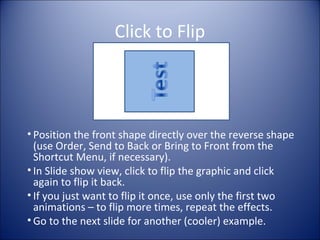
• Position the front shape directly over the reverse shape
(use Order, Send to Back or Bring to Front from the
Shortcut Menu, if necessary).
• In Slide show view, click to flip the graphic and click
again to flip it back.
• If you just want to flip it once, use only the first two
animations – to flip more times, repeat the effects.
• Go to the next slide for another (cooler) example.
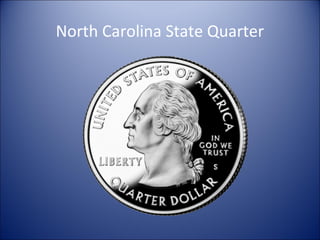
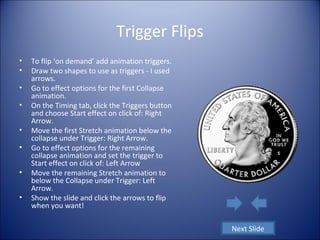
North Carolina State Quarter
Trigger Flips
• To flip ‘on demand’ add animation triggers.
• Draw two shapes to use as triggers - I used
arrows.
• Go to effect options for the first Collapse
animation.
• On the Timing tab, click the Triggers button
and choose Start effect on click of: Right
Arrow.
• Move the first Stretch animation below the
collapse under Trigger: Right Arrow.
• Go to effect options for the remaining
collapse animation and set the trigger to
Start effect on click of: Left Arrow
• Move the remaining Stretch animation to
below the Collapse under Trigger: Left
Arrow.
• Show the slide and click the arrows to flip
when you want!
Next Slide
More Stuff
• I hope you found this helpful.
• For more stuff visit www.maysstuff.com/ppt/
• Examples of stuff:
– Text entrance animations
– Layouts in 2007
– Gradients in 2007
– Working with Slide Masters
– Tips for Presenters
More Stuff
• I hope you found this helpful.
• For more stuff visit www.maysstuff.com/ppt/
• Examples of stuff:
– Text entrance animations
– Layouts in 2007
– Gradients in 2007
– Working with Slide Masters
– Tips for Presenters

Flip

  • 1.
    Creating a FlipAnimation • To create a flip animation effect you need to have a graphic for each side of an object. • Insert the two graphics in a slide, one each for the front and back view. They should be the same size. • For the first sample, I used these two graphics:
  • 2.
    Click to Flip •Give each graphic two custom animations: an exit of Collapse and an entrance of Stretch. Make sure that all animation directions are across and all speeds are the same. • Make the Collapse animation for each shape Start on click. Set the Stretch animations to Start after previous. • Order the animations as follows: Collapse for front graphic, Stretch for rear graphic, Collapse for rear graphic, and Stretch for front graphic. • Open your Custom animation task pane to review these settings.
  • 3.
    Click to Flip •Position the front shape directly over the reverse shape (use Order, Send to Back or Bring to Front from the Shortcut Menu, if necessary). • In Slide show view, click to flip the graphic and click again to flip it back. • If you just want to flip it once, use only the first two animations – to flip more times, repeat the effects. • Go to the next slide for another (cooler) example.
  • 4.
  • 5.
    Trigger Flips • Toflip ‘on demand’ add animation triggers. • Draw two shapes to use as triggers - I used arrows. • Go to effect options for the first Collapse animation. • On the Timing tab, click the Triggers button and choose Start effect on click of: Right Arrow. • Move the first Stretch animation below the collapse under Trigger: Right Arrow. • Go to effect options for the remaining collapse animation and set the trigger to Start effect on click of: Left Arrow • Move the remaining Stretch animation to below the Collapse under Trigger: Left Arrow. • Show the slide and click the arrows to flip when you want! Next Slide
  • 6.
    More Stuff • Ihope you found this helpful. • For more stuff visit www.maysstuff.com/ppt/ • Examples of stuff: – Text entrance animations – Layouts in 2007 – Gradients in 2007 – Working with Slide Masters – Tips for Presenters
  • 7.
    More Stuff • Ihope you found this helpful. • For more stuff visit www.maysstuff.com/ppt/ • Examples of stuff: – Text entrance animations – Layouts in 2007 – Gradients in 2007 – Working with Slide Masters – Tips for Presenters