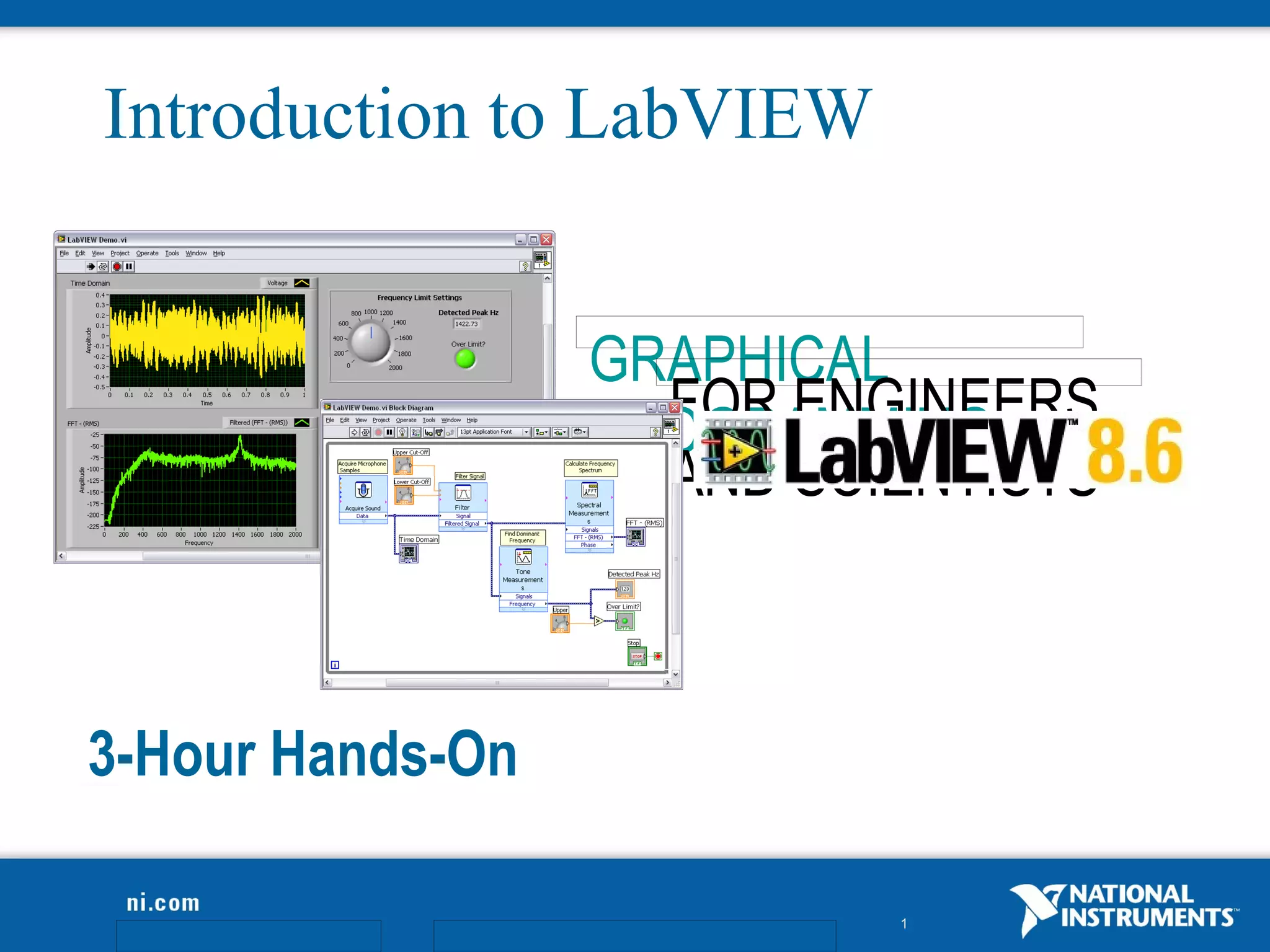
Introduction to LabVIEW


                                   GRAPHICAL
                                     FOR ENGINEERS
                                   PROGRAMMING
Place Presenter Information Here     AND SCIENTISTS


3-Hour Hands-On

                                            1
Course Goals
•   Become comfortable with the LabVIEW environment and data
    flow execution
•   Use LabVIEW to solve problems
•   Learn LabVIEW concepts
    –   Acquiring, saving and loading data
    –   Finding and using math and complex analysis functions
    –   Working with data types, such as arrays and clusters
    –   Displaying and printing results


                                                     2
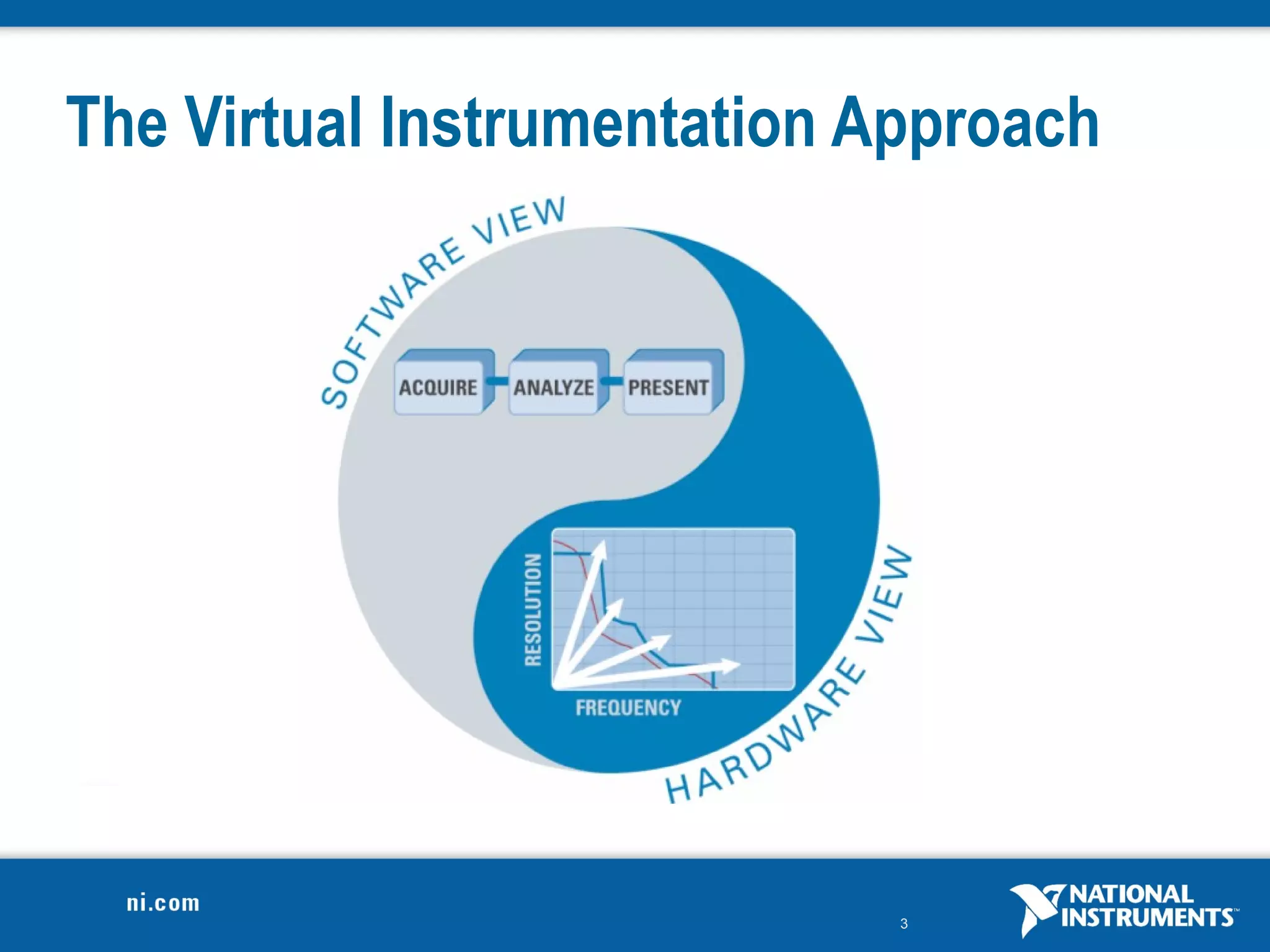
The Virtual Instrumentation Approach


                             3
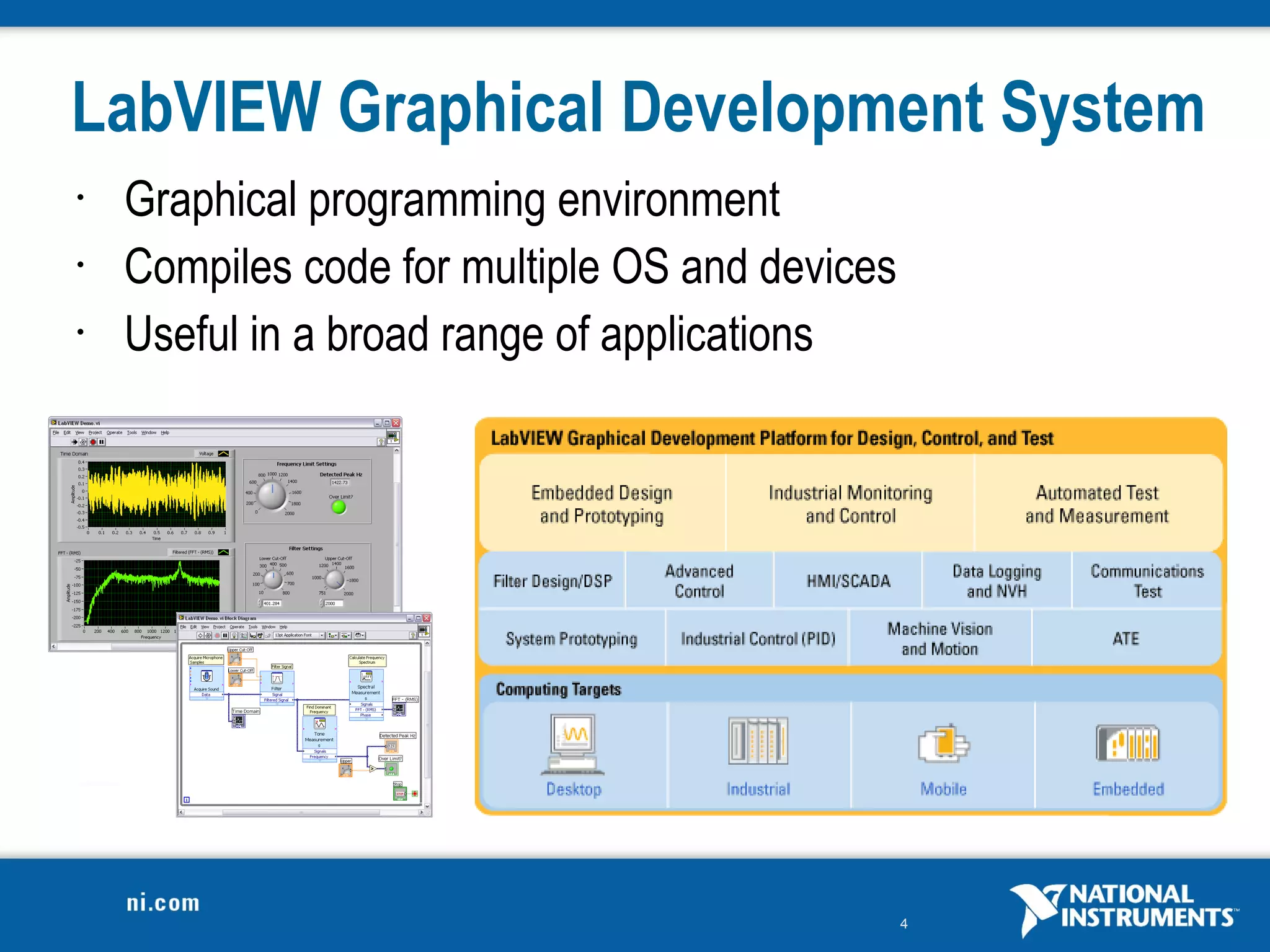
LabVIEW Graphical Development System
•   Graphical programming environment
•   Compiles code for multiple OS and devices
•   Useful in a broad range of applications


                                                4
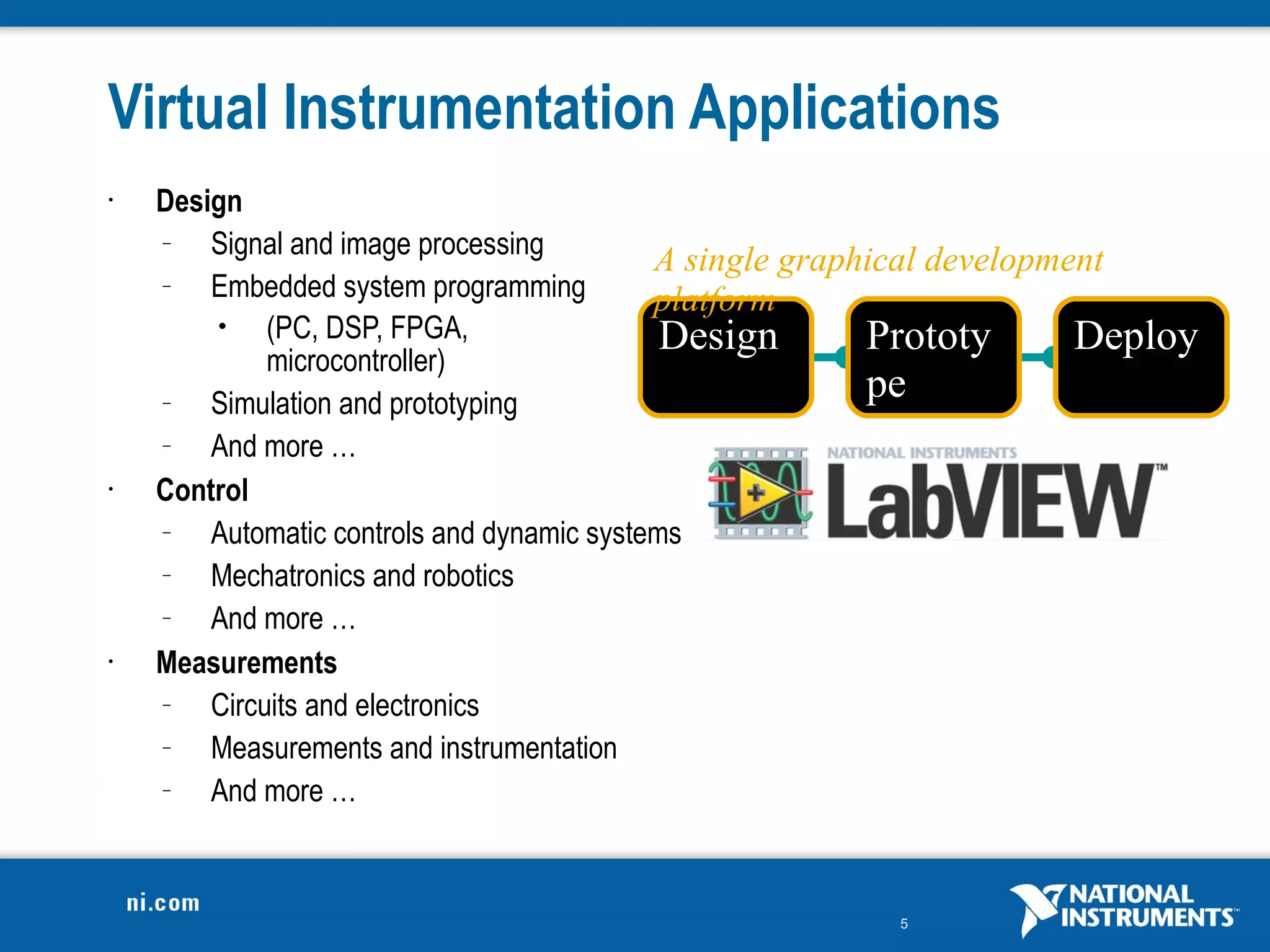
Virtual Instrumentation Applications
•   Design
    –   Signal and image processing
                                            A single graphical development
    –   Embedded system programming         platform
        •    (PC, DSP, FPGA,                 Design       Prototy       Deploy
             microcontroller)
    –   Simulation and prototyping
                                                          pe
    –   And more …
•   Control
    –   Automatic controls and dynamic systems
    –   Mechatronics and robotics
    –   And more …
•   Measurements
    –   Circuits and electronics
    –   Measurements and instrumentation
    –   And more …


                                                        5
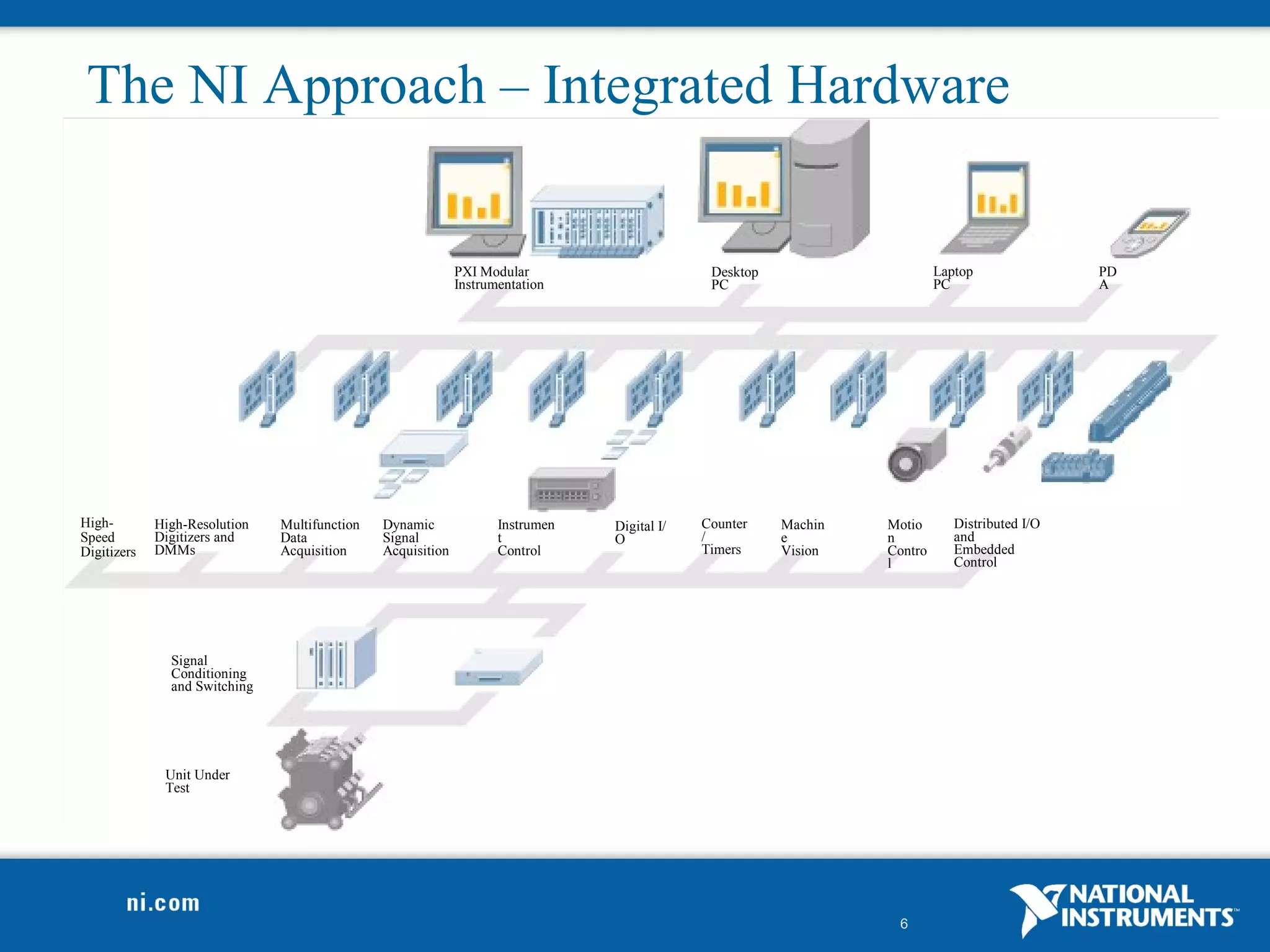
The NI Approach – Integrated Hardware
 Platforms
                                                             PXI Modular                      Desktop                     Laptop               PD
                                                             Instrumentation                  PC                          PC                   A


High-        High-Resolution   Multifunction   Dynamic              Instrumen   Digital I/   Counter    Machin   Motio       Distributed I/O
Speed        Digitizers and    Data            Signal               t           O            /          e        n           and
Digitizers   DMMs              Acquisition     Acquisition          Control                  Timers     Vision   Contro      Embedded
                                                                                                                 l           Control


               Signal
               Conditioning
               and Switching


              Unit Under
              Test


                                                                                                                  6
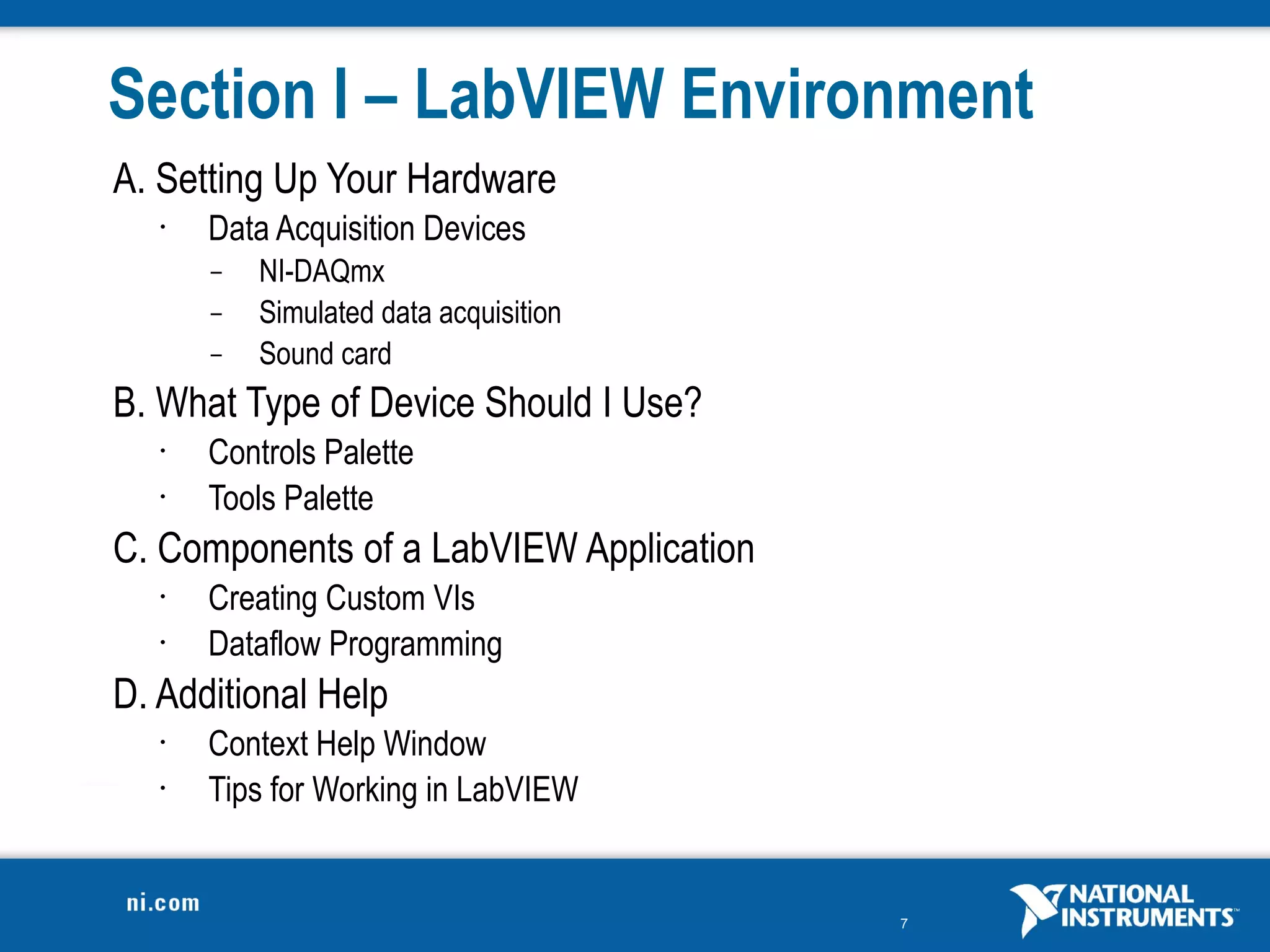
Section I – LabVIEW Environment
A. Setting Up Your Hardware
   •   Data Acquisition Devices
       –   NI-DAQmx
       –   Simulated data acquisition
       –   Sound card
B. What Type of Device Should I Use?
   •   Controls Palette
   •   Tools Palette
C. Components of a LabVIEW Application
   •   Creating Custom VIs
   •   Dataflow Programming
D. Additional Help
   •   Context Help Window
   •   Tips for Working in LabVIEW


                                         7
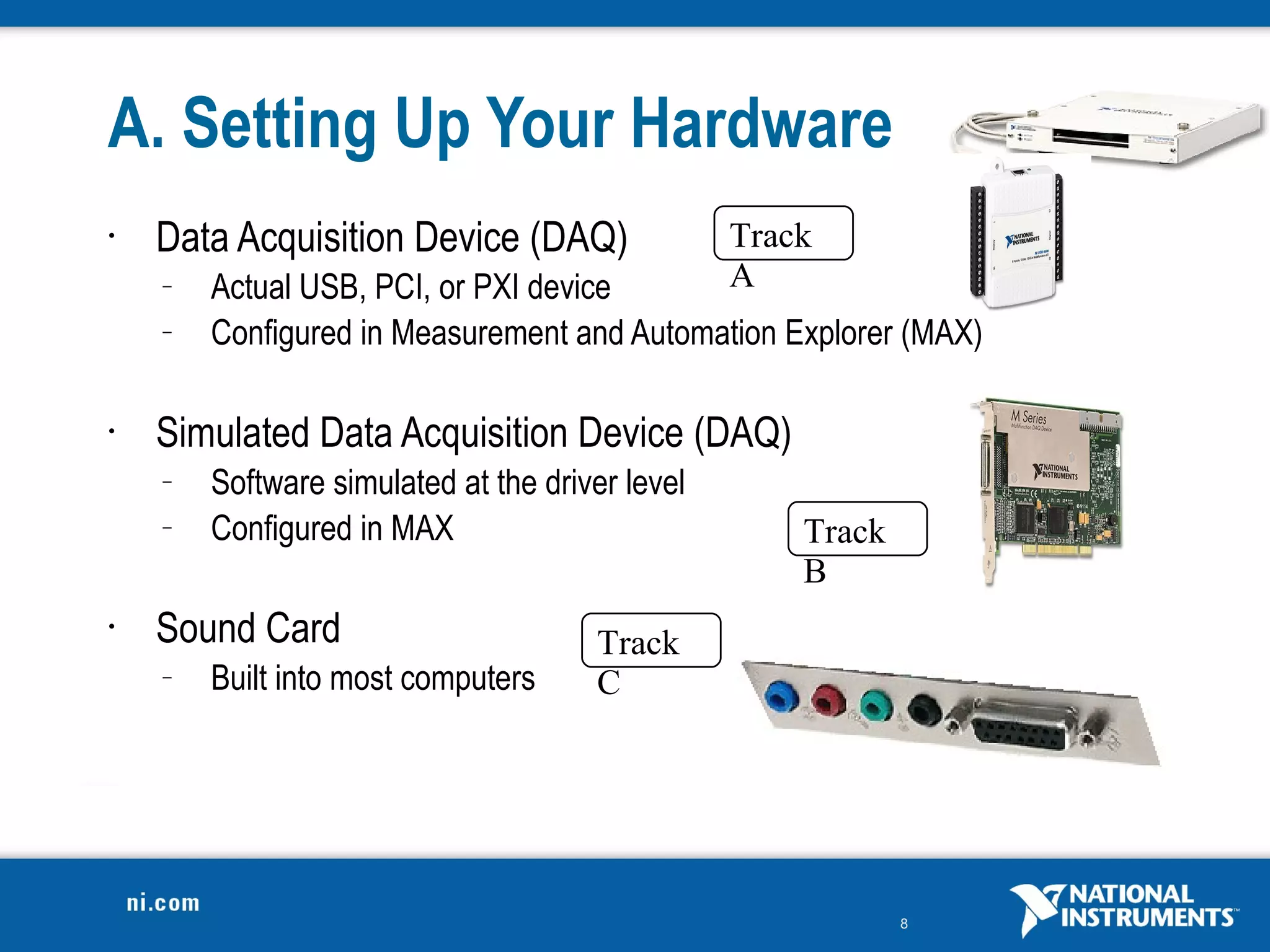
A. Setting Up Your Hardware
•   Data Acquisition Device (DAQ)                Track
    –   Actual USB, PCI, or PXI device           A
    –   Configured in Measurement and Automation Explorer (MAX)

•   Simulated Data Acquisition Device (DAQ)
    –   Software simulated at the driver level
    –   Configured in MAX                            Track
                                                     B
•   Sound Card                        Track
    –   Built into most computers     C


                                                             8
Do Not Delete
 –   Notes on hardware setup


                               9
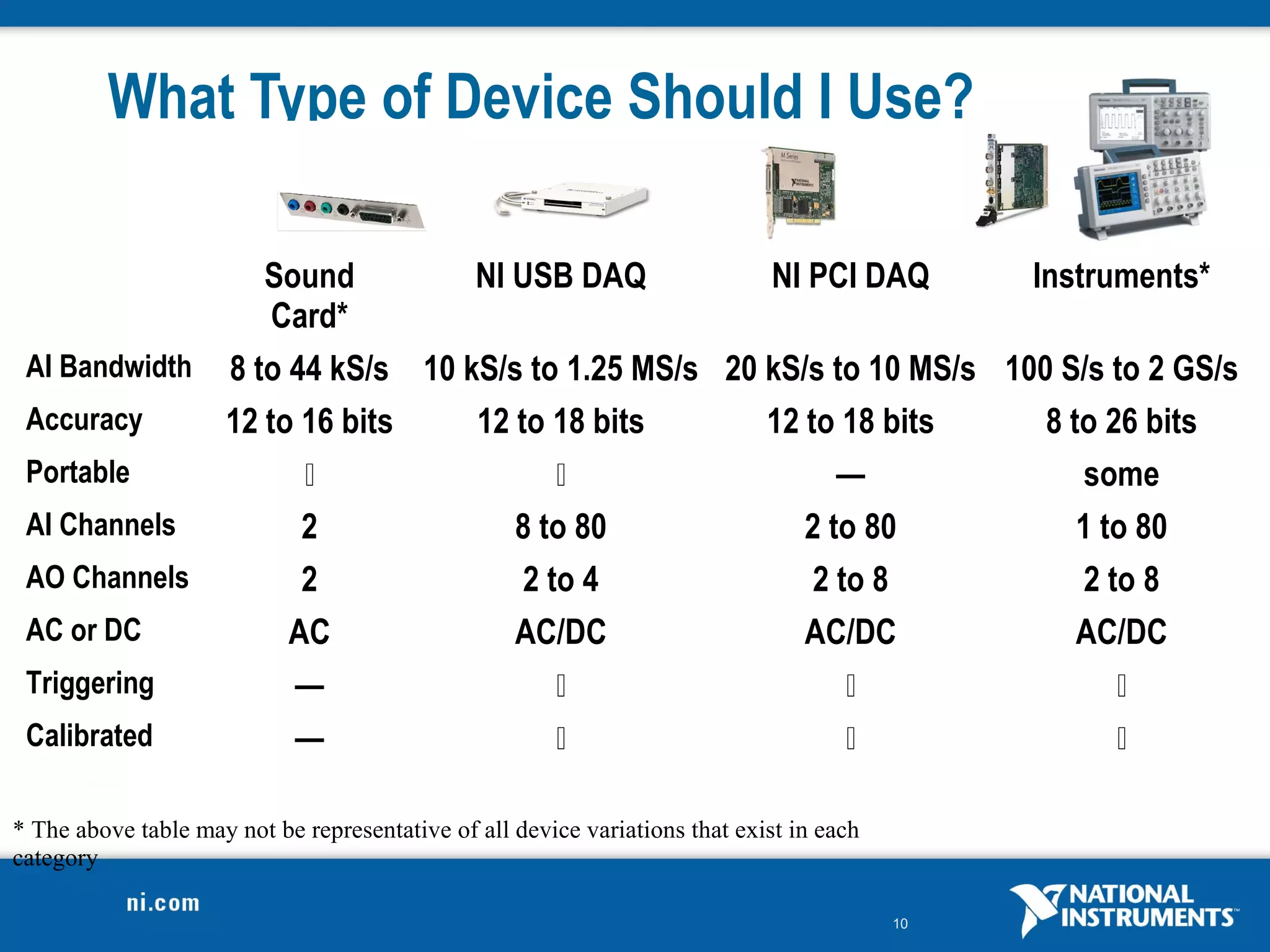
What Type of Device Should I Use?

                 Sound         NI USB DAQ          NI PCI DAQ        Instruments*
                  Card*
 AI Bandwidth 8 to 44 kS/s 10 kS/s to 1.25 MS/s 20 kS/s to 10 MS/s 100 S/s to 2 GS/s
 Accuracy     12 to 16 bits    12 to 18 bits       12 to 18 bits      8 to 26 bits
 Portable                                              —               some
 AI Channels        2             8 to 80             2 to 80            1 to 80
 AO Channels        2              2 to 4              2 to 8            2 to 8
 AC or DC          AC             AC/DC               AC/DC              AC/DC
 Triggering        —                                                      
 Calibrated        —                                                      

* The above table may not be representative of all device variations that exist in each
category

                                                                                          10
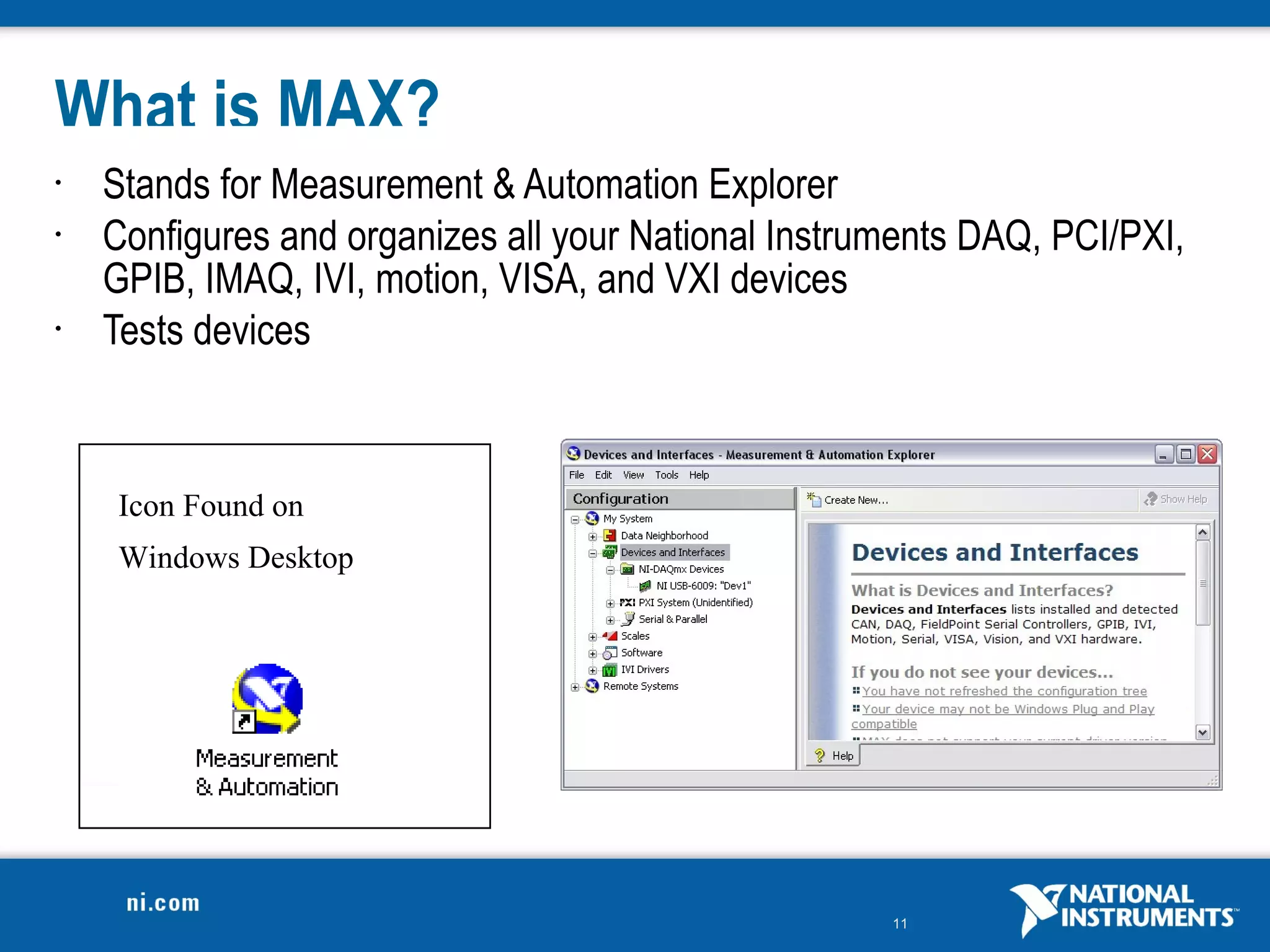
What is MAX?
•   Stands for Measurement & Automation Explorer
•   Configures and organizes all your National Instruments DAQ, PCI/PXI,
    GPIB, IMAQ, IVI, motion, VISA, and VXI devices
•   Tests devices


    Icon Found on
    Windows Desktop


                                                     11
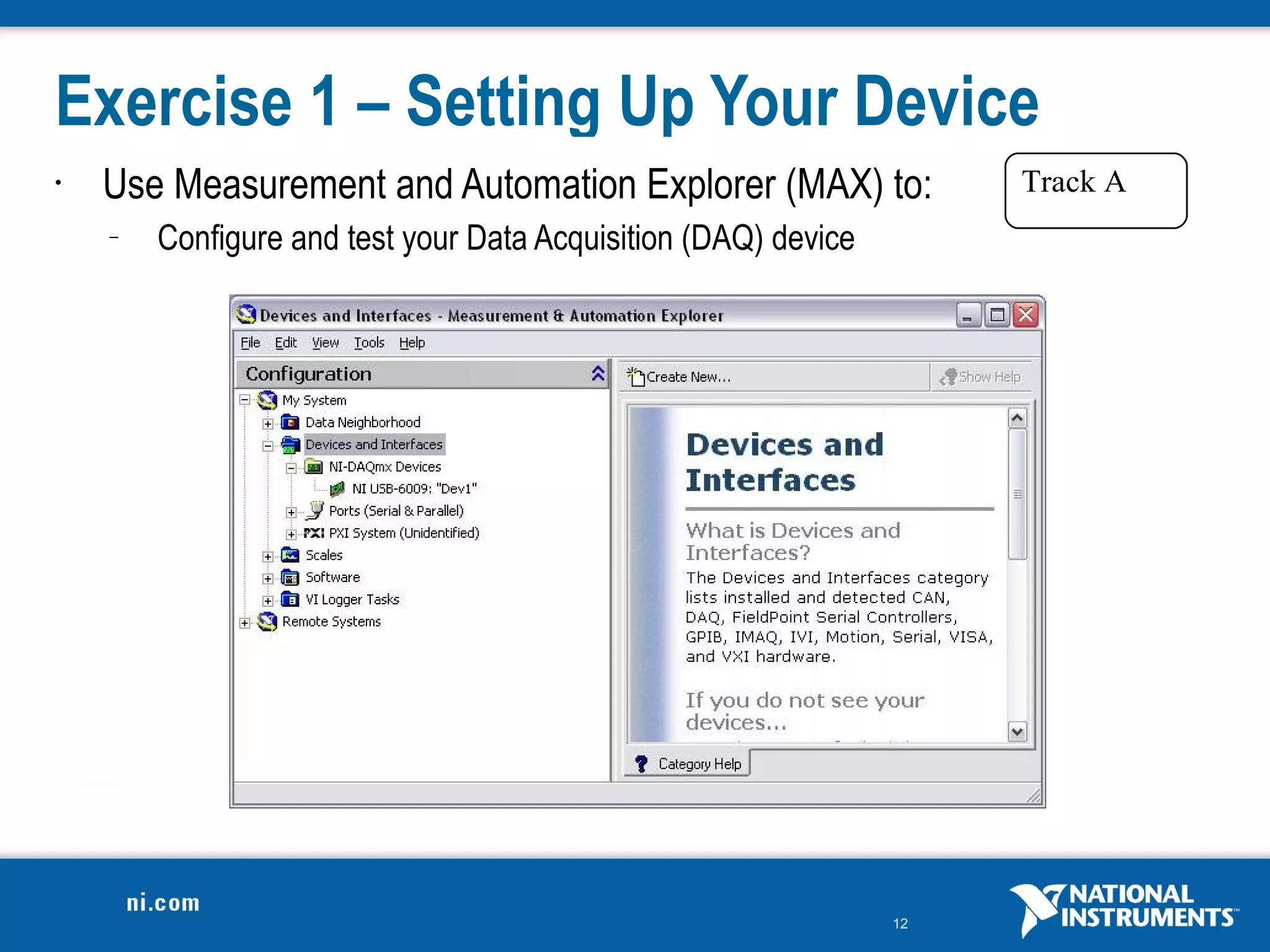
Exercise 1 – Setting Up Your Device
•   Use Measurement and Automation Explorer (MAX) to:                Track A
    –   Configure and test your Data Acquisition (DAQ) device


                                                                12
Do Not Delete
Exercise Instructions


                        13
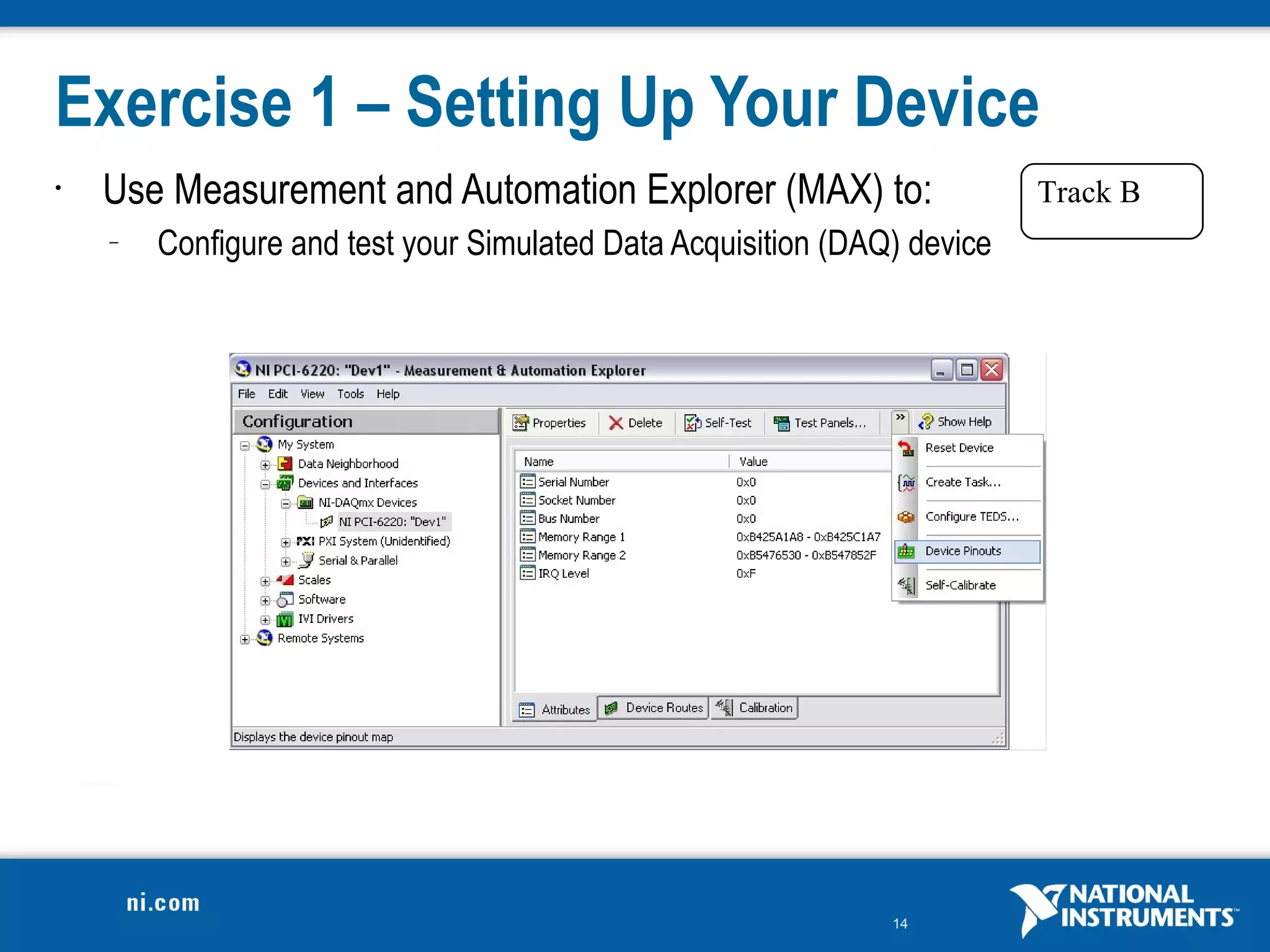
Exercise 1 – Setting Up Your Device
•   Use Measurement and Automation Explorer (MAX) to:                     Track B
    –   Configure and test your Simulated Data Acquisition (DAQ) device


                                                               14
Do Not Delete
Exercise Instructions


                        15
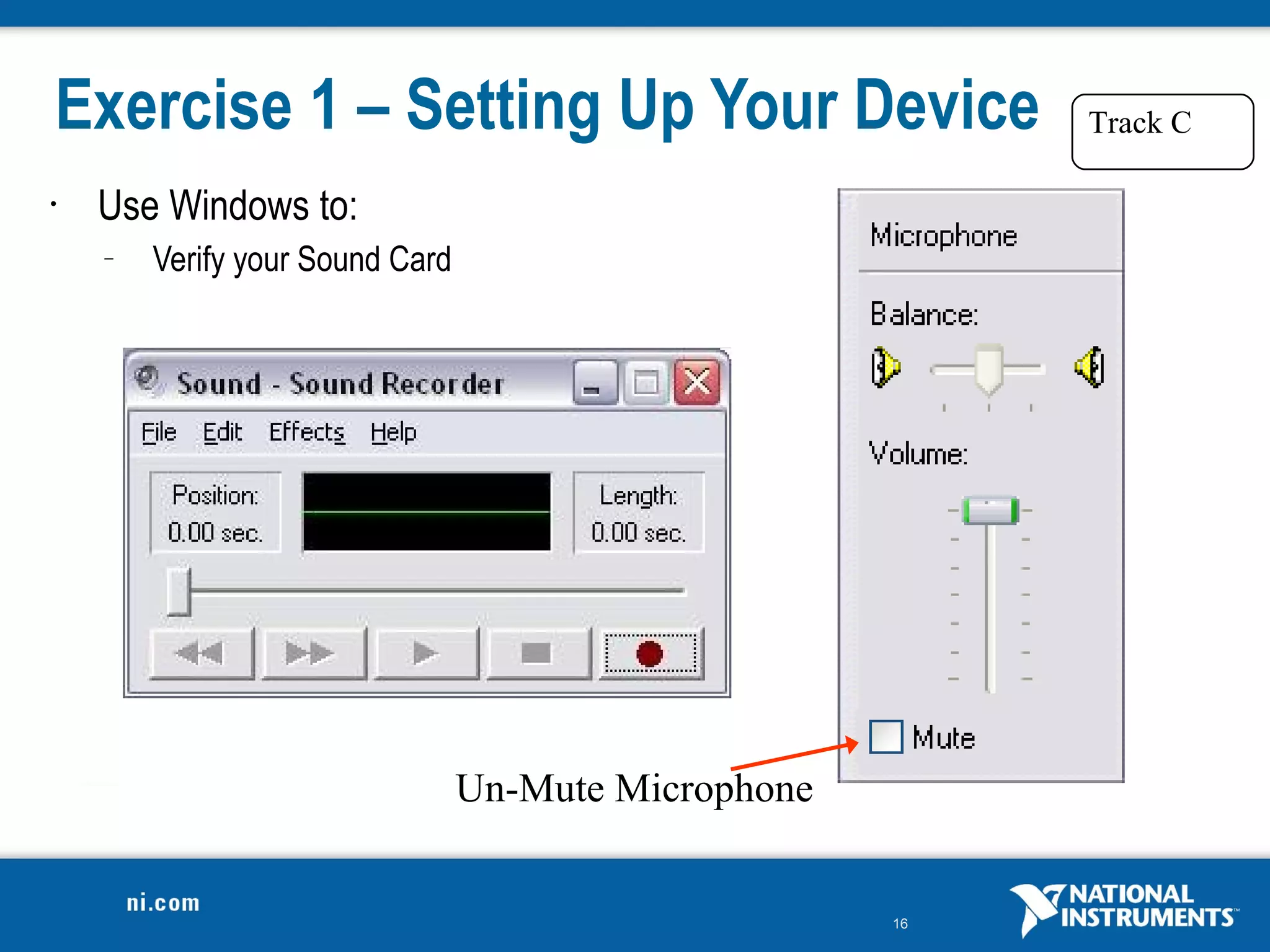
Exercise 1 – Setting Up Your Device                        Track C

•   Use Windows to:
    –   Verify your Sound Card


                                 Un-Mute Microphone


                                                      16
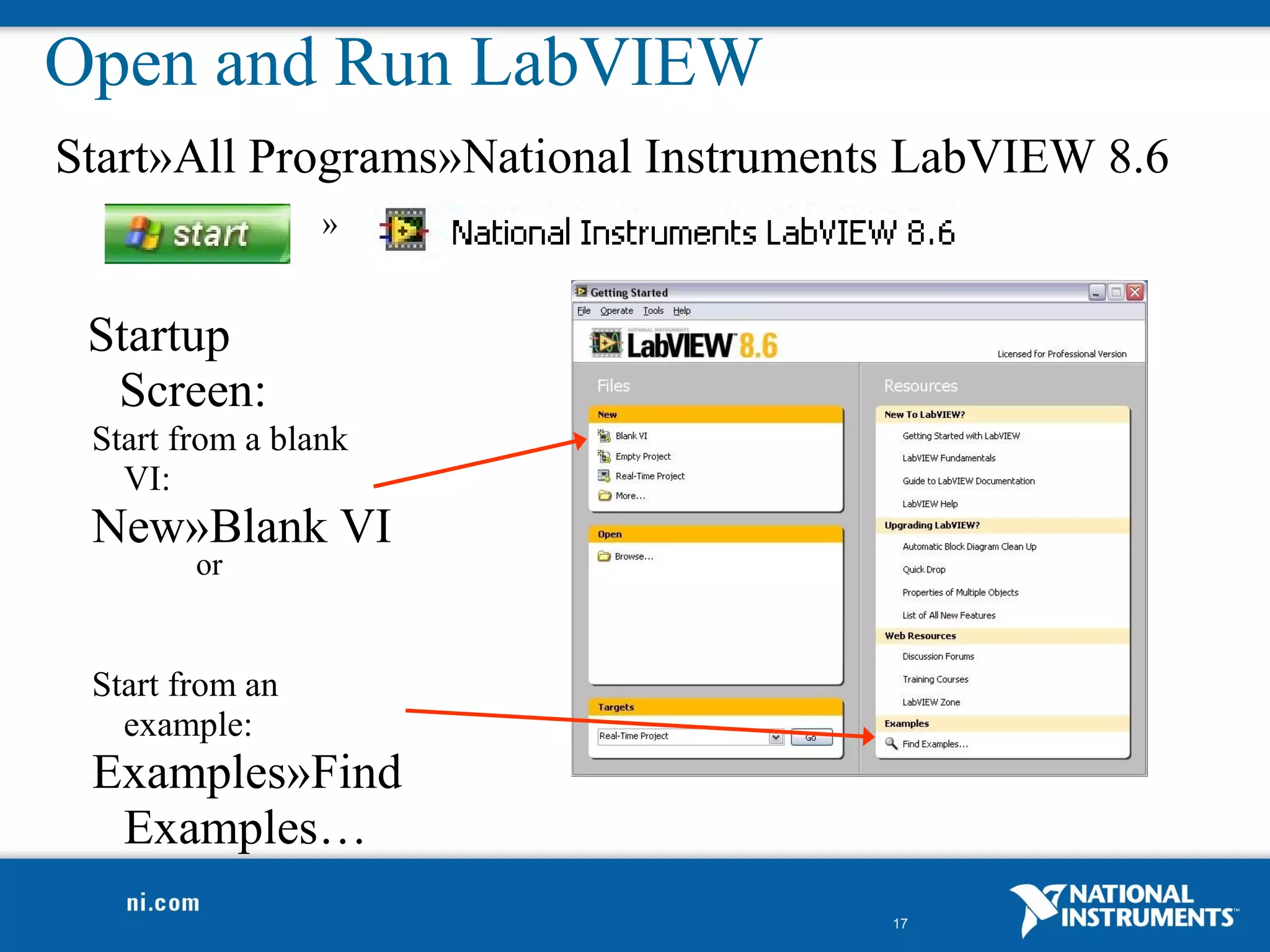
Open and Run LabVIEW
Start»All Programs»National Instruments LabVIEW 8.6
                 »


 Startup
  Screen:
 Start from a blank
   VI:
 New»Blank VI
        or


 Start from an
   example:
 Examples»Find
  Examples…
                                      17
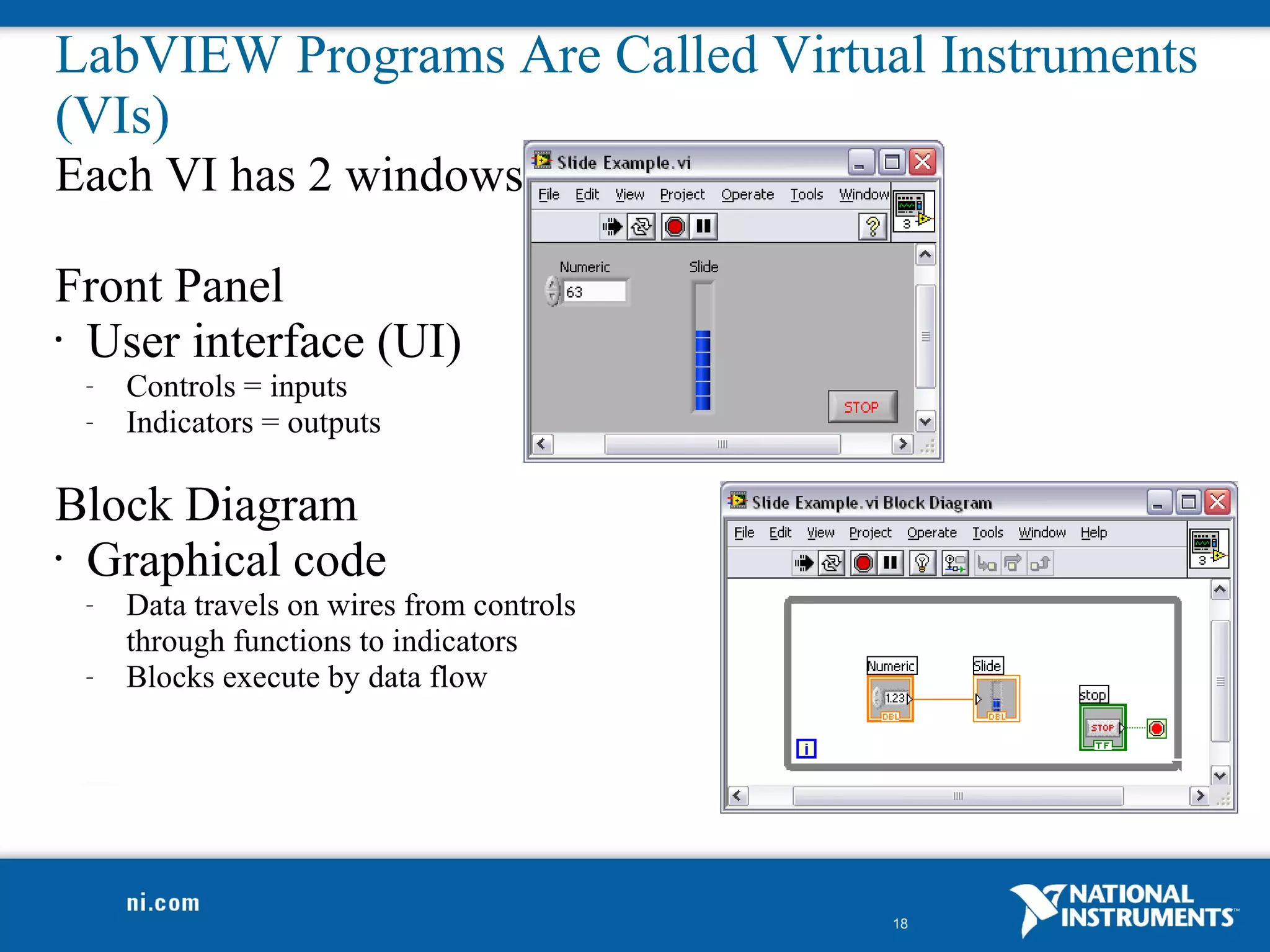
LabVIEW Programs Are Called Virtual Instruments
(VIs)
Each VI has 2 windows

Front Panel
• User interface (UI)
 –   Controls = inputs
 –   Indicators = outputs

Block Diagram
• Graphical code
 –   Data travels on wires from controls
     through functions to indicators
 –   Blocks execute by data flow


                                           18
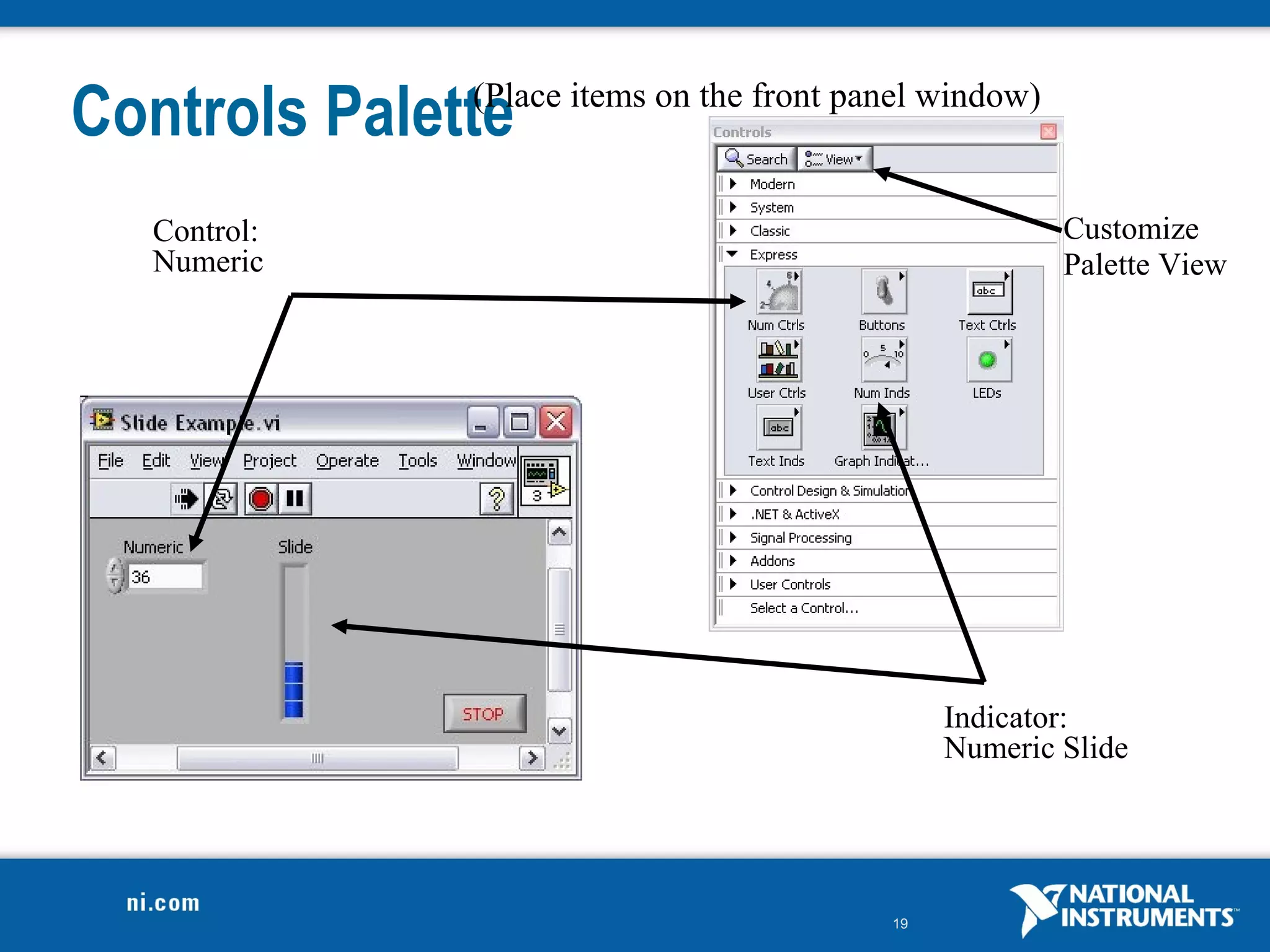
Controls Palette
              (Place items on the front panel window)


  Control:                                              Customize
  Numeric                                               Palette View


                                               Indicator:
                                               Numeric Slide


                                          19
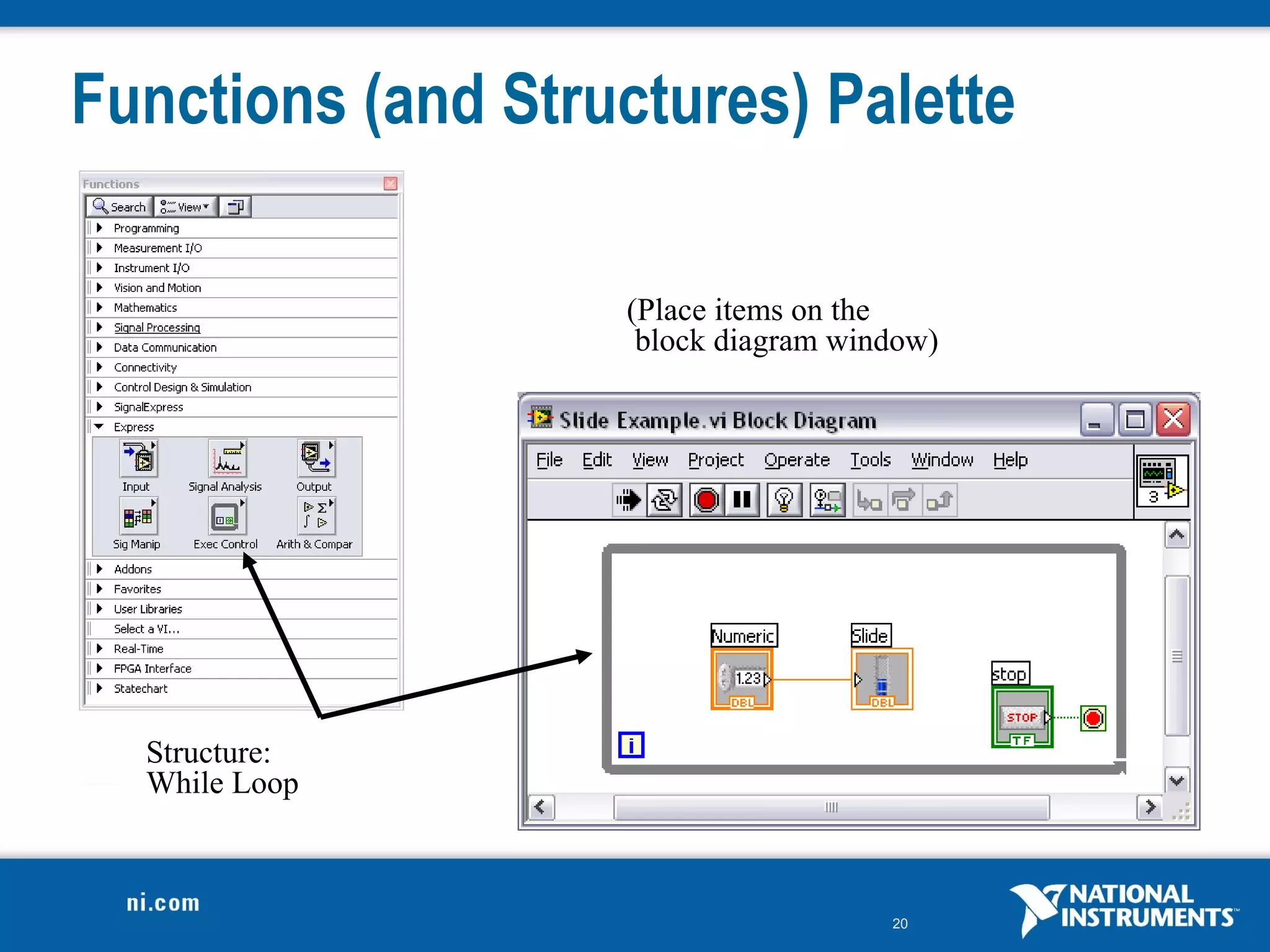
Functions (and Structures) Palette

                   (Place items on the
                    block diagram window)


  Structure:
  While Loop


                                     20
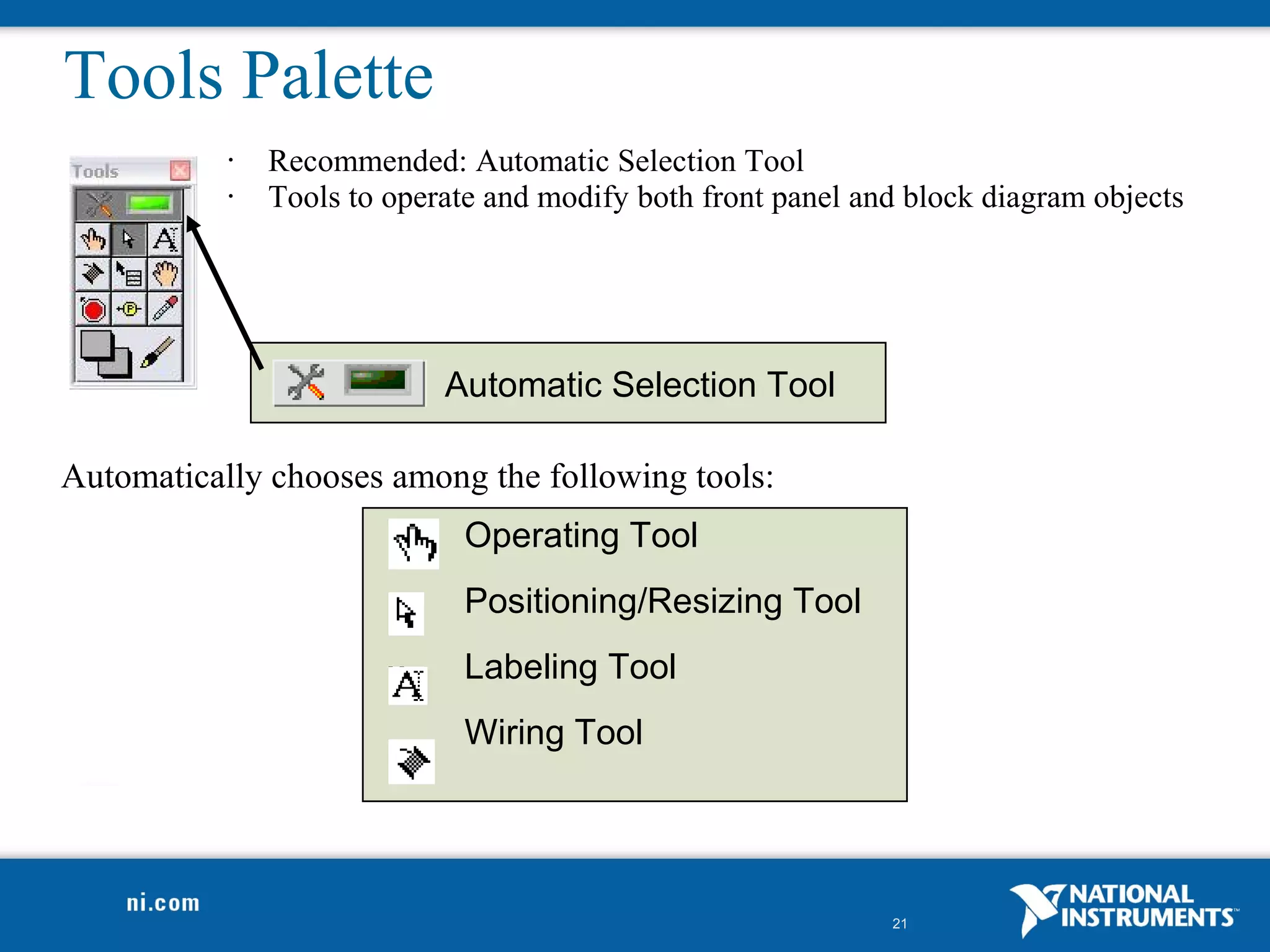
Tools Palette
           •   Recommended: Automatic Selection Tool
           •   Tools to operate and modify both front panel and block diagram objects


                            Automatic Selection Tool

Automatically chooses among the following tools:
                              Operating Tool
                              Positioning/Resizing Tool
                              Labeling Tool
                              Wiring Tool


                                                              21
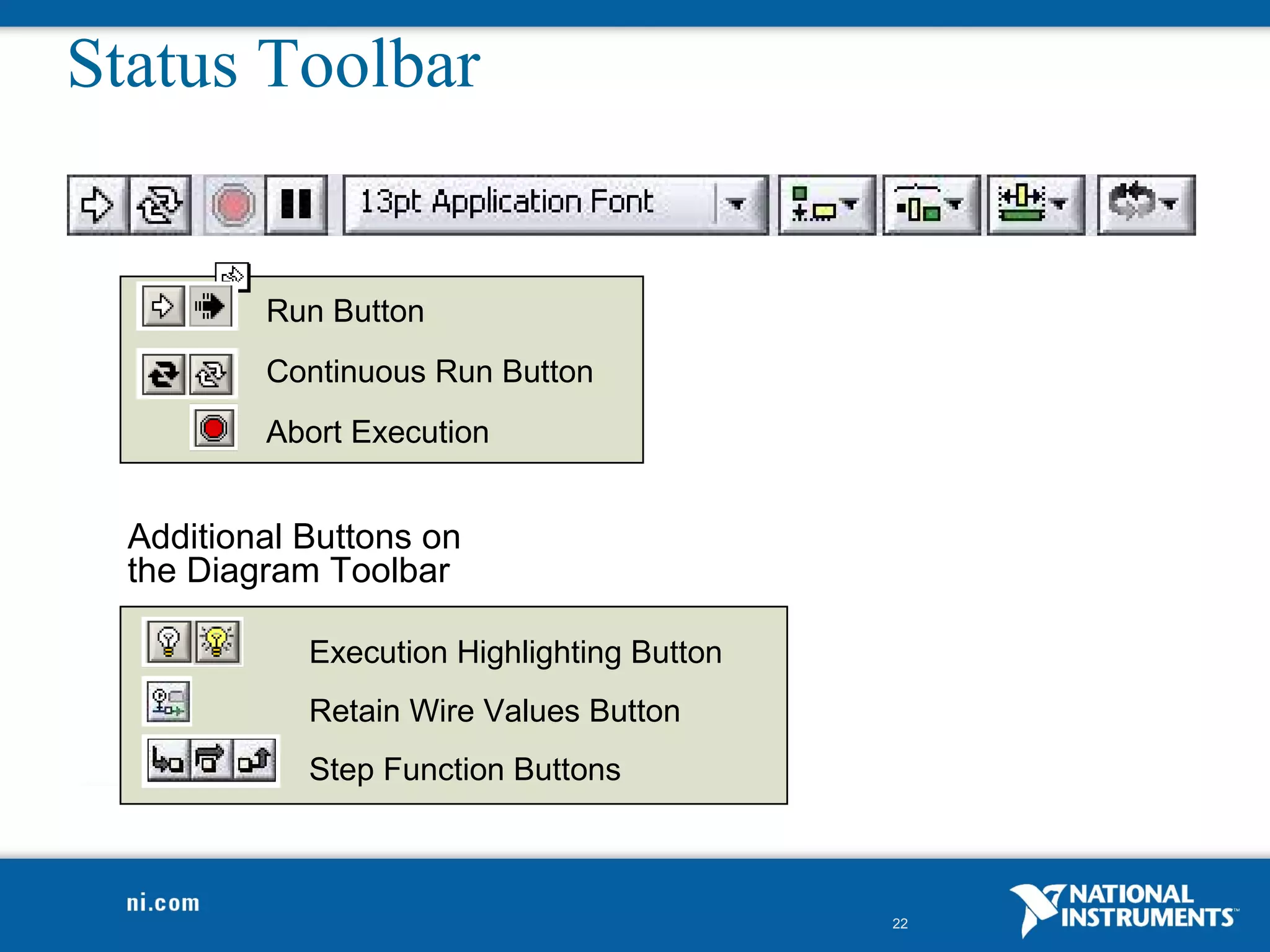
Status Toolbar


          Run Button
          Continuous Run Button
          Abort Execution


  Additional Buttons on
  the Diagram Toolbar

             Execution Highlighting Button
             Retain Wire Values Button
             Step Function Buttons


                                             22
Do Not Delete
Exercise Instructions


                        23
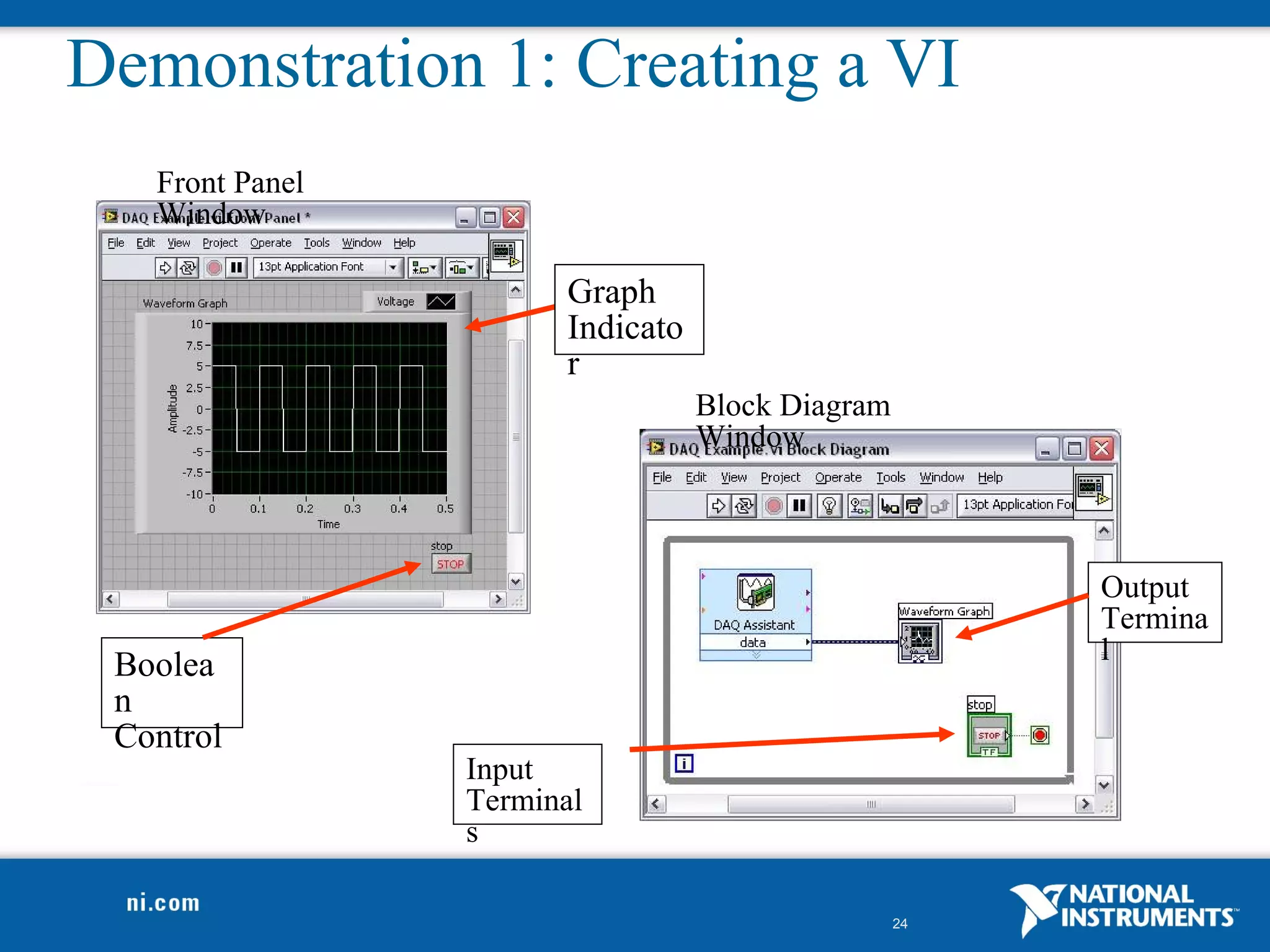
Demonstration 1: Creating a VI
   Front Panel
   Window

                       Graph
                       Indicato
                       r
                                  Block Diagram
                                  Window


                                                       Output
                                                       Termina
                                                       l
 Boolea
 n
 Control
                 Input
                 Terminal
                 s

                                                  24
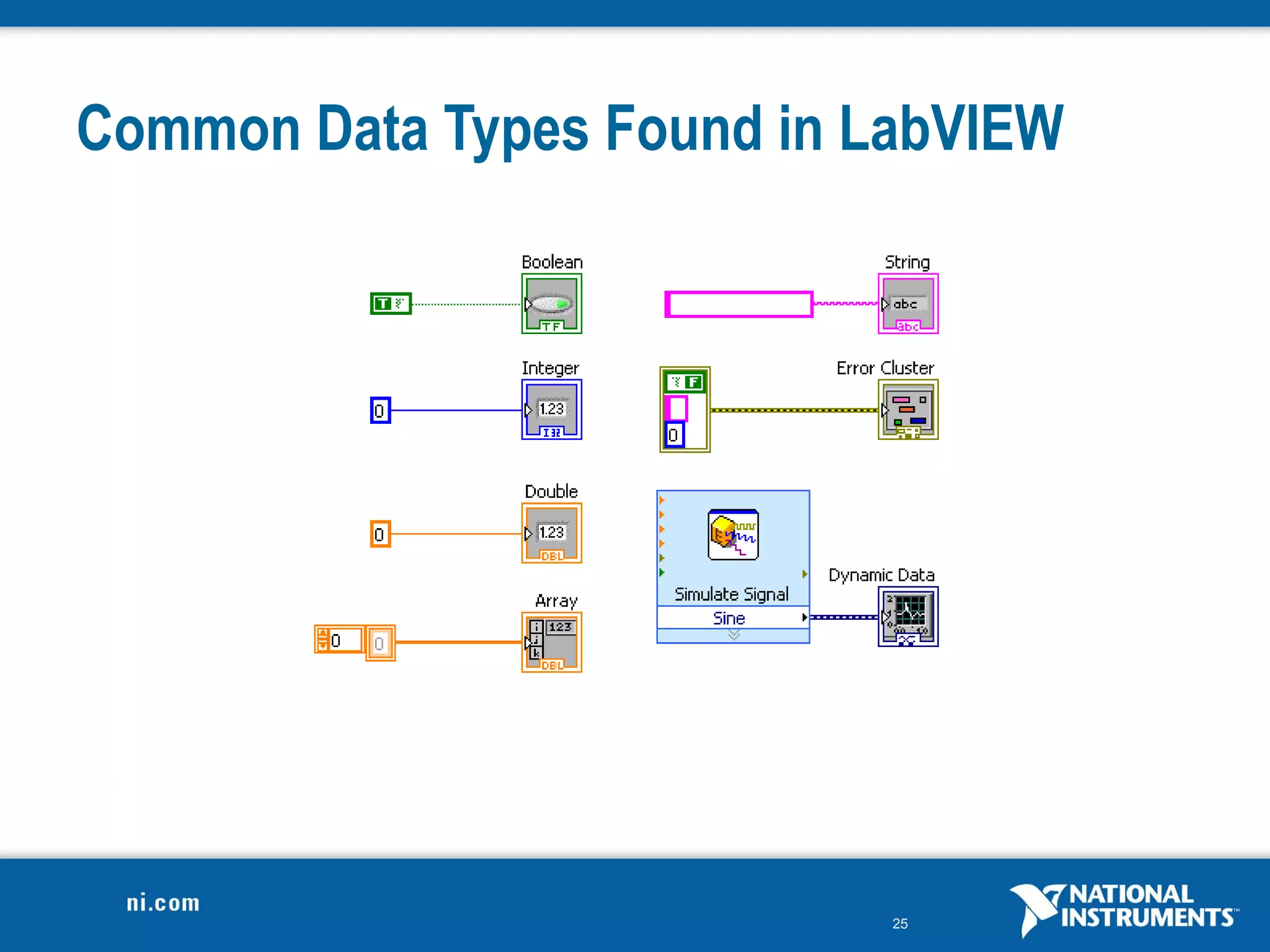
Common Data Types Found in LabVIEW


                            25
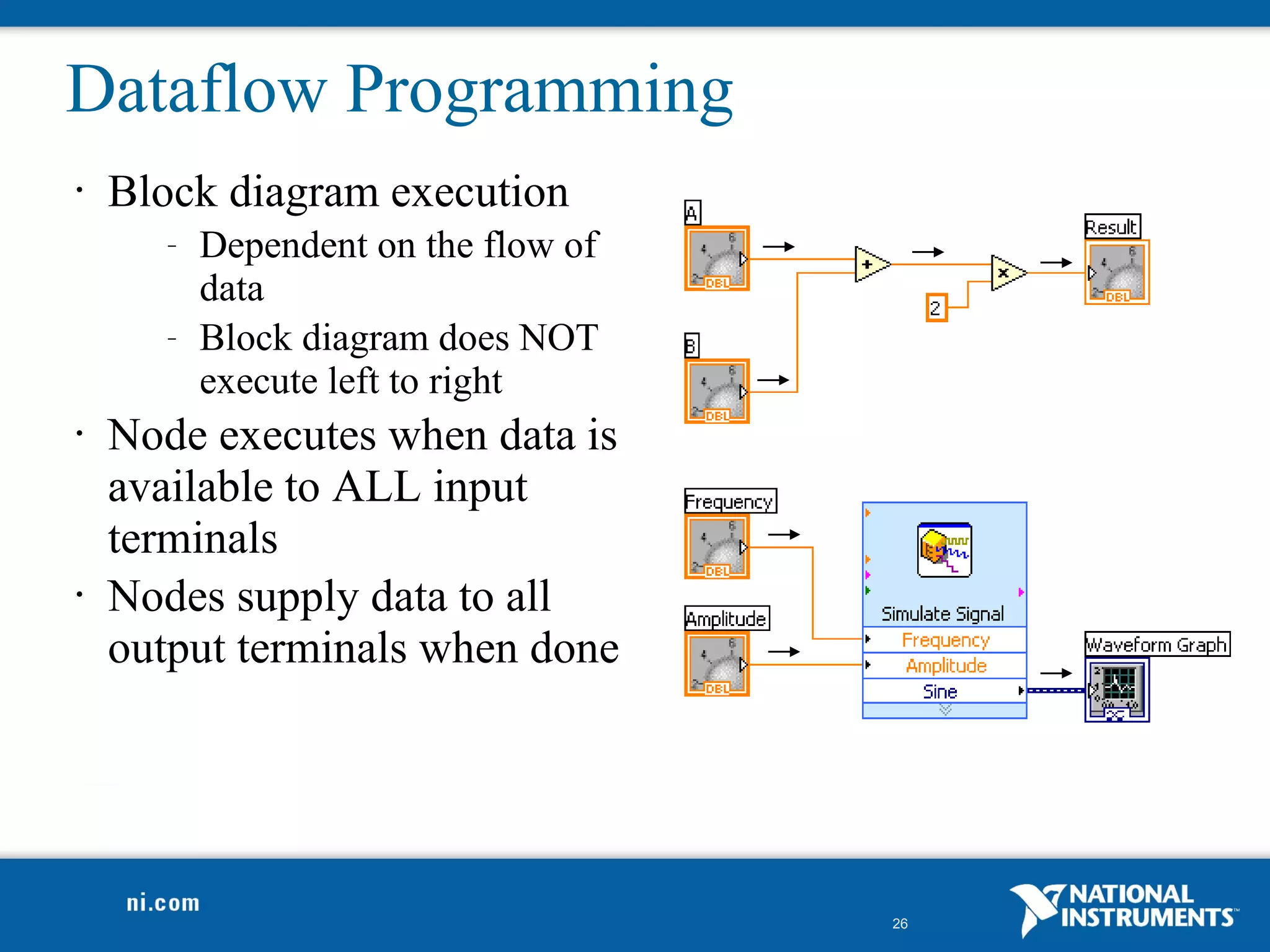
Dataflow Programming
•   Block diagram execution
       –   Dependent on the flow of
           data
       –   Block diagram does NOT
           execute left to right
•   Node executes when data is
    available to ALL input
    terminals
•   Nodes supply data to all
    output terminals when done


                                      26
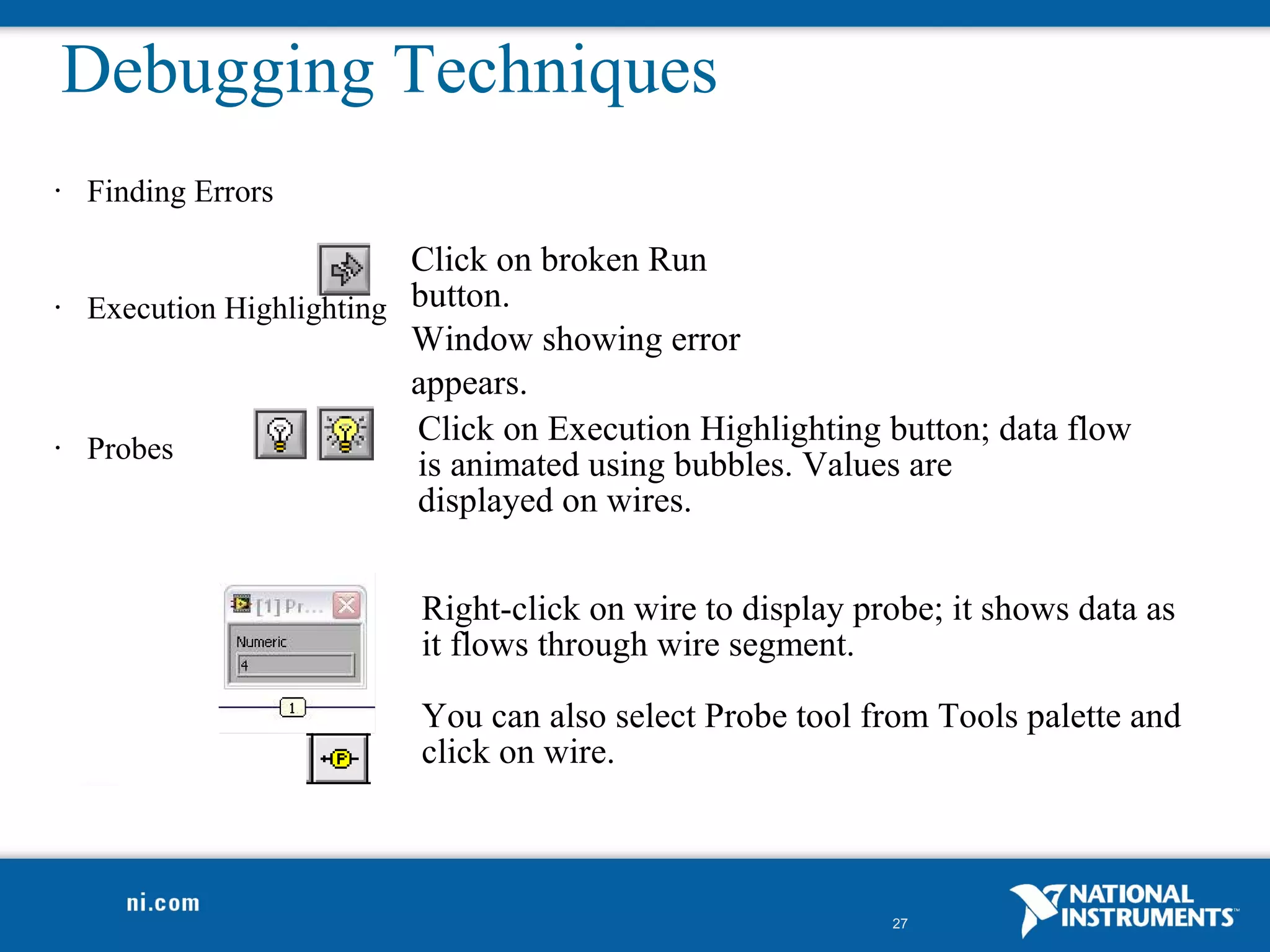
Debugging Techniques
•   Finding Errors

                           Click on broken Run
•   Execution Highlighting button.
                           Window showing error
                           appears.
                           Click on Execution Highlighting button; data flow
•   Probes
                           is animated using bubbles. Values are
                           displayed on wires.


                           Right-click on wire to display probe; it shows data as
                           it flows through wire segment.

                           You can also select Probe tool from Tools palette and
                           click on wire.


                                                            27
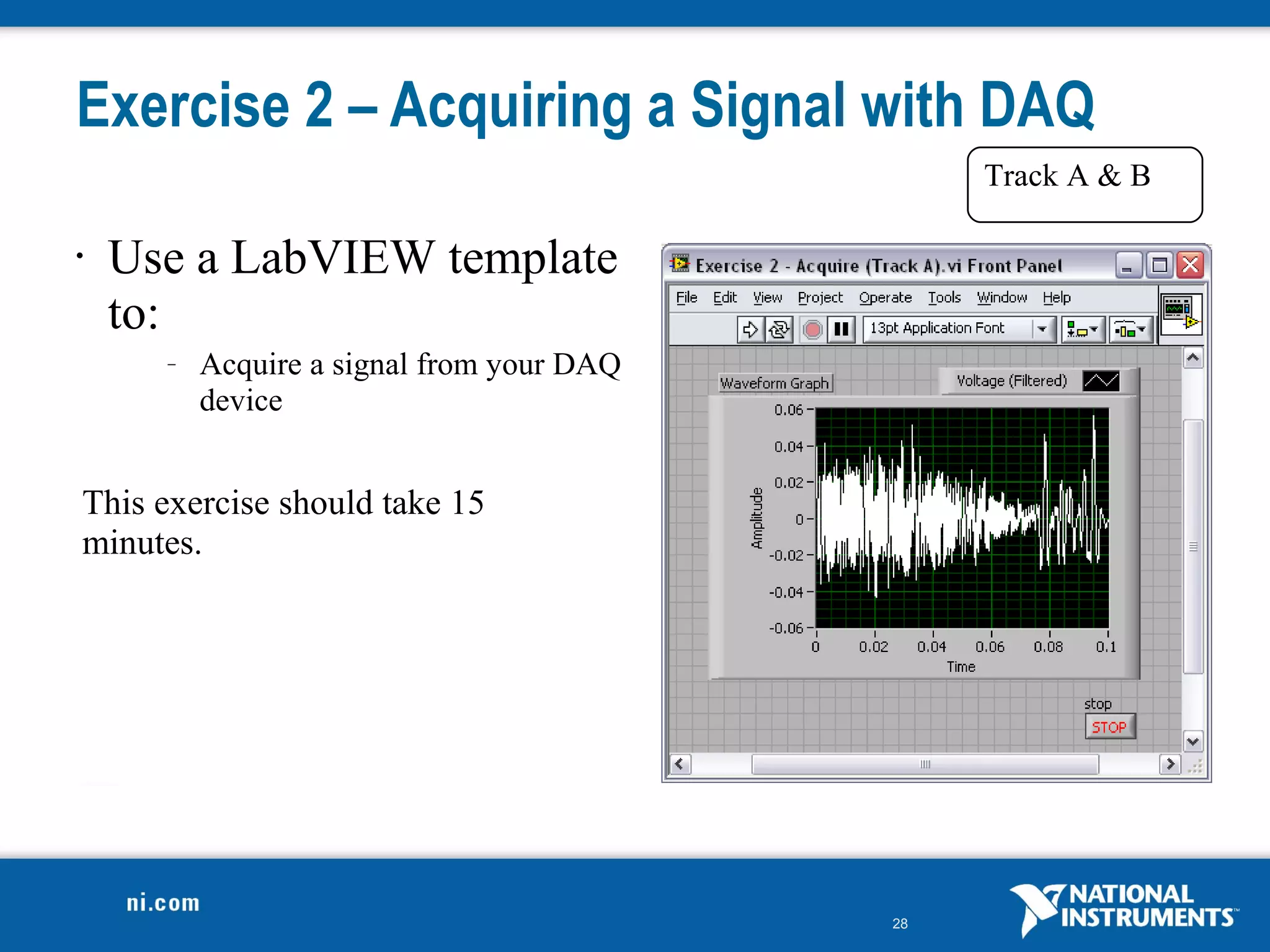
Exercise 2 – Acquiring a Signal with DAQ
                                                Track A & B

•   Use a LabVIEW template
    to:
      –   Acquire a signal from your DAQ
          device


This exercise should take 15
minutes.


                                           28
Do Not Delete
Exercise Instructions


                        29
Do Not Delete
Exercise Instructions


                        30
Do Not Delete
Exercise Instructions


                        31
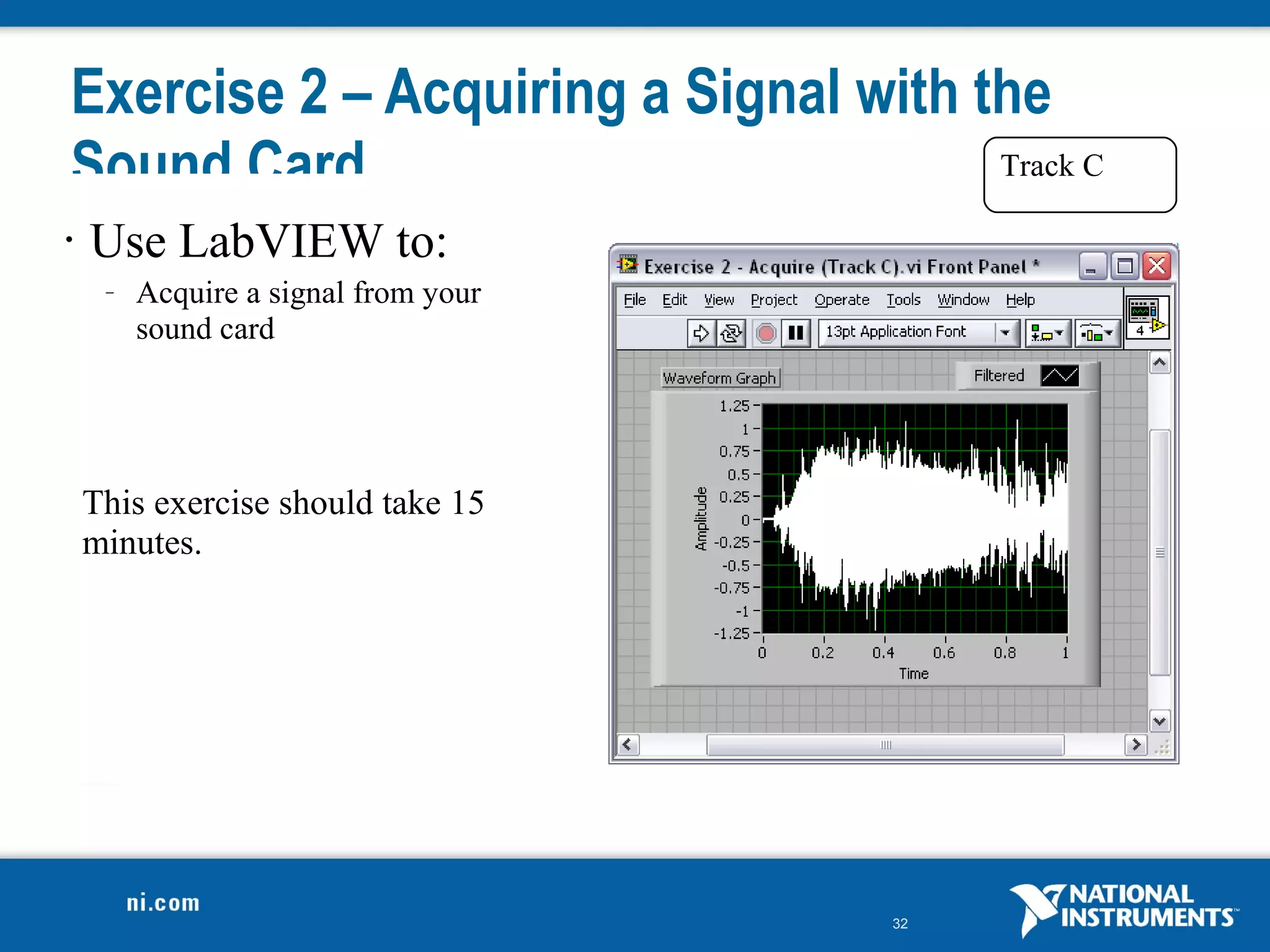
Exercise 2 – Acquiring a Signal with the
Sound Card                            Track C

•   Use LabVIEW to:
     –   Acquire a signal from your
         sound card


    This exercise should take 15
    minutes.


                                      32
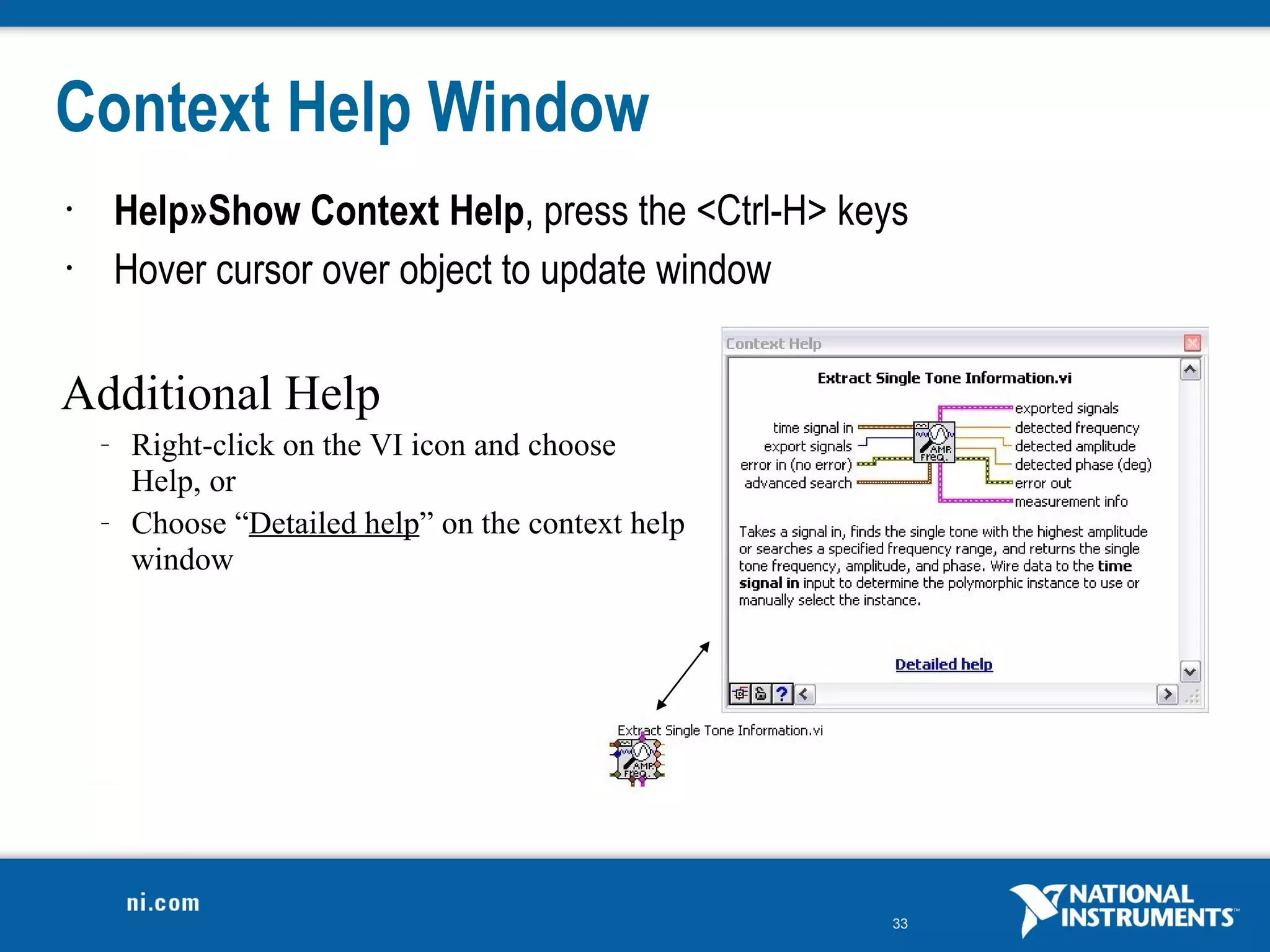
Context Help Window
•       Help»Show Context Help, press the <Ctrl-H> keys
•       Hover cursor over object to update window

Additional Help
    –    Right-click on the VI icon and choose
         Help, or
    –    Choose “Detailed help” on the context help
         window


                                                      33
Tips for Working in LabVIEW
•   Keystroke Shortcuts
    –   <Ctrl-H> – Activate/Deactivate Context Help Window
    –   <Ctrl-B> – Remove Broken Wires from Block Diagram
    –   <Ctrl-E> – Toggle between Front Panel and Block
        Diagram
    –   <Ctrl-Z> – Undo (also in Edit menu)
•   Tools»Options… – Set Preferences in LabVIEW
•   File»VI Properties – Configure VI Appearance,
    Documentation, and so on


                                                   34
Section II – Elements of Typical Programs
A. Loops
   •   While Loop
   •   For Loop
B. Functions and SubVIs
   •   Three Types of Functions (from the Functions Palette)
   •   Creating SubVIs
   •   Functions Palette and Searching
C. Decision Making and File I/O
   •   Case Structure
   •   Select (simple If statement)
   •   File I/O Programming Model – Under the Hood


                                                     35
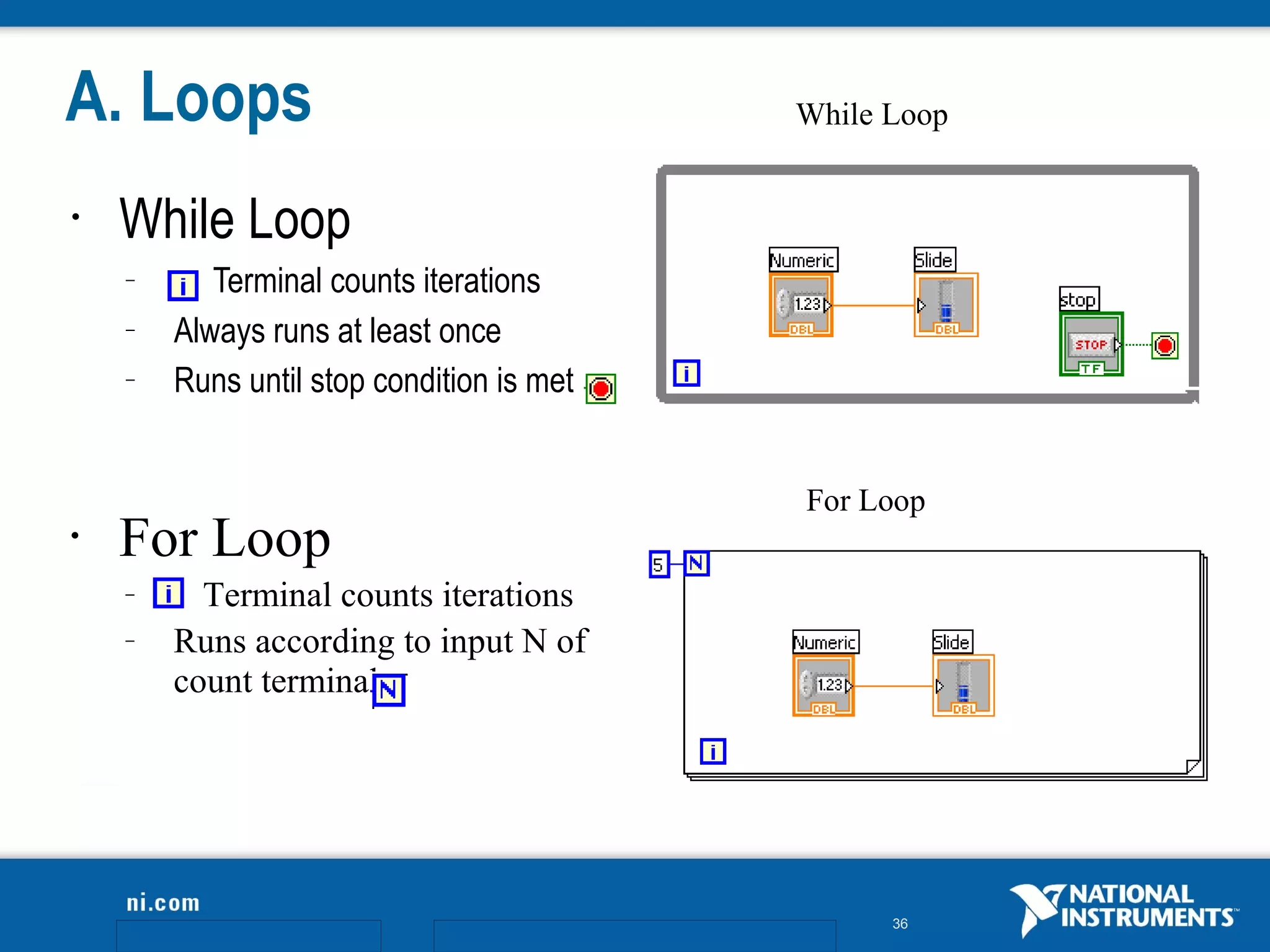
A. Loops                                   While Loop


•   While Loop
    –      Terminal counts iterations
    –   Always runs at least once
    –   Runs until stop condition is met


                                           For Loop
•   For Loop
    –     Terminal counts iterations
    –   Runs according to input N of
        count terminal


                                                 36
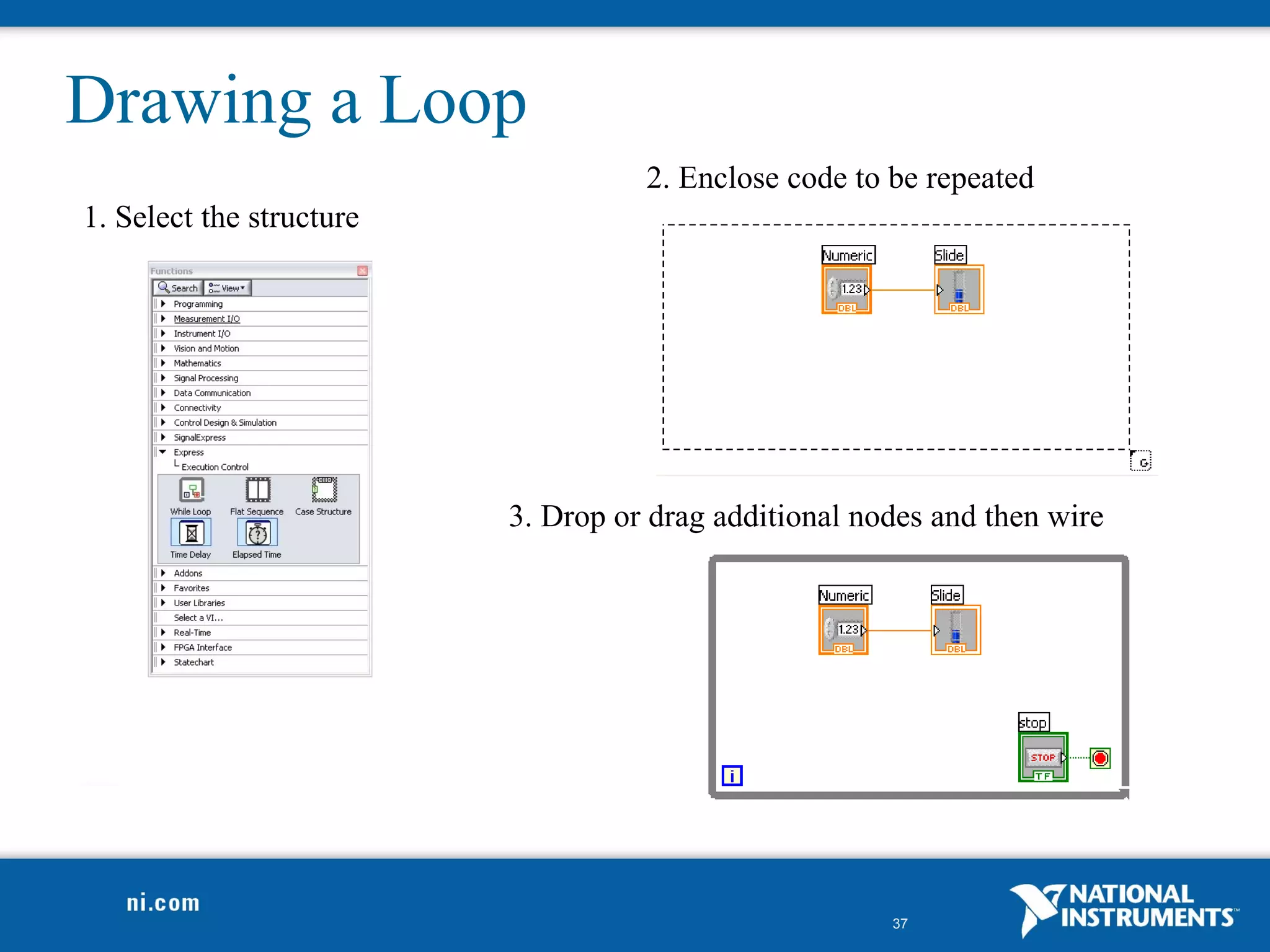
Drawing a Loop
                                    2. Enclose code to be repeated
1. Select the structure


                          3. Drop or drag additional nodes and then wire


                                                       37
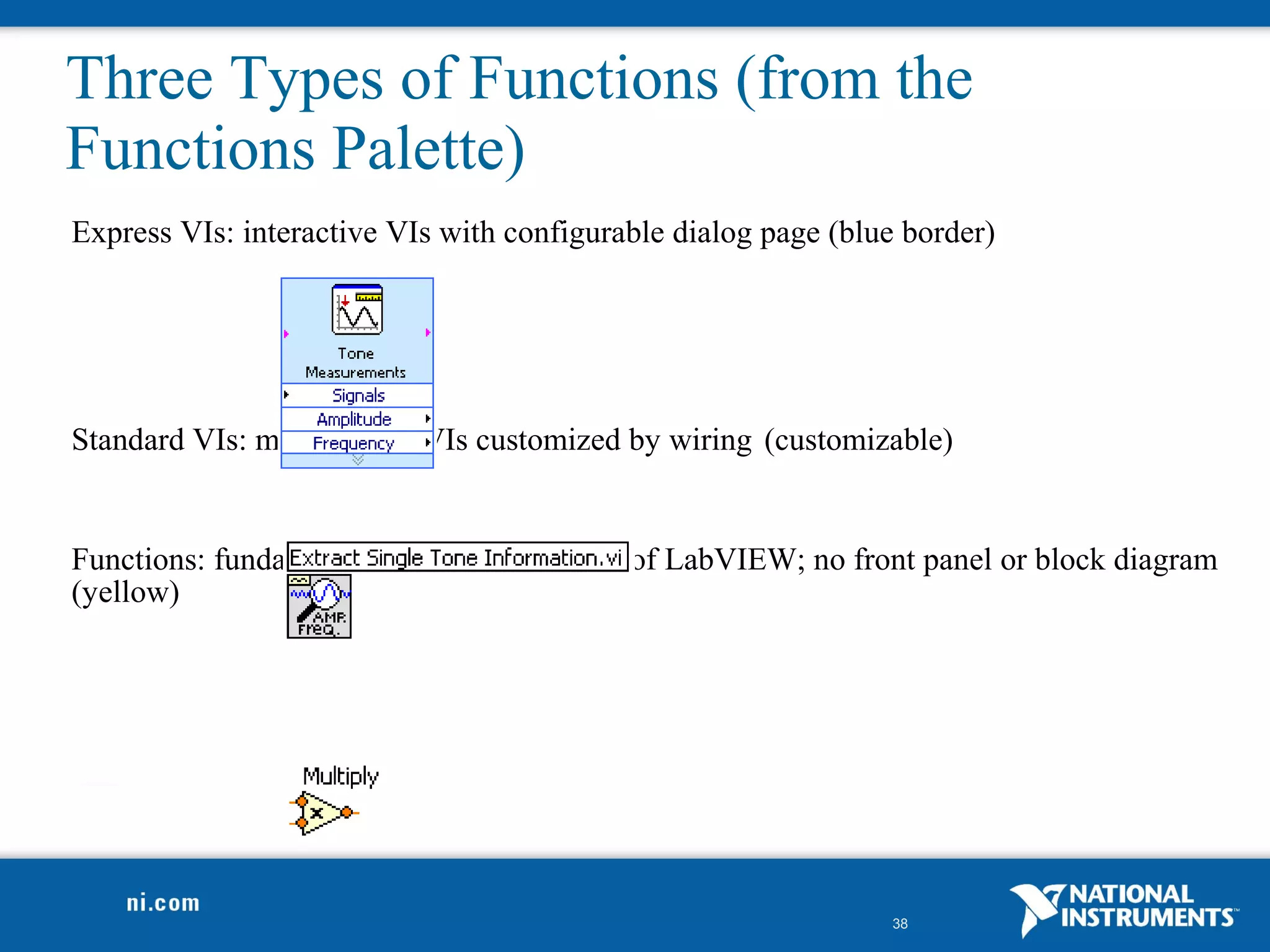
Three Types of Functions (from the
Functions Palette)
Express VIs: interactive VIs with configurable dialog page (blue border)


Standard VIs: modularized VIs customized by wiring (customizable)


Functions: fundamental operating elements of LabVIEW; no front panel or block diagram
(yellow)


                                                               38
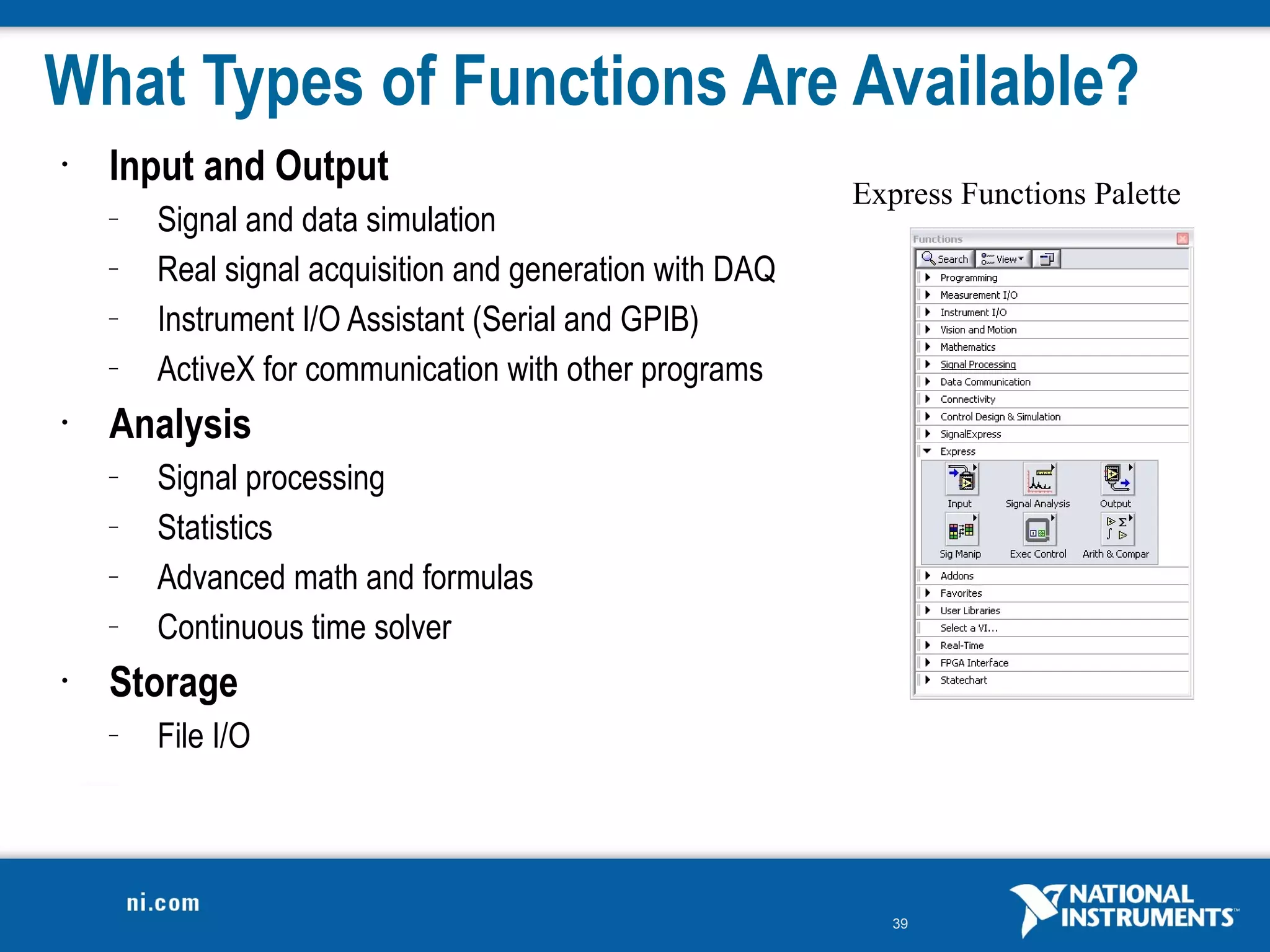
What Types of Functions Are Available?
•   Input and Output
                                                          Express Functions Palette
    –   Signal and data simulation
    –   Real signal acquisition and generation with DAQ
    –   Instrument I/O Assistant (Serial and GPIB)
    –   ActiveX for communication with other programs
•   Analysis
    –   Signal processing
    –   Statistics
    –   Advanced math and formulas
    –   Continuous time solver
•   Storage
    –   File I/O


                                                             39
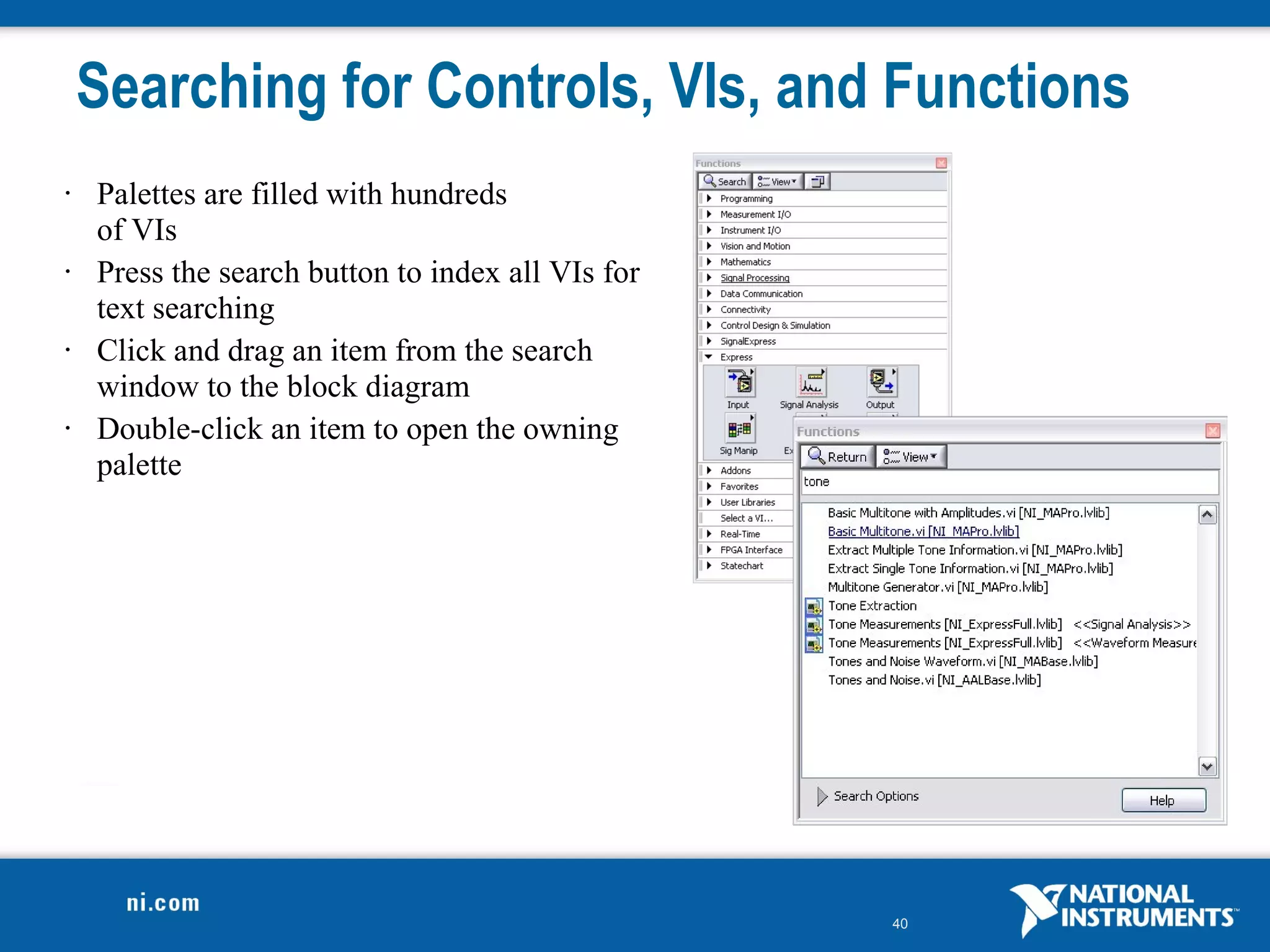
Searching for Controls, VIs, and Functions
•   Palettes are filled with hundreds
    of VIs
•   Press the search button to index all VIs for
    text searching
•   Click and drag an item from the search
    window to the block diagram
•   Double-click an item to open the owning
    palette


                                                   40
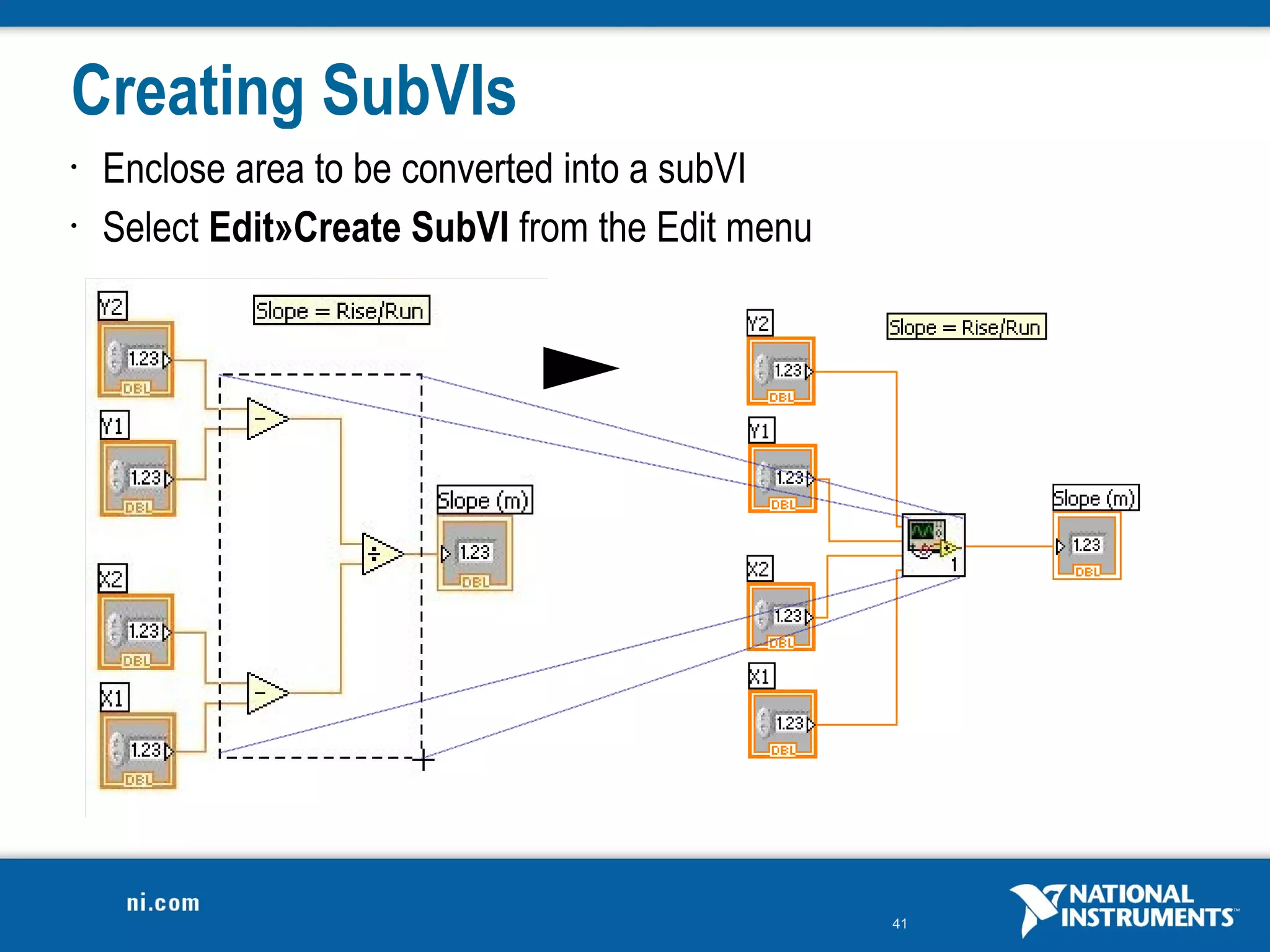
Creating SubVIs
•   Enclose area to be converted into a subVI
•   Select Edit»Create SubVI from the Edit menu


                                                  41
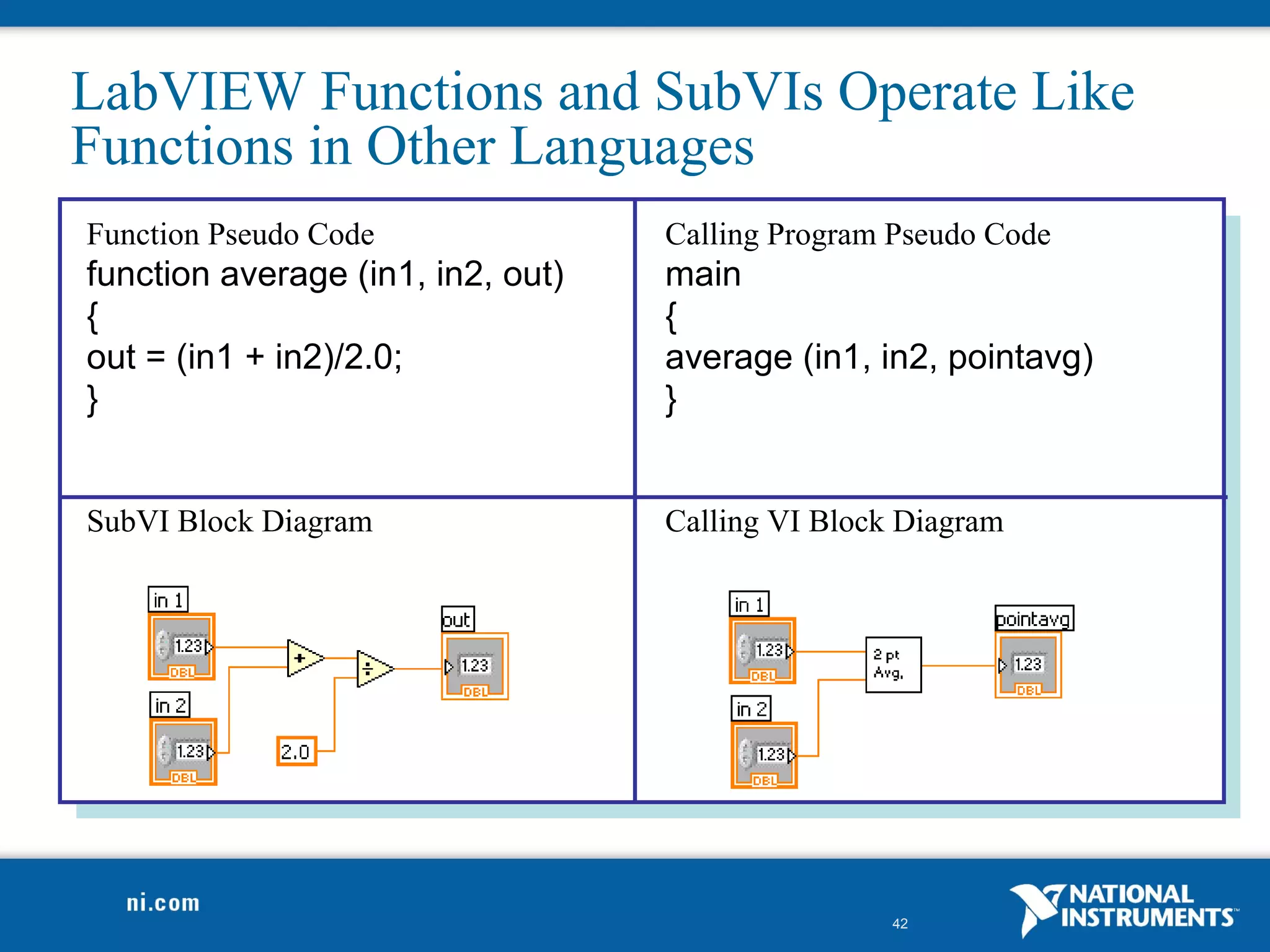
LabVIEW Functions and SubVIs Operate Like
Functions in Other Languages
Function Pseudo Code               Calling Program Pseudo Code
function average (in1, in2, out)   main
{                                  {
out = (in1 + in2)/2.0;             average (in1, in2, pointavg)
}                                  }


SubVI Block Diagram                Calling VI Block Diagram


                                                   42
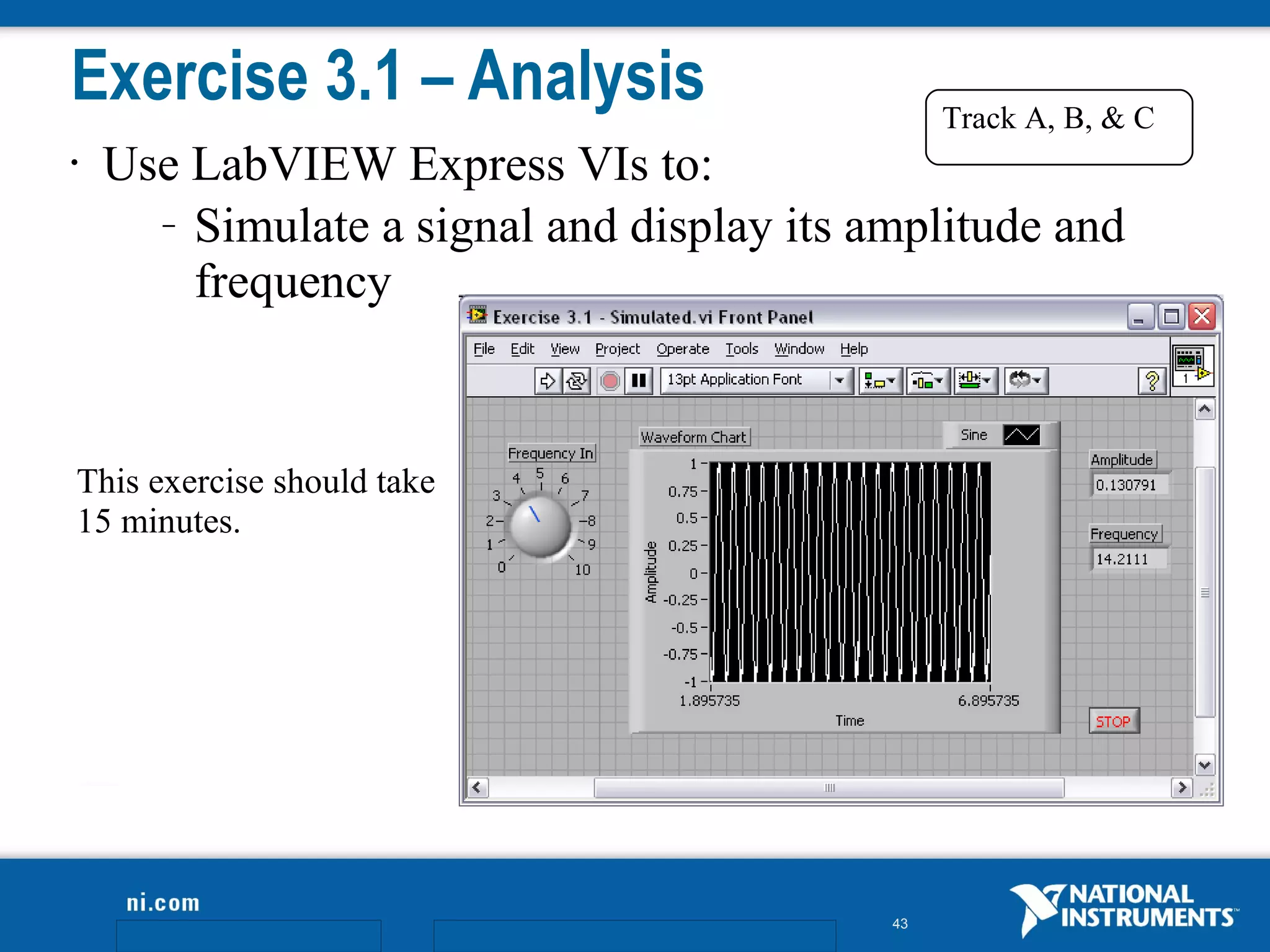
Exercise 3.1 – Analysis                         Track A, B, & C
•   Use LabVIEW Express VIs to:
      – Simulate a signal and display its amplitude and

        frequency


This exercise should take
15 minutes.


                                           43
Do Not Delete
Exercise Instructions


                        44
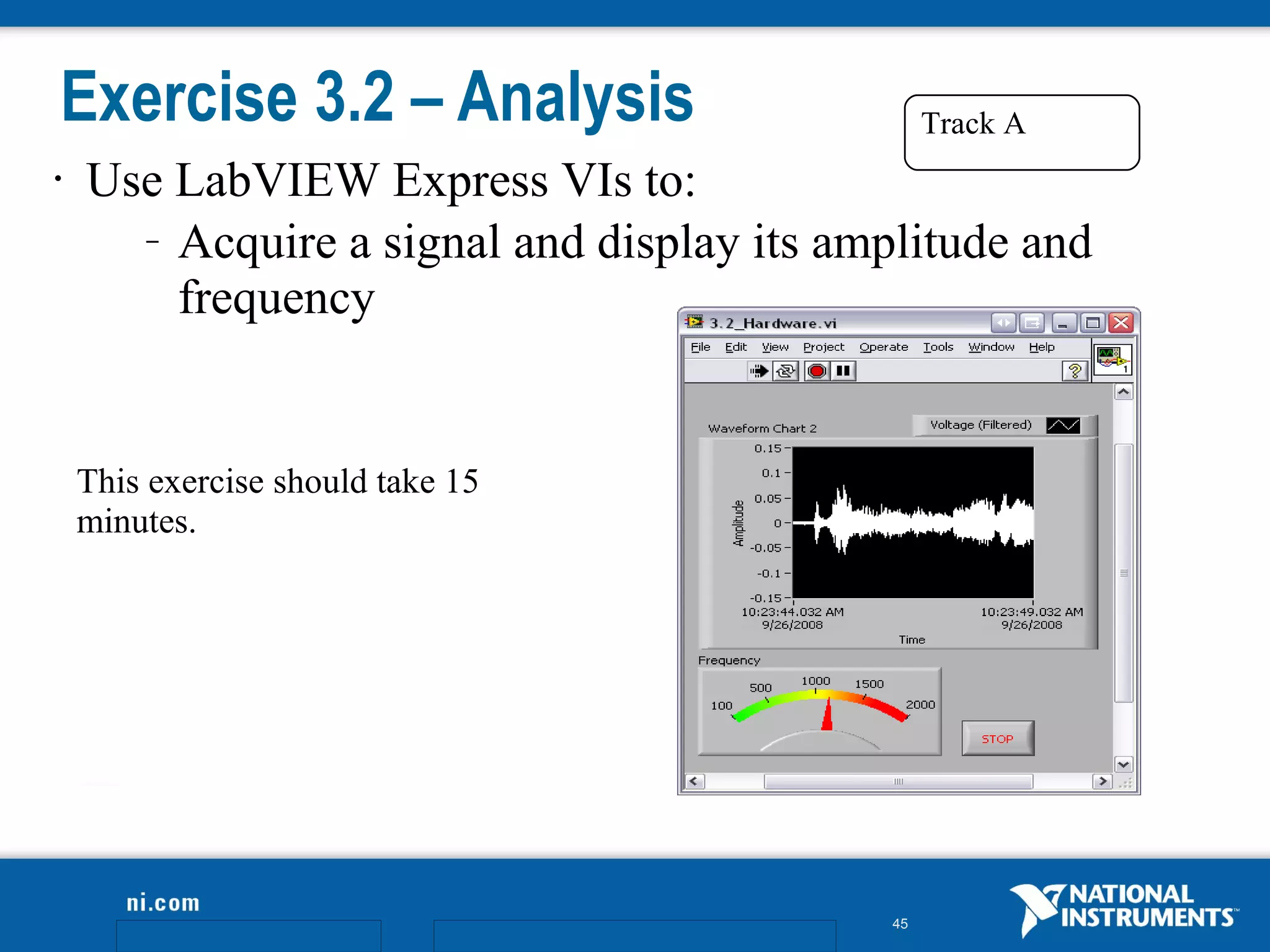
Exercise 3.2 – Analysis                          Track A
•   Use LabVIEW Express VIs to:
      – Acquire a signal and display its amplitude and

        frequency


    This exercise should take 15
    minutes.


                                            45
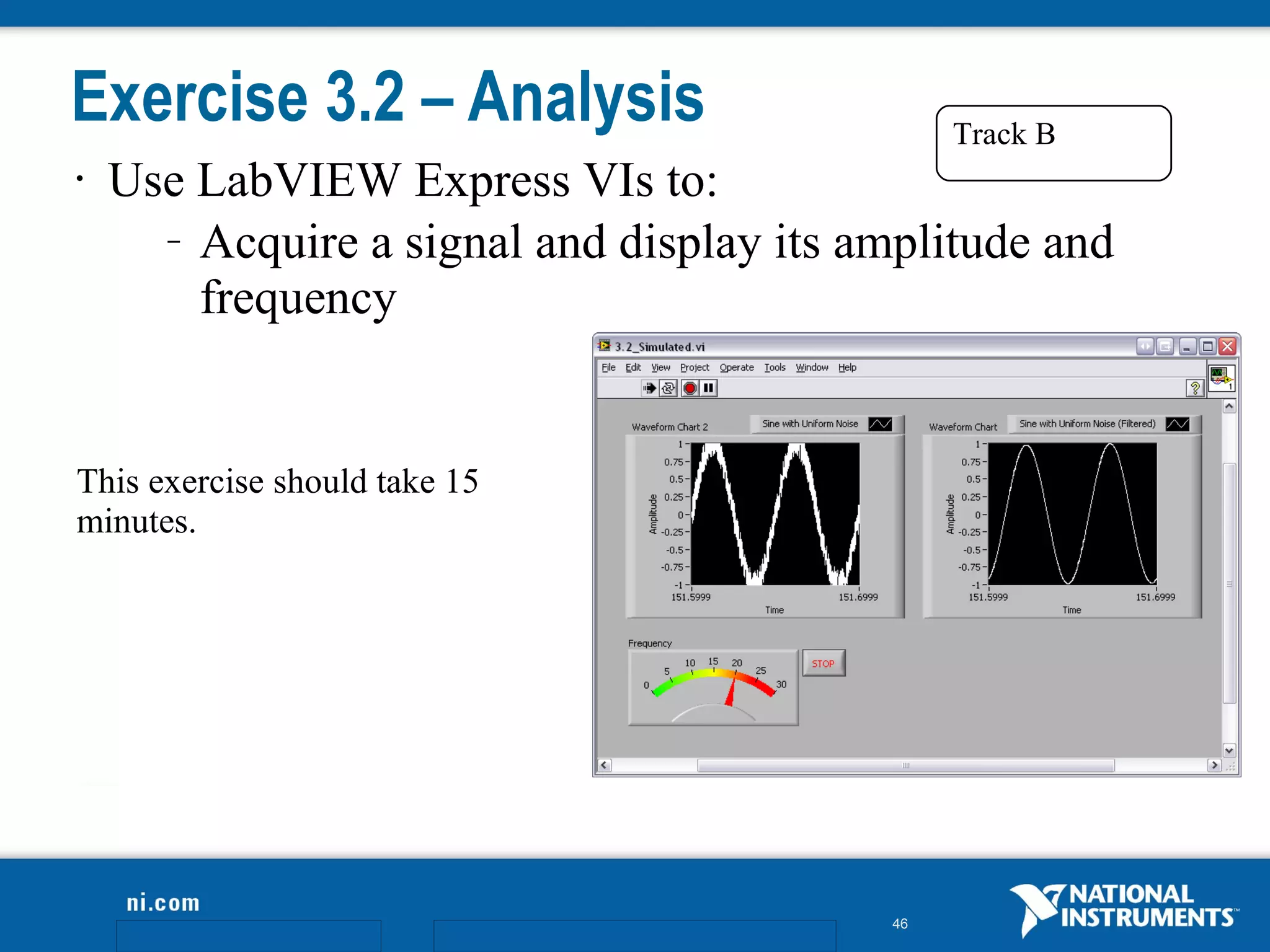
Exercise 3.2 – Analysis                        Track B
•   Use LabVIEW Express VIs to:
      – Acquire a signal and display its amplitude and

        frequency


This exercise should take 15
minutes.


                                          46
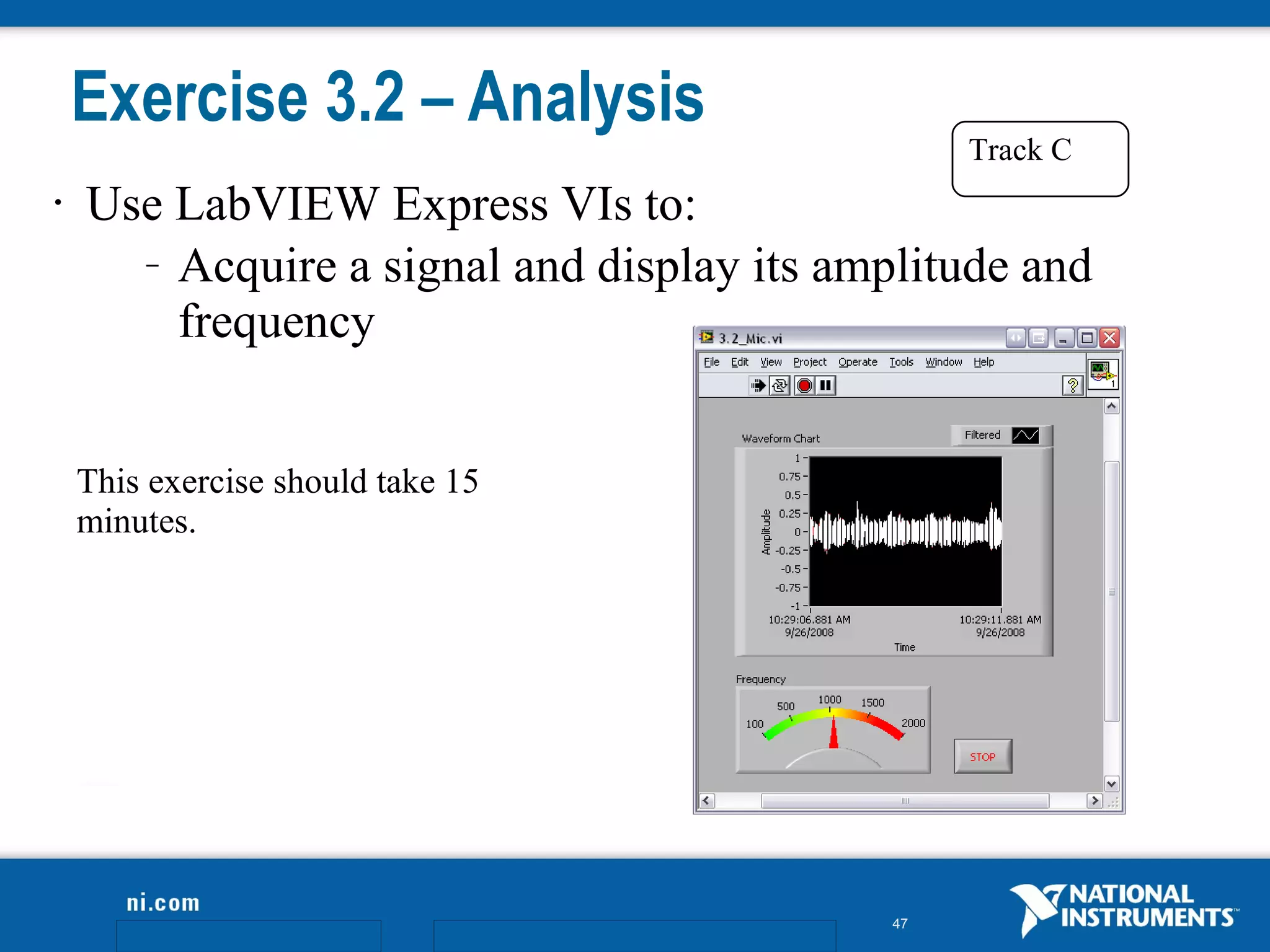
Exercise 3.2 – Analysis
                                                 Track C
•   Use LabVIEW Express VIs to:
      – Acquire a signal and display its amplitude and

        frequency


    This exercise should take 15
    minutes.


                                            47
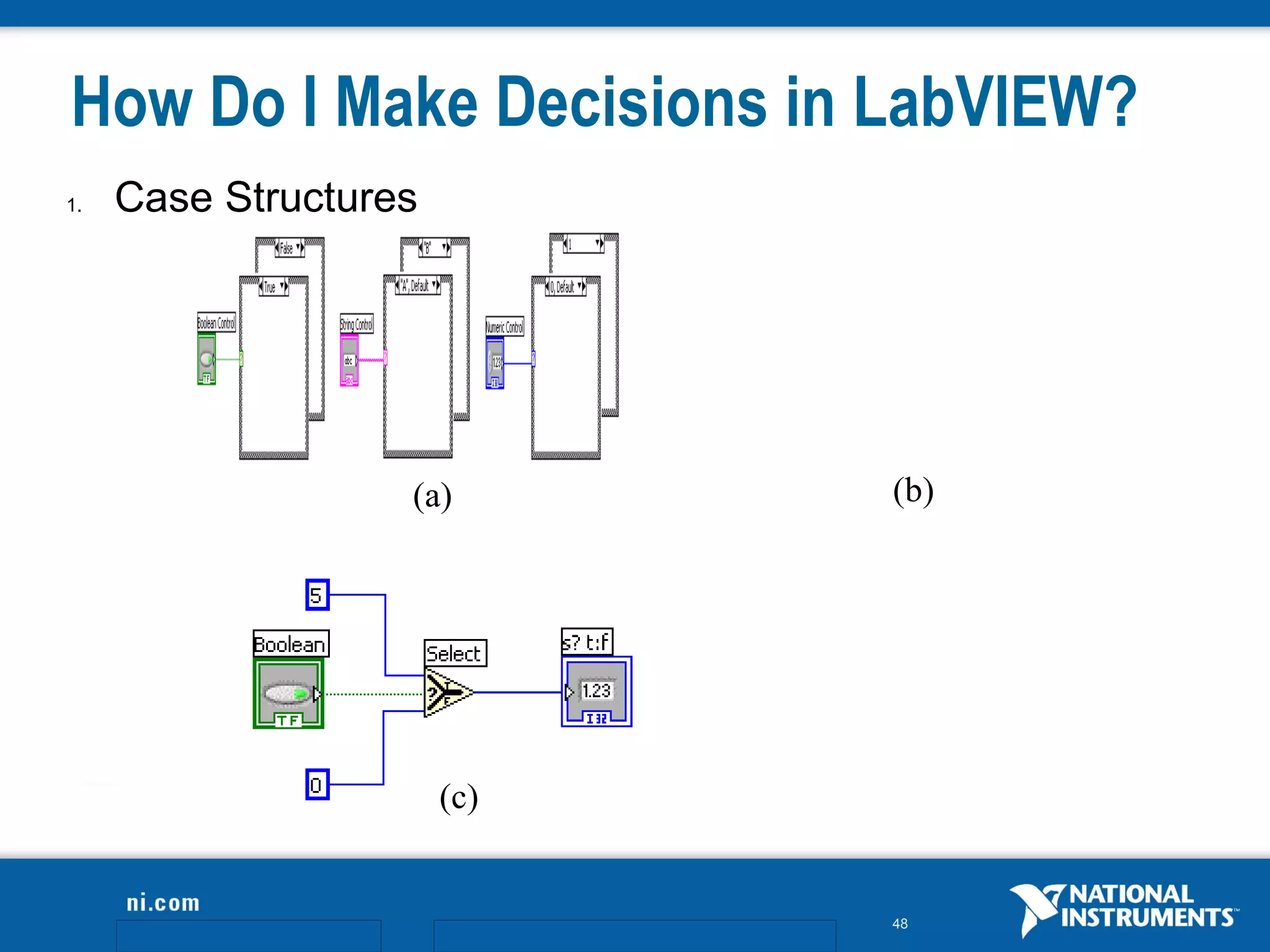
How Do I Make Decisions in LabVIEW?
1.   Case Structures


                   (a)       (b)


                       (c)


                             48
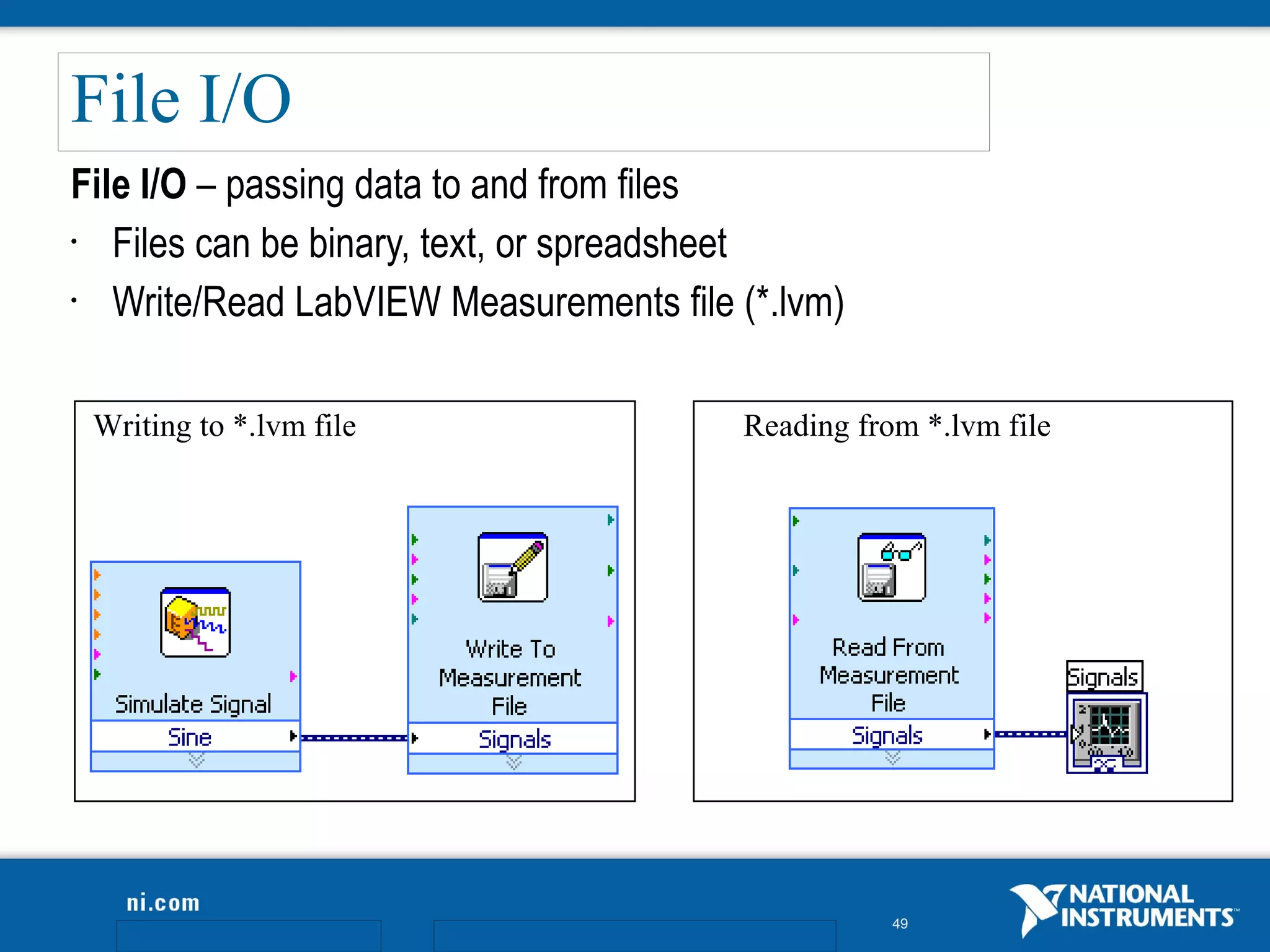
File I/O
File I/O – passing data to and from files
•  Files can be binary, text, or spreadsheet
•  Write/Read LabVIEW Measurements file (*.lvm)

 Writing to *.lvm file                  Reading from *.lvm file


                                                   49
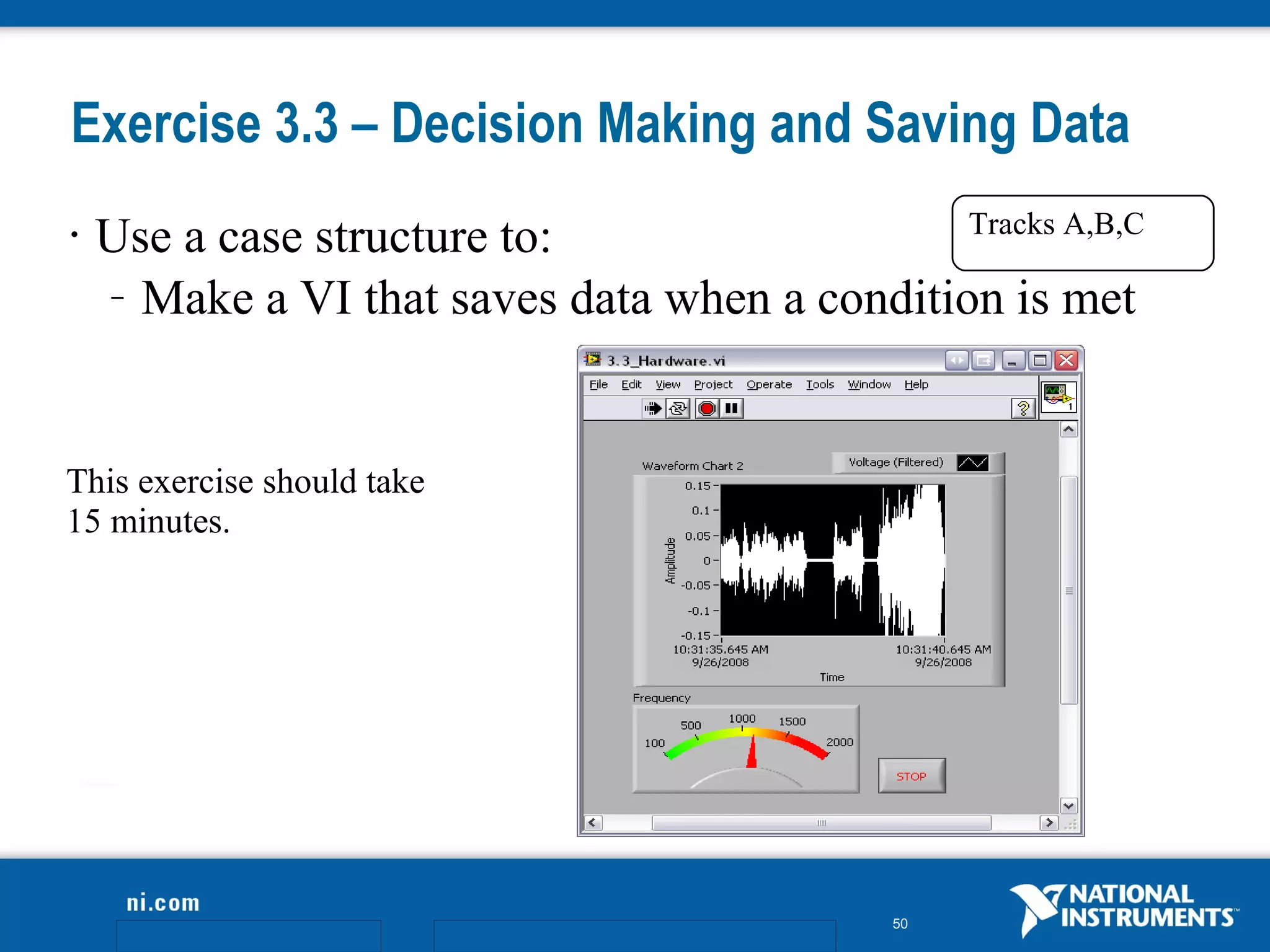
Exercise 3.3 – Decision Making and Saving Data
                                               Tracks A,B,C
•   Use a case structure to:
    – Make a VI that saves data when a condition is met


This exercise should take
15 minutes.


                                             50
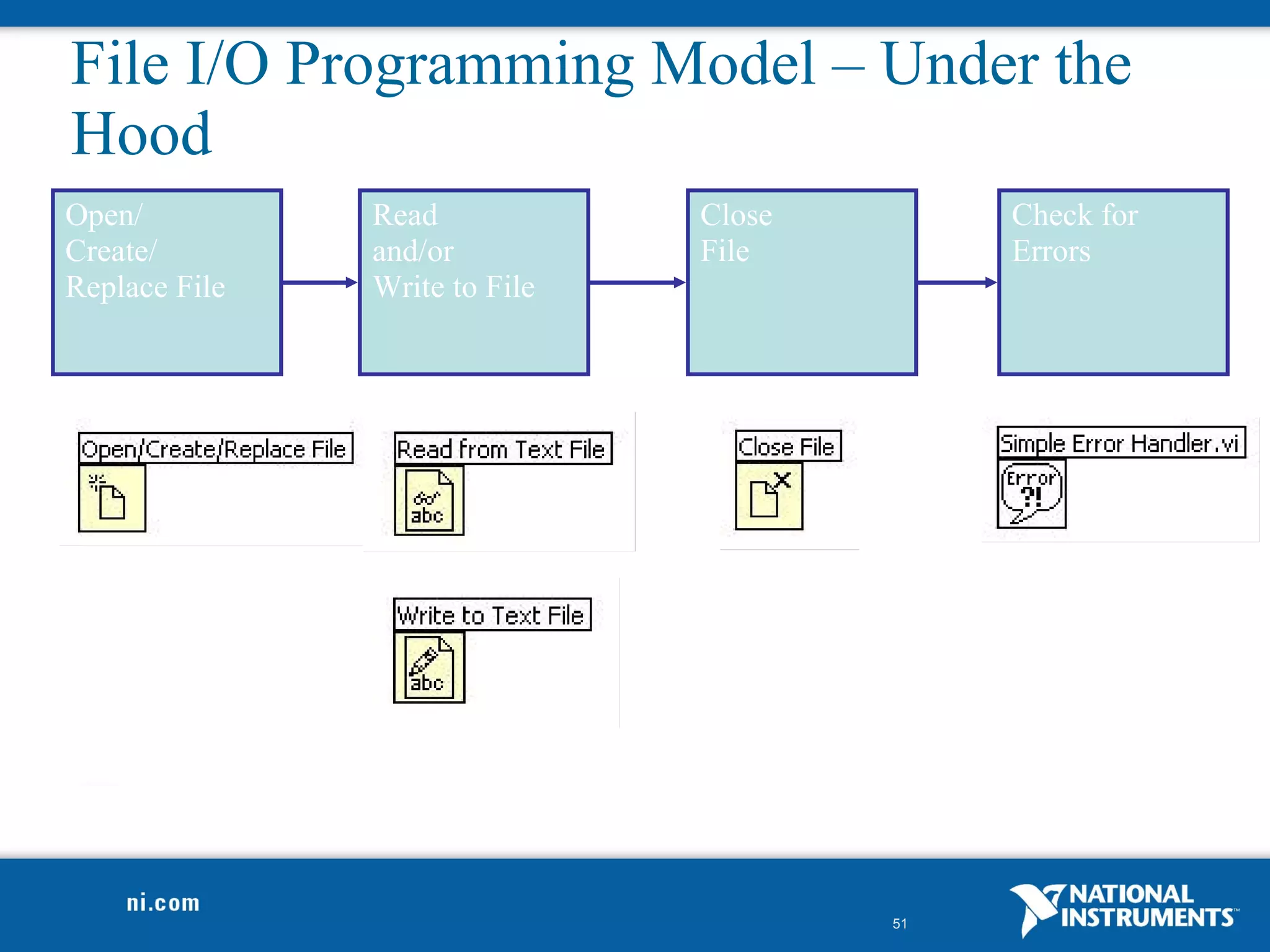
File I/O Programming Model – Under the
Hood
Open/          Read            Close        Check for
Create/        and/or          File         Errors
Replace File   Write to File


                                       51
Section III–Presenting Your Results
A. Displaying Data on the Front Panel
  •   Controls and Indicators
  •   Graphs and Charts
  •   Building Arrays with Loops
  •   Loop Timing
B. Signal Processing
  •   Math with the LabVIEW MathScript Node
  •   Arrays
  •   Clusters
  •   Waveforms


                                              52
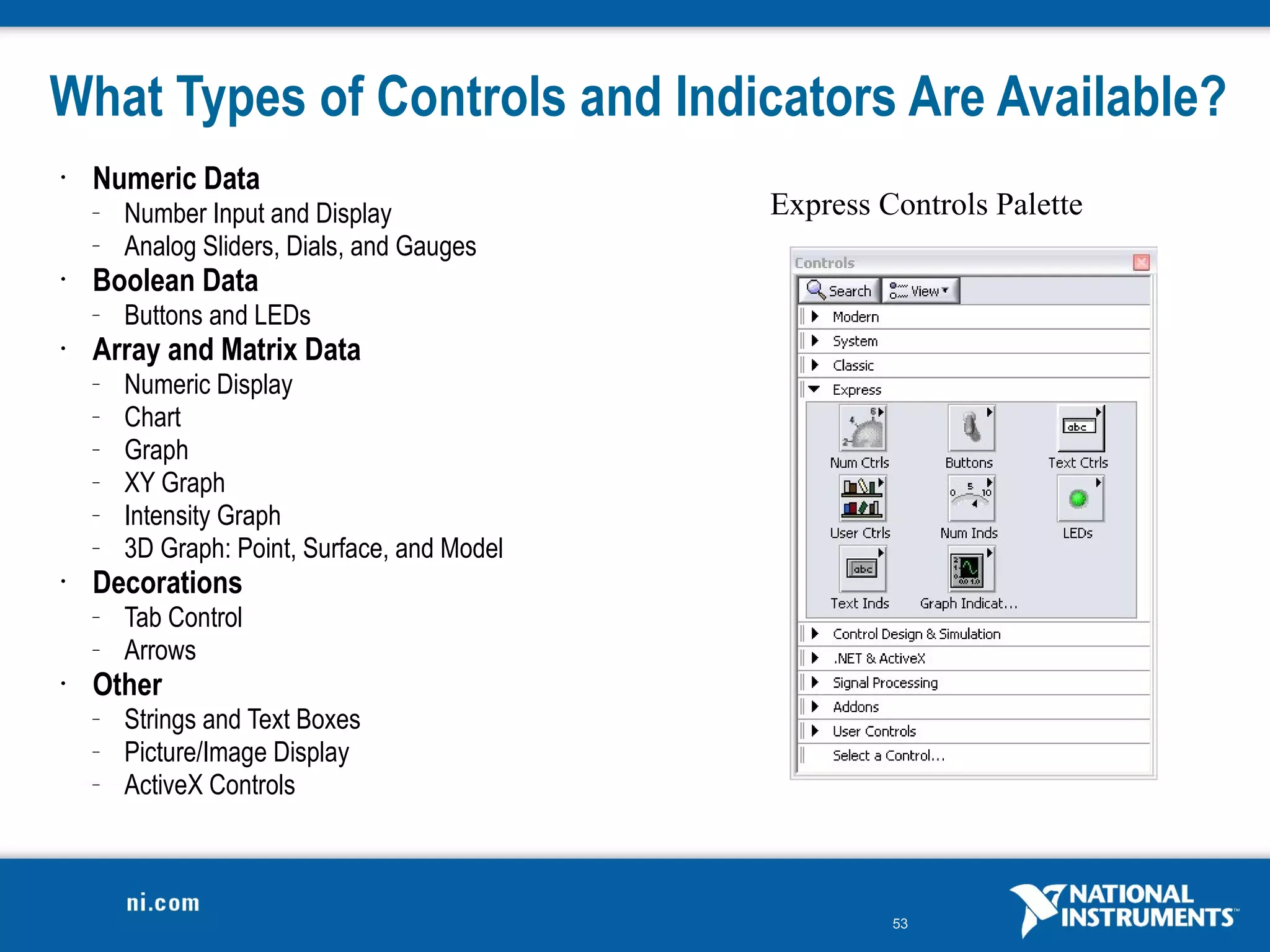
What Types of Controls and Indicators Are Available?
•   Numeric Data
    –   Number Input and Display              Express Controls Palette
    –   Analog Sliders, Dials, and Gauges
•   Boolean Data
    –   Buttons and LEDs
•   Array and Matrix Data
    –   Numeric Display
    –   Chart
    –   Graph
    –   XY Graph
    –   Intensity Graph
    –   3D Graph: Point, Surface, and Model
•   Decorations
    –   Tab Control
    –   Arrows
•   Other
    –   Strings and Text Boxes
    –   Picture/Image Display
    –   ActiveX Controls


                                                       53
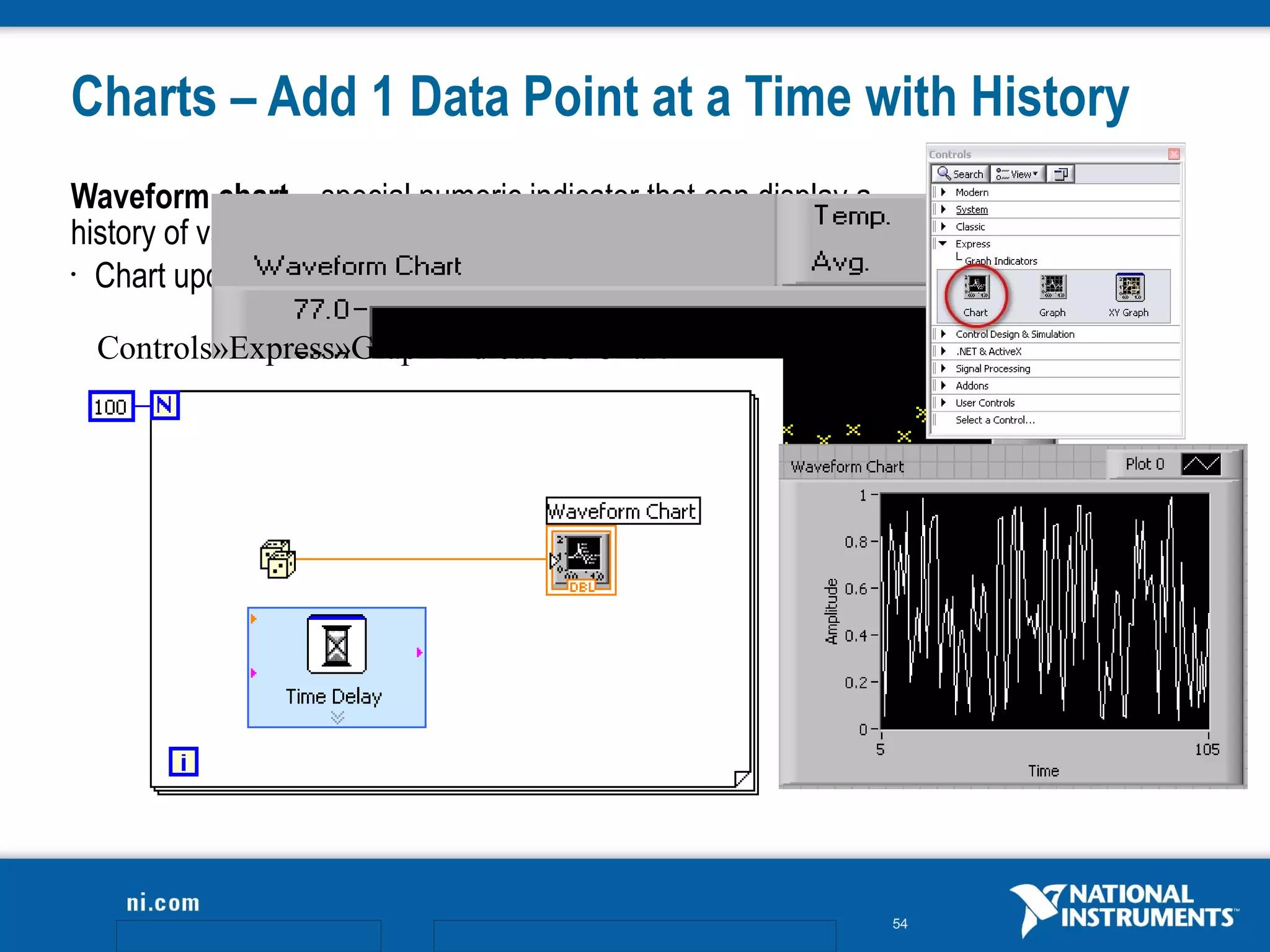
Charts – Add 1 Data Point at a Time with History
Waveform chart – special numeric indicator that can display a
history of values
• Chart updates with each individual point it receives


  Controls»Express»Graph Indicators»Chart


                                                                54
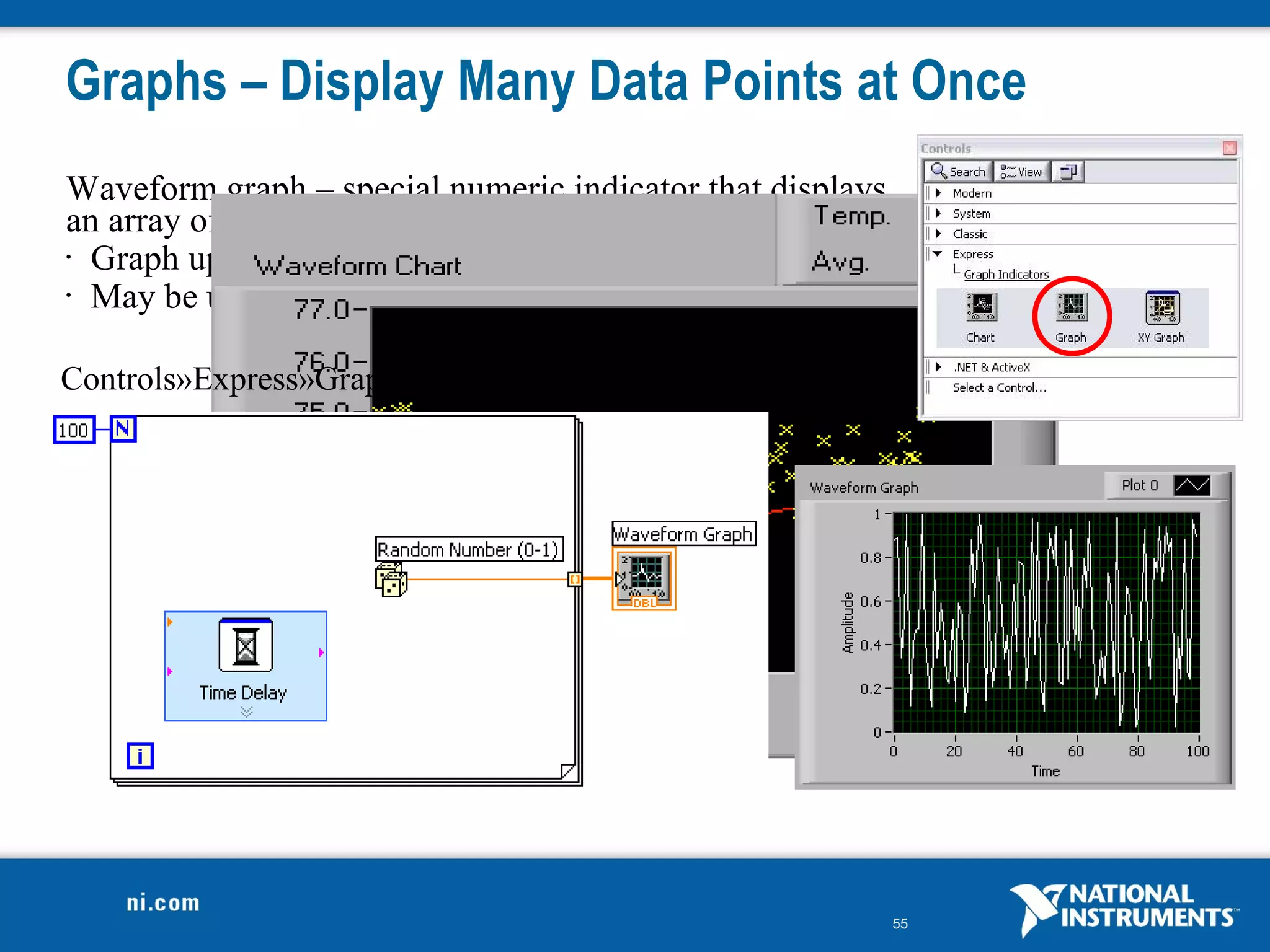
Graphs – Display Many Data Points at Once
Waveform graph – special numeric indicator that displays
an array of data
• Graph updates after all points have been collected

• May be used in a loop if VI collects buffers of data


Controls»Express»Graph Indicators»Graph


                                                           55
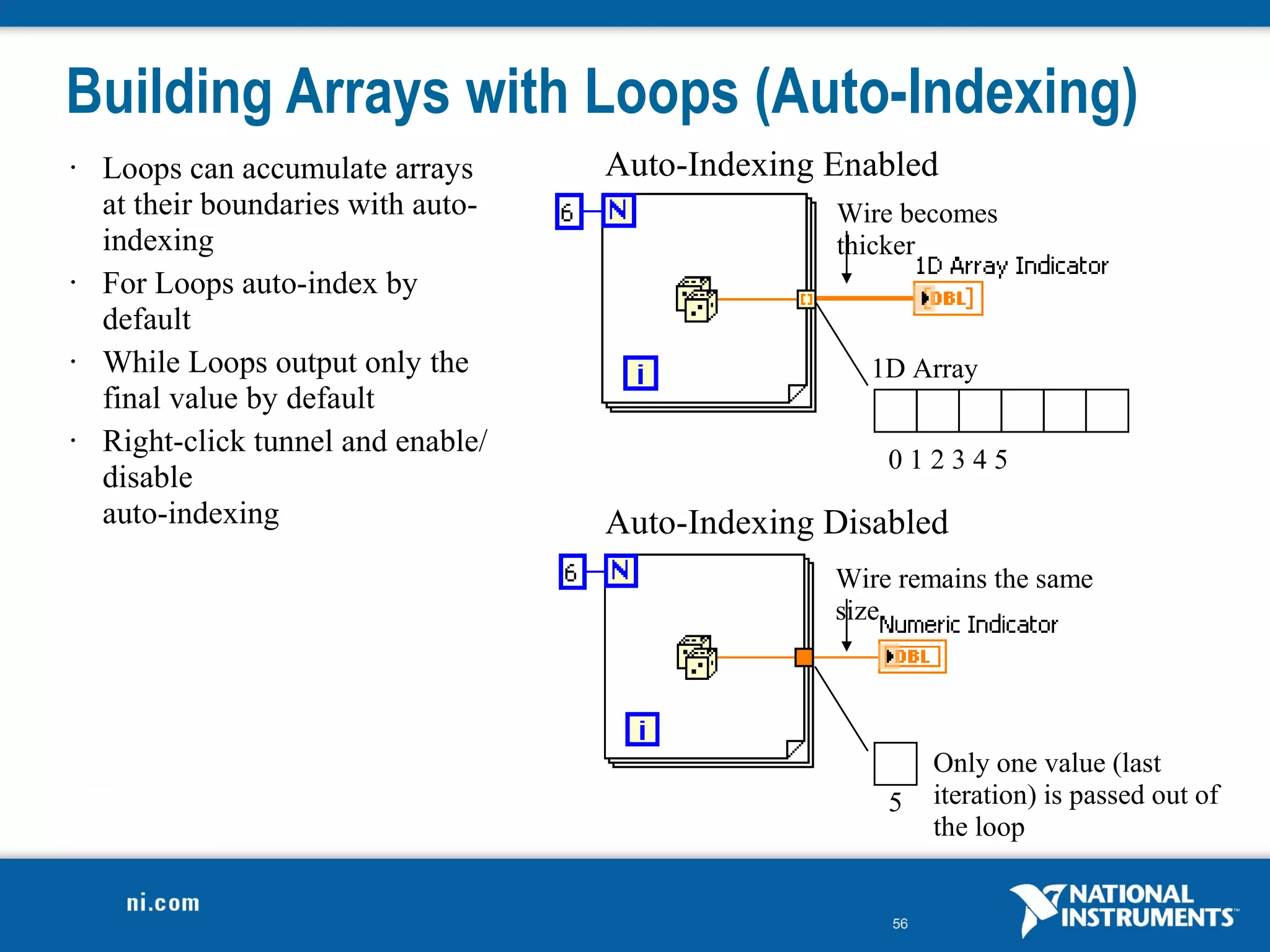
Building Arrays with Loops (Auto-Indexing)
•   Loops can accumulate arrays      Auto-Indexing Enabled
    at their boundaries with auto-                 Wire becomes
    indexing                                       thicker
•   For Loops auto-index by
    default
•   While Loops output only the                       1D Array
    final value by default
•   Right-click tunnel and enable/
                                                       012345
    disable
    auto-indexing                    Auto-Indexing Disabled
                                                   Wire remains the same
                                                   size


                                                            Only one value (last
                                                       5    iteration) is passed out of
                                                            the loop


                                                       56
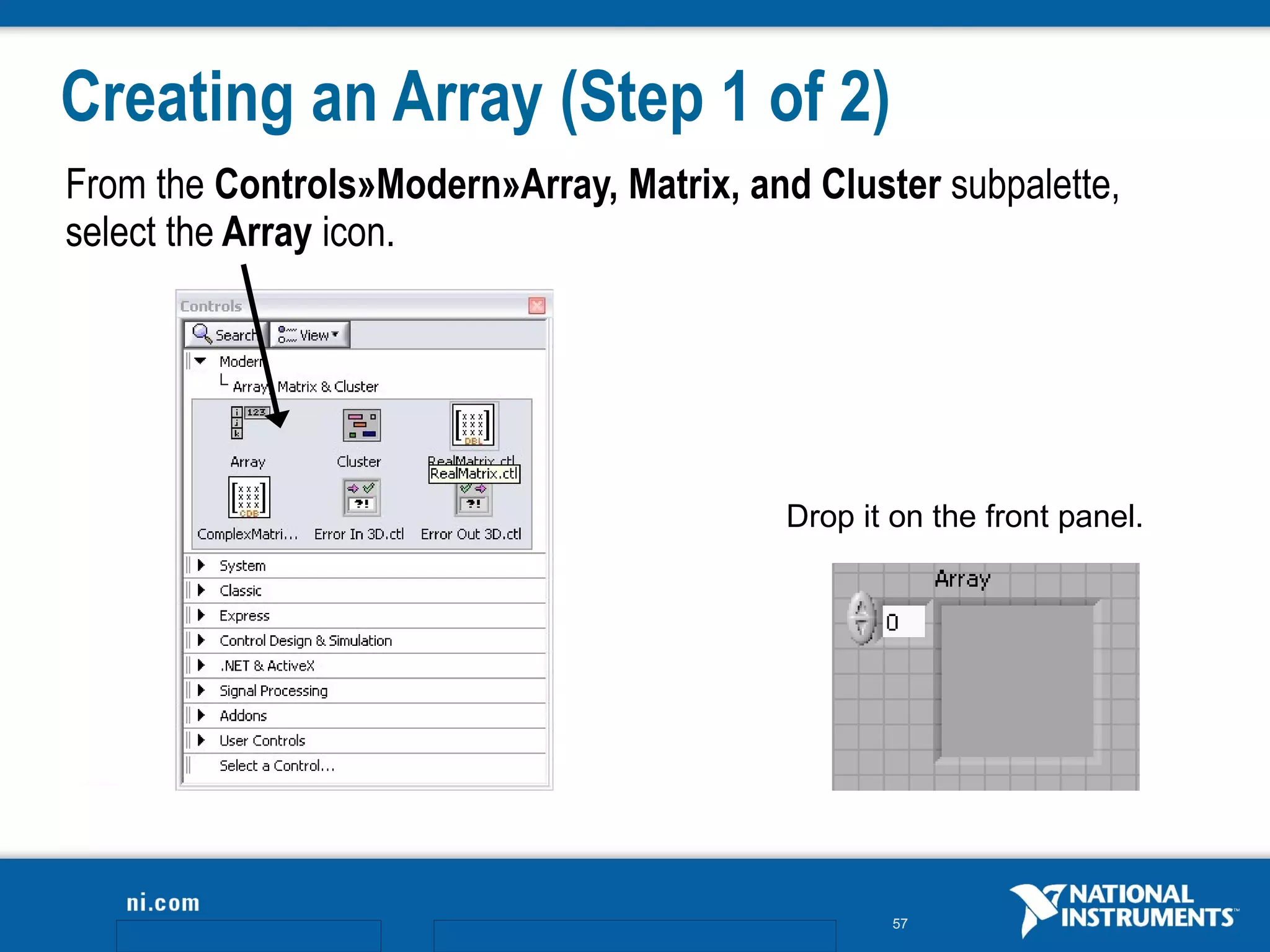
Creating an Array (Step 1 of 2)
From the Controls»Modern»Array, Matrix, and Cluster subpalette,
select the Array icon.


                                           Drop it on the front panel.


                                                   57
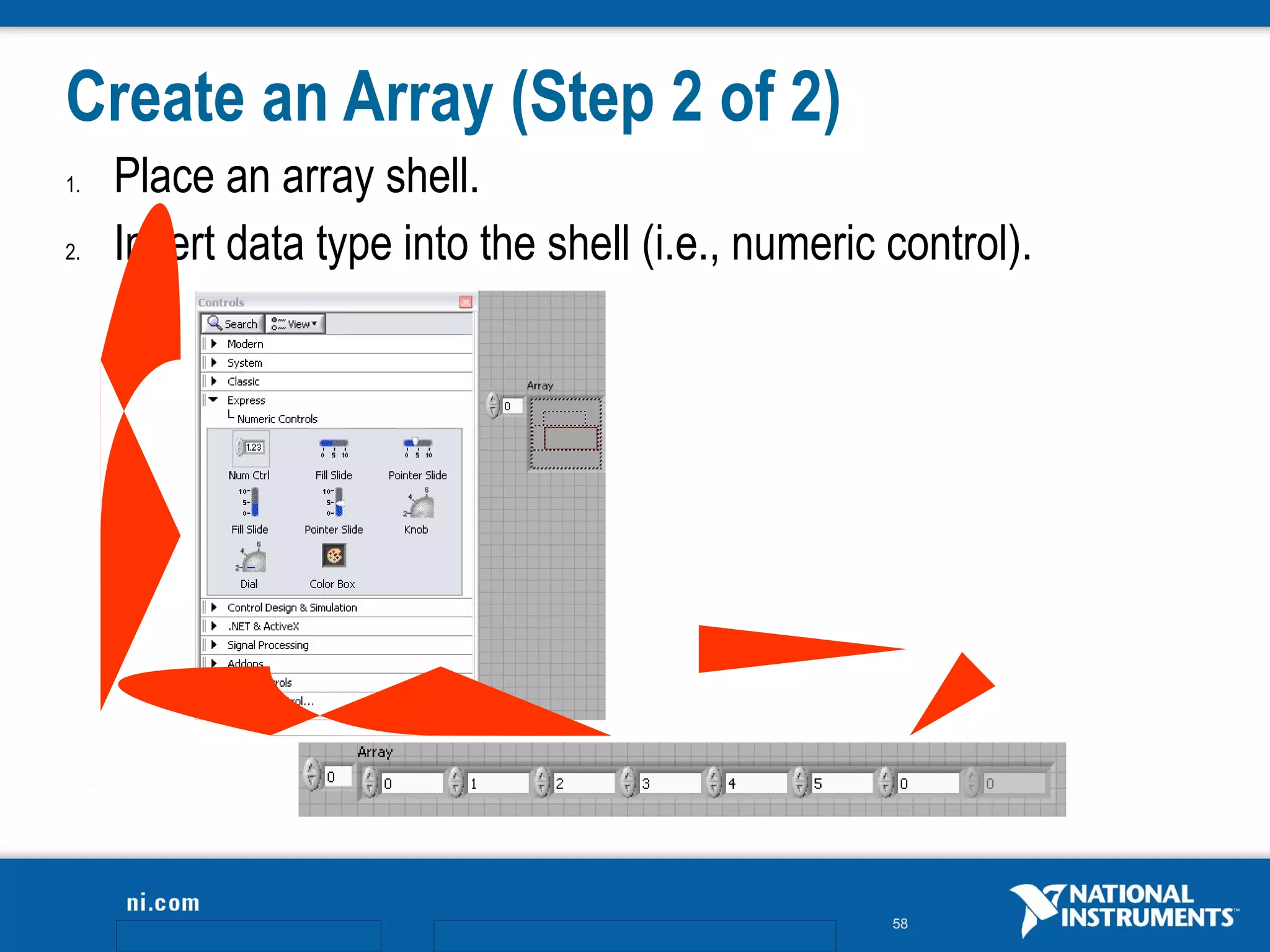
Create an Array (Step 2 of 2)
1.   Place an array shell.
2.   Insert data type into the shell (i.e., numeric control).


                                                    58
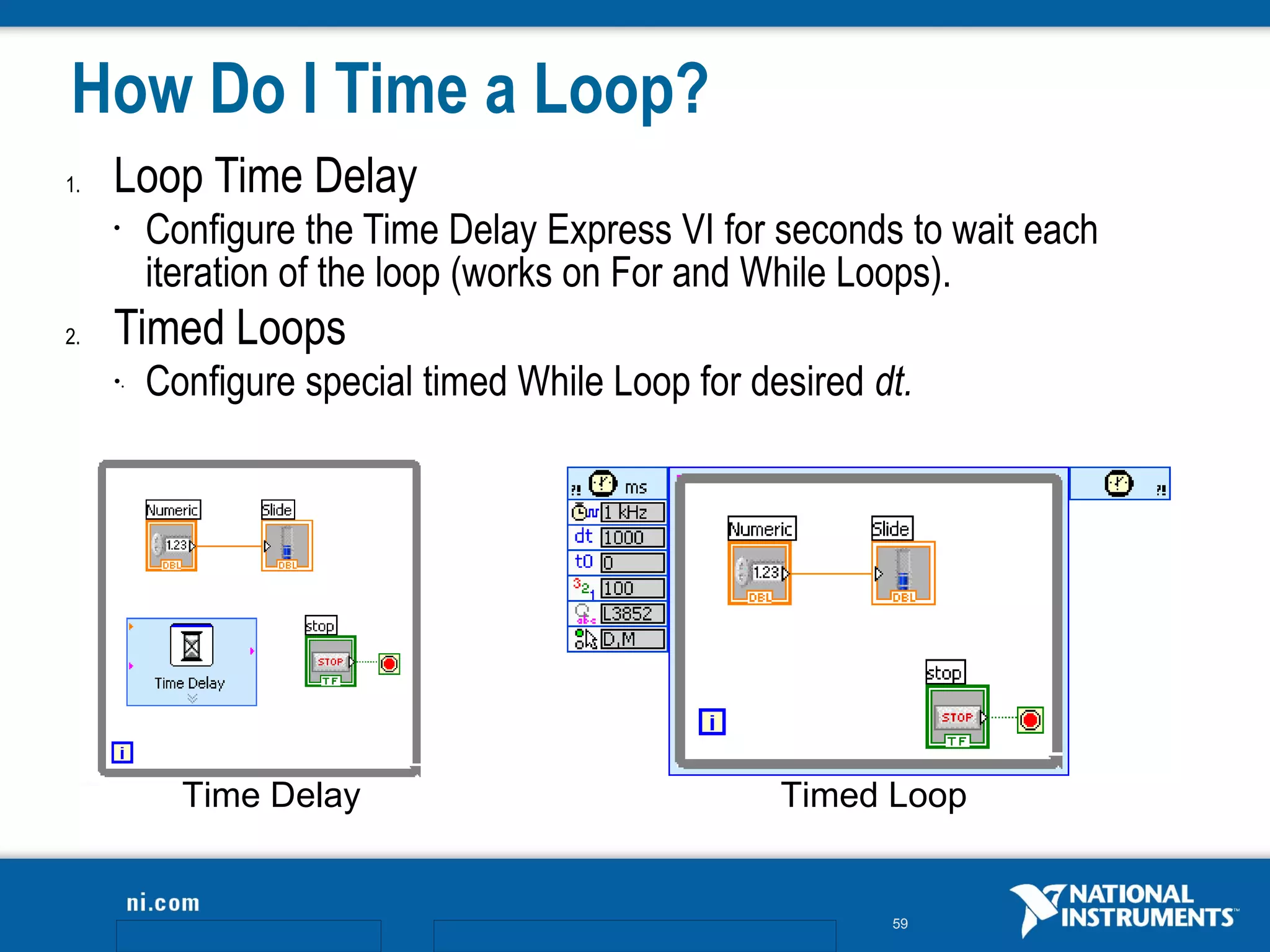
How Do I Time a Loop?
1.   Loop Time Delay
     •    Configure the Time Delay Express VI for seconds to wait each
          iteration of the loop (works on For and While Loops).
2.   Timed Loops
     •.   Configure special timed While Loop for desired dt.


            Time Delay                             Timed Loop


                                                          59
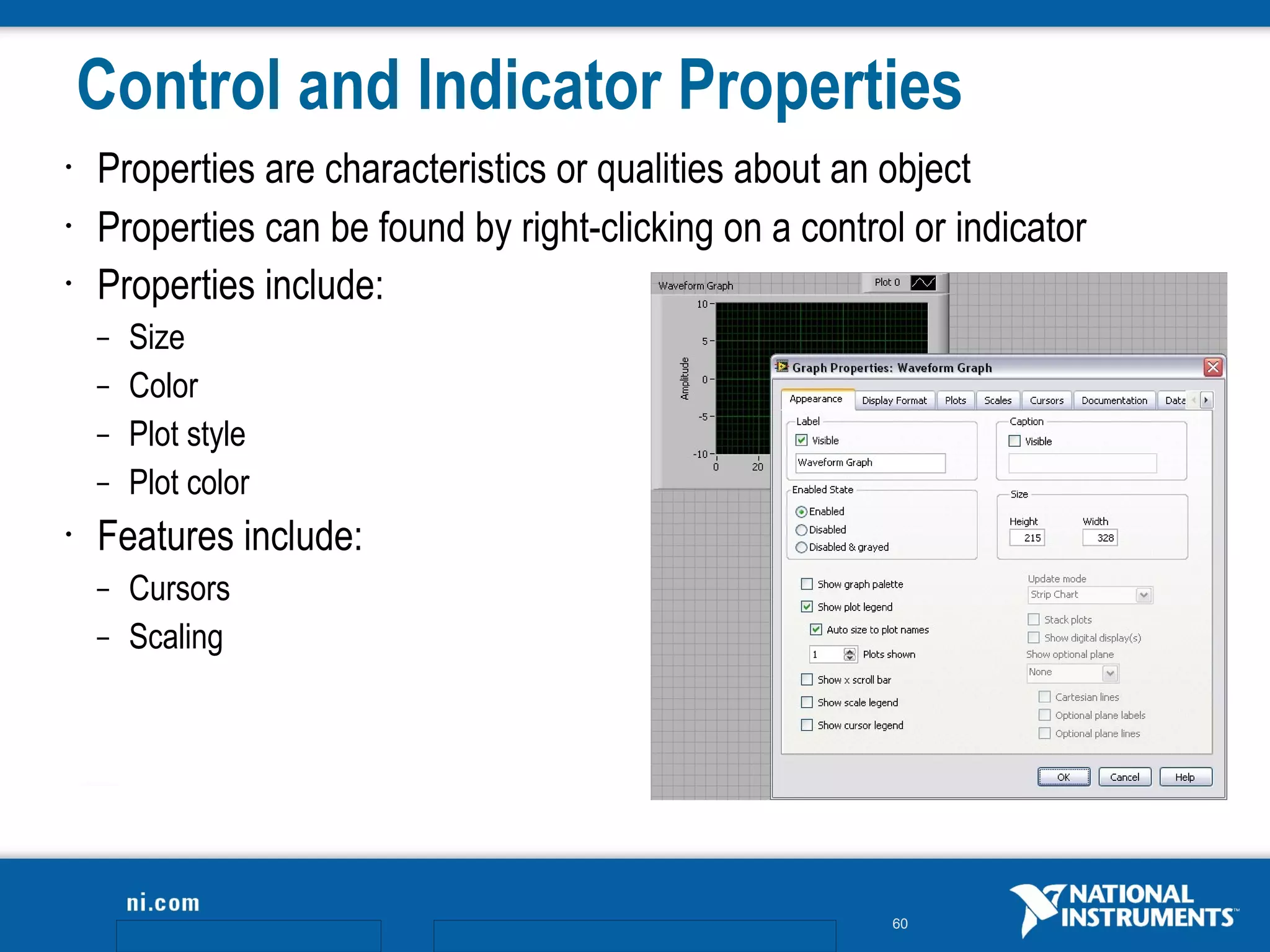
Control and Indicator Properties
•   Properties are characteristics or qualities about an object
•   Properties can be found by right-clicking on a control or indicator
•   Properties include:
    –   Size
    –   Color
    –   Plot style
    –   Plot color
•   Features include:
    –   Cursors
    –   Scaling


                                                         60
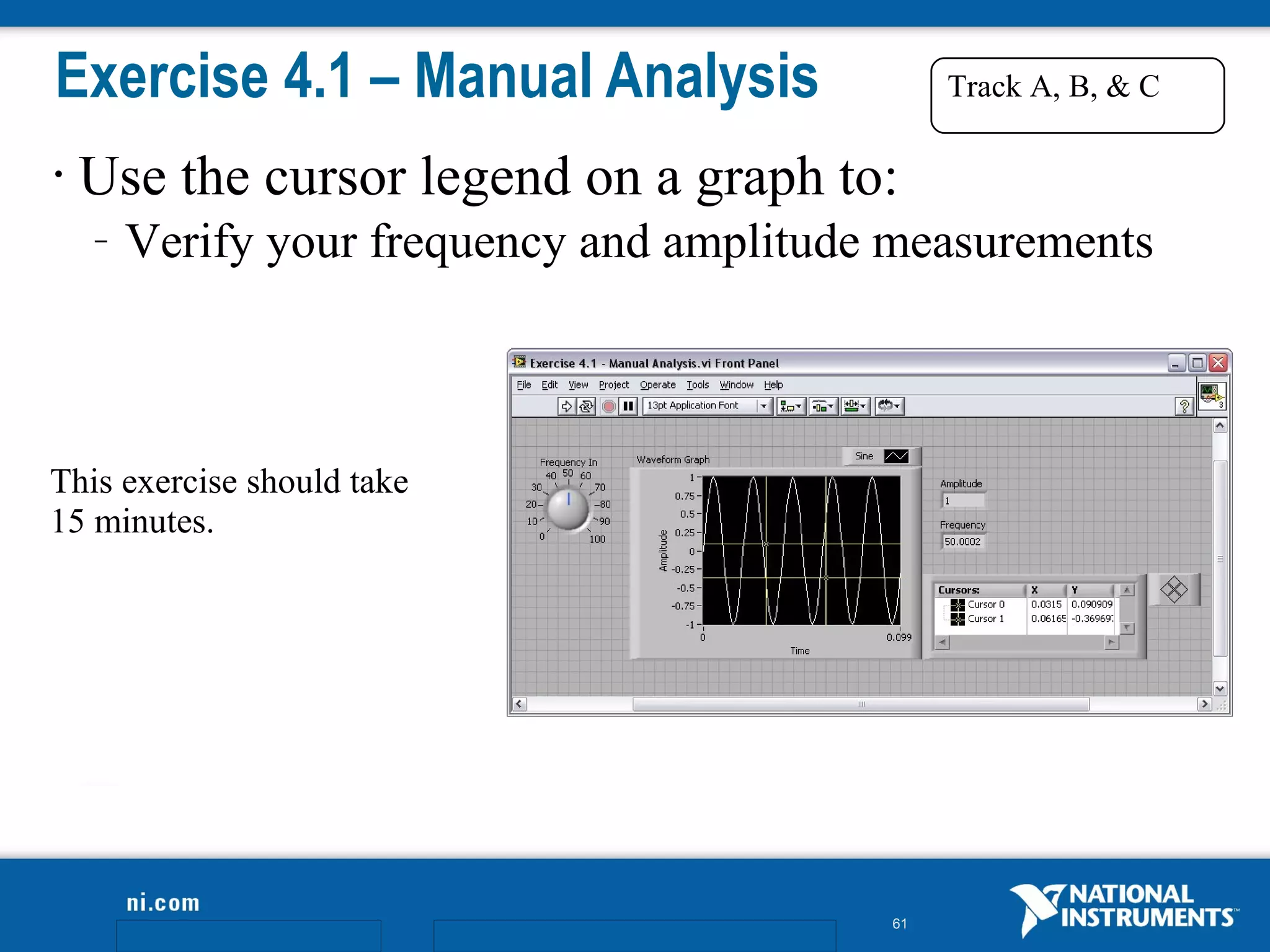
Exercise 4.1 – Manual Analysis                  Track A, B, & C

•   Use the cursor legend on a graph to:
    –   Verify your frequency and amplitude measurements


This exercise should take
15 minutes.


                                           61
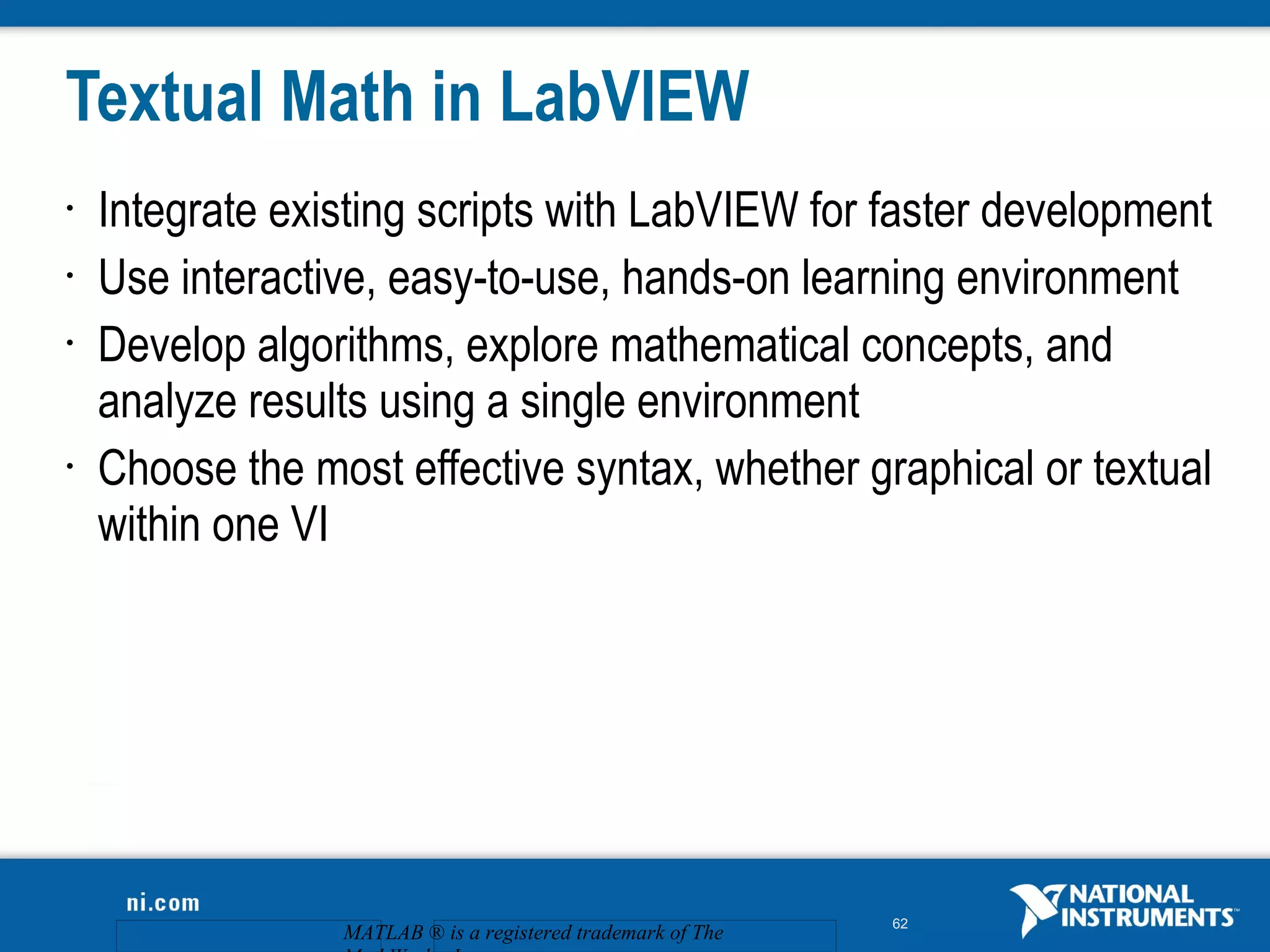
Textual Math in LabVIEW
•   Integrate existing scripts with LabVIEW for faster development
•   Use interactive, easy-to-use, hands-on learning environment
•   Develop algorithms, explore mathematical concepts, and
    analyze results using a single environment
•   Choose the most effective syntax, whether graphical or textual
    within one VI


                                                             62
                 MATLAB ® is a registered trademark of The
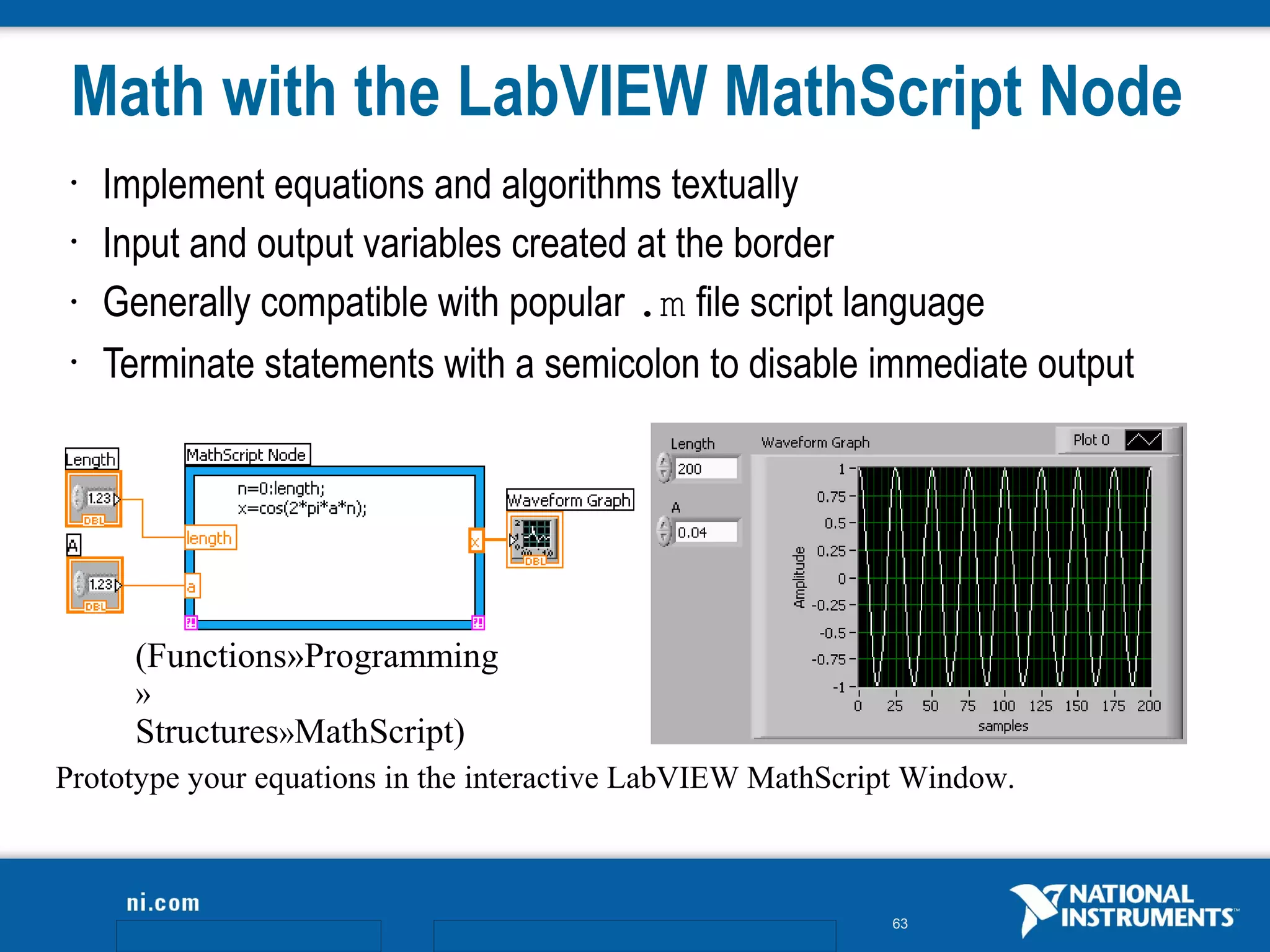
Math with the LabVIEW MathScript Node
 •   Implement equations and algorithms textually
 •   Input and output variables created at the border
 •   Generally compatible with popular .m file script language
 •   Terminate statements with a semicolon to disable immediate output


       (Functions»Programming
       »
       Structures»MathScript)
Prototype your equations in the interactive LabVIEW MathScript Window.


                                                             63
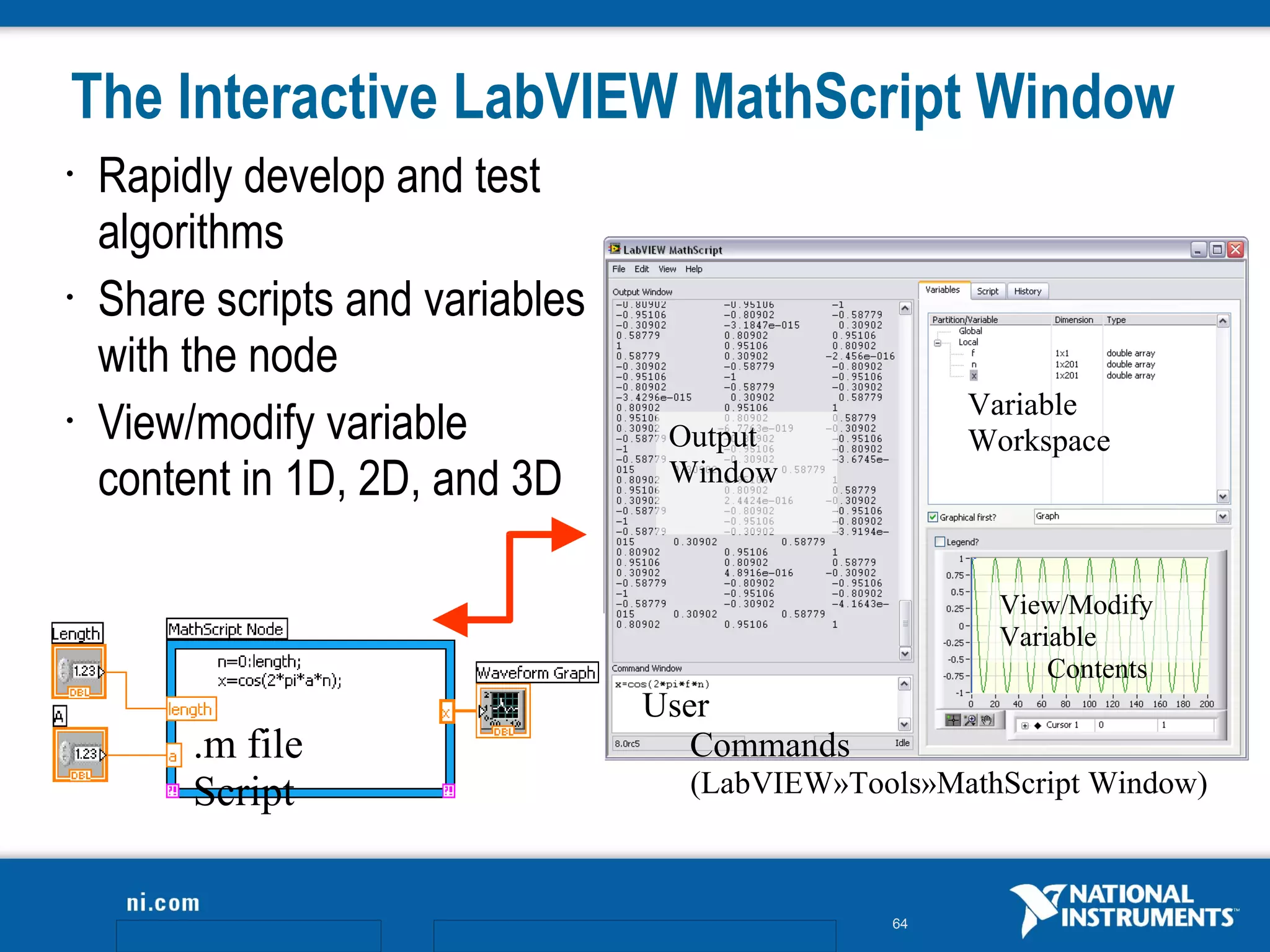
The Interactive LabVIEW MathScript Window
•   Rapidly develop and test
    algorithms
•   Share scripts and variables
    with the node
                                                     Variable
•   View/modify variable           Output            Workspace
    content in 1D, 2D, and 3D      Window


                                                       View/Modify
                                                       Variable
                                                           Contents
                                  User
         .m file                     Commands
         Script                     (LabVIEW»Tools»MathScript Window)


                                                64
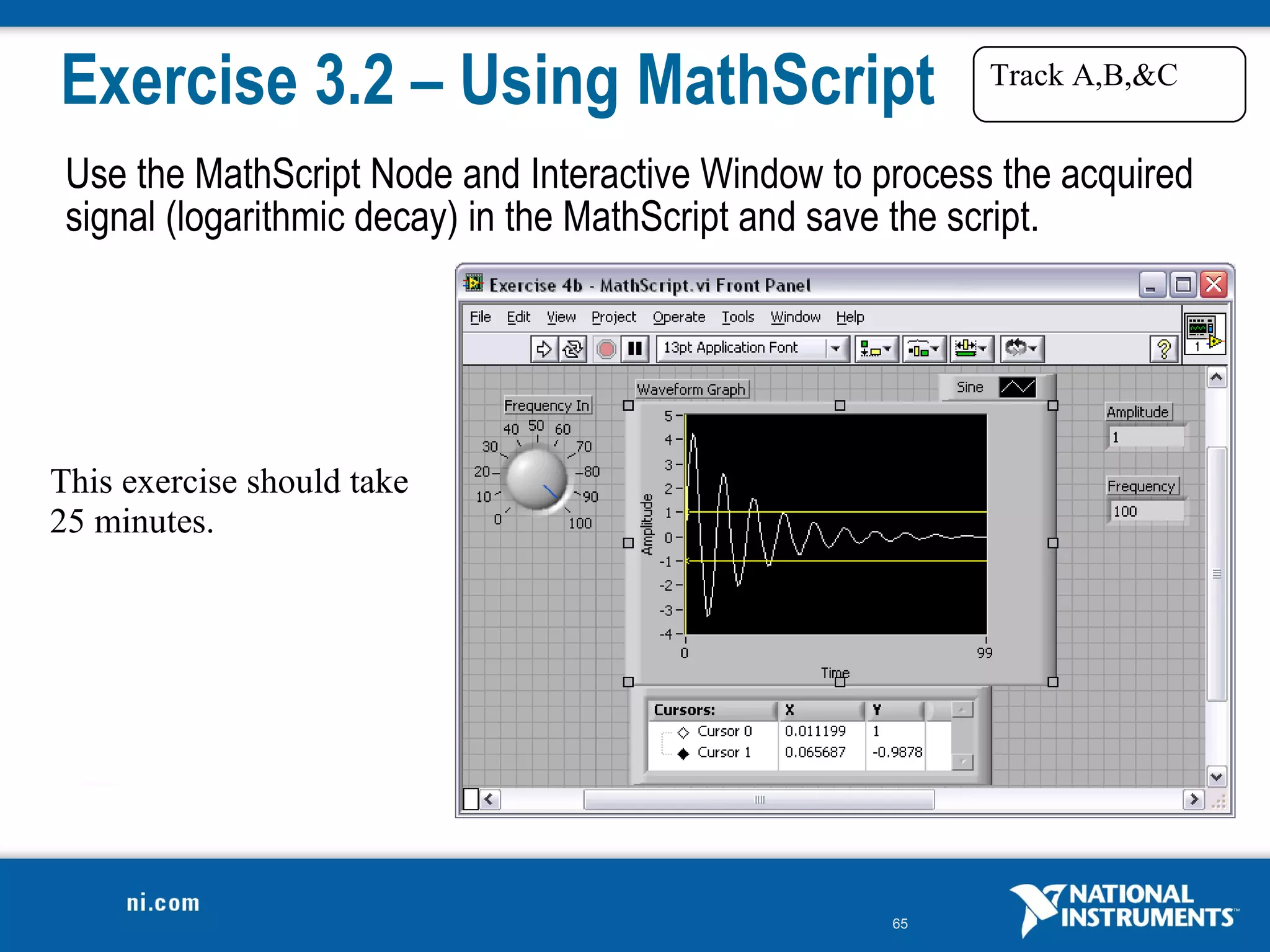
Exercise 3.2 – Using MathScript                           Track A,B,&C


 Use the MathScript Node and Interactive Window to process the acquired
 signal (logarithmic decay) in the MathScript and save the script.


This exercise should take
25 minutes.


                                                    65
Do Not Delete

Exercise Instructions


                        66
Do Not Delete

Exercise Instructions


                        67
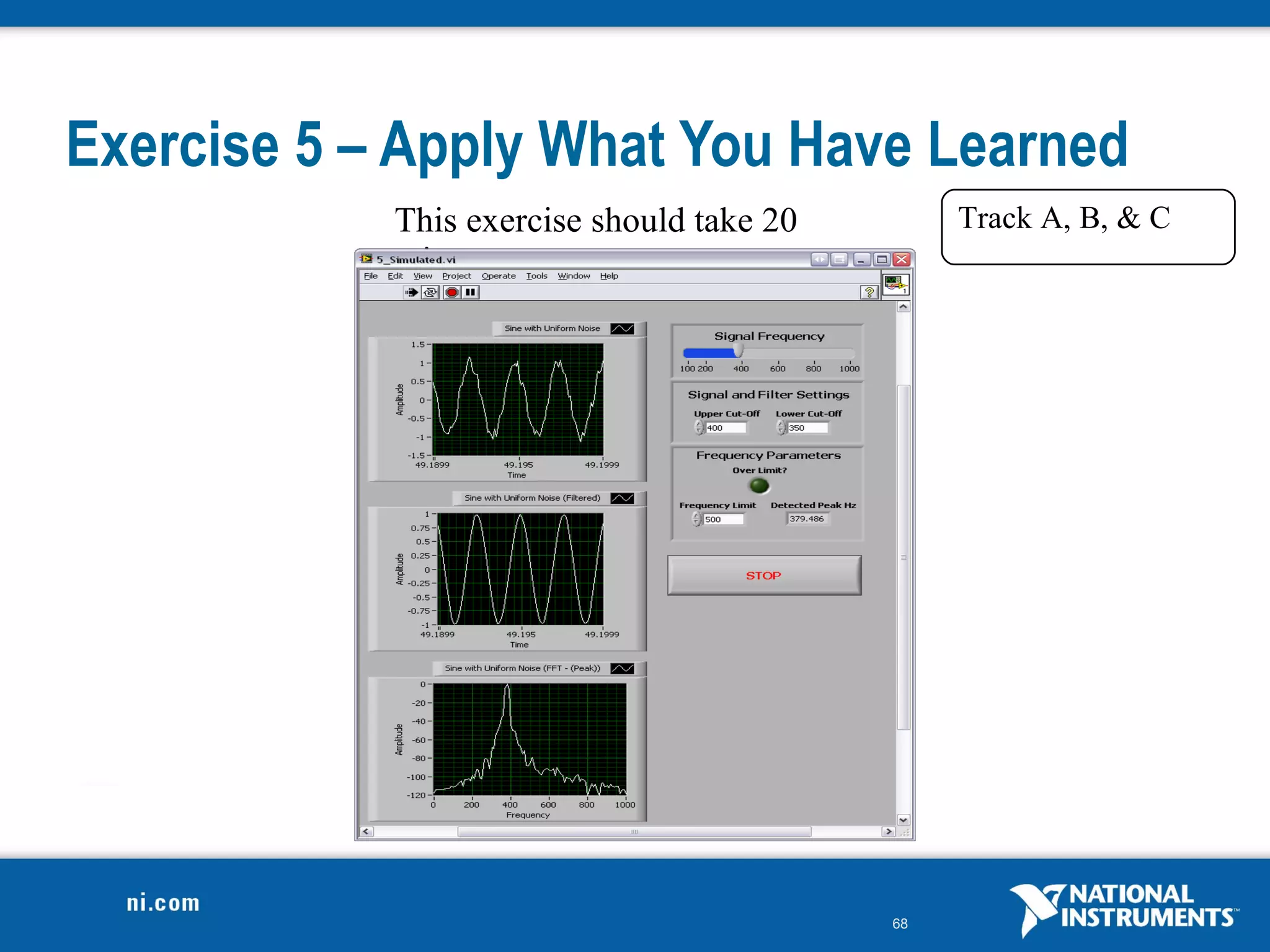
Exercise 5 – Apply What You Have Learned
            This exercise should take 20        Track A, B, & C
            minutes.


                                           68
Section IV – Advanced Dataflow Topics (Optional)

A. Additional Data Types
   •   Cluster
B. Dataflow Constructs
   •   Shift Register – Access Previous Loop Data
   •   Local Variables
C. Large Application Development
   •   LabVIEW Navigation Window
   •   LabVIEW Projects


                                                    69
Introduction to Clusters
•   Data structure that groups data together
•   Data may be of different types
•   Analogous to struct in ANSI C
•   Elements must be either all controls or all indicators
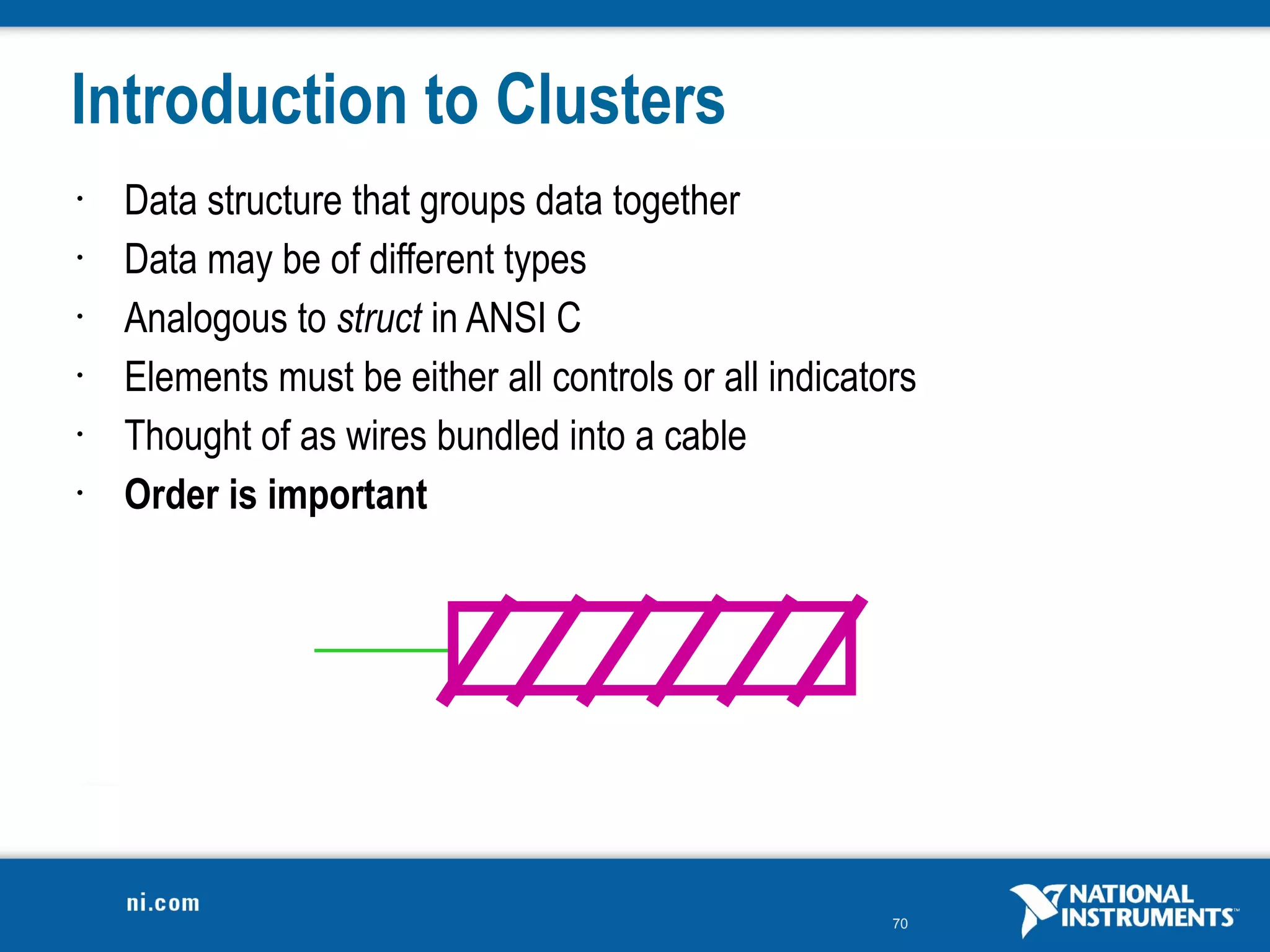
•   Thought of as wires bundled into a cable
•   Order is important


                                                        70
Creating a Cluster
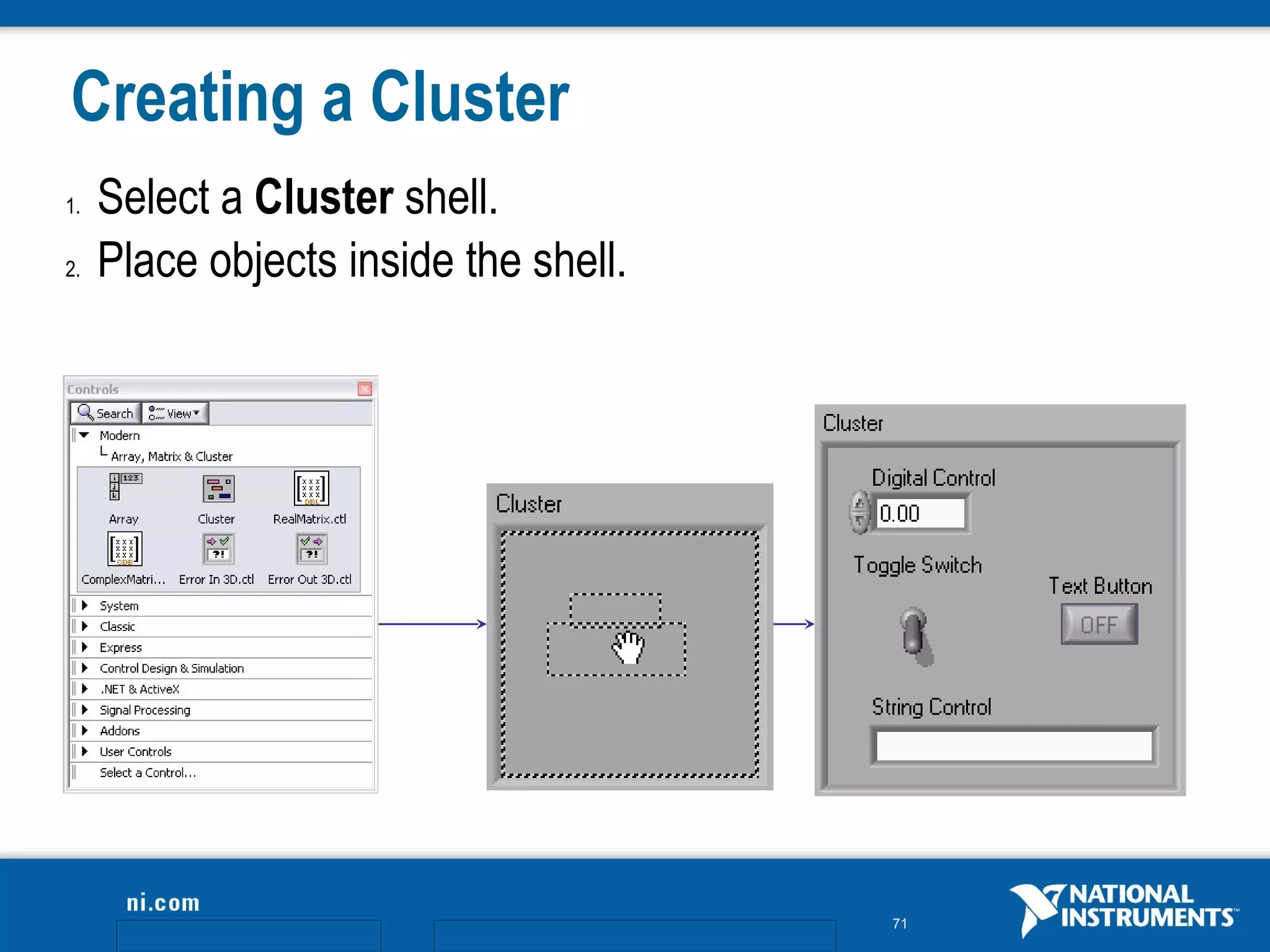
1.   Select a Cluster shell.
2.   Place objects inside the shell.


                                       71
Cluster Functions
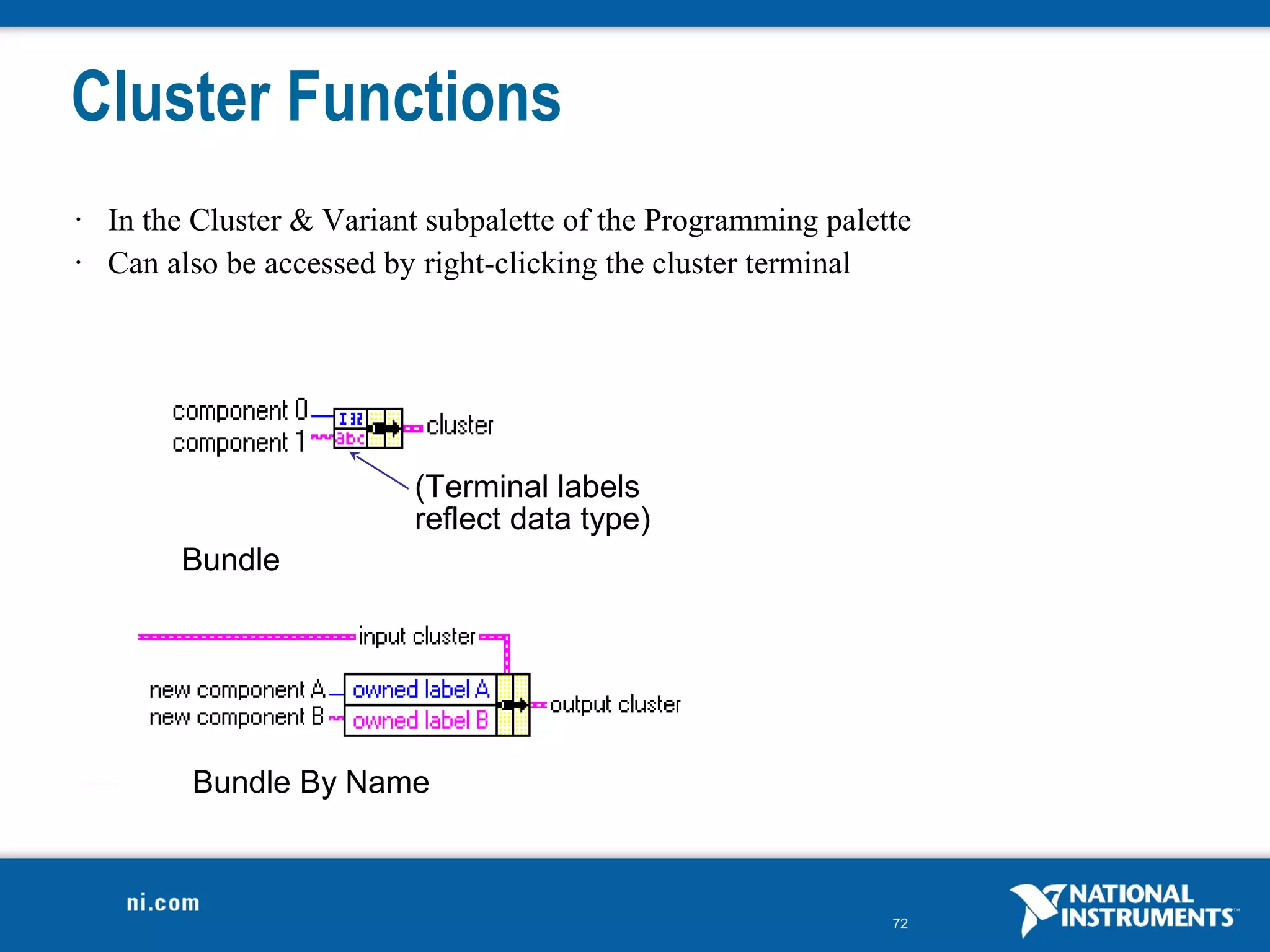
•   In the Cluster & Variant subpalette of the Programming palette
•   Can also be accessed by right-clicking the cluster terminal


                           (Terminal labels
                           reflect data type)
         Bundle


          Bundle By Name


                                                                72
Using Arrays and Clusters with Graphs
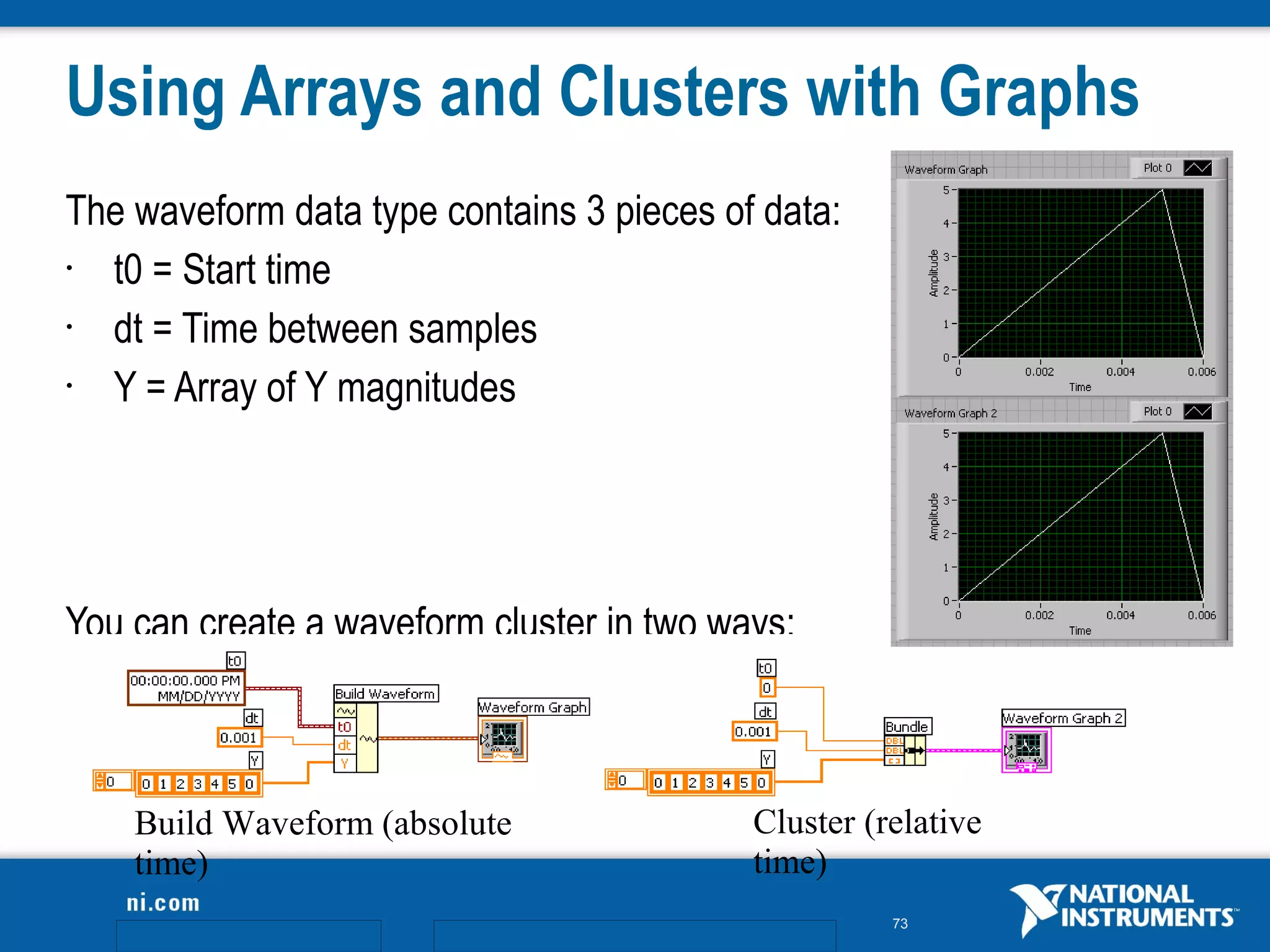
The waveform data type contains 3 pieces of data:
• t0 = Start time
• dt = Time between samples
• Y = Array of Y magnitudes


You can create a waveform cluster in two ways:


    Build Waveform (absolute               Cluster (relative
    time)                                  time)
                                                     73
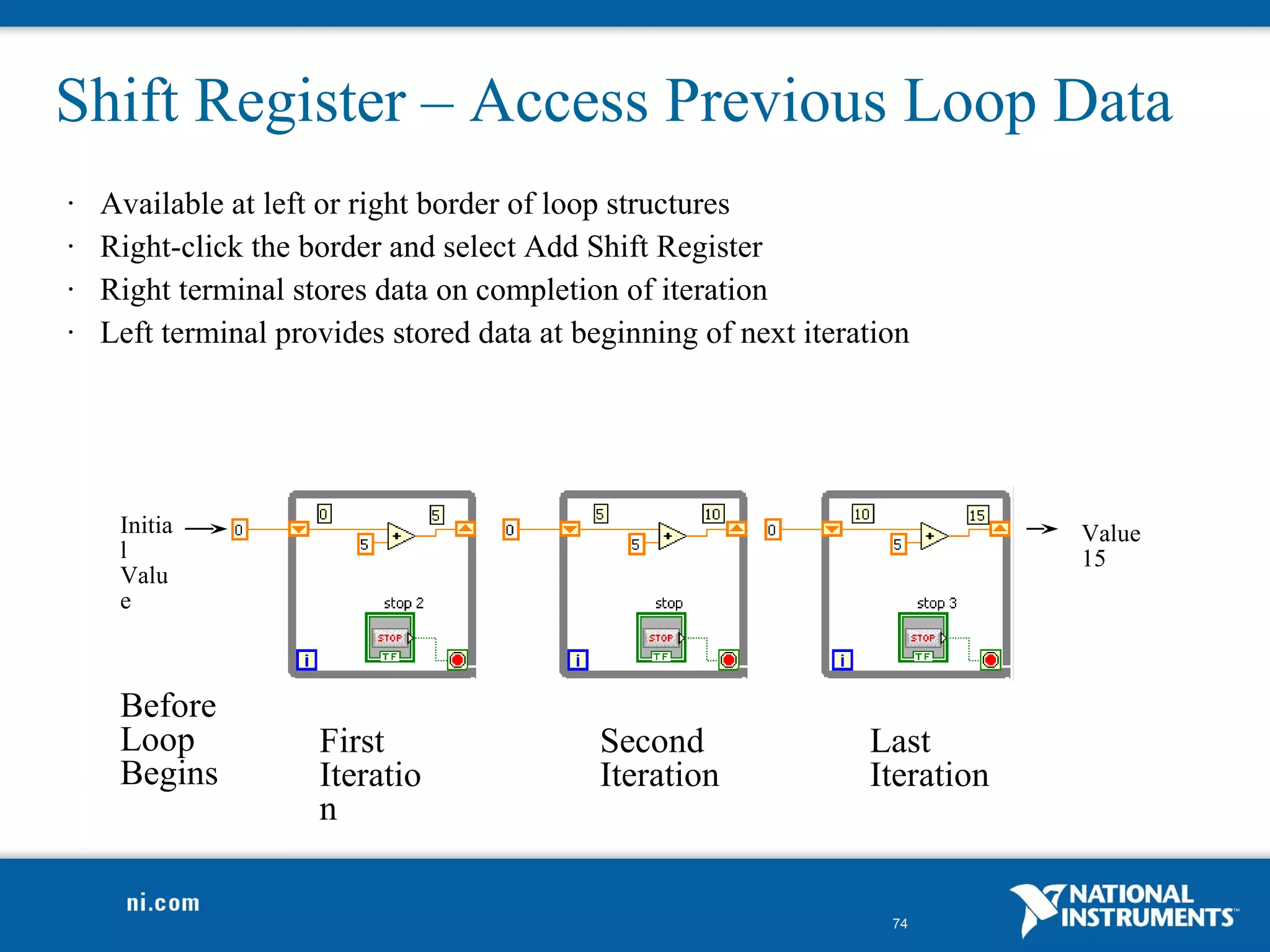
Shift Register – Access Previous Loop Data
•   Available at left or right border of loop structures
•   Right-click the border and select Add Shift Register
•   Right terminal stores data on completion of iteration
•   Left terminal provides stored data at beginning of next iteration


     Initia                                                                  Value
     l                                                                       15
     Valu
     e


     Before
     Loop            First                  Second               Last
     Begins          Iteratio               Iteration            Iteration
                     n


                                                                   74
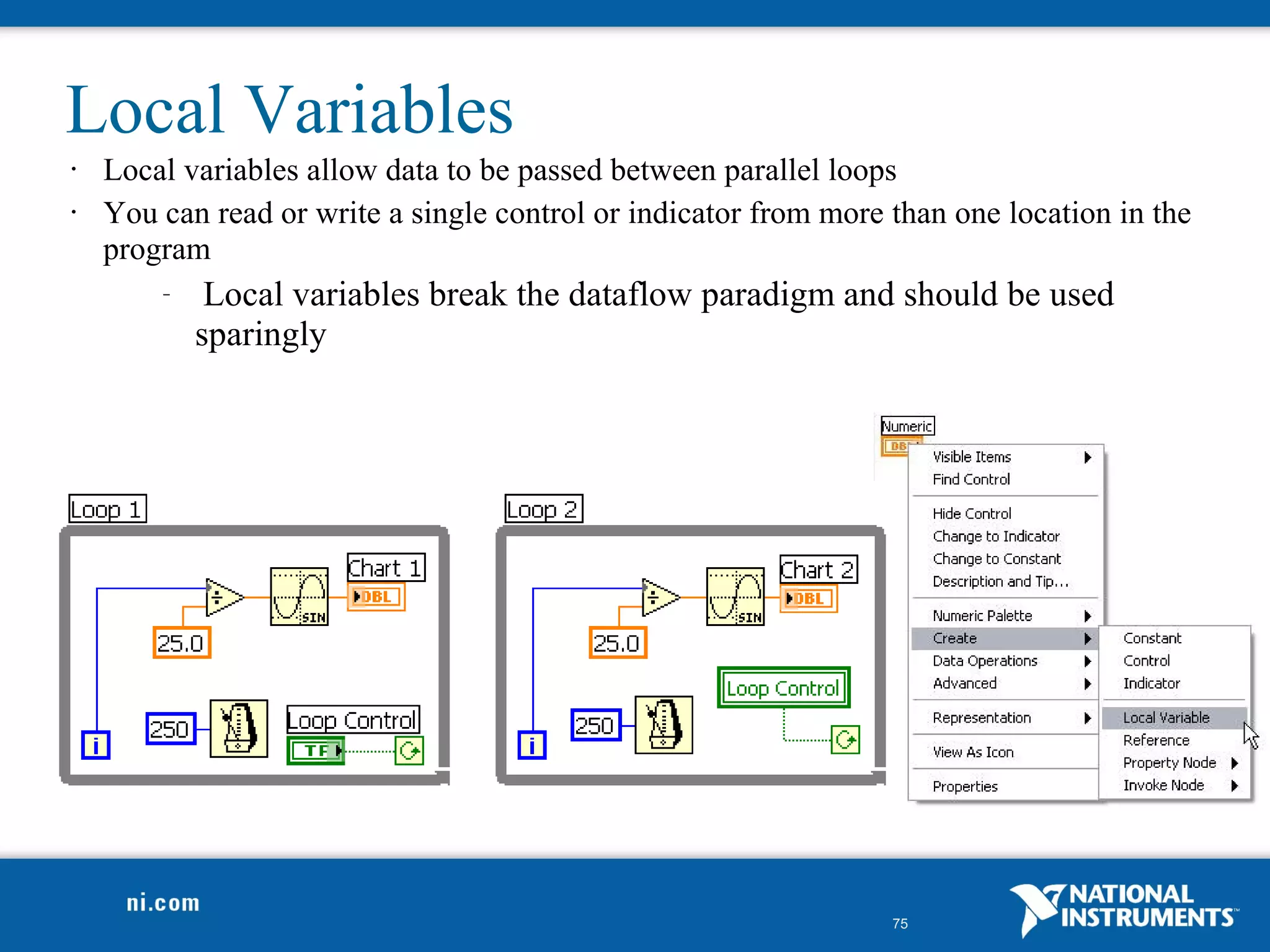
Local Variables
•   Local variables allow data to be passed between parallel loops
•   You can read or write a single control or indicator from more than one location in the
    program
        –    Local variables break the dataflow paradigm and should be used
            sparingly


                                                                  75
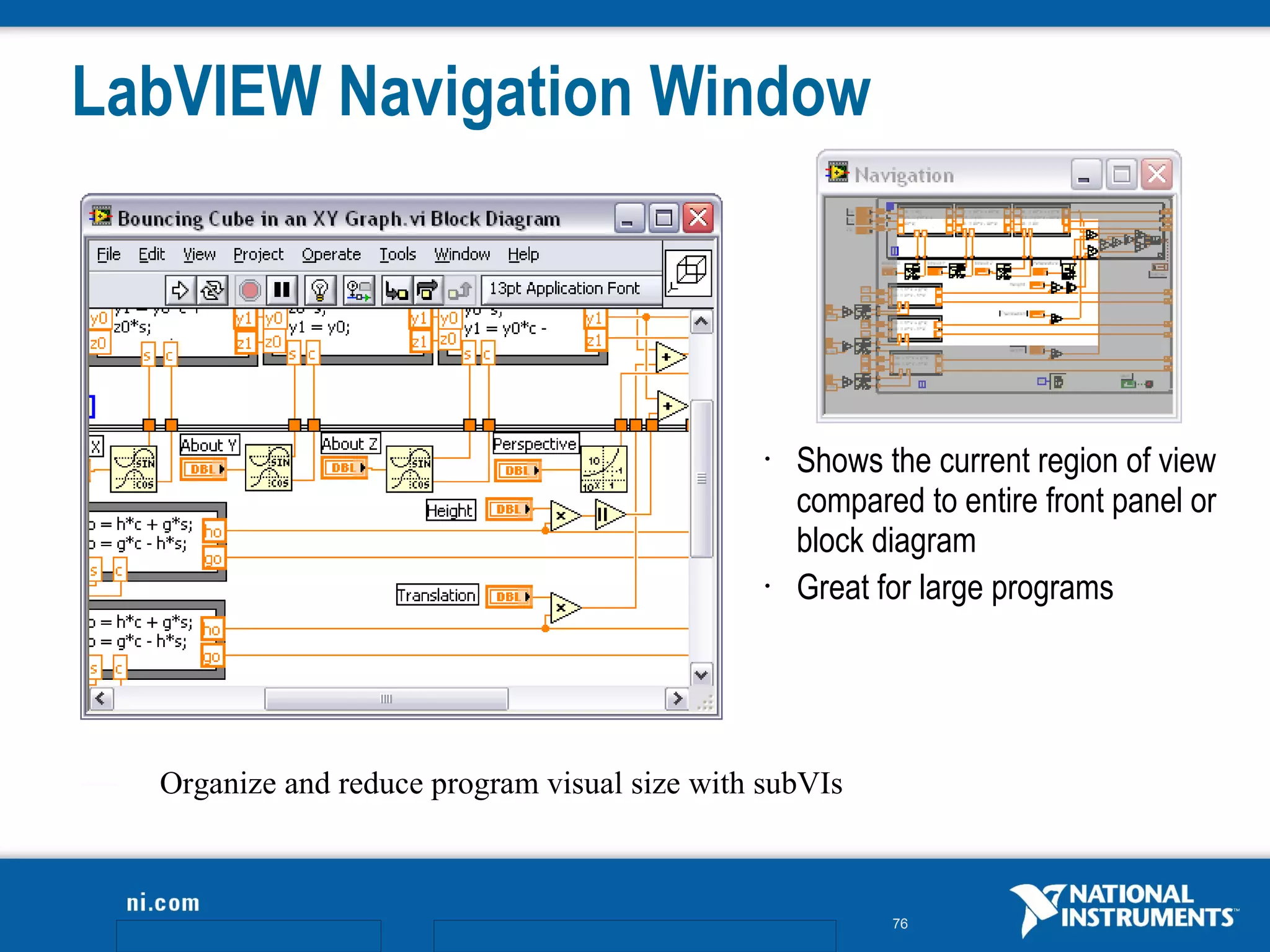
LabVIEW Navigation Window


                                               •   Shows the current region of view
                                                   compared to entire front panel or
                                                   block diagram
                                               •   Great for large programs


  Organize and reduce program visual size with subVIs


                                                          76
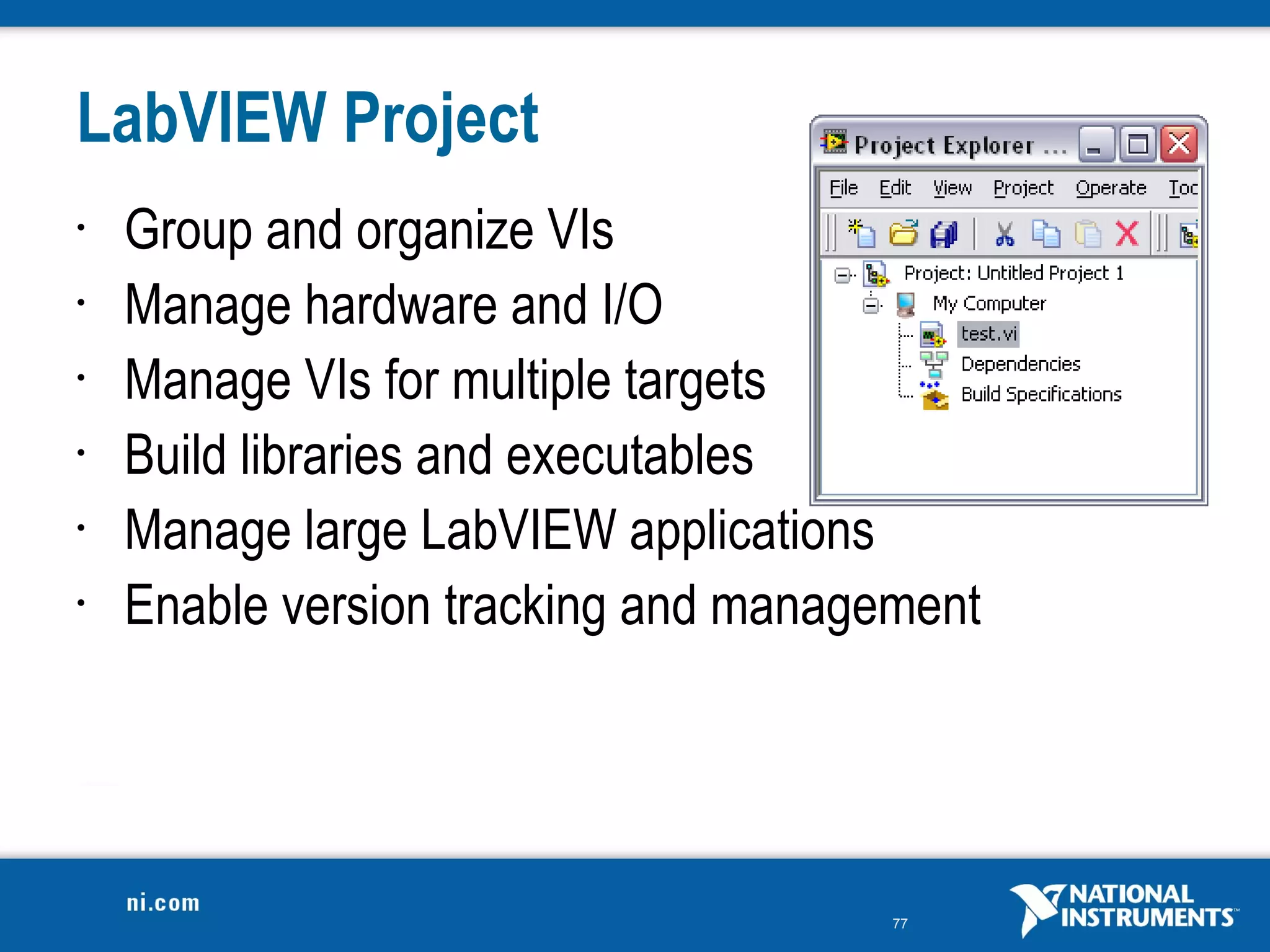
LabVIEW Project
•   Group and organize VIs
•   Manage hardware and I/O
•   Manage VIs for multiple targets
•   Build libraries and executables
•   Manage large LabVIEW applications
•   Enable version tracking and management


                                      77
LabVIEW Case Studies
What can you do with LabVIEW? Tons!
•   Two-Player Chess
•   Ballistic Trajectory Calculator
•   Mouse Position Calculator


                                      78
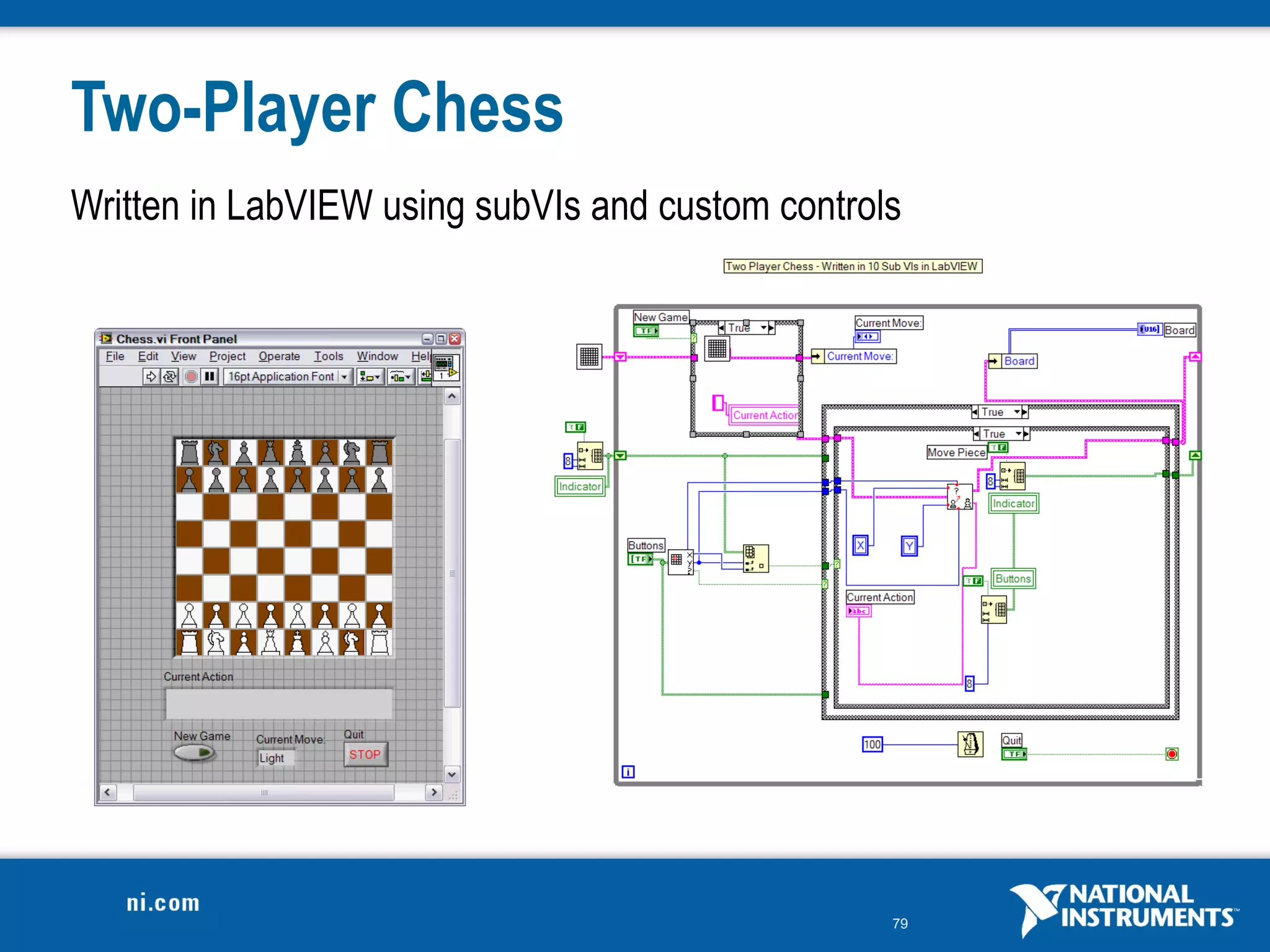
Two-Player Chess
Written in LabVIEW using subVIs and custom controls


                                                  79
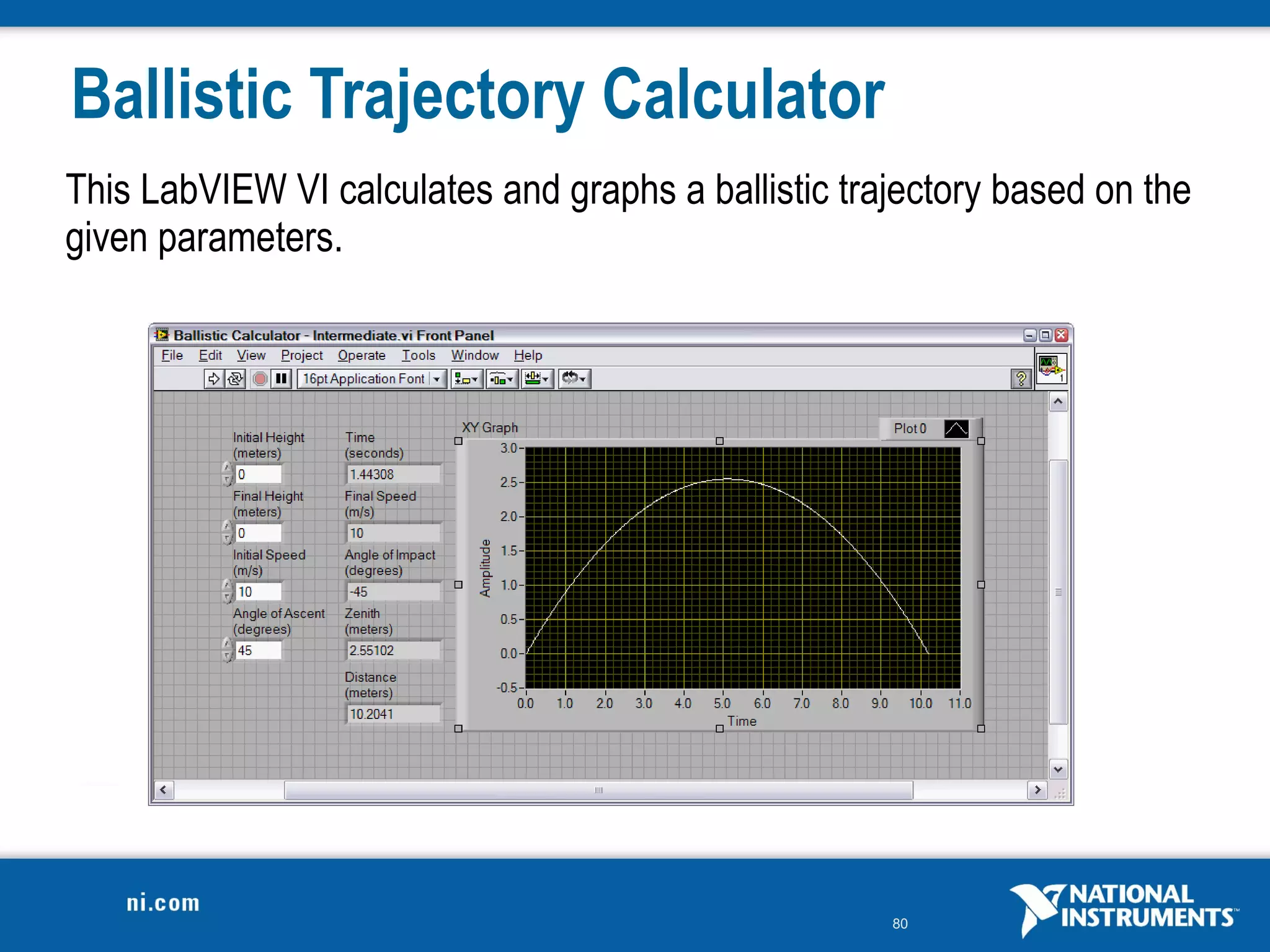
Ballistic Trajectory Calculator
This LabVIEW VI calculates and graphs a ballistic trajectory based on the
given parameters.


                                                     80
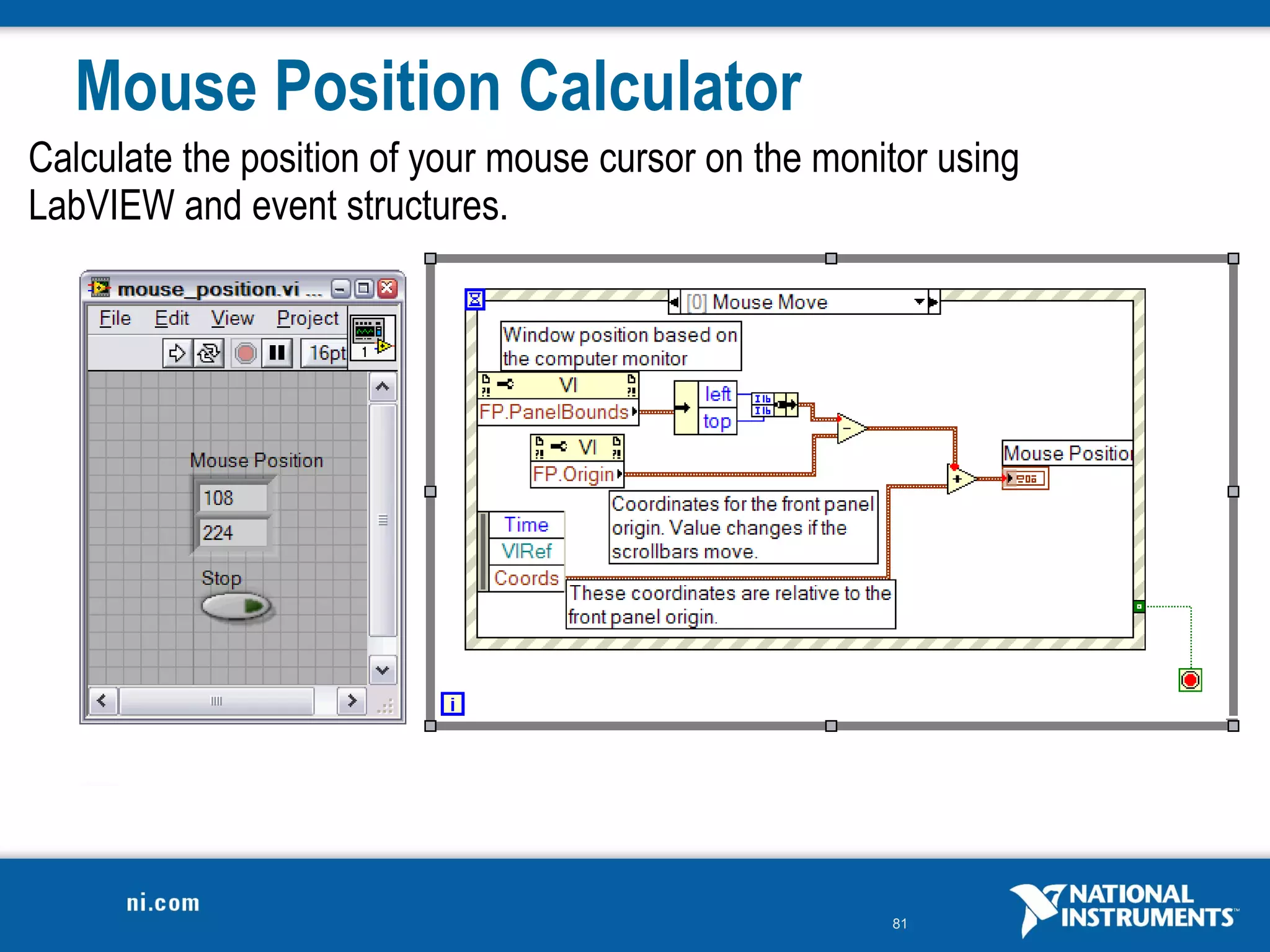
Mouse Position Calculator
Calculate the position of your mouse cursor on the monitor using
LabVIEW and event structures.


                                                       81
What’s New in LabVIEW 8.6?
•   Automatically Clean Up LabVIEW Block
    Diagrams
•   Quick Drop: Find and Place VI Elements
    Faster
•   Web Services: Control Your VIs Online
•   3D Sensor Mapping: Quickly and Easily
    Map Data to 3D Models


                                             82
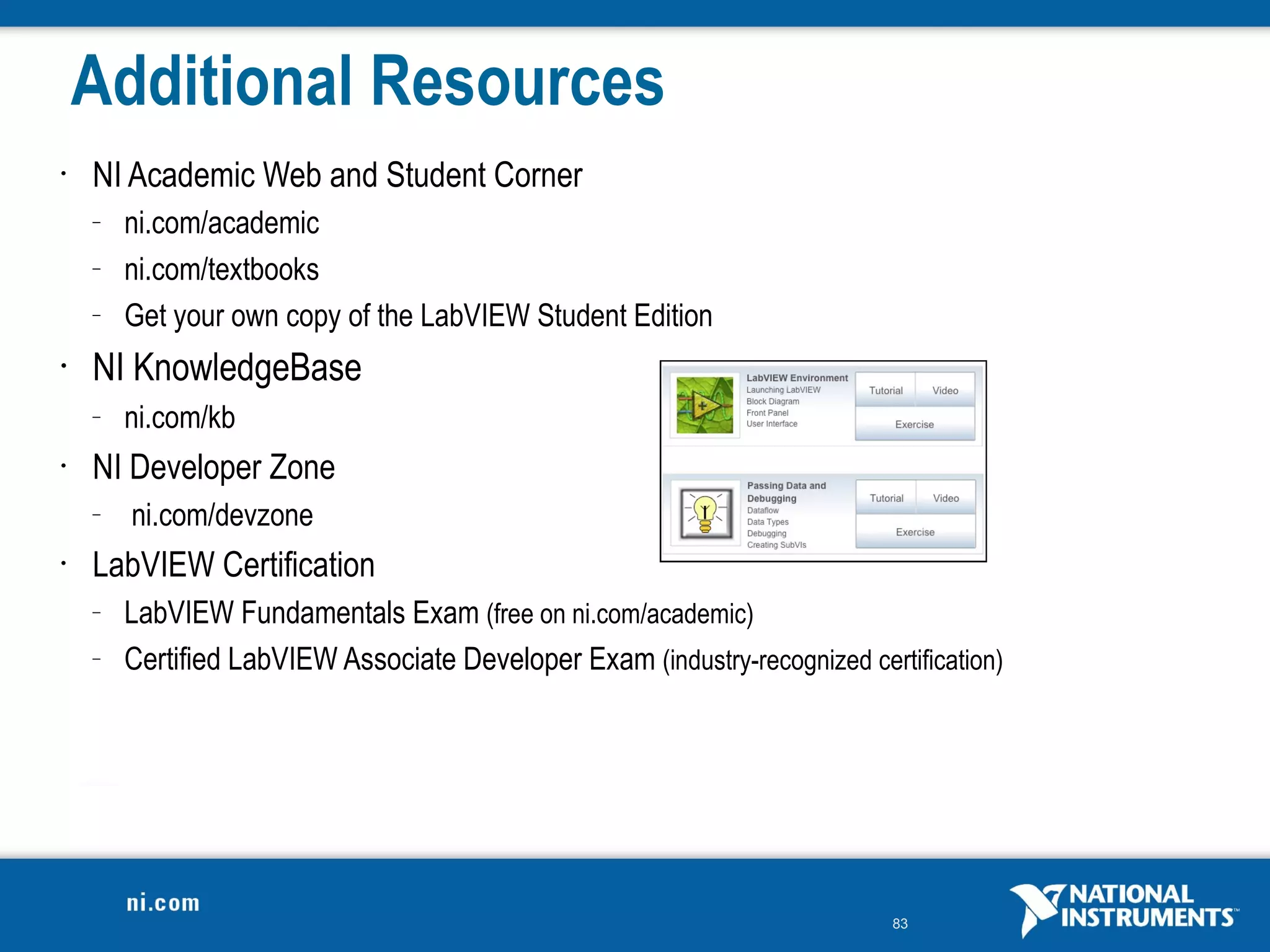
Additional Resources
•   NI Academic Web and Student Corner
    –   ni.com/academic
    –   ni.com/textbooks
    –   Get your own copy of the LabVIEW Student Edition
•   NI KnowledgeBase
    –   ni.com/kb
•   NI Developer Zone
    –   ni.com/devzone
•   LabVIEW Certification
    –   LabVIEW Fundamentals Exam (free on ni.com/academic)
    –   Certified LabVIEW Associate Developer Exam (industry-recognized certification)


                                                                            83
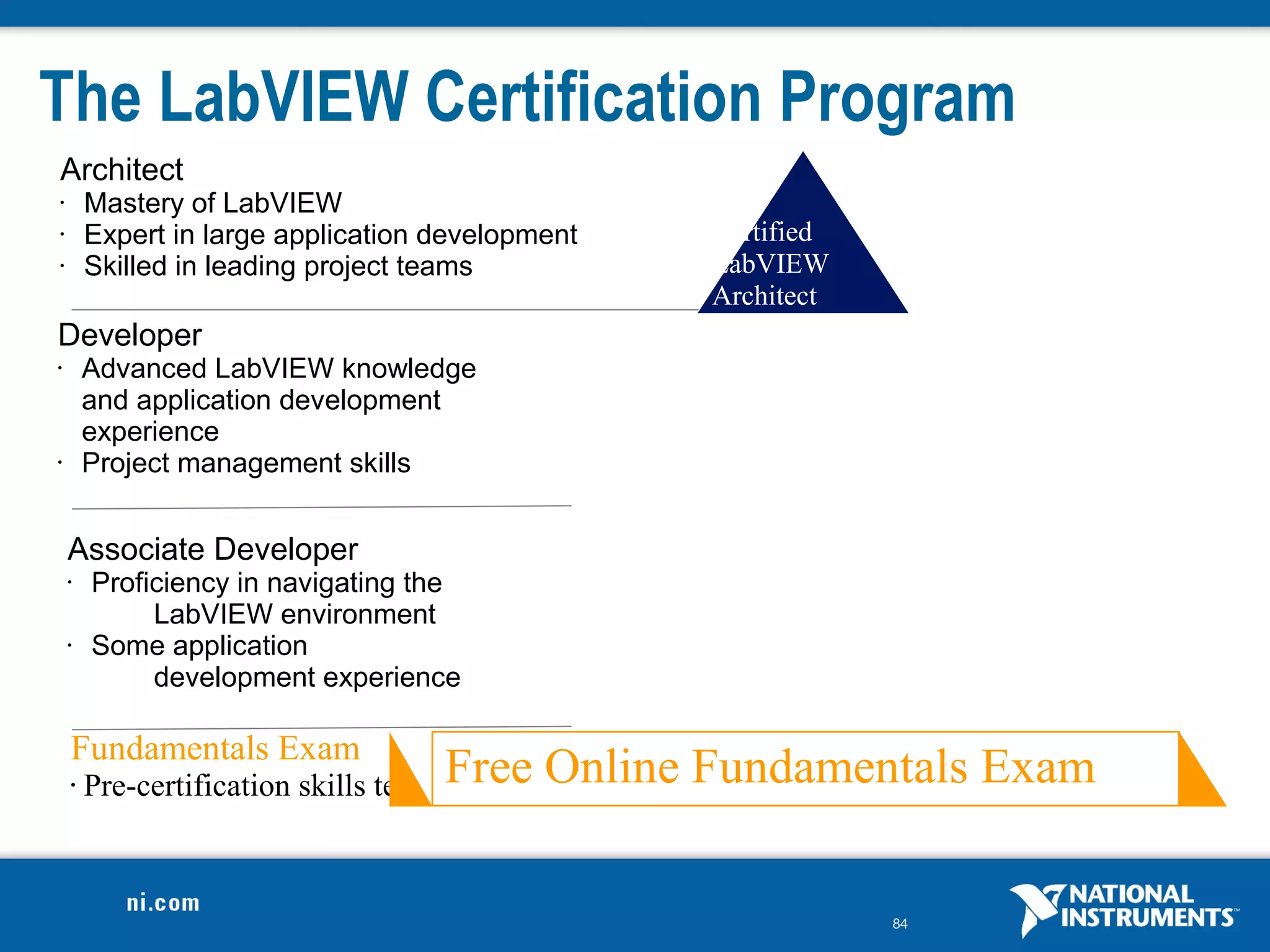
The LabVIEW Certification Program
Architect
•       Mastery of LabVIEW
•       Expert in large application development          Certified
•       Skilled in leading project teams                 LabVIEW
                                                         Architect
Developer
•       Advanced LabVIEW knowledge
        and application development                  Certified LabVIEW
        experience                                   Developer
•       Project management skills


    Associate Developer
    •   Proficiency in navigating the
             LabVIEW environment                  Certified LabVIEW Associate
    •   Some application                          Developer
             development experience

    Fundamentals Exam
    •   Pre-certification skills test   Free Online Fundamentals Exam

                                                                         84
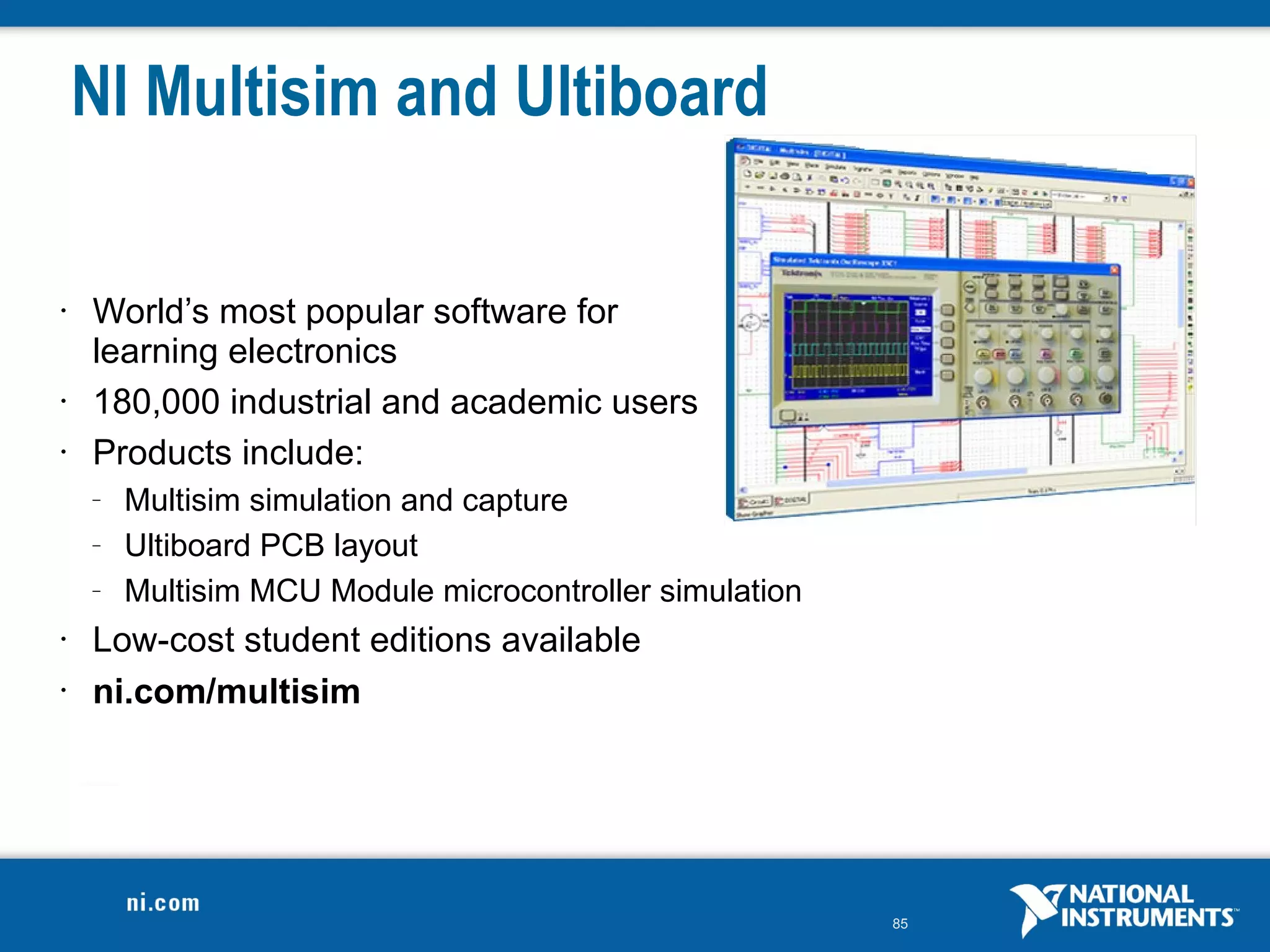
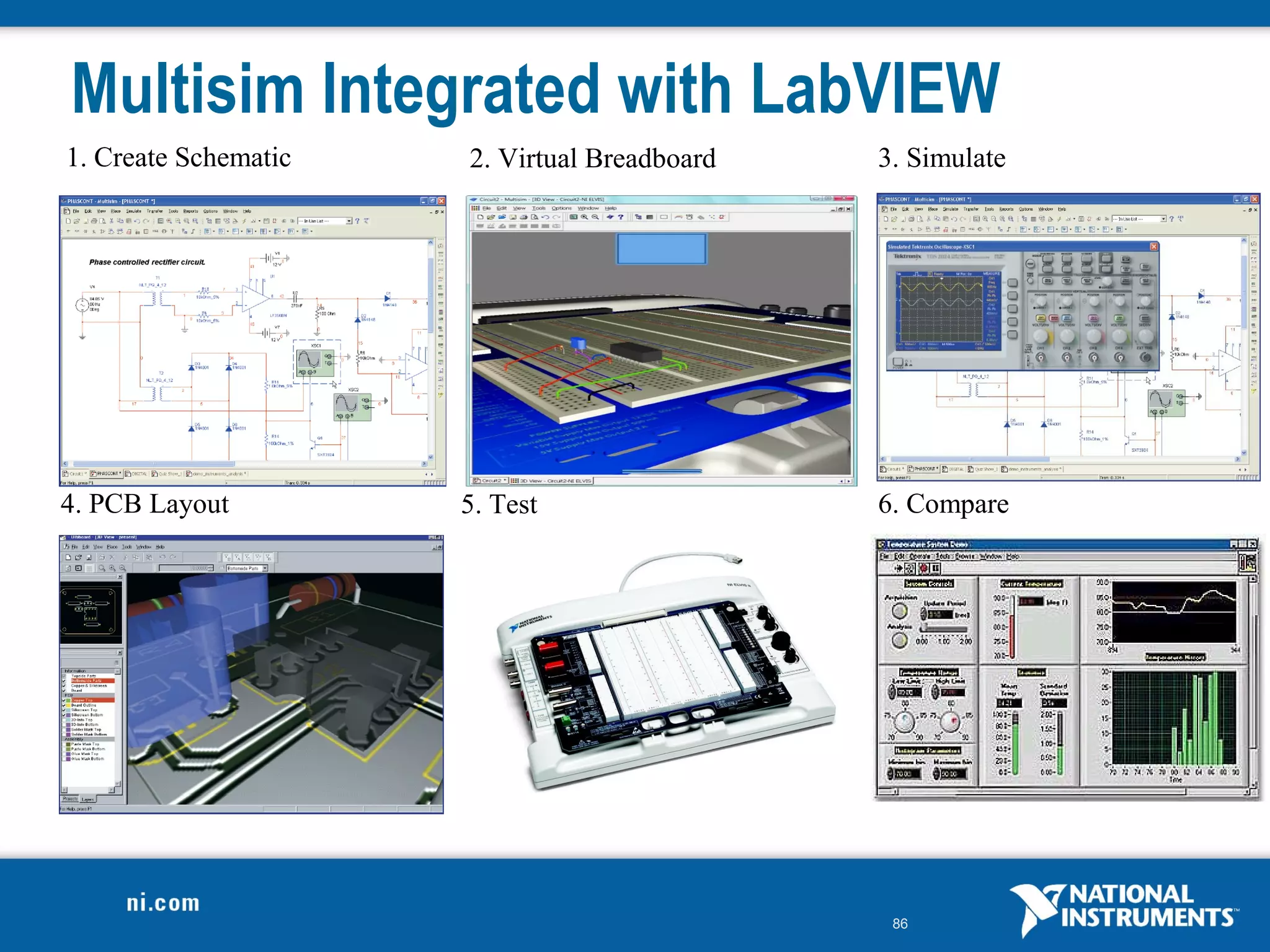
NI Multisim and Ultiboard

•   World’s most popular software for
    learning electronics
•   180,000 industrial and academic users
•   Products include:
    –   Multisim simulation and capture
    –   Ultiboard PCB layout
    –   Multisim MCU Module microcontroller simulation
•   Low-cost student editions available
•   ni.com/multisim


                                                         85
Multisim Integrated with LabVIEW
1. Create Schematic   2. Virtual Breadboard   3. Simulate


4. PCB Layout         5. Test                 6. Compare


                                               86
Your Next Step
   Take the free LabVIEW Fundamentals Exam at ni.com/academic


   Your first step to LabVIEW certification!


                                               87
Do Not Delete
Exercise 2 Solutions


                       88
Do Not Delete
Exercise 3.1 Solutions


                         89
Do Not Delete
Exercise 3.2 Solutions


                         90
Do Not Delete
Exercise 3.3 Solutions


                         91
Do Not Delete
Exercise 4.1 & 4.2 Solutions


                               92
Do Not Delete
Exercise 5 Solutions


                       93

Introduction to lab view 8.6 in 3 hours

  • 1.
    Introduction to LabVIEW GRAPHICAL FOR ENGINEERS PROGRAMMING Place Presenter Information Here AND SCIENTISTS 3-Hour Hands-On 1
  • 2.
    Course Goals • Become comfortable with the LabVIEW environment and data flow execution • Use LabVIEW to solve problems • Learn LabVIEW concepts – Acquiring, saving and loading data – Finding and using math and complex analysis functions – Working with data types, such as arrays and clusters – Displaying and printing results 2
  • 3.
  • 4.
    LabVIEW Graphical DevelopmentSystem • Graphical programming environment • Compiles code for multiple OS and devices • Useful in a broad range of applications 4
  • 5.
    Virtual Instrumentation Applications • Design – Signal and image processing A single graphical development – Embedded system programming platform • (PC, DSP, FPGA, Design Prototy Deploy microcontroller) – Simulation and prototyping pe – And more … • Control – Automatic controls and dynamic systems – Mechatronics and robotics – And more … • Measurements – Circuits and electronics – Measurements and instrumentation – And more … 5
  • 6.
    The NI Approach– Integrated Hardware Platforms PXI Modular Desktop Laptop PD Instrumentation PC PC A High- High-Resolution Multifunction Dynamic Instrumen Digital I/ Counter Machin Motio Distributed I/O Speed Digitizers and Data Signal t O / e n and Digitizers DMMs Acquisition Acquisition Control Timers Vision Contro Embedded l Control Signal Conditioning and Switching Unit Under Test 6
  • 7.
    Section I –LabVIEW Environment A. Setting Up Your Hardware • Data Acquisition Devices – NI-DAQmx – Simulated data acquisition – Sound card B. What Type of Device Should I Use? • Controls Palette • Tools Palette C. Components of a LabVIEW Application • Creating Custom VIs • Dataflow Programming D. Additional Help • Context Help Window • Tips for Working in LabVIEW 7
  • 8.
    A. Setting UpYour Hardware • Data Acquisition Device (DAQ) Track – Actual USB, PCI, or PXI device A – Configured in Measurement and Automation Explorer (MAX) • Simulated Data Acquisition Device (DAQ) – Software simulated at the driver level – Configured in MAX Track B • Sound Card Track – Built into most computers C 8
  • 9.
    Do Not Delete – Notes on hardware setup 9
  • 10.
    What Type ofDevice Should I Use? Sound NI USB DAQ NI PCI DAQ Instruments* Card* AI Bandwidth 8 to 44 kS/s 10 kS/s to 1.25 MS/s 20 kS/s to 10 MS/s 100 S/s to 2 GS/s Accuracy 12 to 16 bits 12 to 18 bits 12 to 18 bits 8 to 26 bits Portable   — some AI Channels 2 8 to 80 2 to 80 1 to 80 AO Channels 2 2 to 4 2 to 8 2 to 8 AC or DC AC AC/DC AC/DC AC/DC Triggering —    Calibrated —    * The above table may not be representative of all device variations that exist in each category 10
  • 11.
    What is MAX? • Stands for Measurement & Automation Explorer • Configures and organizes all your National Instruments DAQ, PCI/PXI, GPIB, IMAQ, IVI, motion, VISA, and VXI devices • Tests devices Icon Found on Windows Desktop 11
  • 12.
    Exercise 1 –Setting Up Your Device • Use Measurement and Automation Explorer (MAX) to: Track A – Configure and test your Data Acquisition (DAQ) device 12
  • 13.
    Do Not Delete ExerciseInstructions 13
  • 14.
    Exercise 1 –Setting Up Your Device • Use Measurement and Automation Explorer (MAX) to: Track B – Configure and test your Simulated Data Acquisition (DAQ) device 14
  • 15.
    Do Not Delete ExerciseInstructions 15
  • 16.
    Exercise 1 –Setting Up Your Device Track C • Use Windows to: – Verify your Sound Card Un-Mute Microphone 16
  • 17.
    Open and RunLabVIEW Start»All Programs»National Instruments LabVIEW 8.6 » Startup Screen: Start from a blank VI: New»Blank VI or Start from an example: Examples»Find Examples… 17
  • 18.
    LabVIEW Programs AreCalled Virtual Instruments (VIs) Each VI has 2 windows Front Panel • User interface (UI) – Controls = inputs – Indicators = outputs Block Diagram • Graphical code – Data travels on wires from controls through functions to indicators – Blocks execute by data flow 18
  • 19.
    Controls Palette (Place items on the front panel window) Control: Customize Numeric Palette View Indicator: Numeric Slide 19
  • 20.
    Functions (and Structures)Palette (Place items on the block diagram window) Structure: While Loop 20
  • 21.
    Tools Palette • Recommended: Automatic Selection Tool • Tools to operate and modify both front panel and block diagram objects Automatic Selection Tool Automatically chooses among the following tools: Operating Tool Positioning/Resizing Tool Labeling Tool Wiring Tool 21
  • 22.
    Status Toolbar Run Button Continuous Run Button Abort Execution Additional Buttons on the Diagram Toolbar Execution Highlighting Button Retain Wire Values Button Step Function Buttons 22
  • 23.
    Do Not Delete ExerciseInstructions 23
  • 24.
    Demonstration 1: Creatinga VI Front Panel Window Graph Indicato r Block Diagram Window Output Termina l Boolea n Control Input Terminal s 24
  • 25.
    Common Data TypesFound in LabVIEW 25
  • 26.
    Dataflow Programming • Block diagram execution – Dependent on the flow of data – Block diagram does NOT execute left to right • Node executes when data is available to ALL input terminals • Nodes supply data to all output terminals when done 26
  • 27.
    Debugging Techniques • Finding Errors Click on broken Run • Execution Highlighting button. Window showing error appears. Click on Execution Highlighting button; data flow • Probes is animated using bubbles. Values are displayed on wires. Right-click on wire to display probe; it shows data as it flows through wire segment. You can also select Probe tool from Tools palette and click on wire. 27
  • 28.
    Exercise 2 –Acquiring a Signal with DAQ Track A & B • Use a LabVIEW template to: – Acquire a signal from your DAQ device This exercise should take 15 minutes. 28
  • 29.
    Do Not Delete ExerciseInstructions 29
  • 30.
    Do Not Delete ExerciseInstructions 30
  • 31.
    Do Not Delete ExerciseInstructions 31
  • 32.
    Exercise 2 –Acquiring a Signal with the Sound Card Track C • Use LabVIEW to: – Acquire a signal from your sound card This exercise should take 15 minutes. 32
  • 33.
    Context Help Window • Help»Show Context Help, press the <Ctrl-H> keys • Hover cursor over object to update window Additional Help – Right-click on the VI icon and choose Help, or – Choose “Detailed help” on the context help window 33
  • 34.
    Tips for Workingin LabVIEW • Keystroke Shortcuts – <Ctrl-H> – Activate/Deactivate Context Help Window – <Ctrl-B> – Remove Broken Wires from Block Diagram – <Ctrl-E> – Toggle between Front Panel and Block Diagram – <Ctrl-Z> – Undo (also in Edit menu) • Tools»Options… – Set Preferences in LabVIEW • File»VI Properties – Configure VI Appearance, Documentation, and so on 34
  • 35.
    Section II –Elements of Typical Programs A. Loops • While Loop • For Loop B. Functions and SubVIs • Three Types of Functions (from the Functions Palette) • Creating SubVIs • Functions Palette and Searching C. Decision Making and File I/O • Case Structure • Select (simple If statement) • File I/O Programming Model – Under the Hood 35
  • 36.
    A. Loops While Loop • While Loop – Terminal counts iterations – Always runs at least once – Runs until stop condition is met For Loop • For Loop – Terminal counts iterations – Runs according to input N of count terminal 36
  • 37.
    Drawing a Loop 2. Enclose code to be repeated 1. Select the structure 3. Drop or drag additional nodes and then wire 37
  • 38.
    Three Types ofFunctions (from the Functions Palette) Express VIs: interactive VIs with configurable dialog page (blue border) Standard VIs: modularized VIs customized by wiring (customizable) Functions: fundamental operating elements of LabVIEW; no front panel or block diagram (yellow) 38
  • 39.
    What Types ofFunctions Are Available? • Input and Output Express Functions Palette – Signal and data simulation – Real signal acquisition and generation with DAQ – Instrument I/O Assistant (Serial and GPIB) – ActiveX for communication with other programs • Analysis – Signal processing – Statistics – Advanced math and formulas – Continuous time solver • Storage – File I/O 39
  • 40.
    Searching for Controls,VIs, and Functions • Palettes are filled with hundreds of VIs • Press the search button to index all VIs for text searching • Click and drag an item from the search window to the block diagram • Double-click an item to open the owning palette 40
  • 41.
    Creating SubVIs • Enclose area to be converted into a subVI • Select Edit»Create SubVI from the Edit menu 41
  • 42.
    LabVIEW Functions andSubVIs Operate Like Functions in Other Languages Function Pseudo Code Calling Program Pseudo Code function average (in1, in2, out) main { { out = (in1 + in2)/2.0; average (in1, in2, pointavg) } } SubVI Block Diagram Calling VI Block Diagram 42
  • 43.
    Exercise 3.1 –Analysis Track A, B, & C • Use LabVIEW Express VIs to: – Simulate a signal and display its amplitude and frequency This exercise should take 15 minutes. 43
  • 44.
    Do Not Delete ExerciseInstructions 44
  • 45.
    Exercise 3.2 –Analysis Track A • Use LabVIEW Express VIs to: – Acquire a signal and display its amplitude and frequency This exercise should take 15 minutes. 45
  • 46.
    Exercise 3.2 –Analysis Track B • Use LabVIEW Express VIs to: – Acquire a signal and display its amplitude and frequency This exercise should take 15 minutes. 46
  • 47.
    Exercise 3.2 –Analysis Track C • Use LabVIEW Express VIs to: – Acquire a signal and display its amplitude and frequency This exercise should take 15 minutes. 47
  • 48.
    How Do IMake Decisions in LabVIEW? 1. Case Structures (a) (b) (c) 48
  • 49.
    File I/O File I/O– passing data to and from files • Files can be binary, text, or spreadsheet • Write/Read LabVIEW Measurements file (*.lvm) Writing to *.lvm file Reading from *.lvm file 49
  • 50.
    Exercise 3.3 –Decision Making and Saving Data Tracks A,B,C • Use a case structure to: – Make a VI that saves data when a condition is met This exercise should take 15 minutes. 50
  • 51.
    File I/O ProgrammingModel – Under the Hood Open/ Read Close Check for Create/ and/or File Errors Replace File Write to File 51
  • 52.
    Section III–Presenting YourResults A. Displaying Data on the Front Panel • Controls and Indicators • Graphs and Charts • Building Arrays with Loops • Loop Timing B. Signal Processing • Math with the LabVIEW MathScript Node • Arrays • Clusters • Waveforms 52
  • 53.
    What Types ofControls and Indicators Are Available? • Numeric Data – Number Input and Display Express Controls Palette – Analog Sliders, Dials, and Gauges • Boolean Data – Buttons and LEDs • Array and Matrix Data – Numeric Display – Chart – Graph – XY Graph – Intensity Graph – 3D Graph: Point, Surface, and Model • Decorations – Tab Control – Arrows • Other – Strings and Text Boxes – Picture/Image Display – ActiveX Controls 53
  • 54.
    Charts – Add1 Data Point at a Time with History Waveform chart – special numeric indicator that can display a history of values • Chart updates with each individual point it receives Controls»Express»Graph Indicators»Chart 54
  • 55.
    Graphs – DisplayMany Data Points at Once Waveform graph – special numeric indicator that displays an array of data • Graph updates after all points have been collected • May be used in a loop if VI collects buffers of data Controls»Express»Graph Indicators»Graph 55
  • 56.
    Building Arrays withLoops (Auto-Indexing) • Loops can accumulate arrays Auto-Indexing Enabled at their boundaries with auto- Wire becomes indexing thicker • For Loops auto-index by default • While Loops output only the 1D Array final value by default • Right-click tunnel and enable/ 012345 disable auto-indexing Auto-Indexing Disabled Wire remains the same size Only one value (last 5 iteration) is passed out of the loop 56
  • 57.
    Creating an Array(Step 1 of 2) From the Controls»Modern»Array, Matrix, and Cluster subpalette, select the Array icon. Drop it on the front panel. 57
  • 58.
    Create an Array(Step 2 of 2) 1. Place an array shell. 2. Insert data type into the shell (i.e., numeric control). 58
  • 59.
    How Do ITime a Loop? 1. Loop Time Delay • Configure the Time Delay Express VI for seconds to wait each iteration of the loop (works on For and While Loops). 2. Timed Loops •. Configure special timed While Loop for desired dt. Time Delay Timed Loop 59
  • 60.
    Control and IndicatorProperties • Properties are characteristics or qualities about an object • Properties can be found by right-clicking on a control or indicator • Properties include: – Size – Color – Plot style – Plot color • Features include: – Cursors – Scaling 60
  • 61.
    Exercise 4.1 –Manual Analysis Track A, B, & C • Use the cursor legend on a graph to: – Verify your frequency and amplitude measurements This exercise should take 15 minutes. 61
  • 62.
    Textual Math inLabVIEW • Integrate existing scripts with LabVIEW for faster development • Use interactive, easy-to-use, hands-on learning environment • Develop algorithms, explore mathematical concepts, and analyze results using a single environment • Choose the most effective syntax, whether graphical or textual within one VI 62 MATLAB ® is a registered trademark of The
  • 63.
    Math with theLabVIEW MathScript Node • Implement equations and algorithms textually • Input and output variables created at the border • Generally compatible with popular .m file script language • Terminate statements with a semicolon to disable immediate output (Functions»Programming » Structures»MathScript) Prototype your equations in the interactive LabVIEW MathScript Window. 63
  • 64.
    The Interactive LabVIEWMathScript Window • Rapidly develop and test algorithms • Share scripts and variables with the node Variable • View/modify variable Output Workspace content in 1D, 2D, and 3D Window View/Modify Variable Contents User .m file Commands Script (LabVIEW»Tools»MathScript Window) 64
  • 65.
    Exercise 3.2 –Using MathScript Track A,B,&C Use the MathScript Node and Interactive Window to process the acquired signal (logarithmic decay) in the MathScript and save the script. This exercise should take 25 minutes. 65
  • 66.
    Do Not Delete ExerciseInstructions 66
  • 67.
    Do Not Delete ExerciseInstructions 67
  • 68.
    Exercise 5 –Apply What You Have Learned This exercise should take 20 Track A, B, & C minutes. 68
  • 69.
    Section IV –Advanced Dataflow Topics (Optional) A. Additional Data Types • Cluster B. Dataflow Constructs • Shift Register – Access Previous Loop Data • Local Variables C. Large Application Development • LabVIEW Navigation Window • LabVIEW Projects 69
  • 70.
    Introduction to Clusters • Data structure that groups data together • Data may be of different types • Analogous to struct in ANSI C • Elements must be either all controls or all indicators • Thought of as wires bundled into a cable • Order is important 70
  • 71.
    Creating a Cluster 1. Select a Cluster shell. 2. Place objects inside the shell. 71
  • 72.
    Cluster Functions • In the Cluster & Variant subpalette of the Programming palette • Can also be accessed by right-clicking the cluster terminal (Terminal labels reflect data type) Bundle Bundle By Name 72
  • 73.
    Using Arrays andClusters with Graphs The waveform data type contains 3 pieces of data: • t0 = Start time • dt = Time between samples • Y = Array of Y magnitudes You can create a waveform cluster in two ways: Build Waveform (absolute Cluster (relative time) time) 73
  • 74.
    Shift Register –Access Previous Loop Data • Available at left or right border of loop structures • Right-click the border and select Add Shift Register • Right terminal stores data on completion of iteration • Left terminal provides stored data at beginning of next iteration Initia Value l 15 Valu e Before Loop First Second Last Begins Iteratio Iteration Iteration n 74
  • 75.
    Local Variables • Local variables allow data to be passed between parallel loops • You can read or write a single control or indicator from more than one location in the program – Local variables break the dataflow paradigm and should be used sparingly 75
  • 76.
    LabVIEW Navigation Window • Shows the current region of view compared to entire front panel or block diagram • Great for large programs Organize and reduce program visual size with subVIs 76
  • 77.
    LabVIEW Project • Group and organize VIs • Manage hardware and I/O • Manage VIs for multiple targets • Build libraries and executables • Manage large LabVIEW applications • Enable version tracking and management 77
  • 78.
    LabVIEW Case Studies Whatcan you do with LabVIEW? Tons! • Two-Player Chess • Ballistic Trajectory Calculator • Mouse Position Calculator 78
  • 79.
    Two-Player Chess Written inLabVIEW using subVIs and custom controls 79
  • 80.
    Ballistic Trajectory Calculator ThisLabVIEW VI calculates and graphs a ballistic trajectory based on the given parameters. 80
  • 81.
    Mouse Position Calculator Calculatethe position of your mouse cursor on the monitor using LabVIEW and event structures. 81
  • 82.
    What’s New inLabVIEW 8.6? • Automatically Clean Up LabVIEW Block Diagrams • Quick Drop: Find and Place VI Elements Faster • Web Services: Control Your VIs Online • 3D Sensor Mapping: Quickly and Easily Map Data to 3D Models 82
  • 83.
    Additional Resources • NI Academic Web and Student Corner – ni.com/academic – ni.com/textbooks – Get your own copy of the LabVIEW Student Edition • NI KnowledgeBase – ni.com/kb • NI Developer Zone – ni.com/devzone • LabVIEW Certification – LabVIEW Fundamentals Exam (free on ni.com/academic) – Certified LabVIEW Associate Developer Exam (industry-recognized certification) 83
  • 84.
    The LabVIEW CertificationProgram Architect • Mastery of LabVIEW • Expert in large application development Certified • Skilled in leading project teams LabVIEW Architect Developer • Advanced LabVIEW knowledge and application development Certified LabVIEW experience Developer • Project management skills Associate Developer • Proficiency in navigating the LabVIEW environment Certified LabVIEW Associate • Some application Developer development experience Fundamentals Exam • Pre-certification skills test Free Online Fundamentals Exam 84
  • 85.
    NI Multisim andUltiboard • World’s most popular software for learning electronics • 180,000 industrial and academic users • Products include: – Multisim simulation and capture – Ultiboard PCB layout – Multisim MCU Module microcontroller simulation • Low-cost student editions available • ni.com/multisim 85
  • 86.
    Multisim Integrated withLabVIEW 1. Create Schematic 2. Virtual Breadboard 3. Simulate 4. PCB Layout 5. Test 6. Compare 86
  • 87.
    Your Next Step Take the free LabVIEW Fundamentals Exam at ni.com/academic Your first step to LabVIEW certification! 87
  • 88.
    Do Not Delete Exercise2 Solutions 88
  • 89.
    Do Not Delete Exercise3.1 Solutions 89
  • 90.
    Do Not Delete Exercise3.2 Solutions 90
  • 91.
    Do Not Delete Exercise3.3 Solutions 91
  • 92.
    Do Not Delete Exercise4.1 & 4.2 Solutions 92
  • 93.
    Do Not Delete Exercise5 Solutions 93