ITE PC v4.1 
Chapter 6 © 2007-2010 Cisco Systems, Inc. All rights reserved. Cisco Public 
1 
Chapter 8: Mobile 
Devices 
IT Essentials: PC Hardware and Software v5.0
Chapter 8 Objectives 
 8.0 Describe mobile devices 
 8.1 Identify mobile device hardware and that most parts 
are not field replaceable 
 8.2 Compare and contrast Android and iOS mobile 
operating systems 
 8.3 Explain how to configure network and email 
connectivity on mobile devices. 
 8.4 Identify methods for securing mobile devices 
 8.5 Describe how to troubleshoot mobile devices 
ITE PC v4.1 
Chapter 6 © 2007-2010 Cisco Systems, Inc. All rights reserved. Cisco Public 2
Mobile Devices 
 A mobile device is any device that is hand-held, light, and typically 
uses a touchscreen for input. 
 Mobile devices use an operating system to run applications (apps), 
games, and play movies and music 
 Examples are - Android devices, such as the Samsung Galaxy 
tablet and Galaxy Nexus smartphone, and the Apple iPad and 
iPhone. 
 Many mobile device components, operating systems, and software 
are proprietary so It is important to become familiar with as many 
different mobile devices as possible. 
ITE PC v4.1 
Chapter 6 © 2007-2010 Cisco Systems, Inc. All rights reserved. Cisco Public 3
Non-Field Serviceable Parts 
 Mobile devices do not have field-serviceable parts. 
 Broken devices usually sent to the manufacturer for 
repair or replacement. 
 Installing parts from sources other than the manufacturer 
voids the manufacturer’s warranty and might harm the 
device. 
 There are a few mobile device parts that are field-replaceable: 
•Battery 
•Memory card 
•Subscriber Identity Module (SIM) card 
ITE PC v4.1 
Chapter 6 © 2007-2010 Cisco Systems, Inc. All rights reserved. Cisco Public 4
Non-Upgradeable Hardware 
 Mobile device hardware is typically not upgradeable. 
 Many of the components in a mobile device are 
connected directly to circuit boards. 
 Batteries and memory cards, however, can often be 
replaced with items that have larger capacities. 
 Some functionality can be added to mobile devices 
through the use of built-in ports and docking stations. 
ITE PC v4.1 
Chapter 6 © 2007-2010 Cisco Systems, Inc. All rights reserved. Cisco Public 5
Touchscreens 
 Most mobile devices use touchscreens to allow users to 
physically interact with the screen and type on a virtual 
keyboard. 
 Two types of touchscreens: 
•Capacitive - Consists of a glass screen coated with a conductor. 
Touching the screen interrupts the electrical field of the screen. 
This change is how the touch processor calculates location. 
•Resistive - Consists of transparent layers of material capable of 
conducting electricity. Pressure causes the layers to touch and 
interrupt the electricity. This is how the touch processor calculates 
location. 
 Multi-touch - the ability to recognize when two or more 
points of contact are made on the screen. 
ITE PC v4.1 
Chapter 6 © 2007-2010 Cisco Systems, Inc. All rights reserved. Cisco Public 6
Solid State Drives (SSDs) 
 The circuit board, flash memory chips, and memory 
controller in SSDs are installed directly inside the 
mobile device. 
 Advantages of using Flash memory storage (SSD): 
•Power efficiency - requires very little power to store and 
retrieve data. 
•Reliability - can withstand high levels of shock, vibration, heat 
and cold. 
•Lightweight and Compact 
•Performance – no moving parts, therefore no spin-up time for 
platters or drive head to move. 
•Noise – very quiet.. 
ITE PC v4.1 
Chapter 6 © 2007-2010 Cisco Systems, Inc. All rights reserved. Cisco Public 7
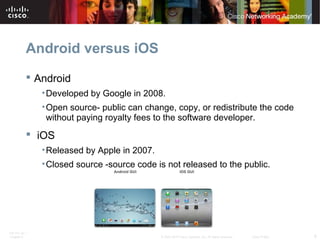
Android versus iOS 
 Android 
•Developed by Google in 2008. 
•Open source- public can change, copy, or redistribute the code 
without paying royalty fees to the software developer. 
 iOS 
•Released by Apple in 2007. 
•Closed source -source code is not released to the public. 
ITE PC v4.1 
Chapter 6 © 2007-2010 Cisco Systems, Inc. All rights reserved. Cisco Public 8
Application and Content Sources 
 Some apps can be downloaded free and others must be 
purchased. Free apps are often loaded with advertisements to 
help pay for development costs. 
 It is important to install apps only from trusted sources. 
 Two main methods for installing content on mobile devices: 
Push and Pull 
•When user runs Google Play app or the Apple App Store app 
content that is downloaded is Pulled from a server to their device. 
•When user purchases app on their laptop or desktop and then it 
is Pushed to their android or iOS device. 
 Note: Read the list of permissions carefully and do not install 
apps that request permission to access items and features 
that it should not need. 
ITE PC v4.1 
Chapter 6 © 2007-2010 Cisco Systems, Inc. All rights reserved. Cisco Public 9
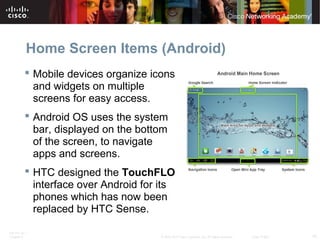
Home Screen Items (Android) 
 Mobile devices organize icons 
and widgets on multiple 
screens for easy access. 
 Android OS uses the system 
bar, displayed on the bottom 
of the screen, to navigate 
apps and screens. 
 HTC designed the TouchFLO 
interface over Android for its 
phones which has now been 
replaced by HTC Sense. 
ITE PC v4.1 
Chapter 6 © 2007-2010 Cisco Systems, Inc. All rights reserved. Cisco Public 10
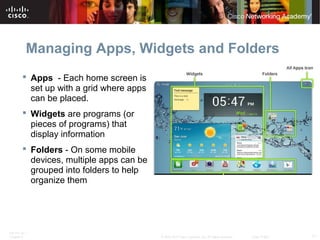
Managing Apps, Widgets and Folders 
 Apps - Each home screen is 
set up with a grid where apps 
can be placed. 
 Widgets are programs (or 
pieces of programs) that 
display information 
 Folders - On some mobile 
devices, multiple apps can be 
grouped into folders to help 
organize them 
ITE PC v4.1 
Chapter 6 © 2007-2010 Cisco Systems, Inc. All rights reserved. Cisco Public 11
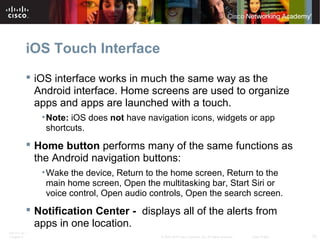
iOS Touch Interface 
 iOS interface works in much the same way as the 
Android interface. Home screens are used to organize 
apps and apps are launched with a touch. 
•Note: iOS does not have navigation icons, widgets or app 
shortcuts. 
 Home button performs many of the same functions as 
the Android navigation buttons: 
•Wake the device, Return to the home screen, Return to the 
main home screen, Open the multitasking bar, Start Siri or 
voice control, Open audio controls, Open the search screen. 
 Notification Center - displays all of the alerts from 
apps in one location. 
ITE PC v4.1 
Chapter 6 © 2007-2010 Cisco Systems, Inc. All rights reserved. Cisco Public 12
Managing Apps and Folders 
 Apps - all the apps installed on the device are located 
on the home screens. 
•Many apps use an alert badge which is displayed as a small 
icon over an app. For example, number of missed calls. 
•An alert badge with exclamation point indicates a problem with 
the app. 
 Multitasking Bar - iOS allows multiple apps to run at the same 
time. 
 Folders - can be created on iOS devices to help organize them. 
ITE PC v4.1 
Chapter 6 © 2007-2010 Cisco Systems, Inc. All rights reserved. Cisco Public 13
Common Mobile Device Features 
 Screen Orientation - Portrait and landscape 
• Auto rotation-Content is automatically rotated to the position of the 
device, either landscape or portrait. 
 Screen Calibration -Adjusting the brightness of the screen 
 Global Positioning System (GPS) –A GPS radio receiver uses at 
least four satellites to calculate position. Uses in mobile devices: 
•Navigation - A mapping app that provides turn-by-turn directions 
• Geocaching - App that shows the location of geocaches - hidden 
containers around the world. 
• Geotagging - Embeds location information into a digital object, like a 
photograph or a video, to record where it was taken. 
•Device tracking - Locates the device on a map if it is lost or stolen. 
ITE PC v4.1 
Chapter 6 © 2007-2010 Cisco Systems, Inc. All rights reserved. Cisco Public 14
Wireless Data Network 
 Mobile devices are widely used and becoming more powerful. 
 Mobile devices using wireless networks can perform many tasks 
that previously needed computers connected to a physical 
network. 
 Connect to Wi-Fi networks when possible because data used over 
Wi-Fi does not count against the cellular data plan. 
•Connecting to Wi-Fi networks conserves battery power. 
 Protect Wi-Fi communications on mobile devices: 
• Never send login or password information using clear, unencrypted text. 
• Use a VPN connection when possible. 
• Enable security on home networks. 
• Use WPA2 security. 
ITE PC v4.1 
Chapter 6 © 2007-2010 Cisco Systems, Inc. All rights reserved. Cisco Public 15
Cellular Communications 
 1G - First-generation phones primarily used analog standards, 
including Advanced Mobile Phone System (AMPS) and Nordic 
Mobile Telephone (NMT). 
 2G- Second-generation cell phones switched from analog to 
digital standards. Standards included Global System for Mobile 
(GSM), Integrated Digital Enhanced Network (iDEN), and Code 
Division Multiple Access (CDMA). 
 2.5G - As 3G cell phone standards were being developed, 
extensions to the existing 2G standards were added. 
 3G - Third-generation standards enable cell phones to send and 
receive text, photos, video, access the Internet and use the Global 
Positioning System (GPS). 
 4G - Fourth-generation standards provide ultra-broadband 
Internet access, allowing users to download files much faster, 
video conference and watch hi- definition television. Standards 
include Mobile WiMAX and Long Term Evolution (LTE). 
ITE PC v4.1 
Chapter 6 © 2007-2010 Cisco Systems, Inc. All rights reserved. Cisco Public 16
Bluetooth for Mobile Devices 
 Bluetooth technology provides a simple way for mobile 
devices to connect to each other and to wireless 
accessories. 
•Wireless, automatic, and uses very little power. 
•Up to eight Bluetooth devices can be connected together at any 
one time. 
 How mobile devices use Bluetooth: 
•Hands free headset, Keyboard or mouse, Stereo control, 
Car speakerphone. 
•Tethering – connecting to another mobile device or computer 
to share a network connection. 
ITE PC v4.1 
Chapter 6 © 2007-2010 Cisco Systems, Inc. All rights reserved. Cisco Public 17
Bluetooth Pairing 
 Bluetooth Pairing - two Bluetooth devices establish a 
connection to share resources. 
 Pairing process: 
•Both devices on. 
•One device searches for other devices. 
•Other device must be in discoverable (visible) mode. 
•PIN may be requested to authenticate the pairing process. 
•PIN is stored after initial pairing, so it does not have to be 
entered the next time the device tries to connect. 
ITE PC v4.1 
Chapter 6 © 2007-2010 Cisco Systems, Inc. All rights reserved. Cisco Public 18
Introduction to Email 
 Information needed to set up an email account: 
•Display name, email address, protocol used by incoming mail server, 
incoming and outgoing server names, username, account password. 
 Protocols used in email: 
• Post Office Protocol Version 3 (POP3) retrieves email from remote 
server, does not leave copy of email on server. 
• Internet Message Access Protocol (IMAP) allows local email clients to 
retrieve email from a server, leaves original email on server. 
• Simple Mail Transfer Protocol (SMTP) is a simple, text-based protocol 
that transmits emails. 
• Multipurpose Internet Mail Extensions (MIME) is normally used in 
conjunction with SMTP to extend the email format to include pictures 
and word processor documents. 
ITE PC v4.1 
Chapter 6 © 2007-2010 Cisco Systems, Inc. All rights reserved. Cisco Public 19
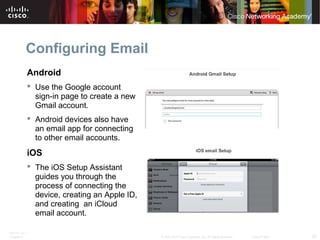
Configuring Email 
Android 
 Use the Google account 
sign-in page to create a new 
Gmail account. 
 Android devices also have 
an email app for connecting 
to other email accounts. 
iOS 
 The iOS Setup Assistant 
guides you through the 
process of connecting the 
device, creating an Apple ID, 
and creating an iCloud 
email account. 
ITE PC v4.1 
Chapter 6 © 2007-2010 Cisco Systems, Inc. All rights reserved. Cisco Public 20
Data Synchronization 
 Data synchronization is the exchange of data between 
two or more devices, while maintaining consistent data 
on those devices. 
 Types of data that are typically synchronized: 
•Contacts 
•Email 
•Calendar entries 
•Pictures 
•Music 
•Apps 
•Video 
•Browser links and settings 
ITE PC v4.1 
Chapter 6 © 2007-2010 Cisco Systems, Inc. All rights reserved. Cisco Public 21
Application Installation Software 
 Synchronization of data on an iOS device requires 
installation of iTunes 
•iTunes is a media player application that downloads, plays, and 
organizes content for use with iOS devices and computer. 
•iTunes manages iOS devices by activating them and restoring if 
there is a malfunction. 
•iTunes is used to upgrade the iOS. 
 Synchronization of data on an Android device requires 
no application. 
•Automatic synchronization with Google is accessed by selecting 
Settings > Personal > Accounts & sync 
ITE PC v4.1 
Chapter 6 © 2007-2010 Cisco Systems, Inc. All rights reserved. Cisco Public 22
Synchronization Connection Types 
 USB and Wi-Fi connections are the most common 
connection types used to synchronize data between 
devices. 
•Android users often sync with Google’s different web services, 
even when synchronizing with a desktop or laptop computer. 
• iOS 5 allows the use of Wi-Fi Sync to synchronize with iTunes 
wirelessly. 
 Cross-Platform Data Synchronization - Synchronization 
of data between different operating systems require: 
•Third-party applications that can synchronize between Outlook 
and iTunes 
•Applications such as Dropbox 
ITE PC v4.1 
Chapter 6 © 2007-2010 Cisco Systems, Inc. All rights reserved. Cisco Public 23
Passcode Locks 
 A Passcode Lock secures a device and puts it in a power-saving 
state. 
• The passcode must be entered each time the device is turned on or resumes 
from a power-saving state. 
 Common types of passcode locks: 
•None - Removes any other type of passcode if one is set. 
• Slide - User slides an icon, such as a lock or arrow. Least secure. 
• Face Unlock - Unlocks when a face is recognized. 
• Pattern – Locks and unlocks the device when the user slides a finger 
over the screen in a certain pattern. 
• PIN – Use a PIN number or code to unlock. 
• Password – Can be most secure. 
• Simple Passcode – iOS devices only. When option ON –passcode is 
a 4 digit number. When option Off more complex passwords can be 
used. 
ITE PC v4.1 
Chapter 6 © 2007-2010 Cisco Systems, Inc. All rights reserved. Cisco Public 24
Restrictions on Failed Login Attempts 
 iOS devices - the device is disabled after five failed 
attempts. 
•On the sixth failed attempt, the device remains disabled for 1 minute. 
• Each failed attempt after six results in additional waiting time. 
• For extra security, the Erase all data on this device after 10 failed 
passcode attempts option can be used. 
• To restore, connect device to the computer to which it was last 
synchronized and use the Restore option in iTunes. 
• Android Devices - the number of failed attempts before lockout 
depends on the device and version of the Android OS. 
• After a device is locked, it can be unlocked by entering the Gmail 
account information used to set up the device. 
ITE PC v4.1 
Chapter 6 © 2007-2010 Cisco Systems, Inc. All rights reserved. Cisco Public 25
Cloud Enabled Services for Smart 
Devices 
 Remote Backup 
• iOS users are given 5 GB of storage free on iCloud. 
• Android device users have Calendar, Mail and Contacts automatically 
backed up. 
• Locator Applications - Many different apps available for remotely 
locating a device: 
• iOS most often used is Find My iPhone app. 
• Uses cell towers, Wi-Fi hotspotss and GPS to locate the device. 
• Remote Lock - allows remote locking of device with a passcode. 
• Remote Wipe - deletes all data from the device and returns it to a 
factory state. 
ITE PC v4.1 
Chapter 6 © 2007-2010 Cisco Systems, Inc. All rights reserved. Cisco Public 26
Antivirus 
 Antivirus apps are available for both Android and iOS 
•Depending on the permissions set up when installed on an Android 
device, the antivirus app might not be able to scan files automatically or 
run scheduled scans. Must be initiated manually in those cases. 
• iOS never allows automatic or scheduled scans as a safety feature to 
prevent malicious programs from using unauthorized resources. Must 
be initiated manually. 
 Rooting (Android )and Jailbreaking (iOS) - Unlocking the 
bootloader so that a custom OS can be installed. 
• Voids the manufacturers warranty. 
• Opens the device up to malicious programs or virus infection. 
ITE PC v4.1 
Chapter 6 © 2007-2010 Cisco Systems, Inc. All rights reserved. Cisco Public 27
Patching and Updating Operating 
Systems 
 Updates add functionality or increase performance. 
 Patches can fix security problems or issues with hardware and 
software. 
 Android updates and patches use an automated process for 
delivery. 
•When a carrier or manufacturer has an update for a device, it shows up 
as a notification on the device that an update is ready. 
• iOS updates also use an automated process for delivery. 
• To check for updates to iOS, connect the device to iTunes. 
ITE PC v4.1 
Chapter 6 © 2007-2010 Cisco Systems, Inc. All rights reserved. Cisco Public 28
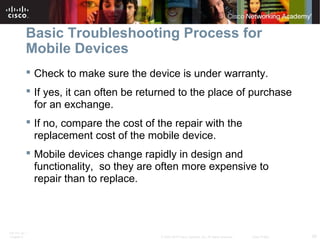
Basic Troubleshooting Process for 
Mobile Devices 
 Check to make sure the device is under warranty. 
 If yes, it can often be returned to the place of purchase 
for an exchange. 
 If no, compare the cost of the repair with the 
replacement cost of the mobile device. 
 Mobile devices change rapidly in design and 
functionality, so they are often more expensive to 
repair than to replace. 
ITE PC v4.1 
Chapter 6 © 2007-2010 Cisco Systems, Inc. All rights reserved. Cisco Public 29
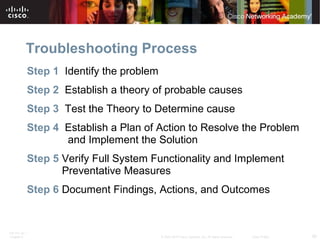
Troubleshooting Process 
Step 1 Identify the problem 
Step 2 Establish a theory of probable causes 
Step 3 Test the Theory to Determine cause 
Step 4 Establish a Plan of Action to Resolve the Problem 
and Implement the Solution 
Step 5 Verify Full System Functionality and Implement 
Preventative Measures 
Step 6 Document Findings, Actions, and Outcomes 
ITE PC v4.1 
Chapter 6 © 2007-2010 Cisco Systems, Inc. All rights reserved. Cisco Public 30
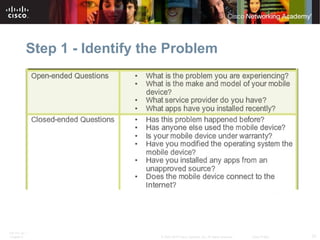
Step 1 - Identify the Problem 
ITE PC v4.1 
Chapter 6 © 2007-2010 Cisco Systems, Inc. All rights reserved. Cisco Public 31
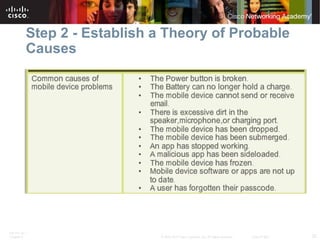
Step 2 - Establish a Theory of Probable 
Causes 
ITE PC v4.1 
Chapter 6 © 2007-2010 Cisco Systems, Inc. All rights reserved. Cisco Public 32
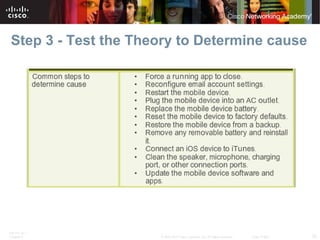
Step 3 - Test the Theory to Determine cause 
ITE PC v4.1 
Chapter 6 © 2007-2010 Cisco Systems, Inc. All rights reserved. Cisco Public 33
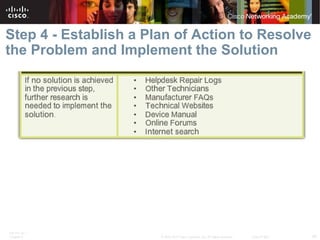
Step 4 - Establish a Plan of Action to Resolve 
the Problem and Implement the Solution 
ITE PC v4.1 
Chapter 6 © 2007-2010 Cisco Systems, Inc. All rights reserved. Cisco Public 34
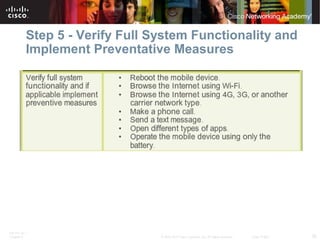
Step 5 - Verify Full System Functionality and 
Implement Preventative Measures 
ITE PC v4.1 
Chapter 6 © 2007-2010 Cisco Systems, Inc. All rights reserved. Cisco Public 35
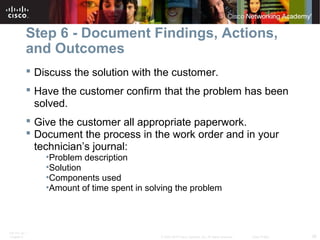
Step 6 - Document Findings, Actions, 
and Outcomes 
 Discuss the solution with the customer. 
 Have the customer confirm that the problem has been 
solved. 
 Give the customer all appropriate paperwork. 
 Document the process in the work order and in your 
technician’s journal: 
•Problem description 
•Solution 
•Components used 
•Amount of time spent in solving the problem 
ITE PC v4.1 
Chapter 6 © 2007-2010 Cisco Systems, Inc. All rights reserved. Cisco Public 36
Common Problems and Solutions 
 Many mobile device problems can be solved by simply turning off 
the device and turning it back on. When a mobile device does not 
respond to a reboot, a reset may need to be performed. 
 Android devices reset: 
 Hold down the power button until the mobile device turns off. Turn 
the device on again. 
 Hold down the power button and the volume down button until the 
mobile device turns off. Turn the device on again. 
 Factory reset Settings > Backup and reset > Factory data reset > 
Reset device 
 iOS devices reset: 
 Press and hold both the Sleep/Wake button and the Home button for 
10 seconds, until the Apple logo appears. 
 Factory reset Settings > General > Reset > Erase All Content and 
Settings 
 See chart of Common Problems and Solutions in Curriculum 
ITE PC v4.1 
Chapter 6 © 2007-2010 Cisco Systems, Inc. All rights reserved. Cisco Public 37
Chapter 8 Summary 
This chapter introduced mobile devices and the following important 
concepts about mobile devices: 
 Mobile device hardware has few field-repairable units. 
 Mobile devices are often replaced instead of repaired due to the 
high cost of repairs. 
 Mobile devices often contain proprietary parts that cannot be 
interchanged. 
 Touchscreens are used instead of other input devices, such as 
mice and keyboards. 
 SSDs are used in mobile devices because of their size, energy 
efficiency, and lack of noise. 
 Open source software can be modified by anyone with little or no 
cost. 
ITE PC v4.1 
Chapter 6 © 2007-2010 Cisco Systems, Inc. All rights reserved. Cisco Public 38
Chapter 8 Summary 
 Use only trusted content sources to avoid malware and unreliable 
content. 
 Both Android and iOS have similar GUIs for using apps and other 
content. 
 Mobile devices use sensors, such as GPS and accelerometers, to 
enhance their functionality. 
 Network connections for mobile devices are made with cellular, 
Wi-Fi, and Bluetooth connections. 
 Email accounts are closely tied to mobile devices and provide 
many different data synchronization services. 
 Android devices use apps to synchronize data not automatically 
synchronized by Google. 
 iOS devices use iTunes to synchronize data and other content. 
ITE PC v4.1 
Chapter 6 © 2007-2010 Cisco Systems, Inc. All rights reserved. Cisco Public 39
Chapter 8 Summary 
 Passcode locks secure mobile devices. 
 Remote backups can be performed to backup mobile device data 
to the Cloud. 
 Remote lock or remote wipe are features to secure a mobile 
device that has been lost or stolen. 
 Antivirus software is often used on mobile devices to prevent the 
transfer of malicious programs to other devices or computers. 
ITE PC v4.1 
Chapter 6 © 2007-2010 Cisco Systems, Inc. All rights reserved. Cisco Public 40
ITE PC v4.1 
Chapter 6 © 2007-2010 Cisco Systems, Inc. All rights reserved. Cisco Public 41

ITE v5.0 - Chapter 8

  • 1.
    ITE PC v4.1 Chapter 6 © 2007-2010 Cisco Systems, Inc. All rights reserved. Cisco Public 1 Chapter 8: Mobile Devices IT Essentials: PC Hardware and Software v5.0
  • 2.
    Chapter 8 Objectives  8.0 Describe mobile devices  8.1 Identify mobile device hardware and that most parts are not field replaceable  8.2 Compare and contrast Android and iOS mobile operating systems  8.3 Explain how to configure network and email connectivity on mobile devices.  8.4 Identify methods for securing mobile devices  8.5 Describe how to troubleshoot mobile devices ITE PC v4.1 Chapter 6 © 2007-2010 Cisco Systems, Inc. All rights reserved. Cisco Public 2
  • 3.
    Mobile Devices A mobile device is any device that is hand-held, light, and typically uses a touchscreen for input.  Mobile devices use an operating system to run applications (apps), games, and play movies and music  Examples are - Android devices, such as the Samsung Galaxy tablet and Galaxy Nexus smartphone, and the Apple iPad and iPhone.  Many mobile device components, operating systems, and software are proprietary so It is important to become familiar with as many different mobile devices as possible. ITE PC v4.1 Chapter 6 © 2007-2010 Cisco Systems, Inc. All rights reserved. Cisco Public 3
  • 4.
    Non-Field Serviceable Parts  Mobile devices do not have field-serviceable parts.  Broken devices usually sent to the manufacturer for repair or replacement.  Installing parts from sources other than the manufacturer voids the manufacturer’s warranty and might harm the device.  There are a few mobile device parts that are field-replaceable: •Battery •Memory card •Subscriber Identity Module (SIM) card ITE PC v4.1 Chapter 6 © 2007-2010 Cisco Systems, Inc. All rights reserved. Cisco Public 4
  • 5.
    Non-Upgradeable Hardware Mobile device hardware is typically not upgradeable.  Many of the components in a mobile device are connected directly to circuit boards.  Batteries and memory cards, however, can often be replaced with items that have larger capacities.  Some functionality can be added to mobile devices through the use of built-in ports and docking stations. ITE PC v4.1 Chapter 6 © 2007-2010 Cisco Systems, Inc. All rights reserved. Cisco Public 5
  • 6.
    Touchscreens  Mostmobile devices use touchscreens to allow users to physically interact with the screen and type on a virtual keyboard.  Two types of touchscreens: •Capacitive - Consists of a glass screen coated with a conductor. Touching the screen interrupts the electrical field of the screen. This change is how the touch processor calculates location. •Resistive - Consists of transparent layers of material capable of conducting electricity. Pressure causes the layers to touch and interrupt the electricity. This is how the touch processor calculates location.  Multi-touch - the ability to recognize when two or more points of contact are made on the screen. ITE PC v4.1 Chapter 6 © 2007-2010 Cisco Systems, Inc. All rights reserved. Cisco Public 6
  • 7.
    Solid State Drives(SSDs)  The circuit board, flash memory chips, and memory controller in SSDs are installed directly inside the mobile device.  Advantages of using Flash memory storage (SSD): •Power efficiency - requires very little power to store and retrieve data. •Reliability - can withstand high levels of shock, vibration, heat and cold. •Lightweight and Compact •Performance – no moving parts, therefore no spin-up time for platters or drive head to move. •Noise – very quiet.. ITE PC v4.1 Chapter 6 © 2007-2010 Cisco Systems, Inc. All rights reserved. Cisco Public 7
  • 8.
    Android versus iOS  Android •Developed by Google in 2008. •Open source- public can change, copy, or redistribute the code without paying royalty fees to the software developer.  iOS •Released by Apple in 2007. •Closed source -source code is not released to the public. ITE PC v4.1 Chapter 6 © 2007-2010 Cisco Systems, Inc. All rights reserved. Cisco Public 8
  • 9.
    Application and ContentSources  Some apps can be downloaded free and others must be purchased. Free apps are often loaded with advertisements to help pay for development costs.  It is important to install apps only from trusted sources.  Two main methods for installing content on mobile devices: Push and Pull •When user runs Google Play app or the Apple App Store app content that is downloaded is Pulled from a server to their device. •When user purchases app on their laptop or desktop and then it is Pushed to their android or iOS device.  Note: Read the list of permissions carefully and do not install apps that request permission to access items and features that it should not need. ITE PC v4.1 Chapter 6 © 2007-2010 Cisco Systems, Inc. All rights reserved. Cisco Public 9
  • 10.
    Home Screen Items(Android)  Mobile devices organize icons and widgets on multiple screens for easy access.  Android OS uses the system bar, displayed on the bottom of the screen, to navigate apps and screens.  HTC designed the TouchFLO interface over Android for its phones which has now been replaced by HTC Sense. ITE PC v4.1 Chapter 6 © 2007-2010 Cisco Systems, Inc. All rights reserved. Cisco Public 10
  • 11.
    Managing Apps, Widgetsand Folders  Apps - Each home screen is set up with a grid where apps can be placed.  Widgets are programs (or pieces of programs) that display information  Folders - On some mobile devices, multiple apps can be grouped into folders to help organize them ITE PC v4.1 Chapter 6 © 2007-2010 Cisco Systems, Inc. All rights reserved. Cisco Public 11
  • 12.
    iOS Touch Interface  iOS interface works in much the same way as the Android interface. Home screens are used to organize apps and apps are launched with a touch. •Note: iOS does not have navigation icons, widgets or app shortcuts.  Home button performs many of the same functions as the Android navigation buttons: •Wake the device, Return to the home screen, Return to the main home screen, Open the multitasking bar, Start Siri or voice control, Open audio controls, Open the search screen.  Notification Center - displays all of the alerts from apps in one location. ITE PC v4.1 Chapter 6 © 2007-2010 Cisco Systems, Inc. All rights reserved. Cisco Public 12
  • 13.
    Managing Apps andFolders  Apps - all the apps installed on the device are located on the home screens. •Many apps use an alert badge which is displayed as a small icon over an app. For example, number of missed calls. •An alert badge with exclamation point indicates a problem with the app.  Multitasking Bar - iOS allows multiple apps to run at the same time.  Folders - can be created on iOS devices to help organize them. ITE PC v4.1 Chapter 6 © 2007-2010 Cisco Systems, Inc. All rights reserved. Cisco Public 13
  • 14.
    Common Mobile DeviceFeatures  Screen Orientation - Portrait and landscape • Auto rotation-Content is automatically rotated to the position of the device, either landscape or portrait.  Screen Calibration -Adjusting the brightness of the screen  Global Positioning System (GPS) –A GPS radio receiver uses at least four satellites to calculate position. Uses in mobile devices: •Navigation - A mapping app that provides turn-by-turn directions • Geocaching - App that shows the location of geocaches - hidden containers around the world. • Geotagging - Embeds location information into a digital object, like a photograph or a video, to record where it was taken. •Device tracking - Locates the device on a map if it is lost or stolen. ITE PC v4.1 Chapter 6 © 2007-2010 Cisco Systems, Inc. All rights reserved. Cisco Public 14
  • 15.
    Wireless Data Network  Mobile devices are widely used and becoming more powerful.  Mobile devices using wireless networks can perform many tasks that previously needed computers connected to a physical network.  Connect to Wi-Fi networks when possible because data used over Wi-Fi does not count against the cellular data plan. •Connecting to Wi-Fi networks conserves battery power.  Protect Wi-Fi communications on mobile devices: • Never send login or password information using clear, unencrypted text. • Use a VPN connection when possible. • Enable security on home networks. • Use WPA2 security. ITE PC v4.1 Chapter 6 © 2007-2010 Cisco Systems, Inc. All rights reserved. Cisco Public 15
  • 16.
    Cellular Communications 1G - First-generation phones primarily used analog standards, including Advanced Mobile Phone System (AMPS) and Nordic Mobile Telephone (NMT).  2G- Second-generation cell phones switched from analog to digital standards. Standards included Global System for Mobile (GSM), Integrated Digital Enhanced Network (iDEN), and Code Division Multiple Access (CDMA).  2.5G - As 3G cell phone standards were being developed, extensions to the existing 2G standards were added.  3G - Third-generation standards enable cell phones to send and receive text, photos, video, access the Internet and use the Global Positioning System (GPS).  4G - Fourth-generation standards provide ultra-broadband Internet access, allowing users to download files much faster, video conference and watch hi- definition television. Standards include Mobile WiMAX and Long Term Evolution (LTE). ITE PC v4.1 Chapter 6 © 2007-2010 Cisco Systems, Inc. All rights reserved. Cisco Public 16
  • 17.
    Bluetooth for MobileDevices  Bluetooth technology provides a simple way for mobile devices to connect to each other and to wireless accessories. •Wireless, automatic, and uses very little power. •Up to eight Bluetooth devices can be connected together at any one time.  How mobile devices use Bluetooth: •Hands free headset, Keyboard or mouse, Stereo control, Car speakerphone. •Tethering – connecting to another mobile device or computer to share a network connection. ITE PC v4.1 Chapter 6 © 2007-2010 Cisco Systems, Inc. All rights reserved. Cisco Public 17
  • 18.
    Bluetooth Pairing Bluetooth Pairing - two Bluetooth devices establish a connection to share resources.  Pairing process: •Both devices on. •One device searches for other devices. •Other device must be in discoverable (visible) mode. •PIN may be requested to authenticate the pairing process. •PIN is stored after initial pairing, so it does not have to be entered the next time the device tries to connect. ITE PC v4.1 Chapter 6 © 2007-2010 Cisco Systems, Inc. All rights reserved. Cisco Public 18
  • 19.
    Introduction to Email  Information needed to set up an email account: •Display name, email address, protocol used by incoming mail server, incoming and outgoing server names, username, account password.  Protocols used in email: • Post Office Protocol Version 3 (POP3) retrieves email from remote server, does not leave copy of email on server. • Internet Message Access Protocol (IMAP) allows local email clients to retrieve email from a server, leaves original email on server. • Simple Mail Transfer Protocol (SMTP) is a simple, text-based protocol that transmits emails. • Multipurpose Internet Mail Extensions (MIME) is normally used in conjunction with SMTP to extend the email format to include pictures and word processor documents. ITE PC v4.1 Chapter 6 © 2007-2010 Cisco Systems, Inc. All rights reserved. Cisco Public 19
  • 20.
    Configuring Email Android  Use the Google account sign-in page to create a new Gmail account.  Android devices also have an email app for connecting to other email accounts. iOS  The iOS Setup Assistant guides you through the process of connecting the device, creating an Apple ID, and creating an iCloud email account. ITE PC v4.1 Chapter 6 © 2007-2010 Cisco Systems, Inc. All rights reserved. Cisco Public 20
  • 21.
    Data Synchronization Data synchronization is the exchange of data between two or more devices, while maintaining consistent data on those devices.  Types of data that are typically synchronized: •Contacts •Email •Calendar entries •Pictures •Music •Apps •Video •Browser links and settings ITE PC v4.1 Chapter 6 © 2007-2010 Cisco Systems, Inc. All rights reserved. Cisco Public 21
  • 22.
    Application Installation Software  Synchronization of data on an iOS device requires installation of iTunes •iTunes is a media player application that downloads, plays, and organizes content for use with iOS devices and computer. •iTunes manages iOS devices by activating them and restoring if there is a malfunction. •iTunes is used to upgrade the iOS.  Synchronization of data on an Android device requires no application. •Automatic synchronization with Google is accessed by selecting Settings > Personal > Accounts & sync ITE PC v4.1 Chapter 6 © 2007-2010 Cisco Systems, Inc. All rights reserved. Cisco Public 22
  • 23.
    Synchronization Connection Types  USB and Wi-Fi connections are the most common connection types used to synchronize data between devices. •Android users often sync with Google’s different web services, even when synchronizing with a desktop or laptop computer. • iOS 5 allows the use of Wi-Fi Sync to synchronize with iTunes wirelessly.  Cross-Platform Data Synchronization - Synchronization of data between different operating systems require: •Third-party applications that can synchronize between Outlook and iTunes •Applications such as Dropbox ITE PC v4.1 Chapter 6 © 2007-2010 Cisco Systems, Inc. All rights reserved. Cisco Public 23
  • 24.
    Passcode Locks A Passcode Lock secures a device and puts it in a power-saving state. • The passcode must be entered each time the device is turned on or resumes from a power-saving state.  Common types of passcode locks: •None - Removes any other type of passcode if one is set. • Slide - User slides an icon, such as a lock or arrow. Least secure. • Face Unlock - Unlocks when a face is recognized. • Pattern – Locks and unlocks the device when the user slides a finger over the screen in a certain pattern. • PIN – Use a PIN number or code to unlock. • Password – Can be most secure. • Simple Passcode – iOS devices only. When option ON –passcode is a 4 digit number. When option Off more complex passwords can be used. ITE PC v4.1 Chapter 6 © 2007-2010 Cisco Systems, Inc. All rights reserved. Cisco Public 24
  • 25.
    Restrictions on FailedLogin Attempts  iOS devices - the device is disabled after five failed attempts. •On the sixth failed attempt, the device remains disabled for 1 minute. • Each failed attempt after six results in additional waiting time. • For extra security, the Erase all data on this device after 10 failed passcode attempts option can be used. • To restore, connect device to the computer to which it was last synchronized and use the Restore option in iTunes. • Android Devices - the number of failed attempts before lockout depends on the device and version of the Android OS. • After a device is locked, it can be unlocked by entering the Gmail account information used to set up the device. ITE PC v4.1 Chapter 6 © 2007-2010 Cisco Systems, Inc. All rights reserved. Cisco Public 25
  • 26.
    Cloud Enabled Servicesfor Smart Devices  Remote Backup • iOS users are given 5 GB of storage free on iCloud. • Android device users have Calendar, Mail and Contacts automatically backed up. • Locator Applications - Many different apps available for remotely locating a device: • iOS most often used is Find My iPhone app. • Uses cell towers, Wi-Fi hotspotss and GPS to locate the device. • Remote Lock - allows remote locking of device with a passcode. • Remote Wipe - deletes all data from the device and returns it to a factory state. ITE PC v4.1 Chapter 6 © 2007-2010 Cisco Systems, Inc. All rights reserved. Cisco Public 26
  • 27.
    Antivirus  Antivirusapps are available for both Android and iOS •Depending on the permissions set up when installed on an Android device, the antivirus app might not be able to scan files automatically or run scheduled scans. Must be initiated manually in those cases. • iOS never allows automatic or scheduled scans as a safety feature to prevent malicious programs from using unauthorized resources. Must be initiated manually.  Rooting (Android )and Jailbreaking (iOS) - Unlocking the bootloader so that a custom OS can be installed. • Voids the manufacturers warranty. • Opens the device up to malicious programs or virus infection. ITE PC v4.1 Chapter 6 © 2007-2010 Cisco Systems, Inc. All rights reserved. Cisco Public 27
  • 28.
    Patching and UpdatingOperating Systems  Updates add functionality or increase performance.  Patches can fix security problems or issues with hardware and software.  Android updates and patches use an automated process for delivery. •When a carrier or manufacturer has an update for a device, it shows up as a notification on the device that an update is ready. • iOS updates also use an automated process for delivery. • To check for updates to iOS, connect the device to iTunes. ITE PC v4.1 Chapter 6 © 2007-2010 Cisco Systems, Inc. All rights reserved. Cisco Public 28
  • 29.
    Basic Troubleshooting Processfor Mobile Devices  Check to make sure the device is under warranty.  If yes, it can often be returned to the place of purchase for an exchange.  If no, compare the cost of the repair with the replacement cost of the mobile device.  Mobile devices change rapidly in design and functionality, so they are often more expensive to repair than to replace. ITE PC v4.1 Chapter 6 © 2007-2010 Cisco Systems, Inc. All rights reserved. Cisco Public 29
  • 30.
    Troubleshooting Process Step1 Identify the problem Step 2 Establish a theory of probable causes Step 3 Test the Theory to Determine cause Step 4 Establish a Plan of Action to Resolve the Problem and Implement the Solution Step 5 Verify Full System Functionality and Implement Preventative Measures Step 6 Document Findings, Actions, and Outcomes ITE PC v4.1 Chapter 6 © 2007-2010 Cisco Systems, Inc. All rights reserved. Cisco Public 30
  • 31.
    Step 1 -Identify the Problem ITE PC v4.1 Chapter 6 © 2007-2010 Cisco Systems, Inc. All rights reserved. Cisco Public 31
  • 32.
    Step 2 -Establish a Theory of Probable Causes ITE PC v4.1 Chapter 6 © 2007-2010 Cisco Systems, Inc. All rights reserved. Cisco Public 32
  • 33.
    Step 3 -Test the Theory to Determine cause ITE PC v4.1 Chapter 6 © 2007-2010 Cisco Systems, Inc. All rights reserved. Cisco Public 33
  • 34.
    Step 4 -Establish a Plan of Action to Resolve the Problem and Implement the Solution ITE PC v4.1 Chapter 6 © 2007-2010 Cisco Systems, Inc. All rights reserved. Cisco Public 34
  • 35.
    Step 5 -Verify Full System Functionality and Implement Preventative Measures ITE PC v4.1 Chapter 6 © 2007-2010 Cisco Systems, Inc. All rights reserved. Cisco Public 35
  • 36.
    Step 6 -Document Findings, Actions, and Outcomes  Discuss the solution with the customer.  Have the customer confirm that the problem has been solved.  Give the customer all appropriate paperwork.  Document the process in the work order and in your technician’s journal: •Problem description •Solution •Components used •Amount of time spent in solving the problem ITE PC v4.1 Chapter 6 © 2007-2010 Cisco Systems, Inc. All rights reserved. Cisco Public 36
  • 37.
    Common Problems andSolutions  Many mobile device problems can be solved by simply turning off the device and turning it back on. When a mobile device does not respond to a reboot, a reset may need to be performed.  Android devices reset:  Hold down the power button until the mobile device turns off. Turn the device on again.  Hold down the power button and the volume down button until the mobile device turns off. Turn the device on again.  Factory reset Settings > Backup and reset > Factory data reset > Reset device  iOS devices reset:  Press and hold both the Sleep/Wake button and the Home button for 10 seconds, until the Apple logo appears.  Factory reset Settings > General > Reset > Erase All Content and Settings  See chart of Common Problems and Solutions in Curriculum ITE PC v4.1 Chapter 6 © 2007-2010 Cisco Systems, Inc. All rights reserved. Cisco Public 37
  • 38.
    Chapter 8 Summary This chapter introduced mobile devices and the following important concepts about mobile devices:  Mobile device hardware has few field-repairable units.  Mobile devices are often replaced instead of repaired due to the high cost of repairs.  Mobile devices often contain proprietary parts that cannot be interchanged.  Touchscreens are used instead of other input devices, such as mice and keyboards.  SSDs are used in mobile devices because of their size, energy efficiency, and lack of noise.  Open source software can be modified by anyone with little or no cost. ITE PC v4.1 Chapter 6 © 2007-2010 Cisco Systems, Inc. All rights reserved. Cisco Public 38
  • 39.
    Chapter 8 Summary  Use only trusted content sources to avoid malware and unreliable content.  Both Android and iOS have similar GUIs for using apps and other content.  Mobile devices use sensors, such as GPS and accelerometers, to enhance their functionality.  Network connections for mobile devices are made with cellular, Wi-Fi, and Bluetooth connections.  Email accounts are closely tied to mobile devices and provide many different data synchronization services.  Android devices use apps to synchronize data not automatically synchronized by Google.  iOS devices use iTunes to synchronize data and other content. ITE PC v4.1 Chapter 6 © 2007-2010 Cisco Systems, Inc. All rights reserved. Cisco Public 39
  • 40.
    Chapter 8 Summary  Passcode locks secure mobile devices.  Remote backups can be performed to backup mobile device data to the Cloud.  Remote lock or remote wipe are features to secure a mobile device that has been lost or stolen.  Antivirus software is often used on mobile devices to prevent the transfer of malicious programs to other devices or computers. ITE PC v4.1 Chapter 6 © 2007-2010 Cisco Systems, Inc. All rights reserved. Cisco Public 40
  • 41.
    ITE PC v4.1 Chapter 6 © 2007-2010 Cisco Systems, Inc. All rights reserved. Cisco Public 41

Editor's Notes

  • #2 Cisco Networking Academy program IT Essentials v5.0 Chapter 8: Mobile Devices
  • #3 chapter 8 Objectives
  • #4 8.0 Mobile Devices 8.0.1.1 Introduction
  • #5 8.1 Mobile Device Hardware Overview 8.1.1.1 Non-Field Serviceable Parts
  • #6 8.1.1.2 Non-Upgradeable Hardware
  • #7 8.1.1.3 Touchscreens
  • #8 8.1.1.3 Solid State Drives (SSDs)
  • #9 8.2.1 Android versus iOS 8.2.1.1 Open Source versus Closed Source
  • #10 8.2.1.2 Application and Content Sources
  • #11 8.2.2 Android Touch Interface 8.2.2.1 Home Screen Items
  • #12 8.2.2.2 Managing Apps, Widgets and Folders 8.2.2.3 Lab – Working with Android
  • #13 8.2.3 iOS Touch Interface 8.2.3.1 Home Screen Items
  • #14 8.2.3.2 Managing Apps and Folders 8.2.3.3 Working with iOS
  • #15 8.2.4 Common Mobile Device Features 8.2.4.1 Screen Orientation and Calibration 8.2.4.2 Global Positioning System (GPS) 8.2.4.3 Lab – Mobile Device Features – Android and iOS 8.2.4.4 Worksheet – Mobile Device Information
  • #16 8.3 Network Connectivity and Email 8.3.1.1 Wireless Data Network 8.3.1.2 Lab – Mobile Wi-Fi – Android and iOs
  • #17 8.3.1.3 Cellular Communications NOTE: Cell phone standards have not been adopted uniformly around the world. Some cell phones are capable of using multiple standards, whereas others can use only one standard. As a result, some cell phones can operate in many countries and other cell phones can only be used locally. 
  • #18 8.3.2 Bluetooth 8.3.2.1 Bluetooth for Mobile Devices
  • #19 8.3.2.2 Bluetooth Pairing
  • #20 8.3.3 Configuring Email 8.3.3.1 Introduction to Email 8.3.3.2 Activity – Matching Email Protocols
  • #21 8.3.3.3 Android Email Configuration 8.3.3.4 iOS Email Configuration
  • #22 8.3.4 Mobile Device Synchronization 8.3.4.1 Types of Data Synchronization
  • #23 8.3.4.2 Application Installation Software
  • #24 8.3.4.3 Synchronization Connection Types
  • #25 8.4 Methods of Securing Mobile Devices 8.4.1 Passcode Locks 8.4.1.1 Overview of Passcode Locks 8.4.1.2 Lab – Passcode Locks – Android and iOs
  • #26 8.4.1.3 Restrictions on Failed Login Attempts
  • #27 8.4.2 Cloud Enabled Services for Smart Devices 8.4.2.1 Remote Backup 8.4.2.2 Locator Applications 8.4.2.3 Remote Lock and Remote Wipe
  • #28 8.4.3 Software Security 8.4.3.1 Antivirus
  • #29 8.4.3.2 Patching and Updating Operating Systems
  • #30 8.5 Basic Troubleshooting Process for Mobile Devices
  • #31 8.5 Basic Troubleshooting Process for Mobile Devices
  • #32 8.5.1.1 Identify the Problem
  • #33 8.5.1.2 Establish a Theory of Probable Cause
  • #34 8.5.1.3 Test the Theory to Determine cause
  • #35 8.5.1.4 Establish a Plan of Action to Resolve the Problem and Implement the Solution
  • #36 8.5.1.5 Verify Full System Functionality and Implement Preventative Measures
  • #37 8.5.1.6 Document Findings, Actions, and Outcomes
  • #38 8.5.2.1 Common Problems and Solutions 8.5.2.2 Lab – Troubleshooting Mobile Devices
  • #39 8.6 Summary
  • #40 8.6 Summary
  • #41 8.6 Summary