Introduction to SPSS
(For SPSS Version 16.0)
Eric Hamilton
CENTER FOR SOCIAL SCIENCE
COMPUTATION AND RESEARCH (CSSCR)
UNIVERSITY OF WASHINGTON
Winter Quarter, 2011
Topics Covered in this
Introductory Course*
-SPSS at a glance, basic structure
-Cleaning & reformatting your data
-Descriptive statistics – frequencies, explore,
crosstabs
-Charts & graphs: histograms, legacy charts,
editing graphs
-Saving your work
-Resources for learning more about SPSS
*These slides correspond to the CSSCR SPSS Winter2011 course data
set, found on the CSSCR website.
SPSS at a glance
SPSS (Statistical Package for the
Social Sciences) was designed to
offer a more user-friendly data
analysis platform than other
statistical software (e.g., Mplus, R,
SAS).
The newest version of SPSS is
called “IBM SPSS Statistics 18”.
IBM purchased SPSS in 2009.
This tutorial refers to use of SPSS
16.0. There are some added
functions in the new version, but
for the most part, the usability is
similar.
Opening SPSS
Go to START, PROGRAMS, and find the SPSS
16.0 program
or
The computers in the CSSCR lab typically have
SPSS on the desktop. Select the red box that
says SPSS on the top.
Opening a data file in SPSS
-Open the version of SPSS you want to work with.
-You can work with the wizard, or
-Select File > Open > Data.
-Select the format of your data with the “Files of
type” button,
-then locate, select, and open your data file.
Basic structure of SPSS
There are multiple windows in SPSS
The Data Editor Window (.sav)
shows data in two forms:
Data view
Variable view
The Output Viewer Window (.spv)
shows results of data analysis
The Syntax Editor Window (.sps)
shows the syntax command script. This is also where you
can type and run your own syntax commands.
Note: you must perform separate save procedures for the data
editor (.sav), output viewer (.spv), and syntax editor (.sps) windows.
Remember to save your work frequently, under names that will have
meaning for you in the future.
The Editor Window:
Data view vs. Variable view
Data view
Rows are cases
Columns are variables (generally speaking)
Variable view
Rows define the variables
Name, Type, Width, Decimals, Label, Values, Missing,
Columns, Align, Measure.
The Measure of variables in the dataset is important:
– Scale = “continuous” – age, weight, income
– Nominal = “names” – categories that cannot be ranked (ID
number)
– Ordinal = “ordered” – categories that can be ranked (level of
satisfaction)
Data Manipulation
selecting cases
With the select cases command,
you can select specific cases for
analysis
-click DATA
-click SELECT CASES
-click IF CONDITION IS SATISFIED
-select the variable with which you
will select cases
-enter the logical/Boolean command
to select the cases you want to
analyze
–e.g., “Select Cases IF Grade = 12”
Data Manipulation
Transform variable
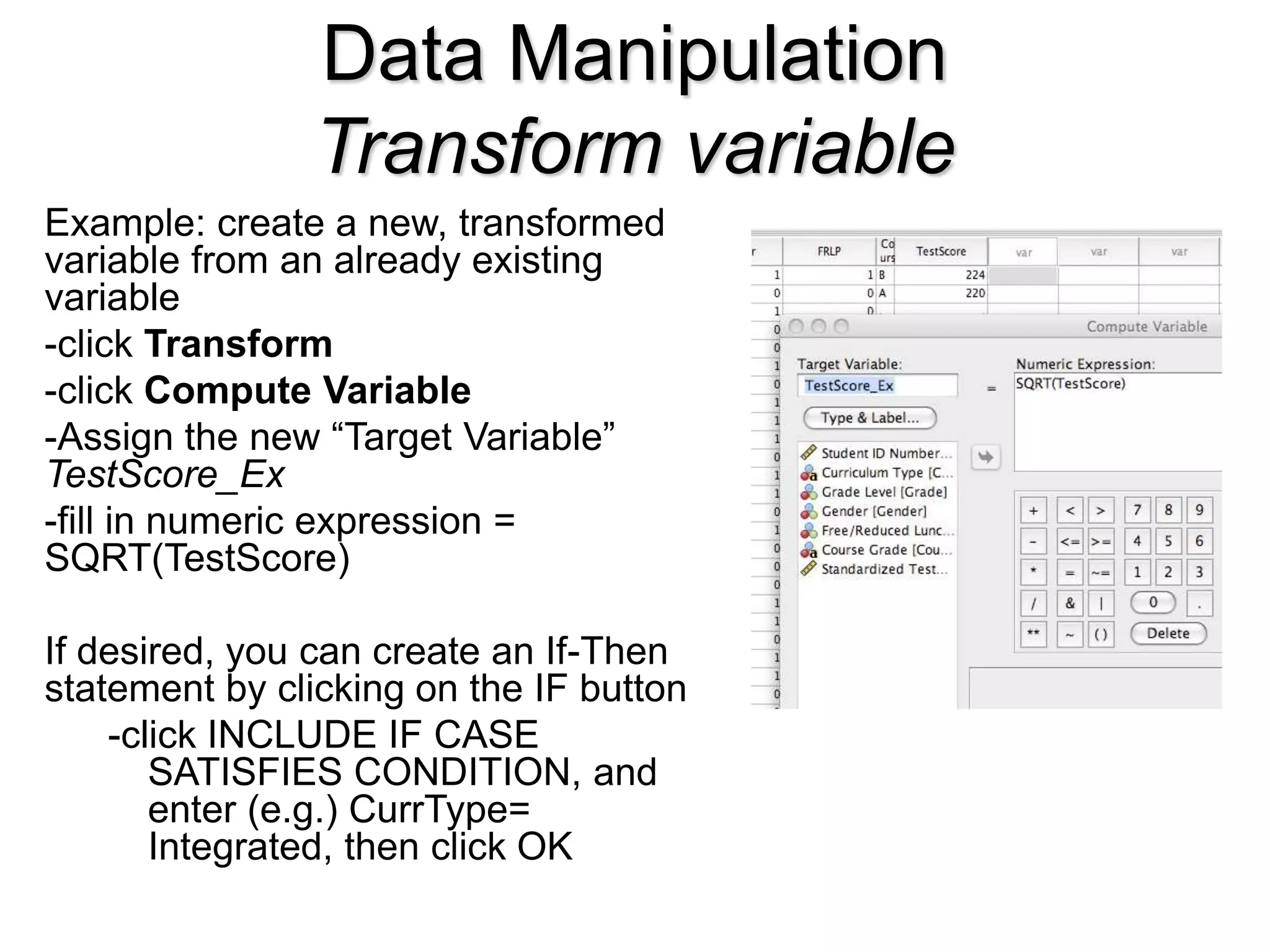
Example: create a new, transformed
variable from an already existing
variable
-click Transform
-click Compute Variable
-Assign the new “Target Variable”
TestScore_Ex
-fill in numeric expression =
SQRT(TestScore)
If desired, you can create an If-Then
statement by clicking on the IF button
-click INCLUDE IF CASE
SATISFIES CONDITION, and
enter (e.g.) CurrType=
Integrated, then click OK
Data Manipulation
Recode a variable
Recoding allows a researcher to
create a new variable with, for
example, a different set of
parameters
-Decide which Variable(s) you want
to recode
-click TRANSFORM
-click RECODE INTO
DIFFERENT VARIABLE
-move CurrType over to the right
-create a name for the new
variable: CurrNum
-click Old and New Values
Recoding a variable (contin.)
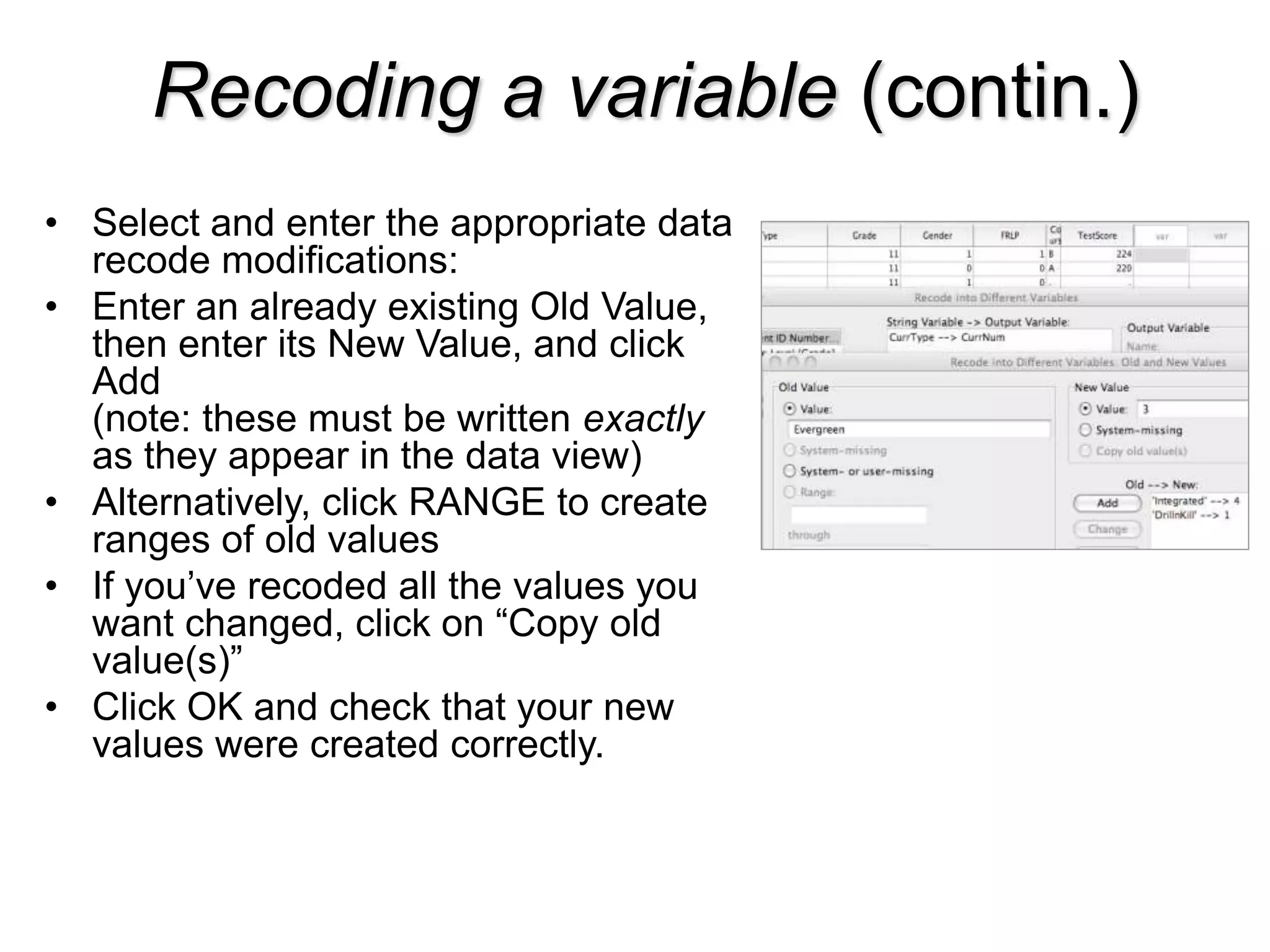
• Select and enter the appropriate data
recode modifications:
• Enter an already existing Old Value,
then enter its New Value, and click
Add
(note: these must be written exactly
as they appear in the data view)
• Alternatively, click RANGE to create
ranges of old values
• If you’ve recoded all the values you
want changed, click on “Copy old
value(s)”
• Click OK and check that your new
values were created correctly.
The Variable View:
Recording Value Labels
After recoding your variables, you may
want to record the values assigned to
each variable’s category. You can note
in SPSS what your numeric values
stand for in the “Value Labels” area.
This is helpful if you’ve recoded and
need to keep track of what’s what.
-Select the Value Labels drop-down,
and record the values and labels for
your range of new data.
-If you forget how you recoded your
data, your labels should be available in
your output (.spo) file.
The Variable View:
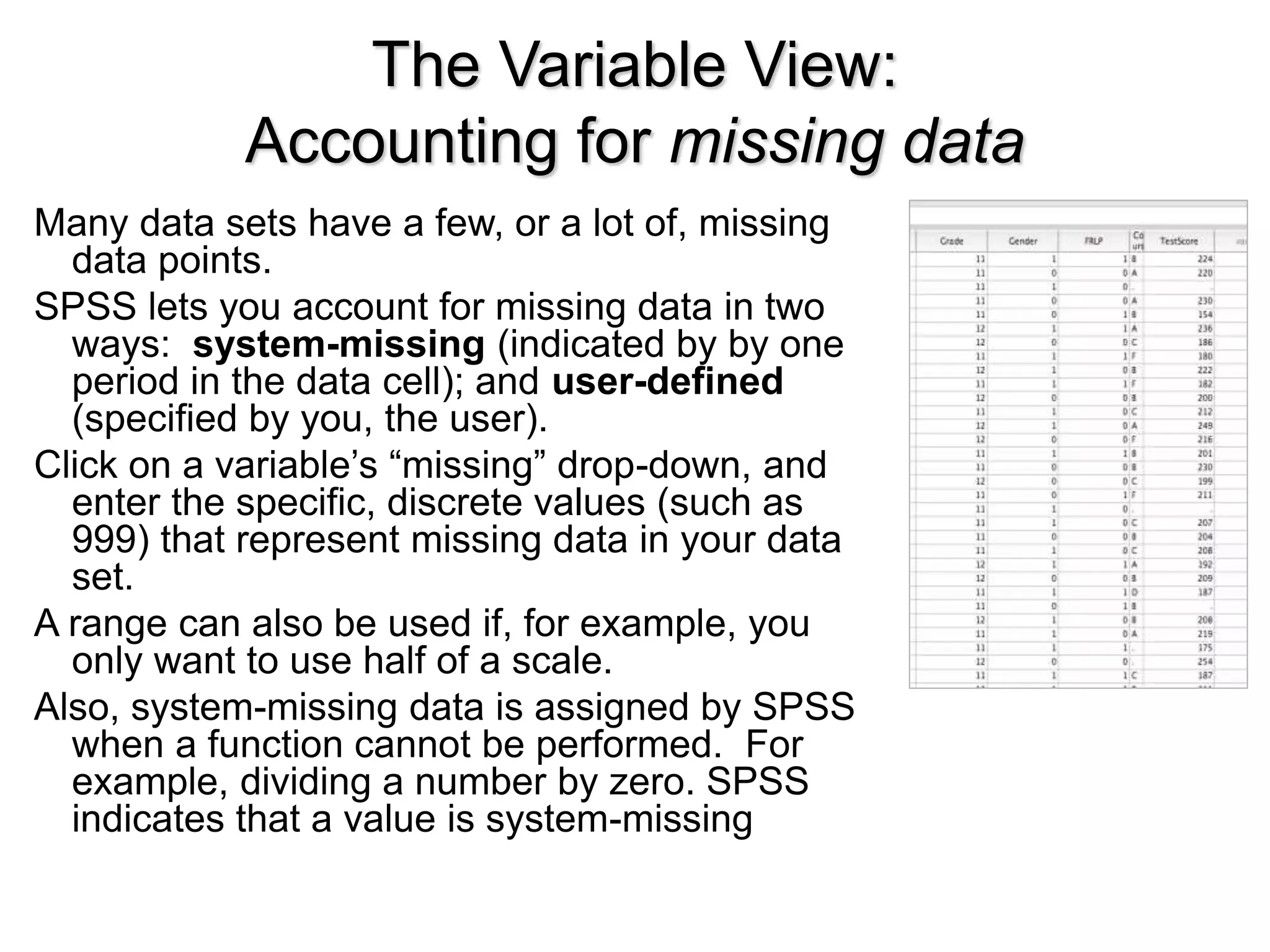
Accounting for missing data
Many data sets have a few, or a lot of, missing
data points.
SPSS lets you account for missing data in two
ways: system-missing (indicated by by one
period in the data cell); and user-defined
(specified by you, the user).
Click on a variable’s “missing” drop-down, and
enter the specific, discrete values (such as
999) that represent missing data in your data
set.
A range can also be used if, for example, you
only want to use half of a scale.
Also, system-missing data is assigned by SPSS
when a function cannot be performed. For
example, dividing a number by zero. SPSS
indicates that a value is system-missing
Descriptive Statistics:
Frequencies
Lets say we are interested in
learning more about the
characteristics of the schools
(School) in the example dataset.
Click ANALYZE
Click DESCRIPTIVE STATISTICS
Click FREQUENCIES
Choose School from the list.
Descriptive Statistics:
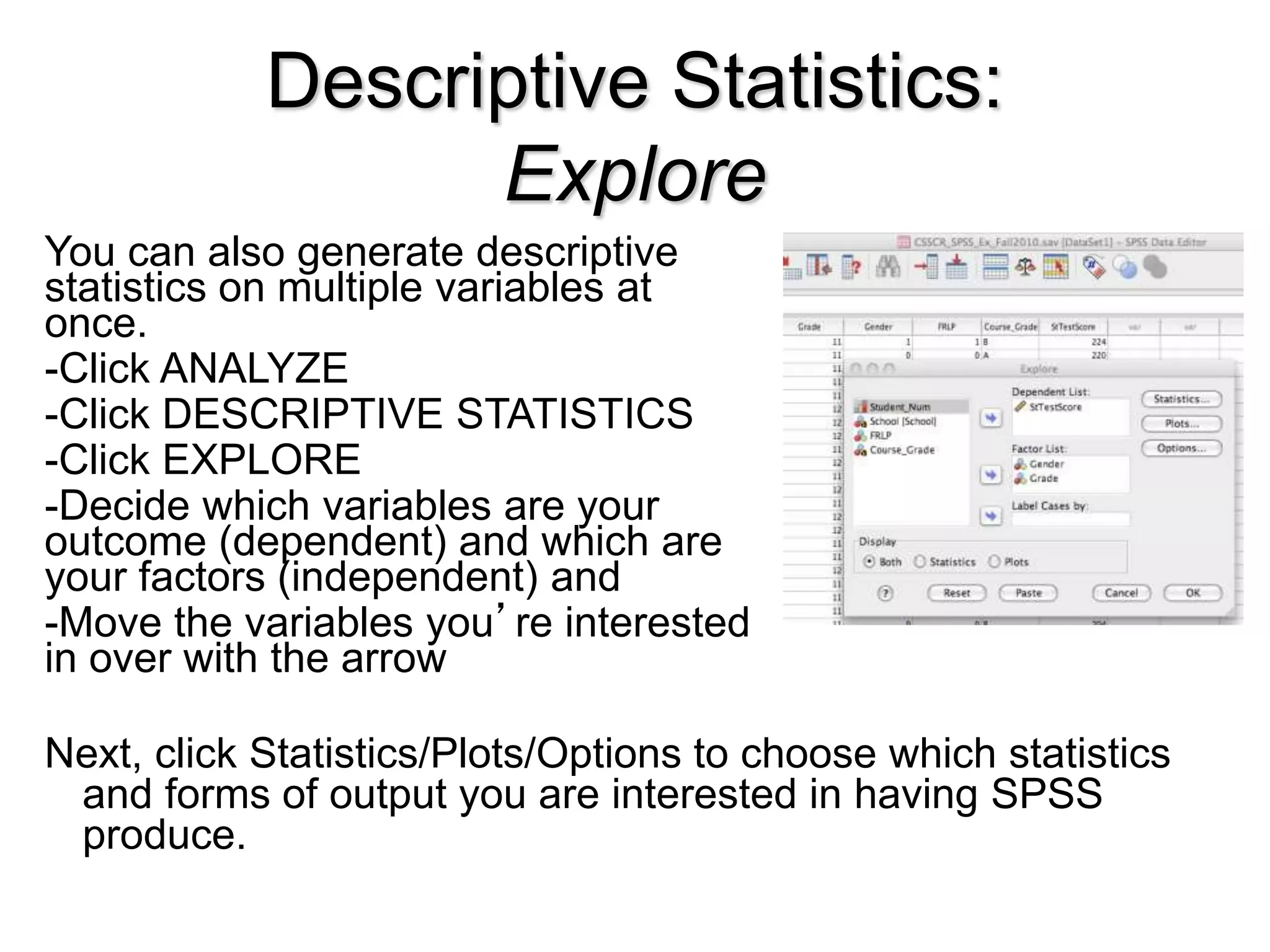
Explore
You can also generate descriptive
statistics on multiple variables at
once.
-Click ANALYZE
-Click DESCRIPTIVE STATISTICS
-Click EXPLORE
-Decide which variables are your
outcome (dependent) and which are
your factors (independent) and
-Move the variables you’re interested
in over with the arrow
Next, click Statistics/Plots/Options to choose which statistics
and forms of output you are interested in having SPSS
produce.
Descriptive Statistics:
Crosstabs
To look at frequencies of data
nested across multiple variables:
-Click ANALYZE
-Click DESCRIPTIVE STATISTICS
-Click CROSSTABS
-Move the variables you’re
interested in over with the arrow
-Select the options you would like
to apply to the Crosstabs output
(Statistics, etc.)
-Click OK
Graphing Your Data
Graphs can be generated and
formatted (fairly) easily, and in a
number of ways in SPSS.
For example, click GRAPH >
LEGACY DIALOGS > HISTOGRAM
-Select Curriculum to go on the X axis,
and StTestScore as the outcome
Variable.
-If desired, check the box labeled
DISPLAY NORMAL CURVE.
-You can also change the style of your
graph in this element properties
window.
-These graphs can be exported, or
copied and pasted into other
programs, such as Word and Excel.
Graphing Continued
Your resulting graph should look
something like this:
Double click on the graph to open the chart editor.
Formatting Graphs/Charts
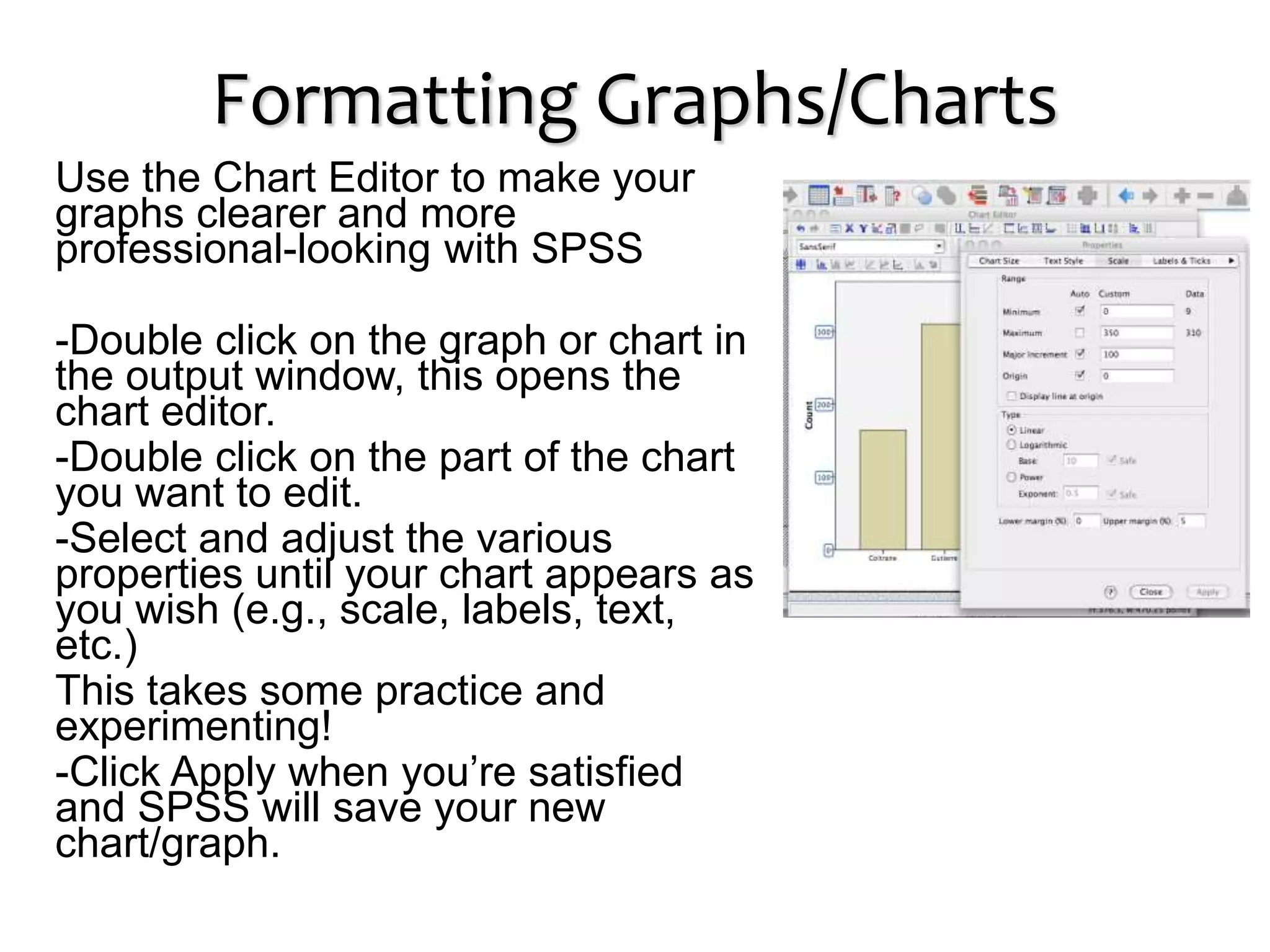
Use the Chart Editor to make your
graphs clearer and more
professional-looking with SPSS
-Double click on the graph or chart in
the output window, this opens the
chart editor.
-Double click on the part of the chart
you want to edit.
-Select and adjust the various
properties until your chart appears as
you wish (e.g., scale, labels, text,
etc.)
This takes some practice and
experimenting!
-Click Apply when you’re satisfied
and SPSS will save your new
chart/graph.
Analysis of Variance (ANOVA)
a One-way Fixed Effects Analysis
At last, your data is clean, and you want to
run some statistical tests. Perhaps you
want to test for differences on test scores by,
say, curriculum types in your data.
-First, make sure your data are set up with
the appropriate “type” and “measure”
attributes (factors are numeric)
Select Analyze > Compare Means > One-Way ANOVA
Select your Dependent/Outcome Variable and your
Factor/Independent Variable
-Choose the commands you’d like SPSS to perform
-Visual output options
-Whether you want descriptive output
-Click OK, and review your output in the Output Viewer.
Saving your work
After all the data cleaning and various forms of analyses you’ve run,
you want to be sure to save all of your work, in an organized
fashion, and frequently!
-Give your data files names that sufficiently descriptive of what you
are working on, and that you will recognize when you come back to
the data at some time in the future.
-Backup your data (save in multiple locations), in case one source
should become lost or corrupted.
-Remember that each file format (.sav, .spv, .sps) should be saved
as a uniquely identified element of your data analyses.
-It may be useful, during the process of cleaning/analyzing, to save
your work with ascending file names (e.g., schooldatacleaningA,
schooldatacleaningB...), so that you have a backup if something
goes wrong (the program decides to hickup, there is a power
outage, etc.)
What we have covered:
-The basic structure of SPSS
-Cleaning & transforming your data – selecting cases, transforming,
recoding, value labels
-Descriptive statistics – frequencies, crosstabs, explore
-Charts & graphs: legacy charts, editing graphs
-Saving your work
Helpful Resources
There are many resources online to help you learn SPSS
(tutorials, blogs, etc.)
– http://www.stat.tamu.edu/spss.php
– http://www.ats.ucla.edu/stat/SPSS/
– http://www.lrz.de/~wlm/wlmspss.htm
CSSCR has a Quicktime SPSS class and SPSS handouts on the
CSSCR website.
CSSCR offers classes on SPSS frequently– come back for the
SPSS Beyond the Basics class, or schedule an appt. with one
of the CSSCR consultants!
Introduction to SPSS
(For SPSS Version 16.0)
Eric Hamilton
CENTER FOR SOCIAL SCIENCE
COMPUTATION AND RESEARCH (CSSCR)
UNIVERSITY OF WASHINGTON
Winter Quarter, 2011

5116427.ppt

  • 1.
    Introduction to SPSS (ForSPSS Version 16.0) Eric Hamilton CENTER FOR SOCIAL SCIENCE COMPUTATION AND RESEARCH (CSSCR) UNIVERSITY OF WASHINGTON Winter Quarter, 2011
  • 2.
    Topics Covered inthis Introductory Course* -SPSS at a glance, basic structure -Cleaning & reformatting your data -Descriptive statistics – frequencies, explore, crosstabs -Charts & graphs: histograms, legacy charts, editing graphs -Saving your work -Resources for learning more about SPSS *These slides correspond to the CSSCR SPSS Winter2011 course data set, found on the CSSCR website.
  • 3.
    SPSS at aglance SPSS (Statistical Package for the Social Sciences) was designed to offer a more user-friendly data analysis platform than other statistical software (e.g., Mplus, R, SAS). The newest version of SPSS is called “IBM SPSS Statistics 18”. IBM purchased SPSS in 2009. This tutorial refers to use of SPSS 16.0. There are some added functions in the new version, but for the most part, the usability is similar.
  • 4.
    Opening SPSS Go toSTART, PROGRAMS, and find the SPSS 16.0 program or The computers in the CSSCR lab typically have SPSS on the desktop. Select the red box that says SPSS on the top.
  • 5.
    Opening a datafile in SPSS -Open the version of SPSS you want to work with. -You can work with the wizard, or -Select File > Open > Data. -Select the format of your data with the “Files of type” button, -then locate, select, and open your data file.
  • 6.
    Basic structure ofSPSS There are multiple windows in SPSS The Data Editor Window (.sav) shows data in two forms: Data view Variable view The Output Viewer Window (.spv) shows results of data analysis The Syntax Editor Window (.sps) shows the syntax command script. This is also where you can type and run your own syntax commands. Note: you must perform separate save procedures for the data editor (.sav), output viewer (.spv), and syntax editor (.sps) windows. Remember to save your work frequently, under names that will have meaning for you in the future.
  • 7.
    The Editor Window: Dataview vs. Variable view Data view Rows are cases Columns are variables (generally speaking) Variable view Rows define the variables Name, Type, Width, Decimals, Label, Values, Missing, Columns, Align, Measure. The Measure of variables in the dataset is important: – Scale = “continuous” – age, weight, income – Nominal = “names” – categories that cannot be ranked (ID number) – Ordinal = “ordered” – categories that can be ranked (level of satisfaction)
  • 8.
    Data Manipulation selecting cases Withthe select cases command, you can select specific cases for analysis -click DATA -click SELECT CASES -click IF CONDITION IS SATISFIED -select the variable with which you will select cases -enter the logical/Boolean command to select the cases you want to analyze –e.g., “Select Cases IF Grade = 12”
  • 9.
    Data Manipulation Transform variable Example:create a new, transformed variable from an already existing variable -click Transform -click Compute Variable -Assign the new “Target Variable” TestScore_Ex -fill in numeric expression = SQRT(TestScore) If desired, you can create an If-Then statement by clicking on the IF button -click INCLUDE IF CASE SATISFIES CONDITION, and enter (e.g.) CurrType= Integrated, then click OK
  • 10.
    Data Manipulation Recode avariable Recoding allows a researcher to create a new variable with, for example, a different set of parameters -Decide which Variable(s) you want to recode -click TRANSFORM -click RECODE INTO DIFFERENT VARIABLE -move CurrType over to the right -create a name for the new variable: CurrNum -click Old and New Values
  • 11.
    Recoding a variable(contin.) • Select and enter the appropriate data recode modifications: • Enter an already existing Old Value, then enter its New Value, and click Add (note: these must be written exactly as they appear in the data view) • Alternatively, click RANGE to create ranges of old values • If you’ve recoded all the values you want changed, click on “Copy old value(s)” • Click OK and check that your new values were created correctly.
  • 12.
    The Variable View: RecordingValue Labels After recoding your variables, you may want to record the values assigned to each variable’s category. You can note in SPSS what your numeric values stand for in the “Value Labels” area. This is helpful if you’ve recoded and need to keep track of what’s what. -Select the Value Labels drop-down, and record the values and labels for your range of new data. -If you forget how you recoded your data, your labels should be available in your output (.spo) file.
  • 13.
    The Variable View: Accountingfor missing data Many data sets have a few, or a lot of, missing data points. SPSS lets you account for missing data in two ways: system-missing (indicated by by one period in the data cell); and user-defined (specified by you, the user). Click on a variable’s “missing” drop-down, and enter the specific, discrete values (such as 999) that represent missing data in your data set. A range can also be used if, for example, you only want to use half of a scale. Also, system-missing data is assigned by SPSS when a function cannot be performed. For example, dividing a number by zero. SPSS indicates that a value is system-missing
  • 14.
    Descriptive Statistics: Frequencies Lets saywe are interested in learning more about the characteristics of the schools (School) in the example dataset. Click ANALYZE Click DESCRIPTIVE STATISTICS Click FREQUENCIES Choose School from the list.
  • 15.
    Descriptive Statistics: Explore You canalso generate descriptive statistics on multiple variables at once. -Click ANALYZE -Click DESCRIPTIVE STATISTICS -Click EXPLORE -Decide which variables are your outcome (dependent) and which are your factors (independent) and -Move the variables you’re interested in over with the arrow Next, click Statistics/Plots/Options to choose which statistics and forms of output you are interested in having SPSS produce.
  • 16.
    Descriptive Statistics: Crosstabs To lookat frequencies of data nested across multiple variables: -Click ANALYZE -Click DESCRIPTIVE STATISTICS -Click CROSSTABS -Move the variables you’re interested in over with the arrow -Select the options you would like to apply to the Crosstabs output (Statistics, etc.) -Click OK
  • 17.
    Graphing Your Data Graphscan be generated and formatted (fairly) easily, and in a number of ways in SPSS. For example, click GRAPH > LEGACY DIALOGS > HISTOGRAM -Select Curriculum to go on the X axis, and StTestScore as the outcome Variable. -If desired, check the box labeled DISPLAY NORMAL CURVE. -You can also change the style of your graph in this element properties window. -These graphs can be exported, or copied and pasted into other programs, such as Word and Excel.
  • 18.
    Graphing Continued Your resultinggraph should look something like this: Double click on the graph to open the chart editor.
  • 19.
    Formatting Graphs/Charts Use theChart Editor to make your graphs clearer and more professional-looking with SPSS -Double click on the graph or chart in the output window, this opens the chart editor. -Double click on the part of the chart you want to edit. -Select and adjust the various properties until your chart appears as you wish (e.g., scale, labels, text, etc.) This takes some practice and experimenting! -Click Apply when you’re satisfied and SPSS will save your new chart/graph.
  • 20.
    Analysis of Variance(ANOVA) a One-way Fixed Effects Analysis At last, your data is clean, and you want to run some statistical tests. Perhaps you want to test for differences on test scores by, say, curriculum types in your data. -First, make sure your data are set up with the appropriate “type” and “measure” attributes (factors are numeric) Select Analyze > Compare Means > One-Way ANOVA Select your Dependent/Outcome Variable and your Factor/Independent Variable -Choose the commands you’d like SPSS to perform -Visual output options -Whether you want descriptive output -Click OK, and review your output in the Output Viewer.
  • 21.
    Saving your work Afterall the data cleaning and various forms of analyses you’ve run, you want to be sure to save all of your work, in an organized fashion, and frequently! -Give your data files names that sufficiently descriptive of what you are working on, and that you will recognize when you come back to the data at some time in the future. -Backup your data (save in multiple locations), in case one source should become lost or corrupted. -Remember that each file format (.sav, .spv, .sps) should be saved as a uniquely identified element of your data analyses. -It may be useful, during the process of cleaning/analyzing, to save your work with ascending file names (e.g., schooldatacleaningA, schooldatacleaningB...), so that you have a backup if something goes wrong (the program decides to hickup, there is a power outage, etc.)
  • 22.
    What we havecovered: -The basic structure of SPSS -Cleaning & transforming your data – selecting cases, transforming, recoding, value labels -Descriptive statistics – frequencies, crosstabs, explore -Charts & graphs: legacy charts, editing graphs -Saving your work
  • 23.
    Helpful Resources There aremany resources online to help you learn SPSS (tutorials, blogs, etc.) – http://www.stat.tamu.edu/spss.php – http://www.ats.ucla.edu/stat/SPSS/ – http://www.lrz.de/~wlm/wlmspss.htm CSSCR has a Quicktime SPSS class and SPSS handouts on the CSSCR website. CSSCR offers classes on SPSS frequently– come back for the SPSS Beyond the Basics class, or schedule an appt. with one of the CSSCR consultants!
  • 24.
    Introduction to SPSS (ForSPSS Version 16.0) Eric Hamilton CENTER FOR SOCIAL SCIENCE COMPUTATION AND RESEARCH (CSSCR) UNIVERSITY OF WASHINGTON Winter Quarter, 2011