Introduction to SPSS
Object of the class
 About the windows in SPSS
 The basics of managing data files
 The basic analysis in SPSS
Introduction: What is SPSS?
 Originally it is an acronym of Statistical
Package for the Social Science but now it
stands for Statistical Product and Service
Solutions
 One of the most popular statistical
packages which can perform highly
complex data manipulation and analysis
with simple instructions
Opening SPSS
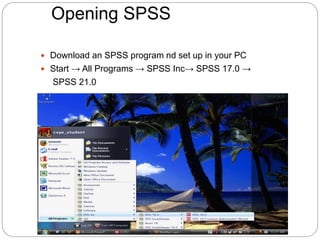
 Download an SPSS program nd set up in your PC
 Start → All Programs → SPSS Inc→ SPSS 17.0 →
SPSS 21.0
Opening SPSS
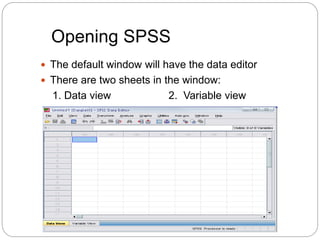
 The default window will have the data editor
 There are two sheets in the window:
1. Data view 2. Variable view
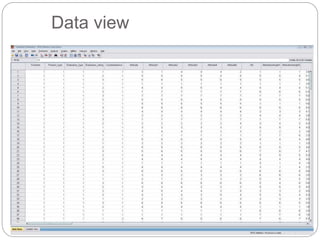
Data view
To import data from excel
 After you have kept only your required districts as
per your province then,
 1. Open yellow folder top left of the SPSS and
type excel file
 2. Automatically it will be copied to spss
 3. name this spss file
 Or
 Or you can just delet unwanted districts row wise
opening data view
8
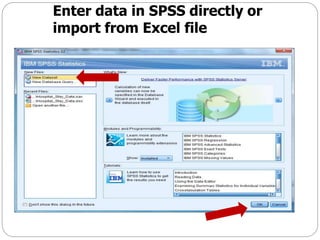
Enter data in SPSS directly or
import from Excel file
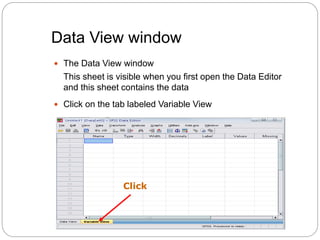
Data View window
 The Data View window
This sheet is visible when you first open the Data Editor
and this sheet contains the data
 Click on the tab labeled Variable View
Click
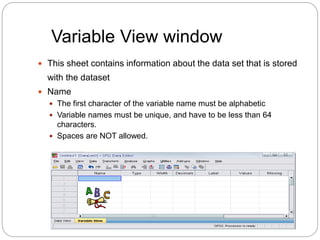
Variable View window
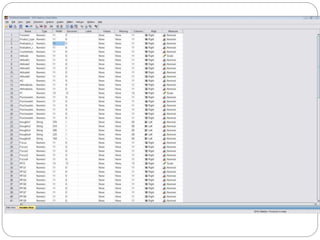
 This sheet contains information about the data set that is stored
with the dataset
 Name
 The first character of the variable name must be alphabetic
 Variable names must be unique, and have to be less than 64
characters.
 Spaces are NOT allowed.
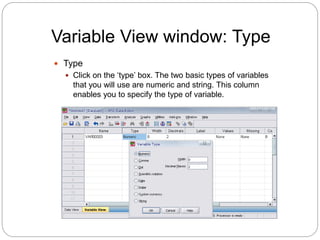
Variable View window: Type
 Type
 Click on the ‘type’ box. The two basic types of variables
that you will use are numeric and string. This column
enables you to specify the type of variable.
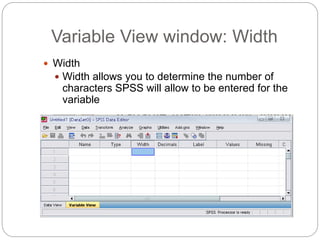
Variable View window: Width
 Width
 Width allows you to determine the number of
characters SPSS will allow to be entered for the
variable
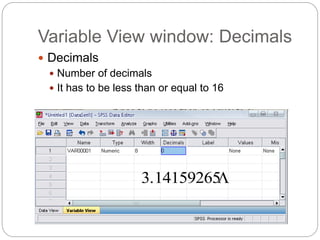
Variable View window: Decimals
 Decimals
 Number of decimals
 It has to be less than or equal to 16
3.14159265
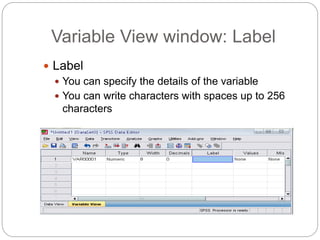
Variable View window: Label
 Label
 You can specify the details of the variable
 You can write characters with spaces up to 256
characters
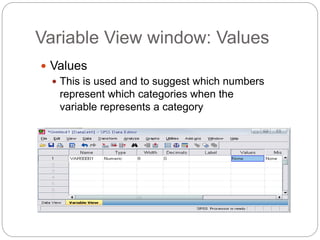
Variable View window: Values
 Values
 This is used and to suggest which numbers
represent which categories when the
variable represents a category
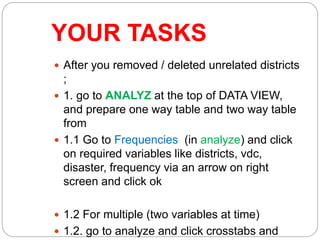
YOUR TASKS
 After you removed / deleted unrelated districts
;
 1. go to ANALYZ at the top of DATA VIEW,
and prepare one way table and two way table
from
 1.1 Go to Frequencies (in analyze) and click
on required variables like districts, vdc,
disaster, frequency via an arrow on right
screen and click ok
 1.2 For multiple (two variables at time)
 1.2. go to analyze and click crosstabs and
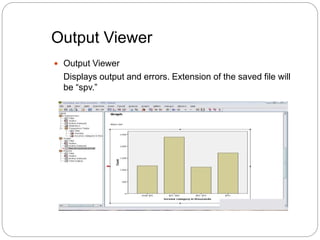
Output Viewer
 Output Viewer
Displays output and errors. Extension of the saved file will
be “spv.”
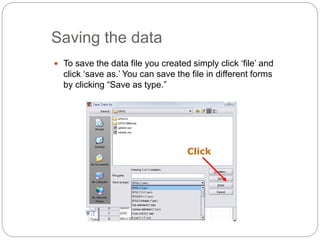
Saving the data
 To save the data file you created simply click ‘file’ and
click ‘save as.’ You can save the file in different forms
by clicking “Save as type.”
Click
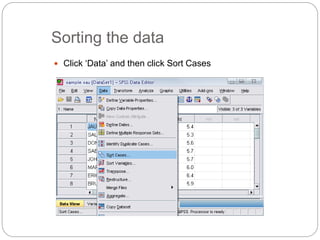
Sorting the data
 Click ‘Data’ and then click Sort Cases
Sorting the data (cont’d)
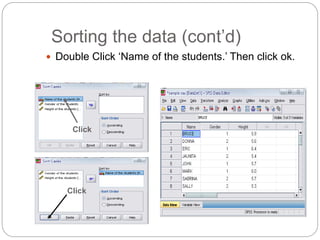
 Double Click ‘Name of the students.’ Then click ok.
Click
Click
The basic analysis
The basic analysis of SPSS that will be
introduced in this class
 Frequencies
 This analysis produces frequency tables showing
frequency counts and percentages of the values of
individual variables.
 Descriptives
 This analysis shows the maximum, minimum,
mean, and standard deviation of the variables
 Linear regression analysis
 Linear Regression estimates the coefficients of the
linear equation
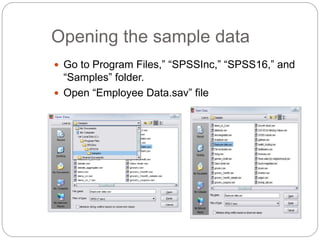
Opening the sample data
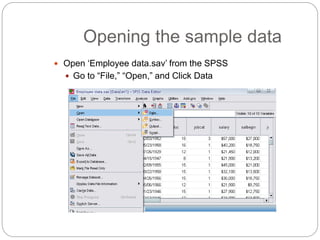
 Open ‘Employee data.sav’ from the SPSS
 Go to “File,” “Open,” and Click Data
Opening the sample data
 Go to Program Files,” “SPSSInc,” “SPSS16,” and
“Samples” folder.
 Open “Employee Data.sav” file
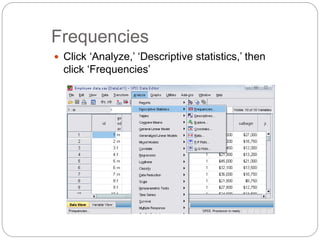
Frequencies
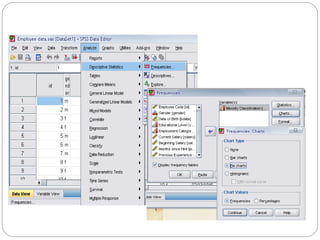
 Click ‘Analyze,’ ‘Descriptive statistics,’ then
click ‘Frequencies’
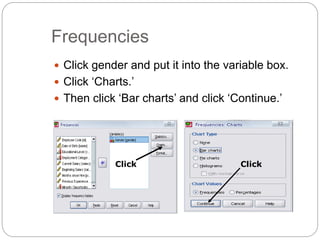
Frequencies
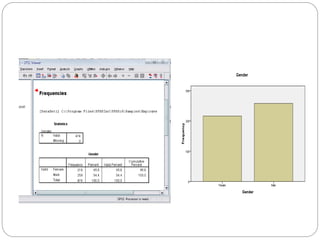
 Click gender and put it into the variable box.
 Click ‘Charts.’
 Then click ‘Bar charts’ and click ‘Continue.’
Click Click
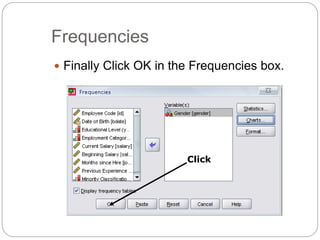
Frequencies
 Finally Click OK in the Frequencies box.
Click
Practice 4
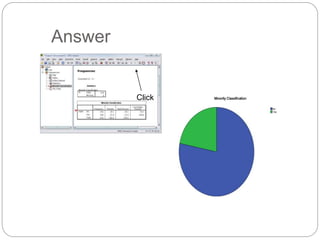
Do a frequency analysis on the
variable “minority”
Create pie charts for it
Answer
Click
Descriptives
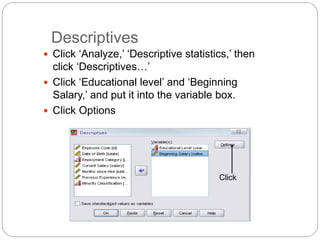
 Click ‘Analyze,’ ‘Descriptive statistics,’ then
click ‘Descriptives…’
 Click ‘Educational level’ and ‘Beginning
Salary,’ and put it into the variable box.
 Click Options
Click
Descriptives
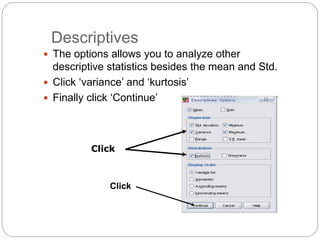
 The options allows you to analyze other
descriptive statistics besides the mean and Std.
 Click ‘variance’ and ‘kurtosis’
 Finally click ‘Continue’
Click
Click
Descriptives
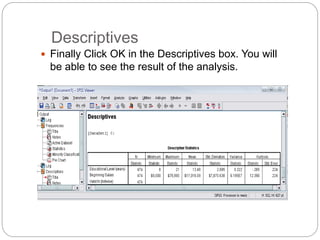
 Finally Click OK in the Descriptives box. You will
be able to see the result of the analysis.

Spss intro for engineering

  • 1.
  • 2.
    Object of theclass  About the windows in SPSS  The basics of managing data files  The basic analysis in SPSS
  • 3.
    Introduction: What isSPSS?  Originally it is an acronym of Statistical Package for the Social Science but now it stands for Statistical Product and Service Solutions  One of the most popular statistical packages which can perform highly complex data manipulation and analysis with simple instructions
  • 4.
    Opening SPSS  Downloadan SPSS program nd set up in your PC  Start → All Programs → SPSS Inc→ SPSS 17.0 → SPSS 21.0
  • 5.
    Opening SPSS  Thedefault window will have the data editor  There are two sheets in the window: 1. Data view 2. Variable view
  • 6.
  • 7.
    To import datafrom excel  After you have kept only your required districts as per your province then,  1. Open yellow folder top left of the SPSS and type excel file  2. Automatically it will be copied to spss  3. name this spss file  Or  Or you can just delet unwanted districts row wise opening data view
  • 8.
    8 Enter data inSPSS directly or import from Excel file
  • 9.
    Data View window The Data View window This sheet is visible when you first open the Data Editor and this sheet contains the data  Click on the tab labeled Variable View Click
  • 11.
    Variable View window This sheet contains information about the data set that is stored with the dataset  Name  The first character of the variable name must be alphabetic  Variable names must be unique, and have to be less than 64 characters.  Spaces are NOT allowed.
  • 12.
    Variable View window:Type  Type  Click on the ‘type’ box. The two basic types of variables that you will use are numeric and string. This column enables you to specify the type of variable.
  • 13.
    Variable View window:Width  Width  Width allows you to determine the number of characters SPSS will allow to be entered for the variable
  • 14.
    Variable View window:Decimals  Decimals  Number of decimals  It has to be less than or equal to 16 3.14159265
  • 15.
    Variable View window:Label  Label  You can specify the details of the variable  You can write characters with spaces up to 256 characters
  • 16.
    Variable View window:Values  Values  This is used and to suggest which numbers represent which categories when the variable represents a category
  • 17.
    YOUR TASKS  Afteryou removed / deleted unrelated districts ;  1. go to ANALYZ at the top of DATA VIEW, and prepare one way table and two way table from  1.1 Go to Frequencies (in analyze) and click on required variables like districts, vdc, disaster, frequency via an arrow on right screen and click ok  1.2 For multiple (two variables at time)  1.2. go to analyze and click crosstabs and
  • 18.
    Output Viewer  OutputViewer Displays output and errors. Extension of the saved file will be “spv.”
  • 19.
    Saving the data To save the data file you created simply click ‘file’ and click ‘save as.’ You can save the file in different forms by clicking “Save as type.” Click
  • 20.
    Sorting the data Click ‘Data’ and then click Sort Cases
  • 21.
    Sorting the data(cont’d)  Double Click ‘Name of the students.’ Then click ok. Click Click
  • 22.
  • 23.
    The basic analysisof SPSS that will be introduced in this class  Frequencies  This analysis produces frequency tables showing frequency counts and percentages of the values of individual variables.  Descriptives  This analysis shows the maximum, minimum, mean, and standard deviation of the variables  Linear regression analysis  Linear Regression estimates the coefficients of the linear equation
  • 24.
    Opening the sampledata  Open ‘Employee data.sav’ from the SPSS  Go to “File,” “Open,” and Click Data
  • 25.
    Opening the sampledata  Go to Program Files,” “SPSSInc,” “SPSS16,” and “Samples” folder.  Open “Employee Data.sav” file
  • 26.
    Frequencies  Click ‘Analyze,’‘Descriptive statistics,’ then click ‘Frequencies’
  • 27.
    Frequencies  Click genderand put it into the variable box.  Click ‘Charts.’  Then click ‘Bar charts’ and click ‘Continue.’ Click Click
  • 28.
    Frequencies  Finally ClickOK in the Frequencies box. Click
  • 30.
    Practice 4 Do afrequency analysis on the variable “minority” Create pie charts for it
  • 32.
  • 33.
    Descriptives  Click ‘Analyze,’‘Descriptive statistics,’ then click ‘Descriptives…’  Click ‘Educational level’ and ‘Beginning Salary,’ and put it into the variable box.  Click Options Click
  • 34.
    Descriptives  The optionsallows you to analyze other descriptive statistics besides the mean and Std.  Click ‘variance’ and ‘kurtosis’  Finally click ‘Continue’ Click Click
  • 35.
    Descriptives  Finally ClickOK in the Descriptives box. You will be able to see the result of the analysis.