Intro to
Evernote
IC- Katie Pardee
6th grade Social Studies PLC
November 15th, 2013.
What is the deal with the elephant?
 Remember

Everything!
What is Evernote?
 https://www.youtube.com/watch?v=Pjn6YkCY2yA
 The

idea behind Evernote is to simplify and
organize your life by giving a place to keep all of
notes, images, files, web clips, etc. all in one place.
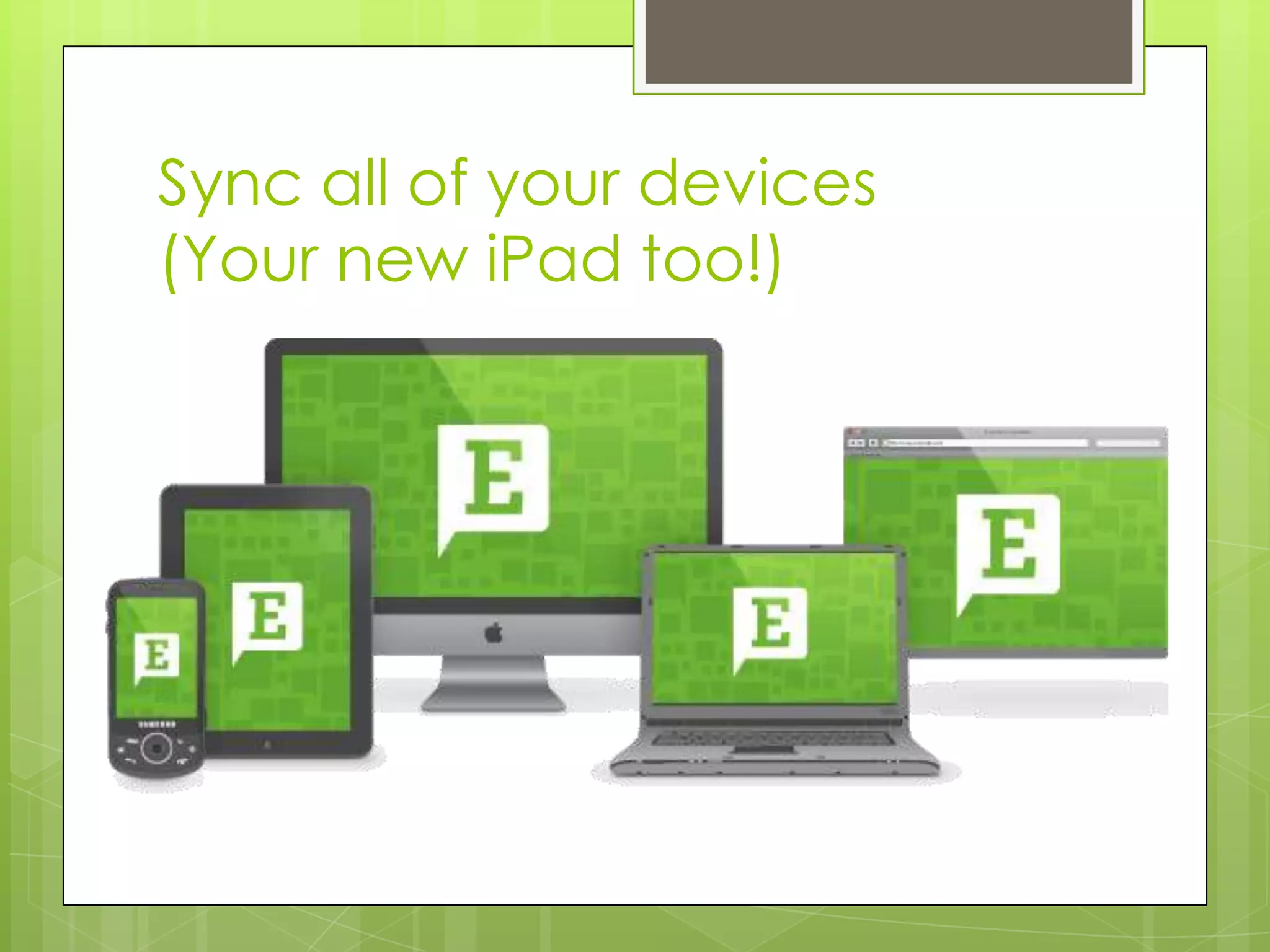
 Using cloud based technology, Evernote allows you
to sync your phone, computer, and tablet devices
so that you have your files and documents
wherever you are. One of the best things about it is
that it’s free!
Sync all of your devices
(Your new iPad too!)
How to: Create Notes
 https://www.youtube.com/watch?v=GrjEAx8Upzw
1.
2.
3.

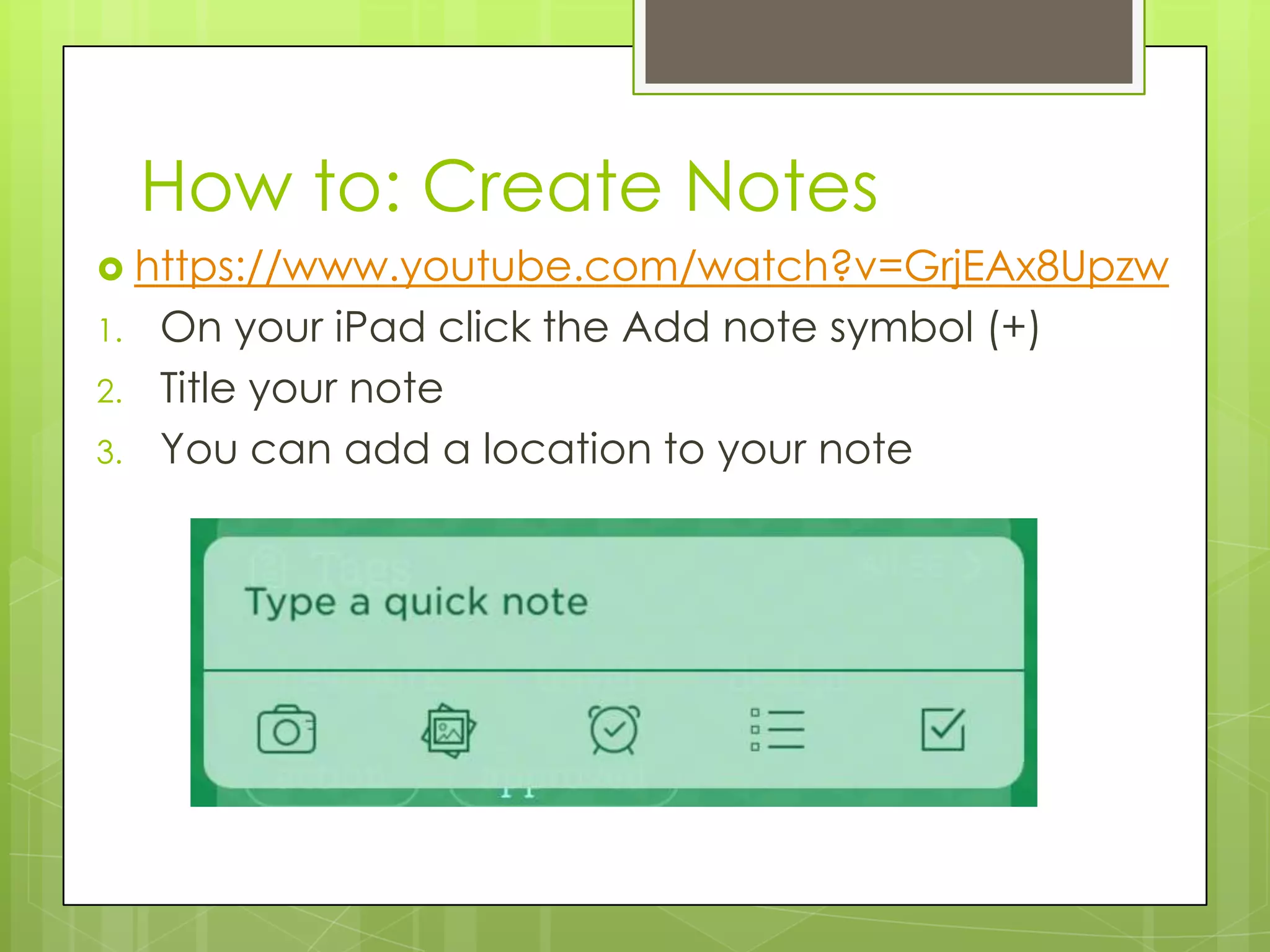
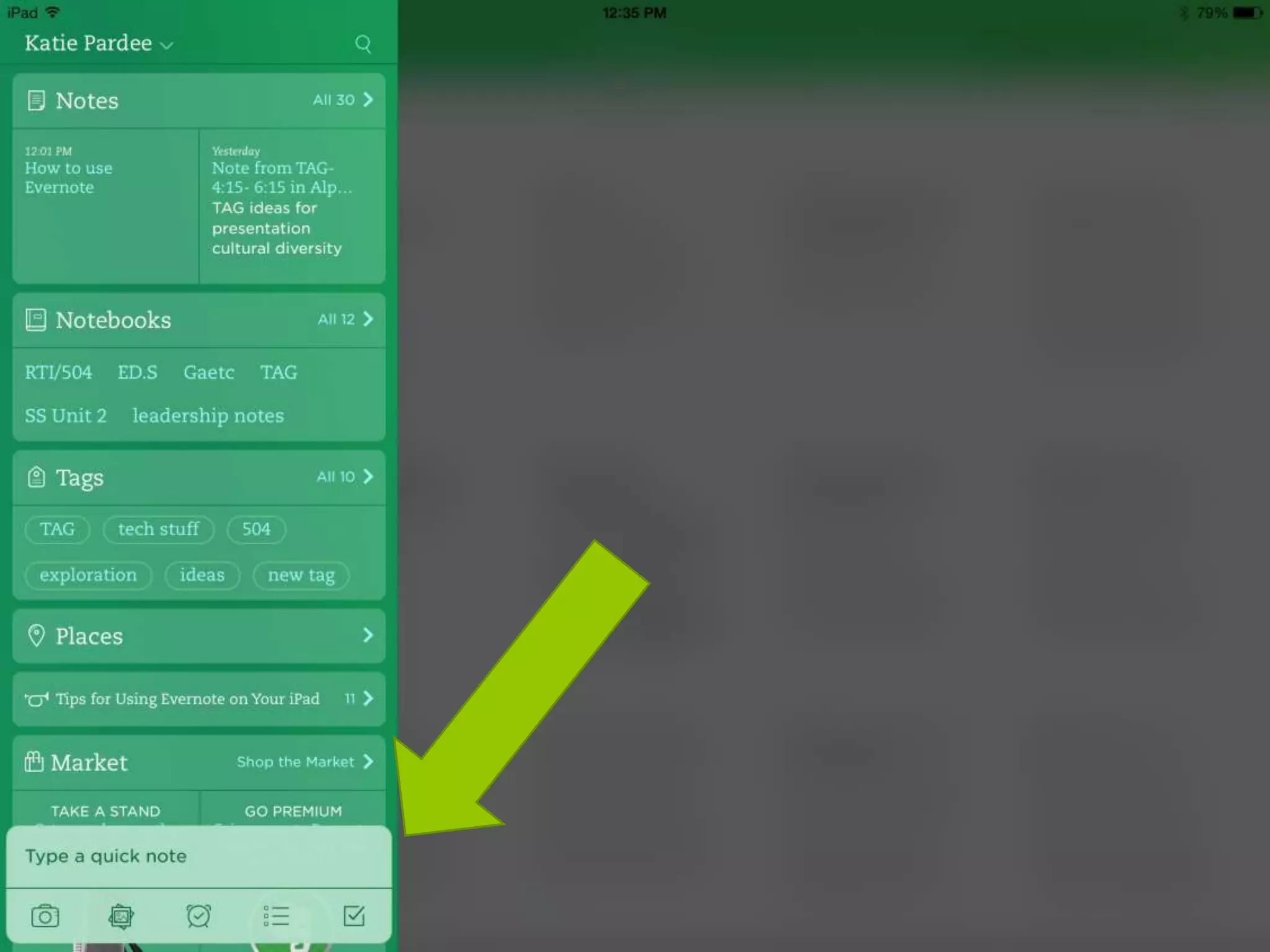
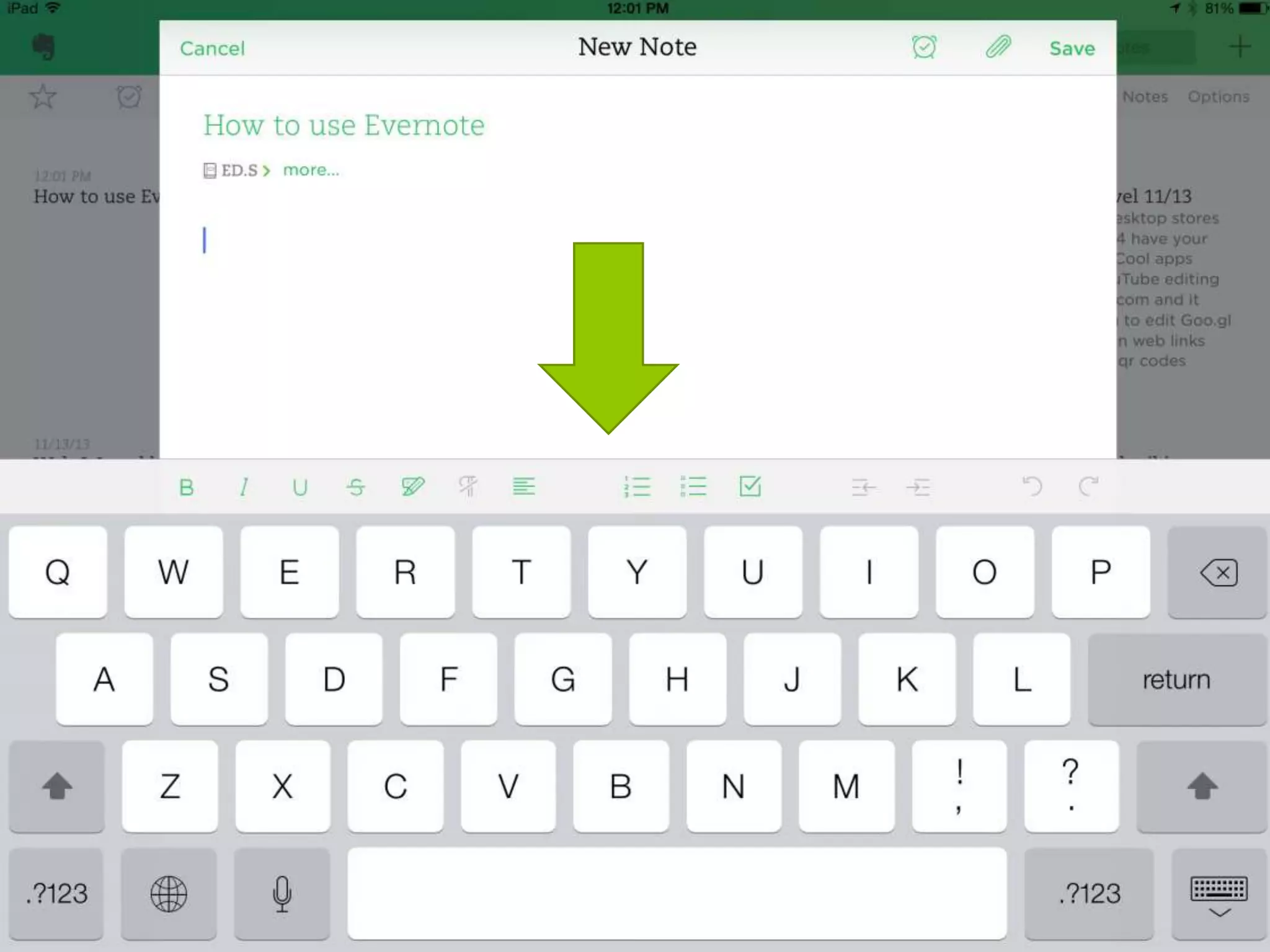
On your iPad click the Add note symbol (+)
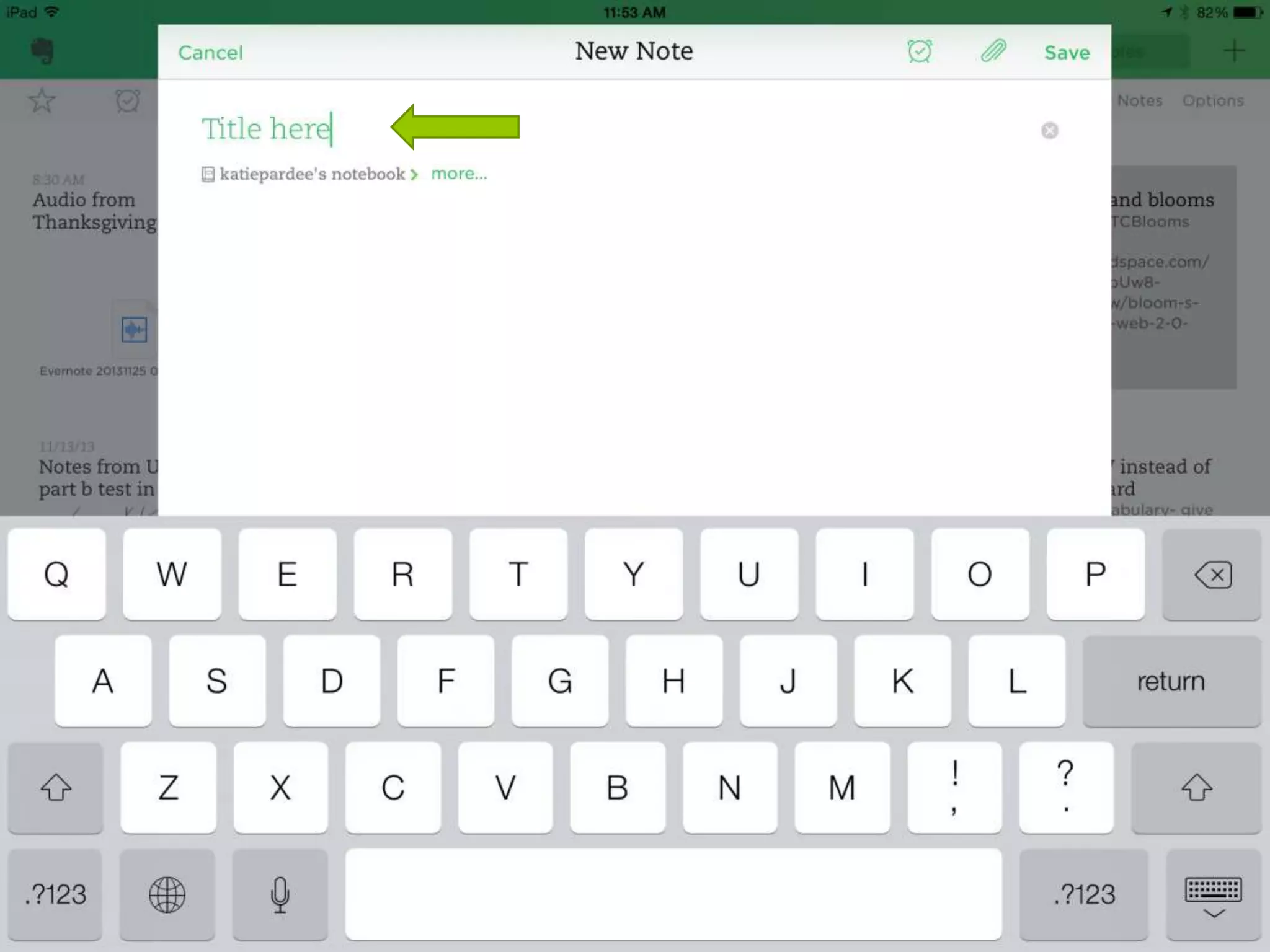
Title your note
You can add a location to your note
…How to: Create Notes
4. Notice the features- you can format an Evernote
much like a word processing document with Bold,
Italicized, and Underlined script. You may also add
bullets and numbering. (You won’t find these
features on the preloaded Apple notebook)
 Need a little more help? Go here for a complete
step by step guide:
http://mashable.com/2013/07/03/evernotebeginners/
How to Create Notebooks








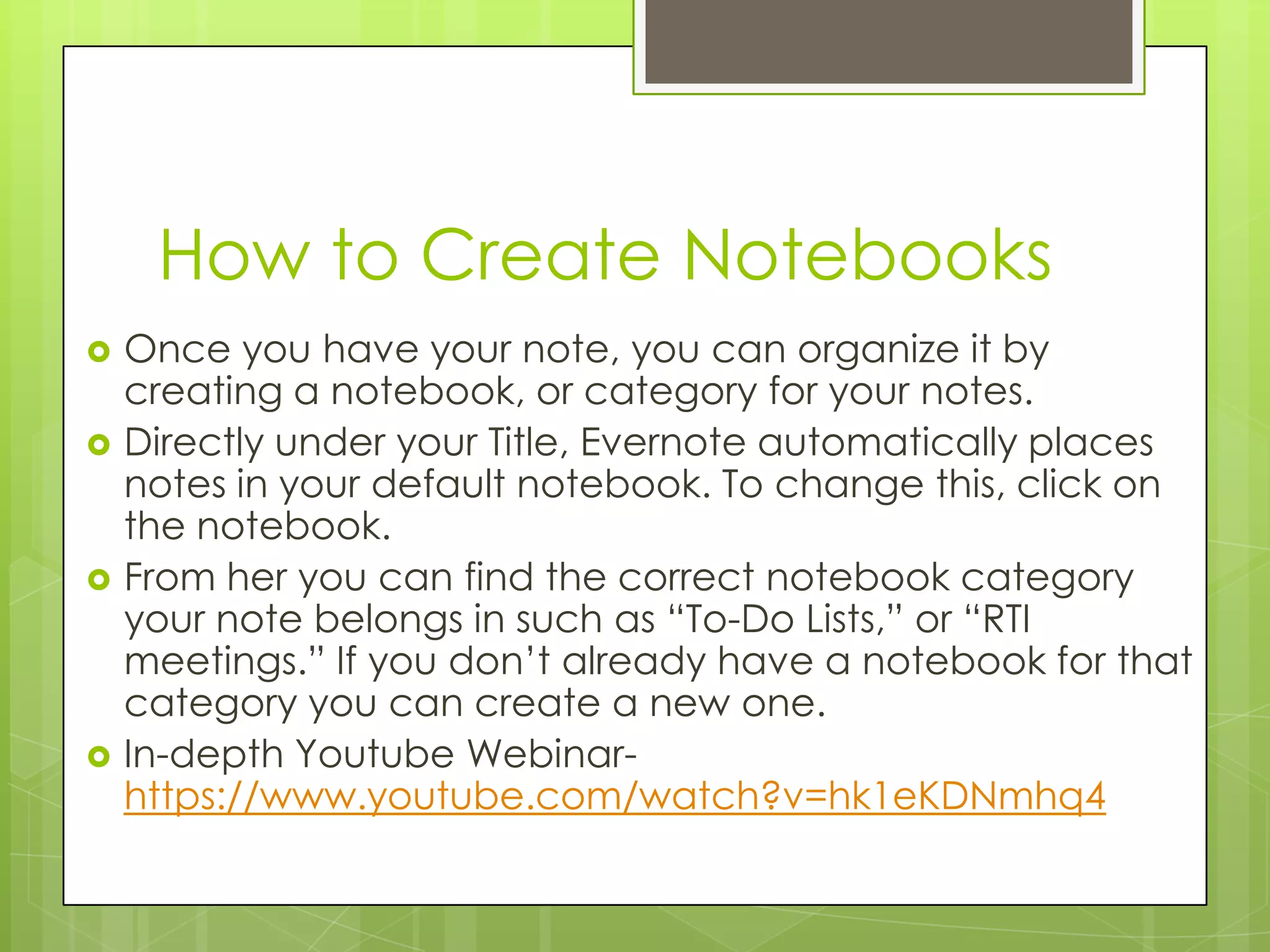
Once you have your note, you can organize it by
creating a notebook, or category for your notes.
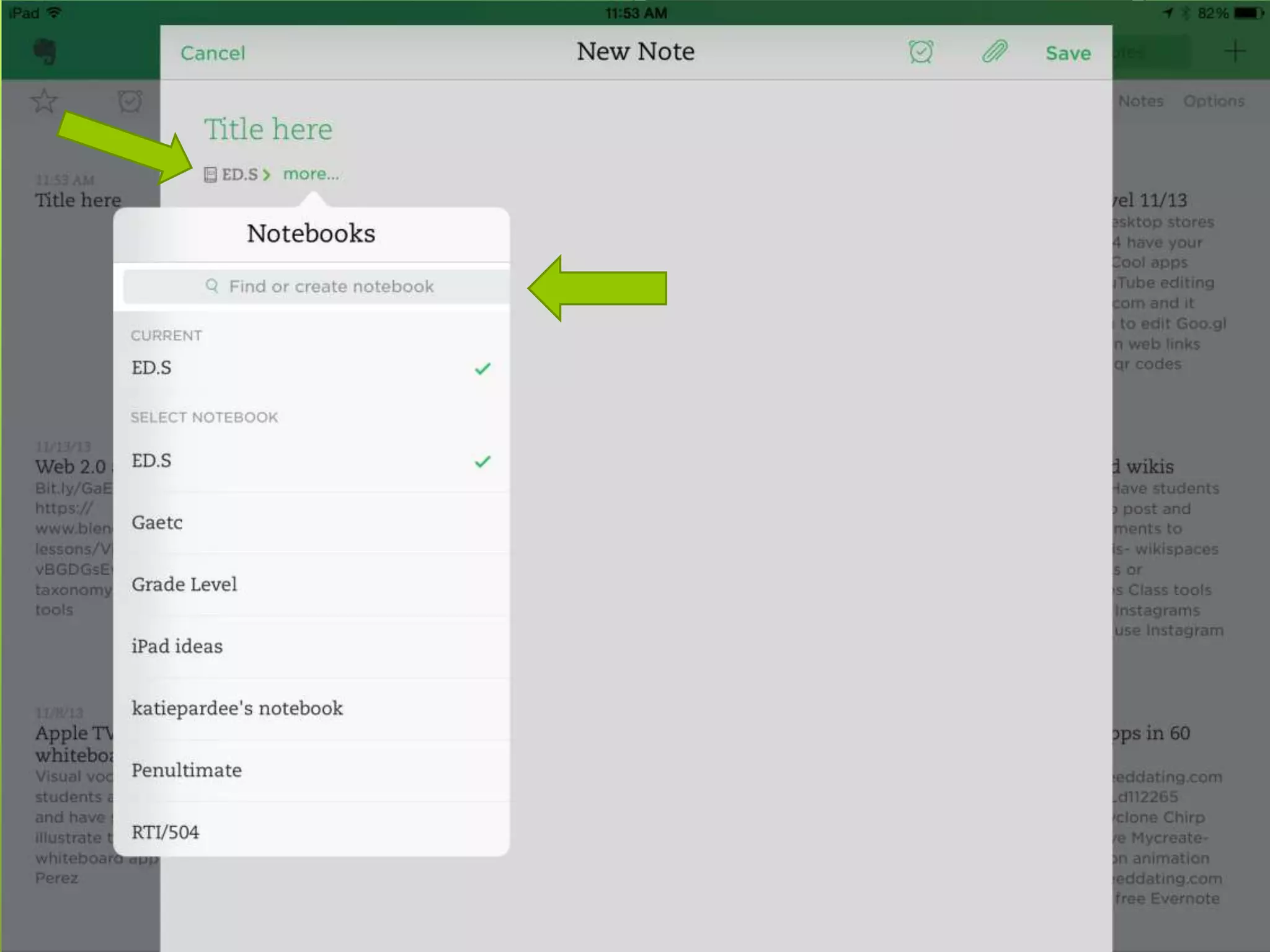
Directly under your Title, Evernote automatically places
notes in your default notebook. To change this, click on
the notebook.
From her you can find the correct notebook category
your note belongs in such as “To-Do Lists,” or “RTI
meetings.” If you don’t already have a notebook for that
category you can create a new one.
In-depth Youtube Webinarhttps://www.youtube.com/watch?v=hk1eKDNmhq4
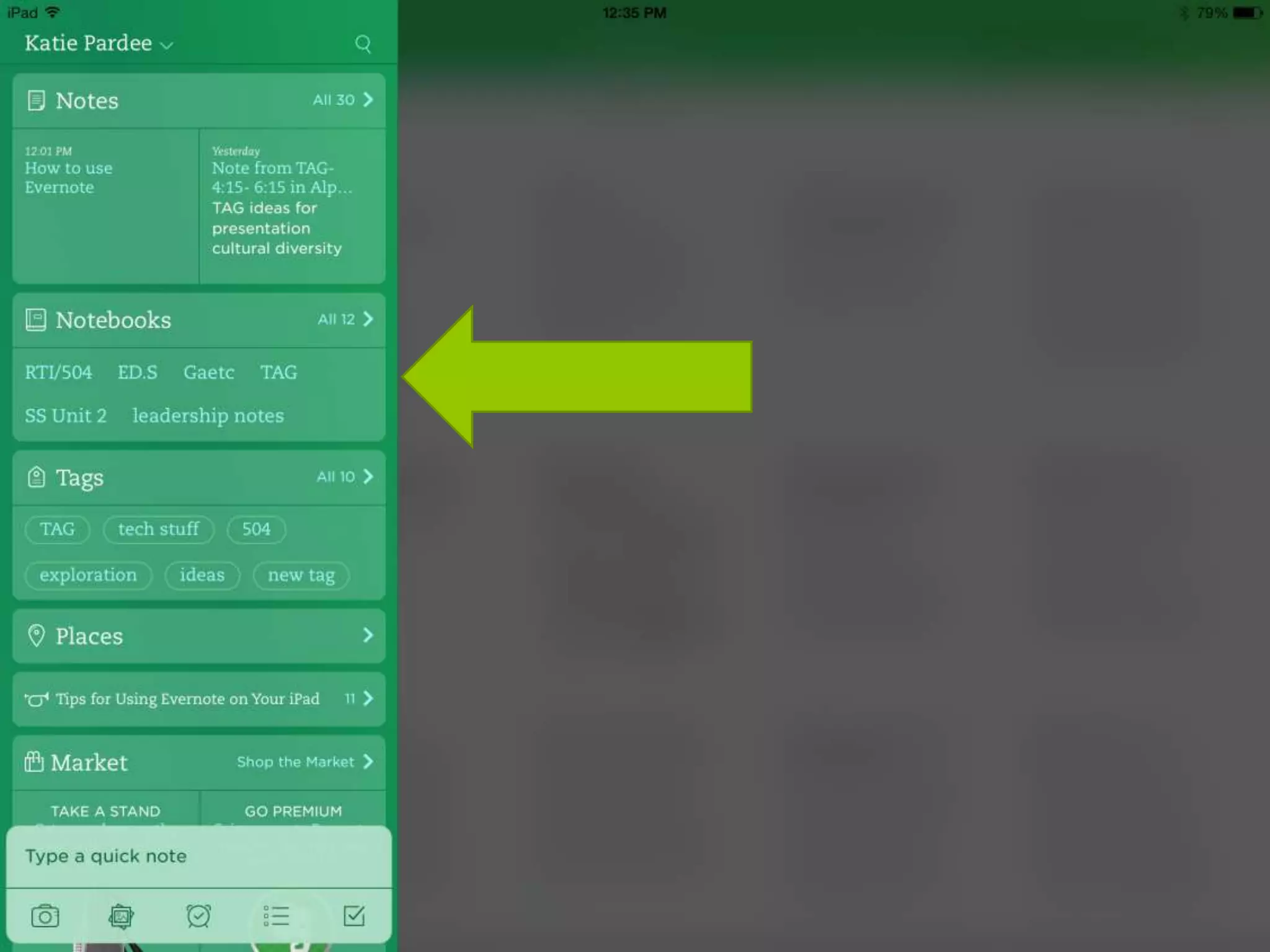
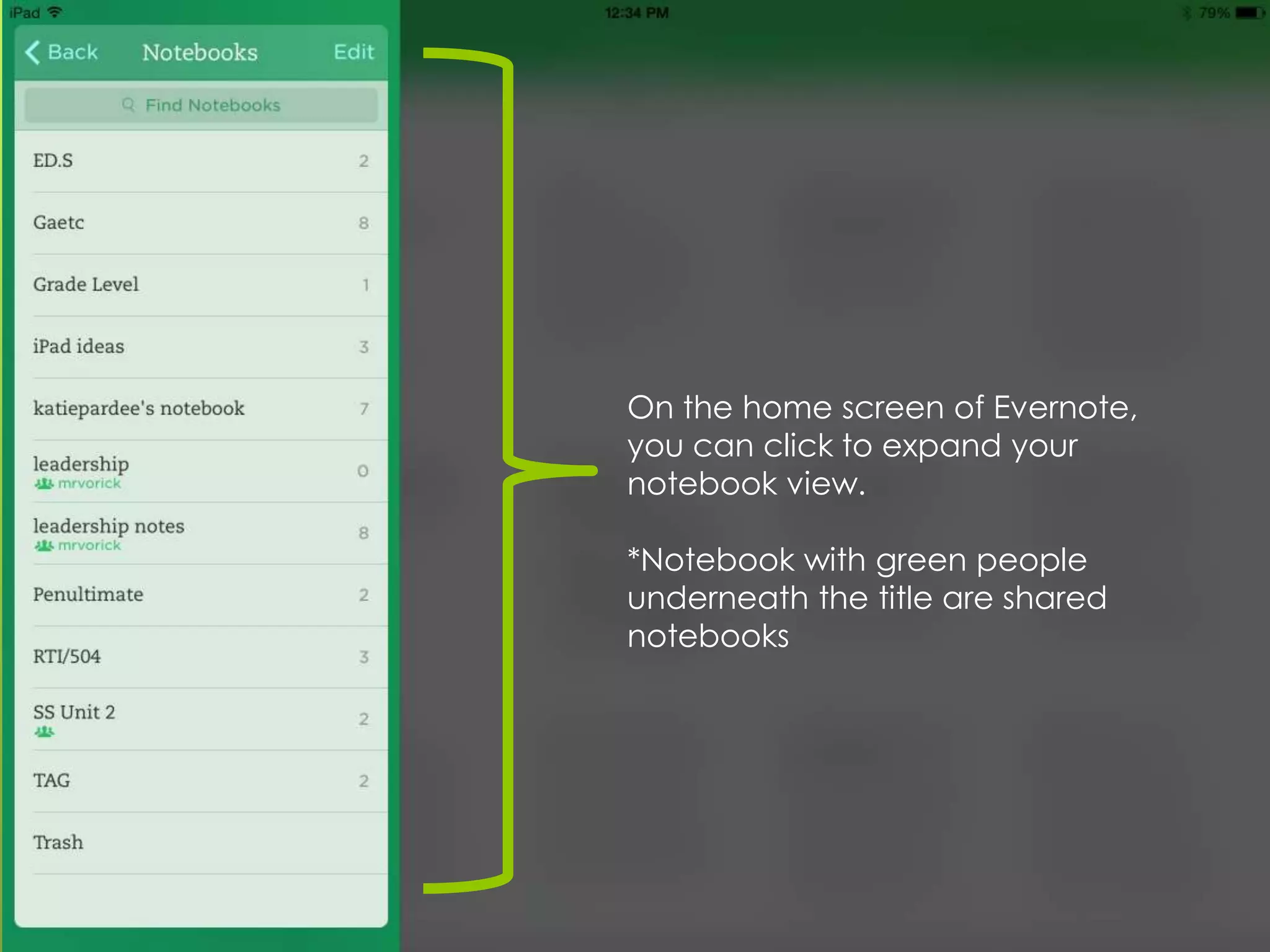
On the home screen of Evernote,
you can click to expand your
notebook view.
*Notebook with green people
underneath the title are shared
notebooks
How to: Create Tags
 Tag

: Keyword(s) for your notes. Think #hashtags
 Once you have your note, you can further
organize it by creating a Tag, or keyword for your
notes. You can search your notes later on for
Tags, and Evernote can categorize them for you.
 For example, I could tag this document as
“Evernote,” “technology”, “collaboration,” and “
PLC.” You can have as many tags as you want.
How to: Create Tags
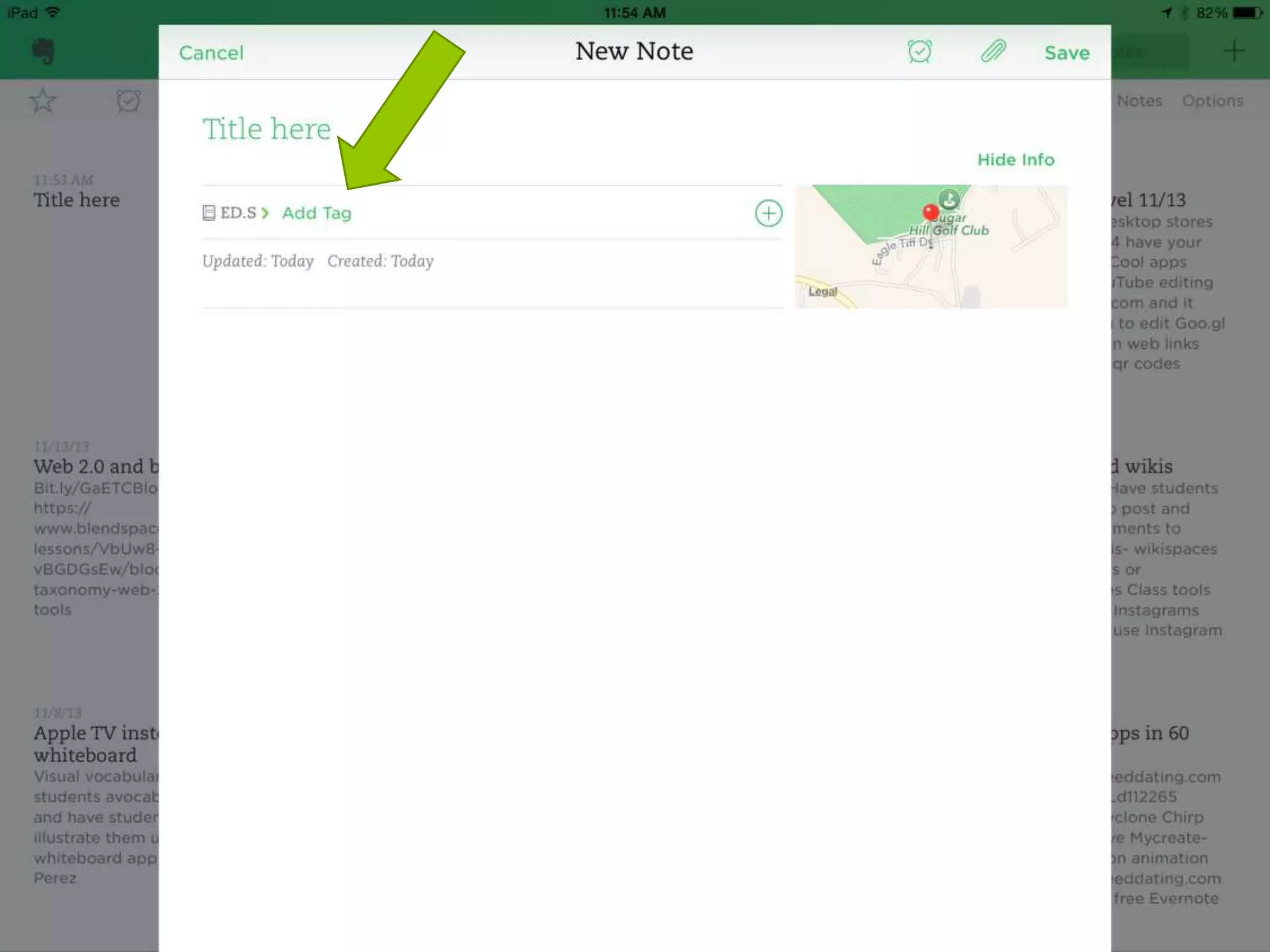
 Directly

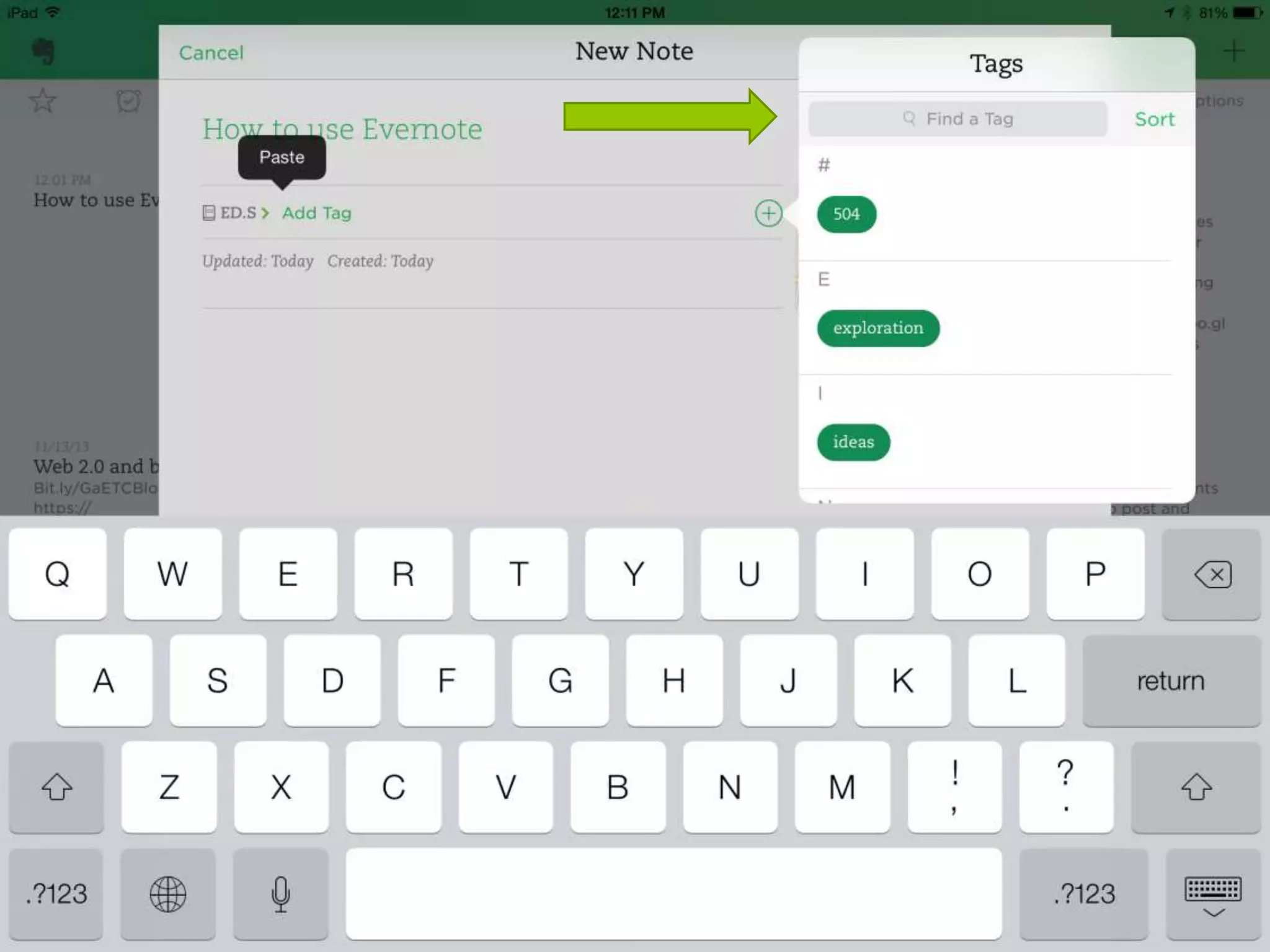
next your notebook, click the green word
that says “more.” More will change into “Add
Tag”
 Type a new tag, or choose an existing one by
clicking the (+) symbol. This will allow to search
and find a tag you have already created.
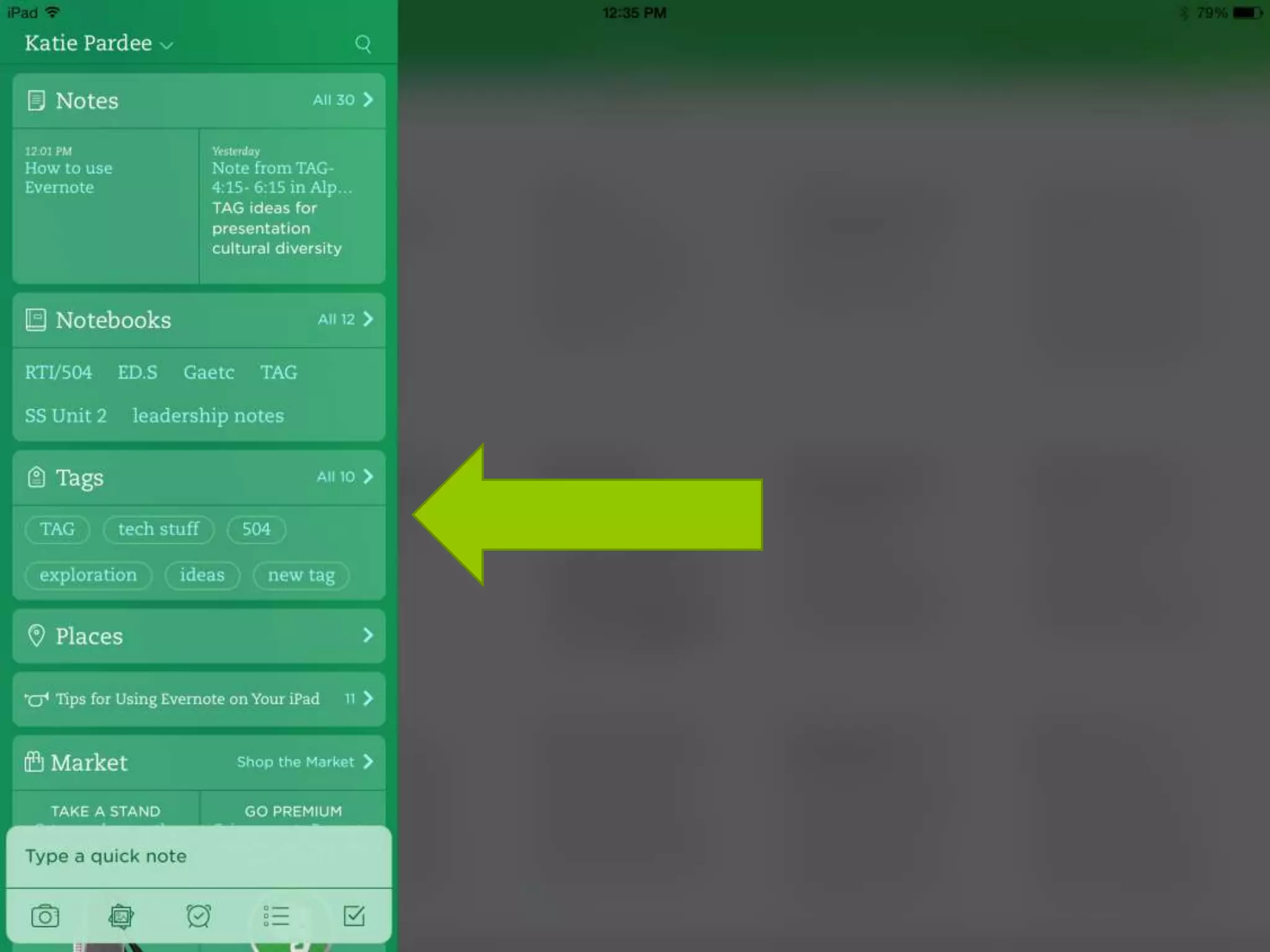
 You will note on your Evernote home screen that
Evernote can categorize your notes by TAG so
quickly search for keyword topics.
How to: Insert Attachments
 attachment:

picture, audio, documents etc.
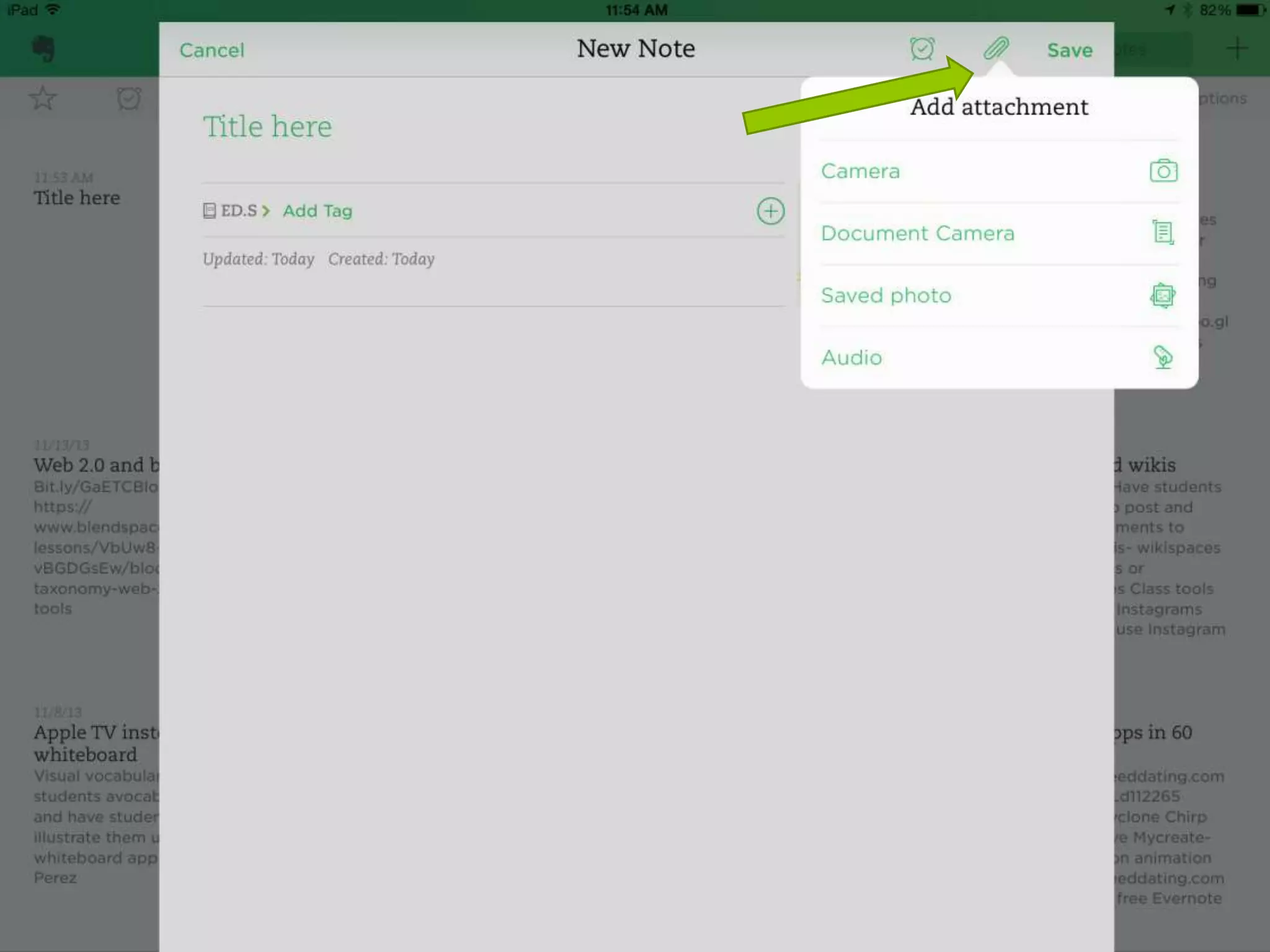
 At the top of your note, you will see a paperclip
symbol (just like your email)
 When you click it, Evernote will give you options to
upload an attachment from a camera, document
camera, saved photo or even an audio clip.
How to: Insert Attachments
 The

audio clip functions allows to you record
sound, such as a lecture or grade level meeting,
while allowing you to take notes at the same time.
 Did one of your students create an awesome
project or give a great response to a common
formative assessment? Snap a picture and attach
it a note. You can share this note with your
colleagues later on
Now Collaborate with Peers!
 Share

your notes and notebooks with your
colleagues to help your PLC collaborate
more effectively.
 Share your notebook:
https://www.youtube.com/watch?v=gO
On_DYnlZM
 Share your note:
https://www.youtube.com/watch?v=EZm
UuKAWla0
Your turn!
 Choose

one standard from this unit and…
 With your partner:
 create a note that includes:







an image,
a tag,
and place it in a notebook,
Brainstorm a list of ways you could use this tool for
yourselves.
What about students?
Extension Opportunities
 Oh

wait, there’s more! Once you feel comfortable
with Evernote, try these Evernote tips, tricks and
products on your own. We will go more in depth
with them at our next workshop! Explore and have
fun!
 How to Search Evernote Video
 Evernote's youtube channel with how-to videos
 Evernote's getting started guide
 Skitch
 Penultimate
 Web Clipper
 Evernote Peek- Student use!!
Questions???

Intro to evernote

  • 1.
    Intro to Evernote IC- KatiePardee 6th grade Social Studies PLC November 15th, 2013.
  • 2.
    What is thedeal with the elephant?  Remember Everything!
  • 3.
    What is Evernote? https://www.youtube.com/watch?v=Pjn6YkCY2yA  The idea behind Evernote is to simplify and organize your life by giving a place to keep all of notes, images, files, web clips, etc. all in one place.  Using cloud based technology, Evernote allows you to sync your phone, computer, and tablet devices so that you have your files and documents wherever you are. One of the best things about it is that it’s free!
  • 4.
    Sync all ofyour devices (Your new iPad too!)
  • 5.
    How to: CreateNotes  https://www.youtube.com/watch?v=GrjEAx8Upzw 1. 2. 3. On your iPad click the Add note symbol (+) Title your note You can add a location to your note
  • 8.
    …How to: CreateNotes 4. Notice the features- you can format an Evernote much like a word processing document with Bold, Italicized, and Underlined script. You may also add bullets and numbering. (You won’t find these features on the preloaded Apple notebook)  Need a little more help? Go here for a complete step by step guide: http://mashable.com/2013/07/03/evernotebeginners/
  • 10.
    How to CreateNotebooks     Once you have your note, you can organize it by creating a notebook, or category for your notes. Directly under your Title, Evernote automatically places notes in your default notebook. To change this, click on the notebook. From her you can find the correct notebook category your note belongs in such as “To-Do Lists,” or “RTI meetings.” If you don’t already have a notebook for that category you can create a new one. In-depth Youtube Webinarhttps://www.youtube.com/watch?v=hk1eKDNmhq4
  • 13.
    On the homescreen of Evernote, you can click to expand your notebook view. *Notebook with green people underneath the title are shared notebooks
  • 14.
    How to: CreateTags  Tag : Keyword(s) for your notes. Think #hashtags  Once you have your note, you can further organize it by creating a Tag, or keyword for your notes. You can search your notes later on for Tags, and Evernote can categorize them for you.  For example, I could tag this document as “Evernote,” “technology”, “collaboration,” and “ PLC.” You can have as many tags as you want.
  • 15.
    How to: CreateTags  Directly next your notebook, click the green word that says “more.” More will change into “Add Tag”  Type a new tag, or choose an existing one by clicking the (+) symbol. This will allow to search and find a tag you have already created.  You will note on your Evernote home screen that Evernote can categorize your notes by TAG so quickly search for keyword topics.
  • 19.
    How to: InsertAttachments  attachment: picture, audio, documents etc.  At the top of your note, you will see a paperclip symbol (just like your email)  When you click it, Evernote will give you options to upload an attachment from a camera, document camera, saved photo or even an audio clip.
  • 21.
    How to: InsertAttachments  The audio clip functions allows to you record sound, such as a lecture or grade level meeting, while allowing you to take notes at the same time.  Did one of your students create an awesome project or give a great response to a common formative assessment? Snap a picture and attach it a note. You can share this note with your colleagues later on
  • 22.
    Now Collaborate withPeers!  Share your notes and notebooks with your colleagues to help your PLC collaborate more effectively.  Share your notebook: https://www.youtube.com/watch?v=gO On_DYnlZM  Share your note: https://www.youtube.com/watch?v=EZm UuKAWla0
  • 23.
    Your turn!  Choose onestandard from this unit and…  With your partner:  create a note that includes:      an image, a tag, and place it in a notebook, Brainstorm a list of ways you could use this tool for yourselves. What about students?
  • 24.
    Extension Opportunities  Oh wait,there’s more! Once you feel comfortable with Evernote, try these Evernote tips, tricks and products on your own. We will go more in depth with them at our next workshop! Explore and have fun!  How to Search Evernote Video  Evernote's youtube channel with how-to videos  Evernote's getting started guide  Skitch  Penultimate  Web Clipper  Evernote Peek- Student use!!
  • 25.