Fantastic Freeware e-learning advisor Rochelle Jensen Uni. of Waikato [email_address] http://rocky11.blogspot.com/
By the end of today… Be familiar with a few handy questions and frameworks that can be used to assist in selecting software. Have increased your personal knowledge and understanding of ‘top tools for teaching and learning,’ why you might use them and how they can be integrated into your classroom programme/department. Familiarised yourself with some key sites to assist in  meeting your individual software needs and staying abreast with software developments. Have  gained ideas on how to  scaffold learning with new software learning goals
  PL + ICT = EPL Poor Learning + ICT = Expensive Poor Learning the most important bits Trevor Bond:  www.ictnz.com
the most important bits Why Would You? Is it the preferred method?  Does it complement?  What educational problem or challenge are you trying to address with this?  How are the networks working together? Murray Brown – MOE- 2008 What thinking does this experience aim to facilitate? Digital Blooms Andrew Churches
Instant messenger -  Skype Social bookmarking tool -  Delicious RSS reader -  Google Reader  Office suite -  Google Docs  Mind mapping tool -  FreeMind Start page tool -  iGoogle   Blogging tool – edublogs/blogger Wiki tool –  wikispaces/skrbl Photo hosting and sharing tool -  Flickr Presentation hosting and sharing tool -  Slideshare Video hosting and sharing tool -  YouTube   Collaborative presentation tool -  Voicethread   Podcasting tool -  Audacity     Screen capture/ casting tool -  Jing   Polling and survey tool –  Survey Monkey + PollDaddy  top tools for teaching and learning  -quick fix 2008 – Top 100 Tools – c4lpt
De.li.ci.ous best 4 social bookmarking Your bookmarks are available on any machine Tagging feature allows for websites to be summarised for future reference  Install delicious badges for easy access to your account. – Saves being distracted by other websites. Find out what others are booking by  adding them to your network Integrates Firefox Favourites Organisation of bookmarks needs to be thought through and may require revisiting.  Lacks visual display of bookmarks Special interest groups  such as reading groups have their own delicious account and/or tagging words. You can link from your blog to your bookmarks Ideas include: PD for staff , subject  links... Web-based bookmarking,  this means you can access your bookmarks from any computer and tag them accordingly.
WikiSpaces   is a user-friendly free wiki host providing space, visual page editing, and discussion areas.  Educators can create advertising free wikis. A great tool for collaborative projects and staff  sharing.  http://educationalsoftware.wikispaces.com/Wikis Wiki best 4 wikis NZ Examples :  http://nzedublogs.wikispaces.com/classes+and+students+using+wikis Educators get advertising-free wikis Quick and easy to setup and use  Options re management of space are easily modified Students can be assigned individual usernames and passwords without needing to  register with an email address Does not allow for simultaneous editing Same privileges re access applies to whole wiki- individual pages cannot be locked Blogs Wikis Online diaries Some people can make main entries (posts), anyone can comment. (This depends on how you set it up!) Greater degree of control by the administrator. Easier to keep tidy. Editable webpages Some people can make changes to any part of the page. (This depends on how you set it up!) Greater potential for participation. Greater flexibility in layout and organisation.
Voice Thread best 4 project collaboration  “ It is a way of sharing photos but also a way of having people collaborate using the photos by adding comments to the photos. It is a sort of mix between slideshows and podcasting”.  (Suzie Vesper) Unique Free and very easy to use. Free ordinary accounts for educators still exist.    There is a one time, $10 verification fee to join the ED.VoiceThread community. This has added security benefits for classroom use.  Link to Ideas and  Examples:  http://www.education-world.com/a_tech/columnists/dyck/dyck023.shtml Voice threads can take a while to load Students may need to be added as identities by the teacher so that they do not need to setup individual accounts. You can only contribute to a voicethread if you are a registered user or have a voice thread identity.
best 4 creating games Quia An easy to use quiz/game creator that offers over 15 different templates. 30 day free trial available:  http://www.quia.com/ Suits all ages Range of games and complexity -  Hangman to Jeopardy. Web-based so games can be widely shared Easy to use so the focus is on the thinking re content rather than the use of ‘quia’ All games are created using a similar format  Own media can be used Not free Lots of teacher directed / traditional material  on quia Students create games to demonstrate understanding Share learning with whanau
best 4 video conferencing Make calls from your computer, free to other people on Skype, cheap to phones and mobiles across the world. Other skype features include: instant messaging, file transfer, short message service and video conferencing http://www.skype.com/welcomeback/ . Skype Easy to use Free Can video conference with multiple people Great for  getting experts into your classroom Skyping those too unwell to come to school Keeping in touch with buddy classes/schools Use with collaborative projects Using some of Skype's collaborative tools and features can be problematic depending on their OS and skype version. Reliability is only as good as your internet connection/PC stability.
Google Desktop Search best 4 admin. This quick download allows you to search your computer as easily as you search the web with google. It also works with your emails. Helps save time searching for that missing file! Lots of search options i.e. desktop, programs/files Shortcut to start – Hit Ctrl twice Provides in-depth email search Slows machine down Could discourage effective filing.
This free windows download is a simple application that allows you to  very quickly create a multi-media presentation using still images , music and text. Photo-story best 4 photo slideshows Suitable for YO-Y13 Wizard based Saves as wmv Can be embedded into Blogger Basic editing and effects functions Digital Story Telling : Display a process, tell a story, demonstrate a concept.. Preserving / Publishing Work :Art. Poetry Part of  immersion of an inquiry –  collection of images to spark thinking PC Only Web images often distort
glogster   bighugelabs other favs wordle for interactive posters that can be embedded. for  generating “word clouds” from text that you provide. for creating lots of cool things from digital photos . Maps, puzzles, posters and more.
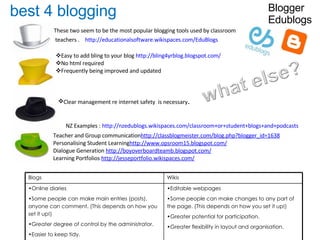
These two seem to be the most popular blogging tools used by classroom teachers .  http://educationalsoftware.wikispaces.com/EduBlogs Blogger Edublogs best 4 blogging NZ Examples :  http://nzedublogs.wikispaces.com/classroom+or+student+blogs+and+podcasts Teacher and Group communication http://classblogmeister.com/blog.php?blogger_id=1638   Personalising Student Learning http://www.opsroom15.blogspot.com/   Dialogue Generation   http://boyoverboardteamb.blogspot.com/   Learning Portfolios   http://jesseportfolio.wikispaces.com/   Easy to add bling to your blog  http://bling4yrblog.blogspot.com/ No html required Frequently being improved and updated Clear management re internet safety  is necessary . Blogs Wikis Online diaries Some people can make main entries (posts), anyone can comment. (This depends on how you set it up!) Greater degree of control by the administrator. Easier to keep tidy. Editable webpages Some people can make changes to any part of the page. (This depends on how you set it up!) Greater potential for participation. Greater flexibility in layout and organisation.
best 4 office applications Google  Google Docs, an online word processor, presentation, spreadsheet, and database manager. To use it you need:  1.) A Google Account 2.) Internet Access Quick access to your documents anywhere in the world Easy to use once you learn where everything is Has a few "collaborative" features such as file sharing, simultaneously working on the same files and doesn't need to be installed on your computer to use them. New feature allows you to access your documents when there is no internet connection.  Requires installation of Google gears Limited feature set compared to MS word/excel
Social Bookmarking : delicious:  https://secure.del.icio.us/register Wikis :  wikispaces :  http://www.wikispaces.com/site/for/teachers whiteboard :  http://www.skrbl.com/ Creating Games : quia:  http://www.quia.com/web Admin Tasks : google desktop search :  http://desktop.google.com/ Photo Slideshows: download photostory :  http://www.microsoft.com/windowsxp/using/digitalphotography/photostory/default.mspx Project Collaboration: voicethread :  http://voicethread.com/login/ Blogging: Blogger: Video Conferencing: Skype :  http://www.skype.com/download/skype/windows/ Office Applications: Google Docs:  http://www.google.co.nz/search?q=google+docs+register&ie=utf-8&oe=utf-8&aq=t&rls=org.mozilla:en-US:official&client=firefox-a Links for Getting Started
Which software appeals? How will you use it? How do we facilitate the experience?  How do students learn /‘nut out’ a piece of software ? How do we model ‘good use’? High standards? How do they know what the software is capable of? What is good use?  student use of software
great software reference sites Educational Software and Web 2 Suzie Vesper http://educationalsoftware.wikispaces.com/ E-Learning Pick of the Day Jane Hart http://janeknight.typepad.com/ Educational Software  Adrian Bruce http://www.adrianbruce.com/computers/educational-software.htm Software for Learning  MOE NZ http://www.tki.org.nz/r/ict/software/
Helpful sites for professional learning http ://movies.atomiclearning.com/k12/home/ http://school.discoveryeducation.com/schrockguide/shows.html http://www.internet4classrooms.com/teacher.htm#olw http://eduscapes.com/tap/tap2.htm http://educationalsoftware.wikispaces.com/
Have you registered for digistore?  Microsoft innovative projects Blogs to follow? Interface Magazine BOP E-Learning List Serv What else? extra bits

Fantastic Freeware

  • 1.
    Fantastic Freeware e-learningadvisor Rochelle Jensen Uni. of Waikato [email_address] http://rocky11.blogspot.com/
  • 2.
    By the endof today… Be familiar with a few handy questions and frameworks that can be used to assist in selecting software. Have increased your personal knowledge and understanding of ‘top tools for teaching and learning,’ why you might use them and how they can be integrated into your classroom programme/department. Familiarised yourself with some key sites to assist in meeting your individual software needs and staying abreast with software developments. Have gained ideas on how to scaffold learning with new software learning goals
  • 3.
      PL +ICT = EPL Poor Learning + ICT = Expensive Poor Learning the most important bits Trevor Bond: www.ictnz.com
  • 4.
    the most importantbits Why Would You? Is it the preferred method? Does it complement? What educational problem or challenge are you trying to address with this? How are the networks working together? Murray Brown – MOE- 2008 What thinking does this experience aim to facilitate? Digital Blooms Andrew Churches
  • 5.
    Instant messenger - Skype Social bookmarking tool - Delicious RSS reader - Google Reader Office suite - Google Docs Mind mapping tool - FreeMind Start page tool - iGoogle Blogging tool – edublogs/blogger Wiki tool – wikispaces/skrbl Photo hosting and sharing tool - Flickr Presentation hosting and sharing tool - Slideshare Video hosting and sharing tool - YouTube Collaborative presentation tool - Voicethread Podcasting tool - Audacity   Screen capture/ casting tool - Jing Polling and survey tool – Survey Monkey + PollDaddy top tools for teaching and learning -quick fix 2008 – Top 100 Tools – c4lpt
  • 6.
    De.li.ci.ous best 4social bookmarking Your bookmarks are available on any machine Tagging feature allows for websites to be summarised for future reference Install delicious badges for easy access to your account. – Saves being distracted by other websites. Find out what others are booking by adding them to your network Integrates Firefox Favourites Organisation of bookmarks needs to be thought through and may require revisiting. Lacks visual display of bookmarks Special interest groups such as reading groups have their own delicious account and/or tagging words. You can link from your blog to your bookmarks Ideas include: PD for staff , subject links... Web-based bookmarking, this means you can access your bookmarks from any computer and tag them accordingly.
  • 7.
    WikiSpaces is a user-friendly free wiki host providing space, visual page editing, and discussion areas. Educators can create advertising free wikis. A great tool for collaborative projects and staff sharing. http://educationalsoftware.wikispaces.com/Wikis Wiki best 4 wikis NZ Examples : http://nzedublogs.wikispaces.com/classes+and+students+using+wikis Educators get advertising-free wikis Quick and easy to setup and use Options re management of space are easily modified Students can be assigned individual usernames and passwords without needing to register with an email address Does not allow for simultaneous editing Same privileges re access applies to whole wiki- individual pages cannot be locked Blogs Wikis Online diaries Some people can make main entries (posts), anyone can comment. (This depends on how you set it up!) Greater degree of control by the administrator. Easier to keep tidy. Editable webpages Some people can make changes to any part of the page. (This depends on how you set it up!) Greater potential for participation. Greater flexibility in layout and organisation.
  • 8.
    Voice Thread best4 project collaboration “ It is a way of sharing photos but also a way of having people collaborate using the photos by adding comments to the photos. It is a sort of mix between slideshows and podcasting”. (Suzie Vesper) Unique Free and very easy to use. Free ordinary accounts for educators still exist. There is a one time, $10 verification fee to join the ED.VoiceThread community. This has added security benefits for classroom use. Link to Ideas and Examples: http://www.education-world.com/a_tech/columnists/dyck/dyck023.shtml Voice threads can take a while to load Students may need to be added as identities by the teacher so that they do not need to setup individual accounts. You can only contribute to a voicethread if you are a registered user or have a voice thread identity.
  • 9.
    best 4 creatinggames Quia An easy to use quiz/game creator that offers over 15 different templates. 30 day free trial available: http://www.quia.com/ Suits all ages Range of games and complexity - Hangman to Jeopardy. Web-based so games can be widely shared Easy to use so the focus is on the thinking re content rather than the use of ‘quia’ All games are created using a similar format Own media can be used Not free Lots of teacher directed / traditional material on quia Students create games to demonstrate understanding Share learning with whanau
  • 10.
    best 4 videoconferencing Make calls from your computer, free to other people on Skype, cheap to phones and mobiles across the world. Other skype features include: instant messaging, file transfer, short message service and video conferencing http://www.skype.com/welcomeback/ . Skype Easy to use Free Can video conference with multiple people Great for getting experts into your classroom Skyping those too unwell to come to school Keeping in touch with buddy classes/schools Use with collaborative projects Using some of Skype's collaborative tools and features can be problematic depending on their OS and skype version. Reliability is only as good as your internet connection/PC stability.
  • 11.
    Google Desktop Searchbest 4 admin. This quick download allows you to search your computer as easily as you search the web with google. It also works with your emails. Helps save time searching for that missing file! Lots of search options i.e. desktop, programs/files Shortcut to start – Hit Ctrl twice Provides in-depth email search Slows machine down Could discourage effective filing.
  • 12.
    This free windowsdownload is a simple application that allows you to very quickly create a multi-media presentation using still images , music and text. Photo-story best 4 photo slideshows Suitable for YO-Y13 Wizard based Saves as wmv Can be embedded into Blogger Basic editing and effects functions Digital Story Telling : Display a process, tell a story, demonstrate a concept.. Preserving / Publishing Work :Art. Poetry Part of immersion of an inquiry – collection of images to spark thinking PC Only Web images often distort
  • 13.
    glogster bighugelabs other favs wordle for interactive posters that can be embedded. for generating “word clouds” from text that you provide. for creating lots of cool things from digital photos . Maps, puzzles, posters and more.
  • 14.
    These two seemto be the most popular blogging tools used by classroom teachers . http://educationalsoftware.wikispaces.com/EduBlogs Blogger Edublogs best 4 blogging NZ Examples : http://nzedublogs.wikispaces.com/classroom+or+student+blogs+and+podcasts Teacher and Group communication http://classblogmeister.com/blog.php?blogger_id=1638 Personalising Student Learning http://www.opsroom15.blogspot.com/ Dialogue Generation http://boyoverboardteamb.blogspot.com/ Learning Portfolios http://jesseportfolio.wikispaces.com/ Easy to add bling to your blog http://bling4yrblog.blogspot.com/ No html required Frequently being improved and updated Clear management re internet safety is necessary . Blogs Wikis Online diaries Some people can make main entries (posts), anyone can comment. (This depends on how you set it up!) Greater degree of control by the administrator. Easier to keep tidy. Editable webpages Some people can make changes to any part of the page. (This depends on how you set it up!) Greater potential for participation. Greater flexibility in layout and organisation.
  • 15.
    best 4 officeapplications Google Google Docs, an online word processor, presentation, spreadsheet, and database manager. To use it you need: 1.) A Google Account 2.) Internet Access Quick access to your documents anywhere in the world Easy to use once you learn where everything is Has a few "collaborative" features such as file sharing, simultaneously working on the same files and doesn't need to be installed on your computer to use them. New feature allows you to access your documents when there is no internet connection. Requires installation of Google gears Limited feature set compared to MS word/excel
  • 16.
    Social Bookmarking :delicious: https://secure.del.icio.us/register Wikis : wikispaces : http://www.wikispaces.com/site/for/teachers whiteboard : http://www.skrbl.com/ Creating Games : quia: http://www.quia.com/web Admin Tasks : google desktop search : http://desktop.google.com/ Photo Slideshows: download photostory : http://www.microsoft.com/windowsxp/using/digitalphotography/photostory/default.mspx Project Collaboration: voicethread : http://voicethread.com/login/ Blogging: Blogger: Video Conferencing: Skype : http://www.skype.com/download/skype/windows/ Office Applications: Google Docs: http://www.google.co.nz/search?q=google+docs+register&ie=utf-8&oe=utf-8&aq=t&rls=org.mozilla:en-US:official&client=firefox-a Links for Getting Started
  • 17.
    Which software appeals?How will you use it? How do we facilitate the experience? How do students learn /‘nut out’ a piece of software ? How do we model ‘good use’? High standards? How do they know what the software is capable of? What is good use? student use of software
  • 18.
    great software referencesites Educational Software and Web 2 Suzie Vesper http://educationalsoftware.wikispaces.com/ E-Learning Pick of the Day Jane Hart http://janeknight.typepad.com/ Educational Software Adrian Bruce http://www.adrianbruce.com/computers/educational-software.htm Software for Learning MOE NZ http://www.tki.org.nz/r/ict/software/
  • 19.
    Helpful sites forprofessional learning http ://movies.atomiclearning.com/k12/home/ http://school.discoveryeducation.com/schrockguide/shows.html http://www.internet4classrooms.com/teacher.htm#olw http://eduscapes.com/tap/tap2.htm http://educationalsoftware.wikispaces.com/
  • 20.
    Have you registeredfor digistore? Microsoft innovative projects Blogs to follow? Interface Magazine BOP E-Learning List Serv What else? extra bits