How To Use
Evernote
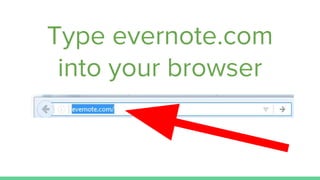
Type evernote.com
into your browser
Look for
“SIGN UP FOR FREE”
button
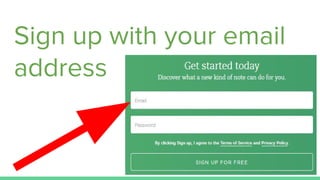
Sign up with your email
address
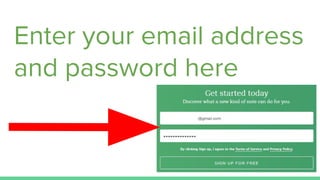
Enter your email address
and password here
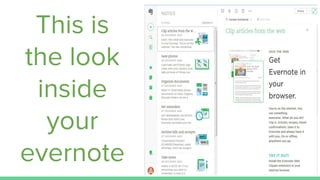
This is
the look
inside
your
evernote
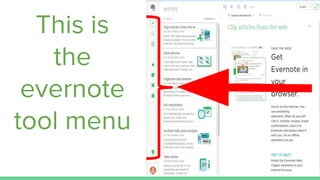
This is
the
evernote
tool menu
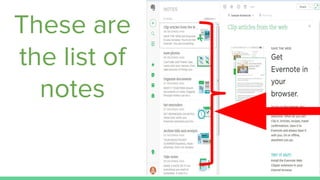
These are
the list of
notes
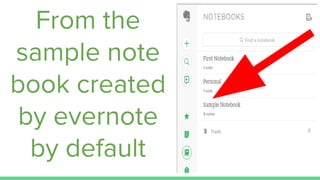
From the
sample note
book created
by evernote
by default
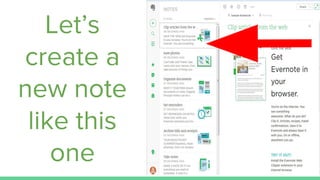
Let’s
create a
new note
like this
one
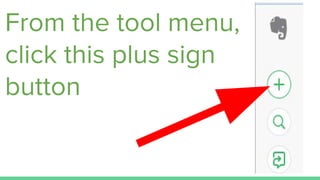
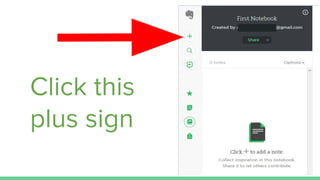
From the tool menu,
click this plus sign
button
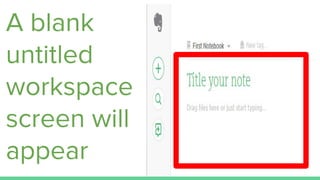
A blank
untitled
workspace
screen will
appear
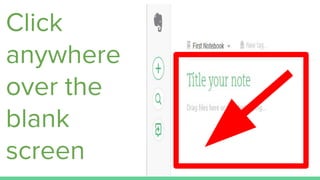
Click
anywhere
over the
blank
screen
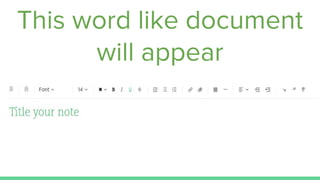
This word like document
will appear
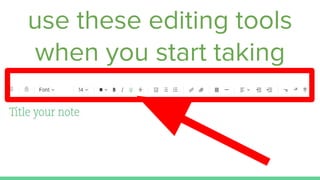
use these editing tools
when you start taking
notes
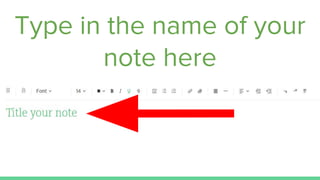
Type in the name of your
note here
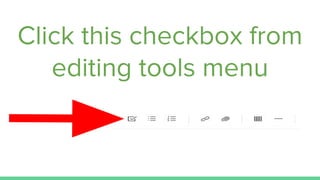
Click this checkbox from
editing tools menu
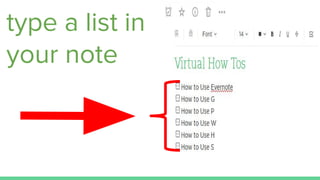
type a list in
your note
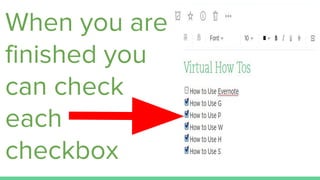
When you are
finished you
can check
each
checkbox
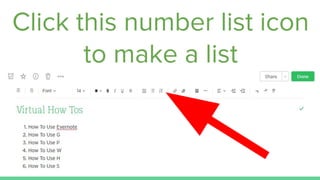
Click this number list icon
to make a list
To attach a file in your
note
Click this paperclip icon
from the editing tools
menu
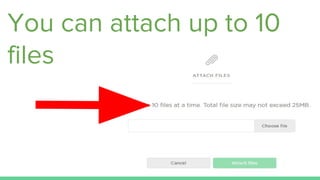
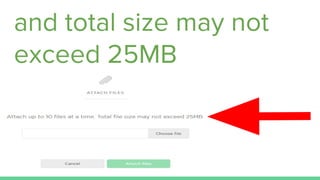
You can attach up to 10
files
and total size may not
exceed 25MB
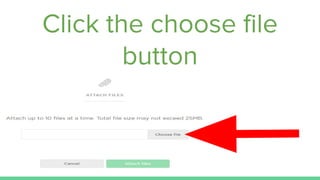
Click the choose file
button
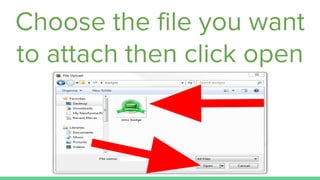
Choose the file you want
to attach then click open
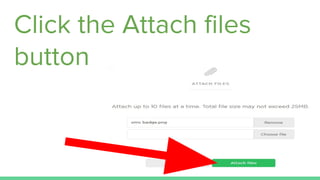
Click the Attach files
button
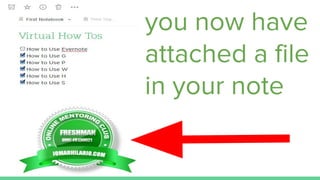
you now have
attached a file
in your note
You’ll be able to attach
more files,
take presentation and
annotate images or pdfs,
And get an offline notes
on your mobile device
If you subscribe for an
evernote premium.
But for now, just start
with the basic evernote
Then upgrade to
premium at a later time
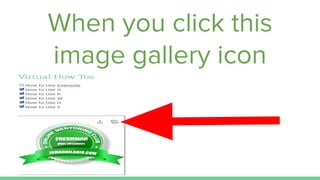
When you click this
image gallery icon
You can see
all the
images you
have
uploaded
Here, you
have only one
image in your
image gallery
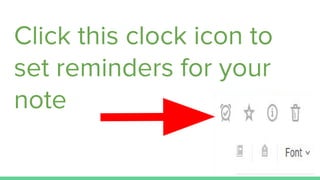
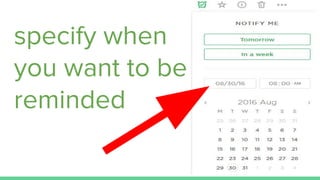
Click this clock icon to
set reminders for your
note
specify when
you want to be
reminded
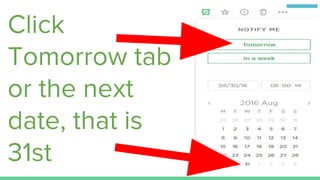
Let’s say you
want to be
reminded the
next day
Click
Tomorrow tab
or the next
date, that is
31st
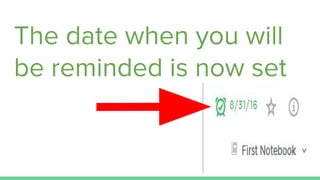
The date when you will
be reminded is now set
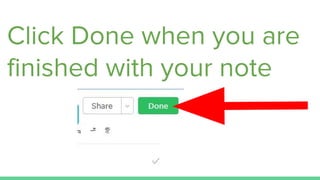
Click Done when you are
finished with your note
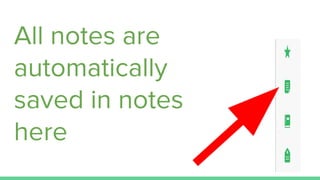
All notes are
automatically
saved in notes
here
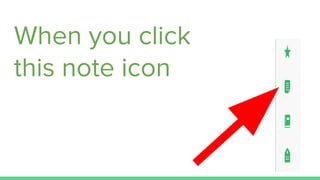
When you click
this note icon
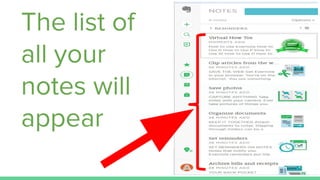
The list of
all your
notes will
appear
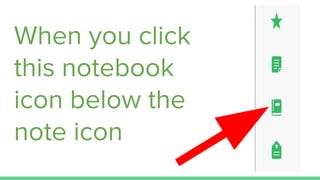
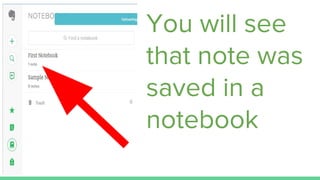
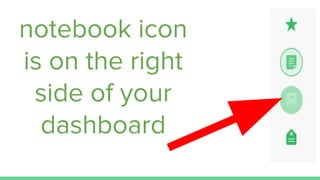
When you click
this notebook
icon below the
note icon
You will see
that note was
saved in a
notebook
There are 2 types to
organize your notes in
evernote
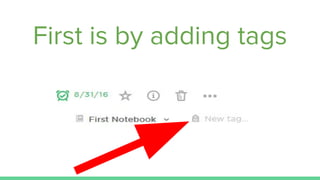
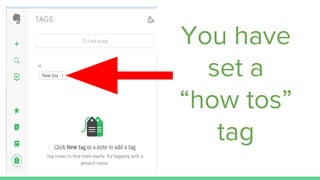
First is by adding tags
tags are keywords to
identify a topic or
subject
Or which categorize
your notes
You have
set a
“how tos”
tag
If you have multiple
notes with “how tos” tag
When you click that tag
only those notes with
that tag
is going to show up
The real long term of
organizing your notes
Is to put them on a
notebooks
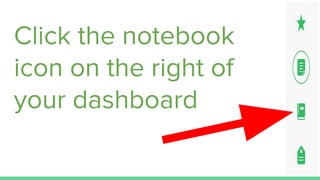
notebook icon
is on the right
side of your
dashboard
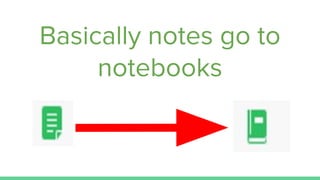
Basically notes go to
notebooks
so you can have multiple
notebooks
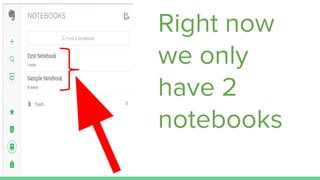
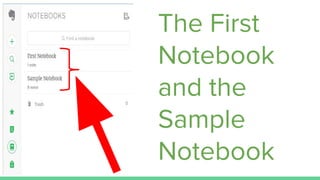
Right now
we only
have 2
notebooks
The First
Notebook
and the
Sample
Notebook
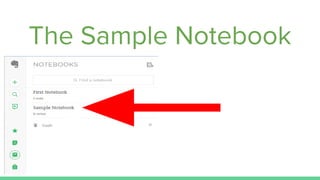
The Sample Notebook
Is the default notebook
that evernote created
When you create an
evernote account.
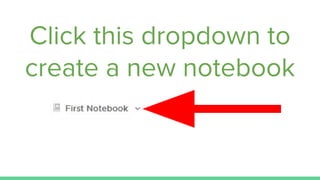
Click this dropdown to
create a new notebook
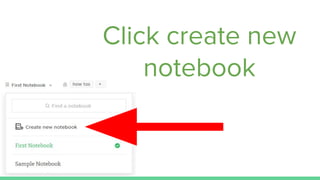
Click create new
notebook
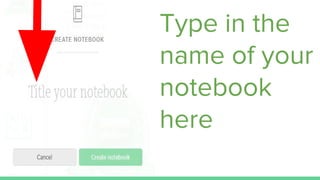
Type in the
name of your
notebook
here
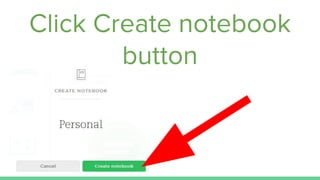
Click Create notebook
button
To see the notebook
you created
Click the notebook
icon on the right of
your dashboard
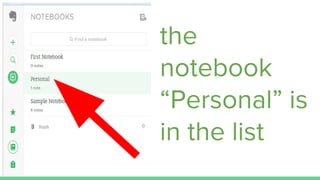
the
notebook
“Personal” is
in the list
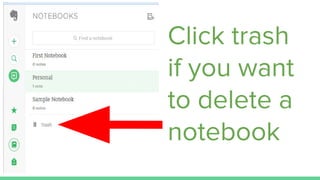
Click trash
if you want
to delete a
notebook
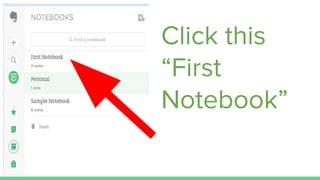
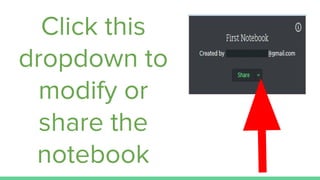
Click this
“First
Notebook”
Click this
dropdown to
modify or
share the
notebook
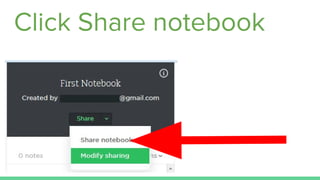
To give someone access
to your notebook
Click Share notebook
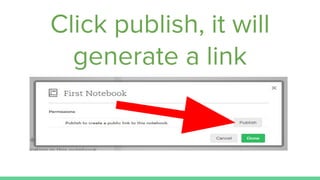
Click publish, it will
generate a link
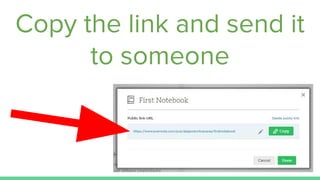
Copy the link and send it
to someone
The person will now be
able to access your
notebook
That’s how you can
share your entire
notebook
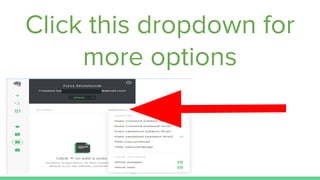
Click this dropdown for
more options
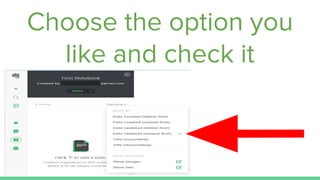
Choose the option you
like and check it
Let’s make another note
inside a notebook
Click this
plus sign
choose from which
notebook you want to
put the note
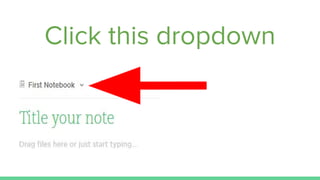
Click this dropdown
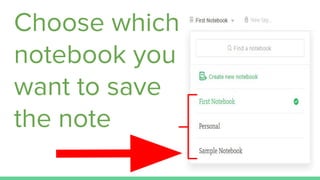
Choose which
notebook you
want to save
the note
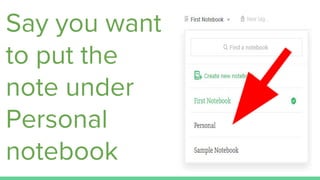
Say you want
to put the
note under
Personal
notebook
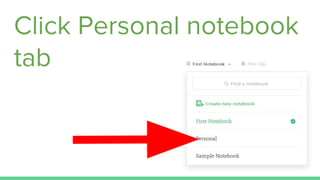
Click Personal notebook
tab
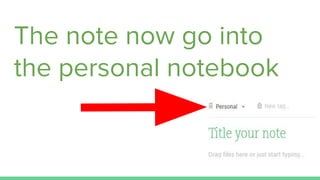
The note now go into
the personal notebook
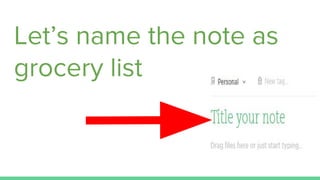
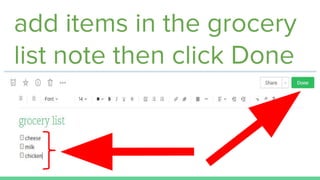
Let’s name the note as
grocery list
add items in the grocery
list note then click Done
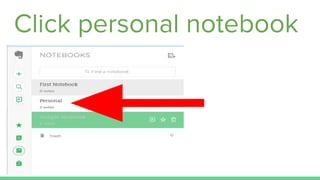
Click notebooks from the
right side of your
dashboard
Click personal notebook
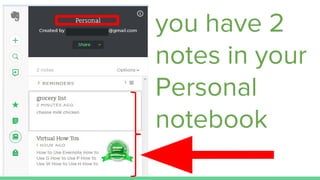
you have 2
notes in your
Personal
notebook
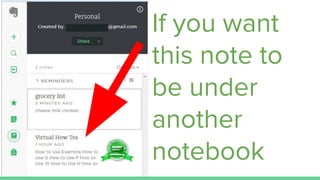
If you want
this note to
be under
another
notebook
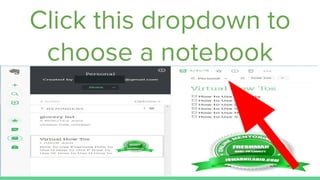
Click this dropdown to
choose a notebook
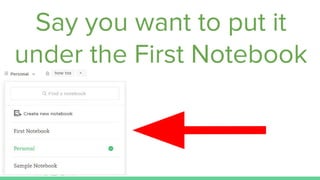
Say you want to put it
under the First Notebook
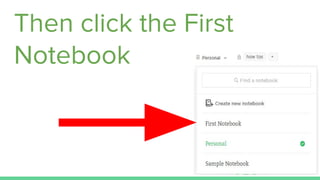
Then click the First
Notebook
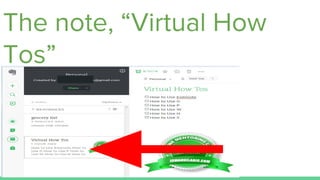
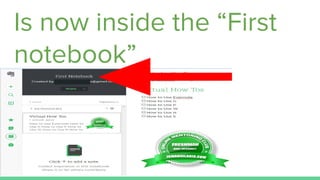
The note, “Virtual How
Tos”
Is now inside the “First
notebook”
You can create many
notebooks as you want
To keep your notes
organized
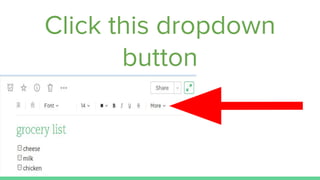
To share a specific note
Click this dropdown
button
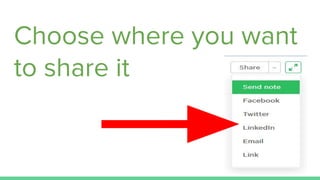
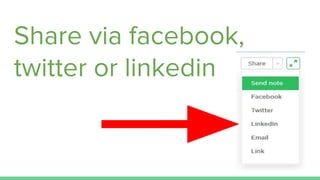
Choose where you want
to share it
Share via facebook,
twitter or linkedin
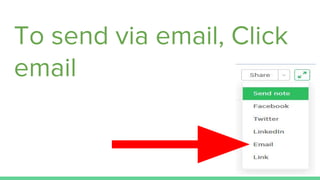
To send via email, Click
email
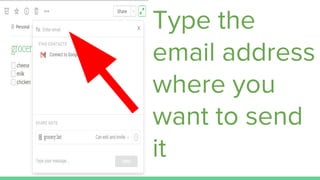
Type the
email address
where you
want to send
it
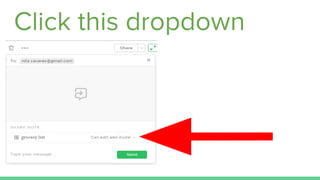
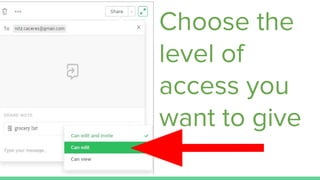
Click this dropdown
Choose the
level of
access you
want to give
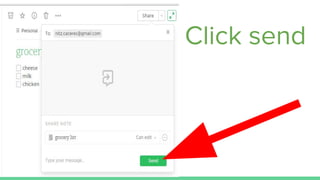
Click send
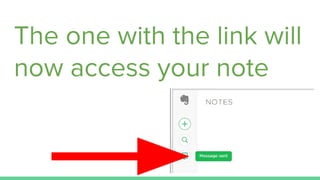
The one with the link will
now access your note
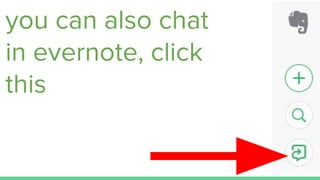
you can also chat
in evernote, click
this
One way to find what
you’re looking for in
evernote
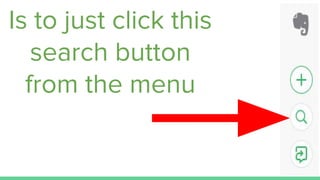
Is to just click this
search button
from the menu
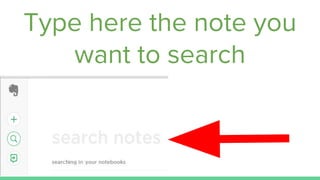
Type here the note you
want to search
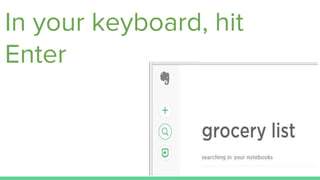
In your keyboard, hit
Enter
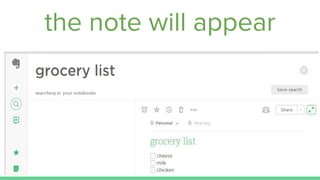
the note will appear
There you have it, a
simple tutorial on
Evernote
Get yourself an evernote
account
And enjoy amazing
mental calmness in the
process
“Three Rules of Work:
Out of clutter find simplicity;
From discord find harmony; In
the middle of difficulty
lies opportunity.”
- Albert Einstein

How To Use Evernote